lock Acura TLX 2015 Repair Manual
[x] Cancel search | Manufacturer: ACURA, Model Year: 2015, Model line: TLX, Model: Acura TLX 2015Pages: 545, PDF Size: 19.64 MB
Page 168 of 545

167
uuOperating the Switches Around the Steering Wheel uLight Switches
Controls
The headlights automatically come on when the wipers are used several ti\
mes within
a certain interval with the headlight switch in AUTO.
The headlights automatically go off a few minutes later if the wipers are stopped.
The headlights, all other exterior lights, and the instrument panel lights turn off 15
seconds after you set the power mode to VEHICLE OFF (LOCK), take the remote with
you, and close the driver's door.
If you set the power mode to VEHICLE OFF (LOCK) with the headlight switch on, but
do not open the door, the lights turn off after 10 minutes (three minutes, if the
switch is in the AUTO position).
The lights turn on again when you unlock or open the driver’s door. If you unlock
the door, but do not open it within 15 seconds, the lights go off. If you open the
driver’s door, you will hear a lights on reminder chime.■
Headlight Integration with Wipers
■
Automatic Lighting Off Feature
1 Automatic Lighting Control
Adjust the auto light sensitivity as follows:
2 Customized Features P. 126, 259
Setting
The exterior lights come on
when the ambient light is at
MAXHIGHMIDLOWMIN
Bright
Dark
1 Headlight Integration with Wipers
This feature activates wh en the headlights are off in
AUTO .
The instrument panel brightness does not change
when the headlights come on.
When the ambient light is dark, the automatic
lighting control feature overrides, and the headlights
come on with or without the wipers sweeping more
than several times.1 Automatic Lighting Off Feature
You can change the headlight auto off timer setting.
2 Customized Features P. 126, 259
Page 171 of 545
uuOperating the Switches Around the Steering Wheel uWipers and Washers
170Controls
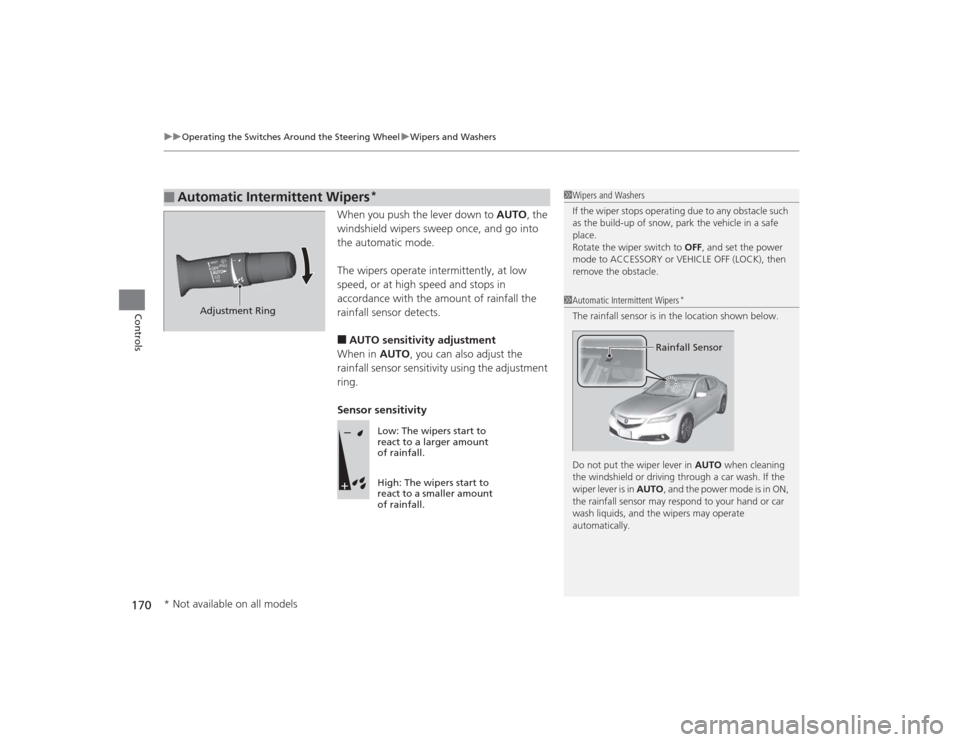
When you push the lever down to AUTO, the
windshield wipers sweep once, and go into
the automatic mode.
The wipers operate intermittently, at low
speed, or at high speed and stops in
accordance with the amount of rainfall the
rainfall sensor detects.■AUTO sensitivity adjustment
When in AUTO, you can also adjust the
rainfall sensor sensitivity using the adjustment
ring.
Sensor sensitivity
■
Automatic Intermittent Wipers
*
1 Wipers and Washers
If the wiper stops operating due to any obstacle such
as the build-up of snow, park the vehicle in a safe
place.
Rotate the wiper switch to OFF, and set the power
mode to ACCESSORY or VEHICLE OFF (LOCK), then
remove the obstacle.1 Automatic Intermittent Wipers
*
The rainfall sensor is in the location shown below.
Do not put the wiper lever in AUTO when cleaning
the windshield or driving through a car wash. If the
wiper lever is in AUTO , and the power mode is in ON,
the rainfall sensor may respond to your hand or car
wash liquids, and the wipers may operate
automatically.
Rainfall Sensor
Adjustment Ring
Low: The wipers start to
react to a larger amount
of rainfall.
High: The wipers start to
react to a smaller amount
of rainfall.
* Not available on all models
Page 175 of 545
174
uuOperating the Switches Around the Steering Wheel uDriving Position Memory System
Controls
Driving Position Memory SystemYou can store two driver’s seat (except for power lumbar) and door mirror positions
with the driving position memory system.
When you unlock and open the driver’s door with a remote transmitter, or keyless
access system, the seat and door mirrors adjust automatically to one of the two
preset positions.
The multi-information display shows you which remote transmitter you used to
unlock the vehicle when you enter.
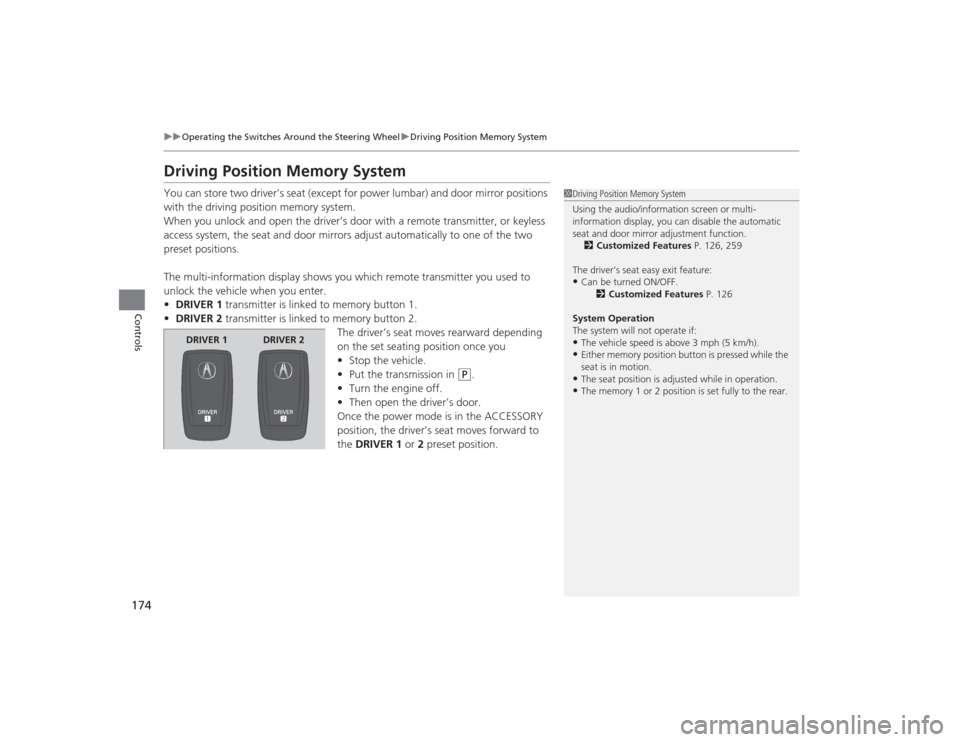
• DRIVER 1 transmitter is linked to memory button 1.
• DRIVER 2 transmitter is linked to memory button 2.
The driver’s seat moves rearward depending
on the set seating position once you
•Stop the vehicle.
• Put the transmission in
(P
.
• Turn the engine off.
• Then open the driver’s door.
Once the power mode is in the ACCESSORY
position, the driver’s seat moves forward to
the DRIVER 1 or 2 preset position.
1 Driving Position Memory System
Using the audio/information screen or multi-
information display, you can disable the automatic
seat and door mirror adjustment function.
2 Customized Features P. 126, 259
The driver’s seat easy exit feature:•Can be turned ON/OFF. 2Customized Features P. 126
System Operation
The system will not operate if:•The vehicle speed is above 3 mph (5 km/h).•Either memory position button is pressed while the
seat is in motion.•The seat position is adjusted while in operation.•The memory 1 or 2 position is set fully to the rear.
DRIVER 1 DRIVER 2
Page 177 of 545
176
uuOperating the Switches Around the Steering Wheel uAdjusting the Steering Wheel
Controls
Adjusting the Steering WheelThe steering wheel height and distance from your body can be adjusted so that you
can comfortably grip the steering wheel in an appropriate driving posture.
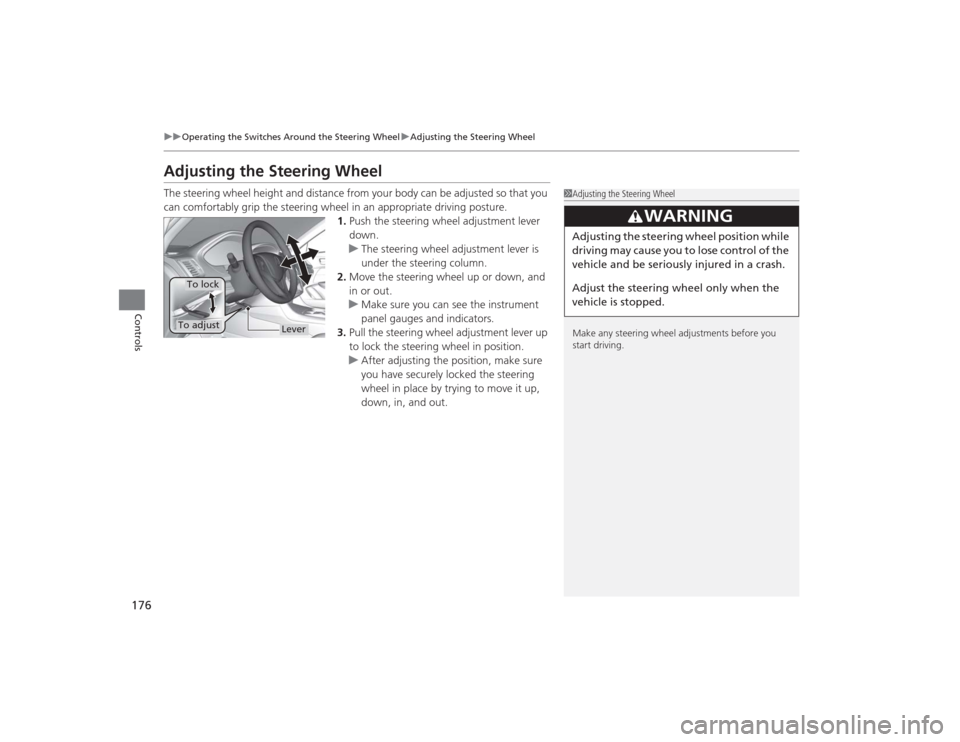
1.Push the steering wheel adjustment lever
down.
u The steering wheel adjustment lever is
under the steering column.
2. Move the steering wheel up or down, and
in or out.
u Make sure you can see the instrument
panel gauges and indicators.
3. Pull the steering wheel adjustment lever up
to lock the steering wheel in position.
u After adjusting the position, make sure
you have securely locked the steering
wheel in place by trying to move it up,
down, in, and out.
1Adjusting the Steering Wheel
Make any steering wheel adjustments before you
start driving.
3
WARNING
Adjusting the steering wheel po sition while
driving may cause you to lose control of the
vehicle and be seriously injured in a crash.
Adjust the steering wheel only when the
vehicle is stopped.
Lever
To adjustTo lock
Page 184 of 545
Continued
183
uuAdjusting the Seats uAdjusting the Seat Positions
Controls
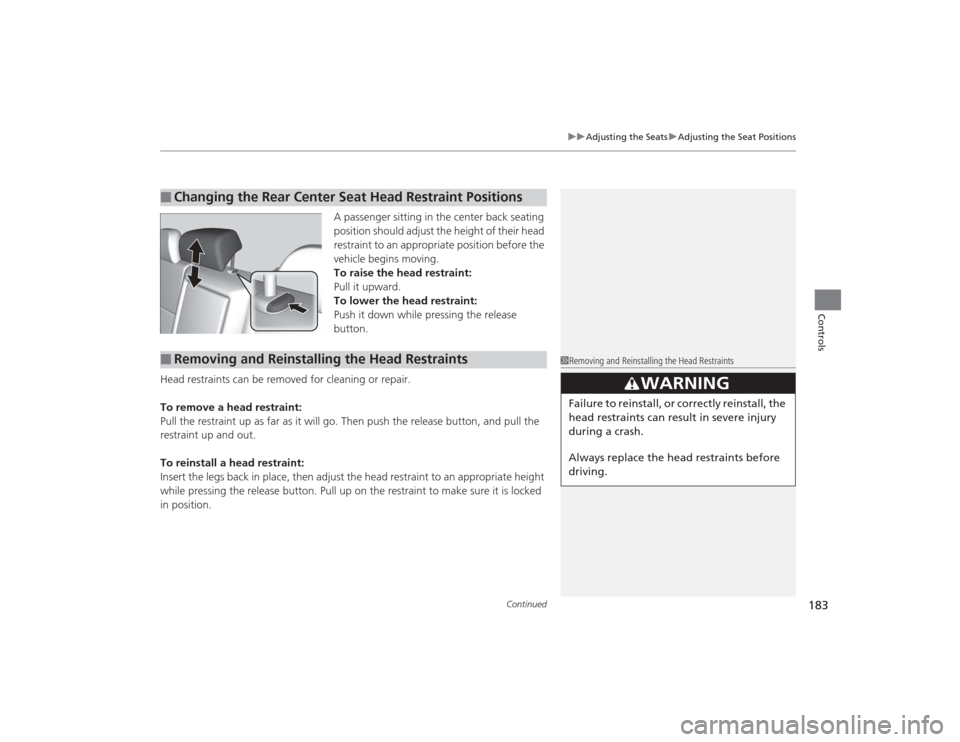
A passenger sitting in the center back seating
position should adjust the height of their head
restraint to an appropriate position before the
vehicle begins moving.
To raise the head restraint:
Pull it upward.
To lower the head restraint:
Push it down while pressing the release
button.
Head restraints can be removed for cleaning or repair.
To remove a head restraint:
Pull the restraint up as far as it will go. Then push the release button, and pull the
restraint up and out.
To reinstall a head restraint:
Insert the legs back in place, then adjust the head restraint to an appropriate height
while pressing the release button. Pull up on the restraint to make sure it is locked
in position.
■
Changing the Rear Center Seat Head Restraint Positions
■
Removing and Reinstalling the Head Restraints
1 Removing and Reinstalling the Head Restraints
3
WARNING
Failure to reinstall, or correctly reinstall, the
head restraints can result in severe injury
during a crash.
Always replace the head restraints before
driving.
Page 186 of 545
185
uuAdjusting the Seats uRear Seats
Controls
Rear Seats
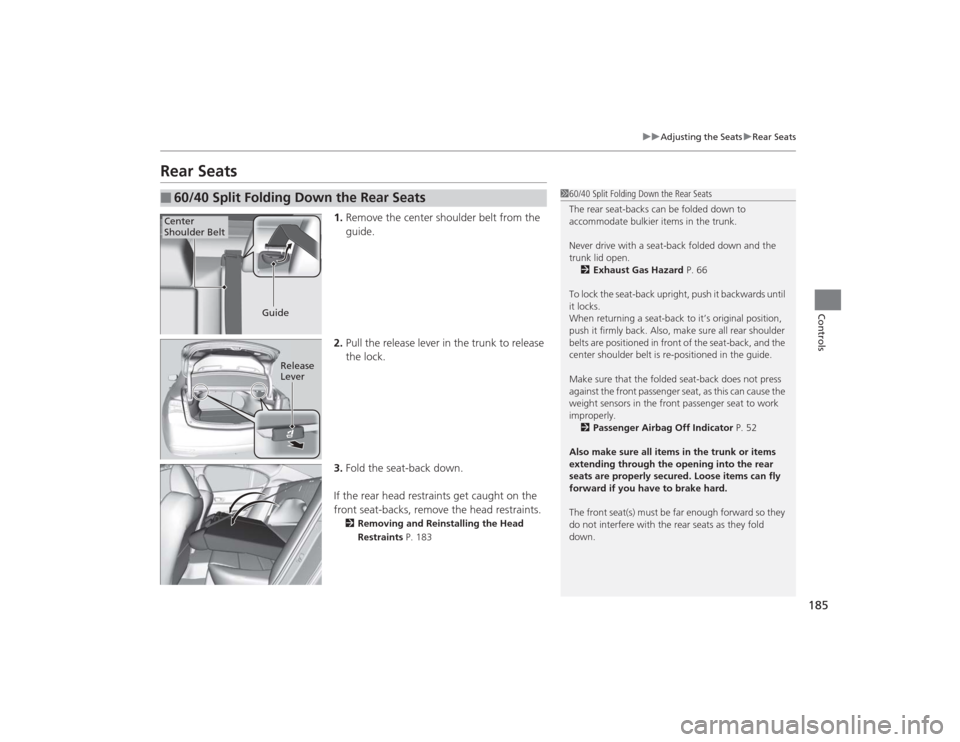
1. Remove the center shoulder belt from the
guide.
2. Pull the release lever in the trunk to release
the lock.
3. Fold the seat-back down.
If the rear head restraints get caught on the
front seat-backs, remove the head restraints.2 Removing and Reinstalling the Head
Restraints P. 183
■
60/40 Split Folding Down the Rear Seats
160/40 Split Folding Down the Rear Seats
The rear seat-backs can be folded down to
accommodate bulkier items in the trunk.
Never drive with a seat-back folded down and the
trunk lid open.
2 Exhaust Gas Hazard P. 66
To lock the seat-back upright, push it backwards until
it locks.
When returning a seat-back to it’s original position,
push it firmly back. Also, make sure all rear shoulder
belts are positioned in front of the seat-back, and the
center shoulder belt is re-positioned in the guide.
Make sure that the folded seat-back does not press
against the front passenger seat, as this can cause the
weight sensors in the front passenger seat to work
improperly. 2 Passenger Airbag Off Indicator P. 52
Also make sure all items in the trunk or items
extending through the opening into the rear
seats are properly secured. Loose items can fly
forward if you have to brake hard.
The front seat(s) must be far enough forward so they
do not interfere with the rear seats as they fold
down.
Center
Shoulder Belt
Guide
Release
Lever
Page 188 of 545
187
Continued
Controls
Interior Lights/Interior Convenience ItemsInterior Lights
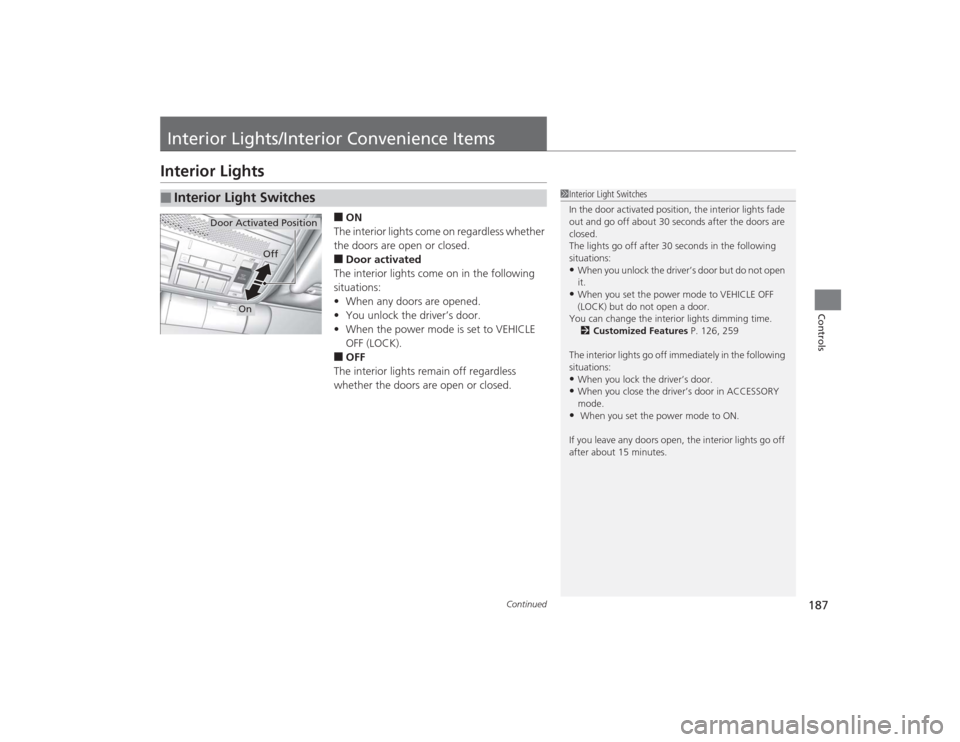
■ON
The interior lights come on regardless whether
the doors are open or closed.■Door activated
The interior lights come on in the following
situations:
• When any doors are opened.
• You unlock the driver’s door.
• When the power mode is set to VEHICLE
OFF (LOCK).■OFF
The interior lights remain off regardless
whether the doors are open or closed.
■
Interior Light Switches
1 Interior Light Switches
In the door activated position, the interior lights fade
out and go off about 30 seconds after the doors are
closed.
The lights go off after 30 seconds in the following
situations:•When you unlock the driver’s door but do not open
it.•When you set the power mode to VEHICLE OFF
(LOCK) but do not open a door.
You can change the interior lights dimming time. 2 Customized Features P. 126, 259
The interior lights go off immediately in the following
situations:•When you lock the driver’s door.•When you close the driver’s door in ACCESSORY
mode.• When you set the power mode to ON.
If you leave any doors open, the interior lights go off
after about 15 minutes.
Door Activated Position
Off
On
Page 190 of 545
189
uuInterior Lights/Interior Convenience Items uInterior Convenience Items
Continued
Controls
Interior Convenience Items
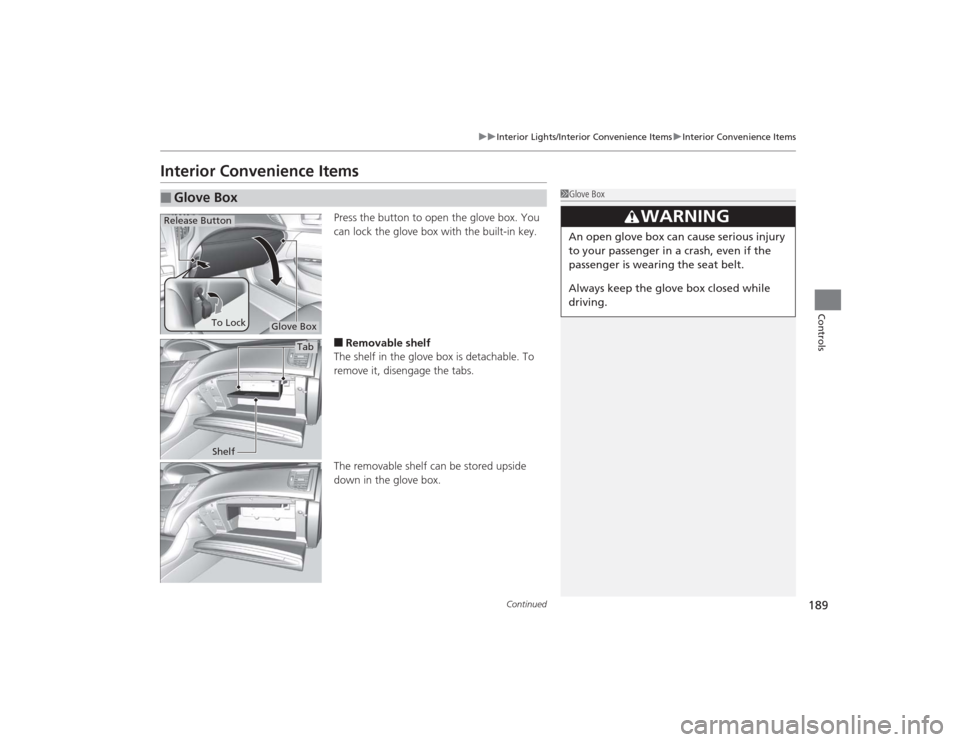
Press the button to open the glove box. You
can lock the glove box with the built-in key.■Removable shelf
The shelf in the glove box is detachable. To
remove it, disengage the tabs.
The removable shelf can be stored upside
down in the glove box.
■
Glove Box
1 Glove Box
3
WARNING
An open glove box can cause serious injury
to your passenger in a crash, even if the
passenger is wearing the seat belt.
Always keep the glove box closed while
driving.
Glove Box
Release Button
To Lock
Tab
Shelf
Page 201 of 545

uuClimate Control System uUsing Automatic Climate Control
200Controls
In addition to the button/switch operations, you can control the climate control
system from the On Demand Multi-Use Display
TM touch screen.
■
Operating from the On Demand Multi-Use Display
TM
1Using Automatic Climate Control
When you unlock the doors with your remote, the
driver’s ID ( Driver 1 or Driver 2) is detected, and the
climate control settings are turned to the respective
mode automatically when you set the power mode to
ON.
You can store two customized climate control
settings to the system and recall them from the On
Demand Multi-Use Display
TM.
2 Shortcuts P. 205
On Demand Multi-Use Display
TM
A/C (Air Conditioning) and
SYNC (Synchronized) Icon
Vent Mode Icon Driver’s Side
Temperature Control
Icon
Recirculation/Fresh Air
mode Icon
Fan Control Icon Passenger’s Side
Temperature Control
Icon
Shortcuts Icon
Page 216 of 545
215Features
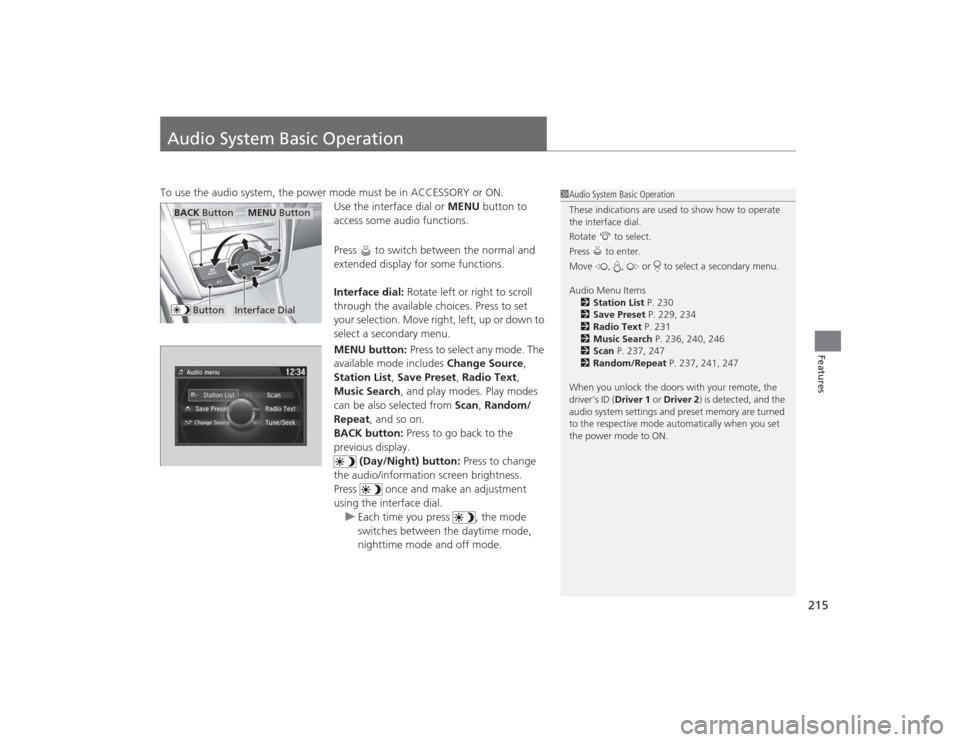
Audio System Basic OperationTo use the audio system, the power mode must be in ACCESSORY or ON.Use the interface dial or MENU button to
access some audio functions.
Press to switch between the normal and
extended display for some functions.
Interface dial: Rotate left or right to scroll
through the available choices. Press to set
your selection. Move right, left, up or down to
select a secondary menu.
MENU button: Press to select any mode. The
available mode includes Change Source,
Station List , Save Preset , Radio Text,
Music Search , and play modes. Play modes
can be also selected from Scan, Random/
Repeat , and so on.
BACK button: Press to go back to the
previous display.
(Day/Night) button: Press to change
the audio/information screen brightness.
Press once and make an adjustment
using the interface dial. u Each time you press , the mode
switches between the daytime mode,
nighttime mode and off mode.
1Audio System Basic Operation
These indications are used to show how to operate
the interface dial.
Rotate to select.
Press to enter.
Move , , or to select a secondary menu.
Audio Menu Items
2 Station List P. 230
2 Save Preset P. 229, 234
2 Radio Text P. 231
2 Music Search P. 236, 240, 246
2 Scan P. 237, 247
2 Random/Repeat P. 237, 241, 247
When you unlock the doors with your remote, the
driver’s ID ( Driver 1 or Driver 2) is detected, and the
audio system settings and preset memory are turned
to the respective mode au tomatically when you set
the power mode to ON.
Interface Dial
MENU Button
BACK Button
Button