steering wheel Acura TLX 2017 User Guide
[x] Cancel search | Manufacturer: ACURA, Model Year: 2017, Model line: TLX, Model: Acura TLX 2017Pages: 75, PDF Size: 10.99 MB
Page 34 of 75
60 || 61
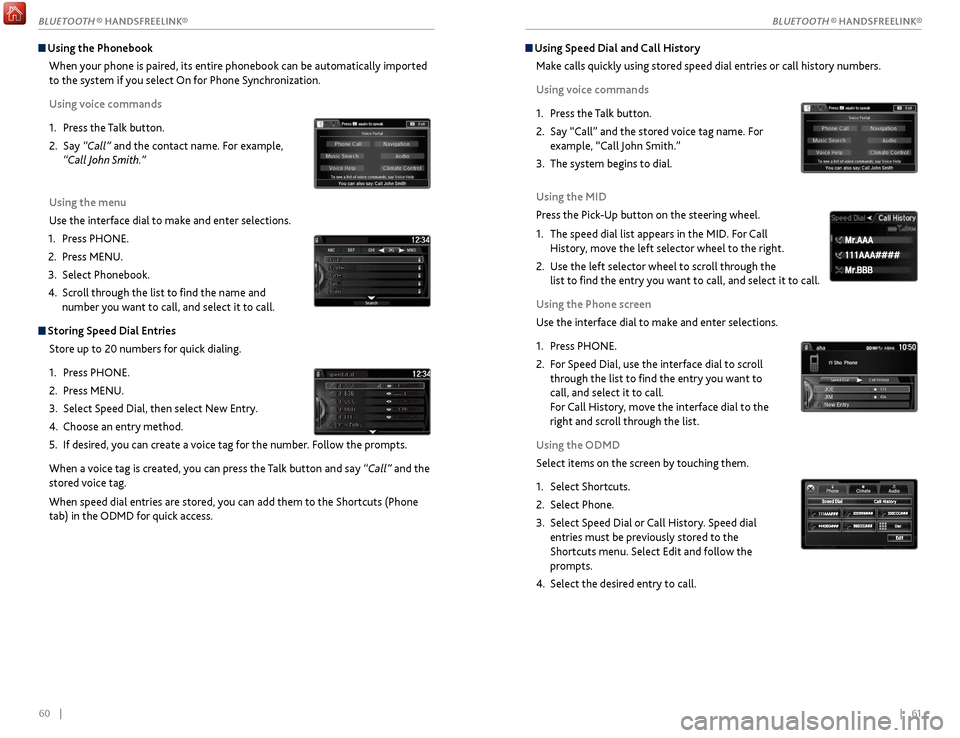
Using Speed Dial and Call History
Make calls quickly using stored speed dial entries or call history numbers.
Using voice commands
1.
Pr
ess the Talk button.
2.
Say “Call” and
the stored voice tag name. For
example, “Call John Smith.”
3.
The
system begins to dial.
Using the MID
Press the Pick-Up button on the steering wheel.
1.
The speed
dial list appears in the MID. For Call
History, move the left selector wheel to the right.
2.
Use the
left selector wheel to scroll through the
list to find the entry you want to call, and select it to call.
Using the Phone screen
Use the interface dial to make and enter selections.
1.
Pr
ess PHONE.
2.
F
or Speed Dial, use the interface dial to scroll
through the list to find the entry you want to
call, and select it to call.
For Call History, move the interface dial to the
right and scroll through the list.
Using the ODMD
Select items on the screen by touching them.
1.
Select Shortcuts.
2.
Select Phone.
3.
Select Speed
Dial or Call History. Speed dial
entries must be previously stored to the
Shortcuts menu. Select Edit and follow the
prompts.
4.
Select the desir
ed entry to call.
111AAA#### Mr.AAA
Mr.BBB
111AAA#### Mr.AAA
Mr.BBB
Using the Phonebook
When your phone is paired, its entire phonebook can be automatically imported
to the system if you select On for Phone Synchronization.
Using voice commands
1.
Pr
ess the Talk button.
2.
Say
“Call” and the contact name. For example,
“Call John Smith.”
Using the menu
Use the interface dial to make and enter selections.
1.
Pr
ess PHONE.
2.
Pr
ess MENU.
3.
Select Phonebook.
4.
Scr
oll through the list to find the name and
number you want to call, and select it to call.
Storing Speed Dial Entries
Store up to 20 numbers for quick dialing.
1.
Pr
ess PHONE.
2.
Pr
ess MENU.
3.
Select
Speed Dial, then select New Entry.
4.
Choose an entry method.
5.
If
desired, you can create a voice tag for the number. Follow the prompts.
When a voice tag is created, you can press the Talk button and say “Call” and the
stored voice tag.
When speed dial entries are stored, you can add them to the Shortcuts (Phone
tab) in the ODMD for quick access.
BLUETOOTH ® HANDSFREELINK®
BLUETOOTH ® HANDSFREELINK®
Page 36 of 75
| 65
NAVIGATION64 |
Learn how to enter a destination and operate the navigation system.
Basic Navigation Operation
A real-time navigation system uses GPS and a map database to show your current
location and help guide you to a desired destination. You can operate the system
using voice commands or the system controls.
To reduce the potential for driver distraction, certain manual functions may
be inoperable or grayed out while the vehicle is moving. Voice commands are
always available.
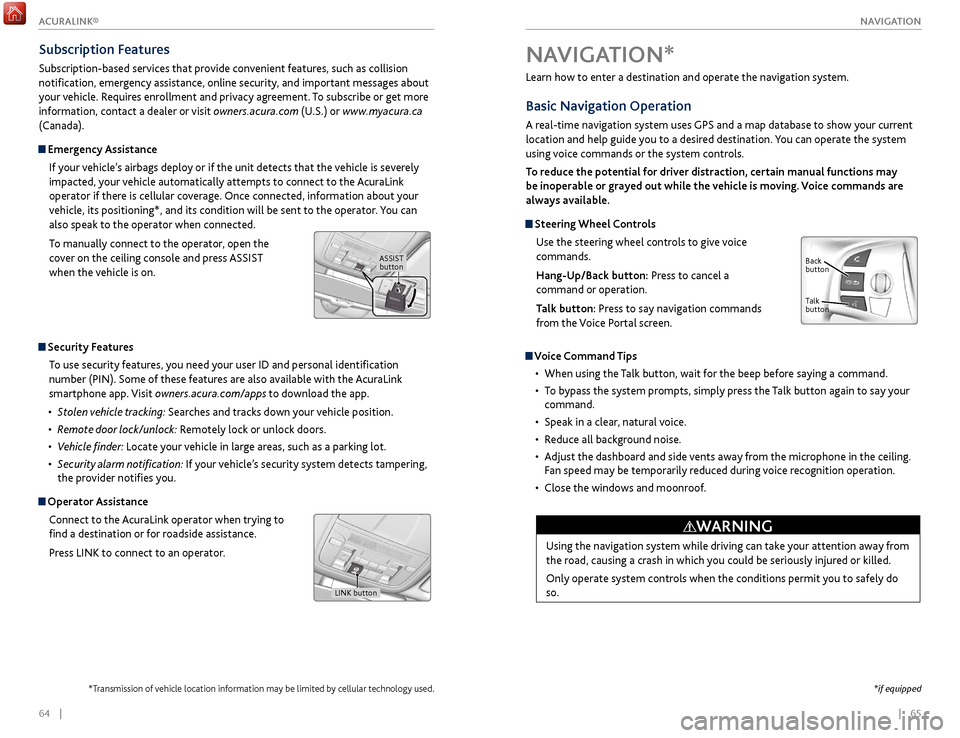
Steering Wheel Controls
Use the steering wheel controls to give voice
commands.
Hang-Up/Back button: Press to cancel a
command or operation.
Talk button: Press to say navigation commands
from the Voice Portal screen.
Voice Command Tips
•
When using
the Talk button, wait for the beep before saying a command.
•
T
o bypass the system prompts, simply press the Talk button again to say your
command.
•
Speak in a clear
, natural voice.
•
R
educe all background noise.
•
A
djust the dashboard and side vents away from the microphone in the ceiling.
Fan speed may be temporarily reduced during voice recognition operation.
•
Close
the windows and moonroof.
Using the navigation system while driving can take your attention away from
the road, causing a crash in which you could be seriously injured or killed.
Only operate system controls when the conditions permit you to safely do
so.
WARNING
NAVIGATION*
Talk
button Back
button
*if equipped
Subscription Features
Subscription-based services that provide convenient features, such as collision
notification, emergency assistance, online security, and important messages about
your vehicle. Requires enrollment and privacy agreement. To subscribe or get more
information, contact a dealer or visit owners.acura.com (U.S.) or www.myacura.ca
(Canada).
Emergency Assistance
If your vehicle’s airbags deploy or if the unit detects that the vehicle is severely
impacted, your vehicle automatically attempts to connect to the AcuraLink
operator if there is cellular coverage. Once connected, information about your
vehicle, its positioning*, and its condition will be sent to the operator. You can
also speak to the operator when connected.
To manually connect to the operator, open the
cover on the ceiling console and press ASSIST
when the vehicle is on.
ASSIST button
Security Features
To use security features, you need your user ID and personal identification
number (PIN). Some of these features are also available with the AcuraLink
smartphone app. Visit owners.acura.com/apps to download the app.
•
S
tolen vehicle tracking: Searches and tracks down your vehicle position.
•
R
emote door lock/unlock: Remotely lock or unlock doors.
•
V
ehicle finder: Locate your vehicle in large areas, such as a parking lot.
•
S
ecurity alarm notification: If your vehicle’s security system detects tampering,
the provider notifies you.
Operator Assistance
Connect to the AcuraLink operator when trying to
find a destination or for roadside assistance.
Press LINK to connect to an operator.
LINK button
*Transmission of vehicle location information may be limited by cellular technology used.
ACURALINK®
Page 39 of 75

70 || 71
NAVIGATION
NAVIGATION
Taking a Detour
You can calculate a detour route manually if you encounter a road closure or
other obstacle. Use the interface dial to make and enter selections.
1.
When en r
oute, press the MENU button.
2.
Select Detour
. The system attempts to calculate
a new route by avoiding the next 5 miles (8 km)
while on a freeway or 1 mile (1 km) while on a
surface street.
AcuraLink Real-Time Traffic™*
View traffic flow, incidents, and construction in major metro areas. You can also
route around congestion or incidents when you have a destination set. Use the
interface dial to make and enter selections. Available in the U.S. only.
1.
F
rom the map screen, press the interface dial to
enter the map menu. Select Traffic Incidents.
2.
A list
of incidents on your route appears. Select
the incident you want to avoid.
3.
Select
Avoid. Repeat as necessary to select other
incidents.
4.
Select R
ecalculate Route.
*Requires AcuraLink subscription.
Canceling Your RouteYou can cancel your route at any time.
1.
When en r
oute, press the MENU button.
2.
Select
Cancel Route. The route is cleared and the
map screen returns.
Routing
After a destination is set, you can alter or cancel your route.
Map Legend
During route guidance
Next
guidance
point
Estimated
time to
destination
Distance to
destination
Destination
Calculated
route
Distance
to next
maneuver
Turn-by-Turn Directions
Shows a more detailed view of the next maneuver on the multi-information
display. Use the right selector wheel on the steering wheel to bypass the display.
Upcoming
maneuver
Current route
Page 40 of 75
72 || 73
DRIVING
DRIVING
Maximum Load Limit
Carrying too much cargo or improperly storing it can affect your vehicle’s handling,
stability, stopping distance, and tires, and make it unsafe.
Your vehicle is not designed to tow a trailer. Attempting to do so can void your
vehicle warranties.
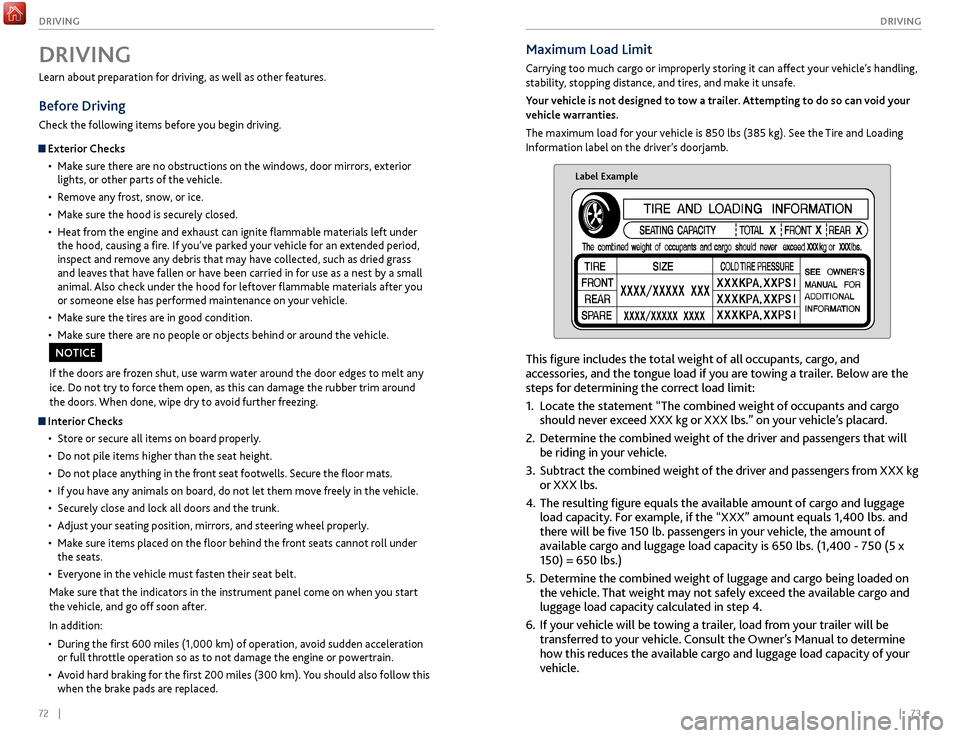
The maximum load for your vehicle is 850 lbs (385 kg). See the Tire and Loading
Information label on the driver’s doorjamb.
Label Example
This figure includes the total weight of all occupants, cargo, and
accessories, and the tongue load if you are towing a trailer. Below are the
steps for determining the correct load limit:
1.
Locate
the statement “The combined weight of occupants and cargo
should never exceed XXX kg or XXX lbs.” on your vehicle’s placard.
2.
Determine the
combined weight of the driver and passengers that will
be riding in your vehicle.
3.
Subtract the
combined weight of the driver and passengers from XXX kg
or XXX lbs.
4.
The r
esulting figure equals the available amount of cargo and luggage
load capacity. For example, if the “XXX” amount equals 1,400 lbs. and
there will be five 150 lb. passengers in your vehicle, the amount of
available cargo and luggage load capacity is 650 lbs. (1,400 - 750 (5 x
150) = 650 lbs.)
5.
Determine
the combined weight of luggage and cargo being loaded on
the vehicle. That weight may not safely exceed the available cargo and
luggage load capacity calculated in step 4.
6.
If y
our vehicle will be towing a trailer, load from your trailer will be
transferred to your vehicle. Consult the Owner’s Manual to determine
how this reduces the available cargo and luggage load capacity of your
vehicle.
Learn about preparation for driving, as well as other features.
Before Driving
Check the following items before you begin driving.
Exterior Checks
•
Mak
e sure there are no obstructions on the windows, door mirrors, exterior
lights, or other parts of the vehicle.
•
R
emove any frost, snow, or ice.
•
Mak
e sure the hood is securely closed.
•
Heat
from the engine and exhaust can ignite flammable materials left under
the hood, causing a fire. If you’ve parked your vehicle for an extended period,
inspect and remove any debris that may have collected, such as dried grass
and leaves that have fallen or have been carried in for use as a nest by a small
animal. Also check under the hood for leftover flammable materials after you
or someone else has performed maintenance on your vehicle.
•
Mak
e sure the tires are in good condition.
•
Mak
e sure there are no people or objects behind or around the vehicle.
DRIVING
If the doors are frozen shut, use warm water around the door edges to melt any
ice. Do not try to force them open, as this can damage the rubber trim around
the doors. When done, wipe dry to avoid further freezing.
NOTICE
Interior Checks•
Stor
e or secure all items on board properly.
•
Do not pile items higher
than the seat height.
•
Do not place an
ything in the front seat footwells. Secure the floor mats.
•
If
you have any animals on board, do not let them move freely in the vehicle.
•
Secur
ely close and lock all doors and the trunk.
•
A
djust your seating position, mirrors, and steering wheel properly.
•
Mak
e sure items placed on the floor behind the front seats cannot roll under
the seats.
•
Ev
eryone in the vehicle must fasten their seat belt.
Make sure that the indicators in the instrument panel come on when you start
the vehicle, and go off soon after.
In addition:
•
During
the first 600 miles (1,000 km) of operation, avoid sudden acceleration
or full throttle operation so as to not damage the engine or powertrain.
•
A
void hard braking for the first 200 miles (300 km). You should also follow this
when the brake pads are replaced.
Page 43 of 75
78 || 79
DRIVING
DRIVING
*if equipped
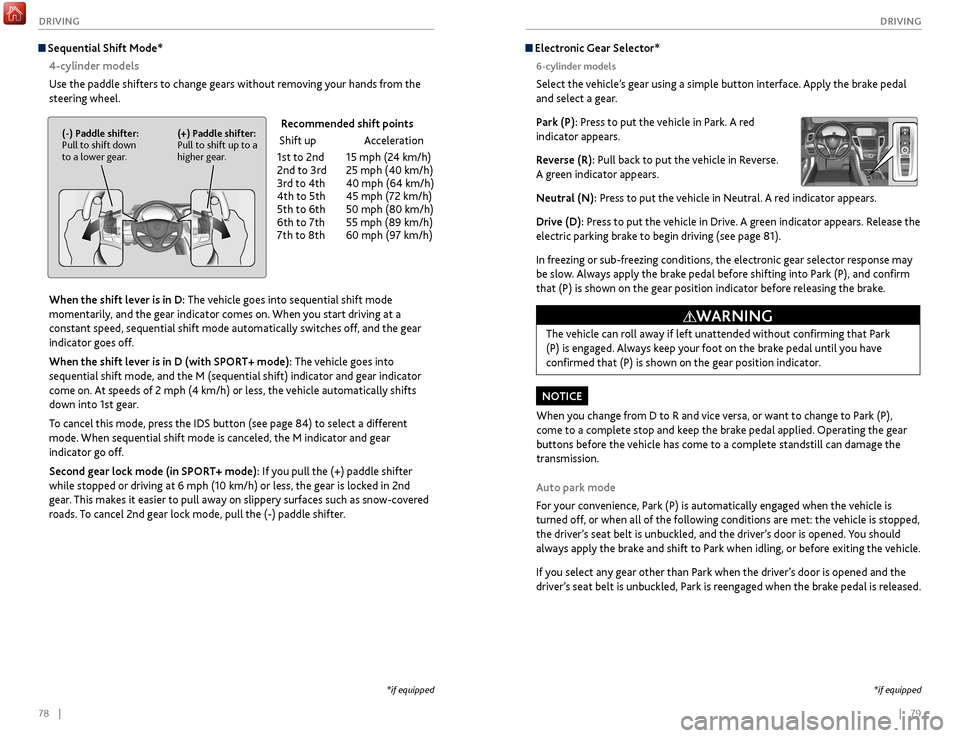
Electronic Gear Selector*
6-cylinder models
Select the vehicle’s gear using a simple button interface. Apply the brake pedal
and select a gear.
Park (P): Press to put the vehicle in Park. A red
indicator appears.
Reverse (R): Pull back to put the vehicle in Reverse.
A green indicator appears.
Neutral (N): Press to put the vehicle in Neutral. A red indicator appears.
Drive (D): Press to put the vehicle in Drive. A green indicator appears. Release the
electric parking brake to begin driving (see page 81).
In freezing or sub-freezing conditions, the electronic gear selector response may
be slow. Always apply the brake pedal before shifting into Park (P), and confirm
that (P) is shown on the gear position indicator before releasing the brake.
Auto park mode
For your convenience, Park (P) is automatically engaged when the vehicle is
turned off, or when all of the following conditions are met: the vehicle is stopped,
the driver’s seat belt is unbuckled, and the driver’s door is opened. You should
always apply the brake and shift to Park when idling, or before exiting the vehicle.
If you select any gear other than Park when the driver’s door is opened and the
driver’s seat belt is unbuckled, Park is reengaged when the brake pedal is released. The vehicle can roll away if left unattended without confirming that Park
(P) is engaged. Always keep your foot on the brake pedal until you have
confirmed that (P) is shown on the gear position indicator.
WARNING
When you change from D to R and vice versa, or want to change to Park (P),
come to a complete stop and keep the brake pedal applied. Operating the gear
buttons before the vehicle has come to a complete standstill can damage the
transmission.
NOTICE
Sequential Shift Mode*
4-cylinder models
Use the paddle shifters to change gears without removing your hands from the
steering wheel.
When the shift lever is in D: The vehicle goes into sequential shift mode
momentarily, and the gear indicator comes on. When you start driving at a
constant speed, sequential shift mode automatically switches off, and the gear
indicator goes off.
When the shift lever is in D (with SPORT+ mode): The vehicle goes into
sequential shift mode, and the M (sequential shift) indicator and gear indicator
come on. At speeds of 2 mph (4 km/h) or less, the vehicle automatically shifts
down into 1st gear.
To cancel this mode, press the IDS button (see page 84) to select a different
mode. When sequential shift mode is canceled, the M indicator and gear
indicator go off.
Second gear lock mode (in SPORT+ mode): If you pull the (+) paddle shifter
while stopped or driving at 6 mph (10 km/h) or less, the gear is locked in 2nd
gear. This makes it easier to pull away on slippery surfaces such as snow-covered
roads. To cancel 2nd gear lock mode, pull the (-) paddle shifter.
(-) Paddle shifter:
Pull to shift down
to a lower gear. (+) Paddle shifter:
Pull to shift up to a
higher gear. Recommended shift points
Shift up
Acceleration
1st
to 2nd
15 mph (2
4 km/h)
2nd
to 3rd
25 mph (40 km/h)
3r
d to 4th
40 mph (64 km/h)
4th
to 5th
45 mph (7
2 km/h)
5th
to 6th
50 mph (80 km/h)
6th
to 7th
55 mph (89 km/h)
7th
to 8th
60 mph (9
7 km/h)
*if equipped
Page 44 of 75

80 || 81
DRIVING
DRIVING
Braking
Slow down or stop your vehicle, and keep it from moving when parked.
Foot Brake
Press the brake pedal to slow down or stop your
vehicle from moving.
Brake Assist SystemDuring hard or emergency braking, the system
increases braking force. The brake pedal may move
slightly or make a noise; this is normal. Continue to
hold the brake pedal firmly down.
Anti-Lock Brake System (ABS) During hard or emergency braking, the system rapidly pumps the brakes to
prevent wheel lockup and help you maintain steering control. The brake pedal
may pulsate slightly during ABS operation; this is normal. Do not pump the brake
pedal, and continue to hold it firmly down.
The ABS may not function correctly if you use an incorrect tire type and size.
NOTICE
Brake pedal
Electric Parking BrakeKeep your vehicle from moving while parked using a simple switch.
To apply: Pull up the switch. The PARK indicator
appears in the instrument panel.
To release: Press the brake pedal and make sure
your seat belt is fastened. Press the switch down to
release.
You can also lightly press the accelerator pedal if
your seat belt is fastened and the vehicle is on and in
Drive (D) or Reverse (R).
Pull
up to
apply
Press
down to
release.
Car wash mode
Follow the procedure below to use a conveyor-style car wash where you or
an attendant do not remain in the vehicle. Make sure the wiper lever is in the
OFF position (see page 33). You should inform the car wash attendant of this
procedure.
1.
When
the engine is running, apply the brake pedal and select Neutral (N).
2.
Within 5 seconds, pr
ess the ENGINE START/STOP button. The vehicle goes
into Accessory mode.
This mode lasts for 15 minutes before the gear changes to Park and the vehicle
turns off.
Sequential Mode* 6-cylinder models
Use the paddle shifters to change gears without removing your hands from the
steering wheel.
When the gear is in D: The vehicle goes into sequential mode momentarily,
and the gear indicator comes on. When you start driving at a constant speed,
sequential mode automatically switches off, and the gear indicator goes off.
When the gear is in D (with SPORT+ mode): The vehicle goes into sequential
mode, and the M (sequential mode) indicator and gear indicator come on.
To cancel this mode, press the IDS button (see page 84) to select a different
mode. When sequential mode is canceled, the M indicator and gear indicator go
off.
(-) Paddle shifter:
Pull to shift down
to a lower gear. (+) Paddle shifter:
Pull to shift up to a
higher gear. Recommended shift points
Shift up
Acceleration
1st
to 2nd
15 mph (2
4 km/h)
2nd
to 3rd
25 mph (40 km/h)
3r
d to 4th
40 mph (64 km/h)
4th
to 5th
45 mph (7
2 km/h)
5th
to 6th
50 mph (80 km/h)
6th
to 7th
55 mph (89 km/h)
7th
to 8th
60 mph (9
7 km/h)
8
th to 9th
65 mph (105 km/h)
*if equipped
Page 46 of 75

84 || 85
DRIVING
DRIVING
Cruise Control*
Maintain a constant vehicle speed without having to keep your foot on the
accelerator pedal. Use cruise control on freeways or open roads where you can
travel at a constant speed with little acceleration or deceleration.
Improper use of cruise control can lead to a crash.
Use cruise control only when traveling on open highways in good weather.
WARNING
Setting the Vehicle Speed1.
Press the CRUISE button. The CRUISE MAIN
indicator appears.
2.
Accelerate to the desired speed (above 25 mph/40
km/h). Take your foot off the pedal and press
the SET/- switch to set the speed. The CRUISE
CONTROL indicator appears.
Adjusting the Vehicle Speed Press the RES/+ switch to increase speed, or the
SET/- switch to decrease speed.
Each time you press the button, the vehicle speed is
increased or decreased by about 1 mph (1.6 km/h).
If you keep the button pressed, the vehicle speed
increases or decreases until you release it.
Canceling Cruise ControlPress either the CANCEL button or the CRUISE
button, or the brake pedal. The CRUISE CONTROL
indicator goes off.
After cruise control has been canceled, you can still
resume the prior set speed by pressing RES/+ while
driving at a speed of at least 25 mph (40 km/h).
Press the CRUISE button to turn the system off.
CRUISE button
RES/+ button
SET/- button
CANCEL button
Econ: Maximiz es fuel efficiency .
Normal: Balances fuel efficiency and sportiness for everyday driving.
Sport : Enhances vehicle r esponse and feel through decreased steering assist and
incr eased thr ottle response.
Sport+: Adds to Sport mode and allows incr eased performance when using paddle
shifters (see page 7 8 or page 80).
Vehicle Stability Assist (VSA®)
Also known as Electr onic Stability Contr ol (ESC ), VSA helps to stabilize the vehicle
during cornering if the vehicle turns mor e or less than what was intended. It assists
in maintaining traction on slippery surfaces b y regulating engine output and
selectiv ely appl ying the brak es.
Turning VSA On or Off
VSA is turned on every time y ou turn on the vehicle. If you turn VSA off, your
v ehicle has normal braking and cornering ability , but VSA traction and stability
enhancement become less effectiv e.
Pr ess and hold the VSA
OFF button until you
hear a beep to turn VSA on or off . The VSA OFF
indicator appears when the system is off.
T raction contr ol stops functioning , which
allows the wheels to spin mor e freel y at low
speed. This can be helpful when trying to free
y our vehicle if it is stuck in mud or snow.
Integrated Dynamics System (IDS)
Choose a driving mode for your pr eference based on road conditions, vehicle speed,
and handling.
VSA OFF
button VSA OFF
indicator
The selected mode
briefly appears
in the multi-
information display.
Press IDS to
cycle through
modes.
*if equipped
Page 49 of 75

90 || 91
DRIVING
DRIVING
Collision Mitigation Braking System™ (CMBS™)*
Can alert you when a potential frontal collision with a vehicle or pedestrian is
determined and reduce your vehicle speed when a collision is deemed unavoidable
to help minimize collision severity.
The system provides visual,
audible and tactile alerts if you
do not take appropriate action
to avoid a collision.
Alert Stages
The system has three alert stages for a possible collision. Depending on the
circumstances or CMBS settings, CMBS may not go through all of the stages
before initiating the last stage.
Stage 1:
Visual warnings
and audible warnings, steering wheel vibration
Stage 2:
Visual
warnings, audible warning, light seat belt retraction*,
and light brak
e application
Stage 3:
Visual
warnings, audible warning, strong seat belt retraction*,
and str
ong brake application
Turning CMBS On or OffPress and hold the CMBS OFF button. A message
appears in the MID, and the CMBS indicator
appears when the system is off.
Changing SettingsSee page 88 for how to change CMBS settings. Options include Long, Normal
(default), and Short. Use the CMBS OFF button to turn the system off.
Important Safety Reminder
CMBS is designed to help avoid collisions by automatically stopping the vehicle
when possible, and to reduce the severity of an unavoidable collision. It is still
your responsibility to operate the brake pedal and steering wheel appropriately
according to the driving conditions.
BRAKE message
Audible
beep Visual warning
*if equipped
Lane Keeping Assist System (LKAS)*
A camera mounted between the windshield and the rearview mirror determines if
your vehicle begins to move away from the center of a detected lane while driving
between 45–90 mph (72–145 km/h).
If you cross a detected lane line
without using your turn signal, a
message appears on the MID and
a beep sounds.
Light steering torque and
vibrations are applied to keep
your vehicle in the middle of the
lane.
Turning LKAS On or Off
1.
Pr
ess MAIN. LKAS appears in the MID.
2.
Pr
ess the LKAS button. Lane outlines appear
in the MID. Dotted lane lines turn solid when
the system operates.
3.
Pr
ess MAIN or the LKAS button to turn the
system off.
Important Safety Reminder
The LKAS is for your convenience only. It is not a substitute for your vehicle control.
The system does not work if you take your hands off the steering wheel or fail to
steer the vehicle.
Do not place an object on the top of the instrument panel. It may reflect onto the
windshield and prevent the system from detecting lane lines properly.
Lane departure
message
Audible
beep Steering assistance
*if equipped
Vibration
Page 50 of 75

92 || 93
DRIVING
DRIVING
Blind Spot Information (BSI)*
Alerts you to a detected vehicle in your left or right blind spot.
When a vehicle is detected in your blind spot, the
blind spot indicator turns on and stays lit until the
area is clear.
When your turn signal is on and a vehicle is detected,
the blind spot indicator blinks and a beep sounds until
the area is clear or the turn signal is off.
Changing Settings
Change the alert type, or turn the system on or off. Use the interface dial to make
selections.
1.
Pr
ess the SETTINGS button.
2.
Select
Vehicle Settings. The vehicle must be in
Park (P).
3.
Select Blind
Spot Info.
4.
Select
an alert type, or Off.
5.
Pr
ess the BACK button to exit the menu.
Important Safety Reminder
Like all assistance systems, BSI has limitations. Over-reliance on BSI may result in a
collision. The system is for your convenience only.
Failure to visually confirm that it is safe to change lanes before doing so may
result in a crash and serious injury or death. Do not rely only on the blind
spot information system when changing lanes.
Always look in your mirrors, to either side of your vehicle, and behind you for
other vehicles before changing lanes.
WARNING
BSI alert
indicator
*if equipped
Road Departure Mitigation (RDM)*
A camera mounted between the windshield and the rearview mirror determines
if your vehicle begins to cross over detected lane markings while driving between
45–90 mph (72–145 km/h).
If you get too close to a
detected lane line without
using your turn signal, a
message appears in the MID.
Steering wheel torque and
vibrations are applied to help
your vehicle stay in the lane.
Braking may also be applied
if the lane lines are solid and
continuous.
Turning the System On or Off Press the RDM button to turn the system on or
off. A green indicator appears on the button
when the system is on.
Changing SettingsDetermine the warning timing, or turn the system off. Use the interface dial to
make selections.
1.
Pr
ess the SETTINGS button.
2.
Select
Vehicle Settings. The vehicle must
be in Park (P).
3.
Select R
oad Departure Mitigation Setting.
4.
Select
from the options.
Normal (default): Steering control starts from inside the lane edge.
Wide: Steering control starts from outside the lane edge.
Warning Only: The system only provides a BRAKE message, but does not apply
steering or braking.
5.
Pr
ess the BACK button to exit the menu.
Important Safety Reminder
The system has limitations. Over-reliance on it may result in a collision. It is always
your responsibility to keep your vehicle within the driving lane.
Lane departure
message
Audible
beep Visual warning
*if equipped
Page 51 of 75

94 || 95
DRIVING
DRIVING
Multi-View Rear Camera
When you shift into Reverse (R), a real-time image of the area behind your vehicle
is shown in the display, along with helpful parking guidelines.
The rear camera view is restricted. You cannot see the corner ends of the bumper or what is underneath
the bumper. Its unique lens also makes objects appear closer or farther than they actually are.
Visually confirm that it is safe to drive before backing up. Certain conditions (such as weather, lighting,
and high temperatures) may also restrict the rear view. Do not rely on the rearview display, which does
not give you all information about conditions at the rear of your vehicle.
Wide view Normal view Top down view
Changing Guidelines
1.
Pr
ess the SETTINGS button.
2.
Select Camera
Settings.
3.
Select
Rear Camera.
4.
Select one of the options.
Fixed Guideline: Guidelines appear when you
shift into Reverse. Select On or Off.
Dynamic Guideline: Guidelines move as you turn
the steering wheel. Select On or Off.
5.
Pr
ess the BACK button to exit the menu.
Press the
interface dial
to toggle
between
views.
Parking Sensor System*
When the system senses an object when you are parking or backing up, an indicator
appears on the upper display and a series of beeps will sound. As you get closer to
the object, the beep rate increases.
Turning the System On or OffPress the parking sensor button. A green indicator
light appears on the button when the system is on.
*if equipped
Display indicators
Parking sensor button
Do not continuously spin the front tires of your vehicle. Continuously spinning
the front tires can cause damage to the transmission and SH-AWD unit.
If the SH-AWD light blinks while driving, it indicates the differential temperature
is too high. If this happens, pull to the side of the road when it is safe, shift to
park, and idle the engine until the indicator goes out.
NOTICE
Super Handling-All Wheel Drive (SH-AWD)*
Controls and transfers varying amounts of engine torque to each wheel depending
on driving conditions.
SH-AWD helps enhance stability in driving situations involving slippery surfaces,
such as on wet, icy, or snowy roads. The system does not help enhance braking. It is
still your responsibility to drive safely when you steer, accelerate, and apply brakes.
Leave sufficient distance in front of you when braking on slippery surfaces.