buttons Acura TLX 2017 Owner's Manual
[x] Cancel search | Manufacturer: ACURA, Model Year: 2017, Model line: TLX, Model: Acura TLX 2017Pages: 553, PDF Size: 33.77 MB
Page 6 of 553
5
Quick Reference Guide
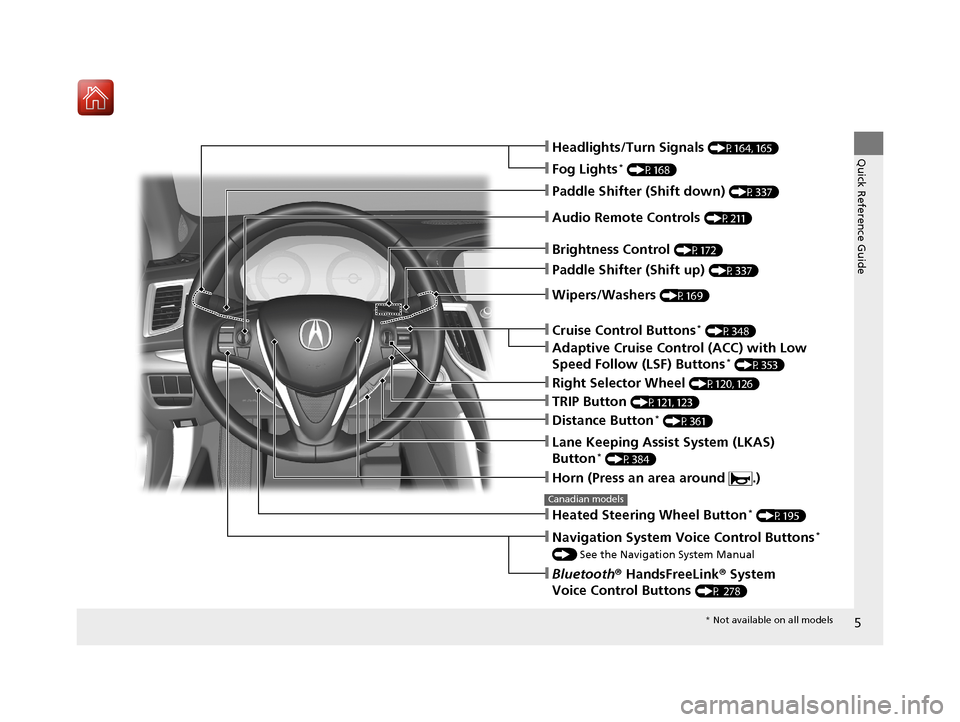
❙Wipers/Washers (P169)
❙Headlights/Turn Signals (P164, 165)
❙Paddle Shifter (Shift down) (P337)
❙Paddle Shifter (Shift up) (P337)
❙Horn (Press an area around .)
❙Navigation System Voice Control Buttons*
() See the Navigation System Manual
❙Bluetooth® HandsFreeLink ® System
Voice Control Buttons
(P 278)
❙Brightness Control (P172)
❙Cruise Control Buttons* (P348)
❙Adaptive Cruise Control (ACC) with Low
Speed Follow (LSF) Buttons* (P353)
❙TRIP Button (P121, 123)
❙Distance Button* (P361)
❙Lane Keeping Assist System (LKAS)
Button* (P384)
❙Right Selector Wheel (P120, 126)
❙Heated Steering Wheel Button* (P195)
Canadian models
❙Audio Remote Controls (P211)
❙Fog Lights* (P168)
* Not available on all models
17 ACURA TLX-31TZ36200.book 5 ページ 2016年6月10日 金曜日 午後6時39分
Page 7 of 553
Visual Index
6
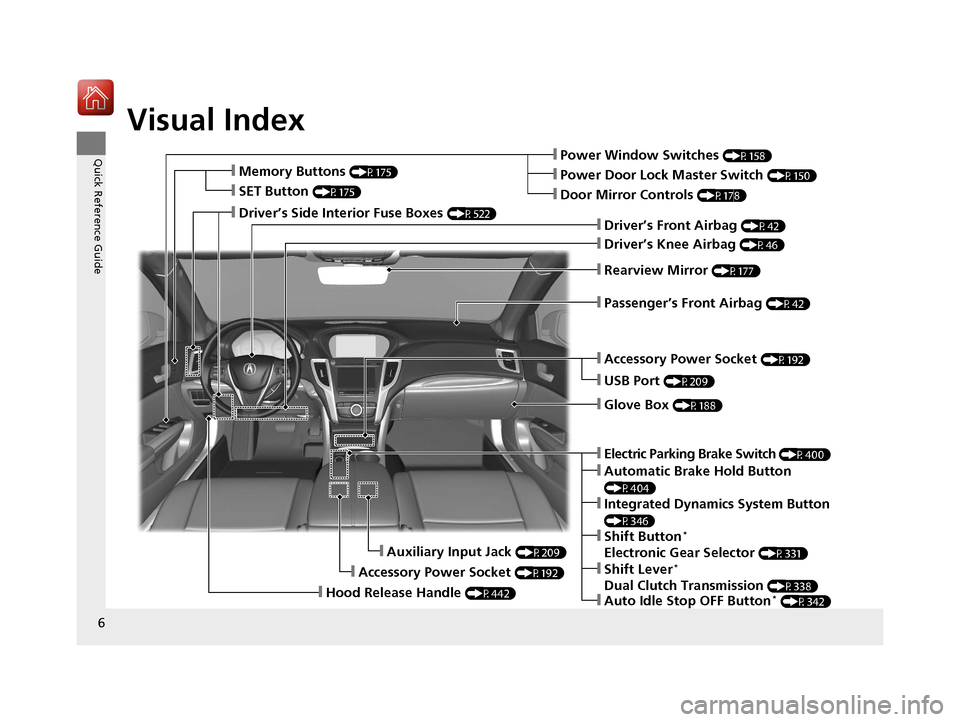
Quick Reference Guide❙Power Window Switches (P158)
❙Driver’s Front Airbag (P42)
❙Driver’s Knee Airbag (P46)
❙Door Mirror Controls (P178)
❙Power Door Lock Master Switch (P150)
❙Accessory Power Socket (P192)
❙Auxiliary Input Jack (P209)
❙Accessory Power Socket (P192)
❙USB Port (P209)
❙Rearview Mirror (P177)
❙Hood Release Handle (P442)
❙Memory Buttons (P175)
❙SET Button (P175)
❙Glove Box (P188)
❙Passenger’s Front Airbag (P42)
❙Driver’s Side Interior Fuse Boxes (P522)
❙Electric Parking Brake Switch (P400)
❙Integrated Dynamics System Button
(P346)
❙Shift Button*
Electronic Gear Selector (P331)
❙Automatic Brake Hold Button
(P404)
❙Shift Lever*
Dual Clutch Transmission (P338)
❙Auto Idle Stop OFF Button* (P342)
17 ACURA TLX-31TZ36200.book 6 ページ 2016年6月10日 金曜日 午後6時39分
Page 70 of 553
69
Instrument Panel
This chapter describes the buttons, indicators, and gauges that are used while driving.
Indicators............................................ 70
Multi-Information Display Warning and Information Messages ...................... 95
Gauges and Multi-Information Display .. 117
Gauges ............................................ 117
Multi-Information Display ................ 118
17 ACURA TLX-31TZ36200.book 69 ページ 2016年6月10日 金曜日 午後6時39分
Page 176 of 553
175
uuOperating the Switches Around the Steering Wheel uDriving Position Memory System
Controls
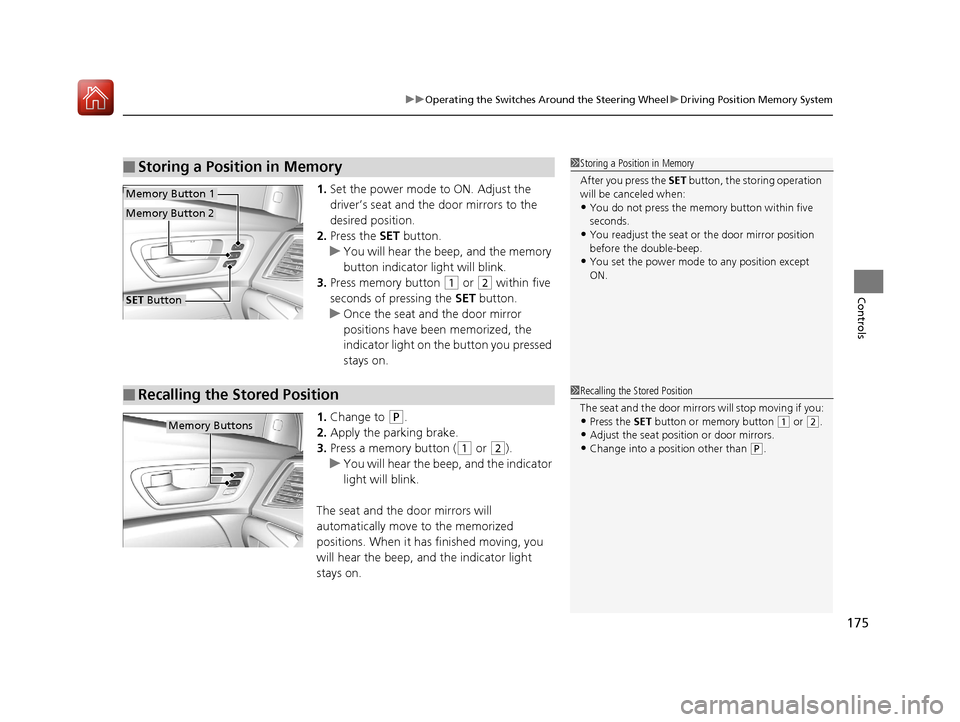
1. Set the power mode to ON. Adjust the
driver’s seat and the door mirrors to the
desired position.
2. Press the SET button.
u You will hear the beep, and the memory
button indicator light will blink.
3. Press memory button
(1 or (2 within five
seconds of pressing the SET button.
u Once the seat and the door mirror
positions have been memorized, the
indicator light on the button you pressed
stays on.
1. Change to
(P.
2. Apply the parking brake.
3. Press a memory button (
(1 or (2).
u You will hear the beep, and the indicator
light will blink.
The seat and the door mirrors will
automatically move to the memorized
positions. When it has finished moving, you
will hear the beep, and the indicator light
stays on.
■Storing a Position in Memory1 Storing a Position in Memory
After you press the SET button, the storing operation
will be canceled when:
•You do not press the memory button within five
seconds.
•You readjust the seat or the door mirror position
before the double-beep.
•You set the power mode to any position except
ON.
SET Button
Memory Button 1
Memory Button 2
■Recalling the Stored Position1 Recalling the Stored Position
The seat and the door mirrors will stop moving if you:
•Press the SET button or memory button (1 or (2.
•Adjust the seat position or door mirrors.
•Change into a position other than (P.
Memory Buttons
17 ACURA TLX-31TZ36200.book 175 ページ 2016年6月10日 金曜日 午後6時39分
Page 199 of 553
198
Controls
Climate Control System
Using Automatic Climate Control
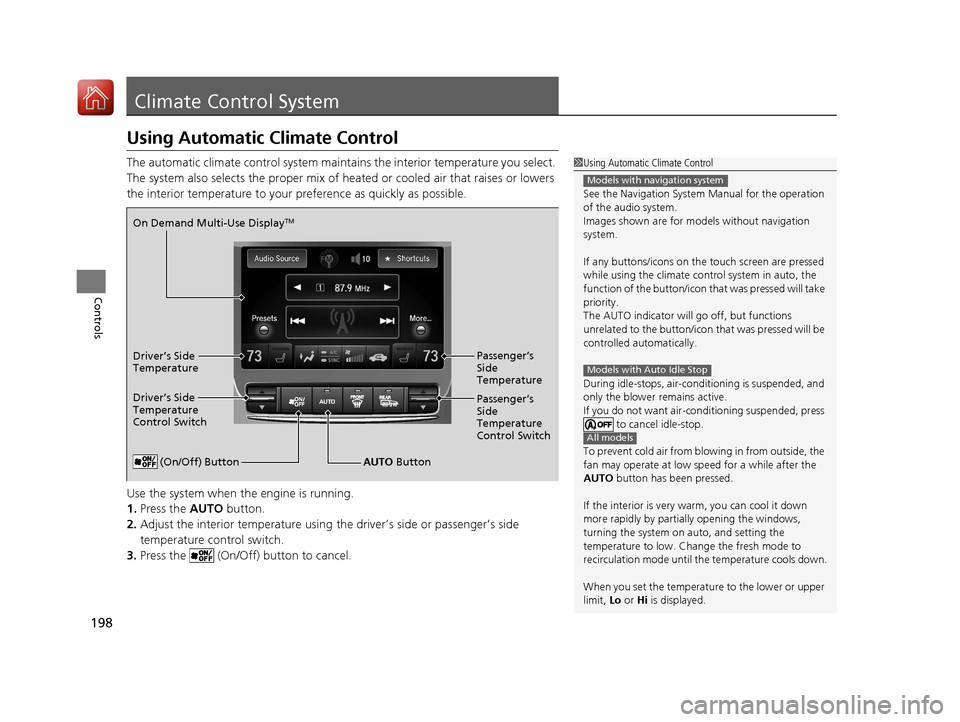
The automatic climate control system maintains the interior temperature you select.
The system also selects the proper mix of heated or cooled air that raises or lowers
the interior temperature to your pr eference as quickly as possible.
Use the system when the engine is running.
1. Press the AUTO button.
2. Adjust the interior temperature using the driver’s side or passenger’s side
temperature control switch.
3. Press the (On/Off) button to cancel.1Using Automatic Climate Control
See the Navigation System Manual for the operation
of the audio system.
Images shown are for m odels without navigation
system.
If any buttons/icons on the touch screen are pressed
while using the climate control system in auto, the
function of the button/icon th at was pressed will take
priority.
The AUTO indicator will go off, but functions
unrelated to the button/icon that was pressed will be
controlled automatically.
During idle-stops, air-conditioning is suspended, and
only the blower remains active.
If you do not want air-cond itioning suspended, press
to cancel idle-stop.
To prevent cold air from bl owing in from outside, the
fan may operate at low speed for a while after the
AUTO button has been pressed.
If the interior is very warm, you can cool it down
more rapidly by partial ly opening the windows,
turning the system on auto, and setting the
temperature to low. Change the fresh mode to
recirculation mode until the temperature cools down.
When you set the temperat ure to the lower or upper
limit, Lo or Hi is displayed.
Models with navigation system
Models with Auto Idle Stop
All models
(On/Off) ButtonAUTO Button
On Demand Multi-Use Display
TM
Driver’s Side
Temperature
Control Switch
Passenger’s
Side
Temperature
Control Switch Passenger’s
Side
Temperature
Driver’s Side
Temperature
17 ACURA TLX-31TZ36200.book 198 ページ 2016年6月10日 金曜日 午後6時39分
Page 209 of 553

208
Features
Audio System
About Your Audio System
The audio system features AM/FM radio and the SiriusXM® Radio service. It can also
play audio CDs, WMA/MP3/AAC files, USB flash drives, and iPod, iPhone and
Bluetooth ® devices.
You can operate the audio system from the buttons and switches on the panel, or
the icons on the On Demand Multi-Use Display
TM.
1 About Your Audio System
SiriusXM ® Radio is available on a subscription basis
only. For more information on SiriusXM ® Radio,
contact a dealer.
2 General Information on the Audio System
P. 253
SiriusXM ® Radio is available in the United States and
Canada, except Ha waii, Alaska, and Puerto Rico.
SiriusXM ® is a registered trademark of SiriusXM ®
Radio, Inc.
Video CDs, DVDs, and 3-inch (8-cm) mini CDs are not
supported.
iPod, iPhone and iTunes are trademarks of Apple Inc.
State or local laws may pr ohibit the operation of
handheld electronic devi ces while operating a
vehicle.
When the screen is vi ewed through polarized
sunglasses, a rainbow pa ttern may appear on the
screen due to optical characteristics of the screen. If
this is disturbing, please operate the screen without
polarized sunglasses.
Remote Controls iPod
USB Flash Drive
17 ACURA TLX-31TZ36200.book 208 ページ 2016年6月10日 金曜日 午後6時39分
Page 220 of 553
219
uuAudio System Basic Operation uAudio/Information Screen
Continued
Features
Audio/Information Screen
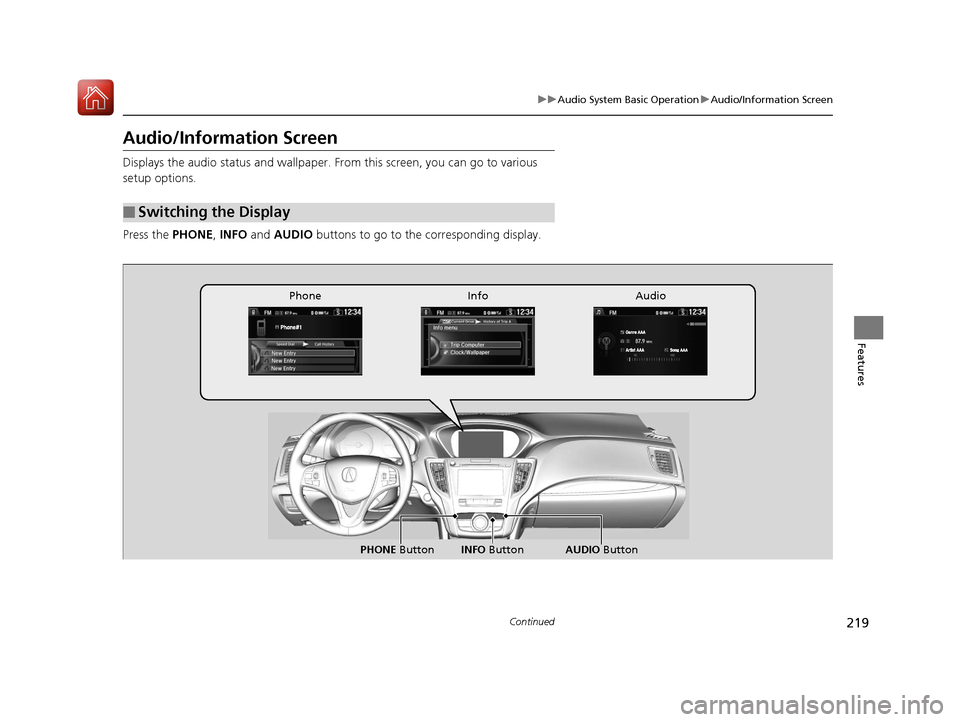
Displays the audio status and wallpaper. From this screen, you can go to various
setup options.
Press the PHONE, INFO and AUDIO buttons to go to the corresponding display.
■Switching the Display
Audio
Info
Phone
AUDIO Button
PHONE Button INFO Button
17 ACURA TLX-31TZ36200.book 219 ページ 2016年6月10日 金曜日 午後6時39分
Page 277 of 553
276
uuHomeLink ® Universal Transceiver uTraining HomeLink
Features
Training HomeLink
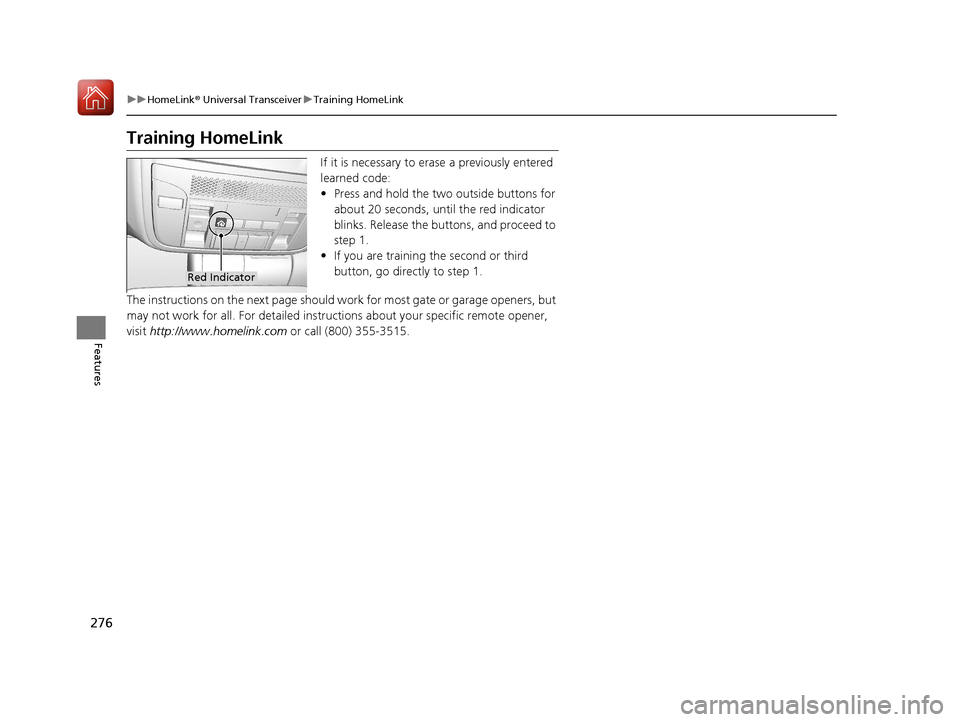
If it is necessary to erase a previously entered
learned code:
• Press and hold the two outside buttons for
about 20 seconds, until the red indicator
blinks. Release the bu ttons, and proceed to
step 1.
• If you are training the second or third
button, go directly to step 1.
The instructions on the next page should work for most gate or garage openers, but
may not work for all. For detailed instruct ions about your specific remote opener,
visit http://www.homelink.com or call (800) 355-3515.
Red Indicator
17 ACURA TLX-31TZ36200.book 276 ページ 2016年6月10日 金曜日 午後6時39分
Page 278 of 553
277
uuHomeLink ® Universal Transceiver uTraining HomeLink
Features
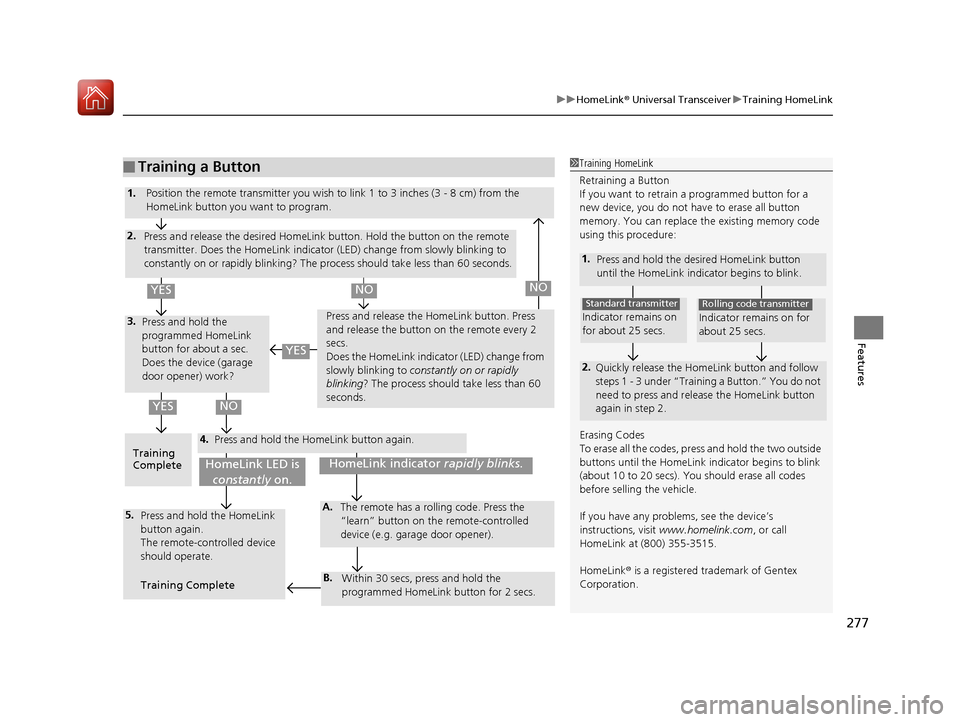
■Training a Button1Training HomeLink
Retraining a Button
If you want to retrain a programmed button for a
new device, you do not ha ve to erase all button
memory. You can replace the existing memory code
using this procedure:
1. Press and hold the desired HomeLink button
until the HomeLink indi cator begins to blink.
2.
Quickly release the Home Link button and follow
steps 1 - 3 under “Training a Button.” You do not
need to press and rele ase the HomeLink button
again in step 2.
Indicator remains on
for about 25 secs.
Standard transmitter
Indicator remains on for
about 25 secs.
Rolling code transmitter
Erasing Codes
To erase all the codes, press and hold the two outside
buttons until the HomeLink i ndicator begins to blink
(about 10 to 20 secs). You should erase all codes
before selling the vehicle.
If you have any problems, see the device’s
instructions, visit www.homelink.com , or call
HomeLink at (800) 355-3515.
HomeLink® is a registered tra demark of Gentex
Corporation.4.
3.
2.
5.A.
B.
1. Position the remote transmitter you wish to link 1 to 3 inches (3 - 8 cm) from the
HomeLink button you want to program.
Press and release the desi red HomeLink button. Hold the button on the remote
transmitter. Does the HomeLink indicato r (LED) change from slowly blinking to
constantly on or rapidly blinking? The pr ocess should take less than 60 seconds.
Press and hold the
programmed HomeLink
button for about a sec.
Does the device (garage
door opener) work? Press and release the Ho
meLink button. Press
and release the button on the remote every 2
secs.
Does the HomeLink indicator (LED) change from
slowly blinking to constantly on or rapidly
blinking ? The process should take less than 60
seconds.
Training
Complete Press and hold the HomeLink button again.
Press and hold the HomeLink
button again.
The remote-controlled device
should operate.
Training Complete The remote has a ro
lling code. Press the
“learn” button on the remote-controlled
device (e.g. garage door opener).
Within 30 secs, press and hold the
programmed HomeLink button for 2 secs.
HomeLink indicator rapidly blinks.HomeLink LED is
constantly on.
YESNO
YES
YESNONO
17 ACURA TLX-31TZ36200.book 277 ページ 2016年6月10日 金曜日 午後6時39分
Page 279 of 553
278
Features
Bluetooth® HandsFreeLink ®
Bluetooth® HandsFreeLink ® (HFL) allows you to place and receive phone calls using
your vehicle’s navigation*/audio system, without handling your cell phone.
Using HFL
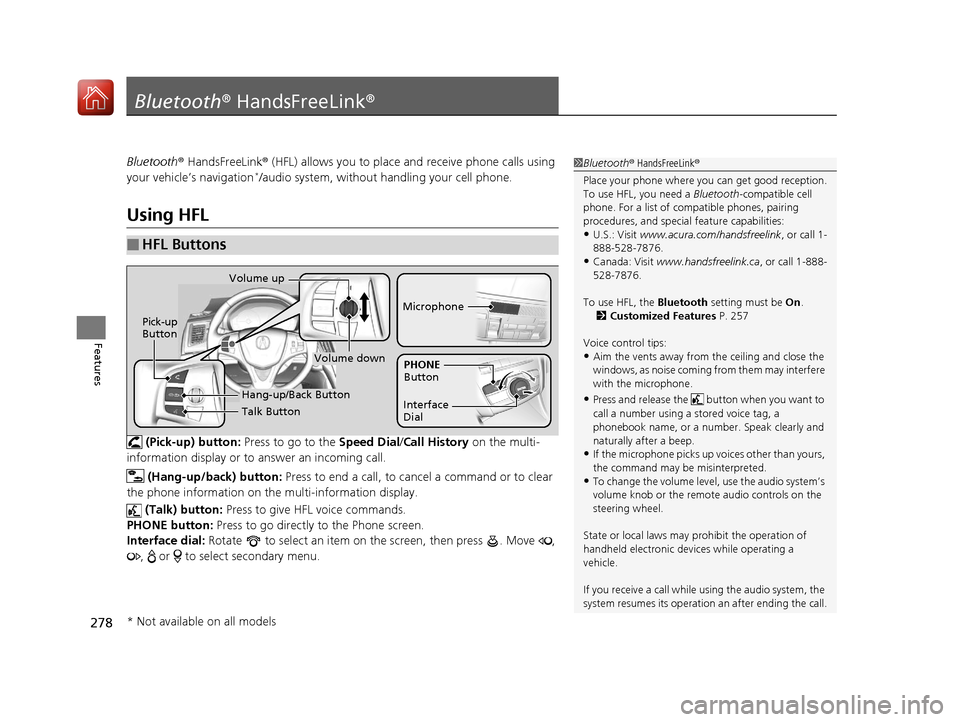
(Pick-up) button: Press to go to the Speed Dial/Call History on the multi-
information display or to answer an incoming call.
(Hang-up/back) button: Press to end a call, to cancel a command or to clear
the phone information on the multi-information display.
(Talk) button: Press to give HFL voice commands.
PHONE button: Press to go directly to the Phone screen.
Interface dial: Rotate to select an item on the screen, then press . Move ,
, or to select secondary menu.
■HFL Buttons
1 Bluetooth ® HandsFreeLink ®
Place your phone where y ou can get good reception.
To use HFL, you need a Bluetooth-compatible cell
phone. For a list of compatible phones, pairing
procedures, and special feature capabilities:
•U.S.: Visit www.acura.com/handsfreelink , or call 1-
888-528-7876.
•Canada: Visit www.handsfreelink.ca , or call 1-888-
528-7876.
To use HFL, the Bluetooth setting must be On.
2 Customized Features P. 257
Voice control tips:
•Aim the vents away from the ceiling and close the
windows, as noise coming fr om them may interfere
with the microphone.
•Press and release the but ton when you want to
call a number using a stored voice tag, a
phonebook name, or a numbe r. Speak clearly and
naturally after a beep.
•If the microphone picks up vo ices other than yours,
the command may be misinterpreted.
•To change the volume level, use the audio system’s
volume knob or the remote audio controls on the
steering wheel.
State or local laws may pr ohibit the operation of
handheld electronic devi ces while operating a
vehicle.
If you receive a call while using the audio system, the
system resumes its operation an after ending the call.
Talk Button
Volume up
Microphone
Hang-up/Back Button
Pick-up
Button
Volume down
Interface
DialPHONE
Button
* Not available on all models
17 ACURA TLX-31TZ36200.book 278 ページ 2016年6月10日 金曜日 午後6時39分