AC system Acura TLX 2018 Owner's Manual
[x] Cancel search | Manufacturer: ACURA, Model Year: 2018, Model line: TLX, Model: Acura TLX 2018Pages: 589, PDF Size: 35.45 MB
Page 244 of 589
243
uuAudio System Basic Operation uPlaying SiriusXM ® Radio
Features
Sample each channel on the selected mode for 10 seconds.
1. Select Presets /Controls to set the Controls.
2. Select SCAN.
3. Select Scan Channels or Scan Presets.
To turn off scan, select Stop Scan.
■Scan1Scan
You can select desired channel by songs using Scan
Presets .
The “Scan Songs in Preset s” function is based on
TuneScan
TM technology of SiriusXM ®.
The “Featured Channels ” function is based on
Featured Favorites
TM technology of SiriusXM ®.
TuneScan
TM and Featured FavoritesTM are registered
trademarks of SiriusXM ® Radio, Inc.
Scan Mode Menu Items
Scan Channels: Scans for channels with a strong
signal in the selected mode.
Scan Presets: Scans for desired preset channel by
songs. Select (skip up) or (skip down) to
skip to the next/previ ous stored selection.
18 ACURA TLX-31TZ36300.book 243 ページ 2017年2月21日 火曜日 午後2時32分
Page 245 of 589
244
uuAudio System Basic Operation uPlaying a CD
Features
Playing a CD
Your audio system supports audio CDs, CD-Rs and CD-RWs in either MP3, WMA, or
AAC*1 format. With the CD load ed, select the CD mode.
*1:Only AAC format files recorded with iTunes are playable on this unit.
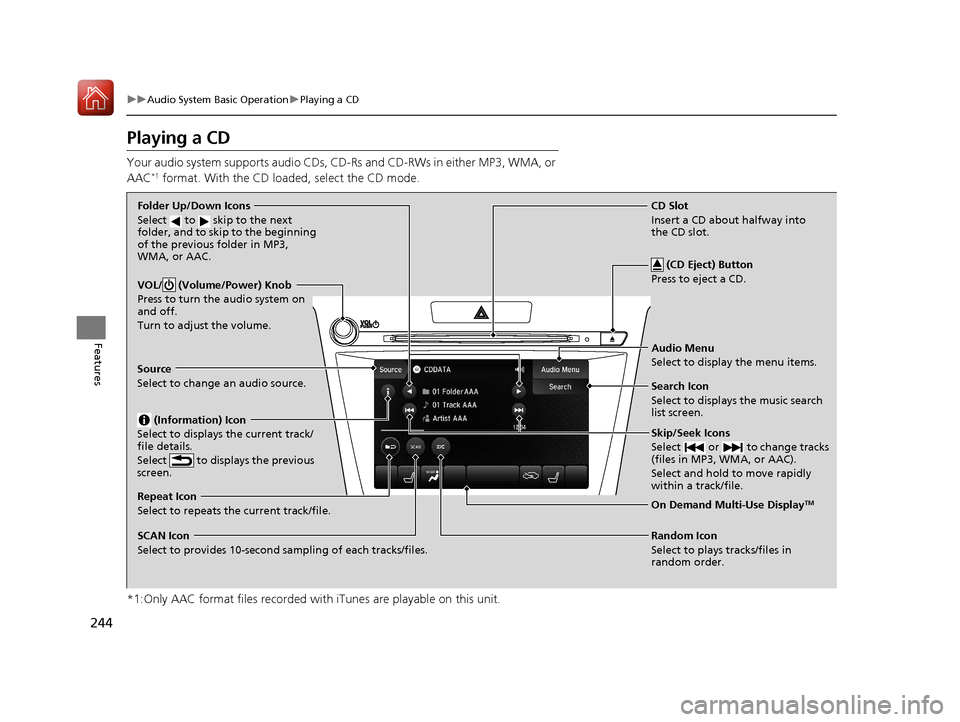
VOL/ (Volume/Power) Knob
Press to turn the audio system on
and off.
Turn to adjust the volume.
Skip/Seek Icons
Select or to change tracks
(files in MP3, WMA, or AAC).
Select and hold to move rapidly
within a track/file.
Audio Menu
Select to display the menu items.
Source
Select to change an audio source.
(Information) Icon
Select to displays the current track/
file details.
Select to displays the previous
screen.
Search Icon
Select to displays the music search
list screen.
Folder Up/Down Icons
Select to skip to the next
folder, and to skip to the beginning
of the previous folder in MP3,
WMA, or AAC.
On Demand Multi-Use DisplayTMRepeat Icon
Select to repeats the current track/file.
SCAN Icon
Select to provides 10-second sampling of each tracks/files. Random Icon
Select to plays tracks/files in
random order.
(CD Eject) Button
Press to eject a CD.
CD Slot
Insert a CD about halfway into
the CD slot.
18 ACURA TLX-31TZ36300.book 244 ページ 2017年2月21日 火曜日 午後2時32分
Page 246 of 589
Continued245
uuAudio System Basic Operation uPlaying a CD
Features
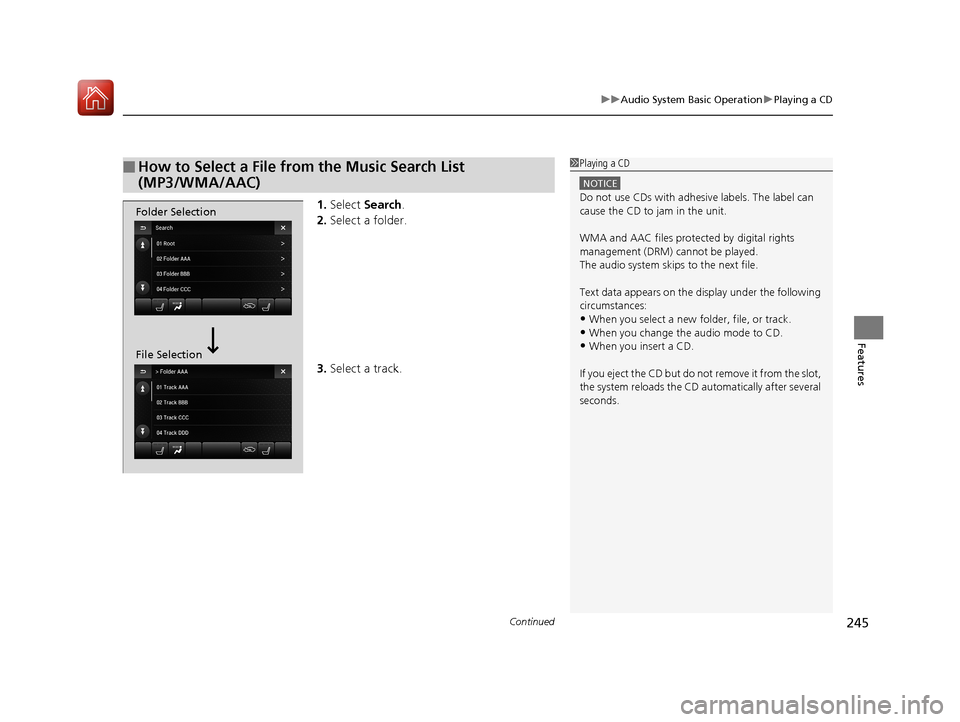
1. Select Search .
2. Select a folder.
3. Select a track.
■How to Select a File from the Music Search List
(MP3/WMA/AAC)1Playing a CD
NOTICE
Do not use CDs with adhesive labels. The label can
cause the CD to jam in the unit.
WMA and AAC files protected by digital rights
management (DRM) cannot be played.
The audio system skips to the next file.
Text data appears on the di splay under the following
circumstances:
•When you select a new folder, file, or track.•When you change the audio mode to CD.
•When you insert a CD.
If you eject the CD but do not remove it from the slot,
the system reloads the CD automatically after several
seconds.
Folder Selection
File Selection
18 ACURA TLX-31TZ36300.book 245 ページ 2017年2月21日 火曜日 午後2時32分
Page 247 of 589
uuAudio System Basic Operation uPlaying a CD
246
Features
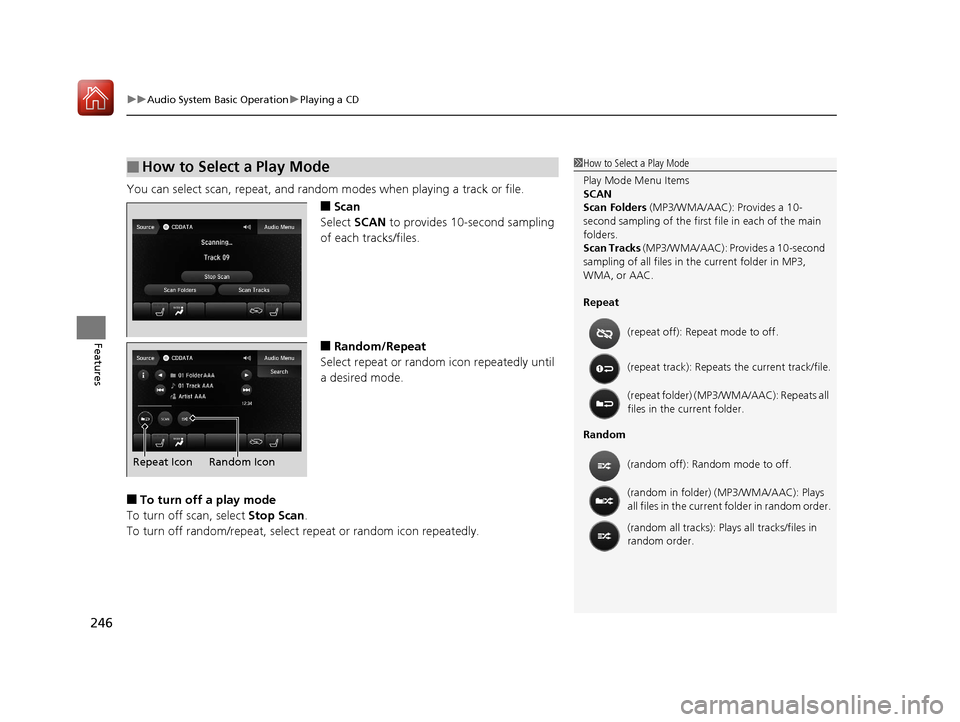
You can select scan, repeat, and random modes when playing a track or file.
■Scan
Select SCAN to provides 10-second sampling
of each tracks/files.
■Random/Repeat
Select repeat or random icon repeatedly until
a desired mode.
■To turn off a play mode
To turn off scan, select Stop Scan.
To turn off random/repeat, select repeat or random icon repeatedly.
■How to Select a Play Mode1How to Select a Play Mode
Play Mode Menu Items
SCAN
Scan Folders (MP3/WMA/AAC): Provides a 10-
second sampling of the first f ile in each of the main
folders.
Scan Tracks (MP3/WMA/AAC): Provides a 10-second
sampling of all files in the current folder in MP3,
WMA, or AAC.
Repeat
Random (repeat off): Repe
at mode to off.
(repeat track): Repeats the current track/file.
(repeat folder) (MP3/WMA/AAC): Repeats all
files in the current folder.
(random off): Random mode to off.
(random in folder) (MP3/WMA/AAC): Plays
all files in the current folder in random order.
(random all tracks): Play s all tracks/files in
random order.
Random Icon
Repeat Icon
18 ACURA TLX-31TZ36300.book 246 ページ 2017年2月21日 火曜日 午後2時32分
Page 248 of 589
247
uuAudio System Basic Operation uPlaying an iPod
Continued
Features
Playing an iPod
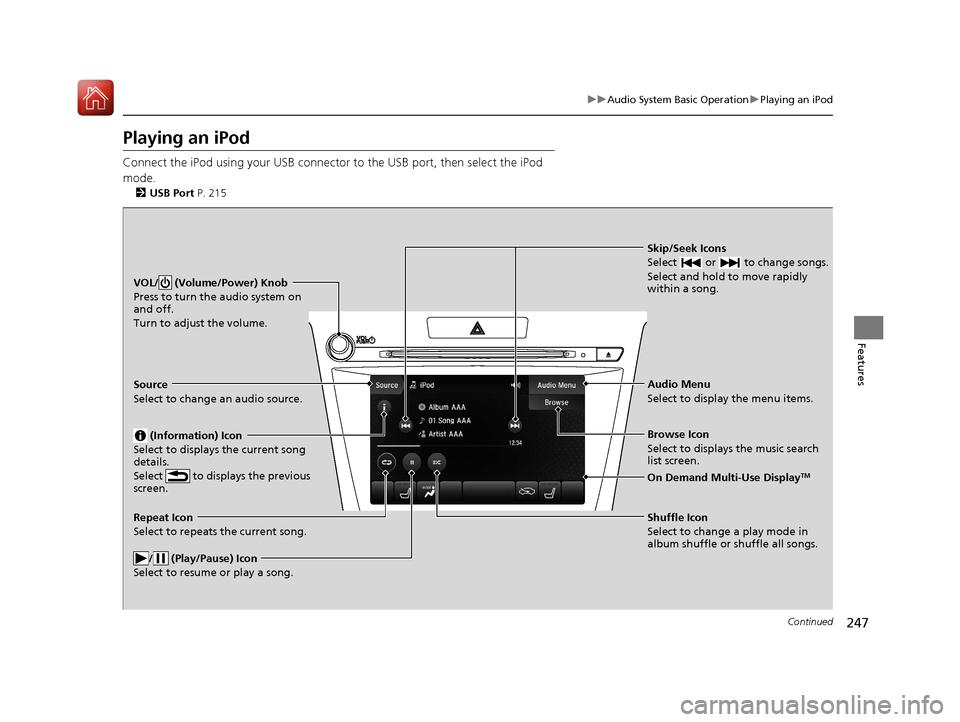
Connect the iPod using your USB connector to the USB port, then select the iPod
mode.
2 USB Port P. 215
Skip/Seek Icons
Select or to change songs.
Select and hold to move rapidly
within a song.
VOL/ (Volume/Power) Knob
Press to turn the audio system on
and off.
Turn to adjust the volume.
Audio Menu
Select to display the menu items.
Source
Select to change an audio source.
(Information) Icon
Select to displays the current song
details.
Select to displays the previous
screen.
Browse Icon
Select to displays the music search
list screen.
On Demand Multi-Use DisplayTM
Repeat Icon
Select to repeats the current song.
/ (Play/Pause) Icon
Select to resume or play a song.Shuffle Icon
Select to change a play mode in
album shuffle or shuffle all songs.
18 ACURA TLX-31TZ36300.book 247 ページ 2017年2月21日 火曜日 午後2時32分
Page 249 of 589
uuAudio System Basic Operation uPlaying an iPod
248
Features
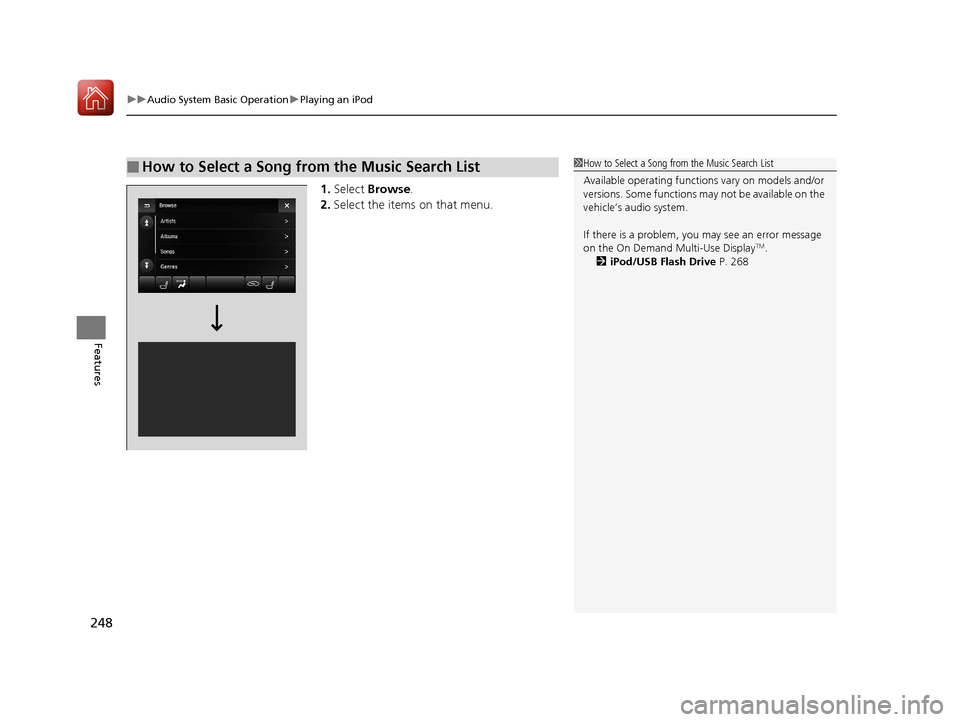
1. Select Browse .
2. Select the items on that menu.
■How to Select a Song from the Music Search List1How to Select a Song from the Music Search List
Available operating function s vary on models and/or
versions. Some functions ma y not be available on the
vehicle’s audio system.
If there is a problem, you may see an error message
on the On Demand Multi-Use Display
TM.
2 iPod/USB Flash Drive P. 268
18 ACURA TLX-31TZ36300.book 248 ページ 2017年2月21日 火曜日 午後2時32分
Page 250 of 589
249
uuAudio System Basic Operation uPlaying an iPod
Features
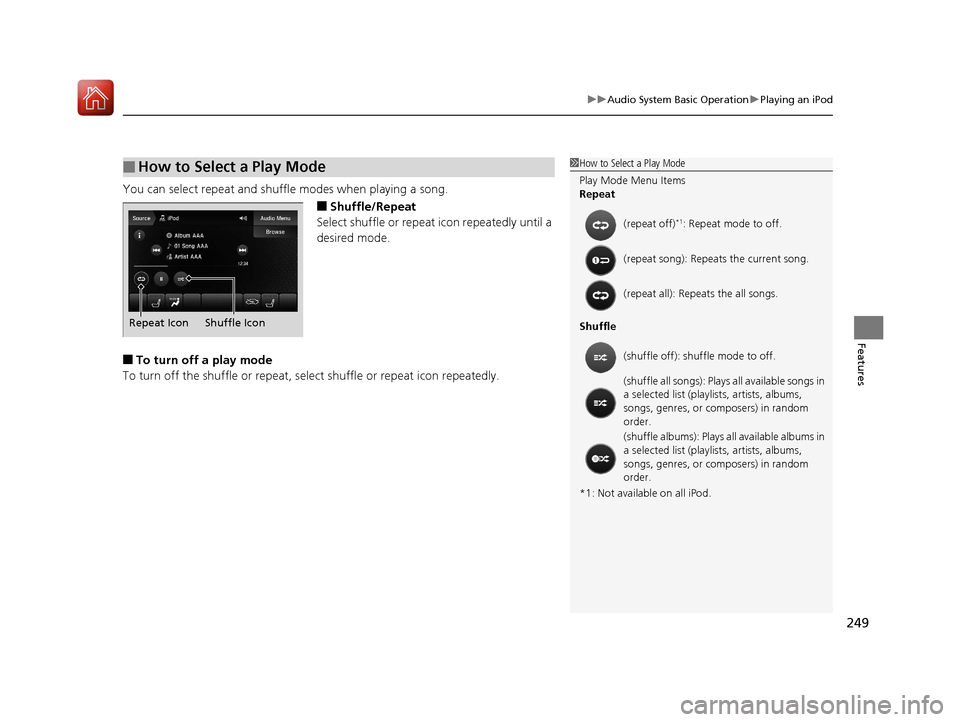
You can select repeat and shu ffle modes when playing a song.
■Shuffle/Repeat
Select shuffle or repeat icon repeatedly until a
desired mode.
■To turn off a play mode
To turn off the shuffle or repeat, select shuffle or repeat icon repeatedly.
■How to Select a Play Mode1How to Select a Play Mode
Play Mode Menu Items
Repeat
Shuffle
*1: Not available on all iPod. (repeat off)
*1: Repeat mode to off.
(repeat song): Repeat s the current song.
(repeat all): Repeats the all songs.
(shuffle off): shuf fle mode to off.
(shuffle all songs): Plays all available songs in
a selected list (playlists, artists, albums,
songs, genres, or composers) in random
order.
(shuffle albums): Plays all available albums in
a selected list (playlists, artists, albums,
songs, genres, or composers) in random
order.
Shuffle Icon
Repeat Icon
18 ACURA TLX-31TZ36300.book 249 ページ 2017年2月21日 火曜日 午後2時32分
Page 251 of 589
250
uuAudio System Basic Operation uPlaying Pandora ®
Features
Playing Pandora ®
Your audio system allows you to listen to music from the Pandora ® app on a
compatible smartphone.
This function is available when the phone is paired and connected to the vehicle’s
Bluetooth ® HandsFreeLink ® (HFL) system, or with an iPhone, you can connect using
your USB cable to the USB port.
2 Phone Setup P. 325
2 USB Port P. 215
U.S. models
1Playing Pandora ®
Pandora ®, the Pandora logo, and the Pandora trade
dress are trademarks or registered trademarks of
Pandora Media, Inc., used with permission. Pandora
is currently available exclusively in the United States.
To find out if your phone is compatible with this
feature, visit www.acura.com/handsfreelink , or call
1-888-528-7876.
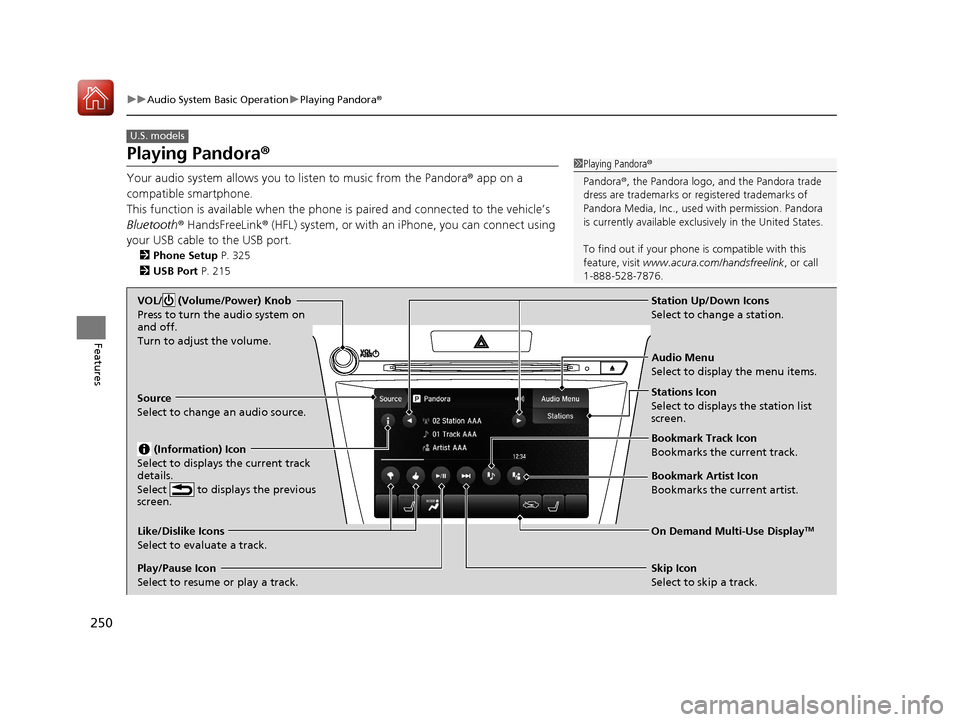
VOL/ (Volume/Power) Knob
Press to turn the audio system on
and off.
Turn to adjust the volume.
Audio Menu
Select to display the menu items.
Source
Select to change an audio source.
(Information) Icon
Select to displays the current track
details.
Select to displays the previous
screen.
Stations Icon
Select to displays the station list
screen.
On Demand Multi-Use DisplayTMLike/Dislike Icons
Select to evaluate a track.
Skip Icon
Select to skip a track.
Play/Pause Icon
Select to resume or play a track.Station Up/Down Icons
Select to change a station.
Bookmark Track Icon
Bookmarks the current track.
Bookmark Artist Icon
Bookmarks the current artist.
18 ACURA TLX-31TZ36300.book 250 ページ 2017年2月21日 火曜日 午後2時32分
Page 252 of 589
251
uuAudio System Basic Operation uPlaying Pandora ®
Features
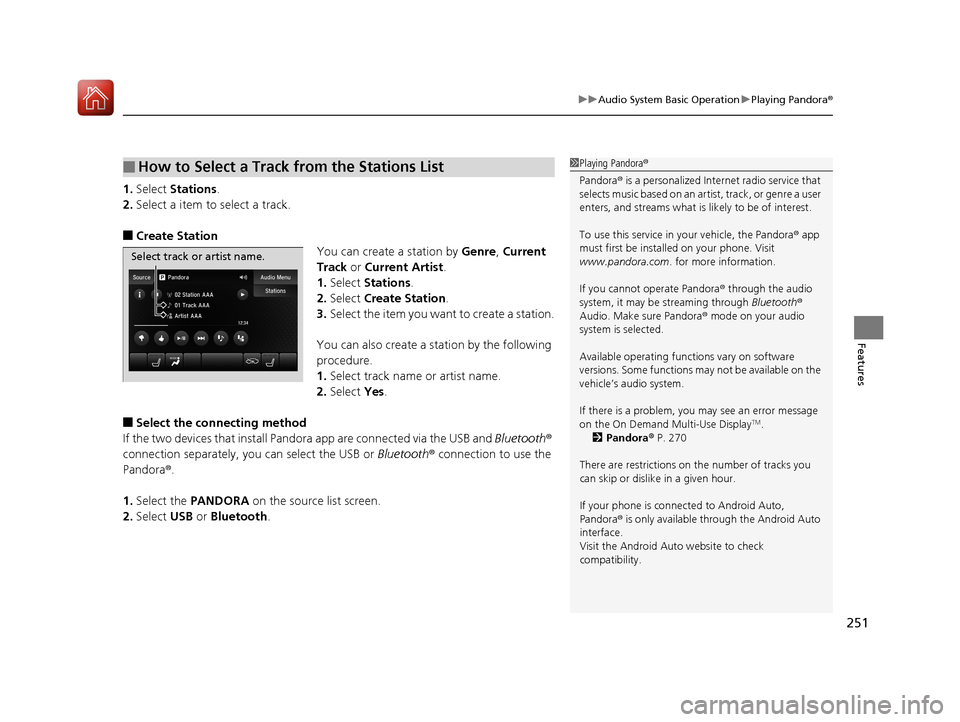
1.Select Stations .
2. Select a item to select a track.
■Create Station
You can create a station by Genre, Current
Track or Current Artist .
1. Select Stations .
2. Select Create Station.
3. Select the item you want to create a station.
You can also create a station by the following
procedure.
1. Select track name or artist name.
2. Select Yes.
■Select the conn ecting method
If the two devices that install Pandora app are c onnected via the USB and Bluetooth®
connection separately, you can select the USB or Bluetooth® connection to use the
Pandora ®.
1. Select the PANDORA on the source list screen.
2. Select USB or Bluetooth .
■How to Select a Track from the Stations List1Playing Pandora ®
Pandora ® is a personalized Internet radio service that
selects music based on an arti st, track, or genre a user
enters, and streams what is likely to be of interest.
To use this service in your vehicle, the Pandora ® app
must first be installed on your phone. Visit
www.pandora.com. for more information.
If you cannot operate Pandora ® through the audio
system, it may be streaming through Bluetooth®
Audio. Make sure Pandora ® mode on your audio
system is selected.
Available operating functi ons vary on software
versions. Some functions ma y not be available on the
vehicle’s audio system.
If there is a problem, you may see an error message
on the On Demand Multi-Use Display
TM.
2 Pandora ® P. 270
There are restrictions on the number of tracks you
can skip or dislike in a given hour.
If your phone is connec ted to Android Auto,
Pandora ® is only available through the Android Auto
interface.
Visit the Android Auto website to check
compatibility.
Select track or artist name.
18 ACURA TLX-31TZ36300.book 251 ページ 2017年2月21日 火曜日 午後2時32分
Page 253 of 589
252
uuAudio System Basic Operation uPlaying a USB Flash Drive
Features
Playing a USB Flash Drive
Your audio system reads and plays sound fi les on a USB flash drive in either MP3,
WMA, or AAC*1 format.
Connect your USB flash drive to the USB port, then select the USB mode.
2USB Port P. 215
*1:Only AAC format files recorded with iTunes are playable on this unit.
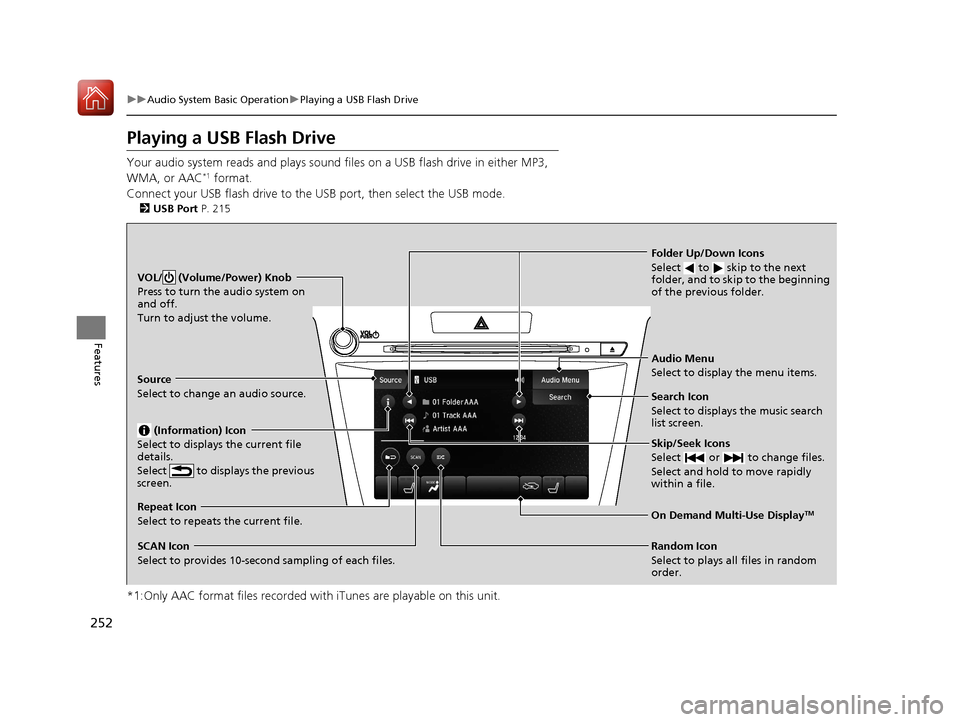
VOL/ (Volume/Power) Knob
Press to turn the audio system on
and off.
Turn to adjust the volume.
Skip/Seek Icons
Select or to change files.
Select and hold to move rapidly
within a file.
Audio Menu
Select to display the menu items.
Source
Select to change an audio source.
(Information) Icon
Select to displays the current file
details.
Select to displays the previous
screen.
Search Icon
Select to displays the music search
list screen.
Folder Up/Down Icons
Select to skip to the next
folder, and to skip to the beginning
of the previous folder.
On Demand Multi-Use DisplayTMRepeat Icon
Select to repeats the current file.
SCAN Icon
Select to provides 10-second sampling of each files. Random Icon
Select to plays all files in random
order.
18 ACURA TLX-31TZ36300.book 252 ページ 2017年2月21日 火曜日 午後2時32分