USB ACURA TLX 2023 User Guide
[x] Cancel search | Manufacturer: ACURA, Model Year: 2023, Model line: TLX, Model: ACURA TLX 2023Pages: 658, PDF Size: 21.27 MB
Page 235 of 658
233
uuAudio System Basic Operation uAdjusting the Sound
Features
Adjusting the Sound
1. Press the (home) button.
2. Select an audio source icon.
3. Select SOUND.
4. Select the setting you want.
3. Select MENU .
4. Select Sound Settings.
5. Select the setting you want.
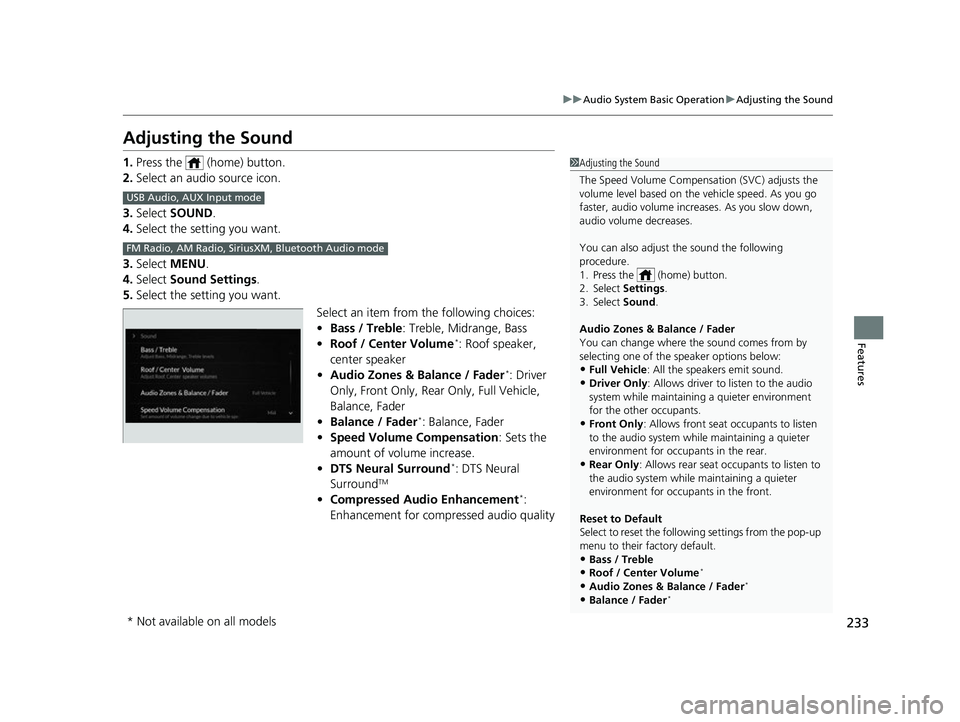
Select an item from the following choices:
•Bass / Treble : Treble, Midrange, Bass
• Roof / Center Volume
*: Roof speaker,
center speaker
• Audio Zones & Balance / Fader
*: Driver
Only, Front Only, Rear Only, Full Vehicle,
Balance, Fader
• Balance / Fader
*: Balance, Fader
• Speed Volume Compensation : Sets the
amount of volume increase.
• DTS Neural Surround
*: DTS Neural
SurroundTM
• Compressed Audio Enhancement*:
Enhancement for compressed audio quality
1 Adjusting the Sound
The Speed Volume Compensation (SVC) adjusts the
volume level based on the vehicle speed. As you go
faster, audio volume increa ses. As you slow down,
audio volume decreases.
You can also adjust the sound the following
procedure.
1. Press the (home) button.
2. Select Settings .
3. Select Sound .
Audio Zones & Balance / Fader
You can change where the sound comes from by
selecting one of the speaker options below:
•Full Vehicle: All the speakers emit sound. •Driver Only: Allows driver to listen to the audio
system while maintaini ng a quieter environment
for the other occupants.
•Front Only : Allows front seat occupants to listen
to the audio system while maintaining a quieter
environment for occupants in the rear.
•Rear Only : Allows rear seat o ccupants to listen to
the audio system while maintaining a quieter
environment for occupants in the front.
Reset to Default
Select to reset the followi ng settings from the pop-up
menu to their factory default.
•Bass / Treble
•Roof / Center Volume*
•Audio Zones & Balance / Fader*
•Balance / Fader*
USB Audio, AUX Input mode
FM Radio, AM Radio, Siri usXM, Bluetooth Audio mode
* Not available on all models
23 ACURA TLX-31TGV6200.book 233 ページ 2022年8月4日 木曜日 午後1時59分
Page 239 of 658
237
uuAudio System Basic Operation uVoice Control Operation
Features
■Sirius XM Commands
• Play XM radio
• Play XM
• Listen to
• Play XM Channel
• Tune to
• Listen to
satellite radio
■USB Commands
• Play USB
• Play iPod
• Play genre
• Play
• Play
• Play
• Play
■Bluetooth ® Audio Commands
• Play Bluetooth
■AUX Commands
• Play AUX
2 Refer to the Navigation System Manual
•Help
• Cancel
• Repeat
Help provides guidance for the current
screen.
You can search for the desired item on each
search screen with your voice.
• Next Page
• Previous Page
• Back
• Go to
• Select
*1: Models with navigation system
■Navigation Commands*1
■Standard Commands
■Letter Input Commands
■List Commands
23 ACURA TLX-31TGV6200.book 237 ページ 2022年8月4日 木曜日 午後1時59分
Page 257 of 658

255
uuAudio System Basic Operation uPlaying an iPod
Continued
Features
Playing an iPod
Using your USB connector, connect the iP od to the USB port (2.5A), then select
the USB mode.
2 USB Ports P. 205
Repeat Icon
Select to repeat the
current song.
SOUND
Select to display the sound
settings.
Music Library
Select to display the music
search screen.
Skip/Seek Icons
Select or to
change songs.
Select and hold to move
rapidly within a song.
Shuffle Icon
Select to change a play mode
in album shuffle or shuffle all
songs.
VOL (Volume/Power) Knob
Push to turn the audio system on
and off. Turn to adjust the volume.
/ (Seek/Skip) Button
Press or to change songs.
Press and hold to move rapidly within
a song.
Play/Pause Icon
Album Art Current Song Information
Select to display the
play list
screen.
23 ACURA TLX-31TGV6200.book 255 ページ 2022年8月4日 木曜日 午後1時59分
Page 258 of 658

uuAudio System Basic Operation uPlaying an iPod
256
Features
1. Select Music Library.
2. Select a search catego ry (e.g., Artists,
Albums, etc.).
3. Continue making selections until you find
the song of your choice.
■How to Select a Song from the Music Search List1Playing an iPod
Available operating functi ons vary on models or
versions. Some functions ma y not be available on the
vehicle’s audio system.
If there is a problem, you may see an error message
on the audio/information screen. 2 iPod/USB Flash Drive P. 276
If you operate the musi c app on your iPhone/iPod
while the phone is connected to the audio system,
you may no longer be able to operate the same app
on the audio/information screen.
Reconnect the devi ce if necessary.
Select SEARCH LIST , then trace the letters and/or
numbers of the song on the A-zone touchpad. When
KEYBOARD is selected, the on-screen keyboard
appears.
23 ACURA TLX-31TGV6200.book 256 ページ 2022年8月4日 木曜日 午後1時59分
Page 260 of 658

258
uuAudio System Basic Operation uPlaying a USB Flash Drive
Features
Playing a USB Flash Drive
Your audio system reads and plays audio file s on a USB flash drive in either format
of MP3, WMA, AAC*1, etc.
2 Playable audio file P. 281
Connect your USB flash drive to the USB port (2.5A), then select the USB mode.
2USB Ports P. 205
*1:Only AAC format files recorded with iTunes are playable on this unit.
Repeat Icon
Select to repeat the current
file.
SOUND
Select to display the sound
settings.
Music Library
Select to display the music
search screen.
Skip/Seek Icons
Select or to change
files.
Select and hold to move
rapidly within a file.
Random Icon
Select to play all files in the
current category in random
order.
VOL (Volume/Power) Knob
Push to turn the audio system on and
off. Turn to adjust the volume.
/ (Seek/Skip) Button
Press or to change files.
Press and hold to move rapidly
within a file.
Play/Pause Icon
Album Art Current File Information
Select to display the
play
list screen.
23 ACURA TLX-31TGV6200.book 258 ページ 2022年8月4日 木曜日 午後1時59分
Page 261 of 658
Continued259
uuAudio System Basic Operation uPlaying a USB Flash Drive
Features
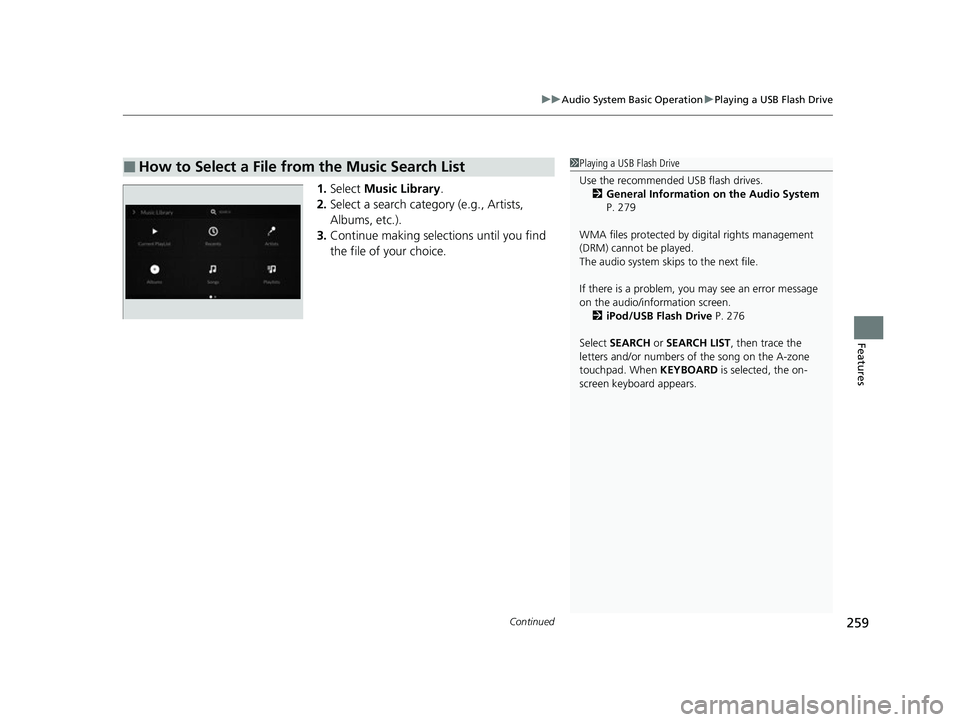
1. Select Music Library .
2. Select a search catego ry (e.g., Artists,
Albums, etc.).
3. Continue making selections until you find
the file of your choice.
■How to Select a File from the Music Search List1Playing a USB Flash Drive
Use the recommended USB flash drives.
2 General Information on the Audio System
P. 279
WMA files protected by di gital rights management
(DRM) cannot be played.
The audio system skips to the next file.
If there is a problem, you may see an error message
on the audio/information screen. 2 iPod/USB Flash Drive P. 276
Select SEARCH or SEARCH LIST, then trace the
letters and/or numbers of the song on the A-zone
touchpad. When KEYBOARD is selected, the on-
screen keyboard appears.
23 ACURA TLX-31TGV6200.book 259 ページ 2022年8月4日 木曜日 午後1時59分
Page 262 of 658

uuAudio System Basic Operation uPlaying a USB Flash Drive
260
Features
You can select repeat and random modes when playing a file.
■Random/Repeat
Repeatedly select the shuffle or repeat icon
until you find a play mode option of your
preference.
■How to Select a Play Mode1 How to Select a Play Mode
Play Mode Menu Items
Random
Repeat
*1: A play mode icon glows when selected. (random off): Random mode to off.
(random in folder):
Plays all files in
current playlist.
(repeat file): Repeats the current file.
(repeat folder): Repeats all files in the
current folder.
*1
*1
*1
23 ACURA TLX-31TGV6200.book 260 ページ 2022年8月4日 木曜日 午後1時59分
Page 270 of 658

268
uuAudio System Basic Operation uApple CarPlay
Features
Apple CarPlay
If you connect an Apple CarPlay-compatible iPhone to the system via the USB port
(2.5A), you can use the audio/informatio n screen, instead of the iPhone display,
to make a phone call, listen to music, vi ew maps (navigation), and access messages.
2USB Ports P. 205
1Apple CarPlay
Only iPhone 5 or newer versi ons with iOS 8.4 or later
are compatible with Apple CarPlay.
Park in a safe place before connecting your iPhone to
Apple CarPlay and when launching any compatible
apps.
While connected to Apple CarPlay, calls are only
made through Apple CarPlay. If you want to make a
call with Bluetooth ® HandsFreeLink ®, turn Apple
CarPlay off. 2 Setting Up Apple CarPlay P. 270
When your iPhone is connected to Apple CarPlay, it is
not possible to use the Bluetooth® Audio or
Bluetooth ® HandsFreeLink ®. However, other
previously paired phones can stream audio via
Bluetooth ® while Apple CarPlay is connected.
2 Phone Setup P. 335
For details on c ountries and regions where Apple
CarPlay is available, as well as information pertaining
to function, refer to the Apple homepage.
Apple CarPlay Icon
23 ACURA TLX-31TGV6200.book 268 ページ 2022年8月4日 木曜日 午後1時59分
Page 272 of 658
uuAudio System Basic Operation uApple CarPlay
270
Features
•
Go back to the Apple CarPlay Dashboard screen.
•
Go back to the Apple CarPlay menu screen.
After you have connected your iPhone to the system via the USB port (2.5A),
use the following procedure to set up Apple CarPlay. Use of Apple CarPlay will result
in the transmission of certain user and vehicle information (such as vehicle location,
speed, and status) to your iPhone to enhance the Apple CarPlay experience. You will
need to consent to the sharing of this information on the audio/information screen.
1. Connect the iPhone to the USB port using the USB cable.
2 USB Ports P. 205
uThe confirmation screen will be displayed.
2. Select Enable Apple CarPlay .
u If you do not want to connect Apple CarPlay, select Do Not Enable Apple
CarPlay .
You may change the consent settings under the Connections settings menu.
■Setting Up Apple CarPlay
■Enabling Apple CarPlay
1Setting Up Apple CarPlay
You can also use the method below to set up Apple
CarPlay:
Press the (home) button Select Settings
Connections Apple CarPlay Select device
Allow Apple CarPlay
Use of user and vehicle information
The use and handling of user and vehicle information
transmitted to/from your iP hone by Apple CarPlay is
governed by the Apple iOS terms and conditions and
Apple’s Privacy Policy.
23 ACURA TLX-31TGV6200.book 270 ページ 2022年8月4日 木曜日 午後1時59分
Page 274 of 658

272
uuAudio System Basic Operation uAndroid AutoTM
Features
Android AutoTM
When you connect an Android phone to the audio system via the USB port
(2.5A), Android Auto is automatically initiated. When connected via Android Auto,
you can use the audio/information screen to access the Phone, Google Maps
(Navigation), and Google Now functions. When you first use Android Auto, a
tutorial will appe ar on the screen.
We recommend that you complete this tuto rial while safely parked before using
Android Auto.
2 USB Ports P. 205
2 Auto Pairing Connection P. 274
1Android AutoTM
We recommend that you upda te Android OS to the
latest version when using Android Auto.
Bluetooth A2DP cannot be used while your phone is
connected to Android Auto.
To use Android Auto on a smartphone with Android
9.0 (Pie) or earl ier, you need to download the
Android Auto app from Google Play to your
smartphone.
Park in a safe place befo re connecting your Android
phone to Android Auto and when launching any
compatible apps.
To use Android Auto, connect the USB cable to the
USB port (2.5A). The USB port (2.5A) is
used only for charging. 2 USB Ports P. 205
When your Android phone is connected to Android
Auto, it is not possible to use the Bluetooth® Audio.
However, other previously paired phones can stream
audio via Bluetooth ® while Android Auto is
connected.
2 Phone Setup P. 335
Android Auto is a trademark of Google LLC.
Android Auto Icon
23 ACURA TLX-31TGV6200.book 272 ページ 2022年8月4日 木曜日 午後1時59分