remote control Acura ZDX 2012 Owner's Guide
[x] Cancel search | Manufacturer: ACURA, Model Year: 2012, Model line: ZDX, Model: Acura ZDX 2012Pages: 370, PDF Size: 10.06 MB
Page 132 of 370
uuOperating the Switches Around the Steering Wheel uENGINE START/STOP Button*
130
Controls
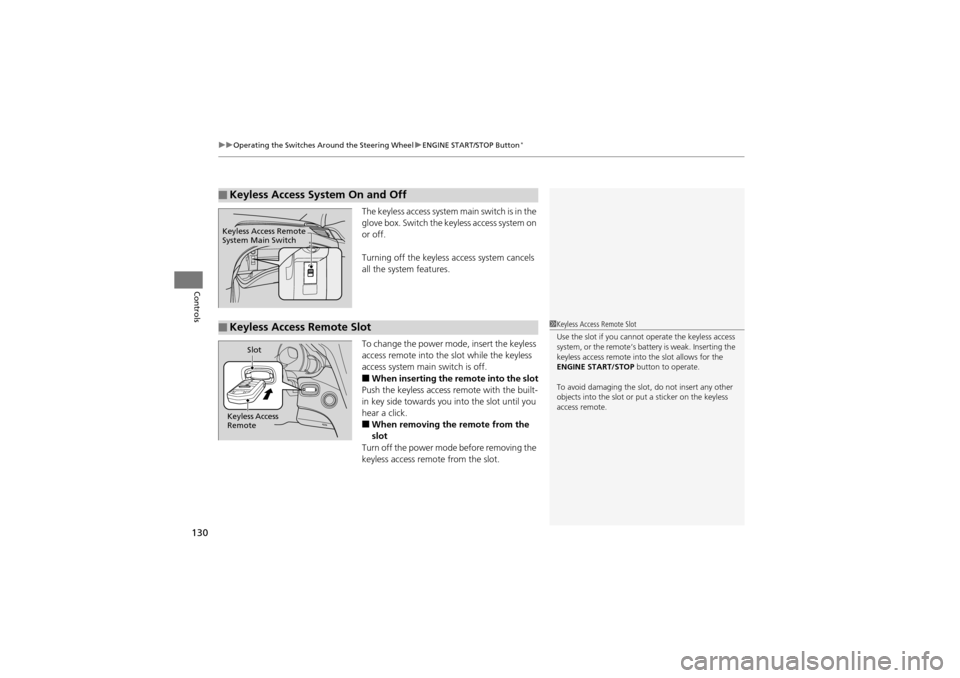
The keyless access system main switch is in the
glove box. Switch the key less access system on
or off.
Turning off the keyless ac cess system cancels
all the system features.
To change the power mode, insert the keyless
access remote into the slot while the keyless
access system main switch is off.
■When inserting the remote into the slot
Push the keyless access re mote with the built-
in key side towards you into the slot until you
hear a click.
■When removing the remote from the
slot
Turn off the power mode before removing the
keyless access remote from the slot.
■Keyless Access System On and Off
Keyless Access Remote
System Main Switch
■Keyless Access Remote Slot1 Keyless Access Remote Slot
Use the slot if you cannot operate the keyless access
system, or the remote’s batte ry is weak. Inserting the
keyless access remote into the slot allows for the
ENGINE START/STOP button to operate.
To avoid damaging the slot , do not insert any other
objects into the slot or pu t a sticker on the keyless
access remote.
Keyless Access
Remote Slot
Page 140 of 370
138
uuOperating the Switches Around the Steering Wheel uDriving Position Memory System
Controls
Driving Position Memory System
You can store two driver’s seat (excep t for power lumbar), steering wheel and
outside mirror positions with the driving position memory system.
When you unlock and open the driver’s door with a remote transmitter, or keyless
access system
*, the seat and outside mirrors adjust automatically to one of the two
preset positions.
The steering wheel will move to the stored position when you insert the key into the
ignition switch.
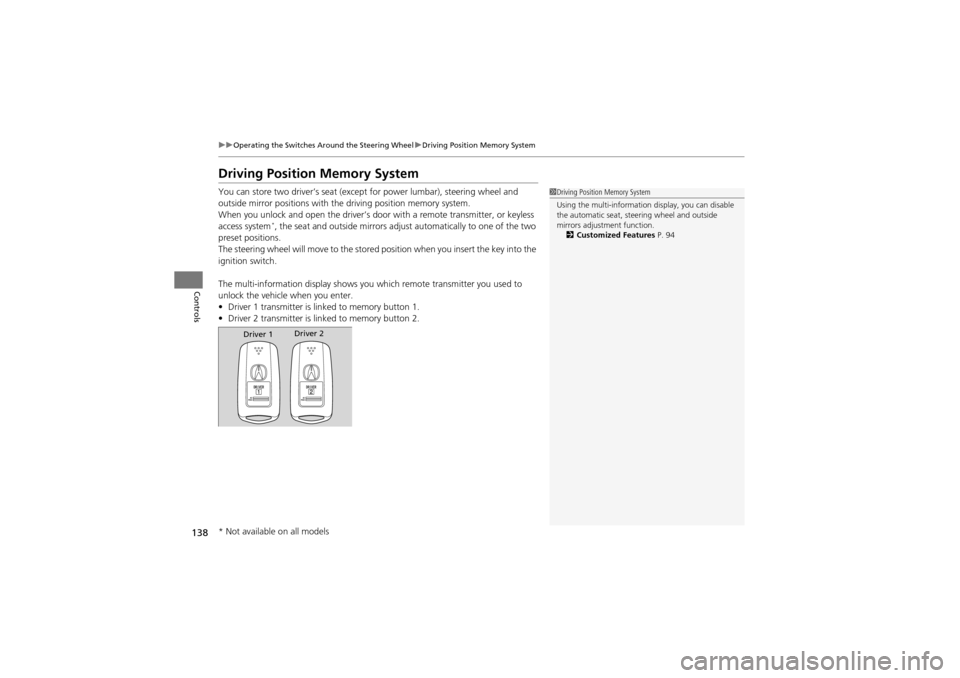
The multi-information disp lay shows you which remote transmitter you used to
unlock the vehicle when you enter.
• Driver 1 transmitter is lin ked to memory button 1.
• Driver 2 transmitter is lin ked to memory button 2.
1Driving Position Memory System
Using the multi-information display, you can disable
the automatic seat, steering wheel and outside
mirrors adjustment function.
2 Customized Features P. 94
Driver 1Driver 2
* Not available on all models
Page 169 of 370
167
Features
This chapter describes how to operate technology features on models without the navigation system.
Audio System
About Your Audio System ................ 168
USB Adapter Cable .......................... 169
Auxiliary Input Jack .... ...................... 169
Audio System Theft Protection ......... 170
Audio System Basic Operation ........ 171
Adjusting the Sound .... .................... 172
Playing the AM/FM Radio ................. 173
Playing the XM ® Radio ..................... 175
Playing a CD .................................... 177
Playing an iPod ®............................... 180
Playing a USB Flash Drive ................. 183
Playing Bluetooth ® Audio................. 186 Audio Error Messages
CD Changer..................................... 188
iPod ®/USB Flash Drive....................... 189
Audio Remote Controls .................... 190
General Information on the Audio SystemXM ® Radio Service ........................... 191
Recommended CDs ......................... 192
Compatible iPod® and USB Flash Drives........ 194HomeLink ® Universal Transceiver
Training HomeLink ........................... 195 Bluetooth® HandsFreeLink
®
Using HFL ........................................ 197
HFL Menus ...................................... 199
Page 170 of 370
168
Features
Audio System
About Your Audio System
On models with the navigation system, see the Navigation System Manual for
operation of the audio system, AcuraLink*, Bluetooth ® HandsFreeLink ®, and voice
commands for these features.
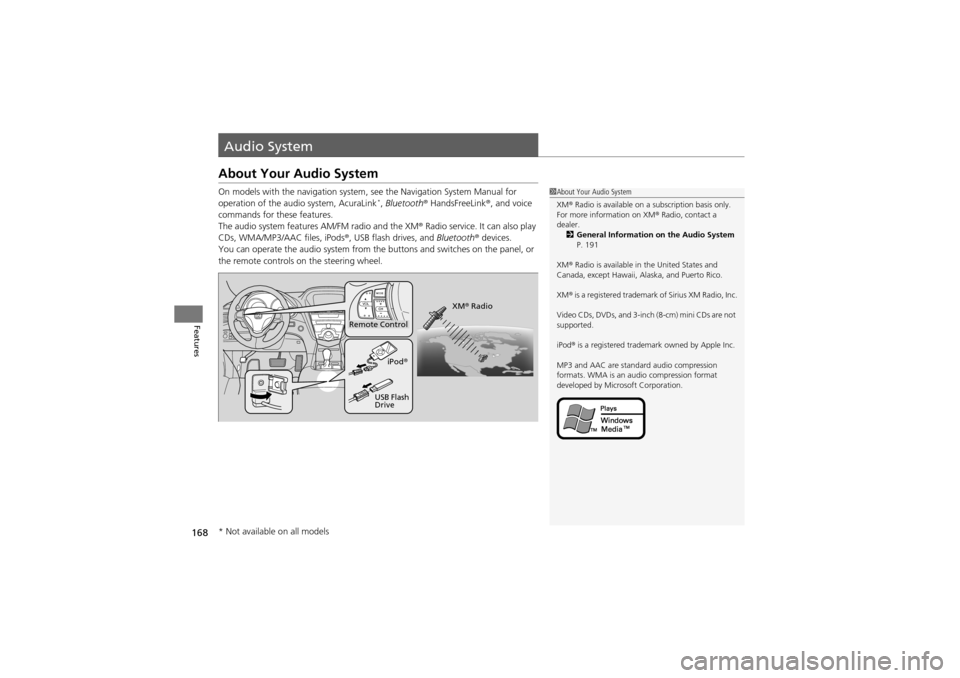
The audio system features AM/FM radio and the XM ® Radio service. It can also play
CDs, WMA/MP3/AAC files, iPods ®, USB flash drives, and Bluetooth® devices.
You can operate the audio system from the buttons and switches on the panel, or
the remote controls on the steering wheel.
1About Your Audio System
XM ® Radio is available on a subscription basis only.
For more information on XM ® Radio, contact a
dealer. 2 General Information on the Audio System
P. 191
XM ® Radio is available in the United States and
Canada, except Hawaii, Alaska, and Puerto Rico.
XM ® is a registered trademark of Sirius XM Radio, Inc.
Video CDs, DVDs, and 3-inch (8-cm) mini CDs are not
supported.
iPod ® is a registered trademark owned by Apple Inc.
MP3 and AAC are standard audio compression
formats. WMA is an au dio compression format
developed by Microsoft Corporation.
Remote Control
iPod®
USB Flash
Drive XM
® Radio
* Not available on all models
Page 176 of 370
uuAudio System Basic Operation uPlaying the AM/FM Radio
174
Features
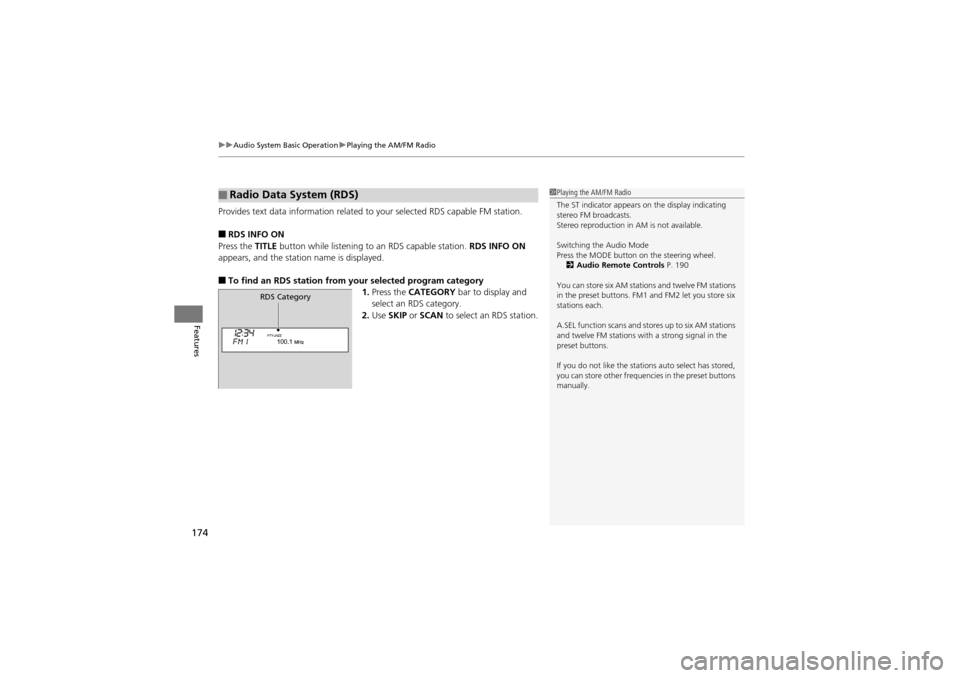
Provides text data information related to your selected RDS capable FM station.
■RDS INFO ON
Press the TITLE button while listening to an RDS capable station. RDS INFO ON
appears, and the station name is displayed.
■To find an RDS station from your selected program category 1.Press the CATEGORY bar to display and
select an RDS category.
2. Use SKIP or SCAN to select an RDS station.
■Radio Data System (RDS)1Playing the AM/FM Radio
The ST indicator appears on the display indicating
stereo FM broadcasts.
Stereo reproduction in AM is not available.
Switching the Audio Mode
Press the MODE button on the steering wheel.
2 Audio Remote Controls P. 190
You can store six AM stations and twelve FM stations
in the preset buttons. FM1 and FM2 let you store six
stations each.
A.SEL function scans and stores up to six AM stations
and twelve FM stations with a strong signal in the
preset buttons.
If you do not like the stations auto select has stored,
you can store other frequencies in the preset buttons
manually.
RDS Category
Page 192 of 370
190
Features
Audio Remote Controls
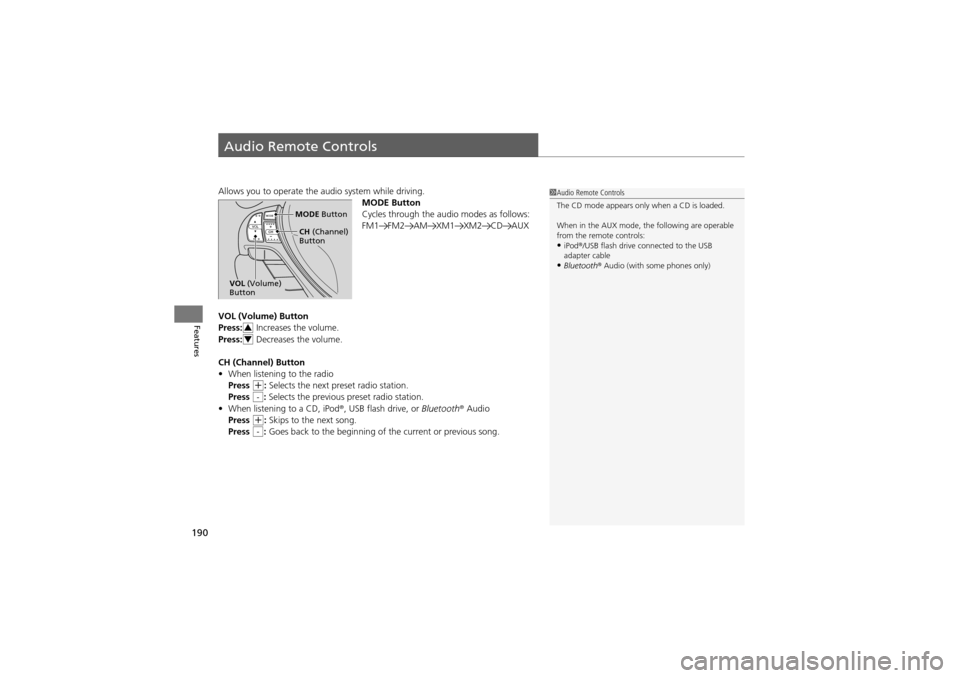
Allows you to operate the audio system while driving.
MODE Button
Cycles through the audio modes as follows:
FM1 FM2 AM XM1 XM2 CD AUX
VOL (Volume) Button
Press: Increases the volume.
Press: Decreases the volume.
CH (Channel) Button
• When listening to the radio
Press
+: Selects the next preset radio station.
Press : Selects the previous preset radio station.
• When listening to a CD, iPod ®, USB flash drive, or Bluetooth® Audio
Press
+: Skips to the next song.
Press : Goes back to the beginning of the current or previous song.
1Audio Remote Controls
The CD mode appears only when a CD is loaded.
When in the AUX mode, th e following are operable
from the remote controls:
•iPod ®/USB flash drive connected to the USB
adapter cable
•Bluetooth ® Audio (with some phones only)
MODE Button
CH (Channel)
Button
VOL (Volume)
Button
3
4
-
-
Page 197 of 370
195Continued
Features
HomeLink® Universal Transceiver
The HomeLink ® Universal Transceiver can be prog rammed to operate up to three
remote controlled devices around your home, such as garage doors, lighting, or
home security systems.
Refer to the safety information that comes wi th your garage door opener to test that
the safety features are functioning properly. If you do not have the safety
information, contact the manufacturer.
Before programming HomeLink, make sure that people and objects are out of the
way of the garage or gate to pr event potential injury or damage.
When programming a garage door opener, park just outside the garage door’s
path.
Training HomeLink
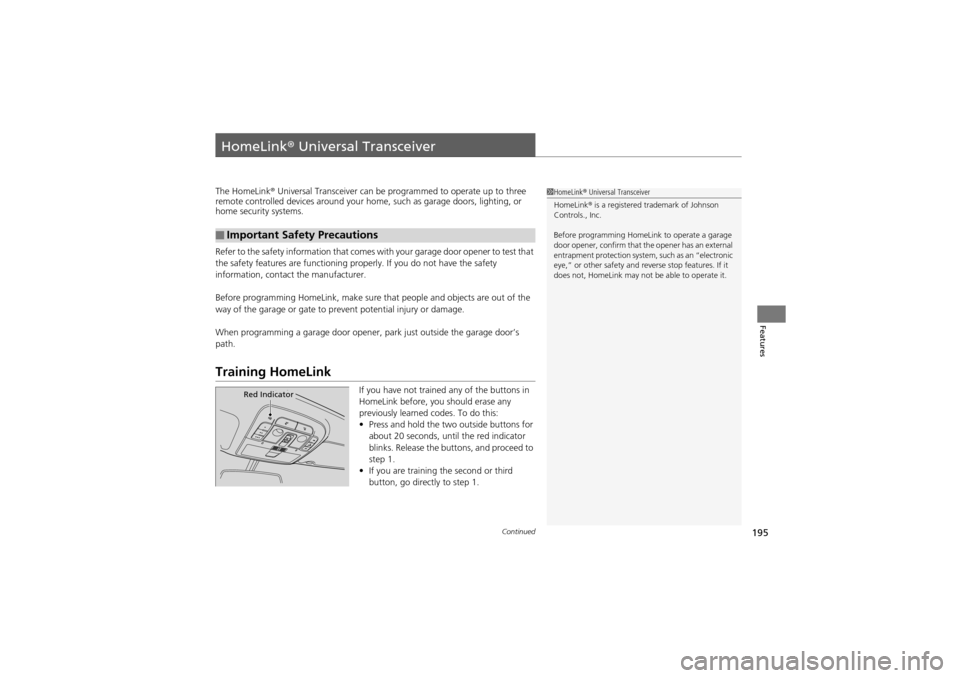
If you have not trained any of the buttons in
HomeLink before, you should erase any
previously learned codes. To do this:
• Press and hold the tw o outside buttons for
about 20 seconds, until the red indicator
blinks. Release the bu ttons, and proceed to
step 1.
• If you are training the second or third
button, go directly to step 1.
■Important Safety Precautions
1HomeLink ® Universal Transceiver
HomeLink ® is a registered trademark of Johnson
Controls., Inc.
Before programming HomeLink to operate a garage
door opener, confirm that the opener has an external
entrapment protection system, such as an “electronic
eye,” or other safety and re verse stop features. If it
does not, HomeLink may not be able to operate it.
Red Indicator
Page 198 of 370
uuHomeLink ® Universal Transceiver uTraining HomeLink
196
Features
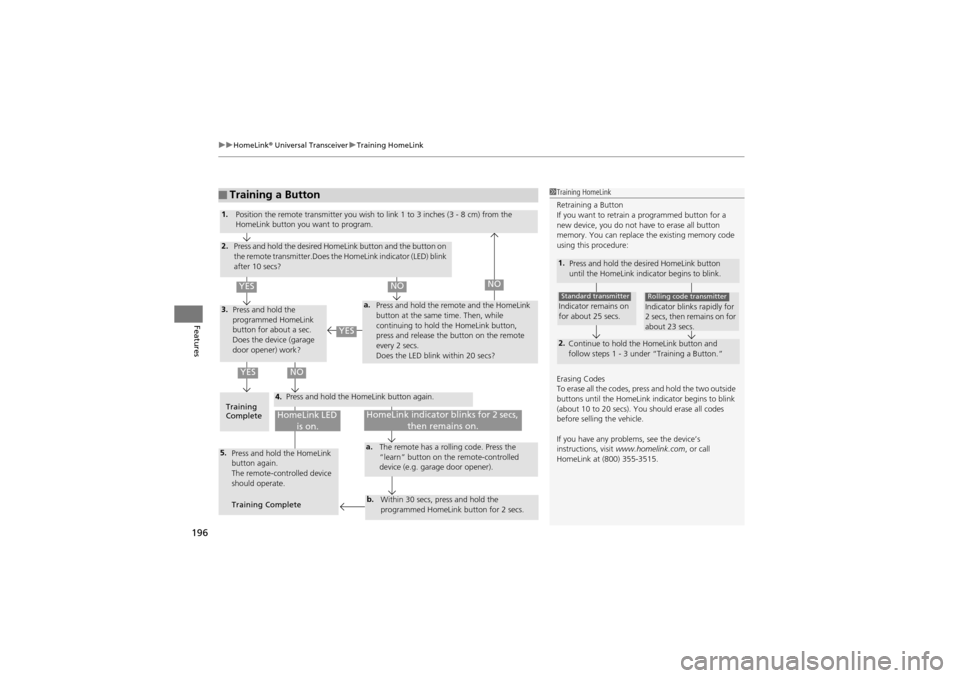
■Training a Button1Training HomeLink
Retraining a Button
If you want to retrain a programmed button for a
new device, you do not have to erase all button
memory. You can replace the existing memory code
using this procedure:
1.
Press and hold the de sired HomeLink button
until the HomeLink indicator begins to blink.
2. Continue to hold the HomeLink button and
follow steps 1 - 3 under “Training a Button.”
Indicator remains on
for about 25 secs.Standard transmitterIndicator blinks rapidly for
2 secs, then remains on for
about 23 secs.Rolling code transmitter
Erasing Codes
To erase all the codes, press and hold the two outside
buttons until the HomeLink indicator begins to blink
(about 10 to 20 secs). You should erase all codes
before selling the vehicle.
If you have any proble ms, see the device’s
instructions, visit www.homelink.com , or call
HomeLink at (800) 355-3515.
4.
a.3.
2.
5.a.
b.
1. Position the remote transmitter you wish to link 1 to 3 inches (3 - 8 cm) from the
HomeLink button you want to program.
Press and hold the desired HomeLink button and the button on
the remote transmitter.Does the HomeLink indicator (LED) blink
after 10 secs?
Press and hold the
programmed HomeLink
button for about a sec.
Does the device (garage
door opener) work? Press and hold the remote and the HomeLink
button at the same
time. Then, while
continuing to hold the HomeLink button,
press and release the button on the remote
every 2 secs.
Does the LED blink within 20 secs?
Training
Complete Press and hold the HomeLink button again.
Press and hold the HomeLink
button again.
The remote-controlled device
should operate.
Training Complete The remote has a ro
lling code. Press the
“learn” button on the remote-controlled
device (e.g. garage door opener).
Within 30 secs, press and hold the
programmed HomeLink button for 2 secs.
HomeLink indicator blinks for 2 secs, then remains on.HomeLink LED is on.
YESNO
YES
YESNONO
Page 199 of 370
197Continued
Features
Bluetooth® HandsFreeLink®
For models with the navigation system, see the Navigation System Manual for how
to operate Bluetooth® HandsFreeLink ®.
Bluetooth ® HandsFreeLink ® (HFL) allows you to place and receive phone calls using
your vehicle’s audio system, without handling your cell phone.
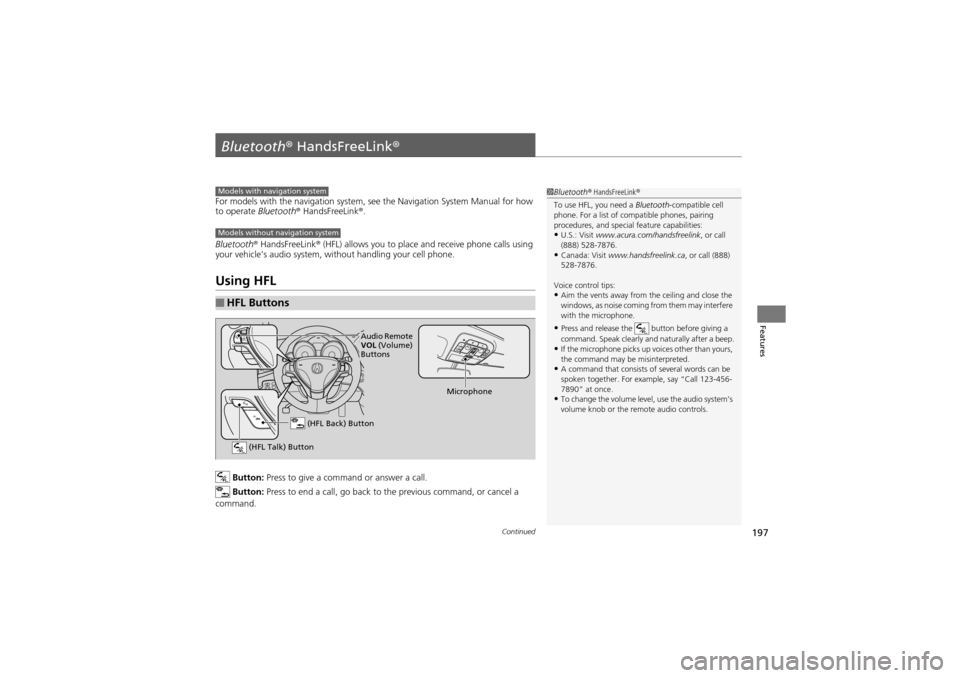
Using HFL
Button: Press to give a command or answer a call.
Button: Press to end a call, go back to the previous command, or cancel a
command.
■HFL Buttons
1 Bluetooth ® HandsFreeLink ®
To use HFL, you need a Bluetooth-compatible cell
phone. For a list of compatible phones, pairing
procedures, and special feature capabilities:
•U.S.: Visit www.acura.com/h andsfreelink, or call
(888) 528-7876.
•Canada: Visit www.handsfreelink.ca , or call (888)
528-7876.
Voice control tips:
•Aim the vents away from the ceiling and close the
windows, as noise coming from them may interfere
with the microphone.
•Press and release the button before giving a
command. Speak clearly and naturally after a beep.
•If the microphone picks up voices other than yours,
the command may be misinterpreted.
•A command that consists of several words can be
spoken together. For example, say “Call 123-456-
7890” at once.
•To change the volume level, use the audio system’s
volume knob or the re mote audio controls.
Models with navigation system
Models without navigation system
(HFL Talk) Button
Microphone
(HFL Back) Button
Audio Remote
VOL (Volume)
Buttons
Page 225 of 370
223Continued
Driving
When Driving
Starting the Engine
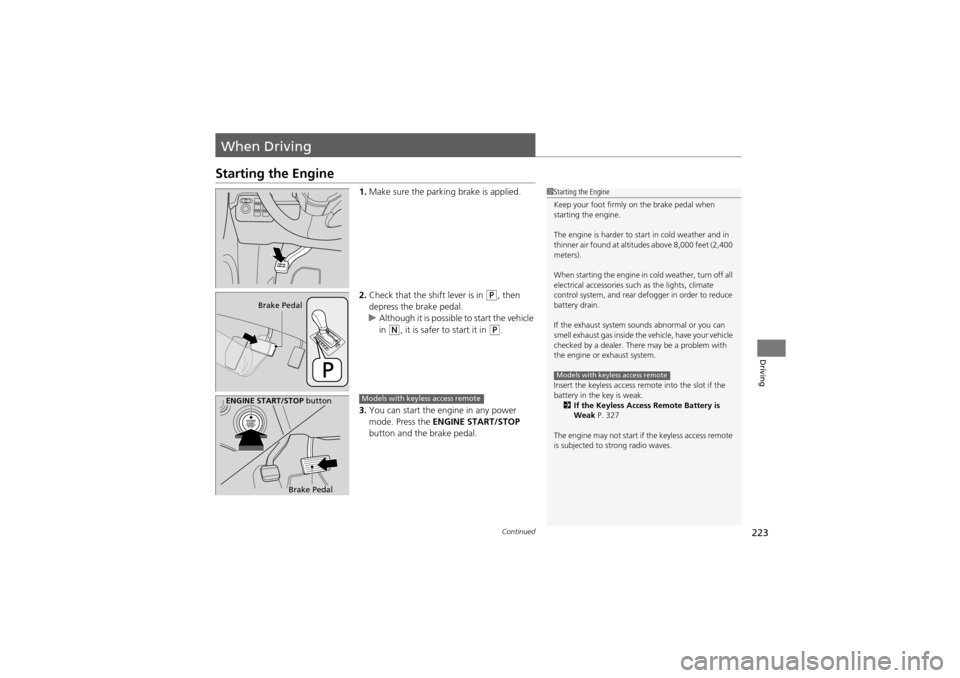
1.Make sure the parking brake is applied.
2. Check that the shift lever is in
P, then
depress the brake pedal.
u Although it is possible to start the vehicle
in
N, it is safer to start it in P.
3. You can start the engine in any power
mode. Press the ENGINE START/STOP
button and the brake pedal.
1 Starting the Engine
Keep your foot firmly on the brake pedal when
starting the engine.
The engine is harder to start in cold weather and in
thinner air found at altitu des above 8,000 feet (2,400
meters).
When starting the engine in cold weather, turn off all
electrical accessories such as the lights, climate
control system, and rear defogger in order to reduce
battery drain.
If the exhaust system sounds abnormal or you can
smell exhaust gas inside the vehicle, have your vehicle
checked by a dealer. There may be a problem with
the engine or exhaust system.
Insert the keyless access remo te into the slot if the
battery in the key is weak. 2 If the Keyless Access Remote Battery is
Weak P. 327
The engine may not start if the keyless access remote
is subjected to strong radio waves.
Models with keyless access remote
Brake Pedal
ENGINE START/STOP button
Brake Pedal
Models with keyless access remote