key Alfa Romeo Giulietta 2017 Workshop Manual
[x] Cancel search | Manufacturer: ALFA ROMEO, Model Year: 2017, Model line: Giulietta, Model: Alfa Romeo Giulietta 2017Pages: 212, PDF Size: 4.56 MB
Page 179 of 212
SWITCHING THESYSTEM ON/OFF
The system is switched on/off by
pressing the
(ON/OFF) button/knob.
Turn the button/knob clockwise to
increase the radio volume or
anticlockwise to decrease it.
RADIO (TUNER) MODE
Press the RADIO button on the front
panel to activate radio mode.
Select the band by pressing the
corresponding button: “AM”, “FM” or
“DAB”.
Selecting a frequency band
Briefly press the "AM/FM" button to
switch from AM to FM and vice versa.
If the DAB tuner is available, briefly press
the "AM/FM", "AM/DAB", "FM/DAB"
buttons to select the desired band.
Indications on display
After the desired radio station is
selected, the following information is
shown on the display:
At the top: the list of radio stations
stored (presets) is displayed; the station
currently playing is highlighted.
In the middle: display of the name of the
current radio station and the buttons for
selecting the previous or next radio
station.
At the bottom:radio station selection,
radio band, tuning, track information and
audio settings.Searching for the previous/next radio
station
To search for the desired radio station,
rotate the BROWSE ENTER button/knob,
press the
orbuttons or use
the steering wheel controls
.
When searching forwards, if the system
reaches the end of the band, it will
automatically stop on the station where
the search has started from.
Previous/next radio station fast search
Hold down buttonson the
display: when the button is released, the
first tunable radio station will be
displayed.
Tuning the radio (AM/FM)
Press the "Tune" button on the display
and then enter the frequency of the radio
station using the keypad on the display.
In this mode, use buttons + and – to
fine-tune the frequency.
To delete an incorrect number (and enter
the correct station number) press the
(Delete) button.
After entering the last digit of the
station, the screen is deactivated and the
system tunes automatically to the
station selected (the number of the radio
station is displayed in the "Tune" text
box).The screen disappears automatically
after 5 seconds or manually by pressing
the "OK" or “X” buttons.
Exit the "Direct Tune" screen
Press the "Exit" or "Radio" button on the
display to return to the main system
screen.
DAB Radio
(for versions/markets, where provided)
Once DAB radio mode is selected, the
information on the current station is
displayed and the following functions.
Selection of the previous/next radio
station by:
turning the BROWSE ENTER
button/knob;
briefly pressing theor
buttons on the display;
Steering wheel control press.
Hold down the
buttons to
fast scroll the station list.
The "Browse" button is used to display:
the list of all DAB stations;
the list of stations filtered by "Genres";
the list of stations filtered by
"Ensembles" (broadcast group).
Setting the presets
Presets are available in all system modes
and are activated by touching one of the
preset buttons located in the upper area
of the display.
177
or
or
Page 180 of 212
If you are tuned to a radio station that
you wish to store, hold down the button
on the display which corresponds to the
desired preset or until an acoustic
confirmation signal is emitted.
The system can store up to 12 radio
stations in each mode: 3 radio stations
are displayed in the upper area.
Press the "All" button on the display to
show all the radio stations stored in the
frequency band selected.
Audio
To access the "Audio" menu, press the
SETTINGS button on the front panel,
scroll through the menu, then select and
press the "Audio" option on the display.
The following adjustments can be carried
out using the "Audio" menu:
"Equalizer" (for versions/markets,
where provided): to adjust the bass,
medium and treble settings;
"Balance/Fader" (left/right and
front/rear audio balance adjustment);
"Volume/Speed" (excluding versions
with Hi-Fi system) speed-dependent
automatic volume adjustment;
"Loudness" (for versions/markets,
where provided): improves audio quality
at low volumes;
"Auto-On Radio": provides the options
of radio on, radio off or restore status
when the ignition key was last turned to
STOP.
"Radio Off Delay": keeps the radio on
for a preset time after the ignition key is
turned to STOP.
MEDIA MODE
This chapter describes the interaction
modes for CD,
Bluetooth®, AUX and
USB/iPod operation.
Press the "Source" button to select the
desired audio source from those
available.
Change track (next/previous)
Briefly press the
button or press
on the steering wheel or, alternatively,
turn the BROWSE ENTER button/knob
clockwise to play the next track. Briefly
press the
button or presson the
steering wheel or, alternatively, turn the
BROWSE ENTER button/knob clockwise
to return to the beginning of the track or
return to the beginning of the previous
track of the track has been playing for
less than 8 seconds.
Fast forward/rewind through tracks
Press and hold down the
button to
fast forward the selected track or keep
the
button pressed to fast rewind
the track.
Track selection (Browse)
The selection options depend on the
device connected or the CD type
inserted.NOTE
Bluetooth®devices do not offer
the possibility of scrolling through tracks
using the above categories.
NOTE This button might be disabled for
some
Apple®devices.
Press the "Browse" button to activate
this function on the source being played.
Turn the BROWSE ENTER button/knob
to select the desired category and then
press the button/knob to confirm the
selection.
Press the "X" button to cancel the
function.
Track information display
Press the "Info" button to display the
information on the track being listened to
for devices that support the function.
Press the "X" button to exit the screen.
Shuffle
Press the ">" button then the "Shuffle"
button to play the tracks on the CD,
USB/iPod or
Bluetooth®in a random
order.
Press the "Shuffle" button again to
deactivate the function.
Repeat
Press the ">" button then the "Repeat"
button to activate the function.
Press the "Repeat" button again to
deactivate the function.
178
MULTIMEDIA
Page 182 of 212
PHONE MODE
Phone mode activation
Press the PHONE button on the front
panel to activate the Phone mode.
A message on the display confirms
connection of the phone.
NOTE To consult the list of mobile phones
and supported functions, visit the
www.driveuconnect.eu website
Main functions
Use the buttons on the display to:
dial the phone number (using the
graphic keypad on the display);
display and call the contacts in the
mobile phone phonebook;
display and call contacts from the
registers of previous calls;
pair up to 10 phones/audio devices to
make access and connection easier and
quicker;
transfer calls from the system to the
mobile phone and vice versa and
deactivate the microphone audio for
private conversations.
To see the list of mobile phones and
supported functions, visit the
www.driveuconnect.eu website or call
Customer Service (the number may vary
depending on the country: please refer to
the reference table in the paragraph
“Customer Service number list” in the
Uconnect™attachments).Pairing a mobile phone
To pair the mobile phone, proceed as
follows:
activate theBluetooth®function on
the mobile phone;
press the PHONE button on the front
panel;
if no phone is paired with the system
yet, the display shows a dedicated
screen;
select "Yes" to start the pairing
procedure, then search for the
Uconnect™device on the mobile phone;
when prompted by the mobile phone,
use its keypad to enter the PIN code
shown on the system display or confirm
on the mobile phone the PIN displayed;
from the "Phone" screen you can
always pair a mobile phone by pressing
the "Settings" button: press the "Add
Device" button and proceed as described
above;
select "Yes" or “No” at the request to
pair the mobile phone as the preferred
device;
NOTE After updating the phone software,
for proper operation, it is recommended
to remove the phone from the list of
devices linked to the radio, delete the
previous system pairing also from the list
of
Bluetooth®devices on the phone and
make a new pairing.Storing names/numbers in the mobile
phone phonebook
Before pairing your mobile phone, make
sure you have stored the names you want
to contact in the phonebook on your
mobile phone so that you can call them
using the hands-free system of the car.
Transferring phone data (phonebook
and recent calls)
If your mobile phone has a function for
sending the phonebook via
Bluetooth®
technology.
Answer "Yes" when asked to copy the
phonebook to the system.
Answer "No" to carry out the operation
later on.
Making a phone call
The operations described below can only
be accessed if supported by the mobile
phone in use.
A call can be made by:
selecting theicon (mobile phone
phonebook);
selecting "Recent Calls";
selecting the icon(Keypad);
pressing the "Redial" button.
180
MULTIMEDIA
Page 186 of 212
ANTITHEFT PROTECTION
The system is equipped with an anti-theft
protection system based on the
exchange of information with the
electronic control unit (Body Computer)
on the vehicle.
This guarantees maximum safety and
prevents the secret code from being
entered after the power supply has been
disconnected.
If the check has a positive outcome, the
system will start to operate.
If the comparison codes are not the same
or if the electronic control unit (Body
Computer) is replaced, the system will
ask the user to enter the secret code
according to the procedure described in
the paragraph below.
Entering the secret code
When the system is switched on, if the
code is requested, the display will show
"Please enter Anti-Theft Code" followed
by the screen showing a keypad to enter
the secret code.
The secret code is made up of four digits,
from 0 to 9: to insert the first number of
the code press the corresponding key on
the display. Enter the other code digits in
the same way.After entering the fourth digit, the
system begins operating.
If an incorrect code is entered, the
system displays "Incorrect Code" to
notify the user of the need to enter the
correct code.
After the 3 available attempts to enter
the code, the system displays "Incorrect
Code. Radio locked. Please wait
30 minutes": the waiting time is
displayed. After the text has disappeared
it is possible to start the code entering
procedure again.
Vehicle radio passport
This document certifies ownership of the
system. The vehicle radio passport shows
the system model, serial number and
secret code.
In the event that the radio passport is
lost, contact an Alfa Romeo Dealership,
taking an ID document and the car
ownership documents.
WARNING Keep the vehicle radio
passport in a safe place so that you can
give the information to the relevant
authorities if the system is stolen.
184
MULTIMEDIA
Page 191 of 212
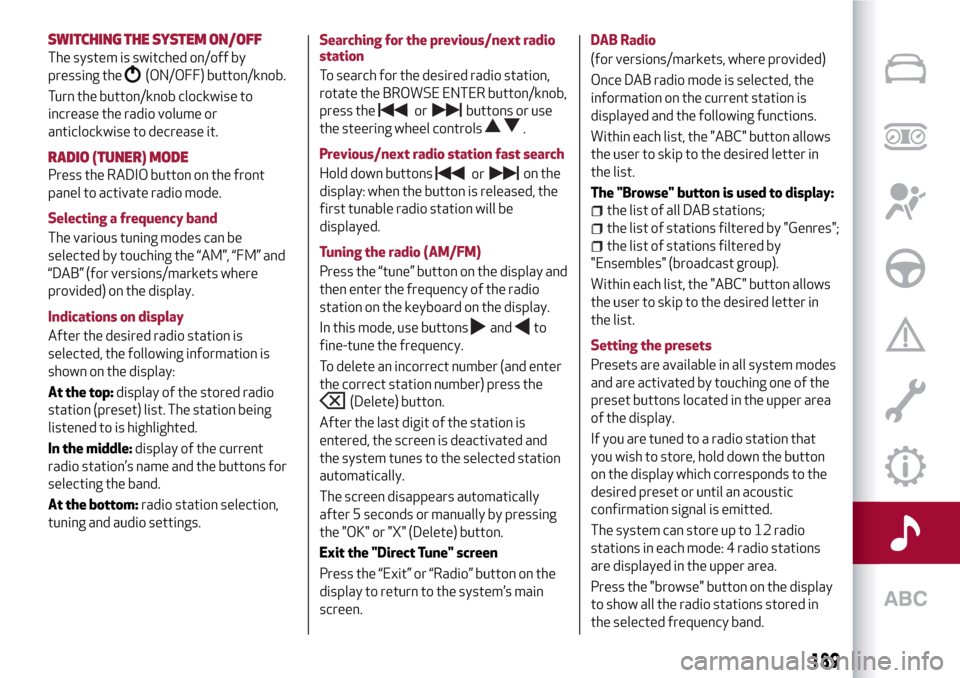
SWITCHING THESYSTEM ON/OFF
The system is switched on/off by
pressing the
(ON/OFF) button/knob.
Turn the button/knob clockwise to
increase the radio volume or
anticlockwise to decrease it.
RADIO (TUNER) MODE
Press the RADIO button on the front
panel to activate radio mode.
Selecting a frequency band
The various tuning modes can be
selected by touching the “AM”, “FM” and
“DAB” (for versions/markets where
provided) on the display.
Indications on display
After the desired radio station is
selected, the following information is
shown on the display:
At the top:display of the stored radio
station (preset) list. The station being
listened to is highlighted.
In the middle:display of the current
radio station’s name and the buttons for
selecting the band.
At the bottom:radio station selection,
tuning and audio settings.Searching for the previous/next radio
station
To search for the desired radio station,
rotate the BROWSE ENTER button/knob,
press thebuttons or use
the steering wheel controls
.
Previous/next radio station fast search
Hold down buttonson the
display: when the button is released, the
first tunable radio station will be
displayed.
Tuning the radio (AM/FM)
Press the “tune” button on the display and
then enter the frequency of the radio
station on the keyboard on the display.
In this mode, use buttons
andto
fine-tune the frequency.
To delete an incorrect number (and enter
the correct station number) press the
(Delete) button.
After the last digit of the station is
entered, the screen is deactivated and
the system tunes to the selected station
automatically.
The screen disappears automatically
after 5 seconds or manually by pressing
the "OK" or "X" (Delete) button.
Exit the "Direct Tune" screen
Press the “Exit” or “Radio” button on the
display to return to the system’s main
screen.DAB Radio
(for versions/markets, where provided)
Once DAB radio mode is selected, the
information on the current station is
displayed and the following functions.
Within each list, the "ABC" button allows
the user to skip to the desired letter in
the list.
The "Browse" button is used to display:
the list of all DAB stations;
the list of stations filtered by "Genres";
the list of stations filtered by
"Ensembles" (broadcast group).
Within each list, the "ABC" button allows
the user to skip to the desired letter in
the list.
Setting the presets
Presets are available in all system modes
and are activated by touching one of the
preset buttons located in the upper area
of the display.
If you are tuned to a radio station that
you wish to store, hold down the button
on the display which corresponds to the
desired preset or until an acoustic
confirmation signal is emitted.
The system can store up to 12 radio
stations in each mode: 4 radio stations
are displayed in the upper area.
Press the "browse" button on the display
to show all the radio stations stored in
the selected frequency band.
189
or
or
Page 192 of 212
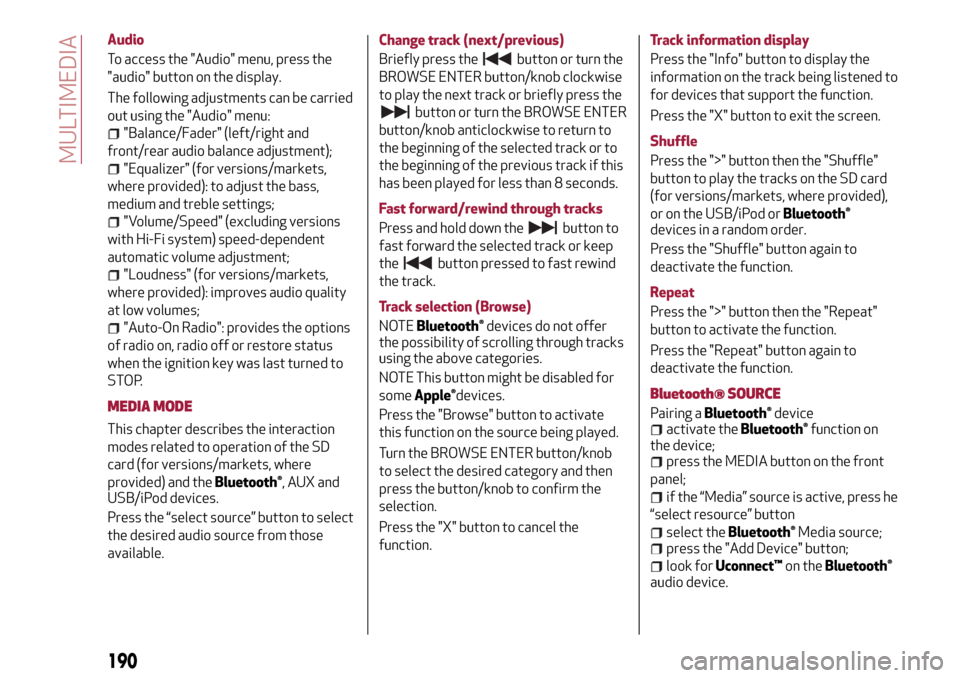
Audio
To access the "Audio" menu, press the
"audio" button on the display.
The following adjustments can be carried
out using the "Audio" menu:
"Balance/Fader" (left/right and
front/rear audio balance adjustment);
"Equalizer" (for versions/markets,
where provided): to adjust the bass,
medium and treble settings;
"Volume/Speed" (excluding versions
with Hi-Fi system) speed-dependent
automatic volume adjustment;
"Loudness" (for versions/markets,
where provided): improves audio quality
at low volumes;
"Auto-On Radio": provides the options
of radio on, radio off or restore status
when the ignition key was last turned to
STOP.
MEDIA MODE
This chapter describes the interaction
modes related to operation of the SD
card (for versions/markets, where
provided) and the
Bluetooth®, AUX and
USB/iPod devices.
Press the “select source” button to select
the desired audio source from those
available.Change track (next/previous)
Briefly press the
button or turn the
BROWSE ENTER button/knob clockwise
to play the next track or briefly press the
button or turn the BROWSE ENTER
button/knob anticlockwise to return to
the beginning of the selected track or to
the beginning of the previous track if this
has been played for less than 8 seconds.
Fast forward/rewind through tracks
Press and hold down the
button to
fast forward the selected track or keep
the
button pressed to fast rewind
the track.
Track selection (Browse)
NOTE
Bluetooth®devices do not offer
the possibility of scrolling through tracks
using the above categories.
NOTE This button might be disabled for
some
Apple®devices.
Press the "Browse" button to activate
this function on the source being played.
Turn the BROWSE ENTER button/knob
to select the desired category and then
press the button/knob to confirm the
selection.
Press the "X" button to cancel the
function.Track information display
Press the "Info" button to display the
information on the track being listened to
for devices that support the function.
Press the "X" button to exit the screen.
Shuffle
Press the ">" button then the "Shuffle"
button to play the tracks on the SD card
(for versions/markets, where provided),
or on the USB/iPod or
Bluetooth®
devices in a random order.
Press the "Shuffle" button again to
deactivate the function.
Repeat
Press the ">" button then the "Repeat"
button to activate the function.
Press the "Repeat" button again to
deactivate the function.
Bluetooth® SOURCE
Pairing aBluetooth®deviceactivate theBluetooth®function on
the device;
press the MEDIA button on the front
panel;
if the “Media” source is active, press he
“select resource” button
select theBluetooth®Media source;press the "Add Device" button;
look forUconnect™on theBluetooth®
audio device.
190
MULTIMEDIA
Page 193 of 212
when requested by the audio device,
enter the PIN code shown on the system
display or confirm on the device the PIN
displayed;
select “Yes” or “No” when asked if you
want to set the
Bluetooth®audio device
as the favourite.
an audio device can also be paired by
pressing the
button on the front panel
and selecting "Phone/Bluetooth”.
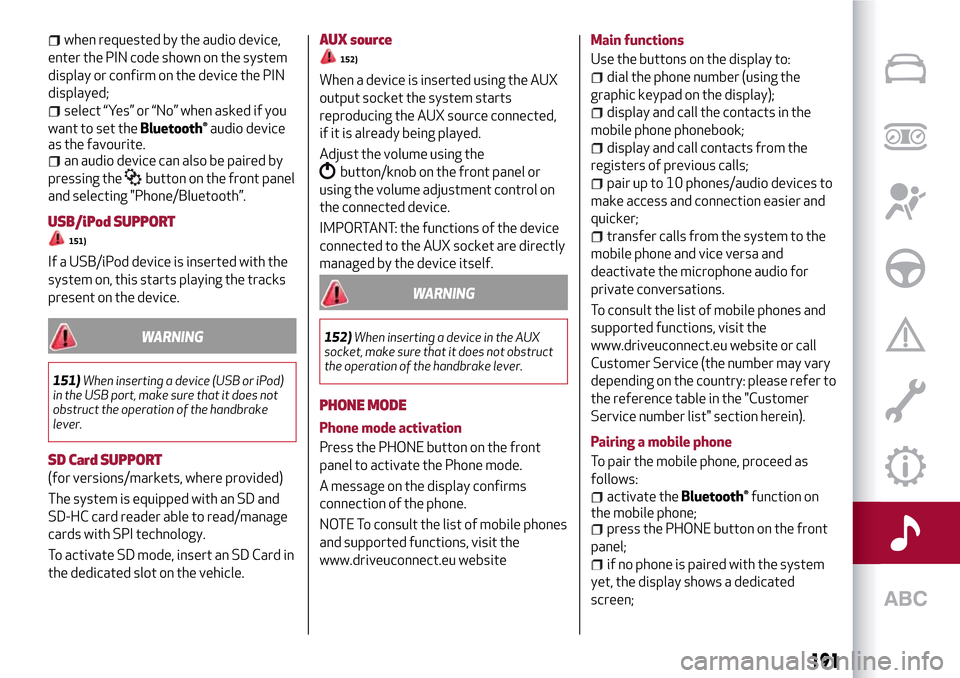
USB/iPod SUPPORT
151)
If a USB/iPod device is inserted with the
system on, this starts playing the tracks
present on the device.
WARNING
151)When inserting a device (USB or iPod)
in the USB port, make sure that it does not
obstruct the operation of the handbrake
lever.
SD Card SUPPORT
(for versions/markets, where provided)
The system is equipped with an SD and
SD-HC card reader able to read/manage
cards with SPI technology.
To activate SD mode, insert an SD Card in
the dedicated slot on the vehicle.
AUX source
152)
When a device is inserted using the AUX
output socket the system starts
reproducing the AUX source connected,
if it is already being played.
Adjust the volume using the
button/knob on the front panel or
using the volume adjustment control on
the connected device.
IMPORTANT: the functions of the device
connected to the AUX socket are directly
managed by the device itself.
WARNING
152)When inserting a device in the AUX
socket, make sure that it does not obstruct
the operation of the handbrake lever.
PHONE MODE
Phone mode activation
Press the PHONE button on the front
panel to activate the Phone mode.
A message on the display confirms
connection of the phone.
NOTE To consult the list of mobile phones
and supported functions, visit the
www.driveuconnect.eu websiteMain functions
Use the buttons on the display to:
dial the phone number (using the
graphic keypad on the display);
display and call the contacts in the
mobile phone phonebook;
display and call contacts from the
registers of previous calls;
pair up to 10 phones/audio devices to
make access and connection easier and
quicker;
transfer calls from the system to the
mobile phone and vice versa and
deactivate the microphone audio for
private conversations.
To consult the list of mobile phones and
supported functions, visit the
www.driveuconnect.eu website or call
Customer Service (the number may vary
depending on the country: please refer to
the reference table in the "Customer
Service number list" section herein).
Pairing a mobile phone
To pair the mobile phone, proceed as
follows:
activate theBluetooth®function on
the mobile phone;
press the PHONE button on the front
panel;
if no phone is paired with the system
yet, the display shows a dedicated
screen;
191
Page 194 of 212
select "Yes" to start the pairing
procedure, then search for the
Uconnect™device on the mobile phone;
when prompted by the mobile phone,
use its keypad to enter the PIN code
shown on the system display or confirm
on the mobile phone the PIN displayed;
from the "Phone" screen you can
always pair a mobile phone by pressing
the "Settings" button: press the "Add
Device" button and proceed as described
above;
select "Yes" or “No” at the request to
pair the mobile phone as the preferred
device;
NOTE After updating the phone software,
for proper operation, it is recommended
to remove the phone from the list of
devices linked to the radio, delete the
previous system pairing also from the list
of Bluetooth devices on the phone and
make a new pairing.
Transferring phone data (phonebook
and recent calls)
If your mobile phone has a function for
sending the phonebook via
Bluetooth®
technology.
Answer "Yes" when asked to copy the
phonebook to the system.
Answer "No" to carry out the operation
later on.Making a phone call
The operations described below can only
be accessed if supported by the mobile
phone in use.
A call can be made by:
selecting theicon (mobile phone
phonebook);
selecting "Recent Calls";
selecting the icon(Keypad);
pressing the "Redial" button.
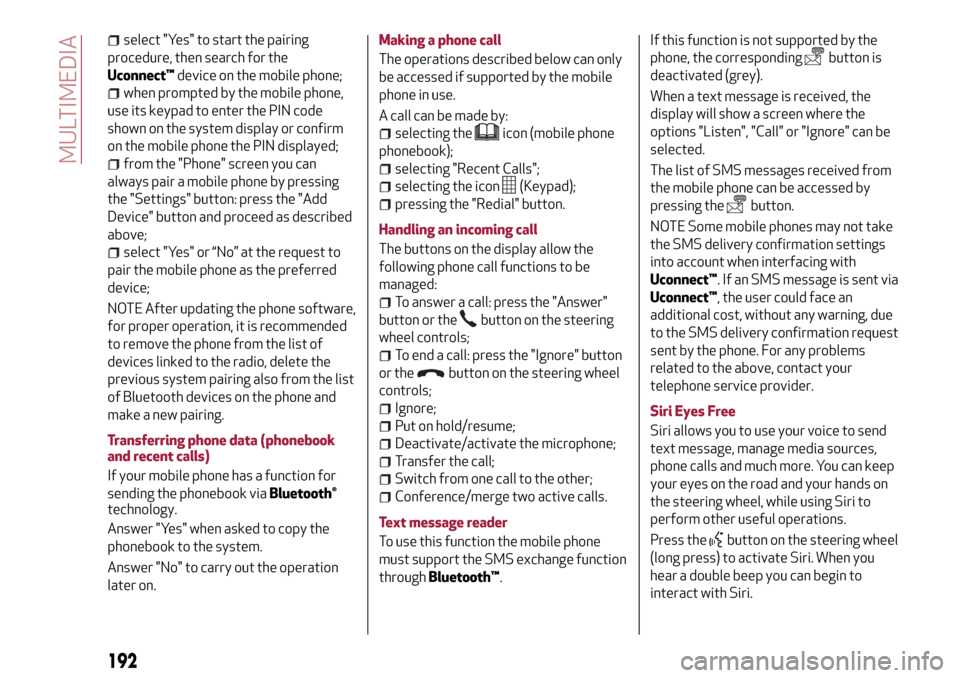
Handling an incoming call
The buttons on the display allow the
following phone call functions to be
managed:
To answer a call: press the "Answer"
button or the
button on the steering
wheel controls;
To end a call: press the "Ignore" button
or the
button on the steering wheel
controls;
Ignore;
Put on hold/resume;
Deactivate/activate the microphone;
Transfer the call;
Switch from one call to the other;
Conference/merge two active calls.
Text message reader
To use this function the mobile phone
must support the SMS exchange function
throughBluetooth™.If this function is not supported by the
phone, the corresponding
button is
deactivated (grey).
When a text message is received, the
display will show a screen where the
options "Listen", "Call" or "Ignore" can be
selected.
The list of SMS messages received from
the mobile phone can be accessed by
pressing the
button.
NOTE Some mobile phones may not take
the SMS delivery confirmation settings
into account when interfacing with
Uconnect™. If an SMS message is sent via
Uconnect™, the user could face an
additional cost, without any warning, due
to the SMS delivery confirmation request
sent by the phone. For any problems
related to the above, contact your
telephone service provider.
Siri Eyes Free
Siri allows you to use your voice to send
text message, manage media sources,
phone calls and much more. You can keep
your eyes on the road and your hands on
the steering wheel, while using Siri to
perform other useful operations.
Press the
button on the steering wheel
(long press) to activate Siri. When you
hear a double beep you can begin to
interact with Siri.
192
MULTIMEDIA
Page 197 of 212
Users will be able to measure their own
performance thanks to a timer and
indicators available on the radio.
Moreover, with Performance they will be
able to receive driving advice in real time,
record their itineraries and receive
badges based on their behaviour at the
wheel. It also allows users to access their
performance on the smartphone thanks
to theUconnect™LIVEApp and, if they
wish to give their consent, to share their
performance with theUconnect™LIVE
community on the www.driveuconnect.eu
website.
By pressing the followingUconnect™
keys, users will be able to access the
following sections:
Indicators: displays some car status
values: battery charge status and level,
oil pressure, etc.
Dynamic indicators: displays dome
dynamic indicators: G force, pedal
position (brake, accelerator), etc.
Badge: the Badge section collects the
users’ successes. Each badge, bronze,
silver or gold depending on the users’
performances, may be locked/unlocked.
Timer: displays trip times, average km
times, distances, etc.
Routes: selects one of various
itineraries, and to start the driving
experience, displays the itinerary map
and accesses all the performances
obtained.
ABMy itineraries: creates a customised
itinerary or selects an itinerary from
those created previously and stores the
GPS tracking from the starting point“A“
to the destination“B“.
Settings: selects the measurement
units and performs backup.
Recording and transferring trip data
The trip data can be stored in the system
memory and made available outside the
car thanks to theUconnect™LIVEApp.
This allows users to view the collected
data later, showing the overall trip data
analysis. Further information is available
at www.DriveUconnect.eu.
For full access to the service’s
functionality, users must allow their data
to be recorded on-board the car. The
following icon
is the user’s
geo-location indicator. Through
Uconnect™LIVE, users can choose to
enable detection of their location and to
share their data with the community.Efficient Drive
The Efficient Drive application allows you
to display your driving behaviour in real
time, in order to help you reach a more
efficient driving style as far as
consumption and emissions are
concerned.
Driving style is evaluated by means of
four indices which monitor the following
parameters: acceleration, deceleration,
gearchange, speed
Display of the Efficient Drive
Press the Efficient Drive button to
interact with the function.
A screen will appear on the radio showing
4 indices: Acceleration, Deceleration,
Speed and Gear. These indices are grey
until the system has enough data to
evaluate the driving style. Once sufficient
data are available, the indices will have
5 colours depending on the evaluation:
dark green (very good), light green,
yellow, orange and red (very bad).
In the event of extended inactivity, the
display will show the average of the
indices until that moment (the "Average
index"), then the indices will be coloured
again in real time as soon as the vehicle is
restarted.
195
Page 207 of 212
INDEX
Alfa DNA” system.............31
ABS system................60
Active safety systems...........60
AFS adaptive lights (Adaptive
Frontlight System)...........19
Air cleaner.................137
Alarm system................11
Alfa Romeo Code system.........10
ALFATCT..................83
Key removal..............117
ASR (AntiSlip Regulation) system....60
Automatic dual-zone climate
control system.............24
AUX source.............179 ,191
Battery..................138
advice for extending its life.....138
replacement..............138
Battery (recharging)...........136
Bluetooth®..............179 ,190
Bodywork
maintenance..............140
Boot.....................30
Brakes
brake fluid level............135
Carrying children safely
.........68
CBC (Cornering Brake Control)
system..................61Changing a wheel.............110
Checking levels..............131
Cleaning and maintenance
bodywork...............140
car interior...............141
front headlights............141
leather parts..............142
leather seats..............141
plastic and coated parts.......142
seats and fabric parts........141
Climate control system..........22
CO2 emissions..............168
Control buttons...............38
Control panel and on-board
instruments...............36
Reconfigurable multifunction
display..................36
CONTROLS
Front panel control summary
table..................186
Courtesy lights
Front ceiling light............20
Cruise Control...............89
Daytime running lights (DRL)......17
Diesel filter................137
Dimensions................154
Dipped headlights
bulb replacement . .........
.100
Direction indicators............19
“Lane change” function........19bulb replacement........100 ,101
Display....................38
Doors.....................11
Child safety device...........12
Door central locking/unlocking....11
DST system (Dynamic Steering
Torque)..................60
Dusk sensor . . ...............17
EBD system................60
Electric sunroof..............27
Electric windows..............26
Controls.................26
Engine...................146
engine coolant level.........135
marking . . ...............145
Engine bonnet . . .............29
Closing..................29
Opening.................29
Engine compartment
washing . . ...............141
Engine oil
consumption..............135
level check...............135
ESC (Electronic Stability Control)
system..................60
External courtesy lights..........19
"
Electronic Q2" system ("E-Q2")
....61 "
External lights...............17