service Alfa Romeo Giulietta 2018 Owner's Manual
[x] Cancel search | Manufacturer: ALFA ROMEO, Model Year: 2018, Model line: Giulietta, Model: Alfa Romeo Giulietta 2018Pages: 216, PDF Size: 3.39 MB
Page 2 of 216

Noi che abbiamo ideato, progettato e costruito il tuo veicolo,
lo conosciamo davvero in ogni singolo dettaglio e componente. Nelle officine autorizzate Fiat Professional Service
trovi tecnici formati direttamente da noi che ti offrono qualità e pr\
ofessionalità in tutti gli interventi di manutenzione. Le officine Fiat Professional sono sempre al tuo fianco pe\
r la manutenzione periodica, i controlli di stagione e per i consigli pratici dei nostri esperti.
Con i Ricambi Originali Fiat Professional, mantieni nel tempo le caratte\
ristiche di affidabilità, comfort e performance per cui hai scelto il tuo nuovo veicolo.
Chiedi sempre i Ricambi Originali dei componenti che utilizziamo per cos\
truire le nostre auto e che ti raccomandiamo perché sono il risultato del nostro costante impegno ne\
lla ricerca e nello sviluppo di tecnologie sempre più innovative.
Per tutti questi motivi affidati ai Ricambi Originali:
i soli appositamente progettati da Fiat Professional per il tuo veicolo.
SICUREZZA:
SISTEMA FRENANTEECOLOGIA: FILTRI ANTIPARTICOLATO, MANUTENZIONE CLIMATIZZATORECOMFORT:
SOSPENSIONI E TERGICRISTALLIPERFORMANCE:
CANDELE, INIETTORI E BATTERIELINEA ACCESSORI:
BARRE PORTA TUTTO, CERCHI
PERCHÈ SCEGLIERE
RICAMBI ORIGINALI
COP FULL BACK LUM IT.qxp_500 UM ITA 23/02/16 09:51 Pagina 2
Page 3 of 216
Dear Customer,
We would like to congratulate and thank you for choosing an Alfa Romeo.
We have written this handbook to help you get to know all the features of your vehicle and use it in the best possible way.
Here you will find information, advice and important warnings regarding use of your vehicle and how to achieve the best performance
from the technical features of your Alfa Giulietta.
You are advised to read it right through before taking to the road for the first time, to become familiar with the controls and above all
with those concerning brakes, steering and gearbox; at the same time, you can understand the vehicle behaviour on different road
surfaces.
This document also provides a description of special features and tips, as well as essential information for the safe driving, care and
maintenance of your Alfa Giulietta over time.
In the attached Warranty Booklet you will also find the description of the Services that Alfa Romeo offers to its customers, the
Warranty Certificate and the detail of the terms and conditions for maintaining its validity.
We are sure that these will help you to get in touch with and appreciate your new car and the service provided by the people at Alfa
Romeo.
Enjoy reading. Happy motoring!
Page 43 of 216
IMPORTANT Theand
buttons activate different
functions according to the following
situations:
within the menu, they allow you to
scroll up or down through the options;
during setting operations, they
increase or decrease values.
MAIN MENU
The menu comprises a series of options
which can be selected using the buttons
andto access the different
selection and setting (Setup) operations
indicated below.
Some options have a submenu. The setup
menu can be activated by pressing the
SET ESC button.
The menu includes the following items:
MENU
LIGHTING
SPEED BUZZER
HEADLIGHT SENSOR (where
provided)
RAIN SENSOR (where provided)
TRIP B ACTIVATION
SET TIME
SET DATE
FIRST PAGE (where provided)
AUTOCLOSE
UNITS
LANGUAGE
BUZZER VOLUME
SEAT BELT BEEP
SERVICE
PASSENGER AIRBAG
DAYTIME RUNNING LIGHTS
ADAPTIVE LIGHTS (where provided)
COURTESY LIGHTS
EXIT MENU
On vehicles equipped withUconnect™
system (where provided), some menu
items are shown on the navigator display.
Selecting an option from the main
menu without a submenu:
press SET ESC to select the main
menu option you wish to set;
press the buttonsor
(with single presses) to select the
new setting;
press the SET ESC button to
memorise the new setting and go back to
the previous main menu option.
Selecting an option from the main
menu with a submenu:
press the SET ESC button to display
the first submenu option;
press the buttonsor
(with single presses) to scroll
through all the submenu options;
press the SET ESC button to select the
displayed submenu option and open the
relevant setup menu;
press the buttonsor
(with single presses) to select the
new setting for this submenu option;
press the SET ESC button to
memorise the new setting and go back to
the previous submenu option.
41
Page 44 of 216
MENU ITEMS
IMPORTANT If there is anUconnect™
system, some menu items are displayed
and managed by the latter and not the
instrument panel (refer to the
description in the Multimedia chapter or
in the supplements available online).
Menu
Access to the Setup Menu.
Lights
(only with side lights on)
Adjustment (8 levels) of the brightness of
the instrument panel, theUconnect™
system controls (for versions/markets
where provided) and the automatic
climate control system controls (for
versions/markets where provided).
Speed warning
Vehicle speed limit setting (km/h or mph).
When this is exceeded, the driver is
notified by an audible warning signal.
Headlight sensor
(for versions/markets, where provided)
Automatic switch on/off of lights
according to external light conditions.
The dusk sensor sensitivity can be
adjusted according to 3 levels (level
1=minimum sensitivity, level 2=average
sensitivity, level 3=maximum sensitivity).Rain sensor
(for versions/markets, where provided)
Adjustment (4 levels) of the sensitivity of
the rain sensor.
TripB activation
Activation (On) and deactivation (Off) of
Trip B display (partial trip counter). For
more information see the "Trip computer"
section.
Set time
Clock setting through two sub-menus:
“Time” and “Format”.
Set date
Date setting (day - month - year).
First page
(for versions/markets, where provided)
Selection of the information you would
like to see on the main screen. You can
view the date or the trip distance.
Autoclose
Activation of the automatic locking of the
doors on exceeding the speed of
20 km/h.
Measurement unit
Unit of measurement setting via three
submenus: “Distances”, “Fuel
consumption” and “Temperature”.If the set distance unit is "km", the display
allows the fuel consumption unit to be set
as km/l or l/100km. If the set distance
unit is “mi” the fuel consumption unit will
be displayed in “mpg”.
Language
Display language selection.
Warning volume
Adjustment (8 levels) of the volume of
the buzzer which accompanies the
display of failures/warnings.
Seat belt beep
This function can be displayed only after
an Alfa Romeo Dealership has
deactivated the SBR system (see
paragraph “SBR system” in the “Safety”
chapter).
Service
Display of information about km/mileage
intervals or, for versions/markets, where
provided, time intervals for car servicing.
Passenger airbag
Activation/deactivation of front
passenger side airbag and side air bag for
pelvis, chest and shoulder protection -
Side bag
Daytime running lights
Activation/deactivation of Daytime
Running Lights (DRL).
42
KNOWING THE INSTRUMENT PANEL
Page 128 of 216
SCHEDULED SERVICING
Correct servicing is crucial for
guaranteeing a long life for the vehicle
under the best conditions.
For this reason, Alfa Romeo has planned
a series of checks and services at fixed
distance intervals and, for
versions/markets, where provided, at
fixed time intervals, as described in the
Scheduled Servicing Plan.
Regardless of the above, it is always
necessary to carefully follow the
instructions in the Scheduled Servicing
Plan (e.g. periodically check level of
liquids, tyre pressure, etc.).
Scheduled Servicing is offered by all Alfa
Romeo Dealerships according to fixed
time or kilometres/miles intervals. If,
during each operation, in addition to the
ones scheduled, the need arises for
further replacements or repairs, these
may be carried out with the owner's
explicit agreement only. If your vehicle is
used frequently for towing, the interval
between one service operation and the
next should be reduced.IMPORTANT NOTES
Scheduled Servicing interventions are
set out by the Manufacturer. Failure to
have them carried out may invalidate the
warranty.
It is advisable to inform the Alfa Romeo
Dealership of any small operating
irregularities without waiting for the next
service.
126
SERVICING AND MAINTENANCE
Page 131 of 216
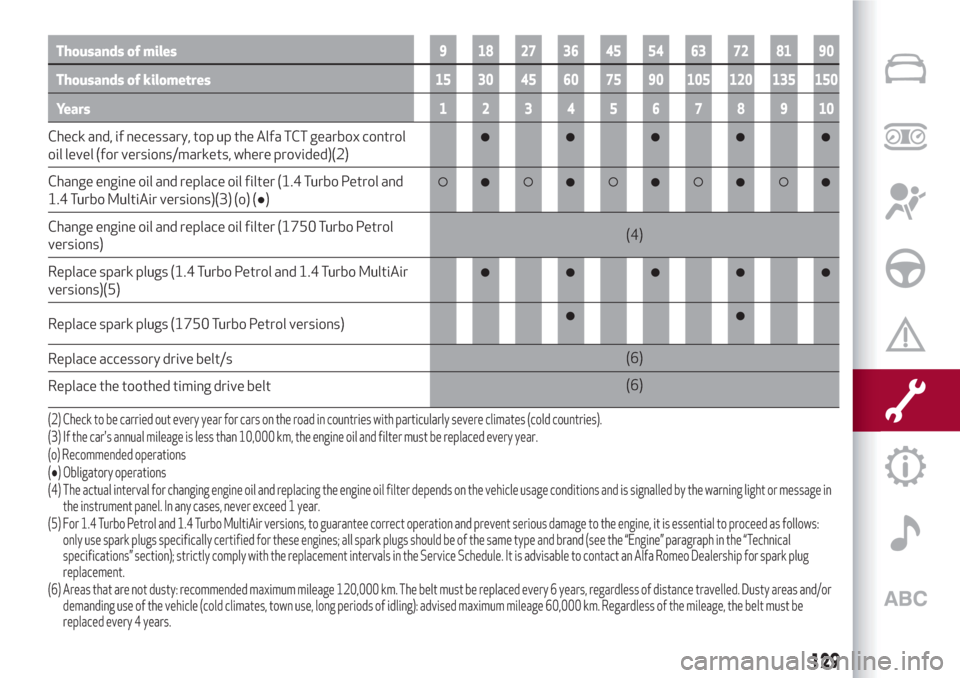
Thousands of miles9 182736455463728190
Thousands of kilometres15 30 45 60 75 90 105 120 135 150
Years12345678910
Check and, if necessary, top up the Alfa TCT gearbox control
oil level (for versions/markets, where provided)(2)
Change engine oil and replace oil filter (1.4 Turbo Petrol and
1.4 Turbo MultiAir versions)(3) (o) (●)
Change engine oil and replace oil filter (1750 Turbo Petrol
versions)(4)
Replace spark plugs (1.4 Turbo Petrol and 1.4 Turbo MultiAir
versions)(5)
Replace spark plugs (1750 Turbo Petrol versions)
Replace accessory drive belt/s(6)
Replace the toothed timing drive belt(6)
(2) Check to be carried out every year for cars on the road in countries with particularly severe climates (cold countries).
(3) If the car's annual mileage is less than 10,000 km, the engine oil and filter must be replaced every year.
(o) Recommended operations
(●) Obligatory operations
(4) The actual interval for changing engine oil and replacing the engine oil filter depends on the vehicle usage conditions and is signalled by the warning light or message in
the instrument panel. In any cases, never exceed 1 year.
(5) For 1.4 Turbo Petrol and 1.4 Turbo MultiAir versions, to guarantee correct operation and prevent serious damage to the engine, it is essential to proceed as follows:
only use spark plugs specifically certified for these engines; all spark plugs should be of the same type and brand (see the “Engine” paragraph in the “Technical
specifications” section); strictly comply with the replacement intervals in the Service Schedule. It is advisable to contact an Alfa Romeo Dealership for spark plug
replacement.
(6) Areas that are not dusty: recommended maximum mileage 120,000 km. The belt must be replaced every 6 years, regardless of distance travelled. Dustyareas and/or
demanding use of the vehicle (cold climates, town use, long periods of idling): advised maximum mileage 60,000 km. Regardless of the mileage, the beltmust be
replaced every 4 years.
129
Page 175 of 216
PRESCRIPTIONS FOR HANDLING THE VEHICLE AT THE END OF ITS LIFE
(where present)
FCA has been committed for many years to safeguarding the environment through the constant improvement of its production
processes and manufacturing products that are increasingly "eco-compatible". To grant customers the best possible service in terms
of respecting environmental laws and in response to European Directive 2000/53/EC governing vehicles at the end of their life, FCA
is offering its customers the chance to hand over their vehicle at the end of its life without incurring any additional costs. The
European Directive sets out that when the vehicle is handed over, the last keeper or owner should not incur any expenses as a result
of it having a zero or negative market value.
To hand your vehicle over at the end of its life without extra cost, contact one of our dealerships if you are purchasing another vehicle
or an FCA-authorised collection and scrapping centre. These centres have been carefully chosen to offer high quality service for the
collection, treatment and recycling of vehicles at their end of life, respecting the surrounding environment.
You can find further information on these collection and scrapping centres either from an FCA dealership or by calling the number in
the Warranty Booklet or by consulting the websites of the various FCA brands.
173
Page 180 of 216
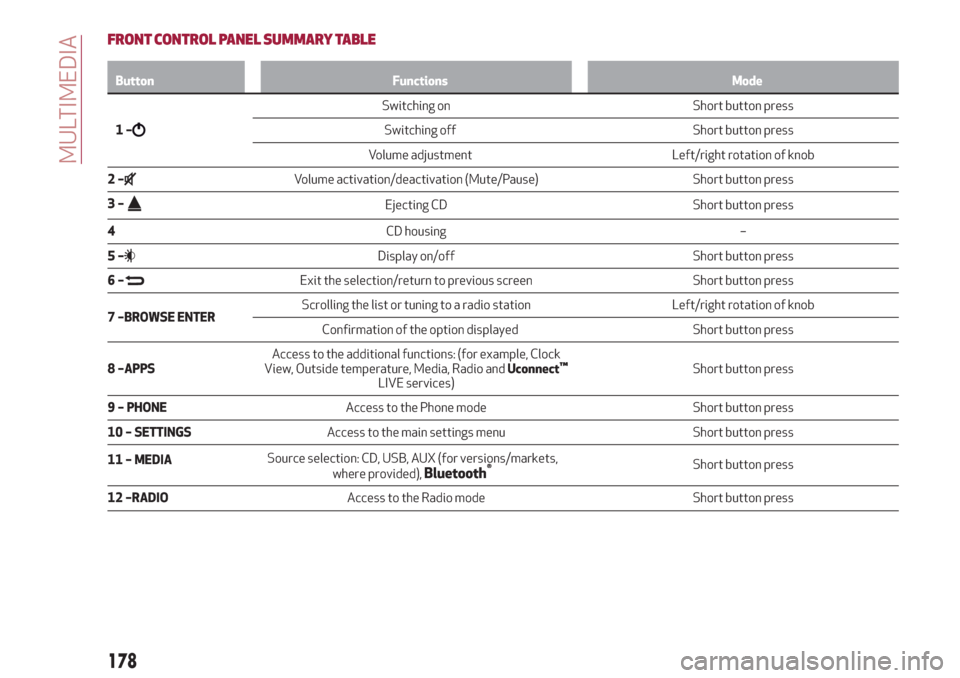
FRONT CONTROL PANEL SUMMARY TABLE
Button Functions Mode
1–
Switching on Short button press
Switching off Short button press
Volume adjustment Left/right rotation of knob
2–
Volume activation/deactivation (Mute/Pause) Short button press
3–
Ejecting CD Short button press
4CD housing –
5–
Display on/off Short button press
6–
Exit the selection/return to previous screen Short button press
7 –BROWSE ENTERScrolling the list or tuning to a radio station Left/right rotation of knob
Confirmation of the option displayed Short button press
8 –APPSAccess to the additional functions: (for example, Clock
View, Outside temperature, Media, Radio andUconnect
™LIVE services)Short button press
9 – PHONEAccess to the Phone mode Short button press
10 – SETTINGSAccess to the main settings menu Short button press
11 – MEDIA
Short button press
12 –RADIOAccess to the Radio mode Short button press
178
MULTIMEDIA
Source selection: CD, USB, AUX (for versions/markets,
where provided),Bluetooth®
Page 186 of 216
PHONE MODE
Phone mode activation
Press the PHONE button on the front
panel to activate the Phone mode.
A message on the display confirms
connection of the phone.
NOTE To consult the list of mobile phones
and supported functions, visit the
www.driveuconnect.eu website
Main functions
Use the buttons on the display to:
dial the phone number (using the
graphic keypad on the display);
display and call the contacts in the
mobile phone phonebook;
display and call contacts from the
registers of previous calls;
pair up to 10 phones/audio devices to
make access and connection easier and
quicker;
transfer calls from the system to the
mobile phone and vice versa and
deactivate the microphone audio for
private conversations.
To see the list of mobile phones and
supported functions, visit the
www.driveuconnect.eu website or call
Customer Service (the number may vary
depending on the country: please refer to
the reference table in the paragraph
“Customer Service number list” in the
Uconnect™attachments).Pairing a mobile phone
To pair the mobile phone, proceed as
follows:
activate theBluetooth®function on
the mobile phone;
press the PHONE button on the front
panel;
if no phone is paired with the system
yet, the display shows a dedicated
screen;
select "Yes" to start the pairing
procedure, then search for the
Uconnect™device on the mobile phone;
when prompted by the mobile phone,
use its keypad to enter the PIN code
shown on the system display or confirm
on the mobile phone the PIN displayed;
from the "Phone" screen you can
always pair a mobile phone by pressing
the "Settings" button: press the "Add
Device" button and proceed as described
above;
select "Yes" or “No” at the request to
pair the mobile phone as the preferred
device;
NOTE After updating the phone software,
for proper operation, it is recommended
to remove the phone from the list of
devices linked to the radio, delete the
previous system pairing also from the list
of
Bluetooth®devices on the phone and
make a new pairing.Storing names/numbers in the mobile
phone phonebook
Before pairing your mobile phone, make
sure you have stored the names you want
to contact in the phonebook on your
mobile phone so that you can call them
using the hands-free system of the car.
Transferring phone data (phonebook
and recent calls)
If your mobile phone has a function for
sending the phonebook via
Bluetooth®
technology.
Answer "Yes" when asked to copy the
phonebook to the system.
Answer "No" to carry out the operation
later on.
Making a phone call
The operations described below can only
be accessed if supported by the mobile
phone in use.
A call can be made by:
selecting theicon (mobile phone
phonebook);
selecting "Recent Calls";
selecting the icon(Keypad);
pressing the "Redial" button.
184
MULTIMEDIA
Page 187 of 216
Managing an incoming call
The buttons on the display allow the
following phone call functions to be
managed:
To answer a call: press the "Answer"
button or the
button on the steering
wheel controls;
To end a call: press the "Ignore" button
or the
button on the steering
wheel controls;
Ignore;
Put on hold/resume;
Deactivate/activate the microphone;
Transfer the call;
Switch from one call to the other;
Conference/merge two active calls.
Text message reader
To use this function the mobile phone
must support the SMS exchange function
through
Bluetooth®.
If this function is not supported by the
phone, the corresponding
button is
deactivated (grey).
When a text message is received, the
display will show a screen where the
options "Listen", "Call" or "Ignore" can be
selected.
The list of SMS messages received from
the mobile phone can be accessed by
pressing the
button.NOTE Some mobile phones may not take
the SMS delivery confirmation settings
into account when interfacing with
Uconnect™. If an SMS message is sent via
Uconnect™, the user could face an
additional cost, without any warning, due
to the SMS delivery confirmation request
sent by the phone. For any problems
related to the above, contact your
telephone service provider.
SMS message options
Default SMS messages are stored in the
system memory and can be sent to
answer a received message or as a new
message:
Yes.
No.
Okay.
I can't talk right now.
Call me.
I'll call you later.
I'm on my way.
Thanks.
I will be late.
Stuck in traffic.
Start without me.
Where are you?
Are you there yet?
I need directions.
I'm lost.
See you later.
I will be 5 (or 10, 15, 20, 25, 30, 45,
60)* minutes late.
See you in 5 (or 10, 15, 20, 25, 30, 45,
60)* minutes.
* Only use the numbers listed, otherwise
the system will not take the message.
“APPS” MODE
Press the APPS button on the front panel
to display the following operating
settings:
Outside Temp
Trip Computer
Clock
Uconnect™LIVE
Uconnect™LIVE SERVICES
Press the APPS button to access the
Uconnect™LIVEapplications.
The services available depend on the car
configuration and the market.
To use theUconnect™LIVEservices, you
need to download theUconnect™LIVE
app from Google Play or Apple Store and
register using the app or on
www.DriveUconnect.eu.
First access to the vehicle
Once you have launched the
Uconnect™LIVEApp and entered your
details, you have to pair the
Bluetooth®
with your smartphone and the radio, as
described in the "Pairing a mobile phone"
chapter, to access theUconnect™LIVE
services in your vehicle.
185