Driving on the left AUDI A3 2020 Owner´s Manual
[x] Cancel search | Manufacturer: AUDI, Model Year: 2020, Model line: A3, Model: AUDI A3 2020Pages: 400, PDF Size: 107.47 MB
Page 119 of 400

8V2012721BK
Assist systems
Switching the system off
Applies to: vehicles with cruise control system
When you switch the system off completely, the
cruise control speed will be deleted.
Requirement: the system must be switched on.
> To switch the system off, press the lever toward
@ (locked into place) > page 116, fig. 107, or
> Switch the ignition off.
Applies to: vehicles with cruise control system
ICRUISE| / 3) Speed control system: currently un-
available. See owner's manual
If the indicator light turns on and this message
appears, the cruise control system has been deac-
tivated. There is a temporary malfunction, for ex-
ample the brakes are overheating. Switch the
cruise control system on again later.
Lap timer
Applies to: vehicles with lap timer
You can measure and analyze lap times with the
lap timer in the display.
Opening the lap timer
> Open the first Vehicle tab (trip computer) using
the |<>] button on the multifunction steering
wheel.
> Applies to: vehicles with analog instrument
cluster: Press the [=] button on the multifunc-
tion steering wheel and select Lap timer in the
menu.
> Applies to: vehicles with Audi virtual cockpit:
On the multifunction steering wheel, select:
left control button > Lap times.
Operating the lap timer
> On the multifunction steering wheel, turn the
left thumbwheel @) > page 17 or @ > page 20
until the desired menu item is displayed in the
instrument cluster.
> Press the left thumbwheel to confirm the selec-
tion.
ZX WARNING
Your focus should always be on driving your
vehicle safely. As the driver, you have com-
plete responsibility for safety in traffic. Only
use the functions such as the lap timer in such
a way that you always maintain complete con-
trol over your vehicle in all traffic situations.
(i) Tips
You can retrieve information from the trip
computer while the lap timer stopwatch is
running.
times and timing
Applies to: vehicles with lap timer
Requirement: the lap timer must be open
=> page 117.
Timing laps
> To start timing, select Lap 1 - press OK or Start
lap 1 in the menu.
> Applies to: vehicles with Audi virtual cockpit: To
start timing automatically when you start driv-
ing, select Start lap 1 by driving off or Start by
driving off in the menu.
> To measure the lap time, select New lap - press
OK or New lap in the menu. This starts timing
the next lap at the same time.
After completing, the difference between the last
lap and the previous best lap time will be indicat-
ed witha “—"@ or “"/.
Pausing timing and displaying a split time
> To insert a pause i select Pause in the menu.
> To continue timing, select Press OK to resume
or Resume in the menu.
> To display a split time, select Split time in the
menu. The split time {@] appears for approxi-
mately 10 seconds in the instrument cluster.
The timing of the current lap continues.
Resetting timing
> Using the multifunction steering wheel, select
Reset or Reset times in the menu. >
117
Page 120 of 400
Assist systems
—A maximum of 30 lap times (analog instru-
ment cluster) or 99 lap times (Audi virtual
cockpit*) can be measured.
— If timing is paused, you can continue it later
even if you switch the ignition off.
— Saved lap times cannot be individually de-
leted from the total results.
— The saved lap timer values will remain after
switching the ignition off.
Lap statistics
Applies to: vehicles with lap timer
Tips
Displaying lap statistics
You can display the number of laps driven, the
fastest lap “+”, the slowest lap “—”, and the aver-
age time “®” in the instrument cluster.
> Applies to: vehicles with analog instrument
cluster: Select Statistics in the menu using the
multifunction steering wheel.
» Applies to: vehicles with Audi virtual cockpit:
On the multifunction steering wheel, select:
left control button > Lap statistics or Statis-
tics.
> Turn the thumbwheel down or up to display the
individual lap times.
> To return to the lap timing that was begun,
press the left thumbwheel.
Resetting lap statistics
Applies to: vehicles with Audi virtual cockpit
> On the multifunction steering wheel, select:
the right control button > Reset statistics.
— The lap statistics list the lap times for the
last 30 laps.
— Applies to: vehicles with Audi virtual cock-
pit: The fastest and slowest lap times from
up to 99 timed laps will be displayed.
118
Audi adaptive cruise
control
Applies to: vehicles with Audi adaptive cruise control
B8V-0126
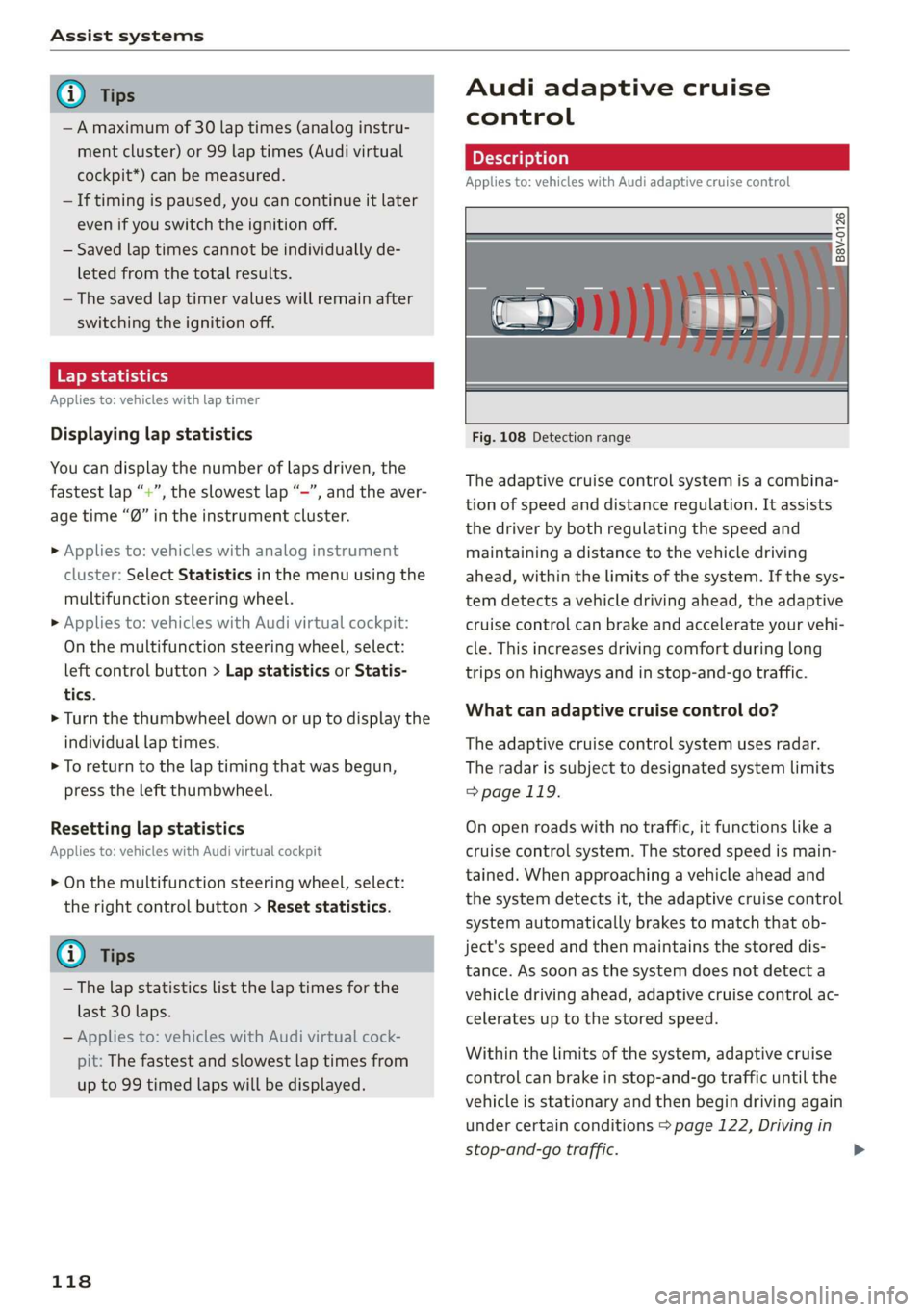
Fig. 108 Detection range
The adaptive cruise control system is a combina-
tion of speed and distance regulation. It assists
the driver by both regulating the speed and
maintaining a distance to the vehicle driving
ahead, within the limits of the system. If the sys-
tem detects a vehicle driving ahead, the adaptive
cruise control can brake and accelerate your vehi-
cle. This increases driving comfort during long
trips on highways and in stop-and-go traffic.
What can adaptive cruise control do?
The adaptive cruise control system uses radar.
The radar is subject to designated system limits
=> page 119.
On open roads with no traffic, it functions like a
cruise control system. The stored speed is main-
tained. When approaching a vehicle ahead and
the system detects it, the adaptive cruise control
system automatically brakes to match that ob-
ject's speed and then maintains the stored dis-
tance. As soon as the system does not detect a
vehicle driving ahead, adaptive cruise control ac-
celerates up to the stored speed.
Within the limits of the system, adaptive cruise
control can brake in stop-and-go traffic until the
vehicle is stationary and then begin driving again
under certain conditions > page 122, Driving in
stop-and-go traffic.
Page 125 of 400
8V2012721BK
Assist systems
> Press the brake pedal.
> To resume the stored speed, move the lever in-
to position @).
Interrupting cruise control when stopped
> Push the lever away from you into position @).
The message ACC: standby appears.
> To resume cruise control, press the brake pedal
and pull the lever toward you into position (2).
Z\ WARNING
It is dangerous to activate cruise control and
resume the stored speed when the current
road, traffic or weather conditions do not per-
mit this. This increases the risk of an accident.
Setting the distance
Applies to: vehicles with Audi adaptive cruise control
B4M-0234
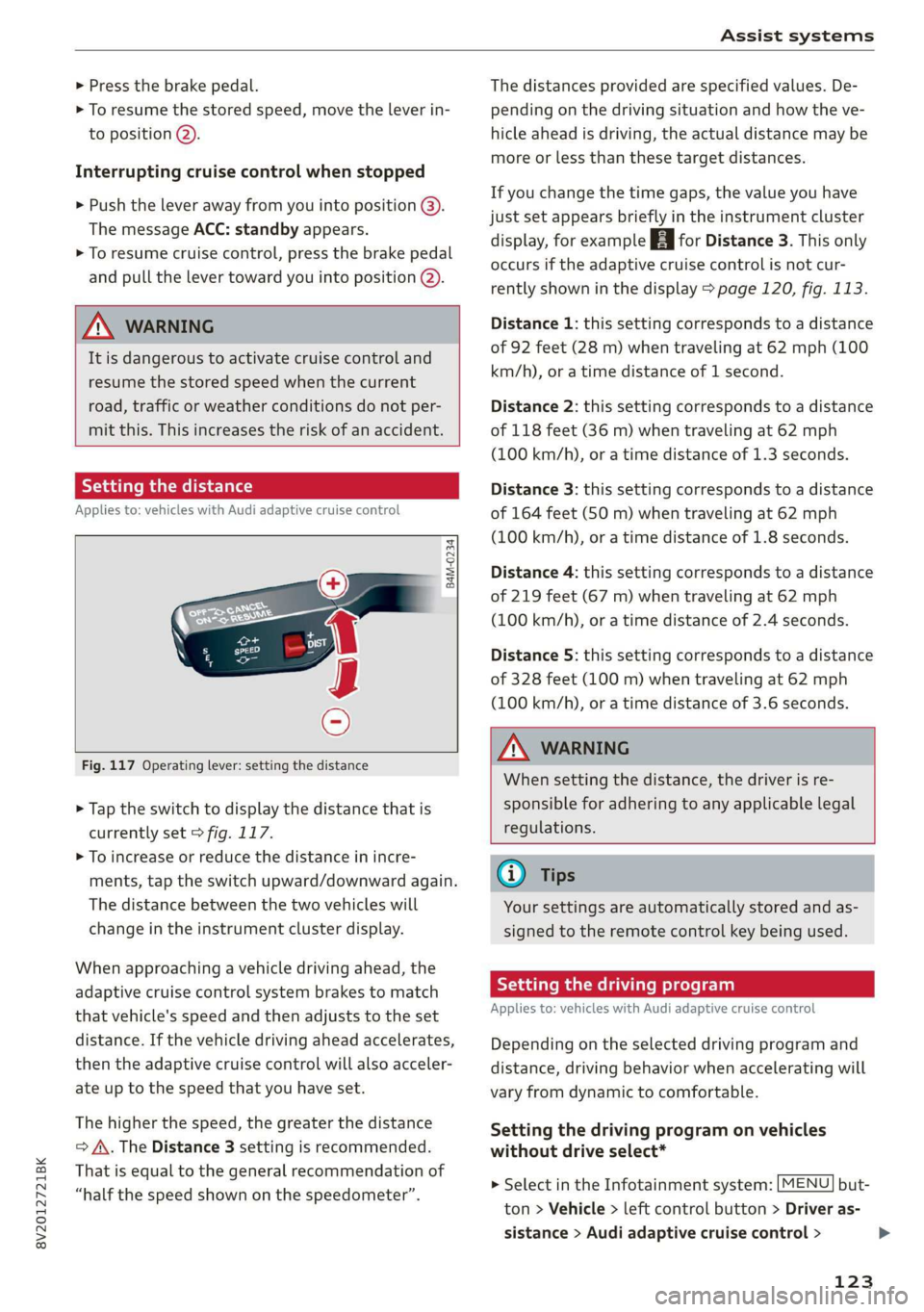
Fig. 117 Operating lever: setting the distance
> Tap the switch to display the distance that is
currently set > fig. 117.
> To increase or reduce the distance in incre-
ments, tap the switch upward/downward again.
The distance between the two vehicles will
change in the instrument cluster display.
When approaching a vehicle driving ahead, the
adaptive cruise control system brakes to match
that vehicle's speed and then adjusts to the set
distance. If the vehicle driving ahead accelerates,
then the adaptive cruise control will also acceler-
ate up to the speed that you have set.
The higher the speed, the greater the distance
=> A\. The Distance 3 setting is recommended.
That is equal to the general recommendation of
“half the speed shown on the speedometer”.
The distances provided are specified values. De-
pending on the driving situation and how the ve-
hicle ahead is driving, the actual distance may be
more or less than these target distances.
If you change the time gaps, the value you have
just set appears briefly in the instrument cluster
display, for example [Eg for Distance 3. This only
occurs if the adaptive cruise control is not cur-
rently shown in the display > page 120, fig. 113.
Distance 1: this setting corresponds to a distance
of 92 feet (28 m) when traveling at 62 mph (100
km/h), or a time distance of 1 second.
Distance 2: this setting corresponds to a distance
of 118 feet (36 m) when traveling at 62 mph
(100 km/h), or a time distance of 1.3 seconds.
Distance 3: this setting corresponds to a distance
of 164 feet (SO m) when traveling at 62 mph
(100 km/h), or a time distance of 1.8 seconds.
Distance 4: this setting corresponds to a distance
of 219 feet (67 m) when traveling at 62 mph
(100 km/h), or a time distance of 2.4 seconds.
Distance 5: this setting corresponds to a distance
of 328 feet (100 m) when traveling at 62 mph
(100 km/h), or a time distance of 3.6 seconds.
ZA WARNING
When setting the distance, the driver is re-
sponsible for adhering to any applicable legal
regulations.
(i) Tips
Your settings are automatically stored and as-
signed to the remote control key being used.
Setting the driving program
Applies to: vehicles with Audi adaptive cruise control
Depending on the selected driving program and
distance, driving behavior when accelerating will
vary from dynamic to comfortable.
Setting the driving program on vehicles
without drive select*
MENU > Select in the Infotainment system: but-
ton > Vehicle > left control button > Driver as-
sistance > Audi adaptive cruise control >
123
>
Page 126 of 400

Assist systems
Driving program > Comfort, Standard or Dy-
namic.
Setting the driving mode on vehicles with
drive select*
See > page 91.
@ Tips
Your settings are automatically stored and as-
signed to the remote control key being used.
Driver intervention request
Applies to: vehicles with Audi adaptive cruise control
Fig. 118 Instrument cluster: request for driver interven-
tion
The request for driver intervention instructs you
to take over if the adaptive cruise control braking
function is not able to maintain a sufficient dis-
tance to the vehicle driving ahead > fig. 118.
Pele Me EAM Hee Cll)
Applies to: vehicles with Audi adaptive cruise control
This function measures the time between the ve-
hicle driving ahead and shows this in the instru-
ment cluster display.
Fig. 119 Instrument cluster: distance indicator/warning
124
Description
At speeds above approximately 40 mph (65
km/h), this function measures the distance to the
vehicle ahead as time.
> Switch the adaptive cruise control display on in
the instrument cluster display > page 17.
The B indicator light turns on if you fall below
the set distance.
Setting the warning threshold
You can set, change or delete the warning thresh-
old in the Infotainment system.
> In the Infotainment system, select: [MENU
button > Vehicle > left control button > Driver
assistance > Distance warning.
Z\ WARNING
— Read and follow the warnings on > A\ in
General information on page 119.
— The driver is always responsible for adhering
to the regulations applicable in the country
where the vehicle is being operated.
(i) Tips
You may fall below he warning threshold
briefly when passing or when quickly ap-
proaching a slow vehicle. There is no warning
in this scenario. A warning is given only if you
fall below the warning threshold for an ex-
tended period of time.
Messages
Applies to: vehicles with Audi adaptive cruise control
ACC: unavailable
The system cannot guarantee that it will detect
vehicles correctly and it has switched off. The
sensor was moved or is faulty. Drive to an author-
ized Audi dealer or authorized Audi Service Facili-
ty immediately to have the malfunction correct-
ed.
a ACC: currently unavailable. No sensor view
Si ACC: currently unavailable. Sensor vision re-
stricted due to surroundings. See owner's man-
ual
Page 130 of 400
![AUDI A3 2020 Owner´s Manual Assist systems
Settings in the Infotainment system
Applies to: vehicles with Audi pre sense
> Select in the Infotainment system: [MENU] but-
ton > Vehicle > left control button > Driver](/img/6/40265/w960_40265-129.png "AUDI A3 2020 Owner´s Manual Assist systems
Settings in the Infotainment system
Applies to: vehicles with Audi pre sense
> Select in the Infotainment system: [MENU] but-
ton > Vehicle > left control button > Driver")
Assist systems
Settings in the Infotainment system
Applies to: vehicles with Audi pre sense
> Select in the Infotainment system: [MENU] but-
ton > Vehicle > left control button > Driver as-
sistance > Audi pre sense.
System - The pre sense functions can be switched
on and off.
If the system is switched off, it switches on again
automatically once the ignition is switched on
again.
Prewarning - The early warning can be switched
off permanently or the pre sense front warning
point can be set (Early/Medium/Late).
Set the warning time for the early warning to
Early at first. If this causes undesired early warn-
ings to appear, then set the warning time to Me-
dium. The Late warning time should only be set
in special circumstances.
@ Tips
If the system is switched off, it switches on
again automatically once the ignition is
switched on again.
Messages
Applies to: vehicles with Audi pre sense
& Audi pre sense: malfunction! Please contact
Service
This message appears when the pre sense func-
tion
is affected. For example, this could be
caused by a faulty sensor. If the message stays
on, drive immediately to an authorized Audi deal-
er or authorized Audi Service Facility to have the
malfunction corrected.
Audi pre sense: currently limited. Sensor
view limited due to surroundings.
This message appears if the sensor view is ob-
structed, for example by leaves, snow, heavy
spray or dirt. Clean the sensor if necessary
=> page 119, fig. 109.
Audi pre sense: currently limited
This message appears if the ESC is restricted or
switched off, for example.
128
udi pre sense: currently limited. See own-
er's manual
This message appears when there is a temporary
failure in a subsystem, such as the ESC. If this
message appears repeatedly, drive to an author-
ized Audi dealer or authorized Audi Service Facili-
ty to have the malfunction corrected.
Audi pre sense: emergency braking system
off
This message appears if the pre sense functions
are switched off through the Infotainment sys-
tem or if the system is not ready.
Audi active lane assist
Applies to: vehicles with Audi active lane assist
Active lane assist (lane departure warning) de-
tects lane marker lines within the limits of the
system using a camera in the windshield. If you
are approaching a detected lane marker line and
it appears likely that you will leave the lane, the
system will warn you with corrective steering.
You can override this steering at any time. If you
pass over a line, the steering wheel will vibrate
lightly. In order for this warning vibration to oc-
cur, it must first be switched on in the Infotain-
ment system. Active lane assist is ready for oper-
ation when the lane marker line is detected on at
least one side of the vehicle.
The system is designed for driving on express-
ways and highways and therefore only activates
at speeds above approximately 40 mph (65
km/h).
Applies to: vehicles with Audi side assist
If you activate a turn signal when active lane as-
sist is ready and it classifies a lane change as crit-
ical because of vehicles traveling alongside you or
approaching you, there will be noticeable correc-
tive steering shortly before you leave the lane.
This will attempt to keep your vehicle in the lane.
Applies to: vehicles without Audi side assist
The system will not warn you before crossing a
lane marker line if you have activated the turn >
Page 134 of 400
Assist systems
detected and classified as critical. The display in
the mirror turns on, but is dim.
The display remains dim in the information stage
so that your view toward the front is not distur-
bed.
Warning stage
If the display in a mirror blinks brightly when you
activate a turn signal, side assist is warning you
about detected vehicles that it has classified as
critical. If this happens, check traffic by glancing
in the exterior mirrors and over your shoulder
=> A\ in General information on page 133.
Applies to: vehicles with Audi active lane assist
The display in the mirror can also blink if you
have not activated a turn signal: if you are ap-
proaching a detected lane marker line and it ap-
pears you will be leaving the lane, side assist will
warn you about detected vehicles that it has clas-
sified as critical.
iG) Tips
You can adjust the brightness on of the dis-
play on the rearview mirror > page 133.
General information
Applies to: vehicles with Audi side assist
B8U-0342|
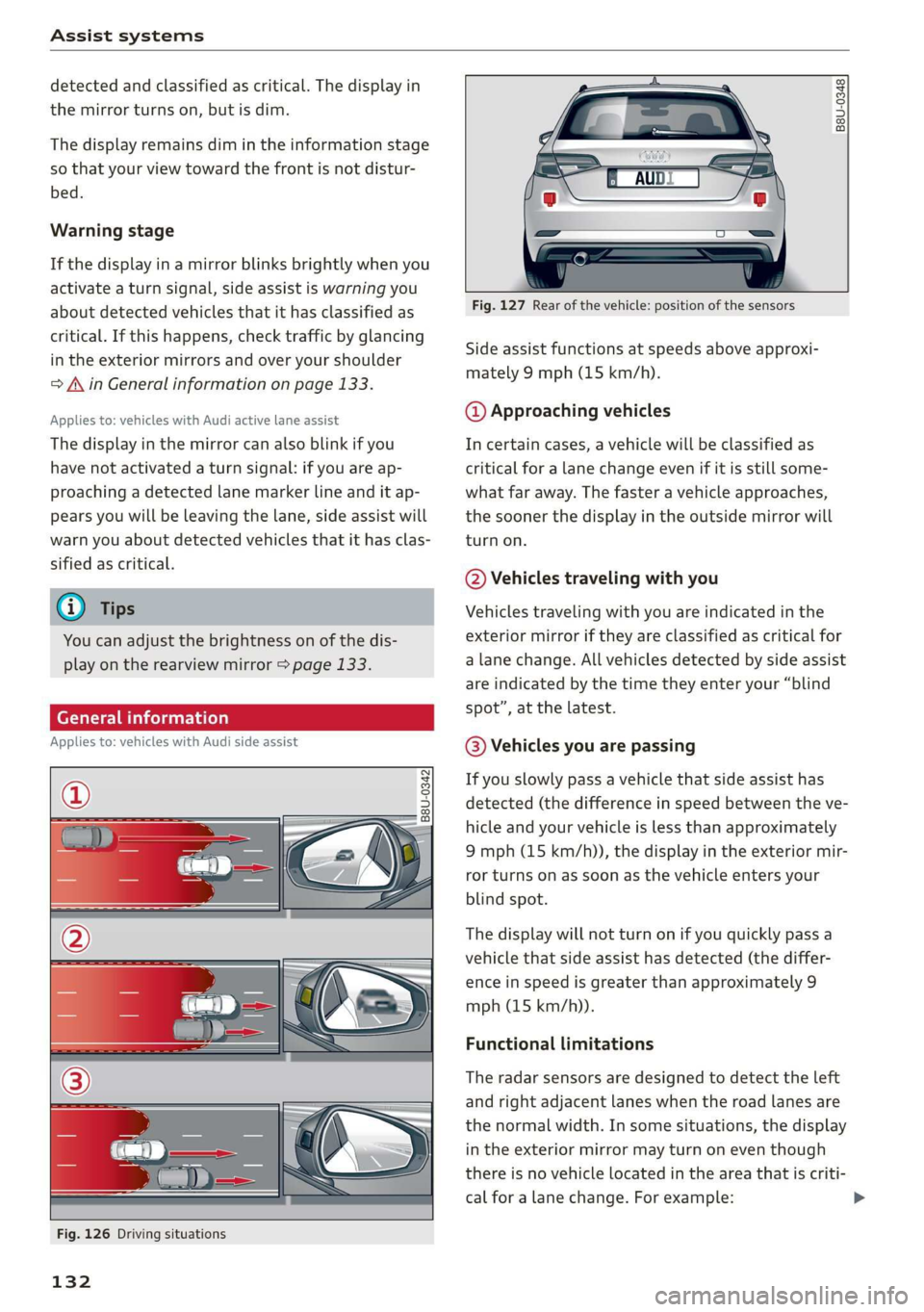
Fig. 126 Driving situations
132
B8U-0348
Fig. 127 Rear of the vehicle: position of the sensors
Side assist functions at speeds above approxi-
mately 9 mph (15 km/h).
@ Approaching vehicles
In certain cases, a vehicle will be classified as
critical for a lane change even if it is still some-
what far away. The faster a vehicle approaches,
the sooner the display in the outside mirror will
turn on.
@ Vehicles traveling with you
Vehicles traveling with you are indicated in the
exterior mirror if they are classified as critical for
a lane change. All vehicles detected by side assist
are indicated by the time they enter your “blind
spot”,
at the latest.
@ Vehicles you are passing
If you slowly pass a vehicle that side assist has
detected (the difference in speed between the ve-
hicle and your vehicle is less than approximately
9 mph (15 km/h)), the display in the exterior mir-
ror turns on as soon as the vehicle enters your
blind spot.
The display will not turn on if you quickly pass a
vehicle that side assist has detected (the differ-
ence in speed is greater than approximately 9
mph (15 km/h)).
Functional limitations
The radar sensors are designed to detect the left
and right adjacent lanes when the road lanes are
the normal width. In some situations, the display
in the exterior mirror may turn on even though
there is no vehicle located in the area that is criti-
cal for a lane change. For example:
Page 135 of 400

Assist systems
— If the lanes are narrow or if you are driving on display in the exterior mirror may be incor-
the edge of your lane. If this is the case, the rect.
system may have detected a vehicle in another —For an explanation on conformity with the
lane that is not adjacent to your current lane. FCC regulations in the United States and the
— If you are driving through a curve. Side assist Industry Canada regulations, see
may react to a vehicle that is one lane over from => page 377.
the adjacent lane.
— If side assist reacts to other objects (such as Switching on and off
high or displaced guard rails). Applies to: vehicles with Audi side assist
— In poor weather conditions. The side assist
Th te b itched on/off in the Info- Furiedionsara limited. e system can be switched on/off in the Info
tainment system.
Do not cover the radar sensors > fig. 127 with
stickers, deposits, bicycle wheels or other ob-
jects, because they will impair the function. For
information on cleaning, see > page 342.
If the system is activated, the displays in the ex-
terior mirrors will turn on briefly when the igni-
tion is switched on.
> Select in the Infotainment system: [MENU] but-
AN WARNING ton > Vehicle > left control button > Driver as-
— Always pay attention to traffic and to the sistance > Audi side assist. Off switches the
area around your vehicle. Side assist cannot system off.
replace a driver's attention. The driver alone
is always responsible for lane changes and Setting the display brightness
similar driving maneuvers. Applies to: vehicles with Audi side assist
—Insome situations, the system may not
The display bright be adjusted in the In-
function or its function may be limited. For Meee ea anor eee ee oN et
exainple: fotainment system.
—If vehicles are approaching or being left > Select in the Infotainment system: [MENU] but-
behind very quickly. The display may not ton > Vehicle > left control button > Driver as-
turn on in time. sistance > Audi side assist.
8V2012721BK
— In poor weather conditions such as heavy
rain, snow or heavy mist.
— On very wide lanes, in tight curves, or if
there is a rise in the road surface. Vehicles
in the adjacent lane may not be detected
because they are outside of the sensor
range.
() Note
The sensors can be displaced by impacts or
damage to the bumper, wheel housing and
underbody. This can impair the system. Have
an authorized Audi dealer or authorized Audi
Service Facility check their function.
@ Tips
— If the window glass in the driver's door or
front passenger's door has been tinted, the
> Adjust the brightness to a level where the dis-
play in the information stage will not disrupt
your view ahead. If you change the brightness,
the display in the exterior mirror will briefly
show the brightness level in the information
stage.
The brightness of the warning stage is linked to
the brightness in the information stage and is ad-
justed along with the information stage.
The display brightness adjusts automatically to
the brightness of the surroundings, both in the
information and in the warning stage. In very
dark or very bright surroundings, the automatic
adjustment will set the display to the minimum
or maximum level. In such cases, you may notice
no change when adjusting the brightness, or the
change may only be noticeable once the sur-
roundings change.
133
Page 146 of 400
Parking aid
The ESC took action to stabilize the vehicle. Take
over steering. Complete parking without using
park assist or drive out of the parking space.
Park assist: currently unavailable. Stabiliza-
tion control (ESC) off
The ESC was switched off. The ESC must be
switched on to use park assist.
Park assist: malfunction! Please contact
Service.
Park assist: malfunction! Take over steering!
Please contact Service.
Contact an authorized Audi dealer or authorized
Audi Service Facility. You cannot park with park
assist if there is a system malfunction.
Park assist: currently unavailable.
Park assist: currently unavailable. Please
take over steering!
Parking with park assist is not possible. Try park-
ing again or switch the ignition off and back on
again if necessary.
Park assist: ended. Please take over steering
and continue driving.
The process of exiting the parking space with
park assist has ended. Please take over steering.
Park assist: canceled. Parking space too
small. Please take over steering!
Parking in this space with park assist is not possi-
ble. Park without using park assist or find a larger
parking space.
Park assist: canceled. Obstacle detected.
Please take over steering!
Parking with park assist was stopped because the
vehicle could collide with an obstacle.
Park assist: ended
Park assist: ended. Please take over steer-
ing!
Parking with park assist has ended.
Park assist: unavailable in current Audi drive
select mode
144
roo" Park assist: canceled. Unavailable in current
Audi drive select mode. Please take over steer-
ing!
Park assist is not available in certain Audi drive
select modes. Select a different mode in drive se-
lect > page 91.
Park assist: stabilization control (ESC) input
The displayed parking space was rejected because
the ESC took action to stabilize the vehicle.
a=] Park assist: not stopped long enough
After engaging the reverse gear, park assist must
stop briefly in order to activate the steering. Fol-
low the instructions in the display.
ro="| Park assist: canceled. Unable to leave park-
ing space automatically. Parking space too
small.
The parking space is too small for the vehicle to
automatically leave the space. Leave the parking
space without using park assist.
roo} Park assist: canceled. Please take over steer-
ing!
Parking with park assist was stopped.
Adjusting the parking aid
Applies to: vehicles with parking system plus/rearview cam-
era/park assist
The functions are adjusted in the Infotainment
system.
> Select in the Infotainment system: [MENU] but-
ton > Vehicle > left control button > Driver as-
sistance > Parking aid. Or
> When the parking aid is active, select in the In-
fotainment system: right control button*.
End system* - Stop the parking aid
Activate automatically - Switch automatic activa-
tion on/off
Front volume* - Volume for the front and side*
area
Rear volume - Volume for the rear area
Page 159 of 400

8V2012721BK
Multifunction steering wheel
Multifunction steering
wheel
Introduction
Applies to: vehicles with multifunction steering wheel
In the driver information system display, you can
control numerous Infotainment functions using
the multifunction steering wheel plus* > page 17
or the multifunction steering wheel* > page 20.
You can control additional Infotainment func-
tions using the MMI control panel > page 146 in
the Infotainment system display.
ZA WARNING
Direct your full attention to driving. As the
driver, you have complete responsibility for
safety in traffic. Only use the functions in such
a way that you always maintain complete con-
trol over your vehicle in all traffic situations.
Radio
Applies to: vehicles with multifunction steering wheel and ra-
dio
Requirement: radio mode must be started
= page 206 and the radio/media tab must be dis-
played.
> Press either the =lIbutton or the left control
button > page 18, depending on vehicle equip-
ment.
Depending on vehicle equipment, the following
functions
may be available in the driver informa-
tion system.
— Selecting the frequency band: select and con-
firm a frequency band.
— Selecting a station from the presets list*: se-
lect: Presets > the desired radio station.
— Selecting a station from the station list*: se-
lect and confirm a radio station.
— Selecting a station from the presets list: se-
lect: Presets > the desired radio station.
— Opening a media source: select and confirm To
media.
Additional settings
Applies to: vehicles with Audi virtual cockpit
— Select: right control button > desired entry.
Depending on the function selected, the follow-
ing additional settings may be possible:
— Show "Now Playing" screen: see > page 210.
Media
Applies to: vehicles with multifunction steering wheel and
media
Requirement: a media drive must contain audio/
video files > page 212 and the radio/media tab
must be displayed.
> Press either the [=lbutton or the left control
button > page 18, depending on vehicle equip-
ment.
Depending on vehicle equipment, the following
functions may be available in the driver informa-
tion system.
— Selecting a media source: select and confirma
source such as the “SD card”.
— Playing an audio/video file: select and confirm
a track/file.
— Pausing/resuming playback: press the right
thumbwheel @) > page 19, fig. 13. To resume
playback, press the right thumbwheel again.
Applies to: vehicles with analog instrument cluster
— Switching to radio: select and confirm a fre-
quency band (such as FM).
Applies to: vehicles with Audi virtual cockpit
— Switching to the radio: select and confirm
Switch to radio.
— Opening additional track information: select:
right
control button > Show "Now Playing"
screen. For additional information, see
=> page 222.
@) Tips
— The media drives do not play files that are
protected by DRM and that are identified
with the symbol ff.
— Please note that within a media source in
the driver information system, only playlists
that were selected through the MMI control
panel can be played = page 220.
157
>
Page 164 of 400
Voice recognition system
Voice recognition system
General information
Applies to: vehicles with voice recognition system
You can operate many functions in the vehicle
easily using voice commands.
Using the voice recognition system optimally
> Speak clearly and distinctly at a normal volume.
Speak louder when driving faster.
> Emphasize the words in the commands evenly
and do not leave long pauses.
> Close the doors, the windows, and the sunroof*
to reduce background noise. Make sure that
passengers are not speaking when you are giv-
ing a voice command.
> Do not direct the vents toward the hands-free
microphone, which is in the roof headliner near
the front interior lights.
> Only the driver should speak to the system, be-
cause the handsfree microphone is aimed to-
ward this seating position.
ZA\ WARNING
— Direct your full attention to driving. As the
driver, you have complete responsibility for
safety in traffic. Only use the functions in
such a way that you always maintain com-
plete control over your vehicle in all traffic
situations.
— Do not use the voice recognition system in
emergencies because your voice may change
in stressful situations. The system may take
longer to dial the number or may not be
able to dial it at all. Dial the emergency
number manually.
G) Tips
There are no voice guidance* prompts when a
dialog is active.
Operating
Applies to: vehicles with voice recognition system
Requirement: the ignition and the MMI must be
switched on. A system language supported by
the voice recognition system must be set. There
162
must be no phone calls in progress and the park-
ing aid must not be active.
> Switching on: press the [2] button (2)
> page 19, fig. 13 or @) > page 20, fig. 15
briefly on the multifunction steering wheel and
say the desired command after the Beep.
> Switching off: press and hold the |] button,
‘OF:
> Press the |] button.
> Pausing: say the command Pause. To resume,
press the |%] button.
> Correcting: say the command Correction.
Input assistance
The system guides you through the input with
visual and audio feedback.
— Visual input assistance: after switching on
voice recognition, a display with a selection of
possible commands appears. This command
display can be switched on or off. Select:
MENU] button > Settings > left control button
> MMI settings > Speech dialog system.
— Audio input assistance: to have the possible
commands read, turn the voice recognition sys-
tem on and say Help.
Additional settings
See > page 235.
@) Tips
— The dialog pauses when there is an incom-
ing phone call and will continue if you ig-
nore the call. The dialog ends if you answer
the call.
— You can select an item in the list using ei-
ther the voice recognition system or the
control knob.
Command overview
information
Applies to: vehicles with voice recognition system
The following overviews describe the commands
that can be used to operate the MMI using the
voice recognition system.