steering AUDI A3 CABRIOLET 2015 Owner's Manual
[x] Cancel search | Manufacturer: AUDI, Model Year: 2015, Model line: A3 CABRIOLET, Model: AUDI A3 CABRIOLET 2015Pages: 302, PDF Size: 73.83 MB
Page 103 of 302
M N
" > co ,...., \!) 1.1"1
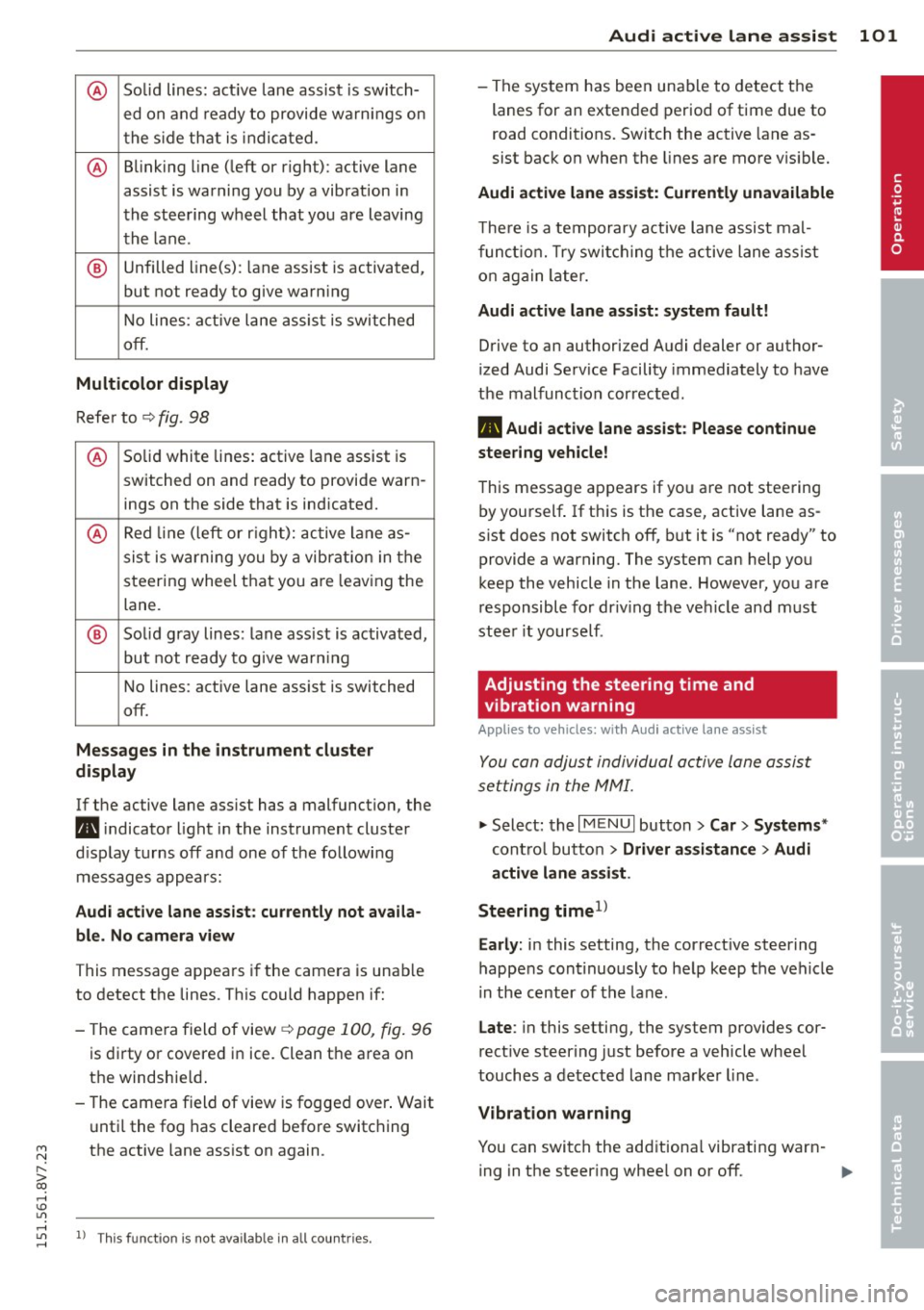
@ Solid lines: active lane assist is switch-
ed on and ready to provide warnings on
the side that is indicated.
@ Blinking line (left or right): active lane
assist is warning you by a vibration in
the steering wheel that you are leaving
the lane .
® Unfilled line(s): lane assist is activated,
but not ready to give warn ing
No lines: a ctive lane assist is switched
off.
Multicolor display
Refer to ¢ fig. 98
@ Solid white lines: active lane assist is
switched on and ready to provide warn-
ings on the side that is ind icated.
@ Red line (left or rig ht): active lane as-
sist is wa rning you by a vibrat ion in the
steering wheel that you a re leav ing the
lane.
® Solid gray lines: lane ass ist is activated,
but not ready to give warn ing
No lines: active lane assist is switched
off.
Messages in the instrument cluster
display
If the active lane ass ist has a malfunction, the
m, i ndicato r light in the instrument cluster
d isplay turns off and one of the following
messages appears:
Audi active lane assist: currently not availa
ble. No camera view
This message appears if the camera is unab le
to detect the lines . This could happen if:
- The camera field of view
¢ page 100, fig. 96
is dirty or covered in ice. Clean the area on
the windshie ld.
- The camera field of view is fogged over. Wait
until the fog has cleared before switching
the active lane assist on again.
,....,
1.1"1 l) This funct ion is not availab le in all coun tries. ,....,
Audi active lane assist 101
- The system has been unable to detect the
lanes for an extended period of time due to
road conditions. Switch the active lane as
sist back on when the lines are more v is ibl e.
Audi active lane assist: Currently unavailable
The re is a temporary active lane assist mal
function. Try switching the active lane assist
on again later.
Audi active lane assist: system fault!
Drive to an authorized Audi dealer or author
ized Audi Serv ice Facility immediately to have
the malfunction corrected.
m, Audi active lane assist: Please continue
steering vehicle!
This message appears if you are not steering
by yourself . If th is is the case, active lane as
s ist does not switch off, but it is "not ready" to
provide a warning. The system can help you
keep the vehicle in the lane . However, you are
responsible for driv ing the vehicle and must
steer it yourself .
Adjusting the steering time and
vibration warning
App lies to veh icles : w ith Audi ac tive la ne ass ist
You con adjust individual active lone assist
settings in the MMI.
""Select: the I MENU I button >Car > Systems *
control button > Driver assistance > Audi
active lane assist .
Steering time
1>
Early: in this setting, the correct ive steering
happens cont inuously to help keep the veh icle
i n the center of the lane.
Late : in this setting, the system provides cor
rect ive steer ing just before a vehicle wheel
touches a detected lane marker line .
Vibration warning
You can switch the additiona l vibrating warn-
ing in the steer ing whee l on or off. ..,_ •
Page 109 of 302
M N
" > co ,...., \!) 1.1"1 ,...., 1.1"1 ,....,
Audi drive select Driving settings
Introduction
Applies to vehicles: with Audi drive select
Audi drive select makes it possible to experi
ence diffe rent types of vehicle settings in one
vehicle. The driver can select from three
com
fort , auto
and dynamic modes using the 1:1:.~
button in the center conso le or the MM I to
switch between a sporty and a comfortable
driving mode, for examp le. In the
individual *
mode, the settings can be adjusted to your
personal preferences. This makes it poss ible
to combine settings such as a sporty eng ine
tuning with light steering.
A WARNING
Using Audi drive select incorrectly can lead
to collisions, other accidents and serious injuries.
Description
Applies to vehicles: with Audi drive select
The vehicle setup in each mode depends on
the vehicle's features. However, the engine
and steering are always affected .
Engine and automatic transmission
Depending on the mode, the engine and auto
mat ic transmission* respond more quickly or
in a more balanced manner to acce lerator
pedal movements.
Adaptive dampers (Audi magnetic ride)*
The adaptive dampers use senso rs to record
information regarding steering movements,
brak ing and acce lerat ion operat ions by the
driver, road surface, driving speed, and load.
With Audi drive se lect you can adjust the
adaptive dampers sporty (dynamic), comfort
ab le (comfort) or balanced (auto).
Steering
The stee ring adapts in terms of stee ring assis
tance. There are different modes
¢page 108.
Indirect steering that moves easi ly as in com -
Audi drive select 107
fort mode is especially suited to long drives
on a highway. The dynamic mode provides
sporty, direct steer ing.
For vehicles wi th progressive steering* the
steering performance is mo re agile.
Cornering light*
The cornering light adjusts when driv ing on
curves at speeds between 6 mph (10 km/h)
and 68 mph (110 km/h). The pivoting action
and the lighting are also adapted to the
mode.
Adaptive cruise control*
T he behav ior when accelerating can be adjust
ed from comfortable to sporty, depending on
the Aud i drive select mode. Adapt ive cru ise
control also responds to the driving behavior
of the vehicle ahead in a more conservative or
sporty manner.
(D Tips
In some mode ls, the maximum vehicle
speed can only be reached in the auto and
dynamic modes.
•
Page 110 of 302
108 Audi drive select
Selecting the driving mode
App lies to vehicles: with Audi drive select
You can choose between comfort, auto, dy
namic and individual* .
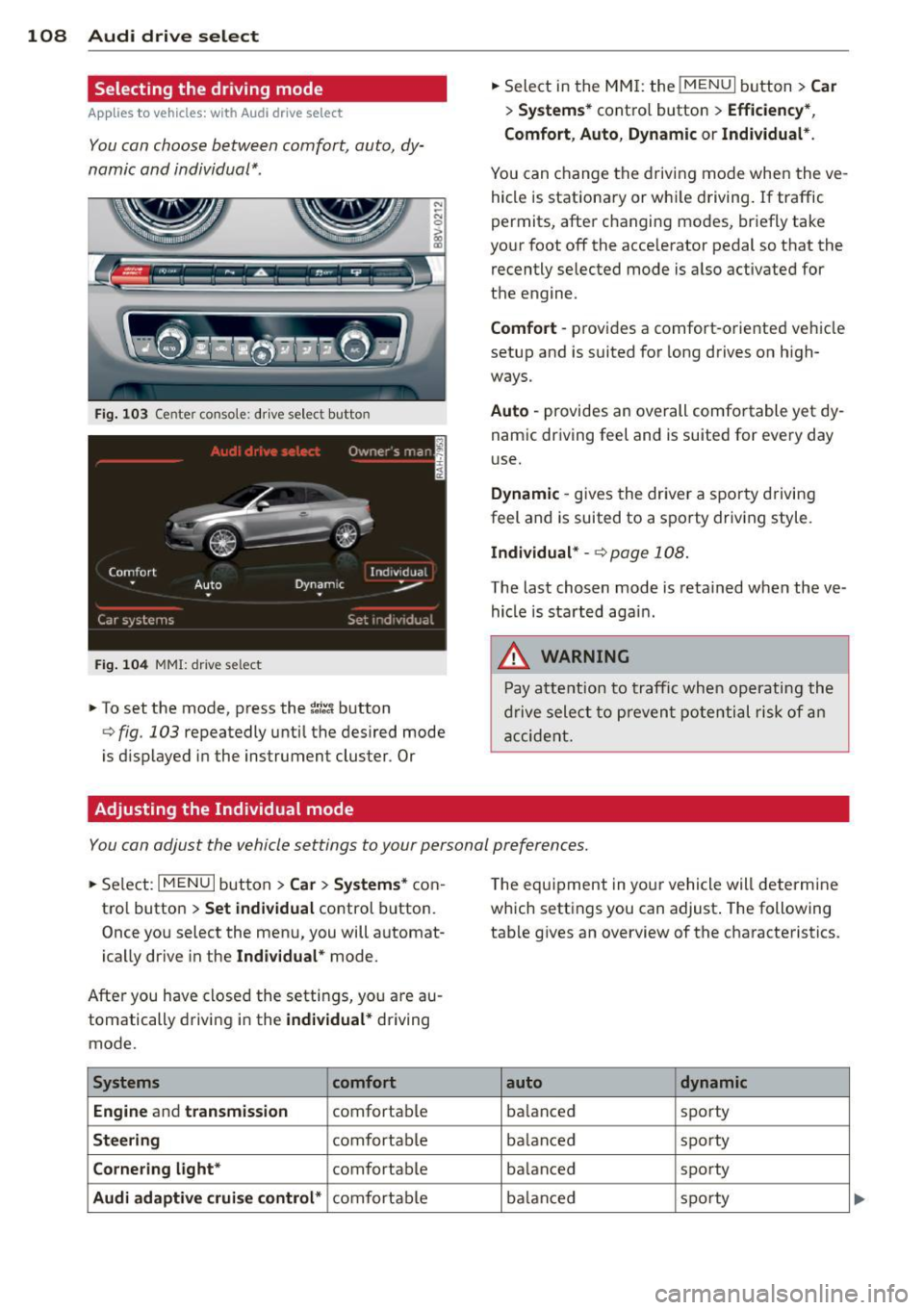
Fig. 103 Center console: drive select butto n
Fig. 104 MMI: drive select
.. To set the mode, press the ~;/:a button
<=> fig . 103 repeatedly until the desired mode
is d isplayed in the instrument cluster . Or
Adjusting the Individual mode
.. Select in the MMI: the !MENU I button> Car
> Systems* control button > Efficiency *,
Comfort , Auto , Dynamic
or Individual* .
You can change the driving mode when the ve
hicle is stationary or while driving . If traffic
permits, after changing modes, briefly take
your foot off the acce lerator pedal so that the
recently selected mode is also activated for
the engine.
Comfort -provides a comfort-oriented vehicle
setup and is suited for long drives on high
ways.
Auto -provides an overall comfortable yet dy
nam ic driving feel and is suited for every day
use.
Dynamic -gives the driver a sporty driving
feel and is suited to a spo rty driv ing style.
Individual* -<=>page 108.
The last chosen mode is retained when the ve
hicle is started agai n .
.&, WARNING
-Pay attention to traffic when operating the
dr ive select to prevent potential risk of an
accident.
You can adjust the vehicle settings to your personal preferences .
.. Se lect : I MENU I button >Car > Systems* con
tro l button >
Set individual control button.
Once you select the menu, you will automat
ically drive in the
Indiv idual* mode.
After you have closed the setti ngs, yo u are au
tomatically driving in the
individual* driving
mode.
Systems comfort
Engine
and transmission comfortable
Steering comfortable
Cornering light* comfortable
Audi adaptive cruise control* comfortable T
he equ ipment in you r vehicle will determine
which settings you can adjust . The following
tab le gives an overview of the characteristics .
auto dynamic
balanced sporty
ba lanced sporty
ba lanced sporty
ba lanced sporty
Page 117 of 302
....,
N
r--. > co
Shifting manually (tiptronic mode)
Applies to vehicles: with S tronic transmission I shift pad
dles
The tiptronic allow the driver to shift the
gears manually.
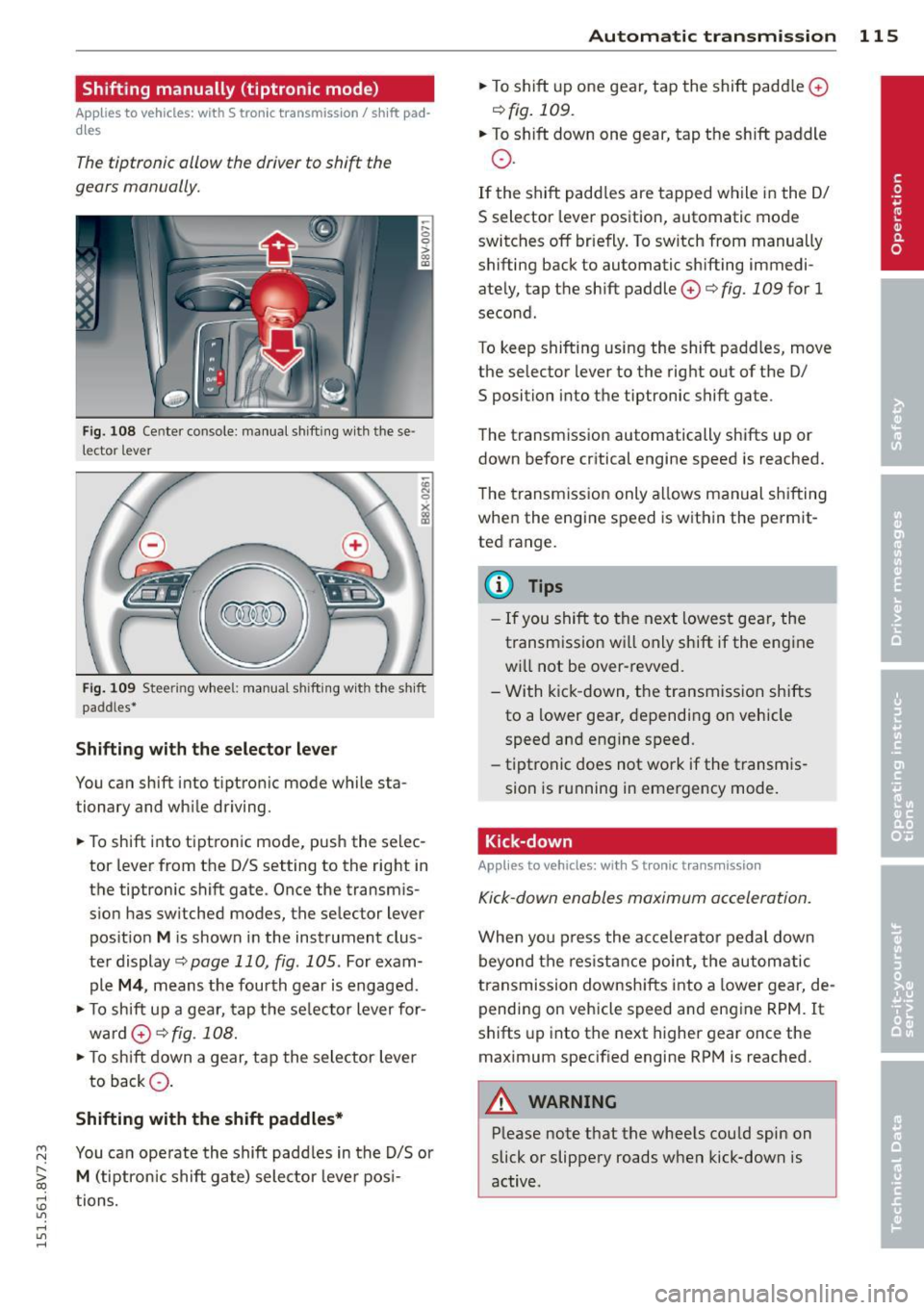
Fig. 108 Center console: manual shifting with these
lector lever
Fig . 109 Steering whee l: manua l sh ift ing with t he s hift
padd les*
Shifting with the selector lever
You can shift into tip tron ic mode while sta
tionary and while driving.
~ To shift into tip tronic mode, push the selec
tor lever from the D/S setting to the right in
t he tiptronic shift gate. Once the transmis
s ion h as switched modes, the selector lever
position
M is shown in the instrument clus
ter display
¢page 110, fig. 105 . For exam
ple
M4 , means the fourth gear is engaged.
~ To shift up a gear, tap the se lector lever for
ward
0 ¢fig. 108.
~ To shift down a gear, tap the selector lever
to back Q.
Shifting with the shift paddles*
You can operate the shift paddles in the D/S or
M (tiptron ic shift gate) selector leve r pos i-
:;, tions.
"' ,....,
"' ,....,
Autom atic transm ission 115
~ To shift up one gear, tap the shift paddle 0
¢fig. 109.
~ To shift down one gear, tap the shift paddle
0-
If the shift padd les are tapped while in the 0/
S selector lever position, automatic mode
switches off briefly. To switch from manually
shifting back to automatic sh ifting immedi
ate ly, tap the shift paddle
0 ¢ fig. 109 for 1
second .
To keep shifting using the shift paddles, move
the selector lever to the rig ht out of the D/
S position into the tiptronic shift gate.
The transmission automatically shifts up or down before critical engine speed is reached.
T he transmission only allows manual sh ifting
when the engine speed is within the permit
ted range .
(D Tips
-If you shift to the next lowest gear, the
transmission will only shift if the engine
wil l not be over-revved.
- With kick-down, the transmission shifts
to a lower gear, depending on vehicle
speed and engine speed.
- tiptronic does not work if the transmis
sion is running in emergency mode.
Kick-down
App lies to vehicles: wit h S tronic tran smi ssio n
Kick-down enables maximum accelera tion.
When you press the accelerator pedal down
beyond the resistance point, the automatic
transmission downshifts into a lower gear, de
pending on vehicle speed and engine RPM. It
shifts up into the next higher gear once the
maximum specified engine RPM is reached.
A WARNING
Please note that the wheels could spin on
slick or slippery roads when kick-down is
active.
Page 118 of 302
116 Automatic tran smi ssio n
Launch Control-Program
Ap plies to vehicles: with launch co ntrol
The Launch Control Program enables maxi
mum acceleration .
Requirement: The engine must be at operat
ing temperature and the steering wheel must
not be turned .
• With the engine running, press the
l~ OFFI
button briefly one time ll .
• Pull the selector lever back out of the D/S
position briefly to select the S position, or
press it toward the rig ht into the tipt ronic
pos it ion or select the
dynami c driving mode
in drive select*
~ page 107.
• Press the brake peda l firmly with your left
f oot and hold it all the way down for at least
1 second .
.. At the same time, press the gas peda l all the
way down with your right foot unti l the en
gine reaches and stays at a high RPM level.
• Remove your left foot from the brake.
A WARNING
- Always adapt your driving to the traffic
flow.
- Only use Launch Contro l when road and
t raff ic conditions a llow it and othe r driv
ers w ill not be endangered or impacted
by you r driv ing and the veh icle's acceler
ation.
- Please note that the drive whee ls can
spin and the vehicle can brea k away
when sport mode is sw itched on, espe
cially when the road is slippery.
- Once the vehicle has s tarted moving,
press the
I ~ OFF ! button br iefly to turn
the sport mode off.
@ Tips
- The transm ission tempera ture may in
crease significantly after using the
l ) In vehicles with a drive r inform ation system, an ESC
l ig ht in t he in strume nt cl us te r stays on cont inuously
and the m essage
Stabili zatio n co ntrol (ESC): spo rt.
W arn ing! Restricted st ability
appears te mpo rarily.
Launch Control Program . If that hap
pens, the program may not be availab le
for a few minutes . It will be ava ilable
again after a cool-down period.
- When accelerating using the Launch
Contro l Program, all vehicle parts are
subject to heavy loads. Th is can lead to
increased wear.
Emergency mode
Applies to vehicles: wit h S tronic transm issio n
In the event of a system malfunction, there is
an emergency program.
If all of the selector lever positions are high
li ghted with a light background in the instru
ment cluster d isp lay, there is a system mal
funct ion and the S tronic transmission is run
ning in the emergency program . The vehicle
can still be driven in emergency mode, but on
ly w it h reduced speed and not in all gears. In
some cases, the ve hicl e
cann ot driv e in re
v e rs e .
d) Note
If the transmission runs in emergency
mode, drive to your author ized Audi dealer
or q ualified repa ir fa cility immed iate ly to
have the ma lf u nct ion corrected.
Transmission malfunction
• Tran smi ssion m alfu ncti on! Please st op
the vehicle and select P
T he re is a malfunction in the transmiss ion .
Park the ve hicle securely and do not continue
driv ing. See an authorized A udi dealer or au
thorized Audi Service Facility for assistance.
• Tran smi ssion o verheating! Plea se stop
the vehicle!
The transm iss ion is too hot and can become
damaged . Stop and let the t ransmission cool .,.
Page 123 of 302
....,
N
r--. > co
rl I.O
"' rl
"' rl
Switching on/off
Applies to vehicles: with park ing system plus
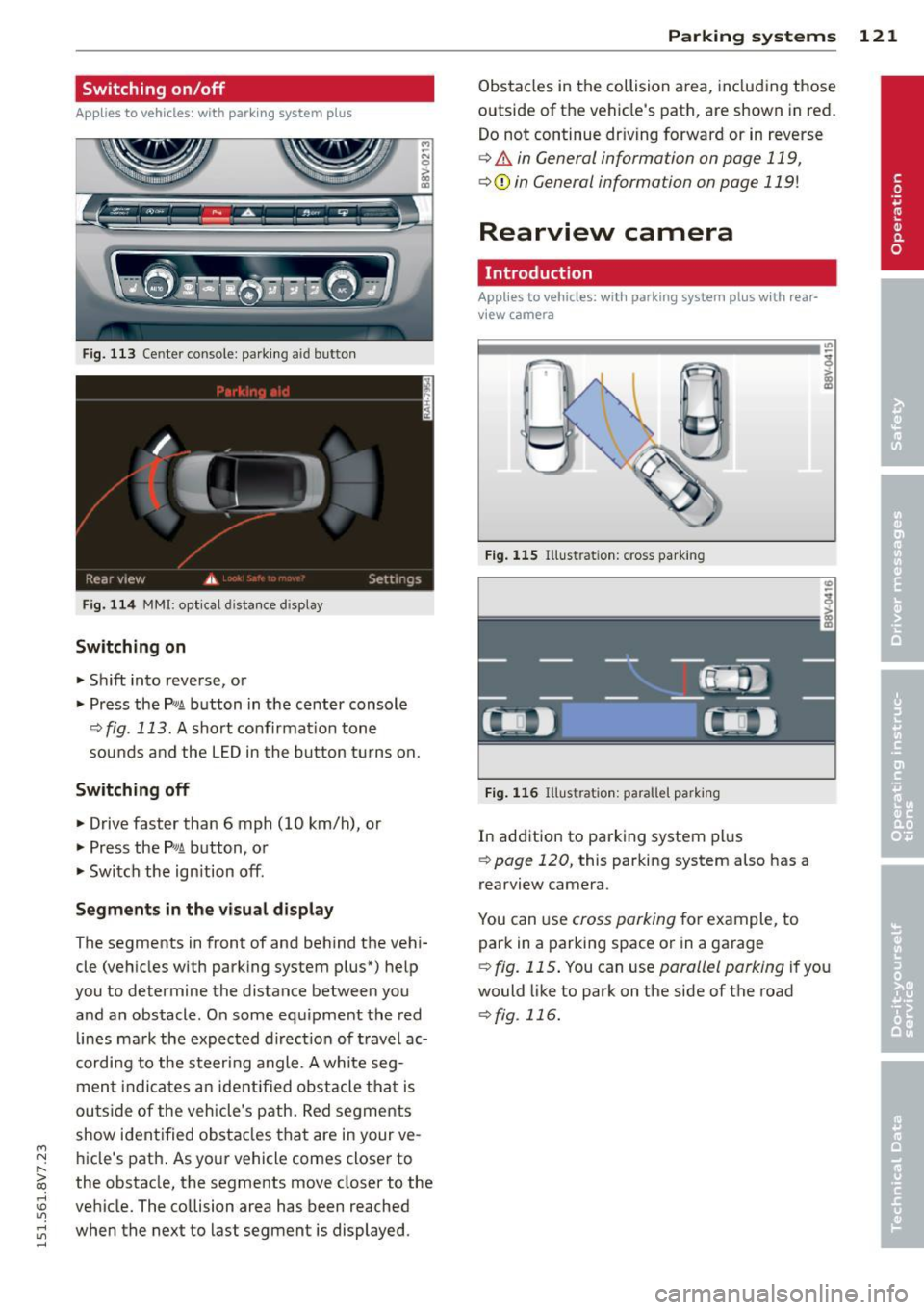
F ig. 113 Cente r console: parking aid button
Fig. 114 MM I: opt ical distance d isplay
Switching on
~ Shift into reverse, or
~ Press the p ,,iA button in the center console
¢fig. 113. A short confirmation tone
sounds and the LED in the button turns on.
Switching off
~ Drive faster than 6 mph (10 km/h), or
~ Press the PuA button, or
~ Switch the ign ition off.
Segments in the visual display
The segments in front of and beh ind the vehi
cle (vehicles with park ing system plus*) help
you to determine the distance between you
and an obstacle . On some equipment the red
lines mark the expected direction of travel ac
cordi ng to the steering angle. A white seg
ment indicates an ident ified obstacle that is
outside of the vehicle's path. Red segme nts
show ident ified obstacles that are in your ve
hicle 's path. As your vehicle comes close r to
the obstacle, the segments move closer to the
veh icle. The co llision area has been reached
when the next to last segment is displayed.
Parking systems 121
Obstacles in the collision a rea, includ ing those
outside of the vehicle's path, are shown in red .
Do not continue dr iving forward or in reverse
¢ A in General information on page 119,
¢(I) in General informa tion on page 119!
Rearview camera
Introduction
Applies to vehicles: with parking system plus with rear
view camera
~
JI '
I
--
Fig. 115 Illust rat ion: cross parking
Fig. 116 Illustrati on : pa ralle l park ing
In addition to parking system plus
¢ page 120, this parking system also has a
rearview camera.
You can use
cross parking for example, to
park in a parking space or in a garage
¢fig. 115. You can use parallel parking if you
would like to park on the side of the road
¢fig . 116.
Page 124 of 302
122 Parking systems
General information
Applies to vehicles: with par king system p lus w it h rear
view ca mera
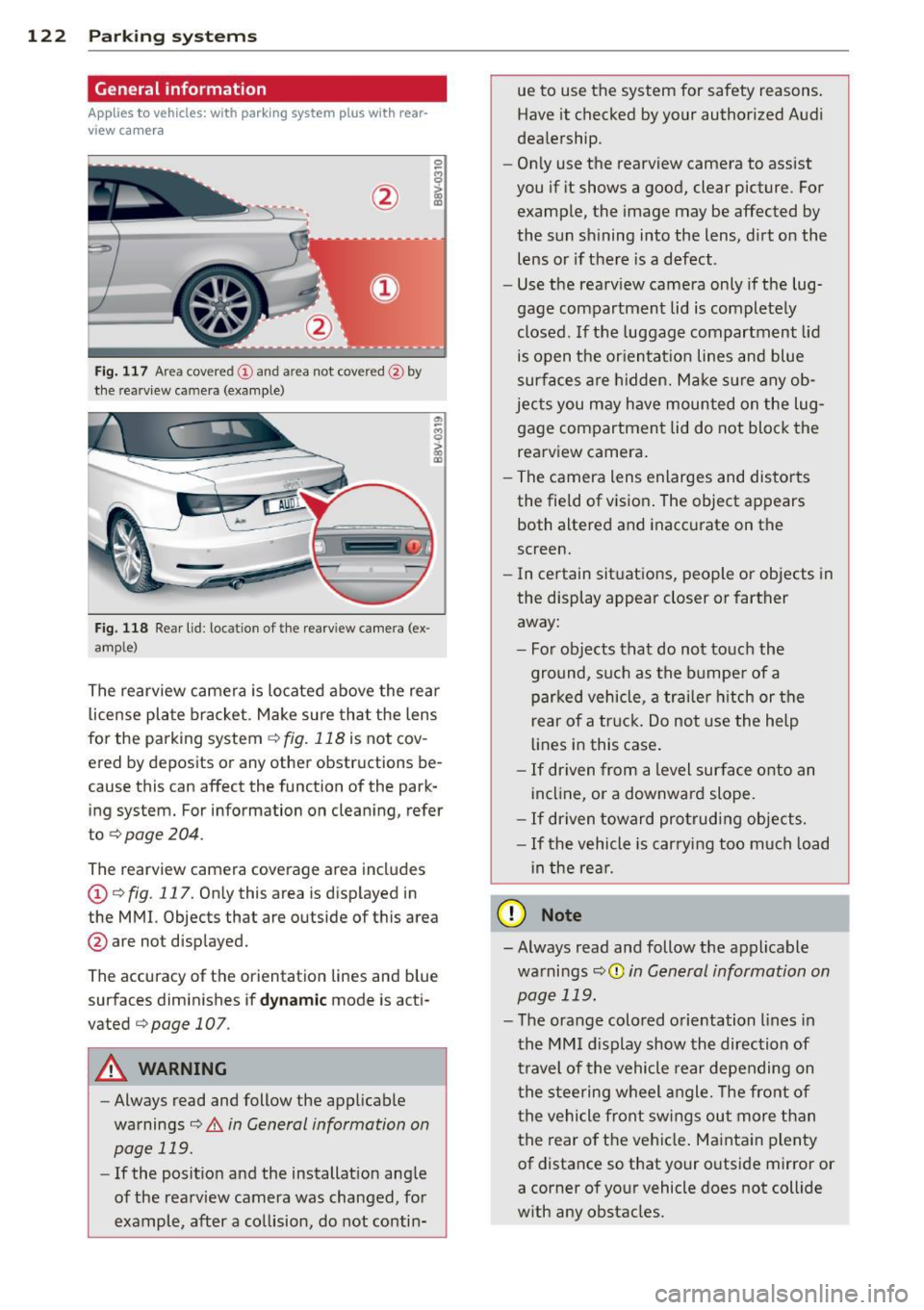
Fig. 117 Area covered
(D and area not covered @by
the rea rview camera (example)
Fig. 118 Rear lid : locat ion of the rearview camera (ex
ample)
0
-8 > "' m
"' §
> «> m
The rearview camera is located above the rear
license plate bracket . Make sure that the lens
for the parking system ¢
fig. 118 is not cov
ered by deposits or any other obstructions be
cause this can affect the function of the park
ing system. For information on clean ing, refer
to
¢ page 204.
The rearview camera coverage area includes
(D ¢ fig. 117. Only this area is displayed in
the MMI. Objects that are outside of this area
@ are not displayed.
The accuracy of the orientation lines and blue
surfaces diminishes if
dynamic mode is acti
vated
¢ page 107 .
_&. WARNING
-Always read and follow the applicable
warnings¢
& in General information on
page
119.
- If the position and the installation ang le
of the rearview camera was changed, for
example, after a collision, do not contin-
-
ue to use the system for safety reasons.
Have it checked by your authorized Audi
dealership.
- Only use the rearview camera to assist
you if it shows a good, clear picture . For
example, the image may be affected by
the sun shining into the lens, dirt on the lens or if there is a defect .
- Use the rearview camera only if the lug
gage compartment lid is completely
closed.
If the luggage compartment lid
is open the orientation lines and blue
surfaces are hidden. Make sure any ob
jects you may have mounted on the lug
gage compartment lid do not block the
rearview camera.
- The camera lens enlarges and distorts
the field of vision. The object appears
both altered and inaccurate on the
screen.
- In certain situations, people or objects in
the display appear closer or farther
away:
- For objects that do not touch the
ground, such as the bumper of a
parked vehicle, a trailer hitch or the
rear of a truck. Do not use the help
lines in this case.
-If driven from a level surface onto an
incline, or a downward slope.
- If driven toward protruding objects.
- If the vehicle is carrying too much load
in the rear.
Q) Note
- Always read and follow the applicable
warnings
¢ (D in General information on
page
119.
- The orange colored orientation lines in
the MMI display show the direction of
travel of the vehicle rear depending on
the steering wheel angle. The front of
the vehicle front swings out more than
the rear of the vehicle. Maintain plenty
of distance so that your outside mirror or
a corner of your vehicle does not collide
with any obstacles.
Page 126 of 302
124 Parking systems
Parallel parking
Applies to vehicles: wit h park ing system p lus with rea r
v iew camera
This view may be used when parallel parking
along the side of a street.
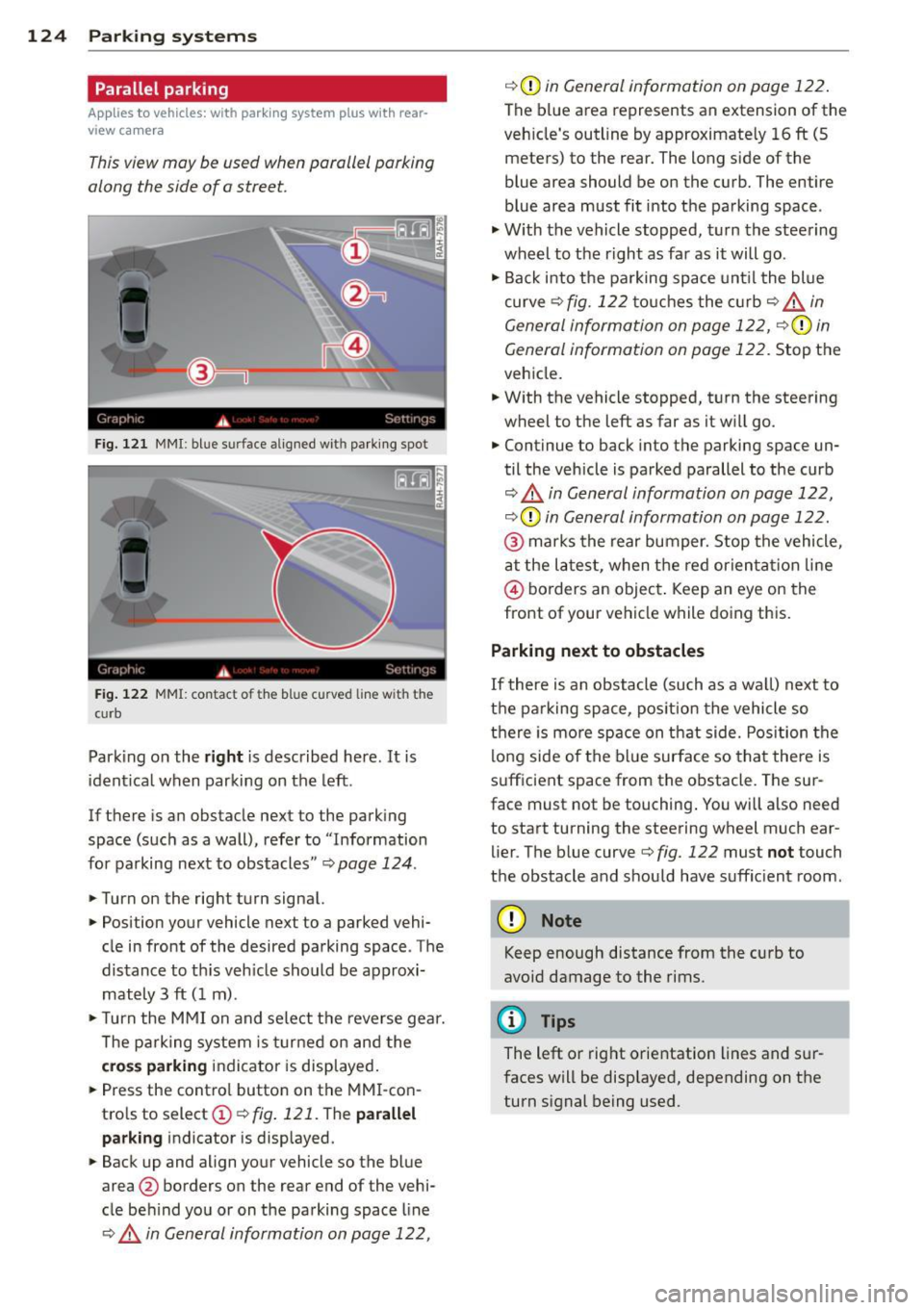
F ig. 121 MMI : bl ue surface aligned wit h parking spot
( )!'Ji 1~ ,11 ,.. ( ,1 11 f ;·.
Fig. 122 MMI: contact o f the b lu e curved line w it h th e
cu rb
Parking on the right is described here. It is
identical when parking on the left.
If there is an obstacle next to the parking
space (such as a wall), refer to "Information
for parking next to obstacles "
¢ page 124.
.. Turn on the right turn signal.
.. Position your vehicle next to a parked vehi
cle in front of the desired parking space . The
distance to th is veh icle should be approxi
mately 3 ft (1 m) .
.. Turn the MMI on and select the reverse gear.
T he parking system is turned on and the
cross parking indicator is displayed.
.. Press the contro l button on the MMI-con
tro ls to select
(D 9 fig . 121. The parallel
parking
indicator is displayed .
.. Back up and align your vehicle so the blue
area @ borders on the rear end of the vehi
cle beh ind you or on the parking space line
¢,&. in General information on page 122, ¢
(Din General information on page 122.
The blue area represents an extension of the
veh icle's outline by approximate ly 16 ft (5
meters) to the rear. The long side of the
blue area should be on the curb. The entire
blue area must fit into the parking space .
.. With the vehicle stopped, turn the steering
wheel to the right as far as it will go .
.. Back into the parking space unt il the blue
curve ¢
fig. 122 touches the curb¢,&. in
General information on page 122,
¢Ci) in
General information on page 122.
Stop the
vehicle .
.. With the vehicle stopped, turn the steering
wheel to the left as far as it w ill go.
.. Continue to back into the parking space un
til the vehicle is parked parallel to the curb
¢ .&. in General information on page 122,
¢ (Din General information on page 122.
@ marks the rear bumper. Stop the vehicle,
at the latest, when the red orientation line
© borders an object . Keep an eye on the
front of your vehicle while doing this.
Parking next to obstacles
If there is an obstacle (such as a wall) next to
the parking space, position the vehicle so
there is more space on that side. Position the
long side of the blue surface so that there is
sufficient space from the obstacle. The sur
face must not be touching . You will also need
to start turning the steering wheel much ear
lier . The blue curve
¢ fig. 122 must not touch
the obstacle and should have suffic ient room .
(D Note
Keep enough distance from the curb to
avoid damage to the rims.
(D Tips
The left or right orientation lines and sur
faces will be displayed, depending on the
turn signal being used.
Page 129 of 302
....,
N
r--. > co
rl I.O
"' rl
"' rl
.. Secure all luggage and other items carefully
r=> page 65, r::!;>page 65.
.. Make sure that nothing can interfere w ith
the pedals .
.. Adjust front seat, head restraint and mirrors
correct ly for your height .
.. Instruct passengers to adjust the head re
stra ints according to their height .
.,. Make sure to use the right child restraint
correctly to protect children
r=> page 169 ,
Child Safety .
.. Sit properly in your seat and make sure that
your passengers do the same
r=:>page 60,
Front seats .
.. Fasten your safety belt and wear it proper ly.
Also instruct your passengers to fasten their
safety belts properly
r=> page 138 .
What impairs driving safety?
Safe driving is directly related to the condi
tion of the vehicle , the driver as well as the
driver's ability to concentrate on the road
without being distracted.
The driver is responsible for the safety of the
vehicle and all of its occupants. If your ability
to drive is impaired, safety r isks for everybody
in the vehicle increase and you a lso become a
hazard to everyone else on the road
r=> ,&..
Therefore:
.,. Do not let you rself be dist racted by passen
gers or by us ing a cellular telephone .
.. NEVE R dr ive when yo ur dr iv ing ability is im
paired (by medicat ions, alcohol, drugs, etc.).
.. Observe all traffic laws, ru les of the road
and speed limits and plain common sense.
.. ALWAYS adjust your speed to road, traffic
and weather conditions .
.. Take frequent breaks on long trips. Do not
drive for more than two hours at a stretch.
.. Do NOT drive when you are t ired, under
pressure or when you are stressed .
A WARNING
Impaired driving safety increases the risk
of serious personal injury and death when
ever a veh icle is being used.
Driving safety 127
Proper occupant
seating positions
Proper seating position for the driver
The proper driver seating position is impor
tant for safe, relaxed driving .
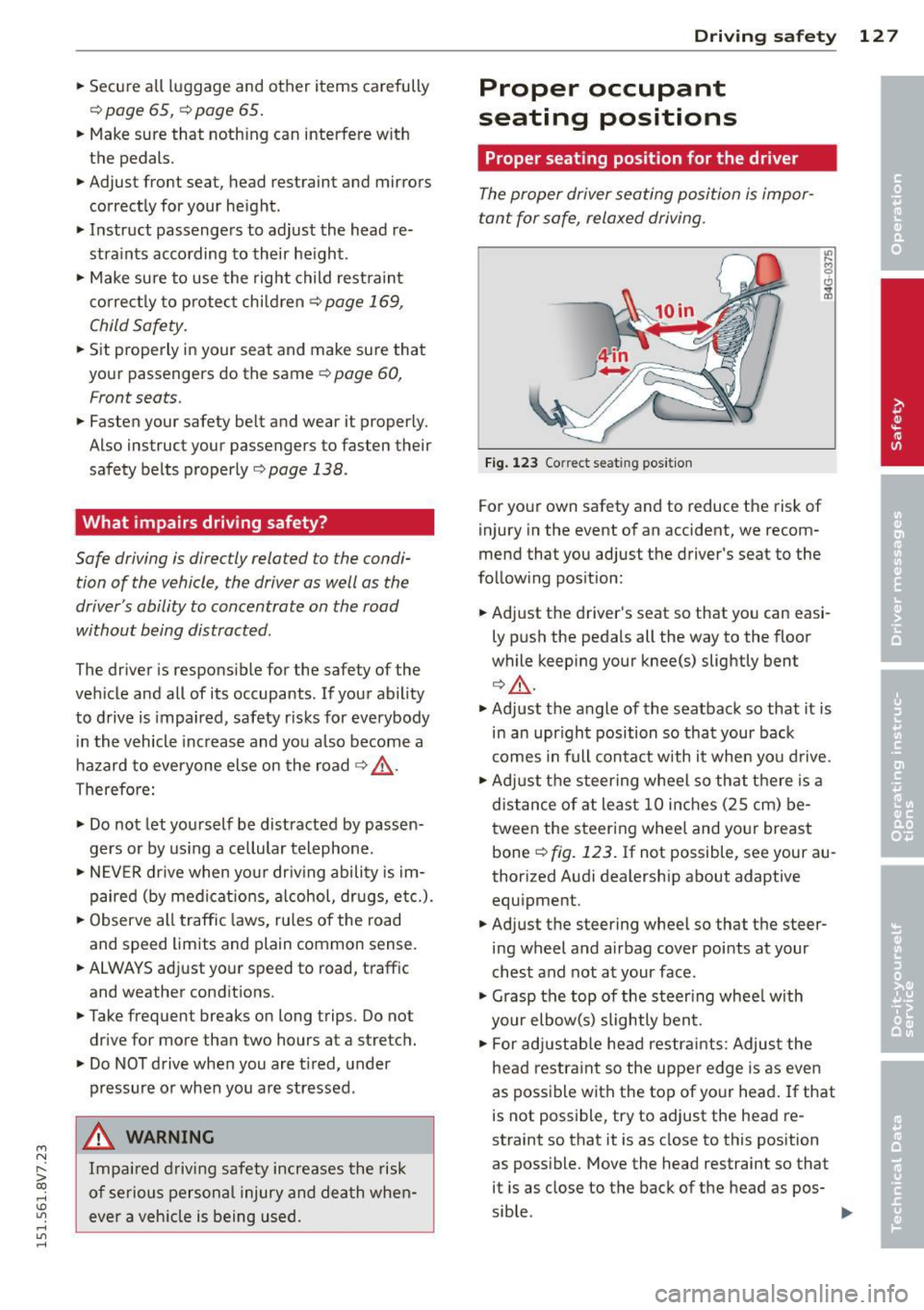
Fig. 123 Correct seat ing pos it ion
For your own safety and to reduce the risk of
injury in the event of an accident, we recom
mend that you adjust the driver's seat to the
follow ing position:
.. Adjust the driver's seat so that you can easi
ly push the pedals all the way to the floor
wh ile keeping your knee(s) slightly bent
r::!;> &,.
.. Adjust the angle of the seatback so that it is
in an upr ight position so that your back
comes in full contact w ith it when you drive.
.. Adjust the steering wheel so that th ere is a
distance of at least 10 inches (25 cm) be
tween the steering wheel and yo ur breast
bone r=:>
fig. 123. If not possible, see your au
thorized Audi dealership about adaptive
equipment .
.. Adjust the steering wheel so that the steer
ing wheel and airbag cover points at your
chest and not at your face .
.,. Grasp the top of the steer ing whee l with
your elbow(s) slightly bent.
.. For adjustable head restra ints: Adjust the
head restraint so the upper edge is as even
as possible with the top of your head. If that
is not possible, try to adjust the head re
straint so that it is as close to this position
as poss ible. Move the head restraint so that
it is as close to the back of the head as pos-
sible . .,.
Page 130 of 302
128 Driving safety
• Fasten and wear safety belts correctly
9page 141.
• Always keep both feet in the footwell so
that you are in control of the vehicle at all
t ime s.
Fo r detailed information on how to adjust the
driver's seat, see
<=>page 61 .
A WARNING
Drivers who are unbelted, out of position
or too close to the airbag can be seriously
injured by an airbag as it unfolds. To help
reduce the risk of serious personal injury:
- Always adjust the driver's seat and the steering wheel so that there are at least
10 inches (25 cm) between your breast
bone and the steering wheel.
- Always adjust the driver's seat and the
steering wheel so that there are at least
4 inches (10 cm) between the knees and
the lower part of the instrument panel.
- Always hold the steering wheel on the
outside of the steering wheel rim with
your hands at the 9 o'clock and 3 o'clock
positions to help reduce the risk of per
sonal injury if the driver's airbag inflates.
- Never hold the steering wheel at the
12 o'clock position or with your hands at
other positions inside the steering wheel
rim or on the steering wheel hub. Hold
ing the steering wheel the wrong way
can cause serious injuries to the hands,
arms and head if the driver's airbag in
flates.
- Pointing the steering wheel toward your face decreases the ability of the supple
mental driver's airbag to protect you in a
collision .
- Always sit in an upright position and nev
er lean against or place any part of your
body too close to the area where the air
bags are located.
- Before driving, always adjust the front
seats properly and make sure that all
passengers are properly restrained. -
For adjustable head restraints: before
driving, always also adjust the head re
straints properly.
- Never adjust the seats while the vehicle
is moving. Your seat may move unexpect
edly and you could lose control of the ve hicle .
- Never drive with the backrest reclined or
tilted far back! The farther the backrests
are tilted back, the greater the risk of in
jury due to incorrect positioning of the safety belt and improper seating posi
tion .
- Children must always ride in child seats
<=> page 169. Special precautions apply
when installing a child seat on the front
passenger seat <=>
page 146.
Proper seating position for the front
passenger
The proper front passenger seating position
is important for safe, relaxed driving.
For your own safety and to reduce the risk of
injury in the event of an accident, we recom
mend that you adjust the seat for the front
passenger to the following position:
• Adjust the angle of the seatback so that it is
in an upright position and your back comes
in full contact with it whenever the vehicle is
moving.
• For ad justab le head restra ints: adjust the
head restraint so the upper edge is as even
as possible with the top of your head. If that
is not possible, try to adjust the head re
straint so that it is as close to this position
as possible <=>
page 130 . Move the head re
straint so that it is as close to the back of
the head as possible.
• Keep both feet flat on the floor in front of
the front passenger seat.
• Fasten and wear safety belts correctly
<=> page 141.
For detailed information on how to adjust the
front passenger's seat, see
<=> page 60. ...