reset AUDI A3 SEDAN 2017 User Guide
[x] Cancel search | Manufacturer: AUDI, Model Year: 2017, Model line: A3 SEDAN, Model: AUDI A3 SEDAN 2017Pages: 400, PDF Size: 67.32 MB
Page 171 of 400
"' "' ... N ,.._ N ... 0 N > a,
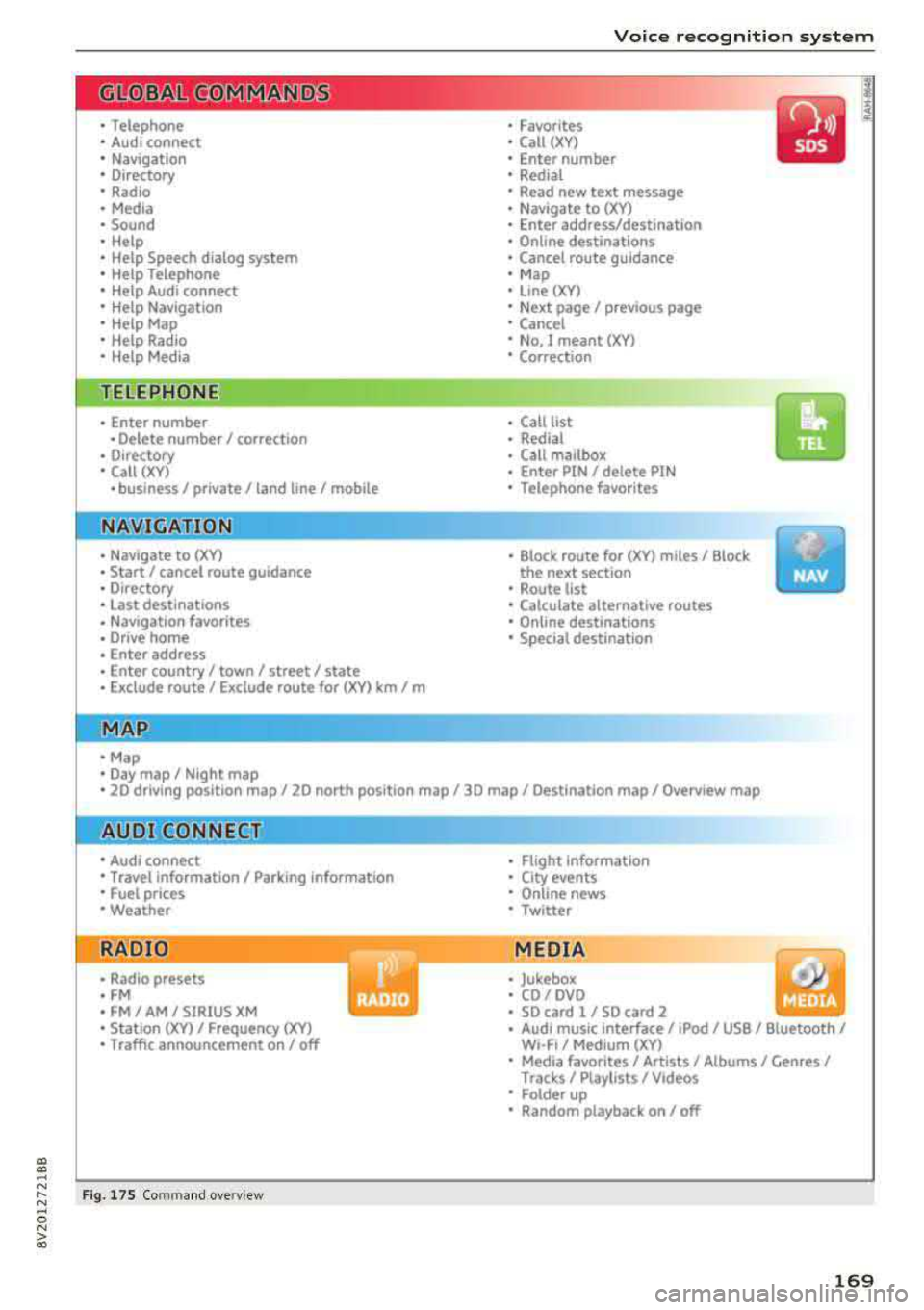
Voice recognition system
• Telephone
• Audi connect •
Favor ites
• Call (XY)
• Navigation
• Directory
• Radio
• Med ia
• Sound •
Enter number
• Redial
• Read new tex t message
• N avigate to (XV)
• Enter address/destination
• Help • Onhne destinations
• Help Speech dia log system
• Help Telephone •
Cancel route guidance
• M ap
• Help Audi connect •
Line (XY)
• Help Navigation
• Help Map
• Help Radio
• Help Media • N
ext page/ previous page
• Cancel
• No, l meant
()(Y)
• Correction
TELEPHONE
• Enter number • Call list
• Delete number/ correc tion
• Redial
•
Oltectory
• Call (XY) •
Call mailbox
• Enter PIN/ delete PI N
· business/ private/ land line/ mobile • Telephone favorites
NAVIG:ATI0N
• N avigate to CXV)
• Start/ cancel route guidance
• Directory
• Last destinations •
Bloc k route for
(XYJ miles/ Block
the next section
• Route list
• Calculate alternative routes
• Nav igation favorites
• Drive home
• Enter address •
Online destinations
• Special destination
• Enter country/ town
I street I state
• Exclude route / Exclude route for (XY)
km / m
M~P
• Map
• Day map/ Night map
• 20 driving position map/ 20 north posi tion map/ 30 map/ Destination map/ Overview map
AllJDI G QNNECT
• Audi connect
• Travel Information/ Parking Information
• Fuel prices
• Weather
RADIO
• Rad io presets
• FM
• FM/ AM/ SIRIUS XM
• Station (XY) / Frequency
(XYJ
• Traffic announcement on/ off
Fig. 17 S Co mmand overv ie w
• Flight Information
• City events
• Online news
• Twitter
MEDIA
• Jukebo x
• CO/ DVD .))
• SD card 1 / SD card 2
• Audi music Interface/
IPod I use / Bluetooth /
W I-Fl/ Medium (XV)
• Media favorites/ Artists/ Albums/ Genres/
Tracks/ Ptayllsts / Videos
· Folder up
• Random playback on / off
169
Page 177 of 400
CXl CXl .... N r--N .... 0 N > 00
Voice recognition system
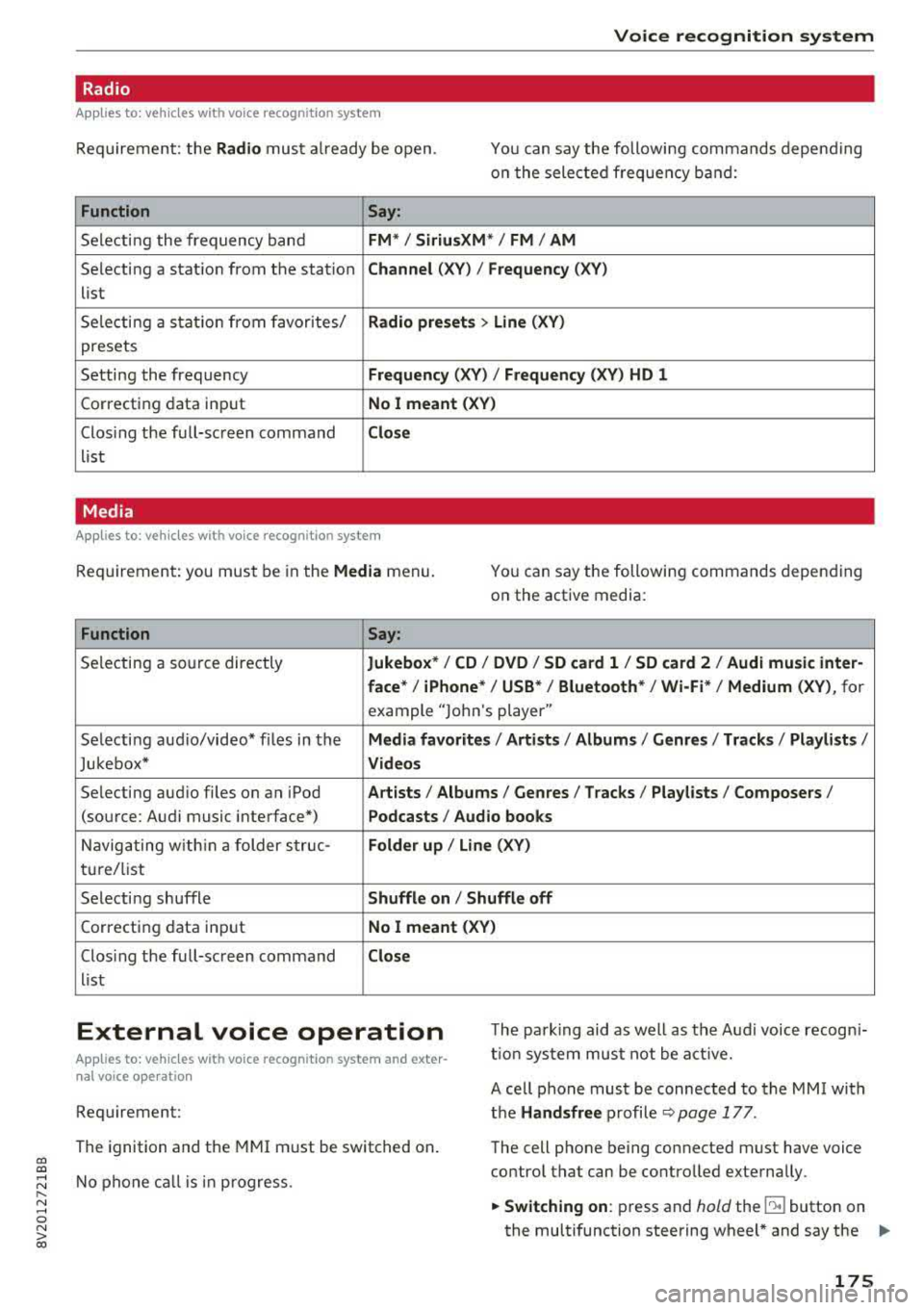
Radio
Applies to: vehicles with voice recognition system
Requ ireme nt: the Radio must a lready be open. You can say the followi ng commands depend ing
o n t he sele cted frequen cy b and:
Function Say:
Sele cti ng the frequency ba nd FM */ SiriusXM * / FM / AM
Selecting a stat ion from the station Channel (XV ) / Frequency (XV)
list
S ele cti ng a s tat io n from favorites/
Radio prese ts > Line (XV)
presets
Setting the frequency
Frequency (XV) I Frequency (XV) HD 1
Correcting data inp ut No I meant (XV )
Closing the full-sc reen command Close
list
Media
Applies to: vehicles with voice recognitio n system
Re qui reme nt: you mus t be in the Media menu.
You can say the following commands depen ding
on the active media:
Function Say:
Selectin g a so urce directly Jukebox* / CD / DVD / SD card 1 / SD card 2 / Audi music inter-
face *
I iPhone* / USB * / Bluetooth* / Wi-Fi * / Medium (XV) , for
example "Jolhn 's player"
Selecti ng aud io/video * fi les in the
Media favorites / Artists / Albums / Genres / Track s/ Playlists /
Jukebox* Videos
Selecting aud io files on an iPod A rt ists / Albums / Genres / Tracks / Playlists /Composers /
(source: Audi music interface*) Podcasts / Audio books
Naviga ting w ith in a folder s truc -Folder up / Line (XV)
tu re/list
Selecti ng shuffle
Shuffle on I Shuffle off
C orrecting data inp ut No I meant (XV)
Clos ing the fu ll-sc reen command Close
list
External voice operation T he pa rk ing aid as well as the A ud i voice r ecogn i
t io n sys te m must not be a ctive.
Applies to: vehicles with voice recognition system and exter
nal voice operation
Requirement:
The ignition and the MMI m ust be switched on.
N o phone call is in progress . A cell phone must be connected to the MMI with
the Handsfree p rofile ~ pag e 177.
The cell p hone be ing connected must have voice
contro l that can be contro lled exte rna lly.
.,. Switching on : press and hold the lei.I button on
the multifunction steering wheel * and say the
liJJ,,
175
Page 181 of 400
a, a, ..... N
" N ..... 0 N > 00
Connecting a c ell phone as th e prima ry
phon e
Connect your cell phone to the MMI via Blue
tooth. The first connected cell phone is displayed
as the
P ri ma ry p hone in the MMI.
Refer to
¢ page 177, Connect ing a cell phone us
ing Bluetooth .
Connecting a cell phone as th e secondar y
pho ne
Requirement: a cell phone must be connected to
the MMI as the primary phone.
Select:
IMENU ! button> Telephone > right con
trol button
> C onne ct sec ondary tel ephon e.
Refer to ~ page 177, Connecting a cell phone us
ing Bluetooth.
Example: you have connected your business cell
phone to the MMI as the primary phone and your
private cell phone as the secondary phone . To be
able to call contacts from your private cell phone
d irec tory, you must switch the primary and sec
ondary phone, s in ce the di rectory from the pri
mary phone is always displayed.
Switching the pr imar y and secondary phone
Requirement : a primary phone and a secondary
phone must be connected .
Switc h primar y and second. phone : select:
I MENU I button >Te lephone > right control but
ton >
S w it ch p rim ary and secon d. phon e.
@ Tips
-Please note that only the directory from the
primary phone is always displayed .
-You can see if a cell p hone is connected as
the primary phone or secondary phone in
the
C onne ction mana ger ¢ page 242 . Or:
the dev ice name of the connected primary
phone is shown in the
T elephone menu
(such as MyPhone).
-If the primary phone does not connect auto
matically to the MMI when the ign ition is
switched on, for examp le because it is out
of the vehicle range or the Bluetooth func
tion is switched off, then a previous ly paired
Teleph one
secondary phone is automatically connected
as the primary phone.
-You can send and receive messages on your primary phone as well as on your secondary
phone¢ page 179, fig . 177. You do not
need to switch your primary phone and sec
ondary phone for th is.
-You can also make your connected cell
phone the default phone by se lecting
Set a s
def ault telephon e
in the Co nnect ion ma n
a g er
¢ page 244 .
Using the telephone
Opening the telephone
Applies to: vehicles wi th telepho ne
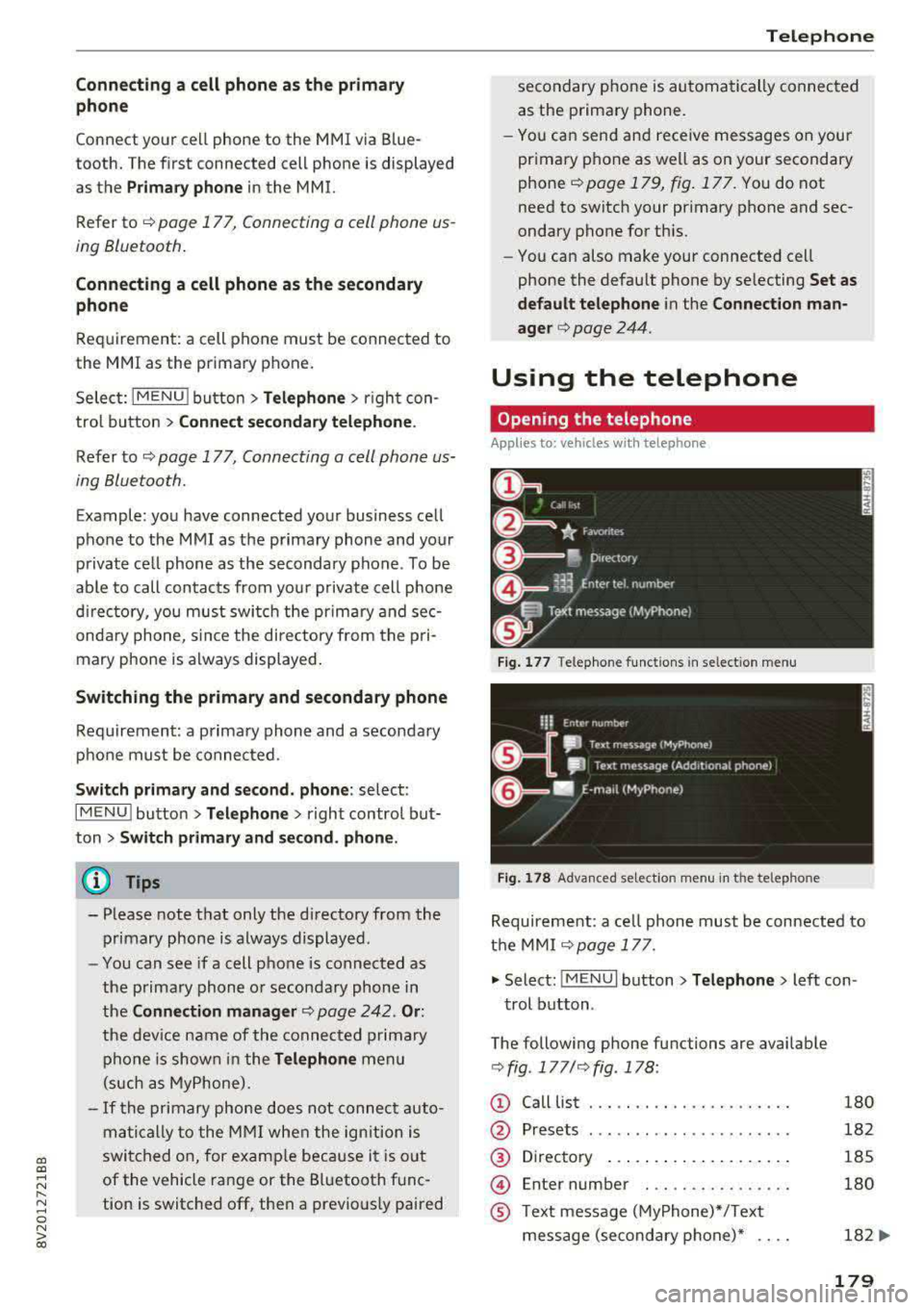
Fig . 17 7 Telephone func tion s in se lect io n menu
Fi g. 1 78 Adva nced selectio n menu in t he te lep hone
Requirement: a ce ll phone must be connected to
t h e MMI
¢ page 177 .
.,. Select: !M ENUI button> Tel ephon e> Left con
trol button .
The following phone functions are available
¢ fig . 177/ ¢fig . 178 :
(!) Call List
@
®
@
®
Presets
Directory ..... .. ... ... ...... .
En ter number . .. .. .... .. .... .
T ext message (MyPhone)*/Text
message (secondary phone)* ....
180
182
185
180
182
...
179
Page 184 of 400
Telephone
automat ica lly re direc ted from the MMI to
your cell phone and yo u can cont in ue the
ca ll on your phone .
- The display of an incom ing phone ca ll in the
Infotainment system d isp lay may still be
v is ible for a few secon ds after a call is an
swered/igno red depending on the cell
phone in use .
Making an emergency call
App lies to: veh icles w ith telep hone
" Se lect: I M ENU I button> Telephone > left con
trol button >
Enter number > Enter emergency
c a ll number (for examp le, 911) >
OK .
_& WARNING
-
- Becau se your p ho ne wo rk s wi th r adio s ig
n als, a connec tion can not be guaranteed un
der all ci rc u mstances. Do not rely on only
yo ur phone when it comes to essent ia l com
mun ication (s uch as a medical eme rgency).
- Always follow the instructions given by the
eme rgency perso nnel d uring an emergency
ca ll and only end the call when they inst ruct
yo u to do so .
(D Tips
Emergency num bers are not the same eve ry
w here. Fin d out which eme rgency num ber is
used in yo ur cu rrent locat ion.
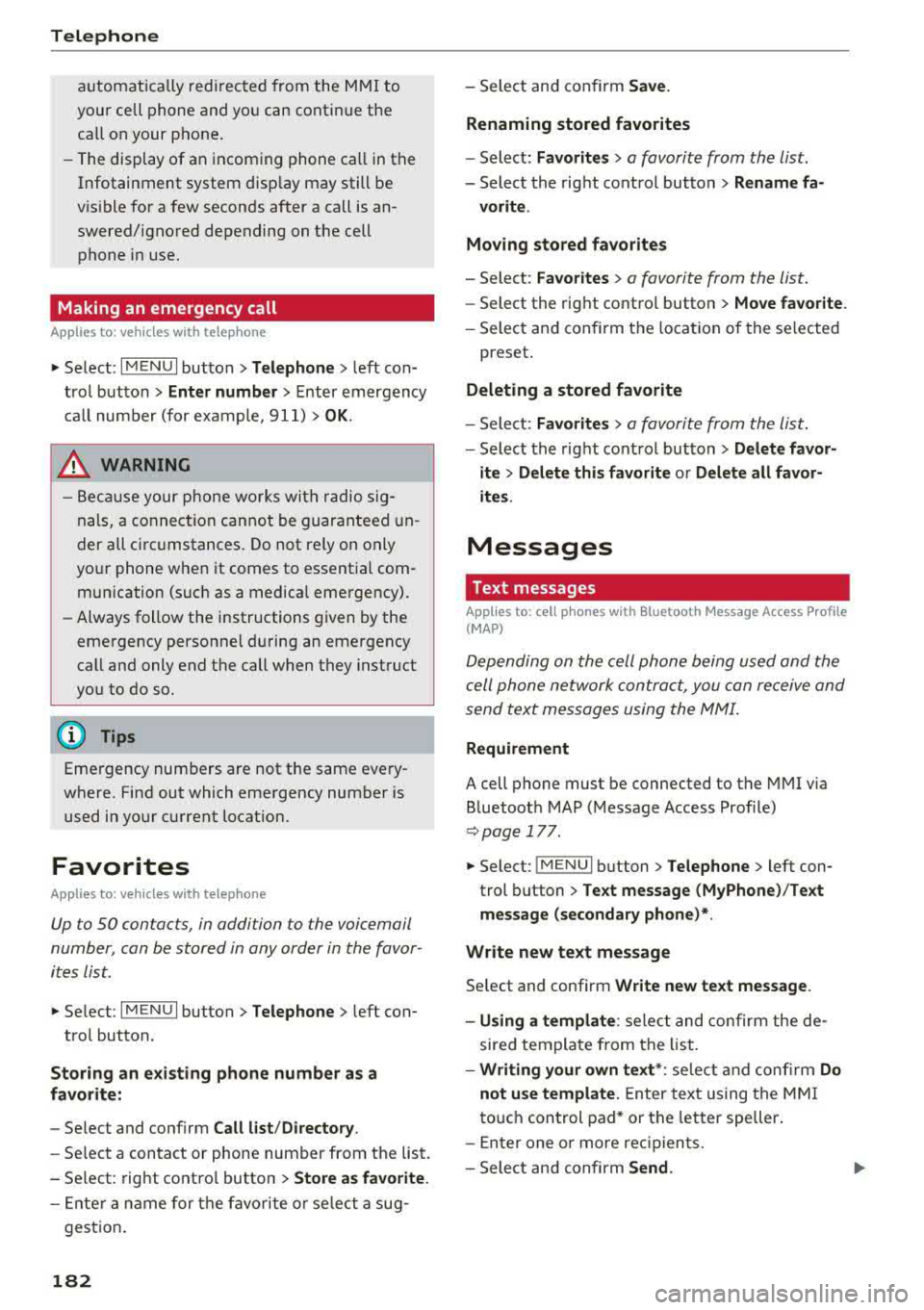
Favorites
Applies to: veh icles w ith telep hone
Up to 50 contacts, in addition to the voicemail
number, can be stored in any order in the favor
ites list.
" Se lect: I M ENU I button> Telephone > left con-
trol button.
Storing an exist ing phone number a s a
favorite:
- Se lect and confirm Call list /Directory .
-Se lect a contact or phone number from the list.
- Se lect: rig ht contro l button >
Store as favorite.
- E nte r a na me for t he favo rit e o r se le ct a sug-
gest io n.
182
- Sele ct an d confirm Save.
Renaming stored favorites
- Select: Favorites > a favorite from th e list .
-Select the right cont rol button > Rename fa-
vorite .
Moving stored favorites
- Select: Fa vorites > a favorite from the list.
- Select the right cont ro l button > Move favorite .
-Sele ct an d confirm t he lo cati on of the se lected
preset .
Deleting a stored favorite
-Sele ct: Favorites > a favorite from the list.
- Select the right cont rol button > Delete favor-
ite > Delete this favorite or Delete all favor
ites .
Messages
Text messages
Applies to : ce ll ph ones w ith Bluetooth Message Access P rofile
(MAP)
D epending on the cell phone being used and the
cell ph one ne twork con tra ct, you can receive and
send text message s using the MMI.
Requirement
A cell phone must be connected to t he MMI v ia
B luetoot h MAP ( Message Access Profi le)
¢ page 177 .
"Select: !ME NUI button> Telephone > left con
trol button >
Text message (MyPhone )/Text
message (secondary phone )* .
Write new text message
Se lect and confirm Write new text mess age .
- Using a template :
select an d c onfirm the de
sire d templa te from the list.
- Writing your own text *: selec t a nd con firm Do
not u se template.
E nter text using the MMI
t o uch con trol pad * or t he letter speller .
- En ter one o r more rec ipien ts.
- Sele ct and confirm
Send .
Page 190 of 400
Telephone
using the Ringtone fu nction . Select and confirm
an entry from the list. For the
Ringtone volume/
Message volume
settings, see ¢ page 246 . The
Microphone input level can be adjusted during a
phone call us ing the control knob.
(D Tips
-Several cell phones can be paired to the
MMI, but only two cell phones can be active
l y connected.
- To delete all paired Bluetooth devices, the
Bluetooth function can be reset to the fac
tory default
sett ings¢ page 242.
Additional options
... Se lect : I MENU I button> Telephone > right con-
trol button .
Connection manage r
Refer to ¢page 242 .
Bluetooth settings*
Refer to i:::> page 244.
Online settings*
Refer to i:::> page 244 .
Wi-Fi settings*
Refer to¢ page 195, Wi-Fi hotspot.
Directory settings
Applies to: veh icles w ith telephone
... Select : I MENU I button> Telephone > left con
trol button
> Directory > right control button>
Directory settings.
188
Memory capacity
Shows the Memory capacity for the directory.
You can manage up to 17,000 co ntacts with the
directory. You can load up to 4,000 contacts
from your cell phone into each directory. Yo u can
also import up to 1,000 contacts from a storage
device.
Sort order
You can so rt the contacts in your directory alpha
betically according to
Last name or First name .
Import contacts/Export contacts
Refer to c;, page 187.
Download directory
To update the contacts in the MMI, you can man
ually download your cell phone contacts . De
pending on the ce ll phone, the Bluetooth connec
tion may need to be disconnected and reconnect
ed to update the contacts.
Hide contacts without phone number
When this function is switched on~ , contacts
that do not have any numbers assigned to them
will be grayed out in the directory.
Page 201 of 400
CXl CXl .... N r--N .... 0 N > 00
-If a t least two minutes have passed after
the last time the ignition was switched
off,
you can reset the access counter back to "O" as needed after switching the ignition on/
off again .
Vehicle status report
Applies to: veh icles with Audi connect e·tron services
You can access various vehicle statuses using the
services, such as:
- high-voltage battery charge level,
- electri c range,
- mileage,
- next inspection .
For addit ional information,
see ¢ page 97, Power
meter overview
and ¢ page 99, Range display .
A WARNING
Do not ignore messages and warning or indi
cator lights that turn on in the vehicle
be
cause of the information in the status report.
T his could le a d to b reak downs in on the ro ad,
ac cidents and serious injuries .
Car Finder
Applies to: vehicles with Audi connect e-tron services
The vehicle collects data under certa in conditions
a n d se nds it to a se rver.
When data is stored, you can access values such
as these us ing the service :
- Vehicle location d isplay,
- Display of one's own locat ion,
- Ro ute to your vehicle.
I f yo ur mobile device also has a navigation f unc
tion, yo u can navigate to your last know n pa rking
l ocat ion .
(D Tips
-The new pa rking location canno t be dete r
mined with this service if the vehicle is
moved after shutt ing the ve hicle
off and
without switching the ignition on and
off
again, for example when being towed o r if
the veh icle is stolen.
Audi connect e-tron s erv ic es
- If the vehicle is moved and shut off again
using the second key, for example, t he new
park ing location is transmitted to the server
after sw itching the ign ition
off.
Charging
Applies to: vehicles with Audi connect e-t ron services
You can contro l and access the hig h-voltage bat
tery charging process remotely using these serv ices. You have the followi ng options:
- check the battery charge level,
- start/end the cha rging p rocess,
- program the charging t imer with/wit hout cl i-
mate con trol,
- deactivate/activate the cha rg ing timer.
Fo r additional information,
see ¢ page 108,
Charging the battery with the Audi e-tron charg
ing system .
A WARNING
Only perform c harg ing f unct io ns on t he h igh
vol tage battery if t he ve hicl e is shut
off co r
r e ct ly, is con nected to a suitable socket an d if
the ignition is switched
off.
Temperature control
Applies to: vehicles with Audi connect e-tron services
You can co ntro l the clima te control in your vehi
cl e remo tely using these serv ices:
- start/end climate control,
- program the timer,
- deactivate/activate the timer.
For additional information,
see ¢ page 118 , Cli
mate control.
A WARNING "---
Only perform the climate cont rol functions i f
your vehicle was shut
off cor rectly and the ig
ni tion is switched off .
199
Page 209 of 400
CXl CXl .... N ,.__
N .... 0 N > 00
-A maximum of three persona l routes are
displayed in the
Enter destination menu.
Based on the current vehicle pos ition, the
traffic situation for the route that is most li ke ly to be dr iven out of the three routes
will a lways be mo nito red.
-P lease note that personal ro utes that have
already bee n stored w ill remain stored after
the ignit ion is switched off and they must
be deleted manually .
Home address
Applies to: ve hicles with navigation system
.,. Press the I NAV/MAP I button repeated ly until
the
Enter destination menu is displayed
¢ page 200, fig . 185.
Storing a home address
-Se lect and confirm Home address @
¢ page 200, fig. 185. After opening the home
address for the first time, yo u will be asked to
c reate a home address.
-Select and co nfirm Create now .
-Enter a destination or select a destination from
t h e list.
Or :
-Select and confirm a destination > right control
button
> Store as home address .
A home address will be stored in the M MI rega rd
l ess of the co nnected cell phone. This home ad
dress is always avai lab le even if a cell phone is
not connected to the MMI.
Editing the home address
-Se lect the Home address @¢ page 200,
fig . 185.
-S elect : rig ht contro l button > Edit home ad
dres s.
-Sele ct and co nfi rm a new dest ina tion a s the
home addres s.
The se lec ted des tin ation is sto red as t he new
ho me address.
Na vigation
Favorites
Applies to: vehicles wi th navigat ion system
.. Press the !NAV/MAPI b utton repeatedly unti l
the
Enter destination men u is disp layed
¢ page 200, fig.185 .
-Storing a destination as a favorite : search fo r
the desired destinat ion using the input field.
Or: select and confirm a dest inat ion from the
list. Select: r ight control b utton
> Store as fa
vorite .
-Renaming a favorite : select: left cont ro l button
> Favorites > a favorite from the list> right
cont rol button
> Rename favorite .
-Move favorite : select a favorite from the list >
right control button > Move fa vorite. Select
and confirm the location of the selected preset.
-Delet ing a favorite : select a favorite from the
list>
right cont rol button> Delete favorite >
Delete this favorite or Delete all favorites .
Di rectory contacts
Applies to : vehicles wit h navigat ion syste m
Two addresses (private/business) can be as
signed as destinat ions for each contact in the di
re ctory.
.. Press the INAV/MAPI button repea tedly u ntil
t he
Enter destination men u is displayed
¢page 200, fig.185 .
Storing a destination as a contact in the
directory
Requirement: a ce ll phone must be connected to
the MMI
¢page 177 .
-Select a destination > r ight control b utton >
Add destination to contact .
-Select and confirm Add business destination or
Add private destination.
-Enter a name. Or: select and confirm a directo
ry contact from the list.
-Select and confirm Save business card.
207
Page 219 of 400
Radio
Opening the radio
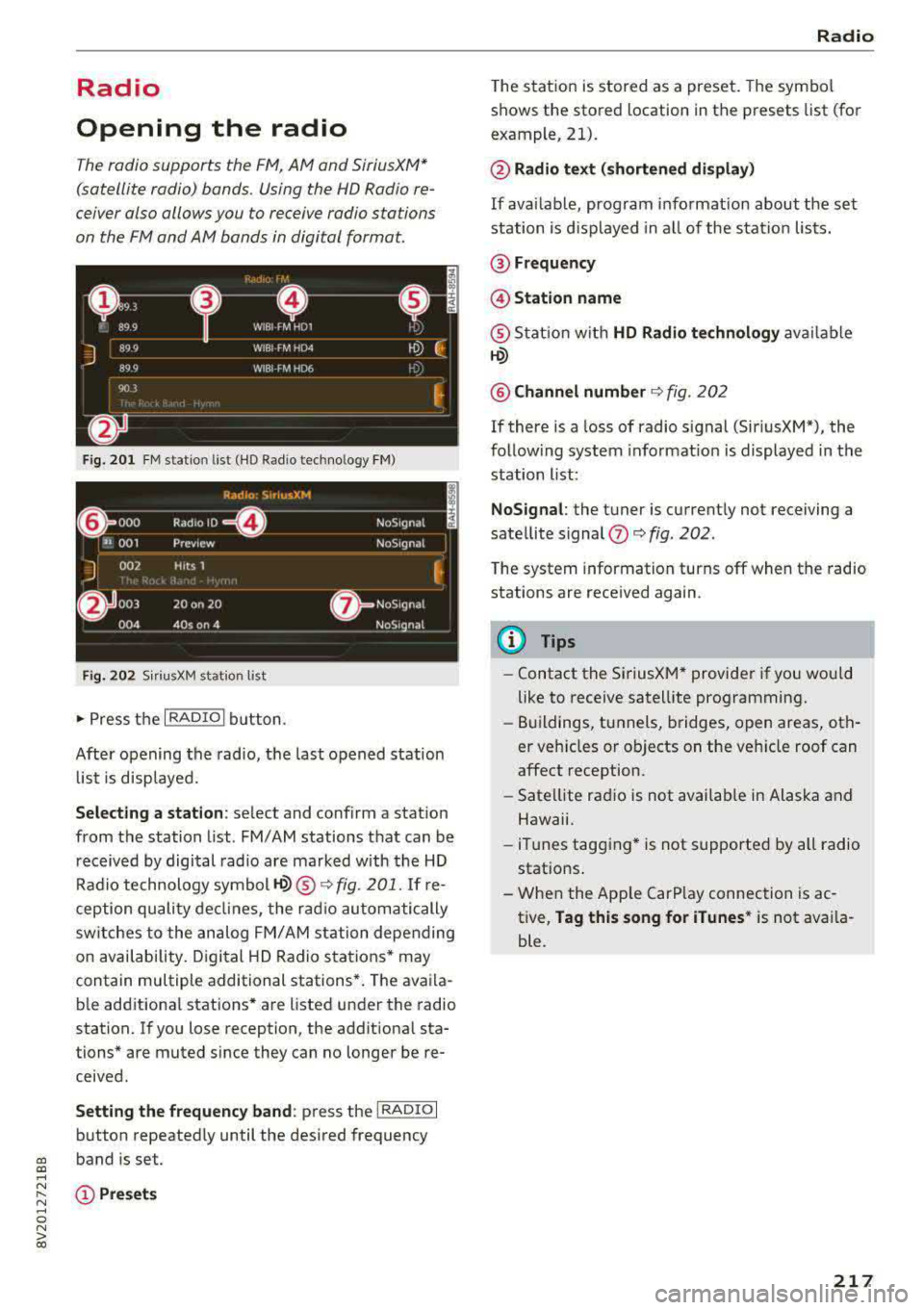
The radio supports the F M , AM and SiriusXM *
(satellite radio) bands. Using the HO Radio re
ceiver also allows you to receive radio stations
on the FM and AM bands in digital format.
Fig . 201 FM stat ion list ( HO Ra dio tec hn ology FM)
Radio: SiriusXM
~ 000 Rad,olD e· N oS,gnal
'JI 001 Prev iew N oS,gnal
J 002 H tts 1
~
f) 003 20 on 20
NoStgna l
004 40s on 4 NoS,gnal
F ig. 202 Siri usXM station list
.. P ress the I RAD IO I bu tton.
Afte r opening the rad io, t he last opened station
lis t is disp laye d.
.
I
Selecting a station : select and confirm a stat io n
from the station list . FM/ AM stations t hat can be
received by digital rad io are ma rked w ith the HD
R adio technology symbol
tQ) ® ¢fig. 201. If re
ception quality decl ines, the r adio automatically
switches to the analog FM/AM station depe nding
on availability , D igi tal HD Radio s ta tions * may
contain multiple additional stations* . The ava ila
b le add itiona l stations* are listed under the radio
station. I f you lose reception, the add it iona l sta
tions* are muted since they can no longer be re
ceived.
Setting the frequency band : press the I RADIO I
button repeated ly until the desired frequency
a, band is set. a, ....
~ (D Pre sets
.... 0 N > 00
Radio
T he s tation is stored as a preset . The symbol
shows the stored location in the presets list (for
example, 21).
@ Radio text (shortened display )
If availab le, program i nfo rmat ion about the set
station is d isplayed in a ll of the station lists.
@ Frequency
@ Station name
® Stat ion w it h HD Radio te chnology av aila ble
tQ)
@ Channel number ¢ fig. 202
If there is a loss of radio s ignal (Sir iusXM*), the
follow ing system informat io n is displayed in the
station list:
NoSignal : the tu ner is current ly not receiving a
sate llite signal
(fJ ¢ fig. 202 .
The system information turns off when the radio
stations are received again.
(D Tips
-Contact the Si riusXM* provider if you wou ld
like to receive satell ite programming .
- Buildings, tu nnels, b ridges, open areas, oth
er veh icles or objects on the veh icle roof can
affect reception.
- Sate llite rad io is not availab le in Alaska and
Hawaii.
- iTun es tagging * is not supported by all radio
statio ns.
- When the App le CarPlay connection is ac
tive,
Tag this song for iTunes * is not ava ila
ble.
217
Page 220 of 400
Radio
Radio functions
Free text search
App lies to: ve hicles w ith free text search
Using the free text search, you can select the or
der that the search terms are entered in the in
put field. Search in all frequency bands for a sta tion name or program type such as
News ).
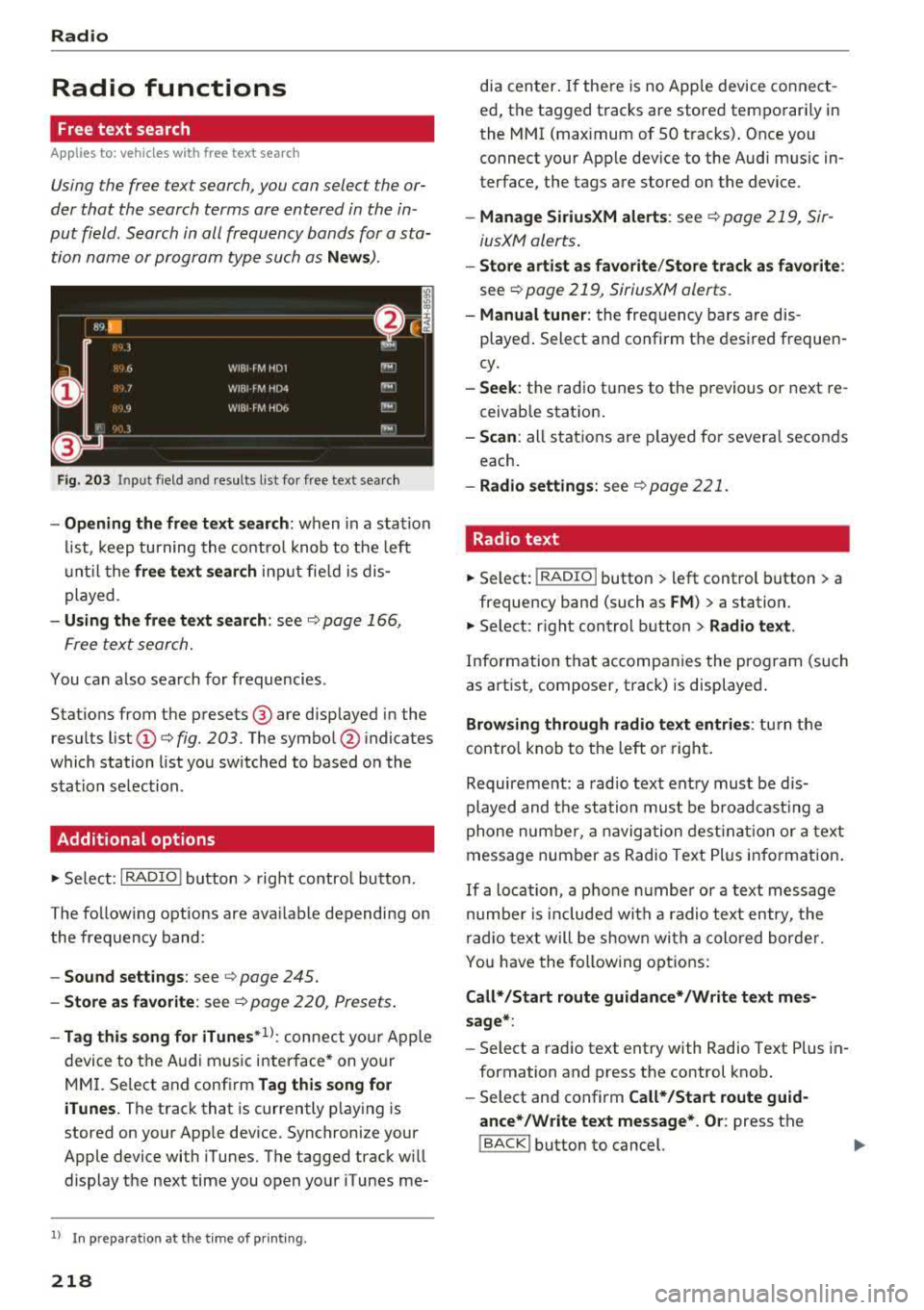
Fig. 203 Input field and results list fo r free text sea rch
- Opening the free text search : when in a s ta tion
list, keep turning the control knob to the left
u nt il the
free text search input fie ld is dis
played .
-Using the free text search: see c::> page 166,
Free text search.
You can a lso search for frequencies.
Stat ions from the presets @ are disp layed in the
results list
(D c::> fig. 203. The symbo l@ indicates
which station list you sw itched to based on the
station selection.
Additional options
.,. Se lect: I RADIO I button > r ight contro l button.
The follow ing options are ava ilable depending on
the frequency band:
- Sound settings : see c::> page 245.
-Store as favorite : see c::> page 220, Presets.
-Tag this song for iTunes*1>: connect your Apple
device to the Audi music interface* on yo ur
MM I. Select and confi rm
Tag this song for
iTunes.
The track that is currently p laying is
stored on your App le device. Synchronize your
Apple device with iTunes. The tagged track w ill
display the next time you open your iTunes me-
1> I n preparation at the t ime of pr inting.
218
dia center . If the re is no Apple device connect
ed, the tagged tracks are stored temporarily in
the MMI (max imum of 50 tracks) . Once you
connect your Apple dev ice to the Audi music in
terface, the tags are stored on the device.
- Manage SiriusXM alerts : see c::> page 219, Sir
iusXM alerts .
-Store artist as favorite /Store track as favorite :
see c::> page 219, SiriusXM alerts.
-Manual tuner : the freq uency bars are dis
played . Select and confirm the desired frequen
cy.
- Seek: the radio tunes to the previous or next re
ceivab le station .
-Scan : all stations are played for severa l seconds
each.
- Radio settings: see c::> page 221.
Radio text
.,. Select: I RADIO I button > left control button > a
frequency band (such as
FM ) > a station.
.,. Select: r ight control button> Radio text .
Information that accompanies the program (such
as artist, composer, t rack) is displayed.
Browsing through radio text entries: turn the
contro l knob to the left o r right.
Requirement: a radio text entry must be d is
played and the station must be broadcast ing a
phone number, a navigation destination or a text
message number as Radio Text Plus information .
If a location, a phone number or a text message
number is included with a radio text entry, the
radio text will be shown with a colored borde r.
You have the following options:
Call* /Start route guidance* /Write text mes
sage* :
-Select a radio text entry with Radio Text Plus in
formation and press the control knob.
- Select and confirm
Call* /Start route guid
ance* /Write text message* . Or :
press the
I BACK I button to cancel.
Page 222 of 400
Radio
Radio text is availab le for the selected stat ion.
Ref er to
~ page 218.
@ iTunes tagging
The Tag this song for iTunes option is available
for the set station . Refer
to ~ page 218 , Addi
tional options.
@ FM HD Radio technology
The station is received through FM HD Radio
technology.
@ Screen view
Display Cover art or Station logo. Refer to
~ page 221, Preferred picture view *.
Displaying the station list:
Turn the control knob. Or: press the !BACK ! but
ton .
Radio menu
Fig. 206 Example : Rad io menu
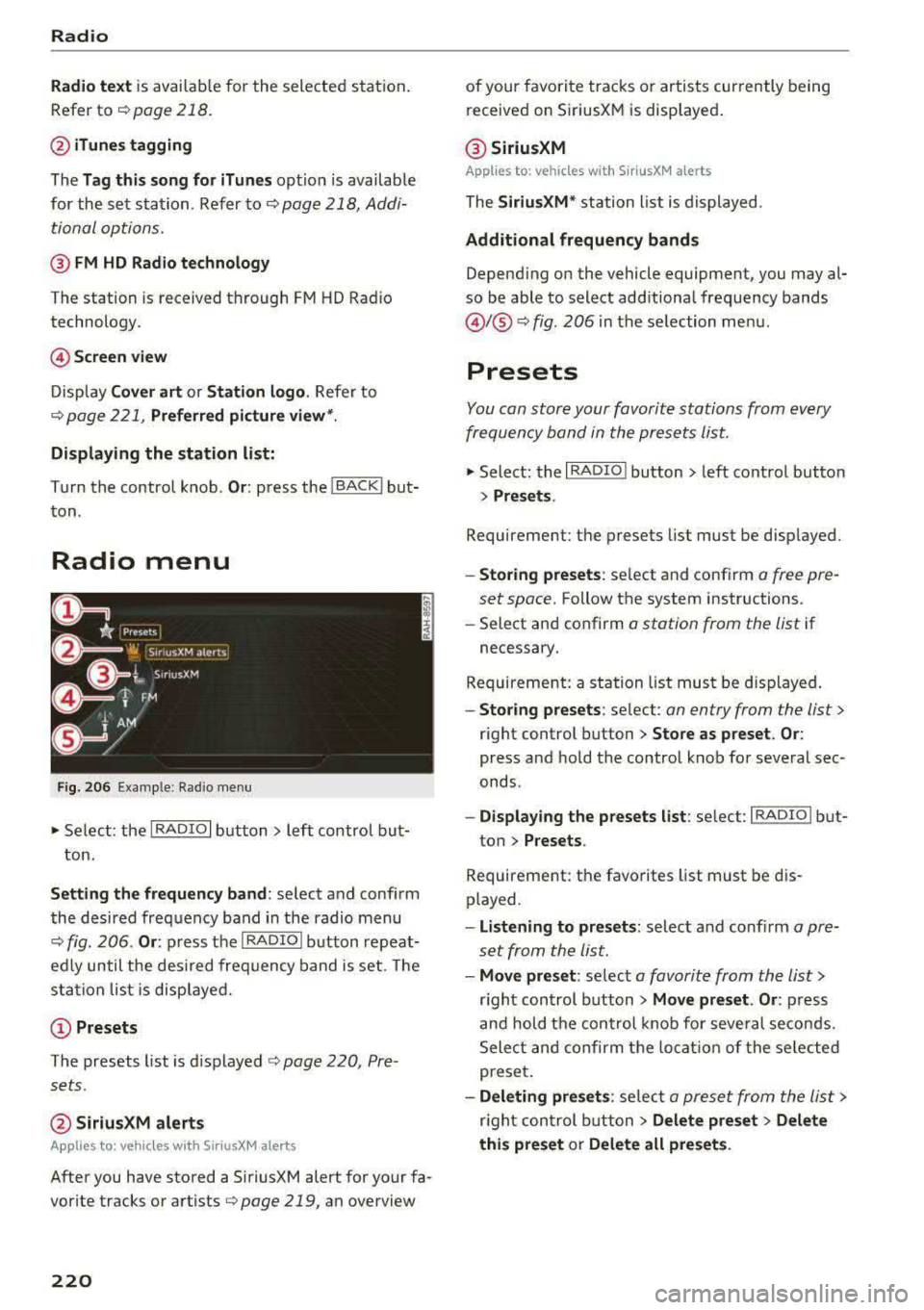
~ Select: the I RADIO I button> left control but
ton.
Setting the frequency band : select and confirm
the desired frequency band in the radio menu
~ fig . 206 . Or: press the I RADIO I button repeat
edly until the desired frequency band is set. The
sta tion list is displayed.
(!) Presets
The presets list is displayed ~ page 220, Pre
sets .
@SiriusXM alerts
Applies to: veh icles with SiriusXM alerts
After you have stored a SiriusXM alert for your fa
vor ite tracks or artists
q poge 219, an overview
220
of your favorite tracks or artists currently being
received on S iriusXM is displayed .
@ SiriusXM
Applies to: vehicles with SiriusXM alerts
The SiriusXM * station list is displayed .
Additional frequency bands
Depending on the vehicle equipment, you may al
so be able to select additional frequency bands
@ !@ ~ fig. 206 in the selection menu.
Presets
You con store your favorite stations from every
frequency bond in the presets list.
~ Select: the I RADIO I button > left control button
> Presets .
Requirement: the presets list must be displayed.
-Storing presets: select and conf irm o free pre
set space.
Follow the system instructions .
-Select and confirm a station from the list if
necessary.
Requirement: a station list must be displayed.
-Storing presets: select: on entry from the list>
right control button > Store as preset. Or :
press and hold the control knob for several sec
onds .
-Displaying the presets list : select: IRADIOI but-
ton >
Presets .
Requirement: the favorites list must be dis
played.
-Listening to presets: select and confirm a pre
set from the list.
-Move preset : select a favorite from the list>
right control button > Move preset . Or : press
and hold the control knob for several seconds.
Select and confirm the locat ion of the selected
preset.
-Deleting presets : select a preset from the list >
r ig ht con trol button
> Delete preset > Delete
this preset or Delete all presets .