car play AUDI A3 SEDAN 2018 User Guide
[x] Cancel search | Manufacturer: AUDI, Model Year: 2018, Model line: A3 SEDAN, Model: AUDI A3 SEDAN 2018Pages: 404, PDF Size: 62.3 MB
Page 148 of 404
Parking aid
-Only use the rearview camera to assist you if
it shows a good, clear picture. For example,
the image may be affected by the sun shin
ing into the lens, d irt on the lens, or if there
is a malfunction .
- Use the rearview camera only if the luggage
compartment lid is completely closed . If the
luggage compartment lid is open the orien
tation lines and blue surfaces are hidden .
Make su re any objects you may have mount
ed on the luggage compa rtment lid do not
block the rearview camera.
- T he came ra lens enlarges and distorts the
field of v is ion. Th e object appears both al
tered and inaccurate on the screen.
- In certai n situations, people or objects in
the d isplay appear closer or farthe r away:
- For objects that do not touch the ground,
such as the bumper of a parked vehicle, a
trailer hitch or the rear of a truck . Do not
use the orientation lines in this case .
- If driven from a level surface onto an in
cline, o r a downward slope.
- If driven toward protrud ing objects.
- If the veh icle is carry ing too much load in
the rear.
- Always read and follow the applicable warn
ings ¢(!) in General information on
page 143 .
-The orange-colored orientation lines in the
Infotainment display show the vehicle path
based on the steering wheel angle . The
front of the vehicle swings out more than
the rear of the veh icle. Mainta in plenty of
distance so that an exterio r mirror or a cor
ner of the vehicle does not co llide w ith any
obstacles.
Switching on/off
Applies to : veh icles with rearview camera
Switching on/off
Requirement: the veh icle speed must be under
approximately 6 mph (10 km/h) .
146
.,. Press the p, .//~ button in the center console. A
short confirmation tone sounds and the LED in the button turns on.
Switching on automatically
The system switches on automatically when re
verse gear is engaged wh ile the engine is run
ning.
Switching off automatically
The system switches off automatically when driv i ng fo rward faster than 6 mph ( 10 km/h).
(0 Tips
- The visua l display* in the right sect ion of the
display should help you de tect the critical
vehicle area.
- You can change the volume of the signa ls
and the
display ¢ page 147.
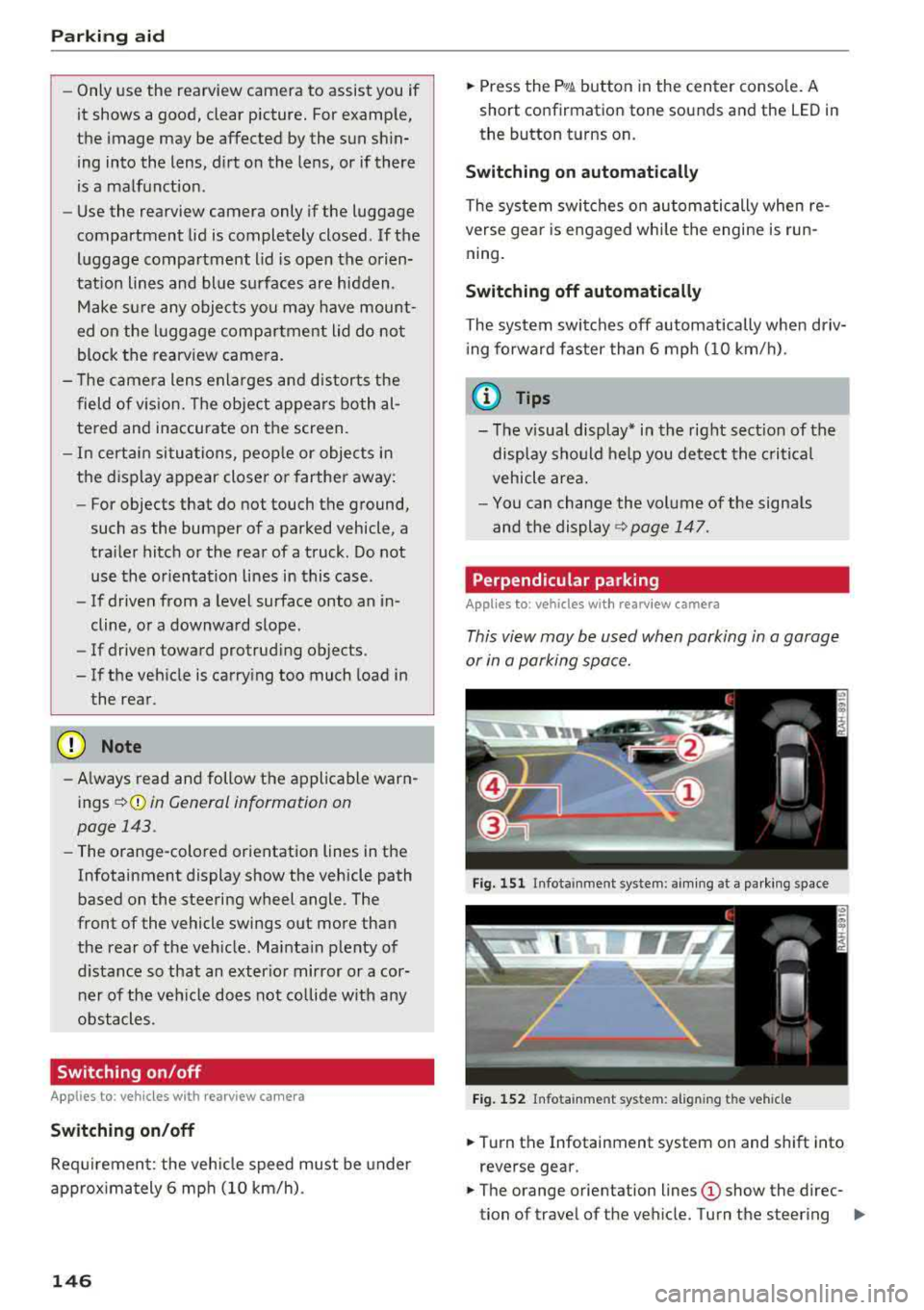
Perpendicular parking
Applies to: vehicles with rearview camera
This view may be used when parking in a garage
or in a parking space.
Fig. 151 Infota inment system: aim ing at a parki ng space
Fig. 152 Infota inm ent sys tem: al ign ing the vehicle
.,. Turn the Infotainment system on and shift into
reverse gear.
.,. The orange orientation lines (D show the direc
tion of travel of the vehicle. Turn the steering
..,.
Page 171 of 404
LL
"' ..; N ,.... N ..; 0 N > a,
Voice recognition system
• Telephone
• Audi connect •
Favorites
• Call (XY)
• Navigation
• Directory
• Radio
• Media
• Sound •
Enter number
• Redial
• Read new tex t message
• Navigate to
(XY)
• Enter address/destination
• Help • Online destinations
• Help Speech dia log system
• Help Telephone •
Cancel route guidance
• M ap
• Help Audi connect •
Line (XY)
• Help Navigation
• Help Map
• Help Radio
• Help Media • N
ext page/ previous page
• Cancel
• N o. I meant
()(Y)
• Correction
TELEPHONE
• Enter number • Call list
• Delete number/ correc tion
• Redial
•
Directory
• Call (XY) •
Call
mailbox
• Enter PIN/ delete PI N
· business/ private/ land line/ mobile • Telephone favori tes
NAVIG:ATI0N
• Navigate to (XY)
• Start/ cancel route guidance
• Directory
• Last destinations •
Bloc k route for (XYJ miles/ Block
the next section
• Route list
• Calcul.ate alternative routes
• Navigation favorites
• Drive home
• Enter address •
Online destinations
• Special destination
• Enter country
I town/ street/ state
• Exclude route
I Exclude route for (XV) km / m
M~P
• Map
• Day map/ Night map
• 20 driving position map/ 20 north posi tion map/ 30 map/ Destination map/ Overview map
Al!JDI G ONNECT
• Audi connect
• Travel Information/ Parking Information
• Fuel prices
• Weather
RADIO
• Radio presets
• FM
• FM/ AM/ SIRIUS XM
• Station (XYJ / Frequency
(XYJ
• Traffic announcement on/ off
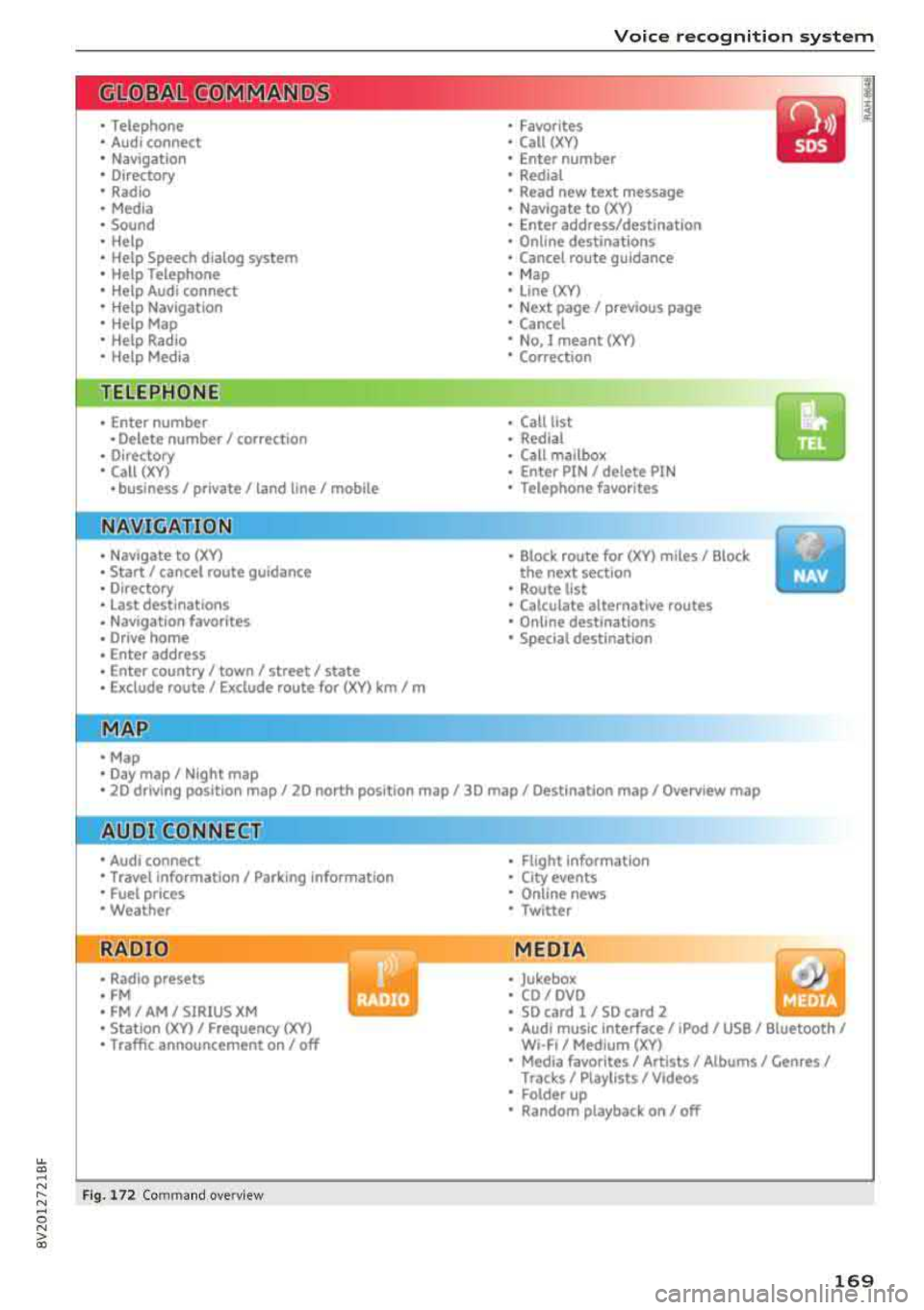
Fig. 172 Com mand ove rview
• Flight Information
• City events
• Online news
• Twitter
MEDIA
• Jukebo x
• CO/ DVD
• SD card l / SD card 2
• Audi music Interface/ 1Pod
I use / Bluetooth /
WI-Fl/ Medium
(XY)
• Media favorites/ Artists/ Albums/ Genres I
Tracks/ Playllsts / Videos
• Folder up
• Random playback on / off
169
Page 173 of 404
u. 00 ... N l' N ... 0 N > 00
Voice recognition system
The major ity shown are main commands. This
system also recognizes synonyms in certain cas -es
. For a Business addre ss, you can also say busi
ness , work , office or at the office .
Commands
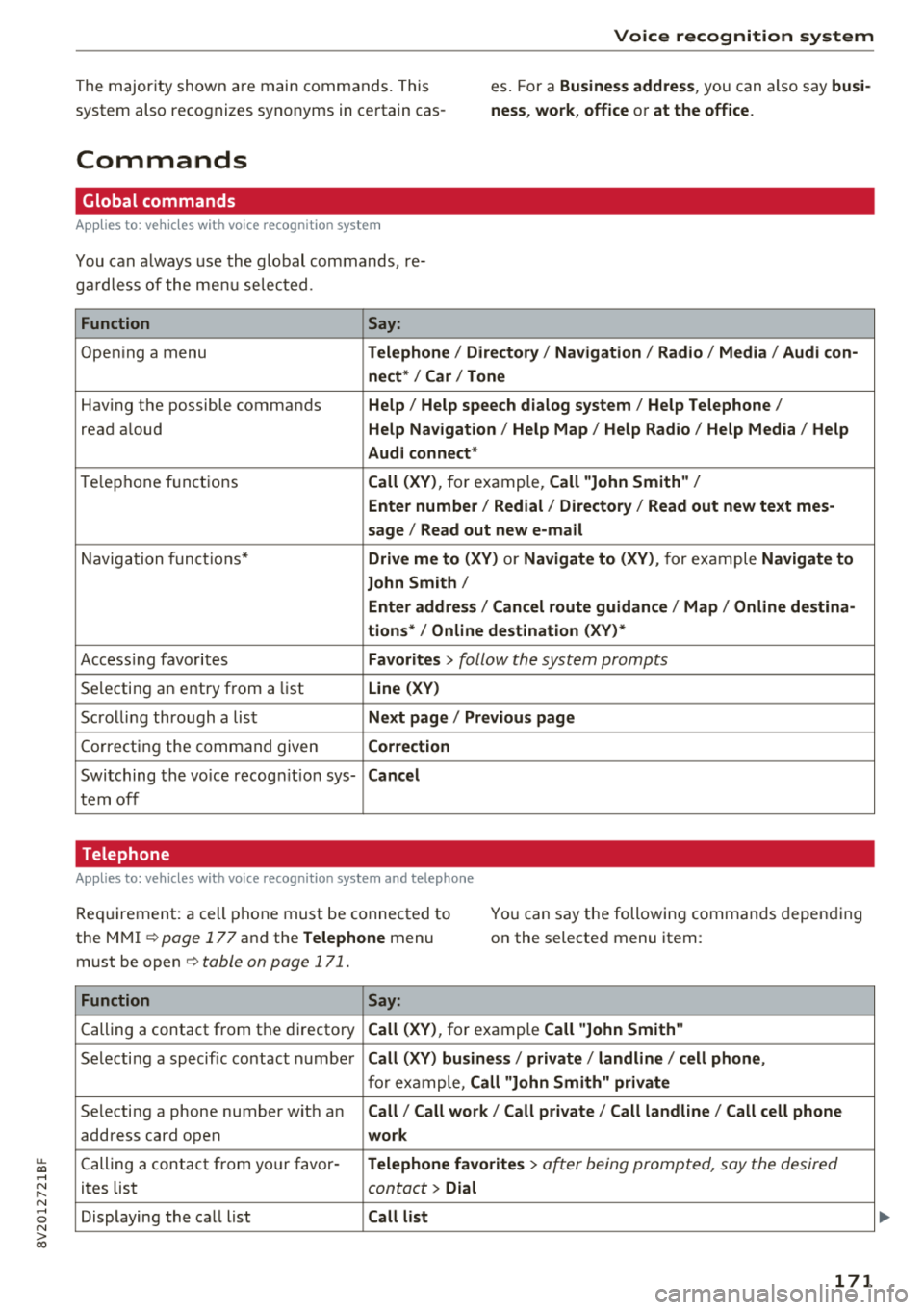
Global commands
Applies to: ve hicles with vo ice recognition syste m
You can always use the global commands, re
ga rdless of the me nu selec ted .
Function Say:
Ope ning a menu Telephone / Directory / Navigation / Radio / Media / Audi con-
nect * /Car / Tone
Hav ing the possible commands Help / Help speech dialog system / Help Telephone /
read aloud Help Nav igat ion / Help Map / Help Radio / Help Media / Help
Audi connect *
Telephone f unct ions Call (XV) , for example, Call "John Smith" /
Enter number / Redial / Directory / Read out new text mes-
sage
I Read out new e-mail
N avigation f unc tions* Drive me to (XV ) or Navigate to (XV ), for example Navigate to
John Smith /
Enter addre ss / Cancel route guidance / Map / Online de stina-
tions* /Online destination (XV )*
Accessing favorites Favorites > follow the system prompts
Se lecting an entry from a list Line (XV)
Scrolli ng thro ugh a lis t Next page / Previou s page
Correcting the command given Correction
Switching the vo ice recog nitio n sys-Cancel
tern off
Telephone
A ppl ies to: ve hicles with vo ice recogni tion syste m and telep hone
Requirement: a cell phone must be connec ted to
the M MI ¢
page 177 and the Telephone menu
must be open ¢
table on page 171.
You can say the following commands depending
o n the selected menu item :
Function
Say:
Calling a contact from the dir ecto ry Call (XV) , for example Call "John Smith"
Selecti ng a specific contac t numbe r Call (XV) business / private / land line / cell phone ,
for example, Call "John Smith" private
Selecting a phone number wit h an Call / Call work / Call private / Call land line / Call cell phone
address card open work
Ca lling a cont act fr om your fa vor-Telephone favorites > a~er being prompted, say the desired
it es lis t contact > Dial
Displaying the ca ll list Call list
171
Page 177 of 404
u. 00 ... N l' N ... 0 N > 00
Voice recognition system
-A lways read the chap ter qpoge 19 6, Audi
connect (Infotainment) general informa
tion .
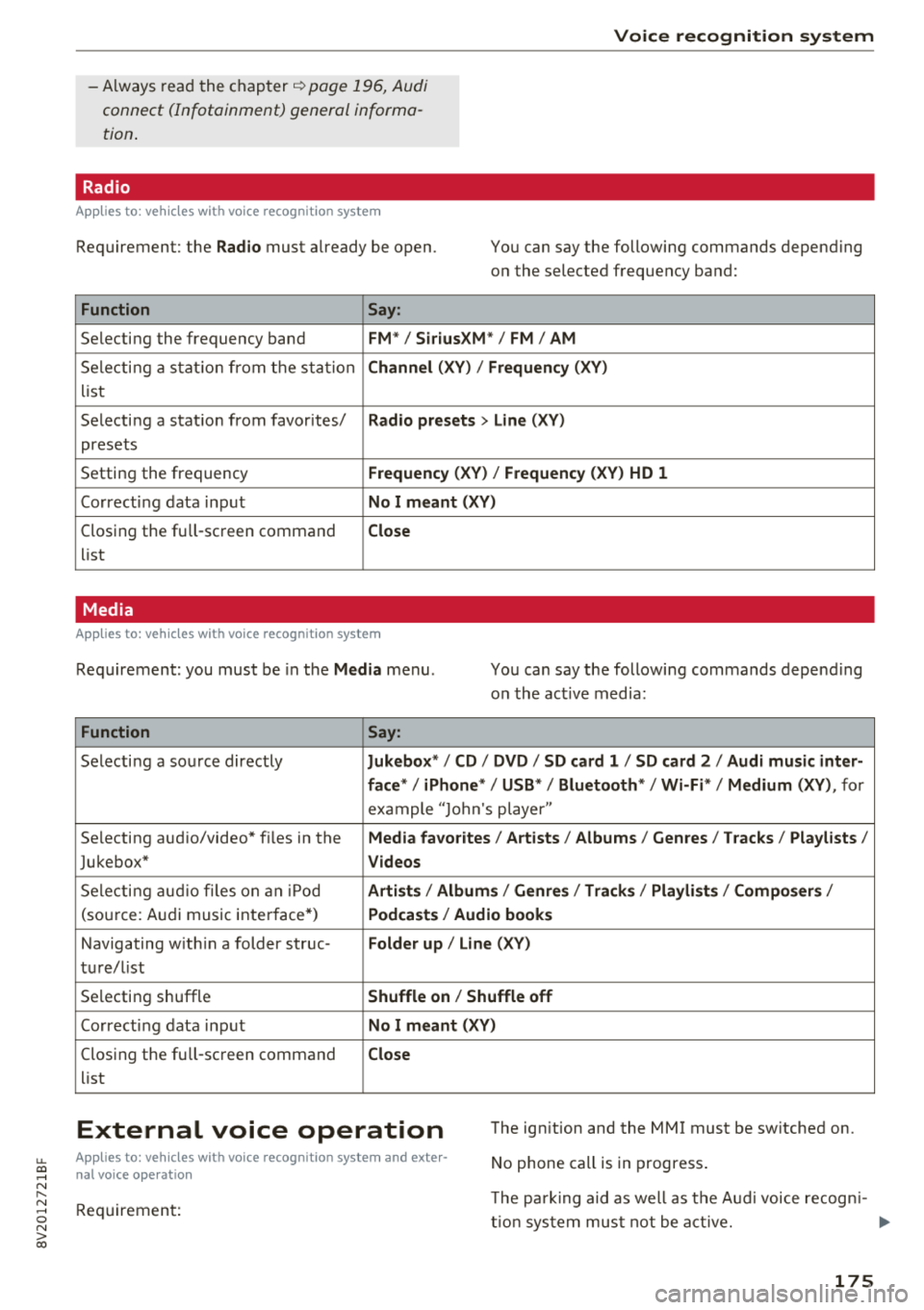
Radio
App lies to : ve hicl es w ith vo ice recognition syste m
Requirement: the Radio must already be open. You can say the following commands depend ing
o n the selected frequency band:
Function Say:
Selecting the frequency band FM*/ SiriusXM * / FM / AM
Sele cti ng a stat io n from t he s ta tion Channel (XY ) / Frequency (XV)
list
Selecting a stat ion from favorites/
Radio presets > Line ( XV)
presets
Setting the frequency
Frequency ( X V ) / Frequency (XV ) HD 1
Correcting data input No I meant (XV )
Clos ing the full -sc reen command Close
list
Media
A pp lies to: ve hicles with vo ice recognition syste m
Requirement: you must be in the Media menu . You can say the following commands depend ing
o n t he act ive media:
Function Say:
Selecti ng a so urce directly Jukebox* / CD / DVD / SD card 1 / SD card 2 / Audi music inter-
face*
I iPhone * / USB* / Bluetooth * I Wi-Fi* / Medium (XY) , for
example " Jolhn 's player"
Se lecting aud io/video* f iles in the
Media favo rites / Artists / Albums / Genres I Tracks / Playl ists /
Jukebox* Videos
Selecti ng audi o files on an iPo d Artists / Albums / Genres I Tracks / Playlists /Composers /
(source: A udi music inte rface*) Podca st s / Audio book s
Navigating w ith in a folder struc-Folder up / Line (XV)
tu r e/list
Se lecting shuffle
Shuffle on / Shuffle off
Correct ing data inp ut No I meant (XV)
Clos ing the full -sc reen command Close
list
External voice operation The ign ition and the MMI must be sw itched on.
No phone call is in progress .
Appl ies to: ve hicles w ith vo ice recogni tion syste m and exte r
n al voice o peratio n
Requireme nt: T
he pa rk ing aid as well as t he A ud i voice recogn i-
t io n syste m mus t not be a ct ive. .,.
175
Page 179 of 404
u. 00 .-< N l' N .-< 0 N > 00
Telephone Introduction
Applies to: vehicles with telephone
To make phone coils in your vehicle using the
MMI, connect your cell phone to the MMI via
Bluetooth.
Handsfree
After you have connected your ce ll phone to the
MMI via Bluetooth, you can use the handsfree
system and operate telephone functions through
your MMI. You can make calls using the antenna
on your cell phone.
A WARNING
-Medical experts warn that cell phones can
interfere w ith the funct ion of pacemakers .
Always ma inta in a m inimum distance of
about 8 inches (20 cm) between the cell
phone antenna and the pacemake r.
-Do not carry the cell phone in a pocket di
rectly over the pacemaker when the phone
is switched on.
-Sw itch the cell phone off immediately if
you suspect it may be interfering w ith the
pacemaker.
-Do not use the voice recognition system*
¢ page 170 in emergencies because your
voice may change in stressful situations. It
may take longer to dial the number or the
system may not be able to dial it at all. Dial
the emergency number manually.
-Switch your cell phone off in areas where
there is a risk of an exp losion. These loca
t ions are not always clearly marked. This
may include gas stations, fuel and chemical
storage facilities or transport vehicles, or lo
cations where fue l vapors (such as propane
or gasoline vapor in vehicles or bui ldings),
chem icals or large quantities of dust parti
cles (such as flour, sawdust or metal) may
be present in the air. Th is also applies to all
ot her locations where you would normally
turn your vehicle engine off.
-The demands of traffic require your full at
tention. Always read the chapter
¢ page 154, Traffic safety information.
-
Telephone
@ Note
Always fo llow the information found in Q@ in
Wi -Fi hotspot on page 195.
(D Tips
-The Bluetooth connection range is limited
to inside the vehicle . It can a lso be affected
by loca l conditions and interference with
other devices.
-T o learn which Bluetooth connections and
which of the functions in your cell phone are
supported, check with your cell phone serv
ice provider or the database for mobile devi
ces at www .aud iusa .com/bluetooth.
Setup
Connecting a cell phone using Bluetooth
Applies to: vehicles with telephone
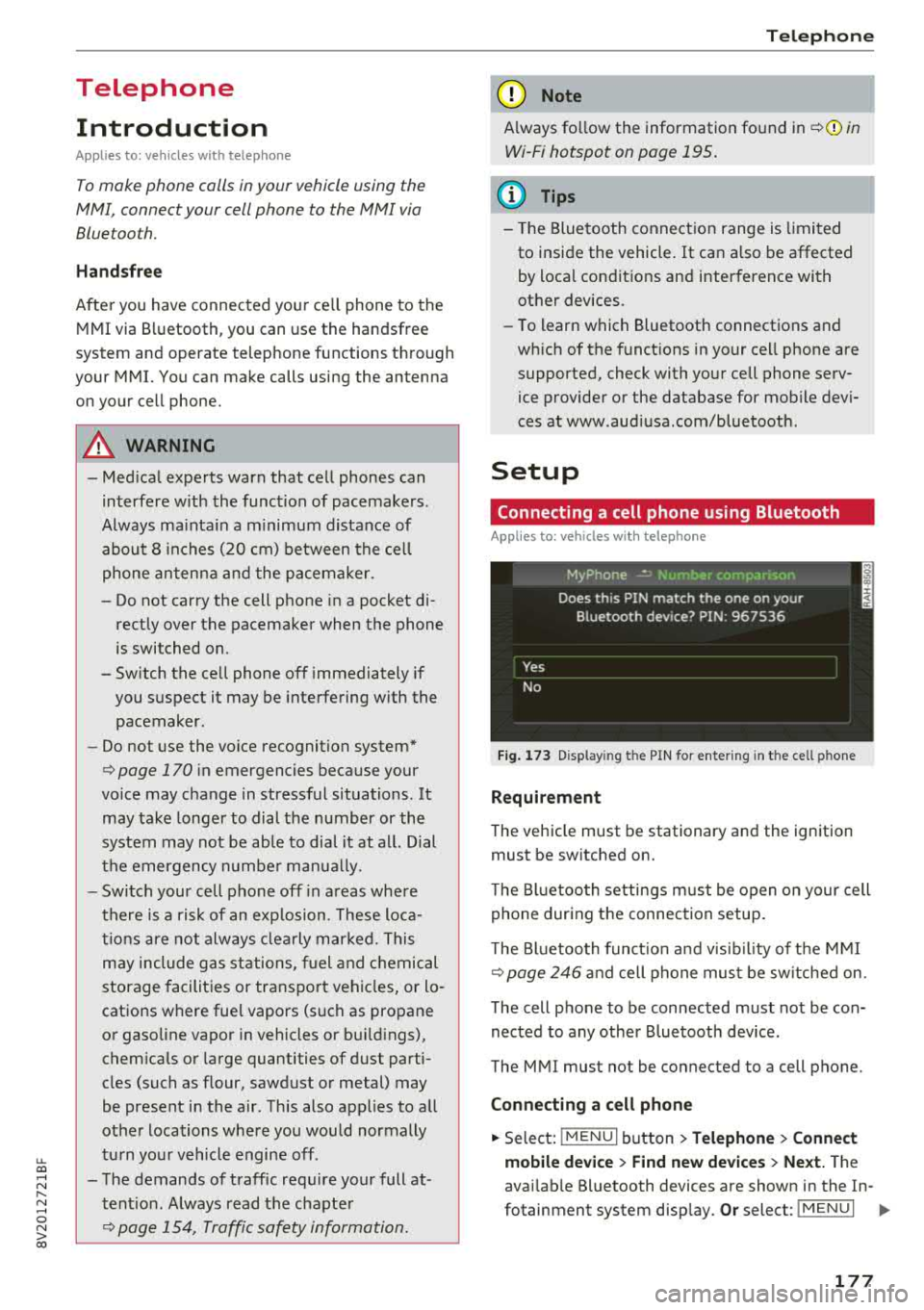
Fig. 173 Display in g t he PIN for enter ing in t he cell p hone
Requirement
T he vehicle must be stationary and the ignition
must be switched on.
T he Bl uetoo th settings must be open on your cell
phone during the connection setup .
T he Bluetooth funct io n and v is ibilit y of the MMI
Q page 246 and cell phone must be switched on.
The cell phone to be connected must not be con
nected to any other Bluetooth device.
The MMI must not be connected to a cell phone.
Connecting a cell phone
.,. Select: IMENU I button> Telephone> Connect
mobile device > Find new devices > Next.
The
avai lab le Bluetooth devices are shown in the In-
fotainment system display.
Or select: I MENU I II>-
177
Page 196 of 404

Audi conn ect (Infotainment)
- Navigation with satellite map1> r::!>page 213.
- Po in t o f Inter est (PO I) online se a rc h with
v o ic e re co gni tion
(such as restaurants): plan
route g uidance using the MMI control panel
¢ page 204 and the voice recognition system
¢page 170.
-Set up destinations in your MMI using your
m yAudi acco unt or the sa tellite m ap vie w l)
¢ page 213.
- Online traffic informat ion : receive up-to-the
minute traffic information about accidents,
road construction and other incidents
¢page 216.
- Map updat e: import navigat ion map updates
directly to your vehicle using an SD card or as
an online update
¢page 214.
(D Tips
-For the map update Audi connect Infotain
ment service via SD card, check the current
software vers ion in your vehicle and then
check www.aud iusa .com/myaudi to see if a
newer ve rsion is ava ilable. You can a lso have
the new navigation data insta lled by an A udi
dealer, w hich can be done for an add itional
cha rge.
- You can find add itiona l information abo ut
the
map upda te on line a t
www.audiusa.com/myaud i.
Audi connect (Infotainment) in Media
menu
Applies to vehicles with Audi connect (Infotainment)
.,. Se lect : IMENUI button> Audi connect > right
control button >
Ente rtainment .
- Online medi a and Internet r adio :
offers access
to different online media services as well as In
ternet rad io and operat ion through the MMI us
ing the
Audi MMI conne ct app.
Applies to: vehicles with Wi-Fi audio player
-Wi-Fi audi o player : you can access t he media
center through a Wi -Fi connected media player
(such as a smartphone)
¢ page 22 7.
ll AU DI AG provides access to services fro m third party pro
v iders . Pe rma nent availabil ity can not be guaran teed , be
c a use that depen ds on the th ird party provider.
194
A WARNING
It is only safe to use tablets, laptops, mobile
devices and other similar devices whe n the ve
hi cle is stationary because, like all loose ob
jects, they could be thrown around the inside of the vehicle in a cras h and cause se rious in
j ur ies . Store these types of devices sec urely
while driv ing.
((D} Note
A lways fo llow the information found in r::!> 0 in
Wi -Fi hotspot on page 195.
(D Tips
- Also see the chapter r::!> page 196, Audi con
nect (Infotainment) general information.
- For more informat ion on the W i-F i aud io
player and suppo rted devices, contact an
autho rized A ud i dealer o r autho riz ed Aud i
Serv ice Facility.
Additional options
Applies to vehicles with Audi connect (Infotainment)
.,. Select: IMENUI b utton> Audi conn ect > right
control button.
The following opt ions are available in the Aud i
connect I nfota inment serv ices overv iew :
About Audi conn ect
Here you w ill find legal information for Audi con
nect (Infota inment) usage .
Lo g in *
See ¢ page 190, Logging into myAudi in the vehi
cle.
Connection manager
Seer::!> page 244.
Licens e subscription
The validity and exp iration date of your licenses
a re disp layed. W hen the fu nction is sw itched on
1111-
Page 197 of 404
u. 00 .-< N l' N .-< 0 N > 00
10, the message Warning befo re sub scripti on
e x pire s
will display to warn you that your license
is about to expire.
Refresh
The content of the selected A udi connect Info
tainment service o r the entire Audi connect (Info
tainment) list is updated .
Data privacy
Requirement: the ign it ion must be switched on.
Locat ion and personal data are transmitted when
using Aud i connect Infotainment services . If you
do not want this information to be transm itted,
activate data p rivacy .
-Acti vate pri vacy: the data connection is switch
ed off. Some Audi connect Infotainment serv
ices are not available.
- Deacti vate data priv acy : if the data connection
is switched off, you can switch on the data con
nect ion for the use of all Audi connect Infota in
ment services. Select and confirm
A cti vate d ata
conn ection.
Wi-Fi hotspot
A ppl ies to: ve hicles with Wi-F i hotspot
You can use the MMI as a Wi-Fi hotspot to con
nect up to eight Wi-Fi devices to the Internet.
While driving, restricted use of unsecured, light,
small wireless devi ces is only possible from the
rear of the vehicle.
Requirement: the ign ition must be switched on.
"' Select : I MENU I button> Telephone > right con-
trol button >
W i-Fi settings.
The fo llow ing settings can be selected:
Wi-Fi
The MM I Wi -Fi hotspot is deactivated at the fac
tory. Switch the Wi-Fi hotspot to
Hot spot before
establishing a connection between your vehicle
and your Wi -Fi device.
- On : the MMI Wi -Fi hotspot is active and visib le
to ot her devices. You can connect your Wi -Fi
device to the MMI and use the Internet connec
t ion if necessary.
Audi conn ect (Inf otainment )
-Off : the M MI Wi-Fi hotspot is deactivated. An
Internet connection for Wi -Fi devices is not
possible .
A WARNING
= -
- To reduce the r isk of an accident, use the
Aud i connect Infotainment services with a
W i- F i hotspot only in the rear seat when the
ve hicle is in mot io n, or only when the vehi
cle is stat ionary .
- It is o nly safe to use tablets, laptops, mo
b ile dev ices and other sim ilar devices when
the vehicle is stat ionary because, li ke all
loose objects, they co uld b e thrown around
t he inside o f th e ve hicl e in a c rash and ca use
serio us inj uries . Store these types of devices
secure ly while driving .
- D o not use any wireless dev ices on the front
seats within range of the airbags whi le driv
ing . A lso read the warnings in the chapter
¢ page 2 73, Front airbags .
-As the driver, do not allow usage of the Wi
F i hotspot to distract yo u from driving, as
this cou ld increase the r isk of an accident.
@ Note
- Under some conditions, ce rtain mobile devi
ces and operating systems may automati
cally switch from your vehicle's Wi -Fi hot
spot to the device's mobi le data connection.
In that event, standa rd text and data usage
rates would apply wh ile the device's mobile
data connect ion is in use. Please refer to
documentation prov ided by your mob ile de
vice's manufacture a nd you r data carrier for
details , rela ted te rms an d pr iva cy sta te
ment.
- Yo u ar e respons ib le for all precautions ta k
en for d ata prote ct io n, a nti -vir us p rotec tion
and protec tion agains t loss of data on mo
bile devices t hat are used to access the In
ternet through the Wi -Fi hotspot.
(D Tips
- In ve hicl es w it h out Audi con nect (I nfota in
ment)*, the use of the Wi -Fi hotspot is on ly
possible fo r the Wi -Fi audio player *. A data
.,.
195
Page 202 of 404
Audi conn ect e-tron ser vic es
Vehicle status report
Applies to: vehicles with Audi connect e-tron services
You can access various vehicle statuses using the
services, such as:
- high-voltage battery charge level ,
- electric range,
- mileage,
- next inspection.
F or additional information, s ee
¢ page 95, Power
meter overview
and ¢ page 97, Range display.
A WARNING
Do not ignore messages and warning or indi
cator lights that turn on in the vehicle be
cause of the information in the status report.
Th is could lead to break downs in on the road,
accidents and se rious injuries.
Car Finder
Applies to: vehicles with Audi connect e-tron services
The vehicle collects data under certain conditions
and sends it to a server .
When data is stored, you can access values such
as these us ing the service:
- Vehicle location disp lay,
- Display of one's own location,
- Ro ute to your veh icle.
If your mobile device also has a nav igation func
tion, you can navigate to your last know n parking
locat ion.
@ Tips
- The new parking location cannot be deter
mined with this service if the vehicle is
moved after shutt ing the veh icle
off and
wi thout sw itching the ign ition on and
off
again, for example when be ing towed o r if
the vehicle is stolen .
- If the vehicle is moved an d shut
off again
us ing the second key, for example, the new
parking location is t ransmitted to the server
after switching the ignition off .
200
Charging
Applies to: vehicles with Audi connect e-tron services
You can control and access the hig h-voltage bat
tery c harging proc ess r emotely using these serv
i ces. You have the following options:
- check the battery charge leve l,
- star t/end t he cha rging process,
- prog ram the charging t imer with/w itho ut cl i-
mate cont rol,
- deactivate/activate the cha rg in g timer .
Fo r addi tional information,
see ¢ page 106,
Charging the battery with the Audi e-tron charg
ing system .
A WARNING
Only perform charging f unctions on the high
voltage battery if the vehicle is shut
off co r
rect ly, is connected to a suitable socket and if
the ign ition is swi tched off.
Temperature control
Applies to: vehicles with Audi connect e-tron services
You can contro l the climate control in your vehi
cle remotely using these services:
- start/end climate control ,
- program the timer,
- deactivate/activate the timer.
For addi tional informa tion, see
¢ page 116, Cli
mate control .
A WARNING
Only perform the climate control functions if
your vehicle was shut
off correct ly and the ig
n ition is switched off.
Page 210 of 404
Navigation
-Select: a destination> right control button>
Store as home address.
Editing the home address
-Select the Home address@¢ page 201,
fig. 182.
-Se lect: right contro l button > Edit home ad
dress .
-Select and confirm a new desti nat io n as the
home address.
The selected destination is stored as the new home address .
Favorites
Applies to: veh icles with navigation system
.,. Press the I NAV/MAPI button repeatedly until
the
Enter destination menu is displayed
t::> page201 , fig .182 .
-Storing a destinat ion as a favorite: search for
the desired destination us ing the input field.
Or: select and confirm a destination from the
list . Se lect: right control button >
Store as fa
vorite .
-Renaming a favorite : select the left control
button >
Favorites > a favorite from the list >
right control button >
Rename favorite .
-Move favorite: select a favorite from the list >
right control button>
Move favorite . Select
and confirm the location of the selected favor
ite .
-Deleting a favorite : select a favorite from the
list>
r ight control button > Delete favorite >
Delete this favorite or Delete all favorites.
Directory contacts
Applies to: vehicles with navigation system
Two addresses (private/business) con be as
signed as destinations for each contact in the di rectory .
.. Press the I NAV/MAPI button repeatedly until
the
Enter destination menu is displayed
¢page 201, fig . 182.
208
Storing a destination as a contact in the
directory
Requirement: a cell phone must be connected to
the MMI
¢page 177 .
-Select: o destination > right contro l button >
Add destination to contact.
-Select and confirm Add business destination or
Add private destination.
-Enter a name. Or: select and confirm a directo
ry contact from the list .
- Select and confirm
Save business card.
Alternative routes
Applies to: vehicles with navigat ion system
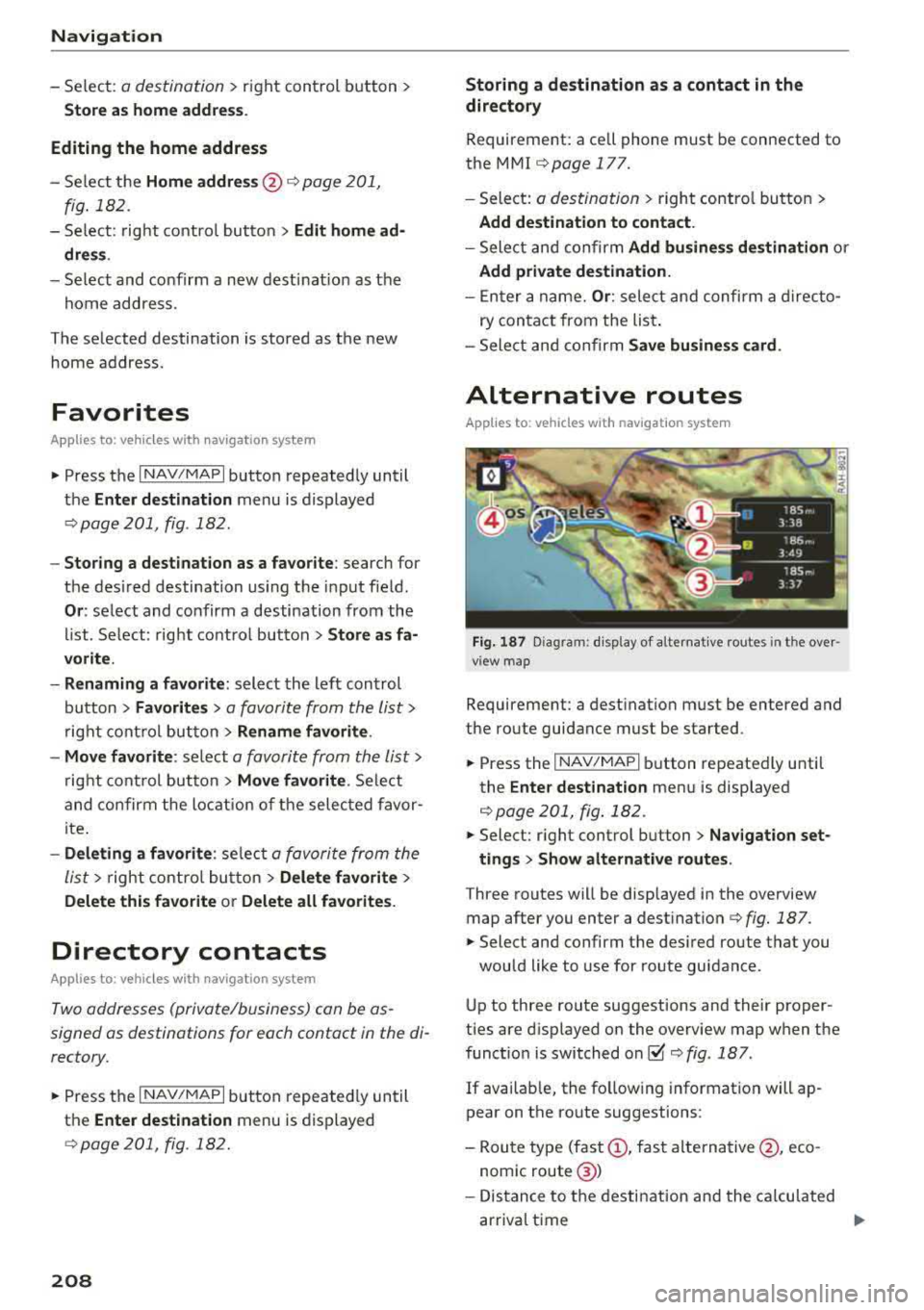
Fig. 187 Diagram: d isp lay of a lternat ive routes in t he ove r
view map
Requirement: a destination must be entered and
the route guidance must be started .
.. Press the I NAV/MAPI button repeatedly until
the
Enter destination menu is displayed
¢page 201, fig. 182 .
.. Select: right control button> Nav igation set-
tings
> Show alternative routes.
Three routes will be displayed in the overview
map after you enter a
dest ination ¢ fig. 187 .
.. Select and confirm the des ired route that you
would like to use for route guidance.
Up to three route suggestions and their proper
ties are d isplayed on the overview map when the
function is switched
on~¢ fig. 187.
If available, the fo llow ing information will ap
pear on the route suggestions :
-Route type (fast(!), fast alternative @, eco
nomic route @)
- Distance to the destination and the calculated
arrival time
...
Page 212 of 404
Navigation
CD HOV/carpool lanes 1): with the Avoid fu nc
tion, HOV lanes are excluded when calculating
ro utes . When
Allow is se lected, t he MMI will
ro ute you thro ugh HOV lanes and show them on
the map.
@Highways /@ Toll roads /@ Ferries : if the nav
igation system sho uld not incl ude highways, to ll
roads or ferr ies
-if possib le -when calcu lating
routes, yo u can select the
Avoid function .
Voice guidance
Applies to: ve hicles with navigation system
• Press the I N AV/MAPI button repeated ly until
the
Enter destination menu is d isplayed
¢ pag e 201, fig. 182.
• Se lect: rig ht cont rol butto n > Voice guidance .
Voice guidance :
voice guidance can be Complete
or Shortened. With the Traffic function, voice
gu idance p romp ts are only given when the re are
traffic inc iden ts o n yo ur route. When
Off is se
lec ted, no voice g uidance is given .
Voice guidance during phone call: voice guid
a nce du ring a phone c all can be swi tc h ed o n or
off.
Enterta inment fader : see ¢ page 248.
Voice guidance volume : you can adjust the vo l
ume during voice guidance using the On/Off knob
¢ page 154 Yo u can also find additional informa
tion
u nder¢page248 .
ll High occupancy ve hicle
210
Map
Map operation
App lies to: vehicles with navigation system
Fig. 189 Examp le: 3D pos ition map w ith the cross hairs
switc hed off
•IN
@
Fig. 190 Examp le: standard map with the crosshairs
switc hed on
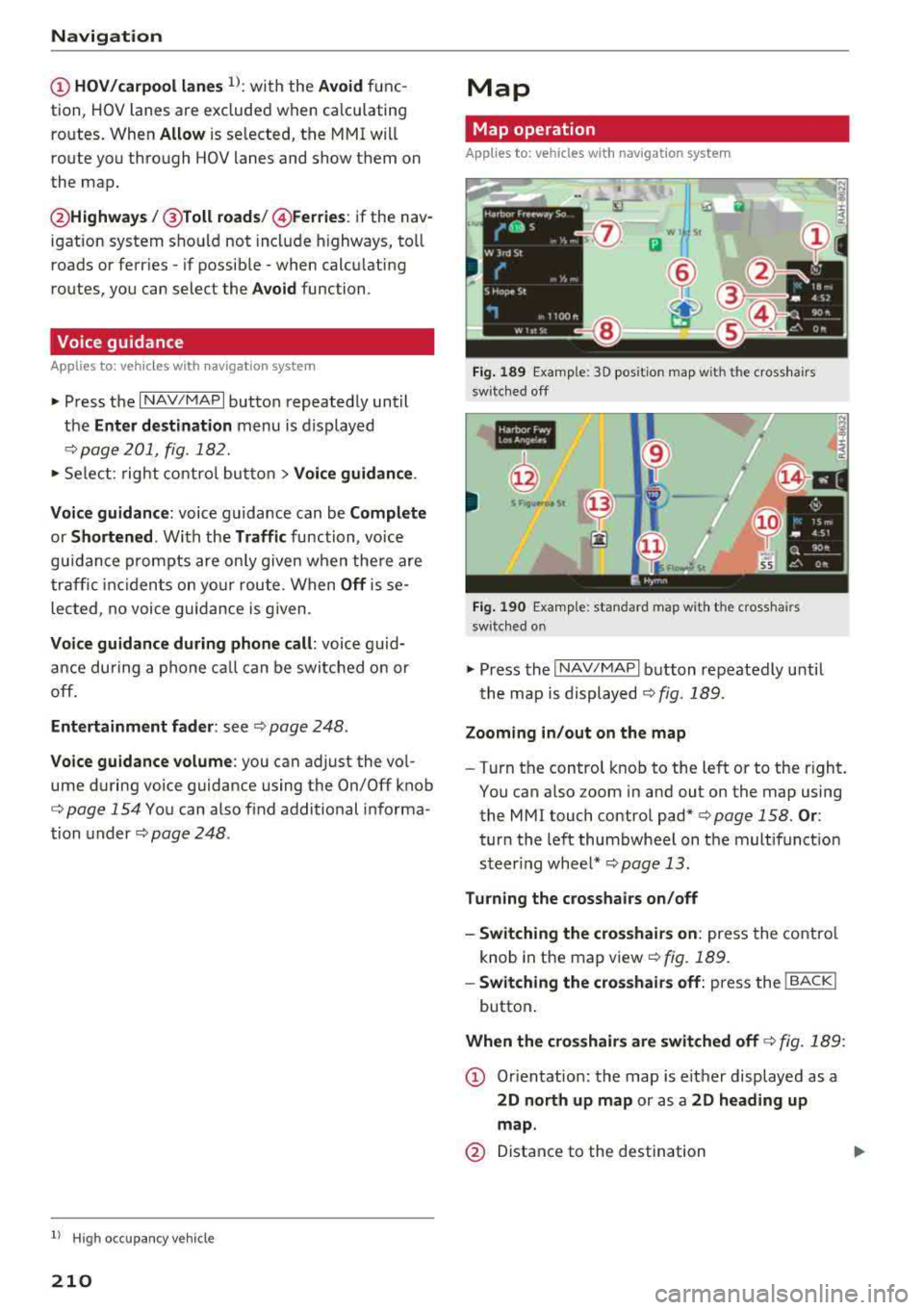
~ Press the I NAV/MAPI b utton repeatedly until
t he map is
d isplayed¢ fig . 189.
Zooming in /out on the map
-T ur n the control knob to the left or to the right.
You can also zoom in and out on the map using
the MMI touch control
pad*¢ page 158. Or:
turn the left thumbwheel on the mult ifunct ion
s t eer ing whee l*
¢page 13 .
Turning the crosshairs on/off
-Switching the cro sshairs on : press the contro l
knob in the map v iew
¢fig. 189 .
-Swit ching the crosshairs off: p ress the ! BACKI
button .
When the crosshairs are switched off¢ fig. 189:
CD Orien tation: the map is e it h er displayed as a
2D north up map or as a 2D heading up
map .
@ Distance to the destination