phone AUDI A3 SEDAN 2018 User Guide
[x] Cancel search | Manufacturer: AUDI, Model Year: 2018, Model line: A3 SEDAN, Model: AUDI A3 SEDAN 2018Pages: 404, PDF Size: 62.3 MB
Page 164 of 404
Multi Media Int erface
Symbol /Description Description
CD IL IST lorB Switches to the results list.
@ Input field Disp lays the cur re nt input .
® Results lis t Displays a
list with suggestions based on the letters already en-
tered.
@
+
Sw itches from lowe r case to upper case let ters o r from upper case
to lowe r case le tters.
® E
Opens additional spe ller options, for example C los e speller and
Clear input field
® 11
& 71 Character sets and specia
l characters
0 laoul D isp lays accented cha racters (suc h as a,<;, ri, o) .
Switches from letter to number inp ut or from n umber to letter in -
® I1231/IABCI
put .
® Adds a space in the input field . ..........
@ Character selection Highlights t he se lected c haracter.
@ ..
Inserts the suggested word* when you p ush the contro l knob up .
@ <&] D eletes t he cha racter to the left o f the cursor .
(D Tips
Opening free text search
Accented c haracters are not available fo r ev
ery let ter. .,. Select: IME NUI button> desired menu item
(such as Telephone ).
.,. Keep tu rn ing the cont rol knob to the left until
t he
free text sear ch inp ut fie ld CD ¢ fig. 167
appears . Or: push the con trol knob up to open
the input field
CD .
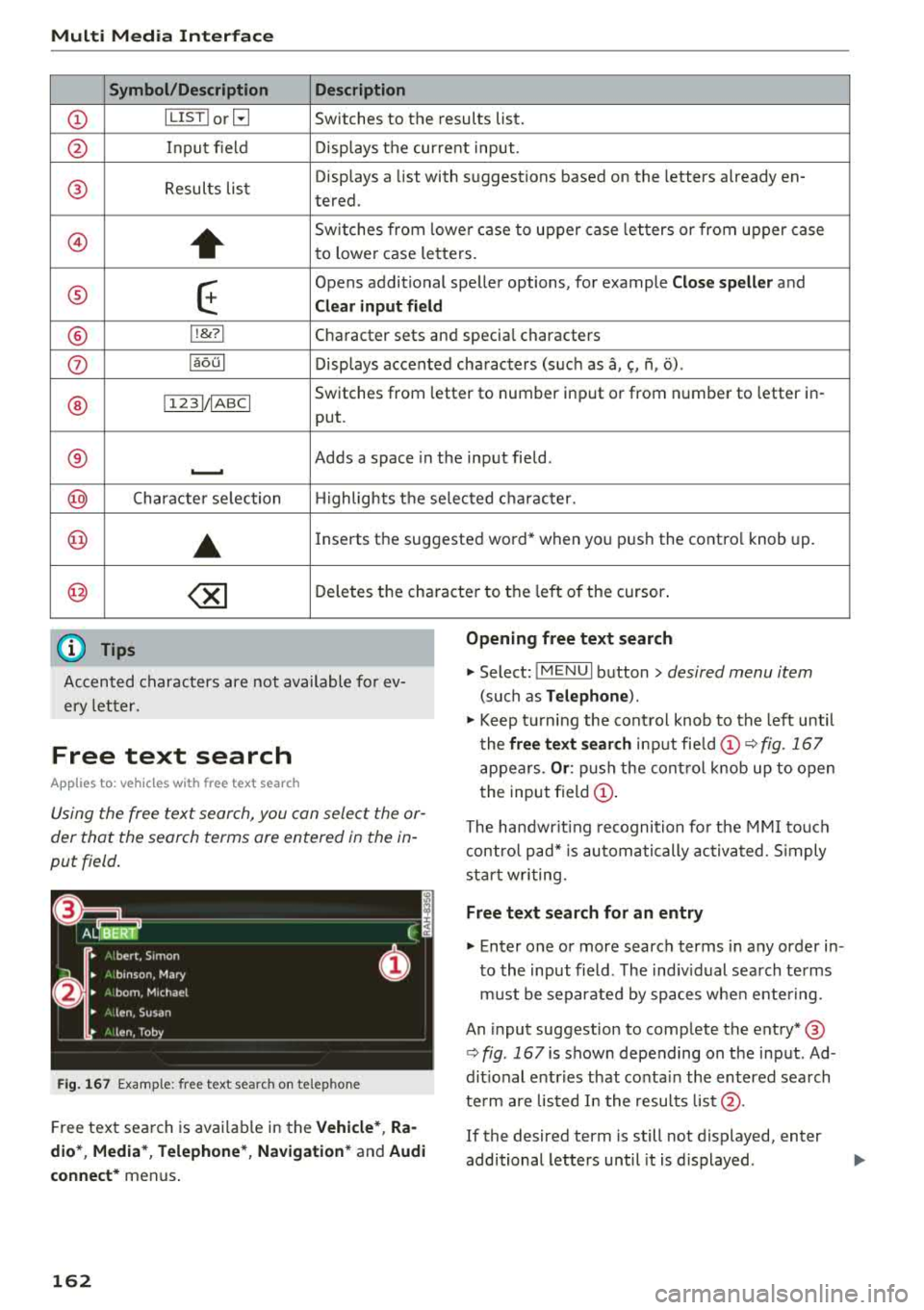
Free text search
Applies to: vehicles with free text search
Using the free text search, you can select the or
der that the search terms are entered in the in
put field .
Fig. 167 Example : free text search on telep hone
Free text sea rch is avai lab le in the Vehicle *, Ra
dio *, Media* , Telephone *, Navigation *
and Audi
conne ct*
menus .
162
The handwr it ing recogni tion fo r th e M MI to uch
con tro l pad* is automatically activated. S imply
st ar t w rit ing.
Free text search for an entry
.,. Enter one or more searc h terms in any order in
to the input field . The ind iv idual sea rch te rms
m ust be separated by spaces whe n ente ring.
An input suggestion to comp lete the entry* ®
¢fig . 167 is shown depe nding on the input . Ad
dit ional entries that co nta in the entered sea rch
te rm are lis ted I n the resu lts
list @.
If the desired term is still not displayed, enter
additional letters until it is d isplayed .
Page 165 of 404
LL co ..... N
" N ..... 0 N > co
Multi Media Interface
It is often eno ugh j ust to enter the first letters of
the search term in order for it to display in the re sults list . For examp le, in the
Telephone * menu,
write the init ials of the contact being searched,
separated by a space.
Selecting an entry from the results list
Requireme nt: a t le ast one e ntry mus t be dis
played in t he results
list @o fig. 167.
• MMI touch input* : tu rn the contro l knob to t he
r igh t. S elec t and confi rm an entry from the lis t.
Selecting the input suggestion to complete
the entry •
Speller input : select and co nfirm I L IS T!@
o page 161, fig . 166. O r: push the cont rol knob
down . Select a nd confirm an entry from the
Req uirement : an input suggestion to complete
the
entry* ® o fig. 167 must be disp layed. list
.
• MMI touch input* : press the control knob .
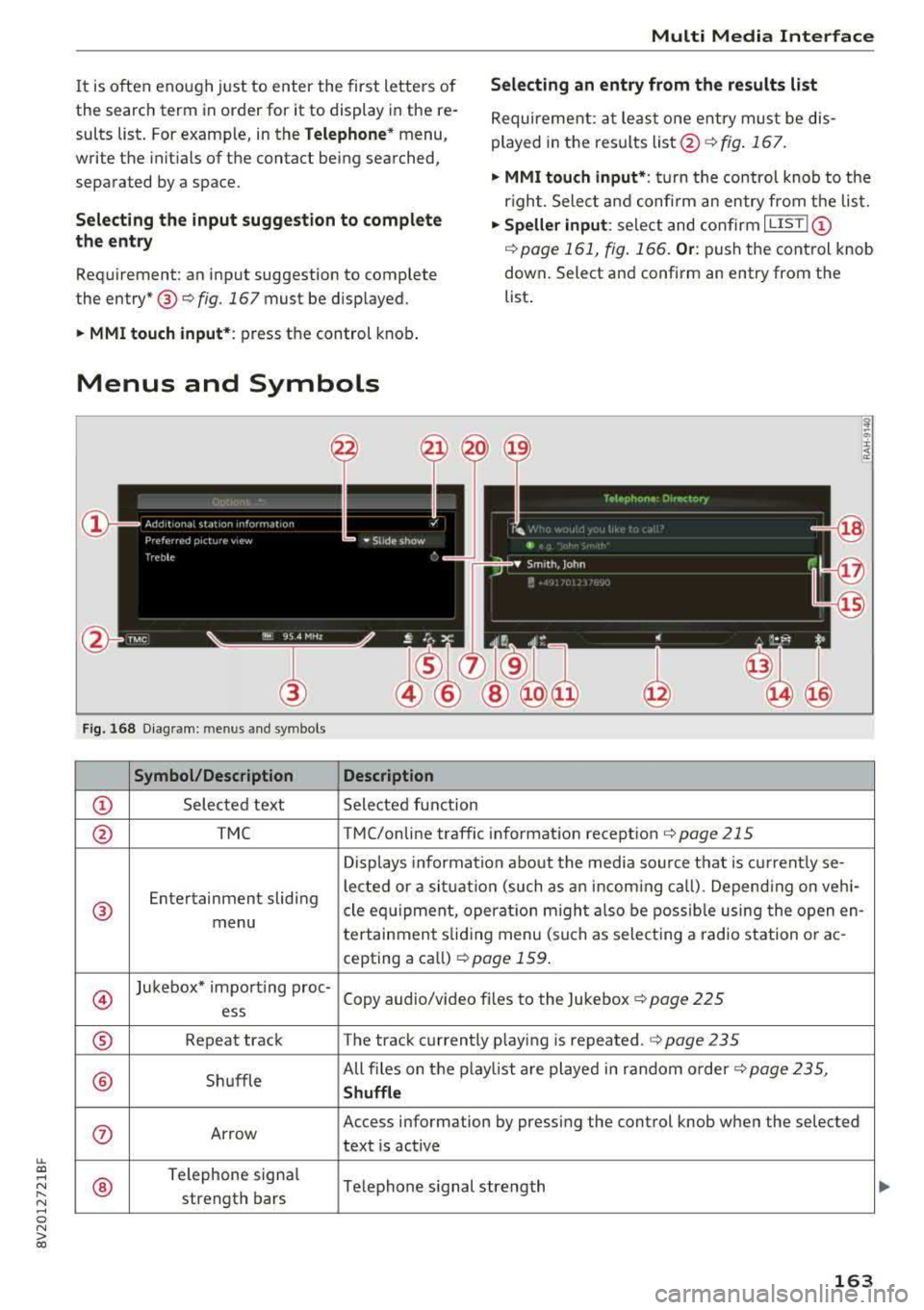
Menus and Symbols
Fig . 16 8 Diagram: menu s and symbols
Symbol /Description Description
CD Sele cted text Selected function
@ TMC TMC/online traffic informat ion recept ion o page 215
Displays information about the media so urce t hat is current ly se-
Entertainment sliding le
cted or a si tuati on (such as an inco ming ca ll) . Depend ing o n veh i-
® cle eq uipment, operat io n m igh t al so be poss ib le using the open en-
menu tertainment sliding menu (such as select ing a radio station o r ac -
cepting a ca ll)
r::!) page 159 .
@
Jukebox* impo rt ing proc-
Copy audio/v ideo f iles to the Jukebox
o page 225 ess
® Repeat track The track c urrently p laying is repeated. o page 235
® Sh uffle All files on t
he p laylist are played in random o rder o
page 235,
Shuffle
0 Ar row Access information by pressi
ng the control knob w hen the selected
text is active
®
Telephone signa l
Telephone s ignal strength
strength bars
163
Page 166 of 404
Multi Media Int erface
Symbol /Description Description
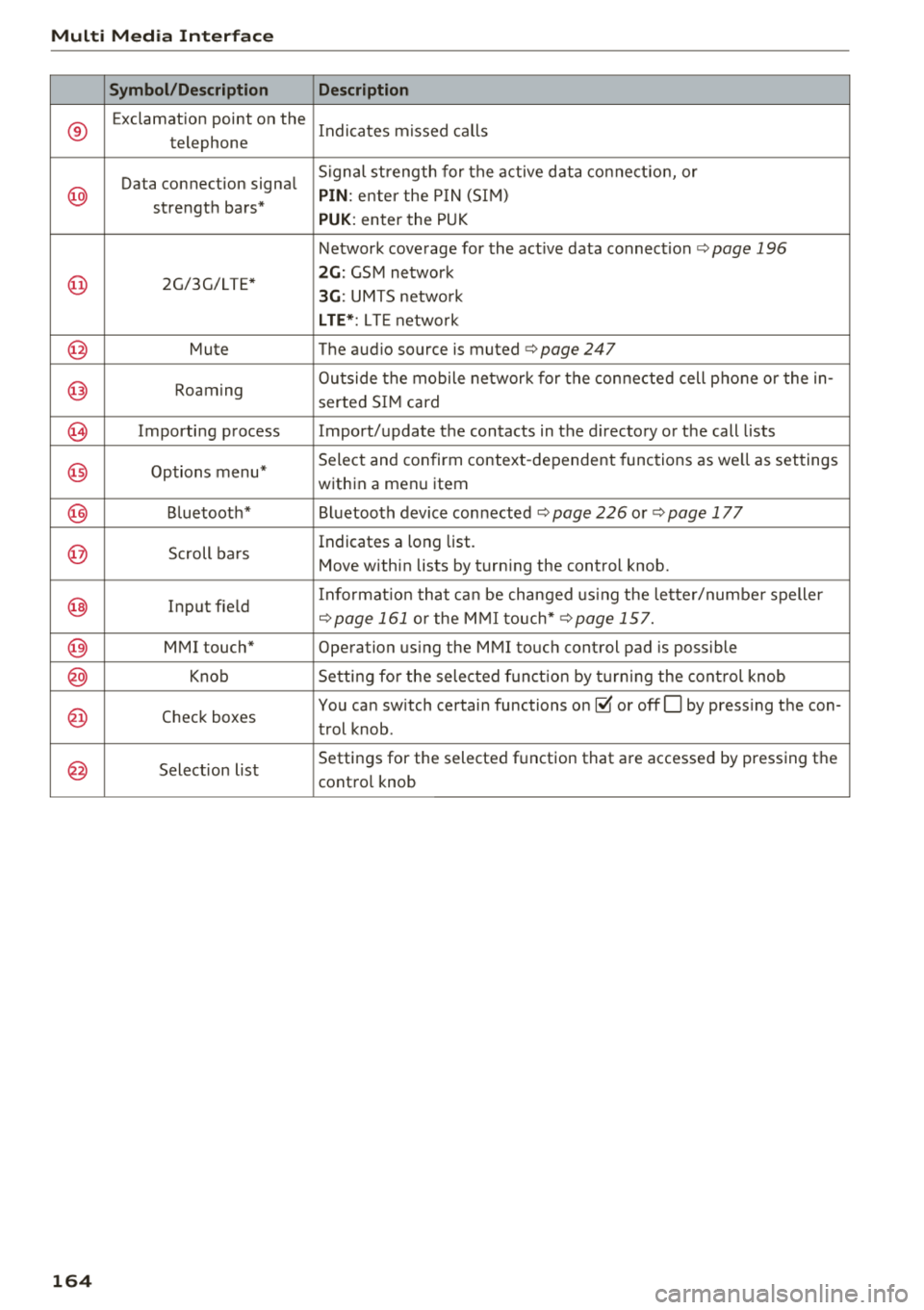
®
Exclamation point on the
Indicates missed calls
telephone
Data connection signa l Signal st
rength for the active data co nne ctio n, or
@ PIN : ente r the P IN (SI M)
strengt h bars*
PUK : enter the PUK
Network coverage for the act ive data connect ion
ca:> page 196
@ 2G/3G/LTE* 2G : GSM network
3G: UMTS netwo rk
L TE *: L TE netwo rk
@ Mute The audio source is . muted <=:> page 247
@ Roam ing O
utside the mobile ne twork for the con nected cell p hone or the in -
serted SI M card
@) Importing process Import/update the contacts in the d irectory or the call lists
@ Options menu* Select and confirm context
-dependent functions as we ll as settings
within a menu item
@ B luetoot h* B luetooth device con nected ca:> page 226 o r ca:> page 177
@ Scroll ba rs Indicates a long
list .
Move within lists by turn ing the control knob.
@ Input fie ld Info
rmat io n that ca n be changed using the lette r/numbe r spelle r
<=:>page 161 or the M MI touch* <=:> page 157.
@ MMI touch" Operation us ing the MMI to uch control pad is p ossible
@ Knob Setting for the selec ted f unct ion by turning the con trol knob
@ Check boxes You can sw
itch certain functions
on~ or offO by press ing the con-
t rol knob .
@ Selection list Settings for the selected f
unction that a re accessed by pressing the
cont ro l knob
164
Page 168 of 404
Multifunction steering wheel
-Always pay attention to the Infotainment
system d isp lay . Add itiona l operat ion
th ro ugh t he M MI cont rol panel may be nec
essa ry, depend ing o n the selected f unction.
Telephone
Applies to: vehicles with multifunction steering wheel and
telephone
R equir emen t: a cell phone must be connec ted to
the MMI
¢ page 177 an d the telephone tab
m ust be displayed .
.,. Press ei ther the l== lbu tto n or the left con trol
but ton
~page 1 4 , d epe ndin g on veh icle eq uip
ment.
D epe nding on vehicle equip men t, the follow ing
f un ctions may be av aila ble i n t he drive r info rma
t ion system .
-Accessing a contact : selec t and conf irm Call
list / Favorites / Directory .
Select and co nfirm
a c onta ct.
-Directory contacts : the drive r information sys
tem o nly disp lays dire ctory co ntacts t hat have a
p hone num ber stored . If severa l pho ne n um
bers are s to red w it h a contac t, the lis t of stored
num bers is dis played fi rst when the entry is se
l ected . For more informat io n about t he di s
played symbols, refer
to ¢ page 186 .
-Recent calls: the recent ca lls list conta ins a ll in
coming, o utgoing and missed ca lls.
-Caller information* : the name, phone number
or Unknown ap pears in t he dr ive r informat io n
system d isp lay depending on whether the ca ller
has been stored in the directory and if the
phone numbe r has been t ransm itted .
Functions during an incoming call
-Accepting a call : press the le ft thu mb whee l
whe n there is an incom in g ca ll.
-Declining a call : sele ct and c onfirm Decline
whe n there is an incom in g ca ll.
-Ending a phone call : selec t a nd confi rm End
call .
Functions during a phone call
166
Applies to: vehicles with analog instrument cluster
-Making an additional phone call : selec t Hold >
[§] butto n > Directory or Call list > an entry in
t he lis t.
-Accepting an incoming call when there is an
active call and a call on hold:
sele ct and con
f ir m
Replace . The ac tive c all is repl aced with
t he incoming call.
Appl ies to: vehicles with Aud i v irtual cockp it
-Making an additional phone call : select: Hold
call
> l eft con trol button > Directory or Call list
> an entry .
-Accepting an incoming call when there is an
active call and a call on hold:
select and con
fi rm
Answer . The act ive ca ll is replaced wi th t he
i n com ing c all.
Additional f unct ions include:
Mute : if you select and confirm this f unction, the
othe r person on the phone cannot hear you. You
can hea r the other person .
Holding/resuming a call : you can place the exist
i ng ca ll on ho ld and res ume it aga in.
Swap call : you can alt ern ate between two p ho ne
ca lls at the same time . One of t he calls will be on
h o ld. Select ing
End call will end t he active phone
ca ll. A call that was placed on ho ld stays on hold
and can be taken
off ho ld with Resume .
Conference call :
a call on ho ld and up to five ac
tive pa rties ( dep endi ng on the ce ll phone serv ice
provide r) ca n be added to a confe rence cal l. To
make an additional ca ll, put all participants in
the cur rent conference call on hold us ing
Hold
call .
By press ing the left contro l button, you ca n
make additional ca lls from the directory or the
ca ll list .
Resume takes all par ties off hold .
(D Tips
-The telephone fu nctions can on ly be co n
tr olled wi th t he mu ltifunc tio n steer ing
w heel if th e te lep hon e equip ment was in
stall ed
at the fa ctory.
-The te le phon e fun ctions dep end on the c ell
ph one and wheth er they are suppor te d by
y ou r ce ll ph one serv ice pro vider or not.
-The Call waiting funct ion must b e ac tivate d
in y our c ell ph on e and in th e MMI in order to
...
Page 169 of 404
LL co .... N
" N .... 0 N > co
be ale rted when there is an incomi ng call
during an active ca ll. The call options de
pend on the cell p hone a nd se rvice provider.
You can obtain more information from your
cell phone service prov ider.
Navigation
Operation in the driver information system
Applies to: veh icles with multifunction steering wheel and
nav igation system
Requirement: the nav igat io n tab must be dis
p layed.
If you have not started ro ute gu idance, a com
pass w ill display in the d river i nfo rmat ion sys
t em . The map is d isplayed in the Aud i virtua l
co ckpit* .
.. Press either the @! butto n or the le ft control
bu tton
r:;, page 14, depe nd ing on veh icle e quip
m ent .
Depending on vehicle equipment, the following
functions may be availab le in the d river informa
tion system .
-Accessing last destinations : select and confirm
Last destinations> the desired destination.
-Accessing favorites *: select and confirm Favor
ites >
the desired des tination.
Applies to: veh icles with analog instrument cluster
-Showing navigation when route guidance is
active :
sele ct and confir m Route guidance .
- Showing the compass when route guidance is
ina ctive :
select and co nfirm Compas s.
- Starting route guidance to the stored home
address :
if ne ce ss ary, fi rs t se lect and co nfi rm
Stop route guidance and then Favorites >
Home address.
- Can celing active route guidance :
select and
co nfirm
Cancel route guidance .
Applies to: vehicles with Audi virtual cockpit
-Start ing route gu idance to the stored home
address:
i f necessary, first se lect and confirm
Cancel route guidance a nd the n Favorites >
Home address .
- Canceling active route guidance :
select: right
co ntro l butto n
> Cancel route guidance.
Multifunction steering wheel
Additional settings
Appl ies to: veh icles w ith Audi virtual cockpit
-Select: r ight control button > desire d en try.
Depen ding on the vehicle equipment an d th e
funct ion s elec ted, the followi ng addit ional set
t in gs may be possi ble:
- Map display c:> page 212 .
-Map colors c:>page 212.
- Map orientation c:> page 212.
-Automatic zoom c:> page 2 13 .
Navigation view with route guidance
started
Applies to: veh icles w ith navigation system and Audi virtua l
cockp it
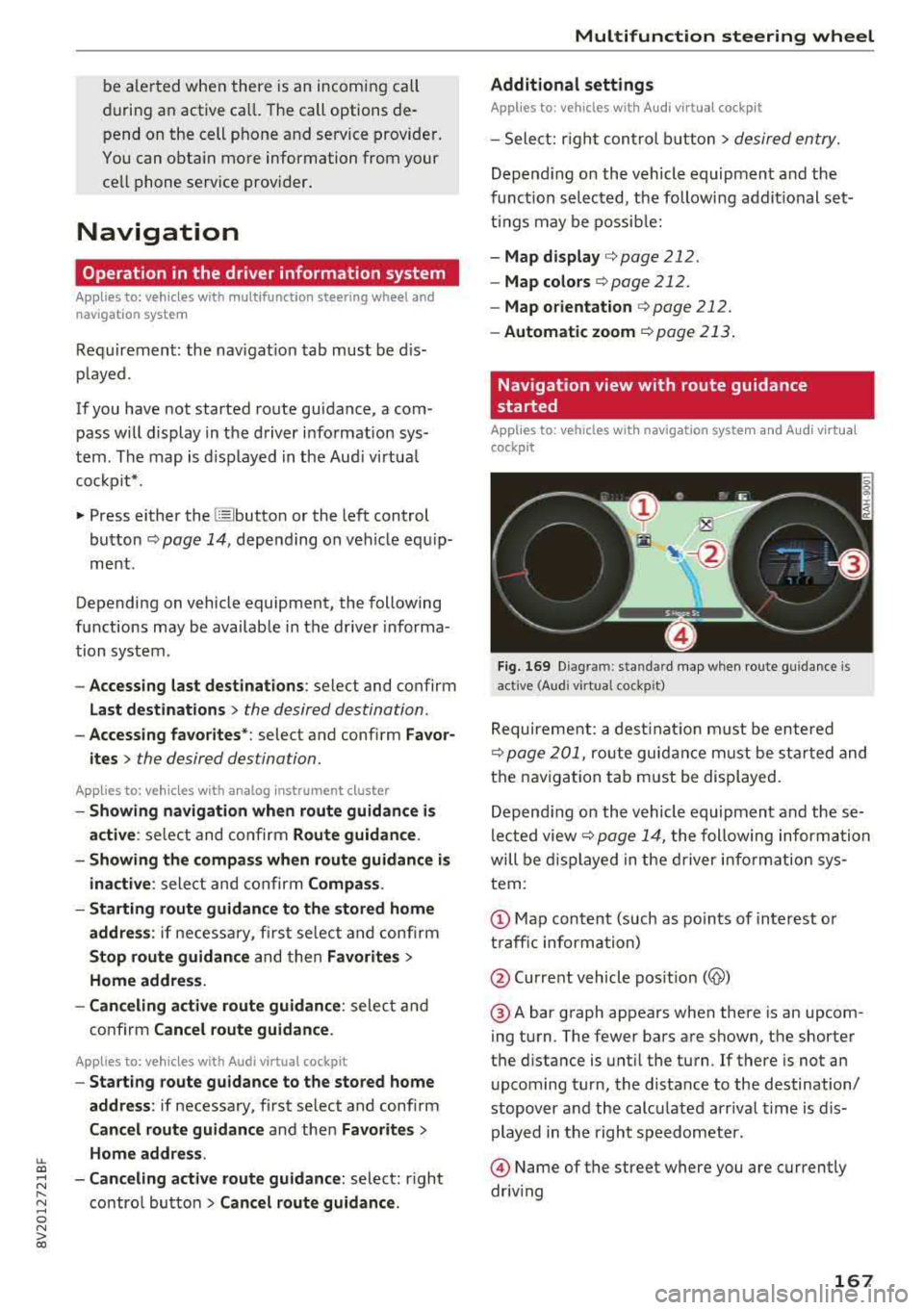
Fig. 169 D ia gram: standa rd m ap when route g uidance is
act ive (Aud i v irtua l cockp it)
Requireme nt: a dest ina tion m ust be e ntered
r=;, page 201, ro ute guid ance m ust be st arted and
t h e navigation tab must be di splayed.
Depend ing o n the vehicle equipmen t and th ese
l e cte d view
r:;, page 1 4, the follow ing informa tion
will be di splayed in the driver i nfo rm at ion sy s
tem:
@ Map content (such as po in ts of interest o r
t raff ic inform ation)
@ Current veh icle pos it ion
(@)
@ A bar g raph appears when there is an upcom
ing turn . The fewer bars a re shown, the shorte r
t h e di stance is unt il the turn. If there is not a n
u pcoming turn, the distance to the destination/
stopover a nd th e calc ulate d arr iv al time is dis
played in the right s peedometer.
@ Name of t he street where you are currently
driv ing
167
Page 171 of 404
LL
"' ..; N ,.... N ..; 0 N > a,
Voice recognition system
• Telephone
• Audi connect •
Favorites
• Call (XY)
• Navigation
• Directory
• Radio
• Media
• Sound •
Enter number
• Redial
• Read new tex t message
• Navigate to
(XY)
• Enter address/destination
• Help • Online destinations
• Help Speech dia log system
• Help Telephone •
Cancel route guidance
• M ap
• Help Audi connect •
Line (XY)
• Help Navigation
• Help Map
• Help Radio
• Help Media • N
ext page/ previous page
• Cancel
• N o. I meant
()(Y)
• Correction
TELEPHONE
• Enter number • Call list
• Delete number/ correc tion
• Redial
•
Directory
• Call (XY) •
Call
mailbox
• Enter PIN/ delete PI N
· business/ private/ land line/ mobile • Telephone favori tes
NAVIG:ATI0N
• Navigate to (XY)
• Start/ cancel route guidance
• Directory
• Last destinations •
Bloc k route for (XYJ miles/ Block
the next section
• Route list
• Calcul.ate alternative routes
• Navigation favorites
• Drive home
• Enter address •
Online destinations
• Special destination
• Enter country
I town/ street/ state
• Exclude route
I Exclude route for (XV) km / m
M~P
• Map
• Day map/ Night map
• 20 driving position map/ 20 north posi tion map/ 30 map/ Destination map/ Overview map
Al!JDI G ONNECT
• Audi connect
• Travel Information/ Parking Information
• Fuel prices
• Weather
RADIO
• Radio presets
• FM
• FM/ AM/ SIRIUS XM
• Station (XYJ / Frequency
(XYJ
• Traffic announcement on/ off
Fig. 172 Com mand ove rview
• Flight Information
• City events
• Online news
• Twitter
MEDIA
• Jukebo x
• CO/ DVD
• SD card l / SD card 2
• Audi music Interface/ 1Pod
I use / Bluetooth /
WI-Fl/ Medium
(XY)
• Media favorites/ Artists/ Albums/ Genres I
Tracks/ Playllsts / Videos
• Folder up
• Random playback on / off
169
Page 172 of 404
Voice recognition s ystem
Voice recognition system
Operating
A pplies to: ve hicles w ith vo ice recognition system
You con operate many Infotainment functions
conveniently by speaking.
R equirements: the ignition and the MMI must be
switched
on <=> page 154, there must not be any
phone call in progress and the parking system
must not be active .
~ Switching on: press the~ button @
<=> page 15, fig. 11 or@ <=> page 16, fig . 13
briefly on the mult ifunct ion steer ing whee l and
say the desired command after the
Beep .
~ Sw itching off : press and hold the~ button.
Or: press the [21 butto n.
~ Pausing : say the command Pau se . To res ume,
press
the~ button .
~ Correcting : say the command Corre ction .
Input assis tance
The system gu ides you through the input with
visual and audio feedback .
-Visual input a ssistance : after switching on
vo ice recognit ion, a display with a se lection of
poss ible commands appears . This command
display can be sw itched on or off . Select:
IMENU I button> Settings> left control button
> MMI settings > Sp eech dialog system .
- Audio input a ssis tance :
to have the poss ible
commands read, turn the voice recogn ition sys
tem o n and say
Help .
For the s ystem to under stand you:
Speak clearly and dist inct ly at a normal volume.
Speak louder when driving faster .
E mphasi ze the words in the commands even ly
and do not leave long pauses.
Close the doors, the windows and the sunroof* to reduce background noise . Make sure t hat passen
gers are not speaking when you are giving a voice
command.
Do not direct the vents toward the hands -free mi
crophone, which is in the roof headliner near the
front interior lights.
170
Only use the system from the dr iver's seat be
ca use the hands -free microphone is directed to
ward that seat .
Additional settings
See<=> page 248.
_8. WARNING
- Direct yo ur full attention to dr iv ing. As the
d river, you have complete responsibility fo r
safety in t raffic. On ly use the functions in
such a way that you a lways maintain com
plete contro l over your vehicle in a ll traffic
situations.
- Do not use the voice recognition system in
emergencies because your voice may change
in s tressful s ituations .
It may take longer to
d ia l the numbe r or th e system may not be
ab le to d ia l it at all. Dial the emergency
number manually.
(D Tips
- The d ia log pauses when there is a n incom
ing phone call a nd will cont inue if you ig
nore the ca ll. The d ia log ends if yo u answer
t h e ca ll.
- Th ere are no vo ice gu idance* prompts when
a dialog is act ive.
- You can select an i tem in the list using ei
ther the vo ice recognit ion system o r the
cont ro l knob .
Command overview
information
App lies to : vehicles wi th voice recog nitio n system
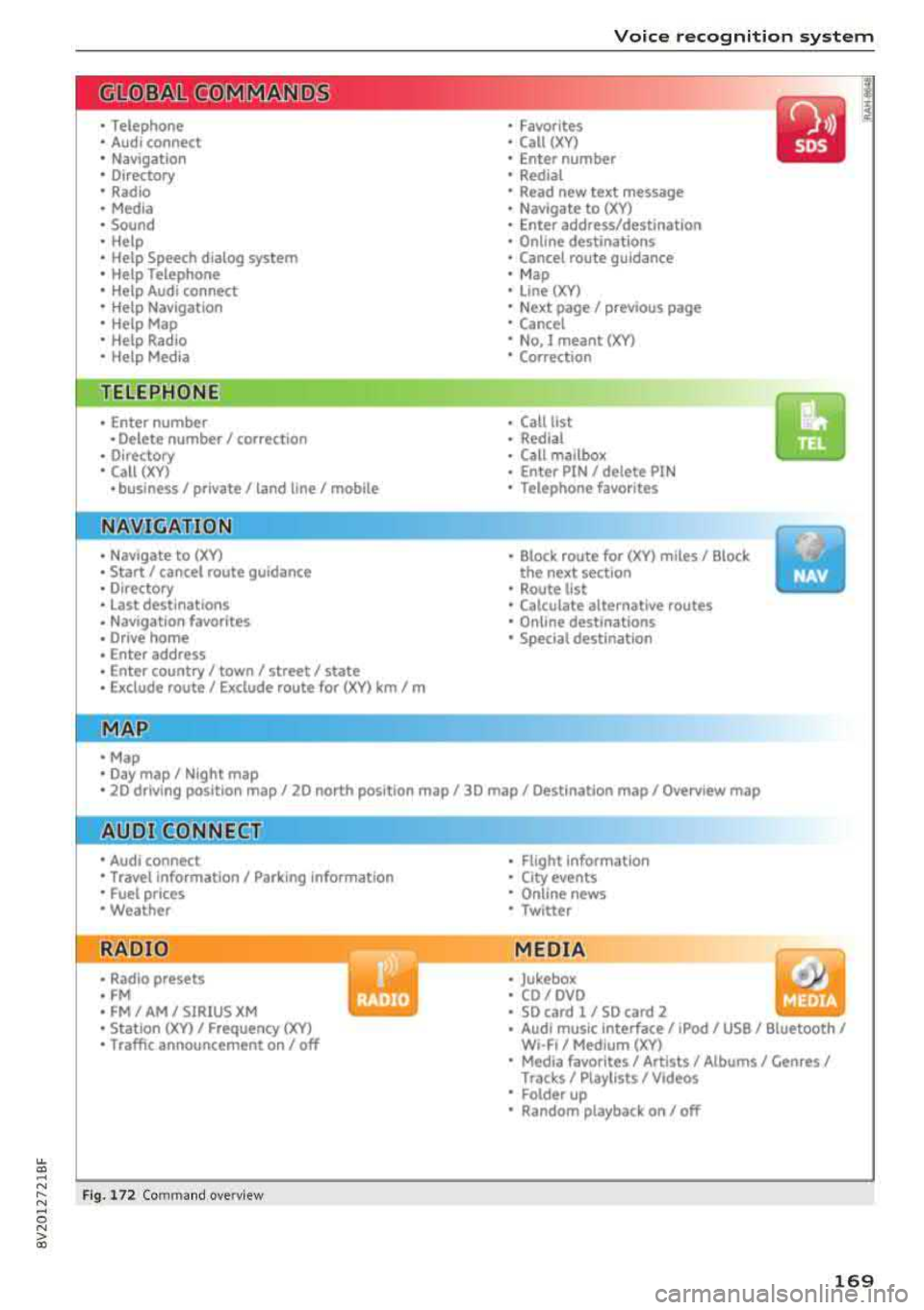
The following overv iews describe the commands
that can be used to operate the MMI using the
voice recog nition system.
Alte rnative commands a re separ ated using a"/ ",
for example say:
Telephone / (or) Navigati on /
(or) Radio .
Sequences of commands used to perform an ac
t ion are iden tified w ith a
"> ", fo r example say:
Enter addre ss > (t hen) Enter country /state. .,..
Page 173 of 404
u. 00 ... N l' N ... 0 N > 00
Voice recognition system
The major ity shown are main commands. This
system also recognizes synonyms in certain cas -es
. For a Business addre ss, you can also say busi
ness , work , office or at the office .
Commands
Global commands
Applies to: ve hicles with vo ice recognition syste m
You can always use the global commands, re
ga rdless of the me nu selec ted .
Function Say:
Ope ning a menu Telephone / Directory / Navigation / Radio / Media / Audi con-
nect * /Car / Tone
Hav ing the possible commands Help / Help speech dialog system / Help Telephone /
read aloud Help Nav igat ion / Help Map / Help Radio / Help Media / Help
Audi connect *
Telephone f unct ions Call (XV) , for example, Call "John Smith" /
Enter number / Redial / Directory / Read out new text mes-
sage
I Read out new e-mail
N avigation f unc tions* Drive me to (XV ) or Navigate to (XV ), for example Navigate to
John Smith /
Enter addre ss / Cancel route guidance / Map / Online de stina-
tions* /Online destination (XV )*
Accessing favorites Favorites > follow the system prompts
Se lecting an entry from a list Line (XV)
Scrolli ng thro ugh a lis t Next page / Previou s page
Correcting the command given Correction
Switching the vo ice recog nitio n sys-Cancel
tern off
Telephone
A ppl ies to: ve hicles with vo ice recogni tion syste m and telep hone
Requirement: a cell phone must be connec ted to
the M MI ¢
page 177 and the Telephone menu
must be open ¢
table on page 171.
You can say the following commands depending
o n the selected menu item :
Function
Say:
Calling a contact from the dir ecto ry Call (XV) , for example Call "John Smith"
Selecti ng a specific contac t numbe r Call (XV) business / private / land line / cell phone ,
for example, Call "John Smith" private
Selecting a phone number wit h an Call / Call work / Call private / Call land line / Call cell phone
address card open work
Ca lling a cont act fr om your fa vor-Telephone favorites > a~er being prompted, say the desired
it es lis t contact > Dial
Displaying the ca ll list Call list
171
Page 174 of 404
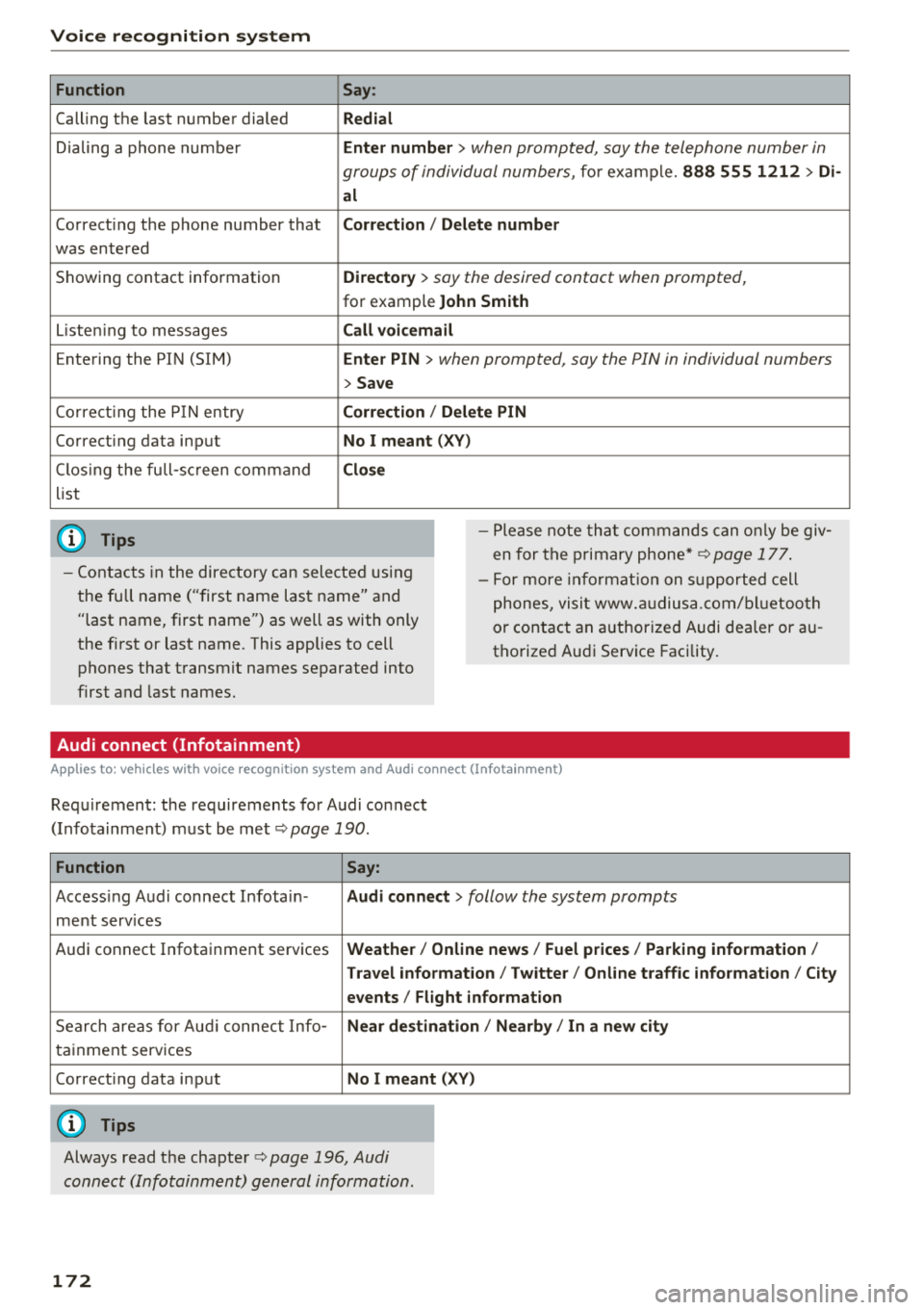
Voice recognition s ystem
Function
Calling the last number dialed
Dialing a phone numbe r
Correcting the phone number that
was entered
Showing contact information
L isten ing to messages
Entering the PIN (SIM)
Co rrect ing the P IN entry
Correcting data input
C los ing the full-sc reen command
list
(D Tips
Say :
R edi al
Enter number
> when prompted, say the telephone number in
groups of individual numbers,
for example. 888 555 1212 > Di -
al
C orr ect ion / Delet e numb er
Di rector y
> say the desired contact when prompted,
for example John Sm ith
C all voic emai l
Ente r PIN
> when prompted , say the P IN in individual numbers
> S av e
Corr ection
I Delete PIN
No I meant ( XV)
Clos e
-Please note tha t commands can on ly be giv
en for the primary
phone*¢ page 177 .
-Contacts in the directory can selected using
the full name ("first name last name" and "last name, first name") as well as with only
the first or last name . This applies to cell
phones that transmit names separated into
first and last names. -
For more informat ion on s upported cell
phones, visit www.a udiusa.com/ bluetoo th
or contact an authorized Audi dealer or au
thorized Audi Service Facility .
Audi connect (Infotainment)
Applies to: vehicles with voice recognition system and Audi connect (Infotainment)
Requirement: the requirements for Audi connect
(Infotainment) must be met
¢ page 190 .
Function Say:
Accessing Audi connect Infota in -Audi connect > follow the system prompts
ment services
Audi connect Infotainment services
Weather / Online news / Fuel p rice s/ Parking info rmation /
T rav el info rmat ion / Tw itte r/ Online traffic info rmation / City
e v ents / Fl ight informat ion
Search areas for Aud i connect Info-N ear de stination / Nearb y/ In a new city
tainment serv ices
Correcting data input
No I m eant (XV)
(D Tips
Always read the chapter ¢ page 196, Audi
connect (Infotainment) general information.
172
Page 175 of 404
u. 00 .-< N l' N .-< 0 N > 00
Voice recognition system
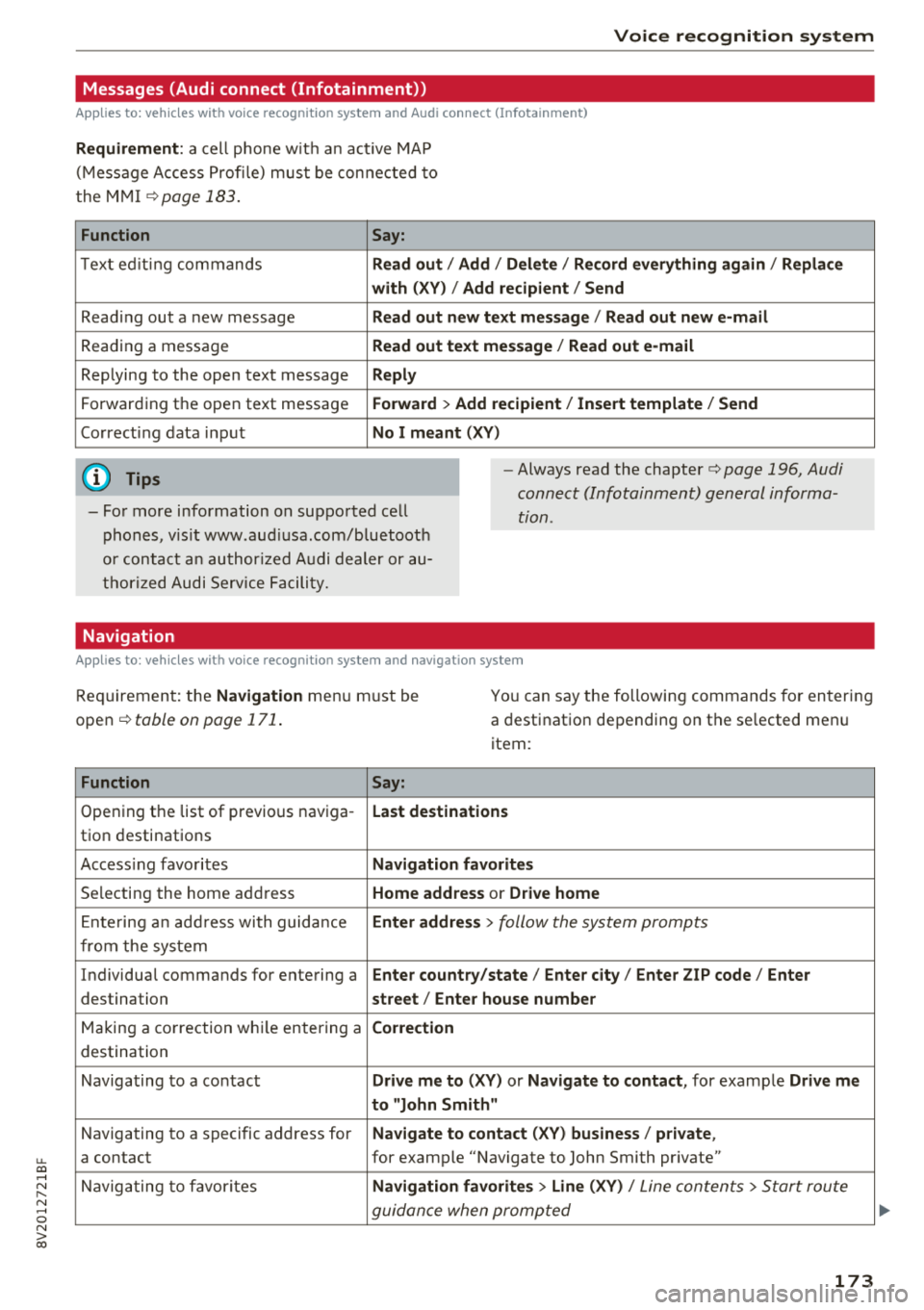
Messages (Audi connect (Infotainment))
Applies to: vehicles with voice recognition system and Audi connect (Infotainment)
Requirement : a cell phone w it h an ac tive MAP
( M essage Access Profi le) mus t be con nected to
the M MI
c::>page 183 .
Function Say:
T ext ed it ing commands Read out
I Add / Delete / Rec ord everything again / Replace
with (XY) / Add recipient / Send
Read ing out a new message Read out new te xt me ssage / Read out new e-mail
Reading a message Read out text message / Read out e-mail
Replying to the open text message Reply
Forwarding the open text message Forward > Add recipient / Insert template / Send
Correcting data inp ut No I meant (XV)
(D Tips
-Fo r more information on sup ported ce ll
phones, v is it www.aud iusa .com/b luetoot h
or con tact a n au thor ized A udi dealer or au
t h or ized Audi Serv ice Facili ty.
-Always read the chapter c::> page 196 , Audi
connect (Infotainment) gen eral informa
tion.
Navigation
Applies to: vehicles with voice recognitio n system and navigation system
Requi rement: the Navigation men u m ust be
open
c::> table on page 171 .
You can say the following commands fo r en ter ing
a destination depending on the se lected men u
item:
Function Say:
Opening the list of previous naviga -Last destinations
tion destinations
Access ing favo rit es Navigation favorites
Selecting the home add ress Home address or Drive home
E nte ring a n add ress with guida nce Enter address
> follow the system prompts
from the system
Individua l commands for entering a Enter country/state/ Enter city / Enter ZIP code / Enter
destination street/ Enter house number
Ma king a co rrection wh ile ente ring a Correction
destination
Navigating to a contact Drive me to (XY) or Navigate to contact , for examp le Drive me
to "John Smith"
N avigating to a specific address for Navigate to conta
ct (XV) business / private ,
a contact for example "Navigate to John Smith pr ivate"
N avigating to favor ites Navigation favorites > Line (XV) /
Line con tents> Start rou te
guidan ce when promp ted
173