phone AUDI A3 SEDAN 2018 Workshop Manual
[x] Cancel search | Manufacturer: AUDI, Model Year: 2018, Model line: A3 SEDAN, Model: AUDI A3 SEDAN 2018Pages: 404, PDF Size: 62.3 MB
Page 231 of 404
LL co .... N
" N .... 0 N > co
the inside of the vehicle in a crash and cause
serious injur ies. Store these types of devices
securely whi le driving.
- Do not use any w ireless devices on the front
seats w ith in range of the a irbags while driv
ing. Also read and follow the warnings in
¢ page 2 73 , Front airbags .
CD Note
-Always fo llow the information found in i::> @
in Wi-Fi hotspot on page 195 .
- Please note that there genera lly are addi
tiona l costs when using an online media
se rvice account, especially when it is used
i nternationally .
(D Tips
-Depending on the Internet connection and
network traffic, a connection loss can occur
duri ng p layback of on line media serv ices .
-Online media and Internet radio usage de
pends on the serv ice availab ility of the third
party provider .
- Audi AG simply makes the access to online
media services possible through the MMI
and does not take any respons ibility for the
contents of the online med ia services .
- Always read the chapter
¢ page 196, Audi
connect (Infotainment) general informa
tion .
- Dependi ng on the mobile device used, the re
may be interruptions during media playback
and whe n using the
Audi MMI connect app.
To avoid i nterruptions when usi ng a mob ile
device , do no t lock the s cree n on you r mo
bile device and keep the
Audi MMI connect
app in the foreground .
- Cont act an a uthorized Audi dea ler or au
thorized Audi Service Facili ty for additional
i nformat ion about online media .
Media
Multimedia connections
USB adapter for Audi music interface
You can connect your mobile devices (such as a
smartphone or MP3 player) to the Audi music in
terface and charge them using a special USB
adapter .
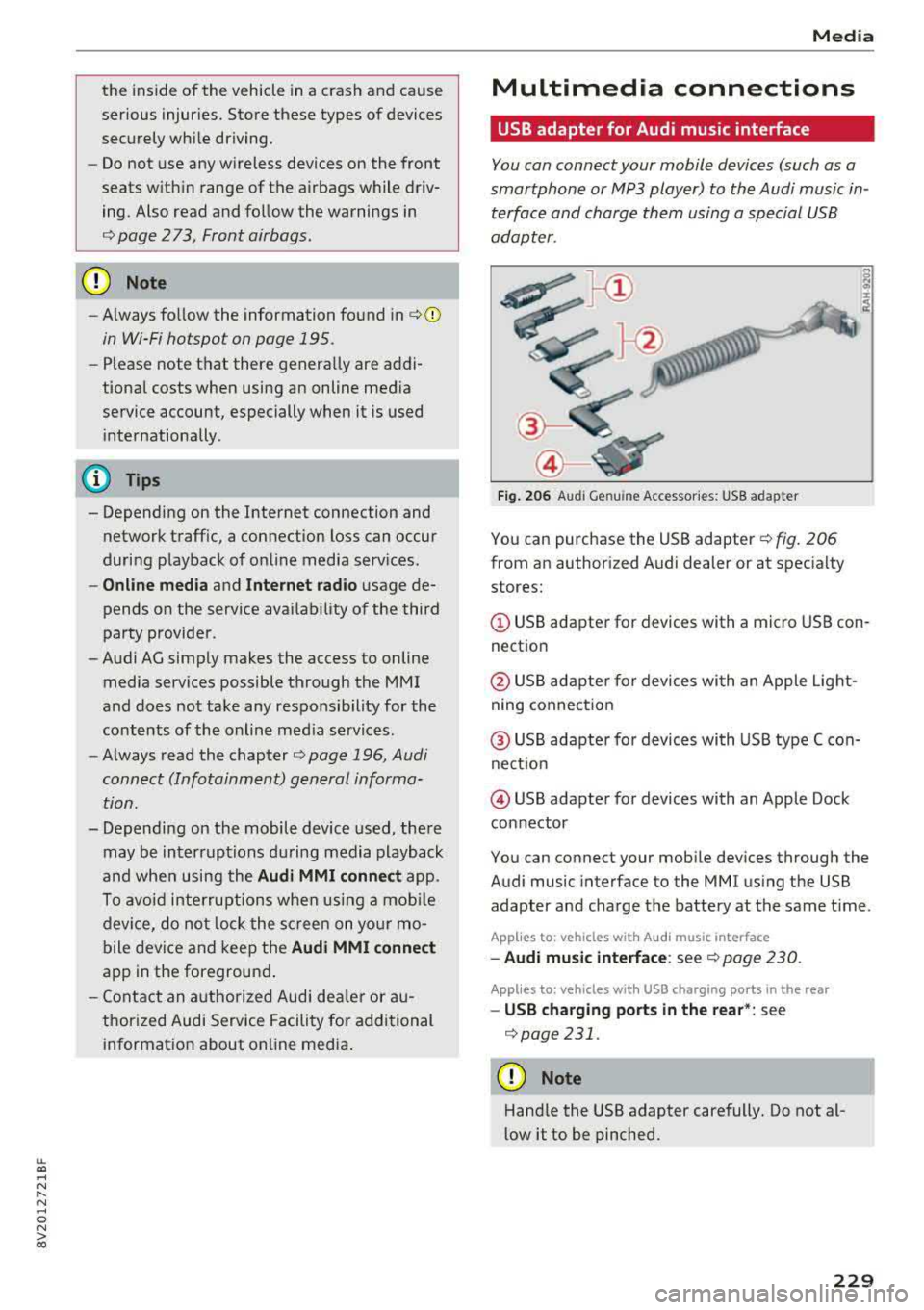
Fig. 206 Audi Genuine Acces sorie s: USB a dap ter
You can purchase the USB adapter ¢ fig. 206
from an author ized Audi deale r or at spec ialty
stores:
© USB adapter for devices with a micro USB con
nect ion
@ USB adapte r for devices with an Apple Light
ning conne ct ion
@ US B adapte r for devices wi th USB type C con
ne ct io n
@ USB adapter for devices with an Apple Dock
connector
You can connect your mob ile dev ices through the
Audi music interface to the MMI us ing the USB
adapter and cha rge the battery at the same t ime .
App lies to : vehicles wit h Audi music interface
-Audi mu sic interfa ce : see c;> page 230 .
Applies to: vehicles wi th USB charging ports in the rear
-USB cha rging ports in the rear *: see
¢page 231 .
CD Note
Hand le the USB adapter carefully. Do not al
low it to be pinched.
229
Page 232 of 404
Media
Audi music interface
Connect your mobile devices to the Audi music
interface in order to operate them through the
MMI and charge the battery.
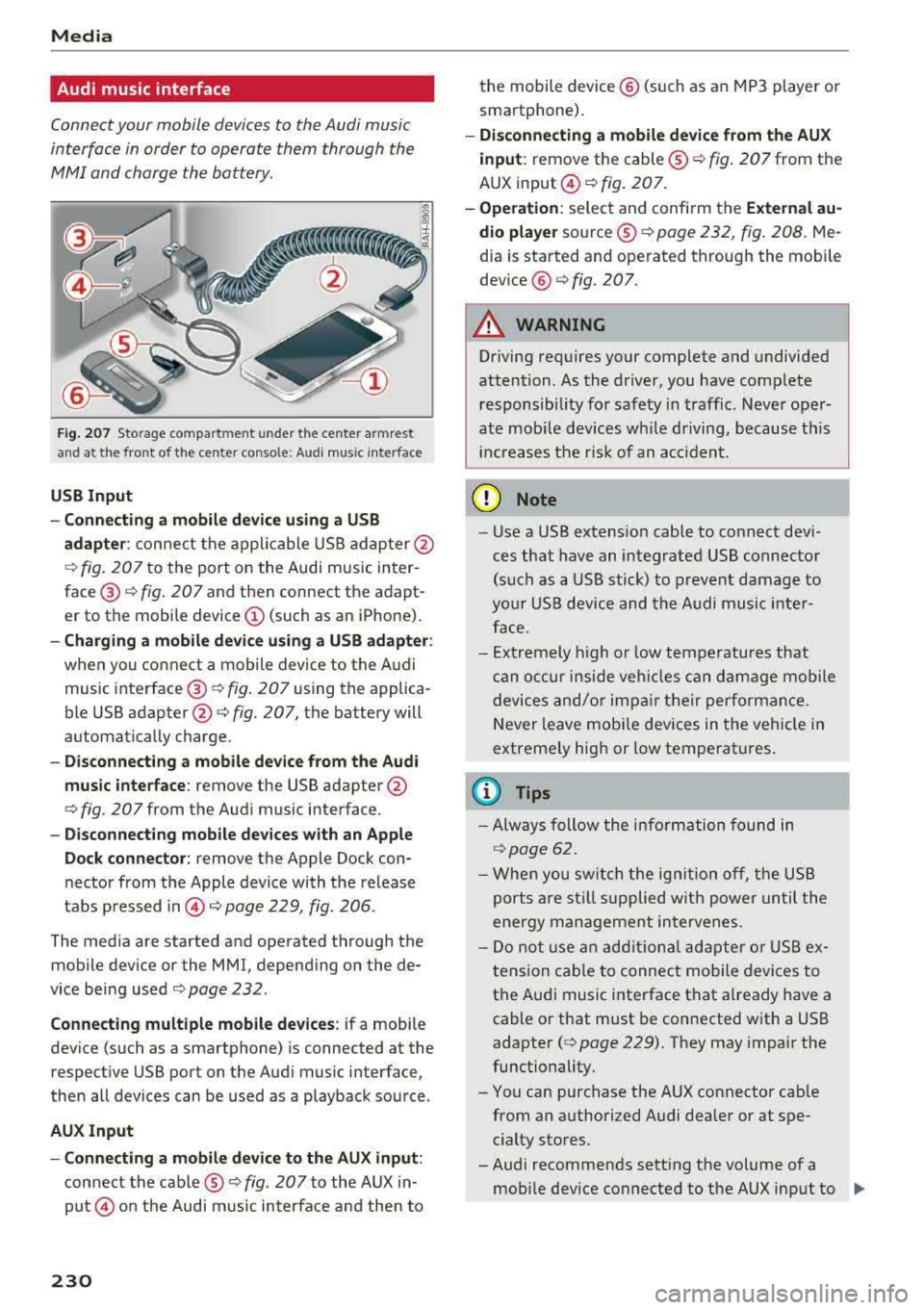
Fig. 207 Storage co mpa rtm ent u nder the cente r armrest
and at the front of t he ce nter con so le: A udi music interface
USB Input
- Connecting a mobile device using a USB
adapter :
connect the applicable USB adapter @
¢
fig. 207 to the port on the Audi music inter
face®¢ fig. 207 and then connect the adapt
er to the mobile device @(such as an iPhone) .
-Charging a mobile device using a USB adapter :
when you connect a mobile device to the Audi
music
interface @¢ fig. 207 using the applica
ble USB
adapter @¢ fig. 207, the battery will
automat ically charge.
- Disconnecting a mobile device from the Audi
music interface:
remove the USB adapter @
¢ fig. 207 from the Audi music interface .
-Disconnecting mobile devices with an Apple
Dock connector:
remove the Apple Dock con
nector from the Apple device with the release
tabs pressed
in © ¢ page 229, fig. 206 .
The media are started and operated through the
mobile device or the MMI, depending on the de
vice being used
¢ page 232 .
Connecting multiple mobile devices: if a mobile
device (such as a smartphone) is connected at the
respective USB port on the Audi music interface,
then all devices can be used as a playback source .
AUX Input
- Connecting a mobile device to the AUX input :
connect the cable ® ¢ fig. 207 to the AUX in
put© on the Audi music interface and then to
230
the mobile device@ (such as an MP3 player or
sma rtphone).
-Disconnecting a mobile device from the AUX
input:
remove the cable ®¢ fig. 207 from the
AUX
input @¢fig. 207.
- Operation: select and confi rm the External au
dio player
source ®¢ page 232, fig. 208. Me
dia is started and operated through the mobile
dev ice @ ¢ fig. 207.
A WARNING
Driving requires your complete and undivided
attention . As the driver , you have comp lete
responsibility for safety in traffic . Never oper
ate mobi le devices wh ile driving, because this
inc reases the risk of an acc ident.
(D Note
- Use a USB extens ion cable to connect devi
ces that have an integrated USB connector
(such as a USB stick) to prevent damage to
your USB device and the Audi music inter
face.
- Extremely high or low temperatures that
can occur inside veh icles can damage mobile
devices and/or impair their performance.
Never leave mobile devices in the vehicle in
extremely high or low temperat ures.
(D Tips
- Always follow the information found in
¢page 62.
-When you switch the ignition off, the USB
ports are still suppli ed with power until the
energy management intervenes.
- Do not use an additional adapter or USB ex
tension cable to connect mobile devices to
the Audi music interface that already have a
cable or that must be connected with a USB
adapter(¢ page 229). They may impair the
functionality.
- You can purchase the AUX connector cable
from an authorized Audi dealer or at spe
cialty stores.
-Audi recommends setting the volume of a mobile device connected to the AUX input to
..,
Page 233 of 404
u. co ... N l' N
approximately 70% of the maximum vol
ume.
- Functionality is not guaranteed for mobile
devices that do not conform to the USB
2.0
specification.
- USB hubs are not supported.
- Some versions of the iPod such as the iPod
shuffle cannot be connected to the USB
adapter for devices with Apple Dock connec
tor. Connect these devices using a AUX con
nector cable.
- Changed content on a mobile device
l) that
is connected to the Audi music interface
may not be displayed in the media center.
In this case, reset the
Media settings back
to
Factory settings c> page 244.
- Video playback through the Audi music in
terface is only supported if the connected
device is recognized as a USB storage device
(for example a USB stick). Apple devices and
MTP devices (such as smartphones) are not
recognized as USB storage devices .
- iPod/iPhone malfunctions also affect the
operation of the MMI. Reset your iPod/
iPhone if this happens.
- For important information on operating
your iPod/iPhone, refer to the user guide for
the device. Audi recommends updating the
iPod/iPhone software to the latest version.
- For more information about the Audi music
interface and supported devices, check the
Audi database for mobile devices at
www.audiusa.com/mp3 or contact an au
thorized Audi dealer or authorized Audi
Service Facility.
8 l ) A pp lies o nly to MTP device s. Does not apply to App le dev i
"' &j ces and USB mass storage d ev ices.
Media
USB charging ports in the rear
App lies to : vehicles wit h USB charging ports in the rear
You can charge the battery on your mobile device
through a USB charging port.
Two USB charging ports* are located at the back
of the center console.
- USB adapter: refer to c> page 229, USB adopter
for Audi music interface.
- Charging a mobile device using the USB
adapter: connect your mobile device to a USB
charging port using a suitable USB adapter.
- Disconnecting a mobile device from the charg
ing port:
remove the USB adapter from the USB
charging port .
-Disconnecting mobile devices with an Apple
Dock connector :
remove the Apple Dock con
nector from the Apple device with the release
tabs pressed in.
A WARNING
-
Driving requires your complete and undivided
attention . As the driver, you have complete
responsibility for safety in traffic. Never oper
ate your mobile devices while driving, because
this increases the risk of an accident.
((D) Note
Extremely high or low temperatures that can
occur inside vehicles can damage mobile devi
ces and/or impair their performance . Never
leave mobile devices in the vehicle in ex
tremely high or low temperatures.
(D Tips
- Always follow the information found in
c>page 62 .
-When you switch the ignition off, the USB
ports are still supplied with power until the
energy management intervenes.
- Do not use any additional USB extension ca
bles or adapters to connect mobile devices
to the USB charging port that have already
liJo-
231
Page 234 of 404
Media
been connected by a USB adapter . They may
impair the functionality.
- USB hubs a re not supported .
- Refer to the man ufactu rer's operating man-
ua l for important informat ion regarding the
ope ration of your mob ile dev ice .
- Co rrect funct ion of all mobile devices can
not be guaranteed .
- The vehicle ba tte ry dra ins when mobile de
v ices are turned on b ut the engine is off.
Playing media
Accessing media
You con start and op erat e various med ia
t hrough the
MM I control panel.
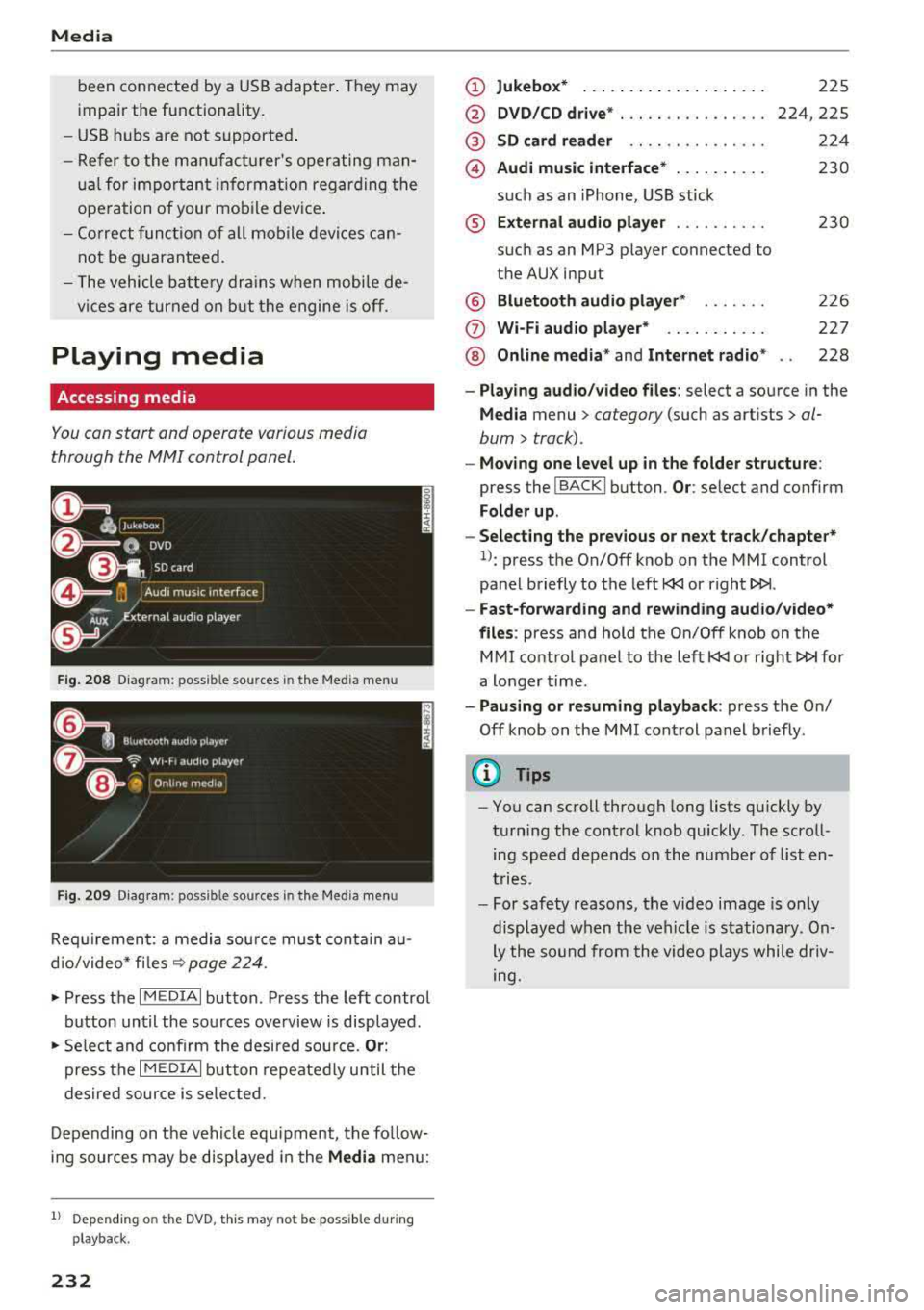
F ig . 208 Diagram : poss ible so ur ces in the Medi a men u
Fi g. 209 Diag ram : p ossible s our ces in the M ed ia m enu
Req uirement: a media sou rce must contain au
d io/video* fi les
9 page 224 .
• Press the I MEDIAi button. Press the left control
button until the sources overview is disp layed.
• Se lect and confirm the desired source. Or :
press the I MEDI Ai button repeatedly until t he
desired source is selected.
Depending on the vehi cle equ ipment, the follow
ing sources may be disp layed in the
Media men u:
1) Depe ndin g o n th e DVD , th is m ay not be poss ib le dur ing
p la y ba ck.
232
(D Jukebo x* ... .. .. .. ... .. ..... .
@ DVD/CD drive * ... .. ...... .... .
@ SD card re ader .. .. .. .... .... .
@) Audi music interface * .. .. ..... .
su ch as an iPhone, USB stick
® External audio p la y er ......... .
such as an MP3 pl ayer connected to
the AUX input
@ Bluetooth audio player * ...... .
(J) Wi-Fi audio pl ayer* ... .. ..... .
@ Online m edia * and Internet radio *
225
224,225
224
230
230
226
227
228
- Playi ng audio /video files : select a source in the
Media menu> ca tegory (such a s art ists> al
bum> track) .
-Moving one level up in the folder structure :
press the I BACKI button. Or: selec t and confirm
Folder up .
- Selec ting the p re v ious or ne xt track /chapter*
1>: press the On/Off knob on the MMI control
panel briefly to the left
l
- Fa st-for warding and rew inding audio /video *
fil es :
press and hold the On/Off knob on the
MMI control pa nel to the left
l
a longer time .
-Paus ing or re suming pla yback : press the On/
Off knob on the MMI control panel b riefly .
(@ Tips
-You can scroll through long lis ts quickly by
turning the cont rol knob quickly . The scroll
ing speed depends on the number of list en
t ries .
- For safety reasons, the video image is only
displayed when t he vehicle is stationary. On
ly the so und from the video plays while driv
ing.
Page 235 of 404
LL co .... N
" N .... 0 N > co
Media center
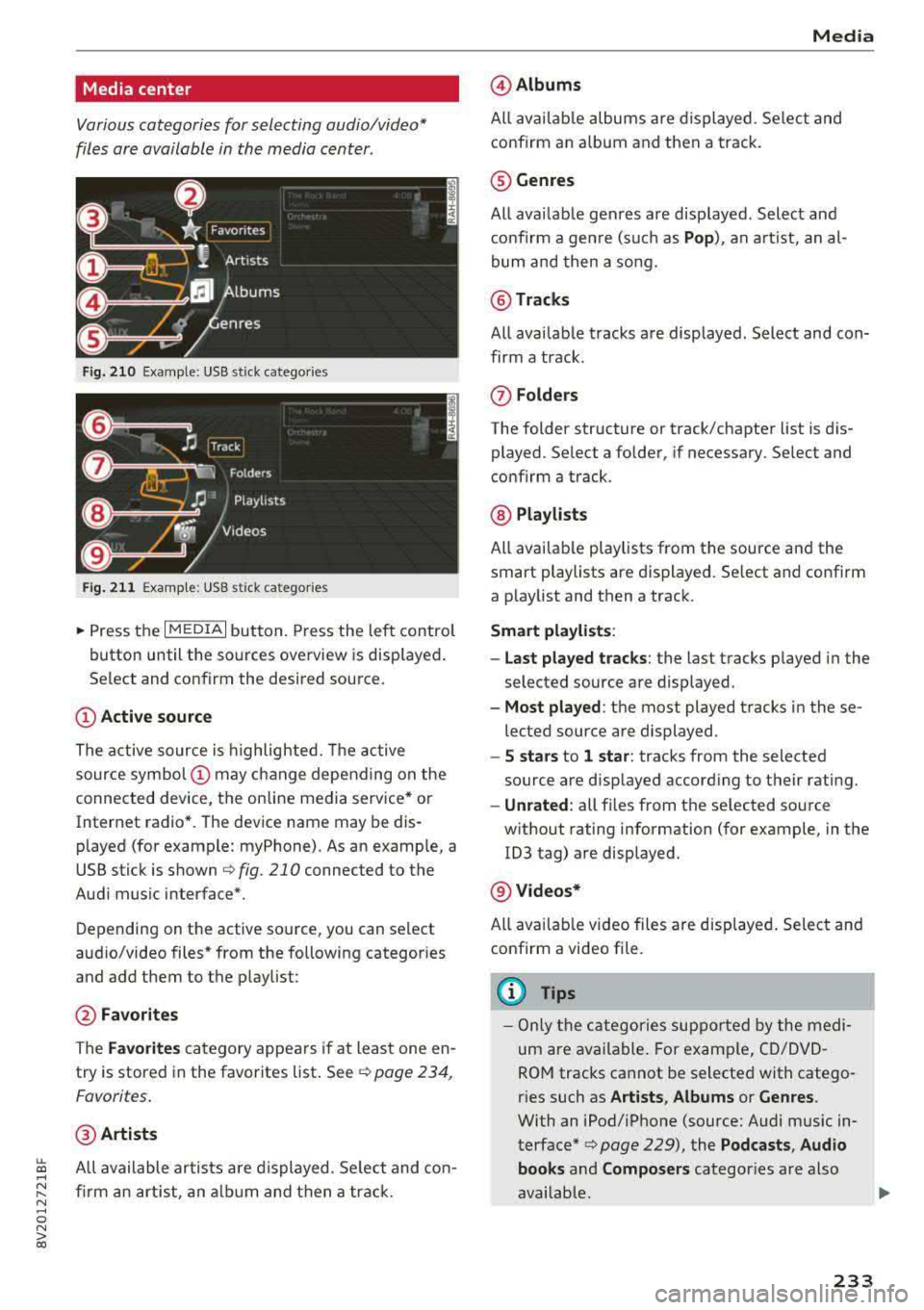
Various categories for selecting audio/video*
files are available in the media center .
Fig. 210 Example: USB stick catego ries
Fig . 211 Examp le: USB stick categories
~ Press the I MEDIAi button. Press the left control
button until the sources overview is displayed .
Se lect and confirm the desired source.
(!) Active source
The active source is highlighted. The active
source
symbol @ may change depending on the
connected device, the online media service* or
Internet radio*. The device name may be dis
p layed (for example: myPhone). As an examp le, a
USB stick is shown
c:> fig . 210 connected to the
Audi music interface*.
Depending on the active source , you can select
audio/video files* from the following categor ies
and add them to the p laylist :
@Favorites
The Favorites category appears if at least one en
try is stored in the favorites list . See
¢ page 234 ,
Favorites.
@ Artists
All available artists a re displayed . Se lect and con
firm an artist, an album and then a track.
Media
@ Albums
All available albums are displayed . Select and
confirm an album and then a track .
® Genres
All available genres are displayed . Select and
confirm a genre (s uch as
Pop), an artist, an al
bum and then a song.
@ Tracks
All available tracks are displayed . Select and con
firm a track .
(J) Folders
The folder structure or track/chapter list is dis
played . Select a folder, if necessary . Select and
confirm a track .
@ Playlists
All available playlists from the source and the
smart playlists are displayed. Se lect and confirm
a playlist and then a track.
Smart playlists :
- Last played tracks :
the last tracks played in the
selec ted source are displayed .
-Most played : the most played tracks in these
lected source are displayed .
-5 stars to 1 star: tracks from the selected
source are displayed accord ing to their r ating.
- Unrated: all files from t he se lected source
w ithout rating information (for example, in the
103 tag) are displayed.
@ Videos*
All avai lable video files are displayed. Select and
confirm a video file.
(D Tips
-Only the categories supported by the medi
um are available . For example, CD/DVD
ROM tracks cannot be selected with catego
r ies such as
Artists , Albums or Genres .
With an iPod/iPhone (source: Audi music in
terface*
c> page 229), the Podcasts , Audio
books
and Composers categor ies are also
available.
233
Page 237 of 404
-Move favorite : select a favorite from the list>
right contro l button > Move favorite . Select
and confirm the location of the se lected favor
ite.
- Deleting a favorite : select a favorite from the
list>
right contro l button > Delete favorite >
Delete this favorite or Delete all favorites .
Additional settings
Options menu
Context-specific functions and settings are avail
ab le depending on the selected so urce.
.,. Press the right control button.
Sound settings
See q page 247.
Input level
Requirement: a mobile device m ust be connected
to the AUX connection cable or to a USB adapter
q page 229, Multimedia connections.
The vo lume of the mobi le device is adapted to
the MMI. Audi recommends adjusting the vo lume
on the mobile device to
70% of the maximum
volume output.
Bluetooth settings
See q page 246.
Wi-Fi settings*
See q page 195, Wi-Fi hotspot .
Connection manager
See q page 244.
Additional track information
With the function switched on l;1 and a playlist
open, var ious information about the current track
(such as a rtist, album and album cover*) as well
as the playing time and the remaining playing
time are displayed.
u. co ... N ~ l) Th e fun ctio n automat ic ally sw itc hes off when th e sou rce
8 is ch an ged . N &j 2> This fun ctio n is not availa ble fo r all cell phone s.
Media
Jukebox memory capacity*
Information on the Jukebox memory capacity and
the number of stored tracks in the Jukebox is dis
played.
Rewind/Fast forward
T urn the cont rol knob to the left or to the right.
Or: move your finger across the MMI touch con
trol pad* from left to right.
Shuffle1>
With the function switched on 1;1, all files in the
playlist are played and shown in random order.
Repeat track1>
When the funct ion is switched on 1;1, the current
track repeats.
Back to 'Playback'
The options menu is closed. The track currently
playing appears in the playlist.
Play similar music*
The track currently playing is quickly analyzed
(s uch as artists, genres, mood , beat) and a smart
playlist with simi lar trac ks is shown .
Play more ...
A smart playlist is shown based on the track cur
r ently playing. You can select between a p laylist
with more tracks
by this artist , from this album
o r of this genre.
Copy to jukebox*
See q page 225, Adding files to the Jukebox .
Set as ringtone*2>
Requirement: a cell phone must be connected to
the MMI. The track currently play ing must be in
the Jukebox"
q page 225.
The selected track wi ll be used as the ringtone
for incoming calls.
235
Page 241 of 404
u. 00 .-< N l' N .-< 0 N > 00
Media
-Specia l characte rs (such as those in 10 3 tag
i nformat ion) d isp lay different ly depending o
n the sys tem lan guage an d cannot always
be guaranteed.
Troubleshooting
Problem Solution
Audi music interface /Bluetooth
Read the instructions in the chapter ¢ page 229, Multimedia con -
audio player*: mobile dev ice is nections/ ¢ page 226, Bluetooth audio player. You can lear n
not supported. about supported mobile devices in the Aud i database for mobile
dev ices at www .audiusa .com/bluetooth .
Audi music interface : the volume A
dju st the volume of the mobile device to approximate ly 70% of
is too high/too low when sta rt ing the maxim um output ¢
page 235, Input level.
playback th rough the AUX inp ut.
Audi music interface : the porta- For many ce ll phones o r mobi le devices, playback is not possib le
ble device is no t recogni ze d a s a when t he batt ery leve l is to o low (less th an 5% of its cap aci ty).
so urce . The mobile de·vice will on ly be recog nized as a so urce in t he MM I
afte r con necting if the ba tte ry charge is s ufficient.
Audi music interface : malfunc-The Bluetooth audio player function is switched on . Sw itch this
t ions during audio playback function off
ca> page 246 when yo u are not using the Bluetooth
t h rough an iPod/ iPhone. audio player .
Audi music interface :
contents Reset the Media settings to the factory defau lt settings
that are c hanged on a mob ile de-
¢page 244.
vice connected to the Audi music
interface
a ) a re not d isp layed in
t he med ia center .
AUX input : there is stat ic when W
hen connecting a nd disconnecting, the External audio player
connect ing and disconnect ing the source is a lready selected. Before connecting or disconnecting the
AUX connection cable. mobile device, eithe r mute the dev ice (see
¢ page 247) or switch
to a different audio so urce (fo r example
<=> page 218 , Opening the
radio) .
Bluetooth audio player * /Wi-Fi On ly one interface s hou ld be ac tively used at a time to ens ure
audio player *: audio playback in- p ro blem -free playback .
te rfe rence.
Wi -Fi audio player* : audio p lay- Aud io playb ac k i nterfe re nce can o ccur on some ce ll phones if the
back inte rference . In ter net connect ion in t he vehicle was not es tablished throug h
t he S IM ca rd reade r on the MM I contro l pane l and the
mobile da-
ta
option on the ce ll phone is swi tc h ed on . Deactiva te t he mobile
data
option on your cell p hone .
Jukebox *: tracks on the impo rted W hen import ing p lay lists, a ll of the fi les themse lves mus t be im-
playlist are g raye d ou t. ported.
Jukebox*: imported tracks cannot I f yo u cannot find imported trac ks in the media center, they may
be played o r found. not be supported . Only copy supported fi les
¢ page 237to the
J ukebox .
239
Page 242 of 404
Media
Problem Solution
Wi-Fi audio playe r*:
multiple de- Close the Audi MMI connect app on the connected devices (for ex -
vices are connected to the Wi-Fi ample, smartphones) that are not being used as the Wi-Fi audio
hotspot. A media player (such as a player*. Likewise, close the UPnP server apps or the media permis-
smartphone) appears as the sions on the integrated UPnP/DLNA server. Connect the desired
source and cannot be changed. dev ice as a Wi-F i aud io player*
~page 227.
Online media*: connection failed
To establish a connection to the MMI, the MMI connection switch
between the MMI and the
Audi must be switched on in the Audi MMI connect app status screen .
MMI connect app.
Bluetooth audio player *: inte rfer -Playback interfere nce can occur when us ing the Bluetooth audio
ence wi th t rack d isp lay and audio player if a music player app from a third party provider is open.
playback. Audi recommends using the integrated media p layer on your Bl ue-
tooth device (such as a smartphone).
Wi-Fi hotspot *: your Wi-Fi device Make sure the network optim izat ion functions are sw itched off in
is disconnected from the W i- Fi the Wi-Fi setti ngs or in the network settings for your W i- Fi dev ice.
ho tspot. For additional information refer to the user guide for your Wi-Fi
device.
Audi music interface: aud io play- Make sure the USB mode MTP is selected in the sett ings on your
back through the connected mo- mob ile device.
bile device is not possible .
a) Applies only to MTP devices. Does not app ly to Apple dev ices and USB m ass storage dev ices.
240
Page 243 of 404
u. 00 ... N l' N ... 0 N > 00
Audi smartphone interface
Setup
A ppl ies to : ve hicles w ith Audi smartpho ne inte rfa ce
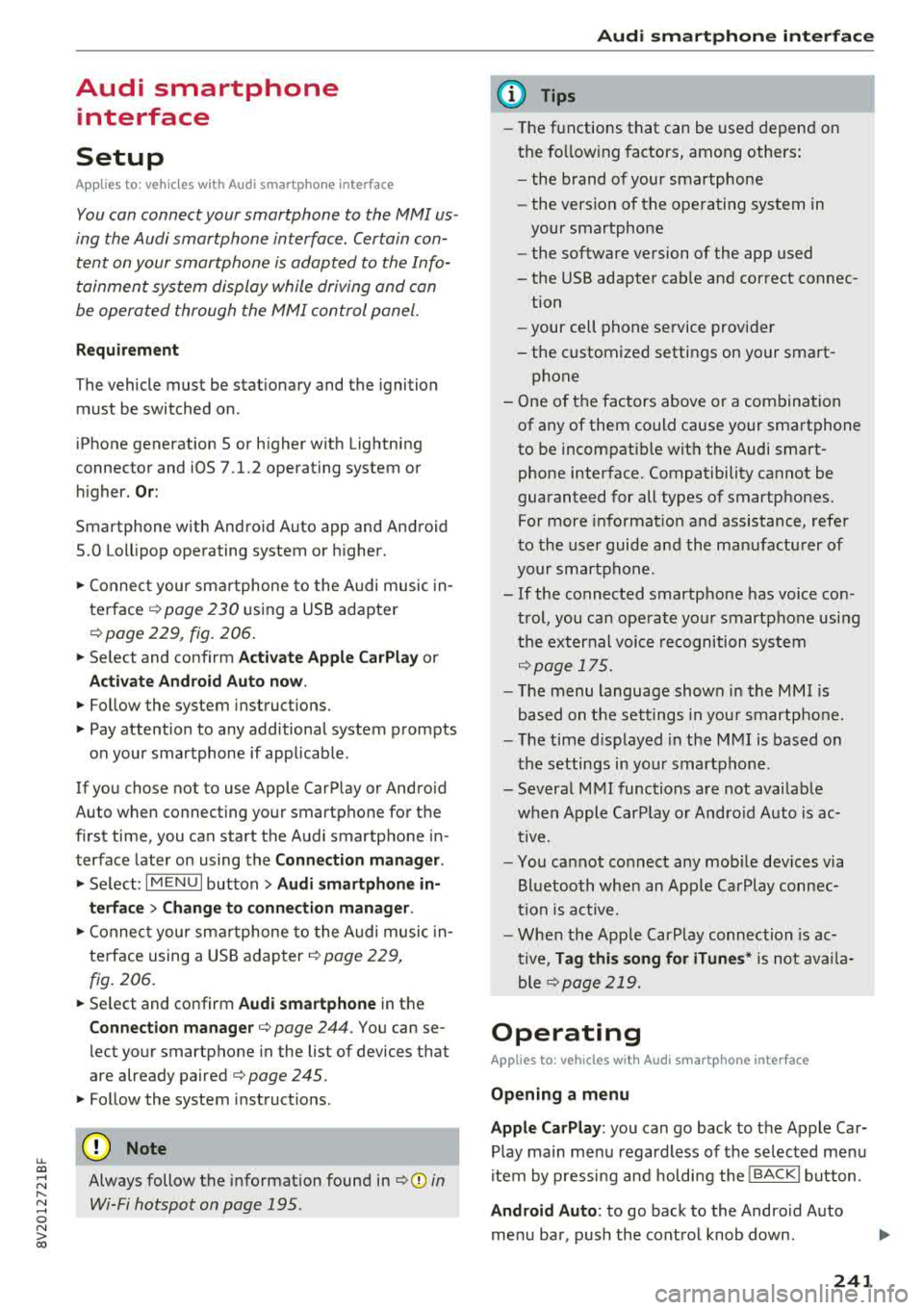
You con conn ect your smortphone to the MM I us
ing the Audi smortphon e int erfac e. Certain con
t e n t on you r sm ortphone is ado pted to th e Info
tainme nt system d is p lay while driving and con
be operated through the
MMI control panel .
Requirement
The vehicle must be stat ionary and the ignition
must be switched on .
iPhone generation 5 or h igher w ith Lightning
connector and iOS 7 .1.2 operating system or h igher.
O r:
Smartphone with Android Auto app and Android
5 .0 Loll ipop operating system or higher.
.,. Connec t your sma rtphone to the Audi music in
terface ¢ page 230 using a USB adapte r
¢ page 229, fig. 206.
.. Select and confirm A ctivate Apple CarPlay or
Acti vate And roid Auto now .
.. Follow the system instruct ions.
.. Pay attention to any additiona l system prompts
on your smartphone if applicable .
If yo u chose not to use Apple CarP lay or Android
Auto when connecting your smartphone for the
first time, you can start the Audi smartphone in
terface later on using the
Connection manager.
.,. Se lect : I MENU I button > Audi smartphone in-
terfa ce
> Change to connection manager .
.. Connect your sma rtphone to the A udi music in
terface using a USB
ad apter ¢ page 229,
fig. 206.
.. Select and confirm Audi smartphone in t he
Connection manager ¢ page 244. You can se
l ect your smartphone in the list of devices that
are already
paired¢ page 245.
.,. Follow the system instruct ions .
@ Note
Always follow the i nformat ion found in¢ @) in
Wi-Fi hotspot on page 195 .
Audi smartph one interfac e
(D Tips
-The functions that can be used depen d on
the fo llow ing factors, among others:
- the brand of your smartphone
- the vers io n of the ope rating system in
your smartphone
- the software ve rsion of the app used
- the USB adapter cab le and correct connec-
tion
- your cell phone se rvice provide r
- the customized settings on yo ur sma rt -
phone
- One of the factors above o r a com bina tion
of any of them could cause your sma rtphone
to be incompatib le wit h the Audi smart
phone inter face. Compatibility cannot be
guaranteed for all types of smartp hones.
For more informat io n and assistance, refer
t o the user guide and the man ufactu rer of
yo ur sma rtphone .
- If the connected smartphone has voice con
tr ol, you can ope rate yo ur smartp hon e usi ng
the ex ter nal voic e recognition system
¢page 175.
- Th e menu language show n in t he MMI is
based on t he sett ings in you r smartp ho ne .
- Th e time d is p layed in the M MI is based o n
the settings in yo ur sma rtphone .
- Severa l M MI functions a re not avai lab le
when Apple Car Play o r Andro id A uto is ac
t ive.
- Yo u ca nnot co nnect any mob ile dev ices via
B lu etooth whe n an App le CarPlay connec
tion is a ctive .
- Whe n the App le CarPlay connection is ac
t ive,
Tag this song for iTunes* is not av aila
ble
¢p age 219 .
Operating
A pp lies to: vehicles wit h Audi sm artph one interface
Opening a menu
Apple CarPlay :
you can go back to the Apple Ca r
Play main me nu regardless of the se lected me nu
i tem by p ressing and holdi ng the
I BACKI button .
Android Auto : to go back to the Andro id Auto
menu bar , push the control knob down .
241
Page 244 of 404
Audi smartphone interface
Opening a menu item
Select and confirm a menu item using the MMI
control panel.
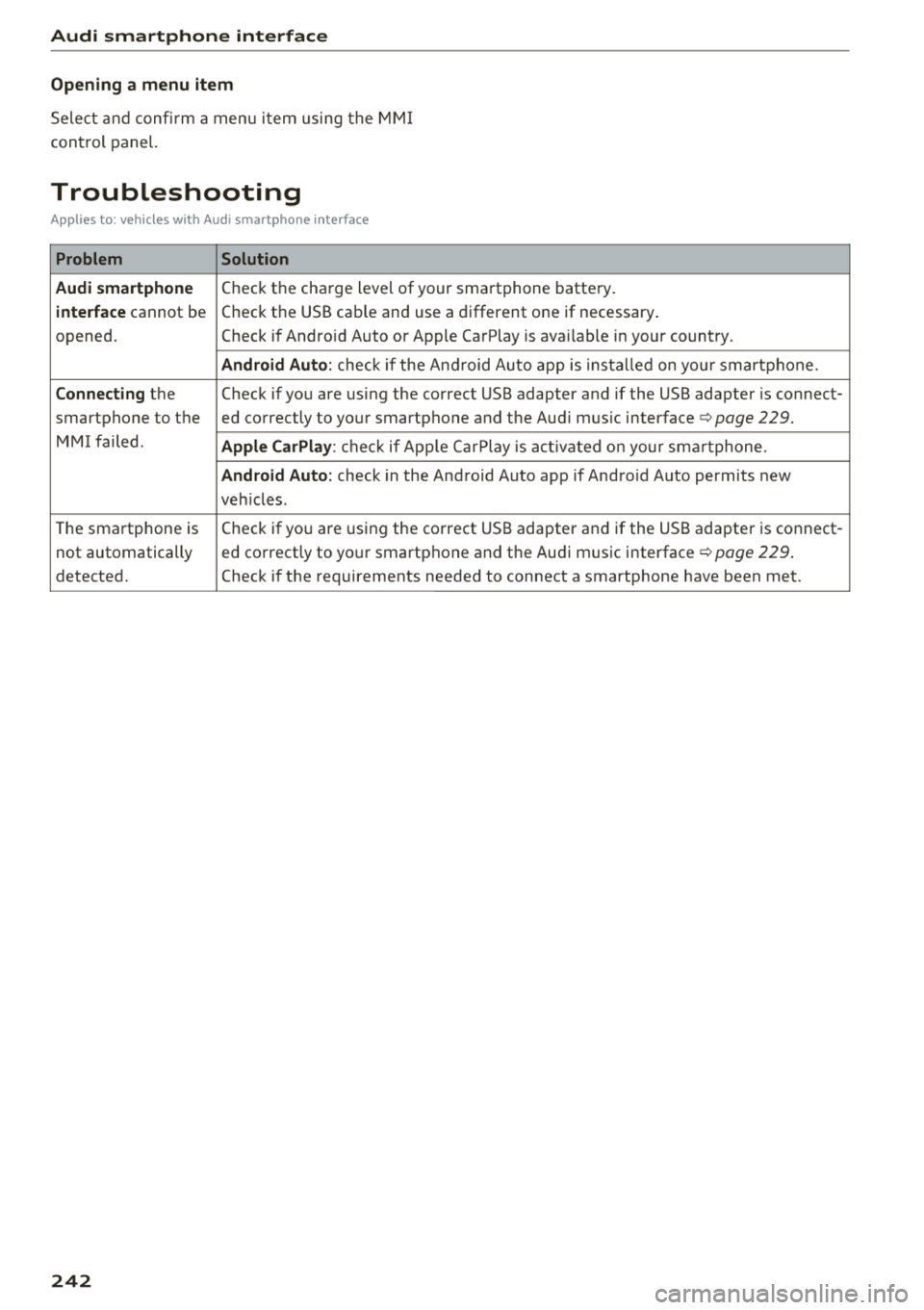
Troubleshooting
Applies to: vehicles with Audi smartphone interface
Problem Solution
Audi smartphone
Check the charge level of your smartphone battery.
interface cannot be Check the USB cable and use a different one if necessary
.
opened. Check if Android Auto or Apple CarPlay is available in your country.
Android Auto : check if the Android Auto app is installed on you r smartphone .
Connecting the Check if you are using the correct USB adapter and if the USB adapter is connect-
smartphone to the ed correctly to your smartphone and the Aud i mus ic
interface ¢ page 229.
MMI failed . Apple CarPlay: check if App le CarPlay is activated on your sma rtphone .
Android Auto: check in the And raid Auto app if Android Auto permits new
veh icles .
T he smartphone is Check if you are using the correct USB adapter and
if the USB adapter is connect -
not automatically ed correctly to your smartphone and the Audi music
interface
¢ page 229.
detected. Check if the requirements needed to connect a smartphone have been met.
242