radio AUDI A3 SEDAN 2018 User Guide
[x] Cancel search | Manufacturer: AUDI, Model Year: 2018, Model line: A3 SEDAN, Model: AUDI A3 SEDAN 2018Pages: 404, PDF Size: 62.3 MB
Page 171 of 404
LL
"' ..; N ,.... N ..; 0 N > a,
Voice recognition system
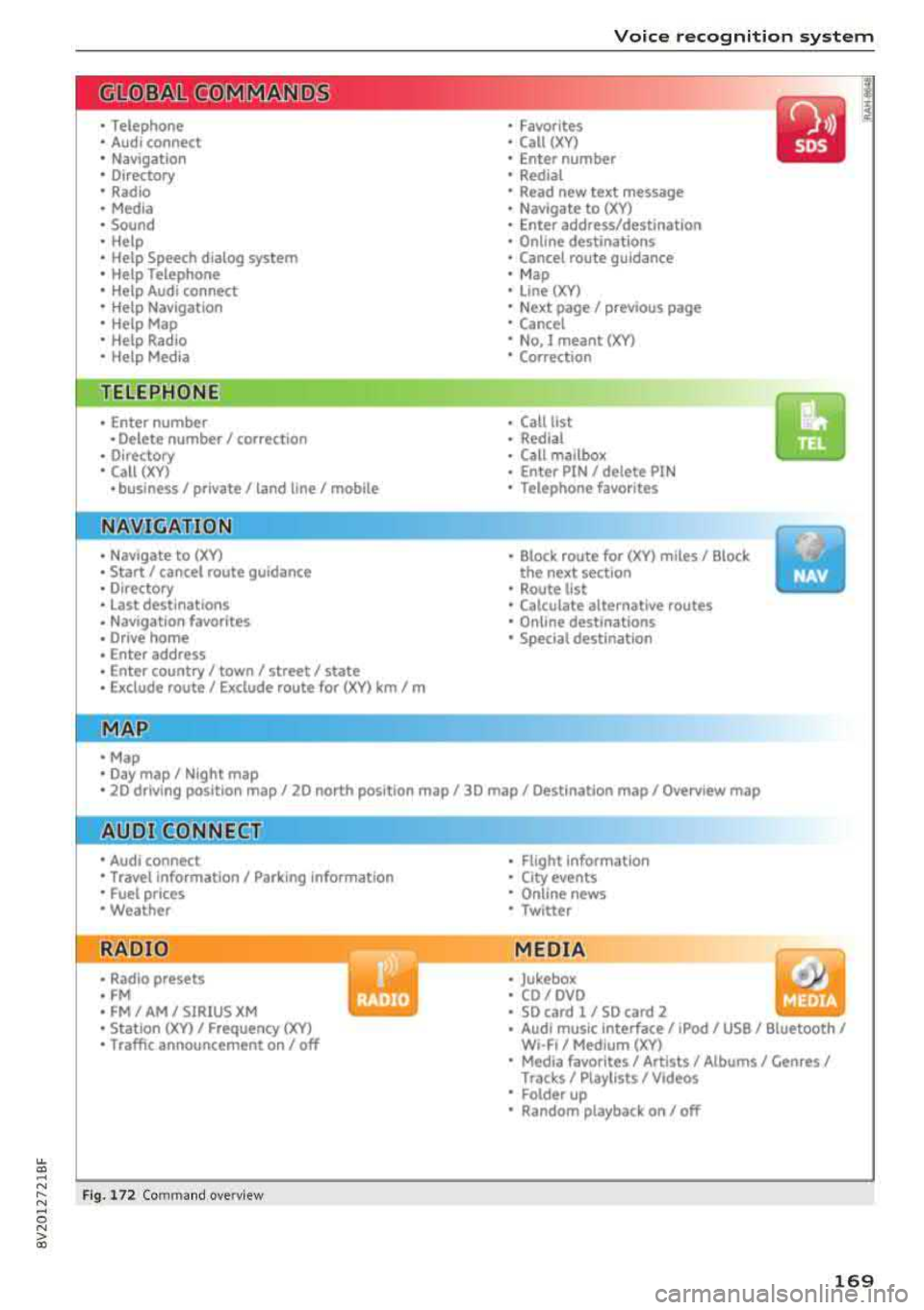
• Telephone
• Audi connect •
Favorites
• Call (XY)
• Navigation
• Directory
• Radio
• Media
• Sound •
Enter number
• Redial
• Read new tex t message
• Navigate to
(XY)
• Enter address/destination
• Help • Online destinations
• Help Speech dia log system
• Help Telephone •
Cancel route guidance
• M ap
• Help Audi connect •
Line (XY)
• Help Navigation
• Help Map
• Help Radio
• Help Media • N
ext page/ previous page
• Cancel
• N o. I meant
()(Y)
• Correction
TELEPHONE
• Enter number • Call list
• Delete number/ correc tion
• Redial
•
Directory
• Call (XY) •
Call
mailbox
• Enter PIN/ delete PI N
· business/ private/ land line/ mobile • Telephone favori tes
NAVIG:ATI0N
• Navigate to (XY)
• Start/ cancel route guidance
• Directory
• Last destinations •
Bloc k route for (XYJ miles/ Block
the next section
• Route list
• Calcul.ate alternative routes
• Navigation favorites
• Drive home
• Enter address •
Online destinations
• Special destination
• Enter country
I town/ street/ state
• Exclude route
I Exclude route for (XV) km / m
M~P
• Map
• Day map/ Night map
• 20 driving position map/ 20 north posi tion map/ 30 map/ Destination map/ Overview map
Al!JDI G ONNECT
• Audi connect
• Travel Information/ Parking Information
• Fuel prices
• Weather
RADIO
• Radio presets
• FM
• FM/ AM/ SIRIUS XM
• Station (XYJ / Frequency
(XYJ
• Traffic announcement on/ off
Fig. 172 Com mand ove rview
• Flight Information
• City events
• Online news
• Twitter
MEDIA
• Jukebo x
• CO/ DVD
• SD card l / SD card 2
• Audi music Interface/ 1Pod
I use / Bluetooth /
WI-Fl/ Medium
(XY)
• Media favorites/ Artists/ Albums/ Genres I
Tracks/ Playllsts / Videos
• Folder up
• Random playback on / off
169
Page 172 of 404
Voice recognition s ystem
Voice recognition system
Operating
A pplies to: ve hicles w ith vo ice recognition system
You con operate many Infotainment functions
conveniently by speaking.
R equirements: the ignition and the MMI must be
switched
on <=> page 154, there must not be any
phone call in progress and the parking system
must not be active .
~ Switching on: press the~ button @
<=> page 15, fig. 11 or@ <=> page 16, fig . 13
briefly on the mult ifunct ion steer ing whee l and
say the desired command after the
Beep .
~ Sw itching off : press and hold the~ button.
Or: press the [21 butto n.
~ Pausing : say the command Pau se . To res ume,
press
the~ button .
~ Correcting : say the command Corre ction .
Input assis tance
The system gu ides you through the input with
visual and audio feedback .
-Visual input a ssistance : after switching on
vo ice recognit ion, a display with a se lection of
poss ible commands appears . This command
display can be sw itched on or off . Select:
IMENU I button> Settings> left control button
> MMI settings > Sp eech dialog system .
- Audio input a ssis tance :
to have the poss ible
commands read, turn the voice recogn ition sys
tem o n and say
Help .
For the s ystem to under stand you:
Speak clearly and dist inct ly at a normal volume.
Speak louder when driving faster .
E mphasi ze the words in the commands even ly
and do not leave long pauses.
Close the doors, the windows and the sunroof* to reduce background noise . Make sure t hat passen
gers are not speaking when you are giving a voice
command.
Do not direct the vents toward the hands -free mi
crophone, which is in the roof headliner near the
front interior lights.
170
Only use the system from the dr iver's seat be
ca use the hands -free microphone is directed to
ward that seat .
Additional settings
See<=> page 248.
_8. WARNING
- Direct yo ur full attention to dr iv ing. As the
d river, you have complete responsibility fo r
safety in t raffic. On ly use the functions in
such a way that you a lways maintain com
plete contro l over your vehicle in a ll traffic
situations.
- Do not use the voice recognition system in
emergencies because your voice may change
in s tressful s ituations .
It may take longer to
d ia l the numbe r or th e system may not be
ab le to d ia l it at all. Dial the emergency
number manually.
(D Tips
- The d ia log pauses when there is a n incom
ing phone call a nd will cont inue if you ig
nore the ca ll. The d ia log ends if yo u answer
t h e ca ll.
- Th ere are no vo ice gu idance* prompts when
a dialog is act ive.
- You can select an i tem in the list using ei
ther the vo ice recognit ion system o r the
cont ro l knob .
Command overview
information
App lies to : vehicles wi th voice recog nitio n system
The following overv iews describe the commands
that can be used to operate the MMI using the
voice recog nition system.
Alte rnative commands a re separ ated using a"/ ",
for example say:
Telephone / (or) Navigati on /
(or) Radio .
Sequences of commands used to perform an ac
t ion are iden tified w ith a
"> ", fo r example say:
Enter addre ss > (t hen) Enter country /state. .,..
Page 173 of 404
u. 00 ... N l' N ... 0 N > 00
Voice recognition system
The major ity shown are main commands. This
system also recognizes synonyms in certain cas -es
. For a Business addre ss, you can also say busi
ness , work , office or at the office .
Commands
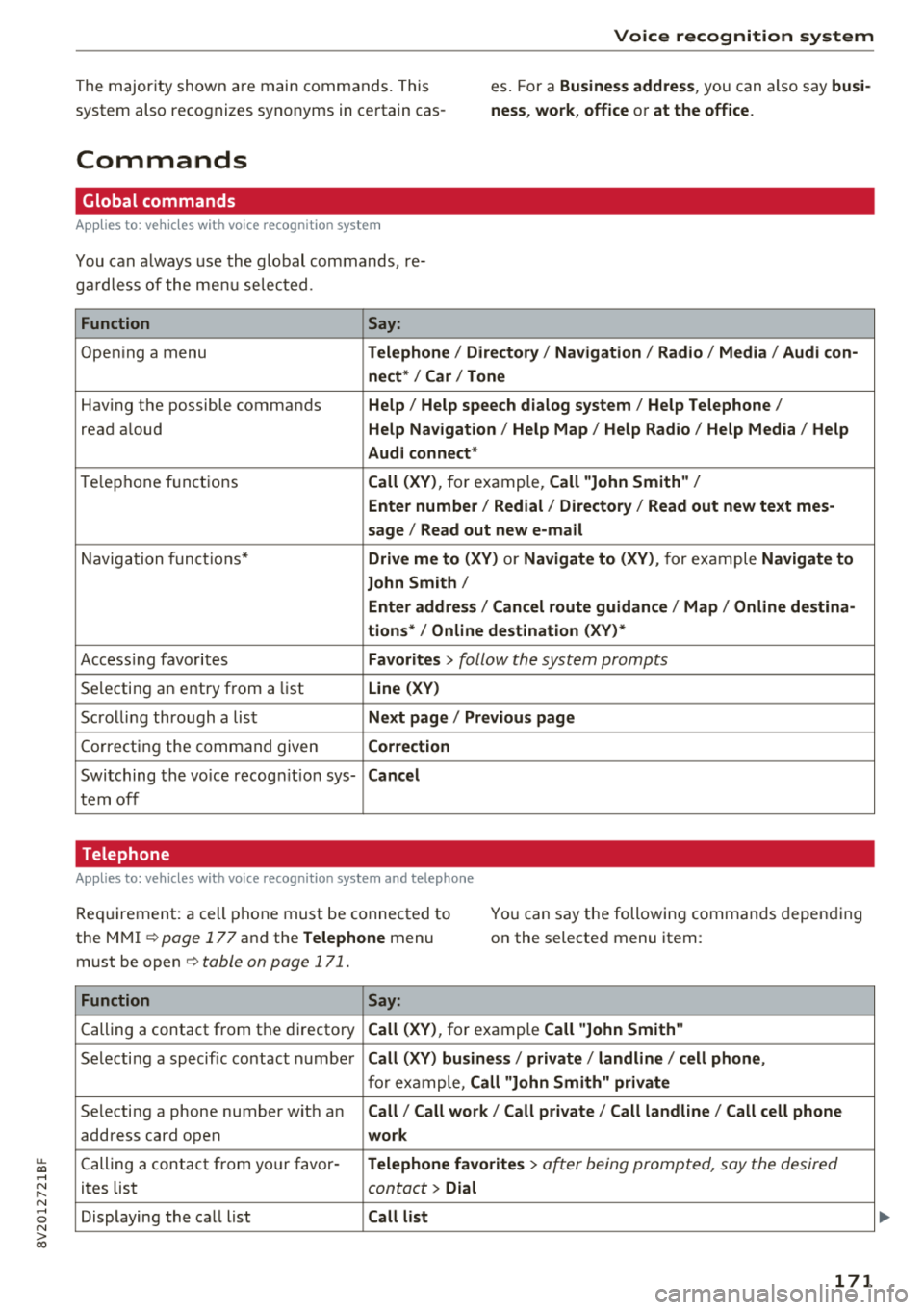
Global commands
Applies to: ve hicles with vo ice recognition syste m
You can always use the global commands, re
ga rdless of the me nu selec ted .
Function Say:
Ope ning a menu Telephone / Directory / Navigation / Radio / Media / Audi con-
nect * /Car / Tone
Hav ing the possible commands Help / Help speech dialog system / Help Telephone /
read aloud Help Nav igat ion / Help Map / Help Radio / Help Media / Help
Audi connect *
Telephone f unct ions Call (XV) , for example, Call "John Smith" /
Enter number / Redial / Directory / Read out new text mes-
sage
I Read out new e-mail
N avigation f unc tions* Drive me to (XV ) or Navigate to (XV ), for example Navigate to
John Smith /
Enter addre ss / Cancel route guidance / Map / Online de stina-
tions* /Online destination (XV )*
Accessing favorites Favorites > follow the system prompts
Se lecting an entry from a list Line (XV)
Scrolli ng thro ugh a lis t Next page / Previou s page
Correcting the command given Correction
Switching the vo ice recog nitio n sys-Cancel
tern off
Telephone
A ppl ies to: ve hicles with vo ice recogni tion syste m and telep hone
Requirement: a cell phone must be connec ted to
the M MI ¢
page 177 and the Telephone menu
must be open ¢
table on page 171.
You can say the following commands depending
o n the selected menu item :
Function
Say:
Calling a contact from the dir ecto ry Call (XV) , for example Call "John Smith"
Selecti ng a specific contac t numbe r Call (XV) business / private / land line / cell phone ,
for example, Call "John Smith" private
Selecting a phone number wit h an Call / Call work / Call private / Call land line / Call cell phone
address card open work
Ca lling a cont act fr om your fa vor-Telephone favorites > a~er being prompted, say the desired
it es lis t contact > Dial
Displaying the ca ll list Call list
171
Page 177 of 404
u. 00 ... N l' N ... 0 N > 00
Voice recognition system
-A lways read the chap ter qpoge 19 6, Audi
connect (Infotainment) general informa
tion .
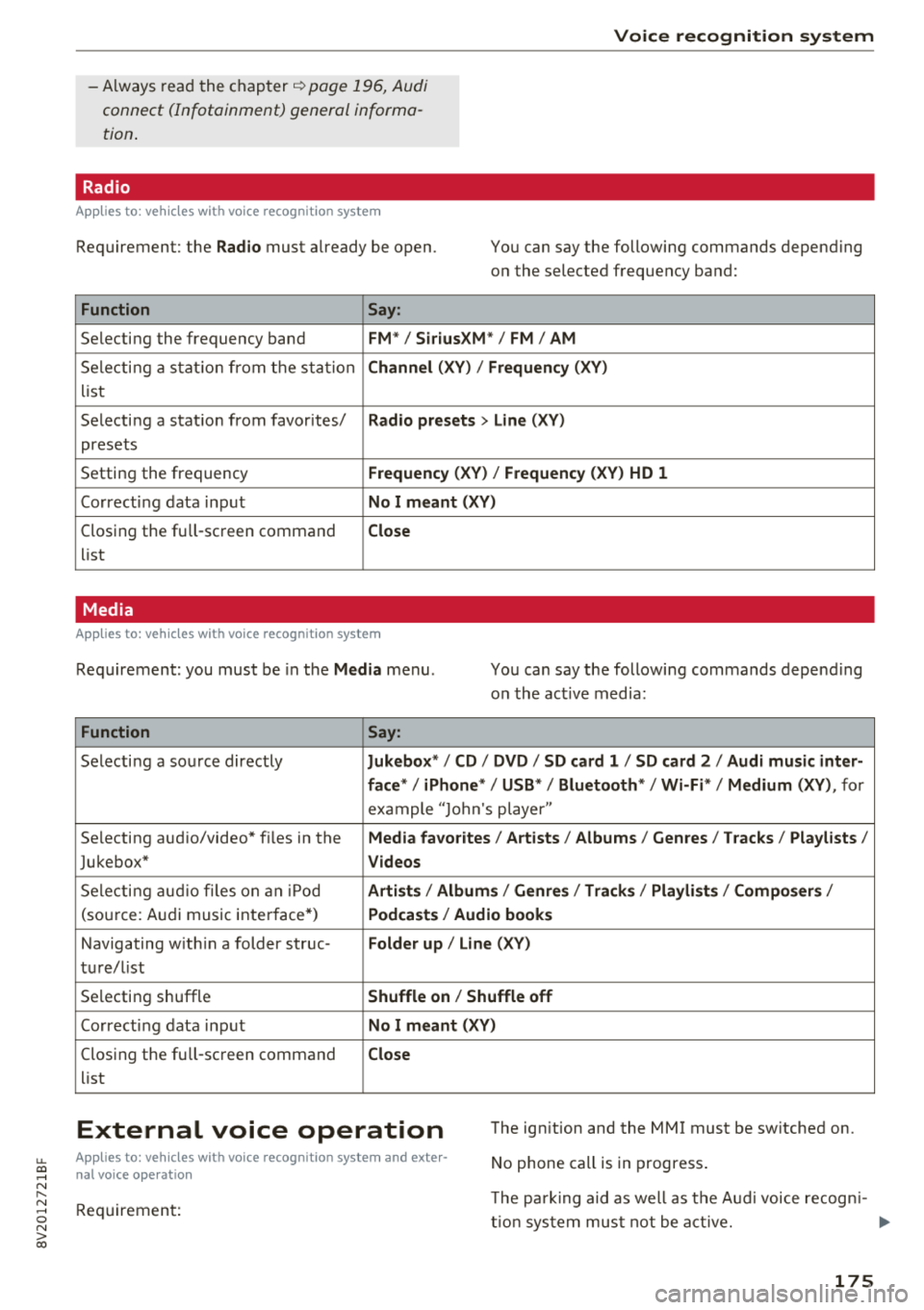
Radio
App lies to : ve hicl es w ith vo ice recognition syste m
Requirement: the Radio must already be open. You can say the following commands depend ing
o n the selected frequency band:
Function Say:
Selecting the frequency band FM*/ SiriusXM * / FM / AM
Sele cti ng a stat io n from t he s ta tion Channel (XY ) / Frequency (XV)
list
Selecting a stat ion from favorites/
Radio presets > Line ( XV)
presets
Setting the frequency
Frequency ( X V ) / Frequency (XV ) HD 1
Correcting data input No I meant (XV )
Clos ing the full -sc reen command Close
list
Media
A pp lies to: ve hicles with vo ice recognition syste m
Requirement: you must be in the Media menu . You can say the following commands depend ing
o n t he act ive media:
Function Say:
Selecti ng a so urce directly Jukebox* / CD / DVD / SD card 1 / SD card 2 / Audi music inter-
face*
I iPhone * / USB* / Bluetooth * I Wi-Fi* / Medium (XY) , for
example " Jolhn 's player"
Se lecting aud io/video* f iles in the
Media favo rites / Artists / Albums / Genres I Tracks / Playl ists /
Jukebox* Videos
Selecti ng audi o files on an iPo d Artists / Albums / Genres I Tracks / Playlists /Composers /
(source: A udi music inte rface*) Podca st s / Audio book s
Navigating w ith in a folder struc-Folder up / Line (XV)
tu r e/list
Se lecting shuffle
Shuffle on / Shuffle off
Correct ing data inp ut No I meant (XV)
Clos ing the full -sc reen command Close
list
External voice operation The ign ition and the MMI must be sw itched on.
No phone call is in progress .
Appl ies to: ve hicles w ith vo ice recogni tion syste m and exte r
n al voice o peratio n
Requireme nt: T
he pa rk ing aid as well as t he A ud i voice recogn i-
t io n syste m mus t not be a ct ive. .,.
175
Page 183 of 404
u. 00 ... N l' N ... 0 N > 00
-Delete call list : select and confirm if you would
li ke to
Delete this entry or Delete all entries.
- Store a s favorite :
store t he selec ted contac t as
a favorite.
- Show contact details : see c:> page 186.
-Connection manager : see c:> page 244.
-Bluetooth setting s: see c:> page 246 .
-Online settings : see c:> page 246.
-Wi -Fi sett ings : see c:> page 195, Wi-Fi hotspot.
-Telephone setting s: see c:> page 187.
Favorites
Requi reme nt: a pho ne n umber or con tact must
b e s to red as a favori te
c:> page 182 .
Select and confi rm a favor ite in the favo rites list .
Directory
Requirement: you must have at least one contact
stored in your cell phone.
Select and confirm a phone num ber from the di
rectory
c:> page 186.
Enter number
- Entering a phone number as a sequence of
numbers :
enter th e n umber usi ng the num ber
spelle r
c:> fig. 176 .
-Entering the phone number a s a sequence of
letters:
select an d confi rm !ABC ! above the
numbe r speller. Ente r a seq uence of lette rs us
ing the letter speller, for examp le AUD/SER
VICE.
-Dialing a phone number : select and confirm~
Or: push the control knob down. Select and
confirm
OK .
-Deleting individual characters : select and con
f irm
<& l
- Deleting all characters entered at once : tur n
the control knob wit h the character se lection to
<&I and p ress and ho ld the contro l knob . Or: se
lect the right contro l button
> Clear input field .
Accepting/ending a call
Applies to: vehicles with telephone
-Ac cepting a call : select and confirm Answer.
- Declining a call :
select and confirm Decline. Telephone
- Muting the active call :
select and confirm
Mute.
- Ending a phone call/ cancel dialing :
select and
confirm
End call .
Caller information :
the name, phone number or
Unknown app ea rs in the Infot ain ment system
display depen ding on if the ca ll er has been stored
in the di recto ry and if the p hone n umber has
been transmitte d. A pict ure may also be d is
played, depending on whether you have assigned
a p icture to a contact in yo ur directory and if it
was transferred to your MMI. You can f ind out if
you r ce ll phone s upports t his fu nction from your
ce ll phone network prov ider, your cell p hone
owner 's ma nual or at www.audiusa .com/
bl uetoo th .
(D Tips
- Th e radio or media playback is mut ed dur ing
a phone c all.
- Mi ssed calls are d isplayed with a symbol in
t he status line of the Infotai nment syste m
display @ c:>page 163 , fig. 1 68.
During a phone call
Applies to: vehicles with telephone
Req uirement: there m ust be a c all in pr ogress.
.,. End call: you can e nd a p ho ne call.
.,. Send tone sequence: you can e nte r tone se
quences
( DTMF ) direct ly using t he num ber
speller and send t o the o ther pe rso n on the
ca ll.
.,. Other call option s: press the r ight control but -
ton .
T he following op tions are poss ible d uring a call
depen ding on the cell p hone being used and t he
type of connect ion :
- An swer ing an ad ditional call: if the re is an in
coming call whi le ano ther call is active, you can
select
Answer t o put t he exist ing ca ll on ho ld
and answer the incoming call. If you select
De
cline ,
the incoming ca ll w ill be declined.
- Accepting an incoming call when there is an ac
tive ca ll and a ca ll on h old: select
Replace . The
act ive ca ll is replaced with the incoming cal l.
..,.
181
Page 220 of 404
Radio
Radio
Opening the radio
The radio supports the FM, AM and SiriusXM*
(satellite radio) bonds. Using the HO Radio re
ceiver also allows you to receive radio stations
on the FM and AM bonds in digital format.
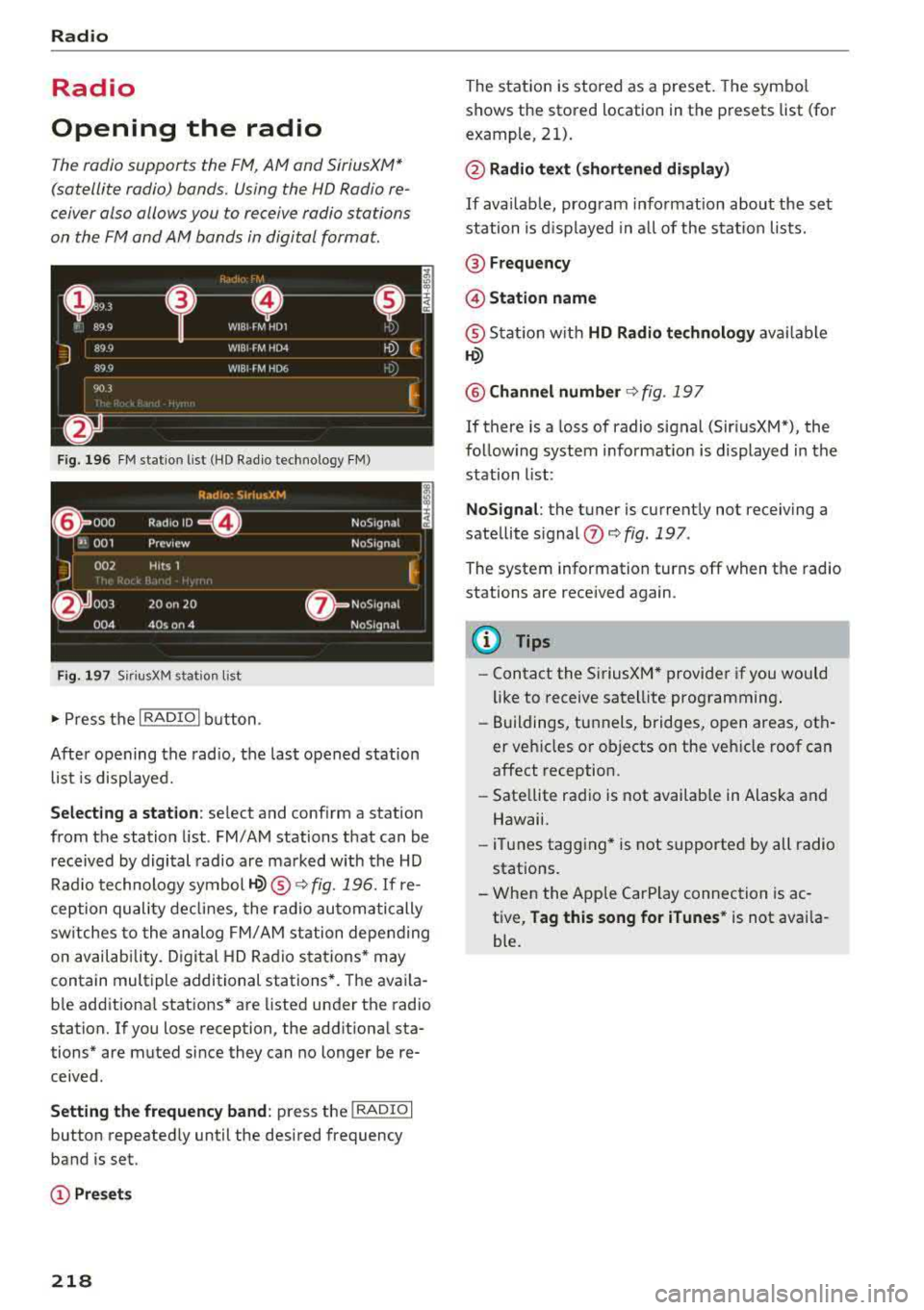
Fig. 196 FM station list (HD Radio technology FM)
Fig. 1 97 Sir iu sXM station lis t
..,. Press t he I RADIO I bu tton .
After opening the radio, t he last opened station
list is displayed.
Selecting a station : select and conf irm a stat ion
from the station list . FM/AM stations that can be
received by digital radio are ma rked with the HD
Rad io technology
symbol ©® ¢ fig. 196. If re
ception quality de clin es, the r ad io automatically
sw itches to the analog FM/ AM station depending
on availab ility. D igital HD Rad io sta tions * may
contain multiple additional stations *. The ava ila
b le add itiona l stations* are listed under the radio
station. If you lose reception, the add itiona l sta
tions* are muted since they can no longer be re
ceived.
Setting the frequency band : press the I RADIO I
button repeatedly until the desired frequency
band is set.
(!) Pre sets
218
The stat ion is stored as a preset. The symbo l
shows the stored location in the presets list (for
example, 21).
@ Radio text (shortened display )
If availab le, prog ram info rmation about the se t
station is d isplayed in a ll of the s tat io n lists.
@ Frequency
@ Station name
® Stat io n w ith HD Radio te chnolog y availa ble
©
@ Channel number ¢ fig. 197
If there is a loss of radio signal (Sir iusXM"), the
follow ing system informat io n is displayed in the
station list:
NoSignal : the tuner is current ly not receiving a
sate llite signal
0 ¢ fig . 197 .
The system information turns off when the radio
stations are received again.
(D Tips
-Contact the Si riusXM* provider if you would
like to receive satell ite programming .
- Buildings, tunnels, bridges, open areas, oth
er veh icles o r objects on the veh icle roof can
affect reception .
- Sate llite radio is not availab le in Alaska and
Hawaii.
- iT unes tagging* is not supported by all radio
stations.
- When the App le CarPlay connection is ac
t ive,
Tag this song for iTunes * is not availa
ble.
Page 221 of 404
u. 00 .-< N l' N .-< 0 N > 00
Radio functions
Free text search
App lies to: ve hicles with free text search
Using the free text search, you can select the or
der that the search terms are entered in the in
put field . Search in all frequency bands for a sta
tion name or program type, such as
News .
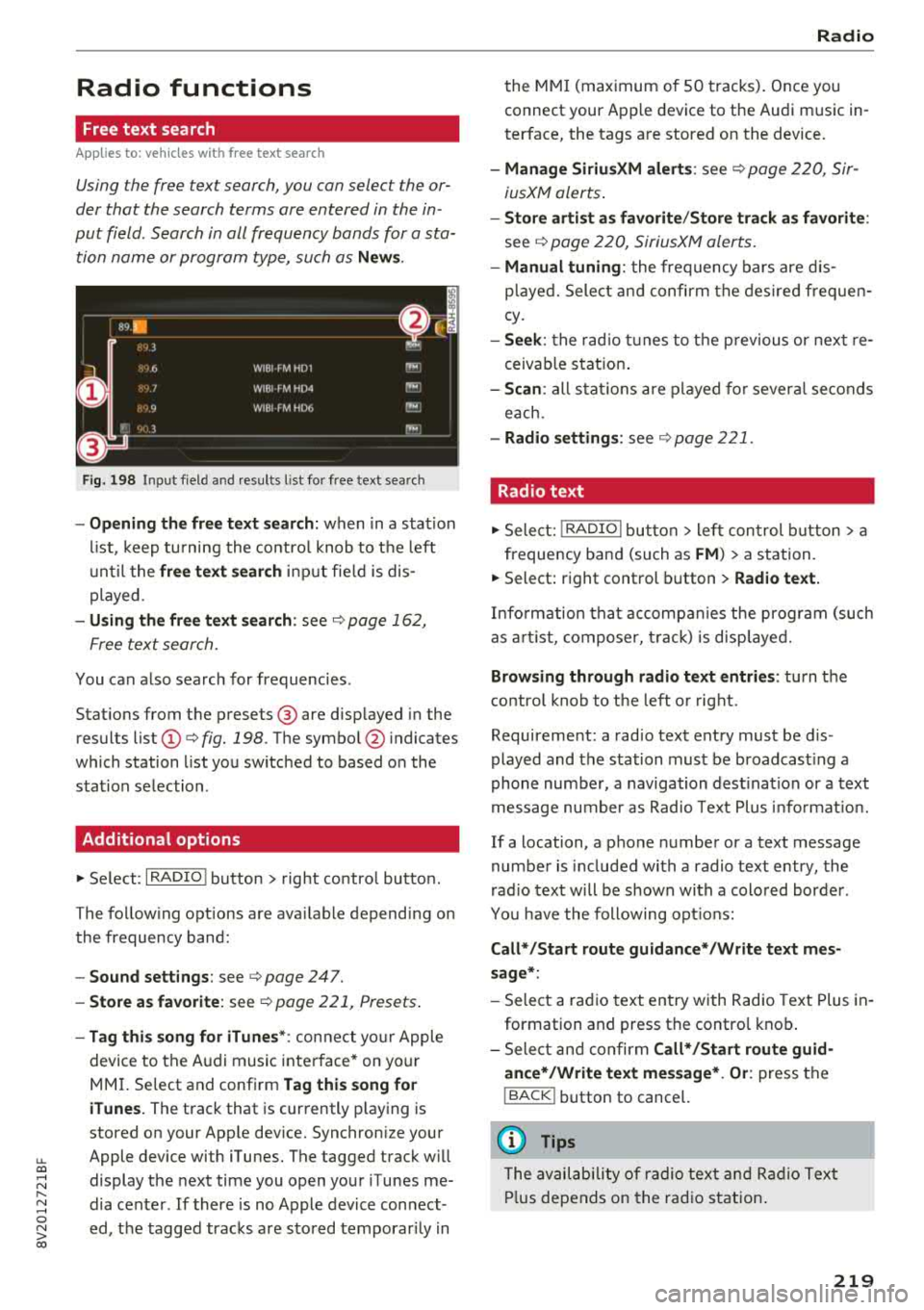
Fig. 198 Input field and results l ist for free text search
- Opening the free text search: when in a stat ion
list, keep turning the control knob to the left
until the
free text search input fie ld is dis
played.
- Using the free text search: see ¢ page 162,
Free text search.
You can also search for frequencies .
Stations from the presets ® are disp layed in the
results list
(D ¢ fig. 198. The symbol @ indicates
which station list you switched to based on the
stat ion selection .
Additional options
"'Se lect: I RADIO ! button > right control button.
The following options are ava ilable depending on
the frequency band:
- Sound settings: see ¢ page 247.
-Store as favorite : see ¢ page 221, Presets .
-Tag this song for iTunes* : connect your Apple
device to the Audi music interface* on your
MMI. Select and confirm
Tag this song for
iTunes.
The track that is currently playing is
stored on your App le device. Synchronize your
Apple device with iTunes. The tagged track w ill
display the next time you open your iTunes me
dia center . If there is no Apple device connect
ed, the tagged tracks are stored temporarily in
Radio
the MMI (maximum of 50 tracks). Once you
connect your Apple device to the Audi music in
terface, the tags are stored on the device .
-Manage SiriusXM alerts: see¢ page 220, Sir
iusXM alerts.
-Store artist as favorite/Store track as favorite:
see¢ page 220, SiriusXM aler ts.
- Manual tuning: the frequency bars are d is
p la yed. Select and confirm the desired frequen
cy.
- Seek: the radio tunes to the previous or next re
ceivab le station.
- Scan : all stations are played for several seconds
each.
- Radio settings: see ¢page 221.
Radio text
"' Select: I RADIO I button > left control button > a
frequency band (such as
FM ) > a station.
"'Select: right control button > Radio text.
Information that accompanies the program (such
as artist, composer, track) is disp layed.
Browsing through radio text entries: turn the
control knob to the left o r right .
Requirement: a radio text entry must be d is
played and the station must be broadcast ing a
phone number, a navigation destination or a text
message number as Radio Text Plus info rm ation.
If a location, a phone number or a text message
number is included with a radio text entry, the
radio text will be shown with a colored border .
You have the following opt ions:
Call*/Start route guidance* /Write text mes
sage*:
- Select a radio text entry with Radio Text Plus in
formation and press the contro l knob.
- Select and confirm
Call* /Start route guid
ance*/Write text message* . Or :
press the
I BACK ! button to cancel.
(D Tips
The availability of radio text and Radio Text
Plus depends on the radio station.
219
Page 222 of 404
Radio
SiriusXM alerts
Applies to: ve hicles w ith S iriusXM
You can display an overview of your favorite ar
tists or tracks that are currently being played on
a SiriusXM channel.
Y.@Miiiil&
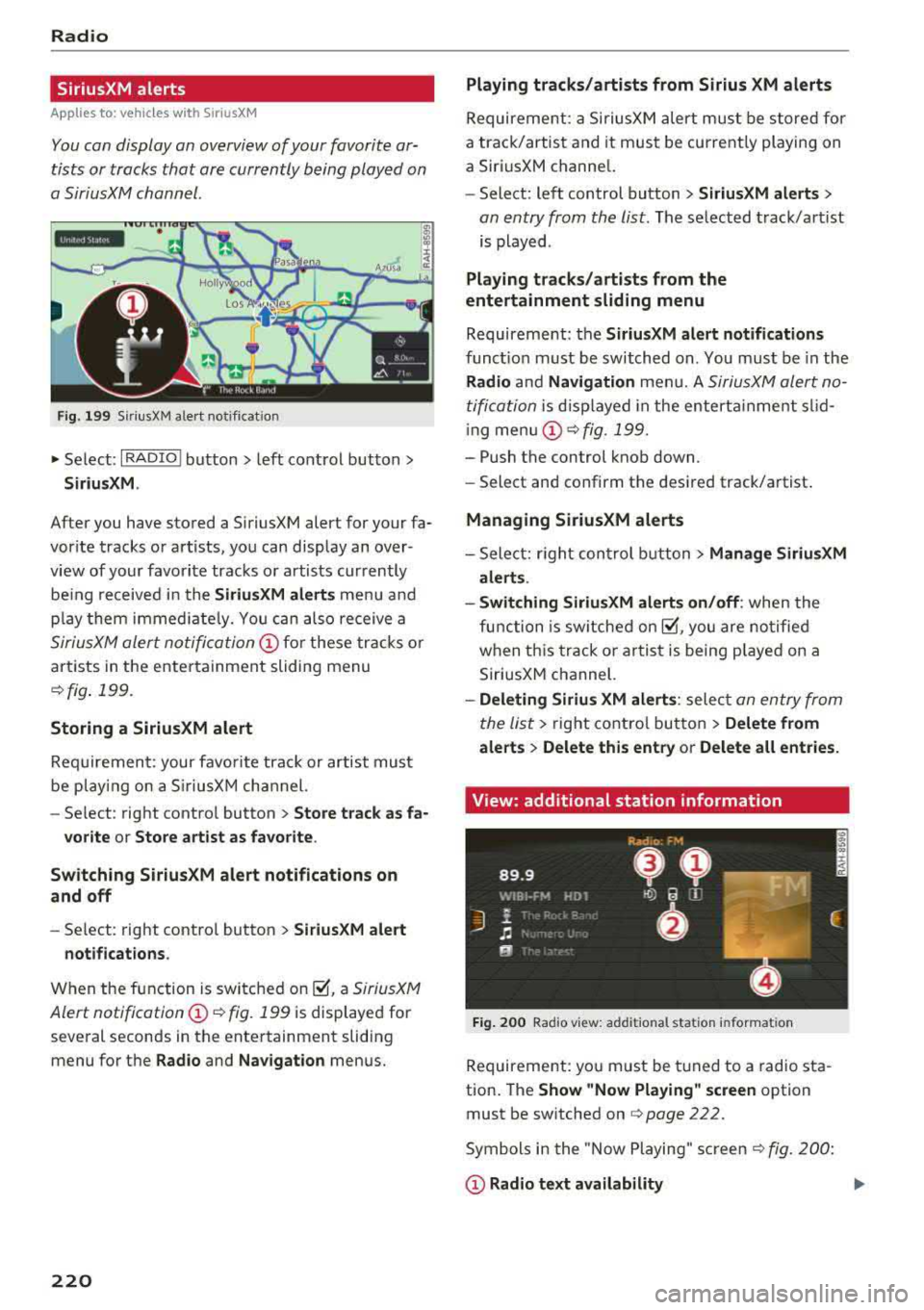
Fig . 199 SiriusXM ale rt notificat ion
~ Select: I RADIO I button > left control button >
SiriusXM .
After you have stored a SiriusXM alert for your fa
vor ite tracks or artists, you can display an over
view of your favorite tracks or artists currently
be ing re ceived i n the
SiriusXM alerts menu and
p la y them immed iately. You can also receive a
SiriusXM alert notification @for these tracks or
artists in the entertainment sliding menu
¢fig . 199.
Storing a SiriusXM alert
Requirement: your favorite track or artist must
be play ing on a SiriusXM channel.
- Se lect : right contro l button
> Store track as fa-
vorite
or Store artist as favorite .
Switching SiriusXM alert notifications on
and off
-Select: right contro l button > SiriusXM alert
notifications .
When the function is switched on~. a SiriusXM
Alert notification @¢ fig. 199
is displayed for
several seconds in the entertainment sliding menu for the
Radio and Navigation menus.
220
Playing tracks/artists from Sirius XM alerts
Requireme nt: a SiriusXM alert must be stored for
a track/artist and it must be currently playing on
a SiriusXM channe l.
- Select: left control button
> SiriusXM alerts >
an entry from the list . The selected track/artist
is played .
Playing tracks/artists from the
entertainment sliding menu
Requirement: the SiriusXM alert notifications
functio n must be switched on. You must be in the
Radio and Navigation menu. A SiriusXM alert no
tification
is displayed in the enterta inment slid
i ng menu
(D ¢fig. 199.
- Push the control knob down.
- Select and confirm the desired track/artist .
Managing SiriusXM alerts
-Select: r ight control button> Manage SiriusXM
alerts .
- Switching SiriusXM alerts on/off :
when the
function is sw itched
on~. you are notified
when this track or artist is being p layed on a
SiriusXM channel.
- Deleting Sirius XM alerts : select an entry from
the list>
right control button > Delete from
alerts
> Delete this entry or Delete all entries.
View: additional station information
Fig. 200 Radio view: additional stat ion informat ion
Requirement: you must be tuned to a radio sta
tion . The
Show "Now Playing " screen option
must be switched on
c> page 222.
Symbols in the "Now Playing" screen¢ fig. 200:
(D Radio text availability
Page 223 of 404
LL co .... N
" N .... 0 N > co
Radio text is availab le for the selected station .
See
q page 219.
@ iTunes tagging
The Tag this song for iTunes option is available
for the set station . See
Q page 219, Additional
options.
® FM HD Radio technology
T he station is received through FM HD Radio
technology .
@ Screen view
Display Cover art or Station logo. See
c:> page 222, Preferred picture view *.
Displaying the station list:
Turn the control knob. Or: press the I BACK! but
ton .
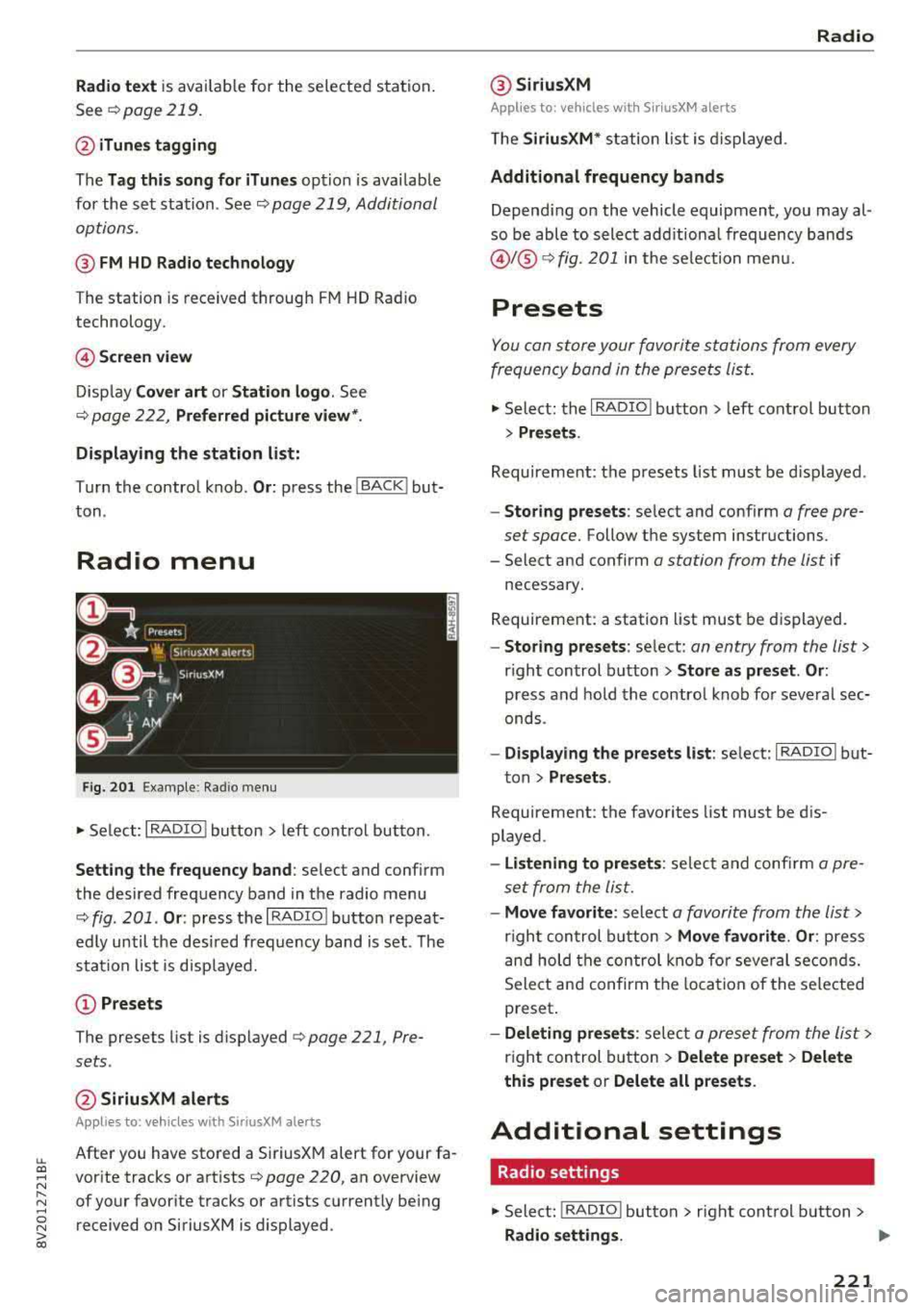
Radio menu
Fig. 201 Example: Radio menu
• Select: I RADIO ! button > left control button .
Setting the frequency band : select and confirm
the desired frequency band in the radio menu
q fig . 201 . Or: press the I RADIO I button repeat
ed ly until the desired frequency band is set . The
station list is disp layed.
(!) Presets
The presets list is dis played q page 221, Pre
sets .
@SiriusXM alerts
Applies to: vehicles with SiriusXM alerts
After you have stored a SiriusXM alert for your fa
vorite tracks or artists
c:> page 220, an overview
of your favorite tracks or artists currently being received on SiriusXM is displayed .
Radio
@ SiriusXM
Appl ies to: veh icles w ith SiriusXM alerts
The SiriusXM* station list is displayed.
Additional frequency bands
Depending on the vehicle equipment, you may al
so be able to select add itiona l frequency bands
@ l@ c:> fig. 201 in the selection menu.
Presets
You can store your favorite stations from every
frequency band in the presets list.
• Select: the I RADIO I button > left control button
> Presets .
Requireme nt: the presets list must be displayed.
- Storing presets: select and confirm a free pre
set space.
Follow the system instructions.
- Select and confirm
a station from the list if
necessary.
Requirement: a station list must be displayed.
-Storing presets: select: an entry from the list>
right control button > Store as preset. Or :
press and hold the control knob for several sec
onds .
-Displaying the presets list : select: I RADIO I but-
ton
> Presets .
Requirement: the favorites list must be dis
played .
-Listening to presets : select and confirm a pre
set from the list.
-Move favorite : select a favorite from the list>
right control button > Move favorite. Or : press
and hold the control knob for several seconds.
Select and confirm the location of the selected
preset .
-Deleting presets : select a preset from the list >
right control button > Delete preset > Delete
this preset or Delete all presets .
Additional settings
Radio settings
• Select: I RADIO I button > rig ht control button >
Radio settings. ""
221
Page 224 of 404
Radio
The following settings can be se lected, depend
ing on the band that is se lected :
Station names (FM )
Variabl e:
scrolling text tra nsmi tted by the FM
s tat ions is shown in the Infotainment system d is
p lay .
Fixed : scrolling text transm itted by the FM sta
tions is not s hown in the Infota inment system
d isp lay. O nly the cu rrent sect io n of the scro lling
text is d isplayed.
FM /AM HD Radio*
You can sw itch HD Rad io recept ion on o r off .
Channel sorting (Sirius XM *)
You can set the station so rting for SiriusXM sta
tion lists* by:
- Channel number: the channe ls are sorted in as
cending order according to their channel num
ber.
- Channel name : the channels are listed in alpha
betica l order.
- First categor y, then channel number : the
c h annels are sorted by their category and then
by the ir channe l numbers .
-First categor y, then channel name : the sta
tions are sorted by th eir cat egory and then by
their channe l names.
Categor y filter (SiriusXM *)
The stations s hown in t he s ta tion lis t can be fi l
tered by your pe rsonal prefe rences and by pro
gram type. The program categories that yo u can
select depend on what is offered by yo ur provid
er. Select the
All categor ie s option to deactivate
all filter options and display all ava ilable stations
in the satellite station list .
Troubleshooting
Problem Solution Show "Now Playing" screen
When
the functi on is swi tched on~ and the st a
tions o r presets list is open, the disp lay w ill
switch to the
Show "Now Playing " sc reen view
after approximate ly five seconds
¢ page 220 . De
pending on availab ility, information about the
set stat ion (such as stat ion name, artist and sta
tion logo) may be d isplayed in this view.
Pr efe rred picture vi ew*
You can set your preferred screen view for the
Show "Now Pla ying " screen ¢ page 220.
-Station logo : the station logo is displayed, de
pending on availability .
-Cov er art : the album cove r is d isplayed if availa
ble.
Gracenote online database *
Requirement: the MMI must be connected to the
Internet. The
Cover art opt ion must be selected
¢ page 222, Pr eferred picture vi ew *.
When the funct io n is switched on~, the album
cover or genre cover for the so ng that is p lay ing
i s loaded from t he Gracenote online database,
depend ing on ava ilability.
Subscription status (SiriusXM )*
This opt io n is available when your subscr ipt ion is
about to expire or has already expired . The expi
r ation date fo r your license is displayed .
Call to SiriusXM *: the contact information for
your sate llite rad io provider is displayed . To call
your sate llite rad io provider using the MMI, press
Call to Siriu sXM*.
A station with poor reception is no longer Store the stat io n as a preset in advance . Access the pre-
displayed in the station l ist once you sets using the presets list
¢ page 221 .
switch to a d ifferen t sta tion.
222