service AUDI A3 SEDAN 2018 Workshop Manual
[x] Cancel search | Manufacturer: AUDI, Model Year: 2018, Model line: A3 SEDAN, Model: AUDI A3 SEDAN 2018Pages: 404, PDF Size: 62.3 MB
Page 180 of 404
Tele phone
button > Settings > left control button > MMI
s etting s
> Con nectio n man age r<::> page 244.
~ Se lect and confirm the desired ce ll phone from
the list of disp layed Bluetooth devices .
~ The MMI generates a PIN for the connect ion
setup
<::> fig . 173 .
~ Select and confirm Yes .
~ Enter the P IN for connecting on your ce ll
phone .
Or: whe n the PIN is d isplayed o n your
ce ll phone, co nfirm the PIN on yo ur cell phone
and in t he MMI. The time a llowed for entering
the P IN is limited to approximately 30 seconds.
~ Pay attention to any additiona l system prompts
displayed on your cell phone, for example if the
system should connect au tomatically in the fu
ture . Depending on the cell phone, you may
have to confirm downloading the directory sep
arately .
After connect ing succ essfully
After connecting successfully, information about
the connected profiles will appear. You can a lso
change the profiles la ter. Select:
! M ENUI button>
Settings > left control button > MMI settings >
Connection manager <::> page 244.
In addition, the cell phone contacts are automat
ically loaded in the MMI directory. Th is process
can take several minutes, depend ing on the num
ber of contacts .
You can a lso make your connected cell phone the
default phone by select ing
S et as def ault tel e
phone
i n the Conne ction m anager <::> page 246 .
@ Note
Always follow the information found in c::>il]) in
Wi-Fi hotspot on page 195.
(D Tips
- Making phone calls throug h the MMI is only
possib le using the
Handsfree Bluetooth pro
file.
- You can apply additional settings to con
nected mobile devices using the
Connection
manag er <::>
page 244 .
-You can also search for the MMI in your cell
phone us ing the Bluetooth device search.
17 8
-You on ly have to pair your device one time .
B luetooth devices that are already paired
automatically connect to the M MI when the
Bluetooth funct ion is switched on, they are
within range and the ignition is sw itched on.
The last connected cell phone is given first pr iority.
- Authoriz ing the MMI connect ion in your cell
phone w ill make automatic connection pos
sible .
- Pay attention to any system prompts dis
played on you r cell phone, for example if
the system should connect automatically in
the f uture. Depend ing o n the cell phone,
yo u may also need to download the di recto
ry and confirm a ccess to your text messages
separate ly .
- Whe n leav ing the veh icle, the Bluetooth
connect ion to the cell p hone will au tomati
cally disconnect. Depending on your cell
phone, phone calls in progress may be auto
matically redirected from the MMI to your
cell phone and you can continue the ca ll on
your phone.
- You can obtain more information from your cell phone service provider or from your cel l
phone user guide. For i nformation on us ing
the telephone, v is it www .aud iusa .com/
bluetooth or contact an a uthorized Audi
dea ler or author ized Audi Se rvice Facili ty.
- Applies to: vehicles without secondary
phone: Several cell phones can be paired to
the MMI, bu t only one cell p hone can be a c
t ively connec ted to the MM I.
- Applies to: vehicles without secondary
phone: If a Bluetoo th device is a lready con
nected to the MMI, i t will be d isconnected
w hen anot her device connects to the MM I.
Page 186 of 404
Telephone
Forward
The selected text message can be forwarded to a
different recipient.
Send again*
The selected text message can be resent.
Delete this text me ssage*
The se lected text message can be deleted .
Read out1
)
You can have the MMI read an open text mes
sage .
Text messaging settings*
To disp lay when a new text message is received,
e na ble the
Text message notifications . New text
messages are indicated w ith an enve lope
121 in
the Infotainment system display status line.
Connection manager
See ¢ page 244 .
Wi-Fi settings
See ¢page 195.
Telephone settings
See ¢page 187.
(D Tips
Messages that are deleted in the MMI are also
deleted in the cell phone automatically.
E-mail*
Applies to: cell phones with Bluetooth Message Access Profile
(MAP)
Depending on the type of cell phone being used,
you can receive and send e-mails through the
MMI.
Requirement: a cell phone must be connected to
the MMI via Bluetooth MAP (Message Access Pro
file)
¢ page 177 . You can find out in your cell
phone owner's manual if your cell phone sup
ports this function.
1) Not availa ble in all l an guage s.
184
.. Select: IMENUI button> Telephone > left con
trol button >
e-mail (myPhone) /e-mail (secon
dary phone )*.
Write new e-mail
Select and confirm Write new e-mail.
- Using a template :
select and confirm the de
sired template from the list.
-Writing your own text* : select and confirm Do
not use template .
Enter text using the MMI
touch control pad* or the letter speller.
- Enter one or more rec ipients .
- Select and confirm
Send.
Inbox
A ll received e -mails are displayed .
Sent
All sent e-mails are displayed.
Outbox
All e-ma ils that will be sent are displayed.
Drafts
A ll saved e-mails that have not been sent yet are
displayed.
(@ Note
A lways follow the informa tion found in ¢Cl) in
Wi-Fi hotspot on page
195.
(D Tips
-For more information on supported cell
phones, visit www.a udiusa. com/bl uetoo th
or contact an authorized Audi dealer or au
thorized Audi Service Facility .
- To ensure that your sent e -mails are re
ceived, connect your cell phone to the Wi-Fi
hotspot* in the vehicle so that the e-mai l
app on your ce ll phone continues to have In
ternet access. If you are still not receiving e
ma ils even though you have a successfu l
connect ion, then contact your e-mail service
prov ider or you r cell phone service provider.
Page 187 of 404
u. 00 ... N l' N ... 0 N > 00
Message options
Applies to: cell phones with Blue toot h Message Access Profile
(MAP)
"' Select: I MENU I button >Telephone > left con
trol button >
e-mail (myPhone)/e-mail (secon
dary phone}* > Inbox /Sent /Outbox
> right
control button.
The following options may be available depend
i ng on the selected menu.
Store as template
Ten e-mail templates are stored in the MMI. You
can save up to ten addit ional templates.
- Create an e-mail.
- Select and confirm
Store as template.
Resume last edited e-mail
The last e-mail in progress can be resumed .
Reply*
A reply can be sent for the selected e -mail in the
Inbox .
Reply to all*
A reply can be sent for the selected e-mail in the
Inbox and it will be sent to all of the entered re
cipients.
Forward
The selected e -mail can be forwarded to a differ
ent rec ipient.
Delete this message*
The selected e-ma il can be deleted .
Read out1
)
You can have the MMI read an open e-mail.
E-mail settings*
To disp lay when a new e-mai l is received, activate
the
E-mail notifications . New e-mails are ind icat
ed with an envelope
[gJ in the Infotainment sys
tem disp lay stat us line.
ll Not availab le in all la nguages .
Connection manager
See~ page 244.
Wi-Fi settings
See ~page 195.
Telephone settings
See ~ page 187.
(D Tips
Telephone
-Messages that are deleted in th e MMI are
also automatically deleted in the connected
cell phone .
- You cannot read any messages whi le driv
ing .
Listening to voicemail
Applies to: vehicles with telephone
"'Select: IMENUI button> Telephone> left con
trol button. Select and confirm
Call list /Direc
tory /Favorites > Voicemail.
- Entering the voicemail number:
enter the de
sired number. Select and confirm
OK.
- Dialing the voicemail number: select and con
firm
Voicemail.
(D Tips
- This service must be set up and activated in
advance by the cell phone service provider.
You can obtain more information from your
cell phone service provider.
- Th e voicemail number depends on the cell
phone service provider .
185
Page 188 of 404
Telephone
Directory
Opening the directory
Applies to: vehicles w ith telep hone
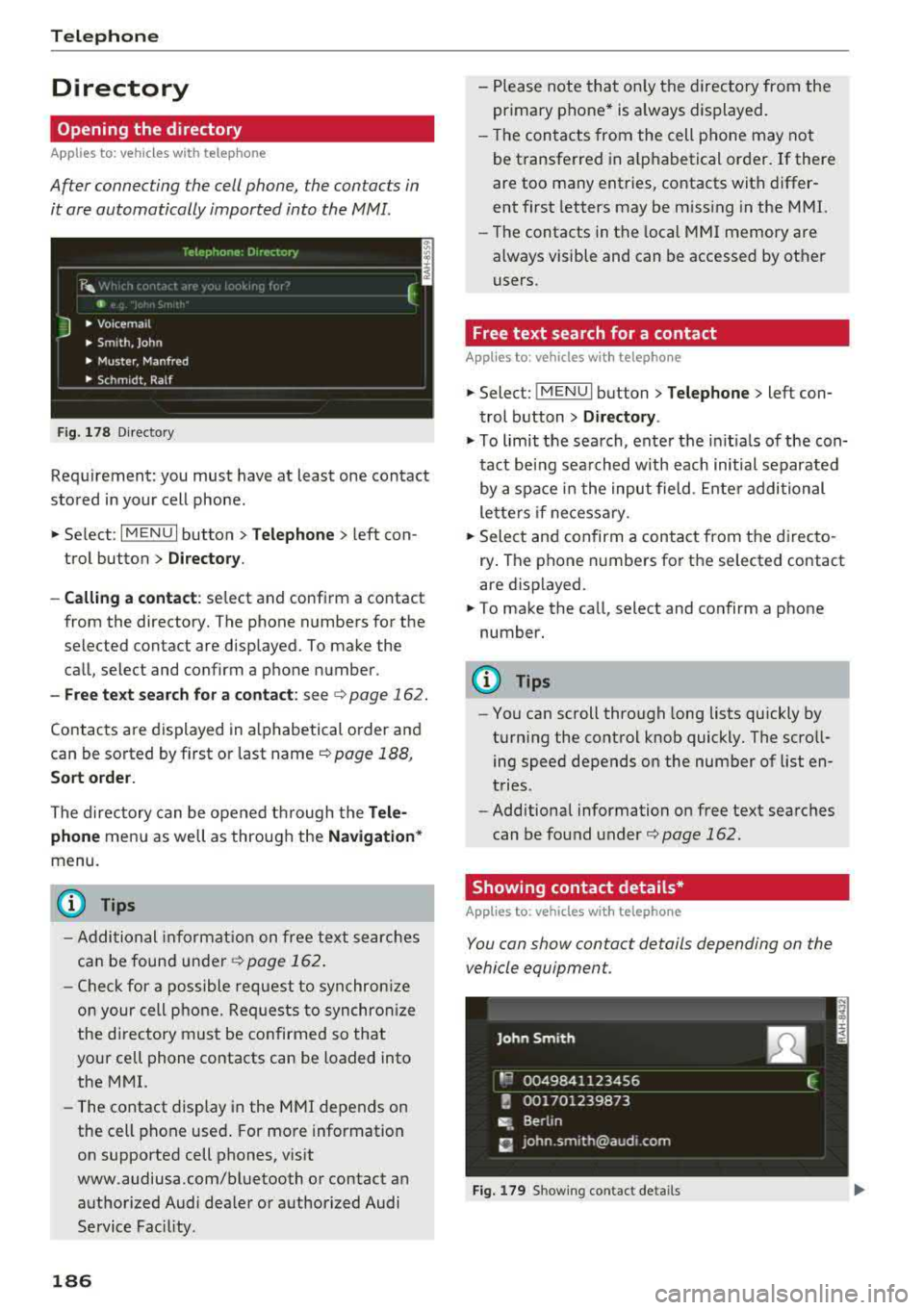
After connecting the cell phone, the contacts in
it are automatically imported into the
MMI.
Fig. 178 Directory
Requirement: you must have at least one contact
stored in your cell phone .
.. Select: I MENU I button >Telephone > left con
trol button >
Directory .
- Calling a contact:
select and confirm a contact
from the directory. The phone numbers for the
selected contact are displayed. To make the call, select and confirm a phone number.
- Free text search for a contact: see ¢ page 162.
Contacts are displayed in alphabetical order and
can be sorted by first or last name ¢
page 188,
Sort order.
The directory can be opened through the Tele
phone
menu as well as through the Navigation *
menu.
(D Tips
-Additional information on free text searches
can be found under
¢ page 162.
-Check for a possible request to synchronize
on your cell phone. Requests to synchronize
the directory must be confirmed so that
your cell phone contacts can be loaded into
the MMI.
- The contact display in the MMI depends on
the cell phone used . For more information
on supported cell phones, visit
www.audiusa .com/bluetooth or contact an
authorized Audi dea ler or authorized Audi
Service Fac ility.
186
- Please note that only the directory from the
primary phone* is always displayed.
- Th e contacts from the cell phone may not
be transferred in alphabetical order. If there
are too many entries, contacts with differ
ent first letters may be miss ing in the MMI.
- The contacts in the local MMI memory are
always visible and can be accessed by other
users.
' Free text search for a contact
App lies to: vehicles wit h telepho ne
.. Select: !MENUI button> Telephone> left con
trol button >
Directory .
.,,. To limit the search, enter the initials of the con
tact being searched with each initial separated
by a space in the input field . Enter additional
letters if necessary .
.. Select and confirm a contact from the directo
ry . The phone numbers for the se lected contact
are displayed.
.. To make the call, select and confirm a phone
number.
(D Tips
- You can scroll through long lists quickly by
turning the control knob quickly. The scroll ing speed depends on the number of list en
tries.
- Additional information on free text searches
can be found under¢
page 162.
Showing contact details*
Applies to: vehicles with telephone
You can show contact details depending on the
vehicle equipment.
Fig. 179 Sh owing contact detail s
Page 191 of 404
u. 00 .-< N l' N .-< 0 N > 00
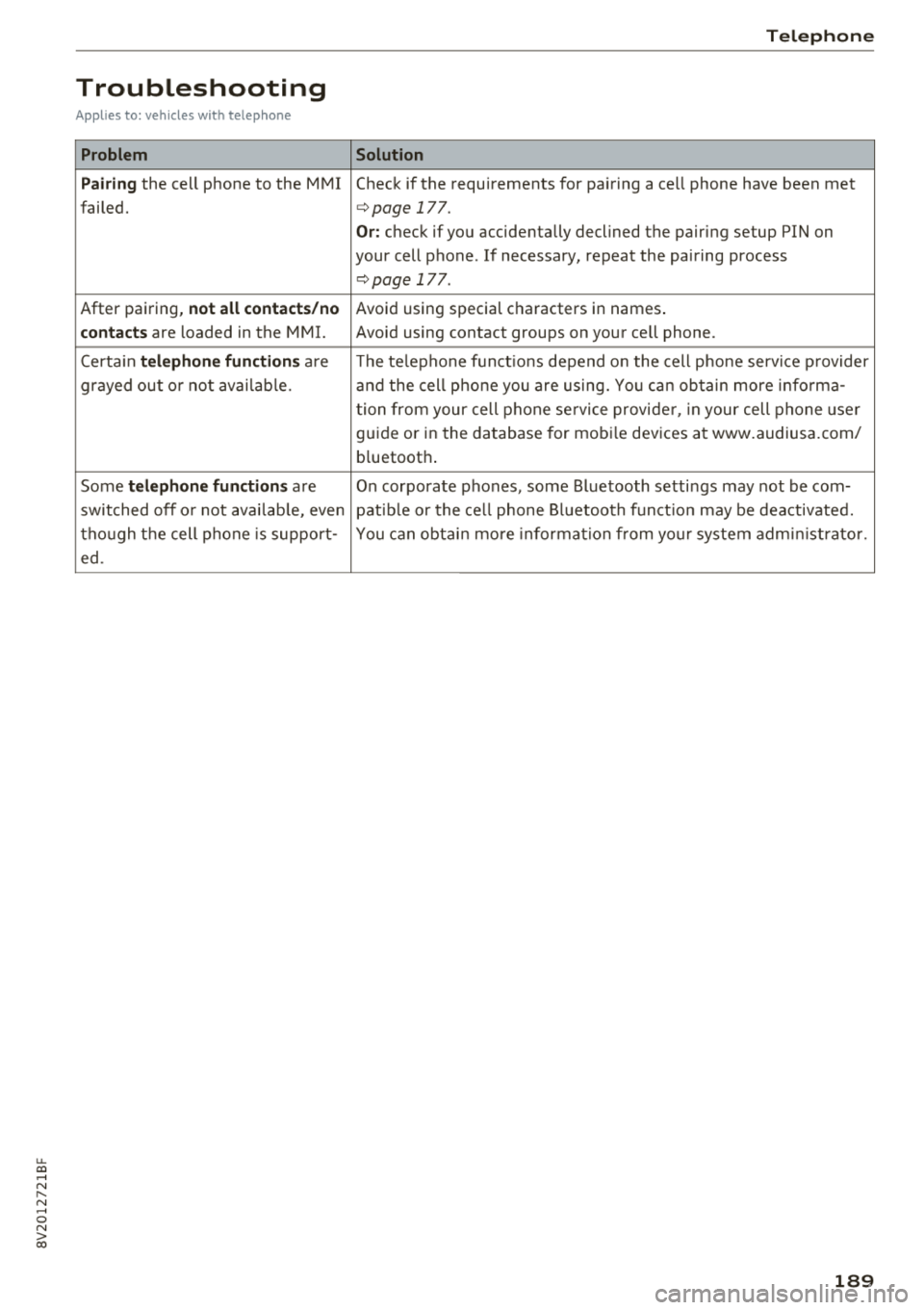
Troubleshooting
Applies to: vehicles with telephone
Problem
Pairing
the cell phone to the MMI
failed.
After pairing,
not all contacts/no
contacts
are loaded in the MMI.
Certa in
telephone functions are
grayed out o r not avai lab le.
Some
telephone functions are
switched off o r not avai lab le, even
though the cell phone is support-
ed.
Telephone
Solution
Check if the requirements for pairing a cell phone have been met
c>page 177.
Or: check if you accidentally declined the pairing setup PIN on
your cell phone. If necessary, repeat the pairing process
c>page 177 .
Avoid using special characters in names .
Avoid using contact groups on your cell phone.
The te lephone funct ions depend o n the cell phone service p rovider
and the cell phone you are using. You can obtain more informa-
tion from your cell phone se rvice provider, in your cell phone user
guide or in the database for mobi le devices at www.audiusa.com/
b luetooth .
On corporate
phones, some Bluetooth settings may not be com-
patib le or the cell phone Bluetooth function may be deactivated.
You can obtain more information from yo ur system administrator.
189
Page 192 of 404
Audi conn ect (Infotainment)
Audi connect
(Infotainment)
Introduction
Applies to vehicles with Audi connect (Infotainment)
With Audi connect Infotainment services, online information is transmitted directly to the vehicle
and then integrated .
A WARNING
To reduce the risk of an accident, only use
Audi connect Infotainment services when
road and traffic cond itions permit. A lways
read and fo llow the notes
in~ page 154,
Traffic safety information.
Setup
Requirements for Audi connect (Infotainment)
Applies to vehicles with Audi connect (Infotainment)
-
The data connection fo r A udi connect Infota in
ment services is made thro ugh an embedded SIM
card (eS IM card) that is equipped in the veh icle.
The fo llow ing requ irements must be met to use
the embedded SI M card:
- You have already reg istered at
www .aud iusa.com/myaud i and ass igned a vehi
cle.
- You have also already logged in to your myAud i
account under Audi connect plan for the em
bedded SIM card and accepted the terms of use
given there. For add it io na l information, co ntact
an a uth orized Aud i de aler o r au th orized Audi
Service Facility .
Then you r Audi connect Infota inment serv ices are
activated and can be used in your ve hicle.
(D Tips
- After the free subscription has ended or the
data volume has been used up, data pac kets
can be purchased for the use of Audi con nect Infot ainment serv ices. You can find a d
dit ional info rmation about fees and pur
chasing at www .audiusa .com/myaudi.
190
- Read this chapter before operating
~ page 196, Audi connect (Infotainment)
general information.
Configuration through myAudi
Audi connect (Infotainment) configuration
Applies to vehicles with Audi connect (Infotainment)
Some A udi connect Infotainment services must
be conf igured through your personal myAud i ac
count before using them for the first time.
- If you do not have a persona l myAudi account
yet, you can register on line at
www.a udiusa.com/myaudi.
- Add your vehicle to your myAudi account.
- Ac tivate/config ure the A ud i connect (Infotain -
ment) services you would like for your veh icle in
your myA udi account.
- For some Audi connect Infotainment services,
you may also have to enter your myAudi user
data or your myAudi PIN when accessing serv ices in the MMI to connect your veh icle to
myAudi.
For detailed information on configuration, visit
www.audiusa .com/mya udi .
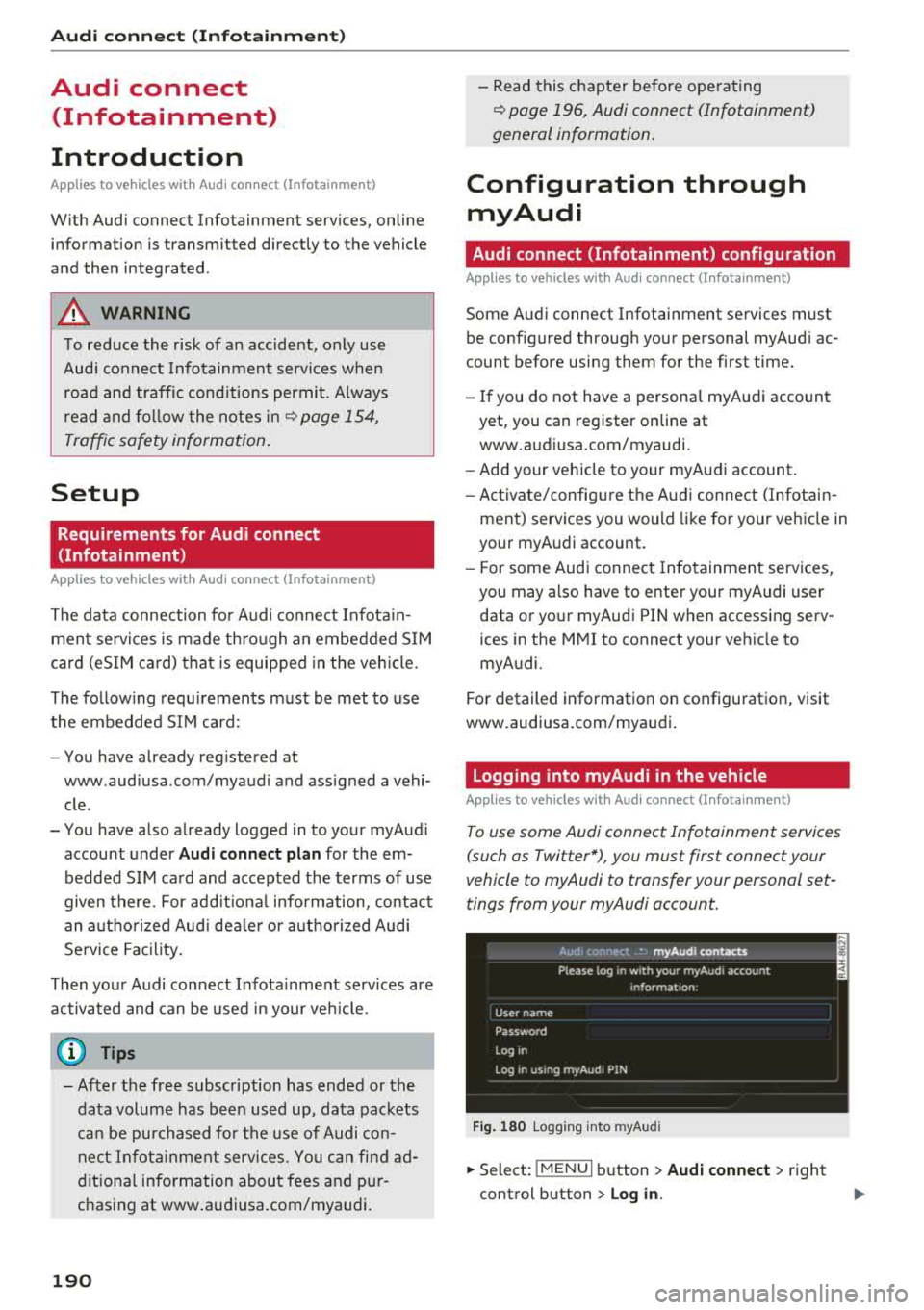
Logging into myAudi in the vehicle
Applies to vehicles with Audi connect (Infotainment)
To use some Audi connect Infotainment services
(such as Twitter*), you must first connect your
vehicle to myAudi to transfer your personal set
tings from your myAudi account.
Fig . 180 Logging into myA udi
.,.. Select: !MENUI b utton> Audi conne ct > right
control button > Log in.
Page 193 of 404
LL co .... N
" N .... 0 N > co
• Enter your myAudi user data. Or: enter your
e ight-d igit myAudi PIN .
• Confirm your entry with OK.
Then you can open your persona l settings from
your myAudi account in your vehicle .
(D Tips
You can receive your my Aud i PIN if you have
set up a myAudi account. For additional infor
mat ion, see www.audiusa .com/myaudi.
Opening Audi connect
(Infotainment)
A ppl ies to veh icles w ith A ud i con nect (Infotainment)
_________ A _o _d _, _c _o _" _" _°"' _ t·_A
_ ,1_ ,_ •_ r_, _ ,_ •_ •_____ _ ,
:· . l : ~
I;;~ .,_lJre,; --· (. '
44 ,6 °F .:;·, .44 6 F
J ;9 O nline dest inations
.,. ,', ': . 37 r-·~·· -1
~ Online traffic information =
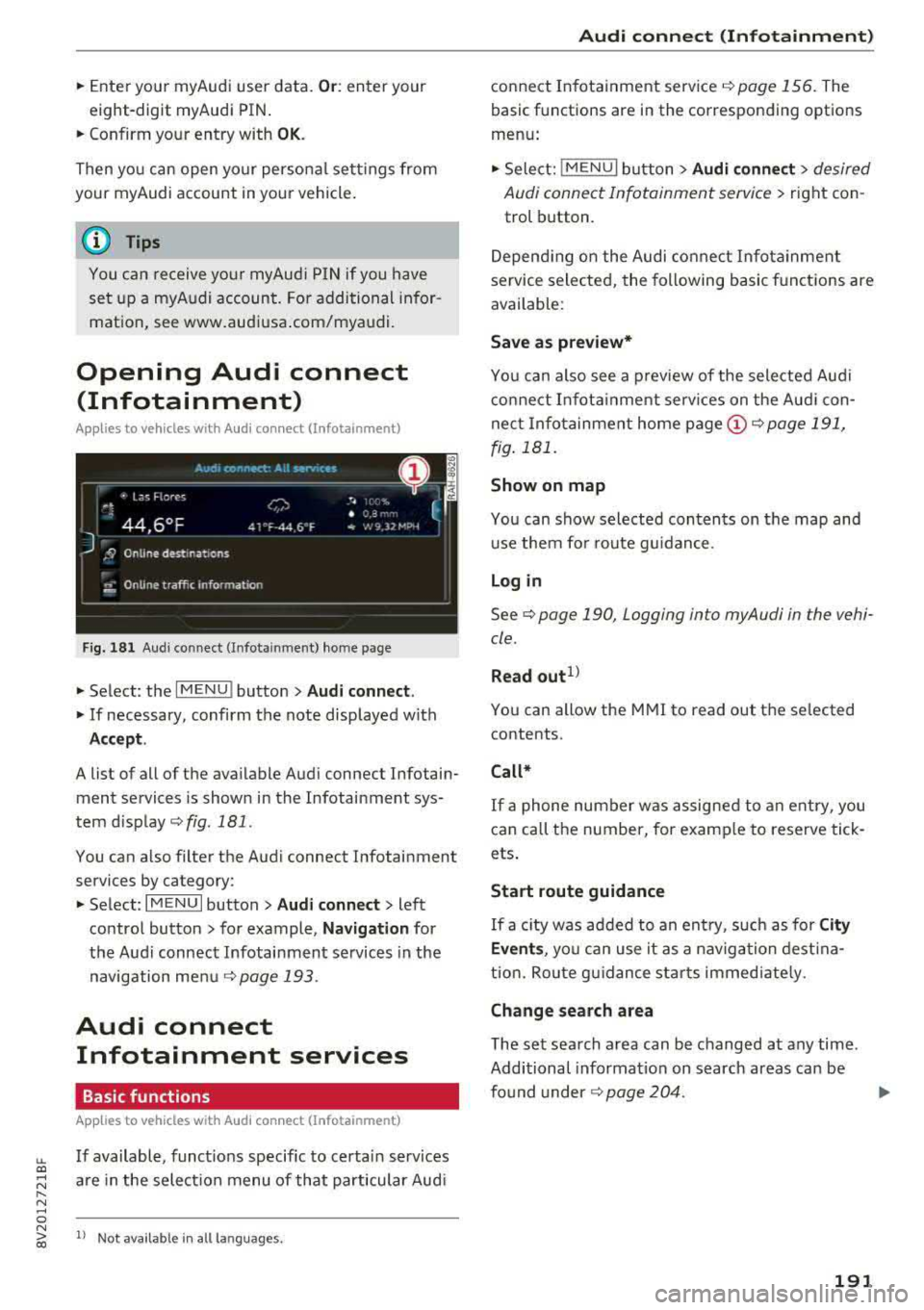
Fig. 181 Aud i co nn ect (Infot ainm ent) home p age
• Select : the I M ENU ! button> Audi connect .
• If necessary, confirm the note displayed with
Accept .
A list of all of the available Audi connect Infotain
ment services is shown in the Infotainment sys
tem display
r::;, fig. 181 .
You can also filter the Audi connect Infotainment
services by category:
• Select : I MENU I button > Audi connect> left
control button > for example,
Navigation for
the Audi connect Infotainment services in the
navigation menu
r::;, page 193 .
Audi connect
Infotainment services
Basic functions
A pplies to vehicles w ith A ud i con nect (Infota inme nt)
If available, functions specific to certa in services
are in the selection menu of that particular Aud i
l) Not avail able in all lang uag es .
Audi connect (Infotainment)
connect Infotainment service r::;, page 156. The
basic functions are in the corresponding options
menu:
• Select: ! MENU I button> Audi connect> desired
Audi connect Infotainment service>
right con
trol button .
Depending on the Audi connect Infotainment
service selected, the following basic functions are
available:
Save as preview*
You can also see a preview of the selected Audi
connect Infotainment services on the Aud i con
nect Infotainment home page
(Dr=;, page 191,
fig . 181.
Show on map
You can show selected contents on the map and
use them for route guidance.
Login
Seer::;, page 190, Logging in to myAudi in the vehi
cle .
Read out1>
You can allow the MMI to read out the selected
contents .
Call*
If a phone number was assigned to an entry , you
can call the number, for example to reserve tick
ets.
Start route guidance
If a c ity was added to an entry, such as for City
Events ,
you can use it as a navigation destina
tion. Route gu idance sta rts immed iate ly .
Change search area
The set search area can be changed at any time .
Additional information on search areas can be
found under
r::;, page 204.
191
Page 194 of 404
Audi connect (Infotainment)
Closing Audi connect Infotainment services
Regardless of the function selected, you can
close an Audi connect Infotainment service at any
time and return to the home screen
r=;,poge 191,
fig.181 .
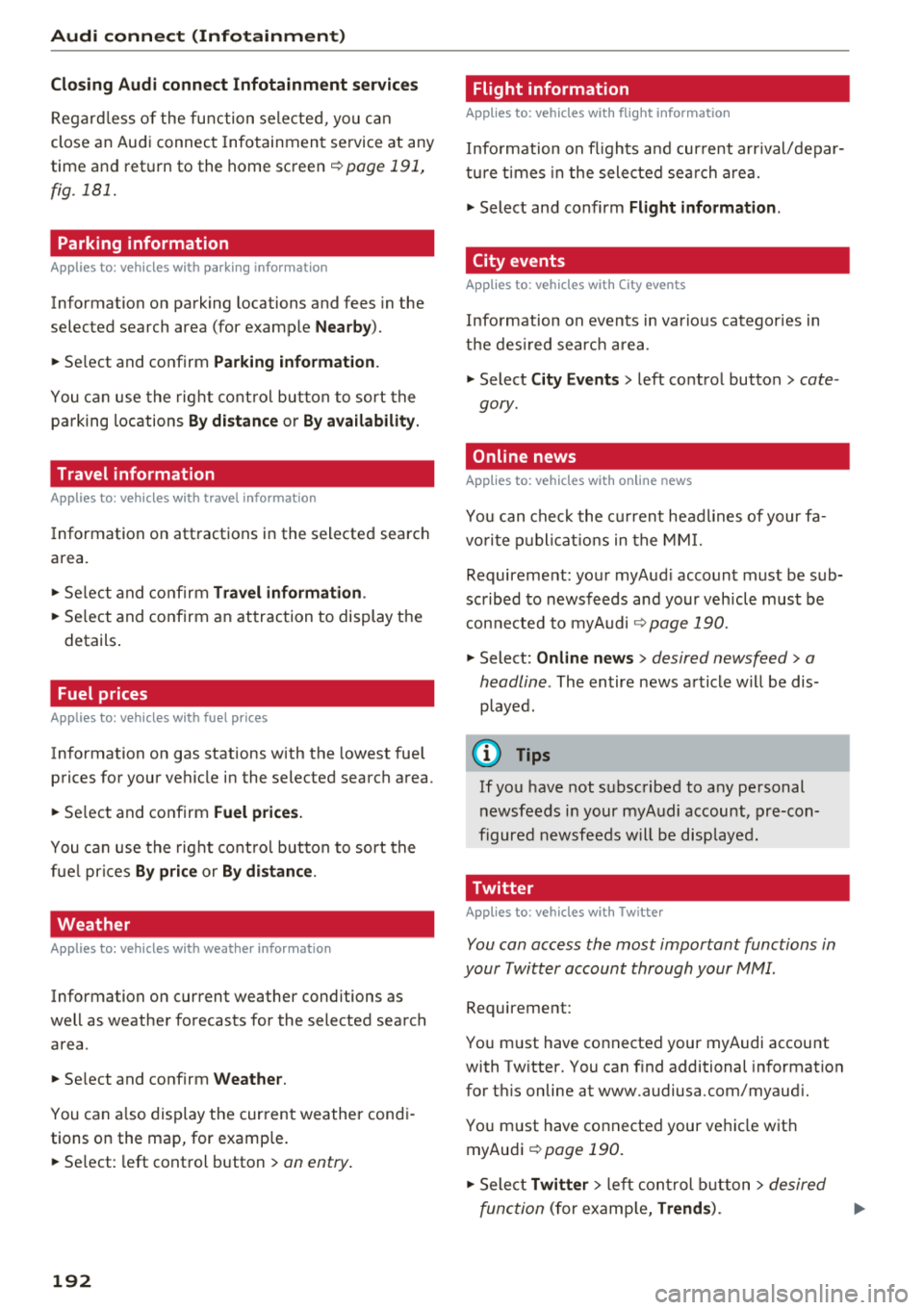
Parking information
Applies to: vehicles with parking informa tion
Information on parking locations and fees in the
selected search area (for example
Nearby ).
~ Select and confirm Park ing information.
You can use the right control button to sort the
parking locations
By distance or By availability.
Travel information
Applies to: vehicles with travel informa tion
Information on attractions in the selected search
area.
~ Select and confirm Travel information .
~ Select and confirm an attraction to display the
details .
Fuel prices
Applies to: vehicles with fuel prices
Information on gas stations with the lowest fuel
prices for your vehicle in the selected search area.
~ Se lect and confirm Fuel prices.
You can use the right control button to sort the
fue l pr ices
By price or By distance .
Weather
Applies to: vehicles with weather information
Information on current weather conditions as
well as weather forecasts for the selected search area .
~ Select and confirm Weather.
You can a lso display the current weather condi
tions on the map, for examp le .
~ Se lect : left control button > on entry.
192
Flight information
Applies to: vehicles with flight informat ion
Information on flights a nd cur rent arr ival/depar
ture times in the selected sea rch area.
~ Select and confirm Flight information.
City events
Applies to: vehicles with City events
Information on events in var ious categories in
the desired search area.
~ Select City Events> left control button > cate
gory .
Online news
Applies to: vehicles with on line news
You can check the current headlines of your fa
vo rite publications in the MMI.
Requirement: your myAud i account must be sub
scribed to newsfeeds and your veh icle must be
connected to myAudi
r=;,page 190.
~ Select: Online news > desired newsfeed > a
headline .
The entire news article w ill be dis
played .
(D Tips
If you have not subscribed to a ny personal
newsfeeds in your myAudi account, pre-con
figured newsfeeds will be disp layed.
Twitter
Applies to: vehicles with Twitter
You con access the most important functions in
your Twitter account through your MMI .
Requirement:
You m ust have connected your myAudi account
with Twitter. You can find additional information
for th is on line at www.audiusa.com/myaud i.
You must have connected your vehicle with myAudi
r=;, poge 190 .
~ Select Twitter > left cont rol button > desired
function
(for examp le, Trends ).
Page 195 of 404
u. 00 .-< N l' N .-< 0 N > 00
The following categories can be selected in the
Twitter menu:
-My tw eets: News Feed and the Tweets you have
posted are listed.
- Home: the Tweets for everyone you follow are
displayed.
- Trends : topics on Twitte r that are cur rently
popular w ithin a country .
D ifferent functions are available depending on
the Twitter category you have selected:
- New tweet : you can post a new tweet using
pre-made templates or using myAudi tem
plates that you have created yourself .
-Refresh : the selected Tw itter function is re
freshed .
-Favorite : mark a Tweet as favorite to show you
liked it .
-Retweet: you can quote a Tweet to share it with
others.
(D Tips
- Other settings such as account, language,
Tweet security and location settings
cannot
be changed in the MMI. These changes must
be made on the Twitter webs ite.
- You can only connect
one Twitter account
with your myAudi account.
- Audi connect (Infotainment) makes it possi ble to access Tw itter. Permanent ava ilability
cannot be guaranteed, because that de pends on Twitter.
Travel (travel guide)
Applies to: ve hicles with Trave l (travel guide)
You can use the Audi MMI connect opp to store
points of interest on your mobile device (such as a smartphone) and then use them for route
guidance in the
MMI.
Requirement:
The
Audi MMI connect app must be insta lled and
open on your mobile device.
Audi connect (Infotainment)
You must be logged into your myAudi account in
the
Audi MMI connect app and you must have se
l ected your vehicle.
T he Wi-Fi function on your mobile device and on
the MMI must be switched on.
T he M MI must be connected to the network.
.. Press: !MENU ! button> Audi connect> left con-
trol button >
Information category> Travel.
After opening the trave l guide, trave l tips in your
area w ill be displayed including current ratings as
well as the corresponding category .
.. Press the left control button to change the cat
egory (such as bars nearby).
,&. WARNING
- It is only safe to use tablets, laptops, mo
bile devices and other similar devices when
the vehicle is sta tionary because, like all
loose objects, they co uld be thrown around
the inside of the ve hicle in a crash and cause
serious inj uries. Store these types of devices
securely while driving.
- Do not use any wireless devices on the front
seats within range of the airbags while dr iv
ing. Also read the warnings in the chapter
¢ page 2 73, Front airbags .
(D Tips
-Units of measurement, language settings
and time are shown in the Infotainment sys
tem display based on how they were set in
the MMI system sett ings
¢ page 243.
Audi connect (Infotainment) in navigation
App lies to : vehicles wit h a navigat ion syste m and Audi co n
nect (Infota inment)
.. Select: IMENU! button> Audi connect> left
control button>
Navigation.
-
T he following Audi connect Infotainment services
are currently available:
..,.
193
Page 196 of 404

Audi conn ect (Infotainment)
- Navigation with satellite map1> r::!>page 213.
- Po in t o f Inter est (PO I) online se a rc h with
v o ic e re co gni tion
(such as restaurants): plan
route g uidance using the MMI control panel
¢ page 204 and the voice recognition system
¢page 170.
-Set up destinations in your MMI using your
m yAudi acco unt or the sa tellite m ap vie w l)
¢ page 213.
- Online traffic informat ion : receive up-to-the
minute traffic information about accidents,
road construction and other incidents
¢page 216.
- Map updat e: import navigat ion map updates
directly to your vehicle using an SD card or as
an online update
¢page 214.
(D Tips
-For the map update Audi connect Infotain
ment service via SD card, check the current
software vers ion in your vehicle and then
check www.aud iusa .com/myaudi to see if a
newer ve rsion is ava ilable. You can a lso have
the new navigation data insta lled by an A udi
dealer, w hich can be done for an add itional
cha rge.
- You can find add itiona l information abo ut
the
map upda te on line a t
www.audiusa.com/myaud i.
Audi connect (Infotainment) in Media
menu
Applies to vehicles with Audi connect (Infotainment)
.,. Se lect : IMENUI button> Audi connect > right
control button >
Ente rtainment .
- Online medi a and Internet r adio :
offers access
to different online media services as well as In
ternet rad io and operat ion through the MMI us
ing the
Audi MMI conne ct app.
Applies to: vehicles with Wi-Fi audio player
-Wi-Fi audi o player : you can access t he media
center through a Wi -Fi connected media player
(such as a smartphone)
¢ page 22 7.
ll AU DI AG provides access to services fro m third party pro
v iders . Pe rma nent availabil ity can not be guaran teed , be
c a use that depen ds on the th ird party provider.
194
A WARNING
It is only safe to use tablets, laptops, mobile
devices and other similar devices whe n the ve
hi cle is stationary because, like all loose ob
jects, they could be thrown around the inside of the vehicle in a cras h and cause se rious in
j ur ies . Store these types of devices sec urely
while driv ing.
((D} Note
A lways fo llow the information found in r::!> 0 in
Wi -Fi hotspot on page 195.
(D Tips
- Also see the chapter r::!> page 196, Audi con
nect (Infotainment) general information.
- For more informat ion on the W i-F i aud io
player and suppo rted devices, contact an
autho rized A ud i dealer o r autho riz ed Aud i
Serv ice Facility.
Additional options
Applies to vehicles with Audi connect (Infotainment)
.,. Select: IMENUI b utton> Audi conn ect > right
control button.
The following opt ions are available in the Aud i
connect I nfota inment serv ices overv iew :
About Audi conn ect
Here you w ill find legal information for Audi con
nect (Infota inment) usage .
Lo g in *
See ¢ page 190, Logging into myAudi in the vehi
cle.
Connection manager
Seer::!> page 244.
Licens e subscription
The validity and exp iration date of your licenses
a re disp layed. W hen the fu nction is sw itched on
1111-