ad blue AUDI A4 2017 Owner's Manual
[x] Cancel search | Manufacturer: AUDI, Model Year: 2017, Model line: A4, Model: AUDI A4 2017Pages: 386, PDF Size: 96.32 MB
Page 170 of 386

Telephone
(D Tips
-Messages that are deleted in the MMI are
a lso automatica lly deleted in the connected
cell phone.
- You cannot read any messages while driv
i ng.
Listening to voicemail
A ppl ies to: ve hicles w ith telep hone
~ Se lect : I MENU I button >Telephone > left con
tro l button. Select and confirm
Call list /Direc·
tory /Favorites
> Voicemail.
- Ente ring the voicemail numbe r:
enter the de
si red number . Select and confirm
OK .
-Dialing the voicemail numbe r: select and con
firm
Voicemail.
@ Tips
- T his service must be set up and activate d in
advance by the cell phone se rvice provide r.
You can o bta in mo re information from your
cell phone service prov ider.
- The voicemai l num ber depends on the ce ll
p hone se rvice provider.
Directory
Opening the directory
A pp lies to: ve hicles w ith tele phone
After connecting the cell phone, the contacts in
it are automatically imported into the MMI.
__________ r_e_l•_P_h_o_n_e_· _o_,_,e_c_t_o_,Y ________ ~ I
~.-. [.· Q ,
J • Voicema il
• Smith, John
• Muster, Manfred
• Schmidt, Ralf
Fig . 163 Directo ry
~ Se lect : I MENU I button> Telephone > left con
trol button >
Directory .
- Calling a contact :
select and confirm a contact
from the directory. The phone numbers fo r th e
168
selected contact open . To make the ca ll, select
and confirm a phone n umber.
- Free text search for a conta ct : refer to
<=:> page 149.
Conta cts a re displ aye d in alph abet ic al ord er and
ca n be sorted by first or las t name
c::> page 17 0,
Sort order .
The directory can b e op ened through the Tele·
phone
menu as well as t hrough t he Navigation *
menu.
(D Tips
-Add itiona l informa tion o n fre e te xt s ea rc h
ing can be fo und un der
<=:>page 14 9.
- Check fo r a possib le request to synchronize
on your cell phone . Reques ts to sy nch roni ze
t h e d irec tory mus t b e con firme d so that
y ou r ce ll p hone conta cts ca n be lo ade d into
t h e M MI.
- Th e conta ct displ ay in the M MI depend s on
t h e ce ll phone u sed. Fo r more info rmation
on su pported ce ll phones, visit
www .audiusa.com/bluetooth or contact
your authorized A udi dealer o r autho rized
Audi Service Facility.
- The d irecto ry from the ce ll phone that is ac
t ively connected will always be displayed.
- The contacts from the cell p hone might not
be t ransfe rred in a lp habetical or der. If there
are too many ent ries, contacts with d iffer
ent first letters may be m iss ing in the MMI.
- The contacts in t he local MMI memory are
always visible and can be accessed by ot her
users.
Free text search for a contact
App lies to : vehicles wit h te lepho ne
~ Select : !M EN UI button> Telephone > left con
trol b utton >
Directory .
~ To limit t he se arch, ente r th e ini tia ls of the con
t a ct bei ng se arched with e ach initial se par ated
by a s pace i n t he input fiel d. E nte r addi tional
letters if necessa ry .
~ Select and confirm a contact from t he d irecto
ry. The phone numbe rs fo r the se lected contact
open.
~
Page 172 of 386
Telephone
(D Tips
-Always read the c hapter¢ page 178, Audi
connect (Infotainment) information.
- Fo r additional in format io n on myAu di ac
count, v is it
www.audi.com/myaudi.
- The im ported cont acts are store d in t he lo
ca l memory for t he directory .
- A maxim um o f 1,00 0 conta cts can be im
p o rted. You can c hec k the directory memory
capac ity at a ny time
~page 170.
- Never save import ant da ta o n memory car ds
or USB sto rage dev ices . Audi is not respons i
bl e for damaged or lost fi les and me dia .
- C ontac ts that we re downloaded from a ce ll
phone cannot be expo rted.
-T here s ho ul d be no othe r fil es or folders on
the sto rage medium conta ining the contacts
to be importe d.
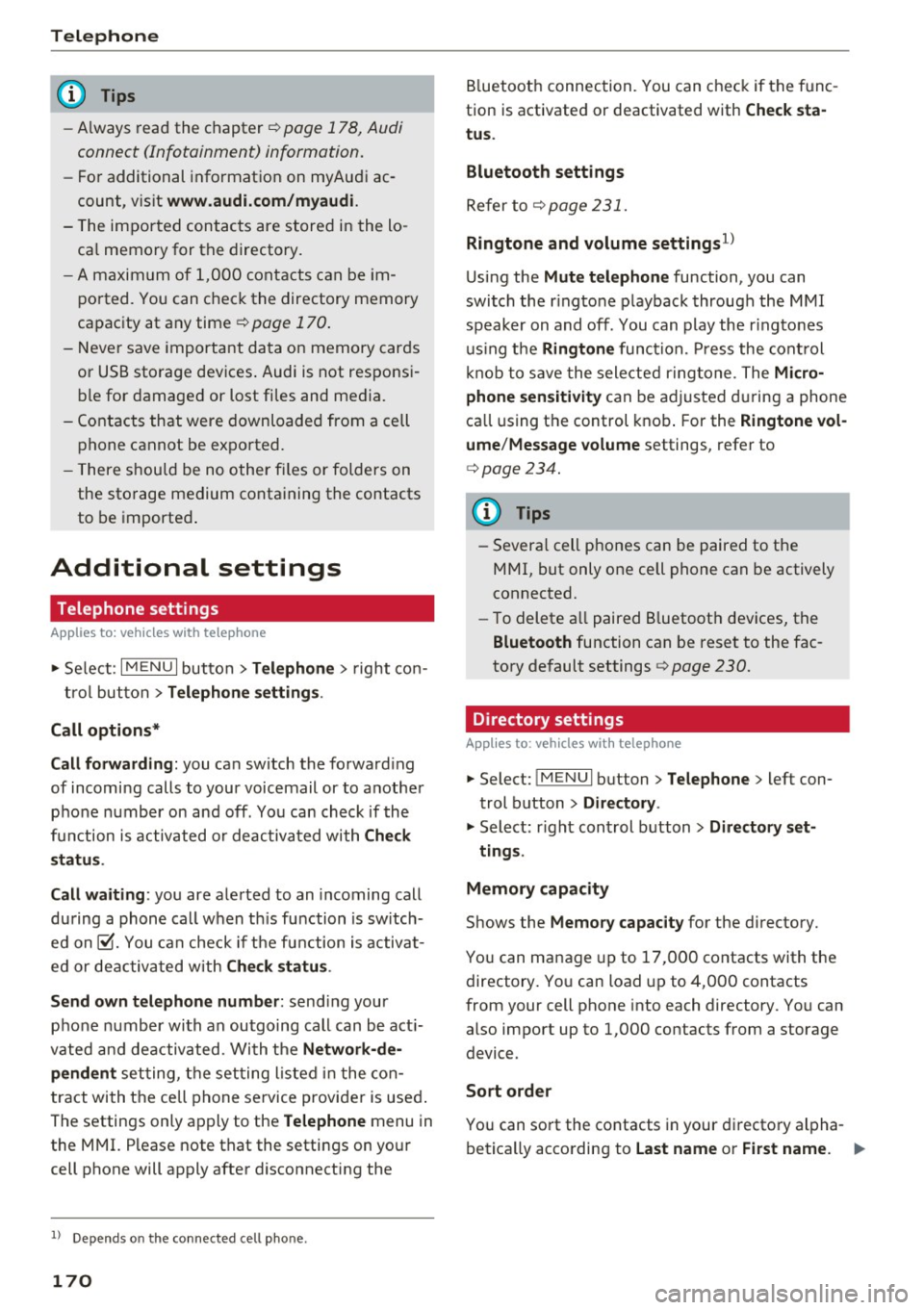
Additional settings
Telephone settings
Applies to: ve hicles w ith tele phone
"'Se lect : I MENU I button> Telephone > righ t con-
tr ol but to n >
Telephone settings .
Call options*
Call forwarding:
you ca n switch the forwa rd ing
of incomi ng calls to your voicemail or to anothe r
p hone number on an d off . Yo u can ch eck if the
f unc tion is activated o r deac tiva ted wi th
Check
s tatus .
Call waiting :
you are ale rted to an incoming call
du ring a phone ca ll w hen t his function is sw itch
e d on~- You ca n check if t he fu nction is activat
e d or deactiv at ed wit h
Check status .
Send own telephone number :
sending your
p hone number wi th an outgoing call can be act i
vated an d deactivated. Wi th t he
Network -de ·
pendent
se tting, t he set ting liste d in the co n
t ract with t he cell p hone service provi der is use d.
The settings only apply to the
Telephone menu in
the MMI. P lease note that the settings on yo ur
cell phone will apply afte r disconnecting the
1> Depend s on th e co nnected cell p hone.
170
B luetoot h connec tion. You can chec k if the f unc
tion is activate d or deactivated with
Check sta
tus .
Bluetooth settings
Refer to~ page 231.
Ringtone and volume settings 1
)
U sing the Mute telephone function, you can
swi tch the r ing tone playbac k through the M MI
speaker on and off. You can play the r ingtones
u sing t he
Ringtone func tion. Press the cont rol
kn ob t o sa ve the sele cte d rin gtone . T he
Micro
phone sensitivity
c an be a djusted during a phone
ca ll using t he control knob . For the
Ringtone vol
ume /Message volume
settings, refer to
i=> page 234.
'
(D Tips
-Severa l cell p ho nes can be paired to the
M MI, but only one cell phone can be actively
connected.
- To delete a ll paired B luetoot h dev ices, the
Bluetooth fu nction can be reset to the fac
to ry de fault settings
c> page 230.
Directory settings
App lies to : vehicles with telephone
.. Select: !ME NUI button> Telephone > left con
trol button >
Directory .
.. Select: r ight con trol b utton> Directory set-
ting s.
Memory capacity
Shows the Memory capacity for the directory.
Yo u can ma nage up to 17,000 contacts with the
directory. Yo u can load up to 4,000 contacts
from your cell phone into each directory. Yo u can
also import up to 1,000 contacts from a storage device .
Sort order
You can so rt the contacts in your dir ecto ry al pha
b etica lly acco rding to
Last name or First name . .,_
Page 173 of 386
<( a, .... N ,....
N .... 0 0
3 a,
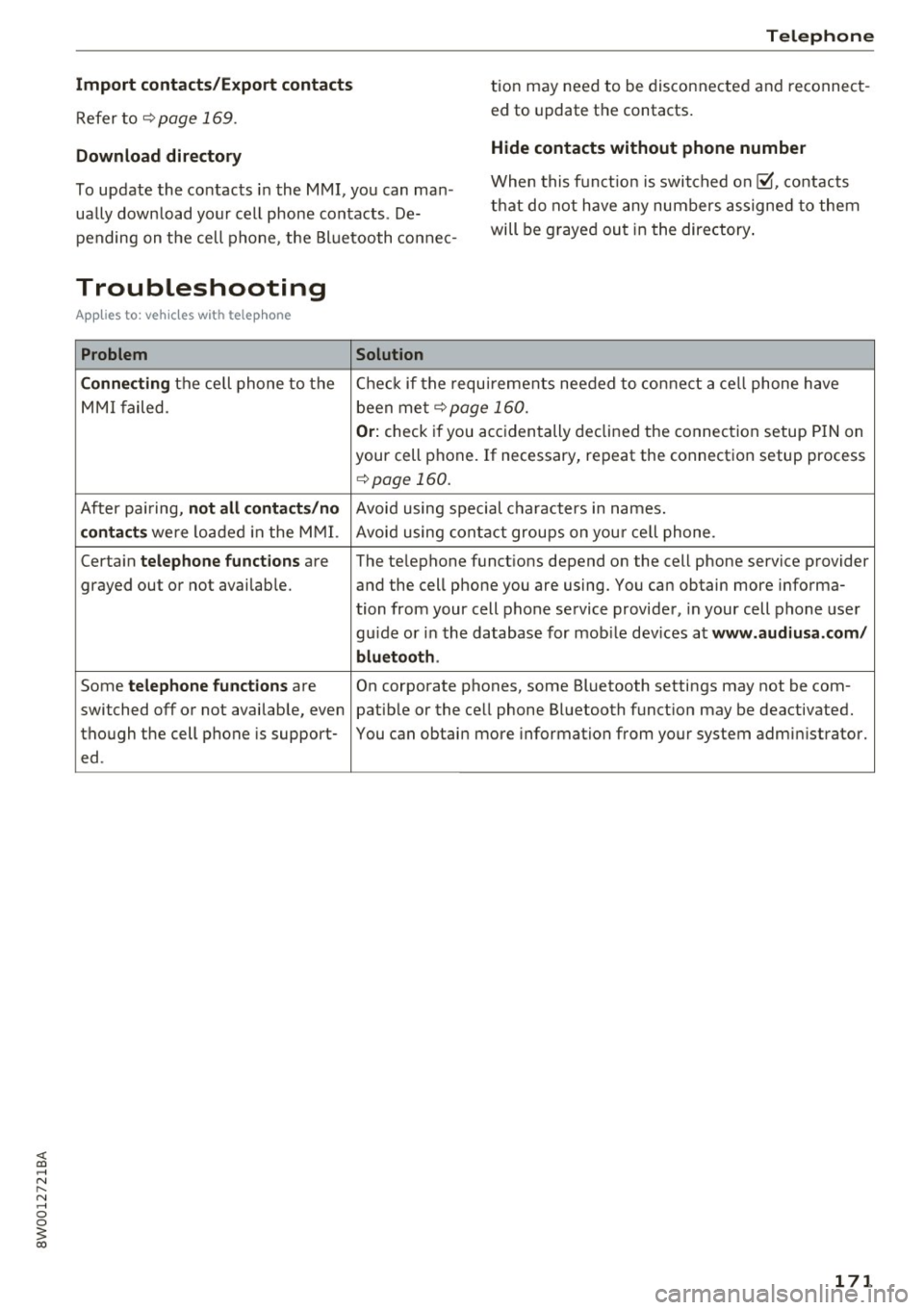
Import contacts/Export contacts
Refer to <:!)page 169.
Download directory
Telephone
tion may need to be disconnected and reconnect
ed to update the contacts.
Hide contacts without phone number
To update the contacts in the MMI, you can man
ually download your cell phone contacts . De
pending on the cell phone, the Bluetooth connec- When this
function is switched on f;i:J, contacts
that do not have any numbers assigned to them
will be grayed out in the directory .
Troubleshooting
Appl ies to: ve hicles with telep hone
Problem Solution
Connecting
the cell phone to the Check if the requirements needed to connect a cell phone have
MMI failed. been met
q page 160.
Or: check
if you accidentally declined the connection setup PIN on
your cell phone. If necessary, repeat the connection setup process
qpage 160.
After pa iring,
not all contacts/no Avoid using special characters in names.
contacts were loaded in the MMI. Avoid using contact groups on you r ce ll phone .
Certain
telephone functions are The te lephone functions depend on the cell phone service provider
grayed out or not available. and the cell phone you are using. You can obtain more informa- tion from your cell phone service provider, in your cell phone user
gu ide or in the database for mob ile dev ices at
www.audiusa.com/
bluetooth .
Some telephone functions are On corporate phones, some Bluetooth settings may not be com-
switched off or not available, even patible or the cell phone Bluetooth function may be deactivated.
though the cell phone is support- You can obtain more information from your system administrator.
ed.
171
Page 214 of 386

Media
q page 218. The copied video files are stored in
the media center under the
Videos category.
Playing the Jukebox
Requirement: the Jukebox must contain audio/
video fi les
c;> page 211, Adding files to the Juke
box .
The Jukebox is accessed and operated through
the MMI
© c;> page 217, fig. 196.
Displaying Jukebox memory capacity
Select: right control button > Jukebo x memory
ca pacity .
Information about the Jukebox memory
capacity and the numbe r of stored tracks is dis
p layed.
Deleting tracks from the Jukebox1>
Requirement: the Jukebox must contain audio/
video files.
- Delet ing an ent ry: select an entry from the
Jukebox media center. Se lect: right contro l but
ton >
Delete from jukebo x> This entry or En
tire list .
-The status of the de leting process is shown in
the MMI. Jukebox playback stops during the de leting process and starts again automatically
once the deletion is complete .
(0 Note
Do not import aud io/video files when the en
gine is turned off because this will drain the
veh icle battery.
(D Tips
- Tracks from aud io CDs cannot be imported
to the Jukebox for legal reasons .
- Files that have already been imported are
automat ically recognized and cannot be
copied to the Jukebox again.
- It is not possible to play audio/v ideo f iles*
i n the CD/DVD* drive while importing them.
- The Jukebox does not provide an export
function due to lega l reasons.
- Files or tracks without add it iona l stored in
formation are listed as
Unknown . Audi rec-
1> Not in th e Now playing view.
212
ommends adding additional information
(such as 103 tags) to a udio fi les .
- Rese t the
Jukebox to the factory defau lt
settings when sell ing yo ur vehicle
¢page 230.
Bluetooth audio player
App lies to : vehicles wi th Blue to oth
With the Bluetooth audio player, you can play
music wirelessly from your 8/uetooth-capable
device (such as a cell phone) through the MMI.
Requirement: the vehicle m ust be stationary and
the Bluetooth function on your Bluetooth device
and the
Bluetooth audio player ¢ page 231 in
the MMI must both be sw itched on.
- Connecting a Bluetooth device: press the
!MEDIA ! button. Press the left control button
until the sources overview is disp layed. Select
and confirm
Bluetooth player@¢ page 217,
fig . 197.
- If ne cessa ry, select and confirm, Not connected
> Connect Bluetooth audio player . The Blue
tooth device search starts. Follow the instruc
tions i n the MMI.
- Select and confirm the des ired Bluetooth de
vice from the list. The MMI generates a PIN for
the connection.
- Select and confirm
Yes .
-Enter the PIN for connecting on your Bluetooth
dev ice.
Or : if the PIN is already displayed on
your Bluetooth device, confi rm it in the Blue
tooth device and in the MMI. The time allowed
for entering the PIN is lim ited to approximately
30 seconds.
The media is started and operated through the
mobile device o r th e MMI, depending on the de
vice being used.
(D Tips
- Check fo r any connection requests on your
Bluetooth device.
- You only have to pair your device one time.
Bl ue tooth devices that are already paired
Page 215 of 386

<( a, .... N ,....
N .... 0 0
3 a,
automatica lly connect to the MM I when
they are within range.
- Multiple Bluetooth audio players can be
connected to the MMI, but only one mobile
device can be active.
- Bluetooth protocols AVRCP (1.0/ 1.3/ 1.4)
and A2DP are suppo rted.
- Note the volume setting o n your Bluetooth
device. Audi recommends setting your mo
bile device to the maxim um vo lume whe n
us ing it as a Bluetooth audio player.
- The supported media functions (such as
shu ffle) depend on the Bluetooth dev ice be
ing used.
- Fo r more information on the supported de
v ices, visit
www.audiusa. com /bluetooth or
contact your author ized Audi dealer.
Wi-Fi audio player
A ppl ies to: ve hicles with Wi· Fi
Using the Wi-Fi audio player media source on the
MMI, you can connect and operate your Wi-Fi-ca
pable media player (such as a smartphone) to
wirelessly ploy music from your media player li
brary. The media player is connected through the
vehicle's Wi -Fi hotspot. A UPnP Server opp or an
integrated UPnPIDLNA server on your media
player is required to access your media player
li
brary.
Req uirement: the W i-Fi function on your media
p layer must be switched on. The
Audi MMI con
nect
app or a UPnP server app must be installed
on your med ia p layer.
O r: you must be using a
media player with an integrated UPnP/DLNA
server.
- Connecting a media pla yer: press the I MEDIA !
button. Press the left control button unt il the
sources overview ¢
page 217 is disp layed. Se
lect and confirm
Wi -F i audio playe r 0
¢page 217, fig . 197.
- If necessary, select and confirm Wi -F i off >
Turn on Wi -Fi
to activate Wi-Fi in the MMI. Se
lect
Wi-Fi options , if necessary. Select the
same settings on the wireless media player
that are used for the Wi-Fi hotspot .
Media
-Starting the W i-F i audio pla yer : start the Aud i
MMI connect
app or a UPnP server app, or set
media permissions on your media p layer.
Operating the med ia pl ayer : the med ia p layer is
operated through the MMI.
- Press the left control button repeatedly until
the
Folders menu item appears . Select and con
firm
Folder s.
- Play ing mu sic from th e m edia player :
select
and confirm
M edi a ce nt er.
,&. WARNING '--
-As the d river, do not allow usage of the Wi-
Fi hotspot to distract yo u from driv ing, as
this could increase the r is k of an accident.
- I t is o nly safe to use tablets, laptops, mo
b ile dev ices and o ther simi lar devices when
the vehicle is s tationary because, like all
loose objects, they co uld be thrown around
the inside of the vehicle in a c rash and cause
serio us inj uries. Store these types of devices
securely while driving.
- Do not use any wireless devices on the front
seats within range of the airbags while driv ing. Also read and follow the warn ings in
¢ page 257, Front airbags.
(D Note
You are responsible for all precautions taken
for data protection, anti-virus protect ion and
protection aga inst loss of data on mobi le de
v ices that are used to access the Internet
through the W i-F i hotspot.
(j) Tips
- The W i-F i aud io player only needs to be
paired one time to the MMI using the Wi-Fi
hotspot. Depend ing on the media player be
ing used, a device that was already paired
w ill connect automatically with the MMI Wi
Fi hotspot when it is within range.
- Always read the chapter ¢
page 178, Audi
connect (Infotainment) information.
- Please note that a Wi-F i connection does
not automatically make it possible to use
the Internet. For addit ional info rmation, re-
fer to¢
page 172. ""
213
Page 218 of 386

Media
You can connect mobile devices using the analog
AUX port .
-Connecting a mobile device to the AUX input:
connect the cable®<=> fig. 195 to the AUX in
put ® on the Audi music interface and then to
the mobile device@ (such as an MP3 player or
smartphone).
- Disconnecting a mobile device from the AUX
input :
remove the cable S@ <=> fig. 195 from
the AUX input@<=>fig.
195 .
-Operating: select and confirm the External au
dio player @source
<=> page 217, fig. 196. The
media are started and operated through the
mobile device@<=>fig.
195.
A WARNING
Driving requires your complete and undivided
attention. As the driver, you have complete
responsibility for safety in traffic. Never oper
ate mobile devices while driving, because this
increases the risk of an accident .
@ Note
-Remove the connector from the Audi music
interface carefully so it is not damaged.
- Use a USB extension cable to connect devi
ces that have an integrated USB connector
(such as a USB stick) to prevent damage to
your USB device and the Audi music inter
face.
- Extremely high or low temperatures that
can occur inside vehicles can damage mobile
devices and/or impair their performance .
Never leave mobile devices in the vehicle in
extremely high or low temperatures.
@ Tips
-Do not use an additional adapter or USB ex
tension cable to connect mobile devices to
the Audi music interface that already have a
cable or that must be connected with a USB
adapter( <=>
page 215). This may impair the
functionality.
1 > A pp lies only to MTP devic e s. Doe s no t a ppl y to A pple de vi
ces and U SB m ass s torage d evic es.
216
-You can purchase the AUX connector cable
from an authorized Audi dealer or at spe
cialty stores.
- Functionality is not guaranteed for mobile
devices that do not conform to the USB 2.0
specification .
- USB hubs are not supported.
- Some versions of the iPod such as the iPod
shuffle cannot be connected to the USB
adapter for devices with Apple Dock connec
tor. Connect these devices using a AUX con
nector cable.
- Changed content on a mobile device
ll that
is connected to the Audi music interface
may not be displayed in the media center.
In this case, reset the
Media settings back
to
Factory settings <=> page 230.
-Video playback through the Audi music in
terface is only supported if the connected
device is recognized as a USB storage device
(for example a USB stick). Apple devices and
MTP devices (such as smartphones) are not
recognized as USB storage devices.
- iPod/iPhone/iPad malfunctions also affect
the operation of the MMI. Reset your iPod/
iPhone/iPad if this happens.
- For important information on operating
your iPod/iPhone/iPad , refer to the user
guide for that device. Audi recommends up
dating the iPod/iPhone/iPad software to the
latest version.
- For more information about the Audi music
interface and supported devices, check the
Audi database for mobile devices at
www.audiusa.com/bluetooth or contact an
authorized Audi dealer or authorized Audi
Service Facility.
Page 219 of 386

Rear Seat Entertainment preparation
A ppl ies to: ve hicles with Rear Sea t Entertainment preparation
The Rear Seat Entertainment preparation in
cludes cables and a mount for Audi Entertain
ment mobile in the driver's and front passenger's
seat backrests.
The su itable Audi Entertainment mobile Rear
Seat Entertainment package is available through
Aud i Genu ine Accessories.
We recommend that you use Audi Genuine Acces
sories . Aud i has established their reliability, safe
ty and s uitability.
We cannot evaluate or endorse other products in
this way, even if the product is approved by a cer
tified testing agency or government agency.
(D Note
Only use devices that are approved for the Rear Seat Entertainment preparation. Unap
proved devices may cause damage to the vehi
cle electronics.
(D Tips
-Contact your authorized Audi dealer or au
thorized Audi Service Facility for additional i nformat ion a bout
Audi Entertainment mo
bile .
-Always read the chapter¢ page 365, Tech
nical Modifications .
- The Rear Seat Entertainment preparation is
not intended to charge external electronic
devices.
Media
Playing media
Opening media
You can start and operate various media
through the MMI control panel .
Fig. 196 Possible sources in the Med ia menu
Fig. 197 Possible sources in the Med ia menu
Requirement: a media source must contain au
dio/video files* ¢
page 210.
"' Press the I MEDIA ! button. Press the left control
button unt il the sources overv iew is displayed.
"' Select and confirm the desired source.
Or:
press the !MEDIA ! button repeatedly until the
desired source is selected.
Depending on the vehicle equipment, the follow
ing sources may be displayed in the
Media menu:
@ Jukebox* ..... .. .. ..... ..... .
@ DVD/CD drive* .. . .. .......... .
@ SD card reader .. ... ......... .
@ Audi music interface* ......... .
such as iPod, USB stick
211
210,211
210
215
© External audio player . . . . . . . . . . 215
such as an MP3 player connected to
the AUX input
® Bluetooth audio player* 212 ..,_
217
Page 222 of 386

Media
Playlist
Fig . 2 01 Playlist example
The track, artist, album and album cover, if appli
cable, will appear in the playlist ¢
fig. 201.
Options menu
Refer to¢ page 220, Additional settings .
Favorites
Up to 50 entries for every media source con be
stored in any order in the favorites list.
Requirement: the playlist or media center must
be open.
- Select the des ired entry from the play list or
med ia center.
- Select: right control button >
Store a s favorit e.
Or :
press and hold the cont rol knob for several
seco nds.
When you store a track as a favorite, the assoc i
ated album w ill appear in the favorites list as an
entry.
Requirement: at least one entry must be stored
in the favorites list.
Displaying the fa vo rite s list : press the !MEDIA !
button. Press the left contro l button until the
sources overview
c=> page 217 is displayed. Select
the source that conta ins the
categories
¢ page 218 (for example, SD card). Select the Fa
v orit es
category .
Requirement: the favorites list must be dis
played.
- List ening to a favorite : select and confirm a fa
vorite from the list.
- Mov e favorite : select a favorite from the list>
right cont rol button > Move fa vorite . Select
220
and confirm the location of the se lected favor
ite.
- Deleting a f avorit e: select o favorite from the
list>
right control b utton> Delete fa vorite >
Delete thi s favorite or Delete all fa vo rite s.
Additional settings
' Options menu
Context-spec ifi c fu nctions and settings a re avail
able depend ing on the sele cted source.
" Press the right control button .
Sound settings
Refer to¢ page 233 .
Input level
Requirement: a mobile device mus t be connec ted
to the AUX connection cab le or to a USB adapter
¢ page 215, fvtultimedio connections.
The volume of the mob ile dev ice is adapted to
t h e MMI. Aud i recommends adj usting the volume
on the mobi le device to 70% of the maximum
vo lume output.
Bluetooth settings
Refer to¢ page 231.
Wi-Fi options*
Refer to¢ page 177, Wi-Fi hotspot.
Connection manager
Refer to¢ page 230 .
Additional track information
With the fu nction switched on~ and a playlist
open, va rious informat io n about t he cur rent t rack
(such as artist, a lbum and alb um cove r*) as well
as the playing time and the remain ing p lay ing
time are displayed .
Jukebox memor y capacity*
Information on the Jukebox memory capac ity and
the number of stored t racks i n the Jukebox is dis-
played. ""'
Page 226 of 386

Media
-The manufactu rer of the storage device can
provide information about its "USB Device
Subclass" . - Some MTP player functions are not support
ed, such as rating music tracks and video
playback.
CD drive
Applies to: ve hicles w ith a CD drive
The following audio file properties are supported by the CD drive:
Audio files
Supported
Audio CDs (up to 80 min) with CD text (artist, alb um, track)*, CO-ROMs with a capaci-
media ty of up to 700 MB
File system CD file system: 1509660, Joliet, UDF
Metadata Album
cover : GIF, JPG, PNG with max . 800x800 px. The album cover from the medi-
um may be disp layed, depending on availability.
Format M PE G 1/2 Windows Media Au- MP EG 2/4 FLAC
Layer 3 dio 9 and 10
File extension .mp3 .wma
.m4a; .flac
. m4b;
. aac
Playlists .M3U; .PLS; .WPL; .M3U8; .ASX
Characteristics up to maximum 320 kbit/s and 48 kHz sampling frequenc ies 48 k Hz sampling
frequency
Number of Maximum 1,000 files per medium
Files
(D Tips
-For compressing MP3 files, Audi recom
mends a bit rate of at least 160 kb it/s. The
display showing the remaining play time
may differ for audio files with variable bit
rate . -
Special characters (such as those in 103 tag
information) display differently depending
on the system language and cannot always
be guaranteed .
Troubleshooting
Problem Solution
Audi music interface /Bluetooth
Read the instructions in the chapter ~ page 215, Multimedia con-
audio player *: mobile dev ice is nectionsl~ page 212, Bluetooth audio player . You can learn
not supported . about
supported mobi le devices in the Audi database for mobile
devices at
www.audiusa.com/bluetooth.
Audi music interface :
the volume Adjust the volume of the mobile device to approximately 70% of
is too h igh/too low when start ing the maximum output~
page 220, Input level.
playback th ro ugh the AUX input.
224
Page 227 of 386

<( a, .... N ,....
N .... 0 0
3 a,
Problem
Audi music interface :
the porta-
ble audio device is not recognized
as a source.
Audi music interface : the audio
playback through the iPod/
iPhone/iPad is malfunctioning.
Audi music interface : contents
that are changed on a mobile de-
vice connected to the Audi music
interface are not displayed in the
media center ..
AUX input: there is stat ic when
connecting and disconnecting the
AUX connection cable.
Bluetooth audio player* /Wi-Fi
audio player *:
aud io playback in-
terference.
Jukebox*: tracks on the imported
playlist are grayed out.
Jukebox*: i mported tracks cannot
be played or found.
Wi-Fi audio player *: multiple de-
vices are connected to the Wi-Fi
hotspot. A media player (such as a
smartphone) appears as the
source and cannot be changed.
Online media *: connection failed
between the MMI and the
Audi
MMI connect
app.
Wi-Fi audio player* /Online me-
dia *:
audio playback interference.
Media
Solution
For many ce ll phones or mobile devices, playback is not possible
when the battery level is too low (less than 5% of its capacity).
The mobile de-vice will only be recognized as a source in the MMI
after connecting if the battery charge is sufficient.
The
Bluetooth audio player f unction is switched on. Switch this
function off
c:> page 231 when you a re not using the Bluetooth
audio player.
Reset the Media settings to the facto ry defau lt settings
c:>page 230.
When connecting a nd disconnecting, the External audio player
source is already selected. Before connecting or disconnecting the
mobile device, either mute the device (refer to
c:> page 233) or
sw itch to a different audio source (for example
c:> page 204, Open-
ing the radio function).
Only one interface should be act ively used at a time to ensure
problem-free playback.
When importing playlists, a ll of the fi les themselves must be im-
ported.
If yo u cannot find impor ted tracks in the media center, they may
not be supported. Only copy supported files
c:> page 223 to the
Jukebox.
Close the
Audi MMI connect app on the connected dev ices (for ex-
ample, smartphones) that are not being used as the Wi-Fi audio
p laye r*. Likewise, close the UPnP server apps or the media pe rm is-
sions on the integrated UPnP/DLNA server. Connect the desired
device as a Wi-Fi audio pla yer*
c:> page 213.
To establish a connection to the MMI, the MMI connection switch
must be switched on in the
Audi MMI connect app status screen.
Malfunctions can occur during audio playback if the
Hotspot and
client a)
c:> page 177 Wi-Fi mode setting was selected. For p layback
without interference, Audi recommends the
Hotspot setting for
Wi-Fi mode.
225