141 AUDI A4 2017 Owners Manual
[x] Cancel search | Manufacturer: AUDI, Model Year: 2017, Model line: A4, Model: AUDI A4 2017Pages: 386, PDF Size: 96.32 MB
Page 5 of 386
<( a, .... N ,....
N .... 0 0
3 a,
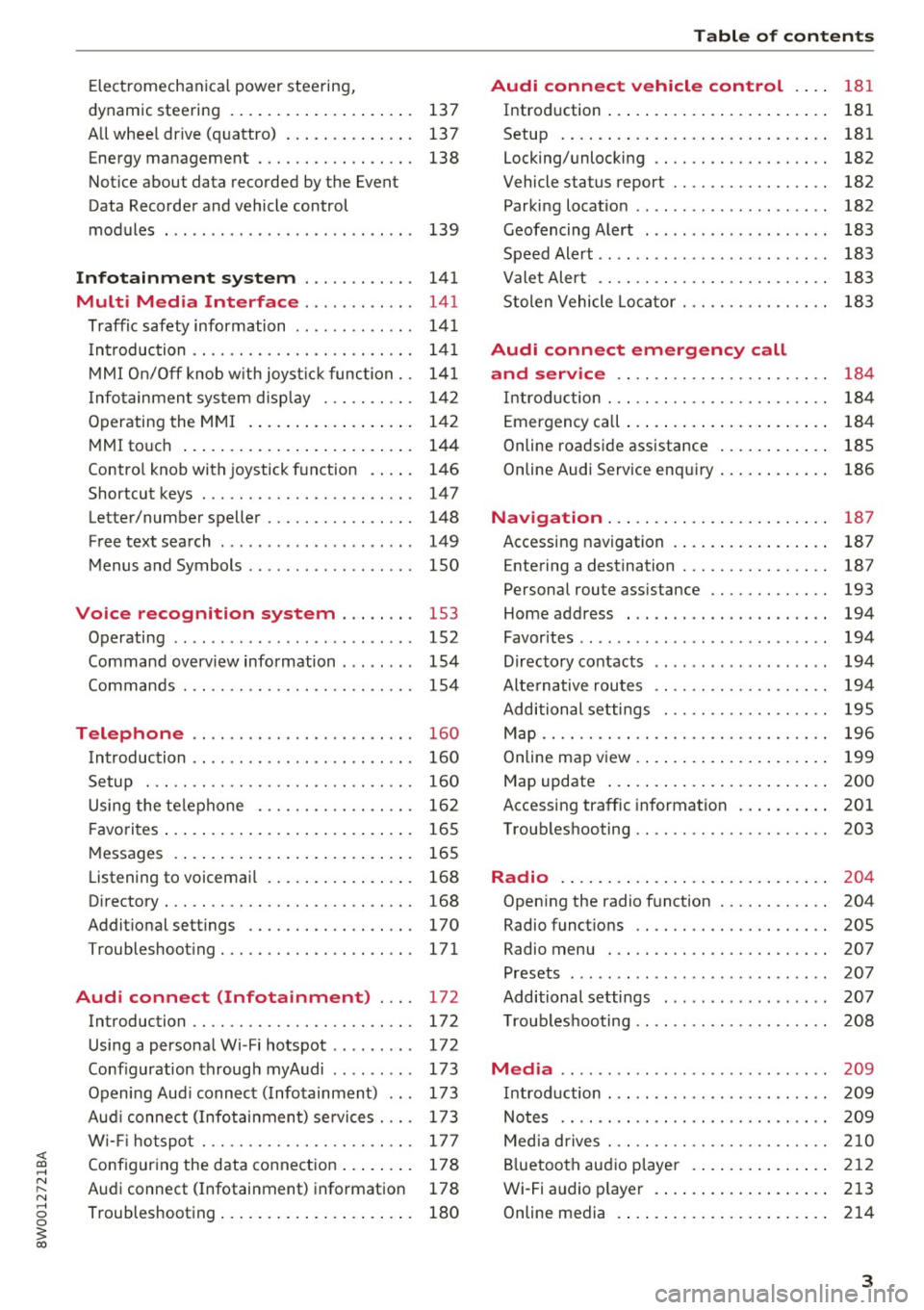
Electromechanical power steering,
dynamic steering . . . . . . . . . . . . . . . . . . . . 137
All whee l drive (quattro) . . . . . . . . . . . . . . 137
Energy management . . . . . . . . . . . . . . . . . 138
Notice about data recorded by the Event
Data Recorder and vehicle control
modules . . . . . . . . . . . . . . . . . . . . . . . . . . . 139
Infotainment system . . . . . . . . . . . . 141
Multi Media Interface . . . . . . . . . . . . 141
Traffic safety information . . . . . . . . . . . . . 141
Introduction . . . . . . . . . . . . . . . . . . . . . . . . 141
MMI On/Off knob w ith joyst ick function. . 141
Infotainment system display . . . . . . . . . . 142
Operating the MMI . . . . . . . . . . . . . . . . . . 142
MMI touch . . . . . . . . . . . . . . . . . . . . . . . . . 144
Control knob with joystick function . . . . . 146
Shortcut keys . . . . . . . . . . . . . . . . . . . . . . . 147
Letter/number speller . . . . . . . . . . . . . . . . 148
Free text search . . . . . . . . . . . . . . . . . . . . . 149
Menus and Symbols . . . . . . . . . . . . . . . . . . 150
Voice recognition system . . . . . . . . 153
Operating . . . . . . . . . . . . . . . . . . . . . . . . . . 152
Command overview information . . . . . . . . 154
Commands . . . . . . . . . . . . . . . . . . . . . . . . . 154
Telephone . . . . . . . . . . . . . . . . . . . . . . . . 160
Introduction . . . . . . . . . . . . . . . . . . . . . . . . 160
Setup . . . . . . . . . . . . . . . . . . . . . . . . . . . . . 160
Using the telephone . . . . . . . . . . . . . . . . . 162
F avorites . . . . . . . . . . . . . . . . . . . . . . . . . . . 165
Messages . . . . . . . . . . . . . . . . . . . . . . . . . . 165
List ening to voicemail . . . . . . . . . . . . . . . . 168
Directory. . . . . . . . . . . . . . . . . . . . . . . . . . . 168
Additional settings . . . . . . . . . . . . . . . . . . 170
Troubleshooting ..... .... .... ... .. .. . 171
Audi connect (Infotainment) . . . . 172
Introduction . . . . . . . . . . . . . . . . . . . . . . . . 172
Using a personal Wi- Fi hotspot . . . . . . . . . 172
Configuration through myAudi . . . . . . . . . 173
Opening Audi connect (Infotainment) . . . 173
Aud i connect (Infotainment) services . . . . 173
W i-F i hotspot . . . . . . . . . . . . . . . . . . . . . . . 177
Configuring the data connection . . . . . . . . 178
Audi connect (Infotainment) informat ion 178
Troubleshooting . . . . . . . . . . . . . . . . . . . . . 180
Table of contents
Audi connect vehicle control . . . .
181
Introduction . . . . . . . . . . . . . . . . . . . . . . . . 181
Setup . . . . . . . . . . . . . . . . . . . . . . . . . . . . . 181
Locking/unlocking . . . . . . . . . . . . . . . . . . . 182
Vehicle status report . . . . . . . . . . . . . . . . . 182
Parking location . . . . . . . . . . . . . . . . . . . . . 182
Geofencing Alert . . . . . . . . . . . . . . . . . . . . 183
Speed Alert . . . . . . . . . . . . . . . . . . . . . . . . . 183
Valet Alert . . . . . . . . . . . . . . . . . . . . . . . . . 183
Stolen Vehicle Locator . . . . . . . . . . . . . . . . 183
Audi connect emergency call
and service . . . . . . . . . . . . . . . . . . . . . . .
184
Introduction . . . . . . . . . . . . . . . . . . . . . . . . 184
Emergency call . . . . . . . . . . . . . . . . . . . . . . 184
Online roadside assistance . . . . . . . . . . . . 185
Online Audi S ervice enquiry . . . . . . . . . . . . 186
Navigation . . . . . . . . . . . . . . . . . . . . . . . . 187
Accessing navigation . . . . . . . . . . . . . . . . . 187
Entering a destination . . . . . . . . . . . . . . . . 187
Personal route assistance . . . . . . . . . . . . . 193
Home address . . . . . . . . . . . . . . . . . . . . . . 194
Favorites . . . . . . . . . . . . . . . . . . . . . . . . . . . 194
Directory contacts . . . . . . . . . . . . . . . . . . . 194
Alternative routes . . . . . . . . . . . . . . . . . . . 194
Additional settings . . . . . . . . . . . . . . . . . . 195
Map...... .. .. . ... ......... ...... .. 196
Online map view. . . . . . . . . . . . . . . . . . . . . 199
Map update . . . . . . . . . . . . . . . . . . . . . . . . 200
Accessing traffic information . . . . . . . . . . 201
Troubleshooting . . . . . . . . . . . . . . . . . . . . . 203
Radio ........ .. .. ................ . 204
Opening the radio function . . . . . . . . . . . . 204
Radio functions . . . . . . . . . . . . . . . . . . . . . 20S
Radio menu . . . . . . . . . . . . . . . . . . . . . . . . 207
Presets . . . . . . . . . . . . . . . . . . . . . . . . . . . . 207
Additional settings . . . . . . . . . . . . . . . . . . 207
T roubleshooting . . . . . . . . . . . . . . . . . . . . . 208
Media ........ .. .. ... ........... ... 209
Introduction . . . . . . . . . . . . . . . . . . . . . . . . 209
Notes .. .. .... .. .... ............. .. 209
Media drives . . . . . . . . . . . . . . . . . . . . . . . . 210
Bluetooth audio player . . . . . . . . . . . . . . . 212
Wi-Fi audio player . . . . . . . . . . . . . . . . . . . 213
Online media . . . . . . . . . . . . . . . . . . . . . . . 214
3
Page 11 of 386
<( a, .... N ,....
N .... 0 0
3 a,
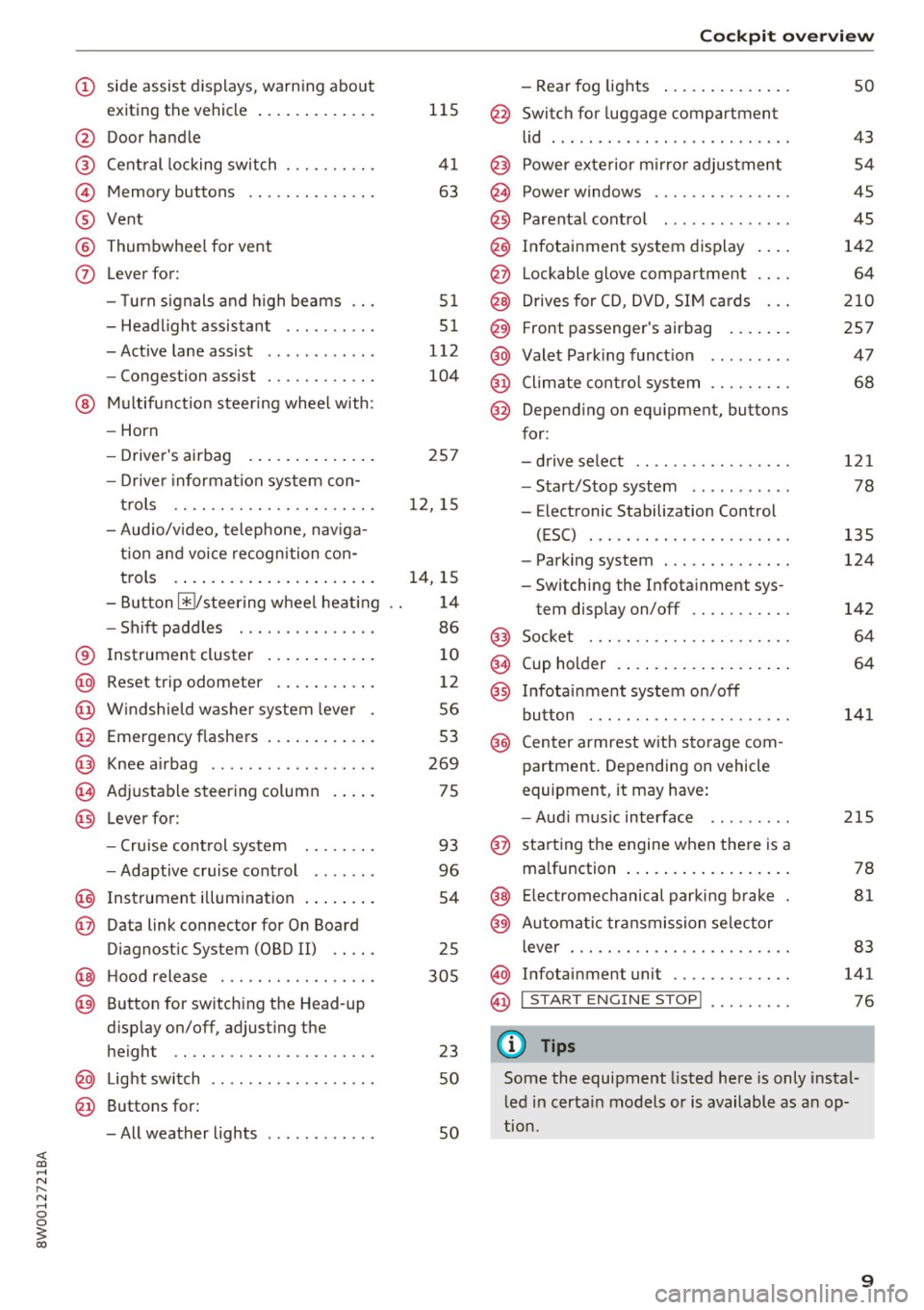
(!) side assist displays, warning abo ut
exiting the vehicle ..... ... .. .. .
@ Door handle
@ Cent ral locking switch ....... .. .
@ Memory buttons ........... .. .
® Vent
® Thumbwhee l for vent
(J) Lever for:
- T urn signals and h igh beams
- Headl ight assistant ......... .
- Active lane assist .. ..... ... . .
- Congestion assist ....... .. .. .
@ Mul tifunction steer ing wheel with:
- Horn
- Driver's airbag . ..... ... .. .. .
- Drive r information system con -
t rols .. .. ............. .. .. .
- Audio/v ideo, telephone, nav iga
t ion and voice recognition con-
trols . ... .... .. .... ... .. .. .
- Button ~/steering wheel heating
- Sh ift paddles .............. .
® Instrument cluster ....... .. .. .
@
@
@
@
~
@
Reset trip odometer ........ .. .
W indshie ld w asher system lever
Emergency flashers .... ... .. .. .
Knee a irbag ........ ... .. ... . .
Adjustable steer ing column
Lever for:
- Cruise cont rol system ..... .. .
- Adaptive cruise cont rol .. ... . .
@ Instrument i llum ination ... .. .. .
@ Data link connector for On Board
Diagnostic System (OBD II) .. .. .
@ H ood release . ........... .. .. .
@ Button for switching the Head-up
d isplay on/off, adjust ing the
height .. .. ............... .. .
@ Lig ht switch ............... .. .
@ Buttons for :
- All weather lights
llS
41
63
5 1
5 1
112
104
25 7
12, 15
14, 15
1 4
86
10
12
56
53
269
75
93
96
54
25
305
23 50
50
Coc kpit o ve rv iew
-Rear fog lights .. .. .. ..... .. .
@ Switch for luggage compartment
li d .... ... .. .. .. .... .. ... .. . .
@ Power exterior m irro r adjustment
@ Power windows .............. .
@ Parental cont rol ............. .
@ Infotainment system dis play . .. .
@ Lockable glove compartment ... .
@ Drives for CD, DVD, SI M cards .. .
@ Front passenger's airbag .... .. .
@ Valet Park ing funct ion ........ .
@ Climate cont ro l system ........ .
@ Depend ing on equ ipment, buttons
for:
- drive select .. .. ............ .
- Start/Stop system . ... ... .. . .
- Electronic Stabilization Control
(ESC) ..... .. .. ... ....... .. .
- Parking system . .... . ..... .. .
- Switching the Infota inment sys-
tem disp lay on/off .......... .
@) Socke t ... .. .. .. ............ .
@ Cup holder . ... .. .... . ..... .. .
@ Infotai nment system on/off
button ... .. .. .. .... .. ... .. . .
@ Center armrest w ith sto rage com
partment . Depending on vehicle
equipment, it may have:
- Aud i m usic interface ........ .
@ starting the engine when the re is a
ma lfunction .. ... .... . ..... .. .
@ E lectromechanical parking brake
@ Automa tic transmission se lector
lever ... .. .. . ... ............ .
@ Infotainment unit ............ .
@ I START EN GIN E STOP ! ........ .
(D Tips
50
43 54
45
45
142 64
2 10
257 47
68
121
78
135
124
142
64
64
141
215
78
81
83
141
76
Some the equipment listed here is only instal
l ed in certa in models or is available as an op-
tion .
9
Page 143 of 386
Multi Media Interface
Traffic safety information
Audi recommends performing certain Infotain
ment system functions, such as entering a desti
nation, only when the vehicle is stationary . Al
ways be prepared to stop operat ing the Infotain
ment system in the interest of your safety and
the safety of other road users.
A WARNING
Only use the Infotainment system when traf
fic conditions permit and always in a way that
allows you to maintain complete control over
your vehicle.
Introduction
The Multi Media Interface , or MMI for short ,
combines various systems for communication,
navigation* and entertainment in your Audi. You
can operate the MMI using the MMI control pan
el, the multifunction steering wheel or the voice
recognition system* .
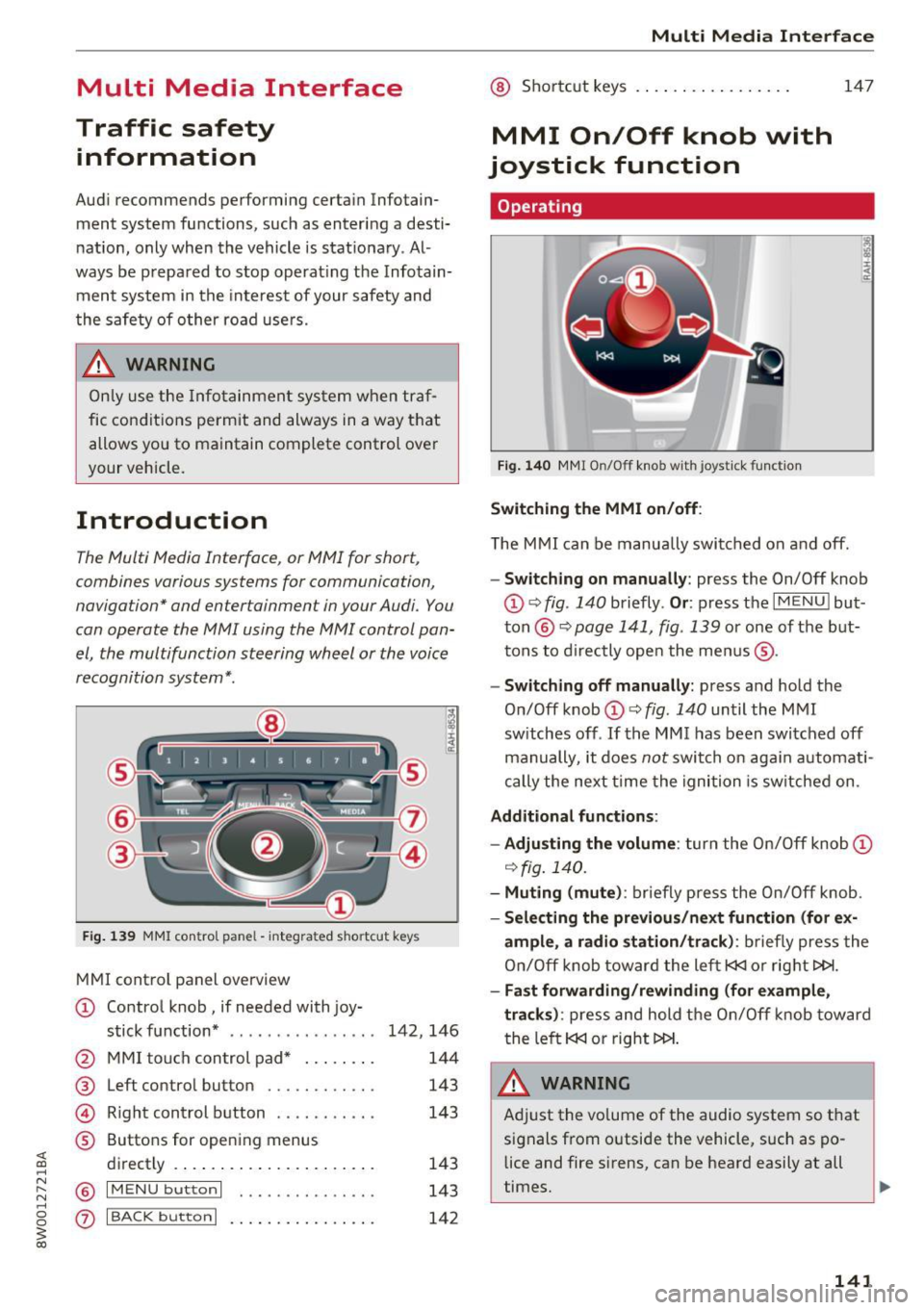
Fig. 139 MMI control pane l - integra ted shortcut key s
MMI control panel overview
CD Control knob, if needed with joy-
stick function* . . . . . . . . . . . . . . . . 142, 146
@ MMI touch control pad* . . . . . . . . 144
® Left control button . . . . . . . . . . . . 143
@ Righ t control button . . . . . . . . . . . 143
® Buttons for opening menus
directly . . . . . . . . . . . . . . . . . . . . . . 143
@ IM ENU button I . • . . . . . . . . . . . . . 143
(z) I BACK button I . . . . . . . . . . . . . . . . 142
Multi Media Interface
@ Shortcut keys . .. . ............ .
MMI On/Off knob with
joystick function
Operating
Fig. 140 MMI On/Off knob with joystick function
Switching the MMI on/off:
147
T he MMI can be manually switched on and off.
-Switching on manually: press the On/Off knob
CD ~ fig . 140 briefly . Or: press the I MENU I but
ton @~
page 141, fig . 139 or one of the but
tons to directly open the menus ®·
-Switching off manually: press and hold the
On/Off knob
CD ~ fig . 140 until the MMI
sw itches off .
If the M MI has been switched off
manually, it does
not switch on again automati
cally the next time the ignition is switched on.
Additional functions :
- Adjusting the volume :
turn the On/Off knob CD
~fig.140.
- Muting (mute): briefly press the On/Off knob.
-Selecting the previous/next function (for ex-
ample, a radio station/track):
briefly press the
On/Off knob toward the left
l«J or right t>!>I.
-Fast forwarding/rewinding (for example,
tracks) :
press and hold the On/Off knob toward
the left
l«J or right t>!>I.
A WARNING
Adjust the vo lume of the audio system so that
signals from outside the vehicle, such as po
lice and fire sirens, can be heard easily at all
times.
141
Page 144 of 386

Multi Media Interface
@ Tips
The MMI switches off automatically if the en
gine is not running and the battery is low .
Infotainment system
display
Switching on and off
- Switching on and off manually: press the Fc;J
button @¢page 8, fig . 2.
When the MMI is switched on and the display is
switched off, you can operate certain functions
using the MMI On/Off knob with joystick function
¢page 141 .
Information on display images
The display version depends on vehicle equip
ment.
Fig. 141 Display v ersion A
Fig. 142 Display version B
Addit ional content (such as album cover and map
material) is shown on display version B, if appli
cable
CD ¢ fig. 142. Because the other content
shown on the displays is nearly identical between
the two versions, this manual will primarily de
scribe display version A .
142
Operating the MMI
Selecting and confirming a function
Fig. 143 Operating the control knob
Selecting and confirming a function in a
menu /list
.,.. Selecting the function: turn the control knob
CD¢ fig. 143 to the desired function (such as
selecting a frequency).
.,.. Confirming a selection: press the control knob
@ ¢fig. 143.
Returning to functions at higher levels
.,.. Press the I BACKI button (i) ¢ page 141,
fig. 139.
Opening the main menu /menu
Fig. 144 Main men u
Page 145 of 386

Opening the main menu
• Press the IMENUI butto n@ ¢page 141,
fig . 139.
The MMI menus (such as Radio) are
displayed
Q fig. 144. Then you can select and
confirm a function using the control knob .
Opening a menu directly
"Press the applicable b utton to open the menus
directly ®¢
page 141, fig. 139 towards the
desired menu (such as
! RADIO I). Th en you can
select and confirm a function using the control
knob.
Opening the section /options menu using
the control buttons
@
Fig. 145 Control buttons on the MMI control panel
Selection menu : through the selection menu,
you can open additional functions within a menu
item (such as
Radio ).
Requirement: the select ion menu symbol must
be d isplayed on the left side of t he Infotainment
system display
Q fig . 145 .
Opening/closing the selection menu: press the
left control button@
Q fig. 145 . Then you can
select and conf irm a function using the control
knob .
Multi Media Interface
Options menu : using the options menu, you can
select and confirm context-dependent functions
as well as settings w ith in a menu item (such as
Rad io).
Requirement: the options menu symbo l B must
be displayed on the right side of the Infotain
ment system display¢
fig. 145. Then you can se
lect and confirm a function using the control
knob.
Opening/closing the options menu: press the
right control button@
Q fig. 145 .
Information about paths
This guide shows you at a glance the paths for
opening a desired menu and its settings and
functions .
Example of a path
" Select: !RADIO I button > left control knob> FM.
Following the path
" Press the I RADIO I button .
.. Press the left control knob.
"Tur n the control knob to the
FM menu item to
select it .
,. Press the control knob to confirm the selected
FM menu item .
.. The se lected and confirmed function is exec ut
ed. In this example, the
FM frequency band is
set.
143
Page 146 of 386

Multi Media Interface
MMI touch
Entering letters, numbers and symbols
Applies to: ve hicles w ith MMI touch
The MMI touch allows you to enter data on the
MMI touch control pad using handwriting recog
nition.
F ig. 146 Display when MMI touch is active
Fig. 147 Entering navigation destination us ing MMI touch
The MMI touch control pad is located on the con
trol knob ¢
fig. 147 .
Requirement: it must be possible to enter text or
numbers and the symbol CD¢
fig. 146 must ap
pear in the Info tainment sys tem.
- Initial entry: write an individual upper case or
lower case letter or numbers/characters on the
MM I touch control pad using yo ur finger. A
character recognized by the system w ill appear
in the Infotainment system display @
144
¢ fig. 147 and it will confirm with an audio sig
nal, if necessary, and transfer the character to
the input field.
- Entering spaces: move your finger across the
MMI touch control pad from left to right.
-Deleting characters: move your finger across
the MMI touch contro l pad from right to left.
-Selecting the input suggestion: press the con
trol knob.
- Switching directly to the results list : turn the
control knob to the right
-Open speller: select the right control button>
Open speller. T ext or numbers are entered in
using the speller
¢page 148.
Moving the crosshairs
Applies to: vehicles wit h MMI touch
Sl-,guMoaSt
l
Fig. 148 Moving the crossha irs
Requirement: a map must be displayed
¢page 196.
-Showing/hiding the crosshairs: press the con
trol knob to show the crosshairs CD¢
fig. 148.
Press the I BACKI button (J) to hide the cross
hairs again
¢ page 141, fig. 139.
-Moving the crosshairs on a map: move the visi-
ble crosshairs in the desired direct ion using ..,.
Page 147 of 386

your finger on the MMI touch control pad
¢fig. 148.
Moving the map
Appl ies to: ve hicles with MMI touch
S. figu ero.i St
Fig. 149 Moving t he map
Requirement : a map must be displayed
c;;,page 196.
-Showing/hiding the crosshairs: press the con
trol knob to show the crosshairs
(Dr=;;, fig. 149 .
Press the I BACK I button (j) to hide the cross
hairs aga in
c;;, page 141, fig. 139.
-Moving the map : when the crosshairs are visi
ble pull two fingers in the desired direction
across the MMI touch co ntrol pad
r=;;, page 199 .
-Moving the map quickly : when the crosshairs
are visible, pull two fingers across the MMI
touch control pad quickly in the des ired direc
tion . The map will come to a stop after several
seconds.
Multi Media Interface
Zooming in/out on the map
Applies to : vehicles wit h MMI touch
Fig . 150 Zoom in/out
Requirement: a map must be displayed
c;;, page 196.
-Zooming in/out on the map: press the control
knob to show the crossha irs. Touch the MMI
touch control pad with two f ingers and pull
your fingers apart or together
r=;;, fig. 150 .
Press the I BACK I button (j) to hide the crosshairs
c;;, page 141, fig . 139.
Adjusting the sound focus
Applies to : vehicles wi th MMI to uch
Requirement: the balance/fader function must
be selected
r=;;, page 233 .
-Moving the crosshairs for sound focus : move
your finger in the desired direction on the MMI
touch control pad.
Using the DVD main menu
App lies to : vehicles wit h MMI to uch
Requirement: a DVD must be playing
¢page 217.
-Selecting a menu item : move your finger up/
down or left/right on the MMI touch control
pad .
-Confirming a selection: press the control knob .
(D Tips
The volume of the voice guidance prompts for
the MMI touch* can be adj usted separately
c;;, page234.
145
Page 148 of 386

Multi Media Interface
Control knob with
joystick function
Operation
Applies to: veh icles with joystick function
Fig . 1 51 Ope rating concept fo r th e control knob w it h joy·
st ick f unction
You can p ush the contro l knob up or down@
¢
fig. 151 or to the right or left @.
Opening the entertainment sliding menu
App lies to: ve hicles with MMI touch
Opening the entertainment sliding menu : push
the co ntrol knob down to open the entertain·
ment sliding menu@¢
page 150, fig. 155 .
Then yo u can sele ct a nd confirm a funct io n.
Clos ing the entertainment sliding menu : push
the co ntrol knob up to close the e nte rtainment
slidi ng menu .
Or: press the I BACK I button 0
¢ pag e 141, fig. 139 .
Additional functions
Applies to: vehicles with joystick function
Displaying the input field/switching to
speller input
P ush the contro l knob up ¢ page 146, fig . 151 to
reach the beginning of a list in t he centra l area or
the input field . If the input field is already open,
sw itch direct ly to the speller in the inp ut fie ld by
push ing the control knob up again¢
page 148.
On the map
Requir ement: a map must be disp layed
¢ page 196.
- Displaying the input field : push the control
kno b up
146
- Displaying route guidance : when rou te gu id ·
ance is active, yo u can also disp lay the route
guidance by pus hing the cont rol knob up
¢ page 191, fig. 172 .
-Zooming in/out on the map (zoom) : turn the
cont rol knob to the right/le ft to zoom in/out on
the map.
App lies to: vehicles without MMI touch with joyst ick function
-Showing/hiding the crosshairs : press the co n·
t rol knob. The crossh airs a re shown on t he
ma p. Pr ess the
!BACK ! button to hide the cross
hai rs .
- Moving the crosshairs : when the c rossh airs are
visib le, tu rn the con trol knob i n the direction
the c rosshairs sho uld move. Press the cont rol
knob and ho ld it until the crosshairs are in the
desired point on the map.
- Additional options on the map : refer to
¢page 198.
Adjusting the sound focus
Applies to: vehicles without MMI touch with joystick function
Requireme nt: the bal ance/fader func tion mus t
be se lected
¢ page 233.
- Adjusting the sound focus using the cross
hairs :
press the control knob. The c ross hai rs
are shown. To move the crosshairs hor izonta lly,
t u rn the contro l kno b. T o move the cros shairs
vert ica lly, press the control knob again and
then t urn it .
Using the DVD main menu
Requireme nt: a DV D must be playing
¢ page 217.
- Selecting a menu item: move the co ntro l knob
w it h joystic k function up or down or to the left
or r ight.
- Confirming a selection : press the cont rol knob .
Page 149 of 386
Opening the selection/options menu with
the control knob
A pp lies to: ve hicles with joystick function
F ig . 152 Open in g th e selec tion/opt io ns menu with th e
contro l knob
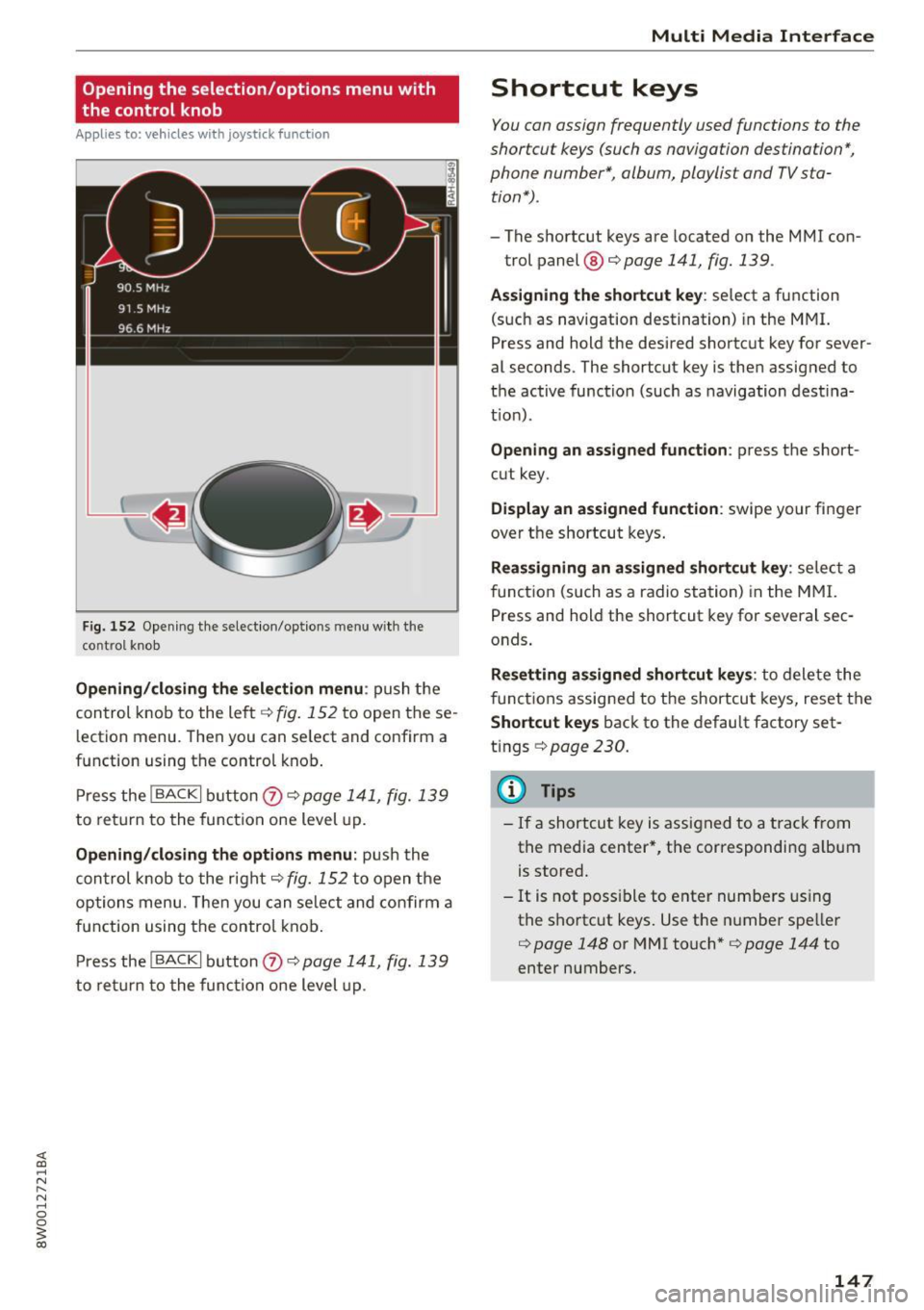
Opening/closing the selection menu : push the
con trol knob to the left ¢
fig . 152 to open these
l ection menu. Then you can se lect and confirm a
function using the contro l kno b.
Pr es s t he !BACKI butto n
(J) ¢page 14 1, fig. 139
to re tu rn to the func tion one level up.
Opening /closing the options menu: p ush the
con trol knob to the right¢
fig. 1 52 to open the
o p tion s menu. Then you can se lect and confirm a
f u nction u sing t he contro l knob .
P ress the !BACKI button
(J) ¢ pag e 141, fig. 139
to re tu rn to t he func tio n one level up.
Multi Media Interface
Shortcut keys
You can assign frequently used functions to the
shortcut keys (such as navigation destination*,
phone number*, album, playlist and TV sta tion*) .
-The shortcut keys are located o n the M MI con-
trol panel @¢
page 141 , fig. 139 .
Assigning the shortcut key : select a function
(s uch as navigation destination) in the M MI.
P ress and hold the desired shortc ut key fo r sever
al seconds . The shortcut key is then assigned to
t h e active funct ion (such as navigation dest ina
t io n).
Opening an ass igned function : press the short
cut key.
Display an assigned function : swipe your finger
ove r th e shortcut keys .
Reassigning an assigned shortcut key : selec t a
f unct ion (such as a radio st ati on) in the MMI.
Press and hold the shortcut key for several sec
o nds .
Resetting assigned shortcut keys : to delete the
f unc tions assig ned to t he shortcut keys, reset the
Shortcut keys bac k to the defau lt factory set
t in gs
¢ page 230.
(D Tips
-If a s hortcu t key is assigned to a trac k fro m
the media center *, the correspondi ng album
is st ored .
- It is not p oss ible to e nter numbe rs usin g
t h e s ho rtc ut keys . Use the numbe r spe ller
¢ page 148 or MM I touch* ¢ page 144 to
enter num bers .
147
Page 155 of 386

Voice recognition system Operating
A pp lies to: ve hicles with vo ice recognition system
You con operate many Infotainment functions
conveniently by speaking .
Fig . 157 Vo ice recognition system butto n on t he mult i·
function steering wheel
Requirements: the ignition and the MMI must be
switched on ¢
page 141, there must be no phone
call in progress and the parking system must not
be active .
.,. Switching on : briefly press the 12!] ¢ fig. 157
button on the multifunction steering wheel and
say the desired command after the
Beep .
.,. Switching off :
press and hold the 12!] button.
Or: press the [2] button.
.,. Pausing : say the comma nd Pau se . To res ume,
press the
1 0 .1 but ton .
.,. Correcting : say the command Correction .
Input assistance
The system guides you through the input with
visual and audio feedback .
-Vi sual input as sista nce : after switching on
vo ice recognit ion, a display with a selection of
poss ible commands appears . The comma nd
display can be sw itched on/off under
I MENU I >
Settings > left control bu tton > MMI settings >
Speech dialog system .
- Audio input a ssis tance :
to have the poss ible
commands read, turn the voice recognition sys
tem o n and say
Help .
For the system to understand you:
Speak clearly and distinct ly at a normal volume .
Speak louder w hen driv ing faster .
Voice re cogni tion system
Emphasize the words in the commands evenly
and do not leave long pauses.
Do no t spea k a command when the vo ice re cogni
tio n sys tem is making an announcemen t.
Close the doo rs , the w indows and the sun roof* to
r ed uce background no ise. Ma ke sure that passen
gers are not speaking w hen you are giv ing a voice
command.
Do not d irect the air vents toward the hands free
microp hone, which is on the roof headliner near
the fron t inte rior lights.
Only use the system from the dr iver's seat be
cause the hands free microphone is directed to
ward that seat.
Additional settings
Refer to¢ page 234.
A WARNING .
- Direct your full attention to dr iving . As the
d river, you have complete responsibility fo r
safety in t raff ic. Only use the functions in
s uch a way that you a lways m aintain com
p lete co ntro l over your vehicle in all tra ffi c
situa tions .
- Do not use t he voice recognition sys tem in
emergencies beca use your voice may ch ange
i n st ressfu l situations . It may take longe r to
d ia l the number o r the system may not be
ab le to dia l it at all. Dia l th e emergency
number manually.
@ Tips
- T he d ialog pauses w hen the re is an incom
ing phone call and will continue if yo u ig
nore the ca ll. The dia log ends if you answer
the ca ll.
- There are no Vo ice gu idance * prompts when
a dialog is active.
- You can select a n item in the list using ei
ther the voice recognit io n system or the
control knob .
153