distance setting AUDI A4 2017 Owners Manual
[x] Cancel search | Manufacturer: AUDI, Model Year: 2017, Model line: A4, Model: AUDI A4 2017Pages: 386, PDF Size: 96.32 MB
Page 4 of 386
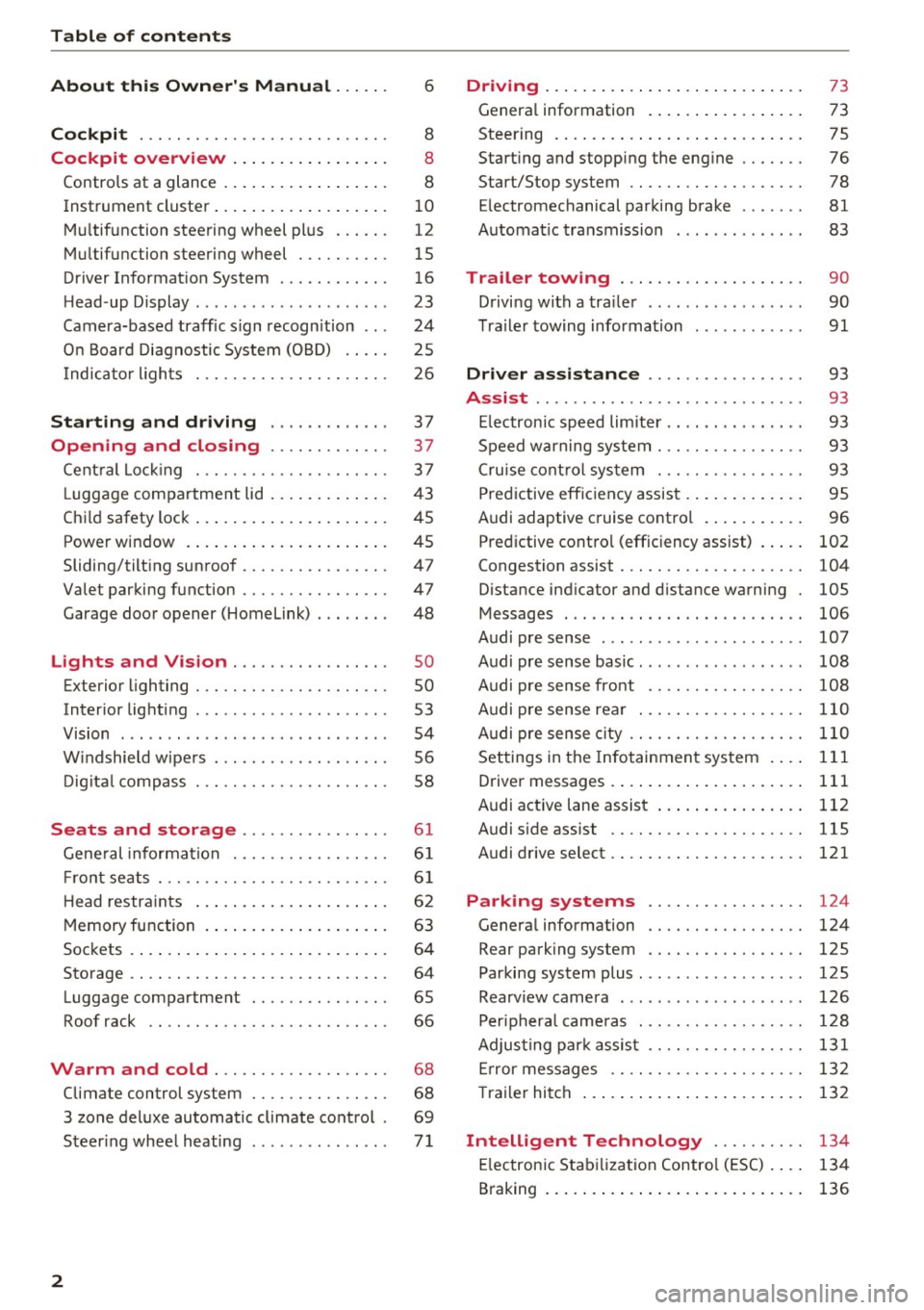
Table of contents
About this Owner's Manual ... .. .
Cockpit ... .. ............... .... .. .
Cockpit overview ................ .
Controls at a glance ... .......... .. .. .
Instrument cluster .. .......... .. .. .. .
Multifunction steering wheel plus ... .. .
Multifunction steering wheel ......... .
Driver Informat ion System ..... .. .... .
H ead-up Display .... .. .. ..... ... .. .. .
Camera-based traff ic sign recognition .. .
O n Board Diagnostic System (OBD) .... .
I ndicator l ights .............. .... .. .
Starting and driving
Opening and closing Cent ral Lock ing .............. .... .. .
L uggage compa rtment lid ... ..... .. .. .
Child safety lock .... .......... .. .. .. .
Power window ... .. .......... .. .. .. .
Sliding/tilting sunroof ......... .... .. .
Valet parking function ............. .. .
Garage door opener (Homelink) . .. .. .. .
L ights and Vision .............. .. .
Exterior lighting . .. . .......... .. .. .. .
Interior lighting ...... ........... ... .
V1s1on ....... .. ................ ... .
Windshield wipers . ... .... .... .. .. .. .
Digital compass . ............. .... .. .
Seats and storage ............ ... .
General information .......... .. .. .. . 6
8
8
8
10
12
15
16
23
24
25
26
37
37
3 7
43
45
45
47
47
48
so so
53
54
56
58
6 1
61
Front seats . . . . . . . . . . . . . . . . . . . . . . . . . 61
H ead restraints . . . . . . . . . . . . . . . . . . . . . 62
Memory function . . . . . . . . . . . . . . . . . . . . 63
Sockets . . . . . . . . . . . . . . . . . . . . . . . . . . . . 64
Storage . . . . . . . . . . . . . . . . . . . . . . . . . . . . 64
Luggage compartment . . . . . . . . . . . . . . . 65
Roof rack . . . . . . . . . . . . . . . . . . . . . . . . . . 66
Warm and cold . . . . . . . . . . . . . . . . . . . 68
Climate control system . . . . . . . . . . . . . . . 68
3 zone deluxe automatic climate control . 69
Steer ing whee l heating . . . . . . . . . . . . . . .
7 1
2
Driving ..... .. .. .. .. ... .......... . .
General information . ... ........... . .
Steering .......... .. .. . .......... . .
Start ing and stopping the eng ine ..... . .
Start/Stop system .. .. ............. . .
E le ctromechanical parking brake ...... .
Automat ic transmission
Trailer towing ... .. ... .. ..... ... . .
Driving with a trailer .. ........ ..... . .
Trailer towing information
Driver assistance .. ............ .. .
Assist ........... ... .............. .
Electronic speed limiter ... .. ... ... .. . . 73
73
75
76
78
81
83
90
90
91
93
93
93
Speed warning system . . . . . . . . . . . . . . . . 93
Cruise control system . . . . . . . . . . . . . . . . 93
Predictive efficiency assist . . . . . . . . . . . . . 95
Audi adaptive cruise control . . . . . . . . . . . 96
Predictive control (efficiency assist) . . . . .
102
Congestion assist . . . . . . . . . . . . . . . . . . . . 104
Distance ind icator and distance warning 105
Messages . . . . . . . . . . . . . . . . . . . . . . . . . . 106
Audi pre sense . . . . . . . . . . . . . . . . . . . . . . 107
Audi pre sense basic. . . . . . . . . . . . . . . . . . 108
Audi pre sense front . . . . . . . . . . . . . . . . . 108
Audi pre sense rear . . . . . . . . . . . . . . . . . . 110
Audi pre sense city . . . . . . . . . . . . . . . . . . . 110
Settings in the Infotainment system . . . . 111
Driver messages . . . . . . . . . . . . . . . . . . . . . 111
Audi active lane assist . . . . . . . . . . . . . . . . 112
Audi sid e ass ist . . . . . . . . . . . . . . . . . . . . . 115
Audi drive select . . . . . . . . . . . . . . . . . . . . . 121
Parking systems . . . . . . . . . . . . . . . . . 124
Genera l information . . . . . . . . . . . . . . . . . 124
Rear parking system . . . . . . . . . . . . . . . . . 125
Parking system plus . . . . . . . . . . . . . . . . . . 125
Rearview camera . . . . . . . . . . . . . . . . . . . . 126
Peripheral cameras . . . . . . . . . . . . . . . . . . 128
Adjusting park assist . . . . . . . . . . . . . . . . . 131
Error messages . . . . . . . . . . . . . . . . . . . . . 132
T railer hitch . . . . . . . . . . . . . . . . . . . . . . . . 132
Intelligent Technology . . . . . . . . . . 134
Electronic Stabilization Control (ESC) . . . . 134
Braking . . . . . . . . . . . . . . . . . . . . . . . . . . . . 136
Page 18 of 386
Cockpit overview
- Confirming a selection:
press the left thumb
whee l on the multif unction steering wheel to
confirm your selection .
-Scrolling within the lists: turn the left thumb
whee l on the multifunction steering wheel
quick ly to scroll within the lists.
@ Button [2!]
-Switching the voice recognition system on:
briefly press the~ button . Say the desi red
command after the
Beep .
- Switching the voice recognition system off:
press and hold the~ button . Or: say the com
mand
Cancel.
F or more information about the voice recog nition
system, refer to ¢
page 153, Voice recognition
system .
@ Right thumbwheel
The volume of an audio source or a system mes
sage (such as traffic announcements) can be di
rectly adjus ted dur ing the audio output.
- Increasing or decreasing the volume: turn the
ri ght thumbwheel up or down.
-Muting or pausing: turn the right thumbwheel
down .
Or: press the right thumbwheel.
- Un muting or resuming: turn the right thumb
wheel upward .
Or: press the right thumbwheel.
Driver Information
System
On-board computer
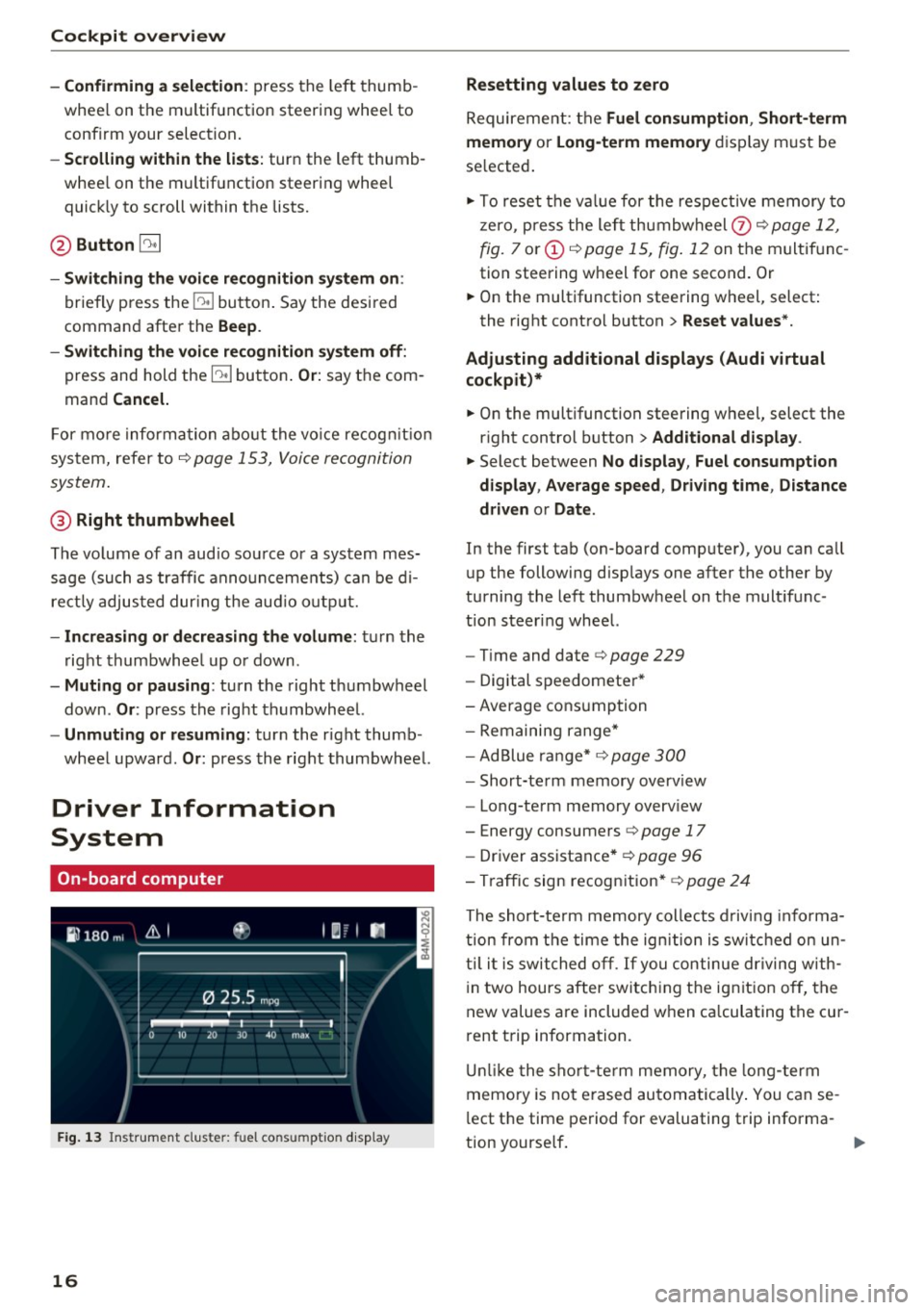
Fig. 13 Instrument clus ter: fu el cons umptio n display
16
Resetting values to zero
Requirement: the Fuel consumption , Short-term
memory
or Long-term memory display must be
se lected .
.,. To reset the va lue for the respective memory to
zero, press the left thumbwheel
(z) ¢ page 12,
fig.
7 or (i) ¢ page 15, fig . 12 on the multif unc
tion steering wheel for one second. Or
.,. On the multifunction steering wheel, select :
the right control button>
Reset values*.
Adjusting additional displays (Audi virtual
cockpit)*
.,. On the multifunction steering wheel, select the
right control button >
Additional display .
.,. Select between No display , Fuel consumption
display, Average speed , Driving time , Distance
driven
or Date .
In the first tab (on-board computer), you can call
up the following disp lays one after the other by
turning the left thumbwheel on the multifunc
tion steer ing wheel.
-Tim e and date r::>page 229
- Digital speedomete r*
-Average consumption
- Remaining range*
- Ad Blue range* ¢
page 300
-Short-term memory overview
- Long-term memory overv iew
- Energy consumers ¢
page 17
-Driver assistance * ¢ page 96
- Traffic sign recognition*
~ page 24
The short -term memory collects driving info rm a
tion from the time the ignition is switched on un
til it is switched off . If you continue driving with
i n two hours after switching the ign it ion off, the
new values are included when ca lculating the cur
rent trip information.
Unlike the short-term memory, the long -term
memory is not erased automatically. You can se
l ect the time period for evaluating trip informa-
tion yourse lf . ..,.
Page 98 of 386

Ass is t
A WARNING
Pay att ention to traffic a nd the area ar ound
yo ur vehicle wh en th e effici ency assist is
switched on . The dr iver is always respon sible
for correctly assess ing the traffic situation .
@ Tips
- The wording of the message may vary de
pending on the driving mode set in dr ive se
l ect*
r::::> page 121 and the current selector
l eve r pos ition . No messages a re displayed
whe n in the S selector leve r pos ition or in
d ynami c mode.
- When a route is planned using the naviga
tion system*, then the message fee d is
b ased on this rou te. W ithout rou te g uid
ance, the system uses an assumed ro ute for
the message feed.
- T here will not be a message for every si tua
tion ahead, for examp le if there is not
eno ugh distance remaining to react to the
situation.
- No messages are displayed when at s peeds
under 20 mph (30 km/h) .
Settings in the Infotainment system
A ppl ies to: ve hicles w ith predi ctive e fficiency assist
.. In the Infotainment system, select: I MENU I
button > Vehicle > left contro l button > Driver
assist
> Effi ciency assist .
Predictive messages are shown when this f unc
tion is sw itched on.
{D) Tips
No p redictive messages are shown on veh icles
w ithout a navigation system.
96
Audi adaptive cruise
control
Description
App lies to : vehicles wi th Audi adap tive c ru ise con trol
Fi g. 89 Detect io n range
The adaptive cru ise cont rol system is a comb ina
tion of speed and dis tance regu lation.
It ass ists
t h e d river by bo th regu lating the speed and
maintain ing a d is ta nce to the vehicle driv ing
ahead, within the limits of the system. If the sys
tem detects a vehicle d riving ahead, the adaptive
cruise contro l can brake and accelerate yo ur vehi
cle. T his makes driving more comfo rtable both
o n long st retches of hig hway and in stop-and-go
traffic .
What can adaptive cruise control do?
The adaptive cru ise control system uses video, ra
dar, ultrasound and navigat ion data . Vehicles
driv ing ahead can be recognized up to 650 feet
(200 m) away .
Pred ictive functions offer the drive r additional
comfort and contr ibute to the reduct ion in fuel
consumption a nd CO2 em issions
r::::> page 102.
On open roads with no traffic, it functions like a
cruise contro l system. The stored speed is main
ta ined . When approaching a vehicle d riving
ahead, the adaptive cruise contro l system auto
matically brakes to match that vehicle's speed
and then maintains the set dis tance. As soon as
the system do es not detect a vehicle dr iv ing
ahea d, adaptive cruise cont rol accelerates up to
t h e s to red spee d.
In stop-a nd-go traffic, adap tive cruise control can
brake until the veh icle is sta tionary a nd then can .,.
Page 103 of 386

.. To resume cruise control, release the lever or
take your foot off the acce lerator pedal.
Canceling cruise control while driving
.. Move the lever into posit ion @. The message
ACC: standby appears. Or
.. press the brake pedal.
.. To resume the stored speed, move the lever in
to position @.
Canceling cruise control when stopped
.. Push the lever away from you into position @.
The message
ACC : standby appears.
.. To resume cruise control, press the brake pedal
and pull the lever toward you into position@
A WARNING
It is dangerous to activate cruise control and
resume the stored speed when the current
road, traffic or weather conditions do not per
m it this . This increases the risk of an acc ident.
Setting the distance
A ppl ies to: ve hicles with Audi adaptive cruise co ntro l
,
0
Fig . 98 Operating lever: sett ing the dista nce
.. Tap the rocker switch to display the current set
distance
c:> fig. 98.
.. To increase or reduce the distance in incre
ments, tap the switch upward/downward
again . The distance between the two vehicles
will change in the instrument cluster display.
When approaching a veh icle driving ahead, the
adapt ive cruise control system brakes to match
that vehicle's speed and then adjusts to the set
d istance. If the vehicle driv ing ahead accelerates,
then the adaptive cruise cont rol w ill also acceler
ate up to the speed that you have set.
Assist
The higher the speed, the greater the distance
c:> &. The Distance 3 setting is recommended.
That is equal to the general recommendation of "ha lf the speed shown on the speedometer" .
T he distances provided are specified values. De
pending on the driving situation and how the ve
hicle ahead is driving, the actual distance may be
more or less than these target distances.
If you change the time gaps, the newly set value
appears brief ly in the instrument cluster display
II for example for Distance 3. This only occurs if
Driver assist is current ly not shown in the display
c:> page 98, fig. 94 .
Distance 1: this setting corresponds to a distance
of 92 feet (28 meters) when traveling at 62 mph
(100 km/h), or a time distance of 1 second .
Distance 2: this setting corresponds to a distance
of 118 feet (36 meters) when traveling at 62
mph (100 km/h), or a time distance of 1.3 sec
onds.
Distance 3: this setting corresponds to a distance
of 164 feet (SO meters) when traveling at 62
mph (100 km/h), or a time distance of 1.8 sec
onds.
Distance 4: this setting corresponds to a distance
of 210 feet (64 meters) when traveling at 62
mph (100 km/h), or a time distance of 2 .4 sec
onds.
Distance 5: this setting corresponds to a distance
of 328 feet (100 meters) when traveling at 62
mph (100 km/h), or a time distance of 3 .6 sec
onds.
A WARNING
-When setting the distance, the driver is re-
sponsible for adheri ng to any applicable legal
regulations.
@ Tips
- Distance
3 is set automatically each time
you switch the ignition on. If you would like
to set another distance as the standard set
ting, you can have the
Adaptive cruise con
trol
menu enabled by an authorized Audi
dealer or authorized Audi Service Facility.
101
Page 104 of 386

Assist
-Your settings are automatically stored and
assigned to the remote control key being
used.
Setting the driving program
A pp lies to: ve hicles w ith Audi adaptive cruise co ntro l
Depending on the selected driving program and
distance, driving behavior when accelerating will
vary from dynamic to comfortable.
Setting the driving program on vehicles
without drive select*
1>-In the Infotainment system, select: I MENU !>
Vehicle > left control button > Driv er assist >
Audi adaptive cruise control > Driving pro
gram > comfort, standard or dynamic .
Setting the driving mode on vehicles with
drive select*
Refer tor=;;, page 122 .
(D Tips
Your sett ings are automatically stored and as
signed to the remote control key being used.
Request for driver intervention
App lies to: ve hicles w ith Aud i ad aptive cruise co ntro l
Fig . 99 Instrument cluster: request for driver interve ntion
The request for driver intervent ion instructs you
to take over if the adaptive cruise contro l bra king
function is not able to mainta in a sufficient dis
tance to the vehicle driving ahead
c::> fig. 99.
l) Thi s is not ava ilab le in som e coun tri es .
102
Predictive control
(efficiency assist)
Description
App lies to: vehicles wit h Audi adap tive c ruise control and p re
dic tive efficiency ass ist
Fig. 100 In stru men t cl uster: p redict ive contro l
General information
The predict ive control 1> uses the map informa
tion from the navigation system in order to react
proactively when driving. Information from the
camera -based traffic sign recognition* is also ap
plied to recognize traffic signs
c::> page 24. When
coming up to areas with speed limits or changes
in the course of the road (such as curves, inter
sections or traffic c ircles), the system brakes au
tomatically and then accelerates back up to the
set speed .
When adaptive cruise control is switched off, the
system only provides notifications without con
trolled interventions
c::> page 95.
The driver can override the predictive contro l at
any time by pressing the accelerator or brake
pedal. If the system changes the veh icle speed to
adapt to speed limits, you can change the speed
using the lever
c::>page 99 , fig . 95.
Always switch off the predictive control in
the following situations:
-When increased attention is needed from the
driver .
- In poor weather conditions such as snow or
heavy rain .
- When driving on roads in poor cond ition.
Page 134 of 386

Parking sy stem s
The new ly selected level is demonstrated briefly
by the sound generator .
View * -switch betwee n an optical d isp lay
(Graphi c) and camera image (Camera ) in the
right area o f the disp lay .
Tr ail er view * -show trailer view
Auto . front /rear camer a change * -the view be
h ind the veh icle
( Rear mode) is displayed auto
mat ica lly when you shift into reverse gear . The
view in front of the vehicle
( Fr ont mode) is d is
p layed automatically whe n you shift into t he for
ward gea rs. When first activating in a forwar d
gear with the P"'~ button, the front s ide v iew is
disp lay ed
(Co rner view (front) mode).
If yo u do not se t the./, th e view behind the vehi
cle
( Re ar mode) is a lways d isplayed and it does
not switch to the
F ront mode when a forward
gear is selected .
{D Tips
-Seve ral menus can be accessed w ith the
right contro l button only when the park ing
aid is active.
- T he volume settings are a utomat ica lly stor
ed and ass igned to the remote cont ro l key
that is being used.
Error messages
Applies to: vehicles with a rear parking system/parking sys
tem plus/rearview camera/peripheral cameras
Ill Rear parking aid : malfunction! Ob stacle s
c annot be d etected
Ill Front parking aid : malfunction! Obstacles
cann ot be d etected
Ill Parking aid: mal funct ion! Obstacles cannot
be d etected
When one of these messages appears, there is a
system ma lf u nction. The LED in the P
11.A. button a l
so blinks when switching it on. The relevant mes
sage only appears again when you manua lly act i
vate the parking aid w it h the button .
Ill Rear pa rki ng a id: obstacle detect ion restrict·
ed
132
The rear cross -traffic ass ist* is not ava ilable
¢ page 119 , Rear cross-traffic assist. Either the
ESC is switched off, or the radar sensors may be
covered by a b ike rack, st ickers, leaves, snow or
other objects . Switch the ESC on, or clean the
area in front of the sensors if necessary
¢ page 116, fig. 112 . If this message continues
to be displayed, dr ive immediately to a n author
iz ed Audi dealer or author ized A udi Se rvice Fa cili
ty to have the m alfu nction repaired.
Parking system plus*
If a sensor or speaker is faulty, the J¼ symbol
will appear in front of/behind the vehicle in the
Infotai nment system d isplay. If a rear sensor is
faulty, only obstacles that are in areas @and @
a re show n
¢page 125, fig. 119 . If a front senso r
is fau lty, only obsta cles tha t are in a reas © and
@ are shown.
Peripheral cameras*
There is a system malfunction if the % symbol
appears and the co rresponding area of the dis
play is show n in bl ack. The c amera is not wo rking
i n th is area.
D rive to an author ized A udi dealer or autho riz ed
A udi Se rvice Facil ity immed iate ly to have the
malfu nction cor rec ted .
Trailer hitch
Applies to: vehicles with a rear parking system/parking sys
tem plus/rearview camera/peripheral cameras and trailer hitch
When the trailer soc ket is in use, th e parking sys
tem rear sensors are not act ivated when you sh ift
i nto reverse gear or when you press the p,,1, but
ton . Th is resu lts in the following restrict ions .
Rear parking system*
There is no distance warning.
Park ing system plus*
There is no distan ce warn ing for the rear. The
front senso rs remain activated. The visu al display
switches to trailer mode . ..,.
Page 195 of 386

Personal route
assistance
Applies to: vehicles with nav igation system
Your MMI can learn your frequently driven routes
and, depending on the current vehicle position,
suggest route guidance (for example, your daily commute to work and back).
Fig. 173 Examp le : persona l rou te d is pl ay
Fig . 174 In formation on perso nal route
.. Press the I NAV/MAPI repeatedly until the Enter
destination
menu is displayed ¢ page 187,
fig . 169 .
.. Select : right contro l button > Personal route
assistance .
When the function is switched on(~), the MMI
records the frequently-driven routes regardless
of whether a destination was entered and reached or not.
As long as route guidance is not act ive , your per
sonal routes are listed in the
Enter destination
menu under the home address and indicated with
the symbol
(D ¢ fig. 173. When personal route
assistance is sw itched on, this symbol is dis
played in the Infota inment system display status
line.
The distance to the destination and the calculat
ed arrival time are also displayed for your person
al routes . Without start ing route guidance, your
MMI monitors the traffic conditions for you r per-
Navigation
sonal routes and shows possible traffic incidents
for the possible routes to be driven in the Info
ta inment system display@¢
fig. 173.
A message will be displayed if there is a large
traffic incident (more than 15 minute delay) re
gardless of which menu is selected ¢
fig. 174.
Se lect and confirm one of the following options:
- Start route guidance : the MMI starts the route
guidance for the personal route displayed and
searches for a faster route if available.
- Ignore this route and this message : the dis
p layed destination with all applicable personal
routes is no longer factored into the current
trip. No more messages are shown for the dis
played destination. The displayed destination
with all applicable personal routes will be fac
tored into the trip again only after stopping the
veh icle and switching the ignition on again .
-Ignore all messages : all personal routes are no
longer factored into the current trip. No more
messages a re displayed . Messages for personal
routes when there is increased traff ic w ill ap
pear again after the vehicle is s top ped and the
ign ition is switched on again.
As soon as you switch off personal route assis
tance, the symbol turns off and your trips are no
longer recorded . Tr ips that were already stored
remain stored.
Deleting recorded routes :
-Select: !M ENU I button> Settings> left control
button >
MMI settings > Factory settings .
-Select: Navigation and online memory > Re·
store factory settings ¢
page 230.
{!) Tips
-Persona l routes are learned based on the ve
hicle position. The route is prioritized ac
cording to how frequently you drive to a
destination .
- A maximum of three personal routes are
disp layed in the
Enter destination menu.
Based on the current vehicle position, the
traffic situation for the route that is most
likely to be driven out of the three routes
w ill always be monitored.
193
Page 197 of 386

<( a, .... N ,....
N .... 0 0
3 a,
Requirement: a destination must be entered and
the route guidance must be started.
.,. Press t he
I NAV/MAPI repeatedly unt il the Enter
d estination
men u is displayed ¢ page 187,
fig. 169.
... Se lect : right contro l button > Show alternat ive
route s.
Up to three route suggestions and their proper
ties are disp layed on the overview map when the
function is switched on~
¢fig. 175 .
If available, the followi ng info rmation w ill ap
pear on the route s uggestions :
- Route type (fast(!), fast a lternat ive @, eco
nomic route @)
- Distance to the destination and the ca lculated
arrival time
- T raffic congestion along the route including
t ime delays
The route that was calcu lated according to the
route criteria you selected is show n on the over
view map . The special p ropert ies of the route are
a lso displayed @~
fig. 175 and given as a spo
ken message.
Using the contro l knob, you can select the possi
b le routing for the alte rnative routes and show
them on map Selec t and confi rm the desired
ro ute that you would l ike to use for route guid
an ce.
Additional settings
Navigation settings
Appl ies to: ve hicles with navigation system
... Press t he I NAV/MAPI repeatedly unt il the Enter
d estination
menu is displayed ¢ page 187,
fig. 169.
.,. Se lect : rig ht contro l button > Navigation set-
tings .
Depending on the se lected function , the follow
in g settings can be se lected :
Show alternative routes
Up to three route suggestions are shown on the
map when this function is switched on (~)
¢page 194.
Navigation
Gas stat ion message
A message is displayed if the fue l g auge goes be
l ow the reserve marking when this function is
switched on(~). Confirming this message dis
plays a list of gas stations in the area. When a
gas station is selected, route gu idance from the
current veh icle posit io n is calculated.
Trailer mode*
Trailer mode is swi tched off at the fa ctory .
When this f unct ion is swi tched on (~), th e maxi
mum pe rm itted spee d for ve hicles w ith trailers is
i n co rpor ate d int o the ro ute guidance and the cal
c ul ated arriva l time adjus ts respec tively . Trai le r
mode is d isplayed using symbols --=" in the side
men u on the map .
Personal route assistance*
Personal rou te ass istance is swi tched off at the
f a ctory.
Yo ur trips are recorded and destina tions a re s ug
ges ted by the
M MI w hen th is func tio n i s sw itched
o n (~)
¢page 193.
Notification when nearby*
The not ificat ion when nea rby is sw itched off at
the factory .
The
MMI not ifies you when you are approaching
selected points of interest when this function is
switched on (~). Yo u can also have a
Notifica
tion tone .
Presentation mode
Pre sentation mode
helps yo u to effectively p lan
a route w ithout moving the vehicle . You can
Se
lec t starting point
when, for example, you would
lik e to calculate a route start ing from a location
othe r than the veh icle posit io n. Sta rt
Presenta
tion mode
to simu late route g uidance.
195
Page 231 of 386

System settings
Setting the date and
time
You can set the clock time manually or using the
CPS* .
.,. Select : I MENU I button> Settings> left control
button >
MMI settings> Date & time .
.,. Or :
select the IM ENU I button > Vehicle > left
control button >
Vehicle settings > Date &
time .
Automatic setting
When this function is switched on~' the time
and date are automatically set .
Time
Requirement: the Automatic setting must be
sw itched off.
Press the control knob. You can set the
Time
manually by turning and pressing the control
knob.
Date
Requirement: the Automatic setting must be
switched off.
Press the control knob . You can set the
Date
manually by turning and press ing the cont rol
knob.
Time zone
When selecting the appropriate time zone, a
sampling of countr ies in this zone will be listed .
Automatic time zone*
When this function is switched on~' the time
will automatically adjust to the corresponding
time zone.
Automatic daylight saving time*
When this function is switched on~' the time
will automatically switch to daylight saving time .
<( Time format a, ....
~ If you select 24h, the clock will display, for ex-N
8 ample, 13 :00 . If you select AM/PM , the clock 0
~ will disp lay, for examp le, 1:00 PM .
System settings
Date format
If you se lect DD.MM .YYYY , the date will display,
f or example , as
31.12.2015. If you select MM/
DD/YYYY ,
the date will disp lay, for examp le, as
12/31/2015 . If you select YYYY·MM·DD, the
date will disp lay, for example, as
2015-12-31.
MMI settings
.,. Select: !MENU I button> Settings > left control
button >
MMI settings.
Language
You can change the display language as well as
the language for the voice guidance* and voice
recognition system*.
T he number of languages available depends on
the market .
Units of measurement
The following units can be selected :
-Speed (mph or km/h)
- Distance (miles or kilometers)
-Temperature (°For °C)
- Fuel consumption (L/100km, mpg (US), mpg
(UK) or km/l)
- Volume (lite rs , gallons)
Tool tips
When this funct ion is switched on~, your MMI
shows you tips for input. The frequency of how
often it displays decreases with time. You can
switch the function off at any time.
Speech dialog system
Applies to: vehicles with voice recognition system
Command display: when this function is switch
ed on~, the MMI will show you the possible
commands for voice input in the respect ive
menu . You can sw itch the funct ion off at any
time .
Short dialog : when this function is sw itched on
~' a shorter form of the prompts is used . You
can switch the function off at any t ime .
Volume: you can adjust the volume of the
prompts by turning the control knob .
229
Page 369 of 386

<( a, .... N ,....
N .... 0 0
3 a,
A
A/C MAX (climate control system) . . . . . . . . . 70
A/C (climate control system) . . . . . . . . . . . . . 69
Accessories . . . . . . . . . . . . . . . . . . . . . . . 64, 365
Active lane assist ................ .. ... 112
Adjusting steering time......... ... .. . 115
Adjusting the vibration warning . . . . . . . . 115
C leanin g th e came ra area . . . . . . . . . . . . . 338
Driver messages . . . . . . . . . . . . . . . . . . . . . 114
Indicator light . . . . . . . . . . . . . . . . . . . . . . 113
switching on and off . . . . . . . . . . . . . . . . . 113
Adaptive cruise control. . . . . . . . . . . . . . . . . . 96
C lean ing sensors . . . . . . . . . . . . . . . . . . . . 338
Congestion assist . . . . . . . . . . . . . . . . . . . . 104
Distance indicator . . . . . . . . . . . . . . . . . . . 105
Di stance warning . . . . . . . . . . . . . . . . . . . . 105
Me ssages . . . . . . . . . . . . . . . . . . . . . . . . . . 106
Predictive control . . . . . . . . . . . . . . . . . . . . 102
Request for driver intervention . . . . . . . . . 102
Setting the driving program . . . . . . . . . . . 102
Stop-and-go traffic . . . . . . . . . . . . . . . . . . 100
Adaptive dampers....... ..... ... ... .. . 121
Indicator light . . . . . . . . . . . . . . . . . . . . . . . 36
Adaptive light Indicator light . . . . . . . . . . . . . . . . . . . . . . . 36
AdBlue .. .. .. .. .................. ... . 300
M essages . . . . . . . . . . . . . . . . . . . . . . . . . . 300
Additional accessories . . . . . . . . . . . . . . . . . 365
Additional phone . . . . . . . . . . . . . . . . . 161, 230
Adjusting air distribution (climate control sys-
tem) . . . . . . . . . . . . . . . . . . . . . . . . . . . . . . . . 70
Adjusting the sound . . . . . . . . . . . . . . . . . . . 233
Adjusting the temperature (climate control
system) . . . . . . . . . . . . . . . . . . . . . . . . . . . . . . 70
advanced key
refer to Convenience key . . . . . . . . . . . . . . . 76
Airbag . . . . . . . . . . . . . . . . . . . . . . . . . . . . . . 253
Indicator light . . . . . . . . . . . . . . . . . . . . . . . 33
Airbag system . . . . . . . . . . . . . . . . . . . . . . . . 273
Advanced Airbag System . . . . . . . . . . . . . . 257
Advanced Airbag System components . . . 260
Care . . . . . . . . . . . . . . . . . . . . . . . . . . . . . . 268
Ch ildren ...... ........... ...... ... . 279
Ch ild restraints . . . . . . . . . . . . . . . . . . . . . 279
Components (front airbags) . . . . . . . . . . . 260
Index
Dang er of fitting a child safety seat on the
front passenge r seat . . . . . . . . . . . . . . . . . 254
Disposa l . . . . . . . . . . . . . . . . . . . . . . . . . . . 268
Front airbags . ... .. ............. 257,258
How do the front airb ags work? . . . . . . . . 263
How many airbags does my vehicle have? 260
How the Advanced Airbag System compo-
nents work together . . . . . . . . . . . . . . . . . 262
Important informat ion . . . . . . . . . . . . . . . 253
Important safety instructions on the knee
airbag system . . . . . . . . . . . . . . . . . . . . . . . 271
Indicator light . . . . . . . . . . . . . . . . . . . . . . 265
Kn ee airbags . . . . . . . . . . . . . . . . . . . . . . . . 269
Monitoring . . . . . . . . . . . . . . . . . . . . . . . . . 265
PASSENGER AIR BAG light . . . . . . . . . . . . 265
Repairs . . . . . . . . . . . . . . . . . . . . . . . . . . . . 268
Safety ins truc tions . . . . . . . . . . . . . . . . . . . 267
S id e airbags . . . . . . . . . . . . . . . . . . . . . . . . 271
Side curta in airbags . .............. ... 274
When must the system be inspected? 265
Air pressure Tire Pressure Monitoring System . . . . . . . 335
Tires . . . . . . . . . . . . . . . . . . . . . . . . . . . . . . 327
Alignment pin (changing the wheel) . . . . . . 343
All season tires . . . . . . . . . . . . . . . . . . . . . . . 332
All weather lights . . . . . . . . . . . . . . . . . . . . . . SO
All wheel drive . . . . . . . . . . . . . . . . . . . . . . . 137
AMI
ref er to Aud i music interface.......... . 215
Android Auto
refer to Audi smartphone interface . . . . . 227
Anti-lock braking system . . . . . . . . . . . . . . . 134
In dicator lig ht . . . . . . . . . . . . . . . . . . . . . . . 32
Anti-s lip-regulation . . . . . . . . . . . . . . . . . . . 134
Anti-Slip-Regulation Indicato r light . . . . . . . . . . . . . . . . . . . . . . . 32
Appl e CarPlay
refer to Audi smartphone interface . . . . . 227
Arrow view . . . . . . . . . . . . . . . . . . . . . . . . . . . 22
Audi connect emergency call and service . . 184
Emer gency ca ll . . . . . . . . . . . . . . . . . . . . . . 184
Online Audi Service enqu iry . . . . . . . . . . . . 186
Online roadside assistance . . . . . . . . . . . . 185
Audi connect vehicle control . . . . . . . . . . . . 181
Parking location . . . . . . . . . . . . . . . . . . . . . 182
Remote locking/unlocking . . . . . . . . . . . . 182
Vehicle status report . . . . . . . . . . . . . . . . . 182
367