audio AUDI A4 2018 User Guide
[x] Cancel search | Manufacturer: AUDI, Model Year: 2018, Model line: A4, Model: AUDI A4 2018Pages: 403, PDF Size: 66.81 MB
Page 114 of 403

Assistance systems
Changing the speed
Applies to: vehicles w ith Audi adaptive cruise co ntro l
0
f
' 0
Fig. 113 Operat ing lever : c h ang ing the speed
.,. To increase/decrease the speed in 1 mph (1
km/h) increments, br iefly
tap the lever toward
010 c:> fig . 113 to the first level.
.,. To inc rease/decrease the speed in 5 mph
(5 km/h or 10 km/h) increments, br iefly
tap
the leve r toward 0 10 to the second level.
.,. To increase or decrease the speed quickly, hold
the lever towards 0 10 u p to the fi rst or sec
ond level until the red
LED @ reaches the de
s ir ed speed
c:> poge 110, fig. 112 .
You can a lso preselect the speed when adaptive
cruise control is not active by moving the lever in
the desired d irection
0 10 . Activate the previ
ously selected speed by pulling the lever into po
sition
(D c:>poge 110, fig. 111 .
After each change, the new stored speed appears
briefly in the status line
c:;, poge 110, fig. 112 @.
When adaptive cruise control is active, the ill in
dicator light turns on and when adaptive cruise
control is not active, the
ll'J indicator light turns
on . In the Audi virtual cockpit*, the
II indicator
light turns on instead.
l) Thi s is not ava ilab le in som e coun tri es .
112
Dr iving in stop-and-go traffic
App lies to : vehicles wit h Audi adapt ive cruise control and au
tomatic transmiss ion
Fig. 114 Instrument cl uster: safe start monitor
The adaptive cru ise control system also assists
you in stop-and-go traffic . If a vehicle driving
ahead stops, your vehicle will brake and stay at a
stop w ithin the limits of the system.
.,. To resume driving with adaptive cruise control,
tap the accelerator pedal or
.,. Pull the lever toward you into position@
c:>page 113, fig. 115.
Starting to drive with adaptive cruise
control
1 )
As long as the message ACC: automatic go dis
plays and the vehicle dr iv ing ahead s tarts to
move, your vehicle will start driving
c:> ,&. Yo u can
activate
ACC: automatic go again for a short
time by pulling the lever to position@.
Fo r safety reasons, your vehicle w ill only start to
drive automatically if:
- the drive r's safety belt is fastened
-all doors and the hood are closed
- your vehicle is not stationary for more than
three minutes
Safe start monitor
If an obstacle is detected when you start driving,
you w ill be alerted to the danger by
the . indi
cator light and the image in the instrument clus
ter display
c:> fig. 114 c::> .&. . An audio signal will
also sound . Your vehicle will drive more slowly
when starting. This may also happen in some sit -
uations when the re is no apparent obstacle.
.,..
Page 139 of 403

Rear parking system
Description
Applies to: vehicles with rear parking system
The rear parking system is an audible parking
aid .
Descr iption
There is a sensor in the rear bumper cover. If
these detect an obstacle, audible signals warn
you .
Make sure the sensors are not covered by stick
ers, deposits or any other obstructions as it may
impair the function of the system . For informa
tion on cleaning, see
c::;,page 354 .
The range at which the sensors begin to measure
is approximately:
side 3 ft (0 .90 m)
rear
center 5.2
ft (1.60 m)
The closer you get to the obstacle, the shorter
the interval between the audible signals . A con
tinuous tone sounds when the obstacle is less
than approximately 1 foot (0.30 meters) away. Do not continue backing up
c::;, &. in General infor
ma tion on page 136,
c::;, (D in General information
on page
136!
If the distance to an obstacle remains constant,
the volume of the distance warning gradually lowers after a few seconds until it is muted (this
is not apply in the continuous tone range). If the
obstacle becomes closer than it was before the
sound was muted, the tone will sound again . If
the obstacle is father away than it was before the
sound was muted, no tone w ill sound . Pay atten
tion to the vehicle's surroundings when you start
to drive.
Activating
The rear parking assist activates automatically
when the reverse gear is engaged. A brief confir
mat ion tone will sound.
Parking systems
Parking aid plus
Description
Applies to: veh icles w ith park ing system plus
Parking system plus provides audio and visual
signals when parking.
Fig. 136 Illust rat io n:
Sensors are located in the front and rear bump
ers. If these detect an obstacle, audib le and visu
al signals warn you.
Make sure the sensors are not covered by stick
ers, deposits or any other obstructions as it may
impair the function of the system. For informa
tion on cleaning, see
c::;, page 354.
The display field begins approximately at:
® 4 ft (1.20 m)
® 3 ft (0 .90 m)
© 5.2 ft (1.60 m)
@ 3 ft (0.90 m)
T he close r you get to the obstacle , the shorter
the interval between the audible signals . A con
tinuous tone sounds when the obstacle is less
than approximately 1 foot (0.30 meters) away.
Do not continue driving forward or in reverse
c::;, &. in General information on page 136, c::;,(i) in
General information on page
136!
If the distance to an obstacle remains constant ,
the volume of the distance warning gradually
l owers after a few seconds until it is muted (this
is not apply in the continuous tone range).
If the
obstacle becomes closer than it was before the
sound was muted , the tone will sound aga in . If
the obstacle is father away than it was before the
.,_
137
Page 146 of 403

Parking sy stem s
Enterta inment fade r -the volume o f the audio/
video source is lowered when the parking system
is turned on
The newly selected level is demons trated briefly
by the sound generator.
Vi ew * -switch betwee n an optical d isplay
( Graphi c) and camera image (C amera ) in the
right section of the disp lay.
Trail er view * -show trailer view
*Auto. front /rear camera ch ange * -the view be
h ind the veh icle
( R ear mode) is displayed auto
mat ically when you shift into reverse gear. The
view in front of the vehicle
( Front mode) is d is
p layed automatically when you shift into the for
ward gea rs. When first activat ing in a forward
gear with the
P,, 1A button, the front s ide v iew is
d isp layed
( Corner view (front) mode).
I f you do not set the../, the view behind the vehi
cle
( Rear mode) is a lways d isplayed and it does
not swi tch to the
Front mode when a forward
gear is se lected.
(D Tips
- Seve ral menus can be accessed w it h t he
right contro l butto n only whe n the park ing
aid is active.
- T he settings for volume and automatic act i
vation* are au tomatically sto red and as
signed to the remote control key being
used .
Error messages
Appl ies to: ve hicles w ith a rea r parking sys te m /pa rking sys
tem plus/rearv iew camera/p eripheral ca meras
Ill Rear park a ssis t: malfunction! Obstacles
c anno t be d etec ted
Ill Front park assist: m alfunction! Obstacle s
cannot be d ete cted
Ill Park a ssist: mal function! Obstacles cannot
be d ete cted
When one of these messages appears, there is a
system ma lf u nction. The LED in the
P11.A. button al
so blinks when switching it on. The relevant mes-
144 sage on
ly appears again when you manually acti
vate the parking aid with the button.
[II Rear parking aid: ob stacl e detection re str ict
ed
The rear c ross-traffic ass ist* ¢ page 132, Rear
cross-traffic assist
i s no t available. Either the ESC
i s sw itched off, or the rada r senso rs may be cov
ered by a bike rack, stickers, leaves, snow or oth
er objects . Switch the ESC on, or clean the area in
front of the sensors if necessary ¢
page 129,
fig . 130.
If this message cont inues to be d is
played, drive immed iate ly to an authori zed Audi
dealer or authorized Audi Service F acility to have
the malfunct ion repaired .
Parking sy stem plu s*
If a sensor or speaker is faulty, the 94 symbo l
will appea r in front of/behind the vehicle in the
Infotainment system d isplay. If a rear sensor is
faulty, only obstacles that are in areas @and @
are
shown ¢ page 137, fig . 136 . If a front sensor
i s faulty, o nly obstacles that are in a reas © and
@ are shown .
Peripheral cameras*
There is a system malfunction if the% symbol
appears and the corresponding area of the dis
play is shown in black . The camera is not working
i n th is area .
Drive to an authori zed Audi dealer or authori zed
Audi Service Facility immed iate ly to have the
malfu nction corrected.
Trailer hitch
App lies to : vehicles wi th a rear park ing system/ parking sys
t e m plus/ rea rview ca mera /pe riph eral cameras and traile r
hi tc h
When the trailer socket is i n use, the parking sys
tem rear se nsors are not a ct ivated when you sh ift
into reverse gear or when you press the
? #A but
ton. This resu lts in the following restrictions .
Rear parking system*
There is no distan ce warning .
Page 167 of 403
Multi Media Interface
Menus and Symbols
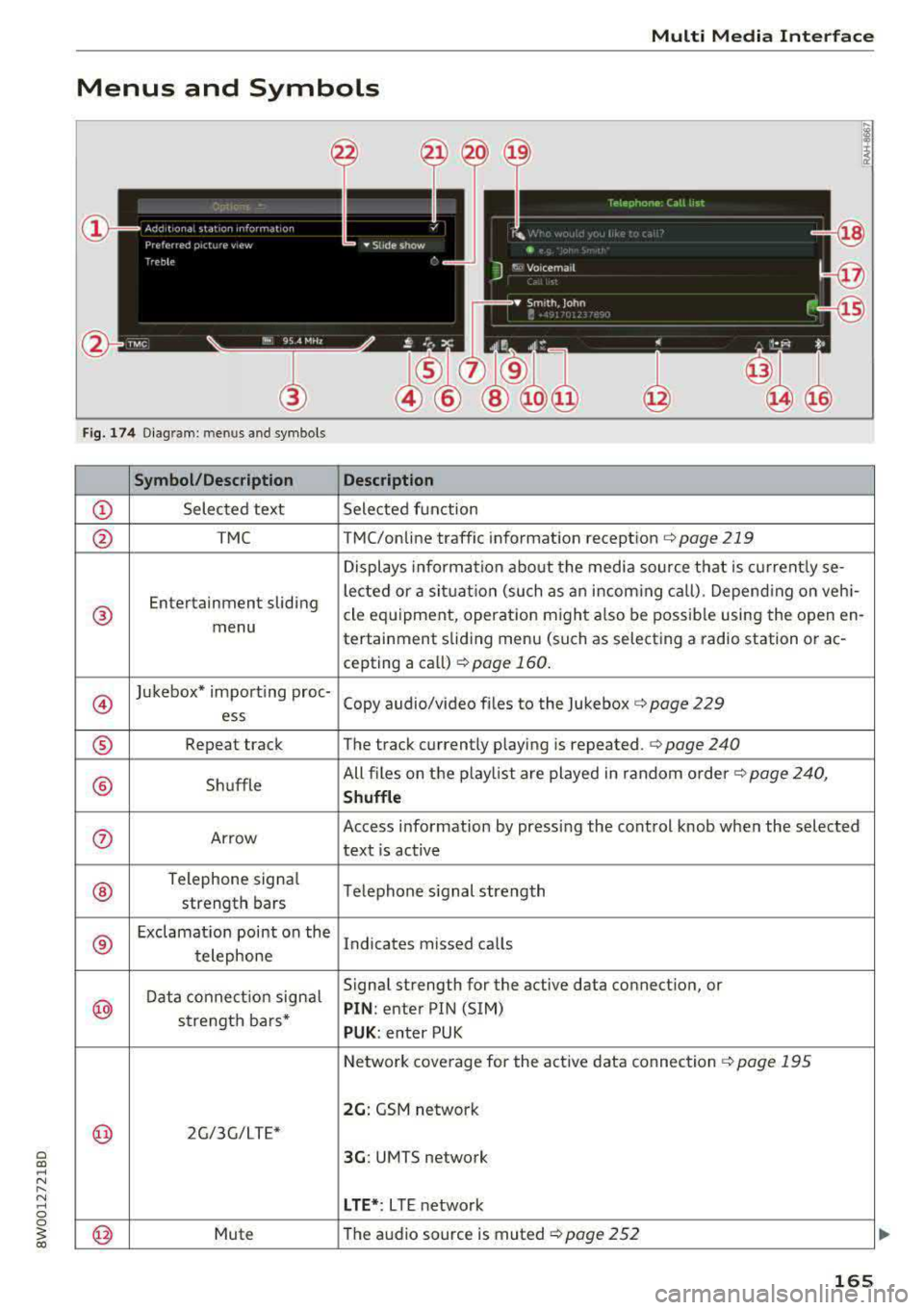
Fig. 174 Diagram: men us and symbols
Symbol/Description
Description
© Selected text Selected function
@ TMC TMC/online traffic information reception c:> page 219
Displays information about the media source that is currently se-
Entertainment sliding lected or
a situat ion (such as an incom ing call) . Depend ing on veh i-
® cle equipment, operat ion might a lso be possible using the open en-
menu tertainment sliding menu (such as selecting a radio station or
ac-
cepting a call) c:>page 160 .
@
Jukebox* import ing proc-
Copy audio/video files to the Jukebox c:> page 229
ess
® Repeat track The track currently playing is repeated . c:> page 240
® Shuffle All files
on the playlist are played in random order
c:> page 240,
Shuffle
®
Telephone signa l
Telephone s ignal strength
strength bars
®
Exclamation point on the
Indicates missed calls
telephone
Data connection signal Signal strength
for the active data connect ion, or
@ PIN : enter PIN (SIM)
strength bars*
PUK: enter PUK
Network coverage for the active data connection
c:> page 195
2G: GSM network
@ 2G/3G/LTE*
3G: UMTS network
LTE*: L TE network
@ Mute The
audio source is muted c:> page 252
165
Page 170 of 403
Voice recognition system
Voice recognition system Operating
Applies to: vehicles with vo ice recognition system
You con operate many Infotainment functions
conveniently by speaking.
Req uirements: the ignition and the MM I must be
sw itched
on~ page 155 , there must not be any
phone call in progress and the parking system
m ust not be active .
.. Switching on: press the~ button @
¢
page 15, fig. 11 or ¢ page 16, fig . 13 briefly
on the multifunction steering wheel and say
the des ired command after the
Beep .
.. Switching off : press and hold the~ button.
Or: press the l2l button.
.,. Pause : say the command Pause . To resume,
press
the~ button .
.,. Correcting : say the command Correction . Or :
simp ly say a new comma nd during an an
no uncement ¢
page 248.
Input assistance
The system gu ides you throug h the input with
visual and audio feedbac k.
- Visual input as sistance : after switching on
vo ice recognit ion, a display with a selection of
poss ible commands appears . This command
display can be sw itched on o r off. Se lect:
IMENU I button> Set tings > left co ntrol button
> MMI setting s> Speech di alog system .
- Audio input a ssistanc e:
to have the poss ible
commands read, turn t he voice recogn ition sys
tem on and say
Help.
For the system to understand you:
Speak clearly and dist inctly at a normal volume .
Speak louder when d riving faster .
Emphasize the words in the commands even ly
and do not leave long pauses .
Close the doors, the windows and the sunroof* to reduce background noise . Make sure that passen
gers are not speaking when you are giving a voice
command .
168
Do not direct the air vents toward the hands -free
microp hone, which is on the roof headliner near
the front interior lights .
Only use the system from the dr iver's seat be
ca use the hands -free microphone is directed to
ward that seat .
Additional settings
See¢ page 248, Speech dialog system .
.8, WARNING
-Dire ct yo ur full attention to dr iv ing . As the
driver, you have complete responsibility fo r
safety in traffic. Only use the functions in
such a way that yo u always maintain com
plete contro l over your vehicle in a ll traffic
situations .
- Do not use the voice recognition system in
emergencies beca use your voice may change
in stressful s ituations. It may take longer to
dia l the number or the system may not be
ab le to dial it at all. Dial the emergency
number manually.
(D Tips
- The d ialog pauses when there is an incom
ing phone call and will continue if you ig
nore the call. The dia log ends if you answer
the ca ll.
- You can select an item in the list us ing ei
ther the vo ice recognit ion system or the
cont rol knob.
Command overview
information
Applies to: vehicles with voice recognition system
The following overv iews des cribe the commands
that can be used to operate the MMI using the
voice recognition system.
Alte rnative commands are separated using a"/ ",
for example say:
Telephone / (or) Navigation /
(or) Radio.
Sequences of commands used to perform an a c
tion are identified w ith a
"> ", fo r example say:
Enter addre ss> (t hen) Enter country /state . ..,.
Page 175 of 403
a co .... N ,....
N .... 0 0
3 co
Voice recognition system
Radio
Applies to: vehicles with voice recognition system
Req uirement: the Radio must a lready be open. Depend ing on the vehicle equipmen t and these
lected frequency band, you can say the fo llow ing
commands :
Function
Say:
Selecting the frequency band FM*/ Siriu sXM * / FM / AM
Selecting a station from the station Channe l (XY) / Frequency (XV)
list
Selecting a stat ion from favorites/
Rad io prese ts > Line (XV )
presets
Setting the frequency
Frequency (XV) I Frequency (XV ) HD 1
Correcting data input No I mea nt ( XV)
Clos ing the full-sc reen command Clo se
list
Media
Applies to: vehicles with voice recognitio n system
Req uirement: you must be in the Media menu. Depending on the vehicle equipment and the ac
t ive media, yo u can say the following commands:
Function
Say:
Selecting a so urce directly Jukebox */ CO / DVD / SO card l / SO card 2 / Aud i music inte r-
face *
I iPhone* /USS */ Bluetooth* / Wi-Fi * / Medium (X V ), for
example "Jolhn's player"
Selecting aud io/video files* from
Media fav orites / Arti sts/ Album s/ Genr es / Track s/ Playli st s /
the Jukebox* V id eos
Selecting aud io files on an iPod Art ists I Albums / Genre s I Tracks / Pla ylists /Composer s/
(source: Audi music interface*) Podcast s / Audio books
Navigating w ith in a folder struc-Fo lde r up / Line (XV )
tu re/list
Selecting shuffle
Shuffle on / Shuffle off
Correcting data input No I meant (XV)
Clos ing the full-screen command Clos e
list
(D Note External voice operation
Always follow the i nformat io n found in ~0 in
Wi-Fi hotspot on page 194.
Applies to: vehicles with voice recognition system and exter
nal voice operation
Requirement:
The ignition and the MMI must be switched on.
No phone call is in progress.
173
Page 195 of 403
a co .... N ,....
N .... 0 0
3 co
The follow ing Audi connect In fota inment services
are current ly available:
- Naviga tion wi th
online map view an d Street
View ¢ page 216.
-Point of Interest (POI) online search with
voi ce re cognition
(such as res taur ants): plan
rou te g uidance using t he M MI con trol panel
¢ page 208 and the voice recognition system
¢ page 168 .
-Set up des tina tions i n your M MI using yo ur
myAudi account or online map view
¢page 216 .
-Online traffic information : receive up-to -the
minute traffic info rmation about accidents,
road constr uction and other incidents
¢ page 220.
- Map update : import navigation map updates
directly to yo ur vehicle using an SD ca rd or as
an on line
update ¢ page 218.
(D Tips
-Fo r the map update A udi connect Infotain
ment service via SD card, check the current
software vers ion in your vehicle and t hen
check
www .audiusa.com/myaudi to see if a
newe r version is ava ilable. You can a lso have
t h e new navigation da ta insta lled by an Audi
dealer , w hich can be done for an add itio nal
c ha rge.
- Y ou can also find addi tiona l info rmation
abo ut the
map update onl ine a t
www.audiusa .com/myaudi .
Audi connect (Infotainment) on the phone
Applies to vehicles with Audi connect (Infotainment)
~ Se lect : I MENU I button > Audi connect > left
contro l button >
Communication .
The follow ing A udi con nect In fot ainm ent service s
a re cu rrent ly availab le:
- Stor ing contacts on yo ur computer using yo ur
myAudi Account and load ing the con ta cts in to
t h e M MI
direct ory ¢ page 185.
Audi connect (Infotainment)
Audi connect (Infotainment) in Media
menu
Applies to vehicles with Audi connect {Infota inment}
~ Sele ct : iME NUI button> Audi connect > right
control button >
Entertainment.
- Online media and Internet radio :
offers acce ss
t o d ifferent online media se rvices as well as I n
ternet radio an d ope ration th ro u gh the MMI us
ing the
Audi MMI connect app ¢ page 232.
Applies to: vehicles with Wi·Fi audio player
- Wi-Fi audio player : you can access the med ia
cen ter through a Wi-Fi connec ted med ia p layer
(su ch as a smartp hone)
¢ page 231.
_&. WARNING
It is only safe to use table ts, l aptops , m obile
d evi ces and other simila r devices whe n the ve
hicl e is stationary beca use, like a ll loose ob
j ects, they could be thrown aroun d the inside
of the vehicle in a crash an d cause serious in
jur ies. Store these types of devices sec urely
while driv ing .
(D Note
Always fo llow the information fo und in ¢ 0 in
Wi-Fi hotspot on page 194 .
(D Tips
-Also see the cha pter ¢ page 195, Audi con
nect (Infotainment) general information .
- For more in forma tion on the Wi -Fi a ud io
p layer a nd sup ported devices, contact an
authorized A udi dealer or authorized Audi
Service Facility.
Additional options
Applies to vehicles with Audi connect (Infotainment}
~ Select: ! M EN UI button> Audi connect > right
cont rol button .
The following options a re available in the Aud i
connect Infota inment serv ices overv iew :
Log in*
See ¢ page 188, Logging into myAudi in the vehi -
de. ~
193
Page 228 of 403
a co .... N ,....
N .... 0 0
3 co
Media
Introduction
There are various media drives and connections
avai lable in the MMI. For example, you can play
audio/video* fi les from the Jukebox* or connect
your mobile device to the Audi mus ic interface*
and operate it through the MMI.
Notes
General information
Media and format restrictions:
the MMI (includ
ing the SD card reader and the USB storage
de
vice connection*) was tested with a variety of
products and media on the market. However,
there may be cases where individual devices or
media and audio/video files* may not be recog
nized, may play only w ith restrictions, or may not
play at al l.
Digital Rights Management: please note that
the audio/video* files are subject to copyright
protection .
The media drives do not play fi les that are pro
tected by ORM and that are ident ified with the
symbol
l'.D.
Data security: never store important data on SD
cards, the Jukebox*, CDs/DVDs or mobile devices.
Audi AG is not responsible for damaged or lost
files and media.
Loading times : the more files/fo lders/play lists
that are on a storage medium, the longer it will
take to load the audio/video* files. Audi recom
mends using storage media that only contain
au
dio/video files*. To decrease the t i me it takes to
load audio/v ideo files*, create subfolders (for
ex
ample, fo r the art ist or album). The loading time
will also increase when importing fi les.
Additional information : when playing, audio
files are automatically displayed w ith any add i
tional information that is stored (such as the
ar
tist, track and album cover). If this information is
not available o n the storage medium, the MMI
will check the Grace note metadata database .
Media
However, in some cases, the additional informa
tion may not be displayed.
Restricted functionality : reset the Media set
tings
t o the factory default settings if functional
ity is restr icted
¢ page 249.
If functionality is restricted, reset the Jukebox*
to the factory default settings ¢ page 249.
For information about the properties of support
ed media and fi le formats, see
¢page 242 .
(D Note
Always follow the information found in ¢ @ in
Wi-Fi hotspot on page 194.
CD/DVD operation
CD /DVD and format restrictions :
the functiona li
ty of individ ual storage media may be limited due
to the variety of b lank CDs/DVDs available and
the various capacities. Audio CDs or video DVDs
with copy protection, CDs/DVDs that do not con
form to the standard and multi session CDs may
have limited playback or may not play at a ll. Audi
recommends finaliz ing the recording process
when creat ing mult isess ion CDs. Mult isess ion is
not supported for DVDs.
Using CDs/DVDs, the CD dr ive or the DVD drive :
to ensure correct, high-quality playback and to
prevent damage to the dr ive or disc read ing
er
rors, always store CDs/DVDs in a protective
s leeve and do not expose them to direct sunlight.
Do
not u se:
- Damaged, dirty or scratched CDs/DVDs
- Single CDs/DVDs with 3 in (8 cm) d iameter
- CD/DVDs that are not round
- CDs/DVDs with labe ls
- Protective rings
- Clean ing CDs
Thermal protection switch: CD/DVD playback
may be temporarily unavailable if outside tem
peratures are extremely hot or cold. A thermal
protect io n sw itch is insta lled to p rotect the CD/
DVD and the laser.
Laser devices : laser devices are divided into safe-
ty classes 1 to 4 in accordance with DIN IEC 76
.,._
227
Page 229 of 403
Media
(CO) 6/VDE 0837. The optical readers that are in
stalled conform to safety class
1. Lasers in this
class are very weak and well shielded, so there is no danger if used correctly.
Media drives
SO card reader
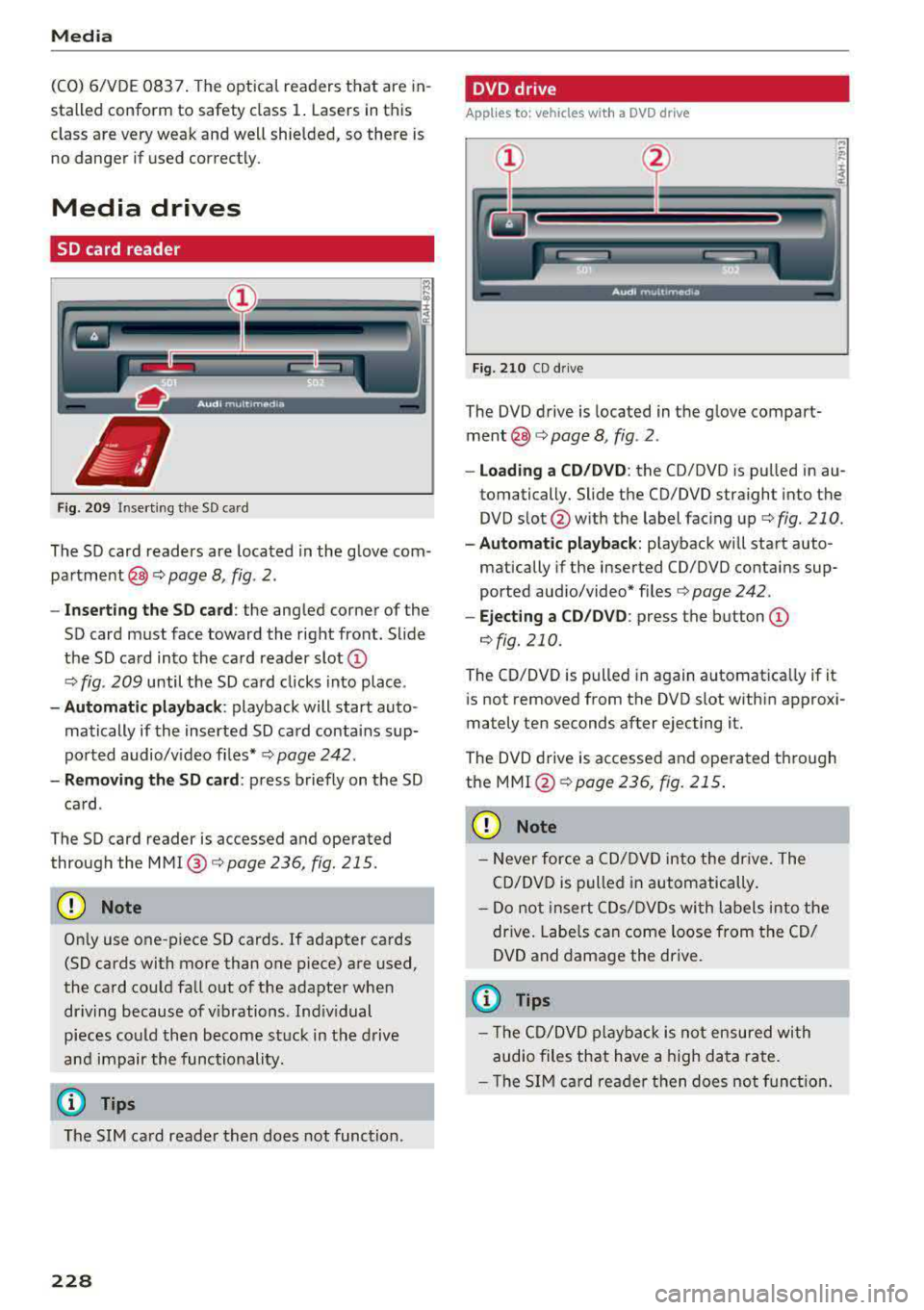
Fig. 209 In serting the SD card
The SD card readers are located in the glove com
partment @c::>
page 8, fig. 2.
- Inserting the SD card: the angled corner of the
SD card must face toward the right front. Slide
the SD card into the card reader slot
CD
c::> fig . 209 until the SD card clicks into place .
-Automatic playback : playback will start auto
matically if the inserted SD card contains sup
ported audio/v ideo f iles* c::>
page 242.
-Removing the SD card : press briefly on the SD
card .
The SD card reader is accessed and operated
through the
MMI @c::>page236, fig. 215.
CD Note
Only use one-piece SD cards. If adapter cards
(SD cards with more than one piece) are used,
the card could fall out of the adapter when
driving because of vibrations . Ind iv idual
pieces could then become stuck in the drive
and impair the functionality.
(0 Tips
The SIM card reader then does not function.
228
DVD drive
Applies to : vehicles wit h a DVD drive
Fig. 210 CD drive
The DVD drive is located in the glove compart
ment@c::> page 8, fig . 2 .
- loading a CD/DVD: the CD/DVD is pulled in au
tomatically. Slide the CD/DVD straight into the
DVD slot @with the label facing up c::>
fig. 210.
-Aut omatic playback : playback will start auto-
matically if the inserted CO/DVD contains sup
ported aud io/video* files c::>
page 242.
-Ejecting a CD/DVD : press the button CD
¢fig. 210.
The CD/DVD is pulled in again automat ica lly if it
is not removed from the DVD slot within approxi
mately ten seconds after ejecting it.
The DVD drive is accessed and operated through
the
MMI @¢poge 236, fig. 215 .
CD Note
-Never force a CD/DVD into the drive. The
CD/DVD is pulled in automatically.
- Do not insert CDs/DVDs with labels into the
drive. Labels can come loose from the CD/
DVD and damage the drive.
(D Tips
- The CD/DVD playback is not ensured with
audio files that have a high data rate.
- Th e SIM card reader then does not function.
Page 230 of 403
a co .... N ,....
N .... 0 0
3 co
CD drive
Applies to: vehicles wit h a CD drive
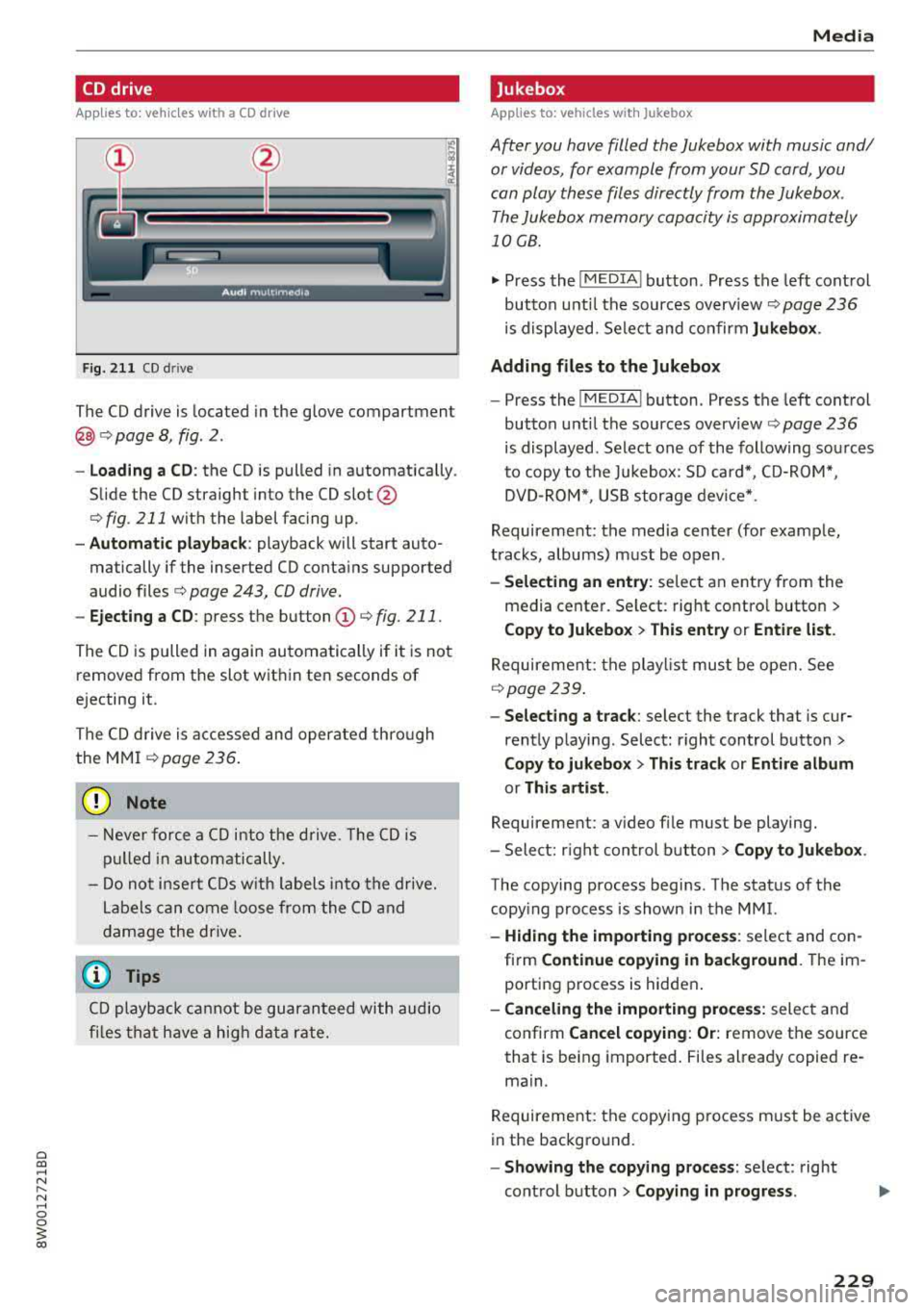
Fig. 211 CD drive
The CD drive is located in the glove compartment
@c>page 8, fig. 2 .
-Loading a CD: the CD is pulled in automatically .
Slide the CD straight into the CD
slot @
c> fig. 211 with the label facing up.
-Automatic playback : playback will start auto
matically if the inserted CD conta ins supported
audio files
c> page 243, CD drive.
- Ejecting a CD: press the button (D c> fig. 211.
Th@ CD is pulled in again automatically if it is not
removed from the slot w it hi n ten seconds of
ejecting it .
The CD drive is accessed and operated through
the MMI
c>page 236.
(D Note
- Never force a CD into the drive. The CD is
pulled in automatically.
- Do not ins ert CDs with labels into the drive.
Labels can come loose from the CD and
damage the drive.
(D Tips
C D playback cannot be guaranteed with audio
files that have a high data rate.
Media
Jukebox
Applies to: vehicles w ith Jukebox
After you have filled the Jukebox with music and/
or videos, for example from your SD card, you
can play these files directly from the Jukebox .
The Jukebox memory capacity is approximately
10 CB .
.,. Press the I MEDIA ! button. Press the left control
button unti l the sources overv iew
c> page 236
is displayed. Select and confirm Jukebox .
Adding files to the Jukebox
- Press the !MEDIA ! button. Press the left control
button unti l the sources overv iew
c> page 236
is displayed . Select one of the following sources
t o copy to the Jukebox: SD card*, CD-ROM*,
DVD-ROM*, USB storage device*.
Requirement: the media center (for example,
tracks, albums) must be open .
-Selecting an entry : select an entry from the
media center. Se lect : right contro l button
>
Copy to Jukebox > This entry or Entire list.
Requirement: the playlist must be open. See
c>page239 .
-Selecting a track : select the track that is cur
rently playing . Select: r ight control button
>
Copy to jukebox > This track or Entire album
or This artist .
Requirement: a v ideo file must be playing.
- Select: r igh t control button
> Copy to Jukebox .
The copying process begins. The status of the
copy ing process is shown in the MMI.
-Hiding the importing process : select and con
firm
Continue copying in background . Theim
porting process is hidden .
-Canceling the importing process: select and
confirm
Cancel copying : Or: remove the source
that is being imported. Files already copied re
main.
Requirement: the copying process must be active
in the background.
- Showing the copying process: select: right
control button
> Copying in progress.
229