change time AUDI A4 2018 User Guide
[x] Cancel search | Manufacturer: AUDI, Model Year: 2018, Model line: A4, Model: AUDI A4 2018Pages: 403, PDF Size: 66.81 MB
Page 116 of 403
Ass is tance sy stems
That is equal to the general recommendation of
"half the speed shown on the speedometer" .
The distances provided are specified val ues. De
pending on the d riving si tuat ion and how the ve
hicle ahead is driving, the actual distance may be
mo re or less than these target distances.
If you change the time gaps, the new ly set value
appears br iefly in the instrument clus ter display
II for example, for Di stance 3. T his only occurs
if the
Dr iver a ssistance display is not current ly
shown in the display
r:!:> page 110, fig. 112.
Distance 1 : this setting corresponds to a d istance
of 92 feet (28 meters) when traveling at 62 mp h
(100 km/h), or a time distance of 1 second.
Distan ce 2 : this setting co rresponds to a d istance
of 118 feet (36 meters) when traveling at 62
mph (100 km/h), or a time distance of 1.3 sec
onds.
Distan ce 3 : this setting corresponds to a d istance
of 164 feet (SO meters) when traveling at 62
mph (100 km/h), or a time distance of 1.8 sec
onds.
Distan ce 4 : this setting co rresponds to a d istance
of 219 feet (67 meters) w hen t raveling a t 62
mph (100 km/h), or a time distance of 2 .4 sec
onds.
Distan ce 5 : this setting co rresponds to a d ista nce
of 328 feet (100 me ters) when traveling at 62
mph (100 km/h), or a time distance of 3 .6 sec
onds.
A WARNING
When setting the distance, the driver is re sponsible for adhering to any applicab le legal
regulat ions.
(D Tips
- Depending on the selected driving mode in
drive select* and the set distance , the driv
i ng behavior will vary from dynamic to com
fortable when accelerating
¢ page 134.
- Distance 3 is set automatically each time
you switch the ignit ion on. If you would like
to set another d istance as the default set
ting, you can have the
adaptiv e cruis e con-
114 trot
menu enabled by an authorized Aud
i
dea ler or authorized Audi Service Facility .
- Your settings are a utomat ica lly stored and
assigned to the remote control key being
used.
Setting the driving program
Applies to: vehicles with Aud i adaptive cru ise control
Depend ing on the selected driving program and
distance, driving behavior when accelerating will
vary from dynam ic to comfortable .
Setting the driv ing program on vehicle s
without drive select*
.,. Select in the Infotainment system: IMENU j but
ton
> Veh icle > left control button > Driver as
si stance
> Audi adapti ve crui se control > Dr iv
ing program > Comfort, Standard or Dynamic .
Setting the d riving mode on veh icles w ith
drive sel ect*
See r:!:> page 134.
@ Tips
Your settings are automatically stored and as
signed to the remote control key being used.
Driver intervention request
App lies to : vehicles with Aud i adapt ive cru ise control
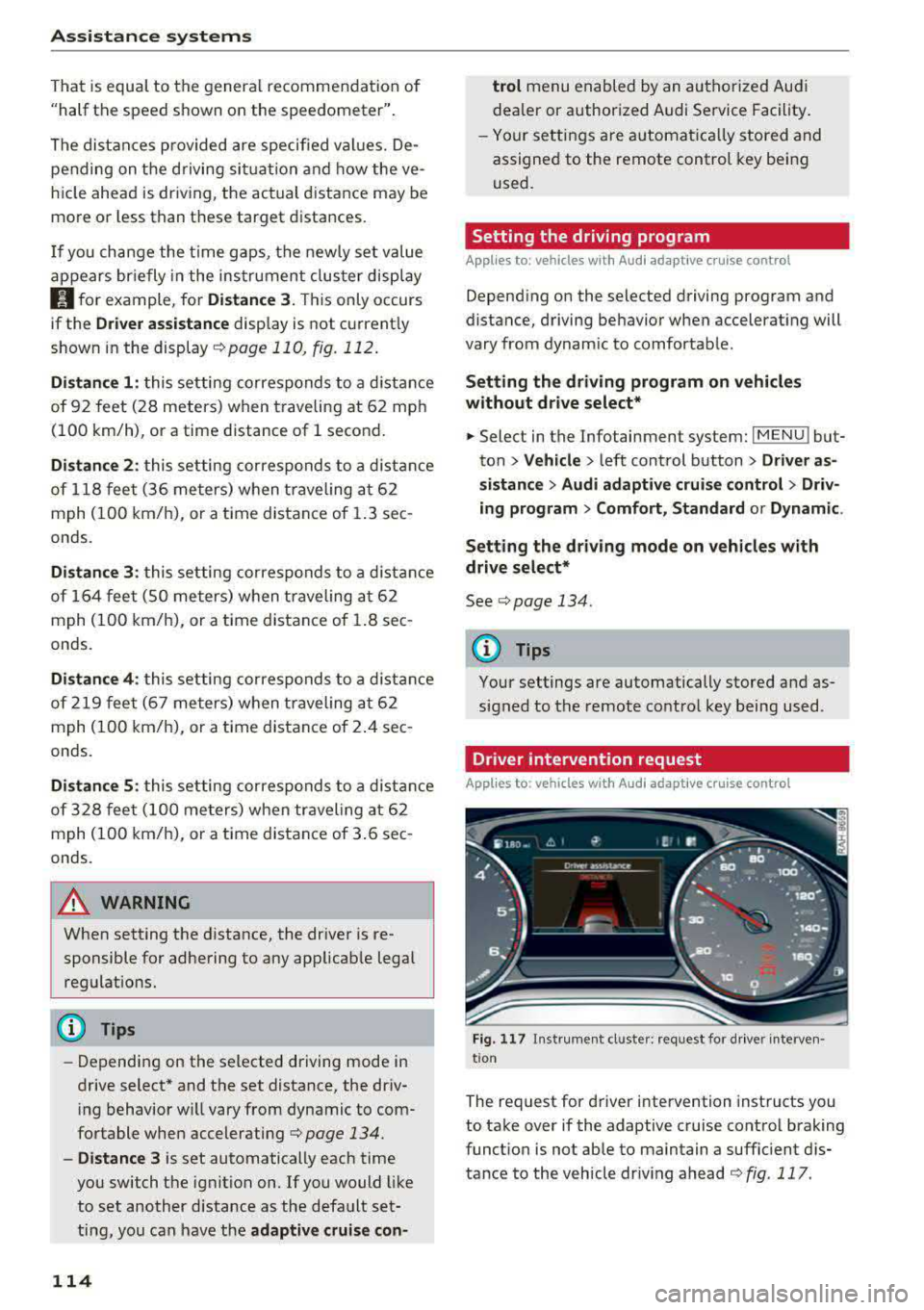
F ig . 117 In strument cl uster: request for d river interven·
t ion
The request for d river intervention instructs you
to take over if the adaptive cruise control braking
funct ion is not able to maintain a suffic ient d is
tance to the vehicle dr iv ing ahead
r:!:> fig. 117 .
Page 117 of 403

Predictive control
(efficiency assist)
Description
A pp lies to: ve hicles with Audi adaptive cruise co ntro l an d pr e·
di ctive efficiency assist
Fig. 118 Instrument cluster: pred ictive control
General information
The predictive control 1l uses the map informa
tion from the navigation system in order to react
proact ively when driv ing. Information from the
camera-based traffic sign recognition* is also ap plied to recognize traffic signs
<:!)page 104.
When coming up to areas with speed limits or
changes in the course of the road (such as curves,
intersections or traffic circles), the system brakes
automatically and then accelerates back up to
the set speed .
When adaptive cruise control is switched off, the
system only provides notifications without con
trolled
interventions ¢ page 107.
The driver can override the predictive control at
any time by pressing the accelerator or brake
pedal. If the system changes the vehicle speed to
adapt to speed limits, you can change the speed
using the
lever ¢ page 112, fig. 113 .
Always switch off the predictive control in
the following situations:
- When increased attention is needed from the
driver .
- In poor weather conditions such as snow or
heavy rain.
0 -When driving on roads in poor condition . al ~ N
" N ~ 0 0
~ ll This is not ava ila ble in some co untrie s. al
Assistance systems
Indicator in the instrument cluster display
When switching on the adaptive cruise contro l
for the first time, the message
ACC: 11D + B ac
tive
in the instrument cluster indicates the avail·
ability of the predictive control.
T he symbol appears when the system
is regulating the speed to match a speed limit . If
this is the case, the system is reg ulating a speed
of 50 mph (80 km/h). The speed is then taken
over by the adaptive cruise control. The speed in
the speedometer LED ring adjusts to the speed to
be maintained
¢ page 110, fig . 112. The ..
¢ fig . 118 symbo l appears when there is an adap
tation to the route ahead .
If you are in the Driver assistance display in the
instrument cluster, then the following symbols
will indicate which occurrence the system is cur
rently responding to:
Symbol Meaning
MPH USA
models:
Speed limit
km/h
Canada models:
speed limiter
Ir
Curve
_l!L
1i1
Intersection
~ ): Traffic c ircle
A WARNING
- Read the warnings on ¢.&. in General infor
mation on page 109
and on¢ .&. in Descrip
tion on page 104 .
- Pay attention to traffic and the area around
your veh icle when predictive control is
switched on. The driver is always responsi
ble for assessing the traffic situation.
- There is an increase in the risk of an acci
dent, because the system does not consider
"right of way" rules and also does not re-
spond
to traffic lights. ._.
115
Page 127 of 403

a co .... N ,....
N .... 0 0
3 co
This message appears if the ESC is restricted or
switched off, for examp le .
Ill Aud i pre sen se : curren tly re stri cted . See
o wner 's manu al
This message appears when there is a temporary
fa ilu re in a subsystem, such as the ESC. If th is
message appea rs repeated ly, dr ive to an a uthor
ized A udi dealer or authorized Audi Service Fac ili
ty to have the malfunction corrected.
Ill Aud i pre sen se: e merg enc y braking syste m
off
This message appears if the pre sense functions
are switched off through the Infotainment sys
tem or if the system is not ready .
Audi active lane assist
Description
Applies to: ve hicles wit h Aud i act ive lane ass ist
Active lane assist (lane departure warning) de
tects lane marker lines within the limits of the
system using a camera in the windshield . If you
are approach ing a detected lane marker line and
it appears likely that you will leave the lane, the
system w ill wa rn you w it h corre ct ive steer ing .
You can overr ide th is steering at any time . If yo u
pass over a line, the steer ing whee l wi ll vibrate
lightly. In order for this warning vibration to oc
cur, it must first be switched on in the Infotain
ment system. Active lane assist is ready for oper
ation when the lane marker line is detected on at least one side of the vehicle.
The system is designed for driving on express
ways and highways and therefore only activates at speeds above approximately 40 mph (6S km/
h).
Applies to: vehicles with side assist: if you acti
vate a turn signal when active lane assist is ready
and it classif ies a lane change as critical because
of vehicles traveling alongside you or approach ing you, there w ill be not iceable correct ive steer
i ng shortly before you leave the lane . This will at
tempt to keep your veh icle in the la ne.
Applies to: vehicles w ithout s ide ass ist : the ready
system does not warn you if you activate a turn
A ss ista nce sys te m s
signal before crossing the lane marker line. In
t h is case, it assumes that you are changing lanes
intentionally .
Applies to: vehicles wi th adap tive c ruise contro l:
there is no corrective steering or warnings if the
system recognizes a distinct passing maneuver .
If the condit ions are met, traffic jam ass ist
switches on at speeds under approximately
40 mph (65 km/h)
qpage 116.
A WARNING
=
- The system warns the driver that the vehicle
is leaving the lane using corrective steering.
The driver is always responsible fo r keeping
the vehicle within the lane.
- The system can help you keep the vehicle in
the lane, but it does not drive by itself. Al
ways keep your hands on the stee ring
wheel.
- Cor rective stee ring may not occur in certain
situations, such as during heavy b raking.
- There may be cases whe re the camera does
not recognize all lane marker lines. Cor rec
tive steering can only take place on the s ide
of the vehicle where lane marker lines are
detected.
- Other road structu res or objects could poss i
b ly be identified unintentionally as lane
marker lines . As a result, corrective steering
may be unexpected or may not occur.
- The camera view can be restricted, for ex
ample by vehicles driving ahead or by rain,
snow, heavy spray or light shining into the
camera. Th is can result in active lane ass ist
not detecting the lane marker lines or de
tect ing them incorrectly .
- In certain s ituations where visibility is low,
the vehicle may switch from an "early" to
"late" steering correct ion.
- Under certain condit ions such as ruts in the
road, an inclined roadway or crosswinds, the
correct ive steer ing alo ne may not be enough
to keep the vehicle in the middle of the lane .
- For safety reasons, act ive lane assist must
not be used when there are poor road and/
or weather conditions such as slippery roads, fog, gravel, heavy rain, snow and the
125
Page 130 of 403

Assistance systems
There is a temporary malfunction that may pre
vent the active lane assist from switching on. Try
sw itch ing the active lane assist on again later.
rl! Audi active lane assist: Please take over
steering!
This message appears if you are not steering by
yourse lf. Ac tive lane assist is activated, but is not
ready to give wa rning
& WARNING
Note that messages may be delayed or not
displayed on vehicles with accessories mount
ed on the steering whee l, s uch as a steering
wheel spinner knob. Always keep your hands
on the steer ing wheel.
Adjusting the steering time and vibration
warning
Applies to: veh icles with Audi active lane assist
You con adjust individual active lone assist set
tings in the Infotainment system .
-
.,. Select in the Infotainment system: IMENUI but
ton
> Vehicle > left contro l button > Driver as
sistance > Audi active lane assist .
Steering time
Early :
in this setting, the corrective steer ing hap
pens continuously to help keep the vehicle in the
center of the lane.
late : in this setting, the system provides correc
tive steering just before a wheel goes over a de
tected lane marker line.
Vibration warning
You can switch the additional vibration warning
in the steering wheel on or off.
WARNING
With the vibration warning switched off,
there will also be no visual warning in the in
strument cluster display when crossing a lane
marker line.
128
@ Tips
In certain ma rkets: your settings are stored
automat ically and assigned to the remote
control key in use.
Audi side assist
Description
Applies to: vehicles with Audi side assist
Fig. 127 Sensor detection range
Fig . 128 D isplay on the exterior mirror
Side assist (lane change ass ist) helps you mon itor
your blind spot and traffic behind yo ur vehicle.
Within the limits of the system, i t warns you
about veh icles that are coming closer or that are
traveling with you within sensor range
(D
¢ fig. 12 7. If a lane change is classified as criti
ca l, the display @in the exterior mirror turns on
¢fig. 128.
The display in the left exterior mirror provides as
sistance when making a lane change to the left,
while the display in the right exterior mirror pro
vides assistance when making a lane change to
the right.
Information stage
As long as you do not activate the turn signal,
side assist
informs yo u about vehicles that are
Page 131 of 403

detected and classified as crit ical. The display in
the mirror turns on, but is dim .
The display remains dim in the information stage
so that your view toward the front is not distur
bed.
Warning stage If the d isplay in a mirror blinks brightly when you
activate a turn signal, side assist is
warning you
about detected vehicles that it has classified as
critical. If this happens, check traffic by gla nc ing
in the exterior m irrors and over your shoulder
c::> .&. in General information on page 130 .
Applies to: vehicles with active lane assist : the
d isplay i n the mirror can also blink if you have not
act ivated a turn signal: if you are app roaching a
detected lane marker line and it appears you will
be leaving the lane, side assist will warn you
about detected vehicles that it ha s classified as
critical.
(D Tips
You can ad just the brightness on of the dis
play on the rearview mirror
c::;, page 130 .
General information
Applies to: vehicles with Audi side assist
®
®
©
Fig. 129 Drivi ng situat ion s
Assistance systems
0
r AUD I
• •
Fig. 130 Rear of the veh icle: pos it ion of th e se nso rs
S id e assist functions at speeds above approxi
mately 9 mph (15 km/h).
@ Vehicles that are approaching
In certain cases, a vehicle will be classified as
critical for a lane change even if it is still some
what far away . The faster a vehicle approaches,
the sooner the display in the exterior m irror will
turn on.
@ Vehicles traveling with you
Vehicles traveling with you are indicated in the
exter ior mirror if they are classified as cr itical for
a lane change . A ll vehicles detected by side assist
are ind icated by the time they enter your "blind
spot" , at the latest .
© Vehicles you are passing
If you s lowly pass a veh icle that s ide assist has
detected (the difference in speed between the
vehicle and your vehicle is less than approximate
ly 9 mph ( 15 km/h)) , the disp lay in the exter ior
mirror turns on as soon as the vehicle en ters your
blind spot.
The display w ill not turn on if you quickly pass a
vehicle that side assist has detected (the differ
ence in speed is greater than approximately 9
mph (15 km/h)) .
Functional limitations
T he radar sensors are designed to detect the left
and right adjacent lanes when the road lanes are
the normal width. In some situations, the display
in the exterior mirror may turn on even though
there is no vehicle located in the area that is criti-
cal for a lane change. For example :
..,.
129
Page 136 of 403

Assistance systems
Description
Applies to: vehicl es w ith Aud i drive select
The follow ing systems, among other things, are
influenced by drive select:
Engine and automatic transmission*
Depending on the mode, the engine and auto
mat ic transmission* respond more quickly or in a
mo re balanced manner to accelerator pedal
movements . In the sporty
Dynamic mode , the
transmission shifts at highe r speed ranges.
Suspension control*
The suspension control* uses sensors to record
information regard ing steering movements ,
braking and acceleration operations by the driv
er , road surface, driving speed, and load. This
makes it possible to adapt damping to the driv
ing situation nearly in rea l time. With drive se
lect, you can adjust the suspension control to
sporty
( Dynamic ), comfortab le ( Comfort ) or bal
anced
( Auto ).
Steering
The power steering adapts. Indi rect s teer ing that
moves easily as in
Comfort mode is especia lly
suited to long drives on highways . The
Dynamic
mode provides sporty , direct steering.
The following applies to vehicles with dynamic
steering* : the steering ratio changes based on
vehicle speed in order to maintain optimum
steer ing effort for the driver at all times . This
sets the steering to be less sensitive at higher
speeds in order to prov ide improved vehicle con
trol. At reduced speeds, steering is more direct in
order to keep the steering effort as min imal as
possible when the driver is maneuvering the vehi
cle. At low and average speeds, dynamic steer
ing* additionally provides more responsive steer
ing performance.
Sport differential*
As a component of the all wheel drive system
(quattro)
~ page 1 SO, the sport differential dis
tributes the driving power to the rear axle de
pending on the situation. The distribution of
power varies depending on the selected mode
134
from moderate (Comfort ) to sporty (Dynamic ).
The goal is a high level of agility and ability to ac
ce lerate on curves . The vehicle is very respons ive
to steering.
Adaptive cruise control (ACC)*
The behavior when accelerating can be adjusted
from comfortable to sporty, depending on the
drive select mode. Adaptive cruise control also
responds to the driving behavior of the vehicle
ahead in a more conservative or sporty manner.
Engine sound*
The engine sound adapts to the current mode
and can be subtle to sporty.
@ Tips
The S selector lever position automatically en
gages when the
Dynamic mode is selected .
Selecting the driving mode
Applies to: vehicles with Audi drive se lect
Fig. 135 Center co nsole: controls for drive se lect
.,. Press the left or right a rrow key ~ fig. 135 until
the desired mode appears in the instrument
cluster/ Infotainment system disp lay. Or
.,. Select in the Infotainment system: IMENU j but-
ton
> Vehicle > Audi drive select.
.,. Select and confirm the desired setting.
You can change the driving mode when the vehi
cle is stationary or while driving. If traffic per
mits, after changing modes, briefly take your
foot off the accelerator pedal so that the recently
selected mode is also activated for the engine.
.,.
Page 138 of 403

Parking systems
Parking systems
General information
A ppl ies to: ve hicles w ith a rea r parking sys te m /pa rking sys
tem p lus/rearv iew camera/peripheral ca meras
Depending on your vehicle's equipment , various
parking aids will help you when parking and ma
neuvering.
The
rear parking system is an audible parking aid
that warns you of obstacles
behind the vehicle
¢ page 137.
The
parking system plus assists you when park
ing by audibly and visually indicating objects de
tected
in front of and behind the veh icle
¢ page 137.
The
rearview camera shows the area behind the
vehicle in the Infotainment system display . The
lines in the rearview camera image help you to
park or
maneuver ¢ page 138. The parking sys
tem plus functions are also available
¢ page 137.
The
peripheral cameras give various views to
help you when parking or maneuvering
¢ page 140. The parking system plus functions
are also available
¢page 137.
A WARNING ,..__ -
- Always look for traffic and check the area
around your vehicle by looking at it directly
as well. The parking system cannot replace
the driver's attention. The driver is always
responsible when entering or leaving a park
ing space and during similar maneuvers.
- Please note that some surfaces , such as
clothing, are not detected by the system .
- Sensors and cameras have blind spots in
which people and objects cannot be detect
ed . Be especially cautious of small children
and animals .
- Always keep your eyes on the vehicle's sur
roundings, using the rearview mirror as
well.
- The sensors can be displaced by impacts or
damage to the radiator grille, bumper,
wheel housing and the underbody. The park ing system may be impa ired as a result.
136
Have an authorized Audi dealer or author
ized Audi Service Facility check their func
tion.
(D Note
- Some objects are not detected or displayed
by the system under certain circumstances:
- objects such as barrier chains, trailer draw
bars, vertical poles or fences
- objects above the sensors such as wall ex
tensions
- objects with certain surfaces or structures
such as chain link fences or powder snow
- If you continue driving closer to a low ob
ject, it may disappear from the sensor
range. Note that you will no longer be
warned about this obstacle.
- Keep enough distance from the curb to re
duce the risk of damage to the rims.
{i) Tips
- The system may provide a warning even
though there are no obstacles in the cover
age area in some situations, such as:
- certain road surfaces or when there is tall
grass
- external ultrasonic sources such as from
cleaning vehicles
-in heavy rain, snow, or thick vehicle ex
haust
- We recommend that you practice parking in
a traffic-free location or parking lot to be
come familiar with the system . When doing
this, there should be good light and weath
er conditions.
- You can change the volume of the signals
and the display ¢
page 143.
- Please refer to the instructions for towing a
trailer located in
¢page 144.
- What appears in the infotainment display is
somewhat time-delayed.
- Th e sensors must be kept clean and free of
snow and ice for the parking aid to operate .
- Th e rearv iew camera is automatically
cleaned when cleaning the rear window*
¢ page 60 .
Page 174 of 403
Voice recognition system Function Say:
Starting route g uidance with an ad-Na vigate / Navigate to p riv ate addre ss / Na vig ate to bu sin ess
dress card open address
Ente ring a new desti nation/stop-Enter addr ess > enter the desired address when prompted>
over when ro ute gu idance is ac tive confirm the new destination/stopover if prompted
Start ing route gu idance after enter-Start route guidance
ing a dest inat ion
Canceling current route gu idance
Cancel route guidance
Calc ulating alternative routes C alculate alternati ve route s
Entering a point of interest by se-POI > Change search a rea > category or subcategory when
lecting a searc h area with guidance prompted, for examp le "restaurant"
from the system
Dest ina tion input categor ies
Audi Service / Train station I Airport / Hot el / Ho spital / Park -
ing / Re st area /Restaurant / G as sta tion
etc.
Search areas for entering points of Nearb y/ Along the route I Near destination / Near stopove r/
interest In a new city / In a new state /country
Ente ring an online destination * Online destination ( XV), for example "Online de stin ation
" Lake view Hotel ""
Correct ing data input No I meant (XV)
Clos ing the full-screen command C lo se
list
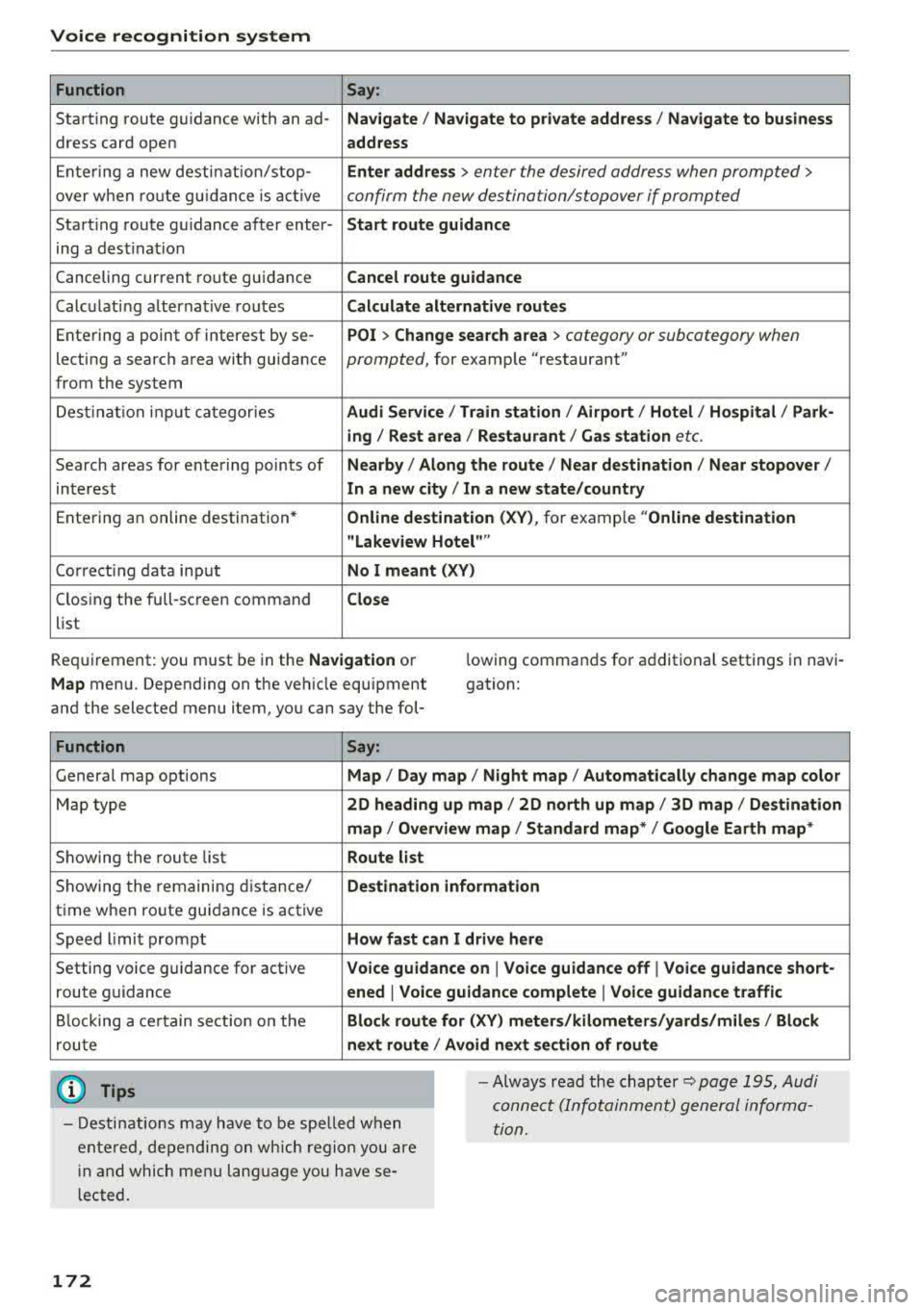
Requirement: you must be in the
Navigation or
M ap menu. Depending on the vehicle equipment
and the selected menu item, you can say the fol-lowing
commands for additional settings in navi
gation:
Function Say:
General map options Map/ Da y map / N ight map / Automatically change map colo r
Map type 2D heading up map I 2D north up map / 3D map / Destination
map
I Ov erview ma p/ Standard map */ Googl e Earth map *
Showing the route list Route l ist
Showing the remaining d istance/ De stin ation information
time when route guidance is active
Speed l imit prompt
How fa st can I dri ve here
Setting voice g uidance for active Voice guidance on I Vo ice guidan ce off I Vo ice guidance short-
route guidance en ed I Voi ce guidance complete I V oi ce guidance traffic
B locking a ce rtain sect ion on the Block route for (XV ) m eter s/kilometers /yard s/miles / Block
rou te next rou te I A void n ext se ction of r oute
(D Tips
- Destinations may have to be spe lled when
entered, depending on which region you are
i n and which men u language you have se
l ected. -
Always read the
chapter~ pag e 195, Audi
connect (Infotainment) general informa
tion.
172
Page 177 of 403
a co .... N ,....
N .... 0 0
3 co
Telephone Introduction
A pp lies to: ve hicles with telep hone
To make phone coils in your vehicle using the
MMI, connect your cell phone to the
MMI via
Bluetooth.
H and sfree
Afte r you have connected your cell phone to the
MMI via Bluetooth, you can use the handsfree
system and operate telephone functions through
your MMI. You can make calls using the antenna
on your cell phone.
A WARNING
- Medical experts warn that cell phones can
interfere w ith the function of pacemakers.
Always ma inta in a m inimum distance of 20
centimeters between the cell phone anten
na and the pacemaker.
- Do not carry the cell phone in a pocket di
rectly over the pacemaker when the phone
is switched on.
- Sw itch the cell phone off immediately if
you suspect it may be interfering with the pacemaker.
- Do not use the voice recognition system*
c::> page 168 in emergencies because your
voice may change in stressful situations. It may take longer to dial the number or the
system may not be able to dia l it at all. Dial
the emergency n umber manua lly.
- Switch your cell phone off in areas where
there is a risk of an exp losion. These loca
tions are not always clea rly marked. This
may include gas stations, fuel and chemical
storage facilities or transport vehicles, or lo
cations where fuel vapors (such as propane
or gasoline vapor in vehicles or bu ildings),
chem icals or large quantities of dust parti
cles (such as flour, sawdust or metal) may
be present in the air. Th is also applies to all
other locations where you would normally
tu rn your vehicle engine off.
- The demands of traffic requ ire your full at
tent io n. Always read t he chapter
c::> page 155, Traffic safety information.
-
T e le ph on e
(D Note
Always fo llow the information found in Q (!) in
Wi-Fi hotspot on page 194.
(D Tips
- The Bluetooth connect ion range is limited
to inside the vehicle. It can also be affected
by local condit ions and interference with
other devices.
- To learn which Bluetooth connections and
wh ich of the functions in your cell phone are
supported, check with your cell phone serv
ice provider or the database for mobile devi
ces at
www .audiu sa.com /bl uetooth .
Setup
Connecting a cell phone using Bluetooth
Applies to: vehicles wi th telepho ne
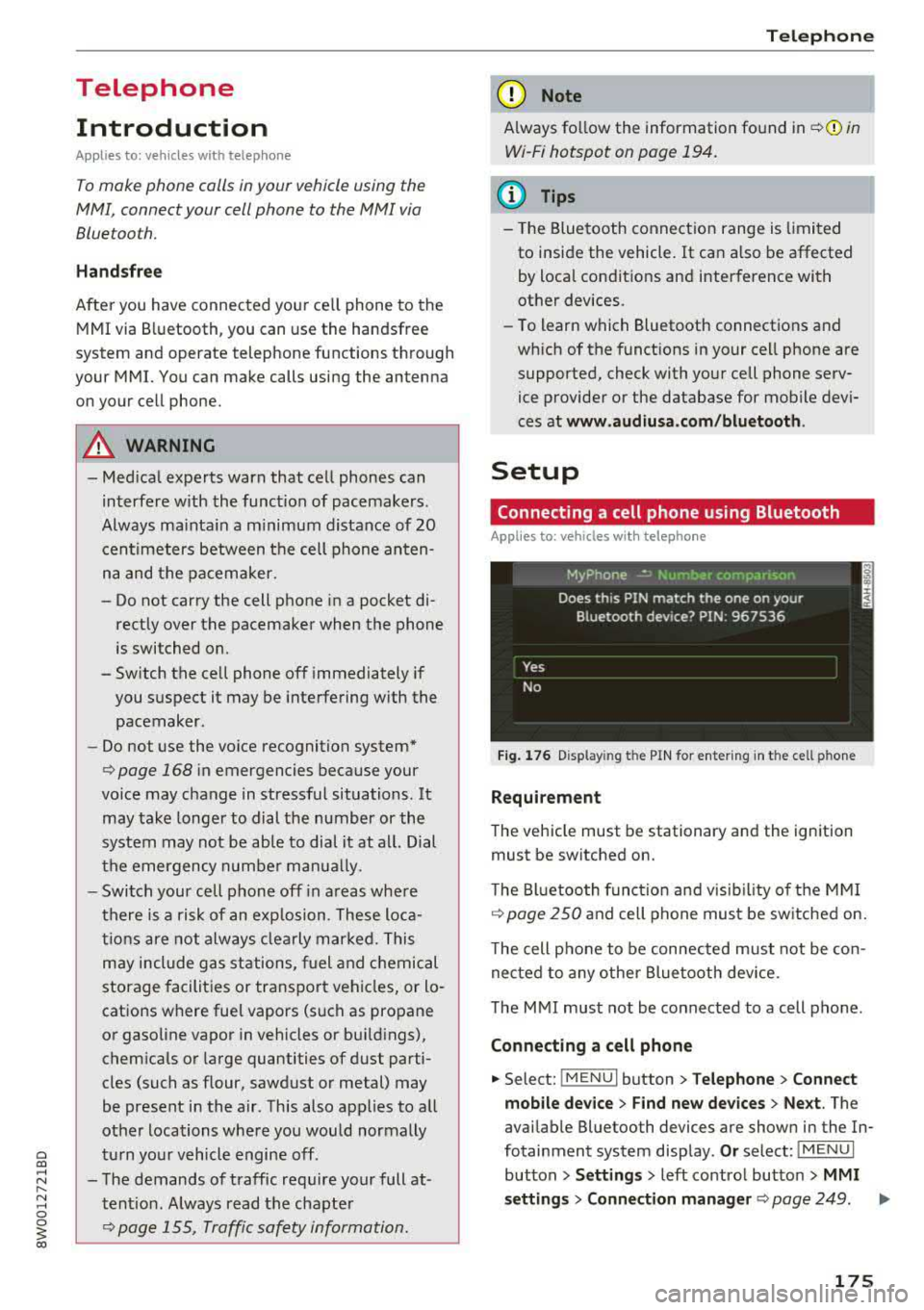
Fig . 17 6 Display ing t he PIN for enter ing in t he cell ph one
R equirem ent
The vehicle must be stationary and the ignition
must be switched on.
T he Bl uetoo th funct ion and v isib ility o f the MMI
¢ page 250 and cell phone must be sw itched on.
T he cell phone to be connected must not be con
nected to any other Bluetooth device.
T he
MMI must not be connected to a cell phone .
Connecting a cell phone
.,. Select: !MENUI button> T elephone > Co nnect
mobile dev ice
> Find new de vices > Ne xt. The
avai lable Bluetooth devices are shown in the In
fotainment system display .
Or select: !MENUI
button > S etting s> left contro l button > MMI
s etting s
> Connec tion manag er ¢ page 249 . .,..
175
Page 178 of 403
Telephone
"'Se lect and confirm the desired ce ll phone from
the list of disp layed Bluetooth devices.
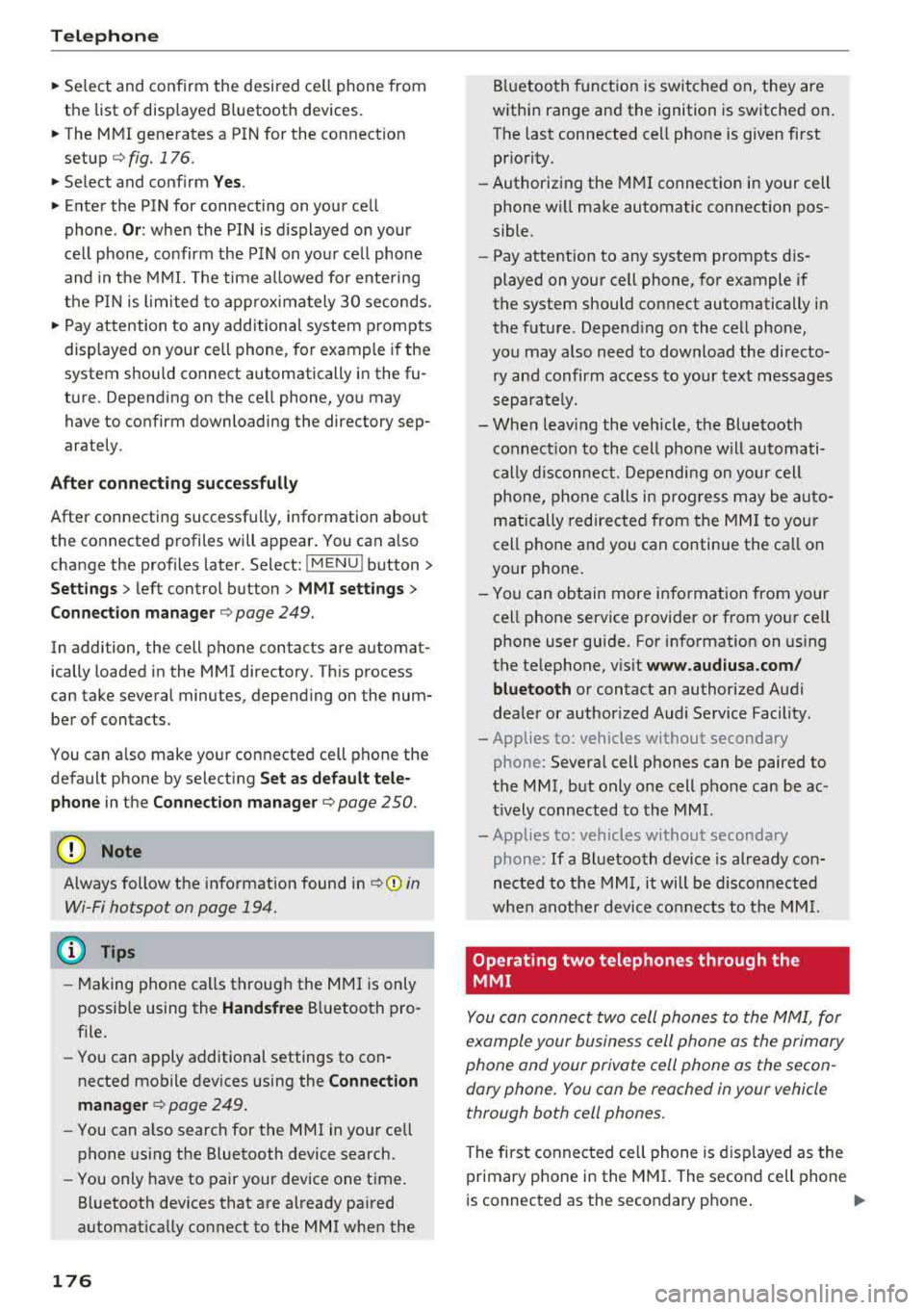
"' The MMI generates a PIN for the connect ion
setup
¢ fig. 176 .
"' Select and confirm Y es.
"' Enter the PIN for connecting on your cell
phone .
Or: when the PIN is d isplayed on your
ce ll phone, confirm the PIN on you r ce ll phone
and in the MMI. The time a llowed for ente ring
the PIN is l im ited to app rox imately 30 seconds.
"' Pay attention to any additiona l system prompts
displayed on your cell phone, for example if the
system should connect automatically in the fu
ture . Depending on the ce ll phone, you may
have to confirm downloading the directory sep
arately .
After connect ing succ essfull y
After connecting successfully, information about
the connected profiles will appear . You can a lso
change the profiles later. Select:
! MENUI button>
S ett ings > left control button > MMI sett ings >
C onn ection m ana ger
c:::;, page 249.
In addition, the cell phone contacts are automat
ically loaded in the MMI directory. This process
can take several minutes, depend ing on the num
ber of contacts.
You can a lso make your connected cell phone the
default phone by select ing
S et as def ault tele ·
phone
in the Connect ion manager c:::;, page 250.
(D Note
Always follow the information found in ¢ @ in
Wi-Fi hotspot on page 194.
(D Tips
-Making phone calls through the MMI is only
possib le using the
Handsfree Bluetooth pro
file.
- You can apply additional settings to con
nected mobile devices using the
C onnection
m anager
c:::;, page 249.
- You can also search for the MMI in your ce ll
phone us ing the Bluetooth device search.
- You only have to pair your device one time.
Bluetooth dev ices that are already paired
automat ically connect to the MMI when the
176
Bluetooth f unct ion is switched on, they are
within range and the ignition is switched on.
The last connected cell phone is given first
pr iority.
- Authorizing the MMI connection in your cell
phone w ill make automatic connection pos
sible.
- Pay attention to any system prompts dis
played on your cell phone, for example if
the system should connect automatically in
the future . Depend ing on the cell phone,
you may also need to download the directo ry and confirm access to your text messages
separately.
- Whe n leavi ng the vehicle, the Bluetooth
connect ion to the cell phone will automati
c ally d isconnect. Dependi ng on your cell
phone, phone calls in prog ress may be auto
matically redirected from the MM I to you r
cell phone and you can continue the ca ll on
your phone.
- Yo u can obtain more information from your
cell phone service provider or from yo ur ce ll
phone user guide. For information on us ing
the te lephone, v isit
w ww. audiu sa.com /
bluetooth
or contact an authorized Audi
dealer or author ized Audi Service Facility.
- Applies to: vehicles without secondary
phone: Several cell phones can be paired to
the MMI, but only one cell phone can be ac
t ively connected to the MMI.
- Applies to: vehicles without secondary
phone: If a Bluetooth device is already con
nected to the MMI, it will be d isconnected
when anothe r device connects to the MM I.
Operating two telephones through the
MMI
You can connect two cell phones to the MMI, for
example your business cell phone as the primary
phone and your private cell phone as the secon
dary phone . You can be reached in your vehicle
through both cell phones.
The first connected ce ll phone is d isplayed as the
primary phone in the MMI. The second cell phone
is connected as the secondary phone .
.,.