reset AUDI A4 2018 Owners Manual
[x] Cancel search | Manufacturer: AUDI, Model Year: 2018, Model line: A4, Model: AUDI A4 2018Pages: 403, PDF Size: 66.81 MB
Page 5 of 403
a co .... N ,....
N .... 0 0
3 co
Error messages . . . . . . . . . . . . . . . . . . . . . 144
Trai ler hitch . . . . . . . . . . . . . . . . . . . . . . . . 144
Intelligent Technology . . . . . . . . . . 146
Elect ronic stabilization control (ESC) . . . . 14 6
Brakes ... .. .. ... .. ..... ... .. .. .... . 14 9
Electromechanica l steer ing, Dynamic
steering . . . . . . . . . . . . . . . . . . . . . . . . . . . 150
All-wheel drive (quattro) . . . . . . . . . . . . . . 150
Energy ma nagement . . . . . . . . . . . . . . . . . 151
Not ice about data reco rded by the Event
D ata Reco rde r and vehicle control
mod ules . . . . . . . . . . . . . . . . . . . . . . . . . . . 153
Infotainment system . . . . . . . . . . . . 155
Multi Media Interface . . . . . . . . . . . . 155
Traffic safety information . . . . . . . . . . . . . 155
I n troduction . . . . . . . . . . . . . . . . . . . . . . . . 155
M MI On/Off knob with joystic k function . . 155
Infotainment system display . . . . . . . . . . 156
M MI operat ion . . . . . . . . . . . . . . . . . . . . . . 157
MMI touc h . . . . . . . . . . . . . . . . . . . . . . . . . 158
Contro l knob with joystick f unction . . . . . 160
Shortcut keys . . . . . . . . . . . . . . . . . . . . . . . 162
L etter/numbe r speller . . . . . . . . . . . . . . . . 162
Fr ee tex t sea rch . . . . . . . . . . . . . . . . . . . . . 164
M enus and Symbols . . . . . . . . . . . . . . . . . . 165
Voice recognition system . . . . . . . . 168
Operating . . . . . . . . . . . . . . . . . . . . . . . . . . 167
Command overview inform ation . . . . . . . . 168
Commands . . . . . . . . . . . . . . . . . . . . . . . . . 169
External vo ice operat ion 173
Telephone . . . . . . . . . . . . . . . . . . . . . . . . 175
I ntroduction . . . . . . . . . . . . . . . . . . . . . . . . 17 S
Setup . . . . . . . . . . . . . . . . . . . . . . . . . . . . . 175
Using the te lephone . . . . . . . . . . . . . . . . . 177
Favorites . . . . . . . . . . . . . . . . . . . . . . . . . . . 180
Messages . . . . . . . . . . . . . . . . . . . . . . . . . . 180
Listening to voicema il . . . . . . . . . . . . . . . . 183
D irectory . . . . . . . . . . . . . . . . . . . . . . . . . . . 183
Addit ional settings . . . . . . . . . . . . . . . . . . 185
Tr oubleshoo ting . . . . . . . . . . . . . . . . . . . . . 187
Audi connect (Infotainment) . . . . 188
I ntroduction . . . . . . . . . . . . . . . . . . . . . . . . 188
Setup . . . . . . . . . . . . . . . . . . . . . . . . . . . . . 188
Table of contents
Configuration thro ugh myAudi . . . . . . . . . 188
Opening A udi connect (Infotainment) . . . 189
A udi connect Infotainment services . . . . . 189
Wi-Fi hotspot . . . . . . . . . . . . . . . . . . . . . . . 194
Configuring the data connection........ 195
Audi connect (Infotainment) general
i nformation . . . . . . . . . . . . . . . . . . . . . . . . 195
T roub leshooting . . . . . . . . . . . . . . . . . . . . . 197
Audi connect vehicle control . . . . 198
I n trod uction . . . . . . . . . . . . . . . . . . . . . . . . 198
Setup . . . . . . . . . . . . . . . . . . . . . . . . . . . . . 198
Additional o ptions . . . . . . . . . . . . . . . . . . . 199
Remote locking and un lo cki ng . . . . . . . . . 199
Vehicle sta tus report . . . . . . . . . . . . . . . . . 199
Parking location . . . . . . . . . . . . . . . . . . . . . 199
Geofencing Alert . . . . . . . . . . . . . . . . . . . . 200
Speed Alert . . . . . . . . . . . . . . . . . . . . . . . . . 200
Valet Alert . . . . . . . . . . . . . . . . . . . . . . . . . 200
Stolen Vehicle Locator . . . . . . . . . . . . . . . . 200
Online Aud i serv ice reques t . . . . . . . . . . . . 200
Eme rgency call . . . . . . . . . . . . . . . . . . . 202
I n trod uction . . . . . . . . . . . . . . . . . . . . . . . . 202
E mergency call . . . . . . . . . . . . . . . . . . . . . . 202
Online roads ide ass ista nce . . . . . . . . . . . . 203
N avigation . . . . . . . . . . . . . . . . . . . . . . . . 204
Open ing navigation . . . . . . . . . . . . . . . . . . 204
E nte ring a des tina tion . . . . . . . . . . . . . . . . 205
Persona l rou te ass istance . . . . . . . . . . . . . 210
Alte rnative rou tes . . . . . . . . . . . . . . . . . . . 2 11
Additional settings . . . . . . . . . . . . . . . . . . 212
Map. ... .. .. .. .. .. .... . ..... ... .. .. 214
Online map d isp lay . . . . . . . . . . . . . . . . . . 216
Map update . . . . . . . . . . . . . . . . . . . . . . . . 217
Traffic information . . . . . . . . . . . . . . . . . . 219
T roubleshooting . . . . . . . . . . . . . . . . . . . . . 221
Radio ............................. 222
Open ing the radio . . . . . . . . . . . . . . . . . . . 222
Radio funct ions . . . . . . . . . . . . . . . . . . . . . 223
Radio menu . . . . . . . . . . . . . . . . . . . . . . . . 225
Presets . . . . . . . . . . . . . . . . . . . . . . . . . . . . 22 5
Addition al settings . . . . . . . . . . . . . . . . . . 22 5
T roub leshooting . . . . . . . . . . . . . . . . . . . . . 226
3
Page 11 of 403
a co .... N ,....
N .... 0 0
3 co
(!) side assist displays, warning abo ut
exiting the vehicle ..... ... .. .. .
@ Door handle
@ Cent ral locking switch ....... .. .
@ Memory buttons ........... .. .
® Vent
® Thumbwhee l for vent
(J) Lever for:
- T urn signals and h igh beams
- High beam assistant ........ .
- Active lane assist .. ..... ... . .
- Traffic jam assist ....... .. .. .
@ Mul tifunction steer ing wheel with:
- Horn
- Driver's airbag . ..... ... .. .. .
- Drive r information system con -
t rols .. .. ............. .. .. .
- Audio/v ideo, telephone, nav iga
t ion and voice recognition con-
trols . ... .... .. .... ... .. .. .
- ~ button/stee ring wheel heating
- Sh ift paddles .............. .
® Instrument cluster .... ... .. .. .
@
@
@
@
~
@
Reset trip odometer ........ .. .
W indshie ld washer system lever
Emergency flashers .... ... .. .. .
Knee a irbag ........ ..... ... . .
Adjustable steer ing column
Lever for:
- Cruise cont rol system ..... .. .
- Adaptive cruise cont rol .. ... . .
@ Instrument i llum ination ... .. .. .
@ Data link connector for On Board
Diagnostic System (OBD II) .. .. .
@ H ood release . ........... .. .. .
@ Button for switching the head-up
d isplay on/off, adjust ing the
height .. .. ............... .. .
@ Lig ht switch ............... .. .
@ Buttons for :
- All -weather lights
- Rear fog lights ........... .. .
@ Sw itch for luggage compartment
lid .. .. .. .. ............. .. .. .
128
41
67
55
55
125
116
275
13, 16
15, 16
15
94
10
12
60
56
287 82
10 2
108
58
24
324
24
54
54
54
43
Coc kpit o ve rv iew
@ Power exterior m irror adjustment
@ Power windows .............. .
@ Child safety lock . ............ .
@ Infotainment system display . .. .
@ Lockable glove compartment . .. .
@) Drives for CD, DVD, SI M cards .. .
@ Front passenger's airbag ...... .
@ Valet Park ing funct ion ... .. ... .
@ Climate contro l system . ..... .. .
@ Depend ing on equ ipment, buttons
for:
- drive select .. .. ............ .
- Start/Stop system .......... .
- Elect ronic Stabilization Control
(ESC) . .... .. .............. .
- Park ing aid .. .. ............ .
- Hill descent ass ist .. . ..... .. .
- Switching the Infota inment sys-
tem disp lay on/off .......... .
@ Socke t ..... .. .............. .
@ Cup holder . .. ... .... . ..... .. .
@ Infotai nment system on/off
button ....... .. ............ .
@ Center armrest with sto rage com
partment . Depending on vehicle
equipment, it may have:
- Aud i m usic interface .. ..... . .
@ Sta rt ing t he engine when there is a
malfunction ... .. .... . ..... .. .
@ E lectromechanical parking brake
@) Depend ing o n eq uipment:
- Selector leve r (a utomatic trans -
m iss ion) .. .. .. ............ .
- Gearshift lever (manua l transmis-
sion)
58
48
48
156
69
228
275
51
76
133
85
14 7
136
148
156
68
69
155
234
85
88
91
@ In fotai nment unit . . . . . . . . . . . . . 155
@ I STAR T ENGINE ST OP I button 83
(D Tips
Some the equipment listed he re is only instal
l e d in certa in models or is available as an op
tion.
9
Page 14 of 403
Cockpit overv iew
may be higher if there is heavy eng ine load and
high temperatures outside . This is not a cause for
concern as long as
the .¢ page 31 or II
¢ page 31 indicator lights do not turn on.
Boost ind icator
Applies to: vehicles with Audi virtual cockpit
The boost indicator is only displayed in the sport
view
¢ page 15 .
The current eng ine load (meaning the current
boost pressure) is indicated by a bar .
Tachometer
The tachometer displays the engine speed in rev
olutions per minute
(RPM).
The beginning of the red zone in the tachometer
indicates the maximum perm iss ible engine speed
for all gears once the engine has been broken in
and when it is warmed up to operating tempe ra
ture. Before reaching this zone, you should sh ift
i n to the next h ighest gear, select the D/S selec
tor lever position, or remove yo ur foot from the
accelerator pedal.
CD Note
The needle in the tachometer @ ¢ page 10,
fig . 3
o r¢ page 10, fig. 4 may only be in the
red area of the gauge for a short time or there
is a risk of engine damage . The location where
the red zone begins varies depending on the
eng ine.
@ For the sake of the environment
Upshifting early helps you to save fuel and re
duces operating noise.
Fuel level
The display (J) ¢ page 10, fig. 3 or ¢ page 10,
fig . 4
only functions when the ignition is switch
ed on . When the display has reached the reserve
mark, a red LED turns on and the
tD in dicator
light tu rns
on ~ page 34. The red LED wi ll blink
when the fuel level is ve ry low.
12
For the tank capacity in your vehicle, refer to the
Technical
Data ¢ page 381.
CD Note
Never drive until the tank is comp letely emp
ty. The irregu lar supply of fuel that results
from that can cause engine misfires . Uncom
busted fue l w ill then enter the exhaust sys
tem. This can cause overheating and damage
to the catalyt ic converter.
Odometer
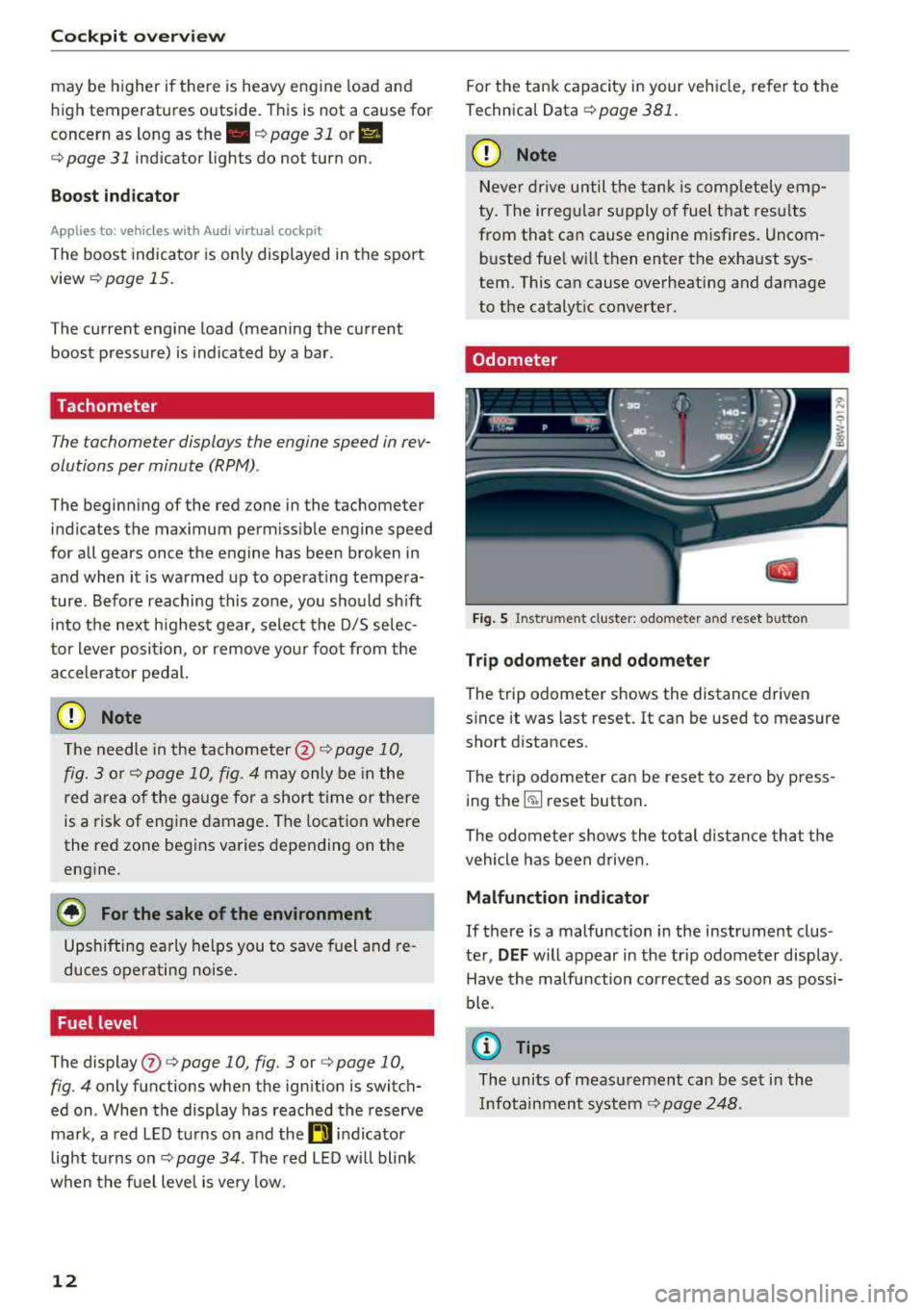
Fig . 5 In st rum en t cluster : odometer and reset b utto n
Trip odomet er and odometer
The trip odometer shows the distance driven
s ince it was last reset.
It can be used to measure
short distances.
The trip odometer can be reset to zero by press
ing
the ~ reset button.
The odometer shows the total distance that the
vehicle has been driven.
Malfunction indicator
If there is a malfunction in the instrument clus
ter,
DEF will appear in the trip odometer disp lay.
Have the malfu nction corrected as soon as possi
ble.
(j) Tips
The units of measu rement can be set in the
I nfotainment system
¢ page 248 .
Page 19 of 403

a co .... N ,....
N .... 0 0
3 co
Third tab Rad io ¢page 18
Media ¢ page 18
Fourth tab Telephone ¢
page 19
a) This tab is only v isible when there is at least one ind icato r
l ight or mess age disp layed.
- Switching tabs : press the !MODE ! button
<=> fig. 12 on the mult ifunction steering wheel
repeatedly unti l the des ired tab is d isp layed .
-Se lect ing a function in the m enu /list : turn the
left thumbwheel on the mult ifunct ion steer ing
whee l to the desired funct ion.
- Confirming a sel ection : press the left thumb
wheel on the multifunction steer ing wheel to
confirm your se lec tion.
- Scrolling within th e lists: turn the left thumb
wheel on the mult if u nction steer ing wheel
quick ly to scroll wi thin the lists.
@ button @;]
- Switching the voice recogn it ion sy stem on :
briefly press the 51 button¢ fig. 13 . Say the
desired command after the
B eep .
- Switching th e vo ice recogn ition sy stem off :
press and hold the 51 button. Or: say the com
ma nd
Cancel.
For more information about the vo ice recognit ion
system, see
<=> page 168, Voice recognition sys
tem
or ¢ page 248.
@ Right thumbwheel
The volume of an audio source or a system mes
sage (such as traffic announcements) can be di
rectly adjusted dur ing the aud io output.
- Inc rea sin g o r decrea sing the volume : turn the
rig ht thumbwhee l
¢ fig. 13 up or down.
- Muting or pausing : turn the right thumbwheel
down.
Or : press the right thumbwhee l.
-Unmuting or resuming : turn the right thumb
whee l up.
Or : press the right thumbwhee l.
Cockpit o ve rv iew
Driver information
system
On-board computer
F ig. 14 Instrument cluster: fuel co nsumpt io n display
Resetting values to zero
Requirement: the Fue l consumption , Short -term
memory or Long-t erm mem ory
d isplay must be
selected.
.. To reset the value for the respective memory to
zero, press and hold the left thumbwheel
(i)
¢ page 13, fig. 7 or @ <=> page 16, fig. 12 on
the multifunction stee ring wheel for one sec
ond. Or
.,. On the multifunction stee ring wheel, select:
the right control button>
Re set value s*.
Ad justing additional displays (Audi virtual
c ockpit)*
.,. On the multifunction stee ring wheel, select the
right control button >
Additional di splay .
.. Select the desired additional display .
In the first tab (on -board comp ute r), you can c all
u p the following disp lays one after the other by
turning the left thumbwheel on the multifunc
tion steer ing wheel.
- Time and
da ter=> page 248
- Dig ita l speedomete r*
- Average consumption
- Remaining range*
- AdBlue range*
<=>page 319
- Short-term memory overview
- Long-term memory overview
- Energy consumers
r=> page 18
- Dr iver assistan ce* ¢ page 108
-Traff ic sign recog nition* ¢ page 104
17
Page 20 of 403
Cockpit over view
The short -term memory collects driving informa
tion from the time the ignition is switched on un
til it is switched off . If you cont inue driv ing with
in two hours after switching the ignition off, the
new values are included when calculat ing the cur
rent tr ip informat ion.
Unlike the short-term memory, the long-term
memory is not erased automat ically. You can se
lect the time period for evaluat ing trip informa
tion yourself .
Fuel con sumpti on
The current fue l consumption can be shown us
ing a bar graph
cc> fig. 14. The average cons ump
tion stored in the short-term memory is also dis
played. If the bars are green or the gray tone on
the bars changes (depending on the equipment),
your veh icle is sav ing fuel by the following func
tion:
- Recupe ration : electrical energy can be stored in
the ve hicle battery when the vehicle is coasting
o r driving downhi ll. The bar will move toward
0 /0.
(D Tips
The date, time of day and t ime and date for
mat can be set in the Infotainment system
cc>page248 .
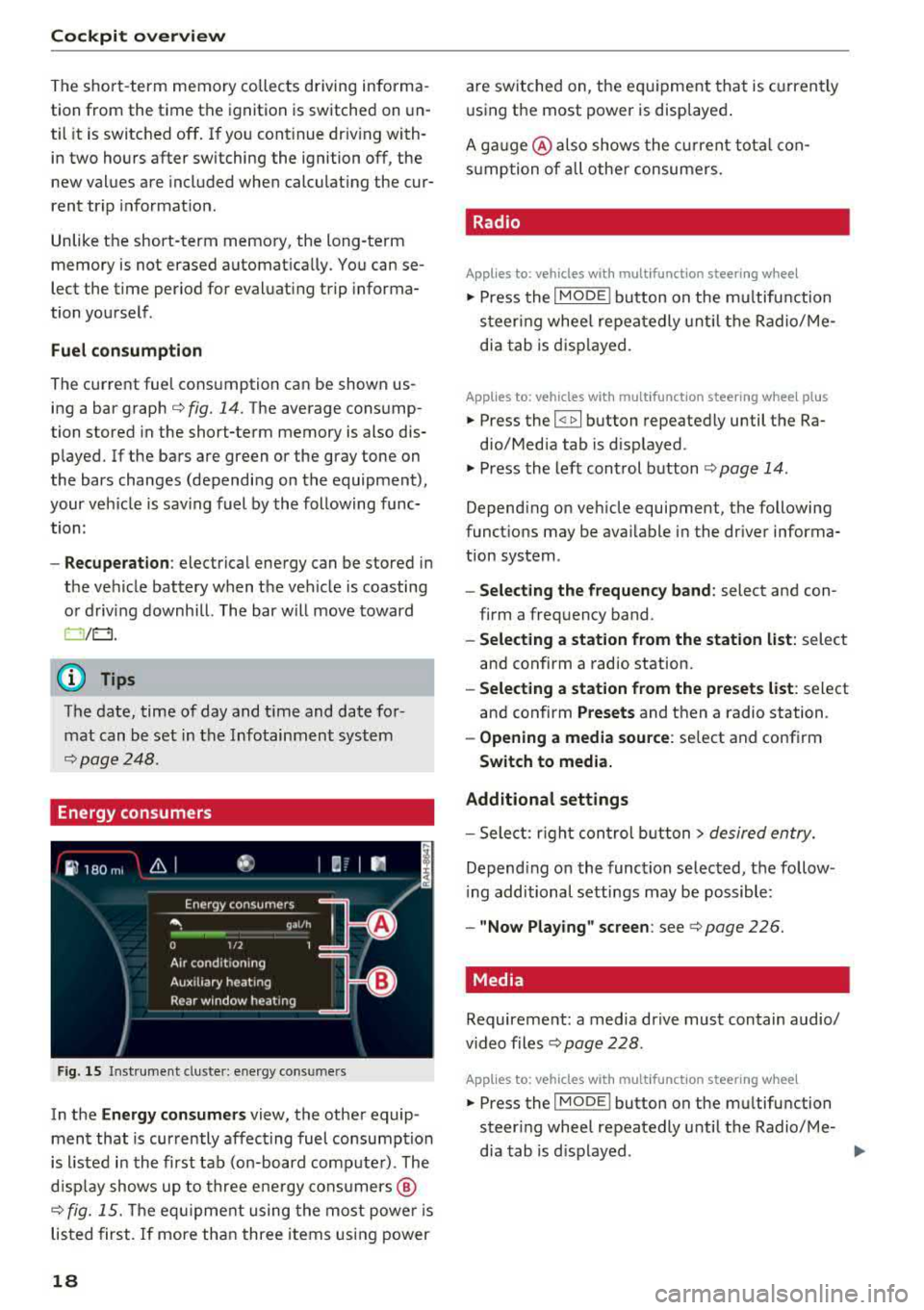
Energy consumers
Fig . 15 Inst rume nt cluste r: e nergy cons ume rs
In the En ergy con sumer s view, the othe r equip
ment that is currently affecting fuel consumption
is listed in the first tab (on-board comp ute r) . The
d isp lay shows up to three ene rgy consumers @
cc> fig. 15. The eq uipme nt using the most powe r is
listed first. If more than three items using power
18
are switched on, the eq uipment that is c urren tly
using the most power is disp layed .
A ga uge @ also shows the c urrent tota l con
s u mption of a ll othe r consumers .
. Radio
Applies to: vehicles with multifunction steering wheel
.,. Press the I MODE i button on the m ultif un ction
s teer ing whee l repeatedly u nti l the Radio/ Me
dia tab is d isp layed.
Applies to: vehicles with multifunction steering wheel plus
.,. Press the I <11>I button repeatedly until the Ra-
dio/Med ia tab is d isplayed.
.,. Press the left control b utton cc> page 14 .
Depending on veh icle equipment, the following
funct ions may be ava ilable i n the dr iver informa
tion system .
-Select ing the frequen cy band : select and con
firm a freq uency band .
-Selecting a station from the station list : select
and confirm a radio station.
- Select ing a station from the preset s list : select
and confirm
Presets and then a radio station .
-Opening a media sou rce: se lect and confirm
Swit ch to media.
Additional settings
- Sele ct: r ight cont rol b utton> desired entry.
Depend ing on the function se lected, the follow
i ng additional settings may be possible:
- "Now Playing" screen : see cc> page 226.
Media .
Requirement: a media drive must contain audio/
video files
cc> page 228 .
Applies to: vehicles with multifunction steering wheel
.,. Press the I MODE i button on the mu ltifunction
steer ing whee l repeatedly until the Radio/Me-
dia tab is d isplayed .
.,.
Page 99 of 403

There is a system malfunction in the transmis
sion. The transmission is switching to emergency
mode. This mode only shifts into certa in gears or
will no longer shift at all. The engine may stall.
Drive to an authorized Audi dealer or authorized
Audi Service Facility immediately to have the
malfunct ion corrected.
DD Transm ission: malfunction! You may contin
ue driving. No reverse gear
There is a system malfunction in the transmis
sion. The transmission is sw itching to emergency
mode. This mode only shifts into certa in gears or
will no longer shift at all. The engine may stall.
You cannot engage the reverse gear . Drive to an
author ized Audi dealer or author ized Audi Service
Facility immediately to have the malfunction cor·
r ected.
DD Danger of rolling away! P not possible .
Please apply parking brake
- The parking lock was released using the emer gency release
c'.> page 9 7. Or
- The parking lock can no longer be engaged .
Drive to an authorized Audi dealer or author·
ized Audi Service Facility immediately to have
the malfunction corrected.
DD Move selector lever to automatic position
There is a malfunction in the tiptronic mode. End
tiptronic mode by pushing the selector lever to
the left into the D/5 position.
Driving
Parking lock emergency release
Applies to: vehicles with automatic transmissions
The parking lock must be released with the
emergency release when driving through moun tains/maneuvering.
Fig. 101 Front cup holde r: removing the cover
N
~ co m
Fig. 102 Front cup holde r: parking lock emergency release
The emergency release is located in the front cup
holder under a cover
Releasing the parking lock using the
emergency release
... To prevent the vehicle from rolling unintention
ally, set the parking
brake(®) c::> page 88 or
press the brake pedal.
.,. Remove the rubber mat .
.,. T here is one slit opening on the cover . Use the
screwdr iver (from vehicle tool kit) to pry the
cover off at the opening
c'.> fig. 101 .
.,. Insert the socket wrench (from the vehicle tool
kit) into the ope ning c'.>fig.
102 .
... Tur n the socket wre nch all the way clockwise (D
and press it downward @ until it locks into
p lace .
... Leave the socket wrench inserted c'.> A.
Resetting the parking lock
.,. Press the brake pedal and start the engine.
97
Page 100 of 403

Driving
"' Keep the brake pedal pressed and engage the
fo llowing se lector lever positions one after the
other: N, D and back to N.
"' Turn the eng ine off again .
"' Grasp the socket wrench w ith both hands and
pull it up and out carefully to remove
<=> (D .
"' Reinsert the cover and rubbe r mat.
When the parking lock emergency re lease is
used, the
mJ ind icator light and the N selector
lever position tu rn on in the instrument cluster .
The message
Dang er of rolling away! P not pos
s ible . Please apply parking brake
a lso appea rs .
.&_ WARNING
- Only activ ate the emerge ncy re le ase while
on a level s urface o r a slig ht slope.
- T he pa rking lock may only be released using
the emergency release if the parking brake
is set. If i t is not functioning, secure the ve
hicle from rolling using the brake peda l or
other s uitab le means, s uch as blocking a
front and a rear wheel. An unsec ured vehicle
may roll away, wh ich increases the r isk of an
acc ident.
- To reduce the risk of an accident, you m ust
not drive when the eme rgency re lease is ac
t ivated.
(D Note
- Read and fo llow the impo rtant instr uctions
abo ut towing<=>
page 376.
- The risk of damage increases if you do not
r emove the socket wrench carefully when
resett ing the pa rking lock.
98
-
Page 108 of 403

Assistance systems
The vehicle is in a country where the function is
not available.
Lap timer
Introduction
App lies to: ve hicles w ith la p timer
You can measure and analyze lap times with the
lap timer in the display.
Opening the lap timer
~ Open the first Vehicle tab (trip computer) using
the
l
wheel.
~ Select on the multifunction steering wheel: left
control button
> Lap times.
Operating the lap timer
~ On the multifunction steering wheel, turn the
left thumbwheel
(J) <=> page 13 until the desired
menu item is displayed in the instrument clus
ter .
~ Press the left thumbwheel to confirm the selec
tion.
_& WARNING
Your focus should always be on driving your
vehicle safely. As the drive r, you have com
plete responsibility for safety in traffic. Only
use the functions s uch as the lap timer in such
a way that you always maintain comp lete con
trol over your vehicle in all traffic situations.
@ Tips
You can retrieve information from the trip
computer while the lap timer stopwatch is running.
Lap times and timing
A ppl ies to: ve hicles w ith la p timer
Requirement: the lap timer must be open
<=> page 106.
Timing laps
~ To start timing manually, se lect Start lap 1 in
the menu.
106
~ T o start timing automatically as soon as you
begin to drive, select
Start lap 1 by driving off
or Start by driving off i n the menu.
~ To measure the lap time, select New lap in the
menu. This starts timing the next lap at the
same time.
After completing a lap, the difference between
the last lap and the previous best lap time will be
indicated with
a"-" or" +".
Pausing timing and displaying a split time
~ To insert a pause m, select Pause in the menu.
~ To resume timing, select Resume in the menu.
~ To display a split time, select Split time in the
menu. The split
time (~] appears for approxi
mately 10 seconds in the instrument cluster.
The timing of the current lap continues.
Resetting timing
~ Using the multifunction steering wheel, select
Reset times in the menu.
(D Tips
- A maximum of 99 lap times can be meas
ured.
-If timing is paused, you can continue it later
even if you switch the ignition
off.
-Saved lap times cannot be individually de
leted from the total results.
-The saved lap timer values w ill remain after
switching the ignition
off.
Lap statistics
App lies to: vehicles wi th lap t imer
Displaying lap statistics
You can display the number of laps driven, the
fastest lap" +", the slowest
lap" -", and the aver
age time
"0" in the instrument cluster.
~ On the multifunction steering wheel, select the
left control button
> Lap statistics or Statis·
tics.
~ Turn the thumbwheel down or up to d isplay the
individual lap times.
~ To return to the lap timing that was begun,
press the left thumbwheel.
Page 109 of 403

a co .... N ,....
N .... 0 0
3 co
Resetting lap statistics
"'On the mult ifunction steering whee l, select:
the right contro l button
> Reset statistics .
(D) Tips
The lap statistics list the lap times for the last
30 laps. The fastest and slowest lap time out
of up to 99 measured laps are also displayed .
Predictive efficiency
assist
Descript ion
Applies to: vehicles with predictive efficiency assist
General information
The pred ictive eff ic iency assist helps the driver to
d rive w ith anticipation and therefore helps to
save fuel. The system accesses predictive trip da
ta (including speed limits, inclines and the radius
of curves) from the navigation system*. Informa
tion from the camera-based traff ic sign recogni
tion* is also applied to recognize traffic signs
r;;:;ipage 104.
The messages displayed depend on the naviga
tion data* being up-to-date and the correct iden
tification by the traffic sign recognition*.
When adaptive cruise contro l* is switched off,
the predictive efficiency assist only provides noti
fications without controlled interventions. When
adaptive cruise control* is switched on, the sys
tem responds to upcoming situations automati
cally.
Vehicles with adaptive cruise control*
Refer to predictive control c> page 115.
Indicator in the instrument cluster display
Predictive messages appea r in the instr ument
cluster display to show the driver the appropriate
time to coast when a situation ahead requires
you to drive at a lower speed.
The messages are only shown if the cr uise control
system* or adaptive cruise control* is switched
off .
Assistance systems
An additional indicator appears in the head-up
display* .
Symbol Meaning
Remove your foot from the acceler -
"
ator pedal to slow down, because
there is a situation ahead that re- quires a lower speed.
If you see Driver assistance in the instrument
cluster disp lay, the following symbols will indi
cate which situation the system is currently re
acting to.
Symbol Meaning
MPH
USA models:
Speed limit
km/h
Canada models:
speed limiter
_J!L Intersection
1:1
w
Traffic circle
If there are multiple s ituations, then these situa
tions w ill appear in order in the display.
.&, WARNING ~ -
Pay attention to traffic and the area around
your vehicle when the efficiency assist is
switched on. The driver is always respons ible
for assessing the traffic situation.
(D Tips
- The wording of the message may vary de
pending on the driving mode set in drive se
lect* c> page 133 and the current selector
lever position (automatic transmiss ion*).
No messages are displayed when in the S
selector lever position or in
Dynamic mode.
- When a route is planned using the naviga
tion system*, then the message feed is based on this route. Without route guid
ance, the system uses an assumed route fo r
the message feed.
- There will not be a message for every s itua
tion ahead, for example if there is not
enough distance remaining to react to the
situation.
107
Page 164 of 403
Multi Media Interface
Opening /closing the opti on s menu : push the
control knob to the rig ht
r=> fig. 171 to open the
options menu. Then you can se lect and confirm a
function using the control knob.
Press the
! BACK I button (J) r=:> page 155, fig . 157
or r=:> page 155 , fig. 158 to return to the function
one level up .
Shortcut keys
Frequently used radio stations can be stored on
the shortcut keys.
A pp lies to : ve hicles w ith a uto mat ic t ra nsmi ssio ns
T he s ho rtcu t keys a re loc ated on the M MI co ntrol
p a nel @
c> page 155, fig. 15 7.
A pp lies to: ve hicles w ith manu al transmiss ion
The shortcut keys are located on the center con
sole @r=> page 155, fig. 158.
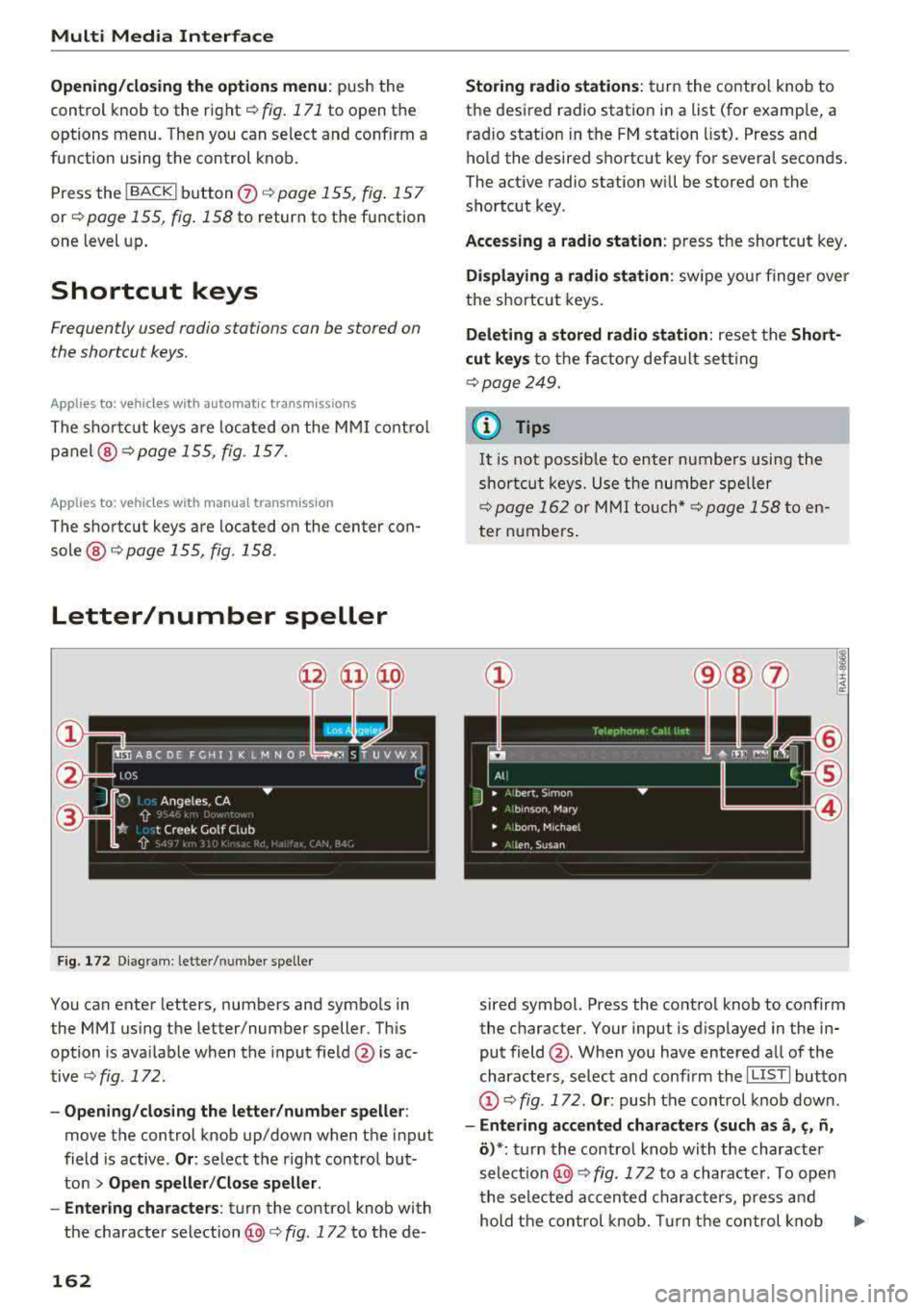
Letter/number speller
Fig . 172 D ia gram: letter/ numbe r spe ller
You can enter letters, numbers and symbo ls in
the
MMI us ing the letter/number speller. Th is
option is ava ilable when t he input field
@ is ac
tive <=>
fig. 172.
-Opening/clos ing the letter /number speller :
move the control knob up/down when the input
field is active .
Or: select t he right control but·
ton
> Open speller /Close speller .
-Entering characters : turn the control knob with
the character
selection @c> fig. 172 to the de -
162
Storing radio st ation s: turn the contro l knob to
the desired radio station i n a list (for examp le, a
rad io station in the FM station list). Press and
hold the desired shortcut key for several seconds.
The act ive radio station w ill be stored on the
sho rtc ut key .
Accessing a radio station : press the shortcut key .
Displaying a radio station : swipe you r finge r over
the shortcut keys.
Deleting a stored radio station : reset the Short·
cut keys
t o t he fa ctory default se tt ing
r=:> page 249.
{!) Tips
It
is no t possible to enter numbers using the
s h or tcut keys. U se the number spe ller
c>page 162 or MM I touch* c>page 158 to en
ter numbers .
sired symbol. Press the control knob to confirm
the character. Your input is displayed in the in
put field @. When you have entered a ll of the
characters, select and confirm the
I L ISTI butto n
@r=> fig . 172 . Or: push the control knob down .
-Entering accented characters (such as a, ~. ii,
o )*: tu rn the control knob with the characte r
se lec tio n @ c=> fig. 172 to a character. To open
the selected accen ted char acters, press an d
hold the con trol knob. Turn the con trol knob
Ill-