steering wheel AUDI A4 2018 Owner's Manual
[x] Cancel search | Manufacturer: AUDI, Model Year: 2018, Model line: A4, Model: AUDI A4 2018Pages: 403, PDF Size: 66.81 MB
Page 128 of 403
Assistance systems
potential for hydroplaning . Using active lane
assist under these conditions may increase
the risk of a crash.
Switching on /off
A pp lies to: vehicl es w ith Audi active lane assist
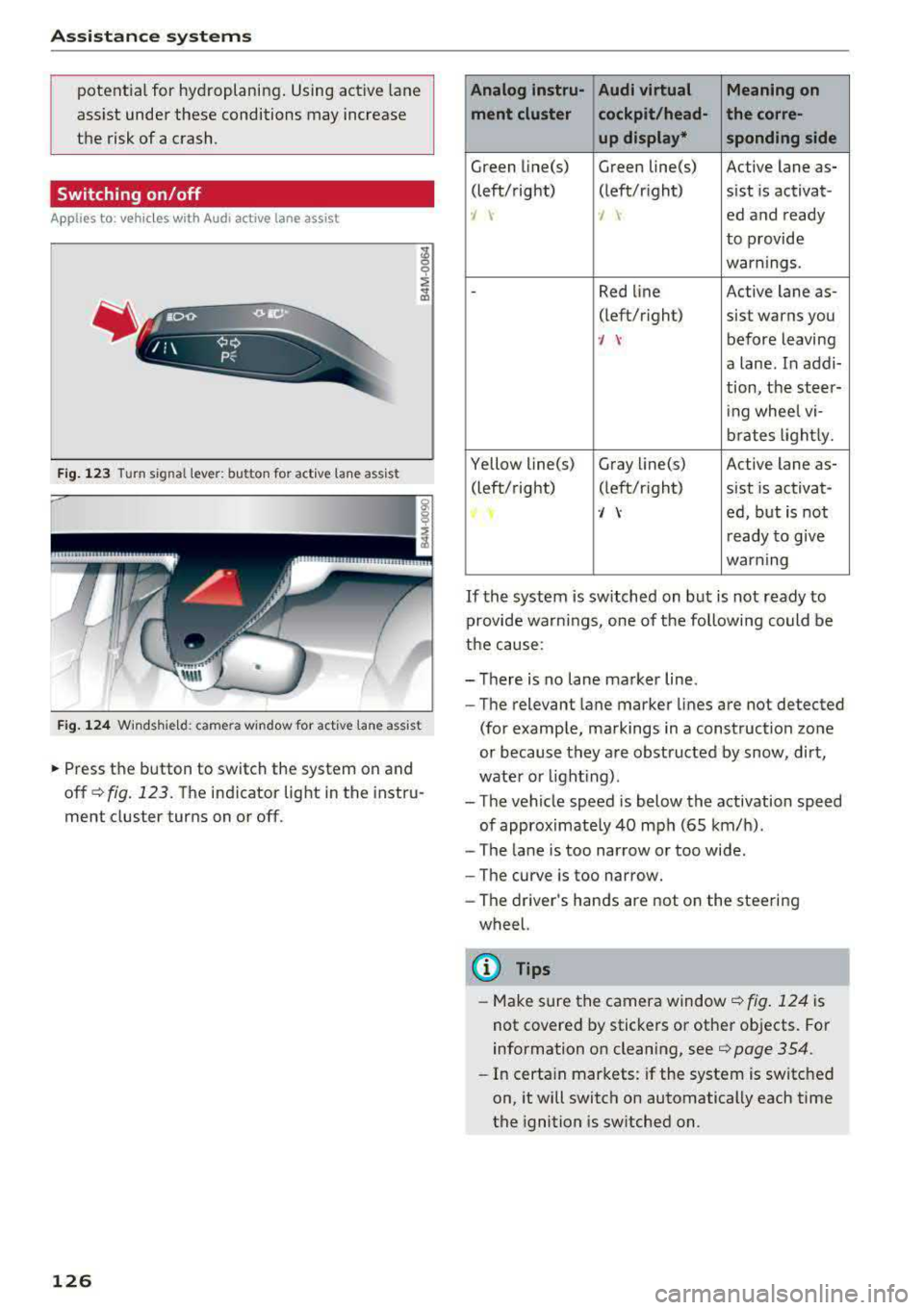
Fig. 123 Turn signal lever: button for act ive lane ass ist
F ig . 124 Windsh ie ld: camera window for act ive lane ass ist
~ Press the button to switch the system on and
off
¢ fig. 123. The indicator light in the instru
ment cluster turns on or off.
126
Analog lnstru- Audi virtual Meaning on
ment cluster cockpit/head- the corre- up display* sponding side
Green line(s) Green line(s) Active lane as-
(left/right) (left/r ight) sist is activat-
-J -J ed and ready
to provide
warnings .
-Red line Active lane as-
(left/r ight)
sist warns you
·/ \-before leaving
a lane. In addi-
tion, the steer-
ing whee l vi-
brates lightly.
Yellow line(s) Gray
Li ne(s) Active lane as-
(left/right) (left/r ight) sist is activat-
·/ \-ed, but is not
ready to give
warning
If the system is switched on but is not ready to
provide wa rn ings, one of the following could be
the cause:
-There is no lane marker line .
-The relevant lane marker lines are not detected
(for example, markings in a construction zone
or because they are obstructed by snow, dirt,
wate r or lighting) .
-The vehicle speed is below the activation speed
of approximate ly 40 mph (65 km/h).
- The lane is too narrow or too wide .
- The curve is too narrow.
- The driver 's hands are not on the steering
wheel.
(D Tips
- Make sure the camera window ¢fig. 124 is
not covered by stickers or other objects. For
information on cleaning, see
¢ page 354.
- In certain markets: if the system is switched
on, it will switch on automatically each time
the ignition is switched on.
Page 129 of 403
Display in the instrument cluster
App lies to: ve hicles with Audi active lane assist
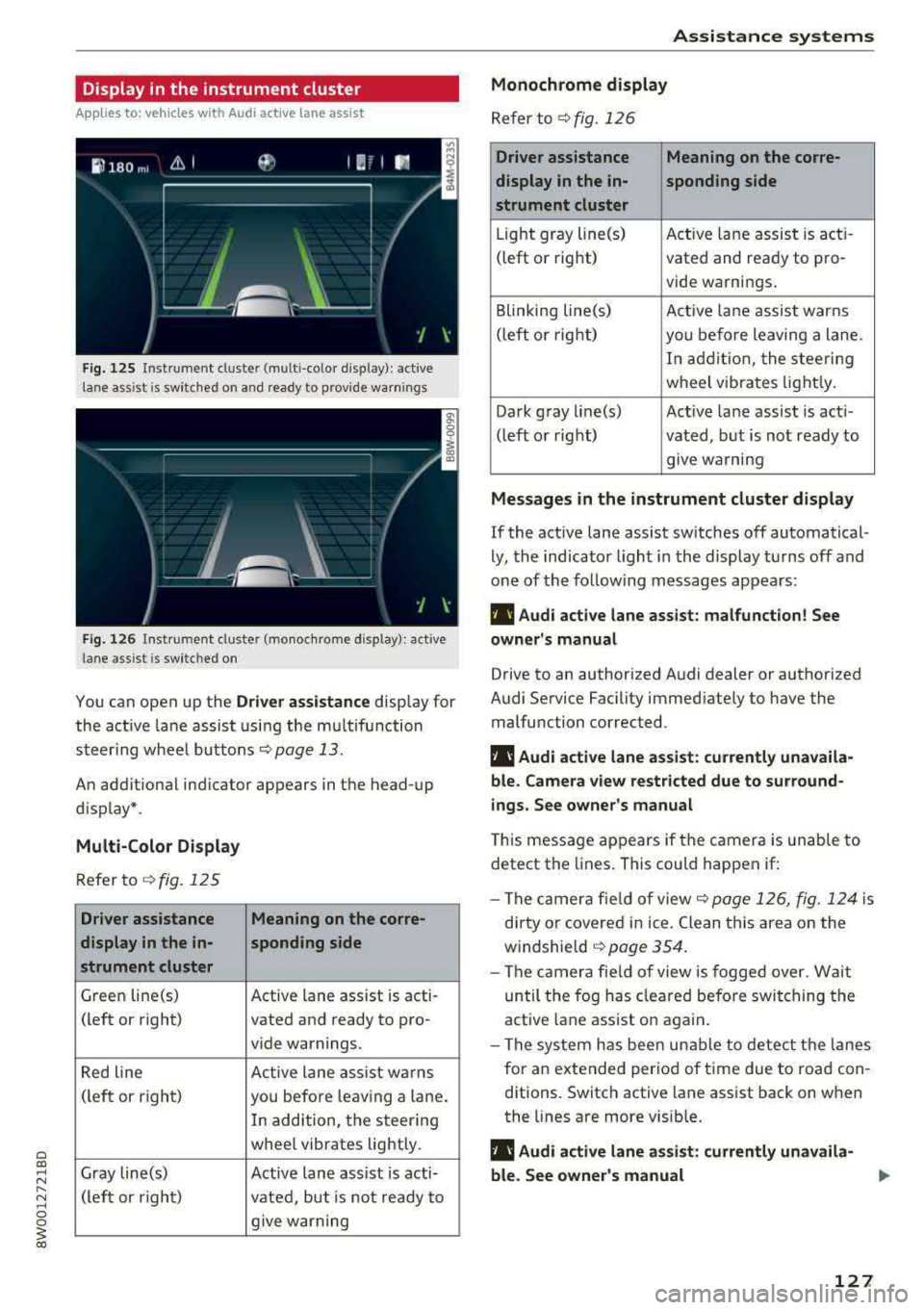
Fig. 125 Instrument cluster (multi-color display): ac tive
lane ass ist is sw itched on and ready to provide warnings
Fig. 126 Instrument cl uster (monoc hrome display): active
lane ass ist is switched on
You can open up the Dr ive r assistance display for
the act ive lane assist using the multifunction
steer ing whee l buttons
c::> page 13.
An additional ind icator appears in the head-up
display*.
Multi-Color Display
Refer to¢ fig. 125
Driver assistance Meaning on the corre-
display in the in-sponding side
strument cluster
Green line(s) Active lane assist is acti -
(left or right) vated and ready to pro-
vide warnings.
Red line Active lane assist warns
(left or right) you before leav ing a lane.
In addition, the steering
whee l vibrates lightly.
Gray line(s) Active lane assist is acti-
(left or right)
vated, but is not ready to
give warning
Assistance systems
Monochrome display
Refer to¢ fig. 126
Driver assistance Meaning on the corre-
display in the in-
sponding side
strument cluster
Light gray line(s) Act ive lane assist is acti-
(left o r right) vated and ready to pro-
vide warnings .
Blinking line(s)
Active lane assist warns
(left or right)
you before leaving a lane.
In addition, the steering
wheel vibrates lightly.
Dark gray line(s) Active lane assist is acti-
(left or right) vated, but is not ready to
. . give warning
Messages in the instrument cluster display
If the active lane assist switches off automatical
ly, the indicator light in the display turns off and
one of the following messages appears:
fl! Audi active lane assist: malfunction! See
owner's manual
Drive to an authorized Audi dealer or authorized
Audi Service Facility immediately to have the
malfunction corrected.
fl! Audi active lane assist: currently unavaila
ble . Camera view restricted due to surround
ings. See owner's manual
This message appears if the camera is unable to
detect the lines. This could happen if:
- The camera fie ld of view
c::> page 126, fig. 124 is
dirty or covered in ice. Clean this area on the
windshie ld
¢ page 354.
- The camera field of view is fogged over. Wait
until the fog has cleared before switching the
active lane assist on again.
- The system has been unable to detect the lanes
for an extended period of time due to road con
ditions. Switch active lane assist back on when
the lines are more visible.
fl! Audi active lane as sist: currently unavaila
ble. See owner's manual
127
Page 130 of 403

Assistance systems
There is a temporary malfunction that may pre
vent the active lane assist from switching on. Try
sw itch ing the active lane assist on again later.
rl! Audi active lane assist: Please take over
steering!
This message appears if you are not steering by
yourse lf. Ac tive lane assist is activated, but is not
ready to give wa rning
& WARNING
Note that messages may be delayed or not
displayed on vehicles with accessories mount
ed on the steering whee l, s uch as a steering
wheel spinner knob. Always keep your hands
on the steer ing wheel.
Adjusting the steering time and vibration
warning
Applies to: veh icles with Audi active lane assist
You con adjust individual active lone assist set
tings in the Infotainment system .
-
.,. Select in the Infotainment system: IMENUI but
ton
> Vehicle > left contro l button > Driver as
sistance > Audi active lane assist .
Steering time
Early :
in this setting, the corrective steer ing hap
pens continuously to help keep the vehicle in the
center of the lane.
late : in this setting, the system provides correc
tive steering just before a wheel goes over a de
tected lane marker line.
Vibration warning
You can switch the additional vibration warning
in the steering wheel on or off.
WARNING
With the vibration warning switched off,
there will also be no visual warning in the in
strument cluster display when crossing a lane
marker line.
128
@ Tips
In certain ma rkets: your settings are stored
automat ically and assigned to the remote
control key in use.
Audi side assist
Description
Applies to: vehicles with Audi side assist
Fig. 127 Sensor detection range
Fig . 128 D isplay on the exterior mirror
Side assist (lane change ass ist) helps you mon itor
your blind spot and traffic behind yo ur vehicle.
Within the limits of the system, i t warns you
about veh icles that are coming closer or that are
traveling with you within sensor range
(D
¢ fig. 12 7. If a lane change is classified as criti
ca l, the display @in the exterior mirror turns on
¢fig. 128.
The display in the left exterior mirror provides as
sistance when making a lane change to the left,
while the display in the right exterior mirror pro
vides assistance when making a lane change to
the right.
Information stage
As long as you do not activate the turn signal,
side assist
informs yo u about vehicles that are
Page 136 of 403

Assistance systems
Description
Applies to: vehicl es w ith Aud i drive select
The follow ing systems, among other things, are
influenced by drive select:
Engine and automatic transmission*
Depending on the mode, the engine and auto
mat ic transmission* respond more quickly or in a
mo re balanced manner to accelerator pedal
movements . In the sporty
Dynamic mode , the
transmission shifts at highe r speed ranges.
Suspension control*
The suspension control* uses sensors to record
information regard ing steering movements ,
braking and acceleration operations by the driv
er , road surface, driving speed, and load. This
makes it possible to adapt damping to the driv
ing situation nearly in rea l time. With drive se
lect, you can adjust the suspension control to
sporty
( Dynamic ), comfortab le ( Comfort ) or bal
anced
( Auto ).
Steering
The power steering adapts. Indi rect s teer ing that
moves easily as in
Comfort mode is especia lly
suited to long drives on highways . The
Dynamic
mode provides sporty , direct steering.
The following applies to vehicles with dynamic
steering* : the steering ratio changes based on
vehicle speed in order to maintain optimum
steer ing effort for the driver at all times . This
sets the steering to be less sensitive at higher
speeds in order to prov ide improved vehicle con
trol. At reduced speeds, steering is more direct in
order to keep the steering effort as min imal as
possible when the driver is maneuvering the vehi
cle. At low and average speeds, dynamic steer
ing* additionally provides more responsive steer
ing performance.
Sport differential*
As a component of the all wheel drive system
(quattro)
~ page 1 SO, the sport differential dis
tributes the driving power to the rear axle de
pending on the situation. The distribution of
power varies depending on the selected mode
134
from moderate (Comfort ) to sporty (Dynamic ).
The goal is a high level of agility and ability to ac
ce lerate on curves . The vehicle is very respons ive
to steering.
Adaptive cruise control (ACC)*
The behavior when accelerating can be adjusted
from comfortable to sporty, depending on the
drive select mode. Adaptive cruise control also
responds to the driving behavior of the vehicle
ahead in a more conservative or sporty manner.
Engine sound*
The engine sound adapts to the current mode
and can be subtle to sporty.
@ Tips
The S selector lever position automatically en
gages when the
Dynamic mode is selected .
Selecting the driving mode
Applies to: vehicles with Audi drive se lect
Fig. 135 Center co nsole: controls for drive se lect
.,. Press the left or right a rrow key ~ fig. 135 until
the desired mode appears in the instrument
cluster/ Infotainment system disp lay. Or
.,. Select in the Infotainment system: IMENU j but-
ton
> Vehicle > Audi drive select.
.,. Select and confirm the desired setting.
You can change the driving mode when the vehi
cle is stationary or while driving. If traffic per
mits, after changing modes, briefly take your
foot off the accelerator pedal so that the recently
selected mode is also activated for the engine.
.,.
Page 141 of 403
Cl al ..... N
" N ..... 0 0
~ al
General information
Appl ies to: ve hicles with rearview ca mera
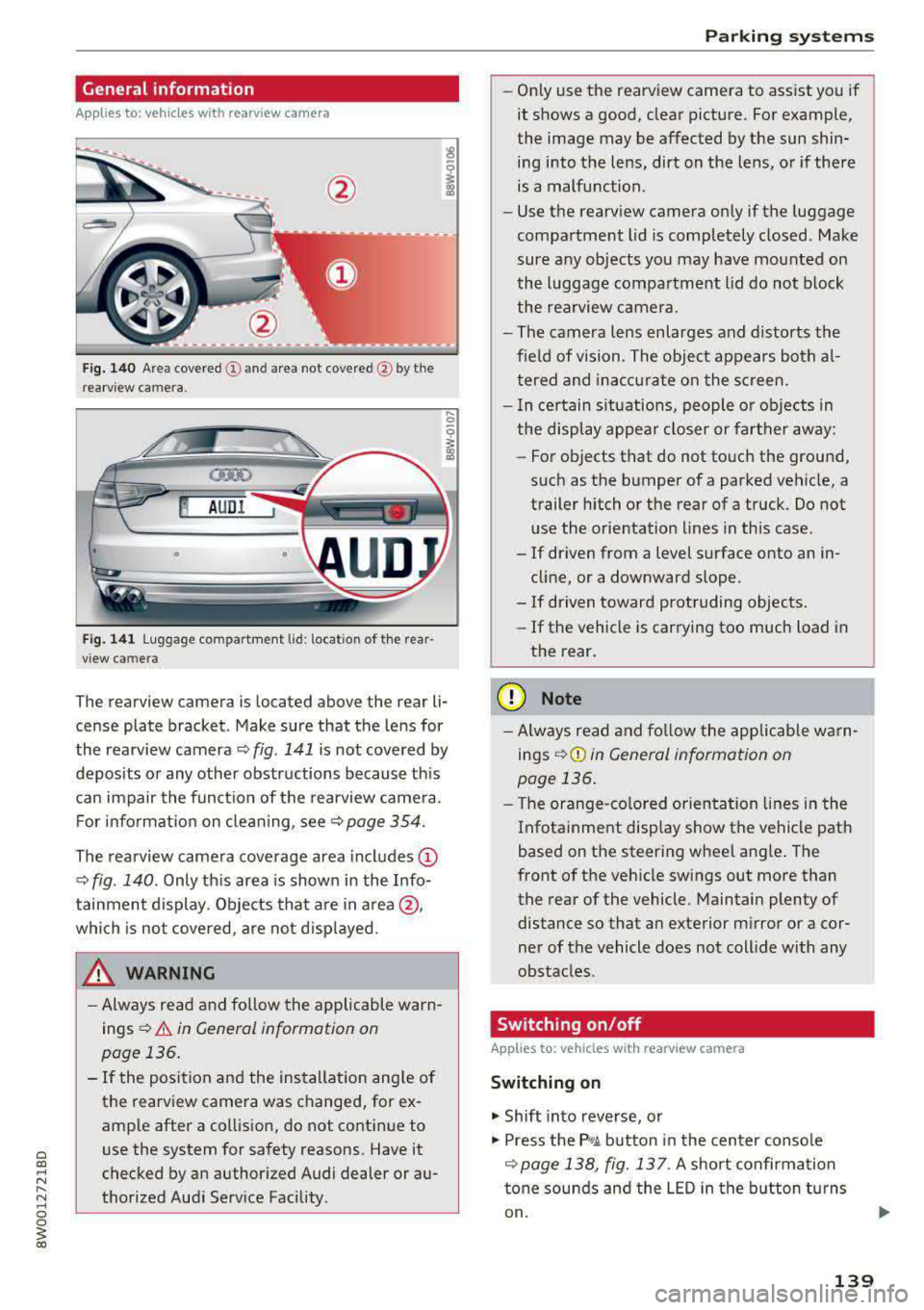
Fig . 140 Area covered (D and area not covered @by the
rea rv iew camera.
@ AUDI
•
Fig. 141 Luggage compartment lid: locatio n of the rear
view camera
..... 0
i
The rearview camera is located above the rear li
cense plate bracket. Make sure that the lens for
the rearview camera
~ fig. 141 is not covered by
deposits or any other obstructions because this
can impair the function of the rearview camera.
For information on cleaning, see<=>
page 354.
The rearview camera coverage area includes (D
~ fig. 140 . Only this area is shown in the Info
tainment display. Objects that are in area @,
which is not covered, are not displayed.
A WARNING
-Always read and follow the applicable warn
ings
<=> A in General information on
page 136.
- If the position and the installation angle of
the rearview camera was changed, for ex
ample after a collision, do not continue to
use the system for safety reasons. Have it
checked by an authorized Audi dealer or au
thorized Audi Service Facility .
Parking systems
-Only use the rearview camera to assist you if
it shows a good, clear picture. For example,
the image may be affected by the sun shin
ing into the lens, dirt on the lens, or if there
is a malfunction.
- Use the rearview camera only if the luggage
compartment lid is completely closed. Make
sure any objects you may have mounted on
the luggage compartment lid do not block
the rearview camera.
- The camera lens enlarges and distorts the
field of vision. The object appears both al
tered and inaccurate on the screen.
- In certain situations, people or objects in
the display appear closer or farther away:
- For objects that do not touch the ground,
such as the bumper of a parked vehicle, a
trailer hitch or the rear of a truck. Do not
use the orientation lines in this case .
- If driven from a level surface onto an in
cline, or a downward slope .
- If driven toward protruding objects.
- If the vehicle is carrying too much load in
the rear.
(D Note
-Always read and follow the applicable warn
ings
r::!> (D in General information on
page 136.
- The orange-colored orientation lines in the
Infotainment display show the vehicle path
based on the steering wheel angle. The
front of the vehicle swings out more than
the rear of the vehicle. Maintain plenty of distance so that an exterior mirror or a cor
ner of the vehicle does not collide with any
obstacles.
Switching on/off
App lies to : vehicles wi th rearv iew camera
Switching on
.. Shift into reverse, or
.. Press the P, qA button in the center console
r::!> page 138, fig. 13 7. A short confirmation
tone sounds and the LED in the button turns
on.
139
Page 142 of 403
Parking system s
Swit c hing off
.. Drive faster than 6 mph (10 km/h), or
.. Press the P" 1A button, or
.. Switch the ignition off.
(D) Tips
- The visual d isplay in the right part of the
display should help you detect the critical
vehicle area.
- You can change the volume of the s ignals
and the d isp lay
¢page 143 .
Perpendicular parking
Applies to: vehicles with rearview camera
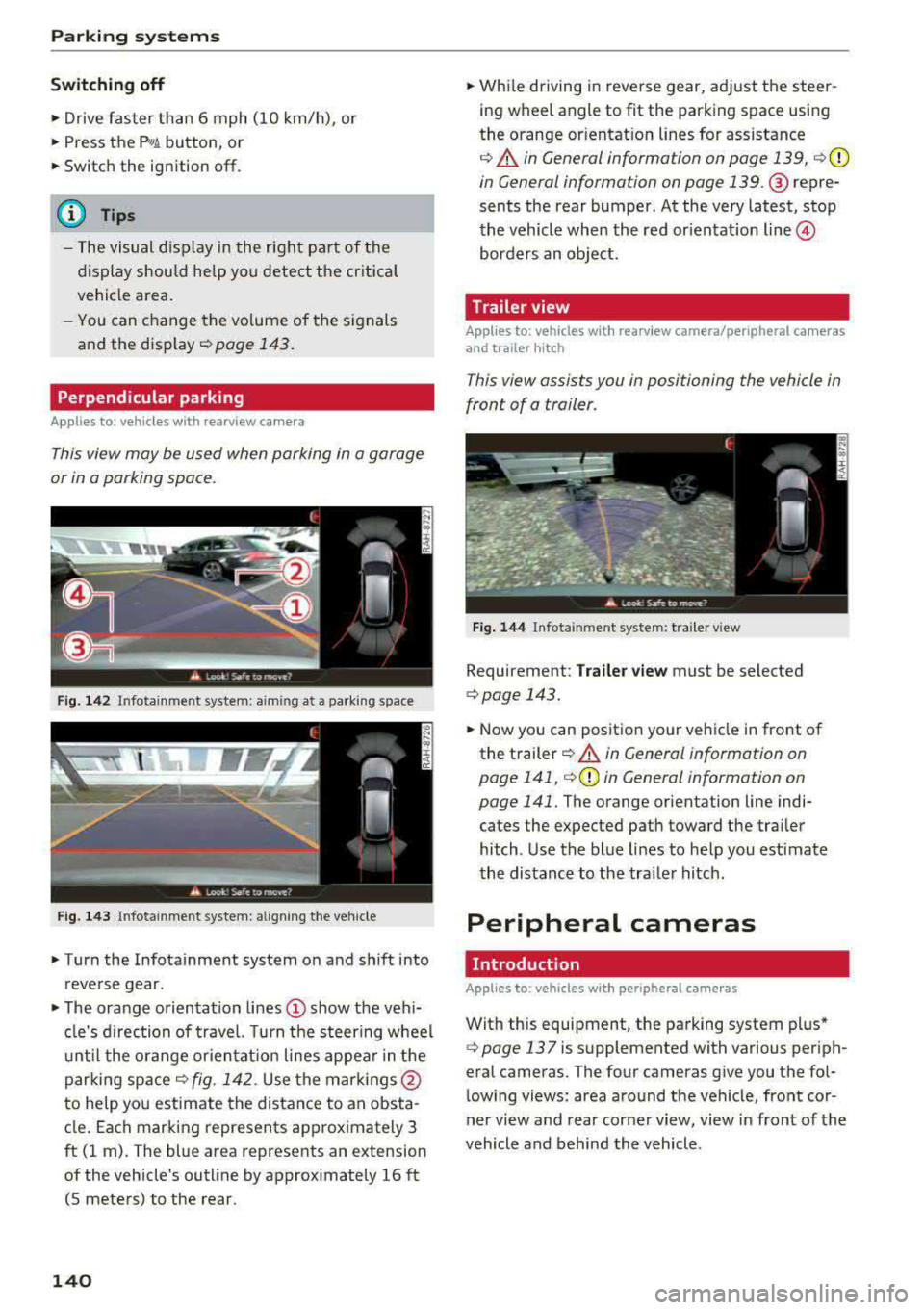
This view may be used when parking in a garage
or in a parking space.
F ig. 1 42 Infotainment system: aiming at a parking space
Fig. 143 In fotainme nt syste m: al ign ing the ve hicle
.. Turn the Infotainment system on and sh ift into
reverse gear.
.. The orange orientation lines (!) show the veh i
cle's d irection of trave l. Turn the steering wheel
u nt il the o range or ientat ion lines appear in the
parking
space¢ fig. 142. Use the mar kings @
to help you estimate the distance to an obsta
cle . Each marking represents approximately 3
ft (1 m). The blue area represents an extension
of the vehicle's outline by approx imately 16 ft
(5 meters) to the rear.
140
.. While driving in reverse gear, adjust the steer
ing wheel angle to fit the parking space using
the orange or ientat ion lines for assistance
¢ .&. in General information on page 139, c:>(D
in General information on page 139. @ repre
sents the rear bumper . At the very latest, stop
the vehicle whe n the red or ientation
line @
borders an object.
Trailer view
Applies to: vehicles with rearview camera/peripheral cameras
and trailer hitch
This view assists you in positioning the vehicle in
front of a trailer.
Fig . 144 Infota inment system: tra iler v iew
Requirement: Tra iler v ie w must be selected
c:> page 143.
.. Now you can position your ve hicle in front of
the t railer
¢ .&. in General information on
page 141,
i=> (D in General information on
page 141.
The orange orientation line indi
cates the expected path toward the tra iler
hitch . Use the blue lines to help you est imate
the distance to the tra iler hitch .
Peripheral cameras
. Introduction
Applies to: vehicles with peripheral cameras
With this equipment, the parking system plus*
¢ page 137 is supplemented with various periph
eral cameras. The four cameras give you the fol
lowing views: area around the vehicle, front cor
ner view a nd rear corner view, view in front of the
vehicle and behind the vehicle .
Page 143 of 403
General information
Appl ies to: ve hicles with per ip heral cameras
Fig. 145 Loca tion of peripheral c amera s
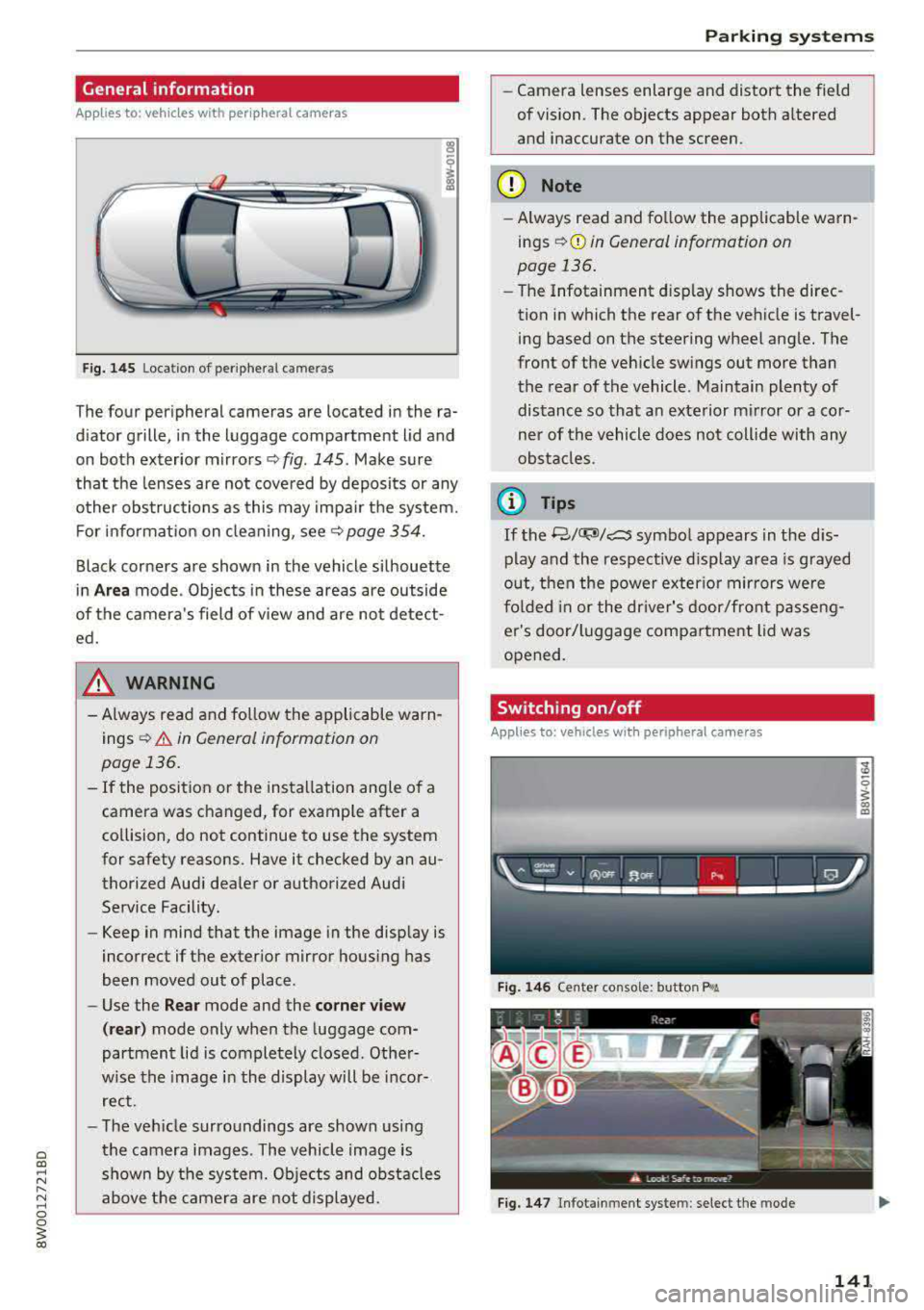
The four periphe ral cameras are located in the ra
diator grille, in the luggage compartment lid and
on both exterior mirrors ¢
fig. 145 . Make sure
that the lenses are not covered by deposits or any
other obstructions as this may impair the system.
For information on cleaning, see¢
page 354.
Black corners are shown in the vehicle silhouette
in
Area mode . Objects in these areas are outside
of the camera's field of view and are not detect
ed.
& WARNING
- Always read and follow the applicable warn
ings ¢
.&. in General information on
page 136.
- If the position or the installation angle of a
camera was changed, for example after a
collision, do not continue to use the system
for safety reasons. Have it checked by an au
thorized Audi dealer or authorized Audi Service Facility.
- Keep in mind that the image in the display is
incorrect if the exterior mirror housing has
been moved out of place .
- Use the
Rear mode and the corner view
(rear)
mode only when the luggage com
partment lid is completely closed. Other
wise the image in the display will be incor
rect.
- The vehicle surroundings are shown using
the camera images . The vehicle image is
shown by the system. Objects and obstacles
above the camera are not displayed.
Parking systems
-Camera lenses enlarge and distort the field
of vision. The objects appear both altered
and inaccurate on the screen.
(D Note
- Always read and follow the applicable warn
ings
¢ (Din General information on
page 136.
- The Infotainment display shows the direc
tion in which the rear of the vehicle is travel
ing based on the steering wheel angle. The
front of the vehicle swings out more than
the rear of the vehicle . Maintain plenty of
distance so that an exterior mirror or a cor
ner of the vehicle does not collide with any
obstacles.
(D Tips
If the 8/fl;!J/c::5 symbol appears in the dis
play and the respective display area is grayed
out, then the power exterior mirrors were
folded in or the driver's door/front passeng
er's door/luggage compartment lid was
opened.
Switching on/off
Applies to: vehicles wi th peripheral ca meras
Fig. 146 Center co nsole: button P. a
Fig. 147 In fo tai nment syste m: select the mode
141
Page 145 of 403
This view is ideal for maneuvering. The vehicle
surroundings are shown using the camera im
ages . T he vehicle image is shown by the system .
... Select the symbol © with the control knob and
press the control knob.
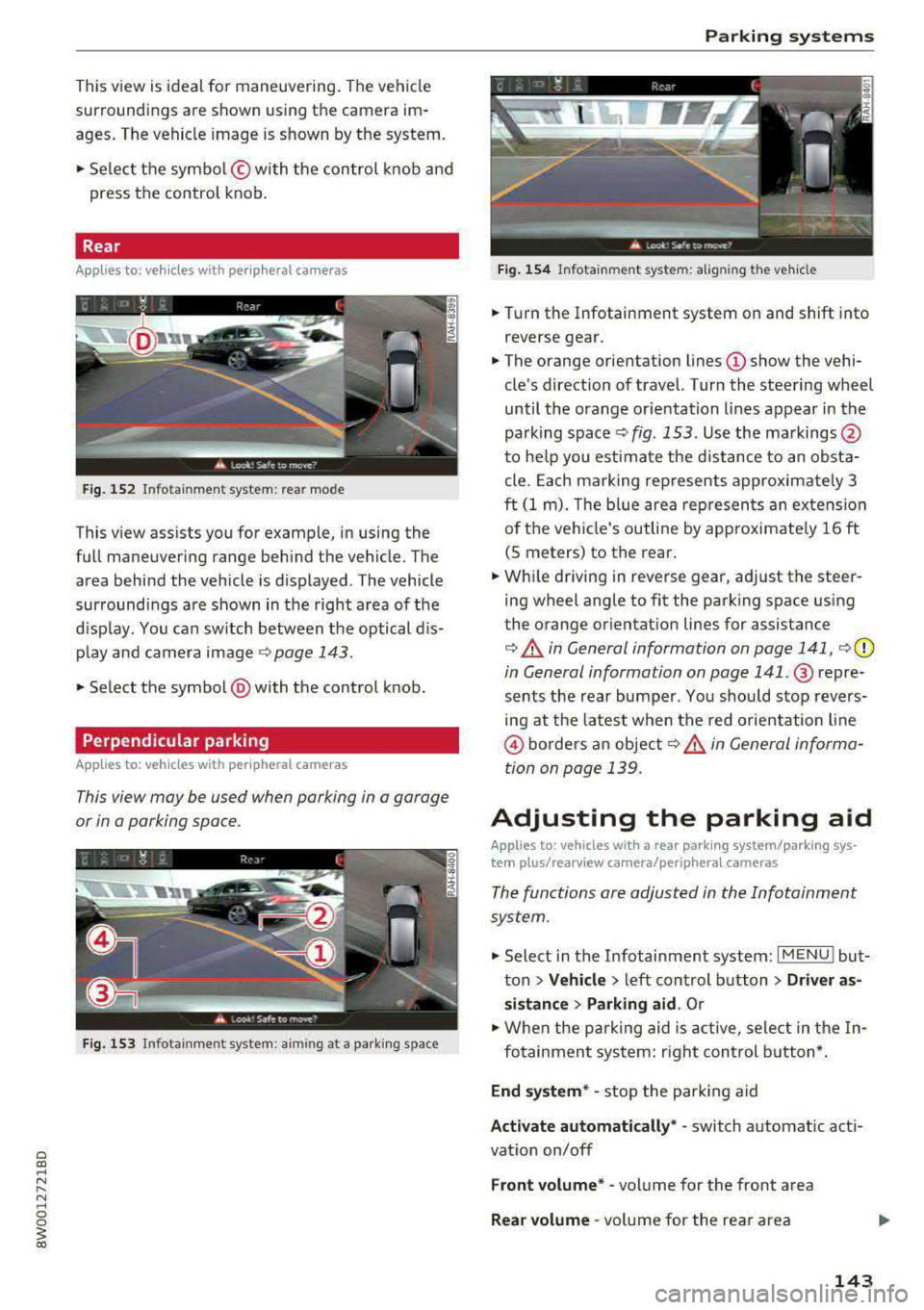
Rear
Applies to: vehicles with peripheral came ras
F ig. 152 In fot ainm en t system : rear mo de
T his v iew assists you for example, in us ing the
full maneuvering range behind the vehicle. The
area behind the vehicle is displayed. The vehicle
surroundings are shown in the right area of the
display. You can switch between t he optical dis
play and camera image
¢page 143.
... Select the symbol @with the control knob.
Perpendicular parking
Applies to: vehicles with peripheral cameras
This view may be used when parking in a garage
or in a parking space .
Fig. 153 In fot ainm ent system : aiming a t a park ing s pace
Parking systems
Fig. 154 Infotain m ent sys te m: alig nin g the vehi cle
... Turn the Infotainment system on and shift into
r everse gear .
... The orange orientation lines (D show the vehi
cle's direction of travel. Turn the steering wheel
until the orange orientation lines appear in the
pa rking
space ¢ fig. 153 . Use the markings @
to help you estimate the d istance to an obsta
cle. Each marking represents approximately 3
ft (1 m). The b lue area represen ts an extension
of the vehicle's outline by approximate ly 16 ft
(5 meters) to the rear.
... While driving in reverse gear, adj ust the steer
ing wheel angle to fit the park ing space using
the orange or ientation lines for assistance
¢ &. in General information on page 141, ¢(D
in General information on page 141 .@ repre
sents the rear bumper . You shou ld stop revers
ing at the latest when the red orientation line
@ borders an object¢&. in General informa
tion on page 139.
Adjusting the parking aid
Applies to: vehicles with a rear parking system/parking sys
tem plus/ rearview camera/per iphe ra l cameras
The functions are adjusted in the Infotainment
system .
.,. Select in the Infotainment system: I MENU ! but
ton
> Vehicle > left control button > Driver as
sistance > Parking aid .
Or
.,. When the parking aid is active, select in the In-
fotainment system: r ight control button*.
End system* -stop the parking aid
Activate automatically * -switch automatic act i
vat io n on/off
Front volume* -volume for the front area
Rear volume -volume for the rear area
143
Page 148 of 403
Intelligent Technology
Intelligent Technology
Electronic stabilization
control (ESC)
Description
Elect ronic stabilization control (ESC) supports
driver safety.
It red uces the risk of slipping and
improves driving stability. ESC detects crit ica l sit
uations such as when the vehicle is oversteering
and understeering or the wheels are spinning.
The vehicle is stabilized by applying the brakes or reducing eng ine torq ue. When the ESC engages,
the hJ ind icator light blinks in the instrument
cluste r.
The fo llow ing systems are integrated in the ESC:
Ant i-loc k bra king system (ABS)
ABS prevents the whee ls from locking when brak
ing. The vehicle can sti ll be steered even during
hard brak ing. Apply steady pressure to the brake
pedal. Do not pump the pedal. A puls ing in the
brake pedal indicates that the system is acting to
stabilize the vehicle .
Brake assist system
The brake assist system can decrease brak ing dis
tance . It increases braking power when the driver
presses the brake pedal quick ly in emergency sit
uations . You must press and hold the b rake pedal
until the dangerous situat io n is over . In veh icles
with adapt ive cr uise control*, the bra ke assist
sys tem is more sensitive if the d ista nce detec ted
t o the vehicle dr iv ing ahead is too small.
Anti -Slip Regulation (ASR )
ASR reduces eng ine power when the drive wheels
begin sp inning a nd adapts the force to the road
conditions . This makes it easie r to start, acceler
a te and dr ive up h ills.
Electron ic differenti al lock (EDL )
The EDL applies the brakes to a wheel that starts
spinning and transfers the drive power to the
other driving wheel or wheels ( if the veh icle is
eq uipped w ith all whee l dr ive*) . T his function is
not available at higher speeds.
146 In extreme cases,
ED L automat ically switches off
to keep the brake on the braked wheel from over heating. The veh icle is still working correct ly. ED L
will switch on again automatically when condi
tions have returned to normal.
Steering r ecommendat ion
The ESC he lps to stabilize the vehicle by changing
the steering torque.
In veh icles with dynamic s teer ing*, ESC a lso
helps to stab ilize the steering in cr it ica l situa
tions.
Selective wheel torque control
Se lective whee l torque cont rol is used when d riv
i ng on curves. The front whee l on the inside of
t h e curve or both whee ls on the i nside of the
curve are braked se lectively as needed. This al
l ows more precise driving in curves.
Automatic post -collision b raking system
The "automat ic post-collis io n braking system"
can help to reduce the risk of sliding and of addi
tiona l collisions after an acc ident. If the a irbag
contro l modu le detects a collision, the ve hicle is
braked by the ESC.
The veh icle does not bra ke automatically if:
-the dr iver presses the accelerator pedal, or
-the ESC, the brake system or the veh icle electri-
cal system are not functioning.
&_ WARNING
-The ESC and its integrated systems cannot overcome the lim its imposed by natura l
phys ica l laws. This is espec ially important
on sl ippery or wet roads. If the systems be
gin acting to stabilize your vehicle, you
should immediately alter your speed to match the road and traffic conditions. Do
not let the increased safety provided tempt
you into taking risks. This could increase
your r isk of a coll is ion.
-Please note the r isk of a coll is ion increases
when dr iv ing fast, especially through curves
and on slippery or wet roads, and when dr iv
ing too close to objects ahead . The ESC and
its integrated systems cannot always
Page 152 of 403
Intelligent Technology
& WARNING
- Only apply the brakes for the purpose of
cleaning the brake system whe n road and
t raffic conditions perm it . You must not en
dange r othe r road users . This increases the
risk of an accide nt.
- Never let the vehicle roll while the e ng ine is
stopped because this increases the risk of a n
a cci den t.
([) Note
- Neve r let the brakes " rub" by pressing the
pedal lightly when braki ng is not actually
necessa ry . T his ca uses the bra kes to over
h ea t an d inc reases br akin g d istance an d
c a uses wear .
- B efo re driv ing downhill a long distance on a
steep hi ll, decre ase your spee d an d se lec t a
l ower gear . This makes use of t he engine
b raking effe ct and re lieves the brakes . If
you nee d to b rake additionally, b rake in in
tervals and not continuously .
(D Tips
- If the brake booste r is no t working, yo u
must press the brake pedal with much more
fo rce than normal.
- If you retrofit you r vehicle with a front spoil
er, whee l covers o r similar items, ma ke sure
that the a ir flow to the front whee ls is not
i nte rr u pted. Othe rw ise the brake system
ca n become too hot.
Electromechanical
steering, Dynamic
steering
T h e electromechanical st eering supports the
driver's steering movements.
Power steering adapts electronically based on
the vehicle speed.
Indicator lights and messages
• St ee ring : malfunction! Plea se stop vehicle
150
If this indicato r light turns on and stays on and
this message appears, the power steering may
have failed.
Stop t he vehi cle in a sa fe location as soon as pos
s ible . Do
not contin ue driving . See an authorized
Audi dealer or authorized A udi Service Facility for
ass istance .
'I- ij Steering: malfun ction! You may continue
driving
I f the indicato r light turns on and the message
a ppears, the steeri ng wheel may be more d iffi
cu lt to move o r more sensitive than usu al. The
stee ring wheel may also be at a n ang le when
driving straight.
D rive slowly to an auth o rized Audi dea ler or au
thorized Aud i Serv ice Facili ty to have t he mal
f unct io n corre cted .
t$Jj Dynamic steering: correcting steering wheel
position
If the indicator light turns on and this message
appears , the dynamic steering * is re in it ia liz ing .
The s teer ing whee l will be easy to move afte r
st ar ting t he engine . Reinitializa tio n might be
ne cessary if the stee ring w heel was moved while
t h e engine was switched off. The disp lay t urns
off if the initialization was successfu l.
(D Tips
- If the . or krfl i ndi cato r ligh t only s tays on
f or a sho rt time, you may cont inue driving .
- Th e dynamic stee ring s tabili ty sys tem s
¢ page 14 6 are not av ailabl e in the event of
a system malfunction .
- For add ition al informa tion o n dynamic
s teering, see
¢ page 133.
ALL-wheel drive (quattro)
App lies to: vehicles wi th all wheel drive
General information
In all whee l dr ive, the dr iv ing power is dis trib ut-
ed between all fo ur whee ls when needed. This
happens automatically depending on your driving
behavior as we ll as the c urrent road conditions.
.,_