infotainment AUDI A4 2020 User Guide
[x] Cancel search | Manufacturer: AUDI, Model Year: 2020, Model line: A4, Model: AUDI A4 2020Pages: 296, PDF Size: 80.45 MB
Page 186 of 296
Navigation
which are then combined with the roadways from
the > page 180, fig. 145 standard map view.
@) Tips
—The satellite map”) is updated regularly
whenever the function is opened. The proc-
ess may take several seconds.
— When the satellite map display is switched
on ) with the 3D position map type, the dis-
play automatically switches to the 2D map
type when driving through tunnels.
— Depending on the Internet connection, the
standard map may also be displayed when
the satellite map is switched on )).
Map update
Introduction
Applies to: vehicles with navigation system
You can update the map data in the MMI with a
map update. The functions depend on the coun-
try and vehicle equipment.
— Map updates through online map update
=> page 184.
— Import a map update from the USB connection
to your MMI > page 184.
— Map update at an authorized Audi dealer or au-
thorized Audi Service Facility. This can result in
additional costs.
Online map update
Applies to: vehicles with MMI, navigation system, and Audi
connect Infotainment
Using map update online, you can update the
map material in your navigation system directly
from your vehicle.
The MMI determines regions based on the vehicle
position. Based on this, update data for these re-
gions are available for your MMI.
)) Audi provides access to services from third party provid-
ers. Permanent availability cannot be guaranteed, because
that depends on the third party provider.
184
Start map update
Applies to: MMI
Requirement: the MMI must be connected to the
Internet > page 169, Audi connect.
> A notification for a map update will appear in
the center display.
> If the option Automatic online map update
= page 185 is switched on, the MMI will start
the
map update, or
> Press on the notification, or
> Open the notification in the notification center
on > page 20 and press on the notification.
> If the Automatic online map update option
= page 185 is switched off, press on Always al-
low.
The MMI will start the map update. You can
check the status of the download process and the
installation in the notification center > page 20.
When the update has ended, a notification will
be displayed.
@) Tips
Because of the high volume of data, Audi rec-
ommends performing the map update using
the USB connection > page 184.
Map update using the USB connection
Applies to: vehicles with MMI, navigation system, and Audi
connect Infotainment
With the map update, you can update the map
material in your navigation system.
Requirement: you must have created a myAudi
account at my.audi.com. Your vehicle must be
registered in your myAudi account.
Prepare map update
> Download the map update at my.audi.com and
store it on a USB flash drive. For additional in-
formation, visit my.audi.com.
Page 187 of 296
8W1012721BB
Navigation
Start map update
> Connect the USB flash drive to the Audi music
interface > page 196. A notification for a map
update will appear in the center display.
> Press on the notification, or
> Open the notification in the notification center
on > page 20 and press on the notification. The
update package is shown.
> Press Next. The status of the installation is
shown in the center display.
> When the update has ended, a notification will
be displayed.
Map updates settings
Applies
to: vehicles with a navigation system and Audi con-
nect Infotainment
> Applies to: MMI: Select on the home screen:
SETTINGS > System maintenance.
Automatic online map update: when the func-
tion is switched on, map updates will be auto-
matically downloaded and installed.
@) Note
Read the information about Audi connect, and
be sure to note the connectivity costs section
=@ in General information on page 169.
Traffic information
Introduction
Applies to: vehicles with navigation system and online traffic
information
| a eurcu)
Beeirhicincae naa
(Cee ee One aera o
io
RAX-0152
iN TeTaaa)
@,
© North
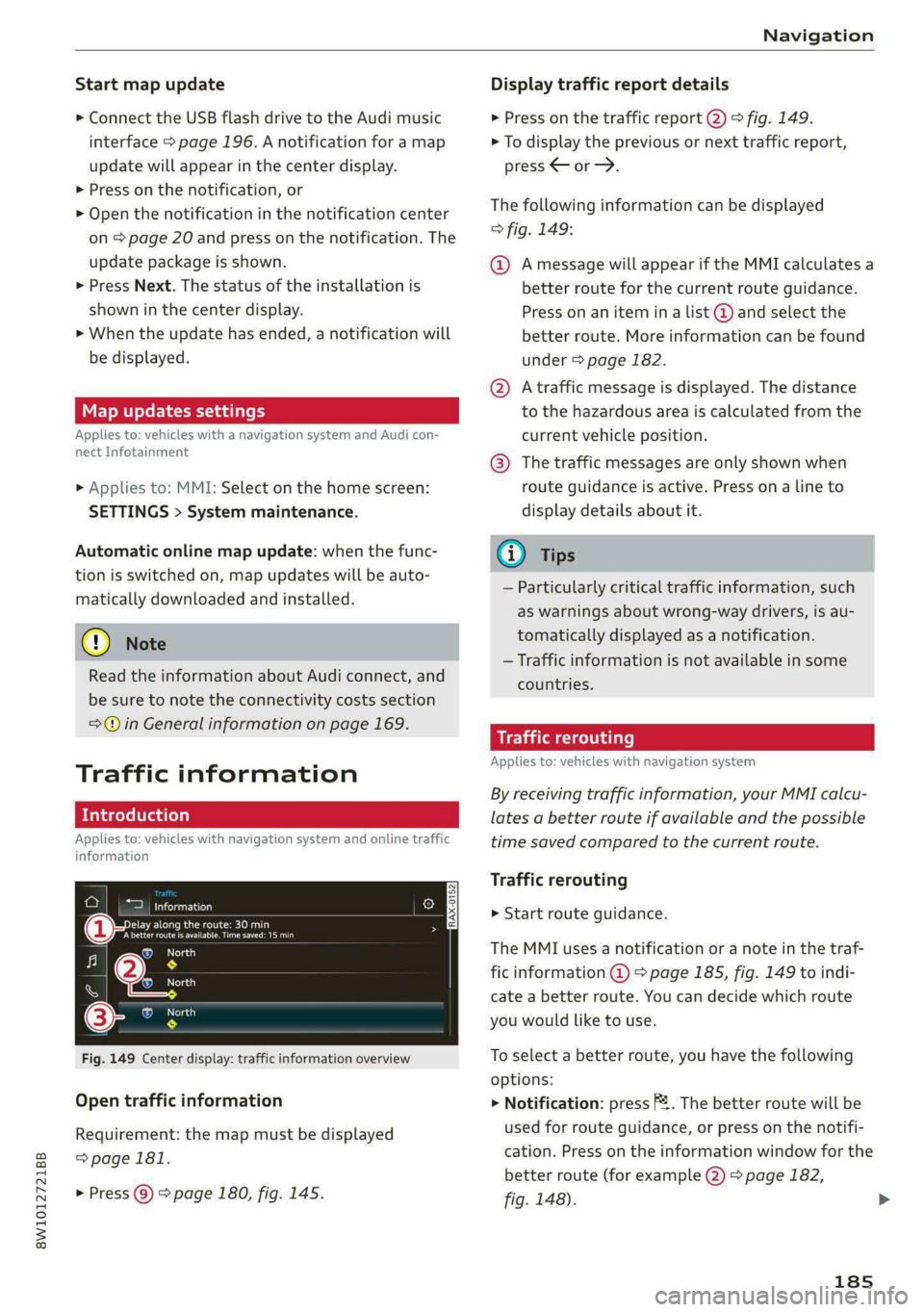
Fig. 149 Center display: traffic information overview
Open traffic information
Requirement: the map must be displayed
=>page 181.
> Press @) > page 180, fig. 145.
Display traffic report details
> Press on the traffic report @) > fig. 149.
> To display the previous or next traffic report,
press < or.
The following information can be displayed
> fig. 149:
@ Amessage will appear if the MMI calculates a
better route for the current route guidance.
Press on an item ina list @ and select the
better route. More information can be found
under > page 182.
@ Atraffic message is displayed. The distance
to the hazardous area is calculated from the
current vehicle position.
@® The traffic messages are only shown when
route guidance is active. Press ona line to
display details about it.
@) Tips
— Particularly critical traffic information, such
as warnings about wrong-way drivers, is au-
tomatically displayed as a notification.
— Traffic information is not available in some
countries.
Traffic rerouting
Applies to: vehicles with navigation system
By receiving traffic information, your MMI calcu-
lates a better route if available and the possible
time saved compared to the current route.
Traffic rerouting
> Start route guidance.
The MMI uses a notification or a note in the traf-
fic information @ = page 185, fig. 149 to indi-
cate a better route. You can decide which route
you would like to use.
To select a better route, you have the following
options:
> Notification: press F2. The better route will be
used for route guidance, or press on the notifi-
cation. Press on the information window for the
better route (for example (2) > page 182,
fig. 148).
185
Page 193 of 296
8W1012721BB
Radio
> In the presets list, select: Z > one or more sta-
tions or Select all > Delete > (Done).
Requirement: the presets list must be displayed.
> Moving a preset: press Z.
> Touch the $ symbol and move the entry to the
desired position.
> Press Done.
Smart presets
Applies to: vehicles with SiriusXM
You can store SiriusXM stations in the presets as
smart presets. After switching the ignition and
the MMI on, the smart presets store radio pro-
grams at a specific time.
Selecting smart presets
> Press on a smart preset.
You have the following options:
Pause/start
> PresslI/D.
Playing the previous or next track
> Press Ii< or Dil.
Going to the beginning of the recorded
program or to a live program
> Press and hold I< or >i.
To a live program
> Press [ve],
Radio text
Program information (for example, general text
messages, artist, composer, song) is displayed in
the radio text.
Requirement: the selected radio station must
support the radio text function.
Opening radio text
> Applies to: MMI: Select on the home screen:
RADIO > select a frequency band (such as FM)
> select a station > More > Radio text.
Depending on vehicle equipment, the following
functions may be available:
Displaying previous radio text entries
> Swipe downward with one finger. The last radio
text entries are displayed if they are available.
Scrolling through radio text entries
> Swipe upward or downward with one finger.
Showing Radio Text Plus information
If a radio text entry is displayed with a color, a
phone number or a navigation destination for the
station is available as radio text plus information.
You have the following options:
Selecting the destination
> Select: a navigation destination marked in col-
or > Set as destination.
Call
> Select: a phone number marked in color > Call.
@) Tips
A call to a phone number stored in the radio
text will start immediately.
Online radio
General information
Applies to: vehicles with Audi connect Infotainment and on-
line radio
You can listen to various radio stations or pod-
casts on the Internet using online radio.
Requirement: the MMI must be connected to the
Internet. A data plan must be available
=> page 173.
Opening online radio using the MMI
> Applies to: MMI: Select on the home screen:
RADIO > Source > Online.
The following functions are available:
Last stations
The station/podcast list for the last station or
podcast that was playing will be displayed.
Top stations
The favorite online radio stations are displayed.
191
>
Page 194 of 296
Radio
Filter list
> Select: © > (a category) > a station/podcast.
The following categories are available:
— Countries
— Genres
— Languages
@) Note
Read the information about Audi connect, and
be sure to note the connectivity costs section
=@ in General information on page 169.
G) Tips
— Depending on the Internet connection and
network traffic, the connection may be lost
when online radio is playing.
— Online radio reception may not be possible
if Internet service is throttled.
— The use of online radio depends on the serv-
ice availability of the third party provider.
— The range and screen display of online me-
dia services from third party providers in the
vehicle can vary.
— Please note that it may not be possible to
play some online radio stations in certain
countries.
— Audi only provides access to online radio
and does not assume any responsibility for
the content of these services.
Applies to: vehicles with Audi connect Infotainment and on-
line radio
Opening podcasts using the MMI
> Applies to: MMI: Select on the home screen:
RADIO > Source > Online > Podcasts.
The following functions are available:
Listening to a podcast
» Select: a podcast > a podcast episode.
Search
> Press 2.
192
The following functions are available in the pod-
cast playback view:
Displaying podcast episodes
> Press List.
Starting/stopping podcast playback
> Press ()) / 0%,
Previous/next podcast
> Press / DI.
Changing the playback position
> You can adjust the playback position using the
knob.
Displaying the online radio menu
> Press Ba.
Switching to radio
> Press Source. The sources in the Radio menu
are displayed.
Podcast favorites
You can store podcasts in the Podcast favorites.
Requirement: the playback view for a podcast
must be displayed.
> Press W @) > page 189, fig. 152.
Requirement: a list with podcasts must be dis-
played.
> Press and hold an entry in the list until the Op-
tions menu appears.
> Press Save podcast.
Listening to a podcast favorite
Requirement: the podcast favorites list must be
displayed. At least one podcast favorite must be
stored.
> Select: a podcast > a podcast episode.
Scrolling through podcast favorites
Requirement: the podcast favorites list must be
displayed. At least one podcast favorite must be
stored.
> Press Cor >.
Page 201 of 296
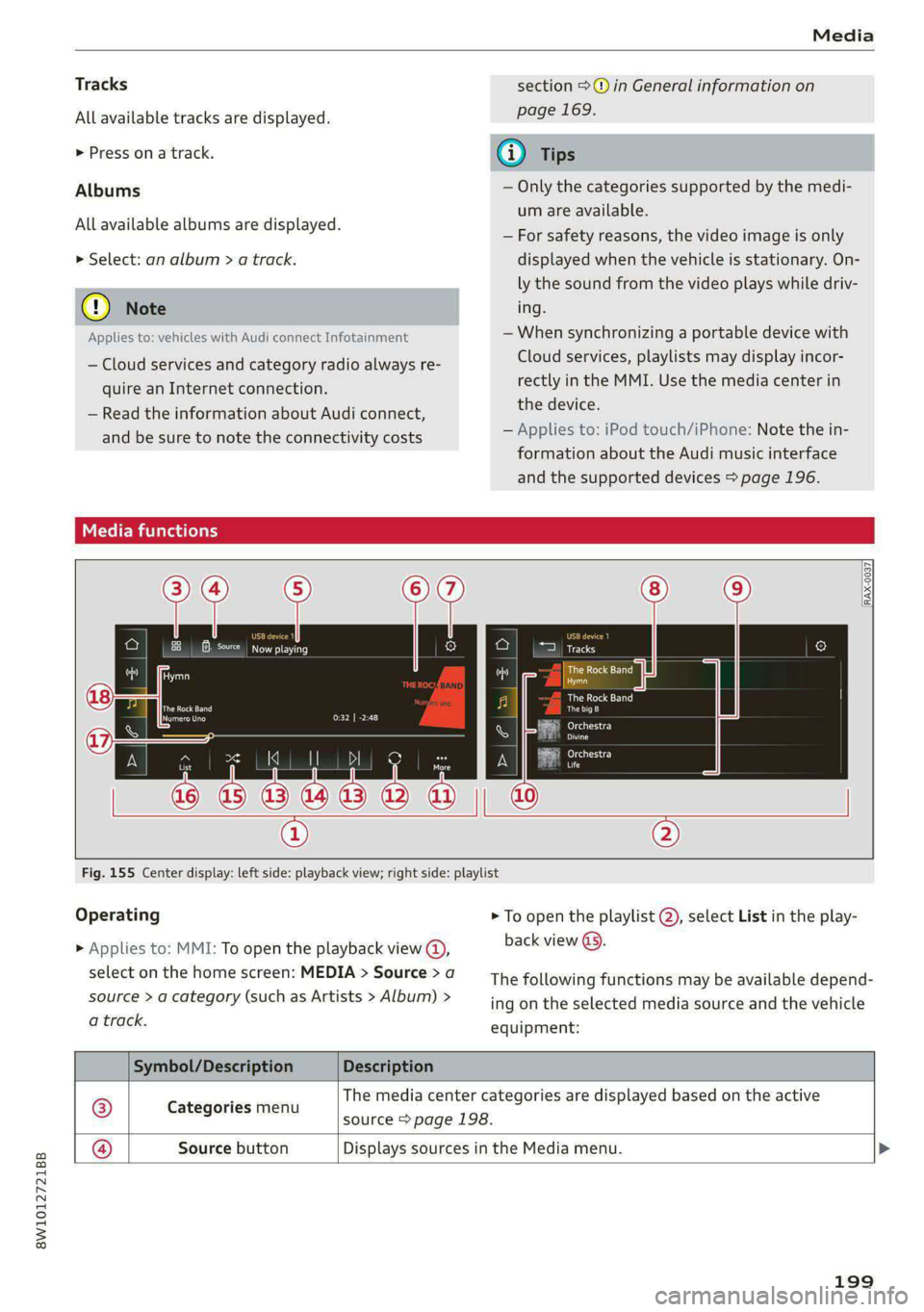
8W1012721BB
Media
Tracks section >@ in General information on
All available tracks are displayed. page 169.
> Press ona track. @) Tips
Albums — Only the categories supported by the medi-
um are available.
— For safety reasons, the video image is only
> Select: an album > a track. displayed when the vehicle is stationary. On-
ly the sound from the video plays while driv-
@) Note ing.
Applies to: vehicles with Audi connect Infotainment — When synchronizing a portable device with
Cloud services, playlists may display incor-
rectly
in the MMI. Use the media center in
the device.
— Applies to: iPod touch/iPhone: Note the in-
formation about the Audi music interface
and the supported devices > page 196.
All available albums are displayed.
— Cloud services and category radio always re-
quire an Internet connection.
— Read the information about Audi connect,
and be sure to note the connectivity costs
Media functions
RAX-0037
a it
ES Reena CCa OL) Tracks
Asa)
Ca)
The Rock Band
aot)
Caer) - esc)
ad
Ki \| DI As Le ratroscy
rs
a5 03,1443 42 a
® ®
Fig. 155 Center display: left side: playback view; right side: playlist
Operating > To open the playlist @), select List in the play-
> Applies to: MMI: To open the playback view @, back view @).
select on the home screen: MEDIA > Source > a The following functions may be available depend-
source > a category (such as Artists > Album) > ing on the selected media source and the vehicle
a track. equipment:
Symbol/Description Description
® Carsguries mien The media center categories are displayed based on the active
source > page 198.
@® Source button Displays sources in the Media menu. >
199
Page 228 of 296

Checking and Filling
Messages
3 Please add washer fluid
Fill the washer fluid for the windshield washer
system and the headlight washer system* when
the ignition is switched off.
@) Note
— The concentration of anti-freezing agent
must be adjusted to the vehicle operating
conditions and the climate. A concentration
that is too high can lead to vehicle damage.
— Never add radiator anti-freeze or other addi-
tives to the washer fluid.
— Do not use a glass cleaner that contains
paint solvents, because this could damage
the paint.
Service interval display
The service interval display detects when your ve-
hicle is due for service.
The service interval display works in two stages:
— Inspection or oil change reminder: after driv-
ing acertain distance, a message appears in the
instrument cluster display each time the igni-
tion is switched on or off. The remaining dis-
tance or time is displayed briefly.
— Inspection or oil change due: if your vehicle
has reached an inspection or oil change interval
or both intervals at the same time, the mes-
sage Inspection due! or Oil change due! or Oil
change and inspection due! will appear briefly
after switching the ignition on or off.
Checking service intervals
You can check the remaining distance or time un-
til the next oil change or next inspection in the
Infotainment system.
Select on the home screen: VEHICLE > Settings
& Service > Service intervals.
Resetting the indicator
An authorized Audi dealer or authorized Audi
Service Facility will reset the service interval dis-
play after performing service.
226
If you have changed the oil yourself, you must re-
set the oil change interval.
Select on the home screen: VEHICLE > Settings
& Service > Service intervals > Reset oil change
interval.
@) Note
— Only reset the oil change indicator if the oil
was changed.
— Following the service intervals is critical to
maintaining the service life and value of
your vehicle, especially the engine. Even if
the mileage on the vehicle is low, do not ex-
ceed the time for the next service.
Page 269 of 296

8W1012721BB
Fuses and bulbs
Fuse assignment - Left side of the luggage
compartment
Fuse assignment - Driver's side of the
(ole 4o}ig
Fig. 189 Driver side cockpit: fuse panel with plastic bracket
Fuse panel
No. | Equipment
1 |Vehicle opening/start (NFC)
2 | Telephone, mobile device charger
4 |Head-up display
5 |Audi music interface, USB charging port
6 Front climate control panel, instrument
Fig. 190 Left side of the luggage compartment: fuse panel
n panel
with plastic clip
7 |Steering column lock
Infotainment system display Fuse panel @) (black)
9 |Instrument cluster No. | Equipment
Windshield defroster
Windshield defroster
10 | Infotainment unit
11 | Light switch, switch module
12 | Steering column electronics Suspension control
Particulate matter sensor for climate con-
trol system
13 Automatic transmission
Rear window defogger
14 | Infotainment system Rear seat heating
Left tail lights
10 | Airbag control module
WOl/OINID|M|)WInN 16 | Steering wheel heating
Luggage compartment lid central locking,
11 | fuel filler door, luggage compartment cov-
er
12 | Luggage compartment lid control module
Fuse panel (®) (red)
No. | Equipment
6 | Battery power interrupt
267
Page 273 of 296

8W1012721BB
Data privacy
@) Tips
— The following interfaces are not affected by
changes to the privacy settings: Bluetooth,
Bluetooth Low Energy (BLE), Wi-Fi, Audi
smartphone interface (ASI), Near Field
Communication (NFC), charging communi-
cation (high-voltage system), Electronic Toll
Collect (ETC), On-Board Diagnostic System
(OBD) if equipped.
— If the maximum privacy settings are switch-
ed on, your vehicle may not receive security
updates and certificates for establishing an
encrypted connection, depending on vehicle
equipment. In order to receive security up-
dates and certificates, switch the maximum
privacy settings off for at least ten minutes
every six months. Make sure that your vehi-
cle is connected to the Internet. A symbol in
the MMI status bar indicates if the required
data connection is available > page 20.
— If the transmission of data is limited, it will
have the following effects on the exchange
of data for Audi connect services and emer-
gency calls, if equipped:
— The emergency call function will remain
available without restrictions and will con-
tinue to transmit data.
— If an online roadside assistance call is ini-
tiated, no data will be transmitted, but a
call will be made.
—If the Geofencing Alert, Speed Alert,
and/or Valet Alert services have been acti-
vated by the key user, then they will re-
main available without restrictions and
continue to transmit data.
— Stored destinations (favorites, last desti-
nations) are only stored in the vehicle. If
you allow transmission of data again,
these destinations will be synchronized via
the myAudi account. To prevent synchroni-
zation of destinations, delete the destina-
tions before you allow data to be trans-
mitted again.
Applies to: vehicles with Audi connect Infotainment
AUDI AG collects, uses, stores and shares your
personal information, such as contact data, vehi-
cle data, usage data, driving data and precise ge-
olocation, in order to provide you with the prod-
ucts and services you have purchased or request-
ed, and for a number of other purposes, for ex-
ample, to track quality issues, to performance
and safety, to meet our internal compliance or le-
gal requirements and to market to customers
and potential customers. For a more complete
list of the data we collect, how we use it and with
whom we share it, please visit your Audi nation-
al/sales region website at www.audi.com.
The collection, use and sharing may vary depend-
ing on your model and model year, your subscrip-
tion status, or the service offering. For example,
collection, use and sharing may vary between
Audi connect services, if you have designated a
key user, or if you are driving a model equipped
with persistent data logging. Please review the
complete Privacy Statement to understand our
data handling practices with respect to a particu-
lar service.
You can find additional information about our da-
ta privacy practices in your MMI.
> Applies to: MMI: On the home screen, select:
SETTINGS > General > Legal notes > About
Audi connect.
Information about our privacy practices in con-
junction with the mobile Audi connect applica-
tion can be found in the Application’s Privacy
Statement.
For additional information about the privacy
practices relating to Audi connect, myAudi, or
other websites, applications or online services as
well as your obligations with respect to using
these services, and for additional information re-
garding Audi connect terms and conditions,
please visit your Audi national/sales region web-
site at www.audi.com.
271
Page 283 of 296

8W1012721BB
Panoramic glass roof.................-. 44
Sliding/tilting sunroof...............005 43
Sunshade (rOOf)'s + ween a 2 wome a 2 cores va eee 44
WINdOWS « wscsese 2 6 ansree 6 o areene a a mmo 2 a aos 42
Gockpit diMMiNg:: « sw ss sews oa eee se es 52
Cockpit (OVEnVieW) « » wwe ss wee seen as cee 6
Collapsible spare tire...............0... 259
Collapsible tire
refer to Collapsible spare tire........... 259
GOlGrCOdG i: = «eee + xaen x 2 Bee a tee ees 277
Compact spare tite = sews y 2 emus se seems ¢ a oe 258
Compartments..............0-.02.0000- 78
Compass inthe mirror..............00005 57
Compliance ..... 0.0... cee eee eee eee 275
Conferencercallicics « o sosvese 0 0 semi a a mace ene 164
Configuration wizard « cccc.s «ews oo emi ae € 18
CONMECUiees ow smears 2 6 eames 3 He 2 6 HeaMEW © wens 169
Data plans........... ee eee eee eee 173
Data Privacyes ss ees sy ose s pees s 3 eee 271
Emergency:calll sess 2s mesic + ewrama » wenn « 174
Infotainment....................2005 169
Infotainment services... ..0... 6.0.5 cee 170
Online roadside assistance............. 175
Vehicle control services... cc... cee es T/L,
Connected devices
Device overvieW........-... 00-2 e eee ee 207
Connections
referto Media...............0-0- 195; 197
Consumer information.................. 272
Consumption
REGUGCING = gaan s 2 aams « noun 6 = Ree 4 5 ROR 99
Consumption (fuel) ........ 2.0.0 15
Contacts
Importing and exporting.............. 166
Updating inthe MMI.................. 166
also refer to Directory...............0. 163
Convenience key........ eee cece eee eee 30
Convenience closing..............++++- 42
also refer to Vehicle key................ 34
Convenience opening and closing
Windows or panoramic glass roof........ 42
Coolant temperature display.............. 13
Cooling system
Adding
coolant..............0.-. eee 221
Checking the coolant level............. 221
Coola Ntseiess 6 2 seine so sovsias eo cere @ x como 220 Cornering
lightics « «cose x 2 secs eo eerie oo ae 48
Cruise control system. ....... 000s ee eee 123
Cup Holdersiescs + ¢ saws s ¢ ees sy eee + e eww x 78
CUFPENECONSUMPLION ais < ease az new ox care 15
D
Data module
Serial number (IMEI) « weiss ss cncane a a wares @ 165
Data plans sss x 5 cows so ween 2s awn oo wee 173
Data Privacy’: « saws = = ses < ¢ sees x 2 eee ee 271;
Date wees : x ween 5 2 nes Fn ERR EES Eee 15
SOTUNG)s ¢ aston a 2 mas a i em @ 8 em & 4 ames 206
Daytime running lamps...............05- 48
Declaration of compliance...........0005 275
DEF CINStrUrMEnt ClUStED) |: saccu s x wows 5 x eae 11
Demo mode
refer to Presentation mode............. 186
Destination onthe map................. 179
DEtailSis : = mx = come 2 2 noe § E neR st me 179
Determining correct load limit........... 241
Digital compass .......... 00. eee eee eee 57
Dimensions............0..0.00..00000- 277
Dimming the exterior mirrors............. 53:
Dimming the rearview mirror............. 53
DineGtOr yin «+ secowi oo seme + o somes % & sense oo 5 163
Business card. ............00 2.00 e eee 163
Settings.......... 0.02.00. e eee eee 165
Display
Cleanings = » sees 5 = sews s = eews te eee ee 249
Displaying tooltips...............-..00- 18
Disposal
Distance Distance
warning .............0.0 eee ee 136
Doors
Child safety lock.............02.000000- 41
Door'contactiswiten s « sasay a « saws 4 & ara 4s SL.
Mechanically unlocking and locking....... 32
Driver information system................ 12
Drives
referto Media...........-...0-.. 195, 197
Drive select
refer to Audi drive select............... 106
Drive systeM.. 1... ee eee eee eee 98
Audi drive Select’: scws « ¢ swe ¢ v e@am ov oe 106
Drive system (message)................. 100