instrument cluster AUDI A4 2020 User Guide
[x] Cancel search | Manufacturer: AUDI, Model Year: 2020, Model line: A4, Model: AUDI A4 2020Pages: 296, PDF Size: 80.45 MB
Page 62 of 296
Sitting correctly and safely
— Your thighs are lightly supported by the front
surface of the seat
— The backrest is in an upright position and your
back is resting against it
— You have a sufficient view of the area around
the vehicle
— You have a clear view of the instrument cluster,
indicator lights, and the head-up display*
ZA WARNING
— If you are too close to the steering wheel or
instrument panel, the airbag system cannot
provide the optimal protection, which in-
creases the risk of injury and death.
— To reduce the risk of injury in the event of
sudden braking maneuvers or accidents,
never drive with the backrest reclined very
far. The airbag system and seat belts can on-
ly provide optimal protection when the back-
rest is in an upright position and the driver
is wearing the seat belt correctly. If the
backrest is angled back too far, the safety
belt can shift to soft areas of the body, such
as the stomach, which increases the risk of
injury.
—To reduce the risk of an accident, only adjust
the seats when the vehicle is stationary.
— Be careful when adjusting the seat. Lack of
control or attention when adjusting can re-
sult in injuries due to pinching to vehicle oc-
cupants both in the front seats and rear
seats.
— Never place objects in the driver's footwell.
Objects could shift and enter the area
around the pedals, which could prevent you
from using them. You would then be unable
to use the pedals if sudden driving or brak-
ing maneuvers were needed, which increas-
es the risk of an accident.
— Make sure that the floor mats are always se-
curely attached.
— To reduce the risk of an accident, never place
additional floor mats or other floor covers
over the installed floor mats, because this
reduces the pedal's range of motion and can
impair pedal operation.
—To reduce the risk of injury, never place your
feet on the instrument panel, out of the
60
window, or on the seat surfaces. This also
applies to passengers in the rear seats.
@) Note
Applies to: vehicles with manually adjustable head re-
straints
To reduce the risk of damage, be very careful
when adjusting the seat to make sure the
head restraints do not hit the headliner or the
panorama glass roof*.
oN eet Lar feet ana)
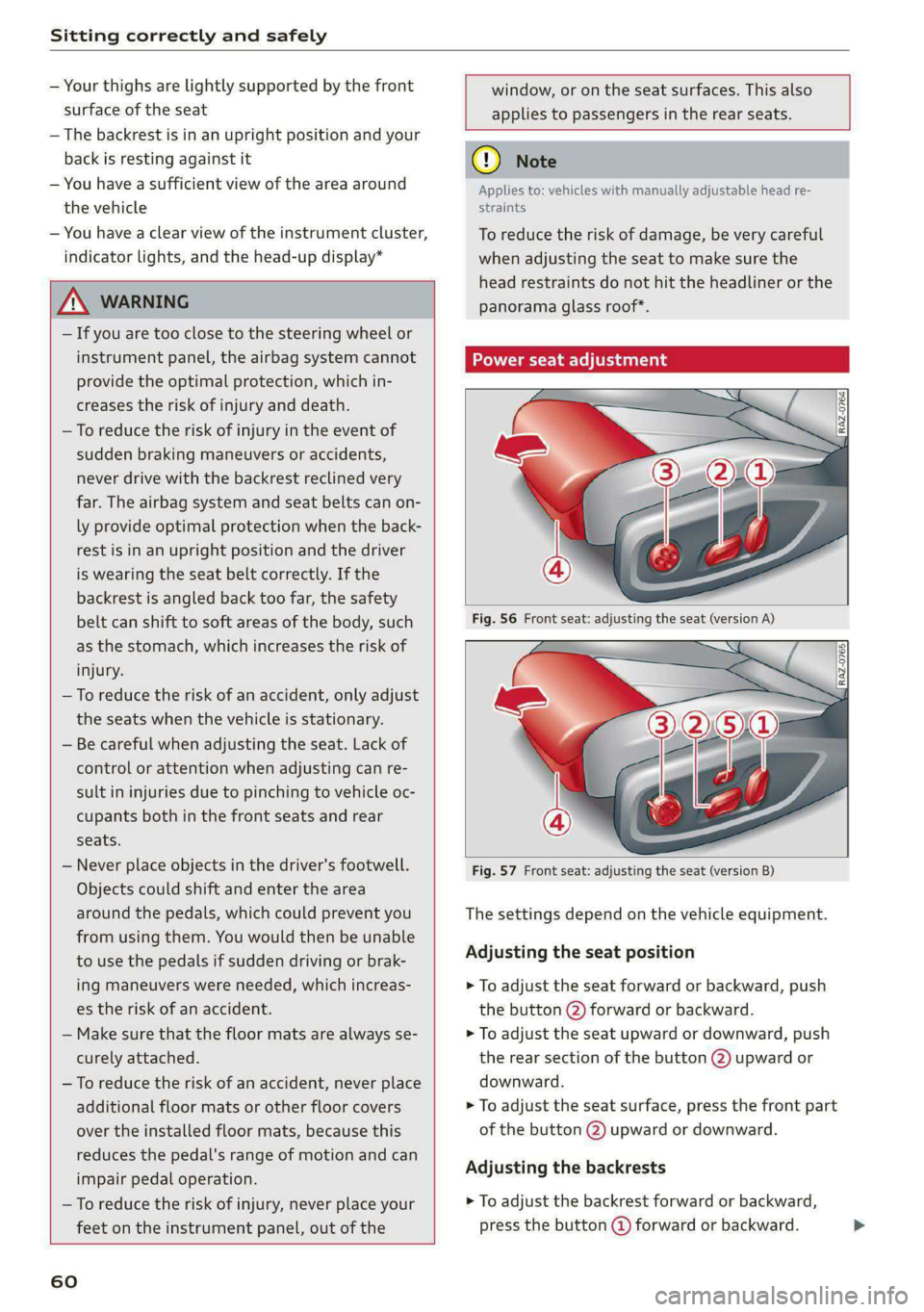
Fig. 57 Front seat: adjusting the seat (version B)
The settings depend on the vehicle equipment.
Adjusting the seat position
> To adjust the seat forward or backward, push
the button @) forward or backward.
> To adjust the seat upward or downward, push
the rear section of the button @) upward or
downward.
> To adjust the seat surface, press the front part
of the button @) upward or downward.
Adjusting the backrests
> To adjust the backrest forward or backward,
press the button @ forward or backward. >
Page 70 of 296
Sitting correctly and safely
you. This increases the risk of serious or fa-
tal injuries. Make sure that every vehicle
passenger has their safety belt correctly fas-
tened and is sitting in a correct seating posi-
tion > page 59. This is necessary regardless
of whether the seat is equipped with an air-
bag or not.
— Never place your feet on the instrument
panel, out of the window, or on the seat sur-
faces. To help ensure that the airbag system
can deploy correctly, never bend forward or
lean on the door or the side window. Other-
wise, serious and possibly fatal injuries can
occur if the airbags deploy.
— People, animals, or objects between the
Passengers and the airbag system can inter-
fere with the correct deployment of the air-
bag or can be thrown through the vehicle in-
terior, increasing the risk of serious or fatal
injuries. Make sure that nothing is located
between the vehicle occupants and the air-
bag system. Do not secure or transport any
objects within the deployment zone of the
airbag systems, especially on the steering
wheel, on the instrument panel, on the
doors, on the windows, or in the footwell.
— Never put stickers on the airbag system cov-
ers or cover them with any objects.
— Only lightweight clothing should be hung
from the garment hooks in the vehicle. Do
not use clothes hangers to hang clothing.
The pockets of the clothing must not con-
tain any heavy, breakable, or sharp-edged
objects. This could impair the effectiveness
of the side curtain airbags.
— You must not use seat or protective covers
that are not specifically approved for use on
Audi seats with side airbags. Since the side
airbags deploy from the seat backrest, such
covers could impair the protective function
of the side airbags.
— Damage to the original seat covers in the
side airbag deployment area must always be
repaired by an authorized Audi dealer or au-
thorized Audi Service Facility.
— Airbag system components are installed at
various locations in your vehicle. Incorrect
work or repairs on the vehicle could damage
68
the airbag system components or impair
their functionality. This may prevent the air-
bags from deploying or cause them to de-
ploy incorrectly in the event of an accident,
which increases the risk of serious or fatal
injuries. Only have an authorized Audi dealer
or authorized Audi Service Facility make re-
pairs or modifications to a vehicle.
— The airbag system can only provide protec-
tion during one collision. If there is another
collision, the airbag system will not deploy
again. If the airbag system has deployed,
have it replaced immediately by an author-
ized Audi dealer or authorized Audi Service
Facility.
— Fine dust may appear if the airbags deploy.
This is completely normal and does not indi-
cate a fire in the vehicle. The fine dust can ir-
ritate the skin and mucous membranes in
the eyes and can cause difficulty breathing,
particularly for individuals who have or have
had asthma or other health issues that af-
fect breathing. Exit the vehicle or open the
windows or doors to get access to fresh air.
G) Tips
If you are transporting children in the vehicle,
read the information and follow the safety
precautions > page 72.
Safety systems monitoring
The ka indicator light in the instrument cluster
monitors the safety systems such as the airbags
(including the control modules, sensors, and wir-
ing) and the belt tensioners. It turns on when you
switch the ignition on and turns off after several
seconds.
If the ka indicator light does not turn on when
the ignition is switched on, does not turn off af-
ter several seconds, or turns on or flashes while
driving, there may be a malfunction in one of the
safety systems. Drive to an authorized Audi deal-
er or authorized Audi Service Facility immediately
to have the malfunction corrected.
Page 72 of 296

Sitting correctly and safely
may be severely damaged from the accident. In
these cases, the vehicle occupants will be pro-
tected by the safety belts if they are fastened and
worn correctly.
The deployment of the front passenger's airbag
will depend on the occupancy of the seat
=> page 70.
Each deployed airbag is filled with gas. When this
occurs, the airbag covers open and the airbags
unfold with great force into the deployment zone
within milliseconds. Inflated airbags reduce the
movement of passengers wearing safety belts in
the direction of the impact and thus help to re-
duce the risk of injury. They can help to protect
the head, upper body, and lap, for example. How-
ever, there is the possibility that airbag deploy-
ment can cause injuries.
The airbag system only works when the ignition
is turned on.
If you or other vehicle passengers have physical
limitations that prevent sitting in a correct posi-
tion, modifications to the vehicle may be neces-
sary. For more information, contact an author-
ized Audi dealer or authorized Audi Service Facili-
ty, or call Audi customer support at
1-800-822-2834.
@ Tips
The side curtain airbags in your vehicle have
ejection mitigation functions. This reduces
the risk of being ejected from the vehicle inte-
rior during an accident, especially in the event
of a vehicle rollover.
Advanced a ea)
Fig. 69 Headliner: indicator light to display the status of
the front passenger's airbag
70
The Advanced Airbag System in your vehicle has
been certified to comply with the requirements
of the United States Federal Motor Vehicle Safety
Standard (FMVSS) 208, as well as Canada Motor
Vehicle Safety Standard (CMVSS) 208 as applica-
ble at the time your vehicle was manufactured.
According to these requirements, the front Ad-
vanced Airbag System on the passenger’s side
has been certified for “suppression” for infants
approximately 12 months old and younger, and
for “low risk deployment” for children aged 3 to
6 years old (as defined in the standard).
The advanced airbag system will activate or deac-
tivate the front passenger's airbag based on the
occupancy of the seat. If a front airbag deploys
during an accident, the deployment force will
adapt to the passenger.
Components
The advanced airbag system consists of the fol-
lowing components:
— Front airbags in the steering wheel and in the
instrument panel on the front passenger's side:
these can protect the front passengers during
an accident
— Passenger occupant detection sensor in the
front passenger's seat: this detects if the front
passenger's seat is occupied (for example, by a
person or a small child in a child safety seat)
— Seat position sensors on the front seats: these
determine the distance between the seat and
the steering wheel or instrument panel
— Sensors in the front seat belt latch: these de-
tect if the safety belts are fastened
—The PASSENGER AIR BAG OFF #;, ON @
indicator light in the headliner: this indicates if
the front passenger's airbag is activated or de-
activated
- ka indicator light in the instrument cluster:
this monitors the function of the Advanced Air-
bag System components to ensure they are
functioning correctly
How the components function together
The passenger occupant detection sensor in the
front passenger's seat detects if the front pas-
senger's seat is occupied. The passenger
Page 97 of 296
8W1012721BB
Driving
If you unintentionally select “N” while driving
(faster than 1 mph (2 km/h)), you can also shift
back to “D” without pressing the brake pedal.
For safety reasons, the vehicle cannot be locked
when the transmission is in the "N” gear.
“Pp” (Park) gear
Requirement: the ignition must be switched on.
The vehicle is secured from rolling away by the
parking lock when in the “P” gear.
— Bring the vehicle to a full stop and press the
brake pedal.
— Press the “P” button (2) on the selector lever.
— The “P” next to the selector lever will light up.
“P” engages automatically if you switch the en-
gine off while the “D” or “R” gear is selected. If
you switch the engine off in “N”, “P” will engage
automatically after approximately 30 minutes.
If you want to switch from “P” to “D” or “R”, the
engine must be running.
If you cannot shift out of “P”, for example be-
cause the vehicle has no power, you may need to
use the emergency release for the parking lock
=> page 97.
Selecting a driving program
Various driving programs can be selected when in
the “D” gear. The programs influence when the
transmission shifts and how the accelerator ped-
al responds.
The selected driving program is displayed in the
instrument cluster.
— D (Drive): normal driving mode
—S (Sport): sporty driving mode
If you select the Dynamic mode in Audi drive se-
lect*, the “S” driving program will be activated.
When the ignition is switched off, the driving pro-
gram may be reset to “D”.
To switch between the current driving program
and “S”, push the selector lever toward the rear.
ZX WARNING
— Before starting to drive, check if the desired
gear is displayed next to the selector lever.
— Always secure your vehicle from rolling
away. Press the brake pedal or shift to “P”.
When leaving the vehicle, also set the park-
ing brake.
— Power is still transmitted to the wheels
when the engine is running at idle. To pre-
vent the vehicle from “creeping”, you must
keep your foot on the brake in all selector
lever positions (except "P" and "N") when
the engine is running.
—To reduce the risk of an accident, do not
press the accelerator pedal when changing
gears if the vehicle is stationary and the en-
gine is running.
— Never select the “R" or "P” gears while driv-
ing. Doing so could cause an accident.
—The vehicle can roll even if the ignition is
switched off.
G) Tips
If you shift between “D” and “R” within one
second, you do not need to press the brake
pedal. This makes it possible to “rock” if it is
stuck, for example.
95
Page 102 of 296
Driving
Switching the Start/Stop system off and on
The & button is located above the selector lever
in the center console. The LED in the button turns
on when the function is switched off.
> Press & to switch on or off.
If you switch the system off during a Stop phase,
the engine will start again automatically.
Basic requirements
—The driver's door and hood must be closed.
—"P","N", or "D" must be engaged.
— The steering wheel must not be turned far in ei-
ther direction.
— The vehicle must have driven faster than 2 mph
(3 km/h) since the last time it stopped.
— The vehicle is not in trailer mode.
@) Note
Always switch the Start/Stop system off when
driving through water > page 100.
G) Tips
— Depending on the driving situation, the en-
gine may already stop when coasting before
the vehicle has come to a complete stop )).
— If you select the "D" position after shifting
into reverse, the vehicle must be driven fast-
er than 6 mph (10 km/h) in order for the
Start/Stop system to become active again.
This makes it possible to maneuver without
stopping the engine.
Stopping and starting the engine
Applies to: vehicles with Start/Stop system
> Press and hold the brake pedal until the vehicle
has stopped. The @ indicator light appears in
the instrument cluster once the engine stops
automatically.
> The engine starts again when you remove your
foot from the brake pedal. The indicator light
turns off.
D_ In certain countries.
100
G) Tips
— Press the brake pedal during a Stop phase
to keep the vehicle from rolling.
— The ignition will turn off if you press the
START ENGINE STOP] button during a Stop
phase.
— If you leave the vehicle briefly during a Stop
phase, the driver's door must be closed and
the safety belt buckled for the engine to be
able to restart.
— You can control if the engine will stop or not
by reducing or increasing the amount of
force you use to press the brake pedal. For
example, if you only lightly press on the
brake pedal in stop-and-go traffic or when
turning, the engine will not switch off when
the vehicle is stationary. If you press the
brake pedal harder, the engine will switch
off.
Starting and stopping the engine automat-
ire] AY
Applies to: vehicles with Start/Stop system
The system checks if certain conditions are met
before and during the Stop phase, and deter-
mines if the engine stops and how long it re-
mains stopped. For example, if power usage is
high, the engine will not be stopped. Along with
other conditions, the following factors influence
the automatic engine start or stop:
— Environmental conditions (slopes, inclines, ele-
vation, temperature)
— Battery (charge status, temperature, power us-
age)
— Engine temperature
— Assist systems
— Driving behavior
Depending on the engine, the indicator light
may appear if the engine is not stopped.
Messages
Applies to: vehicles with Start/Stop system
Drive system: please start the vehicle manually >
Page 120 of 296

Driving information
Driving information
Speed warning system
Applies to: vehicles with speed warning system
The speed warning system helps the driver to
stay below a specified maximum speed. A warn-
ing threshold can be set in the MMI for this pur-
pose.
Once the speed slightly exceeds the stored
threshold, the speed warning system will alert
the driver with an indicator in the instrument
cluster and a warning tone. Once the speed drops
below the stored maximum speed, the indicator
will turn off.
Setting a threshold is recommended if you would
like to be reminded when you reach a certain
maximum speed. Situations where you may want
to do so include driving in a country with a gener-
al speed limit or if there is a specified maximum
speed for winter tires.
@ Tips
Regardless of the speed warning system, you
should always monitor your speed using the
speedometer and make sure you are adhering
to the legal speed limit.
Setting the warning threshold
Applies to: vehicles with speed warning system
> Applies to: MMI: Select on the home screen:
VEHICLE > Driver assistance > Speed warning.
Messages
Applies to: vehicles with speed warning system
ey ) Manually set warning threshold XX mph
(km/h) exceeded
The stored speed was exceeded.
118
Camera-based traffic
sign recognition
Applies to: vehicles with camera-based traffic sign recognition
ia) meee et
Fig. 108 Instrument cluster: traffic sign recognition
The traffic sign recognition shows the traffic
signs detected by the front camera in the instru-
ment cluster display and in the head-up display”.
Data from the navigation system is also included
in the display. Up to three traffic signs can be dis-
played in the instrument cluster at once. The
speed limit that is currently applicable is dis-
played in the status line. If necessary, it will be
hidden if the system detects that turning right is
prohibited at a red light. The display in the head-
up display* can be switched off > page 23.
Within the limits of the system and depending
on the market, speed limit restrictions @ in
school zones, highways, construction zones, or at
night may be displayed.
Limitations
The traffic sign recognition is subject to certain
system limitations and may be unavailable or on-
ly partially available in the following situations:
— When visibility is poor, such as in snow, rain,
fog, or heavy spray
— When there is glare, for example from oncom-
ing traffic or the sun
— At high speeds
— If the camera's visual field > page 115 is cov-
ered, for example by dirt or stickers. Cleaning
information > page 247
— If the traffic signs are completely or partially
covered, for example by trees, snow, dirt, or
other vehicles
Page 121 of 296
8W1012721BB
Driving information
— If traffic signs do not conform to the standard
format
— If traffic signs are damaged or bent
— If traffic signs are displayed on sign holders
with electronic signs
— If the traffic signs or the roadways have
changed, and the navigation data is no longer
up-to-date
ZA WARNING
— Follow the safety precautions and respect
the limits of the assist systems, sensors,
and cameras > page 114.
— Under some circumstances, traffic sign rec-
ognition may not detect traffic signs correct-
ly or detect them at all. As a result, the sys-
tem may not display the correct speed limit
or any speed limit.
@ Tips
— Traffic sign recognition does not adapt your
vehicle's speed to match the speed Limit.
— The display in the instrument cluster is
based on the units of measurement used for
speed in the country where the vehicle is be-
ing operated. As a result, a display of 50 in
the instrument cluster can mean either mph
or km/h, depending on the country.
Applies to: vehicles with camera-based traffic sign recognition
Accessing traffic sign recognition
> Select in the instrument cluster: vehicle func-
tions tab > Traffic signs.
Setting a traffic sign based speed warning
> Applies to: MMI: Select on the home screen:
VEHICLE > Driver assistance > Speed warning.
You can select a warning threshold. If it is ex-
ceeded, then the current detected speed limit
will be shown in the display with an exclamation
point for the duration that it is exceeded and it
will blink for a short time.
Applies to: vehicles with camera-based traffic sign recognition
Traffic sign recognition: unavailable. Camera
view limited due to environm. conditions
The camera’s visual field is covered. Clean the
windshield.
Traffic sign recognition: currently limited.
See owner's manual
This message appears if navigation system data
is not available, for example on newly-construct-
ed roads. The speed limit display will be tempo-
rarily limited, which increases the risk of an incor-
rect display. If this message continues to appear,
drive immediately to an authorized Audi dealer or
authorized Audi Service Facility to have the mal-
function repaired.
No traffic sign information available
Depending on the area, there is no valid naviga-
tion data and no speed limits were detected. This
may also appear if there is a recommended
speed, but no speed limit (for example when
driving on and off the expressway).
Malfunction! See owner's manual
The system may not function correctly so it has
been switched off. See an authorized Audi dealer
or authorized Audi Service Facility for assistance.
Function currently unavailable. See owner's
manual
If this message appears on vehicles without cam-
era-based traffic sign recognition, then the traffic
light
information function is currently unavaila-
ble. See > page 121.
119
Page 122 of 296
Driving information
Traffic light information
Applies to: vehicles with traffic light information
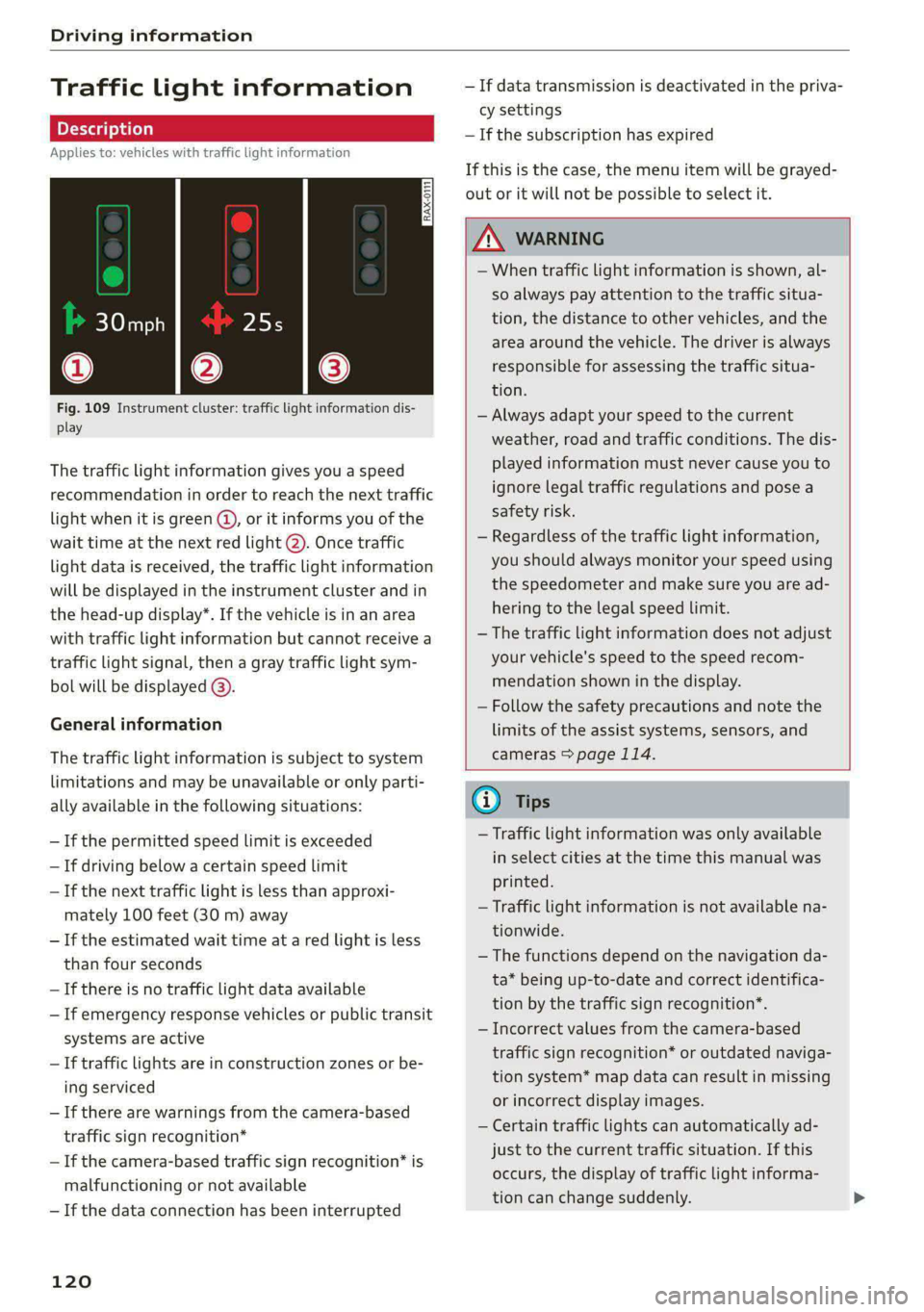
Fig. 109 Instrument cluster: traffic light information dis-
play
The traffic light information gives you a speed
recommendation in order to reach the next traffic
light when it is green @, or it informs you of the
wait time at the next red light 2). Once traffic
light data is received, the traffic light information
will be displayed in the instrument cluster and in
the head-up display*. If the vehicle is in an area
with traffic light information but cannot receive a
traffic light signal, then a gray traffic light sym-
bol will be displayed @).
General information
The traffic light information is subject to system
limitations and may be unavailable or only parti-
ally available in the following situations:
—If the permitted speed limit is exceeded
— If driving below a certain speed limit
—If the next traffic light is less than approxi-
mately 100 feet (30 m) away
— Ifthe estimated wait time at a red light is less
than four seconds
—If there is no traffic light data available
— If emergency response vehicles or public transit
systems are active
— If traffic lights are in construction zones or be-
ing serviced
— If there are warnings from the camera-based
traffic sign recognition*
— If the camera-based traffic sign recognition” is
malfunctioning or not available
— If the data connection has been interrupted
120
— If data transmission is deactivated in the priva-
cy settings
— If the subscription has expired
If this is the case, the menu item will be grayed-
out or it will not be possible to select it.
ZA\ WARNING
— When traffic light information is shown, al-
so always pay attention to the traffic situa-
tion, the distance to other vehicles, and the
area around the vehicle. The driver is always
responsible for assessing the traffic situa-
tion.
— Always adapt your speed to the current
weather, road and traffic conditions. The dis-
played information must never cause you to
ignore legal traffic regulations and pose a
safety risk.
— Regardless of the traffic light information,
you should always monitor your speed using
the speedometer and make sure you are ad-
hering to the legal speed limit.
— The traffic light information does not adjust
your vehicle's speed to the speed recom-
mendation shown in the display.
— Follow the safety precautions and note the
limits of the assist systems, sensors, and
cameras > page 114.
(i) Tips
— Traffic light information was only available
in select cities at the time this manual was
printed.
— Traffic light information is not available na-
tionwide.
— The functions depend on the navigation da-
ta* being up-to-date and correct identifica-
tion by the traffic sign recognition*.
— Incorrect values from the camera-based
traffic sign recognition* or outdated naviga-
tion system* map data can result in missing
or incorrect display images.
— Certain traffic lights can automatically ad-
just to the current traffic situation. If this
occurs, the display of traffic light informa-
tion can change suddenly.
Page 123 of 296
8W1012721BB
— The traffic signs on the road always take pri-
ority over the display. The driver is always
responsible for adhering to the regulations
applicable in the country where the vehicle
is being operated.
— Units of measurement and language set-
tings are displayed based on how they were
set in the MMI system settings > page 206.
Applies to: vehicles with traffic light information
Switching traffic light information on and
off
The system and be switched on and off in the
MMI.
> Applies to: MMI: Select on the home screen:
VEHICLE > Driver assistance > Traffic light in-
formation.
Accessing traffic light information
> Select in the instrument cluster: vehicle func-
tions tab > Traffic signs.
@) Tips
If another tab or another function is selected
in the instrument cluster, the traffic light in-
formation will appear in the status bar on the
instrument cluster.
Applies to: vehicles with traffic light information
Malfunction! See owner's manual
The system could not be configured, for example
due to a network malfunction. Switch the igni-
tion off and shut down the vehicle to restart the
system. Wait several minutes until the vehicle
has shut down completely and then switch the
ignition back on.
Function currently unavailable. See owner's
manual
There is a temporary system malfunction. Check
if one or more of the following situations applies
and correct the issue if necessary:
— Traffic light information is switched off
Driving information
— Data transmission is deactivated
— The vehicle is not equipped with traffic sign rec-
ognition.
— There is no valid license
— Traffic light information is not available in that
area
Lap timer
Introduction
Applies to: vehicles with lap timer
You can record and evaluate lap times with the
lap timer. You can operate the lap timer using the
multifunction steering wheel > page 12.
Opening the lap timer
> Select in the instrument cluster: Vehicle func-
tions tab > J button > Lap times.
An additional indicator appears in the head-up
display”.
ZA WARNING
Your focus should always be on driving your
vehicle safely. As the driver, you have com-
plete responsibility for safety in traffic. To re-
duce the risk of an accident, only use the lap
timer functions in such a way that you always
maintain complete control over your vehicle in
all traffic situations.
@ Tips
You can retrieve information from the trip
computer while the lap timer stopwatch is
running.
Lap times and timing
Applies to: vehicles with lap timer
Requirement: the lap timer must be open
> page 121.
Timing laps
> To start timing manually, select Start lap 1 in
the menu.
> To start timing automatically as soon as you be-
gin to drive, select Start lap 1 by driving off or
Start by driving off in the menu. >
121
Page 124 of 296
Driving information
> To start timing a new lap after driving a lap, se-
lect New lap in the menu. This starts timing
the next lap at the same time.
After completing a lap, the difference between
the last lap and the previous best lap time will be
ayn indicated with a “~” or “+”.
Pausing timing and displaying a split time
> To insert a pause @ select Pause in the menu.
> To resume timing, select Resume in the menu.
> To display a split time, select Split time in the
menu. The split time appears for approxi-
mately ten seconds in the instrument cluster.
The current lap timing will continue running.
Canceling lap timing
The timing of the current lap will stop. The lap
time will be erased and will not be included in the
statistics.
> Select Cancel lap in the menu.
Resetting the time
> Select Reset lap times in the menu.
G) Tips
—A maximum of 99 lap times can be meas-
ured.
— If timing is paused, you can continue it later
even if you switch the ignition off.
— Saved lap times cannot be individually de-
leted from the total results.
— The saved lap timer values will remain after
switching the ignition off.
Lap statistics
Applies to: vehicles with lap timer
Displaying lap statistics
You can display the number of laps driven ES.
aon the fastest lap “+”, the slowest lap “-”, and the
average time “®” in the instrument cluster.
> Select in the instrument cluster: Vehicle func-
tions tab > ] button > Lap statistics.
> Turn the thumbwheel down or up to display the
individual lap times.
> To return to the lap timing that was started, se-
lect the [I button > Lap times.
122
Resetting lap statistics
Requirement: the lap statistics menu must be
displayed.
> To reset the lap statistics, press and hold the
left thumbwheel until the message No lap
times have been recorded yet. appears.
G) Tips
The lap statistics list the lap times for the last
30 laps. The fastest and slowest lap times out
of up to 99 measured laps are also displayed.