ignition AUDI A4 2021 Owner´s Manual
[x] Cancel search | Manufacturer: AUDI, Model Year: 2021, Model line: A4, Model: AUDI A4 2021Pages: 304, PDF Size: 107.89 MB
Page 136 of 304
Driver assistance
Messages
If and a message with Predictive control is
displayed when there is a malfunction, the effi-
ciency assist functions are unavailable or limited.
A message that indicates the cause and possible
solution may appear with some displays. The
weather conditions may be too poor or a sensor
may be covered. Clean the area in front of the
sensors > page 119 and try to turn on the sys-
tems again later.
If the malfunction remains, drive to an author-
ized Audi dealer or authorized Audi Service Facili-
ty immediately to have the malfunction correct-
ed.
ZA WARNING
— Observe the safety precautions and note the
limits of the assist systems, sensors, and
cameras > page 117.
— Pay attention to traffic and the area around
your vehicle when predictive control is
switched on. The driver is always responsible
for assessing the traffic situation.
— The system does not consider “right of way”
rules and does not respond to traffic lights,
so lack of driver attention in these situations
can increase the risk of an accident.
— The speed when driving through curves may
be different from what you as a driver would
do or may not be suitable for the weather
and road conditions. If necessary, apply the
brakes and reduce the selected speed to be
maintained in the Adjustment to curves
along route setting to reduce the risk of an
accident.
@ Tips
— Predictive control can exceed or drop below
the maximum permitted speed. The driver
is responsible for adhering to the permitted
speed limit.
— The traffic signs on the road always take pri-
ority over the display. The driver is always
responsible for adhering to the regulations
D_ In certain countries
134
applicable in the country where the vehicle
is being operated.
— Ifa speed limit is detected, the marking @
= page 131 of the set speed limit will be ad-
justed even if Audi adaptive cruise control is
not actively regulating.
— Control by the system depends on which
adaptive cruise control driving program is
set or on the selected Audi drive select*
mode.
— After switching on the ignition and first
driving onto a freeway or similar road with-
out a speed limit, the system will regulate
the speed to 80 mph (130 km/h). Then
the system adjusts to the last speed set by
the driver.
— There is no adaptation to speed limits when
driving through highway interchanges and
when driving on or off the expressway.
— The system can fail to provide control or the
control may be faulty if the values from the
camera-based traffic sign recognition* are
incorrect or the navigation system map data
is outdated.
— When route guidance is switched on, the
system adapts to the route provided by the
navigation system. Driving without route
guidance or leaving a route can result in
faulty control.
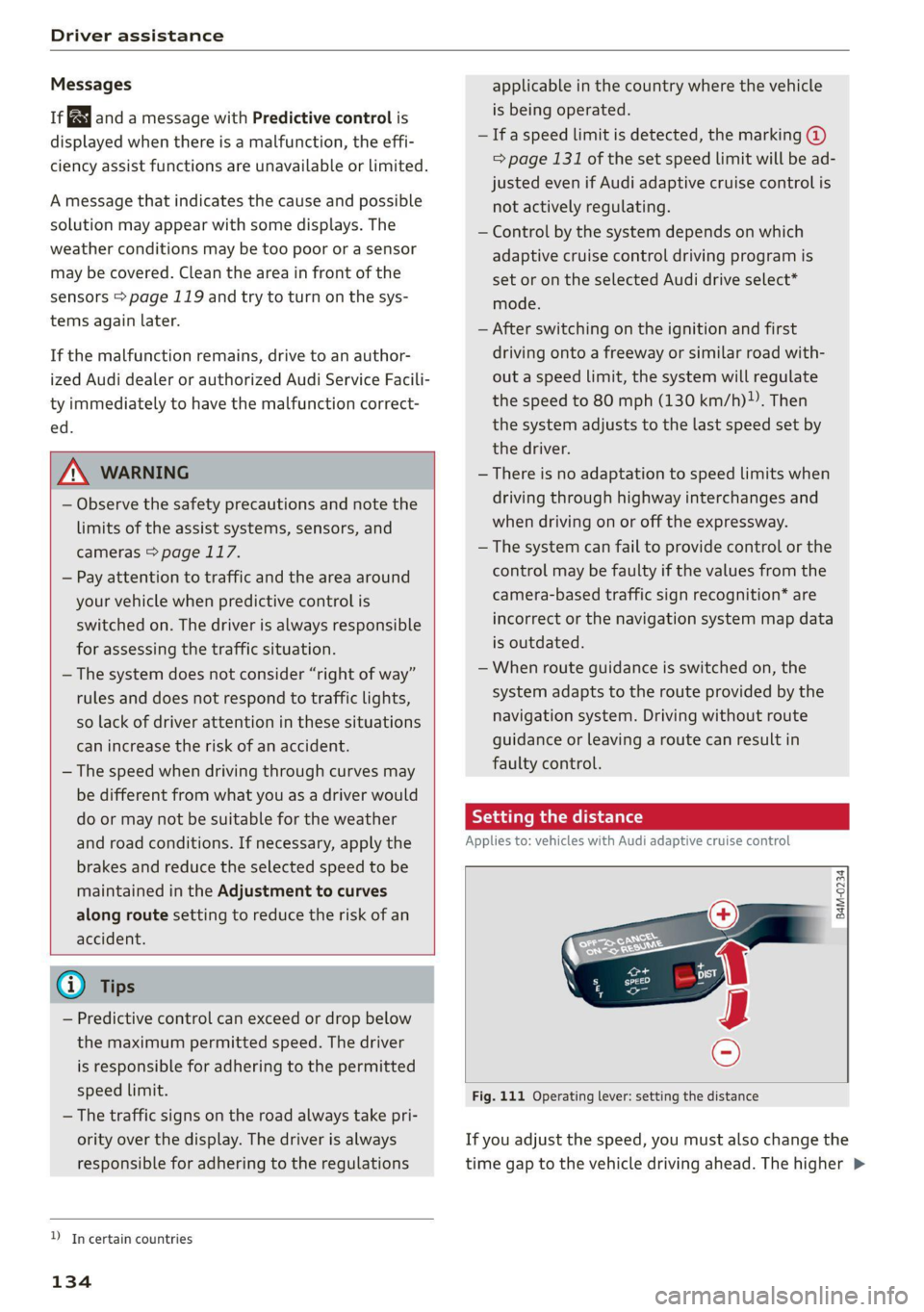
Setting the distance
Applies to: vehicles with Audi adaptive cruise control
B4M-0234
Fig. 111 Operating lever: setting the distance
If you adjust the speed, you must also change the
time gap to the vehicle driving ahead. The higher >
Page 139 of 304
8W1012721BC
Driver assistance
This may also occur in some situations when
there is no apparent obstacle.
> Press the brake pedal to slow your vehicle
down.
ZA WARNING
— Observe the safety precautions and note the
limits of the assist systems, sensors, and
cameras > page 117.
— If the message B& ready to drive!) appears,
your vehicle will start driving even if there is
an obstacle between your vehicle and the ve-
hicle ahead. To reduce the risk of an acci-
dent, always make sure there are no obsta-
cles between your vehicle and the vehicle
driving ahead.
@ Tips
For safety reasons, the adaptive cruise control
will only be active if
—The driver's safety belt is fastened
— All doors and the hood are closed
— Your vehicle is not stopped for a long period
of time
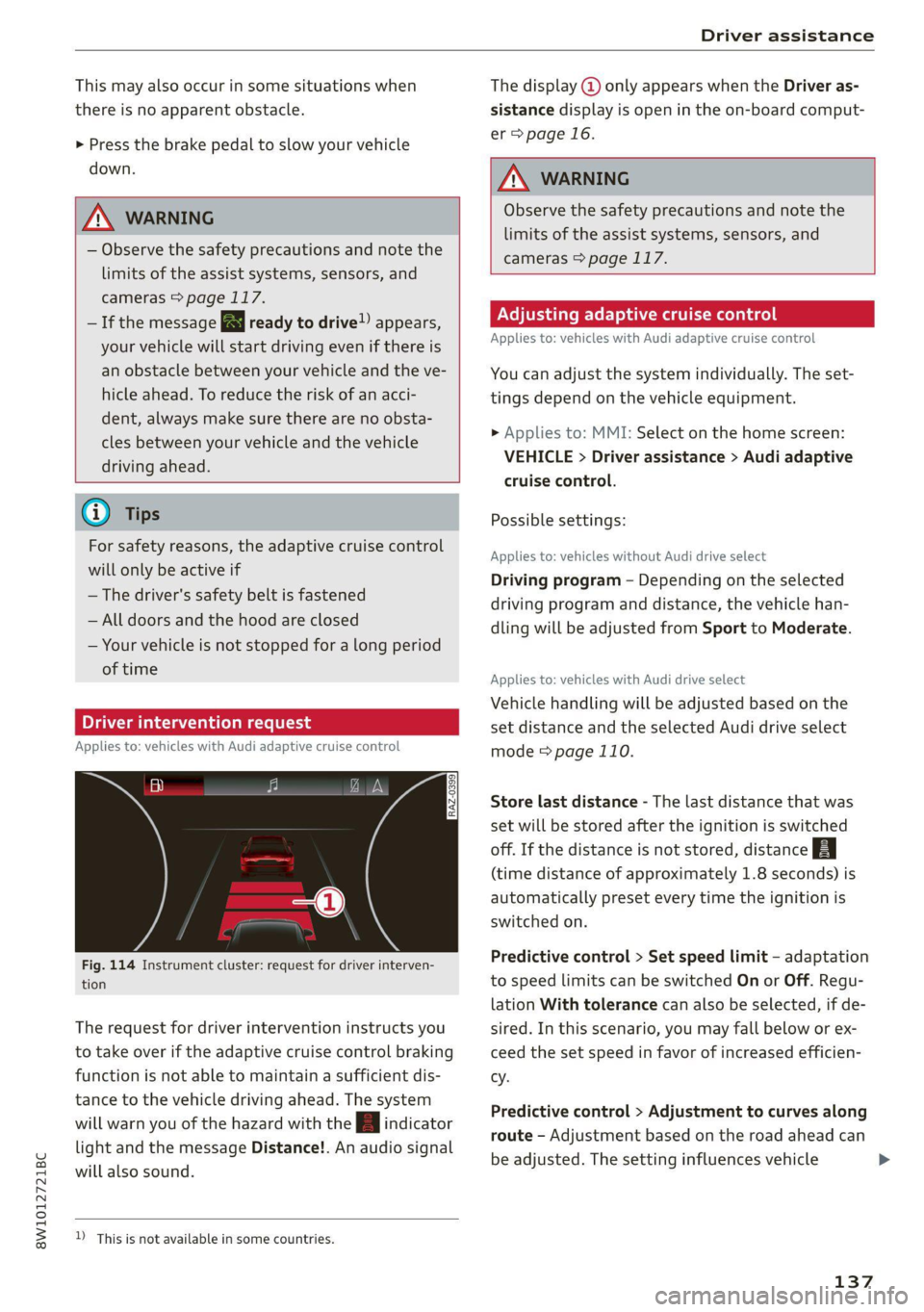
Driver intervention request
Applies to: vehicles with Audi adaptive cruise control
al 3 3
S| | S| ee|
Fig. 114 Instrument cluster: request for driver interven-
tion
The request for driver intervention instructs you
to take over if the adaptive cruise control braking
function is not able to maintain a sufficient dis-
tance to the vehicle driving ahead. The system
will warn you of the hazard with the A indicator
light and the message Distance!. An audio signal
will also sound.
D_ This is not available in some countries.
The display @ only appears when the Driver as-
sistance display is open in the on-board comput-
er > page 16.
ZA WARNING
Observe the safety precautions and note the
limits of the assist systems, sensors, and
cameras > page 117.
Adjusting adaptive cruise control
Applies to: vehicles with Audi adaptive cruise control
You can adjust the system individually. The set-
tings depend on the vehicle equipment.
> Applies to: MMI: Select on the home screen:
VEHICLE > Driver assistance > Audi adaptive
cruise control.
Possible settings:
Applies to: vehicles without Audi drive select
Driving program - Depending on the selected
driving program and distance, the vehicle han-
dling will be adjusted from Sport to Moderate.
Applies to: vehicles with Audi drive select
Vehicle handling will be adjusted based on the
set distance and the selected Audi drive select
mode > page 110.
Store last distance - The last distance that was
set will be stored after the ignition is switched
off. If the distance is not stored, distance B
(time distance of approximately 1.8 seconds) is
automatically preset every time the ignition is
switched on.
Predictive control > Set speed limit - adaptation
to speed limits can be switched On or Off. Regu-
lation With tolerance can also be selected, if de-
sired. In this scenario, you may fall below or ex-
ceed the set speed in favor of increased efficien-
cy.
Predictive control > Adjustment to curves along
route - Adjustment based on the road ahead can
be adjusted. The setting influences vehicle
137
Page 145 of 304

8W1012721BC
Driver assistance
steering correction cannot be set, the steering
correction will function in the Late setting.
— Vibration warning - You can select if you would
also like to be warned using a vibration in the
steering wheel.
@) Tips
Certain settings are automatically stored and
assigned to the remote control key being
used.
Applies to: vehicles with Audi active lane assist
iff or is displayed when there is a malfunc-
tion, the active lane assist functions may be un-
available or limited.
A message that indicates the cause and possible
solution may appear with some displays. The
weather conditions may be too poor or the cam-
era may be covered. Clean the area in front of the
camera > page 119 and try to turn on the sys-
tems again later.
If the malfunction remains, drive to an author-
ized Audi dealer or authorized Audi Service Facili-
ty immediately to have the malfunction correct-
ed.
Audi pre sense
Introduction
Applies to: vehicles with Audi pre sense
Within the limits of the system, the Audi pre
sense functions can initiate measures in certain
driving situations to protect the vehicle occu-
pants and other road users. Depending on the ve-
hicle equipment, various Audi pre sense systems
may
be installed:
— Audi pre sense basic can react during emergen-
cy and dangerous braking maneuvers and un-
stable driving situations (such as oversteering
or understeering).
— Audi pre sense city and Audi pre sense front
can detect an impending frontal impact and re-
act with warnings, braking interventions, and
preemptive safety measures for the vehicle oc-
cupants.
— Audi pre sense rear monitors the rear traffic
behind your vehicle and can react to an impend-
ing rear impact.
— The swerve assist can help you to steer the ve-
hicle around an obstacle during an evasive ma-
neuver that is detected as critical.
— The turn assist can detect vehicles in the oppo-
site lane as critical during a turning maneuver
and react with braking maneuvers.
Audi pre sense safety measures
Applies to: vehicles with Audi pre sense
Depending on the vehicle speed and the vehicle
equipment, the following functions may be initi-
ated in certain situations:
— Visual and audio warnings
— Reversible tensioning of safety belts
— Closing the windows and panoramic glass roof
— Adjusting the seats
— Other preemptive safety measures by individual
systems
ZA\ WARNING
Observe the safety precautions and note the
limits of the assist systems, sensors, and
cameras > page 117.
G) Tips
— Depending on the risk situation that is de-
tected and the selected Audi drive select*
mode, not all preemptive safety measures
may be initiated under certain circumstan-
ces. Certain functions can be adjusted or
skipped if necessary.
— Audi pre sense may also be limited or un-
available under certain circumstances, for
example if:
— There are passengers with unfastened
safety belts
— After turning on the ignition, as long as
the FJ or indicator light is on.
— When driving in reverse.
— The front passenger's airbag is switched
off
— There is an airbag control module mal-
function
143
Page 148 of 304

Driver assistance
— Swerve assist does not react to pedestrians,
animals, crossing objects, and objects not
detected as vehicles.
Gi) Tips
— System functions may not be available if the
ESC is limited or switched off, or if there is a
malfunction.
— An indicator in the instrument cluster will
inform you when there is an intervention.
Turn assist
Applies to: vehicles with turn assist
When turning left), turn assist can help to re-
duce the risk of a collision with an oncoming ve-
hicle by using braking action to keep your vehicle
in its lane. The function is only available when
the turn signal is turned on and at speeds up to
approximately 6 mph (10 km/h).
ZA WARNING
— Observe the safety precautions and note the
limits of the assist systems, sensors, and
cameras > page 117.
— The turn assist does not react to pedes-
trians, animals, crossing objects, and ob-
jects not detected as vehicles.
@) Tips
— System functions may not be available if the
ESC is limited or switched off, or if there is a
malfunction.
— An indicator in the instrument cluster will
inform you when there is an intervention.
PNM lm e es)
Applies to: vehicles with Audi pre sense
You can switch Audi pre sense and the associated
systems on or off, or adjust them individually.
The adjustment options depend on the vehicle
equipment.
2) When making a right turn in countries with left-hand drive
vehicles.
2) Incertain countries
146
> Applies to MMI: Select on the home screen: VE-
HICLE > Driver assistance > Audi pre sense.
Setting the prewarning
You can adjust the warning time for the prewarn-
ing”) individually (Early/Medium/Late) or switch
the prewarning off.
Set the warning time for the early warning to
Early at first. If you feel that the prewarnings ap-
pear too early, then set the warning time to Me-
dium. The Late warning time should only be set
in special circumstances.
(i) Tips
— If Audi pre sense is switched off, it switches
on again automatically once the ignition is
switched on again).
— Switch Audi pre sense off when you are not
using public streets, when loading the vehi-
cle onto a vehicle carrier, train, ship, or oth-
er type of transportation, or when towing
the vehicle. This can help to prevent an un-
desired intervention from the Audi pre
sense system.
— Certain settings are automatically stored
and assigned to the remote control key be-
ing used.
Applies to: vehicles with Audi pre sense
re) or is displayed when there is a malfunc-
tion, the Audi pre sense functions may be un-
available or may be limited.
A message that indicates the cause and possible
solution
may appear with some displays. The
weather conditions may be too poor or a sensor
may be covered. Bring the vehicle to a full stop,
switch the ignition off, and clean the area in front
of the sensors > page 119.
If the message still appears after switching the
ignition on again, have an authorized repair facili-
ty correct the malfunction as soon as possible.
Page 150 of 304

Driver assistance
— The display may not appear on time when
vehicles are approaching or being passed
very quickly.
— If the window glass in the driver's door or
front passenger's door has been tinted, the
display in the exterior mirror may be incor-
rect.
— The coverage areas of the sensors > fig. 120
are diagrams and do not represent a true-
to-scale image of the sensor ranges.
— The system complies with United States FCC
regulations and ISED regulations
=> page 284.
OTe eed
Applies to: vehicles with side assist
You can adjust the side assist to your preferences.
The settings depend on the vehicle equipment.
> Applies to: MMI: Select on the home screen:
VEHICLE > Driver assistance > Side assist.
Possible settings:
The system can be switched on and off. If the sys-
tem is switched on, the displays in the exterior
mirrors will turn on briefly each time the ignition
is switched on.
Brightness - Change the brightness only when
side assist is switched on, so that the selected
setting can be checked in the exterior mirror dis-
plays. Adjust the brightness to a level where the
display will not interfere with your view ahead.
Because the display brightness automatically
adapts to the ambient light, it may have already
been adjusted to the highest or lowest setting
during the automatic adaptation.
@ Tips
— If you switch side assist on or off, the exit
warning will also switch on or off.
— Certain settings are automatically stored
and assigned to the remote control key be-
ing used.
148
IY ett Tel -1
Applies to: vehicles with side assist
fg or Eg is displayed when there is a malfunc-
tion, the side assist and exit warning system
functions may be unavailable or may be limited.
A message that indicates the cause and possible
solution
may appear with some displays. The
weather conditions may be too poor or a sensor
may be covered. Clean the sensor area at the rear
corners of the vehicle > page 119, fig. 102 and
try to turn the systems on again later.
If the malfunction remains, drive to an author-
ized Audi dealer or authorized Audi Service Facili-
ty immediately to have the malfunction correct-
ed.
Exit warning
Applies icles with exit warning system
Fig. 122 Front door: exit warning
General information
Within system limits, the exit warning system
can detect traffic approaching from behind such
as vehicles, and provide assistance based on this
information when you are exiting the vehicle >
Page 151 of 304
8W1012721BC
Driver assistance
=> fig. 121. The system uses the data from the ra-
dar sensors at the rear corners of the vehicle.
Displays and warnings
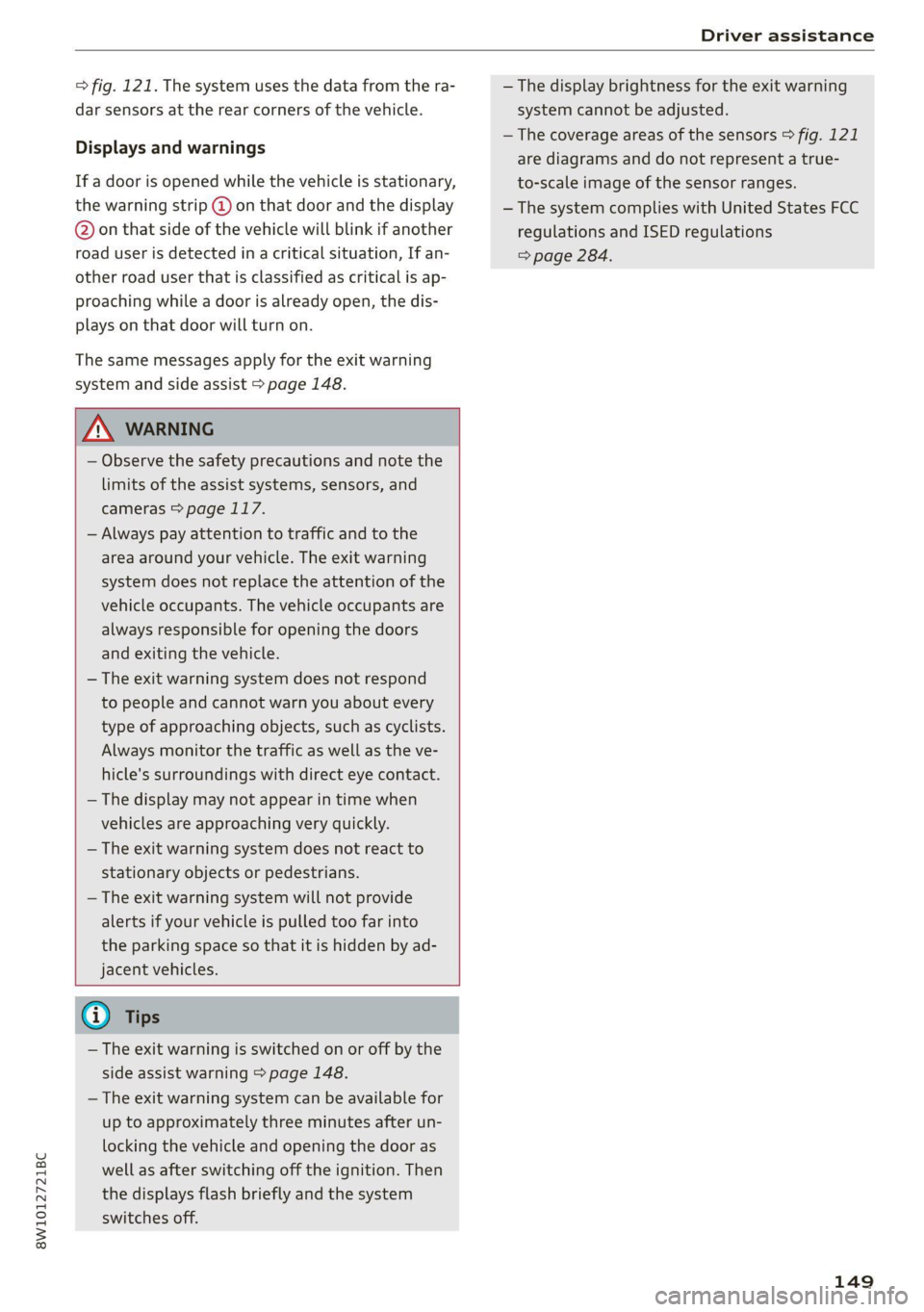
If a door is opened while the vehicle is stationary,
the warning strip @ on that door and the display
@ on that side of the vehicle will blink if another
road user is detected in a critical situation, If an-
other road user that is classified as critical is ap-
proaching while a door is already open, the dis-
plays on that door will turn on.
The same messages apply for the exit warning
system and side assist > page 148.
ZA WARNING
— Observe the safety precautions and note the
limits of the assist systems, sensors, and
cameras > page 117.
— Always pay attention to traffic and to the
area around your vehicle. The exit warning
system does not replace the attention of the
vehicle occupants. The vehicle occupants are
always responsible for opening the doors
and exiting the vehicle.
— The exit warning system does not respond
to people and cannot warn you about every
type of approaching objects, such as cyclists.
Always monitor the traffic as well as the ve-
hicle's surroundings with direct eye contact.
— The display may not appear in time when
vehicles are approaching very quickly.
— The exit warning system does not react to
stationary objects or pedestrians.
— The exit warning system will not provide
alerts if your vehicle is pulled too far into
the parking space so that it is hidden by ad-
jacent vehicles.
@) Tips
— The exit warning is switched on or off by the
side assist warning > page 148.
— The exit warning system can be available for
up to approximately three minutes after un-
locking the vehicle and opening the door as
well as after switching off the ignition. Then
the displays flash briefly and the system
switches off.
— The display brightness for the exit warning
system cannot be adjusted.
—The coverage areas of the sensors > fig. 121
are diagrams and do not represent a true-
to-scale image of the sensor ranges.
— The system complies with United States FCC
regulations and ISED regulations
=> page 284.
149
Page 153 of 304
8W1012721BC
Parking and maneuvering
speeds below approximately 6 mph (10 km/h),
the parking aid will switch on automatically. Au-
dible signals will sound once the obstacle is with-
in the sensor detection area.
» Applies to: MMI: To switch Automatic activa-
tion on or off, select on the home screen: VEHI-
CLE > Parking aid > Automatic activation.
Automatic deactivation
The distance indicator for the parking aid plus
will deactivate automatically when driving for-
ward faster than approximately 6 mph (10
km/h).
ZA\ WARNING
Observe the safety precautions and note the
limits of the assist systems, sensors, and
cameras > page 117.
©) Note
Keep enough distance from the curb to avoid
damage to the rims.
@ Tips
— If the parking aid is switched off, it can only
be reactivated automatically when one of
the following conditions is met:
— The vehicle speed exceeds 6 mph (10 km/h)
— The ignition was switched off and back on
again
— The parking brake was set and then released
— The “P” gear was engaged and released
again
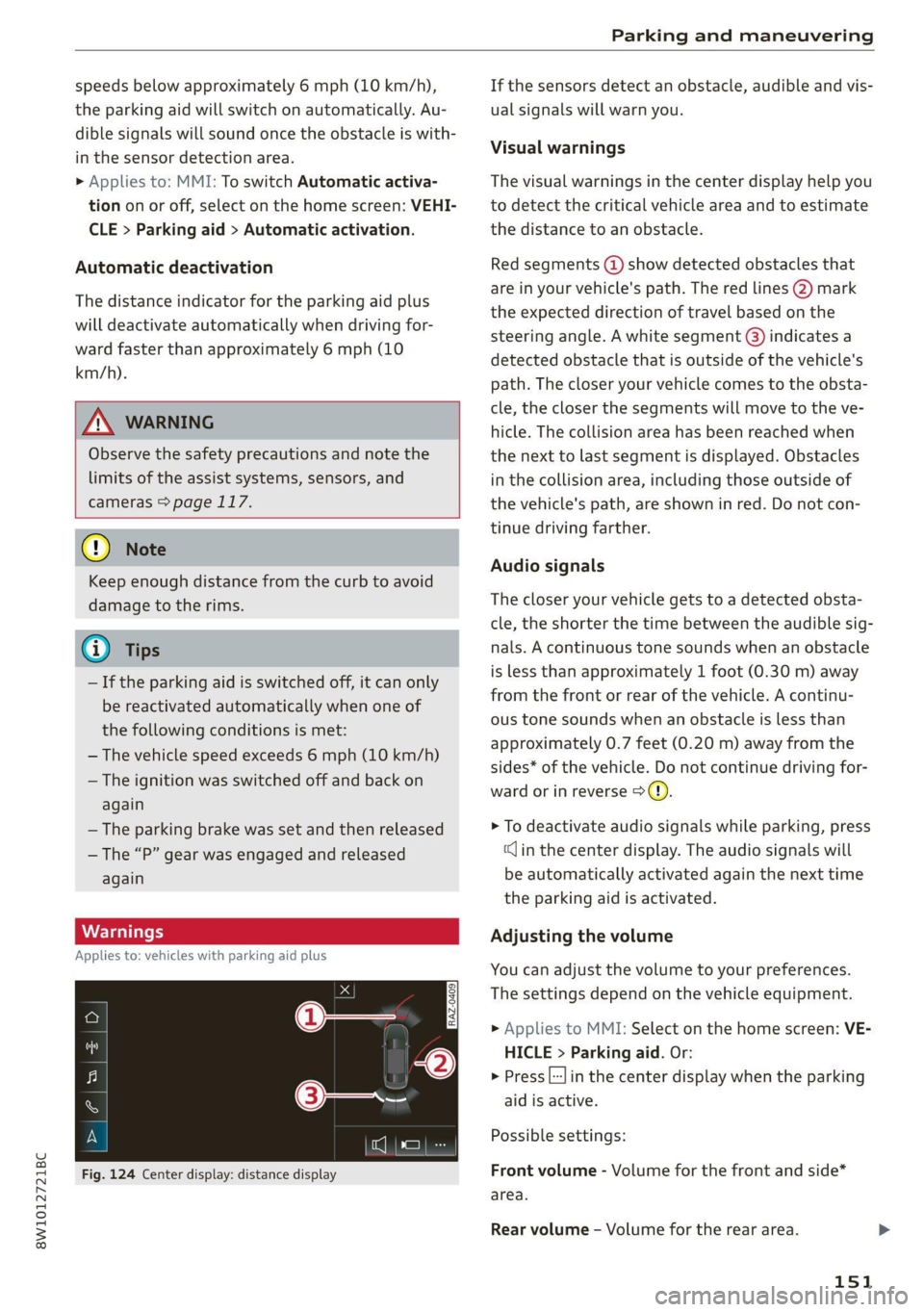
Applies to: vehicles with parking aid plus
Fig. 124 Center display: distance display
If the sensors detect an obstacle, audible and vis-
ual signals will warn you.
Visual warnings
The visual warnings in the center display help you
to detect the critical vehicle area and to estimate
the distance to an obstacle.
Red segments (@) show detected obstacles that
are in your vehicle's path. The red lines @) mark
the expected direction of travel based on the
steering angle. A white segment (3) indicates a
detected obstacle that is outside of the vehicle's
path. The closer your vehicle comes to the obsta-
cle, the closer the segments will move to the ve-
hicle. The collision area has been reached when
the next to last segment is displayed. Obstacles
in the collision area, including those outside of
the vehicle's path, are shown in red. Do not con-
tinue driving farther.
Audio signals
The closer your vehicle gets to a detected obsta-
cle, the shorter the time between the audible sig-
nals. A continuous tone sounds when an obstacle
is less than approximately 1 foot (0.30 m) away
from the front or rear of the vehicle. A continu-
ous tone sounds when an obstacle is less than
approximately 0.7 feet (0.20 m) away from the
sides* of the vehicle. Do not continue driving for-
ward or in reverse >@).
> To deactivate audio signals while parking, press
«Jin the center display. The audio signals will
be automatically activated again the next time
the parking aid is activated.
Adjusting the volume
You can adjust the volume to your preferences.
The settings depend on the vehicle equipment.
> Applies to MMI: Select on the home screen: VE-
HICLE > Parking aid. Or:
> Press|] in the center display when the parking
aid is active.
Possible settings:
Front volume - Volume for the front and side*
area.
Rear volume - Volume for the rear area.
151
Page 154 of 304
Parking and maneuvering
Entertainment fader - The volume of the audio/
video source is Lowered when the parking aid is
activated.
The new level is demonstrated briefly* when the
volume is adjusted.
Error messages
If P4 appears, the sensor in the respective area
or the speaker is faulty. Drive immediately to an
authorized Audi dealer or authorized Audi Service
Facility to have the malfunction repaired.
iffy or is displayed when there is a malfunc-
tion, the parking aid functions may be unavaila-
ble or may be limited.
A message that indicates the cause and possible
solution may appear with some displays. The
weather conditions may be too poor or a sensor
may be covered. Clean the area in front of the
sensors > page 119 and try to turn on the sys-
tems again later.
If the malfunction remains, drive to an author-
ized Audi dealer or authorized Audi Service Facili-
ty immediately to have the malfunction correct-
ed.
ZA\ WARNING
— Observe the safety precautions and note the
limits of the assist systems, sensors, and
cameras > page 117.
— Sensors and cameras have spots in which
the surrounding area cannot be detected.
Objects, animals, and people may only be
detected with limitations may not be detect-
ed at all. Always monitor the traffic and the
vehicle's surroundings directly and do not
become distracted.
@) Note
— Keep enough distance from the curb to
avoid damage to the rims.
— Applies to: vehicles with park assist: If you
park in short parking spaces using park as-
sist, a continuous tone will sound from the
parking aid when the distance to an object is
less than approximately 0.7 feet (0.20 m).
Do not continue driving farther.
152
G) Tips
— The segments in the side area* are detected
and analyzed when passing. If you switch
the ignition off and on again or open the
door, or if the vehicle is stationary for a peri-
od of time, the surrounding area may have
changed in the meantime. In this scenario,
the side area* will appear black until the
area has been detected and evaluated.
— If the distance to an obstacle remains con-
stant, the volume of the distance warning
gradually lowers after a few seconds until it
is muted (this does not apply to the continu-
ous tone). If the obstacle comes closer than
it was before the sound was muted, the
tone will sound again. If the obstacle be-
comes farther away than it was before the
sound was muted, no tone will sound. Pay
attention to the vehicle's surroundings
when you start to drive.
Rearview camera and
peripheral cameras
Introduction
Applies to: vehicles with rearview camera/peripheral cameras
B8V-0629
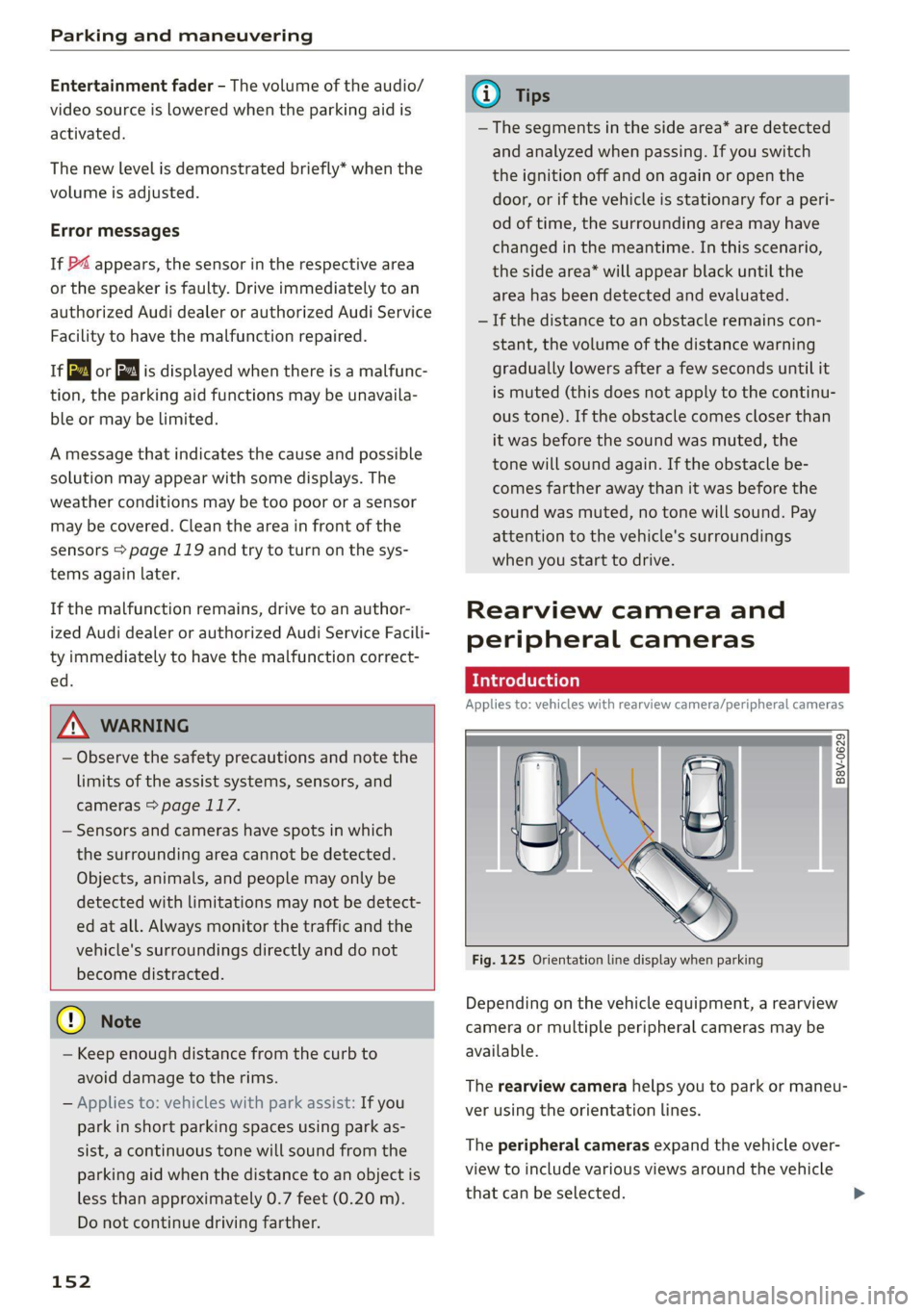
Fig. 125 Orientation line display when parking
Depending on the vehicle equipment, a rearview
camera or multiple peripheral cameras may be
available.
The rearview camera helps you to park or maneu-
ver using the orientation lines.
The peripheral cameras expand the vehicle over-
view to include various views around the vehicle
that can be selected.
Page 164 of 304
Telephone
Telephone
Introduction
Applies to: vehicles with telephone
You can operate various telephone functions easi-
ly through the MMI in your vehicle.
Depending on the country and the vehicle equip-
ment, the following options may be available:
— Connecting a cell phone with Bluetooth
— Using two telephones
— Using the Audi phone box
ZX WARNING
— Medical experts warn that mobile devices
can interfere with the function of pacemak-
ers. Always maintain a minimum distance of
about 7.9 inches (20 cm) between the mo-
bile device antennas and the pacemaker.
— Do not carry the mobile device in a pocket
directly over the pacemaker when the
phone is switched on.
— Switch the mobile device off immediately
if you suspect it may be interfering with
the pacemaker.
— Do not use the voice recognition system*
=> page 26 in emergencies because your
voice may change in stressful situations. The
system may take longer to dial the number
or may not be able to dial it at all. Dial the
emergency number manually.
— Switch your mobile device off in areas where
there is a risk of an explosion. These loca-
tions are not always clearly marked. This
may include gas stations, fuel and chemical
storage facilities or transport vehicles, or lo-
cations where fuel vapors (such as propane
or gasoline vapor in vehicles or buildings),
chemicals or large quantities of dust parti-
cles (such as flour, sawdust or metal) may
be present in the air. This also applies to all
other locations where you would normally
turn your vehicle engine off.
— The demands of traffic require your full at-
tention. Always read the chapter > page 19,
Traffic safety information.
162
@) Note
Read the information about Audi connect, and
be sure to note the connectivity costs section
=> page 173.
@) Tips
— The Bluetooth connection range is limited
to inside the vehicle.
—Aselection of supported Bluetooth devices
can be found in the database for tested mo-
bile devices at www.audi.com/bluetooth.
Setup
Connecting a mobile phone via Bluetooth
Applies to: vehicles with telephone
Requirement: the vehicle must be stationary and
the ignition must be switched on. The Bluetooth
settings must be open on your mobile device dur-
ing the connection setup. The mobile device to be
connected must not be actively connected to any
other Bluetooth device. The MMI must only be
connected to one mobile device.
> Enable the Bluetooth function and visibility on
the MMI = page 213 and the mobile phone.
> Applies to: MMI: Select on the home screen:
PHONE.
> Follow the system instructions. The available
Bluetooth devices will be displayed after sever-
al seconds.
> Press on the desired mobile device in the list of
displayed Bluetooth devices.
> To update the list, press OQ.
A PIN for a secure Bluetooth connection will be
generated.
> Confirm the PIN on your mobile device.
> Follow the system instructions.
> Pay attention to any other system prompts on
the MMI and on your cell phone.
After connecting successfully
The cell phone contacts are automatically loaded
in the MMI. This process can take several mi-
nutes, depending on the number of contacts.
Depending on your cell phone and the connection
type, you can use the following functions:
Page 165 of 304
8W1012721BC
Telephone
Handsfree
Requirement: your cell phone must be connected
to the MMI via a Bluetooth Hands Free Profile
(Bluetooth HFP).
You can use the hands-free system. You can make
calls using the antenna on your mobile device.
Sending and receiving messages
See > page 170.
@ Tips
— Pay attention to any system prompts dis-
played on your mobile device or the MMI,
for example if the system should connect
automatically in the future. Depending on
the mobile device, you may need to down-
load contacts and confirm access to your
messages separately.
— You can also search for the MMI on your mo-
bile device using the Bluetooth device
search.
— You only have to pair your device one time.
Bluetooth devices that are already paired
automatically connect to the MMI when the
Bluetooth function is switched on, when
they are within range, and when the ignition
is switched on. The last connected mobile
device is given first priority.
— You can manage additional settings for con-
nected mobile devices in the Connected de-
vices menu > page 214.
— When leaving the vehicle, the Bluetooth
connection to the mobile device will auto-
matically disconnect. Depending on your
mobile device, phone calls in progress may
be automatically redirected from the MMI
to your mobile device so that you can con-
tinue the call on your phone.
Using two telephones
Applies to: vehicles with telephone, and Audi phone box
You can connect two mobile phones to the MMI
at the same time using the Bluetooth HFP, for ex-
ample a business phone and a private phone. You
can be reached in your vehicle through both mo-
bile phones.
Applies to: mobile devices with Bluetooth Mes-
sage Access Profile (MAP): You can send and re-
ceive messages with both mobile devices
=> page 170.
Connecting another mobile device
Requirement: a mobile device must be connected
to the MMI. The vehicle must be stationary and
the ignition must be switched on. The Bluetooth
settings must be open on your mobile device dur-
ing the connection setup. The mobile device to be
connected must not be actively connected to any
other Bluetooth device.
> Enable the Bluetooth function and visibility on
the MMI = page 213 and the mobile phone.
> Applies to: MMI: Select on the home screen:
PHONE > (°, or
>» Applies to: MMI: Select on the home screen:
SETTINGS > Connected devices > Telephone 1
or Telephone 2 > New connection.
> Follow the system instructions. The available
Bluetooth devices will be displayed after sever-
al seconds.
> Press on the desired mobile device in the list of
displayed Bluetooth devices.
> To update the list, press O.
A PIN for a secure Bluetooth connection will be
generated.
> Confirm the PIN on your mobile device.
> Follow the system instructions.
> Pay attention to any other system prompts on
the MMI and on your cell phone.
After connecting successfully
See > page 162, After connecting successfully.
Switching between two mobile devices
Requirement: phone 1 and phone 2 must be con-
nected to the MMI.
> Applies to: MMI: Select on the home screen:
PHONE > <1.
@) Note
Read the information about Audi connect, and
be sure to note the connectivity costs section
=> page 173.
163