ad blue AUDI A5 2021 Owners Manual
[x] Cancel search | Manufacturer: AUDI, Model Year: 2021, Model line: A5, Model: AUDI A5 2021Pages: 318, PDF Size: 85.96 MB
Page 5 of 318
8W7012721BB
Table of contents
Brivirigy cy mieirles. cies i 6 scious 6 6 esses 6 118
Audi drive select............00 eee eee 118
SUSPENSION: + yews a x mem a e Bees se CeRRE L19
StOOKIING cms a v ves 8 ceawem ¥ sen ¥ erzaees LIS.
All wheel drive (quattro) .............. 120
Electronic Stabilization Control......... 121
Trailer towing.................0-. 124
Driving with atrailer................. 124
Assist systems................... 126
Assist systems................00. 126
General information................. 126
Surrounding area detection............ 127
Driving information.............. 130
Speed warning system..............-. 130
Camera-based traffic sign recognition... 130
Traffic light information.............. 132
Lap etime ris « & esuass « 6 mesns « o uve & & meee 133
Acceleration measurement............ 134
Integrated Toll Module............... 135
Driver assistance................. 136
Cruise control system................ 136
Efficiency assist .«
Audi adaptive cruise control........... 139
Traffic jam assist............00.-000- 147
Distance Warning « « sais + s ewe 2 o eee & s 149
Audi active lane assist/lane departure
warning............ 20. ce eee eee 150
AUGi PrESGNSe « esis sx cows < e cams & eaew 152
Sidevassist vccssv: «x ceavous ov aseuase ao cerns © 8 ane 156
Exit warning ...............-e eee eee 157
Parking and maneuvering....... 59:
Introduction. ............ 2. eee eee ee 159
Parkitig:aid plUS = ssa < 2 esos ¢ ¥ Sana 4 x 159
Rearview camera and peripheral cameras. 161
Rear cross-traffic assist............... 165
Assisted parking.........-...0--- eee 166
ParkeaSsiSt’s cass a = sane s x pany s & eens 3 5 168
Infotainment system............ 171
Telephone.............. cece eee U7.
TMEROGUCTION « & cess wo wcinase we a oraeni ow awenaie 171
Setup... 2.2... cee eee eee eee 171
Using the Audi phone box............. 173
Using the telephone.................. 175
SettingS 00... . cece cee eee eee eee 178
MOSSAGES cours « s eauu § 2 eueeS Fo EGE FE BS 179
Troubleshooting sic ss wes oe ween es owe 181
Audi CONNECE : «6: = i e665 st ees so 182
General information................. 182
Audi connect Infotainment............ 182
Using a Wi-Fi hotspot 183
Audi connect Infotainment services..... 183
Functions on demand................ 184
Audi connect vehicle control services.... 184
SOttingS sews + 9 cae ¥ eee ¥ perms we pee 185
Troubleshooting..............--.0005 186
Emergency call................... 187
OVERVIEW. secs. 6 x sxcvers 6 emutes @ a eavaens vw ame
Emergency call
Online roadside assistance............ 188
Navigation.....................05. 190
Opening navigation.................. 190
myAudi navigation................00. 190
Entering adestination..............0- 191
Stopping route guidance.............. 194
Mapes & 5 saves © 2 saws yo sme @ & Hew 2 2 Be 194
Alternative routes................04. 196
Additional functions...............0-- 196
Satellite Map’s + 6 gare = cama a e weep os oe 197
Mapreipdates » cmos + x sre: «2 anes aw onnens 198
Traffic incidents.............. 000 eee 199
SOtuiNGS
wows ¢ « eeen ¢ nae 2 Bees doe 200
Radio....... cece eee 202
Generalinformation................. 202
Radio functions sss < eins 2 + wen 3 6 eacern 203
Online radio... .... eee eee eee 206
Options and settings................. 207
Troubleshooting wisi « s wen» 6 eae o + wae 208
Media................. 0c cece eee 210
General information................. 210
Bluetooth audio player............... 210
Amazon Alexa ..........0.00 eee eee 211
Multimedia connections.............. 211
Playing medias... crocs s 0 samen 4 o snmeie «0 one 212
Options and settings................- 216
Page 25 of 318
8W7012721BB
Touch display
Of OB OB
Oo OB OB om
OM OB OB 2a
Fig. 16 Center display: frequently used symbols in the sta- Fig. 17 Center display: notification center
tus bar
[RAZ-1078
Ce ay
eA eee pe tceri or
PCr cog esa Cuneo
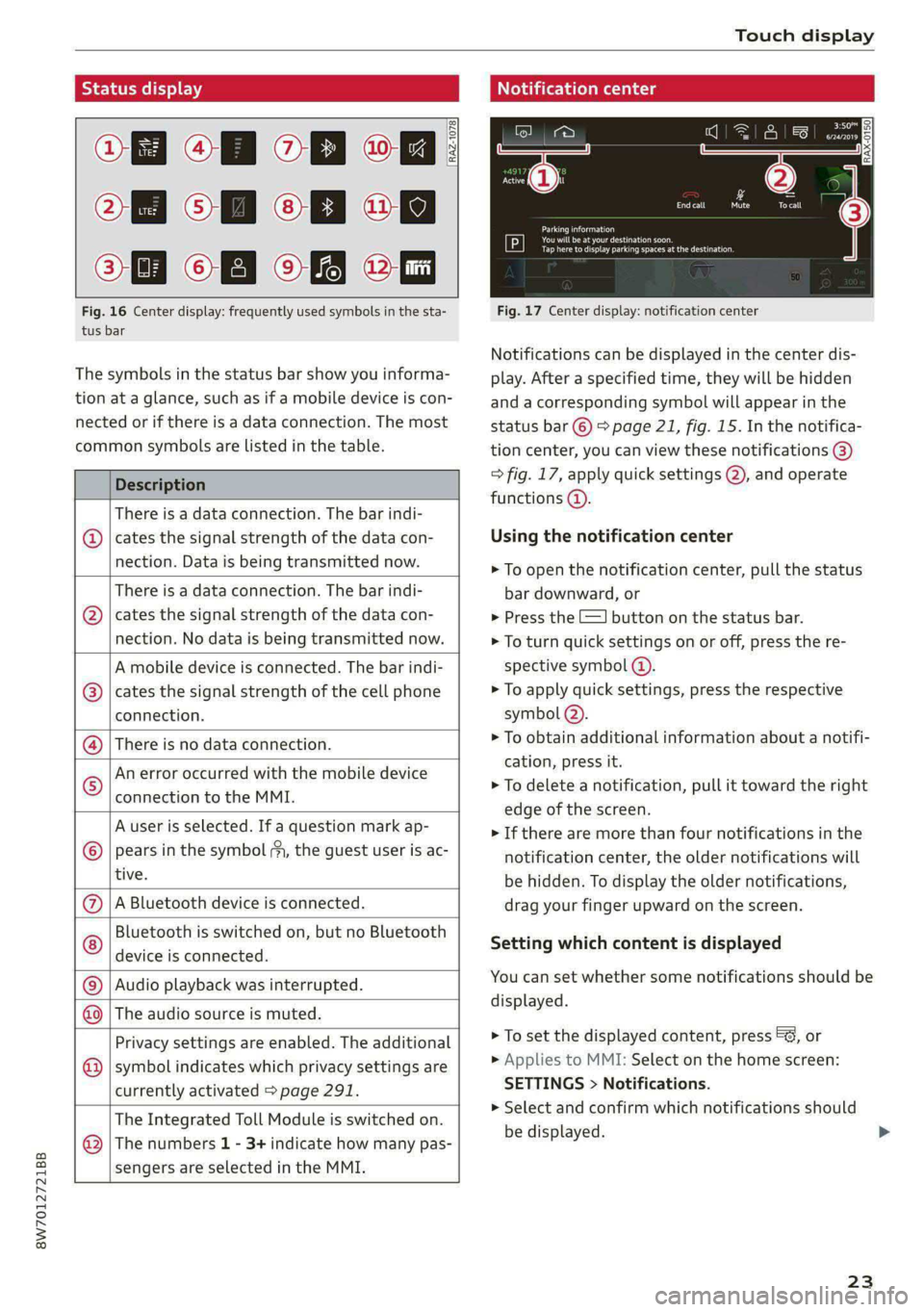
Notifications can be displayed in the center dis-
The symbols in the status bar show you informa- play. After a specified time, they will be hidden
tion at a glance, such as if a mobile device is con- and a corresponding symbol will appear in the
nected or if there is a data connection. The most status bar ©) > page 21, fig. 15. In the notifica-
common symbols are listed in the table. tion center, you can view these notifications @)
Description > fig. 17, apply quick settings @), and operate
functions @).
There is a data connection. The bar indi-
@ | cates the signal strength of the data con- Using the notification center
nection. Data:is being transmitted now: > To open the notification center, pull the status
There is a data connection. The bar indi- bar downward, or
@ | cates the signal strength of the data con- > Press the E=] button on the status bar.
nection. No data is being transmitted now. > To turn quick settings on or off, press the re-
A mobile device is connected. The bar indi- spective symbol @).
cates the signal strength of the cell phone > To apply quick settings, press the respective
connection. symbol (2).
> To obtain additional information about a notifi-
cation, press it.
> To delete a notification, pull it toward the right
edge of the screen.
> If there are more than four notifications in the
notification center, the older notifications will
be hidden. To display the older notifications,
A Bluetooth device is connected. drag your finger upward on the screen.
Bluetooth is switched on, but no Bluetooth
device is connected.
There is no data connection.
An error occurred with the mobile device
connection to the MMI.
A user is selected. If a question mark ap-
pears in the symbol ;y, the guest user is ac-
tive.
®©®e;)
©
|@|®|
©
Setting which content is displayed
You can set whether some notifications should be Audio playback was interrupted.
displayed.
©|© The audio source is muted.
> To set the displayed content, press ©&, or
> Applies to MMI: Select on the home screen:
SETTINGS > Notifications.
> Select and confirm which notifications should
be displayed.
Privacy settings are enabled. The additional
symbol indicates which privacy settings are
currently activated > page 291.
©
The Integrated Toll Module is switched on.
The numbers 1 - 3+ indicate how many pas-
sengers are selected in the MMI.
®
23
Page 62 of 318
Lights and Vision
— High beam assistant is only intended to as-
sist the driver. The driver is responsible for
controlling the high beam headlights and
adjusting them to match the lighting and
visibility conditions.
— High beams can cause glare for other driv-
ers, which increases the risk of an accident.
For this reason, only use the high beams or
the headlight flasher when they will not cre-
ate glare for other drivers.
@ Tips
Adhere to any local applicable regulations
when using the lighting equipment, for exam-
ple in regard to reducing glare for other driv-
ers. The driver is always responsible for adher-
ing to the regulations applicable in the coun-
try where the vehicle is being operated.
Laser lighting
Applies to: vehicles with laser lighting
RAZ-0948
Fig. 53 Headlights: label
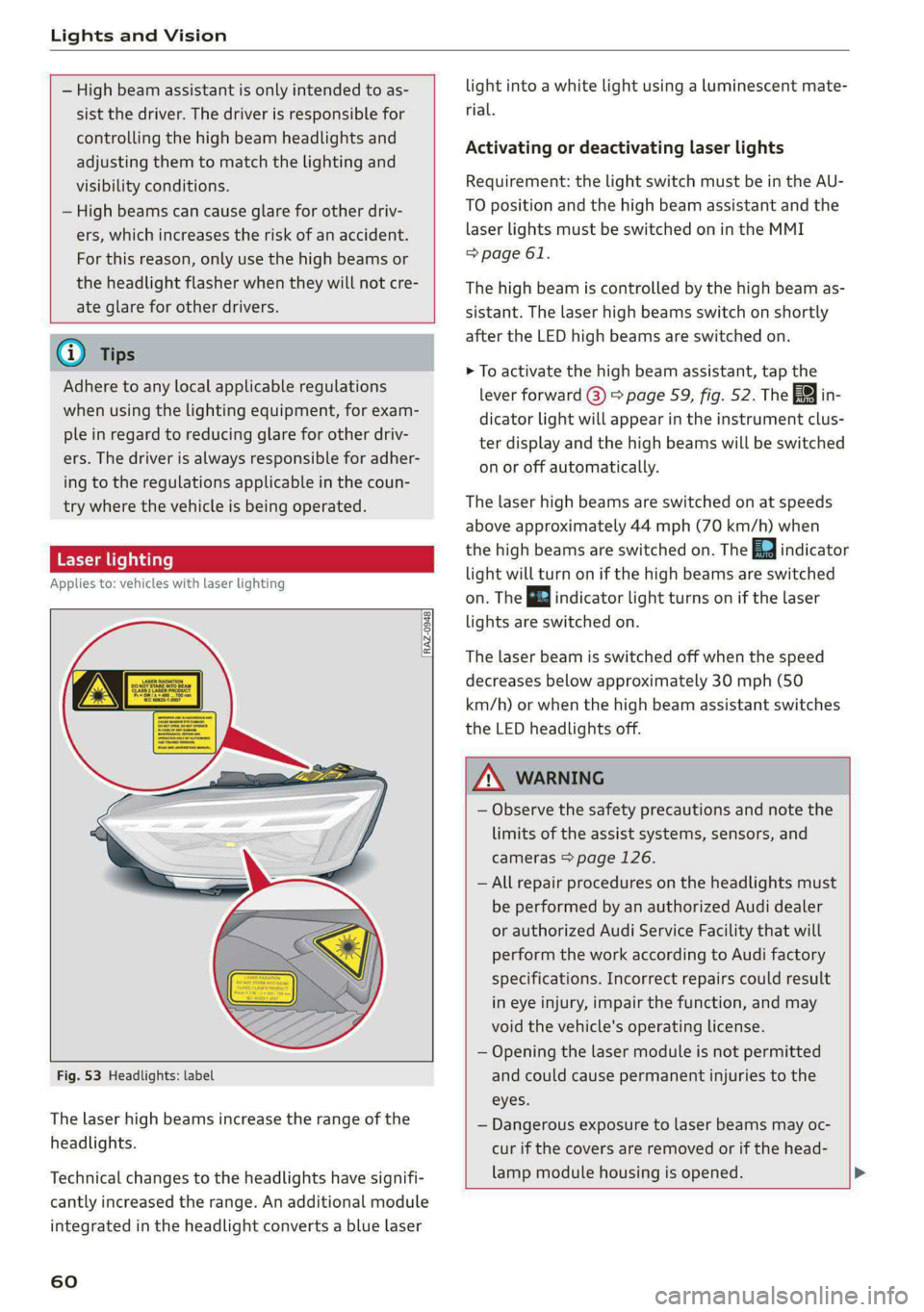
The laser high beams increase the range of the
headlights.
Technical
changes to the headlights have signifi-
cantly increased the range. An additional module
integrated in the headlight converts a blue laser
60
light into a white light using a luminescent mate-
rial.
Activating or deactivating laser lights
Requirement: the light switch must be in the AU-
TO position and the high beam assistant and the
laser lights must be switched on in the MMI
=> page 61.
The high beam is controlled by the high beam as-
sistant. The laser high beams switch on shortly
after the LED high beams are switched on.
> To activate the high beam assistant, tap the
lever forward @) > page 59, fig. 52. The Fa
dicator light will appear in the instrument clus-
ter display and the high beams will be switched
on or off automatically.
in-
The laser high beams are switched on at speeds
above approximately 44 mph (70 km/h) when
the high beams are switched on. The Ed indicator
light will turn on if the high beams are switched
on. The B indicator light turns on if the laser
lights are switched on.
The laser beam is switched off when the speed
decreases below approximately 30 mph (50
km/h) or when the high beam assistant switches
the LED headlights off.
ZA\ WARNING
— Observe the safety precautions and note the
limits of the assist systems, sensors, and
cameras > page 126.
— All repair procedures on the headlights must
be performed by an authorized Audi dealer
or authorized Audi Service Facility that will
perform the work according to Audi factory
specifications. Incorrect repairs could result
in eye injury, impair the function, and may
void the vehicle's operating license.
— Opening the laser module is not permitted
and could cause permanent injuries to the
eyes.
— Dangerous exposure to laser beams may oc-
cur if the covers are removed or if the head-
lamp module housing is opened.
Page 65 of 318

8W7012721BB
Lights and Vision
Interior lighting
Applies to: vehicles with interior lighting
The ambient lighting turns on when the ignition
is switched on. The O light switch position deacti-
vates the interior lighting.
You can adjust the interior lighting individually.
The settings depend on the vehicle equipment.
>» Applies to MMI: Select on the home screen: VE-
HICLE > Light & Visibility > Interior lighting.
You can choose from various color profiles, such
as Maritime.
Additional settings and profiles:
— Brightness: you can adjust the brightness for
all of the interior lighting.
— Individual: you can adjust the brightness and
color of the interior lighting separately, divided
into contour and surface lighting.
— Audi drive select: the contour and surface
lighting color changes depending on the select-
ed drive select* mode.
@ Tips
Depending on vehicle equipment, when the
drive select function is activated, the color of
the contour and surface lighting may briefly
change to red or blue when the interior tem-
perature is manually increased or decreased.
Display brightness
You can adjust the instrument and display illumi-
nation separately. The settings depend on the ve-
hicle equipment.
> Applies to MMI: select on the home screen:
SETTINGS > Display & brightness.
Possible settings in the MMI:
— Cockpit dimming
— Head-up display
—MMI
— Audi virtual cockpit
Pitt aaa ce aria eda)
Fig. 57 Light switch: instrument illumination
%, - You can adjust the background brightness of
the instruments and display illumination.
> Press the knob (@) to release it.
> Turn the knob toward "-" or "+"
crease the brightness.
> Press the knob again to return it to its original
Position.
@) Tips
Depending on vehicle equipment, the instru-
ment illumination (needles and gauges) may
turn on when the lights are off and the igni-
tion is switched on. The illumination for the
gauges reduces automatically and eventually
turns off as brightness outside increases. This
function reminds the driver to turn the low
beams on at the appropriate time.
to reduce or in-
Vision
Adjusting exterior mirrors
RAZ-0150
©
Fig. 58 Driver's door: knob for the exterior mirrors
©
> Turn the knob in the driver's door to the desired
position:
63
>
Page 103 of 318
8W7012721BB
Warm and cold
-} Neck heating*
Applies to: vehicles with neck heating
The neck heating temperature can be set at mul-
tiple levels. Press the 2 button once to switch on
the highest level. Press the J button again to de-
crease the temperature one level at a time. The
neck heating is off when all of the LEDs are off.
a Seat heating and ventilation*
Applies to: vehicles with seat heating/ventilation
If you press the # button, you can turn either the
seat ventilation or the seat heating on or off.
— If you turn the knob @ clockwise, you will turn
the seat heating down to the lowest level (1).
The red LED in the button will turn on. To in-
crease the temperature, keep turning clockwise
to the highest level (3).
— If you turn the knob @ counterclockwise, you
will turn the seat ventilation down to the low-
est level (1). The blue LED in the button will
turn on. To increase the ventilation, keep turn-
ing counterclockwise to the highest level (3).
® Defrosting
The windshield and side windows are defrosted
or cleared of condensation as quickly as possible.
Align the outer air vents with the side windows.
The maximum amount of air flows mainly from
the vents below the windshield. Recirculation
mode switches off. The temperature should be
set at 72 °F (+22 °C) or higher. The temperature
is controlled automatically.
You can switch the defroster on or off using the
® button. You can switch the function off by
pressing a knob ().
@ Rear window defogger
The rear window defogger only operates when
the engine is running. It switches off automati-
cally after 10 to 20 minutes, depending on the
outside temperature.
To prevent the rear window defogger from
switching off automatically, press and hold the
& button for more than three seconds. This is
stored until the ignition is switched off.
Vents
You can open or close the center and rear vents in
the cockpit and the vents in the rear center con-
sole using the ridged thumbwheels. The levers
adjust the direction of the airflow from the vents.
Residual heat
You can activate the residual heat function when
the ignition is switched off by pressing the knob
@ (left side). The residual heat from the coolant
is used to heat the vehicle interior. The residual
heat function switches off automatically after
about 15 minutes.
Z\ WARNING
— Individuals with reduced sensitivity to pain
or temperature could develop burns when
using the neck heating”. To reduce the risk
of injury, these individuals should not use
neck heating*.
— If the air vents in the seats are covered by
clothing or similar objects when the neck
heating* is switched on, the output from the
neck heating may become very hot tempora-
rily. This can cause burns on unprotected
skin exposed directly to the vents.
G) Tips
— When the power top* is closed, the neck
heating* will switch automatically from set-
ting 3 to setting 2 after approximately six
minutes.
— The heat output from the neck heating* is
lower when the power top” is closed than
when it is open.
Additional settings
Applies to: vehicles with 3-zone deluxe automatic climate
control system
You can adjust additional settings.
> Applies to MMI: Select on the home screen: VE-
HICLE > Air conditioning.
Auto recirculation
When switched on, automatic recirculation con-
trols the recirculation mode automatically. You
101
>
Page 164 of 318

Parking and maneuvering
ZX WARNING
Observe the safety precautions and note the
limits of the assist systems, sensors, and
cameras > page 126.
Activating and deactivating
Applies to: vehicles with rearview camera/peripheral cameras
= 3
2
= & a
Fig. 133 Center console: parking aid button
Activating and deactivating
> Press the P button in the center console.
When activating, a brief tone will sound and
the LED in the button will turn on. Or
> Press bin the center display if the visual dis-
tance indicator is shown > page 160, fig. 131.
The system can be activated at low speeds, such
when maneuvering.
Automatic activation
The system activates automatically when reverse
gear is engaged while the engine is running. A
brief tone will sound.
Automatic deactivation
The system will deactivate automatically once
the vehicle exceeds a certain speed while driving
forward.
Z\ WARNING
Observe the safety precautions and note the
limits of the assist systems, sensors, and
cameras > page 126.
162
Applies to: vehicles with rearview camera/peripheral cameras
Fig. 134 Center display: aiming at a parking spot
When parking with the rearview camera or pe-
ripheral camera, the parking aid plus audio and
visual warnings* will also assist you > page 160.
Visual orientation lines
@ The orange orientation lines show the vehi-
cle's direction of travel >@©. Turn the steer-
ing wheel until the orange orientation lines
align with the parking space.
@ You can use the horizontal blue markings to
help you estimate the distance to an obsta-
cle. Each marking represents approximately 3
feet (1 meter). The blue area represents an
extension of the vehicle's outline by approxi-
mately 16 feet (5 meters) to the rear.
@® You can recognize the rear bumper in the
lower display.
@ You should stop driving in reverse when the
red orientation line touches the edge of an
object, at the latest.
Symbols
Applies to: vehicles with peripheral cameras
If $2/&8/< is displayed and the display area
represented by that symbol is not available, then
the camera on the that side is not available. The
power exterior mirrors may have been folded in
or a door or the luggage compartment lid may
have been opened.
If # is displayed, there is a system malfunction
and the display area represented by that symbol
is not available. The camera is not working in this
area.
If one of the symbols continues to be displayed,
drive immediately to an authorized Audi dealer or >
Page 173 of 318
8W7012721BB
Telephone
Telephone
Introduction
Applies to: vehicles with telephone
You can operate various telephone functions easi-
ly through the MMI in your vehicle.
Depending on the country and the vehicle equip-
ment, the following options may be available:
— Connecting a cell phone with Bluetooth
— Using two telephones
— Using the Audi phone box
ZA WARNING
— Medical experts warn that mobile devices
can interfere with the function of pacemak-
ers. Always maintain a minimum distance of
about 7.9 inches (20 cm) between the mo-
bile device antennas and the pacemaker.
— Do not carry the mobile device in a pocket
directly over the pacemaker when the
phone is switched on.
— Switch the mobile device off immediately
if you suspect it may be interfering with
the pacemaker.
— Do not use the voice recognition system*
= page 27 in emergencies because your
voice may change in stressful situations. The
system may take longer to dial the number
or may not be able to dial it at all. Dial the
emergency number manually.
— Switch your mobile device off in areas where
there is a risk of an explosion. These loca-
tions are not always clearly marked. This
may include gas stations, fuel and chemical
storage facilities or transport vehicles, or lo-
cations where fuel vapors (such as propane
or gasoline vapor in vehicles or buildings),
chemicals or large quantities of dust parti-
cles (such as flour, sawdust or metal) may
be present in the air. This also applies to all
other locations where you would normally
turn your vehicle engine off.
— The demands of traffic require your full at-
tention. Always read the chapter > page 20,
Traffic safety information.
CG) Note
Read the information about Audi connect, and
be sure to note the connectivity costs section
=> page 182.
G@) Tips
— The Bluetooth connection range is limited
to inside the vehicle.
—Aselection of supported Bluetooth devices
can be found in the database for tested mo-
bile devices at www.audi.com/bluetooth.
Setup
Connecting a mobile phone via Bluetooth
Applies to: vehicles with telephone
Requirement: the vehicle must be stationary and
the ignition must be switched on. The Bluetooth
settings must be open on your mobile device dur-
ing the connection setup. The mobile device to be
connected must not be actively connected to any
other Bluetooth device. The MMI must only be
connected to one mobile device.
> Enable the Bluetooth function and visibility on
the MMI = page 222 and the mobile phone.
> Applies to: MMI: Select on the home screen:
PHONE.
> Follow the system instructions. The available
Bluetooth devices will be displayed after sever-
al seconds.
> Press on the desired mobile device in the list of
displayed Bluetooth devices.
> To update the list, press OQ.
A PIN for a secure Bluetooth connection will be
generated.
> Confirm the PIN on your mobile device.
> Follow the system instructions.
> Pay attention to any other system prompts on
the MMI and on your cell phone.
After connecting successfully
The cell phone contacts are automatically loaded
in the MMI. This process can take several mi-
nutes, depending on the number of contacts.
Depending on your cell phone and the connection
type, you can use the following functions:
171
>
Page 174 of 318
Telephone
Handsfree
Requirement: your cell phone must be connected
to the MMI via a Bluetooth Hands Free Profile
(Bluetooth HFP).
You can use the hands-free system. You can make
calls using the antenna on your mobile device.
Sending and receiving messages
See > page 179.
@) Tips
— Pay attention to any system prompts dis-
played on your mobile device or the MMI,
for example if the system should connect
automatically in the future. Depending on
the mobile device, you may need to down-
load contacts and confirm access to your
messages separately.
— You can also search for the MMI on your mo-
bile device using the Bluetooth device
search.
— You only have to pair your device one time.
Bluetooth devices that are already paired
automatically connect to the MMI when the
Bluetooth function is switched on, when
they are within range, and when the ignition
is switched on. The last connected mobile
device is given first priority.
— You can manage additional settings for con-
nected mobile devices in the Connected de-
vices menu > page 223.
— When leaving the vehicle, the Bluetooth
connection to the mobile device will auto-
matically disconnect. Depending on your
mobile device, phone calls in progress may
be automatically redirected from the MMI
to your mobile device so that you can con-
tinue the call on your phone.
Using two telephones
Applies to: vehicles with telephone, and Audi phone box
You can connect two mobile phones to the MMI
at the same time using the Bluetooth HFP, for ex-
ample a business phone and a private phone. You
can be reached in your vehicle through both mo-
bile phones.
172
Applies to: mobile devices with Bluetooth Mes-
sage Access Profile (MAP): You can send and re-
ceive messages with both mobile devices
=>page 179.
Connecting another mobile device
Requirement: a mobile device must be connected
to the MMI. The vehicle must be stationary and
the ignition must be switched on. The Bluetooth
settings must be open on your mobile device dur-
ing the connection setup. The mobile device to be
connected must not be actively connected to any
other Bluetooth device.
> Enable the Bluetooth function and visibility on
the MMI = page 222 and the mobile phone.
> Applies to: MMI: Select on the home screen:
PHONE > (°, or
> Applies to: MMI: Select on the home screen:
SETTINGS > Connected devices > Telephone 1
or Telephone 2 > New connection.
> Follow the system instructions. The available
Bluetooth devices will be displayed after sever-
al seconds.
> Press on the desired mobile device in the list of
displayed Bluetooth devices.
> To update the list, press OQ.
A PIN for a secure Bluetooth connection will be
generated.
> Confirm the PIN on your mobile device.
> Follow the system instructions.
> Pay attention to any other system prompts on
the MMI and on your cell phone.
After connecting successfully
See > page 171, After connecting successfully.
Switching between two mobile devices
Requirement: phone 1 and phone 2 must be con-
nected to the MMI.
> Applies to: MMI: Select on the home screen:
PHONE > <1.
@) Note
Read the information about Audi connect, and
be sure to note the connectivity costs section
=> page 182.
Page 175 of 318
8W7012721BB
Telephone
Disconnecting a mobile device
Applies to: vehicles with telephone
> To disconnect a Bluetooth device from the MMI,
use the Connected devices menu > page 223.
Using the Audi phone
box
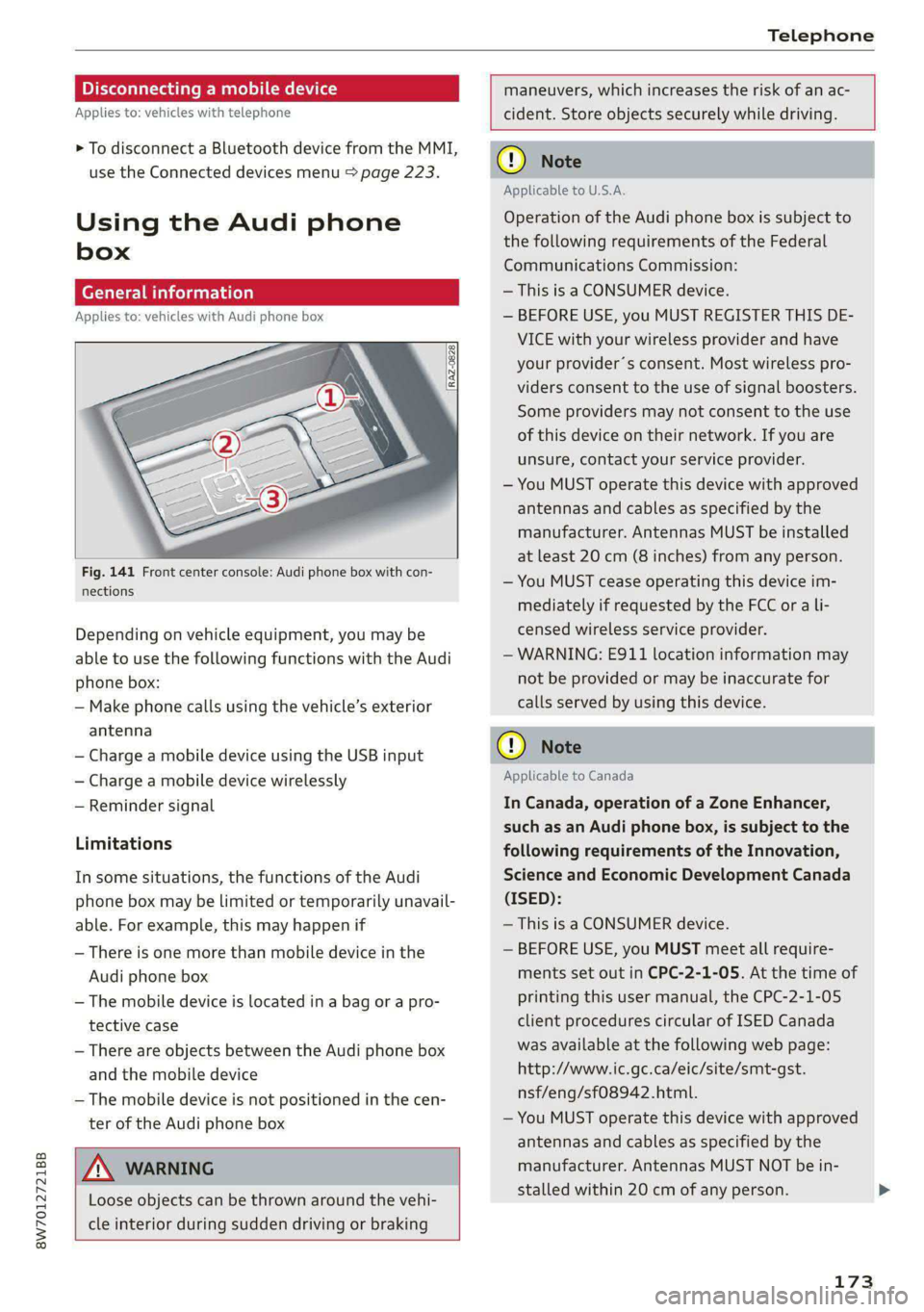
General information
Applies to: vehicles with Audi phone box
Fig. 141 Front center console: Audi phone box with con-
nections
Depending on vehicle equipment, you may be
able to use the following functions with the Audi
phone box:
— Make phone calls using the vehicle’s exterior
antenna
— Charge a mobile device using the USB input
— Charge a mobile device wirelessly
— Reminder signal
Limitations
In some situations, the functions of the Audi
phone box may be limited or temporarily unavail-
able. For example, this may happen if
— There is one more than mobile device in the
Audi phone box
— The mobile device is located in a bag or a pro-
tective case
— There are objects between the Audi phone box
and the mobile device
— The mobile device is not positioned in the cen-
ter of the Audi phone box
A WARNING
Loose objects can be thrown around the vehi-
cle interior during sudden driving or braking
maneuvers, which increases the risk of an ac-
cident. Store objects securely while driving.
CG) Note
Applicable to U.S.A.
Operation of the Audi phone box is subject to
the following requirements of the Federal
Communications Commission:
— This is a CONSUMER device.
— BEFORE USE, you MUST REGISTER THIS DE-
VICE with your wireless provider and have
your provider’s consent. Most wireless pro-
viders consent to the use of signal boosters.
Some providers may not consent to the use
of this device on their network. If you are
unsure, contact your service provider.
— You MUST operate this device with approved
antennas and cables as specified by the
manufacturer. Antennas MUST be installed
at least 20 cm (8 inches) from any person.
— You MUST cease operating this device im-
mediately if requested by the FCC or a li-
censed wireless service provider.
— WARNING: E911 location information may
not be provided or may be inaccurate for
calls served by using this device.
® Note
Applicable to Canada
In Canada, operation of a Zone Enhancer,
such as an Audi phone box, is subject to the
following requirements of the Innovation,
Science and Economic Development Canada
(ISED):
— This is a CONSUMER device.
— BEFORE USE, you MUST meet all require-
ments set out in CPC-2-1-05. At the time of
printing this user manual, the CPC-2-1-05
client procedures circular of ISED Canada
was available at the following web page:
http://www.ic.gc.ca/eic/site/smt-gst.
nsf/eng/sf08942.html.
— You MUST operate this device with approved
antennas
and cables as specified by the
manufacturer. Antennas MUST NOT be in-
stalled within 20 cm of any person.
173
Page 177 of 318
8W7012721BB
Telephone
Mobile device reminder signal
Applies to: vehicles with Audi phone box
When the device reminder signal is switched on,
you will be notified that your mobile device is still
in the Audi phone box when you leave the vehicle.
Requirement: your mobile device must be located
in the Audi phone box (if Qi-capable) or connect-
ed to the Audi music interface with a USB adapt-
er, and the Audi smartphone interface must be
active or your iPhone must be connected to the
MMI via Bluetooth and charging using a USB
adapter connected to the Audi music interface.
> Applies to: MMI: Select on the home screen:
SETTINGS > General > Reminder signal and
mobile device charging.
The following settings may be available, depend-
ing on vehicle equipment:
— Signal tone
— Off
Spoken cue
this setting is switched on at the factory.
Mobile device notes: reminder, charge level
When this function is switched on, the charge
status of your mobile device is displayed. You will
also be reminded not to forget your mobile de-
vice when leaving the vehicle.
Using the telephone
Accessing the telephone functions
Applies to: vehicles with telephone
nn @y
ee oo ar
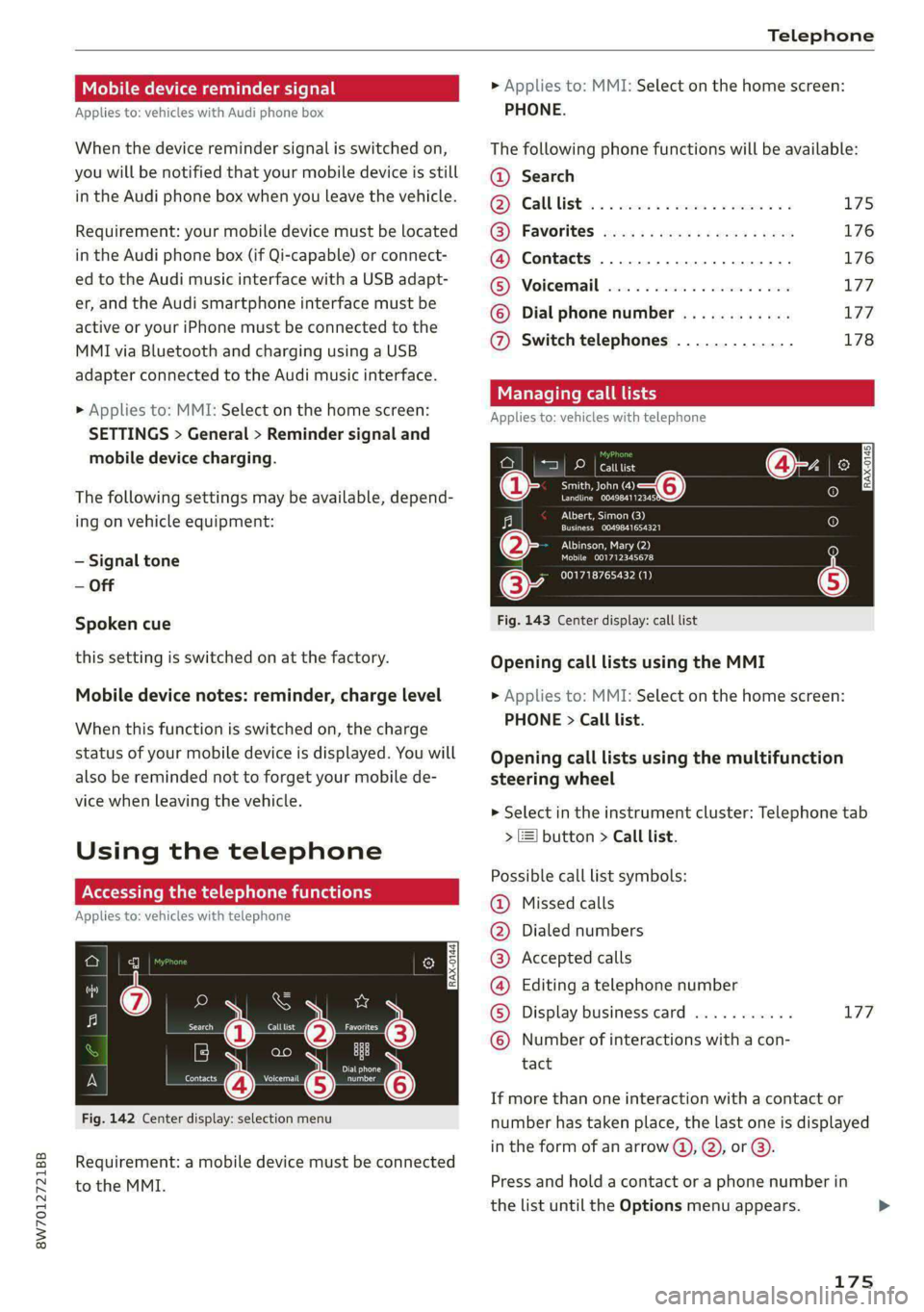
Fig. 142 Center display: selection menu
Requirement: a mobile device must be connected
to the MMI.
> Applies to: MMI: Select on the home screen:
PHONE.
The following phone functions will be available:
@ Search
OS) GAMUT ISE oc sesone 2 0 cweeme oe comes as 175
@) Favorites eco: ss esses yeeeys vows 176
@ Contacts .............0.0.000. 176
(BS) “Voicemail sie: «2 ceca 2 2 wiccovs 2 4 snsoa 177
© Dial phone number ............ 177
@ Switch telephones ............. 178
call
Applies to: icles with telephone
Pe DP | catttist
Te ny o—@
Prec rer a
j fo}
[RAX-0145]
U7
on
Albert, Simon (3)
a) Creme ZEY |
Albinson, Mary (2)
esCM Are 27)
(34 001718765432 (1)
Fig. 143 Center display: call list
Opening call lists using the MMI
> Applies to: MMI: Select on the home screen:
PHONE > Call list.
Opening call lists using the multifunction
steering wheel
> Select in the instrument cluster: Telephone tab
> 2) button > Call list.
Possible call list symbols:
Missed calls
Dialed numbers
Accepted calls
Editing a telephone number
Display business card ........... 177
©OOOCOLO Number of interactions with a con-
tact
If more than one interaction with a contact or
number has taken place, the last one is displayed
in the form of an arrow @), @), or @).
Press and hold a contact or a phone number in
the list until the Options menu appears.
175