navigation system AUDI A5 COUPE 2018 User Guide
[x] Cancel search | Manufacturer: AUDI, Model Year: 2018, Model line: A5 COUPE, Model: AUDI A5 COUPE 2018Pages: 409, PDF Size: 67.63 MB
Page 114 of 409
Assistance systems
Resetting lap statistics
.,. On the multif unction steering whee l, select:
the right control button
> Reset statistics.
@ Tips
The lap stat istics l ist the lap times for the last
30 laps. The fastest and slowest lap time out
o f up to 99 measured laps are also displayed .
Predictive efficiency
assist
Description
Applies to: vehicles with predictive efficiency assist
General information
The predictive efficiency assist helps the driver to
d rive with anticipation and therefore helps to
save fuel. The system accesses predict ive trip da
ta (including speed limits, inclines and the radius
of curves) from the navigation system*. Informa
tion from the camera-based traffic sign recogni
tion* is also applied to recogni ze traffic signs
r::;i page 109 .
The messages displayed depend on the naviga
tion data * being up-to-date and the correct iden
tification by the traffic sign recognition*.
When adaptive cruise contro l* is switched off,
the predict ive efficiency assist only provides noti
fications without controlled interventions. When
adaptive cruise control* is switched on, the sys
tem responds to upcoming situations automati
cally .
Vehicles with adaptive cruise control*
Refer to predictive control c> page 120.
Indicator in the instrument cluster display
Predictive messages appear in the instrument
cluster display to show the driver the appropriate
time to coast when a situation ahead requires
you to drive at a lower speed.
The messages are only shown if the cr uise control
system* or adaptive cruise control* is switched
off.
112
An additional indicator appears in the head-up
display* .
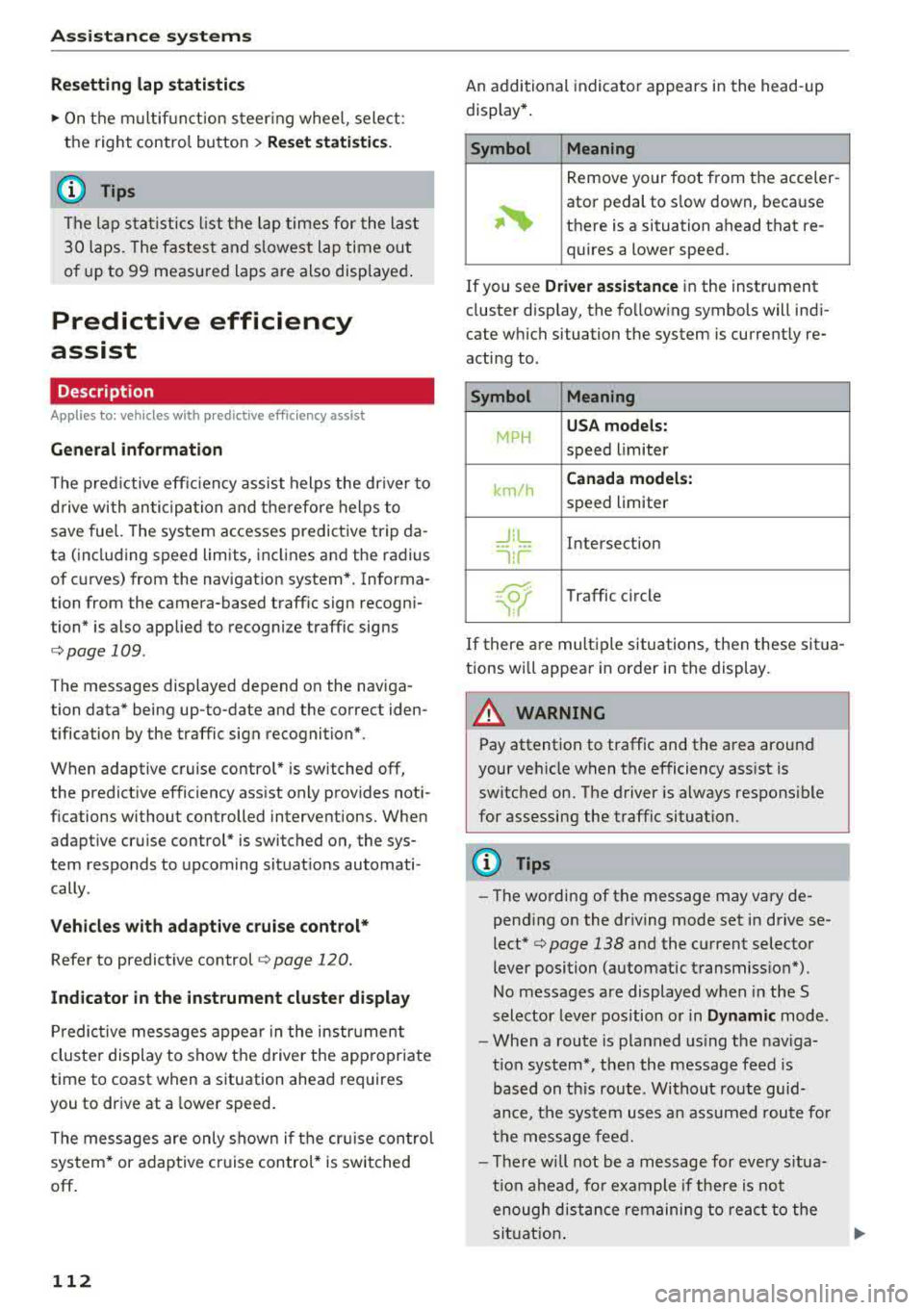
Symbol Meaning
Remove your foot from the acceler-
~
ator pedal to slow down, because
there is a situation ahead that re- quires a lower speed.
If you see
Driver assistance in the instrument
cluster display, the following symbols will indi
cate which situation the system is currently re
acting to .
Symbol Meaning
MPH
USA models:
speed limiter
km/h
Canada models:
speed limiter
_J!L Intersection
'"l i r
w
Traffic c ircle
If there are mult iple situations, then these situa
tions wi ll appear in order in the display.
_&. WARNING
Pay attention to traffic and the area around
your vehicle when the efficiency assist is
switched on. The driver is always respons ible
for assessing the traffic situation.
(D Tips
- The wording of the message may vary de
pending on the dr iving mode set in drive se
lect* c> page 138 and the current selector
lever position (automatic transmiss ion*) .
No messages are displayed when in the S
selector lever position or in
Dynamic mode.
- When a route is planned using the nav iga
t ion system*, then the message feed is
based on this route . Without route guid
ance, the system uses an assumed route fo r
the message feed.
- There will not be a message for every situa
tion ahead, fo r example if there is not
enough distance remaining to react to the
situation.
Page 115 of 409
-No messages are displayed when at speeds
under
20 mph (30 km/h) .
Settings in the Infotainment system
Applies to: veh icles with predictive efficiency assist
~ In the Infotainment system, select: IMENU !
button > Vehicle > left control button > Driver
assistance
> Efficiency assist .
Predictive messages are shown when this f unc
tion is sw itched on.
(D Tips
No predictive messages are shown on vehicles
w ithout a navigation system .
Audi adaptive cruise
control
Description
Applies to: veh icles with Audi adaptive cruise contro l
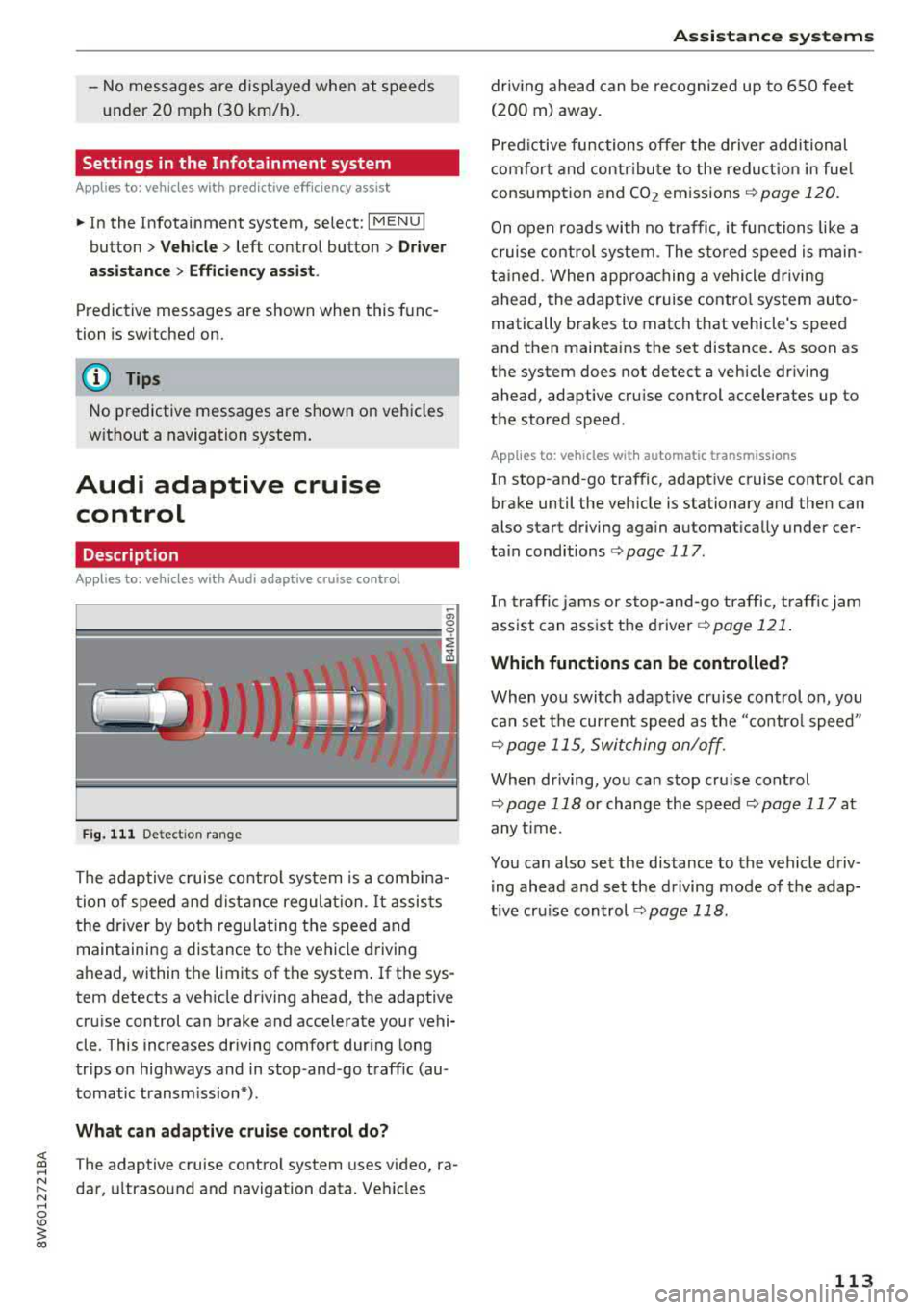
Fig. 111 De tect ion range
The adaptive cruise control system is a combina
t ion of speed and distance regulation.
It assists
the driver by both regulating the speed and
maintaining a distance to the vehicle driving
ahead, within the limits of the system . If the sys
tem detects a veh icle driving ahead, the adaptive
cru ise control can brake and acce lerate your vehi
cle . This increases driving comfort dur ing long
tr ips on highways and in stop-and -go traff ic (au
tomatic transm iss ion*) .
What can adaptive cruise control do?
<( ~ The adaptive cruise contro l system uses video, ra-
"' ~ dar, ultrasound and navigation data. Veh icles
.... 0 \0
3
driving ahead can be recognized up to 650 feet
(200 m) away.
Predictive functions offer the driver additional
comfort and contr ibute to the reduction in fue l
consumption and CO2 emissions
¢ page 120.
On open roads with no traffic , it functions like a
cruise control system. The stored speed is main
tained . When approaching a vehicle driving
ahead, the adaptive cruise contro l system auto
matically brakes to match that vehicle's speed
and then mainta ins the set distance. As soon as
the system does not detect a vehicle dr iv ing
ahead, adaptive cru ise control accelerates up to
the stored speed .
Applies to: vehicles with automatic transmissions
In stop-and-go traffic, adaptive cruise control can
brake until the veh icle is stationary and then can
also start driving again automat ically under cer
ta in cond itions
¢ page 117.
In traffic jams or stop-and -go traffic, traffic jam
ass ist can assist the
driver ¢ page 121.
Which functions can be controlled?
When you switc h adapt ive cruise control on, you
can set the current speed as the "contro l speed"
¢ page 115, Switching on/off.
When driving, you can stop cru ise control
¢ page 118 or change the speed ¢ page 117 at
any time.
You can also set the distance to the vehicle driv ing ahead and set the driving mode of the adap
t ive cru ise control
¢ page 118.
113
Page 122 of 409
Assistance systems
Predictive control
(efficiency assist)
Description
Applies to: vehicles with Audi adaptive cruise control and pre·
dict ive efficiency assist
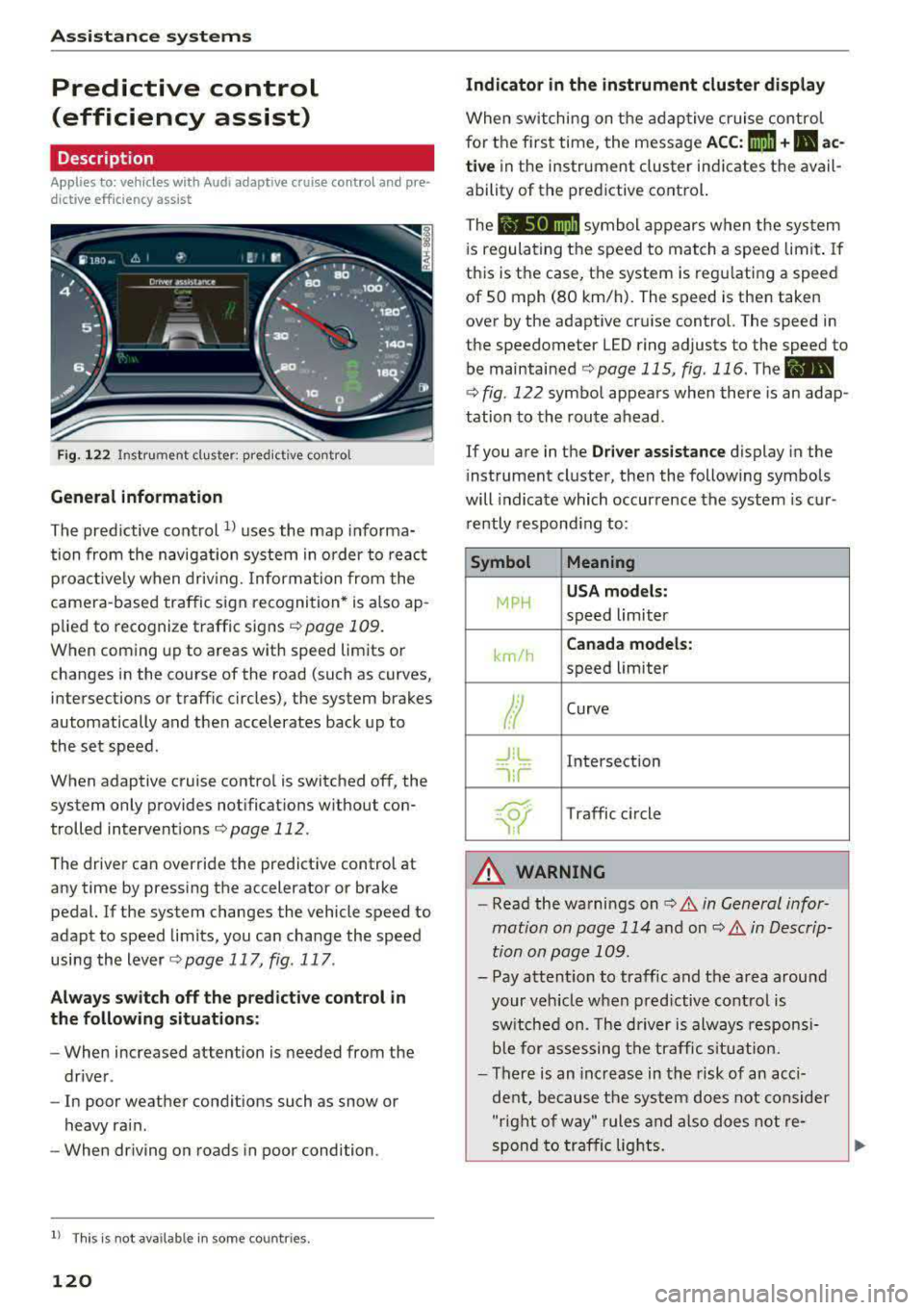
Fig. 122 Instrument cluster: predictive control
General information
The predictive control 1l uses the map informa·
tion from the navigation system in order to react
proactively when driving. Information from the
camera -based traffic sign recognition* is also ap·
plied to recognize traffic signs
r::!> page 109.
When coming up to areas with speed limits or
changes in the course of the road (such as curves,
inte rsections or traffic circles), the system brakes
automatically and then accelerates back up to
the set speed.
When adaptive cruise cont rol is switched off, the
system only provides notificat ions without con
trolled intervent ions
r::!> page 112 .
The driver can override the predictive control at
any time by pressing the accelerator or brake
pedal. If the system changes the vehicle speed to
adapt to speed limits, you can ch ange the speed
using the lever
<:!> page 117 , fig . 117 .
Always switch off the predictive control in
the following situations:
- When increased attention is needed from the
driver .
- In poor we ather condit ions such as snow or
heavy rain .
- When driving on roads in poor condition.
l) This is no t a vail able in som e coun trie s.
120
Indicator in the instrument cluster display
When switching on the adaptive cruise control
for the first time, the message
ACC: 1111 + B ac
tive
in the instr ument cluster indicates the avail
ability of the predictive control.
The symbol appears when the system
i s regulating the speed to match a speed limit .
If
this is the case, the system is regulating a speed
of 50 mph (80 km/h). The speed is then taken
over by the adaptive cruise control. The speed in
the speedometer LED ring adjusts to the speed to
be maintained
r::!> page 115, fig. 116 . The ..
r::!> fig. 122 symbol appears when there is an adap
tation to the route ahead .
If you are in the
Driver assistance display in the
i nstrument cluster, then the following symbols
will indicate which occurrence the system is cur
rently responding to:
Symbol Meaning
MPH
USA models:
speed limiter
km/h
Canada models:
speed limiter
Ir
Curve
_J!L
,ir
Intersection
~ Traffic circle ·· Of );
A WARNING
- Read the warnings on c> .& in General infor
mation on page 114
and on r::!> .& in Descrip
tion an page 109 .
-Pay attention to traffic and the area around
your vehicle when predictive control is
sw itched on. The driver is always responsi
ble for assessing the traffic situation.
-There is an increase in the risk of an acci
dent, because the system does not consider
"right of way" rules and also does not re-
spond to traffic lights.
._
Page 123 of 409
-The system only considers traffic signs that
give a speed limit.
- The permitted speed can be exceeded if the
adaptation to a speed limit is incorrect. The dr iver is responsible for adhering to the per
mitted speed.
- The speed at which a curve is driven through
does not necessarily match your own driving
style . Brake the vehicle yourself when need
ed to reduce the r isk of a n accident .
(D Tips
-If a speed limit is detected, the stored
speed is also adjusted in the speedometer
L ED line when the adaptive cruise control is
not active .
- The adaptation by the system depends on
the driving mode set in drive select* .
- Switch ing off pred ictive control, for exam
ple when dr iving in low traffic zones, does
not cause the adaptive cru ise control to
switch off.
-After switching on the ignit ion, the system
i nit ially adjusts to a speed of 80 mph
(130 km/h) when driv ing onto h ighways
wi thou t a speed limit . Then the system ad
ju sts to the last speed stored by the driver.
- There is no adaptation to speed limits when
driv ing thro ugh highway interchanges and
when driving on o r off the expressway.
- There is no predictive cont rol at speed limits
u nder 20 mph (30 km/h).
- If a speed limit is only detected by the cam
era and the actual speed is s ignificantly
h igher, then the speed limit will blink i n the
display unti l you have reached the requ ired
speed
~ page 110 .
-Incorrect values from the camera-based
traffic sign recognition* or outdated naviga
tion system map data can lead to incorrect
or implausible control.
- When route guidance is switched on, the
system adapts to the route provided by the navigation system. Driving w ithout route
guidance or leaving a route can resu lt in im
plaus ible control.
A ss is ta nce syst ems
-The system switches off when outside of a
road system that is recorded in the naviga
tion system map data .
Setting predictive control
Applies to: vehicles with Aud i adapt ive cru ise control and pre
dic tive efficiency assist
.,. Select in th e Infotainment system: I MENU ! but
ton
> V ehicle > left control b utton > D riv er as
s istance
> Audi adapti ve cruise cont ro l > Pr e
dictive co ntrol.
Set speed limit -
when this function is switched
on, the system adjusts to the speed limits. This
can also be done w ith at to lerance, if desired. In
th is scenario , you may fall below or exceed the
set speed in favor of increased efficiency .
Adaptation to route ahe ad -when this function
is sw itched on, the system adapts to the route
ahead (su ch as reducing the speed in curve s).
Traffic jam assist
Description
Appl ies to: vehicles with traffic jam assist
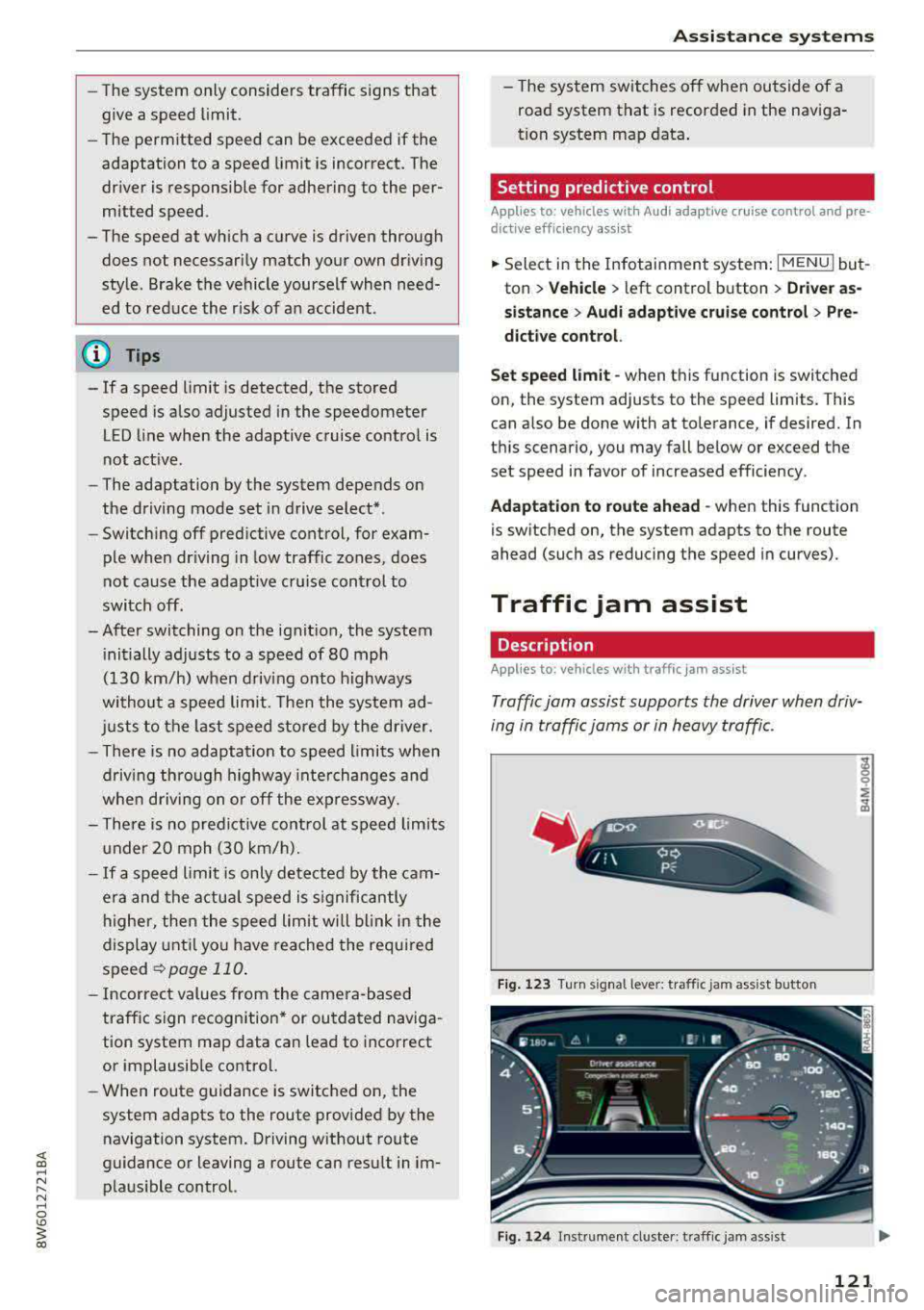
Traffic jam assist supports the driver when driv
ing in traffi c jams or in heavy traffic.
F ig . 1 23 Turn signa l leve r: tra ffic jam assist butto n
Fig. 124 Instrumen t cl uster: traff ic jam ass is t
121
Page 160 of 409
Multi Media Interface
Multi Media Interface
Traffic safety information
Audi recommends performing certain Infotain
ment system functions, such as entering a desti
nation, only when the vehicle is stationary . Al
ways be prepared to stop operat ing the Infotain
ment system in the interest of your safety and
the safety of other road users.
_& WARNING
Only use the Infotainment system when traf
fic cond itions permit and always in a way that
allows you to maintain complete control over
your vehicle.
@ Tips
Certain funct ions are not available wh ile driv
ing .
Introduction
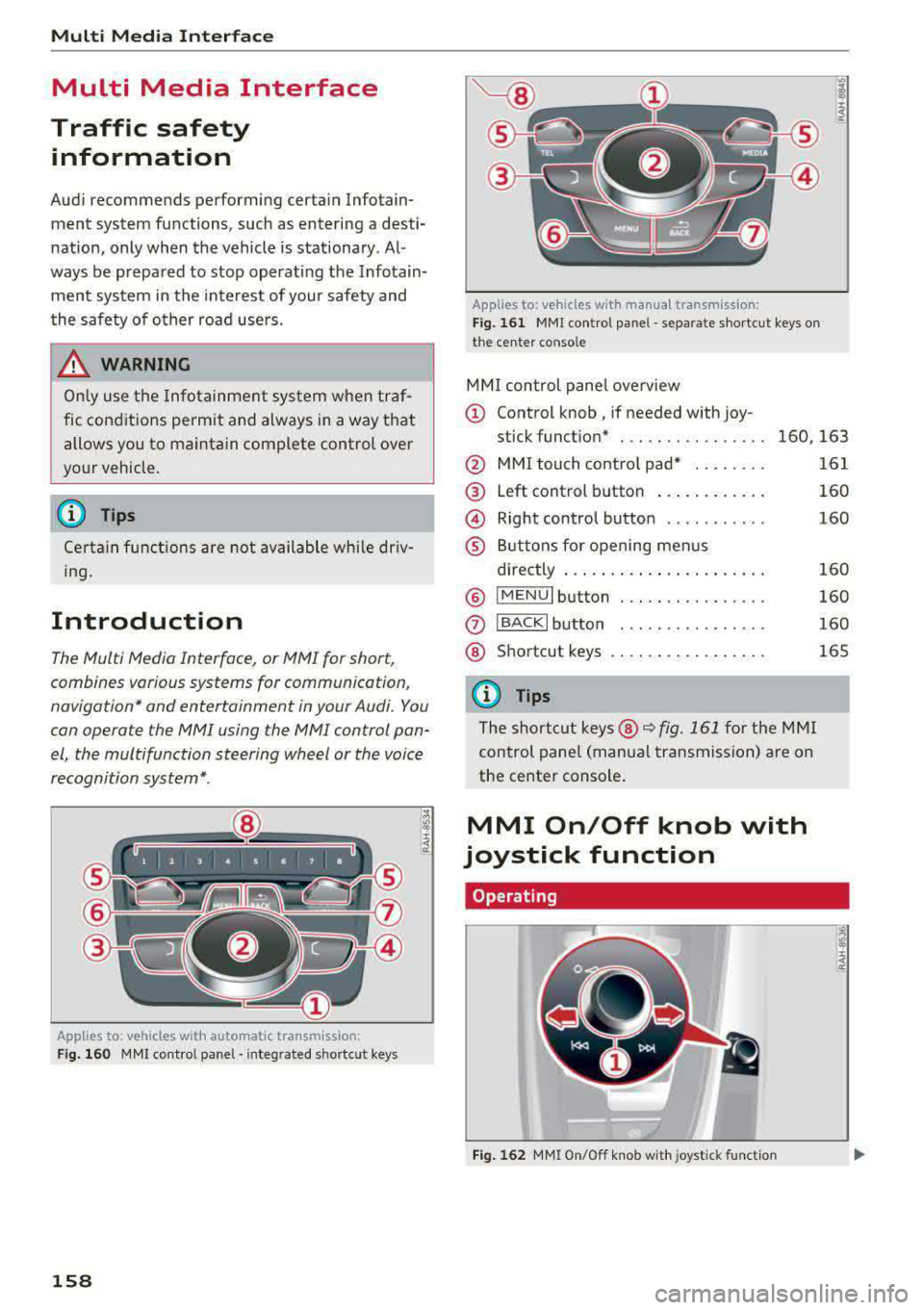
The Multi Media Interface, or MMI for short,
combines various
systems for communication,
navigation* and entertainment in your Audi . You
can operate the MMI using the MMI control pan
el, the multifunction steering wheel or the voice
recognition system* .
Applies to: vehicles with automatic transmission:
F ig. 160 MMI contro l panel· integ rated shortc ut keys
158
Applies to: ve hicles with manual transmission:
Fig. 161 MMI control pane l
-separate shortcut keys on
the ce nter conso le
MM I control panel overview
(D Control knob , if needed with joy-
stick function* . . . . . . . . . . . . . . . . 160, 163
@ MMI touch contro l pad* ....... .
@ Left control button ........... .
@ Right control button .......... .
® Buttons for opening menus
directly ..................... .
® IMENUI button ..... .... ...... .
0
®
IBACK I button
Shortcut keys
(0 Tips
The shortcut keys @¢ fig. 161 for the MMI
control panel (manua l transmission) are on
the center conso le .
MMI On/Off knob with
joystick function
Operating
•
Fig. 162 MMI On/Off knob w ith joystick function
161
160
160
160
160
160
165
Page 172 of 409
Voice recognition system
• Telephone
• Audi connect •
Favorites
• Call (XV)
• Navigation
• Directory
• Radio
• Media
• Sound •
Enter number
• Redial
• Read new text message
• Navigate to
(XY)
• Enter address/destination
• Help • Online destinations
• Help Speech dialog system
• Help Telephone •
Cancel route guidance
• Map
• Help Audi connect •
Line
(XV)
• Help Navigation
• Help
Map
• Help Radio •
Next page/ previous page
• Cancel
• No. I meant (XV)
• He lp Media • Correction
TE ,EPflON ~
• Enter number • Call list
• Delete number/ correction • Redial
•
Directory
• Call (XV)
• Call mailbox
• Telephone favorites
· business/ private/ land tine
I mobile
• Nav igate to
(XV)
• Start I cancel route guidance
• Directory
• Last destinations •
Block route for (XV) miles
I Block
the next section
• Route list
• Calculate alternative routes
• Nav igation favorites
• Drive home
• Enter address •
Online destinations
• Special destination
• Enter country
I town I street/ state
• Exclude route/ Exclude route for
(XV) km/ m
• Map
• Day map/ Night map
• 2D
driving position map/ 20 north position map/ 3D map/ Destination map/ Overview map
~UJDI CONNECT
• Audi connect
• Travel Information/ Parking Information
• Fuel prices
• Weather
RADIO
• Radio presets
• FM
• FM /AM/ SIRIUS XM
• Station (XY) / Frequency (XV)
• Traffic announcement on
I off
Fig. 178 Comm and overv iew
170
•
• Flight Information
•
City events
• Online news
• Twitter
MEDIA
• Jukebox
• CD
I DVD
• SD card l / SD card 2
• Audi music Interface/ I Pod/ USB / Bluetooth /
WI -Fl/ Med ium (XV)
• Media favorites / Artists / Albums / Genres /
Tracks/ Playllsts / Videos
• Folder up
• Random playback on/ off
Page 173 of 409
Voice recognition system Operating
Appl ies to: veh icles wit h vo ice recog nitio n system
You con operate many Infotainment functions
conveniently by speaking .
Requirements: the ignition and the MM I must be
switched on
~page 158, the re must not be any
phone call in progress and the park ing system
must not be active.
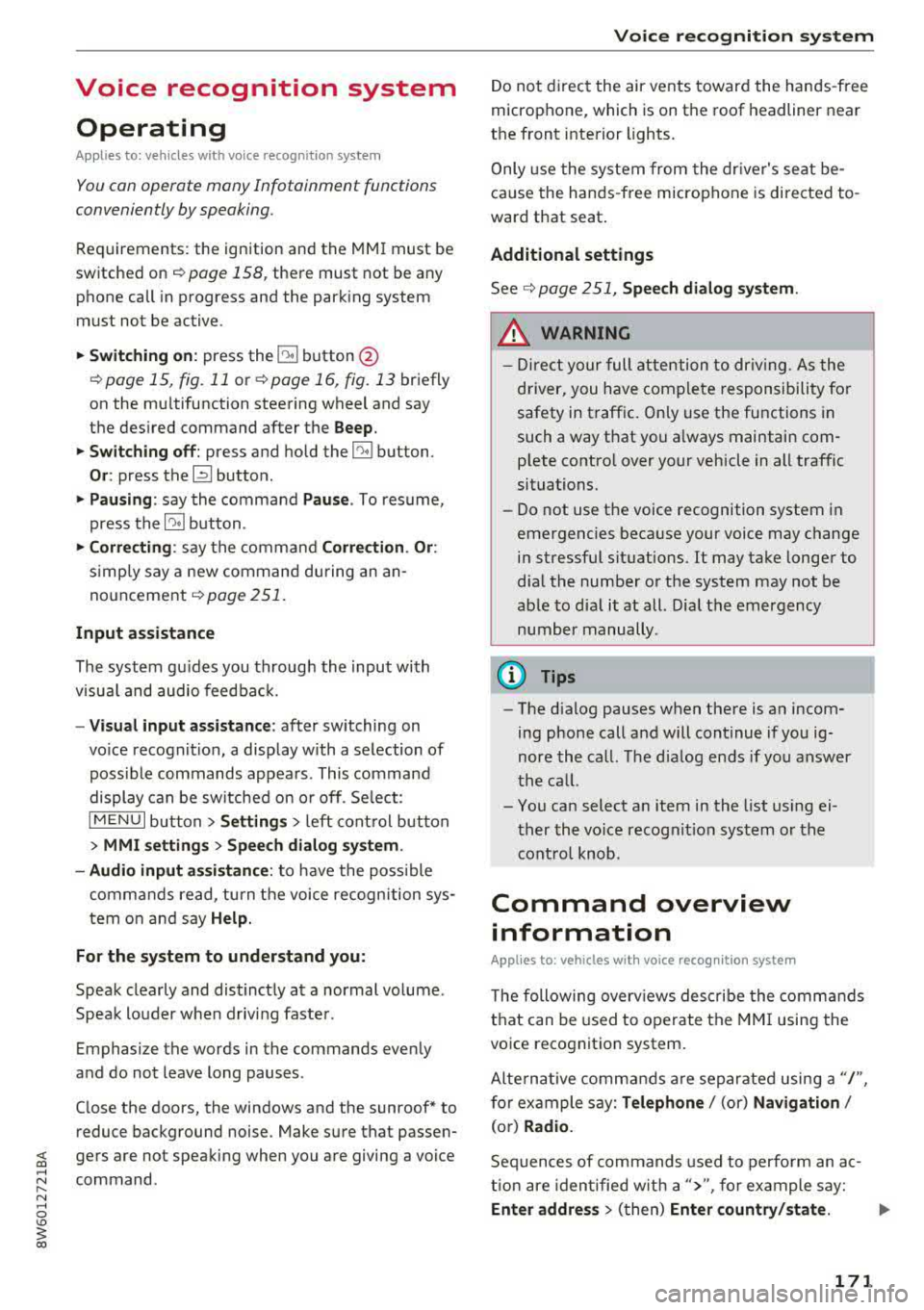
~ Switching on : press the 51 button@
~ page 15, fig. 11 or~ page 16, fig. 13 briefly
on the mu ltifunction steering wheel and say
the des ired command after the
Beep .
~ Switching off : press and hold the 51 button.
Or: press the [2] butto n.
~ Pau sing : say the command Pau se . To resume,
press the
l2;J button .
~ Correcting : say the command Corre ction . Or :
simply say a new command during an an
nouncement
<=> page 251.
Input assistance
The system gu ides you throug h the input with
v isua l and audio feedbac k.
- Vi sua l input as sistan ce: after switching on
vo ice recogn it io n, a display w ith a selection of
poss ible commands appears. This command
display can be sw itched on o r off. Se lect:
IMENU I button> Setting s> left cont rol button
> MMI setting s > Speech dialog system .
- Audio input a ssis tance :
to have the poss ible
commands read, tu rn the voice recognition sys
tem on and say
Help.
For the s yst em to understand you:
Speak clearly and dist inctly at a normal vo lume .
Speak louder when d riving faste r.
Emphasize the words in the commands evenly
and do not leave long pauses .
C lose the doors, the windows and the sunroof* to
reduce background noise . Make sure that passen-
;;!; gers are not speaking when you are giving a voice
;::; command. ,....
N .... 0 \0
3
Do not direct the air vents toward the hands-free
microphone, which is on the roof headliner near
t h e front inte rior lights .
Only use the system from the dr iver's seat be
ca use the hands -free microphone is directed to
ward that seat.
Additional settings
Seer=;, page 251, Spee ch dialog system .
A WARNING
-Direct your full attention to dr iv ing. As the
driver, you have complete responsibility for
safety in traffic . Only use the functions in
such a way that you a lways maintain com
p lete contro l over your vehicle in all traffic
situations.
-Do not use the voice recognition system in
emergencies beca use your voice may change
in stressful situations. It may take longer to
d ial the number or the system may not be
able to dial it at all. Dial the emergency
number manually.
@ Tips
- The d ialog pauses when there is an incom
ing phone call and will continue if you ig
nore the call. The d ialog ends if you answer
the ca ll.
- You can select an item in the list using ei
ther the vo ice recognit ion system or the
cont rol knob .
Command overview
information
Appl ies to: ve hicles w ith vo ice recognit ion system
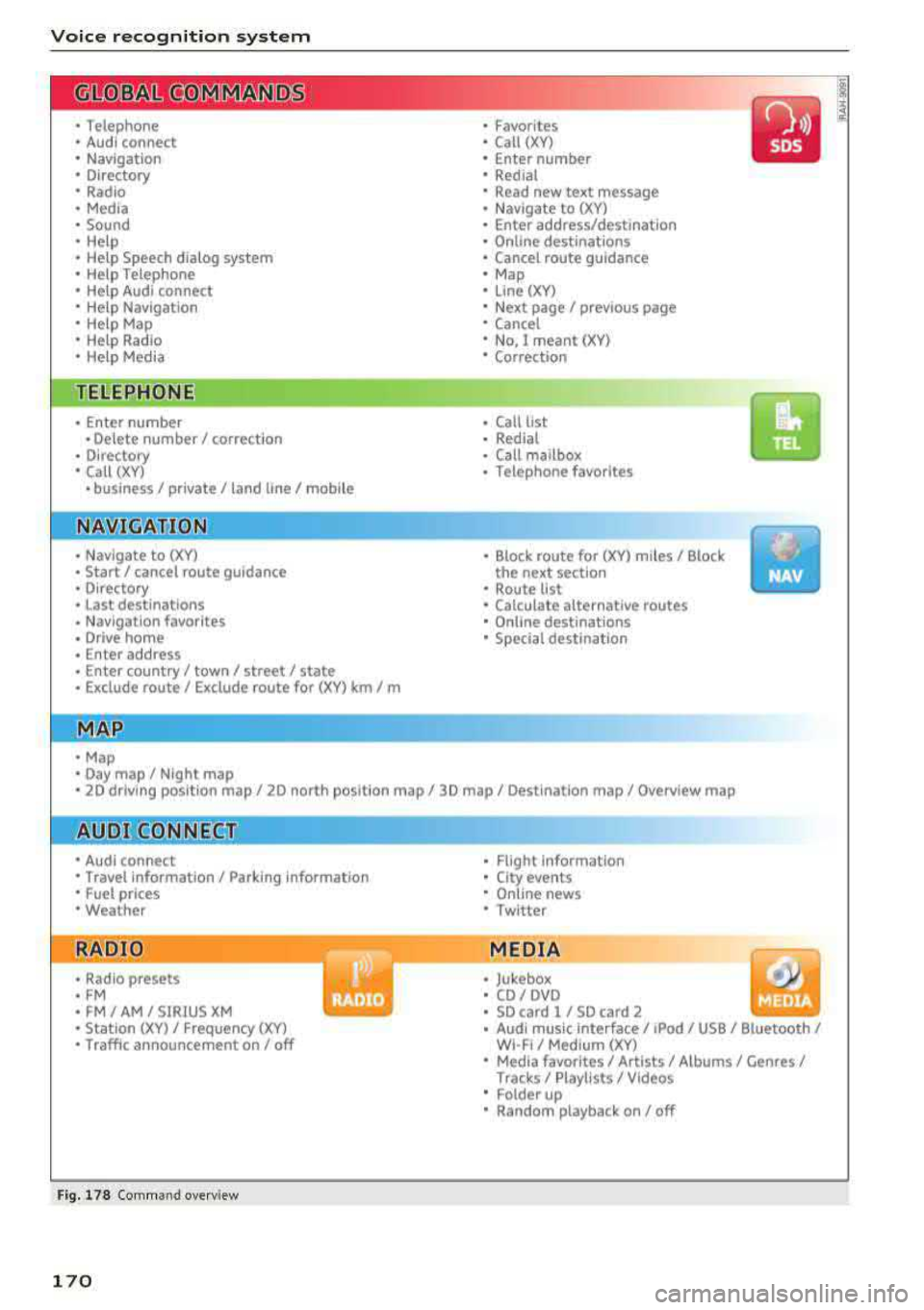
T he following overv iews describe the comma nds
t h at can be used to operate the MMI using the
voice recognition system.
Alte rnative commands a re separate d using
a"/",
for example say: Telephone / (or) Navigation /
(or) Radio.
Sequences of commands used to perfo rm an ac
t ion are iden tified w it h
a"> ", fo r ex ample say:
Ente r addre ss > (t hen) Enter country /state . ..,.
171
Page 174 of 409
Voice recognition system
The majority shown are main commands . This
system also recognizes synonyms in ce rtain cas- es
. For a Business addre ss, you can also say busi
ness , work , office or at the office .
Commands
Global commands
Applies to: vehicles with voice recogn ition system
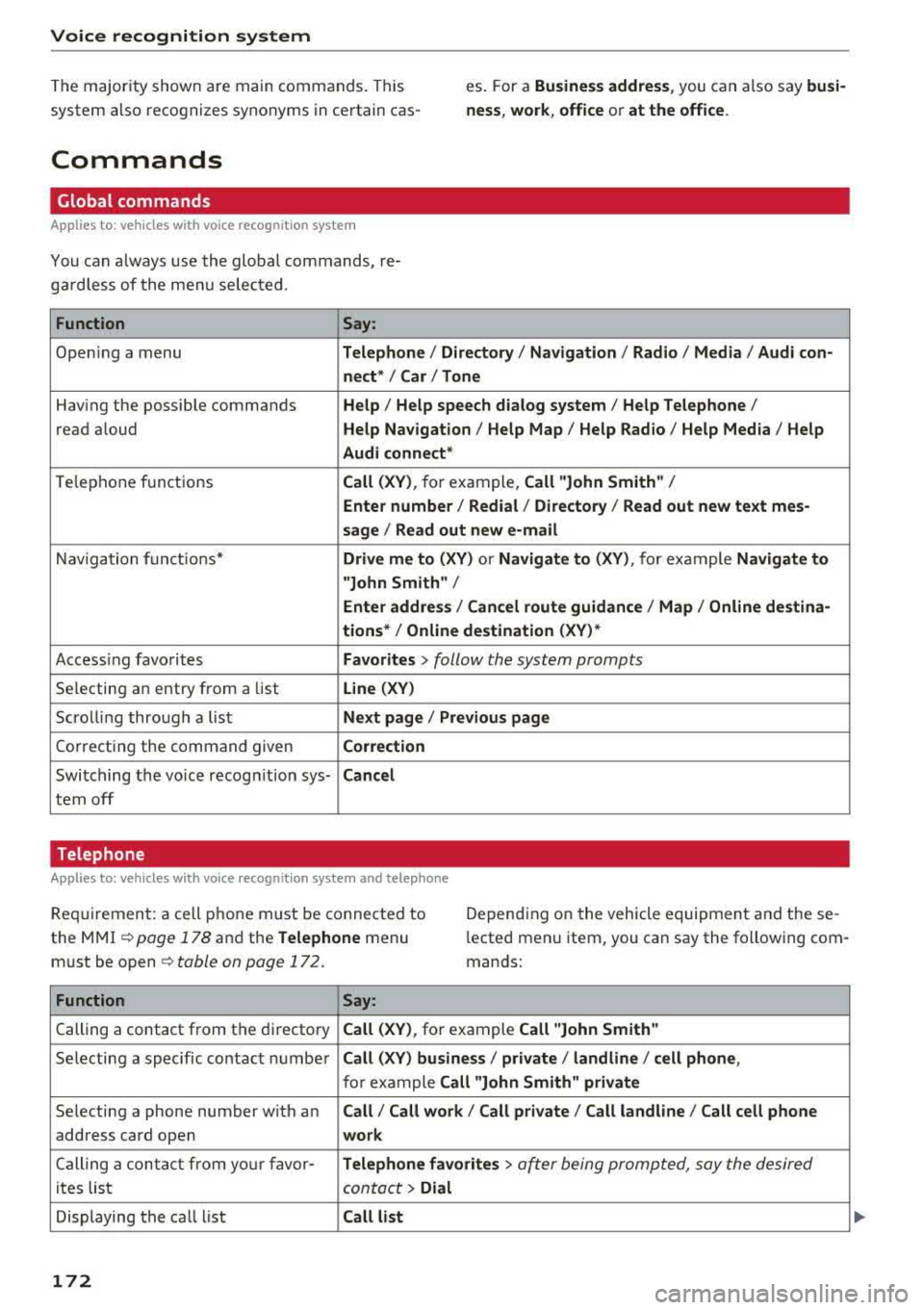
You can a lways use th e global commands, re
g ar dless of the me nu selec ted.
Function Say:
Opening a menu Telephone / Directory / Navigation / Radio / Media / Audi con-
nect * /Car / Tone
Hav ing the possible commands Help / Help speech dialog system / Help Telephone /
read aloud Help Navigation / Help Map / Help Radio / Help Media / Help
Audi connect*
T elephone f unctions Call (XV) , for example , Call "John Smith" /
Enter number / Redial / Directory / Read out new text mes-
sage
I Read out new e -ma il
Nav ig at ion f un ct io ns* Drive me to (XY ) or Navigate to (XV) , for example Navigate to
"John Smith" /
Enter address / Cancel route guidance / Map / Online destina-
tions* / Online destination (XV )*
Accessing favorites Favorites > follow the system prompts
Selecting a n entry from a list Line (XV)
Scro llin g thro ugh a lis t Next page / Previous page
Co rrecting the command given Correction
Swi tching the voice recog nition sys-Cancel
tern off
Telephone
Applies to: vehicles with voice recognition system and telephone
Requ ir emen t: a cell phone must be connected to
the MMI
¢page 178 and the Telephone menu
m ust be open
¢ table on page 172.
Depend ing on the vehicle equipmen t and these
l ected men u item, you can say the following com
mands:
Function Say:
Calling a contact from the d irecto ry Call (XV) , for example Call "John Smith"
Se lecting a specific co ntac t nu mbe r Call (XV) business / private / land line / cell phone ,
for ex am ple Call "John Smith" private
Selecting a phone number w ith an Call / Call work / Call private / Call land line / Call cell phone
address card open work
Ca lling a con tac t fr om yo ur favor-Telephone favorites > a~er being prompted, say the desired
ites lis t contac t > Dial
Displaying the ca ll list Call list
172
Page 176 of 409
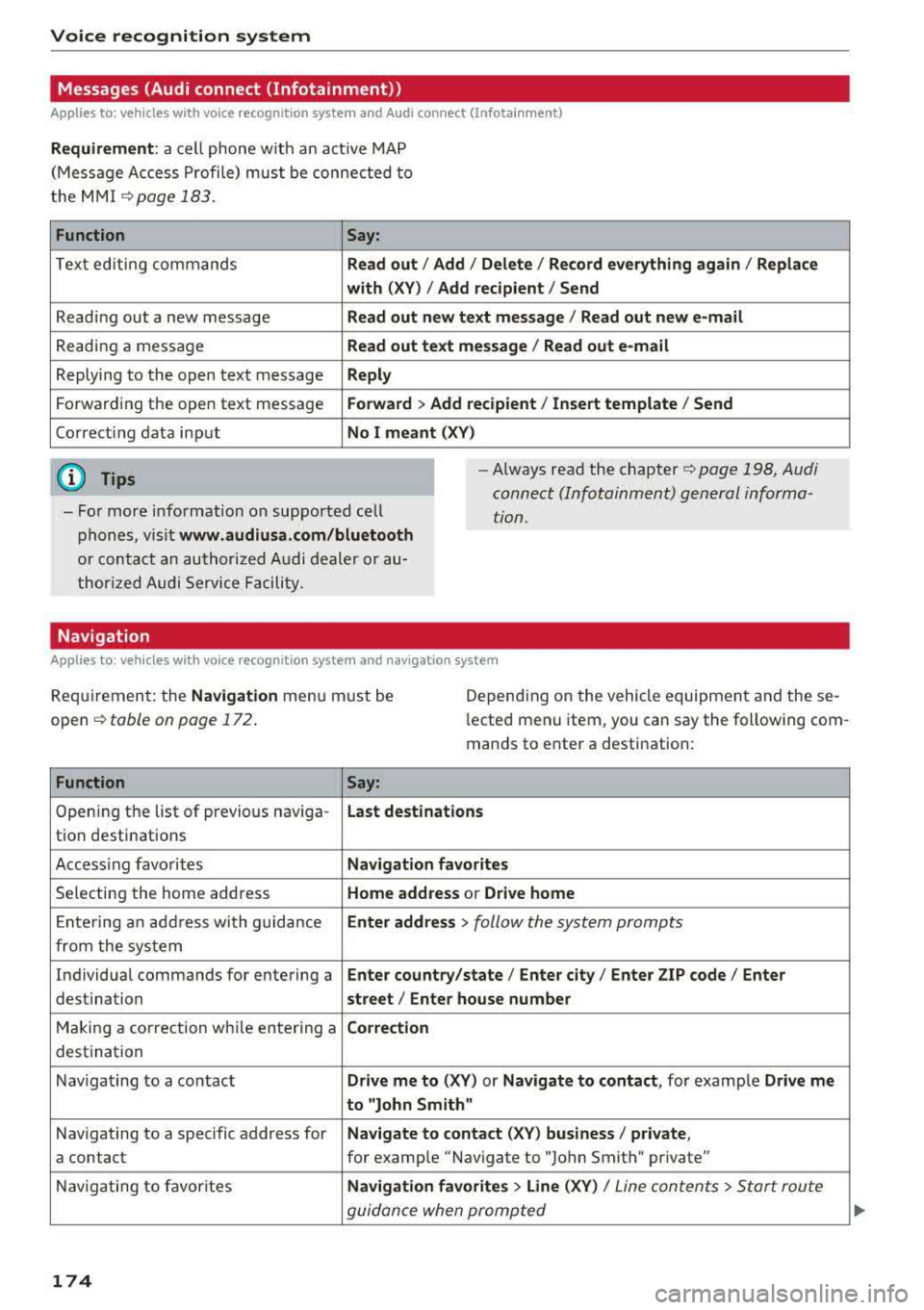
Voice recognition system Messages (Audi connect (Infotainment))
Applies to: vehicles with voice recognition system and Audi connect (Infotainment)
Requirement : a ce ll phone w ith a n active MAP
(Message Access Profi le) mus t be connected to
t he MMI
¢page 183 .
Function Say:
T ext ed iti ng commands Read out /Add i/ Delete / Re cord everything again / Replace
with (XV )/ Add recipient / Send
Reading out a new message Read out new te xt me ssage / Re ad out new e-mail
Reading a message Read out text message / Read out e-mail
Replying to the open text message Reply
Forwarding the open text message Forward > Add recipient / Insert template / Send
Correcti ng data inp ut No I meant (XV)
@ Tips
-Fo r more information on suppo rted cell
p hones, v is it www .audiusa.com /bluetooth
or contact an authori zed A udi dealer or au
thori zed Audi Service Facili ty.
-Always read the chapter¢ page 198 , Audi
connect (Infotainment) general informa
tion.
Navigation
Applies to : vehicles with voice recognition system and navigation system
Requiremen t: the Navigation menu m ust be
open
¢ table on page 172 .
Depending on the vehicle equipmen t an d these
l ected menu item, you can say the following com
mands to enter a destination:
Function Say:
Open ing the list of previous naviga -Last destinati ons
tio n destinations
Access ing favo rites Navigation favorites
Selecting the home add ress Home address or Drive home
E nte ring a n add ress wi th guidance Enter address
> follow the system prompts
from the system
Individua l comma nds for entering a Enter country/state / Ente r city / Enter ZIP code / Enter
destination street/ Enter house number
Making a co rrection wh ile entering a Correction
destination
Naviga ting to a contact Drive me to
(XY) or Navigate to contact , for examp le Drive me
to "John
Smit h"
Navigating to a specific address for Navigate to conta
ct (XV ) business / private ,
a contact for example "Navigate to "John Smith " private"
Nav iga ting to f avorite s Navigation favorites > Line (XV) /
Line contents> Start route
guidan ce when promp ted
174
Page 177 of 409
<( a, .... N ,....
N .... 0 \0
3 a,
Voice recognition system
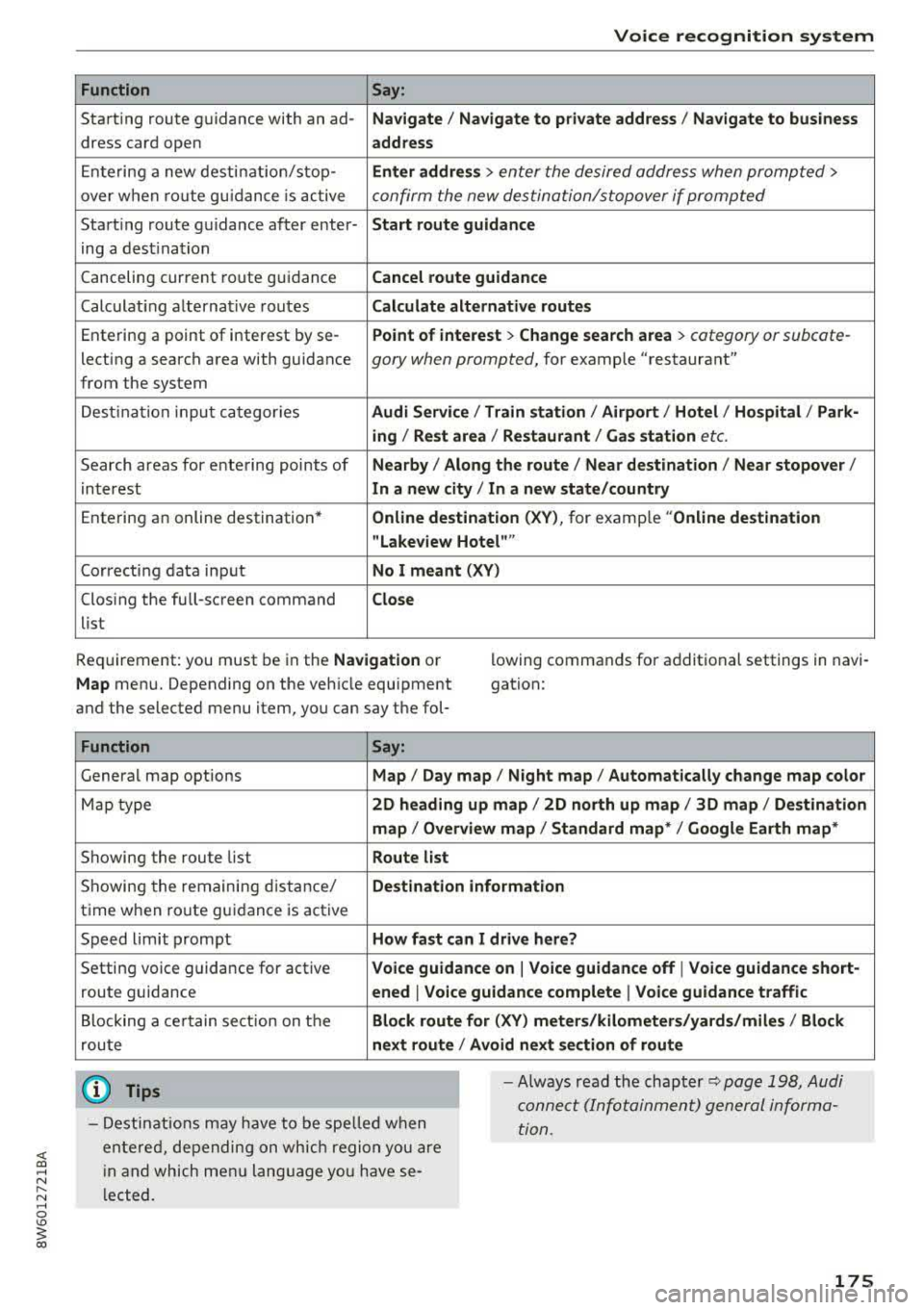
Function Say:
Starting route g uidance with an ad-Navigate / Navigate to p riv ate addre ss / Na vig ate to bu siness
dress card open address
Ente ring a new desti nat ion/stop-Enter addre ss > enter the desired address when prompted>
over when ro ute gu idance is ac tive confirm the new des tination/stopover if prompted
Start ing route guidance after enter-Start rout e guidance
ing a dest ination
Canceling current route guidance
Cancel route guidance
Calculat ing alternative routes Calculate alternative route s
Entering a point of interest by se-Point of interest > Change search area > category or subcote-
lecting a search area with guidance gory when prompted, for example "restaurant"
from the system
Dest ina tion i nput ca tegor ies
Audi Service / Train station /Airport / Hot el / Ho spita l / Park-
ing / Re st area / Restaurant / G as station
etc.
Search areas for entering points of Nearby/ Along the route I Near destination / Ne ar stopover /
interest In a new city/ In a new stat e/country
Entering an online destination* Online de stinat ion (XV), for examp le " Online de stination
" Lake view Hotel" "
Correcting data input No I meant (XV)
Clos ing the full-screen command C lo se
list
Requirement: you must be in the
Navigation or
Map menu. Depending on the vehicle equipment
and the selected menu item, you can say the fol-l
owing commands for additional settings in navi
gation:
Function Say:
General map options Map/ Da y map / N ight map / Automat icall y chang e map color
Map type 2D heading up map / 2D north up map / 3D map / De stination
map / Ov ervi ew map / Standard map* / Googl e Earth map *
Showing the route list Route list
Showing the remaining distance/ Destination information
time when route guidance is active
Speed limit prompt
How fa st can I dri ve her e?
Setting voice guidance for active Voice guidance on I Vo ice guidance off I V oice guidance short-
route guidance ened I Voi ce guidance complete I V oice guidance traffic
Blocking a ce rtain section on the Block route for (XV ) m ete rs/ kilometers /yards /mil es/ Block
route next rou te I Avoid n ext se ction of r oute
(D Tips
- Destinations may have to be spe lled when
entered, depending on which region you are
i n and which men u lang uage you have se
l ected. -
Always read the chapter
¢ pag e 198, Audi
conne ct (Infotainment) general informa
tion.
175