audio AUDI A5 COUPE 2018 Owner's Manual
[x] Cancel search | Manufacturer: AUDI, Model Year: 2018, Model line: A5 COUPE, Model: AUDI A5 COUPE 2018Pages: 409, PDF Size: 67.63 MB
Page 233 of 409
(CO) 6/VDE 0837. The optical readers that are in
stalled conform to safety class
1. Lasers in this
class are very weak and well shielded, so there is no danger if used correctly.
Media drives
SD card reader
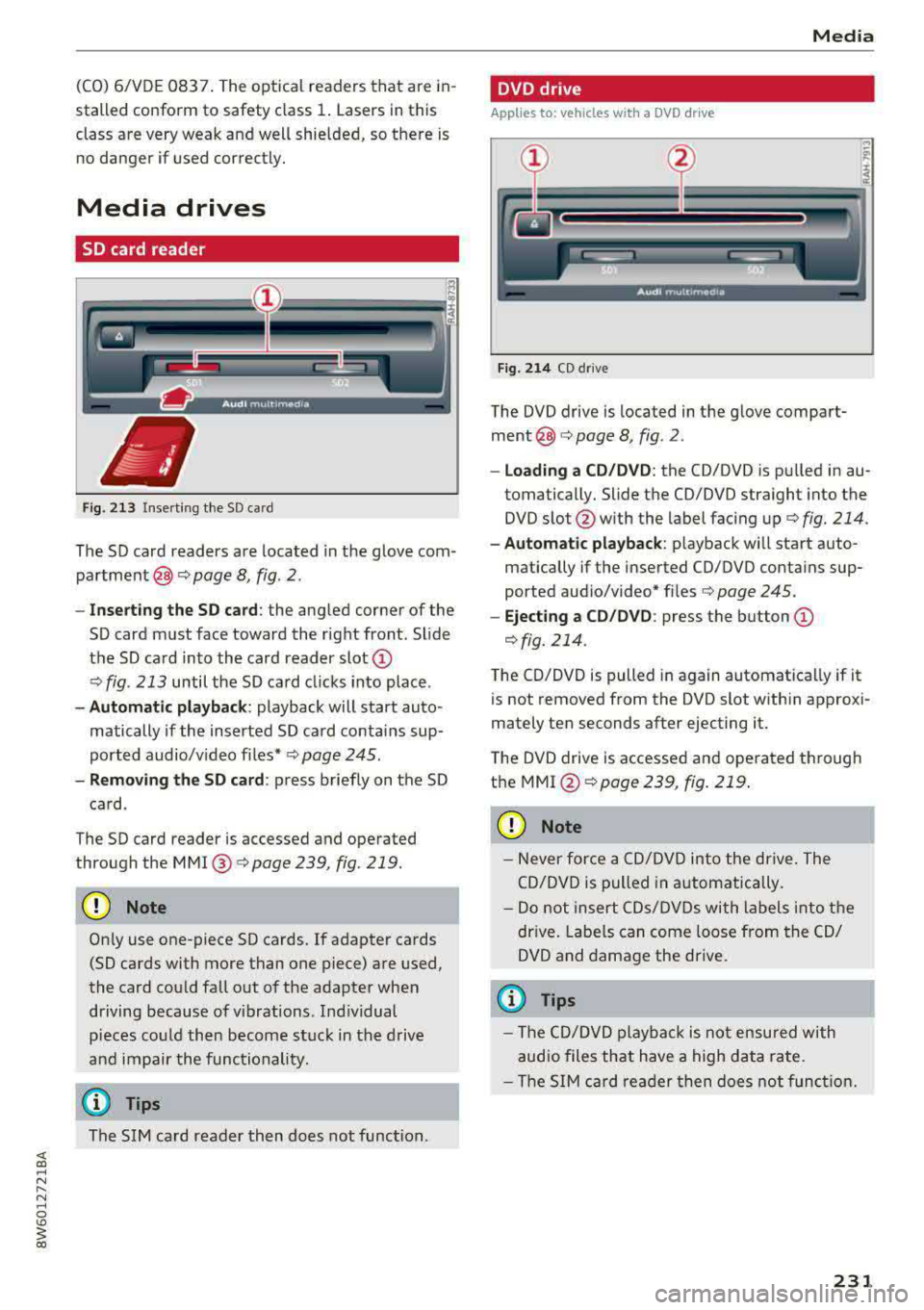
Fig. 213 Inse rting the SD card
The SD card readers are located in the glove com
partment@)¢ page 8, fig. 2.
- Inserting the SD card: the angled corner of the
SD card must face toward the right front. Slide
the SD card into the card reader
slot @
¢fig . 213 until the SD card cl icks into place .
-Automatic playback: playback will start auto
matically if the inserted SD card contains sup
ported audio/video
files* ¢ page 245 .
-Removing the SD card: press briefly on the SD
card .
The SD card reader is accessed and operated
through the
MMI @ ¢page 239, fig . 219.
CD Note
On ly use one-piece SD cards. If adapter cards
(SD cards with more than one piece) are used,
the card could fall out of the adapter when
driving because of v ibrations . Ind iv idual
pieces could then become stuck in the drive
and impair the functionality.
@ Tips
The SIM card reader then does not function .
Media
DVD drive
Applies to: vehicles with a DVD drive
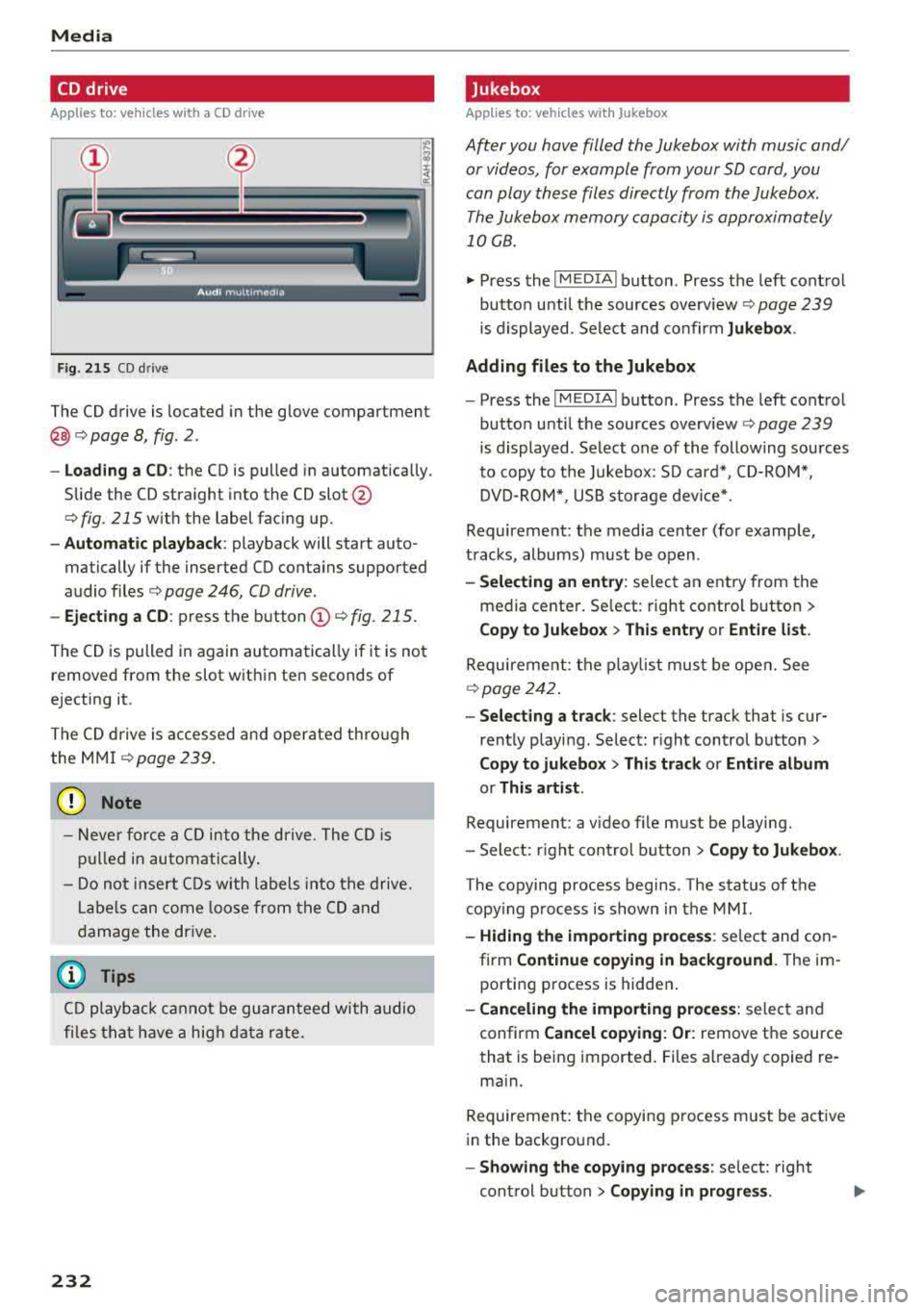
Fig. 214 CD drive
The DVD drive is located in the glove compart
ment@)¢ page 8, fig. 2.
-Loading a CD/DVD: the CD/DVD is pulled in au
tomatically. Slide the CD/DVD straight into the
DVD slot @with the label facing up ¢
fig. 214.
-Automatic playback: playback wi ll start auto-
matically if the inserted CD/DVD contains sup
ported aud io/video*
files ¢ page 245 .
-Ejecting a CD/DVD : press the button @
¢fig.214.
The CD/DVD is pulled in again automatically if it
is not removed from the DVD slot within approxi
mately ten seconds after ejecting it.
The DVD drive is accessed and operated through
the
MM1 @¢page239, fig. 219 .
CD Note
-Never force a CD/DVD into the drive. The
CD/DVD is pulled in automatically.
- Do not insert CDs/DVDs with labels into the
dr ive. Labe ls can come loose from the CD/
DVD and damage the drive.
(D Tips
- The CD/DVD playback is not ensured with
audio files that have a high data rate .
- Th e SIM card reader then does not function.
231
Page 234 of 409
Media
CD drive
Applies to: vehicles w ith a CD drive
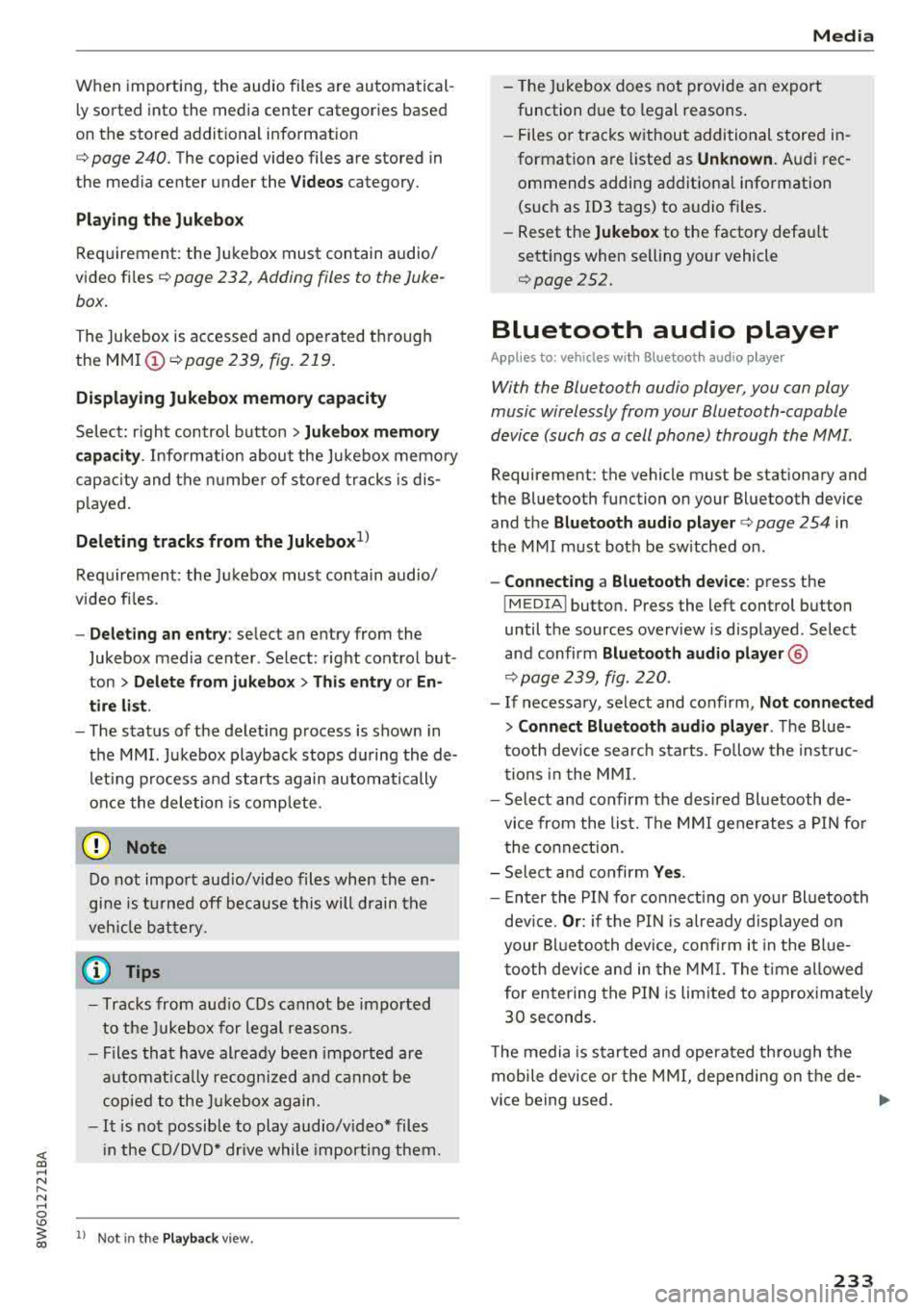
Fig. 215 CO drive
The CD drive is located in the glove compartment
@ <=>page 8, fig. 2.
- Loading a CD: the CD is pulled in automatically.
Slide the CD straight into the CD
slot@
<=>fig. 215 with the label facing up.
-Automatic playback : playback will start auto
matically if the inserted CD conta ins supported
audio files
c:> page 246, CD drive.
- Ejecting a CD : press the button(!)<=> fig. 215.
The CD is pulled in again automatically if it is not
removed from the slot w ith in ten seconds of
ejecting it.
The CD drive is accessed and operated through
the MMI
<=> page 239.
(D Note
-Never force a CD into the drive . The CD is
pulled in automatically.
- Do not inse rt CDs with labels into the drive.
Lab els can come loose from the CD and
damage the drive.
@ Tips
CD playback cannot be guaranteed with audio
files that have a hig h data rate.
232
· Jukebox
Applies to: vehicles wit h Jukebox
After you have filled the Jukebox with music and/
or videos, for example from your SD card, you
can play these files directly from the Jukebox. The Jukebox memory capacity is approximately
10 GB .
.,. Press the I MEDIA ! button. Press the left control
button unti l the sources overv iew
c:> page 239
is displayed. Select and co nfirm Jukebox .
Adding files to the Jukebox
- Press the IM EDIA ! button. Press the left control
button until the sources overv iew
c:> page 239
is displayed. Select one of the following sources
to copy to the Jukebox: SD card*, CD-ROM*,
DVD-ROM*, USB storage device*.
Requirement: the media center (for example,
tracks, albums) must be open .
-Selecting an entry: select an entry from the
media cente r. Se lect: right contro l button >
Copy to Jukebox > This entry or Entire list.
Requirement: the playlist must be ope n. See
<=>page 242.
- Selecting a track : select the track that is cur
rently playing. Select : right control button>
Copy to jukebox > This track or Entire album
or This artist.
Requirement: a v ideo f ile must be playing.
- Sele ct: r ight cont rol button>
Copy to Jukebox .
The copying process begins. The status of the
copy ing process is shown in the MMI.
-Hiding the importing process: select and con
firm
Continue copying in background . The im
porting process is hidden .
-Canceling the importing process: select and
confirm
Cancel copying: Or: remove the source
that is being imported . Files already copied re
ma in.
Requirement: the copying p rocess m ust be active
in the background.
-Showing the copying process: select: right
control button >
Copying in progress .
Page 235 of 409
<( a, .... N ,....
N .... 0 \0
3 a,
When importing, the audio files a re automatical
l y sorted into the media center categor ies based
on the stored addit ional info rmation
c:> page 240. The copied video files are stored in
the media ce nter under the
Videos category.
Playing the Ju kebo x
Req uirement: the J ukebox must contain audio/
vi deo fi les
c:> page 232, Adding files to the Juke
box.
The Jukebox is a ccesse d and ope rated thr ou gh
the
M MI(D c:>page239, fig. 219.
Displaying Jukebox memory capacity
Select: r igh t control button > Jukebox memory
capacity .
Inform ation abou t the J ukebox memory
c a pacity an d the numbe r of store d tra cks is dis
p layed .
Deleting tracks from the Jukebox1
)
Req uirement: the Ju kebox must contain audio/
video fi les.
- Deleting an entry : select an entry from the
Jukebox media center. Select: rig ht cont ro l but
ton
> Delete from jukebox > This entry or En
tire list .
- The s tatus of the de leti ng p rocess is shown in
the MMI. Jukebox playback stops d uring the de
l eting process a nd starts again au tomatically
on ce the dele tio n i s comp lete.
(D Note
D o not import au dio/video files when the en
g in e is t urned off because this will d rain the
ve hicl e battery.
(D Tips
-Tracks fro m aud io C Ds cannot be impo rted
t o the Jukebox for leg al re as ons.
- Files that have al rea dy been import ed are
a utomat ica lly r ecogn ized and ca n not be
cop ied to the Juk eb ox again.
- It is no t possib le to play audio/v ideo* files
i n the C D/D V D* drive while import ing the m.
l) Not in th e Playba ck view .
Media
-The Jukebox does not provi de a n export
function d ue to legal reasons .
- F iles o r trac ks w ithout addi tio nal store d in
formatio n are listed as
Unknown . Audi rec
ommends adding a dditio nal info rmation
(such as ID3 tags) to a udio f iles.
- Reset the
Jukebox to the factory defa ult
sett ings when selling yo ur vehicle
<=:>page 252.
Bluetooth audio player
Appl ies to: vehicles with Bluetooth audio player
With the Bluetooth audio player, you con ploy
music wirelessly from your Bluetooth-capoble
device (such as a cell phone) through th e MMI.
Requirement: the vehicle must be stationary and
the Bluetooth function on your Bl uetooth device
and the
Bluetooth audio player c:> page 254 in
the MMI m ust both be sw itched on .
-Connecting a Bluetooth device : press the
!MEDI Ai butto n. Press the left control button
until the sources overview is disp layed. Selec t
and confirm Bluetooth audio player ®
<=:>page 239, fig. 220 .
-If necessa ry, select and co nfirm, Not connected
> Connect Bluetooth audio player . The Blue
t oot h dev ice searc h starts. Follow the inst ru c
tion s in the M MI.
- Select and confirm the des ire d B luetooth d e
vice from the list. The M MI generates a PIN fo r
t he conne ction.
- Select an d confirm
Yes .
-En ter the PIN for connect ing o n your Bl uetoo th
dev ice .
Or : if the PIN is already displayed on
your Bl uetoo th device, co nfi rm i t in the Bl ue
t ooth dev ice and in the MMI. The t ime a llowed
for ente ring the P IN is lim ite d t o approx ima tely
30 seconds.
T he media is s tarted and operated thro ugh the
mobile device o r th e
M MI, depending on t he de-
vi ce being used.
..,.
233
Page 236 of 409
Media
(D Tips
-Check for any connection requests on your
Bluetooth dev ice .
- Mult iple Bluetooth audio players can be
connected to the MMI, but only one mobile
device can be active.
- Bluetooth protocols AVRCP ( 1.0/1.3/1.4)
and A2DP are suppo rted.
- Note the volume setting on your Bluetooth device. A ud i recommends setting your mo
bile device to the maxim um vo lume when
us ing it as a Bluetooth audio player.
- The supported media functions (such as
sh uffle) depend on the Bluetooth device be
i ng used.
- For more information on the supported de
v ices, visit
www.aud iusa.com /bluetooth or
contact an author ized Audi dealer or author
i zed Audi Service Facility.
Wi-Fi audio player
A ppl ies to: ve hicles w ith Wi-F i audio playe r
Using the Wi-Fi audio player media source on the
MMI, you can connect and operate your Wi-Fi-ca
pable media player (such as a smartphone) to wirelessly play music from your media player
li
brary. The media player is connected through the
vehicle's Wi -Fi hotspot. A UPnP Server opp or an
integrated UPnPIDLNA server on your media
player is required to access your media player
li
brary.
Requirement: the Wi-Fi function on your media
p layer must be sw itched on. The
Aud i MMI con
n ect
app or a UPnP server app must be installed
on your med ia p layer .
Or: you must be us ing a
media player with an integrated UPnP/DLNA
server.
- Connecting a medi a playe r: press the I MEDIA !
button. Press the left control button unt il the
sources
overview ¢ page 239 is d isplayed . Se
lect and co nfirm
W i-Fi audio play er 0
¢ page 239, fig . 220.
- If necessary, select and confirm Wi-F i turn ed
off > Turn on Wi-Fi
to activate Wi-Fi in the
MMI. Select
Wi-Fi s etti ng s, if necessa ry . Se lect
234
the same settings on the wireless media player
that are used for the Wi- Fi hotspot .
-Starting the Wi-Fi audio pla yer : start the Audi
MMI connect
app or a UPnP server app, or set
media permissions on your media player.
Operating the medi a pl ayer : the med ia p layer is
operated through the MM I.
- Press the left control button repeatedly until
the
Folders menu item appears. Select and con
firm
Folder s.
- Playing music from the medi a pla yer:
select
and confirm
M edia cent er.
Web r adio :
see ¢page 235.
A WARNING
- As the d river, do not allow usage of the Wi
Fi hotspot to distract you from driving, as
this could increase the r isk of an accident.
- It is on ly safe to use tablets, laptops, mo
bi le devices and other similar dev ices when
the vehicle is stat ionary because, like all
loose objects, they co uld be thrown around
the inside of the ve hicle in a c rash and ca use
serio us inju ries . Store these types of devices
secure ly while driving.
- Do not use any wire less devices on the front
seats wi thin range of the airbags while dr iv
ing . Also read and follow the warn ings in
¢ page 281, Front airbags.
(D Note
A lways fo llow the information fo und in ¢ (!) in
Wi -Fi hotspo t on page
197.
(D Tips
- Always read the chapter¢ page 198, Audi
connect (Infotainment) general informa
tion.
- Please note that a Wi-F i connection does
not automatically make it possible to use
the Interne t. For addit io nal info rm ation,
see
¢ page 191 .
- To avoid interr upt ions du ring playback, de
act ivate the powe r saving function on the
media player or connect it to a charger.
Page 237 of 409
-The loading times for the audio data depend
on the media player used and the number of
files that it contains.
- A maximum of 2,000 entries per directory
are displayed in the MMI.
-Songs downloaded for offline use using mu
sic streaming services are stored on your mobile device (such as a smartphone) and
may be ORM protected. The Wi-Fi audio
player will not play ORM protected files.
-Contact an authorized Audi dealer or au
thorized Audi Service Facility for additional information on the Wi-Fi audio player .
Online media and
Internet radio
A pplies to: ve hicles with Audi co nnect
You can playback and operate various online me
dia services and Internet radio using the MMI.
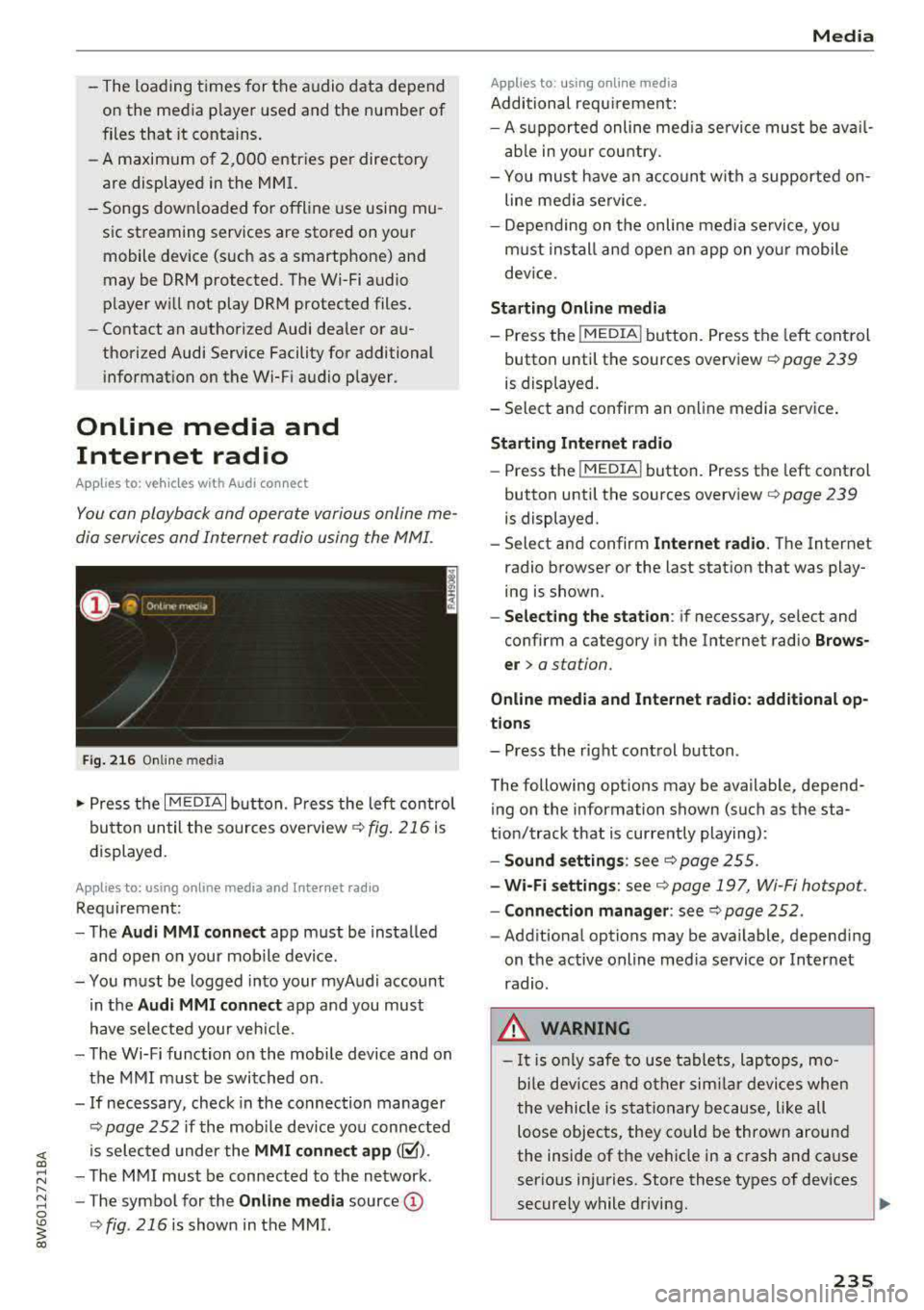
Fig. 216 Online med ia
... Press the I MEDIAi button. Press the left control
button until the sources overview¢
fig. 216 is
displayed.
A pplies to: using o nline media and I nte rnet ra di o
Requirement:
-The Audi MMI connect app must be installed
and open on your mobile device.
-You must be logged into your myAudi account in the
Audi MMI connect app and you must
have selected your veh icle.
-The Wi-Fi function on the mobile device and on
the MMI must be switched on .
-If necessary, check in the connection manager
¢
page 252 if the mobile device you connected
is selected under the
MMI connect app ([;'.().
-The MMI must be connected to the network .
-The symbol for the Online media source@
¢fig . 216 is shown in the MMI.
Applies to : usin g on line medi a
Additional requirement:
Media
-A supported online med ia service must be avail
able in your country.
-You mus t have an account with a supported on
line media service .
-Depending on the on line media service, you
must install and open an app on your mobile
dev ice.
Starting Online media
-Press the I MEDIA i button. Press the left control
button until the sources overview ¢
page 239
is displayed.
-Select and confirm an online media service .
Starting Internet radio
-Press the I MEDIAi button. Press the left control
button until the sources overview
Q page 239
is displayed.
-Select and confirm Internet radio. The Internet
radio browser or the last station that was play
ing is shown.
-Selecting the station: if necessary, select and
confirm a category in the Internet radio
Brows
er >
a station.
Online media and Internet radio: additional op
tions
-Press the right control button.
The following options may be available, depend ing on the information shown (such as the sta
tion/track that is currently playing):
-Sound settings: see¢ page 255.
-Wi-Fi settings: see Q page 197, Wi-Fi hotspot.
-Connection manager: see ¢page 252 .
-Additional options may be available, depend ing
on the active online media service or Internet
radio.
_& WARNING
-It is only safe to use tablets, laptops, mo
b ile devices and other similar devices when
the vehicle is stationary because, like all
loose objects, they could be thrown around
the inside of the vehicle in a crash and cause
serious injuries. Store these types of devices
securely while driving.
235
Page 241 of 409
Playing media
Accessing media
You can start and operate various media
th rough the MMI control panel.
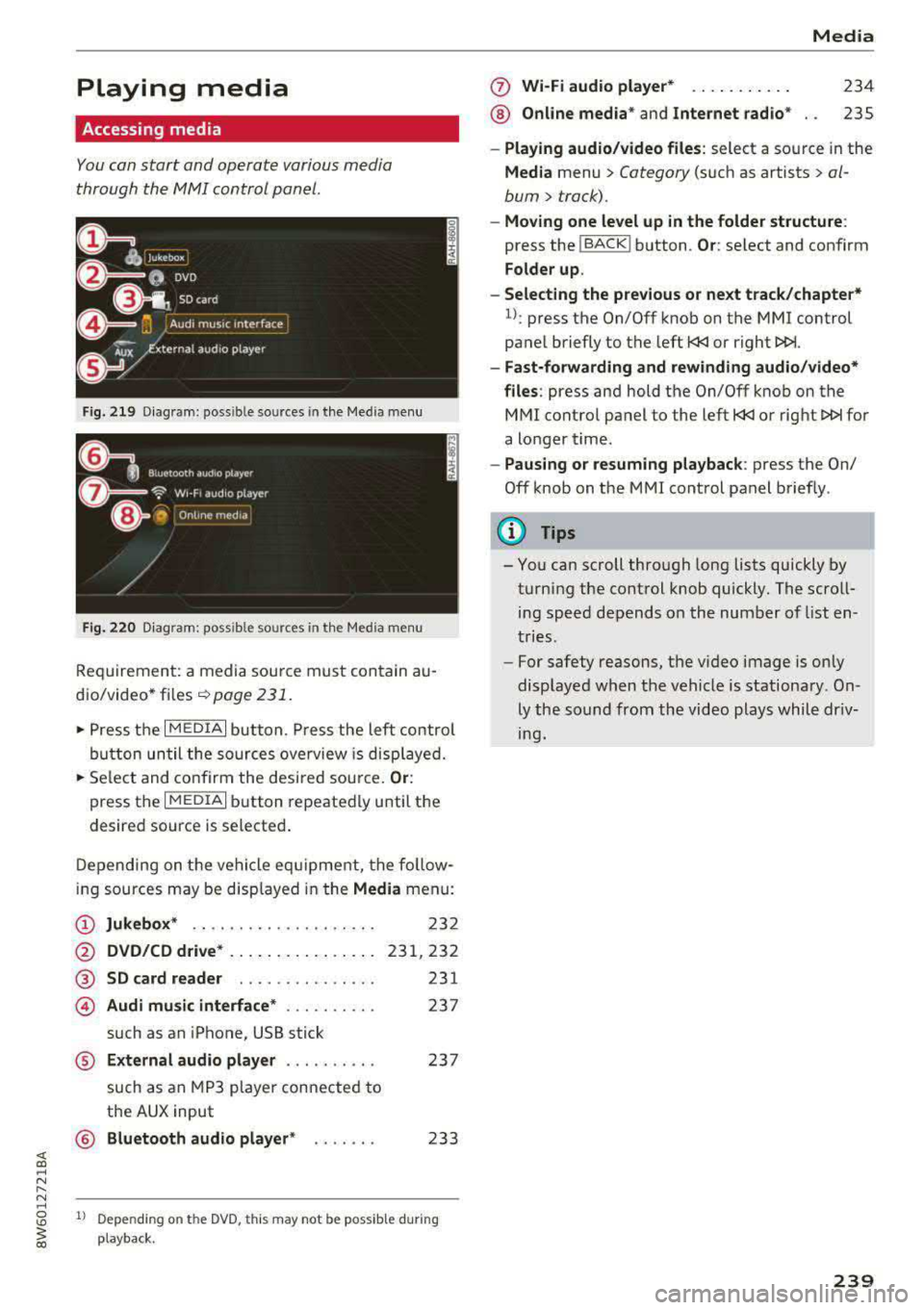
F ig . 2 19 Diag ram: possible sources in the Med ia m enu
Fi g. 22 0 Diagram : poss ible sources in the Medi a me nu
Requi rement: a media sou rce mu st co ntain a u
dio/video* files
¢page 231.
~ P ress t he I M EDIA i button. Press the left control
bu tton until the so urces ove rview is disp laye d.
~ Se le ct and confirm the desi red sou rce. Or :
press the I MEDIAi button repeated ly until the
desired source is selecte d.
D epen ding on t he veh icle eq uipment, the fo llow
ing sources may be disp layed in the
Media menu:
(D Jukebox * ................. .. .
@ DVD /CD d rive * ... . .... ... .. .. .
@ SD card reader ......... ... .. .
@ Audi mu sic interface * ......... .
such as an iPhone, USB stick
2 3 2
23 1,232
231
2 37
® External audio player . . . . . . . . . . 237
such as an MP3 playe r con nected to
the AUX input
© B luetooth audio player * . . . . . . . 233
1l Depe nding on th e DVD, t his may not be poss ib le d urin g
playback .
0 Wi-Fi audio player* ... ... ... . .
® Online med ia * and Internet radio * Media
23
4
235
- Playing audio/video files : select a source in the
Media menu > Category (such as artists > al
bum
> track) .
-Moving one level up in the folder structure :
press the !BACKI button. Or : select and confirm
Folder up .
- Selecting the previous or next track /chapte r*
1
l: press the On/Off knob on the MMI control
panel briefly to the left
t
- Fast-forw arding and rewinding audio/video*
files :
press and hold the On/Off knob on t he
MMI control pa nel to the left
t
a longer t ime .
-Pausing or resuming playback : press the On/
Off knob on the MMI cont rol panel brief ly.
(D Tips
- You can scroll through long lists quickly by
turning the control knob quickly . The scroll
ing speed depends o n the numbe r of li st en
tries.
- For safety reasons, t he v ideo image is on ly
displaye d when the vehicle is stationa ry. On
ly the so und from th e video plays whil e dr iv
ing.
239
Page 242 of 409
Media
Media center
Various categories for selecting audio/video*
files ore available in the media center .
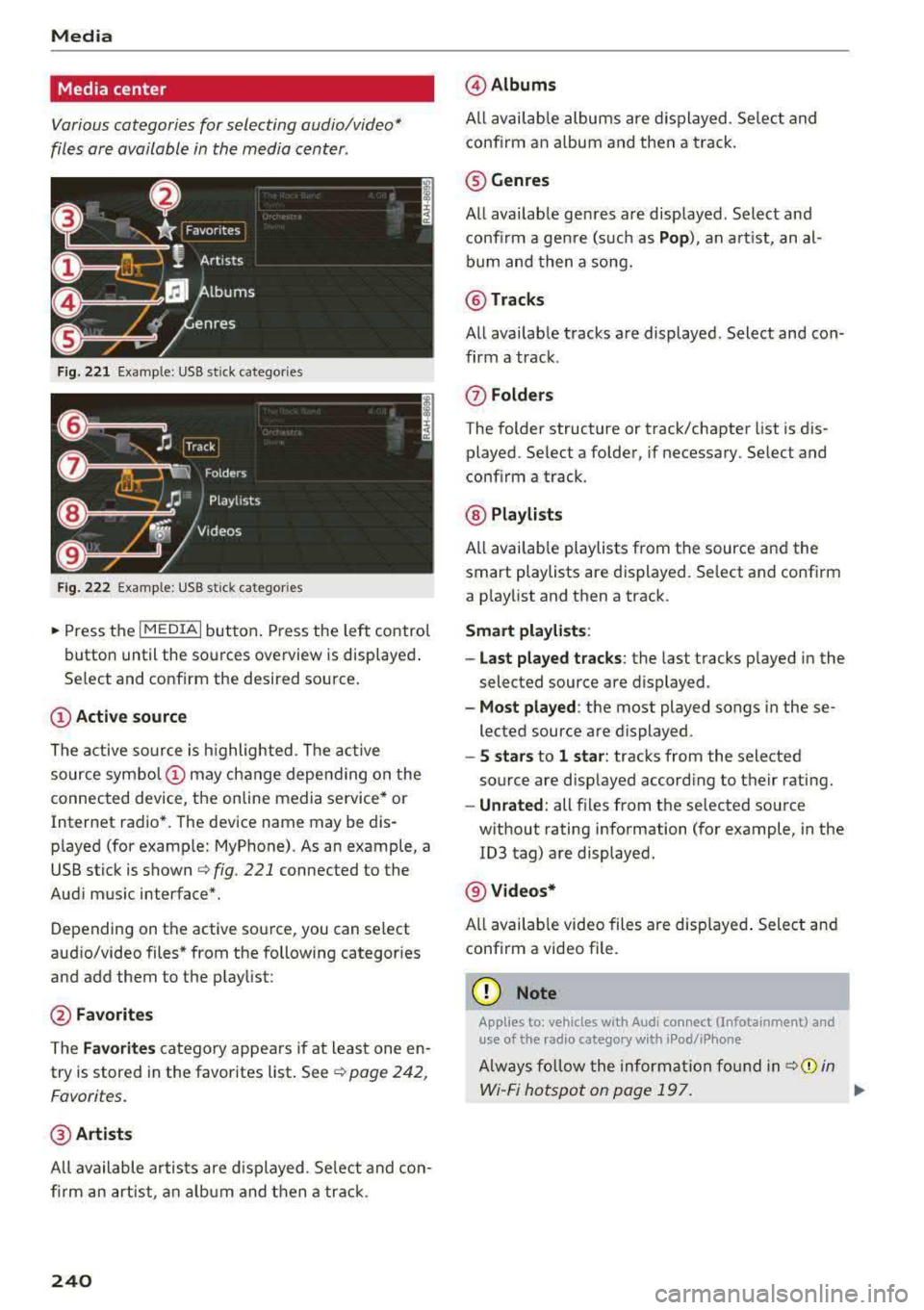
Fig. 221 Example : USB stick categories
F ig. 222 Example: USB stick cat egories
~ Press the I MEDIAi but ton. Press the left control
button until the sources overview is displayed .
Se lect and confirm the desired source.
(D Active source
The active source is highlighted . T he active
source
symbol (!) may change depending on the
connected device, the online media service* or
Internet radio*. The device name may be dis
played (for example: MyPhone). As an example, a
USB stick is shown
Q fig . 221 connected to the
Aud i mus ic interface*.
Depending on the active source, you can select
aud io/video files * from the following categor ies
and add them to the playlist :
@Favorites
The Favorites category appea rs if at least one en
try is stored in the favorites list . See
Q poge 242 ,
Favorites.
@ Artists
All available artists are displayed. Select and con
firm an artist , an album and then a track .
240
@Albums
All available albums are displayed . Select and
confirm an album and then a track.
® Genres
All available genres are displayed . Select and
confirm a genre (s uch as
Pop ), an artist, an al
bum and then a song.
@Tracks
All availab le tracks are displayed . Select and con
firm a track.
0 Folders
The folder structure or track/chapter list is dis
played. Se lect a folder , if necessary. Select and
conf irm a track .
@ Playlists
All available playlists from the source and the
smart playlists are displayed . Select and confirm
a playlist and then a track .
Smart playlists :
- Last played tracks :
the last tracks played in the
selected source are displayed.
-Most played : the most played songs in these
lected source are displayed.
- S stars to 1 star: tracks from the selected
source are disp layed according to their rating.
- Unrated: all fi les from the selected source
w ithout rating information (for example, in the
103 tag) are displayed.
@ Videos*
All availab le video files are displayed. Select and
conf irm a video file .
(D Note
Applies to: veh icles with Audi co nnect (Infotainment) a nd
use of the radio category w ith iPod/iP hone
Always follow the information found in q(i) in
Wi-Fi hotspot on page 197.
.,.
Page 243 of 409
@ Tips
-Only the categories supported by the medi
um are available. For example, CD/DVD
ROM tracks cannot be selected with catego
ries such as
Artists, Albums or Genres.
With an iPod/iPhone (source: Audi music in
terface¢ page 236), the Podcasts, Audio
books
and Composers categories are also
available .
- For safety reasons, the video image is only
displayed when the vehicle is stationary.
On
ly the sound from the video plays while driv
ing .
- When synchronizing a portable device with
"Cloud" services, playlists may display incor
rectly in the MMI. Use the media center in
the device.
- With an iPod/iPhone (media source: Audi
music interface
¢ page 236), the Podcasts,
Audio books
and Composers categories are
also available.
(D Tips
Applies to: iPod/lPhone on Audi music Interface
- An Internet connection is required to use
the additional
Radio category, an on line
media service. Also see the chapter
¢ page 19 7, Wi-Fi hotspot. Also read the in
formation on the Audi music interface and
the supported
devices ¢ page 236.
-Depending on the Internet connection and
network traffic, a connection loss can occur
during playback of on line media services.
- The use of online media services depends on
the service availability of the third party
provider.
- Audi AG simply makes the access to on line
media services possible through the MMI
and does not take any responsibility for the
contents of the online media services.
Media
Free text search
Applies to: veh icles w ith free text search
You can search in the active source by tracks and
video files*, for example
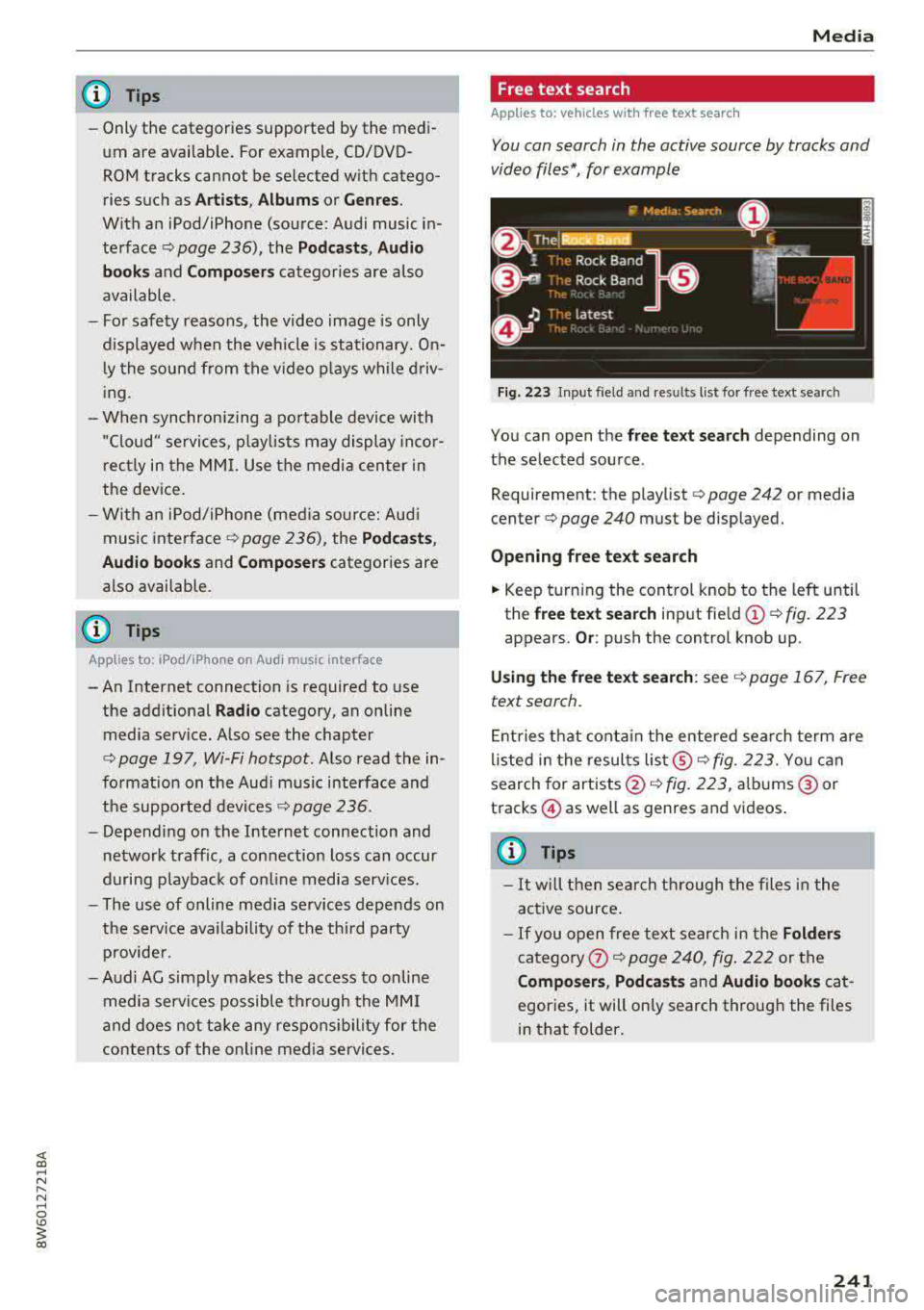
Fig. 223 Input field and results list for free text search
You can open the free text search depending on
the selected source .
Requirement: the playlist
¢ page 242 or media
center¢ page 240 must be displayed.
Opening free text search
.. Keep turning the control knob to the left until
the
free text search input field @¢ fig. 223
appears. Or: push the control knob up.
Using the free text search: see ¢ page 167, Free
text search.
Entries that contain the entered search term are
listed in the results
list@¢ fig. 223. You can
search for
artists@¢ fig. 223, albums @or
tracks @) as well as genres and videos.
@ Tips
-It will then search through the files in the
active source.
-If you open free text search in the Folders
category 0 ¢ page 240, fig. 222 or the
Composers, Podcasts and Audio books cat
egories, it will only search through the files
in that folder.
241
Page 246 of 409
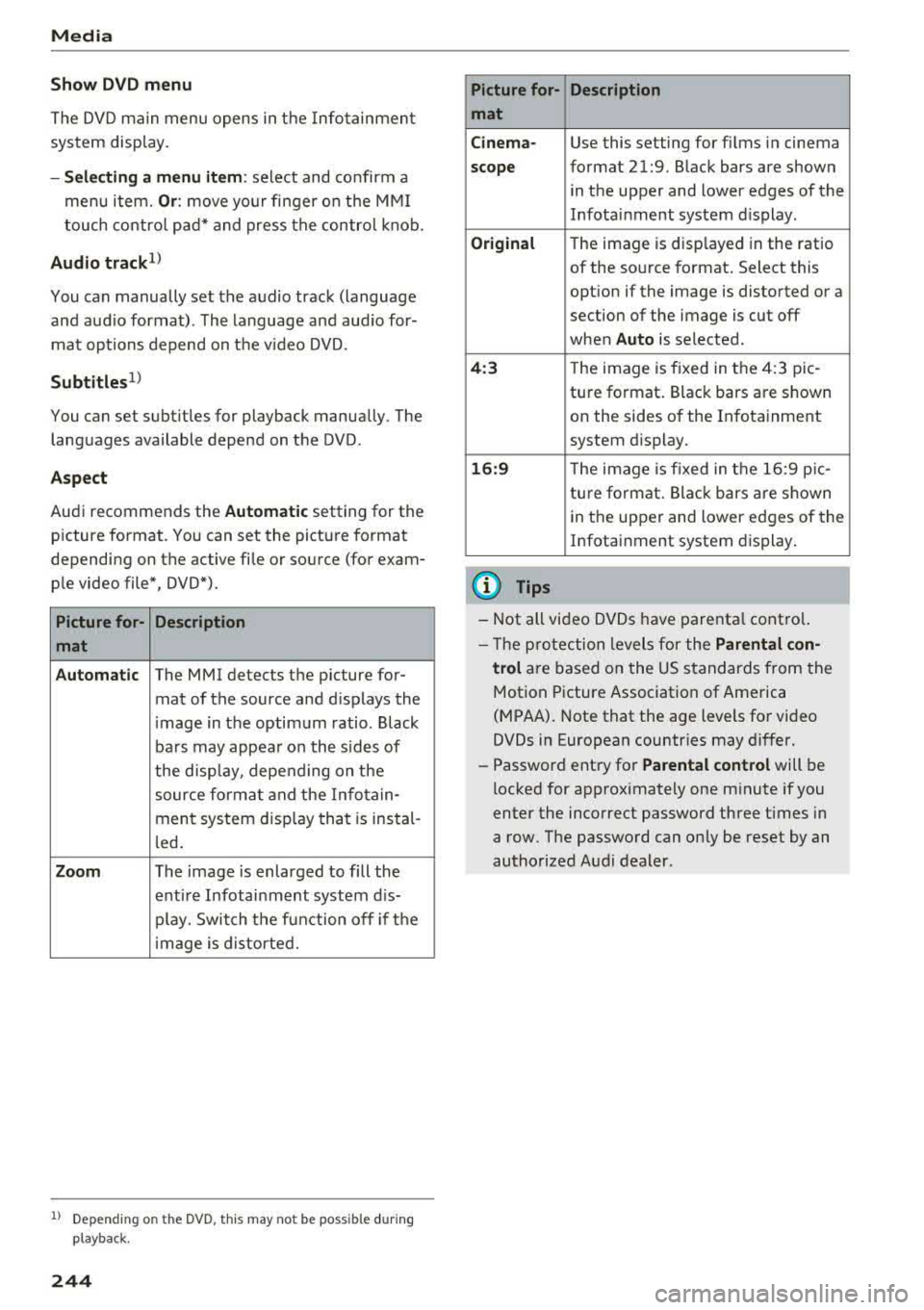
Media
Show DVD menu
The DVD main menu opens in the Info tainmen t
sys tem display.
- Selecting a menu item : select and confirm a
menu i tem.
Or : move yo ur finger on the M MI
t ouch contro l pa d* and press the contro l kno b.
Audio track ll
You can manually set the a udio track (language
and aud io format) . The language and aud io for
mat op tions depend on t he v ideo DVD .
Subtitles1l
You can set subt itles for playback manua lly . The
languages available depend on t he DVD .
Aspect
Aud i recommends the Automatic setting for the
p icture format. You can set the pict ure format
depending on the active fi le or so urce (for exam
p le video file*, DVD*).
Picture for- Description
mat
Automatic
The MMI detects the p icture for-
mat of the source and d isp lays the
i mage in the optim um ratio . Black
ba rs may appea r on the s id es of
the disp lay, depe nding on the
source forma t and the Infotain -
ment sys tem disp lay tha t is instal-
l ed .
Zoom The image is enlarged to fill the
e nti re Infotai nment system d is-
pl ay. Switch the f un ction off i f th e
i mage is distorte d.
l) Depe nding o n th e DVD , thi s may not be possib le d uring
p layba ck.
244
Picture for- Description
mat
Cinema -
Use this setting for fi lms in cinema
scope format 21:9. B lack bars are shown
in the upper and lower edges of the
Infota inment system d isplay.
Original T he image is disp layed in the rat io
of the so urce format . Select this
opt ion if the image is disto rted or a
section of the image is cut off
when
Auto is selected.
4 :3 Th e image is f ixed in the 4:3 pie -
tu re format . Black bars are s hown
on the sides of the In fota inment
system d isplay.
16:9 Th e image is fixed in the 1 6:9 p ie -
t u re fo rmat. Bla ck bars a re s hown
in t he upper and lower e dges of the
Infotai nment system display .
(D Tips
-Not all video D VDs have parenta l cont rol.
- T he p ro te ct ion leve ls for the
Parental con-
trol
are based on the US stan dards from the
Motion P icture Association of America
( M PAA) . Note that the age levels fo r video
DVDs in European countr ies may differ.
- Password ent ry fo r
Parental control will be
locked for approximately one m inute if you
enter the inco rrect password three t imes in
a row. The passwo rd can on ly be reset by an
authorized Audi dealer.
Page 247 of 409
<( a, ..... N ,....
N ..... 0 \0
3 a,
Media
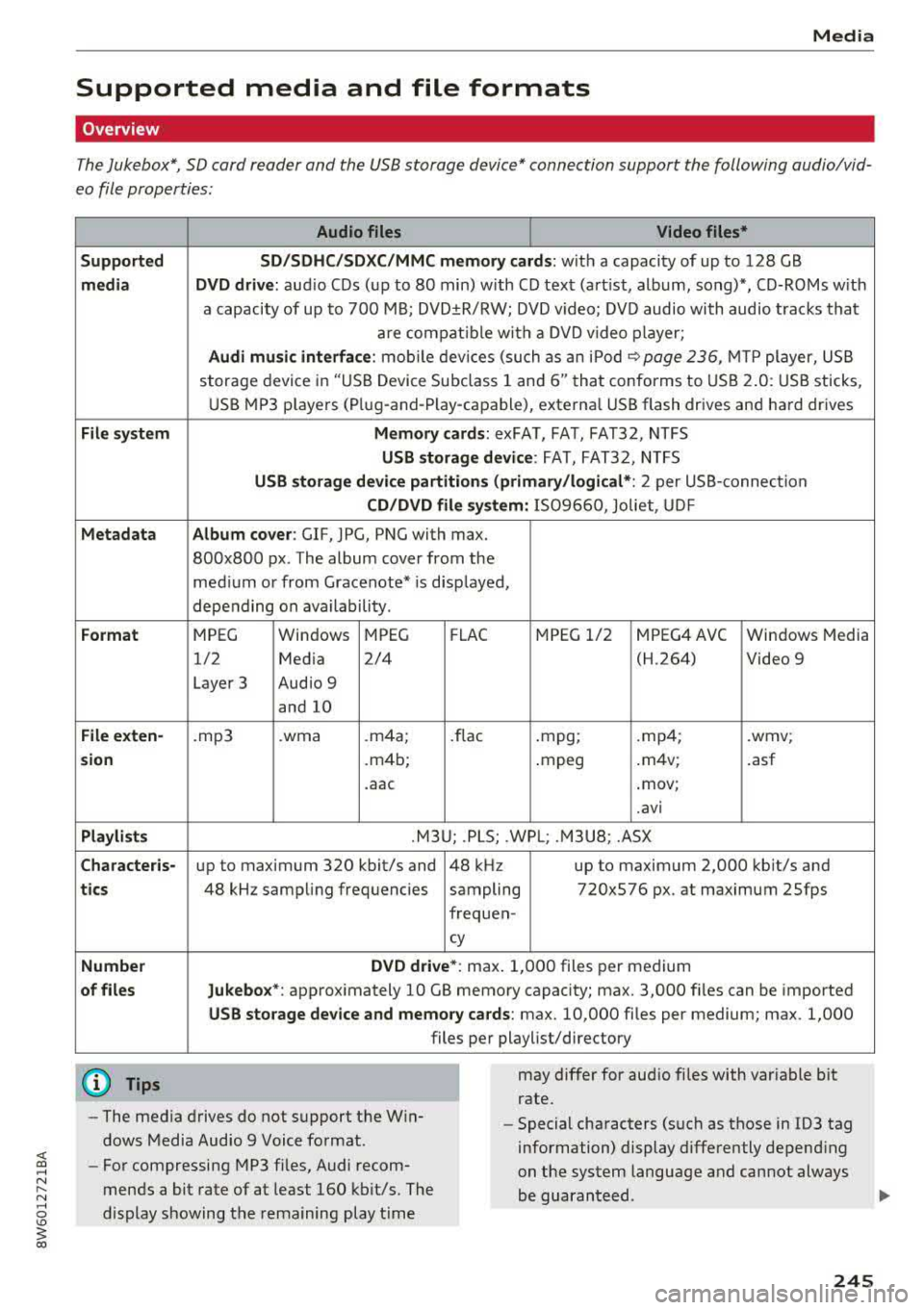
Supported media and file formats
Overview
The Jukebox*, SD card reader and th e USB storage d evice* connection support the follo wing audio/vid
e o file prop erti es :
Supported
media
File system
Metadata
Format
File exten-
s ion
Playlists
Character is-
tic s
Number
of files Audio files
Video files*
SD /SDHC/SDXC/MMC memory cards: w ith a capaci ty of up to 128 GB
DVD drive: au dio C Ds (u p to 80 min) w ith CD tex t (art ist, album, song)*, CD-ROMs w ith
a capacity of up to 700 M B; DVD ±R/RW; DVD video; DV D audio with audio trac ks tha t
a re compatible w ith a DVD video p layer;
Audi music interface : mobile devi ces (su ch as a n iP od <:? page 236, MTP player, US B
stor age device in "US B Device Subclass 1 and
6" tha t conforms to USB 2.0 : U SB sticks,
U SB MP3 p laye rs (P lug-and -P lay-capable), external USB flash drives and ha rd dr ives
Memory cards : exFAT, FAT, FAT32, NTFS
USB storage de vice : FAT, FAT32, NTFS
USB storage device partitions (primary /logical *: 2 per USB -connection
CD /DVD file sy stem: 1509660, Joliet, UDF
Album cover: GIF, JPG, PNG with max.
800x800 px. The album cover from the
med ium or from Gracenote* is disp layed,
depending on availability.
MPEG Windows MPEG
FL AC M
PEG 1/2 MPEG4 AVC
Windows Media
1/2 Media 2/4 (H.264) Video 9
Layer 3 Audio 9
and 10
. mp3 .wma .m4a;
.flac .mpg; .mp4; .wmv;
.m4b; .mpeg .
m4v; .asf
.aac .mov;
.avi
.M3 U; .PLS; .WPL; . M3U8; .ASX
up to maximum 320 kbit/s and 48 kHz up to maximum 2,000 kb it/s and
48 kHz sampling frequencies sampling 720x576 px. at maximum 2Sfps
frequen-
cy
DVD dri ve* : max . 1,000 files per medium
Jukebo x*: approximately 10 GB memory capacity; max. 3,000 files can be imported
USB stor age device and memory cards : max. 10,000 files per medium; max . 1,000
files per playlist/directory
may differ for aud io files with var iable b it
rate.
- The media drives do not support th e W in
dows Media Audio 9 Voice format. -
Special characters (s uch as those in 103 tag
information) display differently depend ing
on the system language a nd cannot always
be guaranteed.
-
For compressing MP3 files, Audi recom
mends a bit rate of at least 160 kb it/s. The
display showing the rema ining play t ime
245