audio AUDI A5 COUPE 2018 User Guide
[x] Cancel search | Manufacturer: AUDI, Model Year: 2018, Model line: A5 COUPE, Model: AUDI A5 COUPE 2018Pages: 409, PDF Size: 67.63 MB
Page 119 of 409
Changing the speed
Applies to: vehicles with Audi adaptive cruise contro l
0
f
' 0
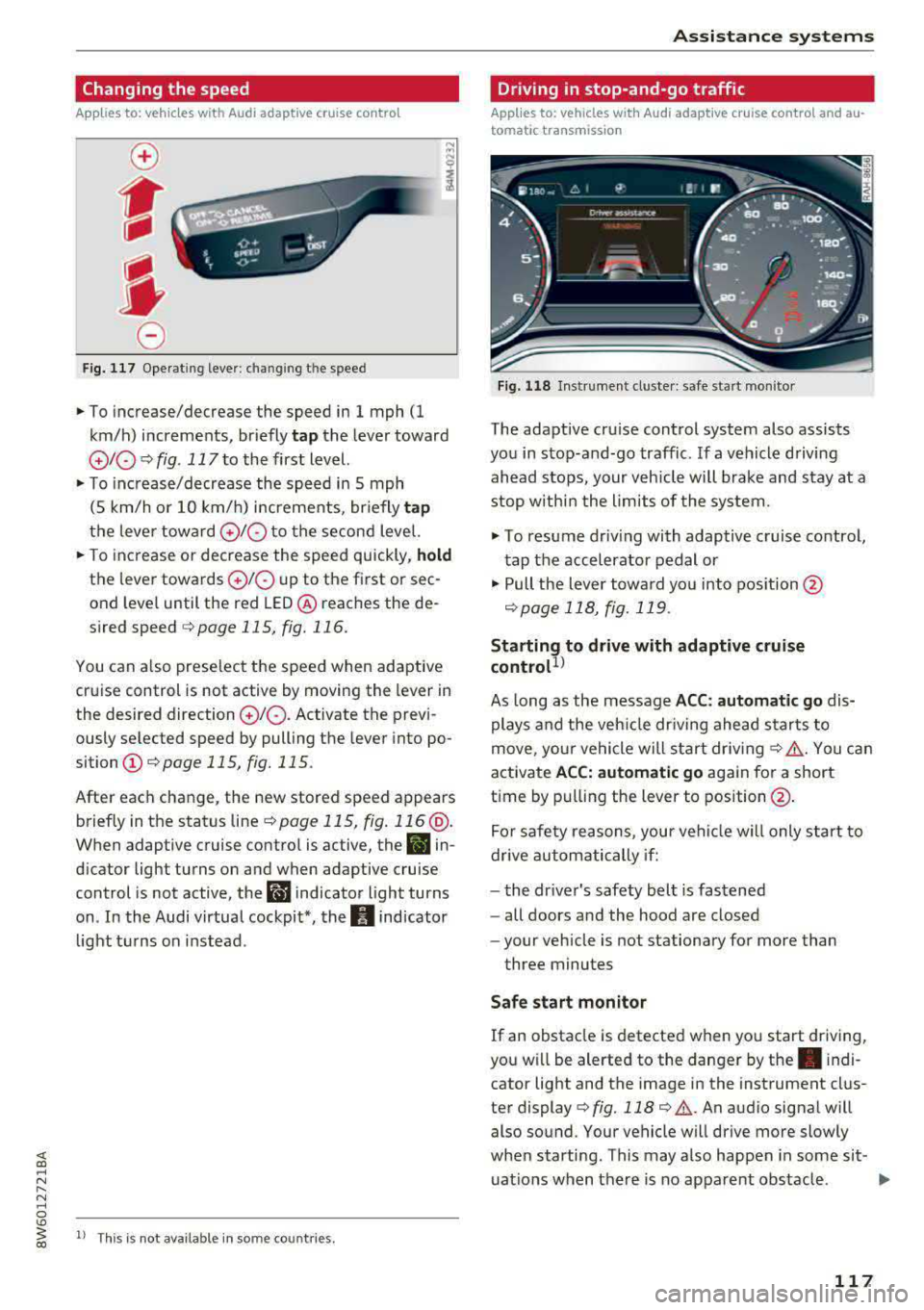
Fig. 117 Operating lever: chang ing the speed
.,. To increase/decrease the speed in 1 mph (1
km/h) increments, br iefly
tap the lever toward
010 ¢ fig. 117 to the first level.
.,. To increase/decrease the speed in 5 mph
(5 km/h or 10 km/h) increments, br iefly
tap
the lever toward 0 10 to the second level.
.,. To increase or decrease the speed quickly, hold
the lever towards 0 10 up to the first or sec
ond level until the red LED@ reaches the de
s ired speed
¢page 115, fig. 116.
You can a lso preselect the speed when adaptive
cruise control is not active by moving the lever in
the desired direction
0 10 . Activate the previ
ously selected speed by pulling the lever into po
sition
(I) ¢ page 115, fig. 115.
After each change, the new stored speed appears
briefly in the status
line¢ page 115, fig. 116 @.
When adaptive cruise control is active, the II in
d icator light turns on and when adaptive cruise
control is not active, the
I.I indicator light turns
on . In the Audi virtual cockpit*, the
II indicator
light t urns on instead .
ll This is not available in some countries.
Assistance systems
Driving in stop-and-go traffic
Applies to: vehicles with Audi adaptive cruise control and au
tomatic transmission
Fig. 118 Instrume nt cluste r: safe start monitor
The adaptive cru ise control system also assists
you in stop-and-go traffic. If a vehicle driving
ahead stops, your vehicle will brake and stay at a
stop within the limits of the system.
"' To resume driv ing with adaptive cruise control,
tap the accelerator pedal or
"' Pull the lever toward you into pos ition @
<:!)page 118, fig. 119 .
Starting to drive with adaptive cruise
controt1>
As long as the message ACC: automatic go dis
plays and the vehicle dr iving ahead starts to
move, your vehicle will start driv ing
r:!) .&. -You can
activate
ACC: automatic go again for a short
time by pulling the lever to position@.
For safe ty reasons, your vehicle w ill only start to
drive automatically if:
- the driver's safety belt is fastened
- all doors and the hood are closed
- your veh icle is not stationary for more than
three minutes
Safe start monitor
If an obstacle is detected when you start driving,
you w ill be alerted to the danger by
the. indi
cator light and the image in the instrument clus
ter
display¢ fig. 118 ¢ .&,. .An audio signal will
also sound. Your vehicle will drive more slowly
when starti ng. This may also happen in some sit-
uations when there is no apparent obstacle.
.,.
117
Page 144 of 409
Parking system s
Rear parking system
Description
Applies to: ve hicles w ith rear park ing aid
The rear parking system is an audible parking
aid.
Descri ption
There is a sensor in the rear bumper cover . If
these detect an obstacle, audible signals warn
you .
Make sure the sensors are not covered by stick
ers, deposits or any other obstructions as it may
impair the function of the system . For informa
tion on cleaning, see
r=.> page 362 .
The range at which the sensors begin to measure
is approximately:
side 3 ft (0 .90 m)
rear
center 5.2
ft (1.60 m)
The closer you get to the obstacle, the shorter
the interval between the audible signals . A con
tinuous tone sounds when the obstacle is less
than approximately 1 foot (0.30 meters) away.
Do not continue backing up
r=.> .&. in General infor
mation on page 141,
r=.> 0 in General information
on page
141!
If the distance to an obstacle remains constant,
the volume of the distance warning gradually lowers after a few seconds until it is muted (this
is not apply in the continuous tone range). If the
obstacle becomes closer than it was before the
sound was muted, the tone will sound again. If
the obstacle is father away than it was before the
sound was muted, no tone wil l sound . Pay atten
tion to the vehicle's surroundings when you start
to drive.
Acti vating
The rear parking assist activates automat ically
when the reverse gear is engaged. A brief confir
mat ion tone will sound.
142
Parking aid plus
Description
App lies to: vehicles with parking system plus
Parking system plus provides audio and visual
signals when parking .
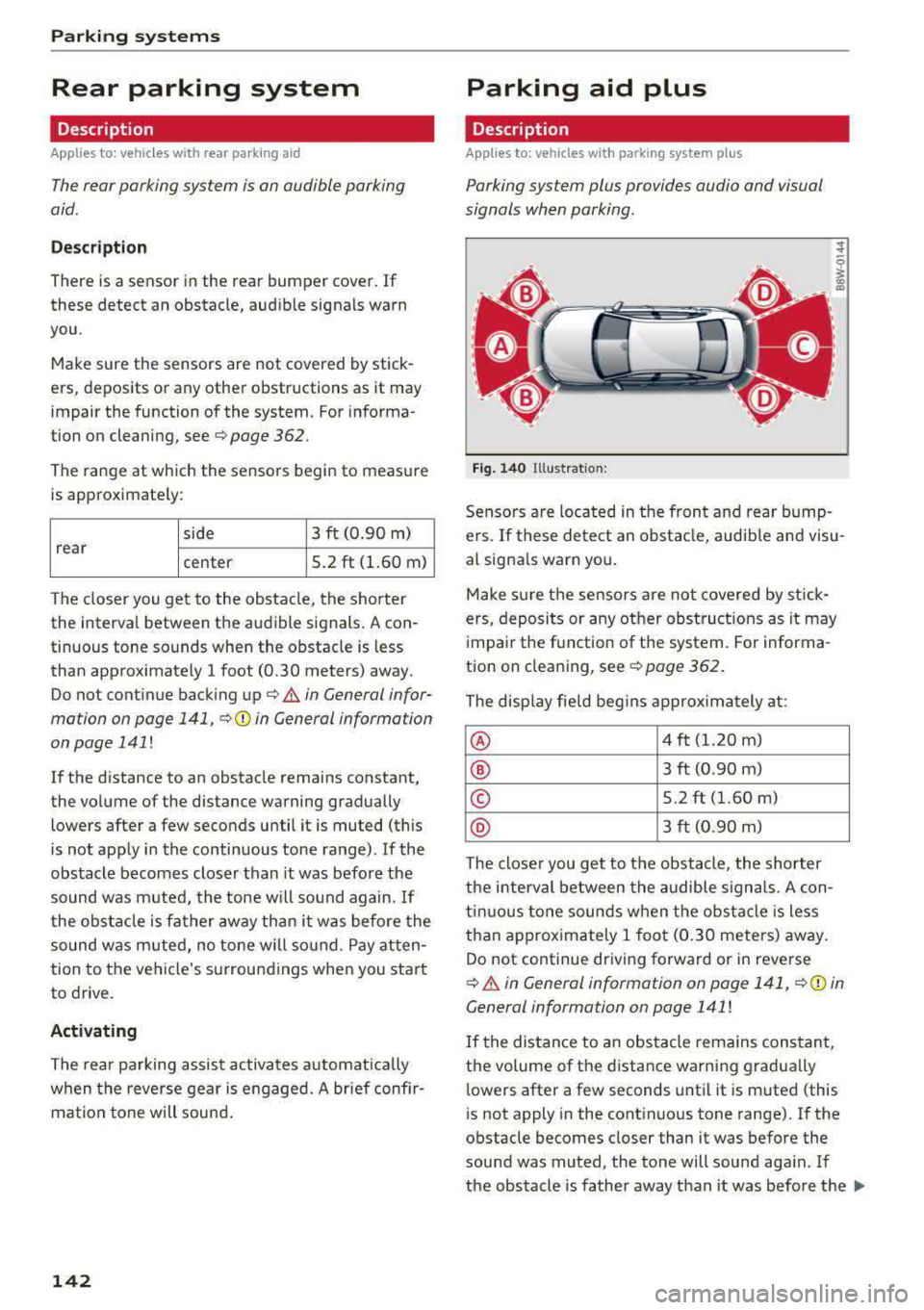
Fig. 140 Illus trat io n:
Sensors are located in the front and rear bump
ers. If these detect an obstacle, audib le and visu
al signa ls warn you .
Make sure the sensors are not covered by stick
ers, deposits or any other obstruct ions as it may
impair the function of the system. For informa
tion on cleaning, see
r:::>page 362.
The display field begins approximately at:
® 4 ft (1.20 m)
® 3 ft (0 .90 m)
© 5.2 ft (1.60 m)
® 3 ft (0.90 m)
The closer you get to the obstacle , the shorter
the interval between the audible signals. A con
tinuous tone sounds when the obstacle is less
than approximately 1 foot (0.30 meters) away.
Do not continue driving forward or in reverse
r:::> .&. in General information on page 141, ¢@) in
General information on page 141
!
If the distance to an obstacle remains constant,
the volume of the distance warning gradually
lowers after a few seconds until it is muted (this
is not apply in the continuous tone range). If the
obstacle becomes closer than it was before the
sound was muted, the tone will sound aga in. If
the obstacle is father away than it was before the
..,.
Page 151 of 409
<( a, .... N ,....
N .... 0 \0
3 a,
Entertainment fader -the volume of the audio/
video source is lowered when the parking system
is turned on
The newly selected leve l is demonstrated briefly
by the sound generator.
View* -switch between a n optical display
(Graphic ) and camera image (Camera) in the
right section of the display.
Trailer view* -show trailer view
*Auto. front/rear camera change * -the view be
h in d the veh icle
( Rear mode) is displayed auto
mat ically when you shift into reverse gear . The
view in front of the vehicle
(Front mode) is dis
p layed automatically when you shif t into the fo r
ward gea rs. When first a ctivating in a forward
gear with the
P,,1~ button, the front side view is
displayed
( Corner view (front) mode).
If you do not set the../, the view behind the vehi
cle
( Rear mode) is always displayed and it does
not switch to the
Front mode when a forward
gear is selec ted.
(D Tips
- Several menus can be accessed w ith the
right control button only when the parking
aid is active.
- The settings for volume and automatic acti
vat ion* are automatically stored and as
s ig ned to the remote control key being
used.
Error messages
Applies to: veh icles with a rea r parking system/parking sys
tem plus/ rearv iew camera/peripheral cameras
[II Rear park assist: malfunction! Obstacles
cannot be detected
[II Front park assist: malfunction! Obstacles
cannot be detected
Ill Park assist: malfunction! Obstacles cannot
be detected
When one of these messages appears, there is a
system ma lfunction. The LED in the
p,qA button al
so blinks when switching it on. The relevant mes-
Parking systems
sage on ly appears again when you manually acti
vate the parking aid with the button.
Ill Rear parking aid: obstacle detection restrict
ed
T he rear cross-traffic assist* ¢ page 137, Rear
cross -traffic assist
is not available. Either the ESC
is switched off, or the radar sensors may be cov
ered by a bike rack, stickers, leaves, snow or o th
er objects. Switch the ESC on, or clean the area in
front of the sensors if necessary
¢ page 134,
fig . 134.
If this message cont inues to be dis
played, drive immed iately to an author iz ed Audi
dealer or authorized Audi Service Fac ility to have
the malfunction repaired.
Parking system plus*
If a sensor or speaker is faulty, the 94 symbo l
will appear in front of/behind the vehicle in the
Infotainment system d isplay. If a rear sensor is
faulty, only obstacles that are in areas @and @
are shown
¢ page 142, fig. 140 . If a front sensor
i s fa ulty, only obstacles that are in areas© and
@ are shown.
Peripheral cameras*
There is a system malfunction if the% symbol
appears and the corresponding area of the dis
play is shown in black . The camera is not working
i n th is area .
Drive to an authori zed Audi dealer or authori zed
Audi Service Facility immed iately to have the
malfunction corrected .
Trailer hitch
Applies to: vehicles with a rear parking system/park ing sys
tem plus/ rea rview came ra/pe ripheral cameras and traile r
hi tch
When the trailer socket is in use, the parking sys
tem rear se nsors are not activated when you shift
into reverse gear or when yo u press the
p,q~ but
ton . Thi s resu lts in the following restrict ions .
Rear parking system*
There is no distance warning.
149
Page 161 of 409
Switching the MMI on/off: the MMI can be
switched on/off manua lly.
-Switching on manually : press the On/Off knob
(f)c:> fig . 162 briefly . Or: press the I MENU I but
ton @
c:>page 158, fig. 160 or c:>page 158,
fig. 161,
or one of the buttons to open the me
nus
directly @.
-Switching off manually : press and hold the
On/Off knob
(f) c::> fig. 162 until the MMI
switches off . If the MMI has been switched off
ma nually, it does
not sw itch on again automati
ca lly the next time the ignit ion is switched on .
Additional functions:
- Adjusting the volume:
turn the On/Off knob (f)
c::>fig. 162.
- Muting : press the On/Off knob (f) c:> fig. 162
briefly.
-Selecting the previous /next function (for ex
ample, a radio station/track) :
press the On/Off
knob
(f) c::> fig . 162 briefly toward the left l<3
t>l>I.
-Fast forwarding /rewinding (for example
songs):
press and hold the On/Off knob (f)
c::> fig. 162 toward the left l<3
A WARNING
Adjust the volume of the audio system so that
signa ls from outside the vehicle, such as po
lice and fire sirens, can be heard easily at all
times.
@ Tips
The M MI switches off automatically if the en
gine is not running and the vehicle battery is
low.
Infotainment system
display
Switching on and off
- Switching on and off manually :
press the l('.)J
button @ c> page 8, fig. 2.
When the MMI is switched on and the display is
switched off, you can operate certain functions
using the On/Off knob with the MMI joystick
function
c> page 158 .
Multi Media Interface
Information on display images
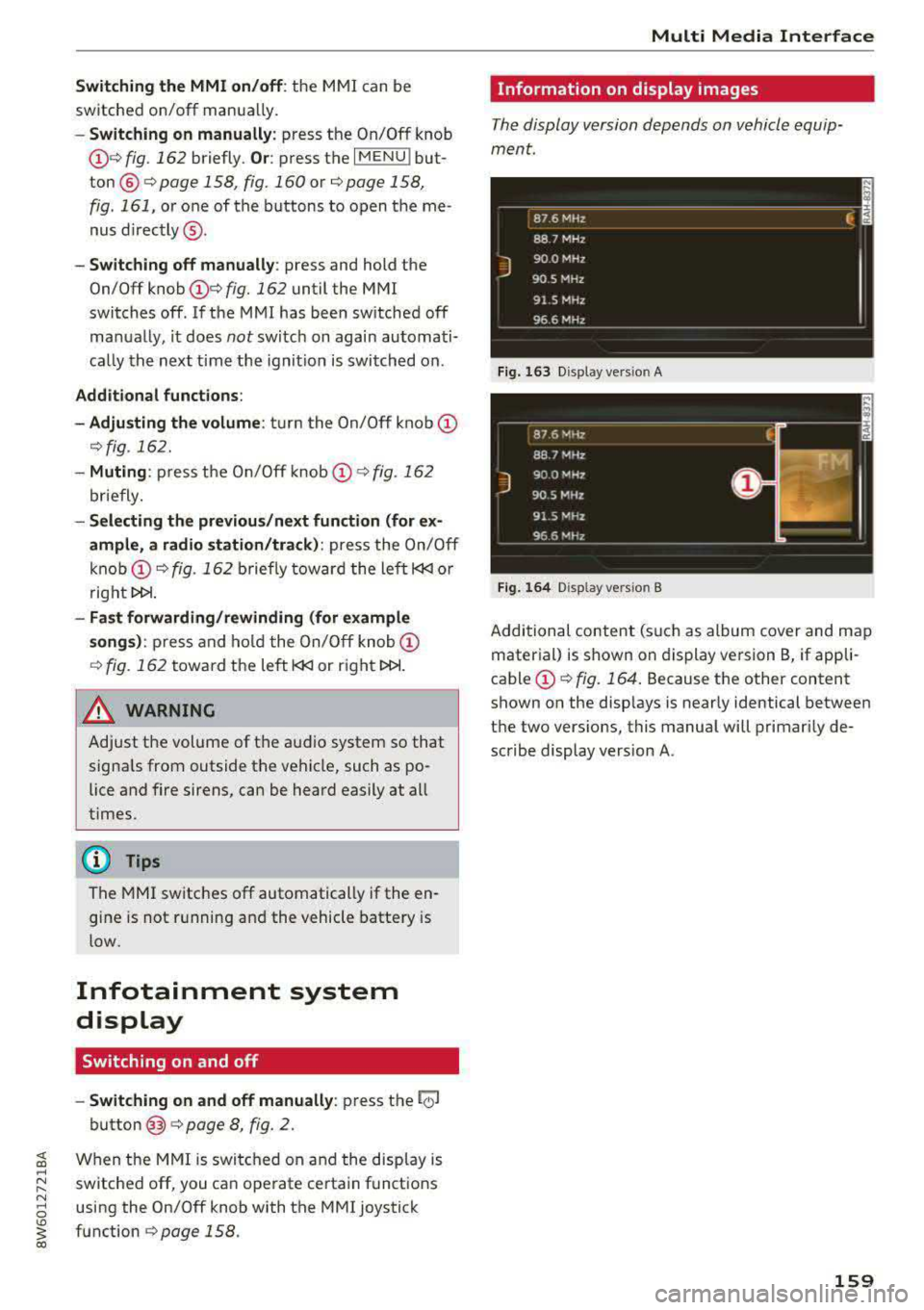
The display version depends on vehicle equip
ment.
Fig . 163 D isp lay ve rs io n A
Fig. 164 Disp lay ve rs io n B
Additional content (such as album cover and map
material) is shown on display version B, if appli
cable
(f) ~ fig. 164. Because the other content
shown on the disp lays is nearly identical between
the two vers ions, this manual will primarily de
scribe display version A .
159
Page 170 of 409
Multi Media Interface
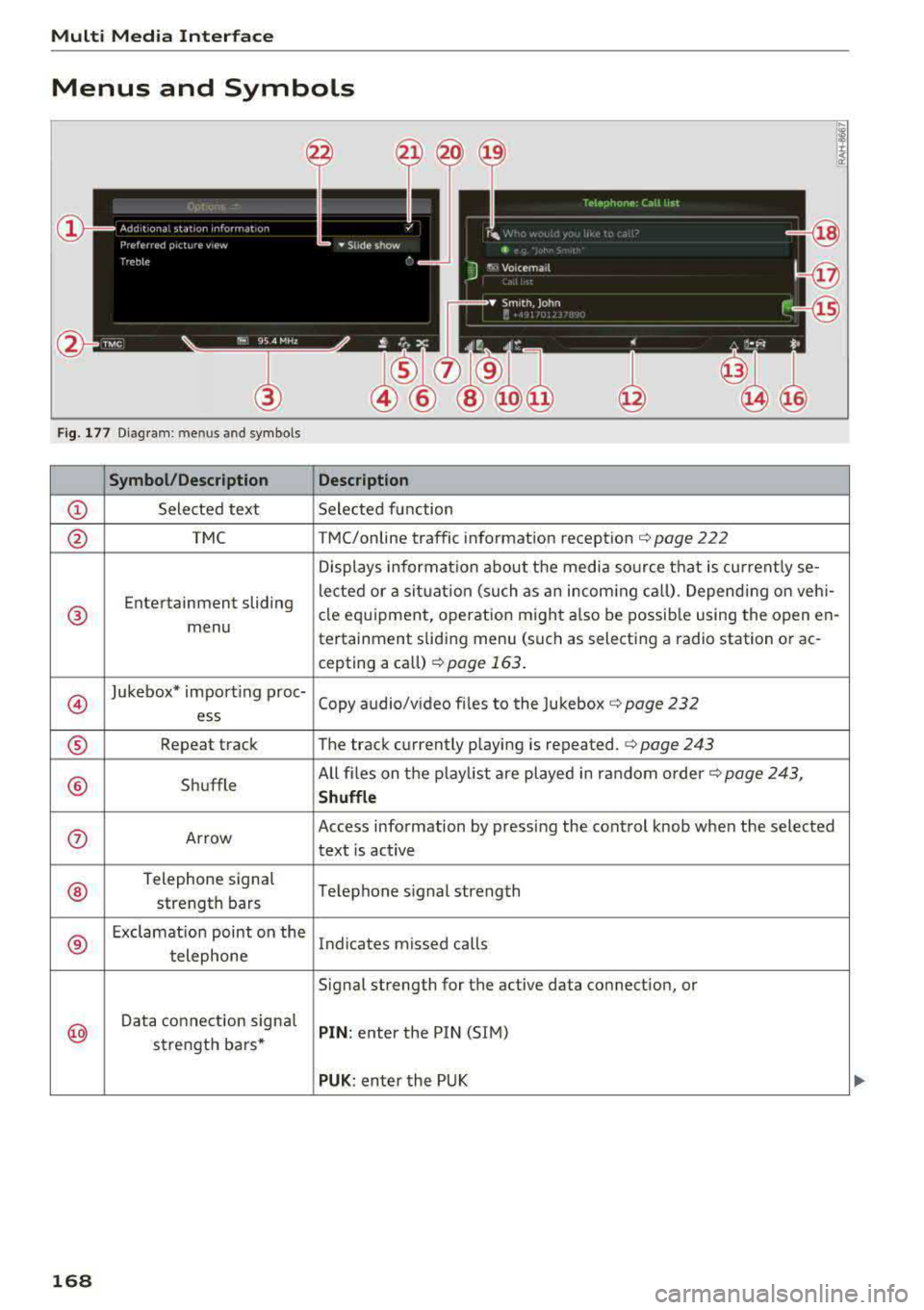
Menus and Symbols
F ig . 1 77 D iagram : me nus and symbols
Symbol /Description
Description
CD Selected text Selected fu nction
@ TMC TMC/online traffic informat ion recept ion ¢ page 222
Displays informat ion a bout the media so urce t hat is cu rrent ly se-
Entertainment sliding le
cted or a sit uat io n (such as a n incom ing ca ll) . Depend ing on veh i-
® cle eq uipment, operation m igh t also be possib le using the open en-
menu tertainment sliding m enu (such as select ing a radio station o r ac-
cepting a call)
¢ page 163 .
@
Jukebox* import ing proc-
Copy audio/v ideo f iles to the Jukebox ¢ page 232
ess
® Repeat tra ck The track c urrently playing is repeated .¢ page 243
® Shuffle All fi
les on t he play list are played in r andom orde r¢ page 243,
Shuffle
0 Arrow Access information by pressing the control knob when the selected
text is active
®
T e lephone signal
Telephone signal strength
strength bars
®
Exclamat ion point on th e
Ind icates m issed ca lls
t elephone
Signal strength for the active data connection, or
@
Data co nnect ion s ign al PIN : enter the P IN (S IM)
s tre ngt h bars *
PUK: enter the PUK
168
Page 171 of 409
<( a, .... N ,....
N .... 0 \0
3 a,
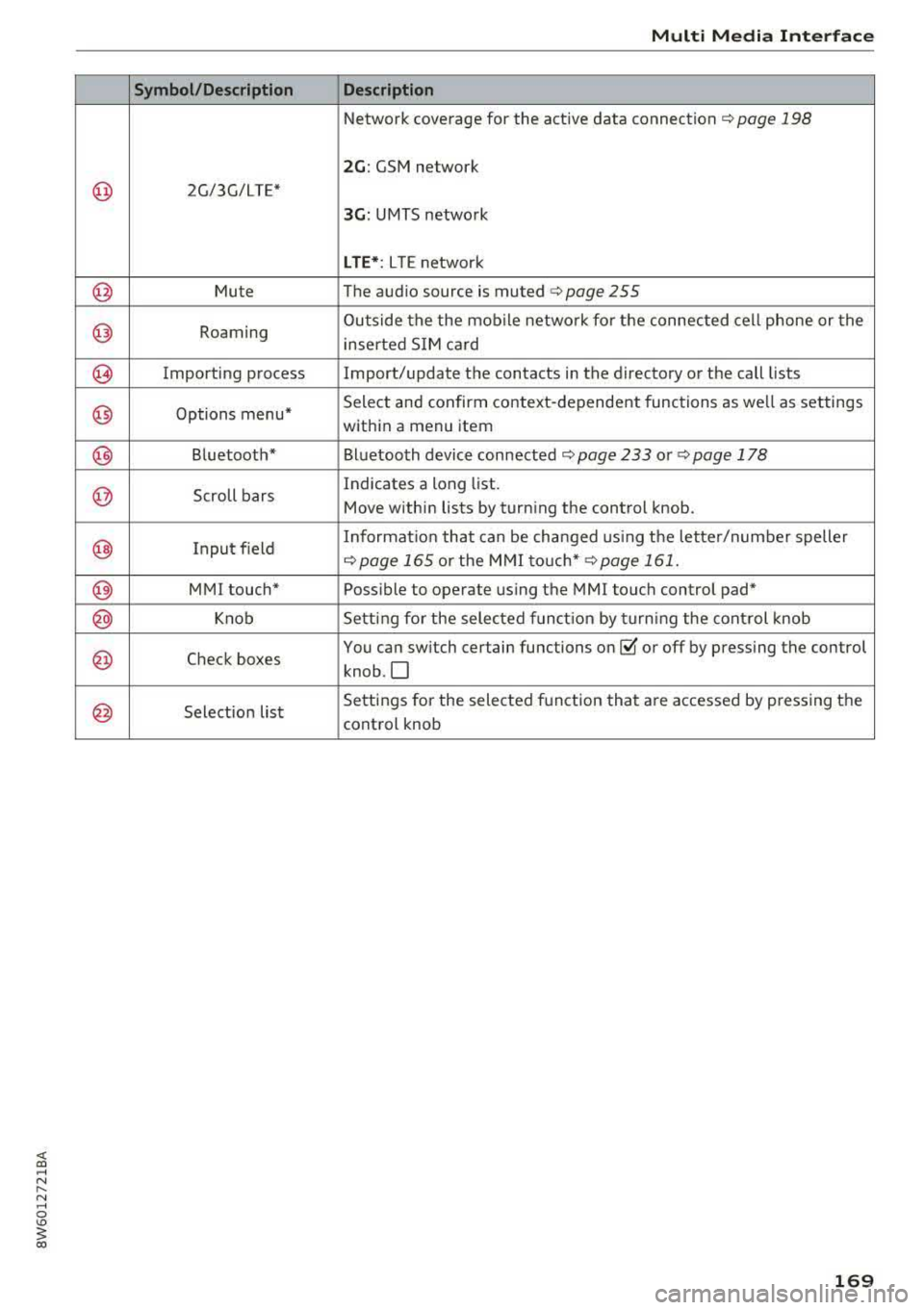
@
@
@
@
@
@
@
@)
@)
@
@
@
Symbol/Description
2G/3G/LTE*
Mute
Roaming
Importing process Options menu*
Bluetoot h*
Scroll bars
Input f ield
MMI touch* Knob
Check boxes
Selection list
Multi Media Interfac e
Description
Network coverage for the active data connection~ page 198
2G : GSM network
3G: UMTS network
LTE *: L T E network
The audio source is
muted ¢ page 255
Outside the the mob ile netwo rk fo r the connec ted cel l phone or the
inserted S IM ca rd
Import/update the contacts in the directory or the call lists
Select and confirm context-dependent functions as we ll as settings
w ith in a menu item
Bl uetooth device connected
¢ page 233 or ~ page 178
Indicates a long list.
Move within lists by turning the control knob.
Informat io n that ca n be changed using t he letter/numbe r speller
~page 165 or the M MI to uch* ~ page 161.
Poss ible to operate using the MMI touch control pad*
Setting fo r the selected f unct ion by turning the cont rol knob
You can sw itch certain functions
on~ or off by pressing the control
knob .O
Settings for the selected f unct ion tha t are accessed by pressing the
control knob
169
Page 173 of 409
Voice recognition system Operating
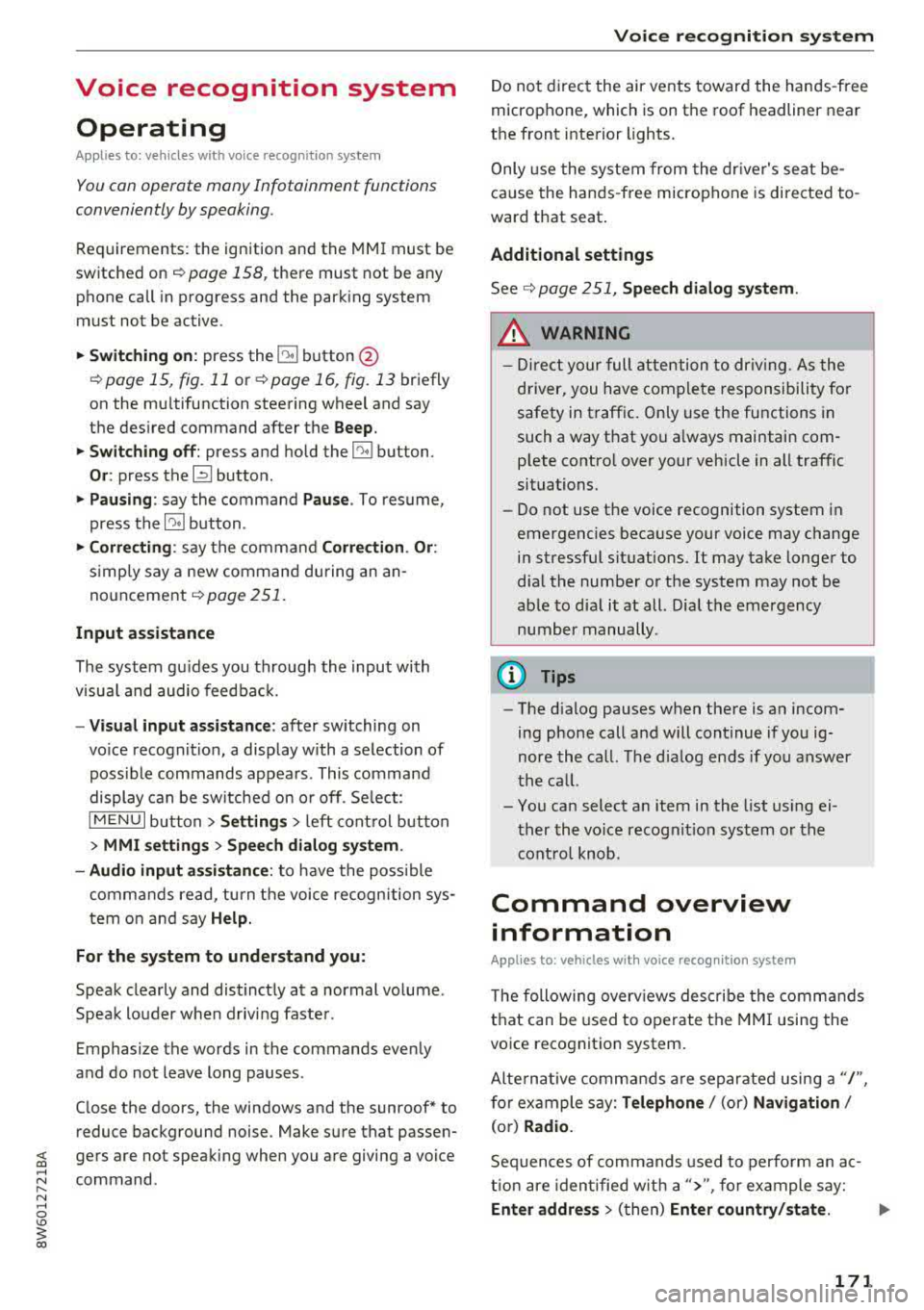
Appl ies to: veh icles wit h vo ice recog nitio n system
You con operate many Infotainment functions
conveniently by speaking .
Requirements: the ignition and the MM I must be
switched on
~page 158, the re must not be any
phone call in progress and the park ing system
must not be active.
~ Switching on : press the 51 button@
~ page 15, fig. 11 or~ page 16, fig. 13 briefly
on the mu ltifunction steering wheel and say
the des ired command after the
Beep .
~ Switching off : press and hold the 51 button.
Or: press the [2] butto n.
~ Pau sing : say the command Pau se . To resume,
press the
l2;J button .
~ Correcting : say the command Corre ction . Or :
simply say a new command during an an
nouncement
<=> page 251.
Input assistance
The system gu ides you throug h the input with
v isua l and audio feedbac k.
- Vi sua l input as sistan ce: after switching on
vo ice recogn it io n, a display w ith a selection of
poss ible commands appears. This command
display can be sw itched on o r off. Se lect:
IMENU I button> Setting s> left cont rol button
> MMI setting s > Speech dialog system .
- Audio input a ssis tance :
to have the poss ible
commands read, tu rn the voice recognition sys
tem on and say
Help.
For the s yst em to understand you:
Speak clearly and dist inctly at a normal vo lume .
Speak louder when d riving faste r.
Emphasize the words in the commands evenly
and do not leave long pauses .
C lose the doors, the windows and the sunroof* to
reduce background noise . Make sure that passen-
;;!; gers are not speaking when you are giving a voice
;::; command. ,....
N .... 0 \0
3
Do not direct the air vents toward the hands-free
microphone, which is on the roof headliner near
t h e front inte rior lights .
Only use the system from the dr iver's seat be
ca use the hands -free microphone is directed to
ward that seat.
Additional settings
Seer=;, page 251, Spee ch dialog system .
A WARNING
-Direct your full attention to dr iv ing. As the
driver, you have complete responsibility for
safety in traffic . Only use the functions in
such a way that you a lways maintain com
p lete contro l over your vehicle in all traffic
situations.
-Do not use the voice recognition system in
emergencies beca use your voice may change
in stressful situations. It may take longer to
d ial the number or the system may not be
able to dial it at all. Dial the emergency
number manually.
@ Tips
- The d ialog pauses when there is an incom
ing phone call and will continue if you ig
nore the call. The d ialog ends if you answer
the ca ll.
- You can select an item in the list using ei
ther the vo ice recognit ion system or the
cont rol knob .
Command overview
information
Appl ies to: ve hicles w ith vo ice recognit ion system
T he following overv iews describe the comma nds
t h at can be used to operate the MMI using the
voice recognition system.
Alte rnative commands a re separate d using
a"/",
for example say: Telephone / (or) Navigation /
(or) Radio.
Sequences of commands used to perfo rm an ac
t ion are iden tified w it h
a"> ", fo r ex ample say:
Ente r addre ss > (t hen) Enter country /state . ..,.
171
Page 178 of 409
Voice recognition system Radio
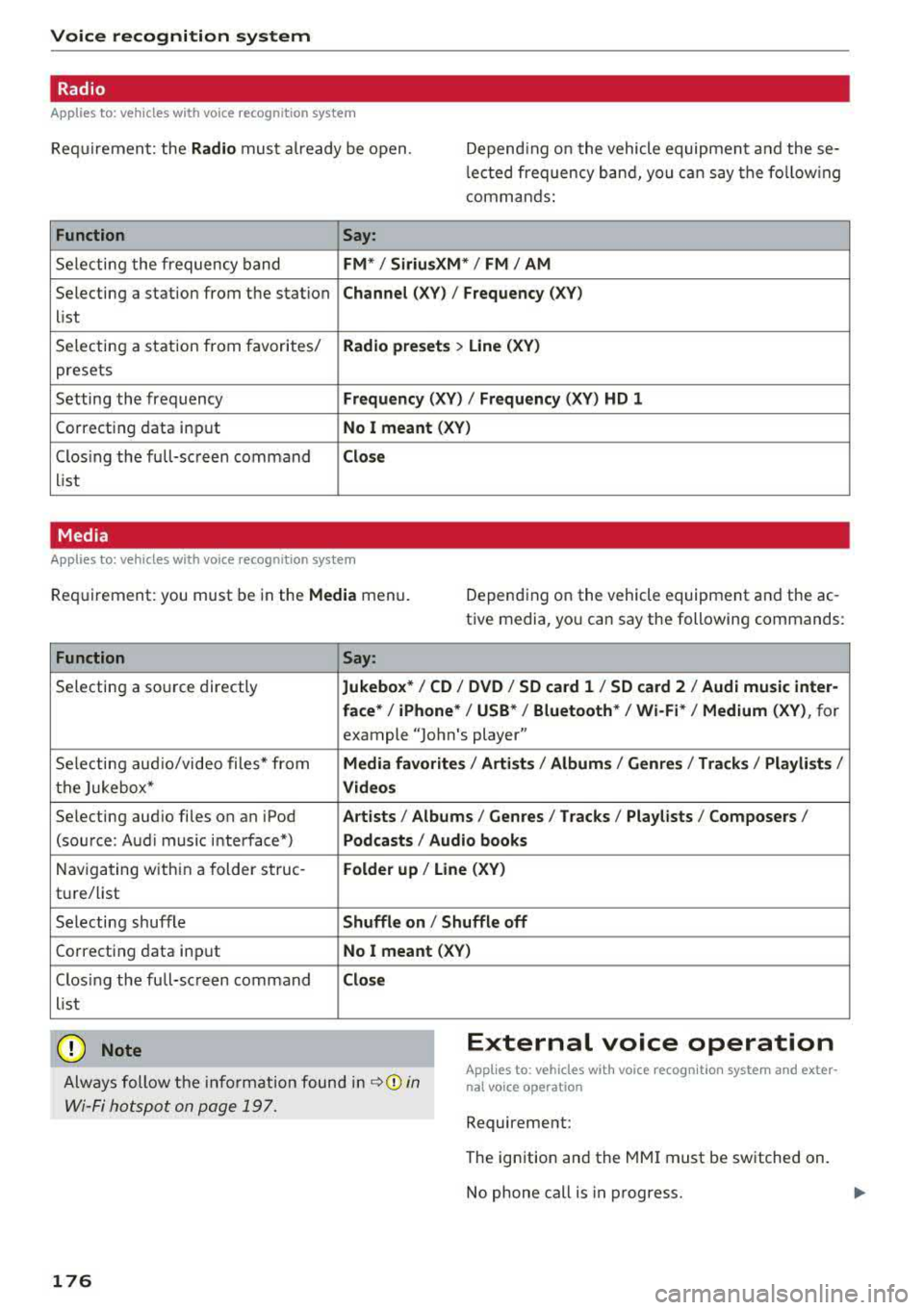
Applies to: vehicles with voice recognition system
Requirement: the Radio mus t already be open. Depend ing o n the vehicle equipment and these
l e cted frequency band, you ca n say the fo llow ing
commands :
Function
Say:
Selecting the frequency band FM*/ Siriu sXM * / FM / AM
Selecting a station from the station Channel (XV) / !Frequency (XV)
list
Selecting a station from favorites/
Radi o pre sets > Line (XV)
presets
Setting the frequency
Frequency (XV) / Frequency (XV ) HD 1
Correcting data inp ut No I meant (XV)
Closing the full-sc reen command Clo se
list
Media
Applies to: vehicles with voice recognition system
Requirement: you must be in the Med ia menu. Depending on the vehicle equipment and the ac
tive media, you can say the following commands :
Function
Say:
Selecting a source directly Jukebo x*/ CO/ DVD / SO ca rd 1 / SO card 2 / Aud i music inte r-
face *
I iPhone* / USB * / Bluetooth* / Wi-Fi * / Medium (XV), for
example "John 's player"
Selecting aud io/video files* from
M edia favor ites/ Arti sts / Album s/ Genres / Tr ack s/ Playli st s /
the Jukebox* Video s
Selecting aud io files on an iPod Art ists / Albu mis / Genre s I Tracks / Pla ylists / Composer s I
(source: Audi music interface*) Podcast s / Audio books
Naviga ting within a folder struc -Folder up / Line (XV )
tu re/list
Selecting shuffle
Shuffl e on I Shuffle off
Correcting data inp ut No I meant (XV)
Closing the full-sc reen command Close
list
CJ) Note External voice operation
Always follow the info rmation found in ~CD in
Wi-Fi hotspot on page 197.
Applies to: vehicles with voice recognition system and exter
nal vo ice operation
Requirement:
176
The ignition and the MM I must be switched on.
No phone call is in p rogress.
Page 198 of 409
Audi connect (Infotainment)
The fo llow ing A udi connect In fota inment serv ices
are curre ntly availab le:
- Naviga tio n wi th
online map view a nd Street
View
¢ page 219 .
-Point of Interest (POI) online search with
voice recognition
( such as res taur ant s): plan
r ou te g uida nce using t he M MI con trol panel
¢page 2 11 and the voice recognition system
¢ page 171 .
- Set up dest ina tions in you r M MI using yo ur
myAudi account or onl ine map view
¢ page 219 .
-Online traffic information : receive up-to-the
minute t raffic info rmation about accidents,
r oad construction and other incidents
¢ page 223 .
-Map update : import navigat ion map updates
directly to yo ur vehicle using a n SD ca rd o r as
an on line
update¢ page 221.
@ Tips
- Fo r the map update Au di c onnect Infotain
ment se rvice via SD car d, check the current
software vers ion in your vehicle and then
check
www.audiusa.com/myaudi to see if a
newe r ve rsion is ava ilable. You can a lso have
th e ne w naviga tion da ta insta lled by an A ud i
d eale r, w hich can be done for an addition al
c har ge.
- Y ou can a lso fin d ad dit io na l informat ion
a bout th e
map update onlin e at
www.audiusa.com /myaudi .
Audi connect (Infotainment) on the phone
Applies to vehicles with Audi connect (Infotainment)
~ Se lect: I M ENU I but ton > Audi connect > left
contro l button >
Communication .
The fo llow ing A udi con nect Info tainment services
a re curre ntly availab le:
- Stor ing contacts on yo ur compute r us ing yo ur
myAudi A ccount and loadi ng the contacts into
t he MM I direct ory
¢ page 188.
196
Audi connect (Infotainment) in Media
menu
Applies to vehicles with Audi connect (Infotainment)
~ Sele ct: !ME NUI button> Audi connect > righ t
control button >
Entertainment.
- Online media and Internet radio :
offers access
t o di fferen t on line me dia services as well as In
ternet radio and ope ration th ro u gh t he M MI us
ing the
Audi MMI connect app ¢ page 235 .
Applies to: vehicles with Wi·Fi audio player
-Wi-F i audio player : you can access the med ia
center throug h a Wi-Fi connecte d media player
(su ch as a s martphone)
¢ page 23 4.
.8, WARNING
It is o nly s afe to u se ta ble ts, l ap to p s, mo bile
d evi ces and other simi la r devices whe n the ve
hicl e is sta tionary beca use , like a ll loose ob
jects, they co uld be thrown a roun d the inside
of the vehicle in a cras h and cause serious in
ju ries. Store these types of devices sec urely
while driv ing.
(D Note
A lways fo llow the information fo und in ¢ 0 in
Wi -Fi hotspot on page 197.
@ Tips
- Also see t he cha pter¢ page 198, Audi con
nect (Infotainment) general information .
- For more in fo rmat ion on t he Wi-Fi a udi o
player and su pported devices, contact an
authorized A udi dealer or aut ho rize d Au di
Service Facility.
Additional options
Applies to vehicles with Audi connect (Infotainment)
~ Select: ! ME NUI button> Aud i connect > right
cont rol button.
The following options are available in the Aud i
connect In fota inment serv ices overview :
Log in*
See c:::> page 191, Logging into myAudi in the vehi -
de. ~
Page 232 of 409
Media
Media
Introduction
There are various media drives and connections
avai lab le in the MMI. For example, you can p lay
aud io/video* fi les from the Jukebox* or connect
your mob ile dev ice to the Aud i m usic interface *
and operate it through the MMI.
Notes
General information
Media and format restrictions :
the MMI (includ
in g the SD card reade r and the USB storage de
vice co nnect ion *) was tested w ith a var iety of
products and media on the market. However,
there may be cases where ind iv idual devices or
media and audio/video files" may not be recog
n ized, may play o nly w ith restr ictions, o r may not
p lay a t all.
Dig ital Rights Management : please note that
t he audio/v ideo" files are subject to copyright
protection .
The media drives do not p lay f iles that a re pro
tected by OR M and that are ident ified with the
symbo l
!'.TI.
Data secu rity : never store im portant data on SD
cards, the Ju kebox *, CDs/DVDs o r mobile devices.
Aud i AG is not responsib le for damaged or lost
fi les and media .
Loading times : th e mo re files/fo lde rs/ play lists
that are on a sto rage medium, the longer it will
take to load the audio/video* files . Audi recom
mends us ing storage media tha t on ly conta in au
d io/video files* . T o decrease the t ime it takes to
load audio/v ideo f iles*, crea te subfo lders ( fo r ex
a m ple , fo r th e a rt ist o r album). The loading time
will also increa se whe n importing fi les.
Additional information : when playing, audio
fil es are automatically displayed with any add i
tional informa tion that is s to red (such as the ar
tis t, track and al bum cover).
If this in forma tio n is
no t a vai lable o n the storage mediu m, t he MMI
wi ll check the Gr ace no te met adata database .
230
However, in some cases, the additional in forma
tion may not be dis played.
Restri cted functionality : reset the Media set
tings
t o the facto ry de fault se ttings i f func tional
i ty is res tric ted
¢ page 2 5 2.
If functionality is restr icte d, reset the Jukebox*
to t he fa ctory defa ult se tt in gs ¢ page 252.
Fo r informa tion abo ut the propert ies of s upport
ed med ia and fi le formats, see ¢
page 245.
W Note
Always fo llow the information fo und in c::> (D in
W i- Fi hotspot on page 197 .
CD/DVD operation
CD /DVD and format restrictions :
th e f unct iona li
ty o f indivi dual sto rage media m ay be limi ted due
to t he v ariety of b lank C Ds/DV Ds av a ila b le and
t h e v arious cap acities. Audio CDs or video DV Ds
with copy protection, CDs/D VDs that do not con
form to the standard and mult isess ion CDs may
hav e limit ed playback or may not play at all. Audi
r ecommends finali zing the recording process
whe n creat ing mult isess ion CDs . Mult isess ion is
not supported for DVDs .
Using CDs/DVDs, the CD dr ive or the DVD drive :
to ensure correct, hig h-q uality playback and to
prevent damage to the dr ive or disc read ing er
r ors, always store CDs/DVDs in a protec tive
s leeve and do no t expose them to direct s unlight .
Do
not u se:
- Damaged, dirty or sc ratched CDs/DVDs
- Single CDs/DVDs with 3 in (8 cm) d iameter
- CD/DVDs that a re not roun d
- CDs/DV Ds w ith labe ls
- Protec tive rings
- Clean ing CDs
Thermal protection switch : CD/DVD playback
may be temporarily unavailable if o utside tem
p eratures a re extremely hot or co ld. A t hermal
pro tect io n sw itch is insta lled t o protect the C D/
DVD and t he laser.
Laser devices : las er devices a re divide d into safe -
ty classes 1 to 4 in accordance with DI N IE C 76
.,..