Mmi AUDI A6 2020 Owners Manual
[x] Cancel search | Manufacturer: AUDI, Model Year: 2020, Model line: A6, Model: AUDI A6 2020Pages: 316, PDF Size: 86.41 MB
Page 217 of 316
4K0012721BD
Media
Radio
> Press on a radio station.
Audio books
You can control your audio books on the MMI.
> Press on an audio book.
Podcasts
You can control your podcasts through the MMI.
> Select: a podcast > a podcast episode.
Genres
All available genres are displayed.
» Select: a genre > an artist > an album > a song.
Videos
All available video files are displayed.
>» Press on a video.
Tracks
All available tracks are displayed.
> Press ona track.
Albums
All available albums are displayed.
ele mitra etela ry
> Select: an album > a track.
@) Note
Applies to: vehicles with Audi connect Infotainment
— Cloud services and category radio always re-
quire an Internet connection.
— Read the information about Audi connect,
and be sure to note the connectivity costs
section >@ in General information on
page 177.
@) Tips
— Only the categories supported by the medi-
um are available.
—For safety reasons, the video image is only
displayed when the vehicle is stationary. On-
ly the sound from the video plays while driv-
ing.
— When synchronizing a portable device with
Cloud services, playlists may display incor-
rectly in the MMI. Use the media center in
the device.
— Applies to: iPod/iPhone: Note the informa-
tion about the Audi music interface and the
supported devices > page 212.
RAX-0098
Moos ai)
Hymn
as aC)
at)
Reiter
Pd
era)
rs
@
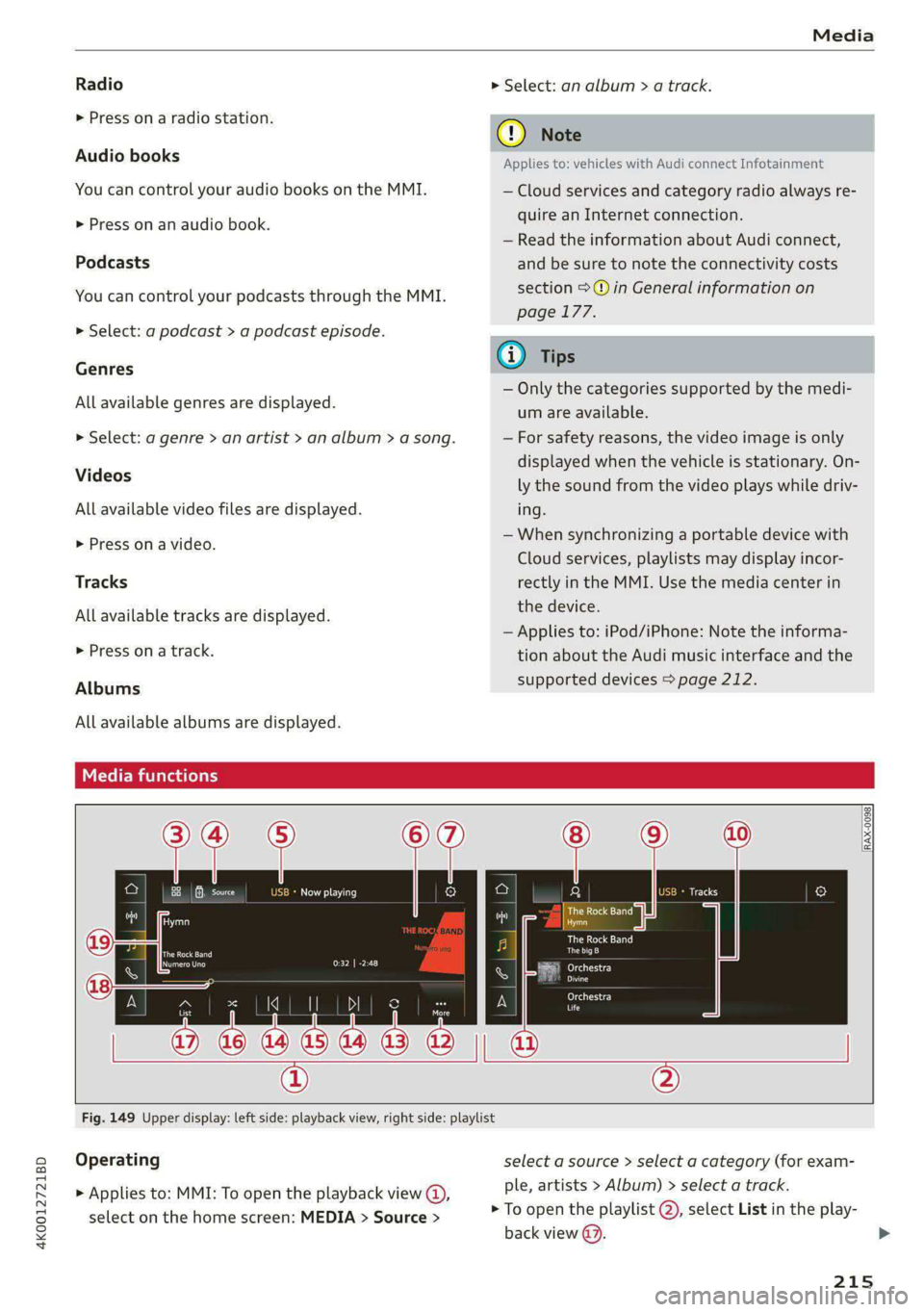
Fig. 149 Upper display: left side: playback view, right side: playlist
Operating
> Applies to: MMI: To open the playback view @),
select on the home screen: MEDIA > Source >
select a source > select a category (for exam-
ple, artists > Album) > select a track.
> To open the playlist @), select List in the play-
back view @.
215
>
Page 220 of 316

Media
Play
The selected track or all tracks in the folder will
be displayed.
Language!)
You can set the language manually. The language
and audio format options depend on the video
DVD.
Subtitles»)
You can manually select subtitles for playback.
The languages available depend on the DVD.
Aspect ratio
The Auto aspect ratio setting is recommended. If
you press on an aspect ratio, you will see a pre-
view of the setting on the screen. Press OK to ap-
ply the selected aspect ratio.
The following table gives an overview of the as-
pect ratios. The possible aspect ratios depend on
the source or video file being played.
Aspect ra- |Description
tio
Auto The MMI detects the picture for-
mat of the source and displays the
image in the optimal ratio.
4:3, The image is fixed in the corre-
16:9, sponding ratio. Select one of these
Cinema options if the image is distorted or
a section of the image is cut off or
blurry when Auto is selected.
Zoom The image is enlarged to fill the en-
tire display.
Original The image is displayed in the ratio
of the source format. Select this
option if the image is distorted or a
section of the image is cut off or
blurry when Auto is selected.
)) Depending on the DVD, this may not be possible during
playback.
218
Settings
Accessing settings
> Applies to: MMI: Select on the home screen:
MEDIA > ©.
Online additional data
Requirement: the MMI must be connected to the
Internet > page 177.
If available, various information about the track
currently playing (such as the cover) will be load-
ed from the Internet when this function is
switched on.
DVD playback parental control*
Playback of video DVDs can be restricted based
on age restrictions using parental control.
Displaying the parental control menu
> Applies to: MMI: Select on the home screen:
MEDIA > © > DVD playback parental control.
> Enter the PIN for parental control. The PIN set
at the factory is 1234.
> Press OK.
Switching the rating level on and off
Requirement: the parental control menu must be
displayed.
> Select: Set rating level > select a rating level
(for example, level 5) > *T, or:
> To remove all restrictions, select Off.
Eight different protection levels can be set for
parental control. If you set the parental control
level at Level 5, all DVDs from levels 1-5 can be
played. Video DVDs with a higher level will not
play.
Changing the PIN
Requirement: the parental control menu must be
displayed.
> Select: Change PIN > enter a new PIN for pa-
rental control > OK.
> Repeat the entry and press OK.
Page 222 of 316

— The media sources do not support the Win-
dows Media Audio 9 Voice format.
— For compressing MP3 files, AUDI AG recom-
mends a bit rate of at least 160 kbit/s. The
display showing the remaining play time
may differ for audio files with variable bit
rate.
— Special characters (such as those in ID3 tag
information) may display differently or may
Troubleshooting
The information that follows lists some trouble-
shooting options. They depend on the equip-
not always display, depending on the sys-
tem language.
— The manufacturer of the storage device can
provide information about its “USB Device
Subclass”.
— Some MTP player functions are not support-
ed, such as rating music tracks and video
playback.
ment.
Problem Solution
Audi music interface/Bluetooth
audio player: the mobile device is
not supported.
Read the instructions in the chapter > page 212, Multimedia
connections/> page 210, Bluetooth audio player.
Audi music interface: the mobile
device is not recognized as a
source.
For many mobile phones or mobile devices, playback is not possi-
ble when the battery level is too low (less than 5% charge level).
The mobile device will only be recognized as a media source in
the MMI after connecting if the battery charge level is sufficient.
Audi music interface: malfunc-
tions during audio playback
through an iPod/iPhone.
The Bluetooth audio player function is switched on. Switch this
function off > page 224 when you are not using the Bluetooth
audio player.
Audi music interface: audio play-
back through the connected mo-
bile device is not possible.
Make sure the USB mode MTP is selected in the settings on your
mobile device.
Bluetooth audio player: interfer-
ence with track display and audio
playback.
Playback interference can occur when using the Bluetooth audio
player if a music player app from a third party provider is open.
AUDI AG recommends using the integrated media player on your
Bluetooth device (such as a smartphone).
Online media: connection failed
between the MMI and the myAudi
app.
To establish a connection to the MMI, the MMI connection switch
must be switched on in the myAudi app status screen.
Online media: no playback of on-
line media.
Check if a suitable data plan has been purchased.
Wi-Fi hotspot: your Wi-Fi device is
disconnected from the Wi-Fi hot-
spot.
Make sure the network optimization functions are switched off in
the Wi-Fi settings or in the network settings for your Wi-Fi de-
vice. For additional information, refer to the user guide for your
Wi-Fi device.
220
Page 223 of 316

4K0012721BD
Audi smartphone interface
Audi smartphone
interface
Setup
Applies to: vehicles with Audi smartphone interface
You can connect your smartphone to the MMI
with a cable or wirelessly* using the Audi smart-
phone interface. Certain content on your smart-
phone is adapted in the MMI while driving and
can be operated through the MMI.
Requirement: the vehicle must be stationary and
the ignition must be switched on. iPhone genera-
tion 5 or higher with Lightning connector and iOS
7.1.2 operating system or higher, or smartphone
with Android Auto app and Android 5.0 Lollipop
operating system or higher.
> Applies to: MMI: Select on the home screen:
SETTINGS > Connected devices > Audi smart-
phone interface > New connection.
> Connect your smartphone to the Audi music in-
terface > page 212 using a USB adapter
=> page 212, fig. 147, or
> To connect your iPhone wireless*, switch on the
Bluetooth function and Wi-Fi on your iPhone.
Open the CarPlay settings in your iPhone. In the
MMI, press on your iPhone in the list of dis-
played devices.
> To update the list, press OQ.
> Follow the system instructions.
> Pay attention to any additional system prompts
on your smartphone, if applicable.
> Applies to: MMI: If you declined use of Apple
CarPlay or Android Auto the first time you con-
nected your smartphone, then select on the
home screen: SETTINGS > Connected devices >
Audi smartphone interface > a smartphone.
> Follow the system instructions.
Z\ WARNING
Driving requires your complete and undivided
attention. As the driver, you have complete re-
sponsibility for safety in traffic. Never operate
mobile devices while driving, because this in-
creases the risk of an accident.
CG) Note
Read the information about Audi connect, and
be sure to note the connectivity costs section
=> page 177.
G@) Tips
— The functions that can be used depend on
the following factors, among others:
— The brand of your smartphone
— The version of the operating system in
your smartphone
— The software version of the app used
— The USB adapter cable and correct connec-
tion
— Your cell phone service provider
— The customized settings on your smart-
phone
— One of the factors above or a combination
of any of them could cause your smart-
phone to be incompatible with the Audi
smartphone interface. Compatibility cannot
be guaranteed for all types of smartphones.
For more information and assistance, refer
to the user guide and the manufacturer of
your smartphone.
— Please note that you can only connect your
smartphone via the front Audi music inter-
face in order to use the Audi smartphone in-
terface.
— Wireless CarPlay* is not available in all
countries.
— Wireless CarPlay* is only possible in vehicles
without a navigation system if the following
requirement is met: the embedded SIM card
for the vehicle must be logged into the mo-
bile phone network > page 177. Make sure
the function > page 174, Turn on car phone
or data module is switched on.
— If the connected smartphone has voice con-
trol, you can operate your smartphone using
the external voice recognition system
=> page 28.
— The menu language shown in the MMI is
based on the settings in your smartphone.
— Some MMI functions are not available when
there is an active Audi smartphone interface
connection.
221
Page 224 of 316

Audi smartphone interface
— You cannot connect any mobile devices via — AUDI AG merely provides access to third
Bluetooth when an Audi smartphone inter- party services through the MMI and does
face connection is active. not assume any responsibility for the con-
— Usage of the Audi smartphone interface de- tent of these services.
pends on the availability of services through
third party providers.
Troubleshooting
Applies to: vehicles with Audi smartphone interface
The information that follows lists some trouble-
shooting options. They depend on the equip-
ment.
Problem Solution
Audi smartphone
interface cannot be
opened.
Check the battery charge level on your smartphone.
Check the USB cable and use a different one if necessary.
Check if Android Auto or Apple CarPlay is available in the country where the vehi-
cle is being operated.
Android Auto: check if the Android Auto app is installed on your smartphone.
Connecting the
smartphone to the
MMI failed.
Make sure that you are using the correct USB adapter and check if the USB
adapter is connected correctly to your smartphone and the Audi music interface
=> page 212.
Apple CarPlay: check if Apple CarPlay is activated on your iPhone.
Android Auto: check in the Android Auto app if Android Auto permits new
vehicles.
Wireless connection: open the settings for Bluetooth and CarPlay on your
iPhone. Remove your vehicle. Open the connection manager in the MMI
=> page 224. Delete your iPhone in the Telephone 1 and Audi smartphone inter-
face submenus. Repeat the connection process. Restart the MMI > page 20. Re-
start your iPhone.
The smartphone is
not automatically
detected.
Make sure that you are using the correct USB adapter and check if the USB
adapter
is connected correctly to your smartphone and the Audi music interface
=> page 212.
Check if the requirements needed to connect a smartphone have been met.
222
Page 225 of 316
4K0012721BD
Additional settings
Additional settings
System settings
Introduction
General settings are described in this chapter.
You can find specific settings in the chapters
about
those settings. The available settings de-
pend on the vehicle equipment.
Date and time
> Applies to: MMI: Select on the home screen:
SETTINGS > General > Date & time.
Possible settings:
— Set date and time automatically
— Date format
— Use 24h time format
— Automatic time zone
— Time zone
— Automatic daylight saving time
— Manual daylight saving time
CERT Taal lat ae ay
> Applies to: MMI: Select on the home screen:
SETTINGS > General > Measurement units.
Possible settings:
— Speed
— Distance
— Temperature
— Pressure
— Consumption (engine)
— Volume
Language and keyboard
> Applies to MMI: Select on the home screen:
SETTINGS > Language & keyboard.
Language
You can change the languages for the display,
navigation announcements, and the voice recog-
nition system.
Keyboard
See > page 24.
Requirement: an audio source must be active.
> Applies to MMI: Select on the home screen:
SETTINGS > Sound.
Possible settings:
— Treble
— Bass
— Balance/fader
— Speed-dependent volume control
— Subwoofer
— Surround Level
Focus
You can optimize the sound distribution for vari-
ous locations in the vehicle.
3D effect
You can adjust the intensity of the 3D effect.
With the Medium setting, you will hear an opti-
mal 3D effect for all sources.
Announcements and tones
> Applies to: MMI: Select on the home screen:
SETTINGS > Announcements & tone.
Possible settings:
— Volume of announcements
— Welcome sound
ZA\ WARNING
Adjust the volume of the audio system so that
signals from outside the vehicle, such as po-
lice and fire sirens, can be heard easily at all
times.
G@) Tips
The volume is automatically adjusted to a pre-
set level when the MMI is switched on.
223
Page 226 of 316
Additional settings
Bluetooth
> Applies to: MMI: Select on the home screen:
SETTINGS > Connection settings > Bluetooth.
Bluetooth
You can select a setting for visibility of the MMI
to other Bluetooth devices. To connect a new
Bluetooth device, the Visible setting must be se-
lected. If Invisible is selected, a Bluetooth con-
nection will only be possible with paired devices.
If Off is selected, no Bluetooth device can be con-
nected.
Bluetooth audio player
When this function is switched on, the profile
will load automatically when your Bluetooth au-
dio player is within range.
Bluetooth name
The MMI’s Bluetooth name is displayed and can
be changed.
Tyee M olor hd
> Applies to: MMI: Select on the home screen:
SETTINGS > System maintenance > Software
update.
> If necessary, insert a storage medium with the
update data into the corresponding drive
=> page 219.
> Press Search for updates.
> Press on the desired update.
> Press Next.
> Follow the system instructions.
ZA\ WARNING
— Perform the installation only when the vehi-
cle is stationary. Otherwise, this increases
the risk of an accident
— If the installation fails, contact an author-
ized Audi dealer or authorized Audi Service
Facility immediately to have the malfunction
corrected.
() Note
The connection costs for the software update
are included in the Audi connect pricing.
224
G) Tips
The length of the process depends on the size
of the update.
Factory default settings
> Applies to: MMI: Select on the home screen:
SETTINGS > System maintenance > Restore
factory settings.
> Select the desired functions individually, or
> Select the option Select all.
> Press Apply. The settings will be reset. The key
user will remain stored.
> To also delete the key user, press Remove key
user.
> To completely delete a smartphone that is
paired with the Audi smartphone interface, re-
set Audi smartphone interface and Bluetooth.
G) Tips
— Make sure that not only the settings were
deleted but also the stored data, if necessa-
ry.
— The system may restart when the settings
are reset. This may take a few minutes.
Connected devices
(eye e Ts ( Us
Requirement: the vehicle must be stationary and
the ignition must be switched on.
> Applies to: MMI: Select on the home screen:
SETTINGS > Connected devices.
Possible menu items:
— Telephone 1
— Telephone 2
— Audio player
— WLAN hotspot
— Headset
myAudi app
This function is available if the myAudi app is in-
stalled on your mobile device and started, and if
the mobile device is connected with the vehicle’s
Wi-Fi hotspot.
Page 227 of 316

4K0012721BD
Additional settings
Audi smartphone interface
You can connect your smartphone to the MMI
>page 221.
@) Note
Read the information about Audi connect, and
be sure to note the connectivity costs section
=> page 177.
Connection options
Requirement: the connected devices menu must
be displayed > page 224.
Connecting a device
Requirement: Bluetooth visibility must be acti-
vated in the MMI & page 224 and mobile device.
> Press ona menu item, such as Telephone 1.
> To search for and connect your mobile device,
press New connection > page 164.
Selecting a connected device
> Press on a menu item, such as Telephone 1.
> Press on the desired mobile device in the list of
displayed devices. The connection will be made.
Disconnecting a connected device
> Press on a menu item, such as Telephone 1.
> Press on the connected mobile device. The se-
lected device will be disconnected from the
MMI.
Deleting a device
> Press ona menu item, such as Telephone 1.
> Press and hold an element until the Options
menu is displayed.
> Press Delete.
If a device is listed multiple times, it will be de-
leted from all menu items.
Additional options
Depending on the selected function, additional
options
may be available.
Requirement: the connected devices menu must
be displayed > page 224.
> Press on a menu item, such as Telephone 1.
> Press and hold an element until the Options
menu is displayed.
Bluetooth profiles
You can switch desired profiles on or off sepa-
rately in the MMI.
Favorite
To set a paired mobile device as the default
phone, activate this function in the MMI.
When the mobile device is in range and the Blue-
tooth function on the mobile device and in the
MMI is switched on, the default phone will be
given priority over the other Bluetooth devices
and will be connected directly to the MMI.
Legal information
General information
Information on the software licenses can be
found online at www.audi.com/softwareinfo.
ieee aE
> Applies to: MMI: Select on the home screen:
SETTINGS > General.
License subscription
Version information
Legal information
Possible options:
— Software information
— About Audi connect
PNT at el M Ullal]
Applies to: vehicles with Audi smartphone interface
Requirement: a smartphone must be connected
to the MMI > page 221.
> Applies to: MMI: Select on the home screen:
SETTINGS > Connected devices > Audi smart-
phone interface.
> Press and hold an element until the Options
menu is displayed.
> Press Legal notes.
225
Page 228 of 316
![AUDI A6 2020 Owners Manual Additional settings
ida aaa
Requirement: the vehicle must be stationary.
> Select in the instrument cluster: vehicle func-
tions tab > page 13.
> Press and hold the ££] button on the multifu](/img/6/57584/w960_57584-227.png "AUDI A6 2020 Owners Manual Additional settings
ida aaa
Requirement: the vehicle must be stationary.
> Select in the instrument cluster: vehicle func-
tions tab > page 13.
> Press and hold the ££] button on the multifu")
Additional settings
ida aaa
Requirement: the vehicle must be stationary.
> Select in the instrument cluster: vehicle func-
tions tab > page 13.
> Press and hold the ££] button on the multifunc-
tion steering wheel until the display appears.
Possible options:
— Engine code
— Software information
— Version information
Head-up display
Applies to: vehicles with head-up display
Requirement: the vehicle must be stationary and
the ignition must be switched on. The head-up
display is switched on.
> Applies to: MMI: Select on the home screen:
SETTINGS > Display & brightness > Head-up
display > Display contents > Show the license
text in the head-up display.
226
Page 237 of 316

4K0012721BD
Checking and Filling
Audi recommends
Sbastrol | ZIDIGE Prarzssional
Audi recommends using the LongLife high-per-
formance engine oil from Audi Genuine Parts.
I Tet
Engine oil pressure
i Turn off engine. Oil pressure too low
Stop driving and switch the engine off. Check the
engine oil level > page 235.
— If the engine oil level is too low, add engine oil
=> page 236. Only continue driving once the in-
dicator light turns off.
— If the engine oil level is correct and the indica-
tor light still turns on, turn the engine off and
do not continue driving. See an authorized Audi
dealer or authorized Audi Service Facility for as-
sistance.
Engine oil level
& Please add oil immediately
Stop driving and switch the engine off. Check the
engine oil level > page 235 and add engine oil
immediately > page 236.
2 Please add max. x qt (x l) oil. You can con-
tinue driving
Add the amount of oil shown immediately
=> page 236.
Reducing the oil level
A Please reduce oil level
There is too much oil in the engine and there is a
risk of damaging the catalytic converter or en-
gine. Drive to an authorized Audi dealer or au-
thorized Audi Service Facility immediately to have
engine oil extracted if necessary. Avoid high en-
gine speeds, full acceleration, and heavy engine
loads.
Engine oil sensor
Bs Oil level sensor: oil change necessary. Please
contact Service
Fuel has entered the engine oil. This will cause
the engine oil level to rise slowly and the engine
oil quality to decrease. Do not extract engine oil
to reduce the level, because this will increase the
risk of engine damage. Drive to an authorized
Audi dealer or authorized Audi Service Facility im-
mediately to have engine oil extracted.
& Oil level system: malfunction! Please con-
tact Service
The sensor that checks the engine oil level has
malfunctioned. Drive immediately to an author-
ized Audi dealer or authorized Audi Service Facili-
ty to have the malfunction repaired.
& Oil pressure sensor: malfunction! Please
contact Service
The sensor that checks the engine oil pressure
has malfunctioned. Drive immediately to an au-
thorized Audi dealer or authorized Audi Service
Facility to have the malfunction repaired.
Engine warm-up request
i Please drive to warm up engine
Fuel has entered the engine oil, either due to low
outside temperatures or frequent short drives.
Drive until the engine is warm so that the fuel in
the engine oil will evaporate. Avoid high engine
speeds, full accelerating, and heavy engine loads
when doing this.
G@) Tips
The oil pressure warning =} is not an oil level
indicator. Always check the oil level regularly.
Checking the engine oil level
The engine oil level can be checked in the MMI.
Follow the safety precautions > A\ in General in-
formation on page 231.
>» Park the vehicle on a level surface.
> Shut the engine off when it is warm.
> Switch only the ignition back on.
> Wait approximately two minutes.
> Applies to: MMI: Select on the home screen:
VEHICLE > Settings & Service > Oil level.
> Read the oil level in the display. Add engine oil
if the bar in the oil level indicator is just below
“min” > page 236.
235
>