change wheel AUDI A6 2020 User Guide
[x] Cancel search | Manufacturer: AUDI, Model Year: 2020, Model line: A6, Model: AUDI A6 2020Pages: 316, PDF Size: 86.41 MB
Page 141 of 316

4K0012721BD
Driver assistance
— The driver's hands are not on the steering
wheel
— Visibility is obstructed by a rise or dip.
Steering intervention request
If no steering activity is detected or the steering
power from the system is not sufficient, the driv-
er steering intervention request will alert the
driver using audio and visual signals. Take over
the steering and keep your hands on the steering
wheel so that you will be ready to steer at any
time. The system will become inactive after a
short time and will only be active again later.
If the driver does not take over steering, adaptive
cruise assist will be canceled. If the vehicle is
equipped with emergency assist and it is ready to
function, it will be activated if possible
=> page 154.
ZA\ WARNING
Follow the safety precautions and note the
limits of the assist systems, sensors, and
cameras > page 118.
G) Tips
— Always keep your hands on the steering
wheel so you can be ready to steer at any
time. The driver is always responsible for
adhering to the regulations applicable in
the country where the vehicle is being oper-
ated.
— It is recommended to only switch on lane
guidance on well-constructed roads.
— Certain settings are stored automatically in
the active personal profile.
—The & fig. 107 button switches lane guid-
ance availability and the lane departure
warning on or off simultaneously, if lane
guidance is preset in the adaptive cruise as-
sist settings.
Setting the distance
Applies to: vehicles with adaptive cruise assist
B4M-0234
Fig. 108 Operating lever: setting the distance
If you adjust the speed, you must also change the
time gap to the vehicle driving ahead. The higher
the speed, the greater the distance that is need-
ed.
> Tap the rocker switch to display the distance
that is currently set.
> To increase or decrease the distance in incre-
ments, tap the switch again toward G) or ().
The newly-set distance will be shown briefly, for
example with the indicator light. In the Driv-
er assistance display, a graphic display is shown
instead of the indicator lights > page 136,
fig. 104. The display matches the functions of
the indicator lights.
When approaching a vehicle driving ahead, the
adaptive cruise assist brakes to the set speed and
then maintains the set distance. If the vehicle
driving ahead accelerates, then the adaptive
cruise assist will also accelerate up to the speed
that you have set.
The following distances can be set:
139
Page 147 of 316

4K0012721BD
Driver assistance
If the indicator light turns on, the lane depar-
ture warning is not ready to provide warnings.
This may be due to the following reasons:
— The necessary lane marker lines have not been
detected (for example, in a construction zone
or because the lines are obstructed by snow,
dirt, water, or lighting)
— The speed is below the activation speed
— The lane is too narrow or too wide
— The curve is too narrow
— The driver's hands are not on the steering
wheel
— Visibility is obstructed by a rise or dip.
Steering intervention request
If no steering activity is detected or the steering
power from the system is not sufficient, the driv-
er steering intervention request will alert the
driver using audio and visual signals. Take over
the steering and keep your hands on the steering
wheel so that you will be ready to steer at any
time. The system will become inactive after a
short time and will only be active again later.
If the driver does not take over steering, the lane
departure warning will no longer be ready to pro-
vide warnings. If the vehicle is equipped with
emergency assist and it is ready to function, it
will be activated > page 154.
Behavior when a turn signal is active
Applies to: vehicles with side assist: Even if the
system is ready to provide warnings, it will not
warn you if you activate a turn signal before
crossing the lane marker line. In this case, it as-
sumes that you are changing lanes intentionally.
Applies to: vehicles with side assist: If the turn
signal is activated, the lane departure warning is
ready, and a lane change has been classified as
critical by the lane departure warning due to
vehicles traveling beside you or due to approach-
ing vehicles, then a noticeable corrective steering
movement will occur shortly before exiting the
lane. This will attempt to keep your vehicle in the
lane.
ZA WARNING
— Follow the safety precautions and note the
limits of the assist systems, sensors, and
cameras > page 118.
— The system warns the driver that the vehicle
is leaving the lane using corrective steering.
The
driver is always responsible for keeping
the vehicle within the lane.
— Corrective steering may not occur at all in
certain situations, such as during heavy
braking. Always be ready to intervene.
(i) Tips
— Always keep your hands on the steering
wheel so you can be ready to steer at any
time. The driver is always responsible for
adhering to the regulations applicable in
the country where the vehicle is being oper-
ated.
— The system does not provide any corrective
steering or steering wheel vibrations if it de-
tects that you are passing another vehicle.
ONC mam Ks) Clea}
Applies to: vehicles with lane departure warning
You can switch the optional steering wheel vibra-
tion warning for the lane departure warning on
and off. The settings depend on the vehicle
equipment.
— Applies to: MMI: Select on the home screen:
VEHICLE > Driver assistance > (<3) > Lane de-
parture warning > Vibration warning.
G) Tips
Certain settings are stored automatically in
the active personal profile.
tLe [4
Applies to: vehicles with lane departure warning
ray or {is displayed when there is a malfunc-
tion, the lane departure warning and lane guid-
ance functions of the adaptive cruise functions
may be unavailable or limited.
A message that indicates the cause and possible
solution may appear with some displays. The
145
>
Page 164 of 316
Parking and maneuvering
Symbol/Descrip-
Description
tion P
Rear tires
This view helps you to detect the distance between the rear wheels and
the curb when parking.
In these views, you can see the areas surrounding the vehicle in 3D when
® 3D surroundings | parking. The vehicle surrounding views are created from the camera im-
ages and sensor data. The vehicle image is shown by the system > A\.
ZX WARNING
— Follow the safety precautions and note the
limits of the assist systems, sensors, and
cameras > page 118.
— The Surroundings and 3D surroundings are
created from the individual camera images.
The vehicle image is shown by the system.
Objects and obstacles above the camera are
not displayed.
@) Note
Only use the images provided by the camera
on the rear of the vehicle when the luggage
compartment lid is completely closed. Make
sure any objects you may have mounted on
the luggage compartment lid do not block the
rearview camera.
@) Tips
— Depending on the selected gear, it will auto-
matically switch between the Front and
Rear views. If you switch the view manually,
the automatic front/rear camera change will
be temporarily deactivated.
— When first activated while a forward gear is
engaged, the Front corner is displayed.
162
Rear cross-traffic assist
Applies to: vehicles with rear cross-traffic assist
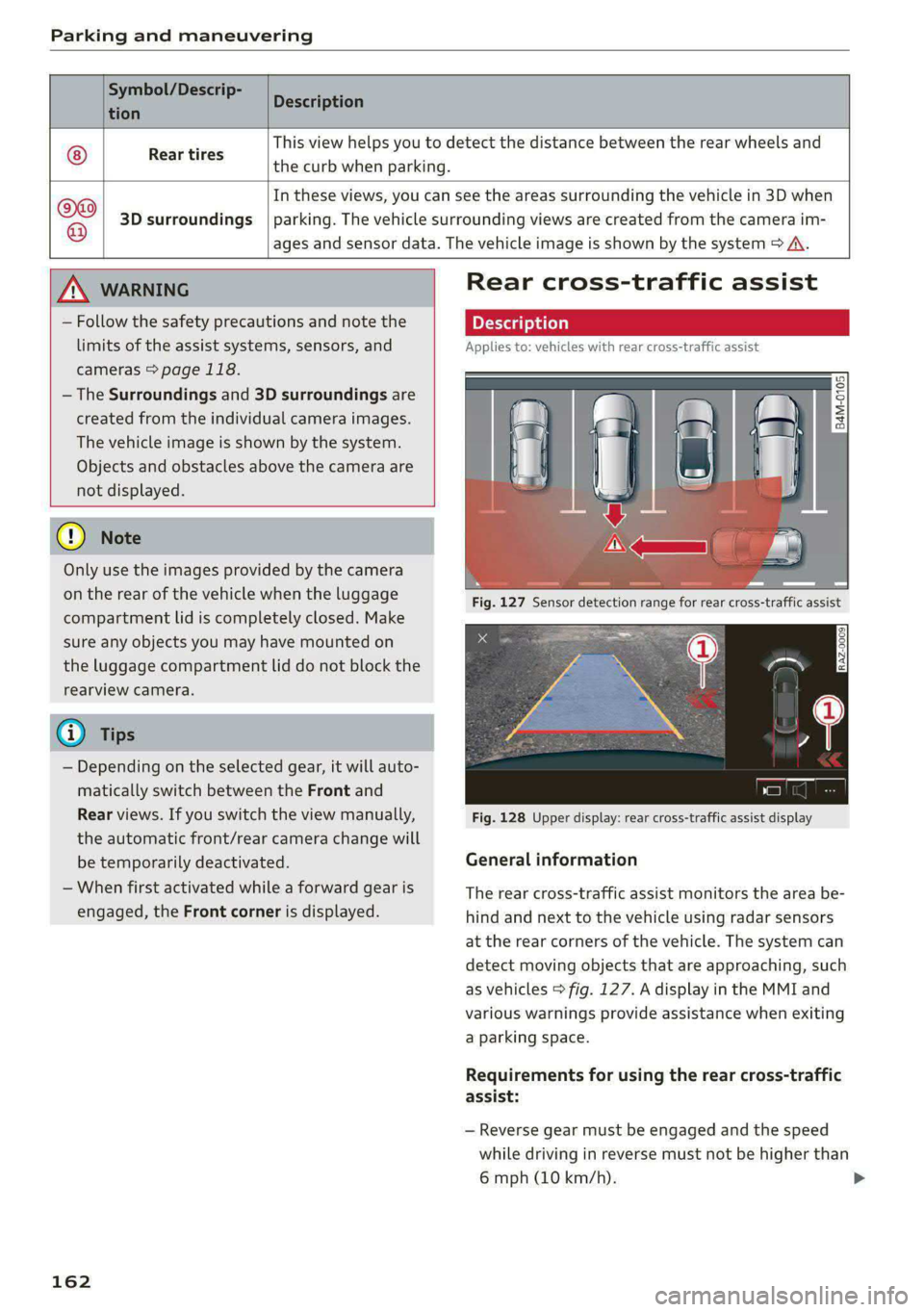
Fig. 128 Upper display: rear cross-traffic assist display
General information
The rear cross-traffic assist monitors the area be-
hind and next to the vehicle using radar sensors
at the rear corners of the vehicle. The system can
detect moving objects that are approaching, such
as vehicles > fig. 127. A display in the MMI and
various warnings provide assistance when exiting
a parking space.
Requirements for using the rear cross-traffic
assist:
— Reverse gear must be engaged and the speed
while driving in reverse must not be higher than
6 mph (10 km/h).
Page 187 of 316
4K0012721BD
Navigation
Navigation
Opening navigation
Applies to: vehicles with navigation system
The navigation system directs you to your desti-
nation, around traffic incidents, and on alterna-
tive routes, if desired.
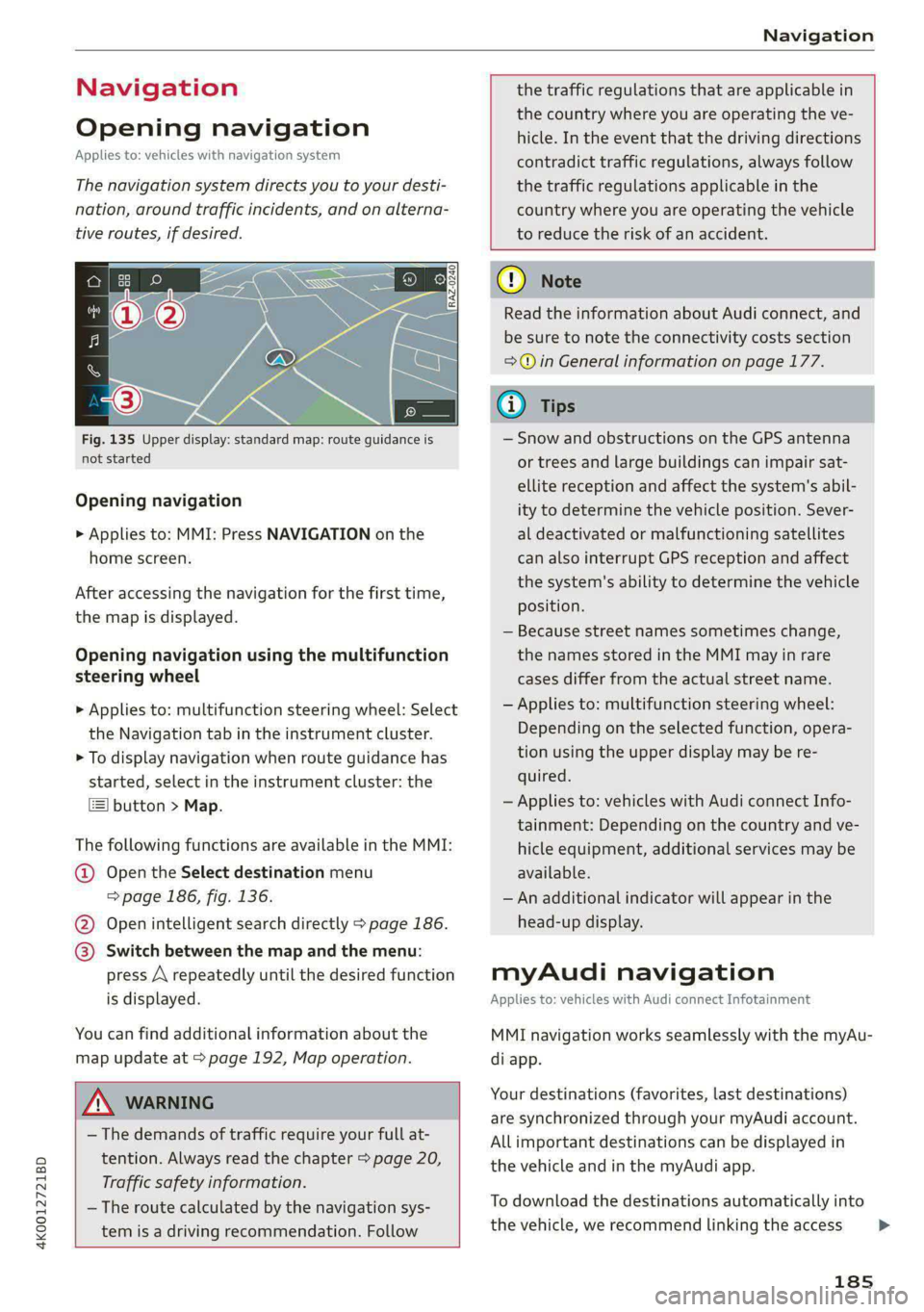
Fig. 135 Upper display: standard map: route guidance is
not started
Opening navigation
> Applies to: MMI: Press NAVIGATION on the
home screen.
After accessing the navigation for the first time,
the map is displayed.
Opening navigation using the multifunction
steering wheel
> Applies to: multifunction steering wheel: Select
the Navigation tab in the instrument cluster.
> To display navigation when route guidance has
started, select in the instrument cluster: the
button > Map.
The following functions are available in the MMI:
@ Open the Select destination menu
=> page 186, fig. 136.
@ Open intelligent search directly > page 186.
@ Switch between the map and the menu:
press A repeatedly until the desired function
is displayed.
You can find additional information about the
map update at > page 192, Map operation.
the traffic regulations that are applicable in
the country where you are operating the ve-
hicle. In the event that the driving directions
contradict traffic regulations, always follow
the traffic regulations applicable in the
country where you are operating the vehicle
to reduce the risk of an accident.
ZX WARNING
— The demands of traffic require your full at-
tention. Always read the chapter > page 20,
Traffic safety information.
— The route calculated by the navigation sys-
tem is a driving recommendation. Follow
@) Note
Read the information about Audi connect, and
be sure to note the connectivity costs section
=> in General information on page 177.
iG) Tips
— Snow and obstructions on the GPS antenna
or trees and large buildings can impair sat-
ellite reception and affect the system's abil-
ity to determine the vehicle position. Sever-
al deactivated or malfunctioning satellites
can also interrupt GPS reception and affect
the system's ability to determine the vehicle
position.
— Because street names sometimes change,
the names stored in the MMI may in rare
cases differ from the actual street name.
— Applies to: multifunction steering wheel:
Depending on the selected function, opera-
tion using the upper display may be re-
quired.
— Applies to: vehicles with Audi connect Info-
tainment: Depending on the country and ve-
hicle equipment, additional services may be
available.
— An additional indicator will appear in the
head-up display.
myAudi navigation
Applies to: vehicles with Audi connect Infotainment
MMI navigation works seamlessly with the myAu-
di app.
Your destinations (favorites, last destinations)
are synchronized through your myAudi account.
All important destinations can be displayed in
the vehicle and in the myAudi app.
To download the destinations automatically into
the vehicle, we recommend linking the access
185
>
Page 189 of 316
4K0012721BD
Navigation
Requirement: the MMI must be connected to the
Internet > page 177, Audi connect.
> Applies to: MMI: Select on the home screen:
NAVIGATION > © > G.
> Enter one or more search terms into the input
field.
> The search engine provider shows suggestions
to narrow down the search.
> Press on suggestions until the desired destina-
tion appears in the results list. If necessary, use
one finger to swipe upward or downward until
the suggestions © or destinations appear.
> Press on the desired destination 9. The Details
menu will be displayed.
> Press Start.
Route guidance will be activated and the map will
be displayed. > page 191, fig. 138
() Note
Read the information about Audi connect, and
be sure to note the connectivity costs section
=>@ in General information on page 177.
@) Tips
— The MMI input suggestions depend on the
last navigated destinations.
— The navigation system always searches for
the fastest route. You can have alternative
routes displayed if necessary > page 193.
— If the destination cannot be found, it may
not be stored in the navigation database.
Check
the spelling of the term that was
searched or check the search area
> page 186.
Entering an address
Applies to: vehicles with navigation system
As an alternative to the intelligent search, you
can also enter an address in stages.
Opening a menu
> Applies to: MMI: Select on the home screen:
NAVIGATION > (G5) > Enter address.
Enter a destination using an address
> Press on the respective input field and enter an
address.
> Press Apply. The Details menu will be dis-
played.
> Press Start.
Route guidance will be activated and the map will
be displayed > page 191, fig. 138.
Destination entry for a street intersection
> Select: Intersection > enter a street > Start.
Loading previous destinations
Applies to: vehicles with navigation system
Your last destinations and routes can be loaded
directly as a navigation destination.
As soon as you start route guidance, the destina-
tion is automatically saved in the last destina-
tions. Your previous destinations are marked with
the © symbol.
If you use myAudi navigation, your previous des-
tinations will be synchronized with your myAudi
account > page 185.
Accessing previous destinations
> Applies to: MMI: Select on the home screen:
NAVIGATION > (8) > Last destinations > select
a desired destination > Start.
> Applies to: multifunction steering wheel: Select
in the instrument cluster: Navigation tab >
button > Last destinations > desired destina-
tion.
Changing and loading a previous destination
> Applies to: MMI: Select on the home screen:
NAVIGATION > (Ge) > Last destinations > Z >
Z > change the address > Use address > Start.
Restore last tour
Requirement: a route with at least two stopovers
must have already been canceled.
Your last route is labeled with the © symbol.
187
>
Page 200 of 316

Navigation
Online traffic information
Applies to: vehicles with navigation system and online traffic
information
The MMI can receive real-time online traffic in-
formation about congestion, accidents, road
construction, and other incidents.
Requirement: the MMI must be connected to the
Internet > page 177, Audi connect. Traffic infor-
mation must be switched on in the MMI
=> page 198.
Traffic information will be displayed on the
standard map > page 191, fig. 138.
Online traffic information is also displayed on the
standard map > page 195.
() Note
Read the information about Audi connect, and
be sure to note the connectivity costs section
=@ in General information on page 177.
@) Tips
— Having the online traffic information func-
tion switched on provides the most accurate
reports of traffic situations and traffic fore-
casting. Your vehicle transmits and process-
es its anonymous, encrypted position infor-
mation at regular intervals to the traffic da-
ta provider. You can switch off data transfer
at any time > page 290.
— The online traffic information network is
not available in all countries, and the cover-
age is not nationwide.
Options and settings
Applies to: vehicles with navigation system
Context-specific functions and settings may be
available depending on the vehicle equipment.
> Press More, or
> Open a list with navigation destinations (such
as recent destinations) and press and hold an
item until the Options menu is displayed.
198
Storing a favorite
See > page 194.
Edit address
You can edit an address for the next destination
entry and navigate to the destination. Select: Ed-
it address > enter a street > Use address > Start.
If the address is permanently stored (for exam-
ple, in the favorites), the stored entry will not be
changed.
Change address
See > page 194, Favorites.
Entering an address
See > page 194, Contacts as navigation destina-
tions.
Change name
See > page 194, Favorites.
Weather
See > page 179, Services.
Save as a shortcut
See > page 23, Shortcuts.
Applies to: vehicles with navigation system
You can adjust the navigation system settings in
the instrument cluster and in the MMI display
separately. The settings depend on the country
and vehicle equipment.
Accessing settings
> Applies to: MMI: Select on the home screen:
NAVIGATION > ©}.
Accessing settings using the multifunction
steering wheel
> Applies to: multifunction steering wheel: Select
in the instrument cluster: Navigation tab >
button.
Please note that a setting applied to the multi-
function steering wheel is only valid for the in-
strument cluster map.
Page 215 of 316
4K0012721BD
Media
@) Note
— Pull the cable out of the Audi music inter-
face carefully so that the USB ports are not
damaged.
— Use a USB extension cable to connect devi-
ces that have an integrated USB connector
(such as a USB stick) to reduce the risk of
damage to your USB device and the Audi
music interface.
— Extremely high or low temperatures that
can occur inside vehicles can damage mobile
devices and/or impair their performance.
Never leave mobile devices in the vehicle in
extremely high or low temperatures.
@ Tips
— Always follow the information found in
=>
page 80.
— When you switch the ignition off, the USB
ports are still supplied with power until the
energy management intervenes.
— Do not use an additional adapter cable or
USB extension cable to connect mobile devi-
ces to the Audi music interface that already
have a cable or that must be connected with
a USB adapter cable (> page 212, fig. 147).
Using an additional adapter or US extension
cable may impair functionality.
— Functionality is not guaranteed for mobile
devices that do not conform to the USB 2.0
specification.
— USB hubs are not supported.
— Video playback through the Audi music in-
terface is not supported on Apple and MTP
devices (such as smartphones).
— iPod or iPhone malfunctions also affect the
operation of the MMI. Reset your mobile de-
vice in these situations.
— Audi recommends updating the iPod or
iPhone software to the latest version. Refer
to your mobile device owner's manual for
more information.
— The USB adapter on the Audi music inter-
face will support iPod touch or iPhone devi-
ces from the 5th generation or newer with
the lightning connector.
— For more information about the Audi music
interface and supported devices, check the
Audi database for mobile devices at www.
audi.com/mp3 or contact an authorized
Audi dealer or authorized Audi Service Fa-
cility.
Playing media
The following sources can be selected depending
on the vehicle equipment:
— Amazon Alexa > page 212.
—SD card > page 209.
— USB © page 212.
— DVD drive > page 210.
— Connect external device: you can connect ex-
ternal devices via Bluetooth and use the Blue-
tooth audio player > page 210, or you can con-
nect an external device directly to the Audi mu-
sic interface > page 212.
— Connect online media > page 211.
Accessing media
Playing media files using the MMI
> Applies to: MMI: Select on the home screen:
MEDIA > Source > a source. Depending on the
connected device or online media service”, the
symbol for a source may change. The device
name may be displayed (for example: my-
Phone).
> Select a track from the categories in the media
center > page 214.
Playing media files using the multifunction
steering wheel
Requirement: a media drive must contain media
files > page 213.
> Select the Radio/Media tab using the multi-
function steering wheel.
> Turn the left thumbwheel to display the play-
list.
> To switch to a different source, press the [=|
button.
> To select a media file or a source, turn and
press the left thumbwheel.
213
Page 216 of 316
Media
> To switch between radio and media, select the
button > Switch to radio/Switch to media.
@ Tips
— For safety reasons, the video image is only
displayed when the vehicle is stationary. On-
ly the sound from the video plays while driv-
ing.
— Applies to: multifunction steering wheel:
Depending on the selected function, opera-
tion through the MMI may be required.
3 g 5
Ig BS
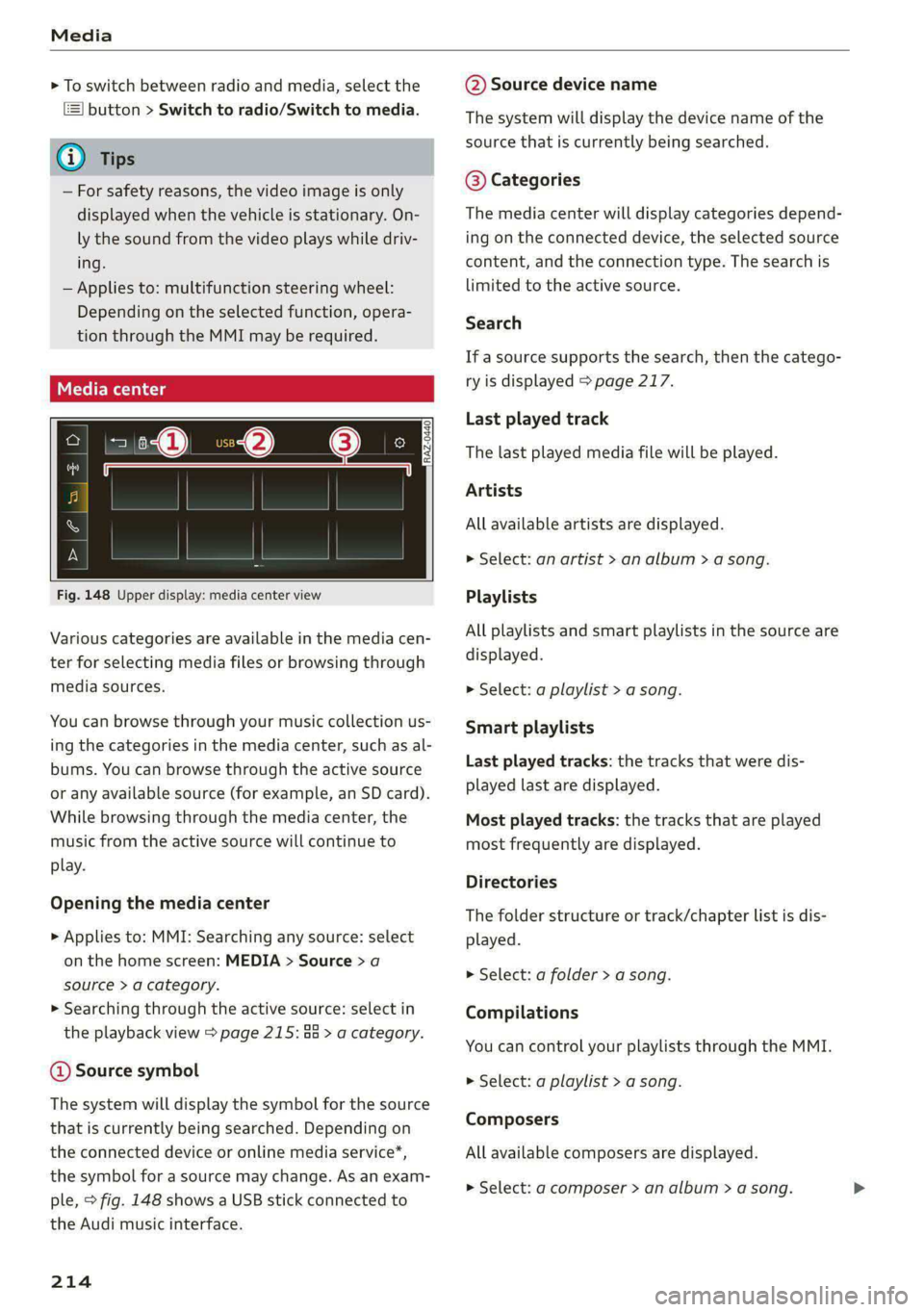
Fig. 148 Upper display: media center view
Various categories are available in the media cen-
ter for selecting media files or browsing through
media sources.
You can browse through your music collection us-
ing
the categories in the media center, such as al-
bums. You can browse through the active source
or any available source (for example, an SD card).
While browsing through the media center, the
music from the active source will continue to
play.
Opening the media center
> Applies to: MMI: Searching any source: select
on the home screen: MEDIA > Source > a
source > a category.
> Searching through the active source: select in
the playback view > page 215: 48 > a category.
@ Source symbol
The system will display the symbol for the source
that is currently being searched. Depending on
the connected device or online media service”,
the symbol for a source may change. As an exam-
ple, > fig. 148 shows a USB stick connected to
the Audi music interface.
214
@ Source device name
The system will display the device name of the
source that is currently being searched.
@® Categories
The media center will display categories depend-
ing on the connected device, the selected source
content, and the connection type. The search is
limited to the active source.
Search
If a source supports the search, then the catego-
ry is displayed > page 217.
Last played track
The last played media file will be played.
Artists
All available artists are displayed.
>» Select: an artist > an album > a song.
Playlists
All playlists and smart playlists in the source are
displayed.
> Select: a playlist > a song.
Smart playlists
Last played tracks: the tracks that were dis-
played last are displayed.
Most played tracks: the tracks that are played
most frequently are displayed.
Directories
The folder structure or track/chapter list is dis-
played.
> Select: a folder > a song.
Compilations
You can control your playlists through the MMI.
> Select: a playlist > a song.
Composers
All available composers are displayed.
> Select: ad composer > an album > a song.
Page 252 of 316

Wheels
Production options weight
means the combined weight of
those installed regular production
options weighing over 5 lbs.
(2.3 kg) in excess of those stand-
ard items which they replace, not
previously considered in curb
weight or accessory weight, in-
cluding heavy duty brakes, ride
levelers, roof rack, heavy duty
battery, and special trim.
Radial ply tire
means a pneumatic tire in which
the ply cords that extend to the
beads are laid at substantially
90 degrees to the centerline of
the tread.
Recommended inflation
pressure
see > page 248, Cold tire infla-
tion pressure.
Reinforced tire
means a tire designed to operate
at higher loads and at higher in-
flation pressures than the corre-
sponding standard tire. Rein-
forced tires may be identified as
“XL”, “xl”, “EXTRA LOAD”, or “RF”
on the sidewall.
250
Rim
means a metal support for a tire
ora tire and tube assembly upon
which the tire beads are seated.
Rim diameter
means nominal diameter of the
bead seat. If you change your
wheel size, you will have to pur-
chase new tires to match the new
rim diameter.
Rim size designation
means rim diameter and width.
Rim width
means nominal distance between
rim flanges.
Sidewall
means that portion of a tire be-
tween the tread and bead.
Speed rating (letter code)
means the speed at which a tire is
designed to be driven for extend-
ed periods of time. The ratings
range from 93 mph (150 km/h)
to 186 mph (298 km/h) > table
on page 246. You may not find
this information on all tires be-
cause it is not required by law.
The speed rating letter code,
where applicable, is molded on
the tire sidewall and indicates the >
Page 259 of 316
![AUDI A6 2020 User Guide 4K0012721BD
Wheels
Uw elec m-] oc
Please note that the information
contained in the following table
was correct at the time of print-
ing, and the information is sub-
ject to change. If ther](/img/6/57584/w960_57584-258.png "AUDI A6 2020 User Guide 4K0012721BD
Wheels
Uw elec m-] oc
Please note that the information
contained in the following table
was correct at the time of print-
ing, and the information is sub-
ject to change. If ther")
4K0012721BD
Wheels
Uw elec m-] oc
Please note that the information
contained in the following table
was correct at the time of print-
ing, and the information is sub-
ject to change. If there are any
differences, you should always
Make sure that the tire designa-
tion on your tire matches the des-
ignation on the tire pressure label
and the tire pressure table.
The following table lists recom-
mended tire pressures in cold
follow the tire pressure sticker tires according to the load and
> i ‘ . 4
page 255, fig. 164. the size of the tires installed.
Model/ Tire designation Tire pressure
Engine Normal load Maximum load
(up to 3 people)?
Front Rear Front Rear
PSI | kPA | PSI | kPA | PSI | kPA | PSI | kPA
AG sedan: 245/45R19102H| 32 | 220 | 32 | 220 | 32 | 220) 35 | 240
2.0L 255/40 R20101Y | 32 220 | 32 | 220 | 32 | 220 | 35 | 240
4cylinders /555/40R20101H| 32 | 220 | 32 | 220 | 33 | 230 | 36 | 250
255/35 R21 98Y 32 | 220 | 32 | 220 | 33 | 230 | 36 | 250
AG sedan: 245/45R19102H| 32 | 220 | 32 | 220 | 35 | 240 36 | 250
3.0L 255/40 R20101Y | 32 220 | 32 | 220 | 35 | 240 | 36 | 250
Seylinders — [555740R20101H | 33 | 230 | 32 | 220 | 36 | 250 | 38 | 260
255/35 R21 98Y 33 | 230 | 32 | 220 | 36 | 250 | 38 | 260
S6 sedan: 255/40R20101Y | 35 | 240 | 32 | 220 | 39 | 270 41 | 280
255/35 R21 98Y 39 | 270 | 36 | 250 | 44 | 300 | 45 | 310
2.9L
6-cylinder
AGallroad: |245/45R20103Y | 32 | 220 | 32 | 220 | 32 | 220) 35 | 240
235/50R19103H| 32 | 220 | 32 | 220 | 35 | 240 38 | 260
3-0 245/45R20103H| 32 | 220 | 32 | 220 35 | 240 | 38 | 260
6-cylinder 245/40R21100Y | 32 | 220 | 32 | 220 | 35 | 240 38 | 260
a) Two people in the front, one person in the rear
> AN WARNING pressure > page 255 and load
. limits > page 258.
Please note the important safe- pag
ty precautions regarding tire
257