driver assistance AUDI A6 2020 User Guide
[x] Cancel search | Manufacturer: AUDI, Model Year: 2020, Model line: A6, Model: AUDI A6 2020Pages: 316, PDF Size: 86.41 MB
Page 125 of 316
4K0012721BD
Driving information
Driving information
Speed warning system
Applies to: vehicles with speed warning system
The speed warning system helps the driver to
stay below a specified maximum speed. A warn-
ing threshold can be set in the MMI for this pur-
pose.
Once the speed slightly exceeds the stored
threshold, the speed warning system will alert
the driver with an indicator in the instrument
cluster and a warning tone. Once the speed drops
below the stored maximum speed, the indicator
will turn off.
Setting a threshold is recommended if you would
like to be reminded when you reach a certain
maximum speed. Situations where you may want
to do so include driving in a country with a gener-
al speed limit or if there is a specified maximum
speed for winter tires.
@) Tips
Regardless of the speed warning system, you
should always monitor your speed using the
speedometer and make sure you are following
the legal speed limit.
Setting the warning threshold
Applies to: vehicles with speed warning system
> Applies to: MMI: Select on the home screen:
VEHICLE > Driver assistance > (<3) > Speed
warning.
@ Tips
Certain settings are stored automatically in
the active personal profile.
Applies to: vehicles with speed warning system
ey Manually set XX speed limit warning
threshold exceeded
The stored speed was exceeded.
Camera-based traffic
sign recognition
Applies to: vehicles with camera-based traffic sign recognition
Fig. 96 Instrument cluster: traffic sign recognition
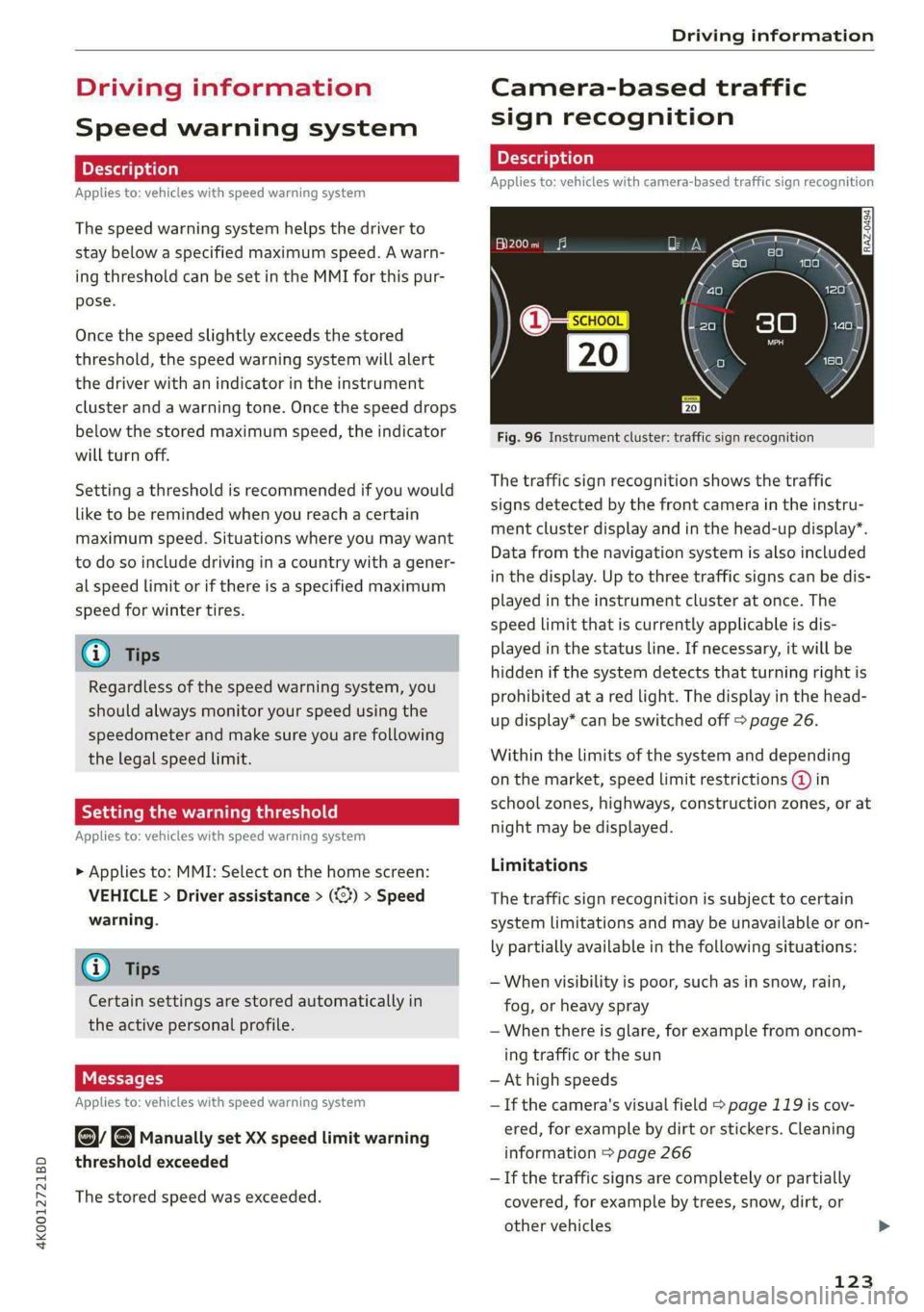
The traffic sign recognition shows the traffic
signs detected by the front camera in the instru-
ment cluster display and in the head-up display”.
Data from the navigation system is also included
in the display. Up to three traffic signs can be dis-
played in the instrument cluster at once. The
speed limit that is currently applicable is dis-
played in the status line. If necessary, it will be
hidden if the system detects that turning right is
prohibited at a red light. The display in the head-
up display* can be switched off > page 26.
Within the limits of the system and depending
on the market, speed limit restrictions @ in
school zones, highways, construction zones, or at
night may be displayed.
Limitations
The traffic sign recognition is subject to certain
system limitations and may be unavailable or on-
ly partially available in the following situations:
— When visibility is poor, such as in snow, rain,
fog, or heavy spray
—When there is glare, for example from oncom-
ing traffic or the sun
— At high speeds
— If the camera's visual field > page 119 is cov-
ered, for example by dirt or stickers. Cleaning
information > page 266
— If the traffic signs are completely or partially
covered, for example by trees, snow, dirt, or
other vehicles
123
Page 126 of 316
Driving information
— If traffic signs do not conform to the standard
format
— If traffic signs are damaged or bent
— If traffic signs are displayed on sign holders
with electronic signs
— If the traffic signs or the roadways have
changed, and the navigation data is no longer
up-to-date
Z\ WARNING
— Follow the safety precautions and respect
the limits of the assist systems, sensors,
and cameras > page 118.
— Under some circumstances, traffic sign rec-
ognition may not detect traffic signs correct-
ly or detect them at all. As a result, the sys-
tem may not display the correct speed limit
or any speed limit.
@) Tips
— Traffic sign recognition does not adapt your
vehicle's speed to match the speed Limit.
— The display in the instrument cluster is
based on the units of measurement used for
speed in the country where the vehicle is be-
ing operated. As a result, a display of 50 in
the instrument cluster can mean either mph
or km/h, depending on the country.
Applies to: vehicles with camera-based traffic sign recognition
Accessing traffic sign recognition
> Select in the instrument cluster: vehicle func-
tions tab > Traffic signs.
Setting a traffic sign based speed warning
> Applies to: MMI: Select on the home screen:
VEHICLE > Driver assistance > (3) > Speed
warning.
You can select a warning threshold. If it is ex-
ceeded, then the current detected speed limit
will be shown in the display with an exclamation
point for the duration that it is exceeded and it
will blink for a short time.
124
G) Tips
Certain settings are stored automatically in
the active personal profile.
Messages
Applies to: vehicles with camera-based traffic sign recognition
Traffic sign recognition: currently unavaila-
ble. Camera view limited due to environmental
conditions
The camera’s visual field is covered. Clean the
windshield.
Traffic sign recognition: currently limited.
See owner's manual
This message appears if navigation system data
is not available, for example on newly-construct-
ed roads. The speed limit display will be tempo-
rarily limited, which increases the risk of an incor-
rect display. If this message continues to appear,
drive immediately to an authorized Audi dealer or
authorized Audi Service Facility to have the mal-
function repaired.
No traffic sign information available
Depending on the area, there is no valid naviga-
tion data and no speed limits were detected. This
may also appear if there is a recommended
speed, but no speed limit (for example when
driving on and off the expressway).
Malfunction! See owner's manual
The system may not function correctly so it has
been switched off. See an authorized Audi dealer
or authorized Audi Service Facility for assistance.
Function currently unavailable. See owner's
manual
If this message appears on vehicles without cam-
era-based traffic sign recognition, then the traffic
light
information function is currently unavaila-
ble. See > page 126.
Page 131 of 316
4K0012721BD
Driving information
The Sl symbol will appear when pedestrian and
wild animal detection is not available.
Marking light*
To direct the driver's attention to a pedestrian,
the headlights can flash on the pedestrian when
there is a pedestrian warning.
This occurs at speeds above approximately
35 mph (60 km/h) if you are outside of illuminat-
ed areas and no detected vehicles are shown. The
marking light is not used for wild animals. The
high beam assistant* controls the marking
light*> page 50.
Adjusting the contrast
Applies to: vehicles with night vision assist
Requirement: the night vision assist must be
switched on and the 1 tab must be displayed.
> Applies to: MMI: Select on the home screen:
VEHICLE > Driver assistance > (23) > Night vi-
sion assist.
> To set the desired contrast, move the slider.
G) Tips
Certain settings are stored automatically in
the active personal profile.
Applies to: vehicles with night vision assist
Night vision assist: currently unavailable.
See owner's manual
The system is not functioning correctly so it has
been switched off. If this malfunction persists,
drive immediately to an authorized Audi dealer or
authorized Audi Service Facility to have the mal-
function repaired.
129
Page 132 of 316
Driver assistance
Driver assistance
Cruise control system
Applies to: vehicles with cruise control system
The cruise control system assists the driver in
maintaining a constant speed above approxi-
mately 15 mph (20 km/h). The system maintains
the desired speed by braking and accelerating.
ZA WARNING
— Always pay attention to the traffic around
your vehicle when the cruise control system
is in operation. As the driver, you are always
responsible for controlling your vehicle
speed and the distance between your vehicle
and
other vehicles.
— For safety reasons, cruise control should not
be used in the city, in stop-and-go traffic, on
winding roads, and when road conditions are
poor (such as ice, fog, gravel, heavy rain,
and conditions that could lead to hydroplan-
ing), because this increases the risk of an ac-
cident.
— Switch the cruise control off temporarily
when driving in turning lanes, highway exits,
or in construction zones.
—To reduce the risk of an accident, you should
only resume the stored speed if it is suitable
for the current traffic conditions.
C) Note
Before driving downhill a long distance ona
steep hill, decrease your speed and select a
lower gear. This makes use of the engine brak-
ing effect and reduces the load placed on the
brakes.
G) Tips
The brake lights turn on when the brakes are
applied automatically.
130
Switching the system on
Applies to: vehicles with cruise control system
BFV-0220
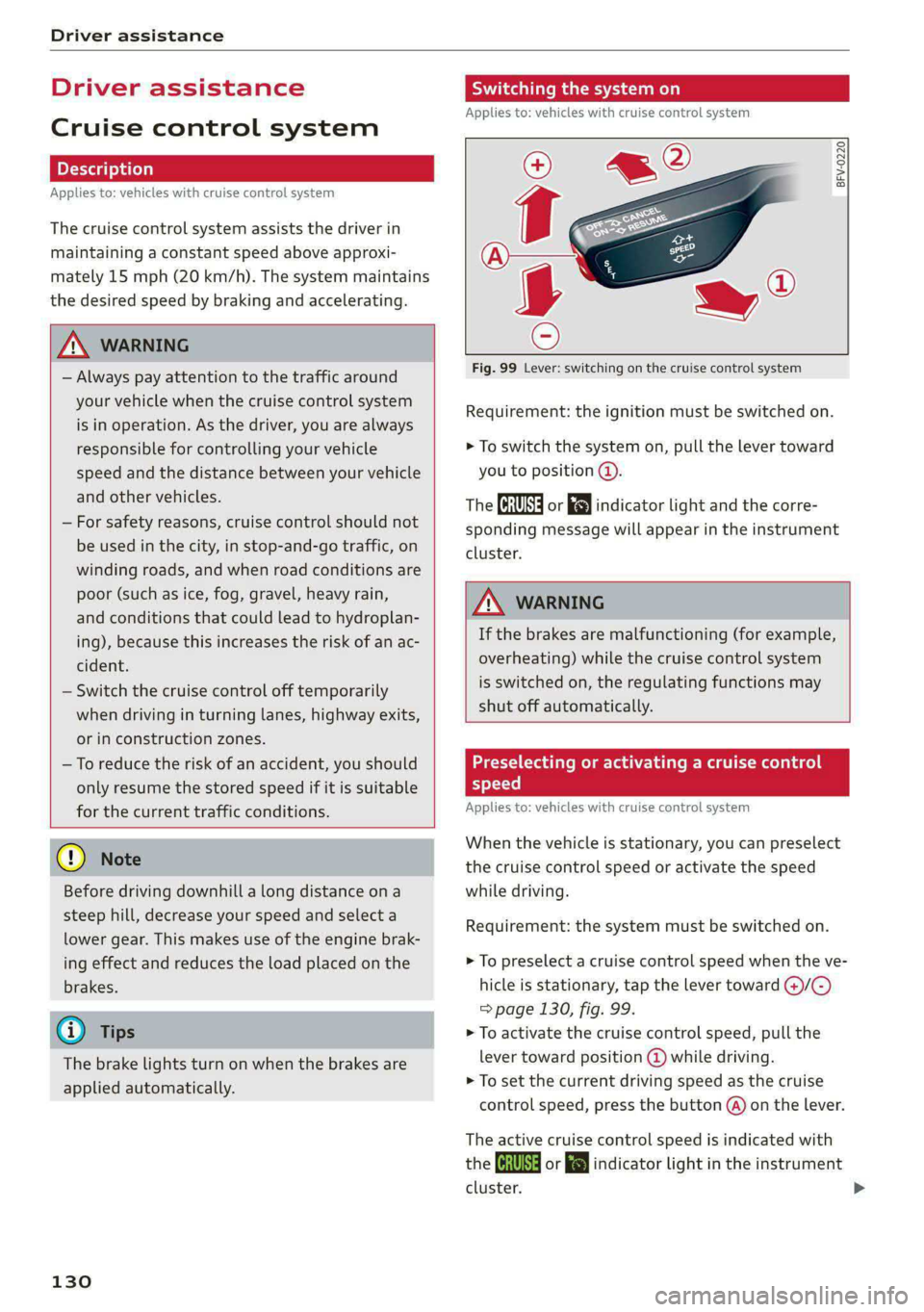
Fig. 99 Lever: switching on the cruise control system
Requirement: the ignition must be switched on.
> To switch the system on, pull the lever toward
you to position @).
The Ga or 8) indicator light and the corre-
sponding message will appear in the instrument
cluster.
A WARNING
If the brakes are malfunctioning (for example,
overheating) while the cruise control system
is switched on, the regulating functions may
shut off automatically.
etal Rom lad lille Rag etna)
speed
Applies to: vehicles with cruise control system
When the vehicle is stationary, you can preselect
the cruise control speed or activate the speed
while driving.
Requirement: the system must be switched on.
> To preselect a cruise control speed when the ve-
hicle is stationary, tap the lever toward @)/G)
=> page 130, fig. 99.
> To activate the cruise control speed, pull the
lever
toward position @ while driving.
> To set the current driving speed as the cruise
control speed, press the button @) on the lever.
The active cruise control speed is indicated with
the ICRUISE| or El indicator light in the instrument
cluster.
Page 133 of 316
4K0012721BD
Driver assistance
An additional indicator appears in the head-up
display*.
Changing the cruise control speed
Applies to: vehicles with cruise control system
> To increase or decrease the cruise control speed
in small increments, tap the lever up to the
first level toward @)/G) > page 130, fig. 99.
> To increase or decrease the cruise control speed
in larger increments, tap the lever up to the
second level toward )/C).
> To increase or decrease the cruise control speed
continuously, tap and hold the lever at the first
or second level toward @)/C).
Overriding or deactivating the cruise
control speed
Applies to: vehicles with cruise control system
You can override or deactivate the cruise control
system. When you deactivate the system, your
cruise control speed will be stored and you can
resume that speed.
Requirement: the system must be switched on
and activated.
Overriding
> To temporarily override the cruise control
speed, press the accelerator pedal.
> Once you release the accelerator pedal, the sys-
tem will adjust back to the stored cruise control
speed.
If you override the cruise control system for a
long period of time, the cruise control system
will be deactivated. The Gg or [9] indicator
light will be displayed and the cruise control
speed will be saved.
Deactivating
> To deactivate the cruise control speed, press
the lever toward (2) (not locked into place)
=> page 130, fig. 99, or
> Press the brake pedal.
ZX WARNING
Resting your foot on the accelerator pedal
could override the cruise control. This will pre-
vent braking interventions by the system.
Seem Lela
Applies to: vehicles with cruise control system
When you switch the system off completely, the
cruise control speed will be deleted.
Requirement: the system must be switched on.
> To switch the system off, press the lever toward
@ (locked into place) > page 130, fig. 99, or:
> Switch the ignition off.
Applies to: vehicles with cruise control system
Gs / §) Speed control system: currently un-
available. See owner's manual
If the indicator light turns on and this message
appears, the cruise control system has been deac-
tivated. There is a temporary malfunction, for ex-
ample the brakes are overheating. Switch the
cruise control system on again later.
Efficiency assist
Applies to: vehicles with efficiency assist
Efficiency assist can assist the driver with predic-
tive information in order to reduce fuel consump-
tion. Depending on vehicle equipment, the sys-
tem may access data from the navigation system,
the camera behind the windshield, and the radar
sensors.
Adjusting the efficiency assist
You can adjust efficiency assist functions individ-
ually. The settings depend on the vehicle equip-
ment.
— Predictive messages > page 132.
— Predictive control > page 133.
— Accelerator pedal feedback > page 97.
131
Page 134 of 316
Driver assistance
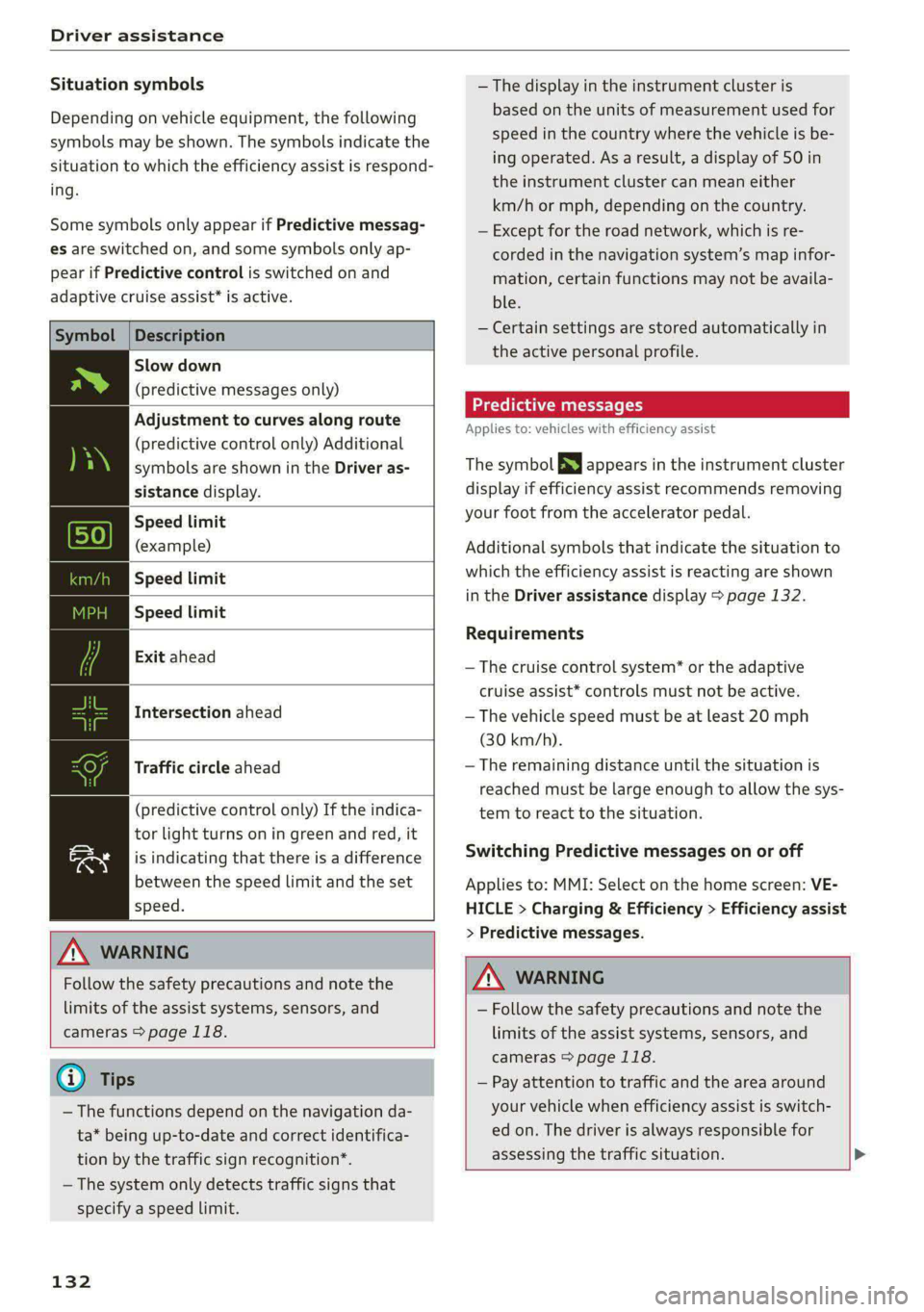
Situation symbols
Depending on vehicle equipment, the following
symbols may be shown. The symbols indicate the
situation to which the efficiency assist is respond-
ing.
Some symbols only appear if Predictive messag-
es are switched on, and some symbols only ap-
pear if Predictive control is switched on and
adaptive cruise assist* is active.
Description
Slow down
(predictive messages only)
Adjustment to curves along route
(predictive control only) Additional
symbols are shown in the Driver as-
sistance display.
Speed limit
(example)
Speed limit
Speed limit
Exit ahead
Intersection ahead
Traffic circle ahead
(predictive control only) If the indica-
tor light turns on in green and red, it
is indicating that there is a difference
between the speed limit and the set
speed.
ZA\ WARNING
Follow the safety precautions and note the
limits of the assist systems, sensors, and
cameras > page 118.
@) Tips
— The functions depend on the navigation da-
ta* being up-to-date and correct identifica-
tion by the traffic sign recognition*.
— The system only detects traffic signs that
specify a speed Limit.
132
— The display in the instrument cluster is
based on the units of measurement used for
speed in the country where the vehicle is be-
ing operated. As a result, a display of 50 in
the instrument cluster can mean either
km/h or mph, depending on the country.
— Except for the road network, which is re-
corded in the navigation system’s map infor-
mation, certain functions may not be availa-
ble.
— Certain settings are stored automatically in
the active personal profile.
Predictive messages
Applies to: vehicles with efficiency assist
The symbol BS appears in the instrument cluster
display if efficiency assist recommends removing
your foot from the accelerator pedal.
Additional symbols that indicate the situation to
which the efficiency assist is reacting are shown
in the Driver assistance display > page 132.
Requirements
— The cruise control system* or the adaptive
cruise assist* controls must not be active.
— The vehicle speed must be at least 20 mph
(30 km/h).
—The remaining distance until the situation is
reached must be large enough to allow the sys-
tem to react to the situation.
Switching Predictive messages on or off
Applies to: MMI: Select on the home screen: VE-
HICLE > Charging & Efficiency > Efficiency assist
> Predictive messages.
Z\ WARNING
— Follow the safety precautions and note the
limits of the assist systems, sensors, and
cameras > page 118.
— Pay attention to traffic and the area around
your vehicle when efficiency assist is switch-
ed on. The driver is always responsible for
assessing the traffic situation. >
Page 135 of 316
4K0012721BD
Driver assistance
@) Tips
— The traffic signs on the road always take pri-
ority over the display. The driver is always
responsible for adhering to the regulations
applicable in the country where the vehicle
is being operated.
— When a route is planned using the naviga-
tion system*, then system displays messag-
es based on an assumed route. Without
route guidance, the system displays mes-
sages based on an assumed route.
— The wording of the message may vary de-
pending on the selected Audi drive select*
mode and the selected gear. No messages
are displayed when in the "S" driving pro-
gram.
— Certain settings are stored automatically in
the active personal profile.
Predictive control
Applies to: vehicles with adaptive cruise assist and efficiency
assist
RAZ-0206 x
Applies to: vehicles with Audi virtual cockpit
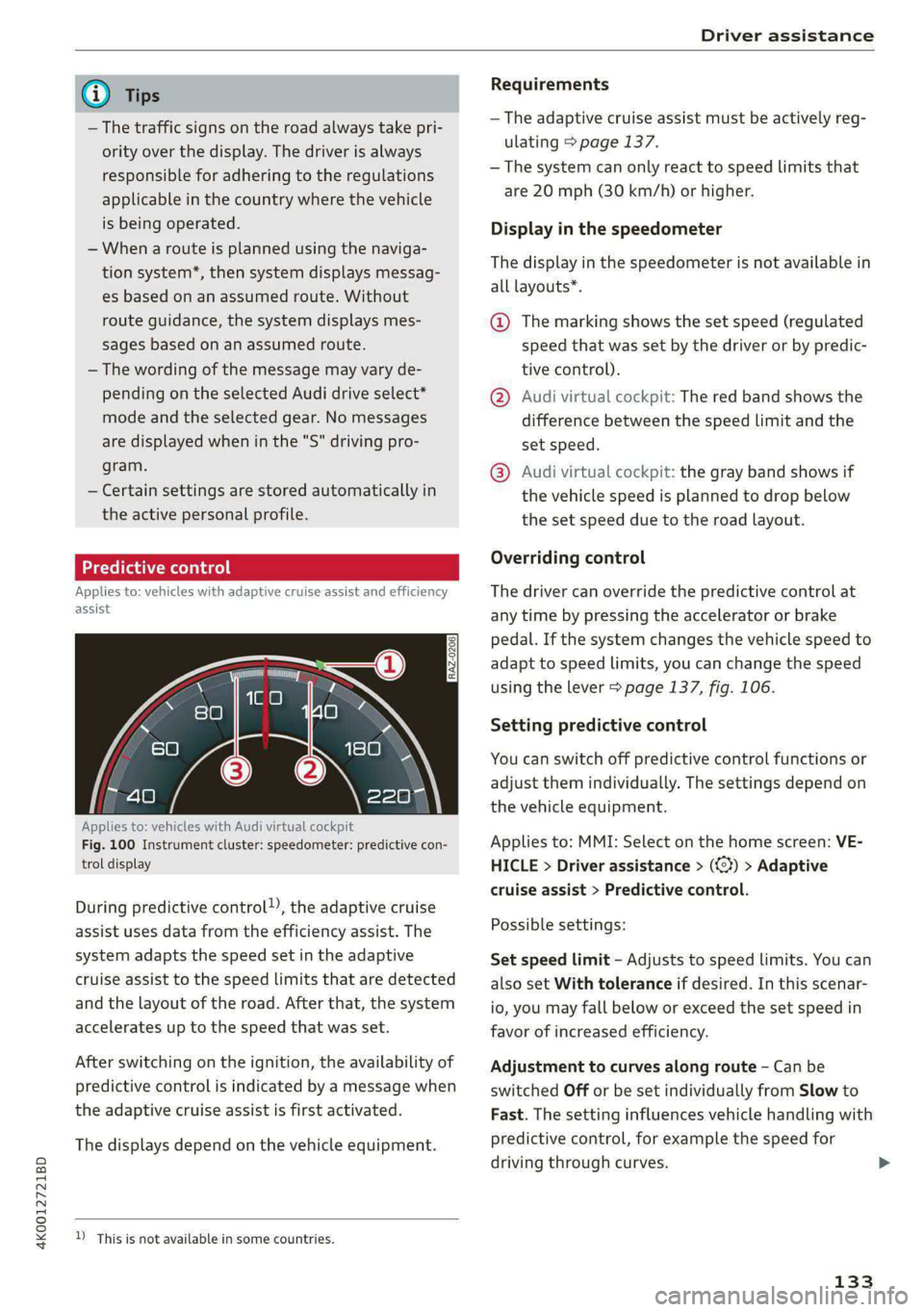
Fig. 100 Instrument cluster: speedometer: predictive con-
trol display
During predictive control), the adaptive cruise
assist uses data from the efficiency assist. The
system adapts the speed set in the adaptive
cruise assist to the speed limits that are detected
and the layout of the road. After that, the system
accelerates up to the speed that was set.
After switching on the ignition, the availability of
predictive control is indicated by a message when
the adaptive cruise assist is first activated.
The displays depend on the vehicle equipment.
D_ This is not available in some countries.
Requirements
— The adaptive cruise assist must be actively reg-
ulating > page 137.
— The system can only react to speed limits that
are 20 mph (30 km/h) or higher.
Display in the speedometer
The display in the speedometer is not available in
all layouts*.
@ The marking shows the set speed (regulated
speed that was set by the driver or by predic-
tive control).
@ Audi virtual cockpit: The red band shows the
difference between the speed limit and the
set speed.
@® Audi virtual cockpit: the gray band shows if
the vehicle speed is planned to drop below
the set speed due to the road layout.
Overriding control
The driver can override the predictive control at
any time by pressing the accelerator or brake
pedal. If the system changes the vehicle speed to
adapt to speed limits, you can change the speed
using the lever > page 137, fig. 106.
Setting predictive control
You can switch off predictive control functions or
adjust them individually. The settings depend on
the vehicle equipment.
Applies to: MMI: Select on the home screen: VE-
HICLE > Driver assistance > (<3) > Adaptive
cruise assist > Predictive control.
Possible settings:
Set speed limit - Adjusts to speed limits. You can
also set With tolerance if desired. In this scenar-
io, you may fall below or exceed the set speed in
favor of increased efficiency.
Adjustment to curves along route - Can be
switched Off or be set individually from Slow to
Fast. The setting influences vehicle handling with
predictive control, for example the speed for
driving through curves.
133
Page 136 of 316
Driver assistance
Messages
If and a message with Adaptive cruise assist:
Predictive control is displayed when there is a
malfunction, the efficiency assist functions are
unavailable or limited.
A message that indicates the cause and possible
solution may appear with some displays. The
weather conditions may be too poor or a sensor
may be covered. Clean the area in front of the
sensors > page 120 and try to turn on the sys-
tems again later.
If the malfunction remains, drive to an author-
ized Audi dealer or authorized Audi Service Facili-
ty immediately to have the malfunction correct-
ed.
ZA\ WARNING
— Follow the safety precautions and note the
limits of the assist systems, sensors, and
cameras > page 118.
— Pay attention to traffic and the area around
your vehicle when predictive control is
switched on. The driver is always responsible
for assessing the traffic situation.
— The system does not consider “right of way”
rules and does not respond to traffic lights,
so lack of driver attention in these situations
can increase the risk of an accident.
— The speed when driving through curves may
be different from what you as a driver would
do or may not be suitable for the weather
and road conditions. If necessary, apply the
brakes and reduce the selected speed to be
maintained in the Adjustment to curves
along route setting to reduce the risk of an
accident.
G) Tips
— Predictive control can exceed or drop below
the maximum permitted speed. The driver
is responsible for adhering to the permitted
speed limit.
— The traffic signs on the road always take pri-
ority over the display. The driver is always
YD In certain countries
134
responsible for adhering to the regulations
applicable in the country where the vehicle
is being operated.
— Ifa speed limit is detected, the marking @
of the set speed limit will be adjusted even
if the adaptive cruise assist is not actively
regulating.
— Control by the system depends on which
adaptive cruise assist driving program is set
or on the selected Audi drive select* mode.
— After switching on the ignition and first
driving onto a freeway or similar road with-
out a speed limit, the system will regulate
the speed to 80 mph (130 km/h). Then
the system adjusts to the last speed set by
the driver.
— There is no adaptation to speed limits when
driving through highway interchanges and
when driving on or off the expressway.
— The system can fail to provide control or the
control may be faulty if the values from the
camera-based traffic sign recognition* are
incorrect or the navigation system map data
is outdated.
— When route guidance is switched on, the
system adapts to the route provided by the
navigation system. Driving without route
guidance or leaving a route can result in
faulty control.
— Certain settings are stored automatically in
the active personal profile.
Adaptive cruise assist
General information
Applies to: vehicles with adaptive cruise assist
Depending on the vehicle equipment, the adap-
tive cruise assist may consist of the following
functions:
Within the limits of the system, the adaptive
speed
assist assists the driver in controlling the
speed and the set distance to the vehicle driving
ahead. If the system detects a vehicle driving
ahead, the adaptive speed assist can brake and
accelerate your vehicle within the limits of the >
Page 137 of 316
4K0012721BD
Driver assistance
system. On open roads with no traffic, it func-
tions like a cruise control system. The stored
speed is maintained. When approaching a vehicle
driving ahead, the adaptive speed assist auto-
matically brakes to match that vehicle's speed
and then maintains the set distance as much as
possible. Once the system does not detect a vehi-
cle driving ahead, adaptive speed assist will ac-
celerate up to the set speed.
The additional lane guidance assists the driver
with corrective steering in order to stay in the
lane. You can adjust if the adaptive cruise assist
will provide support with lane guidance
= page 138, Switching lane guidance on and off.
In stop-and-go traffic and in traffic jams, the ve-
hicle may brake to a full stop and then may also
start driving again automatically under certain
conditions.
Applies to: vehicles with efficiency assist: Predic-
tive control can adjust the speed based on traffic
and road conditions > page 133, Predictive con-
trol.
Follow the safety precautions and note the
limits of the assist systems, sensors, and
cameras > page 118.
For an explanation on conformity with the
FCC regulations in the United States and the
Industry Canada regulations, see > page 296.
Applies to: vehicles with adaptive cruise assist
B8V-0630
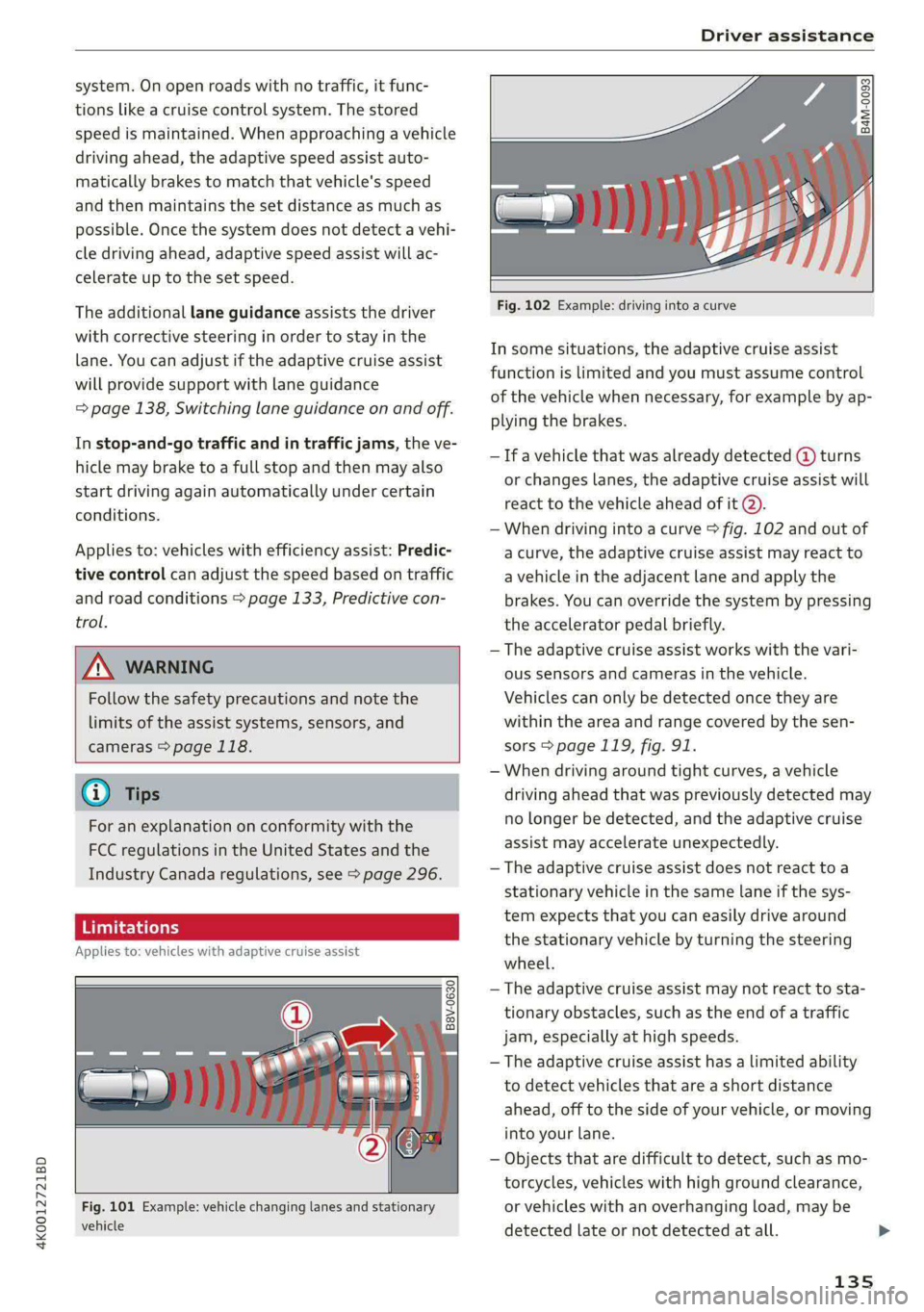
Fig. 101 Example: vehicle changing lanes and stationary
vehicle
Fig. 102 Example: driving into a curve
In some situations, the adaptive cruise assist
function is limited and you must assume control
of the vehicle when necessary, for example by ap-
plying the brakes.
— Ifa vehicle that was already detected @ turns
or changes lanes, the adaptive cruise assist will
react to the vehicle ahead of it @).
— When driving into a curve > fig. 102 and out of
a curve, the adaptive cruise assist may react to
a vehicle in the adjacent lane and apply the
brakes. You can override the system by pressing
the accelerator pedal briefly.
— The adaptive cruise assist works with the vari-
ous sensors and cameras in the vehicle.
Vehicles can only be detected once they are
within the area and range covered by the sen-
sors > page 119, fig. 91.
— When driving around tight curves, a vehicle
driving ahead that was previously detected may
no longer be detected, and the adaptive cruise
assist may accelerate unexpectedly.
— The adaptive cruise assist does not react toa
stationary vehicle in the same lane if the sys-
tem expects that you can easily drive around
the stationary vehicle by turning the steering
wheel.
— The adaptive cruise assist may not react to sta-
tionary obstacles, such as the end of a traffic
jam, especially at high speeds.
— The adaptive cruise assist has a limited ability
to detect vehicles that are a short distance
ahead, off to the side of your vehicle, or moving
into your lane.
— Objects that are difficult to detect, such as mo-
torcycles, vehicles with high ground clearance,
or vehicles with an overhanging load, may be
detected late or not detected at all.
135
Page 138 of 316

Driver assistance
— The adaptive cruise assist does not respond to
people, animals, or objects that are crossing or
approaching from the opposite direction.
Z\ WARNING
Follow the safety precautions and note the
limits of the assist systems, sensors, and
cameras > page 118.
Display overview
Applies to: vehicles with adaptive cruise assist
3] S|
me Ny Iz G3
Fig. 104 Instrument cluster: driver assistance display
Indicator lights and messages in the speedome-
ter @ -@) inform you about the driving situation
and the settings. In the Driver assistance display
@ - @, you can find more detailed information
about the system. The displays depend on the
country and equipment.
Display in the speedometer
The display in the speedometer is not available in
all layouts*.
@ Marking for the set speed
@ Current vehicle speed
@® Available speed range for adaptive cruise as-
sist (example)
136
Image in the Driver assistance display
The display only appears when the Driver assis-
tance display is open in the on-board computer
=> page 16.
Messages and settings
Detected vehicle driving ahead
Set target distance
The set distance is not met. The distance bars
will be colored red from the bottom upward.
Your vehicle
©®
CC®
Availability of lane departure warning and
lane guidance for adaptive cruise assist
© Availability of lane guidance for adaptive
cruise assist
Indicator lights
A - The speed/distance control is active. No
vehicles were detected ahead. The stored speed
is maintained.
Ba - The speed/distance control is active. A vehi-
cle was detected ahead. The adaptive cruise as-
sist controls the speed and distance from the ve-
hicle driving ahead, and accelerates and brakes
automatically.
A - The speed/distance control is active but the
vehicle is not ready to drive. A vehicle was de-
tected ahead. Your vehicle is stationary and will
not start driving automatically.
BS - The speed/distance control is active but the
vehicle is not ready to drive. No vehicles were de-
tected ahead. Your vehicle is stationary and will
not start driving automatically.
aA - The automatic braking is not enough to
maintain a sufficient distance to a vehicle driving
ahead. You must intervene > page 141, Driver in-
tervention request.
& - The indicator light turns on if the system
does not detect enough steering activity by the
driver. Always keep your hands on the steering
wheel so you can be ready to steer at any time.
The indicator light will also turn off, for example
if the steering power from the system is not suf-
ficient and adaptive cruise assist is canceled
=> page 139, Steering intervention request.