reset AUDI A6 2020 User Guide
[x] Cancel search | Manufacturer: AUDI, Model Year: 2020, Model line: A6, Model: AUDI A6 2020Pages: 316, PDF Size: 86.41 MB
Page 110 of 316

Driving dynamic
Driving dynamic
Audi drive select
Introduction
Applies to: vehicles with Audi drive select
Drive select makes it possible to experience dif
ferent types of vehicle characteristics in one vehi-
cle. With different driving modes, the driver can
switch the setting, for example from sporty to
comfortable. This allows you to adjust the set-
tings to your personal preferences. This makes it
possible to combine settings such as a sporty
drivetrain setting with comfortable steering.
Selecting an Audi drive select mode
Applies to: vehicles with Audi drive select
Fig. 90 Center console: Audi drive select button
> Press the left or right arrow key > fig. 90 until
the desired mode appears in the MMI. Or:
> Applies to: MMI: Select on the home screen:
VEHICLE > Audi drive select.
You can change the driving mode when the vehi-
cle is stationary or while driving. If traffic per-
mits, briefly remove your foot from the accelera-
tor pedal after changing modes so that the mode
you have selected will be activated for the drive
system.
The following modes are available depending on
the equipment:
offroad - Provides assistance when driving off-
road. The vehicle will be raised to the second-
highest level using the air suspension®. The ESC
will be restricted and the hill descent assist* will
be activated. The vehicle will exit this mode after
the ignition is switched off.
108
allroad - Provides balanced vehicle handling. The
vehicle will be raised to the second-highest level
using the air suspension*.
comfort - Provides a comfort-oriented vehicle
setup and is suited for long drives on highways.
auto - Provides an overall comfortable yet dy-
namic driving feel and is suited for everyday use.
dynamic - Gives the driver a sporty driving feel
and is suited to a sporty driving style. The “S”
driving program is selected.
individual - Provides the option for personalized
vehicle settings. Press to configure the mode
=> page 108, Individual settings.
@ Tips
When the ignition is being switched on, indi-
vidual systems, such as the drive system, will
be reset to a balanced setting. Select the cur-
rent mode again to attain its full configura-
tion.
In lsettings
Applies to: vehicles with Audi drive select
The equipment in your vehicle will determine
which settings you can adjust.
Drive
The drive system will react to accelerator pedal
moves more quickly or in a more balanced man-
ner. The shift points are placed in higher or lower
speed ranges.
Depending on the setting, the drive power at the
rear axle will be distributed with the sport differ-
ential* to be more sporty or moderate
=> page 112.
Steering
The power steering will adapt. Light steering is
suitable for long trips on highways or smooth
driving around curves, for example.
Suspension
The suspension adjusts to be tighter or more
comfort-oriented when it comes to compensat-
ing for uneven spots on the road.
Page 129 of 316
4K0012721BD
Driving information
After completing a lap, the difference between
the last lap and the previous best lap time will be
indicated with a “~” or “+”.
Pausing timing and displaying a split time
> To insert a pause @ select Pause in the menu.
> To resume timing, select Resume in the menu.
> To display a split time, select Split time in the
menu. The split time appears for approxi-
mately ten seconds in the instrument cluster.
The current lap timing will continue running.
Canceling lap timing
The timing of the current lap will stop. The lap
time will be erased and will not be included in the
statistics.
> Select Cancel lap in the menu.
Resetting the time
> Select Reset lap times in the menu.
@ Tips
—A maximum of 99 lap times can be meas-
ured.
- If timing is paused, you can continue it later
even if you switch the ignition off.
— Saved lap times cannot be individually de-
leted from the total results.
— The saved lap timer values will remain after
switching the ignition off.
Lap stati
Applies to: vehicles with lap timer
Displaying lap statistics
You can display the number of laps driven ES
the fastest lap “+”, the slowest lap “~”, and the
average time “®” in the instrument cluster.
> Select in the instrument cluster: Vehicle func-
tions tab > [=] button > Lap statistics.
> Turn the thumbwheel down or up to display the
individual lap times.
> To return to the lap timing that was started, se-
lect the [J button > Lap times.
Resetting lap statistics
Requirement: the lap statistics menu must be
displayed.
> To reset the lap statistics, press and hold the
left thumbwheel until the message No lap
times have been recorded yet. appears.
@) Tips
The lap statistics list the lap times for the last
30 laps. The fastest and slowest lap times out
of up to 99 measured laps are also displayed.
Night vision assist
Applies to: vehicles with night vision assist
Night vision assist helps you when it is dark by
using an infrared camera to monitor the area in
front of your vehicle, within the limits of the sys-
tem. It can display objects up to a distance of ap-
proximately 1000 feet (300 m).
Pedestrian and wild animals are detected by
measuring the temperature difference between
the object and the background. Pedestrians and
wild animals will not be detected if the tempera-
ture difference is too small. The pedestrian and
wild animal marking feature is deactivated at
temperatures above approximately 77 °F (25 °C)
and when it is light outside.
The thermal image detected by the camera is dis-
played in the instrument cluster. Warm areas
generally appear lighter and cold areas appear
darker.
The camera for the night vision assist is located
in the vehicle's radiator grille > page 120. Make
sure the night vision camera is not covered by
stickers, deposits, or any other obstructions be-
cause this can impair the night vision assist func-
tion. Follow the information about cleaning
=> page 266.
ZX WARNING
— Follow the safety precautions and note the
limits of the assist systems, sensors, and
cameras > page 118. >
127
Page 141 of 316

4K0012721BD
Driver assistance
— The driver's hands are not on the steering
wheel
— Visibility is obstructed by a rise or dip.
Steering intervention request
If no steering activity is detected or the steering
power from the system is not sufficient, the driv-
er steering intervention request will alert the
driver using audio and visual signals. Take over
the steering and keep your hands on the steering
wheel so that you will be ready to steer at any
time. The system will become inactive after a
short time and will only be active again later.
If the driver does not take over steering, adaptive
cruise assist will be canceled. If the vehicle is
equipped with emergency assist and it is ready to
function, it will be activated if possible
=> page 154.
ZA\ WARNING
Follow the safety precautions and note the
limits of the assist systems, sensors, and
cameras > page 118.
G) Tips
— Always keep your hands on the steering
wheel so you can be ready to steer at any
time. The driver is always responsible for
adhering to the regulations applicable in
the country where the vehicle is being oper-
ated.
— It is recommended to only switch on lane
guidance on well-constructed roads.
— Certain settings are stored automatically in
the active personal profile.
—The & fig. 107 button switches lane guid-
ance availability and the lane departure
warning on or off simultaneously, if lane
guidance is preset in the adaptive cruise as-
sist settings.
Setting the distance
Applies to: vehicles with adaptive cruise assist
B4M-0234
Fig. 108 Operating lever: setting the distance
If you adjust the speed, you must also change the
time gap to the vehicle driving ahead. The higher
the speed, the greater the distance that is need-
ed.
> Tap the rocker switch to display the distance
that is currently set.
> To increase or decrease the distance in incre-
ments, tap the switch again toward G) or ().
The newly-set distance will be shown briefly, for
example with the indicator light. In the Driv-
er assistance display, a graphic display is shown
instead of the indicator lights > page 136,
fig. 104. The display matches the functions of
the indicator lights.
When approaching a vehicle driving ahead, the
adaptive cruise assist brakes to the set speed and
then maintains the set distance. If the vehicle
driving ahead accelerates, then the adaptive
cruise assist will also accelerate up to the speed
that you have set.
The following distances can be set:
139
Page 144 of 316
Driver assistance
The display @ only appears when the Driver as-
sistance display is open in the on-board
computer > page 16.
ZA WARNING
Follow the safety precautions and note the
limits of the assist systems, sensors, and
cameras > page 118.
Adjusting the adaptive cruise assist
Applies to: vehicles with adaptive cruise assist
You can adjust the adaptive cruise assist to your
own preferences. The settings depend on the ve-
hicle equipment.
> Applies to: MMI: Select on the home screen:
VEHICLE > Driver assistance > (<3) > Adaptive
cruise assist.
Possible settings:
Lane guidance - If lane guidance is also active
when adaptive cruise assist control is active, you
can switch it on or off.
Driving program - Depending on the driving pro-
gram and the distance that are set, the vehicle
handling will be adjusted from Sport to Moder-
ate and the lane guidance haptic feedback will be
adjusted.
Store last distance - The last distance that was
set will be stored after the ignition is switched
off. If the distance is not stored, distance
(time distance of approximately 1.8 seconds) is
automatically preset every time the ignition is
switched on.
Applies to: vehicles with efficiency assist
Predictive control - When predictive control is
switched on, the system reacts automatically to
situations > page 133.
G) Tips
Certain settings are stored automatically in
the active personal profile.
142
Messages
Applies to: vehicles with adaptive cruise assist
a | or is displayed when there is a malfunc-
tion, the adaptive cruise assist functions may be
unavailable or limited.
A message that indicates the cause and possible
solution may appear with some displays. The
weather conditions may be too poor or a sensor
may be covered. Clean the area in front of the
sensors > page 120 and try to turn on the sys-
tems again later.
If the malfunction remains, drive to an author-
ized Audi dealer or authorized Audi Service Facili-
ty immediately to have the malfunction correct-
ed.
Applies to: vehicles with narrowed road assist
Narrow area
Depending on vehicle equipment, this message
appears in the Driver assistance display if the
adaptive cruise assist is adjusting the speed ina
narrow area, for example a construction zone.
Adaptive cruise assist: Please take over!
This message appears if the vehicle rolls back
when starting on a slight incline, even though the
systems are active. Press the brake pedal to pre-
vent the vehicle from rolling or starting to move.
Applies to: vehicles with laser scanner
Adaptive cruise assist: limited availability.
See owner's manual
This message appears when the sensor view is
limited, for example, when weather conditions
are too poor or a sensor is covered. You can
switch on the adaptive cruise assist, but certain
functions such as assistance in narrow areas will
not be available. Under certain circumstances,
some objects may be detected late or may not be
detected at all. Be especially careful. However,
cleaning the area in front of the sensors
= page 120 may correct the malfunction.
Page 170 of 316
Telephone
— You can purchase a USB adapter from an au-
thorized Audi dealer or authorized Audi
Service Facility, or at specialty stores.
— Audi recommends using Audi Genuine Ac-
cessories. Audi has verified their reliability,
safety, and suitability.
Using the telephone
Accessing the telephone functions
Applies to: vehicles with telephone
6: NS ad
| iN a 3)
ic (inant
a) | ac)
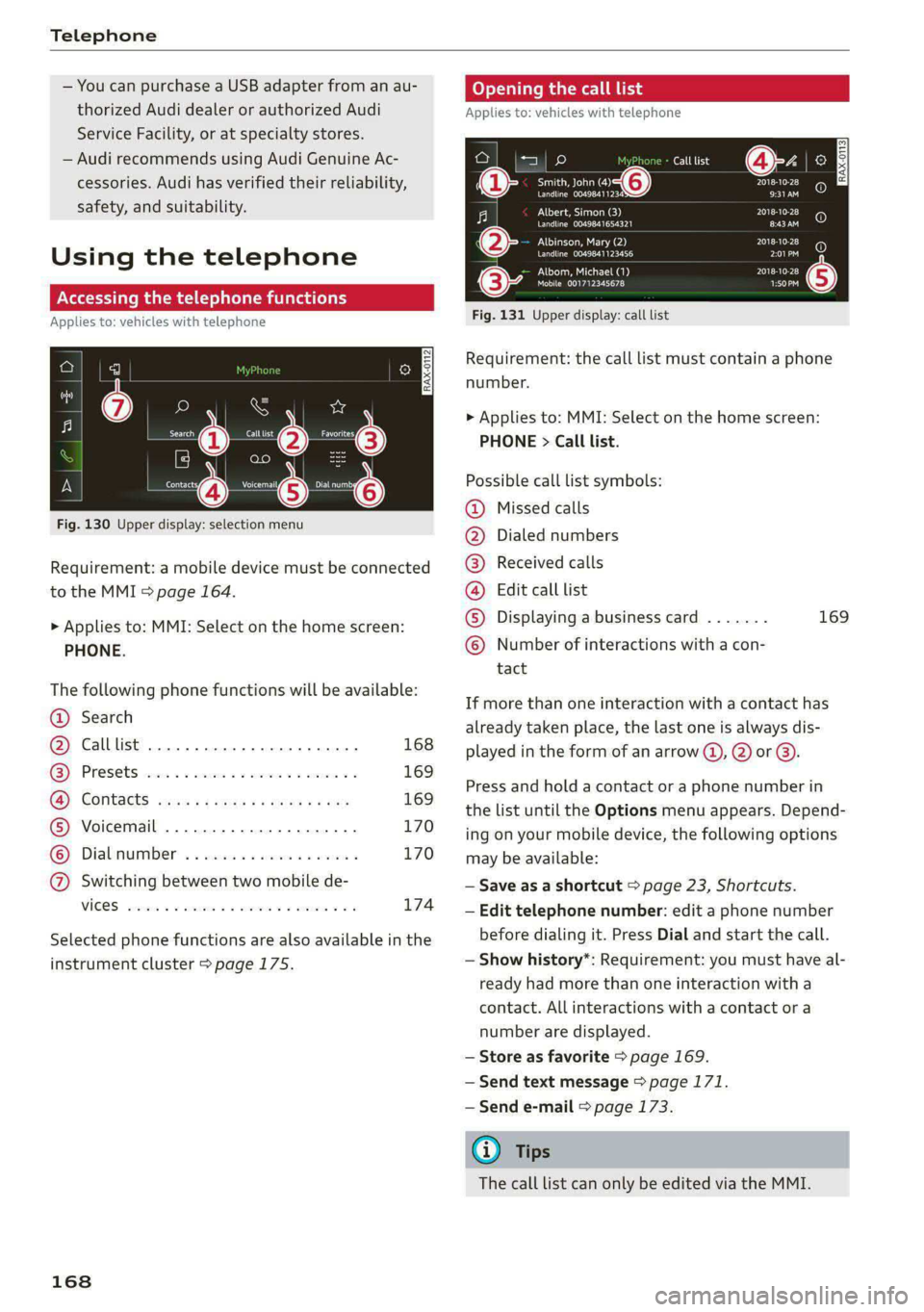
Fig. 130 Upper display: selection menu
Requirement: a mobile device must be connected
to the MMI > page 164.
> Applies to: MMI: Select on the home screen:
PHONE.
The following phone functions will be available:
@ Search
@ Calllist 0.00.0... eee 168
GY Presets civic 2 x ssesocs a oxsce vw astm ¥ 169
B®; COMtACtS cams za ene x » eeu ee ep 169
® Voicemail ..................00. 170
© Dialnumber ...............000 170
@ Switching between two mobile de-
VIGES sesvaus x % soasces oa exeaene v % anstine Wn 174
Selected phone functions are also available in the
instrument cluster > page 175.
168
Coy y rem ae] Ue
Applies to: vehicles with telephone
Call list @-- ec3
Se ea “@ Pate}
Peace ean eeeS Be)
Albert, Simon (3)
Pe ee aed ErEn
Albinson, Mary (2)
POL a te}
Petes}
(0) (0)
PEC ue RPE Ly PL) @
PAU eta) Pate} (5)
Mobile 001712345678 1:50PM
Fig. 131 Upper display: call list
Requirement: the call list must contain a phone
number.
> Applies to: MMI: Select on the home screen:
PHONE > Call list.
Possible call list symbols:
Missed calls
Dialed numbers
Received calls
Edit call list
Displaying a business card ....... 169
Number of interactions with a con-
tact
©OOOCOLO
If more than one interaction with a contact has
already taken place, the last one is always dis-
played in the form of an arrow (), 2) or ).
Press and hold a contact or a phone number in
the list until the Options menu appears. Depend-
ing on your mobile device, the following options
may be available:
— Save as a shortcut > page 23, Shortcuts.
— Edit telephone number: edit a phone number
before dialing it. Press Dial and start the call.
— Show history*: Requirement: you must have al-
ready had more than one interaction with a
contact. All interactions with a contact or a
number are displayed.
— Store as favorite > page 169.
— Send text message > page 171.
— Send e-mail > page 173.
@) Tips
The call list can only be edited via the MMI.
Page 177 of 316

4K0012721BD
Telephone
—To delete all paired Bluetooth devices, the
Bluetooth function can be reset to the fac-
tory default settings > page 224.
Directory settings
Applies to: vehicles with telephone
> Applies to: MMI: Select on the home screen:
PHONE > Contacts > ©}.
Switching between two mobile devices
Requirement: telephone 1 and telephone 2 must
be connected.
Switch telephones: the device name of the avail-
able mobile device is displayed. You can switch
the phone by pressing the button.
The directory for the selected phone will be dis-
played.
Hide grayed-out contacts
When this function is switched on, contacts that
have no phone numbers stored for them will be
hidden.
Sort order
You can sort the contacts by Last name or First
name.
Download contacts
Requirement: a mobile device must be connected
to the MMI.
To update the contacts in the MMI, you can man-
ually download your mobile device contacts. De-
pending on the mobile device, you may need to
disconnect and reconnect the Bluetooth connec-
tion to update the contacts.
Memory capacity
You can manage up to 23,000 contacts. You can
also download up to 5,000 contacts from maxi-
mum four mobile devices. You can also import up
to 3,000 contacts from a storage medium.
Importing and exporting contacts
Requirement: an SD card must be in the SD card
reader* > page 209 or a USB storage device must
be connected to the Audi music interface
=> page 212.
Contacts in vCard format (.vcf) can be imported
or exported from the MMI.
— Applies to: MMI: Importing contacts from a
storage medium: Select: Import contacts >
Search for import data > SD card 1 or USB de-
vice 1/USB device 2 > desired contacts or Se-
lect all contacts > Start import.
— Applies to: MMI: Exporting contacts to a stor-
age device: Requirement: Only previously im-
ported contacts can be exported. Select: Export
contacts > Find source for exporting > SD card
1 or USB device 1/USB device 2 > desired con-
tacts or Select all contacts > Start export.
@ Tips
— For more information about the myAudi ac-
count, visit my.audi.com.
— The imported contacts are stored in the lo-
cal MMI memory.
— Contacts that were downloaded from a mo-
bile device cannot be exported.
— There should be no other files or folders on
the storage medium containing the contacts
to be imported.
— Apple devices and MTP devices (such as
smartphones) are not recognized as USB
storage devices.
Mobile phone network settings
Applies to: vehicles with telephone
> Applies to: MMI: Select on the home screen:
SETTINGS > Connection settings > Mobile
phone network.
Switching the car phone or data module on
Applies to: vehicles with car phone/data module
See > page 174.
Instrument cluster
Telephone
Applies to: vehicles with multifunction steering wheel and
telephone
In the instrument cluster display, you can control
the MMI functions with the multifunction
175
>
Page 183 of 316
4K0012721BD
Audi connect
Settings
Ce) atelal-mariancel a4
>» Applies to: MMI: Select on the home screen:
SETTINGS > Connection settings > Mobile
phone network.
Depending on the country, vehicle equipment,
and connection type, the following functions may
be available:
Data connection settings
Using the Data connection settings menu, you
can set when the system should connect to the
Internet. The Internet connection disconnects
automatically once the requested Audi connect
Infotainment service no longer requires any data.
— Data roaming: data roaming is switched off at
the factory. To use a data connection outside of
the country, data roaming must be switched
on. The setting is stored for the current SIM
card or the mobile device that is currently con-
nected.
— Allow MMI online services: when this function
is switched on, a data connection is automati-
cally established in order to use Audi connect
Infotainment services.
— Allow Wi-Fi devices: when the function is
switched on, mobile devices can use the Inter-
net connection through the Wi-Fi hotspot.
Access point
The connection is configured automatically based
on the SIM card being used. The following values
can be changed. You can obtain more information
from your cell phone service provider.
— Access Point Name (APN): the access point de-
pends on the cell phone service provider and is
assigned automatically.
— User name: your cell phone service provider as-
signs the user name for your online profile.
— Password: your cell phone service provider as-
signs the password for your online profile.
— Apply settings: saves the changed settings.
— Reset configuration: resets the connection set-
tings.
Data usage counter
Your current data usage is displayed.
— Reset counter: you can reset your usage statis-
tics to zero.
— Warning limit: you can set a warning limit for
your data usage (GB/MB).
Z\ WARNING
Always follow the information found in > A\
in General information on page 177.
@) Note
Always follow the information found in S@ in
General information on page 177.
@) Tips
For more information on roaming charges,
contact your cell phone service provider.
Wi-Fi settings
Applies to: vehicles with Wi-Fi hotspot
Requirement: the ignition must be switched on.
> Applies to: MMI: Select on the home screen:
SETTINGS > Connection settings > Wi-Fi
Depending on the country and the vehicle equip-
ment, the following functions may be available:
Wi-Fi
When the function is switched on, the MMI's Wi-
Fi hotspot is active and Wi-Fi devices can be con-
nected to the hotspot.
Wi-Fi hotspot settings
The Wi-Fi connection between the MMI and your
Wi-Fi device is encrypted. You can change the fol-
lowing information if needed.
— Access point (SSID): name of the Wi-Fi hot-
spot.
— Password: a random password was set at the
factory in the MMI. The password can be
changed. The encryption method requires a
password to be at least eight characters long.
Choose a secure password.
— Visible to others: you can switch the visibility
of the Wi-Fi hotspot on or off.
181
>
Page 188 of 316
Navigation
data from your myAudi account to your personal
profile > page 30.
myAudi navigation functions:
— You can send destinations and routes from the
myAudi app to the vehicle > page 189.
— Active route guidance in the myAudi app can be
continued in the MMI.
— Depending on the situation, it may be possible
to continue active route guidance from the MMI
in the myAudi app to continue navigating to the
destination after leaving the vehicle.
@) Note
Read the information about Audi connect, and
be sure to note the connectivity costs section
=@ in General information on page 177.
Entering a destination
Select destination
Applies to: vehicles with navigation system
Select destination
e
|
Si
Cees
3 &routes
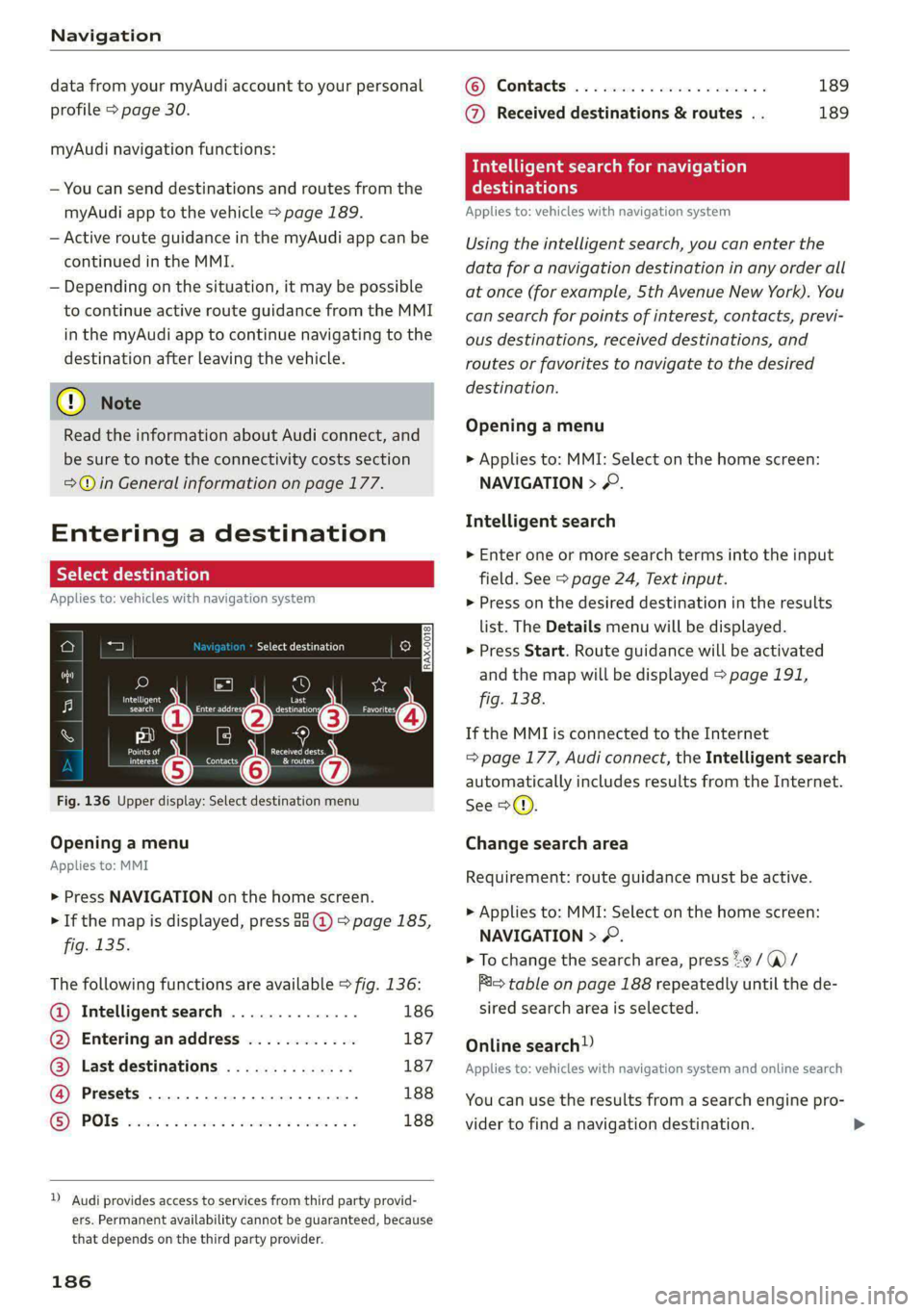
Fig. 136 Upper display: Select destination menu
Opening a menu
Applies to: MMI
> Press NAVIGATION on the home screen.
> If the map is displayed, press aa @) > page 185,
fig. 135.
The following functions are available > fig. 136:
@ Intelligent search .............. 186
@ Entering anaddress ............ 187
@ Last destinations .............. 187
@ Presets ...................004. 188
® POs 2... eee eee 188
)) Audi provides access to services from third party provid-
ers. Permanent availability cannot be guaranteed, because
that depends on the third party provider.
186
© Contacts ..................00. 189
@ Received destinations & routes . . 189
Intelligent search for navigation
Cary
Applies to: vehicles with navigation system
Using the intelligent search, you can enter the
data for a navigation destination in any order all
at once (for example, 5th Avenue New York). You
can
search for points of interest, contacts, previ-
ous destinations, received destinations, and
routes or favorites to navigate to the desired
destination.
Opening a menu
> Applies to: MMI: Select on the home screen:
NAVIGATION > &.
Intelligent search
> Enter one or more search terms into the input
field. See > page 24, Text input.
> Press on the desired destination in the results
list. The Details menu will be displayed.
> Press Start. Route guidance will be activated
and the map will be displayed > page 191,
fig. 138.
If the MMI is connected to the Internet
= page 177, Audi connect, the Intelligent search
automatically includes results from the Internet.
See >©.
Change search area
Requirement: route guidance must be active.
> Applies to: MMI: Select on the home screen:
NAVIGATION > &.
> To change the search area, press %9 /(@)/
Ris table on page 188 repeatedly until the de-
sired search area is selected.
Online search
Applies to: vehicles with navigation system and online search
You can use the results from a search engine pro-
vider to find a navigation destination.
Page 193 of 316
4K0012721BD
Navigation
Map
Map functions
Applies to: vehicles with navigation system
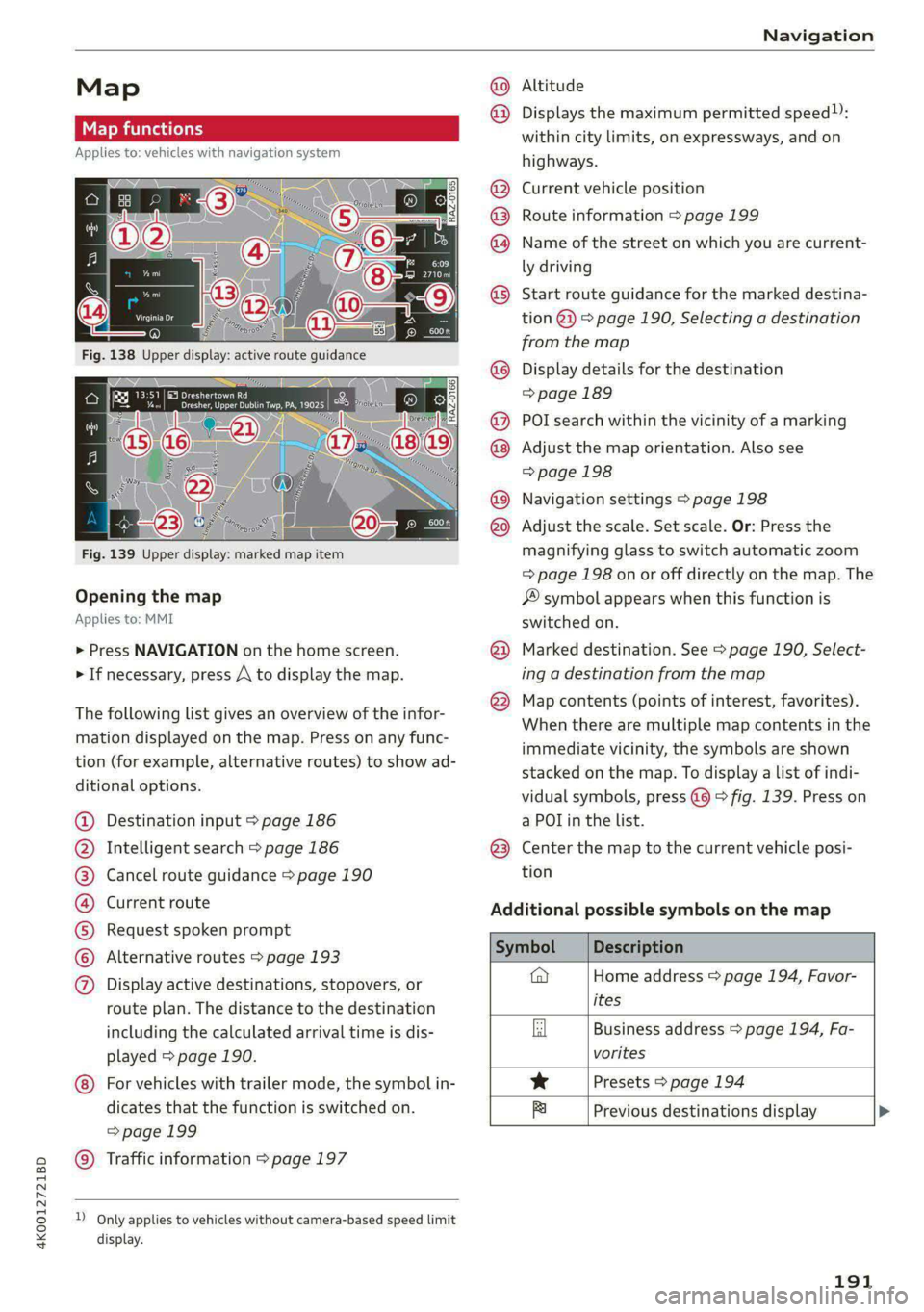
Fig. 139 Upper display: marked map item
Opening the map
Applies to: MMI
> Press NAVIGATION on the home screen.
> If necessary, press A to display the map.
The following list gives an overview of the infor-
mation displayed on the map. Press on any func-
tion (for example, alternative routes) to show ad-
ditional options.
Destination input > page 186
Intelligent search > page 186
Cancel route guidance > page 190
Current route
Request spoken prompt
Alternative routes > page 193
QOOSOOLOHO Display active destinations, stopovers, or
route plan. The distance to the destination
including the calculated arrival time is dis-
played > page 190.
© For vehicles with trailer mode, the symbol in-
dicates that the function is switched on.
=>page 199
© Traffic information > page 197
D_ Only applies to vehicles without camera-based speed limit
display.
Altitude
@) Displays the maximum permitted speed):
within city limits, on expressways, and on
highways.
Current vehicle position
Route information > page 199
Name of the street on which you are current-
ly driving
®
®O®8
Start route guidance for the marked destina-
tion @2) > page 190, Selecting a destination
from the map
Display details for the destination
=> page 189
POI search within the vicinity of a marking
Adjust the map orientation. Also see
=> page 198
Navigation settings > page 198
©®®
O8©
©
Adjust the scale. Set scale. Or: Press the
magnifying glass to switch automatic zoom
=> page 198 on or off directly on the map. The
® symbol appears when this function is
switched on.
Marked destination. See > page 190, Select-
ing a destination from the map
® © Map contents (points of interest, favorites).
When there are multiple map contents in the
immediate vicinity, the symbols are shown
stacked on the map. To display a list of indi-
vidual symbols, press @@ © fig. 139. Press on
a POL in the list.
@3) Center the map to the current vehicle posi-
tion
Additional possible symbols on the map
on
@ Home address > page 194, Favor-
ites
Business address > page 194, Fa-
vorites
* Presets > page 194
fa Previous destinations display
191
Page 204 of 316

Radio
Radio functions
RAX-0097
soy oO
Cary
ett tn) Last stations fee
4 las
i SiriusxM alerts
firs red
| 20 | |
®
Fig. 145 Upper display: left side: playback view of radio functions, right side: sources
Operating The following functions may be available depend-
> Applies to: MMI: To open the playback view @, ing on the selected radio station and the vehicle
select on the home screen: RADIO > select a ra- equipment:
dio station.
> Applies to: MMI: To open the sources (2), select
on the home screen: RADIO > Source.
Symbol/Description Description
Source button Displays sources in the Radio menu.
Shows the current station frequency band. If a symbol with the
Frequency band WEB label is displayed, then the station is being streamed from
online. Always follow the information found in >@.
w/e See 9 page 203.
& Settings > page 207.
Switching between picture views: press the station logo. Use
one
finger to swipe to the right or left to switch between the
Station logo and Cover art.
Station logo Station logo: the station logo is displayed, depending on availa-
bility.
Cover art: the album cover is displayed if available. Always fol-
low the information found in > ©.
e/e;,
©
©
9
a Go back one level.
© Search See © page 203.
Last stations Displays the last played stations > page 203.
@ Presets See 9 page 203.
® SiriusXM station list | Displays stations from the SiriusXM frequency band.
® Online See > page 205.
@ AM Displays stations from the AM frequency band.
202