reset AUDI A6 2020 Owner's Manual
[x] Cancel search | Manufacturer: AUDI, Model Year: 2020, Model line: A6, Model: AUDI A6 2020Pages: 316, PDF Size: 86.41 MB
Page 205 of 316

4K0012721BD
Radio
Symbol/Description Description
FM Displays stations from the FM frequency band.
SiriusXM alerts
Overview of songs, artists, or teams from the stored SiriusXM
alerts being currently received > page 204.
More Access options for the current station > page 206.
KY/PI Select the previous/next station.
WK Unmutes or mutes playback.
List The station list is displayed > page 201.
®
|@O|@O|@|\©)
©
|®
Info section
Depending on availability, the station name as well as program
information, for example, may be displayed. Also see
= page 207, Online additional data.
@) Note
Read the information about Audi connect, and
be sure to note the connectivity costs section
=@ in General information on page 177.
@) Tips
Not all functions are available in every source
and on every touch display.
etme data]
Applies to: vehicles with free text search
Using the free text search, you can select the or-
der that the search terms are entered in the input
field. Search in all frequency bands for a station
name, channel number, or program type, such as
News. You can also select the frequency.
Opening free text search
> Applies to: MMI: Select on the home screen:
RADIO > Source > Search.
Setting the frequency
> Enter a frequency.
> Press on a frequency in the results list.
The following information may be available:
Symbol | Description
Od Results from the list: Last stations
wy Results from the list: Presets
“| Results from a Station list
For ex- | Station frequency band
ample,
(em)
Last stations
Applies to: vehicles with last stations
You can listen to the last stations that were
played in all frequency bands.
Accessing last stations
> Applies to: MMI: Select on the home screen:
RADIO > Source > Last stations.
Listening to last stations
» Press on a station.
Deleting last stations
> Select: Z > select one or more stations or Se-
lect all > Delete > (Done).
Wel gh at)
Applies to: vehicles with favorites
You can store your favorite stations from every
frequency band in the presets list.
Selecting presets using the MMI
> Applies to: MMI: Select on the home screen:
RADIO > Source > Presets > a preset.
Storing presets
> Press on Y¥ G) in the playback view > page 202,
fig. 145.
Requirement: a list with radio stations must be
displayed > page 201, fig. 143.
> Press and hold an entry in the list until the Op-
tions menu appears.
> Press Store as favorite.
203
Page 206 of 316

Radio
Editing a preset
> Deleting presets: Press on We in the playback
view, or
> In the presets list, select: Z > one or more sta-
tions or Select all > Delete > (Done).
Requirement: the presets list must be displayed.
> Moving a preset: press A.
> Touch the $ symbol and move the entry to the
desired position.
> Press Done.
Smart favorites
Applies to: vehicles with SiriusXM
SiriusXM channels are stored in the presets as
smart favorites with the s% symbol. After switch-
ing the ignition and the MMI on, the smart favor-
ites store radio programs at a specific time.
> Press on a smart favorite. You have the follow-
ing options:
> Pause/Start: press I/D.
> Selecting the previous or next track: press I<
or >i.
> Going to the beginning of a recording or live
program: press and hold !I< or >i.
> Setting the playback point: you can adjust the
playback position using the knob.
> Going to a live program: press Lv.
Radio text
Program information (for example, general text
messages, artist, composer, song) is displayed in
the radio text.
Requirement: the selected radio station must
support the radio text function.
Opening radio text
> Applies to: MMI: Select on the home screen:
RADIO > select a frequency band (such as FM)
> select a station > More > Radio text.
Displaying previous radio text entries: drag your
finger downward. The last radio text entries are
displayed if they are available.
Browsing through radio text entries: drag your
finger upward or downward on the screen.
204
If a radio text entry is displayed with a color, a
phone number or a navigation destination for the
station is available as radio text plus information.
G) Tips
The availability of radio text and RadioText
Plus depends on the radio station.
Sie (a ey
Applies to: vehicles with SiriusXM
You can see an overview of your favorite artists,
favorite songs, or teams that are currently being
broadcast on a SiriusXM channel.
Accessing SiriusXM alerts
> Applies to: MMI: Select on the home screen:
RADIO > Source > SiriusXM alerts.
After you have saved a SiriusXM alert, you can see
an overview in the SiriusXM alerts menu of the
songs, artists, or teams being currently received
and can play them directly from there.
Storing a SiriusXM music alert
Requirement: an artist or song must be playing
ona SiriusXM channel.
> Applies to: MMI: Select on the home screen:
RADIO > Source > SiriusXM > select a channel
> More > Artist as SXM alert/Title as SXM
alert.
Storing a SiriusXM game alert
> Applies to: MMI: Select on the home screen:
RADIO > ©} > Manage SiriusXM alerts > Store
SiriusXM game alerts > select an entry from
the list.
Playing a song/artist/team from a SiriusXM
alert (option 1)
Requirement: a SiriusXM music/game alert must
be stored and must be currently broadcast ona
SiriusXM channel.
> Applies to: MMI: Select on the home screen:
RADIO > Source > SiriusXM alerts > select an
entry from the list.
Page 210 of 316
Radio
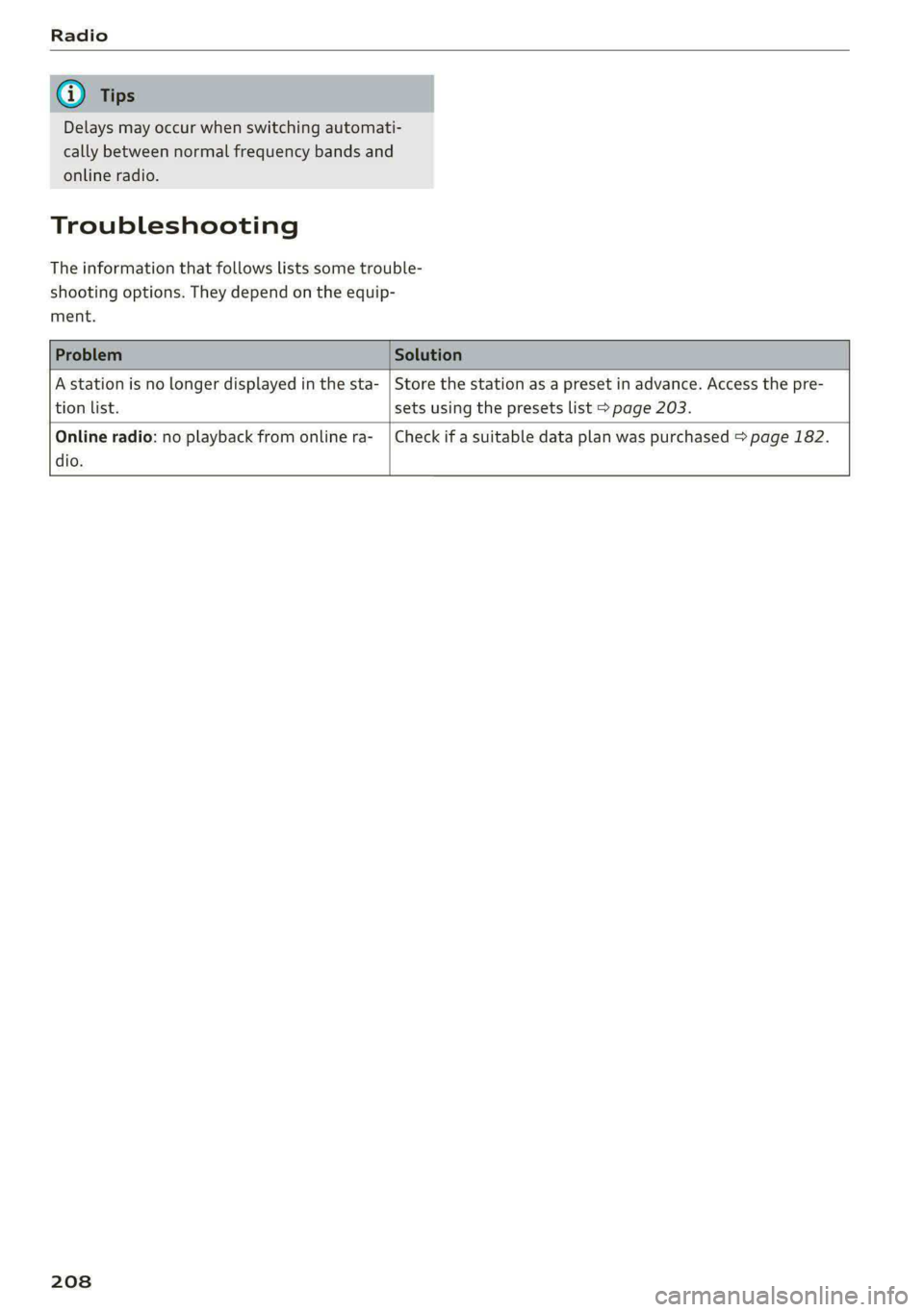
Delays may occur when switching automati-
cally between normal frequency bands and
online radio.
Troubleshooting
The information that follows lists some trouble-
shooting options. They depend on the equip-
ment.
A station is no longer displayed in the sta- | Store the station as a preset in advance. Access the pre-
tion list. sets using the presets list > page 203.
Online radio: no playback from online ra-_ | Check if a suitable data plan was purchased > page 182.
dio.
208
Page 211 of 316
4K0012721BD
Media
Media
General information
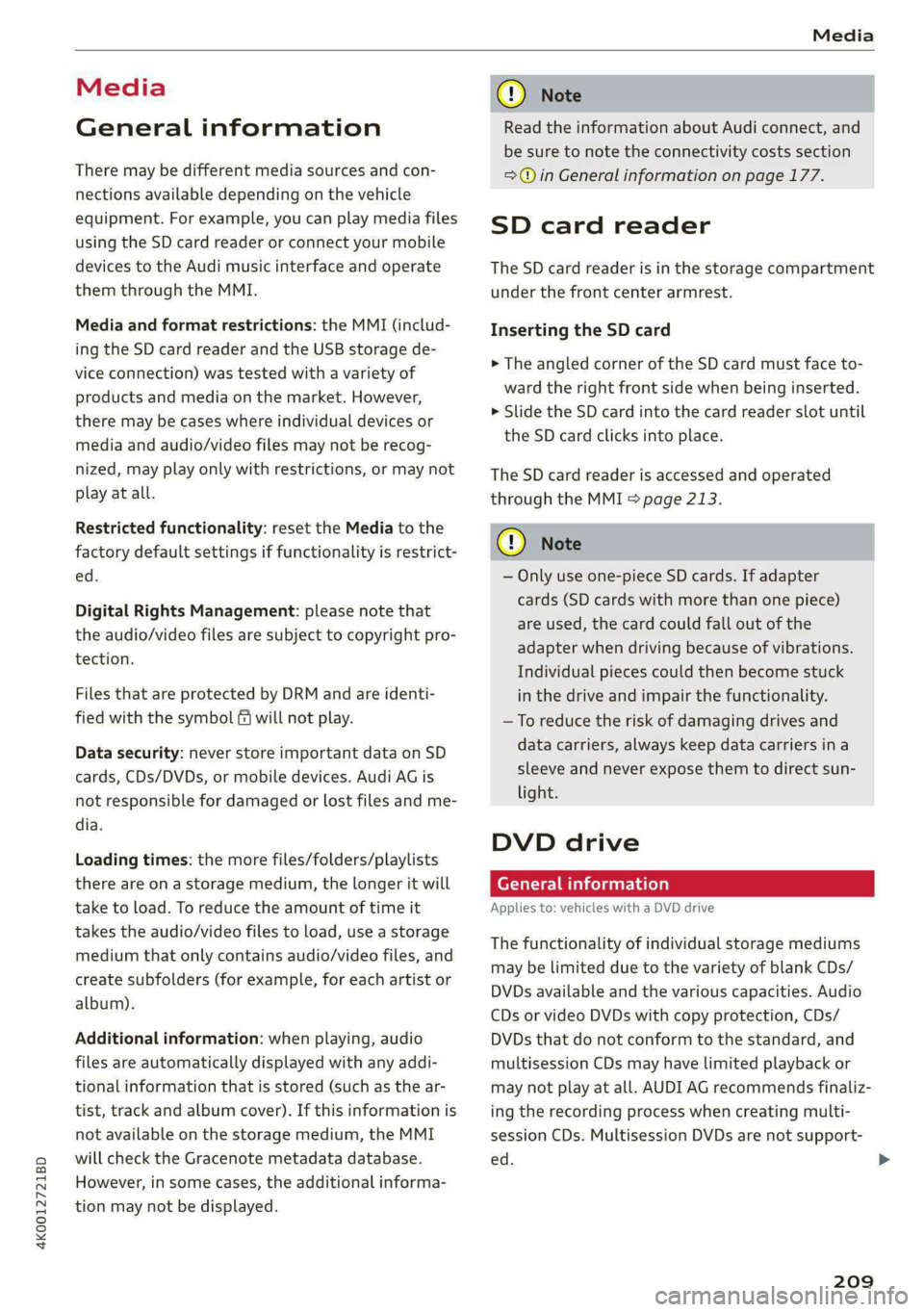
There may be different media sources and con-
nections available depending on the vehicle
equipment. For example, you can play media files
using the SD card reader or connect your mobile
devices to the Audi music interface and operate
them through the MMI.
Media and format restrictions: the MMI (includ-
ing the SD card reader and the USB storage de-
vice connection) was tested with a variety of
products and media on the market. However,
there may be cases where individual devices or
media and audio/video files may not be recog-
nized, may play only with restrictions, or may not
play at all.
Restricted functionality: reset the Media to the
factory default settings if functionality is restrict-
ed.
Digital Rights Management: please note that
the audio/video files are subject to copyright pro-
tection.
Files that are protected by DRM and are identi-
fied with the symbol @ will not play.
Data security: never store important data on SD
cards, CDs/DVDs, or mobile devices. Audi AG is
not responsible for damaged or lost files and me-
dia.
Loading times: the more files/folders/playlists
there are on a storage medium, the longer it will
take to load. To reduce the amount of time it
takes the audio/video files to load, use a storage
medium that only contains audio/video files, and
create subfolders (for example, for each artist or
album).
Additional information: when playing, audio
files are automatically displayed with any addi-
tional information that is stored (such as the ar-
tist, track and album cover). If this information is
not available on the storage medium, the MMI
will check the Gracenote metadata database.
However, in some cases, the additional informa-
tion may not be displayed.
CG) Note
Read the information about Audi connect, and
be sure to note the connectivity costs section
=@ in General information on page 177.
SD card reader
The SD card reader is in the storage compartment
under the front center armrest.
Inserting the SD card
> The angled corner of the SD card must face to-
ward the right front side when being inserted.
>» Slide the SD card into the card reader slot until
the SD card clicks into place.
The SD card reader is accessed and operated
through the MMI = page 213.
@) Note
— Only use one-piece SD cards. If adapter
cards (SD cards with more than one piece)
are used, the card could fall out of the
adapter when driving because of vibrations.
Individual pieces could then become stuck
in the drive and impair the functionality.
—To reduce the risk of damaging drives and
data carriers, always keep data carriers ina
sleeve and never expose them to direct sun-
light.
DVD drive
General information
Applies to: vehicles with a DVD drive
The functionality of individual storage mediums
may be limited due to the variety of blank CDs/
DVDs available and the various capacities. Audio
CDs or video DVDs with copy protection, CDs/
DVDs that do not conform to the standard, and
multisession CDs may have limited playback or
may not play at all. AUDI AG recommends finaliz-
ing the recording process when creating multi-
session CDs. Multisession DVDs are not support-
ed.
209
>
Page 215 of 316
4K0012721BD
Media
@) Note
— Pull the cable out of the Audi music inter-
face carefully so that the USB ports are not
damaged.
— Use a USB extension cable to connect devi-
ces that have an integrated USB connector
(such as a USB stick) to reduce the risk of
damage to your USB device and the Audi
music interface.
— Extremely high or low temperatures that
can occur inside vehicles can damage mobile
devices and/or impair their performance.
Never leave mobile devices in the vehicle in
extremely high or low temperatures.
@ Tips
— Always follow the information found in
=>
page 80.
— When you switch the ignition off, the USB
ports are still supplied with power until the
energy management intervenes.
— Do not use an additional adapter cable or
USB extension cable to connect mobile devi-
ces to the Audi music interface that already
have a cable or that must be connected with
a USB adapter cable (> page 212, fig. 147).
Using an additional adapter or US extension
cable may impair functionality.
— Functionality is not guaranteed for mobile
devices that do not conform to the USB 2.0
specification.
— USB hubs are not supported.
— Video playback through the Audi music in-
terface is not supported on Apple and MTP
devices (such as smartphones).
— iPod or iPhone malfunctions also affect the
operation of the MMI. Reset your mobile de-
vice in these situations.
— Audi recommends updating the iPod or
iPhone software to the latest version. Refer
to your mobile device owner's manual for
more information.
— The USB adapter on the Audi music inter-
face will support iPod touch or iPhone devi-
ces from the 5th generation or newer with
the lightning connector.
— For more information about the Audi music
interface and supported devices, check the
Audi database for mobile devices at www.
audi.com/mp3 or contact an authorized
Audi dealer or authorized Audi Service Fa-
cility.
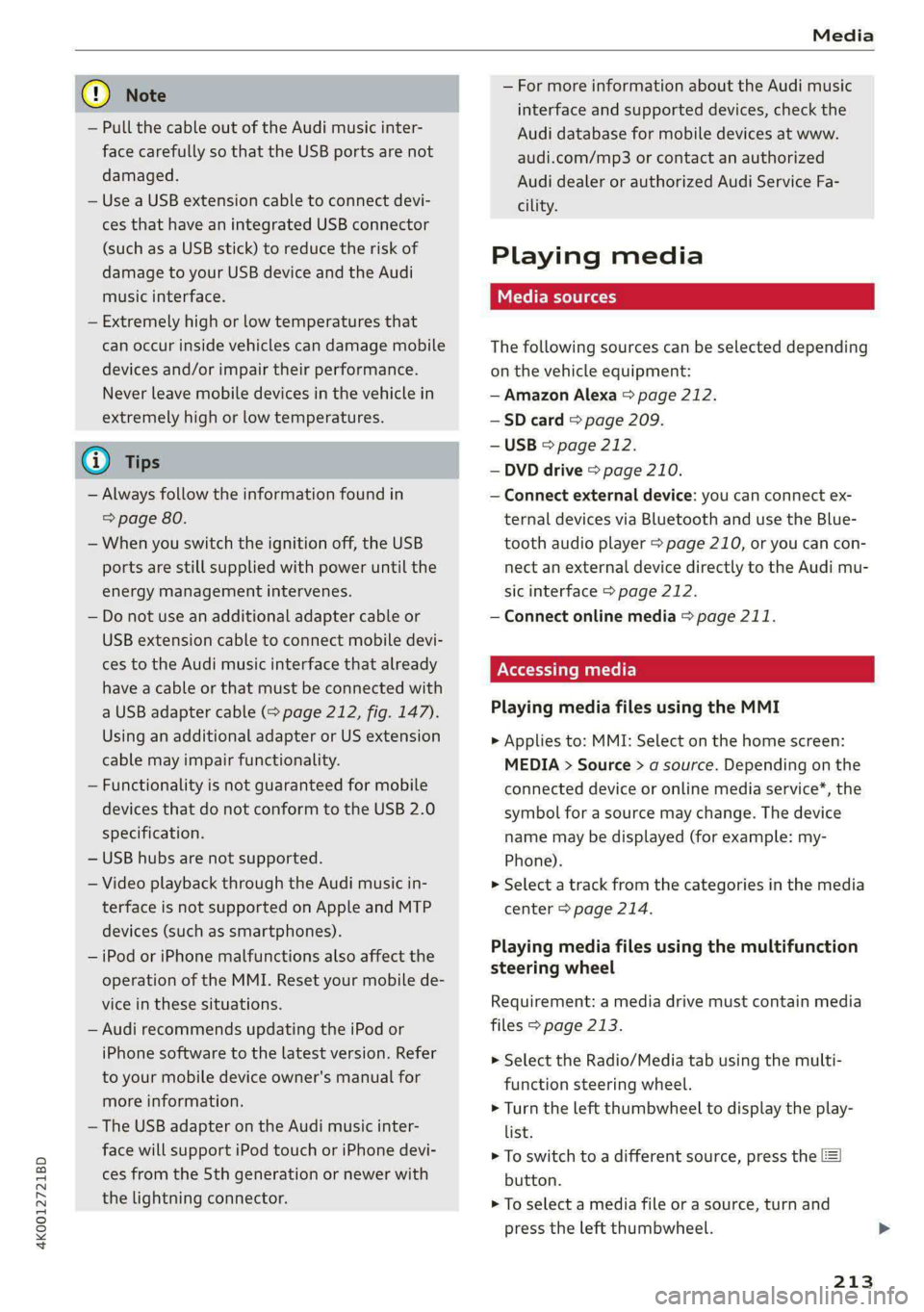
Playing media
The following sources can be selected depending
on the vehicle equipment:
— Amazon Alexa > page 212.
—SD card > page 209.
— USB © page 212.
— DVD drive > page 210.
— Connect external device: you can connect ex-
ternal devices via Bluetooth and use the Blue-
tooth audio player > page 210, or you can con-
nect an external device directly to the Audi mu-
sic interface > page 212.
— Connect online media > page 211.
Accessing media
Playing media files using the MMI
> Applies to: MMI: Select on the home screen:
MEDIA > Source > a source. Depending on the
connected device or online media service”, the
symbol for a source may change. The device
name may be displayed (for example: my-
Phone).
> Select a track from the categories in the media
center > page 214.
Playing media files using the multifunction
steering wheel
Requirement: a media drive must contain media
files > page 213.
> Select the Radio/Media tab using the multi-
function steering wheel.
> Turn the left thumbwheel to display the play-
list.
> To switch to a different source, press the [=|
button.
> To select a media file or a source, turn and
press the left thumbwheel.
213
Page 221 of 316

4K0012721BD
Media
@) Tips
— Not all video DVDs have parental control.
— PIN entry for parental control will be locked
for approximately one minute if you enter
the incorrect PIN three times in a row. The
— The protection levels for the parental con- PIN can only be reset by an authorized Audi
trol are based on the US standards from the dealer.
Motion Picture Association of America
(MPAA). Note that the age levels for video
DVDs in European countries may differ.
Supported media and file formats
Cea CN]
The DVD drive*, SD card reader, and the USB stor-
age device connection support the following me-
dia file properties:
Audio files Video files
Support- SD/SDHC/SDXC/MMC memory cards: with a capacity of up to 256 GB;
ed media | DVD drive: audio CDs (up to 80 min) with CD text (artist, album, song)*, CD-ROMs with a
capacity of up to 700 MB; DVD+R/RW; DVD video; DVD audio with audio tracks that are
compatible with a DVD video player;
Audi music interface: mobile devices > page 212 (such as an iPod, MTP player, USB stor-
age device in “USB Device Subclass 1 and 6” that conforms to USB 2.0: USB sticks, USB
MP3 players (Plug-and-Play-capable), external USB flash drives and hard drives)).
File sys- Memory cards: exFAT, FAT, FAT32, NTFS.
tem USB storage devices: FAT, FAT32, NTFS.
USB mass storage device partitions (primary/logical*): two per USB connection.
CD/DVD file systems: ISO9660, Joliet, UDF.
Metadata | Album cover: GIF, JPG, PNG with max. 800x800 px.
The album cover from the medium or from Grace-
note* is displayed, depending on availability.
Format MPEG |Win- MPEG |Opus |FLAC |ALAC |MPEG MPEG4 Windows
1/2 dows [2/4 1/2 AVC Media Video
Layer 3 |Media (H.264) |9
Audio 9
and 10
File ex- -mp3 |.wma |.m4a_|.opus_ | .flac -m4a_——|.mpg; -mp4 .wmv
tension -m4b | .ogg -mpeg -m4v .asf
aac .oga -Mov
-avi
Playlists -M3U; .PLS; .WPL; .M3U8; .ASX
Character-| up to maximum 320 kbit/s and |48kHzsampling| up to maximum 10 Mbit/s and
istics 48 kHz sampling frequencies frequency 1920x1080 px at maximum 30 fps
Number DVD drive*: max. 1,000 files per medium.
of files USB mass storage device and memory cards: max. 50,000 files per medium; max.
50,000 files per playlist/folder
219
Page 226 of 316
Additional settings
Bluetooth
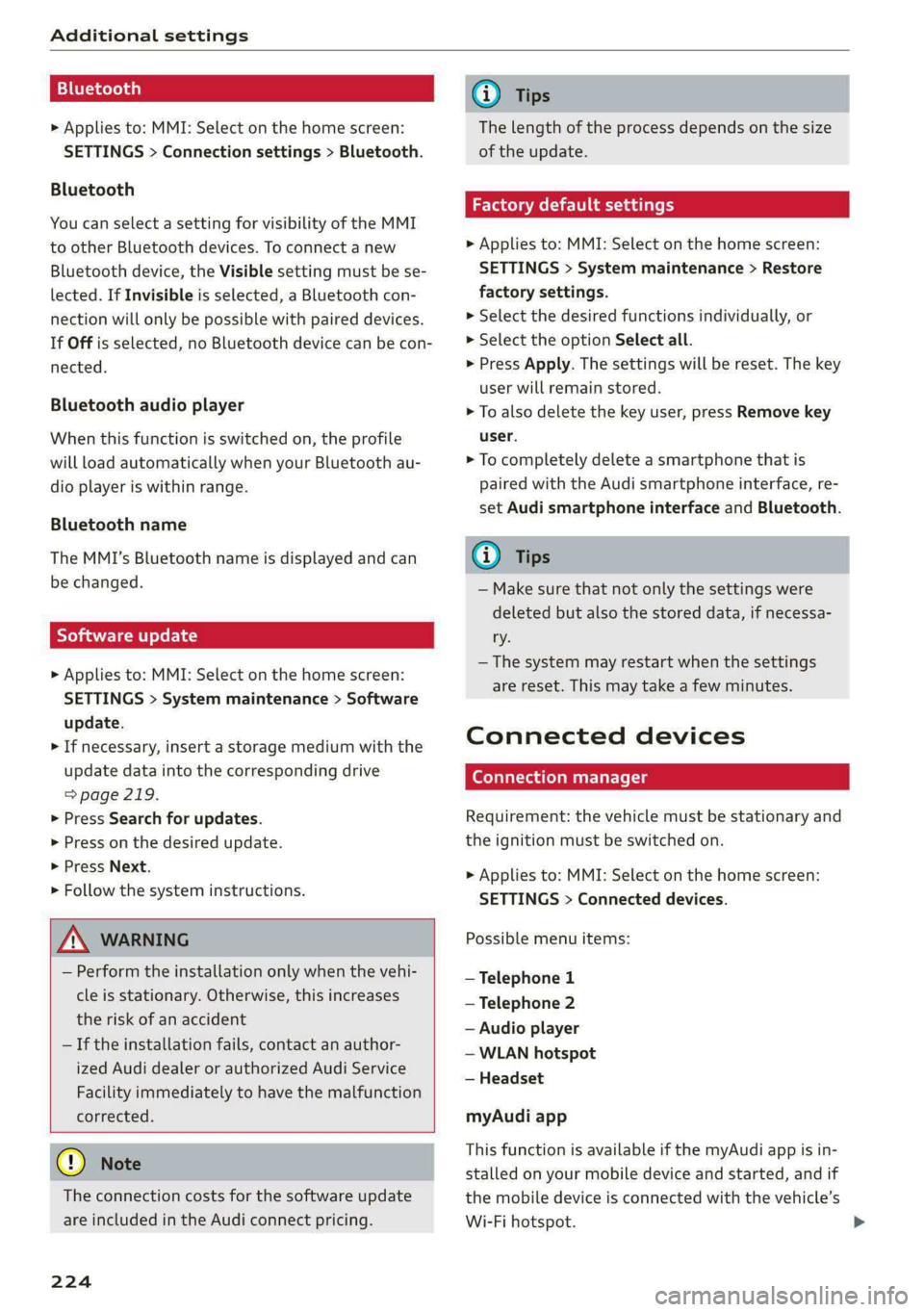
> Applies to: MMI: Select on the home screen:
SETTINGS > Connection settings > Bluetooth.
Bluetooth
You can select a setting for visibility of the MMI
to other Bluetooth devices. To connect a new
Bluetooth device, the Visible setting must be se-
lected. If Invisible is selected, a Bluetooth con-
nection will only be possible with paired devices.
If Off is selected, no Bluetooth device can be con-
nected.
Bluetooth audio player
When this function is switched on, the profile
will load automatically when your Bluetooth au-
dio player is within range.
Bluetooth name
The MMI’s Bluetooth name is displayed and can
be changed.
Tyee M olor hd
> Applies to: MMI: Select on the home screen:
SETTINGS > System maintenance > Software
update.
> If necessary, insert a storage medium with the
update data into the corresponding drive
=> page 219.
> Press Search for updates.
> Press on the desired update.
> Press Next.
> Follow the system instructions.
ZA\ WARNING
— Perform the installation only when the vehi-
cle is stationary. Otherwise, this increases
the risk of an accident
— If the installation fails, contact an author-
ized Audi dealer or authorized Audi Service
Facility immediately to have the malfunction
corrected.
() Note
The connection costs for the software update
are included in the Audi connect pricing.
224
G) Tips
The length of the process depends on the size
of the update.
Factory default settings
> Applies to: MMI: Select on the home screen:
SETTINGS > System maintenance > Restore
factory settings.
> Select the desired functions individually, or
> Select the option Select all.
> Press Apply. The settings will be reset. The key
user will remain stored.
> To also delete the key user, press Remove key
user.
> To completely delete a smartphone that is
paired with the Audi smartphone interface, re-
set Audi smartphone interface and Bluetooth.
G) Tips
— Make sure that not only the settings were
deleted but also the stored data, if necessa-
ry.
— The system may restart when the settings
are reset. This may take a few minutes.
Connected devices
(eye e Ts ( Us
Requirement: the vehicle must be stationary and
the ignition must be switched on.
> Applies to: MMI: Select on the home screen:
SETTINGS > Connected devices.
Possible menu items:
— Telephone 1
— Telephone 2
— Audio player
— WLAN hotspot
— Headset
myAudi app
This function is available if the myAudi app is in-
stalled on your mobile device and started, and if
the mobile device is connected with the vehicle’s
Wi-Fi hotspot.
Page 246 of 316

Checking and Filling
Fill the washer fluid for the windshield washer
system and the headlight washer system* when
the ignition is switched off.
@) Note
— The concentration of anti-freezing agent
must be adjusted to the vehicle operating
conditions and the climate. A concentration
that is too high can lead to vehicle damage.
— Never add radiator anti-freeze or other addi-
tives to the washer fluid.
— Do not use a glass cleaner that contains
paint solvents, because this could damage
the paint.
Service interval display
The service interval display detects when your ve-
hicle is due for service.
The service interval display works in two stages:
— Inspection or oil change reminder: after driv-
ing a certain distance, a message appears in the
instrument cluster display each time the igni-
tion is switched on or off. The remaining dis-
tance or time is displayed briefly.
— Inspection or oil change due: if your vehicle
has reached an inspection or oil change interval
or both intervals at the same time, the mes-
sage Inspection due! or Oil change due! or Oil
change and inspection due! appears briefly af-
ter switching the ignition on or off.
Checking service intervals
You can check the remaining distance or time un-
til the next oil change or next inspection in the
Infotainment system.
Applies to: MMI: Select on the home screen: VE-
HICLE > Settings & Service > Service intervals.
Resetting the indicator
An authorized Audi dealer or authorized Audi
Service Facility will reset the service interval dis-
play after performing service.
If you have changed the oil yourself, you must re-
set the oil change interval.
244
Applies to: MMI: To reset the display, select on
the home screen: VEHICLE > Settings & Service
> Service intervals.
C) Note
— Only reset the oil change indicator if the oil
was changed.
— Following the service intervals is critical to
maintaining the service life and value of
your vehicle, especially the engine. Even if
the mileage on the vehicle is low, do not ex-
ceed the time for the next service.
Page 311 of 316

4K0012721BD
LED cscs oa comune we mae 6 w eemae W sean we x 38
Replacing the battery...............0-. 38
Unlocking and locking...............005 37
also refer to Vehicle key................ 36
Removing the caps (wheel bolts)......... 275
REPSINS mews = 4 wees = awe 5 2 dee © & eee Soo 293
Repeat's « sven ¢ 5 eam gs eee oe eee s Hee 215
Replacement key............ eee e ee eee 36
Replacement parts...............000005 295
Replacing fuses.............0..0e eee 284
Reporting Safety Defects................ 295
Rewinding (media files)................. 213
Rim S es seas © 2 seneus ¥ seasons ¥ amsesne go eee oo 260
Cleaning. .... 2... cece eee eee eee 268
Road CARIOn wnnzese + a xesne « o ssnone © svettonnie « ste 109
Roof
refer to Panoramic glass roof............ 45
Roof load. ...... 2.2.0... e eee eee eee eee 299
ROO FRAG cise «: sneuens oo mises ow cance © atten 8 oe 86
also refer to Roof rack..........-...0-4. 86
Route guidance
StOPPING swe = seis ¢ = reese & ¥ Hers a See 190
also refer to Navigation............... 185
Running direction (tires)..............-. 277
S
Safety beltSias x » cavers ae save 2 2 mewn 4» Rouen 2 ¢ 65
Cleaning.......... 0. eee eee eee 269
Locking... 2.66... cece eee eee eee eee 77
Securing child safety seats.............. 76
Satellite map wave « ¢ wees 2 ¢ eee 7 o ewe oe 195
Saving fuel
Energy'CONnsSUMer sevice ss sone + waar @ 2 wees & 17
Recuperation..... 02... eee ee eee eee 16
Screen
refer to Touch display...............--. 18
Screwdriver .......... 0.0 cece eee eee 272
SDicard reader'(MMI), cess.» ecarene ao ravage a 0 wie 209
Searchiarea (POD isis ss isvcweue wi anwesue so 0 saesiwe « 188
Search
function
refer to Free text search............... 217
Seat heating. ...... 0... cece eee eee 90
Seats
Adjusting the front seats................ 61
GlOANING « & ecews « © sets & e eeees ce ewe Ge re 269
Folding: « « aesise < v ccm ie wo axeweve x ¥ oecnave wo omer 83
Front passenger’s seat adjustment....... 63
Head restraints. ........ 0.0.0 c cece eee 64
Massage function............ eee eens 61
Memory function « «cee < ccc ee owren os ooeve 68
Resetting the position.................. 62
Storing aseat profile................... 68
Seat ventilation 90
Selecting a source (media).............. 213
Selector lever... . 0... ccc eee eee ee eee eee 95
Self-learning navigation
refer to Personal route assistance....... 193
Sensors
COVEraGe ALES cecsecs 5 ¢ says 5 = Haws & & eae 5 119
LOGAGIONS bess. = sseses a ween wo seeenes © w oxeeEES « 120
Service interval display...............0. 244
Setting measurement units.............. 223
S@ttiniGS:: « : seas 2 = eueee 7 ¢ eee ¢ e oem te oe 223
Announcements and tones............. 223
Bluetooth .... 2... cece eee eee 224
Date and times. ; » sees ss eee ev owes ees 223
LANGUAGE sevens 6s ssswn 6 @ senses aw sxaNee @ & sta 223
Measurement units...............2... 223
Média’: « s aeus 5 2 eee sv eee oe eee sp ee 218
Navigationtves + & sisse + 2 mean s nase 3 wane 198
Radio... 2... ee eee eee 207
SOUNG sss < = seavay 3 Saiwe 7 5 HORE TS BEE EF: 223
GYSTCINS: = s sxc wan @ 2 aime 8 o mee oo ee 223
TIME ZONE... eee eee 223
Wi-Fi hotspot..............02--00 eee 181
Setting the language................... 223
Setting thetime........ 2.0... ee eee eee 223
Shade
Rear window/rear doors...........-.... 55
Shift paddles............ 2... cee eee eee 97
Ship
carrier... 2.0... ee eee eee eee 109
Shortcut
refer to Shortcuts........-.. eee eee eee 23
Shortcuts. ... 02... eee eee eee eee 23
Shuffle... 0.0... eee eee eee 215
also refer to Shuffle............00 eee 215
Side assist... 2.0.2... eee eee eee 150
Cleaning the sensors...............--. 267
SIM/Card exes ¢ ¢ seem ¢ § eres & ¥ pews se ce 178
SiriusXM alert notifications.............. 204
Sliding/tilting sunroof
refer to Panoramic glass roof............ 4S
SiMart favorites: = ccc. zs sen 5 se een os sees 204