Mmi AUDI A6 2020 Service Manual
[x] Cancel search | Manufacturer: AUDI, Model Year: 2020, Model line: A6, Model: AUDI A6 2020Pages: 316, PDF Size: 86.41 MB
Page 110 of 316

Driving dynamic
Driving dynamic
Audi drive select
Introduction
Applies to: vehicles with Audi drive select
Drive select makes it possible to experience dif
ferent types of vehicle characteristics in one vehi-
cle. With different driving modes, the driver can
switch the setting, for example from sporty to
comfortable. This allows you to adjust the set-
tings to your personal preferences. This makes it
possible to combine settings such as a sporty
drivetrain setting with comfortable steering.
Selecting an Audi drive select mode
Applies to: vehicles with Audi drive select
Fig. 90 Center console: Audi drive select button
> Press the left or right arrow key > fig. 90 until
the desired mode appears in the MMI. Or:
> Applies to: MMI: Select on the home screen:
VEHICLE > Audi drive select.
You can change the driving mode when the vehi-
cle is stationary or while driving. If traffic per-
mits, briefly remove your foot from the accelera-
tor pedal after changing modes so that the mode
you have selected will be activated for the drive
system.
The following modes are available depending on
the equipment:
offroad - Provides assistance when driving off-
road. The vehicle will be raised to the second-
highest level using the air suspension®. The ESC
will be restricted and the hill descent assist* will
be activated. The vehicle will exit this mode after
the ignition is switched off.
108
allroad - Provides balanced vehicle handling. The
vehicle will be raised to the second-highest level
using the air suspension*.
comfort - Provides a comfort-oriented vehicle
setup and is suited for long drives on highways.
auto - Provides an overall comfortable yet dy-
namic driving feel and is suited for everyday use.
dynamic - Gives the driver a sporty driving feel
and is suited to a sporty driving style. The “S”
driving program is selected.
individual - Provides the option for personalized
vehicle settings. Press to configure the mode
=> page 108, Individual settings.
@ Tips
When the ignition is being switched on, indi-
vidual systems, such as the drive system, will
be reset to a balanced setting. Select the cur-
rent mode again to attain its full configura-
tion.
In lsettings
Applies to: vehicles with Audi drive select
The equipment in your vehicle will determine
which settings you can adjust.
Drive
The drive system will react to accelerator pedal
moves more quickly or in a more balanced man-
ner. The shift points are placed in higher or lower
speed ranges.
Depending on the setting, the drive power at the
rear axle will be distributed with the sport differ-
ential* to be more sporty or moderate
=> page 112.
Steering
The power steering will adapt. Light steering is
suitable for long trips on highways or smooth
driving around curves, for example.
Suspension
The suspension adjusts to be tighter or more
comfort-oriented when it comes to compensat-
ing for uneven spots on the road.
Page 111 of 316

4K0012721BD
Driving dynamic
The vehicle ground clearance is adjusted by the
air suspension* based on the setting.
Engine sound
The engine sound adapts and can be subtle to
sporty.
Suspension
Adaptive dampers
Applies to: vehicles with suspension control
The adaptive dampers are an electronically-con-
trolled damping system. The firmness of the sus-
pension will adapt to the driving conditions and
the driving situation. The settings depend on the
selected Audi drive select* mode.
Air suspension
Applies to: vehicles with air suspension
The air suspension is an electronically-controlled
suspension and leveling system. The firmness of
the suspension will adapt to the driving condi-
tions and the driving situation. The system balan-
ces out changes in load. The vehicle level will also
adapt gradually to the vehicle speed in order to
reduce the wind resistance at high speeds and in-
crease the ground clearance at low speeds. The
settings depend on the selected Audi drive se-
lect* mode.
Displaying the vehicle level
> Applies to: MMI: Select on the home screen:
VEHICLE > Audi drive select.
The filled-in boxes represent the current vehicle
level. The more boxes that are filled in, the high-
er the ground clearance. The box that corre-
sponds with the current vehicle level will flash
while the vehicle is lifting or lowering. The target
level is indicated by a red outline.
Raising the vehicle
> Applies to: MMI: Select on the home screen:
VEHICLE > Audi drive select.
> Press Raise to reach the highest vehicle level
and thus the maximum ground clearance.
> Press Lower to lower the vehicle down again.
The Audi drive select* mode will be changed if
necessary when the vehicle is raised.
The vehicle will lower when at speeds of approxi-
mately 22 mph (35 km/h) and lower. This func-
tion may only be used temporarily when in-
creased ground clearance is necessary. It is not
intended for long drives.
C) Note
— Also refer to the information about ground
clearance > page 109.
— When transporting the vehicle on a road
carrier, rail carrier, ship carrier, or other car-
rier, it may only be secured at the running
surfaces of the tires (circumference). Secur-
ing the vehicle at the axle components, sus-
pension struts, or towing eyes is not permit-
ted because the pressure in the air suspen-
sion struts can change during transport. The
vehicle might not be secured sufficiently if
this happens.
Ground clearance
The vehicle height and clearance can be influ-
enced by the following factors:
— Change in temperature
— Change in load
— Change to the Audi drive select* mode
— Lifting and lowering via the air suspension*
ZA\ WARNING
To reduce the risk of injury, make sure no one
gets pinched when the vehicle level is chang-
ing, for example when cleaning the under-
body or the wheel housings.
@) Note
Always make sure there is enough clearance
above and below the vehicle. This is especially
important for entrances with height restric-
tions, for example, before driving into under-
ground garages. You could also scrape the
ground when driving over the edges of curbs
or on steep ramps, which could damage your
vehicle.
109
Page 118 of 316
Trailer towing
you are operating the vehicle. Contact an author-
ized Audi dealer or authorized Audi Service Facili-
ty for more information.
Before you start driving, check all lighting equip-
ment on the trailer while it is hitched to the vehi-
cle.
The headlight range control automatically ad-
justs the light range of the headlights.
Safety chains
Make sure the safety chains are correctly applied
when pulling a trailer. The chains should hang
enough so that the trailer can drive around
curves. However, they must not touch the
ground.
Air suspension
Applies to: vehicles with air suspension
The Audi drive select* comfort mode > page 108
must be selected before you adjust the tongue
weight on the trailer and hitch the trailer >@,
=> page 109.
Likewise, the vehicle cannot be raised manually
using the Raise function > page 109.
For vehicles with a retrofitted trailer hitch, you
must switch on the air suspension trailer mode
manually.
Applies to: MMI: Select on the home screen: VE-
HICLE > Settings & Service > Air suspension:
trailer.
Switch it off again when you are no longer towing
a trailer.
When using carrier systems that are mounted di-
rectly on the trailer hitch ball head, you can also
switch trailer mode off manually.
If you must drive on roads that are in poor condi-
tion, you can raise the vehicle again after hitching
the trailer or after adjusting the tongue weight
=> page 109.
Applies to: allroad: You can also increase ground
clearance by selecting the Audi drive select* off-
road or allroad modes > page 108.
116
Vehicle levels below the values set in the Com-
fort level will no longer be available, even if you
are lowering the vehicle manually.
Z\ WARNING
— Never turn off trailer mode while driving
when a trailer is hitched, because then the
restrictions for controlling the vehicle level
will be turned off.
— Driving with a trailer on unpaved roads when
the vehicle is raised may change the vehicle
handling. Adapt your speed.
— Note that the vehicle will lower automatical-
ly at certain speeds if you have lifted the ve-
hicle manually.
@) Note
— Applies to: vehicles with air suspension: Se-
lect the Audi drive select* comfort mode.
Otherwise, the tongue load specified for
your vehicle will no longer be applicable.
— Attachments retrofitted on the vehicle may
cause damage, especially on the trailer
hitch ball head. In cases of damage, have
the function checked by an authorized Audi
dealer or authorized Audi Service Facility.
@) Tips
— Block the wheels with chocks when parking
on inclines if the trailer is loaded.
— Having the vehicle inspected between the
inspection intervals is recommended if you
tow a trailer frequently.
— Avoid driving with a trailer during the vehi-
cle break-in period.
Driving with a trailer
Driving with a trailer requires extra caution.
Speed
Adhere to the legal speed limits. Follow the legal
regulations that are applicable in the country
where you are operating the vehicle.
As the speed increases, the driving stability of
the trailer decreases. Therefore you should not
exceed the maximum legal speed limit when >
Page 121 of 316
4K0012721BD
Assist systems
Surrounding area Radar sensors
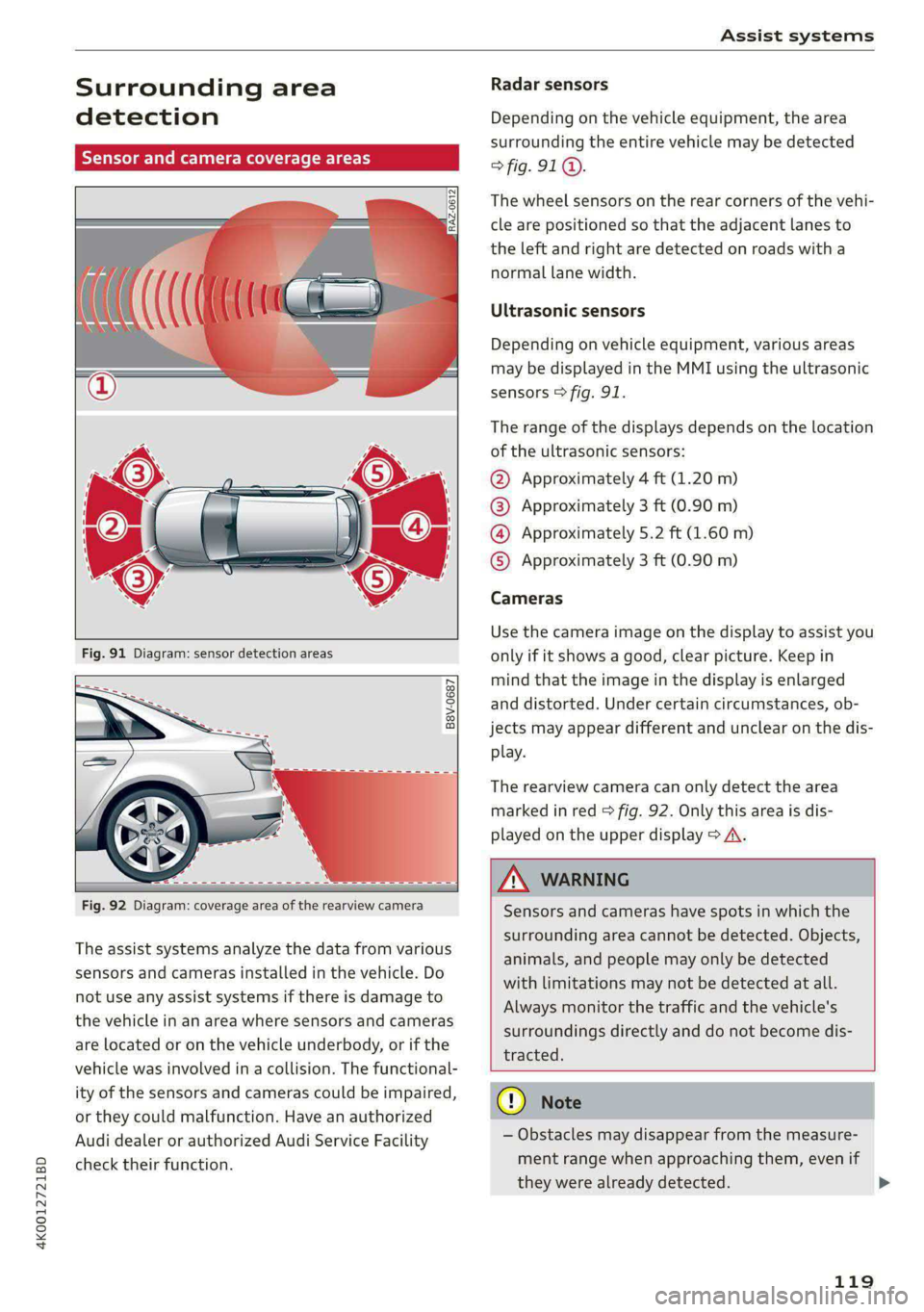
detection Depending on the vehicle equipment, the area
surrounding the entire vehicle may be detected
fig. 91.
The wheel sensors on the rear corners of the vehi-
cle are positioned so that the adjacent lanes to
the left and right are detected on roads with a
normal lane width.
RAZ-0612
Ultrasonic sensors
Depending on vehicle equipment, various areas
may be displayed in the MMI using the ultrasonic
sensors > fig. 91.
The range of the displays depends on the location
of the ultrasonic sensors:
@ Approximately 4 ft (1.20 m)
@® Approximately 3 ft (0.90 m)
@® Approximately 5.2 ft (1.60 m)
© Approximately 3 ft (0.90 m)
Cameras
Use the camera image on the display to assist you
only if it shows a good, clear picture. Keep in
mind that the image in the display is enlarged
and distorted. Under certain circumstances, ob-
jects may appear different and unclear on the dis-
play.
B8V-0687
The rearview camera can only detect the area
marked in red > fig. 92. Only this area is dis-
played on the upper display > A\.
| A WARNING
Fig. 92 Diagram: coverage area of the rearview camera Sensors and cameras have spots in which the
surrounding area cannot be detected. Objects,
animals, and people may only be detected
with limitations may not be detected at all.
Always monitor the traffic and the vehicle's
surroundings directly and do not become dis-
tracted.
The assist systems analyze the data from various
sensors and cameras installed in the vehicle. Do
not use any assist systems if there is damage to
the vehicle in an area where sensors and cameras
are located or on the vehicle underbody, or if the
vehicle was involved in a collision. The functional-
ity of the sensors and cameras could be impaired, @) Note
or they could malfunction. Have an authorized :
Audi dealer or authorized Audi Service Facility ~ Obstacles may disappear from the measure-
check their function. ment range when approaching them, even if
they were already detected. >
119
Page 123 of 316
4K0012721BD
Assist systems
ZA WARNING
Applies to: vehicles with laser scanner
— The surface of the laser scanner can become
hot during operation, which increases the
risk of burns.
— The laser scanner contains a class 1 laser in
accordance with IEC 60825-1:2014. When
used according to regulations, the laser is
not dangerous. Opening the laser module
and removing covers is not permitted. Doing
so could cause permanent injuries to the
eyes.
— Any repair work on the laser module must
be performed by an authorized Audi dealer
or authorized Audi Service Facility; other-
wise the vehicle's operating license may be
voided. Incorrect repairs may cause limited
functionality and eye damage.
Switching the systems
on and off
@) Tips
Applies to: vehicles with laser scanner
— The possible emissions are below the
threshold for class 1 lasers.
— Complies with 21 CFR 1040.10 and
1040.11 except for deviations pursuant to
Laser Notice No. 50, dated June 24, 2007.
@ Tips
— The locations of the sensors may differ
slightly depending on vehicle equipment.
— Some sensors are installed under vehicle
components and cannot be seen from the
outside.
— For an explanation on conformity with the
FCC regulations in the United States and the
Industry Canada regulations, see
=> page 296.
Fig. 95 Center console: driver assistance systems button
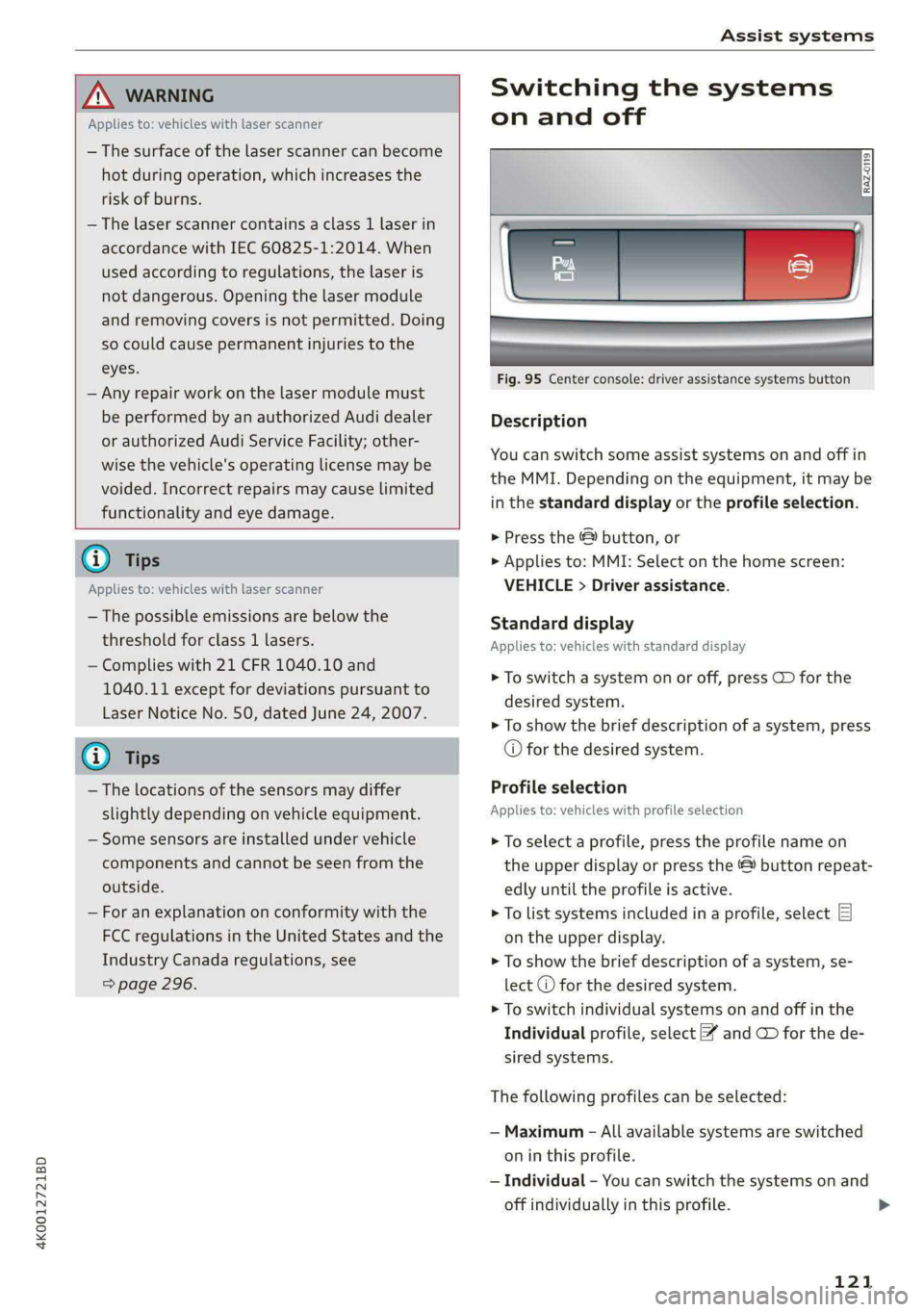
Description
You can switch some assist systems on and off in
the MMI. Depending on the equipment, it may be
in the standard display or the profile selection.
> Press the & button, or
> Applies to: MMI: Select on the home screen:
VEHICLE > Driver assistance.
Standard display
Applies to: vehicles with standard display
> To switch a system on or off, press CD for the
desired system.
> To show the brief description of a system, press
© for the desired system.
Profile selection
Applies to: vehicles with profile selection
> To select a profile, press the profile name on
the upper display or press the © button repeat-
edly until the profile is active.
> To list systems included in a profile, select EJ
on the upper display.
> To show the brief description of a system, se-
lect @ for the desired system.
> To switch individual systems on and off in the
Individual profile, select ¥ and @ for the de-
sired systems.
The following profiles can be selected:
— Maximum - All available systems are switched
on in this profile.
— Individual - You can switch the systems on and
off individually in this profile.
121
>
Page 125 of 316
4K0012721BD
Driving information
Driving information
Speed warning system
Applies to: vehicles with speed warning system
The speed warning system helps the driver to
stay below a specified maximum speed. A warn-
ing threshold can be set in the MMI for this pur-
pose.
Once the speed slightly exceeds the stored
threshold, the speed warning system will alert
the driver with an indicator in the instrument
cluster and a warning tone. Once the speed drops
below the stored maximum speed, the indicator
will turn off.
Setting a threshold is recommended if you would
like to be reminded when you reach a certain
maximum speed. Situations where you may want
to do so include driving in a country with a gener-
al speed limit or if there is a specified maximum
speed for winter tires.
@) Tips
Regardless of the speed warning system, you
should always monitor your speed using the
speedometer and make sure you are following
the legal speed limit.
Setting the warning threshold
Applies to: vehicles with speed warning system
> Applies to: MMI: Select on the home screen:
VEHICLE > Driver assistance > (<3) > Speed
warning.
@ Tips
Certain settings are stored automatically in
the active personal profile.
Applies to: vehicles with speed warning system
ey Manually set XX speed limit warning
threshold exceeded
The stored speed was exceeded.
Camera-based traffic
sign recognition
Applies to: vehicles with camera-based traffic sign recognition
Fig. 96 Instrument cluster: traffic sign recognition
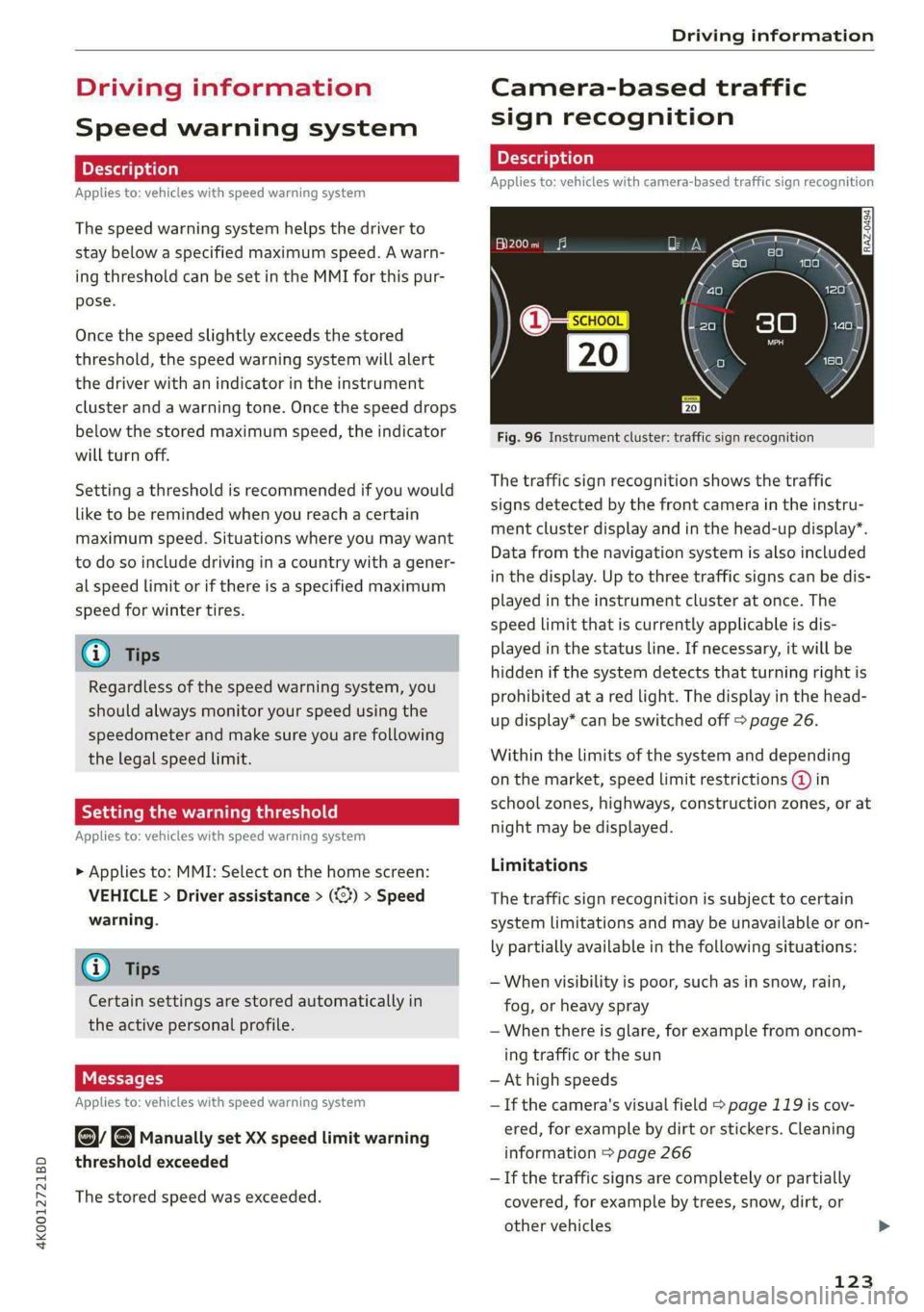
The traffic sign recognition shows the traffic
signs detected by the front camera in the instru-
ment cluster display and in the head-up display”.
Data from the navigation system is also included
in the display. Up to three traffic signs can be dis-
played in the instrument cluster at once. The
speed limit that is currently applicable is dis-
played in the status line. If necessary, it will be
hidden if the system detects that turning right is
prohibited at a red light. The display in the head-
up display* can be switched off > page 26.
Within the limits of the system and depending
on the market, speed limit restrictions @ in
school zones, highways, construction zones, or at
night may be displayed.
Limitations
The traffic sign recognition is subject to certain
system limitations and may be unavailable or on-
ly partially available in the following situations:
— When visibility is poor, such as in snow, rain,
fog, or heavy spray
—When there is glare, for example from oncom-
ing traffic or the sun
— At high speeds
— If the camera's visual field > page 119 is cov-
ered, for example by dirt or stickers. Cleaning
information > page 266
— If the traffic signs are completely or partially
covered, for example by trees, snow, dirt, or
other vehicles
123
Page 126 of 316
Driving information
— If traffic signs do not conform to the standard
format
— If traffic signs are damaged or bent
— If traffic signs are displayed on sign holders
with electronic signs
— If the traffic signs or the roadways have
changed, and the navigation data is no longer
up-to-date
Z\ WARNING
— Follow the safety precautions and respect
the limits of the assist systems, sensors,
and cameras > page 118.
— Under some circumstances, traffic sign rec-
ognition may not detect traffic signs correct-
ly or detect them at all. As a result, the sys-
tem may not display the correct speed limit
or any speed limit.
@) Tips
— Traffic sign recognition does not adapt your
vehicle's speed to match the speed Limit.
— The display in the instrument cluster is
based on the units of measurement used for
speed in the country where the vehicle is be-
ing operated. As a result, a display of 50 in
the instrument cluster can mean either mph
or km/h, depending on the country.
Applies to: vehicles with camera-based traffic sign recognition
Accessing traffic sign recognition
> Select in the instrument cluster: vehicle func-
tions tab > Traffic signs.
Setting a traffic sign based speed warning
> Applies to: MMI: Select on the home screen:
VEHICLE > Driver assistance > (3) > Speed
warning.
You can select a warning threshold. If it is ex-
ceeded, then the current detected speed limit
will be shown in the display with an exclamation
point for the duration that it is exceeded and it
will blink for a short time.
124
G) Tips
Certain settings are stored automatically in
the active personal profile.
Messages
Applies to: vehicles with camera-based traffic sign recognition
Traffic sign recognition: currently unavaila-
ble. Camera view limited due to environmental
conditions
The camera’s visual field is covered. Clean the
windshield.
Traffic sign recognition: currently limited.
See owner's manual
This message appears if navigation system data
is not available, for example on newly-construct-
ed roads. The speed limit display will be tempo-
rarily limited, which increases the risk of an incor-
rect display. If this message continues to appear,
drive immediately to an authorized Audi dealer or
authorized Audi Service Facility to have the mal-
function repaired.
No traffic sign information available
Depending on the area, there is no valid naviga-
tion data and no speed limits were detected. This
may also appear if there is a recommended
speed, but no speed limit (for example when
driving on and off the expressway).
Malfunction! See owner's manual
The system may not function correctly so it has
been switched off. See an authorized Audi dealer
or authorized Audi Service Facility for assistance.
Function currently unavailable. See owner's
manual
If this message appears on vehicles without cam-
era-based traffic sign recognition, then the traffic
light
information function is currently unavaila-
ble. See > page 126.
Page 128 of 316
Driving information
— The traffic signs on the road always take pri-
ority over the display. The driver is always
responsible for adhering to the regulations
applicable in the country where the vehicle
is being operated.
— Units of measurement and language set-
tings are displayed based on how they were
set in the MMI system settings > page 223.
Applies to: vehicles with traffic light information
Switching traffic light information on and
off
The system can be switched on and off in the
MMI page 121.
Accessing traffic light information
> Select in the instrument cluster: vehicle func-
tions tab > Traffic signs.
@) Tips
If another tab or another function is selected
in the instrument cluster, the traffic light in-
formation will appear in the status bar on the
instrument cluster.
Messages
Applies to: vehicles with traffic light information
Malfunction! See owner's manual
The system could not be configured, for example
due to a network malfunction. Switch the igni-
tion off and shut down the vehicle to restart the
system. Wait several minutes until the vehicle
has shut down completely and then switch the
ignition back on.
Function currently unavailable. See owner's
manual
There is a temporary system malfunction. Check
if one or more of the following situations applies
and correct the issue if necessary:
— Traffic light information is switched off
— Data transmission is deactivated
— The vehicle is not equipped with traffic sign rec-
ognition.
126
— There is no valid license
— Traffic light information is not available in that
area
Lap timer
Introduction
Applies to: vehicles with lap timer
You can record and evaluate lap times with the
lap timer. You can operate the lap timer using the
multifunction steering wheel > page 13.
Opening the lap timer
> Select in the instrument cluster: Vehicle func-
tions tab > [=] button > Lap times.
An additional indicator appears in the head-up
display”.
ZA\ WARNING
Your focus should always be on driving your
vehicle safely. As the driver, you have com-
plete responsibility for safety in traffic. To re-
duce the risk of an accident, only use the lap
timer functions in such a way that you always
maintain complete control over your vehicle in
all traffic situations.
Gi) Tips
You can retrieve information from the trip
computer while the lap timer stopwatch is
running.
ey R em ale)
Applies to: vehicles with lap timer
Requirement: the lap timer must be open
> page 126.
Timing laps
> To start timing manually, select Start lap 1 in
the menu.
> To start timing automatically as soon as you be-
gin
to drive, select Start lap 1 by driving off or
Start by driving off in the menu.
> To start timing a new lap after driving a lap, se-
lect New lap in the menu. This starts timing
the next lap at the same time.
Page 130 of 316
Driving information
— Night vision assist can only detect pedes-
trians and wild animals located within the
range of the infrared camera.
— Night vision assist cannot detect pedes-
trians or wild animals and mark them if:
— They are not in an upright position, for ex-
ample if they are sitting or lying down
and/or
—The silhouette in the display appears in-
complete or interrupted, for example be-
cause the pedestrian is partially behind a
vehicle or an animal is partially covered by
tall grass.
— Never attempt to swerve around animals if
doing so would endanger you or other road
users.
G@) Tips
— Even though the system evaluates the
shape and heat given off by all detected ob-
jects, there are limits to the system. There
may be false warnings.
— For technical reasons, the image pauses in
split second intervals.
Switching on and off
Applies to: vehicles with night vision assist
The system can be switched on and off in the
MMI > page 121.
> The AUTO light function must be selected for
the night vision assist to automatically activate
when it is dark.
> Switch on the low beams manually to activate
night
vision assist immediately. To do so,
press @ on the light switch module and select
Ww
When activated, the %1 tab appears in the instru-
ment cluster.
> Select in the instrument cluster: tab %
@) Tips
When the night vision assist tab is selected in
the instrument cluster and the low beams are
switched off, the thermal image display dis-
appears only after you have exited the tab.
128
Applies to: vehicles with night vision assist
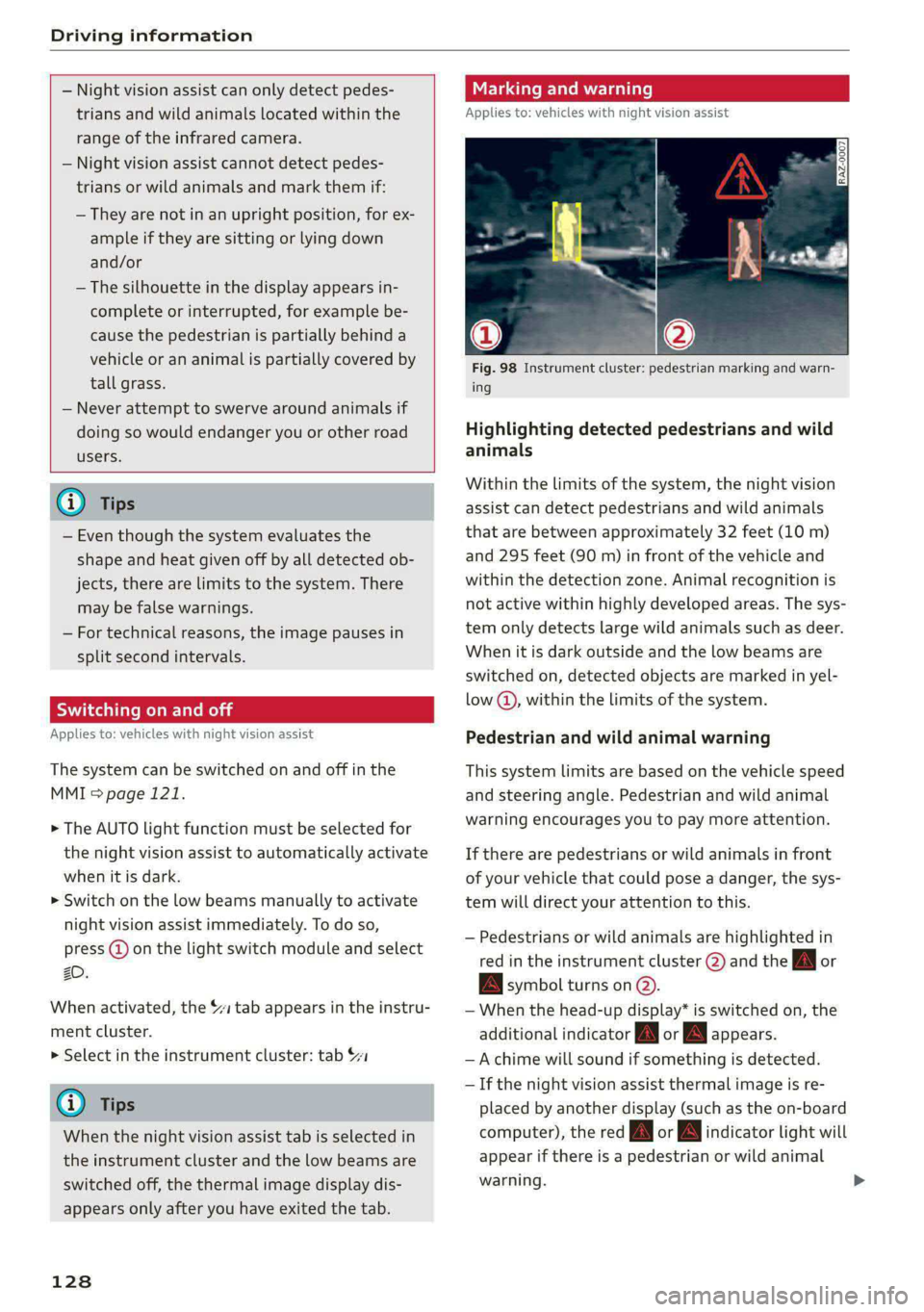
Fig. 98 Instrument cluster: pedestrian marking and warn-
ing
Highlighting detected pedestrians and wild
animals
Within the limits of the system, the night vision
assist can detect pedestrians and wild animals
that are between approximately 32 feet (10 m)
and 295 feet (90 m) in front of the vehicle and
within the detection zone. Animal recognition is
not active within highly developed areas. The sys-
tem only detects large wild animals such as deer.
When it is dark outside and the low beams are
switched on, detected objects are marked in yel-
low @), within the limits of the system.
Pedestrian and wild animal warning
This system limits are based on the vehicle speed
and steering angle. Pedestrian and wild animal
warning encourages you to pay more attention.
If there are pedestrians or wild animals in front
of your vehicle that could pose a danger, the sys-
tem will direct your attention to this.
— Pedestrians or wild animals are highlighted in
red in the instrument cluster (2) and the MM or
BA symbol turns on @.
— When the head-up display* is switched on, the
additional indicator [AM or EM appears.
—Achime will sound if something is detected.
—If the night vision assist thermal image is re-
placed by another display (such as the on-board
computer), the red A or A indicator light will
appear if there is a pedestrian or wild animal
warning.
Page 131 of 316
4K0012721BD
Driving information
The Sl symbol will appear when pedestrian and
wild animal detection is not available.
Marking light*
To direct the driver's attention to a pedestrian,
the headlights can flash on the pedestrian when
there is a pedestrian warning.
This occurs at speeds above approximately
35 mph (60 km/h) if you are outside of illuminat-
ed areas and no detected vehicles are shown. The
marking light is not used for wild animals. The
high beam assistant* controls the marking
light*> page 50.
Adjusting the contrast
Applies to: vehicles with night vision assist
Requirement: the night vision assist must be
switched on and the 1 tab must be displayed.
> Applies to: MMI: Select on the home screen:
VEHICLE > Driver assistance > (23) > Night vi-
sion assist.
> To set the desired contrast, move the slider.
G) Tips
Certain settings are stored automatically in
the active personal profile.
Applies to: vehicles with night vision assist
Night vision assist: currently unavailable.
See owner's manual
The system is not functioning correctly so it has
been switched off. If this malfunction persists,
drive immediately to an authorized Audi dealer or
authorized Audi Service Facility to have the mal-
function repaired.
129