Mmi AUDI A6 2020 Repair Manual
[x] Cancel search | Manufacturer: AUDI, Model Year: 2020, Model line: A6, Model: AUDI A6 2020Pages: 316, PDF Size: 86.41 MB
Page 155 of 316

4K0012721BD
Driver assistance
Intersection assistant
Applies to: vehicles with intersection assistant
o D
oS
& > &
ao
Fig. 120 Instrument cluster: directional display from the
intersection assistant
General information
The intersection assistant can warn the driver of
approaching cross traffic in complex intersections
> fig. 119.
The system monitors intersections and exit
ramps using the sensors installed in the vehicle
that detect the front and side areas around the
vehicle. Moving objects that are approaching
from behind, such as cars, are detected within
the limits of the system > A\. The system can al-
so warn the driver of a potential collision with de-
tected approaching cross traffic in intersections
and exit ramps with poor visibility.
Requirements for using the intersection
assistant:
— The speed must not be higher than approxi-
mately 18 mph (30 km/h).
— The “D” gear is selected.
Displays, warnings, and braking
— Display: the red arrow (@) can indicate the direc-
tion from which the cross traffic is approaching.
The indicator in the upper display only appears
when the parking aid is activated. For vehicles
with peripheral cameras only in the Front and
Front corner camera views. The display only ap-
pears in the instrument cluster > fig. 120 when
the Driver assistance display is open in the on-
board computer > page 16.
— Warnings: the message Cross traffic! © can
warn you of critical cross traffic when driving
forward. There may also be an audible signal.
— Automatic brake activation: if you do not react
to a warning, a brief braking by the system can
warn you of a potential collision with an ap-
proaching object when driving forward at
speeds up to approximately 6 mph (10 km/h).
Switching the intersection assistant on and
off
— The system can be switched on and off in the
MMI & page 121.
Messages
If Ey, or > is displayed when there is a mal-
function, the intersection assistant functions
may be unavailable or may be limited.
A message that indicates the cause and possible
solution may appear with some displays. The
weather conditions may be too poor or a sensor
may be covered. Clean the area in front of the
sensors > page 120 and try to turn on the sys-
tems again later.
If the malfunction remains, drive to an author-
ized Audi dealer or authorized Audi Service Facili-
ty immediately to have the malfunction correct-
ed.
Z\ WARNING
— Follow the safety precautions and note the
limits of the assist systems, sensors, and
cameras > page 118.
— The intersection assistant will not provide
alerts about people and cannot warn you
about every type of approaching objects,
such as cyclists. Always monitor the traffic >
153
Page 156 of 316

Driver assistance
as well as the vehicle's surroundings with di-
rect eye contact.
— The system may not react if vehicles are ap-
Proaching very fast.
@ Tips
For an explanation on conformity with the
FCC regulations in the United States and the
Industry Canada regulations, see > page 296.
Emergency assist
Applies to: vehicles with emergency assist
General information
Within the limits of the system, the emergency
assist detects if the driver is inactive. In these in-
stances, the system warns the driver, assumes
control of the vehicle if necessary, and brings the
vehicle automatically to a stop in the lane.
Regardless of the speed, the emergency assist is
automatically available when the adaptive cruise
assist* is activated. When the adaptive cruise as-
sist® is deactivated, the system is only active at
speeds higher than approximately 40 mph
(65 km/h).
Emergency assist functions
Within the limits of the system, the emergency
assist monitors the driver’s steering, accelerator,
and brake pedal activity. Depending on the se-
verity of the situation, it may initiate visual, au-
dio, and haptic warnings in stages:
— Reduces the speed
— Messages
— Lowers the volume of the Infotainment system
— Audible warning
— Tightening of the safety belt
—A brief application of the brakes
D_ This function is not available in every market and on all ve-
hicle equipment levels.
154
If the driver remains inactive despite the warn-
ings, the emergency assist controls the vehicle
within the limits of the system:
— The Audi pre sense preemptive safety measures
are triggered > page 146.
— The vehicle will stay in the lane and will be
braked to a stop.
— As soon as the vehicle comes to a full stop, the
emergency flashers are activated and the vehi-
cle prepares for the vehicle passengers to be
rescued. The parking brake is set, “P” gear is
engaged, the doors are unlocked, and the inte-
rior lighting is activated. If there is no move-
ment for several seconds, the emergency call ))
will be made if necessary.
Overriding the emergency assist
You can override the emergency assist > A\:
— Move the steering wheel. Or
— Press the brake pedal. Or
— Press the accelerator pedal distinctly.
When stationary, you can end the emergency as-
sist by leaving the "P" position or releasing the
parking brake > page 104.
Switching the emergency assist on and off
The system can be switched on and off in the
MMI & page 121.
Messages
1f E or EB is displayed when there is a malfunc-
tion, the emergency assist functions may be un-
available or may be limited.
A message that indicates the cause and possible
solution may appear with some displays. The
weather conditions may be too poor or a sensor
may be covered. Clean the area in front of the
sensors > page 120 and try to turn on the sys-
tems again later.
If the malfunction remains, drive to an author-
ized Audi dealer or authorized Audi Service Facili-
ty immediately to have the malfunction correct-
ed.
Page 158 of 316
Parking and maneuvering
Parking and
maneuvering
Introduction
Depending on the vehicle equipment, various
parking aids will help you when parking and ma-
neuvering.
Parking system
The parking system plus assists you while park-
ing by audibly and visually warning you of objects
detected in front of and behind the vehicle
=> page 156.
The rearview camera shows the area behind the
vehicle in the MMI display. The lines in the rear-
view camera image help you to park and maneu-
ver > page 158.
The peripheral cameras are an addition to the
rearview camera and help you to see various
areas around the vehicle while parking and ma-
neuvering > page 158.
The rear cross-traffic assist can warn you of ap-
proaching cross traffic when driving in reverse or
exiting a parking space > page 162.
Settings options
You can adjust parking system functions individu-
ally. The adjustment options depend on the vehi-
cle equipment.
— Activating automatically > page 156
— Front and rear volume > page 157
— Entertainment fader > page 157
— Clean rearview camera > page 159
— View > page 161
— Rear cross-traffic assist > page 163
_ WARNING
Follow the safety precautions and note the
limits of the assist systems, sensors, and
cameras > page 118.
G) Tips
Practicing parking in a traffic-free location or
parking lot to become familiar with the sys-
tems is recommended. Practice parking in
good light and weather conditions.
156
Parking system plus
Activating/deactivating
Applies to: vehicles with parking system plus
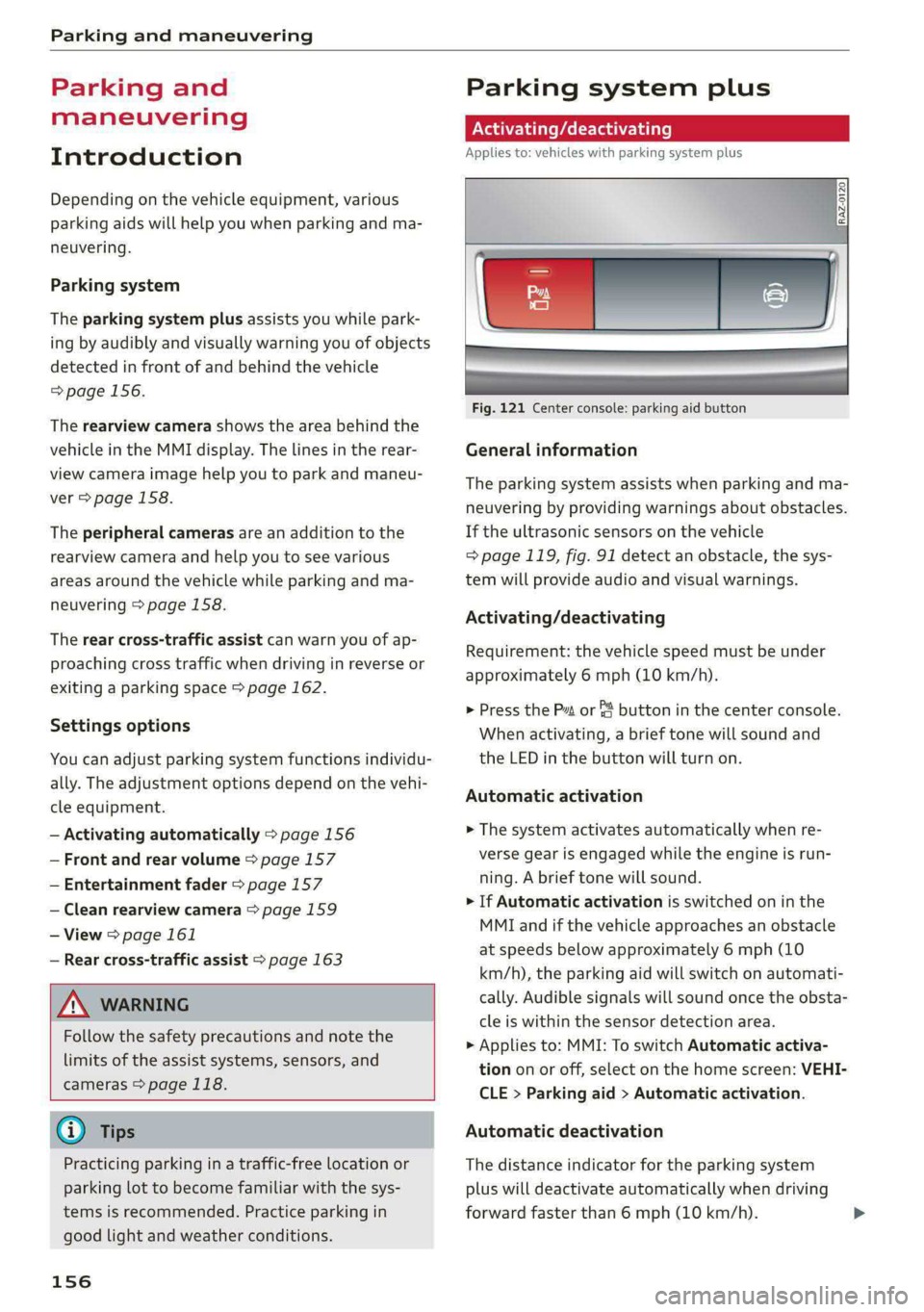
Fig. 121 Center console: parking aid button
General information
The parking system assists when parking and ma-
neuvering by providing warnings about obstacles.
If the ultrasonic sensors on the vehicle
=> page 119, fig. 91 detect an obstacle, the sys-
tem will provide audio and visual warnings.
Activating/deactivating
Requirement: the vehicle speed must be under
approximately 6 mph (10 km/h).
> Press the Pa or & button in the center console.
When activating, a brief tone will sound and
the LED in the button will turn on.
Automatic activation
> The system activates automatically when re-
verse gear is engaged while the engine is run-
ning. A brief tone will sound.
> If Automatic activation is switched on in the
MMI and if the vehicle approaches an obstacle
at speeds below approximately 6 mph (10
km/h), the parking aid will switch on automati-
cally. Audible signals will sound once the obsta-
cle is within the sensor detection area.
> Applies to: MMI: To switch Automatic activa-
tion on or off, select on the home screen: VEHI-
CLE > Parking aid > Automatic activation.
Automatic deactivation
The distance indicator for the parking system
plus will deactivate automatically when driving
forward faster than 6 mph (10 km/h).
Page 159 of 316
4K0012721BD
Parking and maneuvering
ZA\ WARNING
Follow the safety precautions and note the
limits of the assist systems, sensors, and
cameras > page 118.
@) Note
Keep enough distance from the curb to avoid
damage to the rims.
@) Tips
— Certain settings are stored automatically in
the active personal profile.
— If the parking aid is deactivated, it can only
be reactivated automatically when one of
the following conditions is met:
— The vehicle speed exceeds 6 mph
(10 km/h)
— The ignition is switched off and back on
again
— The parking brake is set and then released
—The “P” gear is engaged and released
again
Applies to: vehicles with parking system plus
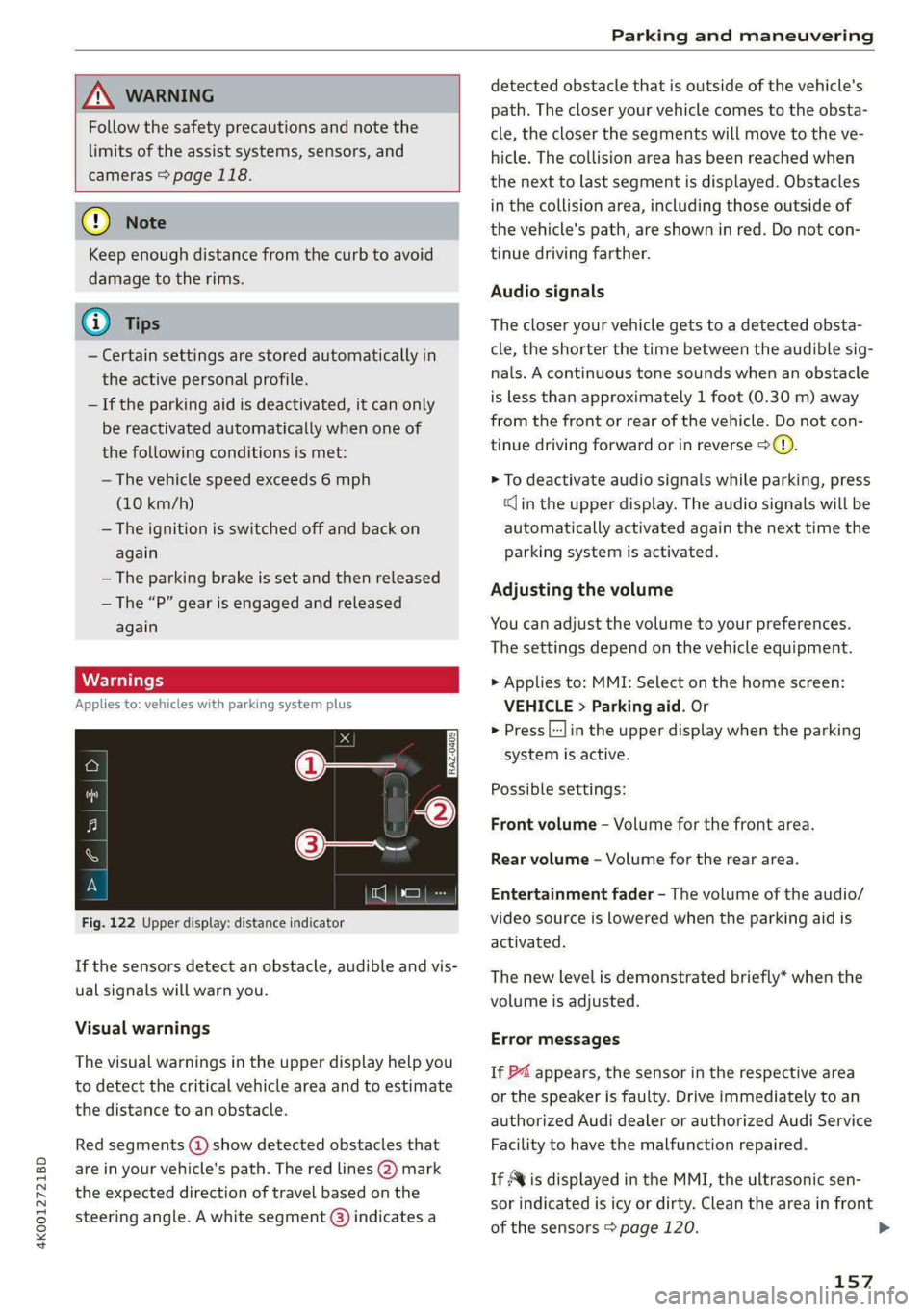
Fig. 122 Upper display: distance indicator
If the sensors detect an obstacle, audible and vis-
ual signals will warn you.
Visual warnings
The visual warnings in the upper display help you
to detect the critical vehicle area and to estimate
the distance to an obstacle.
Red segments (4) show detected obstacles that
are in your vehicle's path. The red lines (2) mark
the expected direction of travel based on the
steering angle. A white segment (3) indicates a
detected obstacle that is outside of the vehicle's
path. The closer your vehicle comes to the obsta-
cle, the closer the segments will move to the ve-
hicle. The collision area has been reached when
the next to last segment is displayed. Obstacles
in the collision area, including those outside of
the vehicle's path, are shown in red. Do not con-
tinue driving farther.
Audio signals
The closer your vehicle gets to a detected obsta-
cle, the shorter the time between the audible sig-
nals. A continuous tone sounds when an obstacle
is less than approximately 1 foot (0.30 m) away
from the front or rear of the vehicle. Do not con-
tinue driving forward or in reverse >(@).
> To deactivate audio signals while parking, press
«Jin the upper display. The audio signals will be
automatically activated again the next time the
parking system is activated.
Adjusting the volume
You can adjust the volume to your preferences.
The settings depend on the vehicle equipment.
> Applies to: MMI: Select on the home screen:
VEHICLE > Parking aid. Or
> Press |---| in the upper display when the parking
system is active.
Possible settings:
Front volume - Volume for the front area.
Rear volume - Volume for the rear area.
Entertainment fader - The volume of the audio/
video source is lowered when the parking aid is
activated.
The new level is demonstrated briefly* when the
volume is adjusted.
Error messages
If P4 appears, the sensor in the respective area
or the speaker is faulty. Drive immediately to an
authorized Audi dealer or authorized Audi Service
Facility to have the malfunction repaired.
If Avis displayed in the MMI, the ultrasonic sen-
sor indicated is icy or dirty. Clean the area in front
of the sensors > page 120. >
157
Page 164 of 316
Parking and maneuvering
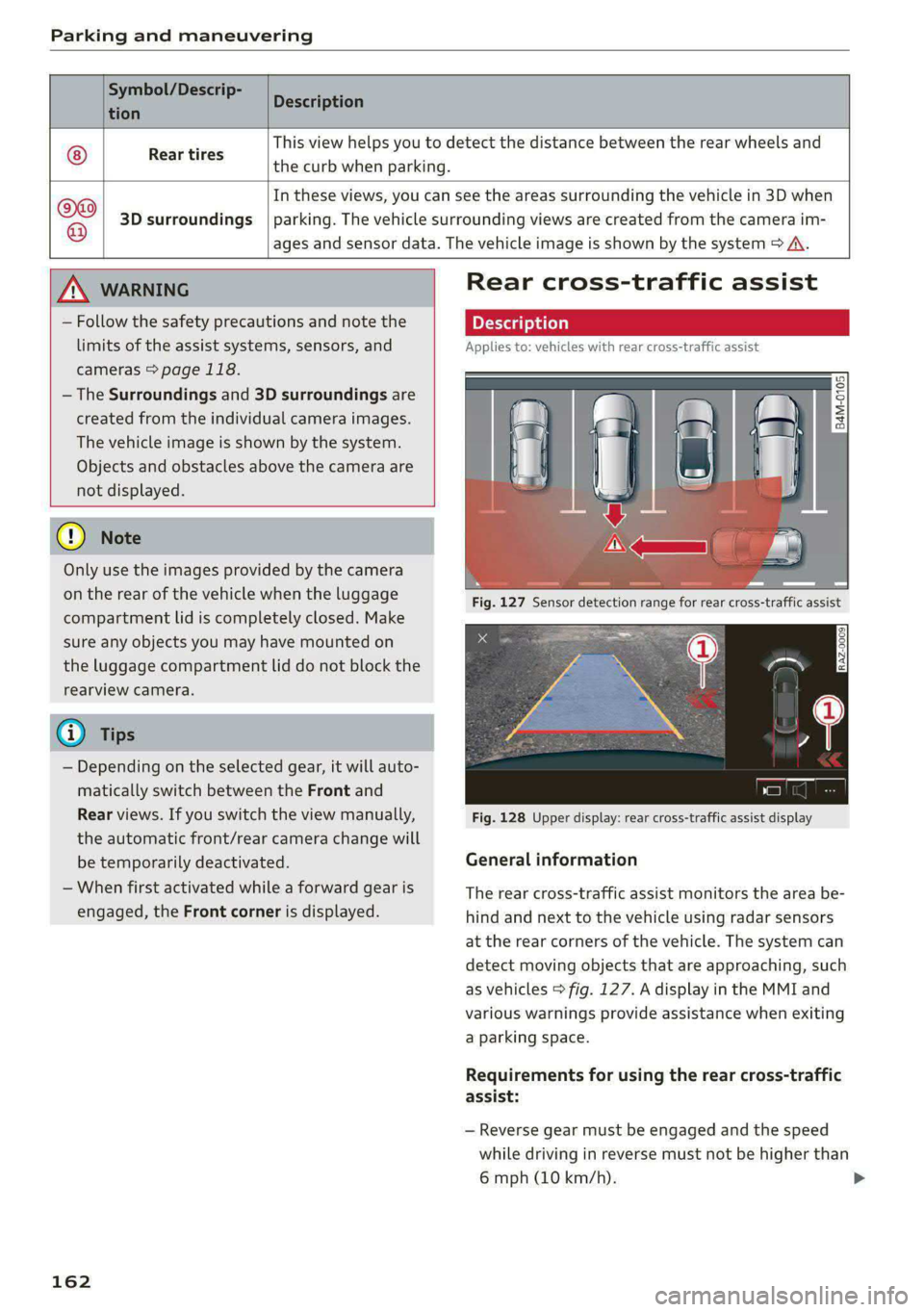
Symbol/Descrip-
Description
tion P
Rear tires
This view helps you to detect the distance between the rear wheels and
the curb when parking.
In these views, you can see the areas surrounding the vehicle in 3D when
® 3D surroundings | parking. The vehicle surrounding views are created from the camera im-
ages and sensor data. The vehicle image is shown by the system > A\.
ZX WARNING
— Follow the safety precautions and note the
limits of the assist systems, sensors, and
cameras > page 118.
— The Surroundings and 3D surroundings are
created from the individual camera images.
The vehicle image is shown by the system.
Objects and obstacles above the camera are
not displayed.
@) Note
Only use the images provided by the camera
on the rear of the vehicle when the luggage
compartment lid is completely closed. Make
sure any objects you may have mounted on
the luggage compartment lid do not block the
rearview camera.
@) Tips
— Depending on the selected gear, it will auto-
matically switch between the Front and
Rear views. If you switch the view manually,
the automatic front/rear camera change will
be temporarily deactivated.
— When first activated while a forward gear is
engaged, the Front corner is displayed.
162
Rear cross-traffic assist
Applies to: vehicles with rear cross-traffic assist
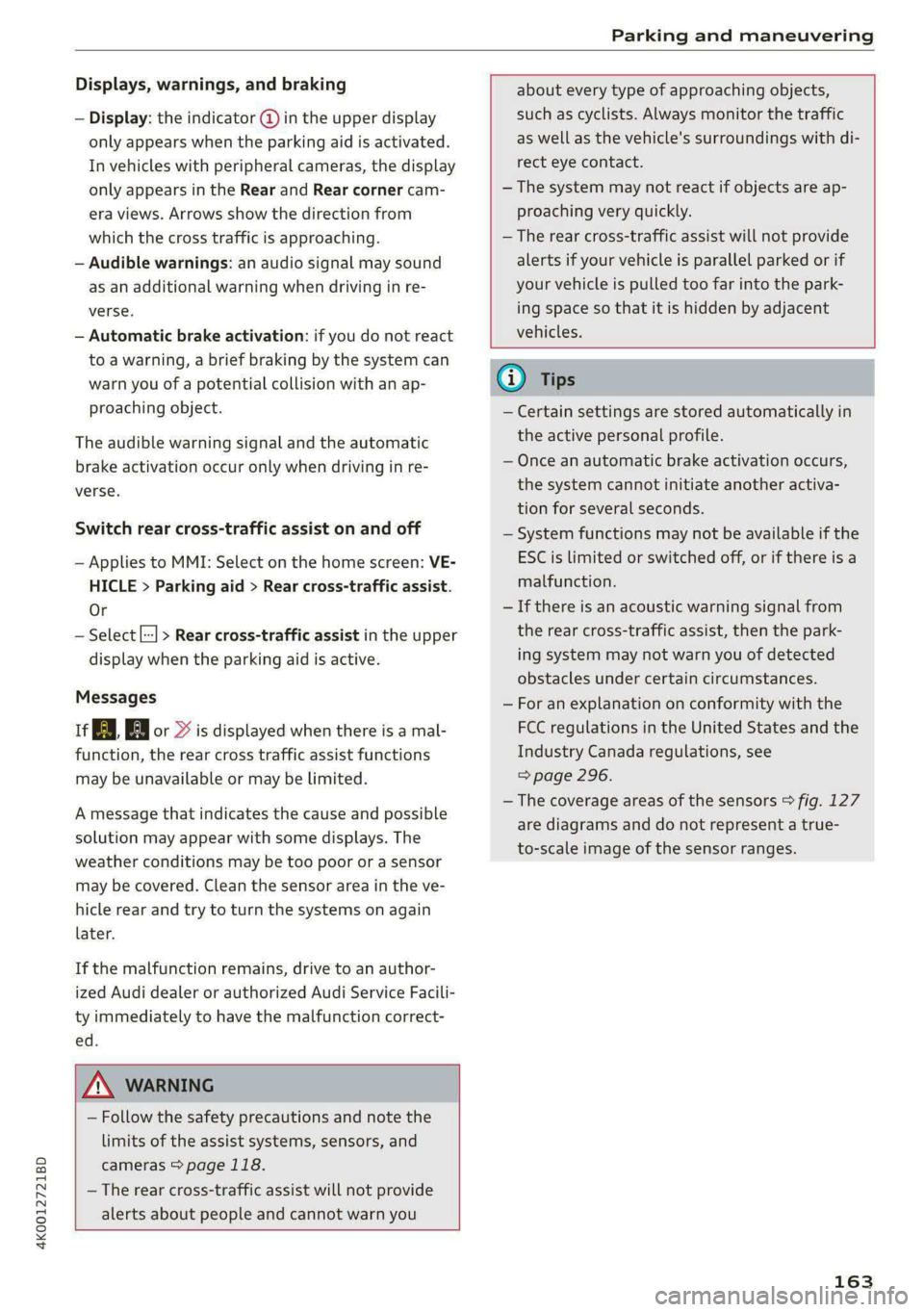
Fig. 128 Upper display: rear cross-traffic assist display
General information
The rear cross-traffic assist monitors the area be-
hind and next to the vehicle using radar sensors
at the rear corners of the vehicle. The system can
detect moving objects that are approaching, such
as vehicles > fig. 127. A display in the MMI and
various warnings provide assistance when exiting
a parking space.
Requirements for using the rear cross-traffic
assist:
— Reverse gear must be engaged and the speed
while driving in reverse must not be higher than
6 mph (10 km/h).
Page 165 of 316
4K0012721BD
Parking and maneuvering
Displays, warnings, and braking
— Display: the indicator @ in the upper display
only appears when the parking aid is activated.
In vehicles with peripheral cameras, the display
only appears in the Rear and Rear corner cam-
era views. Arrows show the direction from
which the cross traffic is approaching.
— Audible warnings: an audio signal may sound
as an additional warning when driving in re-
verse.
— Automatic brake activation: if you do not react
to a warning, a brief braking by the system can
warn you of a potential collision with an ap-
proaching object.
The audible warning signal and the automatic
brake activation occur only when driving in re-
verse.
Switch rear cross-traffic assist on and off
— Applies to MMI: Select on the home screen: VE-
HICLE > Parking aid > Rear cross-traffic assist.
Or
— Select |---| > Rear cross-traffic assist in the upper
display when the parking aid is active.
Messages
if or » is displayed when there is a mal-
function, the rear cross traffic assist functions
may be unavailable or may be limited.
A message that indicates the cause and possible
solution may appear with some displays. The
weather conditions may be too poor or a sensor
may be covered. Clean the sensor area in the ve-
hicle rear and try to turn the systems on again
later.
If the malfunction remains, drive to an author-
ized Audi dealer or authorized Audi Service Facili-
ty immediately to have the malfunction correct-
ed.
about every type of approaching objects,
such as cyclists. Always monitor the traffic
as well as the vehicle's surroundings with di-
rect eye contact.
— The system may not react if objects are ap-
proaching very quickly.
—The rear cross-traffic assist will not provide
alerts if your vehicle is parallel parked or if
your vehicle is pulled too far into the park-
ing space so that it is hidden by adjacent
vehicles.
ZA\ WARNING
— Follow the safety precautions and note the
limits of the assist systems, sensors, and
cameras > page 118.
— The rear cross-traffic assist will not provide
alerts about people and cannot warn you
(i) Tips
— Certain settings are stored automatically in
the active personal profile.
— Once an automatic brake activation occurs,
the system cannot initiate another activa-
tion for several seconds.
— System functions may not be available if the
ESC is limited or switched off, or if there is a
malfunction.
— If there is an acoustic warning signal from
the rear cross-traffic assist, then the park-
ing system may not warn you of detected
obstacles under certain circumstances.
— For an explanation on conformity with the
FCC regulations in the United States and the
Industry Canada regulations, see
=> page 296.
— The coverage areas of the sensors > fig. 127
are diagrams and do not represent a true-
to-scale image of the sensor ranges.
163
Page 166 of 316
Telephone
Telephone
Introduction
Applies to: vehicles with telephone
You can operate various telephone functions easi-
ly through the MMI in your vehicle.
Depending on the country and the vehicle equip-
ment, the following options may be available:
— Connecting a cell phone with Bluetooth
— Using two telephones
— Using the Audi phone box
ZA\ WARNING
— Medical experts warn that mobile devices
can interfere with the function of pacemak-
ers. Always maintain a minimum distance of
about 7.9 inches (20 cm) between the mo-
bile device antennas and the pacemaker.
— Do not carry the mobile device in a pocket
directly over the pacemaker when the
phone is switched on.
— Switch the mobile device off immediately
if you suspect it may be interfering with
the pacemaker.
— Do not use the voice recognition system*
=> page 27 in emergencies because your
voice may change in stressful situations. The
system may take longer to dial the number
or may not be able to dial it at all. Dial the
emergency number manually.
— Switch your mobile device off in areas where
there is a risk of an explosion. These loca-
tions are not always clearly marked. This
may include gas stations, fuel and chemical
storage facilities or transport vehicles, or lo-
cations where fuel vapors (such as propane
or gasoline vapor in vehicles or buildings),
chemicals or large quantities of dust parti-
cles (such as flour, sawdust or metal) may
be present in the air. This also applies to all
other locations where you would normally
turn your vehicle engine off.
— The demands of traffic require your full at-
tention. Always read the chapter > page 20,
Traffic safety information.
164
@) Note
Read the information about Audi connect, and
be sure to note the connectivity costs section
=> page 177.
@) Tips
— The Bluetooth connection range is limited
to inside the vehicle.
—Aselection of supported Bluetooth devices
can be found in the database for tested mo-
bile devices at www.audi.com/bluetooth.
Setup
Connecting a cell phone via Bluetooth
Applies to: vehicles with telephone
Requirement: the vehicle must be stationary and
the ignition must be switched on. The Bluetooth
settings must be open on your mobile device dur-
ing the connection setup. The mobile device to be
connected must not be actively connected to any
other Bluetooth device. The MMI must only be
connected to one mobile device.
> Enable the Bluetooth function and visibility on
the MMI => page 224 and the cell phone.
> Applies to: MMI: Select on the home screen:
PHONE.
> Follow the system instructions. The available
Bluetooth devices will be displayed after sever-
al seconds.
> Press on the desired mobile device in the list of
displayed Bluetooth devices.
> To update the list, press OQ.
A PIN for a secure Bluetooth connection will be
generated.
> Confirm the PIN on your mobile device, or
> Enter the PIN for connecting on your cell
phone. The time allowed for entering the PIN is
limited to approximately 30 seconds.
> Follow the system instructions.
> Pay attention to any other system prompts on
the MMI and on your cell phone.
Page 167 of 316
4K0012721BD
Telephone
After connecting successfully
Information about the connected profiles will ap-
pear. You can also change the profiles later
=> page 225.
The cell phone contacts are automatically loaded
in the MMI. This process can take several mi-
nutes, depending on the number of contacts.
Depending on your cell phone and the connection
type, you can use the following functions:
Handsfree
Requirement: your cell phone must be connected
to the MMI via a Bluetooth Hands Free Profile
(Bluetooth HFP).
You can use the hands-free system. You can make
calls using the antenna on your mobile device.
Sending and receiving messages
See > page 171.
() Note
Read the information about Audi connect, and
be sure to note the connectivity costs section
=> page 177.
@) Tips
— You can apply additional settings to con-
nected mobile devices under Connected de-
vices > page 224.
— You can also search for the MMI on your mo-
bile device using the Bluetooth device
search.
— You only have to pair your device one time.
Bluetooth devices that are already paired
automatically connect to the MMI when the
Bluetooth function is switched on, when
they are within range, and when the ignition
is switched on. The last connected mobile
device is given first priority.
— Pay attention to any system prompts dis-
played on your mobile device or the MMI,
for example if the system should connect
automatically in the future. Depending on
D_ SIM card installed in the vehicle at the factory.
2) Not available in all countries.
the mobile device, you may also need to
download contacts and confirm access to
your messages separately.
— When leaving the vehicle, the Bluetooth
connection to the mobile device will auto-
matically disconnect. Depending on your
mobile device, phone calls in progress may
be automatically redirected from the MMI
to your mobile device so that you can con-
tinue the call on your phone.
— When the car phone or data module func-
tion* is switched on, Audi connect Infotain-
ment* is available through the embedded
SIM card})2).
Using two telephones
Applies to: vehicles with telephone, and Audi phone box
You can connect two mobile devices to the MMI,
for example your business and your personal mo-
bile device. You can use both mobile devices to
make calls in the vehicle.
Connecting another mobile device
Requirement: a mobile device must be connected
to the MMI.
> Applies to: MMI: Select on the home screen:
PHONE > [?. Follow the system instructions, or
> Applies to: MMI: Select on the home screen:
SETTINGS > Connected devices > Telephone 1
or Telephone 2 > New connection.
See > page 164, Connecting a cell phone via
Bluetooth.
Switching between two mobile devices
Requirement: phone 1 and phone 2 must be con-
nected to the MMI.
> Applies to: MMI: Select on the home screen:
PHONE > J.
165
Page 168 of 316
Telephone
Disconnecting a mobile device
Applies to: vehicles with telephone
The mobile device will be disconnected from the
MMI and removed from the list of paired devices.
> To disconnect a connected device, use the con-
nection manager > page 225.
Using the Audi phone
box
Applies to: vehicles with Audi phone box
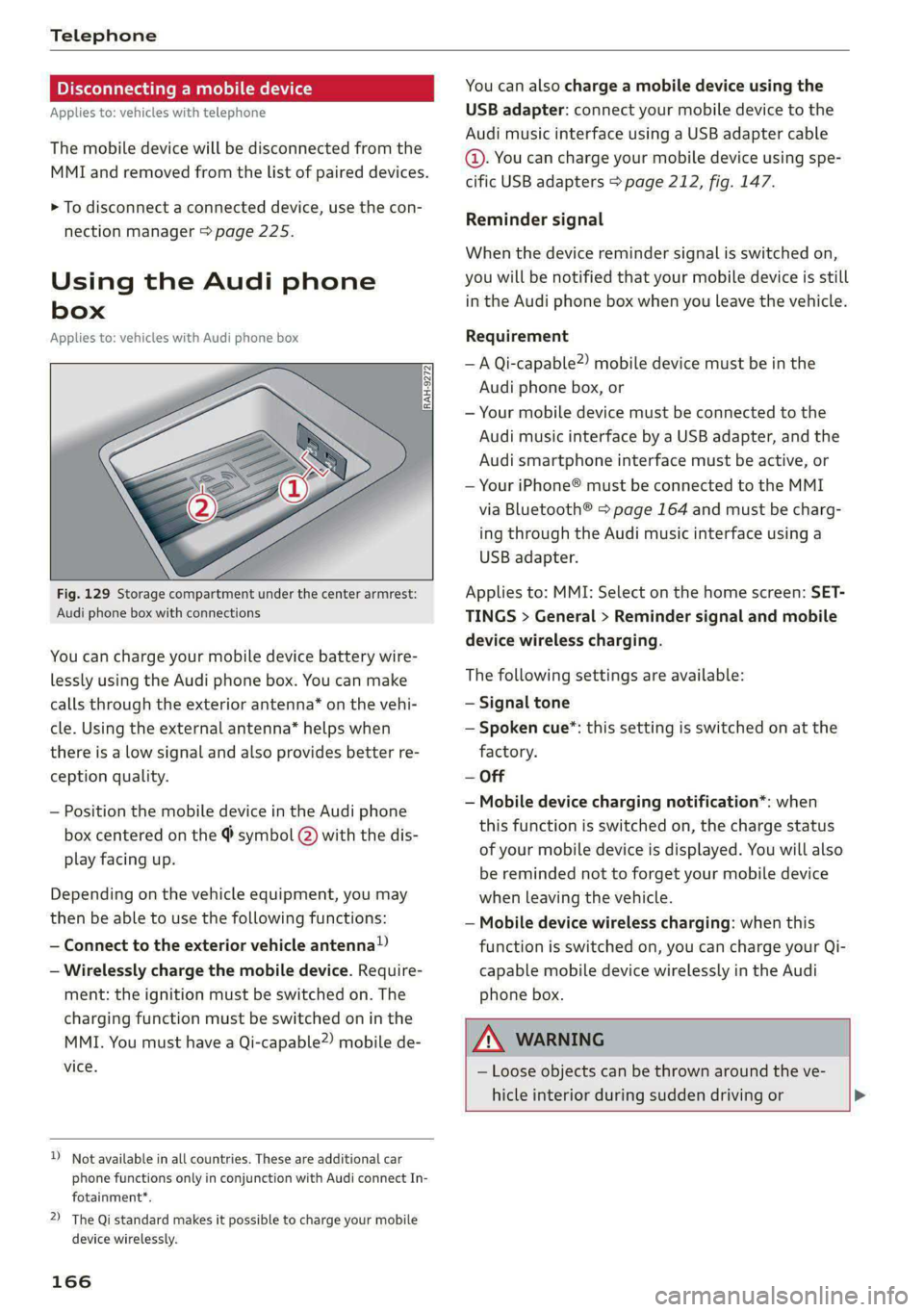
Fig. 129 Storage compartment under the center armrest:
Audi phone box with connections
You can charge your mobile device battery wire-
lessly using the Audi phone box. You can make
calls through the exterior antenna” on the vehi-
cle. Using the external antenna* helps when
there is a low signal and also provides better re-
ception quality.
— Position the mobile device in the Audi phone
box centered on the @ symbol @ with the dis-
play facing up.
Depending on the vehicle equipment, you may
then be able to use the following functions:
— Connect to the exterior vehicle antenna!)
— Wirelessly charge the mobile device. Require-
ment: the ignition must be switched on. The
charging function must be switched on in the
MMI. You must have a Qi-capable2) mobile de-
vice.
D_ Not available in all countries. These are additional car
phone functions only in conjunction with Audi connect In-
fotainment*.
2) The Qi standard makes it possible to charge your mobile
device wirelessly.
166
You can also charge a mobile device using the
USB adapter: connect your mobile device to the
Audi music interface using a USB adapter cable
©. You can charge your mobile device using spe-
cific USB adapters > page 212, fig. 147.
Reminder signal
When the device reminder signal is switched on,
you will be notified that your mobile device is still
in the Audi phone box when you leave the vehicle.
Requirement
—A Qi-capable?) mobile device must be in the
Audi phone box, or
— Your mobile device must be connected to the
Audi music interface by a USB adapter, and the
Audi smartphone interface must be active, or
— Your iPhone® must be connected to the MMI
via Bluetooth® > page 164 and must be charg-
ing through the Audi music interface using a
USB adapter.
Applies to: MMI: Select on the home screen: SET-
TINGS > General > Reminder signal and mobile
device wireless charging.
The following settings are available:
— Signal tone
— Spoken cue”: this setting is switched on at the
factory.
— Off
— Mobile device charging notification*: when
this function is switched on, the charge status
of your mobile device is displayed. You will also
be reminded not to forget your mobile device
when leaving the vehicle.
— Mobile device wireless charging: when this
function is switched on, you can charge your Qi-
capable mobile device wirelessly in the Audi
phone box.
ZA WARNING
— Loose objects can be thrown around the ve-
hicle interior during sudden driving or
Page 169 of 316

4K0012721BD
Telephone
braking maneuvers, which increases the risk
of
an accident. Store objects securely while
driving.
— The mobile device may become hot during
wireless charging. Pay attention to the tem-
perature of your mobile device and be care-
ful when removing it from the Audi phone
box.
— An alternating magnetic field is used for
wireless charging. Maintain a minimum dis-
tance of approximately 2.4 in (6 cm) to the
Audi phone box charging plate. The thresh-
olds for prolonged exposure at this distance
comply with ICNIRP1998. Therefore, inter-
actions such as irritation of sensory organs,
malfunctions of active implants (such as
pacemakers, infusion pumps, or neurosti-
mulators) or effects on passive implants
(such as prosthetic limbs) is highly unlikely.
If you have an implant, consult a medical
specialist if you have any questions. You can
also switch the function for wireless charg-
ing in the Audi phone box on and off. You
can continue to charge your mobile device
using a cable connection.
@) Note
Applicable to U.S.A.
Operation of the Audi phone box is subject to
the following requirements of the Federal
Communications Commission:
— This is a CONSUMER device.
— BEFORE USE, you MUST REGISTER THIS DE-
VICE with your wireless provider and have
your provider’s consent. Most wireless pro-
viders consent to the use of signal boosters.
Some providers may not consent to the use
of this device on their network. If you are
unsure, contact your service provider.
— You MUST operate this device with approved
antennas and cables as specified by the
manufacturer. Antennas MUST be installed
at least 20 cm (8 inches) from any person.
— You MUST cease operating this device im-
mediately if requested by the FCC or a li-
censed wireless service provider.
— WARNING: E911 location information may
not be provided or may be inaccurate for
calls served by using this device.
@) Note
Applicable to Canada
In Canada, operation of a Zone Enhancer,
such as an Audi Phone Box, is subject to the
following requirements of the Innovation,
Science and Economic Development Canada
(ISED):
— This is a CONSUMER device.
— BEFORE USE, you MUST meet all require-
ments set out in CPC-2-1-05.
— You MUST operate this device with approved
antennas
and cables as specified by the
manufacturer. Antennas MUST NOT be in-
stalled within 20 cm of any person.
— You MUST cease operating this device im-
mediately if requested by ISED or a licensed
wireless service provider.
— WARNING: £911 location information may
not be provided or may be inaccurate for
calls served by using this device.
Gi) Tips
— Only one mobile device at a time can be
charged wirelessly in the Audi phone box.
— Strong transmission quality* cannot be
guaranteed if more than one mobile device
is in the box.
—To reduce the risk of malfunctions, make
sure the mobile device is positioned correct-
ly in the Audi phone box.
— Make sure there are no objects between the
Audi phone box and the mobile device.
— Placing the mobile device in a bag or protec-
tive sleeve inside the Audi phone box can in-
terfere with the connection to the external
antenna”*.
— Metallic objects in the Audi phone box block
the wireless charging of your mobile device
and calls made using the exterior antenna”*.
—The maximum charging output is 5 W.
—The charging time and temperature will vary
depending on the mobile device being used.
167
>