steering AUDI A7 2018 Owner's Manual
[x] Cancel search | Manufacturer: AUDI, Model Year: 2018, Model line: A7, Model: AUDI A7 2018Pages: 274, PDF Size: 42.77 MB
Page 99 of 274
a co ,...,
N
" N ,...,
0 00 <..:l '
road, a banked roadway or crosswinds, the
corrective steering alone may not be enough
to keep the vehicle in the middle of the lane.
- For safety reasons , active lane assist must
not be used when there are poor road and/
o r weather conditions such as slippery
roads, fog, gravel, heavy ra in, snow and the
potent ial for hydroplaning. Using active lane
assist unde r th ese conditions may increase
the risk of a c rash .
Switching on/off
Appl ies to : ve hicles with Audi active lane assist
... g
9 ::i CX) ID
•
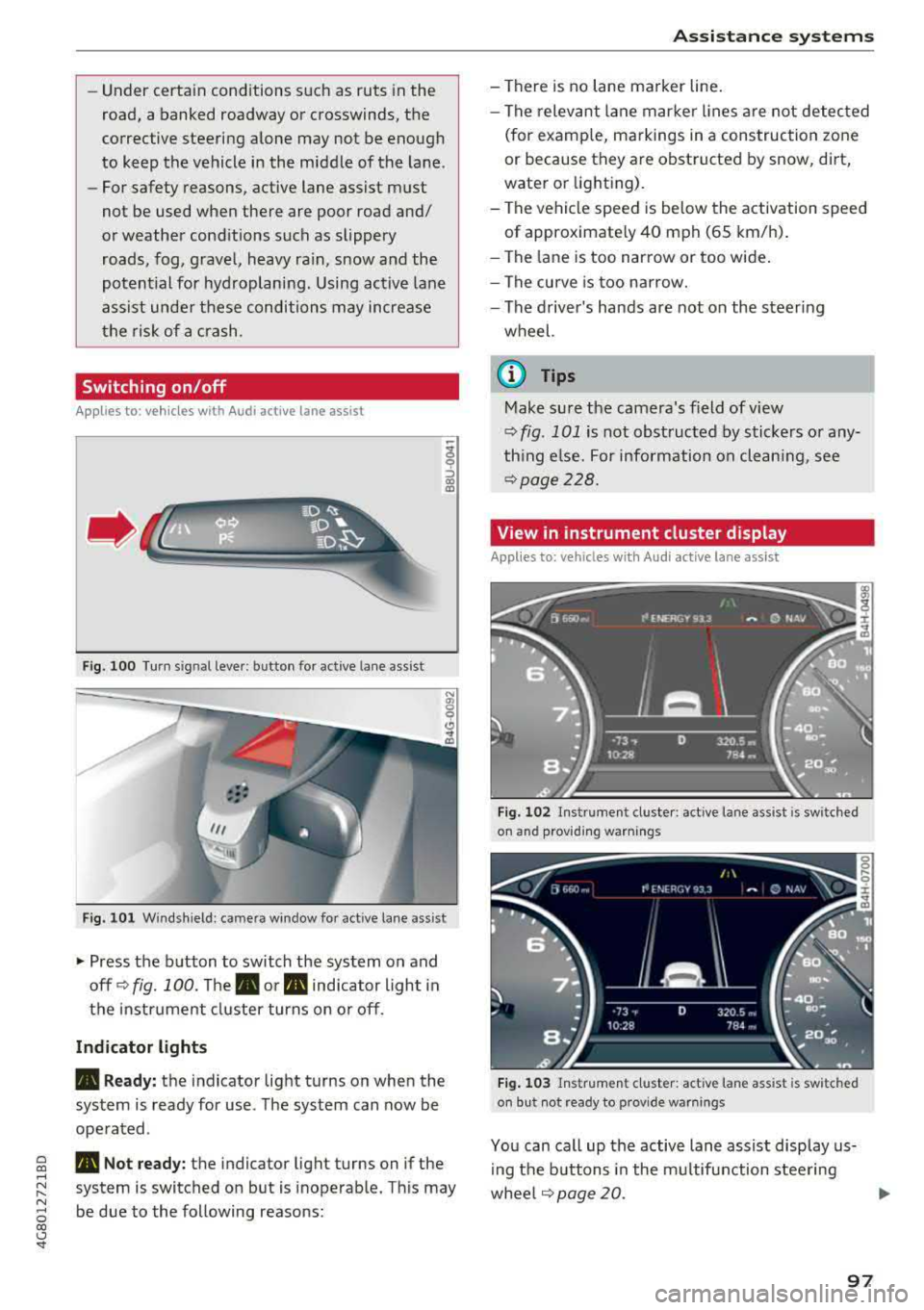
F ig. 1 00 Turn s ig n al leve r: b utton for act ive lane a ss is t
Fi g. 101 W ind sh iel d: cam era win dow fo r active lane ass is t
~ Press the b utton to switch the system on and
off ¢
fig. 100. The . or m, ind icator light in
the i nstrume nt cl uster turns on o r off.
Indicator lights
• Ready: the i ndicator light turns on whe n the
sys tem is ready for use . The sys tem can now be
ope rated .
m, Not ready: t h e indica tor ligh t turns on if the
system is switched o n but is i noperab le. Th is may
be due to the following reasons:
A ssi st a nce systems
- There is no lane marker line .
- The relevant lane mar ke r li nes a re not detec ted
(for examp le, m arkings in a construction zone
or because they are obstructed by snow, dirt,
wate r or light ing).
- The ve hicle speed is be low the activation speed
of approximate ly 40 mph (65 km/h) .
- The lane is too narrow or too wide .
- The curve is too narrow.
- The driver's hands are not on the steer ing
wheel.
(I} Tips
Make su re the camera's f ield of view
q fig . 101 is not obst ructed by stickers o r any
th ing e lse. For information on clean ing , see
¢ page 228.
View in instrument cluster display
Applies to: vehicles wit h Audi ac tive lane assist
Fig. 102 Ins trume nt cl uste r: act ive lane ass ist is sw it c h ed
on and prov idi ng warnings
Fi g. 1 03 Instr um en t cl uster : act iv e la ne ass ist is sw it c h ed
on but not rea dy to provide warn ings
You can ca ll up the active lane assist display us
i ng the b uttons in the m ultifunction steering
whee l
q page 20. .,.
97
Page 100 of 274
Assistance systems
An additional indicator appears in the head-up
disp lay*.
White line(s) Active lane assist is activated
and ready to provide warnings .
Red line(s) Active lane assist warns you
(left o r right) before leaving a lane
c::>fig. 102. In addit ion, the
steering wheel vibrates lightly.
Gray line(s) Active lane assist is activated,
but not ready to give warning
c::>fig . 103.
Messages in the instrument cluster display
If the active lane assist swit ches off automat ical
ly, the indicator lig ht in the display turns off and
one of the following messages appears :
Audi active lane assist: Currently unavailable .
No camera view
This message appears if the came ra is unable to
detect the lines. This cou ld happen if :
- The camera field of v iew
c::> page 97, fig . 101 is
dirty or covered in ice. Clea n this area on the
windsh ield .
- The camera field of v iew is fogged over . Wait
until the fog has cleared before switch ing the
active lane assist on again .
- The system has been unable to detect the lanes
for an extended period of time due to road con
ditions. Sw itch act ive lane assist back on when
the lines are more visible.
Audi active lane assist : Currently unavailable
There is a temporary active lane assist ma lfunc
tion . Try sw itching the act ive lane assist on aga in
la ter.
Audi active lane assist : System fault!
Drive to an autho rized Aud i dealer or authorized
Audi Service Facility immediately to have the
malfunction corrected .
Audi active lane assist: Please take over steering
This message appears if you are not steering by
yourself . If th is is the case, active lane assist does
not switch off, but it is "not ready" to provide a
war ning. The system can help you keep the vehi-
98
cle in the lane . However, you are responsible for
driving the vehicle and must steer it yourse lf .
A WARNING
Note that messages may be de layed or not
displayed on vehicles with accessories mount
ed on the steering wheel, such as a steering
wheel spinner knob. Always keep your hands
on the stee ring wheel.
Adjusting the vibration warning
App lies to: vehicles wit h Audi active la ne ass ist
-
~ Select: the I CARI function button > (Car)* Sys
tems
contro l butto n > Driver assistance > Audi
active lane assist .
Vibration warning
You can switch the addit ional vibration warn ing
i n the steer ing wheel on or off .
(D Tips
Your settings are automatically stored and as
signed to the remote control key being used .
Page 105 of 274

a co ,...,
N
" N ,...,
0 00 <.,;) '
295
ft (90 m) in front of the vehicle and within
the detection zone . Within the limits of the sys
tem¢ page 103 , a pedestrian or w ild animal de
tected when the low beams are sw itched on is
h ighlighted in
yellow ¢ fig. 109 . Animal recogni
tion is not active w it hi n highly developed areas .
The system on ly de tects large wild anima ls such
as deer.
(D Tips
If another display such as navigation replaces
t he image from the night v is ion assist
the~ .,
symbo l appea rs in a tab ¢ fig. 110. You can
a ccess nigh t vision assist using the mul tifunc
t ion stee ring w heel
buttons ¢ page 21.
Pedestrian and wild animal warning
Applies to: vehicles with night vision assist
Fig . 111 In stru ment clust er: @ pede stri an warn ing ,@
wi ld ani mal warnin g
Fig. 112 In str ument clus te r: @ pedest ria n warn ing /@
wi ld an imal warning, when t he nigh t vis ion a ssis t image is
n ot se lec ted in the instrument clust er dis p lay
Image in the instrument cluster /head -up
di splay*
If there are pedestrians or wild animals in an
area in front of your veh icle that is class ified as
A ssi st a nce systems
critica l, the system will d irect your atten tion to
t h is:
- Pedestr ians or wild anima ls are h ighlighted in
red and the cor responding
symbo l. or.
turns on ¢fig. 111 .
-There is also an audib le sign al.
T he area classified as critical is based on the vehi
cle speed and the steering wheel angle . Pedes
t rian and w ild an imal warning encourages you to
pay more atten tion.
If the night vision assist image is replaced by an
othe r display (such as the on-board comp ute r) ,
t h e
red . or. in d ic ator lig ht ¢ fig . 112 will
appea r if the re is a pedestrian o r wild animal
war ning .
If the head-up display* is sw itched on and the
night v ision assist content is activated, .
or.
will appear i n the head-up displ ay *.
Marking light*
T o direct the driver's attention to a pedestr ian ,
the headlights can flash on the pedest rian three
tim es in a row whe n there is a pedestr ian war n
ing .
This occurs at speeds above approximately
35 mph (60 km/h) if yo u are outside of illuminat
ed a reas and no de tected ve hicles are shown. Th e
high be am assistant* con trols the m arking ligh t*
¢ page 40, High beam assis tant.
T he ma rking light is not used for wild anima ls .
General information
Applies to: vehicles with night vision assist
Fig . 11 3 Front of t he ve hicle : n ig h t v is io n ass ist camer a
103
Page 107 of 274

a co .... N
" N .... 0 00 \.J '
Applies to: vehicles with night vision assist
Night vi sion assist : S ys te m fault
The system cannot guarantee correct function
and is sw itched off . See an author ized Audi deal
er or authorized Audi Service Facility for ass is
tance.
Night vision a ssist : Currently una vailabl e
The system cannot guarantee correct function at
this t ime and is switched off.
Night vis ion assi st: Onl y av ailable at night with
light s turned on
Nig ht vision ass ist only wo rks when it is dar k out
side and the head lights are on.
Night vision a ssist : Pede strian marking curr ent
l y unavail abl e
The pedestrian and wild animal marking was
sw itched off by the system .
Audi drive select (drive
settings)
Introduction
Drive select makes it possible to experience dif
ferent types of veh icle settings in one vehicle .
The dr iver can se lect
Comf ort , Auto a nd D ynamic
modes in the I nfota inme nt system to switch be
tween , fo r example , a sporty and a comfo rtable
driving mode .
I n the
Indi vidual mode, the sett ings can be ad
justed to your perso nal preferences . This makes
it poss ible to comb ine settings such as a sporty
engine setting with light steering.
Description
The fo llowing systems, among other things, are
infl uenc ed by drive select:
Engine and automatic transmission
D epending on the mode, the e ng in e and auto
mat ic transmission respond more q uickl y o r in a
more balanced manner to accelerator pedal
A ss istance systems
movements . In the sporty dynamic mode, the
transmission shifts at higher speed ranges .
Adaptive air suspension*
The adapt ive a ir suspens ion* is an e lectron ica lly
contro lled air suspens io n and dampi ng sys tem.
T he adjustment depends o n the dr iving mode se
l ected, steering movements, the driver's braking
and acce leration, and as the road surface, ve hicle
speed and load.
T he vehi cle ground clearance depends on t he
mode selected and the speed . When you are in
the
a uto mode, the highway setting is activated
when you dr ive above 75 mph (120 km/h) for
more than 30 seconds. The ground clearance is
increased automatically if the speed drops below
44 mph (70 km/h) for more than 120 seconds .
Suspension control*
With the Audi Dynamic Ride Contro l damping
contro l, dampening characteristics of the vehicle
can be individually adjusted us ing drive select.
This makes it possib le to satisfy the des ire for
sporty suspens ion (DYNAMIC) and comfortable
suspension (COMFOR T) without g iv ing up bal
anced tu ning (AUTO) .
Steering
The power steering adapts. Indirect steering that
moves easily as in comfort mode is espec ially
su ited to long drives on a highway . The dynamic
mode provides sporty, direct steeri ng .
Applies to: vehicles with dynamic steering
The steering ratio changes based on veh icle
speed in order to maintain optimum steering ef
fort for the driver at all times . Th is sets the steer
i ng to be less sensitive at h igher speeds i n orde r
to prov ide improved ve hicl e cont rol. At red uced
speeds, stee ring is more d irect in orde r to keep
the steering effort as minimal as possible when
the driver is maneuvering the ve hicle. At low and
average speeds, dynamic steering * additionally
provides more responsive steering performance.
Sport differential *
As a compone nt o f the all whee l dr ive sys tem
(qua ttro)
q page 124, the sport different ia l dis -
tributes the driving power to the rear axle
.,.
105
Page 108 of 274

Ass is tanc e system s
depending on the situation. The distribution of
power varies from balanced (comfort) to sporty
(dynamic) depending on the selected mode. The
goal is a high leve l of agility and ab ility to accel
erate on curves. The ve hicle is very respons ive to
steer ing .
Co rne ring light *
The cornering light adapts the high beams to the
direction of the curve depending on the speed.
The pivot ing action and the light ing also adapt to
the mode.
Adapti ve c ruise control *
The behavior when acce lerating can be adjusted
from comfortable to sporty, depending on the
drive select mode. Adaptive cruise control a lso
responds to the driving behavior of the veh icle
ahead in a more conservative or sporty manner.
Engine sound *
The engine sound adapts to the current mode
and can be subtle to sporty .
@ Note
Applies to: vehicles with adaptive air suspension
-Make sure there is enough clearance above
and below t he ve hicle when parking. The
height of the vehicle (ground clearance) can
change once it is parked due to temperature
fl uctuations, changes to t he load condit ions
and c hanges to the d rivi ng modes.
- When transporting the veh icle on a car car
r ier, tra in, sh ip or by other means, only t ie
the ve hicle dow n at t he ru nning surface of
the tires, w hich is the outer circ umfe rence.
Securing t he vehi cle at t he axle compo
nents, suspension struts or towing eyes is
not permitted because the pressu re in t he
a ir s uspension struts can change dur ing
Adjusting the Individual mode
transport . The vehicle may not be secured
sufficiently if this happens.
(D Tips
- In some models, the max imum ve hicle
speed can on ly be reached in t he auto and
dynamic modes.
- Th e S se lector lever position a utomat ica lly
engages if the dynamic mode is selected.
- Applies to: vehicles with dynamic steering:
operating noise is heard when sta rting o r
stopping the engine. This does not indicate
a problem .
Selecting the driving mode
.,. To select the mode, select the follow ing in the
Infotainment:
! CAR ! function button> Comfort ,
Auto , Dynamic or Individual.
.,. Applies to: vehicles with a ti:~ button on the
steering wheel: press the button repeatedly u n
til the desired mode appea rs in the instrument
cl uste r d isplay.
You
can change the driv ing mode whe n the vehi
cle is stationary or while d riv in g. If traff ic per
mits, afte r changing modes, briefly t ake your
foot o ff t he accelerator pedal so t hat the recently
selected mode is also activated for t he engine.
Comfort -provides a comfort-or iented vehicle
setup a nd is s uited fo r long d rives o n highways.
Auto -provides a n overall comfortable yet dy
nam ic dr iv ing feel and is suited for everyday use .
Dynamic -gives the driver a sporty driving fee l
and is suited to a sporty driving style .
Individu al -¢ page 106 .
A WARNING
Pay attention to traffic when ope rating the
drive select to reduce the r isk of an accident.
-
You can adjust the vehicle settings to your personal preferences .
.,. Select: the !CAR! function button > S et individ
ual
control b utton . Once you select the men u,
106
you will a utomatica lly drive in the Indi vidual
mode .
Page 109 of 274
a co .... N
" N .... 0 00 \.J '
matica lly drive in the
Ind ividual mode .
Systems comfort
Engine/transmission
ba lanced
Air suspension* comfortab le
Steering comfortab le
Assistance systems
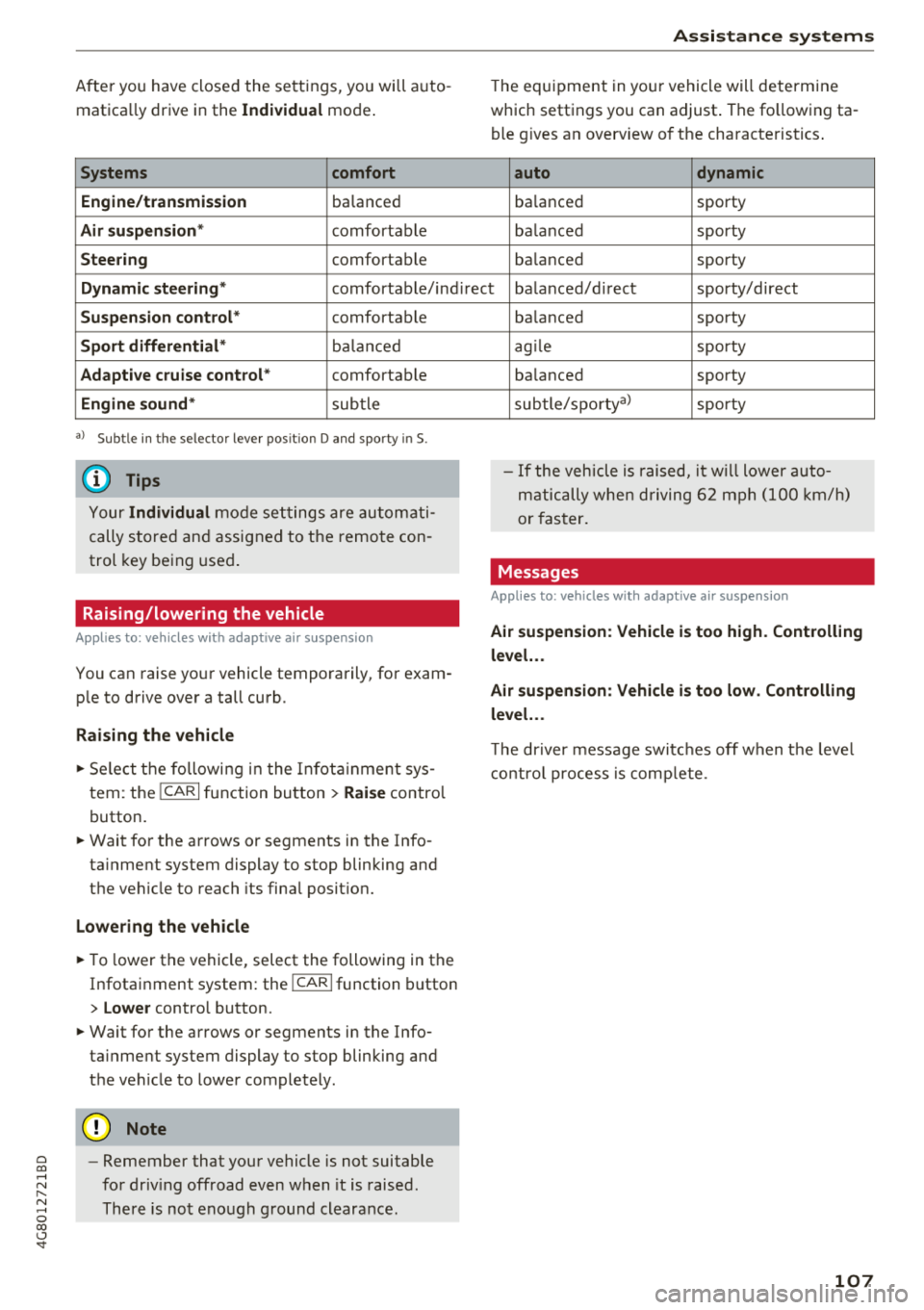
The equipment in yo ur vehicle will determine
which settings you can adjust . The fo llowing ta
ble gives a n overview of the characteristics .
auto dynamic
ba
lanced sporty
ba lanced sporty
ba lanced sporty
Dynamic steering
* comfortable/indirect ba lanced/d irect sporty/direct
Suspension control* comfortab le
Sport differential * balanc ed
Adaptive cruise control* comfortable
Engine sound* subtle
a) Subtle in the selector lever posit ion D and sporty in S.
(D Tips
Your Individual mode settings are automati
cally stored and assigned to the remo te con
trol key being used .
Raising/lowering the vehicle
Applies to: vehicles with adaptive air suspension
You can raise your vehicle temporarily, for exam
ple to drive over a tall curb.
Raising the vehicle
~ Select the following in the In fotainm ent sys
tem: the
ICARI function button > Raise control
button.
~ Wait for the arrows or segments in the Info
ta inment system display to stop blinking and
the vehicle to reach its fina l posit ion.
Lowering the vehicle
~ To lower the vehicle, select the following in the
Infotainment system: the
! CARI function button
> Lower control button.
~ Wait for the arrows or segments in the Info
ta inment system display to stop blinking and
the vehicle to lower completely .
@ Note
-Remember that your vehicle is not suitable
for driv ing offroad even when it is raised.
There is not enough ground clearance . ba
lanced sporty
ag ile sporty
ba lanced sporty
subtle/sportyal sporty
- If the vehicle is raised, it will lower auto
matically when driving 62 mph (100 km/h)
or faster.
Messages
Applies to: vehicles with adaptive air suspension
Air suspension : Vehicle is too high . Controlling
level. ..
Air suspension: Vehicle is too low. Controlling
level. ..
Th e driver message switches off when the leve l
control process is complete.
107
Page 113 of 274
a co ,...,
N
" N ,...,
0 00 <.,;) '
such as th e bumper of a parked vehicle, a
tra ile r hitch or the rear of a truck. Do not
us e the orientation lines in this case.
- If driven from a level surface onto an in
clin e, or a downward slope.
- If driven toward protrud ing objects.
- If the vehicle is carrying too much load in
the rear.
- Applies to: vehicles with air s uspension: the
accuracy of the orientation lines and blue
surfaces decreases when the vehicle is raised/lowered
<=)page 105.
(D Note
- Always read and follow the applicable warn
ings
Q 0 in General information on
page 108.
- The orange-colored or ientation lines in the
Infotainment display show the vehicle path
based on the steering wheel angle. The
front of the vehicle swings out more than
the rear of the veh icle . Ma inta in plenty of
distance so that an exterio r mirror or a cor
ner of the ve hicle does not co llide wit h any
obstacles.
Switching on /off
App lies to : vehicles wit h rearv iew camera
Switching on
.,. S hift i nto reve rse, or
.,. Press t he P' #A button in the cente r console
Qpage 109, fig. 116 . A short confirmat io n
tone sounds and the LED in the button turns
on .
Switching between the rearview camera and
optical di splay
.,. Press the Graphic control button ®
Qpage 111, fig. 121 to see the optica l display.
.,. Press the Rear view contro l button to see the
rearview camera image.
Switching off
.,. Drive faster than 6 mph ( 10 km/h), or
.,. Press the p,,,A button, or
.,. Switch the ignition off.
Parking systems
(D Tips
- The visua l display in the left part of the d is
play sho uld he lp you detect the critical veh i-
cle areas.
- You ca n change the vol ume and pitch of the
signa ls as well as the d isplay
Q page 118.
· Perpendicular parking
Applies to : veh icles w it h rearv iew camera
This view may be used when parking in a garage
or in a parking space .
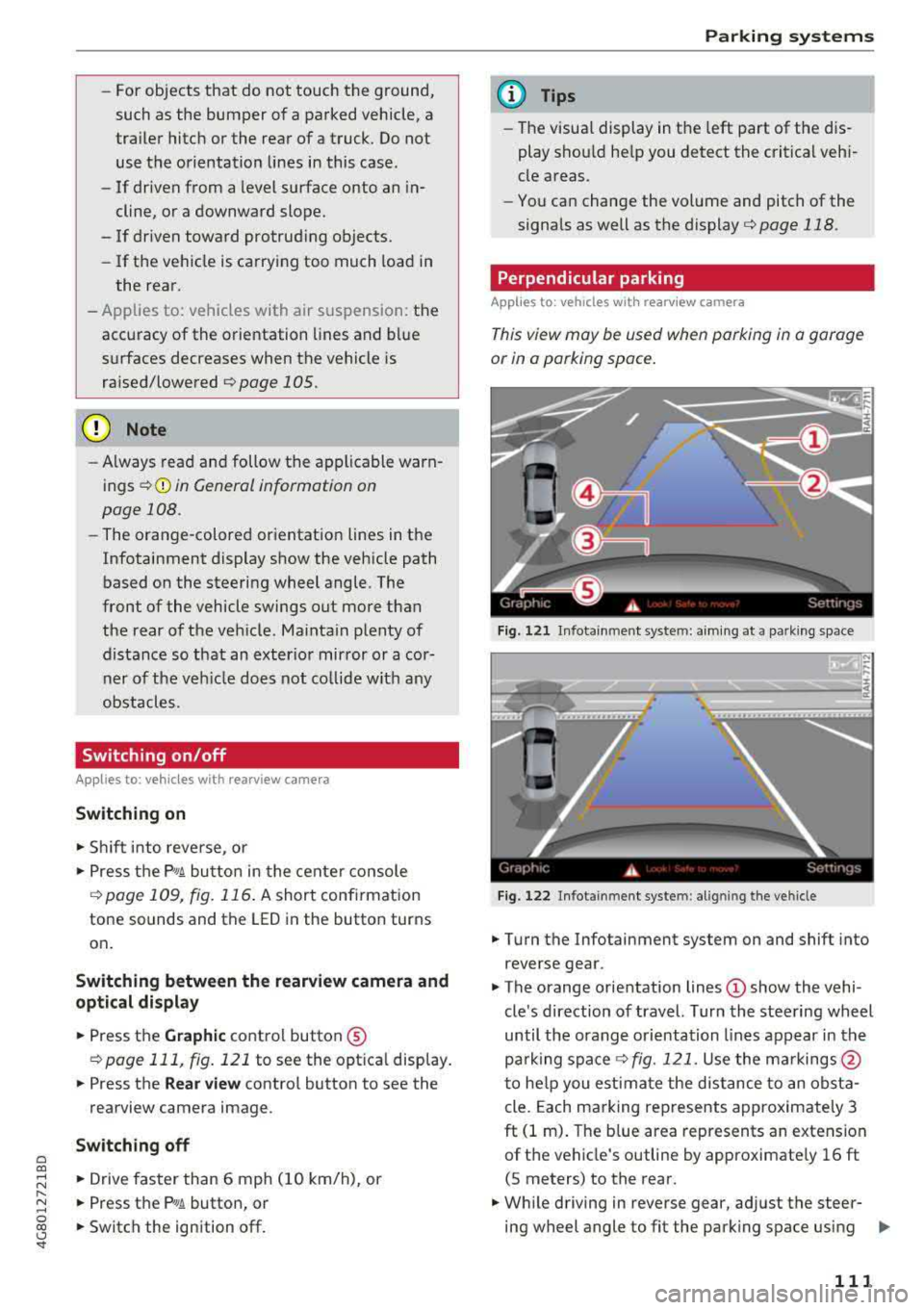
Fig. 1 21 Infotainme nt system: aim ing at a park in g space
Fi g. 122 In fotainment system: al ig nin g the ve hicle
.,. Tu rn the Infotainment system on and shift into
reverse gear.
.,. The orange orientation lines © show the vehi
cle 's direction o f travel. Turn the stee ring wheel
until the orang e orientation lines appear in th e
pa rk ing space
Q fig. 121. Use the ma rkings @
t o he lp you estima te the distance to an obst a
cle. Each ma rking represents approximately 3
ft (1 m) . The b lue area represents an extension
of t he vehicle's outline by approximate ly 16 ft
(S meters) to the rear .
.,. Wh ile driving in reverse gear, ad just the steer-
ing wheel angle to fit the park ing space using
..,_
111
Page 114 of 274
Parking systems
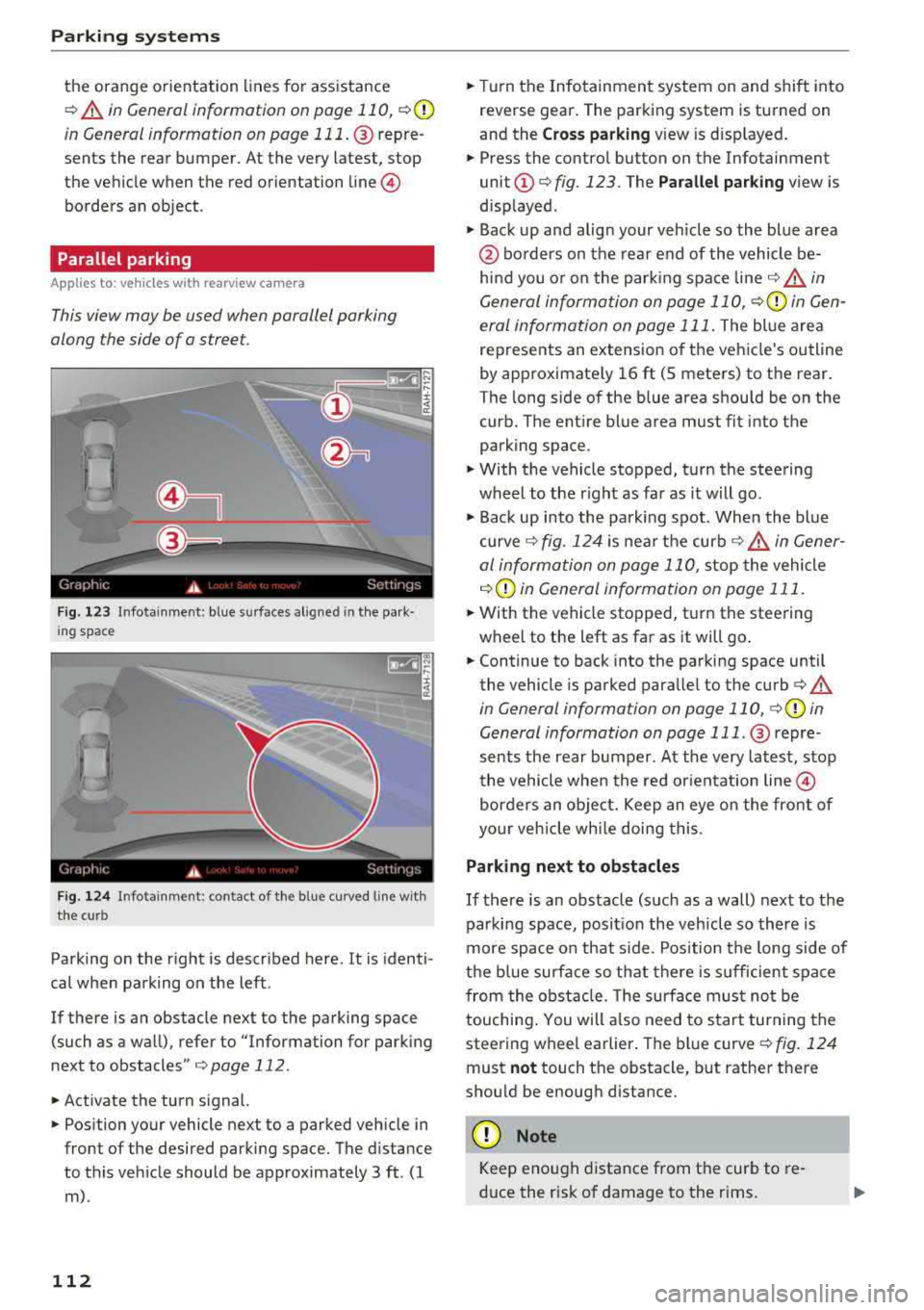
the orange orientation lines for assistance
¢ A in General information on page 110, ¢@
in General information on page 111 . @ repre
sents the rear bumper. At the very latest, stop
the vehicle when the red orientation
line ©
borders an object .
Parallel parking
Applies to: veh icles w ith rearview camera
This view may be used when parallel parking
along the side of
a street.
F ig. 123 Infotainment : blue surfaces aligned in the park·
i ng space
F ig . 124 In fo tainme nt: contact of the blue curved line w ith
the curb
Parking on the right is described here. It is identi
cal when park ing on the left .
If there is an obstacle next to the parking space (such as a wall), refer to "Information for parking
next to obstacles"
¢ page 112 .
.. Activate the turn signal.
.. Position your vehicle next to a parked vehicle in
front of the desired parking space. The distance
to this vehicle should be approximately 3 ft . (1
m) .
112
.. Turn the Infotainment system on and shift into
reverse gear. The parking system is turned on
and the
Cross parking view is displayed .
.. Press the control button on the Infotainment
unit
(D ¢ fig. 123. The Parallel parking view is
displayed .
.,. Back up and align your veh icle so the blue area
@ borders on the rear end of the vehicle be
hind you o r on the parking space
line¢,&. in
General information on page 110,
¢Q) in Gen
eral information on page 111.
The blue area
represents an extension of the vehicle's outline
by approximate ly 16 ft (5 meters) to the rear.
The long side of the blue area should be on the
curb. The ent ire blue area must fit into the
parking space .
.,. With the vehicle stopped, turn the steering
wheel to the right as far as it will go .
.,. Back up into the parking spot . When the blue
curve¢ fig. 124 is near the curb ¢ A in Gener
al information on page 110,
stop the vehicle
¢ (i) in General information on page 111 .
.. With the vehicle stopped, turn the steering
wheel to the left as far as it will go .
.. Continue to back into the parking space until
the vehicle is parked parallel to the
curb ¢ A
in General information on page 110, ¢Q) in
General information on page 111 .
@ repre
sents the rear bumper. At the very latest, stop
the vehicle when the red orientation
line ©
borders an object. Keep an eye on the front of
your veh icle wh ile doing this .
Parking next to obstacles
If there is an obstacle (such as a wall) next to the
parking space, posit ion the vehicle so there is
more space on that side. Position the long side of
the blue surface so that there is sufficient space
from the obstacle. The surface must not be
touching . You will a lso need to sta rt turning the
steering wheel earlier . The blue
curve ¢ fig. 124
must not touch the obstacle, but rather there
shou ld be enough distance .
(D Note
Keep enough distance from the curb to re
d uce the risk of damage to the rims.
Page 115 of 274
a co ,...,
N
" N ,...,
0 00 <.,;) '
The left or right orientation lines and surfaces
w ill be displayed, depending on the turn sig
nal being used.
Peripheral cameras
Introduction
Appl ies to : vehicles wit h peripheral cameras
With this equipmen t, the parking system p lus*
¢ page 109 is supplemented with various pe riph
e ral cameras .
Depending on vehicle equipment, you are prov id
ed wit h the following views: area around the
ve
hicle, front co rner view and rea r corner view, view
in front of the vehicle and behind the vehicle .
General information
Applies to: vehicles with pe ripheral came ras
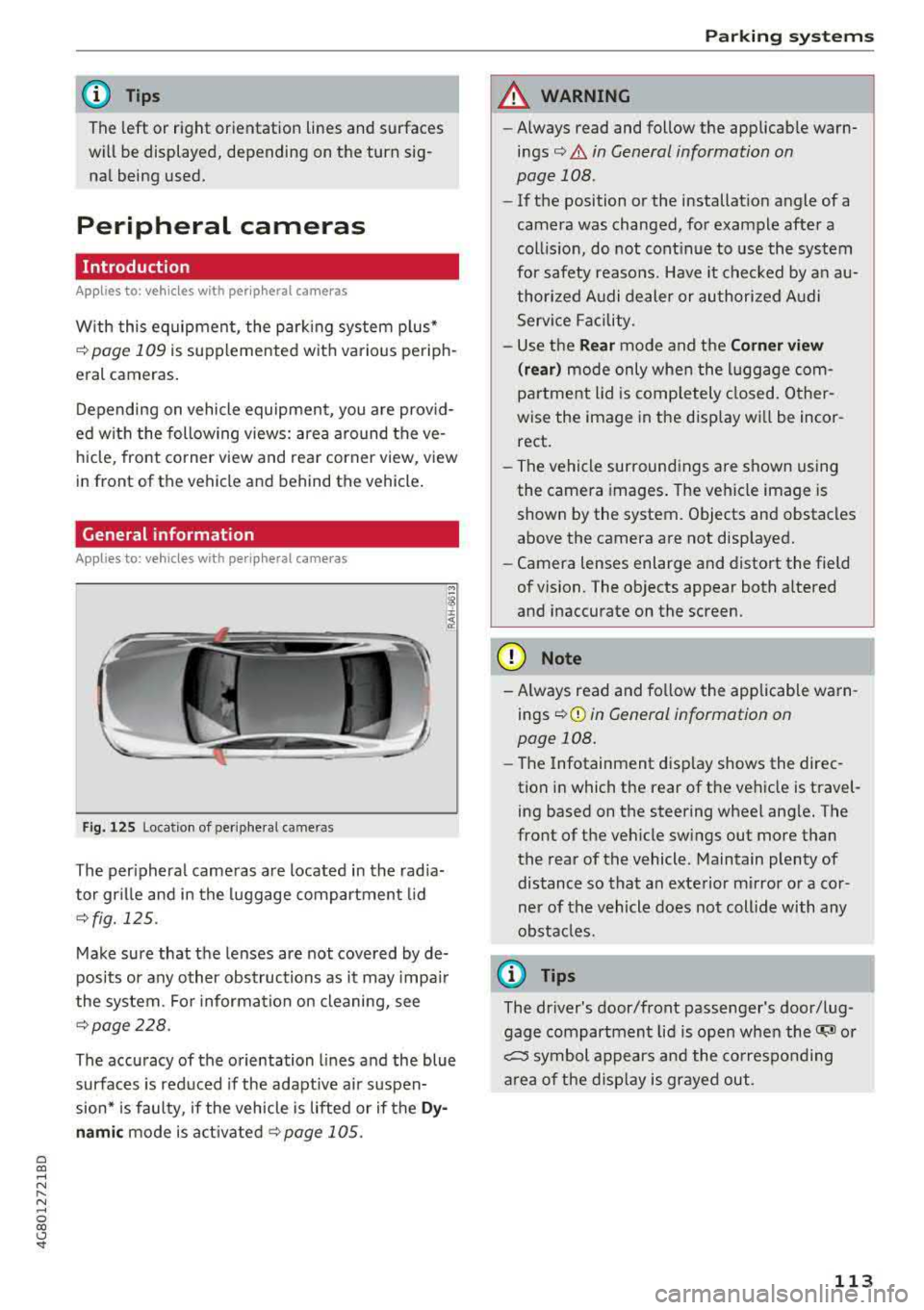
F ig . 1 25 Loca tion of periphe ral came ras
The per ipheral came ras are located in the rad ia
tor gr ille and in the luggage compartment lid
¢ fig. 125 .
Make sure that the lenses are not cove red by de
posits or any other obstructions as it may impa ir
the system . Fo r information on cleaning, see
¢ page 228.
The accuracy of the orientation lines and the blue
surfaces is reduced if the adapt ive a ir suspen
sion * is fau lty, if the vehicle is lifted or if the
Dy
namic mode is act ivated ¢ page 105.
Parking systems
A WARNING
- Always read and follow the applicab le warn
in gs¢ &. in General information on
page 108 .
-If the position or the installat io n angle of a
camera was changed, for example afte r a
coll is ion, do not cont inue to use the system
for safety reaso ns. Have it c hec ked by a n
au
thorized A udi dealer or authori zed A udi
Serv ice Faci lity .
- Use the
Rear mode and the Corner view
( rear )
mode only whe n the l uggage com
p ar tme nt lid is completely closed. O ther
wise the image in the disp lay wi ll be incor
rect.
- T he vehicle surroundings are shown using
the camera images . The vehi cle image is
shown by the system. Objects and obstacles
above the camera are not disp layed.
- Camera lenses enlarge and distort the field
of vision. The objects appear both a ltered
and inaccurate on the screen.
(D Note
- Always read and fo llow the applicable warn
ings
~ CD in General information on
page 108.
- The Infotainment d isplay shows the direc
tion in which t he rear of the ve hicle is travel
ing based on the steering wheel ang le. The
front of the veh icle swings out more than
the rear of the vehicle. Maintain plenty of
dis tance so that a n exte rior m irror or a cor
ner of the vehicle does not coll ide with any
obsta cles.
(0 Tips
The dr iver's door/front passenger's door/lug
gage compartment li d is open when the
Ci;lJ or
c::::5 symbol appears and the co rrespo nding
a re a of t he d isp lay is gr ayed out .
113
Page 118 of 274
Parking systems
You can choose between three different views in
this mode.
~ To cross park, parallel park or position the veh i
cle in front of a trai ler*, press the control but
ton ® on the control panel repeatedly until the
symbol for the desired mode is selected .
Perpendicular parking
Applies to: ve hicles w ith peripheral cameras
This view may be used when parking in a garage
or in a parking space .
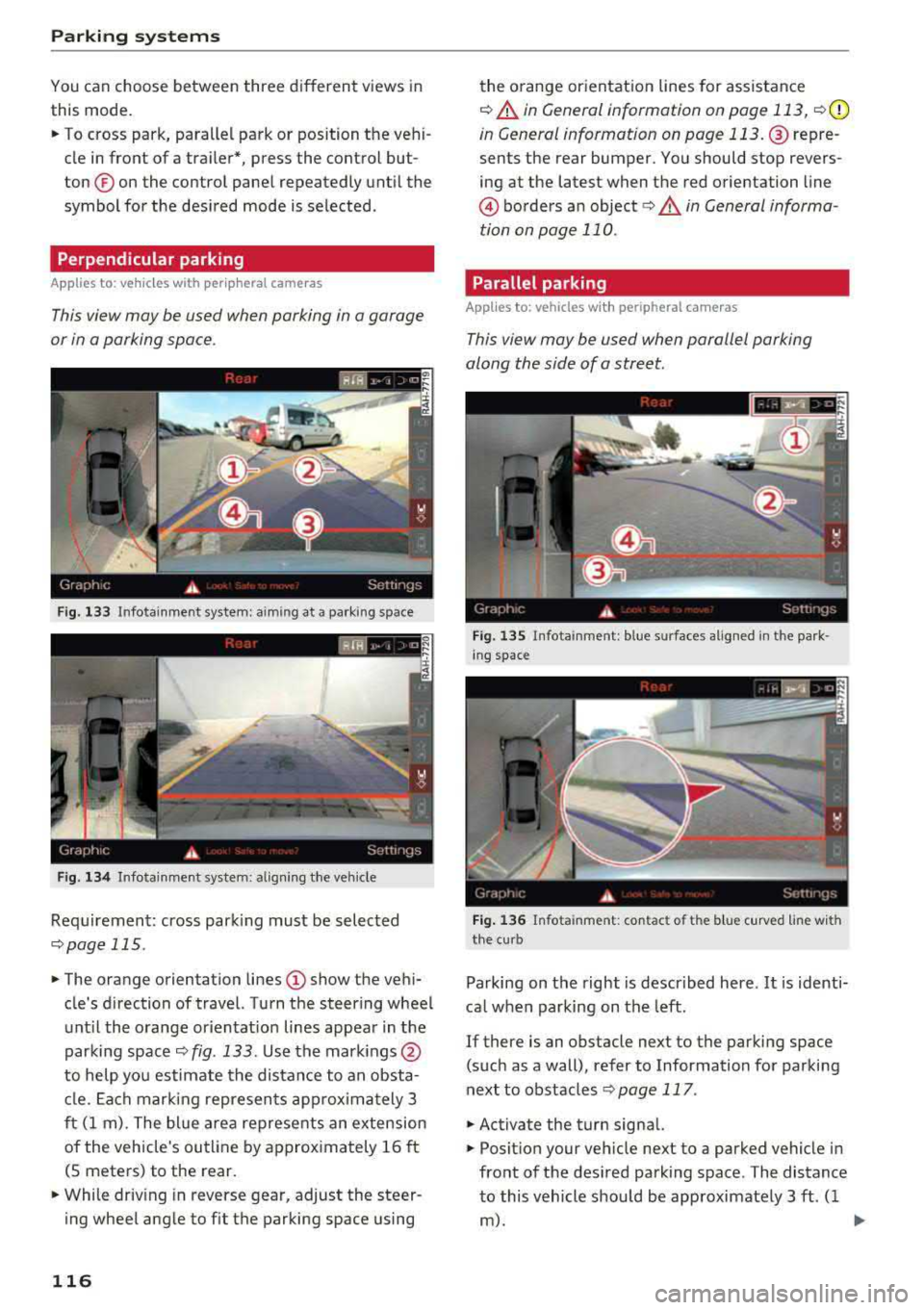
Fig. 133 In fotainme nt system : aimin g at a park ing space
Fig. 134 Infota inme nt system : aligning the veh icle
Requirement: cross park ing must be selected
qpage 115 .
~ The orange orientation lines (D show the vehi
cle's direction of travel. Turn the steering wheel
until the orange or ientat ion lines appear in the
parking space
q fig . 133 . Use the mark ings @
to help you estimate the distance to an obsta
cle. Each marking represents approximately 3
ft (1 m) . The blue area represents an extension
of the vehicle's outline by approx imately 16 ft
(5 meters) to the rear.
~ While driv ing in reverse gear, adjust the steer
ing wheel angle to fit the parking space using
116
the orange orientation lines for assistance
q A in General information on page 113, q(D
in General information on page 113. @repre
sents the rear bumper. You should stop revers
ing at the latest when the red orientation line
© borders an object<=>.&. in General informa
tion on page
110 .
Parallel parking
Applies to: vehicles with peripheral cameras
This view may be used when parallel parking
along the side of a street.
Fig. 135 Infota inment: blue s urfaces alig ned in the park ·
ing space
Fig. 136 Infota inm ent: con tac t o f th e blue cur ved line wi th
the cu rb
Parking on the right is described here. It is identi
cal when parking on the left.
If there is an obstacle next to the parking space (such as a wall), refer to Information for parking
next to obstacles
q page 117 .
~ Activate the turn signal.
~ Position your vehicle next to a parked vehicle in
front of the desired parking space . The distance
to this vehicle should be approximately 3 ft . (1
m). .,.