phone AUDI A7 2020 Owner's Manual
[x] Cancel search | Manufacturer: AUDI, Model Year: 2020, Model line: A7, Model: AUDI A7 2020Pages: 310, PDF Size: 81.29 MB
Page 173 of 310
4K8012721BC
Telephone
Settings
Press €.
— New e-mail notification: when this function is
switched on, you will be notified when new e-
mails are received. New e-mails are indicated
with an envelope & in the MMI status bar.
Deleting e-mails
Select: a mailbox > Z > one or more e-mails >
Delete > (Done).
©) Note
Read the information about Audi connect, and
be sure to note the connectivity costs section
=>page 174.
Settings
Phone settings
Applies to: vehicles with telephone
> Applies to: MMI: Select on the home screen:
PHONE > ©}.
Switching between two mobile devices
Requirement: phone 1 and phone 2 must be con-
nected to the MMI.
Switch telephones: the device name of the avail-
able mobile device is displayed. You can switch
the phone by pressing the button.
Declining a call with a text message*
When this function is switched on, you can de-
cline an incoming call with a text message.
Call options*
The following options may be available depend-
ing on the mobile device:
— Call forwarding: you can switch the forwarding
of incoming calls to your voicemail or to anoth-
er phone number on and off. You can check if
the function is activated or deactivated with
Status.
— Call waiting: you will be alerted to an incoming
call during a phone call when the function is
switched on. You can check if the function is ac-
tivated or deactivated with Status.
— Send own number: sending your phone num-
ber with an outgoing call can be switched on
and off. With the Net.-depen. setting, the set-
ting listed in the contract with the cell phone
service provider is used. The settings only apply
to the PHONE menu in the MMI. Please note
that the settings on your mobile device will ap-
ply after disconnecting the Bluetooth connec-
tion. You can determine which setting is active
with Status.
Ringtone and volume settings
— Ringtone and message volume: you can adjust
the volume of the selected ringtone and the no-
tification volume when a message is received by
moving the position of the slider.
— Ringtone*: available ringtones are played using
the Ringtone function. Press on an entry in the
list.
— Microphone input level: you can adjust the mi-
crophone input level using the slider.
Turn on car phone or data module
Applies to: vehicles with car phone/data module
When this function is switched on, you can use
the
car phone or data module.
As long as the car phone was not turned off sepa-
rately the last time it was used, it will turn on au-
tomatically when the ignition is switched on.
Edit voicemail number
You can change your voicemail number.
Enable VoLTE
When this function is switched on, Voice over
LTE* will be supported.
Network settings
— Login to mobile phone network: select to log
into your cell phone service provider network
automatically or manually.
— Network selection: Requirement: the data
module must be switched on and Login to mo-
bile phone network must be set to Manual. Se-
lect a network manually from the list of availa-
ble networks at the present location.
171
>
Page 174 of 310
Telephone
Car phone serial number (IMEI):
Applies to: vehicles with car phone
The serial number (IMEI) of your car phone is dis-
played.
@ Tips
— Several mobile devices can be paired with
the MMI, but only two* mobile devices can
be actively connected.
—To delete all paired Bluetooth devices, the
Bluetooth function can be reset to the fac-
tory default settings > page 220.
Directory settings
Applies to: vehicles with telephone
> Applies to: MMI: Select on the home screen:
PHONE > Contacts > >.
Switching between two mobile devices
Requirement: telephone 1 and telephone 2 must
be connected.
Switch telephones: the device name of the avail-
able mobile device is displayed. You can switch
the phone by pressing the button.
The directory for the selected phone will be dis-
played.
Hide grayed-out contacts
When this function is switched on, contacts that
have no phone numbers stored for them will be
hidden.
Sort order
You can sort the contacts in alphabetical order by
Last name or First name.
Download contacts
Requirement: a mobile device must be connected
to the MMI.
To update the contacts in the MMI, you can man-
ually download your mobile device contacts. De-
pending on the mobile device, you may need to
disconnect and reconnect the Bluetooth connec-
tion to update the contacts.
172
Memory capacity
You can manage up to 23,000 contacts. You can
also download up to 5,000 contacts from maxi-
mum four mobile devices. You can also import up
to 3,000 contacts from a storage medium.
Importing and exporting contacts
Requirement: an SD card must be in the SD card
reader* > page 205 or a USB storage device must
be connected to the Audi music interface
= page 208.
Contacts in vCard format (.vcf) can be imported
or exported from the MMI.
— Applies to: MMI: Importing contacts from a
storage medium: Select: Import contacts >
Search for import data > SD card 1 or USB de-
vice 1/USB device 2 > desired contacts or Se-
lect all contacts > Start import.
— Applies to: MMI: Exporting contacts to a stor-
age device: Requirement: Only previously im-
ported contacts can be exported. Select: Export
contacts > Find source for exporting > SD card
1 or USB device 1/USB device 2 > desired con-
tacts or Select all contacts > Start export.
G@) Tips
— For more information about the myAudi ac-
count, visit my.audi.com.
— The imported contacts are stored in the lo-
cal MMI memory.
— Contacts that were downloaded from a mo-
bile device cannot be exported.
— There should be no other files or folders on
the storage medium containing the contacts
to be imported.
— Apple devices and MTP devices (such as
smartphones) are not recognized as USB
storage devices.
Mobile phone network settings
Applies to: vehicles with telephone
> Applies to: MMI: Select on the home screen:
SETTINGS > Connection settings > Mobile
phone network.
Page 175 of 310
![AUDI A7 2020 Owners Manual 4K8012721BC
Telephone
Switching the car phone or data module on > Press the [=] button.
Applies to: vehicles with car phone/data module
See > page 171.
Instrument cluster
Telephone
Applies t](/img/6/57597/w960_57597-174.png "AUDI A7 2020 Owners Manual 4K8012721BC
Telephone
Switching the car phone or data module on > Press the [=] button.
Applies to: vehicles with car phone/data module
See > page 171.
Instrument cluster
Telephone
Applies t")
4K8012721BC
Telephone
Switching the car phone or data module on > Press the [=] button.
Applies to: vehicles with car phone/data module
See > page 171.
Instrument cluster
Telephone
Applies to: vehicles with multifunction steering wheel and
telephone
In the instrument cluster display, you can control
the MMI functions with the multifunction steer-
Possible options:
— Call list: Requirement: the call list must con-
tain a phone number.
— Favorites: Requirement: favorites must be stor-
ed in the MMI.
— Switch telephones: Requirement: two cell
phones must be connected to the MMI.
— Back to call: Requirement: there must be a call
in progress.
ing wheel. Operating > page 13 and page 29,
Additional function buttons.
Requirement: the Telephone tab must be select-
ed in the instrument cluster.
Troubleshooting
Applies to: vehicles with telephone
(i) Tips
Depending on the selected function, it may be
necessary to use the MMI.
The information that follows lists some trouble-
shooting options. They depend on the equip-
ment.
Problem Solution
Pairing the mobile device to the
MMI failed.
Make sure the requirements for connecting a cell phone have been
met > page 161, or
make sure you did not accidentally decline the PIN for establishing
a connection on your cell phone. If necessary, repeat the pairing
process > page 161.
After pairing, not all contacts or
no contacts have been loaded in-
to the MMI.
Avoid using special characters in names.
Avoid using contact groups on your cell phone.
Check for prompts on your mobile device when connecting via
Bluetooth.
Certain telephone functions are
grayed out or not available.
The telephone functions depend on the mobile device service pro-
vider and the mobile device you are using.
Some telephone functions may
be switched off or not available,
even though the mobile device is
supported.
Check if the Bluetooth settings on your cell phone are limited or
individual Bluetooth settings are deactivated. This may be the
case with business cell phones.
Wireless cell phone charging is
not working or is interrupted.
Check if wireless charging with the Audi phone box is switched on.
Check if your mobile device is Qi-capable.
Check if your mobile device is positioned correctly in the Audi
phone box > page 163 and no other objects are between them.
The MESSAGES menu is not avail-
able.
Check if the Show messages option is on your mobile device and it
is enabled.
173
Page 176 of 310
Audi connect
Audi connect
General information
Depending on the country and the vehicle equip-
ment, the following functions may be available:
— Audi connect Infotainment
— Audi connect vehicle control
You can also find more information on Audi con-
nect
online at www.audi.com.
ZA\ WARNING
—To reduce the risk of an accident, only use
Audi connect services and the Wi-Fi hotspot
only if the traffic situation permits it. Read
and follow the guidelines provided in
= page 20, Traffic safety information.
— It is only safe to use tablets, laptops, mobile
devices and other similar devices when the
vehicle is stationary because, like all loose
objects, they could be thrown around the in-
side of the vehicle in a crash and cause seri-
ous injuries. Store these types of devices se-
curely while driving. Also read the warnings
in the chapter > page 68, General informa-
tion.
@) Note
— Applies to: embedded SIM card usage: The
connection costs for Audi connect Infotain-
ment services are included in the price of
Audi connect Infotainment during the sub-
scription period with some exceptions.
Please note that there may be additional
charges when using some services. For ex-
ample, this applies to online radio/
podcasts, additional online data, or for In-
ternet connections and services that use the
Wi-Fi hotspot, such as online media sour-
ces. Depending on the country, data plans
may need to be purchased for these services
= page 179. For additional information, see
my.audi.com.
— In certain situations, the Wi-Fi hotspot data
connection may be established as a replace-
ment for the SIM card on your Wi-Fi device.
This feature depends on the configuration
174
of your Wi-Fi device and operating system.
This could result in fees depending on your
cell phone service provider, especially if you
are using this feature while abroad. A flat
rate data plan is strongly recommended. For
more information, contact your cell phone
service provider or refer to the owner's man-
ual for your Wi-Fi device.
— You are responsible for all precautions taken
for data protection, anti-virus protection,
and protection against loss of data on mo-
bile devices that are used, for example, to
access the Internet through the Wi-Fi hot-
spot.
— In areas with poor GPS reception or outside
the coverage range of the respective cell
phone service provider, some functions
and/or services may not be available, it may
not be possible to send or receive data, or
functionality may be limited.
@ Tips
— The availability of services depends on the
subscription.
— AUDI AG provides access to services from
third party providers. Permanent availability
cannot be guaranteed, because that de-
pends on the third party provider.
— Use of the most up-to-date mobile network
standard is not available in every country.
Contact an authorized Audi dealer or au-
thorized Audi Service Facility or your cell
phone service provider for additional infor-
mation.
— Availability, scope, providers, screen display,
and costs of services may vary depending on
the country, model, model year, end device
and rates.
Audi connect
Infotainment
Applies to: vehicles with Audi connect Infotainment
With Audi connect Infotainment services, online
information is transmitted directly to the vehicle. >
Page 177 of 310
4K8012721BC
Audi connect
An Internet connection is required to use Audi
connect Infotainment. Depending on the country
and the vehicle equipment, the following options
may be available:
— Embedded SIM card
Z\ WARNING
Always follow the information found in > AA
in General information on page 174.
@) Note
Always follow the information found in >@ in
General information on page 174.
Embedded SIM card
Applies to: vehicles with Audi connect Infotainment and an
embedded SIM card
The data connection for Audi connect Infotain-
ment services is made through an embedded SIM
card (eSIM card) that is installed in the vehicle.
You can use the Audi connect Infotainment serv-
ices immediately.
@) Note
Always follow the information found in >@ in
General information on page 174.
Using a Wi-Fi hotspot
Applies to: vehicles with Wi-Fi hotspot
You can connect up to eight Wi-Fi devices (such
as smartphones) with the MMI Wi-Fi hotspot. If
the MMI is connected to the Internet
=> page 174, the connected Wi-Fi devices can also
use the MMI’s Internet connection.
Requirement: the ignition must be switched on.
> Applies to: MMI: Select on the home screen:
SETTINGS > Connection settings > Wi-Fi
Switch on the Wi-Fi hotspot.
> Applies to: MMI: Select on the home screen:
SETTINGS > Connection settings > Wi-Fi > Wi-
Fi hotspot settings. The access data for the Wi-
Fi hotspot is displayed. Switch on the visibility
of the Wi-Fi hotspot if necessary.
> Switch the Wi-Fi function on in your mobile de-
vice and connect it to the MMI Wi-Fi hotspot
using the authentication data that is shown.
> Follow any additional system prompts on your
Wi-Fi device if necessary.
Your device is successfully connected with the
MMI's Wi-Fi hotspot.
ZA\ WARNING
Always follow the information found in > A\
in General information on page 174.
® Note
Always follow the information found in >@ in
General information on page 174.
G) Tips
For an explanation on conformity with the
FCC regulations in the United States and the
Industry Canada regulations, see > page 289.
Audi connect
Infotainment services
Configuration
Applies to: vehicles with Audi connect Infotainment
Some Audi connect Infotainment services must
be configured through your personal myAudi ac-
count at my.audi.com before using them for the
first time.
@) Tips
— For some Audi connect Infotainment serv-
ices, you may also have to enter your myAu-
di access information when accessing serv-
ices in the MMI.
— Some Audi connect Infotainment services
must be activated at my.audi.com.
— Regardless of the key user and additional
users, you can only connect one myAudi ac-
count to your vehicle.
— Depending on the country, you may be able
to use the myAudi app or my.audi.com.
— For detailed information on configuration,
visit my.audi.com.
175
Page 179 of 310
4K8012721BC
Audi connect
services. The cell phone network, for exam-
ple, must be available to use these services.
Applies to: vehicles with Audi connect vehicle control
> Register at my.audi.com.
> Set the key user > page 31.
> Install the myAudi app on your mobile device
and log in with your access information.
G@) Tips
It may also be necessary to enter your 4-digit
PIN set at my.audi.com when accessing some
Audi connect vehicle control services.
Yate]
Applies to: vehicles with Audi connect vehicle control
Depending on the country and the vehicle equip-
ment, the following services may be available:
Locking and unlocking the vehicle by remote
control
Requirement: the vehicle must be parked and the
ignition must be switched off.
This service allows you to unlock or lock your ve-
hicle.
Vehicle status report
This service transfers driver information system
data to a server. Depending on the vehicle equip-
ment, certain data may be accessed, such as the
remaining range or mileage. The values may dif-
fer from the values displayed in the vehicle.
Car Finder
This service transmits the parking location to a
server when the ignition is switched off. The vehi-
cle location, your location, or the route to your
vehicle can be displayed. The new parking loca-
tion cannot be determined with this service if the
vehicle is moved after shutting the vehicle off
and without switching the ignition on and off
again, for example if the vehicle is towed or sto-
len.
Online Audi service request
Requirement: the service must be activated on-
line at my.audi.com and an authorized Audi deal-
er or authorized Audi service facility must be se-
lected.
This service transmits service-relevant data to
your selected authorized Audi dealer or author-
ized Audi service facility. They will contact you
before your next service appointment.
Stolen Vehicle Locator
This service assists you in locating your vehicle if
it is stolen.
— Contact the police. You receive a Case ID.
— Call the service hotline and give your Case ID.
The service hotline will forward the established
data to the police. You receive the Audi Service
hotline number when you purchase your vehicle.
Geofencing Alert
Requirement: a key user must be set in the vehi-
cle > page 31.
This service allows you to set permitted and for-
bidden zones for your vehicle as well as set time
limits for these zones. If your vehicle leaves a
permitted zone or enters a forbidden zone, you
will be notified with a push notification and/or an
e-mail.
Speed Alert
Requirement: a key user must be set in the vehi-
cle > page 31.
You can set up to two speed limits for your vehi-
cle using this service. If your vehicle exceeds a set
speed limit, you will be notified with a push noti-
fication and/or e-mail.
Valet Alert
Requirement: a key user must be set in the vehi-
cle > page 177.
If you give your vehicle to a parking service, you
can set a zone and a speed limit using the myAu-
di app. If the vehicle leaves the zone or exceeds
the speed limit, you will be notified with a push
notification and/or e-mail.
177
>
Page 180 of 310
Audi connect
ZA WARNING
Do not ignore messages and warning or indi-
cator lights that turn on in the vehicle be-
cause of the information in the vehicle status
report. This could lead to break downs in on
the road, accidents and serious injuries.
G@) Tips
For some services, you can select if you would
like to be notified with a push notification
and/or an e-mail.
Settings
Ce) atelu marian) i4
> Applies to: MMI: Select on the home screen:
SETTINGS > Connection settings > Mobile
phone network.
Depending on the country, vehicle equipment,
and connection type, the following functions may
be available:
Data connection settings
Using the Data connection settings menu, you
can set when the system should connect to the
Internet. The Internet connection disconnects
automatically once the requested Audi connect
Infotainment service no longer requires any data.
— Data roaming: data roaming is switched off at
the factory. To use a data connection outside of
the country, data roaming must be switched
on. The setting is stored for the current SIM
card or the mobile device that is currently con-
nected.
— Allow MMI online services: when this function
is switched on, a data connection is automati-
cally established in order to use Audi connect
Infotainment services.
— Allow Wi-Fi devices: when this function is
switched on, you can permit or deny mobile de-
vices to connect to the Internet on the Wi-Fi
hotspot.
Access point
The connection is configured automatically based
on the SIM card being used. The following values
178
can be changed. You can obtain more information
from your cell phone service provider.
— Access Point Name (APN): the access point de-
pends on the cell phone service provider and is
assigned automatically.
— User name: your cell phone service provider as-
signs the user name for your online profile.
— Password: your cell phone service provider as-
signs the password for your online profile.
— Apply settings: saves the changed settings.
— Reset configuration: resets the connection set-
tings.
Data usage counter
Your current data usage is displayed.
— Reset counter: you can reset your usage statis-
tics to zero.
— Warning limit: you can set a warning limit for
your data usage (GB/MB).
ZA\ WARNING
Always follow the information found in > AA
in General information on page 174.
@) Note
Always follow the information found in >@ in
General information on page 174.
G@) Tips
For more information on roaming charges,
contact your cell phone service provider.
Wi-Fi settings
Applies to: vehicles with Wi-Fi hotspot
Requirement: the ignition must be switched on.
> Applies to: MMI: Select on the home screen:
SETTINGS > Connection settings > Wi-Fi
Depending on the country and the vehicle equip-
ment, the following functions may be available:
Wi-Fi
When the function is switched on, the MMI's Wi-
Fi hotspot is active and Wi-Fi devices can be con-
nected to the hotspot.
Page 182 of 310
Emergency call
Emergency call
Overview
Applies to: vehicles with emergency call function
An emergency call is a combination of data trans-
mission and a phone call. The data transmission
from your vehicle forwards important informa-
tion, such as the vehicle and position data, to the
emergency call center.
Depending on the country and the vehicle equip-
ment, the following functions may be available:
With the emergency call, you can call for help in
dangerous situations as quickly as possible. Use
this function when emergency help is needed
=> page 180.
— Audi connect emergency call (TPS emergency
call). This eCall system uses emergency call
centers operated by third party providers.
With online roadside assistance, you can request
assistance if there is a breakdown or a minor acci-
dent > page 181.
A WARNING
In areas with poor GPS reception or outside
the coverage range of the respective cell
phone service provider, some functions and/or
services may not be available, it may not be
possible to send or receive data, or functional-
ity may be limited.
iG) Tips
You can find what data will be transferred at
www.audi.com.
Emergency call
Applies to: vehicles with emergency call function
The services are provided through a SIM card in-
stalled in the vehicle. Services are provided as-
suming that the cell phone network required for
the installed SIM card is functioning and availa-
ble for use. The available services set by Audi AG
are only available within the cell phone network
coverage area for the cell phone service provider
selected by Audi AG.
180
G) Tips
— The emergency call function cannot be deac-
tivated in the Infotainment system settings.
— The availability of the TPS emergency call is
limited to certain times.
—The costs for call and data connections for
TPS emergency calls is included in the price
of the services.
Applies to: vehicles with emergency call function
ATPS emergency call can be made manually or
automatically > page 180.
Making an emergency call
Applies to: vehicles with emergency call function
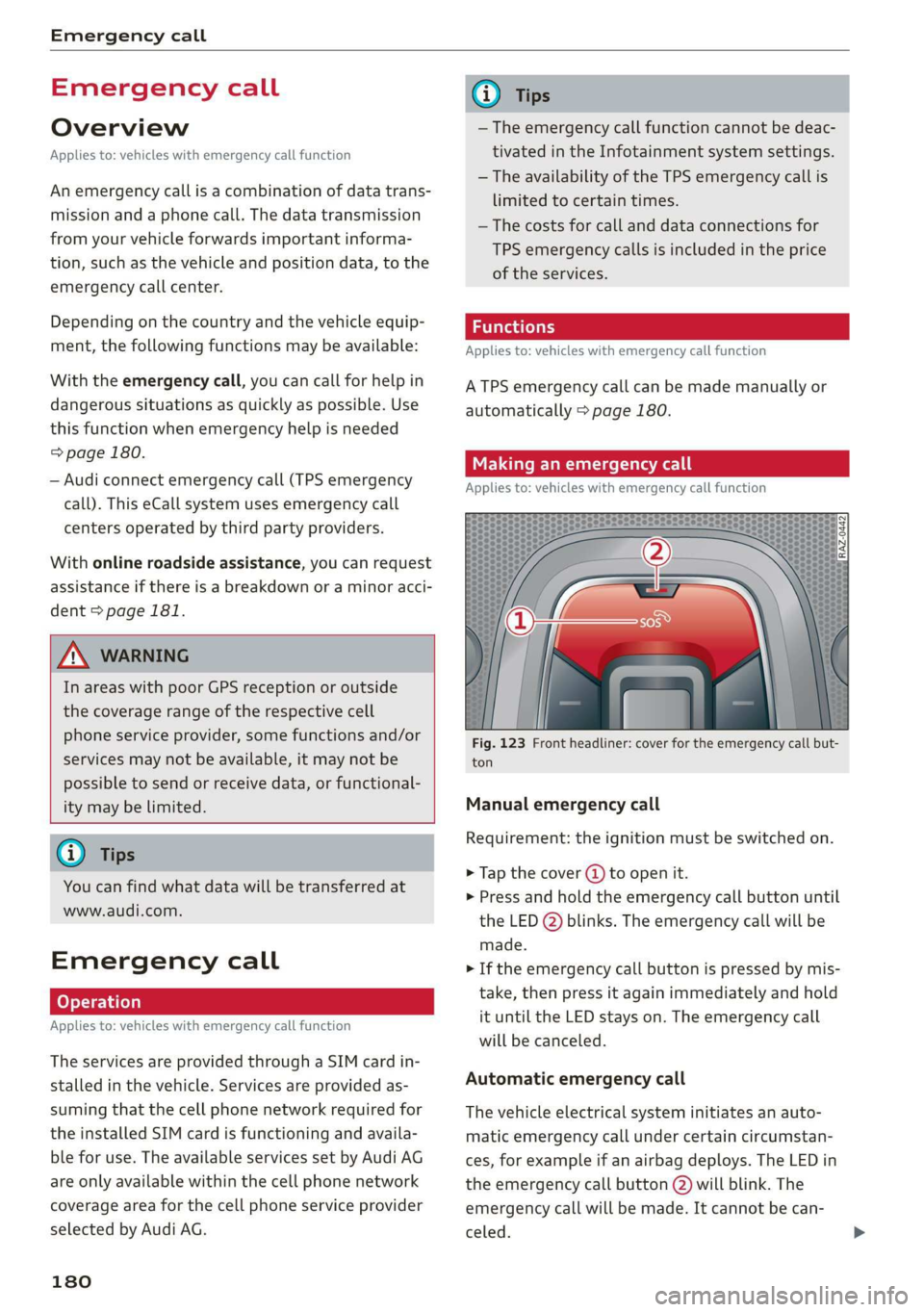
Fig. 123 Front headliner: cover for the emergency call but-
ton
Manual emergency call
Requirement: the ignition must be switched on.
> Tap the cover (@) to open it.
> Press and hold the emergency call button until
the LED @) blinks. The emergency call will be
made.
> If the emergency call button is pressed by mis-
take, then press it again immediately and hold
it until the LED stays on. The emergency call
will be canceled.
Automatic emergency call
The vehicle electrical system initiates an auto-
matic emergency call under certain circumstan-
ces, for example if an airbag deploys. The LED in
the emergency call button 2) will blink. The
emergency call will be made. It cannot be can-
celed.
Page 183 of 310
4K8012721BC
Emergency call
LED status
— Green - The emergency call function is availa-
ble.
— Red - There is a malfunction in the emergency
call function. Contact an authorized Audi dealer
or authorized Audi Service Facility. Note the
messages about the availability of the emer-
gency function > page 181.
— Off - The emergency call function is not availa-
ble, perhaps because no network is available.
@ Tips
If the emergency call is canceled due to a
poor connection, then the system automati-
cally tries to connect again.
Messages
Applies to: vehicles with emergency call function
S&S Emergency call function: malfunction! Re-
stricted functionality. Please contact Service
If this indicator light turns on and this message
appears, the emergency call function is restrict-
ed. For example, you cannot call the emergency
call center, but data may still be transmitted un-
der certain circumstances. Drive to an authorized
Audi dealer or authorized Audi Service Facility im-
mediately to have the malfunction corrected.
S&S Emergency call function: malfunction! Func-
tion unavailable. Please contact Service
If this indicator light turns on and this message
appears, you cannot make an emergency call.
Drive to an authorized Audi dealer or authorized
Audi Service Facility immediately to have the
malfunction corrected.
Online roadside
assistance
Applies to: vehicles with online roadside assistance
An online roadside assistance call )) is a combina-
tion of data transmission and a phone call. The
D_ The availability of the services offered depends on the
country and may change in the future.
data transmission from your vehicle forwards im-
portant information to the Audi service center,
such as the vehicle and position data.
Calling online roadside assistance
Applies to: vehicles with online roadside assistance
RAZ-0443
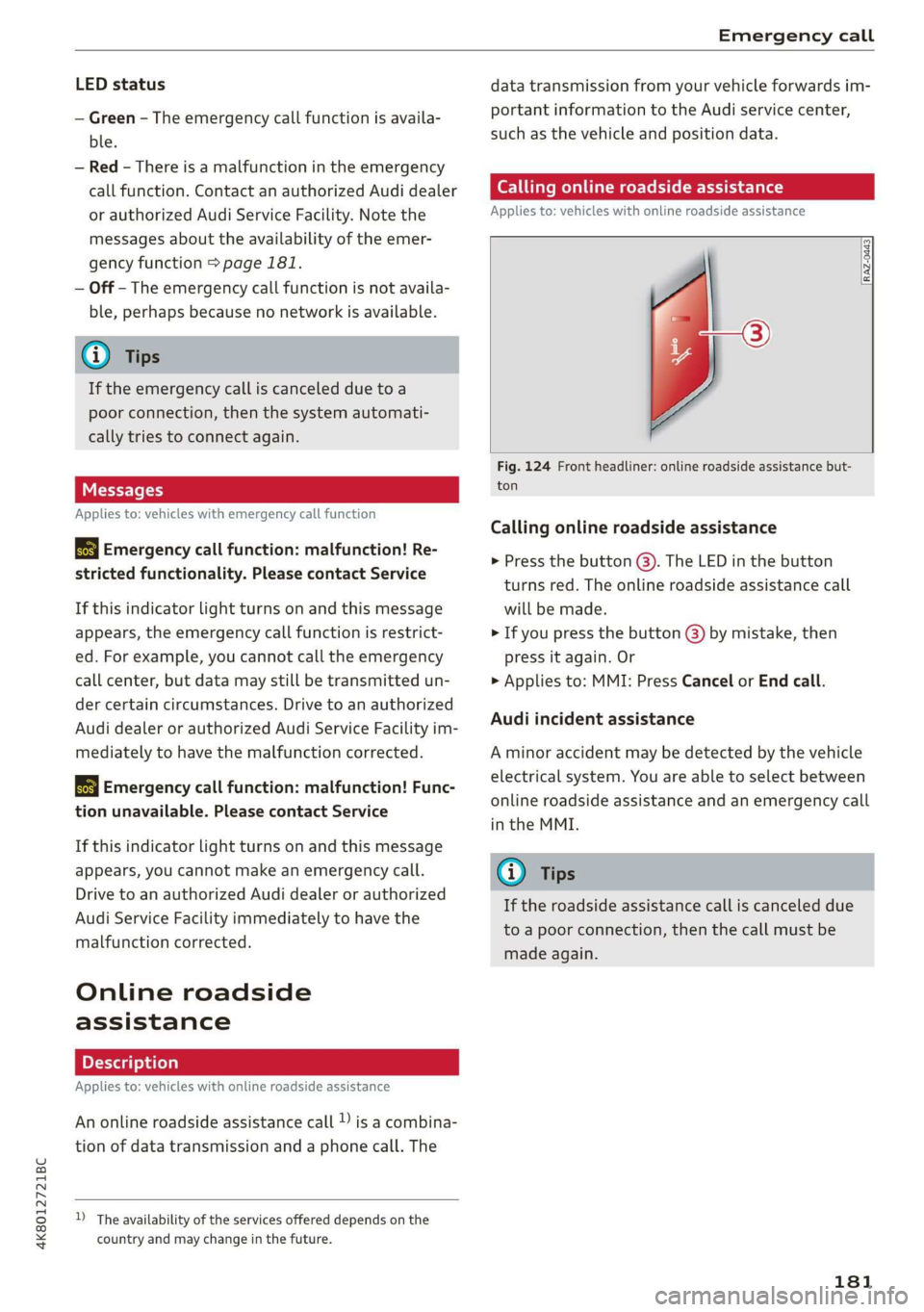
Fig. 124 Front headliner: online roadside assistance but-
ton
Calling online roadside assistance
> Press the button @). The LED in the button
turns red. The online roadside assistance call
will be made.
> If you press the button @) by mistake, then
press it again. Or
> Applies to: MMI: Press Cancel or End call.
Audi incident assistance
A minor accident may be detected by the vehicle
electrical system. You are able to select between
online roadside assistance and an emergency call
in the MMI.
@) Tips
If the roadside assistance call is canceled due
to a poor connection, then the call must be
made again.
181
Page 188 of 310
Navigation
Selecting contacts as destinations
Applies to: vehicles with MMI and navigation system
You can navigate directly to contacts.
Requirement: an address with navigation data or
a navigation destination must already be as-
signed to a contact > page 191.
» Applies to: MMI: Select on the home screen:
NAVIGATION > (8) > Contacts > a contact.
> Press on an address.
> Check the address and change it, if necessary.
Start navigation > page 184, Entering an ad-
dress.
Route guidance will be activated and the map will
be displayed > page 188, fig. 128.
Additional functions for contacts in navigation
can be found under > page 191.
@ Tips
— Addresses that have been imported from
your mobile device into the MMI can also be
used as a destination.
— If a contact is grayed out in the directory,
this contact has neither a destination nor an
address assigned to it.
Loading received destinations and routes
Applies to: vehicles with a navigation system and Audi con-
nect Infotainment
You can search for destinations or routes in the
myAudi app and send to the vehicle.
Requirement: the MMI and the mobile device
must be connected to the Internet > page 174,
Audi connect. You must have the myAudi app in-
stalled on your mobile device.
» Send a destination or route in the myAudi app
to the vehicle.
> Applies to: MMI: Select on the home screen:
NAVIGATION > (Ga) > Received dests. & routes.
> Make sure you are logged into the vehicle and
the myAudi app with the same myAudi account.
The received destination and routes will be
loaded automatically.
> Navigating to a destination: press on a desti-
nation.
186
> Deleting destinations: select: Z > one or more
entries or Select all > Delete > (Done).
@) Note
Read the information about Audi connect, and
be sure to note the connectivity costs section
=@ in General information on page 174.
Destination details
Applies to: vehicles with navigation system
i |
©4-299
es | Bs l call
eens Selig ce
| ees nr
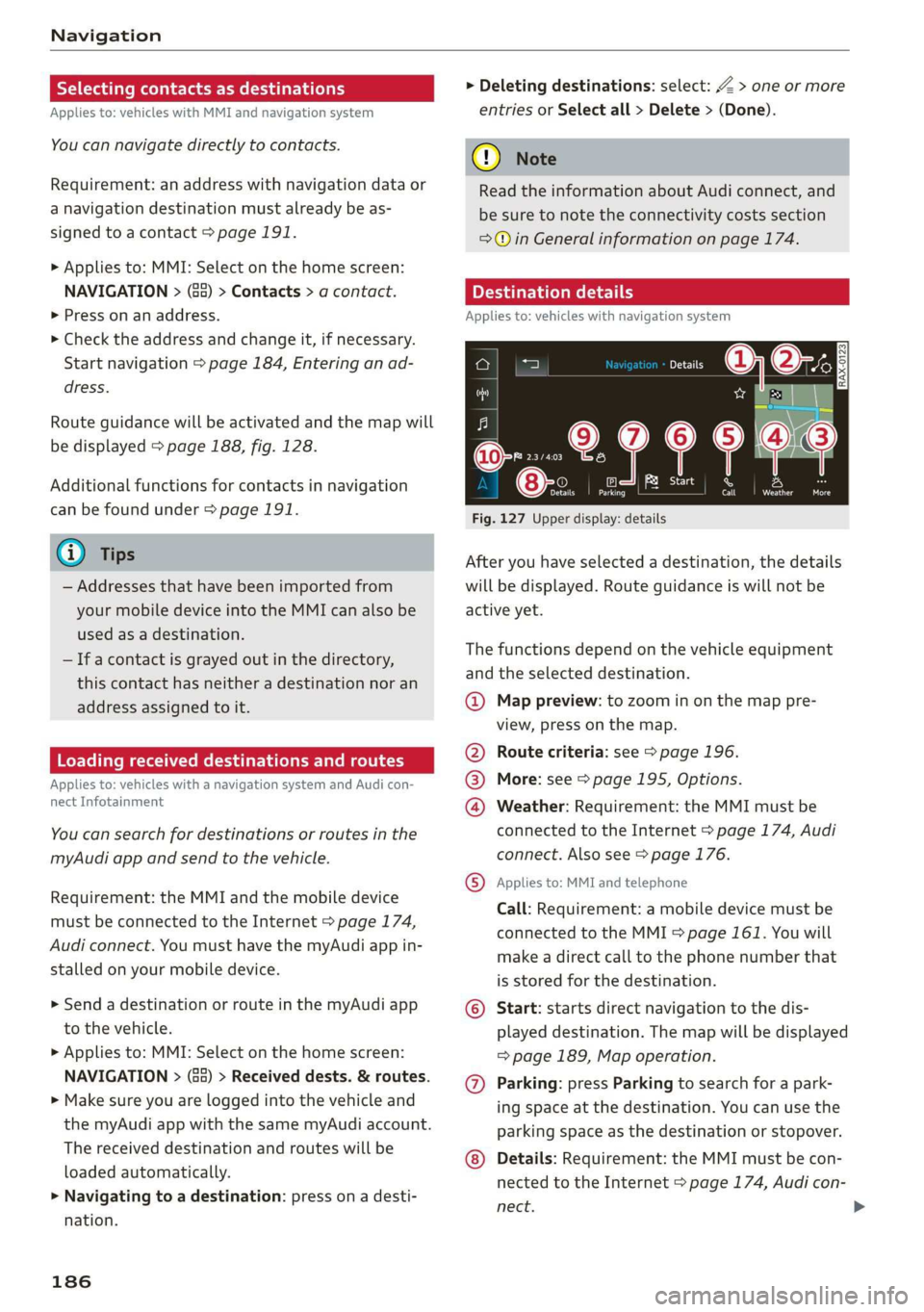
Fig. 127 Upper display: details
After you have selected a destination, the details
will be displayed. Route guidance is will not be
active yet.
The functions depend on the vehicle equipment
and the selected destination.
@ Map preview: to zoom in on the map pre-
view, press on the map.
@ Route criteria: see > page 196.
@® More: see > page 195, Options.
@ Weather: Requirement: the MMI must be
connected to the Internet > page 174, Audi
connect. Also see > page 176.
® Applies to: MMI and telephone
Call: Requirement: a mobile device must be
connected to the MMI > page 161. You will
make a direct call to the phone number that
is stored for the destination.
© Start: starts direct navigation to the dis-
played destination. The map will be displayed
=> page 189, Map operation.
@) Parking: press Parking to search for a park-
ing space at the destination. You can use the
parking space as the destination or stopover.
Details: Requirement: the MMI must be con-
nected to the Internet > page 174, Audi con-
nect.