steering wheel AUDI A8 2011 User Guide
[x] Cancel search | Manufacturer: AUDI, Model Year: 2011, Model line: A8, Model: AUDI A8 2011Pages: 302, PDF Size: 76.07 MB
Page 80 of 302
78 On the road
On the road
Steering
Adjusting steering wheel position
The steering wheel position can be adjusted
for height and reach .
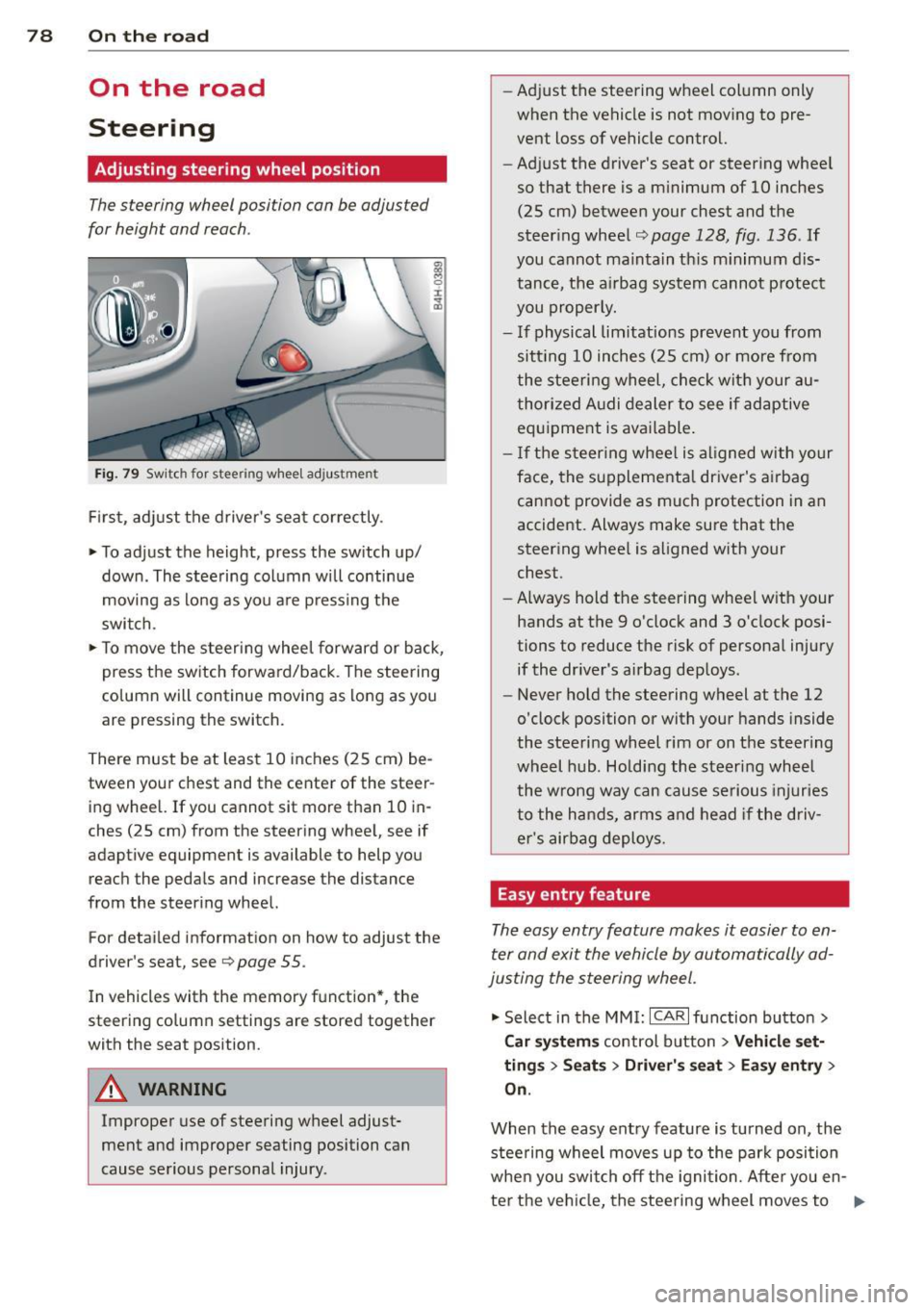
Fig. 79 Switch for steer ing wheel adjustment
First , adjust the driver's seat correctly .
• To adjust the height, press the switch up/
down. The steering column will continue
moving as long as you are pressing the
switch.
• To move the steering wheel forward or back,
press the switch forward/back . The steering
column will continue moving as long as you
are pressing the switch.
There must be at least 10 inches (25 cm) be
tween your chest and the center of the steer ing wheel. If you cannot sit more than 10 in
ches (25 cm) from the steering wheel, see if
adaptive equipment is available to help you
reach the pedals and increase the distance
from the steering wheel.
For detailed information on how to adjust the
driver's seat, see
Q page 55.
In vehicles with the memory function* , the
steering column settings are stored together
with the seat position.
A WARNING
Improper use of steering wheel adjust
ment and improper seating position can
cause serious personal injury. -
Adjust the steering wheel column only
when the vehicle is not moving to pre
vent loss of vehicle control.
- Adjust the driver's seat or steering wheel
so that there is a minimum of 10 inches
(25 cm) between your chest and the
steering wheel
Q page 128, fig . 136 . If
you cannot maintain this minimum dis
tance, the airbag system cannot protect
you properly.
- If physical limitations prevent you from
sitt ing 10 inches (25 cm) or more from
the steering wheel, check with your au
thorized Audi dealer to see if adaptive equipment is available.
- If the steering wheel is aligned with your
face, the supplemental driver's airbag
cannot provide as much protection in an
accident. Always make sure that the
steering wheel is aligned with your
chest.
- Always hold the steering wheel with your
hands at the 9 o'clock and 3 o'clock posi
tions to reduce the risk of personal injury
if the driver's airbag deploys.
- Never hold the steering wheel at the 12
o'clock position or with your hands inside
the steering wheel rim or on the steering
wheel hub. Holding the steering wheel
the wrong way can cause serious injuries
to the hands, arms and head if the driv
er's airbag deploys.
Easy entry feature
The easy entry feature makes it easier to en
ter and exit the vehicle by automatically ad
justing the steering wheel.
• Select in the MMI: ICARlfunction button>
Car systems control button > Vehicle set·
tings > Seats > Driver's seat> Easy entry >
On.
When the easy entry feature is turned on, the
steering wheel moves up to the park position
when you switch off the ignition. After you en-
ter the vehicle, the steering wheel moves to .,..
Page 84 of 302

82 On the road
-Occasiona l noises when the parking
brake is applied and re leased are norma l
and are not a cause for concern .
- When the vehicle is parked, the parking
brake goes through a se lf-test cycle at
regular intervals. Any assoc iated noises
are norma l.
Parking
Various rules apply to prevent the parked ve
hicle from rolling away accidentally.
P ar king
,. Stop the vehicle w ith the foot brake.
,. Pull the switch© to apply the parking
brake.
,. Se lect the
P se lector lever position
9 page 112.
,. Turn the eng ine off q _&. .
In addition on incline s and grad es
,. Turn the steering whee l so that your vehicle
wi ll ro ll against the curb in case it should
start to move .
A WARNING
-When you leave your veh icle -even if on
ly briefly -always take the ignition key
with you. This applies particularly when children remain in the veh icle. Otherw ise
the ch ildren could sta rt t he engine, re
lease the p arking brake or operate e lec
trical equipment (e .g. power windows) .
T he re is the risk of an accident.
- When the vehicle is loc ked, no one -par
t icu la rly not children sho uld remain in
the vehicle . Locked doors make it more
difficult for emergency workers to get in
to the vehicle -putt ing lives at risk.
Start ing from rest
The starting assist function ensures that the
parking brake is released automatically upon starting.
Stopping and appl ying par kin g brake
,. Pull the switch© to apply the parking
brake.
St arting and automatic ally rel easi ng the
parking b rake
,. When you start to dr ive as usual, the park
ing brake is automat ically released and your
veh icle beg ins to move.
When stopping at a traffic signal or stopping in city traffic, the parking brake can be ap
plied . The vehicle does not have to be held
with the footbrake . The parking brake elimi
nates the tendency to creep w ith a dr ive range
engaged. As soo n as you d rive off as usual,
the pa rking brake is re leased automatically
and the vehicle s tarts to move.
Sta rting on slopes
When starting on inclines, the starting assist
prevents the veh icle from u nintent ionally roll
i ng back. The braking fo rce of the par kin g
brake is not re leased unti l su ff ic ient d riving
f orce has been built up a t the wheels.
(D Tips
Fo r safety reasons, the pa rking bra ke is re
l eased automatically o nly when t he d riv
er's safety belt is engaged in the buckle.
Starting off with a trailer
To prevent rolling back unintentionally on an
incline, do the following:
,. Keep the sw itch(®) pulled and depress the
accelerator. The pa rking brake stays applied
and p revents the vehicle from roll ing back
ward .
,. You can release the switch© once you are
sure that you are developing enough for
ward momentum at the whee ls as you de
press the acce lerator.
Page 91 of 302

Adaptive cru ise co ntrol and b rakin g guar d 89
You must also press the b rake pedal when
the vehicle is stopped.
Sw itching adapti ve cruis e co ntrol off
~ Push the lever away from you into position
@ until it clic ks into p lace. The message
A CC off appears.
I ndicator lamps and messages in the instru
ment cluster display inform you about the c ur
rent system status and settings.
@ Indic ator light s
fl-adaptive cruise control is sw itched on . No
veh icles are detected up ahead . The stored
speed is ma inta ined.
I -A moving vehicle is detected up ahead .
The adaptive cruise control system regulates
the speed and distance to the moving veh icle
ahead and accelerates/brakes automat ically.
f:i -adaptive cru ise control is switched on. A
mov ing vehicle up ahead was detected. Your
veh icle remains stopped and will not start
driving automatically.
I -When automat ic braking is not able to
keep enough distance to a previously detected
mov ing vehicle up ahead, you must take con
trol and brake¢
page 90, Prompt for driver
intervention.
© Di splay
If adaptive cruise control is not shown in the
d isplay, you can call it up with the multifunc
tion steering wheel buttons
¢ page 23 .
Based on the symbols in the display, you can
determine if the system is maintaining a dis
tance to the vehicle ahead and what that d is
tance is .
No v ehicle -No vehicle ahead was detected.
White vehicle -A vehicle ahead was detected .
Red ve hicl e -Prompt for the d river to take ac
tion
¢ page 90.
Both arr ow s on the scal e© indicate the dis
tance to the vehicle ahead . No ar row appears
when the vehicle is on an open road and there is no object ahead.
If an object is detected
ahead, the arrow moves on the scale .
T he green zone on the sca le shows the stored
distance. For informat ion on changing the
stored distance ¢
page 91. If the distance
selected is too close or may soon become too
close, the arrows move into the red zone on
the scale .
A WARNING
Improper use of the adaptive cruise con
trol can cause collisions, other accidents
and serious personal injur ies .
- Pressing the
!SET ! button when driv ing at
speeds below
20 mph (30 km/h), w ill au
tomatically accelerate the vehicle to
20
mph (30 km/h), wh ich is the minimum
speed that can be set .
(D Tips
- If you switch the ignit ion or the adaptive
cruise control off, the set speed is e rased
from the system memory.
- You cannot switch the Electron ic Stabili
zation Program (ESP) to the SPORT mode
when adaptive c ruise control is sw itched
on.
Driving in stop-and-go traffic
Appl ies to vehicles: wi th adap tive c ruise control
T he adaptive cru ise contro l system also as
sists yo u in stop-and-go traffic. If a previous
detected vehicle ahead stops, your vehicle wi ll
brake to a stop, within the limits of the sys
tem.
~ To resume driving with adaptive cruise con
trol, tap the acce lerator pedal or
~ Pull the lever toward you into position @
¢ page 88, fig. 89.
(D Tips
- If adaptive cruise control is act ive and
your vehicle does not start driving as ex pected after pu lling the lever once, you
can start out again by tapping the acce l-
erator peda l. ..,.
Page 97 of 302
Audi lane assist Lane assist
De scription
App lies to vehicles: with la ne ass ist
Lane assist helps you keep your vehicle in your
lane.
Lane assist uses a camera to detect lane boun
dary lines . If the system detects that your ve
hicle is about to cross a detected lane boun
dary line, the steering wheel
vibrates to alert
the driver . Lane assist is operable when the
line marking the lane is detected on at least
one side of the veh icle. This is ind icated by a
g reen indicator light. in the instrument
cluster.
If the system is in active standby mode and
the turn signal is activated before driving over
the bounda ry line, the warn ing does not occur
since the system allows for intentional lane
changes.
The system is designed for driv ing on free
ways and expanded highways and thus works
only at speeds of 40 mph (65 km/h) or more.
A WARNING
- Lane assist will not keep your vehicle in
your lane . The system only warns the
driver when the vehicle is leaving the
lane . The driver is always responsible for
keeping the vehicle in the lane .
- The camera is not able to detect all lane
boundary lines and in some cases might
also detect lane structures or objects as
boundary lines . This can lead to incorrect
warnings or wa rnings tha t fail to go off
at all.
- The camera's visibility can be impaired by
vehicles ahead of you, for instance, or by
rain, snow, heavy spray o r light sh in ing
into the camera lens. Th is can cause lane
assist to fa il to detect boundary lines.
Audi lane a ssis t 95
Act ivating and deactivating
App lies to vehicles: wit h lane assist
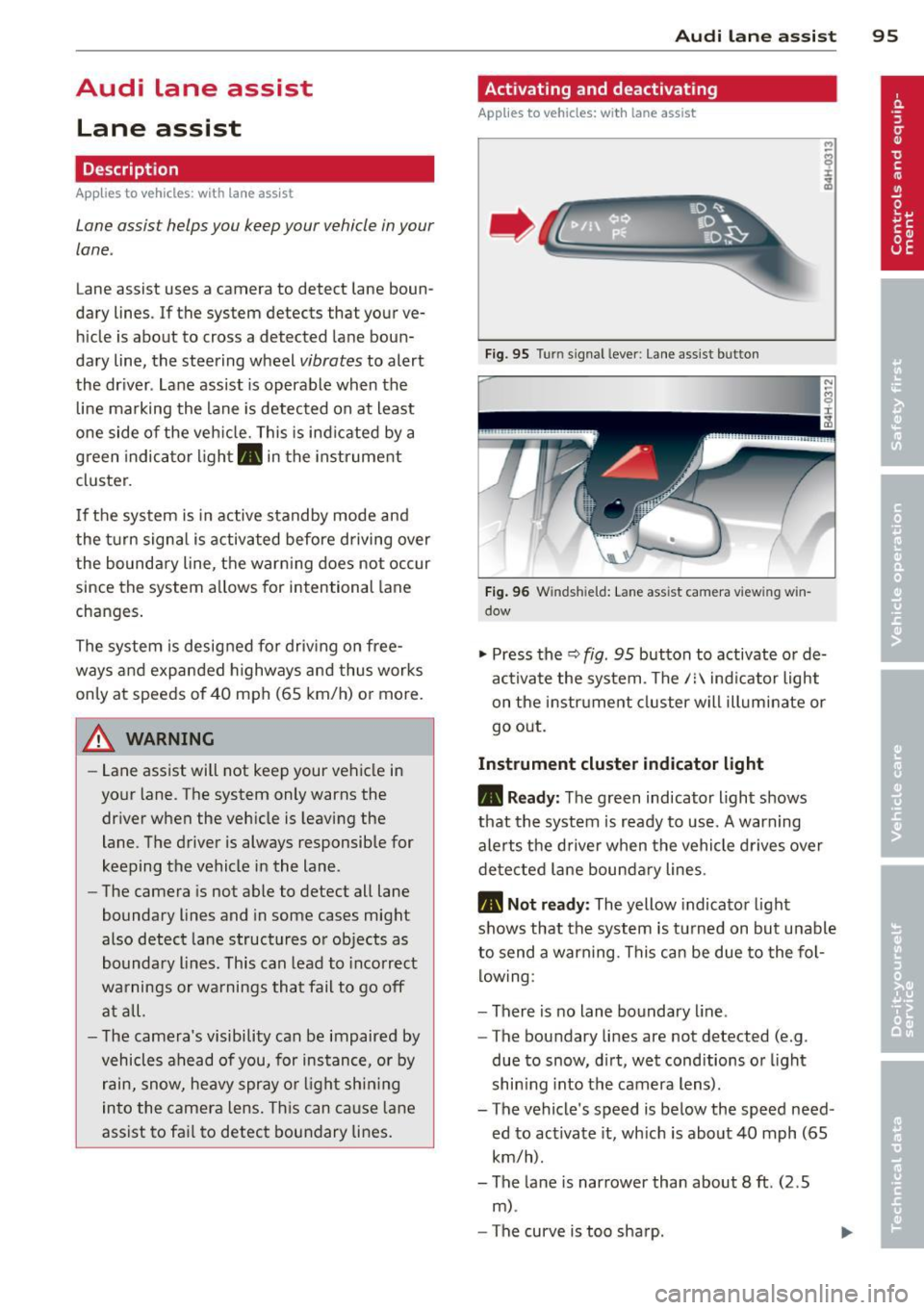
Fig. 95 Turn sign al lever: Lane assist button
Fig . 96 W inds hield: La n e ass ist camera vi ewing w in
dow
"' Press the Q fig . 95 button to activate or de
ac tivate the system . The/: indicator light
on the instr ument cluster will illuminate or
go out.
Instrum ent clu ster ind icat or light
• Rea dy:
The green indicator light shows
that the system is ready to use.
A warning
alerts the driver when the vehicle drives over
detected lane bounda ry lines.
• Not r ea dy: The yellow indicator light
shows that the system is turned on but unable
to send a warning. This can be due to the fol low ing :
- There is no lane boundary line .
- The boundary lines are not detected (e.g .
due to snow, d irt, wet conditions or l ight
shin ing into the camera lens) .
- The vehicle 's speed is below the speed need
ed to activate it, which is about 40 mph (65
km/h).
- The lane is narrower than about 8
ft. (2 .5
m) .
-The curve is too sharp .
Page 98 of 302

96 Audi lane assist
Messages in the instrument cluster
display
When the lane assist turns off automatically,
the instrument cluster indicator goes out and
one of the following messages appears on the
display:
Audi lane assist not available: Currently no
sensor vision
This message appears when the camera can
no longer function because it cannot detect
the boundary lines. This may be due to the
following:
- T he exterior side of the camera viewing win
dow
r:!:> fig. 96 is covered with dirt or ice.
Clean this part of the windshield.
- The camera viewing window is fogged up on
the inside. In this case, wait until the fog
disappears before turning lane assist on
again.
- The system was unab le to detect boundary
lines over an extended period of time due to
road conditions (such as snow-covered
lanes). Do not turn lane assist on again until
the lines can be more easily detected.
Audi lane assist not available
A temporary malfunction is preventing lane
assist from operating. Try turning on lane as
sist again at a later t ime.
Audi lane assist: system fault
The system should be checked by an author
ized Audi dealer or other qualified workshop.
(D} Tips
-Make sure that the camera v iewing win
dow
r:!:> fig. 96 is not covered by st ickers
or similar objects.
- Always keep the camera viewing window
clean . This can usually be done by oper
at ing the w indshield wipers.
Lane assist display in the instrument
cluster
Applies to vehicles: with lane assist
Fig. 97 Display: lane assist is switched on and is warn
ing
Fig. 98 Instrument cluster: lane assist is sw itc hed on
but not ready to provide warn ings
You can call up the lane assist display using
the buttons in the mu ltifunction steering
wheel
r:!:> page 2 3.
When lane assist is switched on, the system
indicates which lines are detected by display
ing solid lines on the left and/or r ight side of
you r vehicle:
- white solid line: lane assist is sw itched on
and ready to provide warnings on the side
that is ind icated
- red solid line (left or right): lane assist is
warning you that you are about to leave your lane
¢fig. 97 .
- unf illed lines: lane assist is switched on but
is not ready to provide warnings
r:!:> fig . 98.
Message s in the instrument cluster
display
When the lane assist turns off automatically,
the instrument cluster indicator goes out and
o ne of the following messages appears on the
display: ..,.
Page 99 of 302
Audi lane assist: currently not available. no
sensor vision
This message appears if the camera is unable
to detect the lines. This could happen if:
- The camera field of view
c::> page 95, fig . 96
is dirty or covered in ice. Clean the area on
the windshield.
- The camera field of view is fogged over. Wait
until the fog has cleared before switching
lane assist on.
- The system has been unable to detect the
lanes for an extended period of time due to
road conditions such as lanes covered in
snow. Switch lane assist back on when the
lines are more visible.
Audi lane assist: currently not available
There is a temporary lane assist malfunction.
Try switching lane assist on again later.
Audi lane assist: system fault
Drive to your authorized Audi dealer immedi
ately to have the malfunction corrected.
Setting the warning point and steering
wheel vibration
App lies to vehicles: with lane ass ist
You can adjust individual settings in the MMI.
~ Select : ICARI function button> Car systems
control button > Driver assist > Audi lane
assist.
Setting the warning point Early:
With this setting, a warning is provided
before a wheel touches the detected lane
boundary line. The warning depends on the
angle in which the vehicle is approaching the
line. The distance at which the warning is giv
en increases as the angle becomes sharper. If
you drive toward a boundary line at a very sharp angle, the warning will come just before
a wheel touches the line.
Medium: With this setting, the warning point
is adapted to the course of the road, the lane
width and the speed. You will still be warned
Audi lane assist 97
if you cross slightly over a dotted line when
driving on curves.
Late: This setting has the same properties as
medium. You will only be warned once a
wheel crosses a detected line.
Setting the steering wheel vibration
The steering wheel vibration can be set to
Low, Medium or Strong. Selecting each of the
settings will cause the steering wheel to vi
brate so you can check the strength of the vi
bration in that setting.
(D Tips
Your settings are automatically stored and
assigned to the remote control key being
used.
Page 123 of 302
Reverse Parking
Applies to vehicles: with parking system advanced
Parking mode 1 can be used when parking in
a garage or into a parking space.
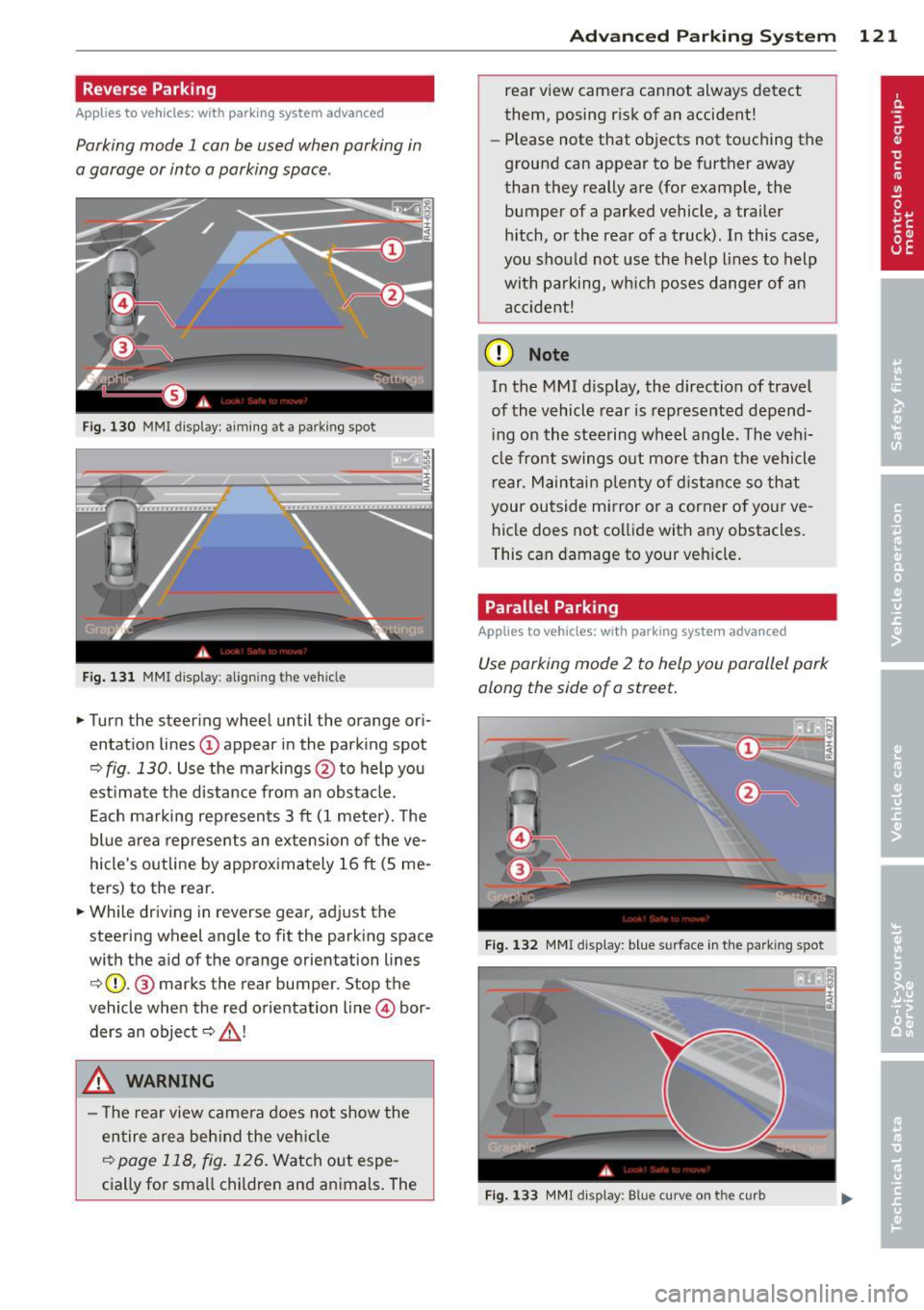
Fig. 130 MMI display: a im ing at a park ing spot
Fig. 131 MMI display : al ign ing the veh icle
... Turn the steer ing wheel until the orange ori
entat ion lines
(D appear in the park ing spot
Q fig . 130. Use the markings @to help you
est imate the distance from an obstacle.
E ach marking rep resents 3
ft (1 meter). The
blue area represents an ex tension of the ve
hicle 's outline by approx imately 16
ft (5 me
ters) to the rear .
... While driving in reverse gear, adjust the
steering wheel angle to fit the parking space
with the aid of the orange orientation lines
c>(D. @ marks the rear bumper. Stop the
vehicle when the red orientation line © bor
ders an object
c::> _& !
..&, WARNING
- The rear view came ra does not show the
entire area beh ind the veh icle
c::>page 118, fig. 126 . Watch out espe
cially for small children and animals . The
Ad vanced Parking S yste m 12 1
rear view camera cannot always detect
them, posing risk of an accident!
- Please note that objects not touching the
ground can appear to be further away
than they really are (for example, the
bumper of a parked vehicle, a trailer
hitch, or the rea r ofa truck). In this case,
you shou ld not use the help lines to help
with parking, wh ich pose s danger of an
accident!
(D Note
In the MMI d isplay, the direction of travel
of the vehicle rear is represented depend ing on the steering wheel angle. The vehi
cle front swings out more than the vehicle
r ear. Maintai n plenty of d istance so that
your outside mirror or a corner o f your ve
hicle does not co llide with any obstacles.
This can damage to your vehicle .
Parallel Parking
Applies to vehicles: with parking system advanced
Use parking mode 2 to help you parallel park
along the side of a street .
F ig . 1 32 MMI display: blue surface in the park ing spot
F ig . 1 33 MMI disp lay: Blue curve on the curb
Page 124 of 302

122 Advanc ed Parking S ystem
The following steps app ly only when there is
no obstacle such as a wall near the parking
spot. Otherwise, please read the information
prov ided in the "P arking Next to Obs tacles"
section
<=> page 122.
.. Activate the turn signal.
.. Position your vehicle parallel to the edge of
the street, approximately 3 ft (1 meter)
from a parked vehicle.
.. Switch the MMI on and se lect reverse gear .
The parking aid turns on and parking mode
1 appears on the disp lay .
.. Press the cont rol button (!)
<=>fig . 132 on
the MMI control conso le. Parki ng mode 2
appears .
.. Back up and align yo ur vehicle so the blue
area @ borders on the rear end of the vehi
cle or on the parking spot line. The bl ue area
represents an extension of the veh icle's out
line by approximately 16 ft (5 meters) to the
rear . The long side of the blue area should
be o n the curb. The entire blue area must fit
into the parking spot .
.. With the veh icle stopped, turn the s teer ing
wheel to the right as far as it w ill go.
.. Back into the par king spot until the blue
c ur ve touches the curb<=>
fig. 133. Stop the
vehicle.
.. With the vehicle stopped, turn the steering
wheel to the left as far as it will go.
.. Continue to back into the parking spot un til
the veh icle is parked parallel to the curb. @
marks the rear bumper . Stop the vehicle
when the red orientation line@ borders an
obje ct ¢
& -Keep an eye on the front of
yo ur vehicle while doing this ¢0 .
Parking n ext to obstacles
When t here is an obstacle (such as a wall)
next to the pa rk ing spot, choose a spot w ith
more space on t he sides. Pos ition the long
side of the blue area so that there is sufficie nt
space from the curb. The area m ust no t be on
the c urb. You wi ll also need to start turning
the steering wheel much earlier. There should
be a suffic ient amo unt of space between the
curb and the blue curve, and the blue c urve
c;> fig. 133 mus t not touch the curb.
A WARNING
- The rear view camera does not show the
entire area behind the vehicle
c::;, page 118, fig . 126 . Watch out espe
cially fo r small chi ldren and anima ls . The
rea r view came ra ca nnot always dete ct
them, posing ris k of an accident!
- Please note that objects not touching the
ground can appear to be further away
t han they really a re (for examp le, the
bumper of a parked vehicle, a trailer
hitch, or the rea r of a truck) . In this case,
you shou ld not use the help lines to help
with parking, which poses danger of an accident!
(D Note
In the MMI display, the direction of travel
of the vehicle rear is represented depend
i ng on the steering wheel angle . The vehi
cle front swings out more than the vehicle rear . Maintain plenty of distance so that
your outside mirror or a corner of you r ve
hicle does not collide with any obstacles.
This ca n damage to your ve hicle .
(D Tips
The left o r right orientation lines and su r
faces will be disp layed, depending on t he
tu rn s ignal being used .
Adjusting the display
and warning tones
Applies to vehicles: wi th parking system advanced
The display and warning tones can be adjust
ed in the MMI.
.. Select: !CAR I function button> Car sy stem s
cont ro l button > Driver a ssist > Parking aid
> Setting s control b utton.
Display
On -when the parking system is switched on,
either the vis ual d isp lay or the picture from
the rear view camera is disp layed .
II>-
Page 130 of 302
128 Driving S afel y
• Make sure to use the right child rest raint
correct ly to protect children <=:>
page 169,
Child Safety.
• Sit properly in your seat and make sure that
your passengers do the same
r::::> page 54,
General recommendations.
• Fasten your safety belt a nd wear it properly .
Also instruct your passengers to fasten their
safety belts proper ly
i;::;, page 13 7 .
What impairs driving safety?
Safe driving is directly related to the condi
tion of the vehicle, the driver as well as the
driver 's ability to concentrate on the road
without being distracted.
The driver is respons ible for the safety of the
vehi cle and all of its occupants.
If you r ability
to drive is impa ired, safety r isks for everybody
i n the vehicle increase and yo u also become a
hazard to everyone else on the road
i;::;, .&_ .
Therefore:
• Do no t let yourself be distracted by passe n
gers or by using a cellular telephone.
• NEV ER drive when your driving ability is im
paired (by medications, alcohol, drugs, etc.).
• Observe all traffic laws, rules of the road
and speed limits and plain common sense .
• ALWAYS adjust your speed to road, traff ic
and weather condit ions .
• Take frequent breaks on long trips . Do not
dr ive for more than two hours at a stretch.
• Do NO T drive when you are t ired, under
pressure or when you are stressed.
_8. WARNING
Impaired driving safety increases the risk
of serious personal injury and death when
ever a vehicle is being used.
Proper occupant
seating positions
Proper seating position for the driver
The proper driver seating position is impor
tant for safe, relaxed driving.
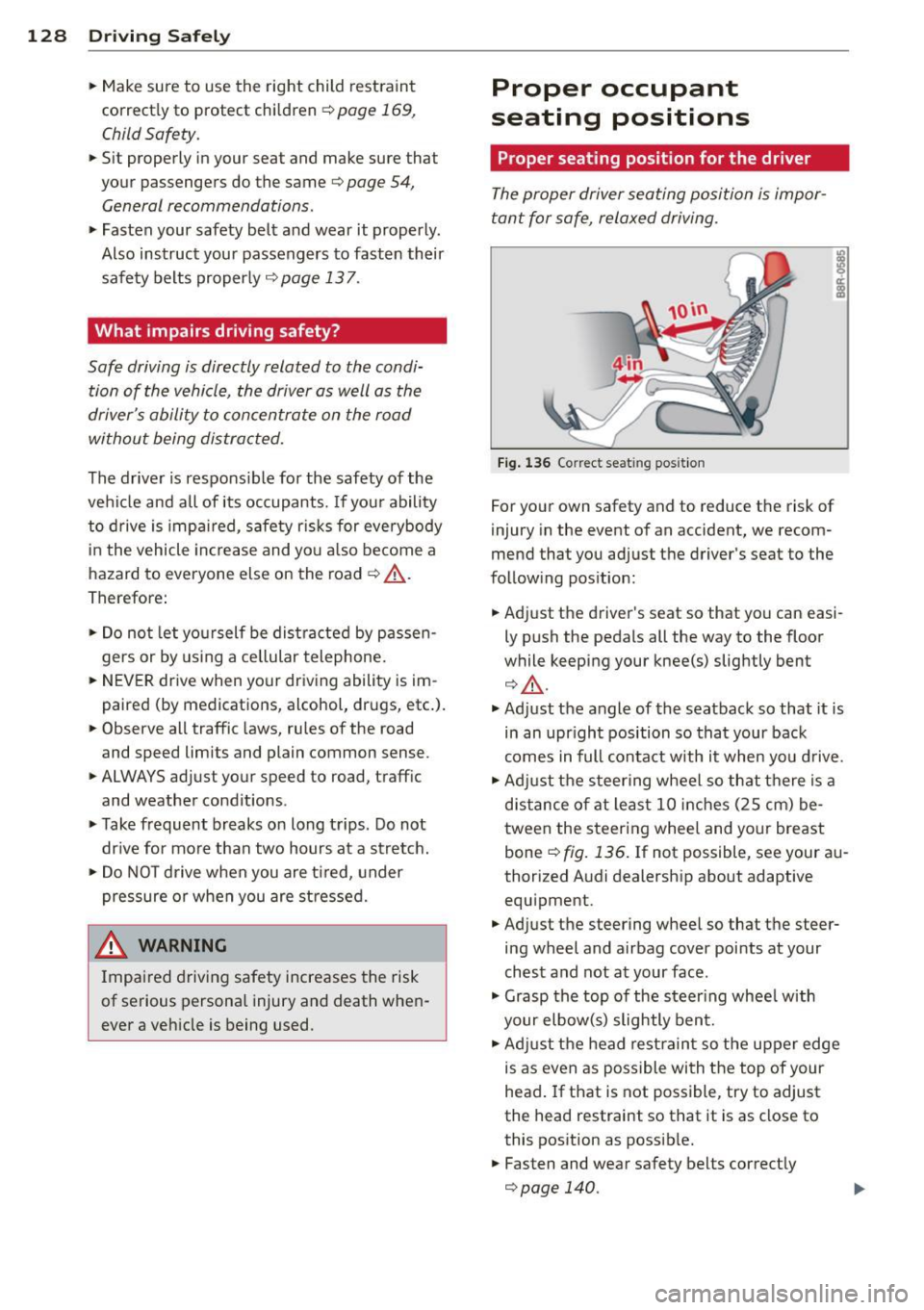
Fig. 1 36 Correct seat ing pos it ion
For your own safety and to reduce the risk of
injury in the event of an accident, we recom
mend that you adjust the driver's seat to the
follow ing pos ition:
• Adjust the driver's seat so that you can easi
ly push the pedals all the way to the floor
while keeping your knee(s) slightly bent
¢ A.
• Ad just the angle of the seatback so that it is
in an upr ight position so that your back
comes in full contact with it when you drive.
• Adj ust the steering wheel so that there is a
d istance of at least 10 inches (25 cm) be
tween the steering wheel and your breast
bone
i;::;, fig. 136. If not possible, see your au
thorized Audi dealership about adaptive equipment.
• Adjust the steering wheel so that the steer
ing wheel and airbag cover points at your
chest and not at your face .
• Grasp the top of the steer ing whee l with
your elbow(s) slightly bent.
• Adjust the head rest raint so the upper edge
is as even as possible with the top of your
head.
If that is not possible, try to adjust
the head restraint so that it is as close to
this position as possib le.
• Fasten and wear safety belts correctly
¢page 140.
Page 131 of 302
~ Always keep both feet in the footwell so
that you are in control of the vehicle at all
times.
For detailed information on how to adjust the
driver's seat, see
c:> page 55.
A WARNING
Drivers who are unbelted, out of position
or too close to the airbag can be seriously
injured by an airbag as it unfolds. To help
reduce the risk of serious personal injury:
- Always adjust the driver's seat and the
steering wheel so that there are at least
10 inches (25 cm) between your breast
bone and the steering wheel.
- Always adjust the driver's seat and the
steering wheel so that there are at least
4 inches (10 cm) between the knees and
the lower part of the instrument panel.
- Always hold the steering wheel on the
outside of the steering wheel rim with
your hands at the 9 o'clock and 3 o'clock positions to help reduce the risk of per
sonal injury if the driver's airbag inflates.
- Never hold the steering wheel at the
12 o'clock position or with your hands at
other positions inside the steering wheel
rim or on the steering wheel hub. Hold
ing the steering wheel the wrong way
can cause serious injuries to the hands,
arms and head if the driver's airbag in
flates
- Pointing the steering wheel toward your
face decreases the ability of the supple
mental driver's airbag to protect you in a
collision .
- Always sit in an upright position and nev
er lean against or place any part of your
body too close to the area where the air
bags are located.
- Before driving, always adjust the front
seats and head restraints properly and
make sure that all passengers are prop
erly restrained.
- Never adjust the seats while the vehicle
is moving. Your seat may move unexpect-
Driving Safely 129
ed ly and you could lose control of the ve
hicle.
- Never drive with the backrest reclined or
tilted far back! The farther the backrests
are tilted back, the greater the risk of in
jury due to incorrect positioning of the safety belt and improper seating posi
tion .
- Children must always ride in child seats
c:> page 169 . Special precautions apply
when installing a child seat on the front passenger seat
c:> page 145.
Proper seating position for the front
passenger
The proper front passenger seating position
is important for safe, relaxed driving.
For your own safety and to reduce the risk of
injury in the event of an accident, we recom
mend that you adjust the seat for the front
passenger to the following position :
~ Adjust the angle of the seatback so that it is
in an upright position and your back comes
in full contact with it whenever the vehicle is
moving.
~ Adjust the head restraint so the upper edge
is as even as possible with the top of your
head. If that is not possible, try to adjust
the head restraint so that it is as close to
this position as possible
<=:>page 131.
~ Keep both feet flat on the floor in front of
the front passenger seat .
~ Fasten and wear safety belts correctly
c:> page 140.
For detailed information on how to adjust the
front passenger's seat, see
c:> page 54 .
A WARNING
Front seat passengers who are unbelted,
out of position or too close to the airbag
can be seriously injured or killed by the air
bag as it unfolds. To help reduce the risk of
serious personal injury:
•
•