steering AUDI A8 2011 Owner's Manual
[x] Cancel search | Manufacturer: AUDI, Model Year: 2011, Model line: A8, Model: AUDI A8 2011Pages: 302, PDF Size: 76.07 MB
Page 98 of 302

96 Audi lane assist
Messages in the instrument cluster
display
When the lane assist turns off automatically,
the instrument cluster indicator goes out and
one of the following messages appears on the
display:
Audi lane assist not available: Currently no
sensor vision
This message appears when the camera can
no longer function because it cannot detect
the boundary lines. This may be due to the
following:
- T he exterior side of the camera viewing win
dow
r:!:> fig. 96 is covered with dirt or ice.
Clean this part of the windshield.
- The camera viewing window is fogged up on
the inside. In this case, wait until the fog
disappears before turning lane assist on
again.
- The system was unab le to detect boundary
lines over an extended period of time due to
road conditions (such as snow-covered
lanes). Do not turn lane assist on again until
the lines can be more easily detected.
Audi lane assist not available
A temporary malfunction is preventing lane
assist from operating. Try turning on lane as
sist again at a later t ime.
Audi lane assist: system fault
The system should be checked by an author
ized Audi dealer or other qualified workshop.
(D} Tips
-Make sure that the camera v iewing win
dow
r:!:> fig. 96 is not covered by st ickers
or similar objects.
- Always keep the camera viewing window
clean . This can usually be done by oper
at ing the w indshield wipers.
Lane assist display in the instrument
cluster
Applies to vehicles: with lane assist
Fig. 97 Display: lane assist is switched on and is warn
ing
Fig. 98 Instrument cluster: lane assist is sw itc hed on
but not ready to provide warn ings
You can call up the lane assist display using
the buttons in the mu ltifunction steering
wheel
r:!:> page 2 3.
When lane assist is switched on, the system
indicates which lines are detected by display
ing solid lines on the left and/or r ight side of
you r vehicle:
- white solid line: lane assist is sw itched on
and ready to provide warnings on the side
that is ind icated
- red solid line (left or right): lane assist is
warning you that you are about to leave your lane
¢fig. 97 .
- unf illed lines: lane assist is switched on but
is not ready to provide warnings
r:!:> fig . 98.
Message s in the instrument cluster
display
When the lane assist turns off automatically,
the instrument cluster indicator goes out and
o ne of the following messages appears on the
display: ..,.
Page 99 of 302
Audi lane assist: currently not available. no
sensor vision
This message appears if the camera is unable
to detect the lines. This could happen if:
- The camera field of view
c::> page 95, fig . 96
is dirty or covered in ice. Clean the area on
the windshield.
- The camera field of view is fogged over. Wait
until the fog has cleared before switching
lane assist on.
- The system has been unable to detect the
lanes for an extended period of time due to
road conditions such as lanes covered in
snow. Switch lane assist back on when the
lines are more visible.
Audi lane assist: currently not available
There is a temporary lane assist malfunction.
Try switching lane assist on again later.
Audi lane assist: system fault
Drive to your authorized Audi dealer immedi
ately to have the malfunction corrected.
Setting the warning point and steering
wheel vibration
App lies to vehicles: with lane ass ist
You can adjust individual settings in the MMI.
~ Select : ICARI function button> Car systems
control button > Driver assist > Audi lane
assist.
Setting the warning point Early:
With this setting, a warning is provided
before a wheel touches the detected lane
boundary line. The warning depends on the
angle in which the vehicle is approaching the
line. The distance at which the warning is giv
en increases as the angle becomes sharper. If
you drive toward a boundary line at a very sharp angle, the warning will come just before
a wheel touches the line.
Medium: With this setting, the warning point
is adapted to the course of the road, the lane
width and the speed. You will still be warned
Audi lane assist 97
if you cross slightly over a dotted line when
driving on curves.
Late: This setting has the same properties as
medium. You will only be warned once a
wheel crosses a detected line.
Setting the steering wheel vibration
The steering wheel vibration can be set to
Low, Medium or Strong. Selecting each of the
settings will cause the steering wheel to vi
brate so you can check the strength of the vi
bration in that setting.
(D Tips
Your settings are automatically stored and
assigned to the remote control key being
used.
Page 108 of 302

106 Audi drive select
Audi drive select
Driving settings
Introduction
Aud i d rive select mak es it possible to expe ri
e nce diffe ren t types of vehi cle se ttings in o ne
ve hicl e. The dr ive r can se lect th ree
C o mfort ,
Description
The vehicle setup in each mode depends on
the vehicle's features. The engine, t ransm is
sion, steering and adapt ive a ir s uspension/
sport* are always involved. The dynamic steer
ing*, sport differential* and cornering lig ht"
can also be ad justed . The revers ible safety
belt tensioners ¢ page
188 are adap ted to
the dynamic mode.
Depending on the mode, the
Engine /Trans
mission
respond more quickly or i n a more
balanced manne r to acce le rator pedal move
men ts.
The power
Steer ing (servotronic) ¢ page 194
can also be adapted to driving situations .
The adaptive air suspension/adaptive air sus
pension sport *
(Air suspension in the MMI) is
an electronically contro lled air suspension and
dampi ng system . They are adjusted depend
ing on the selected dr iving mode , the dr ive r's
ste ering, braking and acceleration input and
the r oad s urfa ce, ve hicle speed and load . A
spor ty se tti ng i s generally use d in vehicl es
with a dap tive air s usp ension spo rt *. T he vehi
cle clea rance varies depending on the selected
mode and the speed .
Th e highway set ting is activ ated au to ma tically
when yo u drive above 75 mph (120 km/h) for
Systems Comfort
Engine /
bala nced
Transmission
Air suspension
comfortabl e
Steering comfortable
Auto and Dynamic modes in the MMI to
switch between a spo rty and a comfo rtable
driv ing mode.
You can also adjus t the se tt ing accord ing to
yo ur prefe rences in the
ind ividual mode. For
example , you can combine settings such as a
spo rty engine tuning w it h light stee ring .
more than 30 seconds in the
auto or dynamic
mode. The gro und clea rance is increased a uto
matically if the speed drops below 44 mph
(70 km/h) f or more than 120 seco nds.
Dynamic steering* changes the stee ring ratio
as a function of the dr iving speed in o rder to
optimize the driver's req uired steering effort.
This sets the steering to be less sensit ive at
highe r speeds in order to provide improved ve
hicle control. At reduced speeds, steer ing is
more direct in or der to keep the s teer ing ef
fo rt as minima l as poss ible wh en th e drive r is
maneuveri ng the vehicle . At low and average
speeds, dynam ic stee rin g* addition ally pro
vides more responsive steering performance .
T he driver can set the basic steering ratio
c h aracteristics i n the Audi dr ive se lect .
A s a c ompone nt o f the all whee l dr ive sys te m
(quat tro ®) ¢ page
19 4, th e Sport differen·
tial*
di stributes the driving powe r to t he rear
axle depending on the situation . The distri bu
tion o f power varies depending on the mode
selected. The goal is a high level of agi lity and
ability t o accelerate on curves . The ve hicle is
very respons ive to steering .
The following table provides an ove rv iew of
the characterist ics of each d riving mode.
Auto Dynamic
balance d sp orty
bala nced sporty
ba lanced sp orty
Dynamic steering* comfor table/indirec t balanced/direc t sporty/direct
Page 109 of 302
Systems Comfort
Spo rt different ial*
balanced
Belt tensioner Standard
If your vehicle is equipped with Dynam ic
steer ing*, steering settings can also be ad
justed under the
Dynamic steering* menu
item.
(D Note
- Make sure there is enough clearance
above and below the vehicle when park
i ng. The height of the vehicle can change
once it is parked due to temperature
fluctuations, changes to the load condi
tions and changes to the driving modes,
which can affect clearance .
- When transporting the veh icle on a car
carr ier, train, ship or by other means, on
ly tie the vehicle down at the running
surface of the tires, which is the outer
circumference . Secur ing the vehicle at
the axle components, suspension struts
or towing eyes is not permit ted because
the pressure in the air suspension struts
can change during transport. The vehicle
may not be secured sufficient ly if this
happens.
- If you a re going to tow a trailer, you
must activate the trailer operation mode
~ page 202.
@ Tips
-Se lecting the dynamic mode results in
sporty sh ifting character istics . The
S
gear position engages automatically .
- In vehicles that have dynamic steering*, operating noise is heard when starting or
stopping the engine. This does not indi
cate a problem.
- In vehicles with the sport d ifferential*,
the
dynamic mode is deactivated when
tow ing a trailer.
- In some models, the maximum vehicle
speed can only be reached in the
auto
and dynamic modes.
Audi drive select 107
Auto Dynamic
agile sporty
Standard Deployment time
adapted
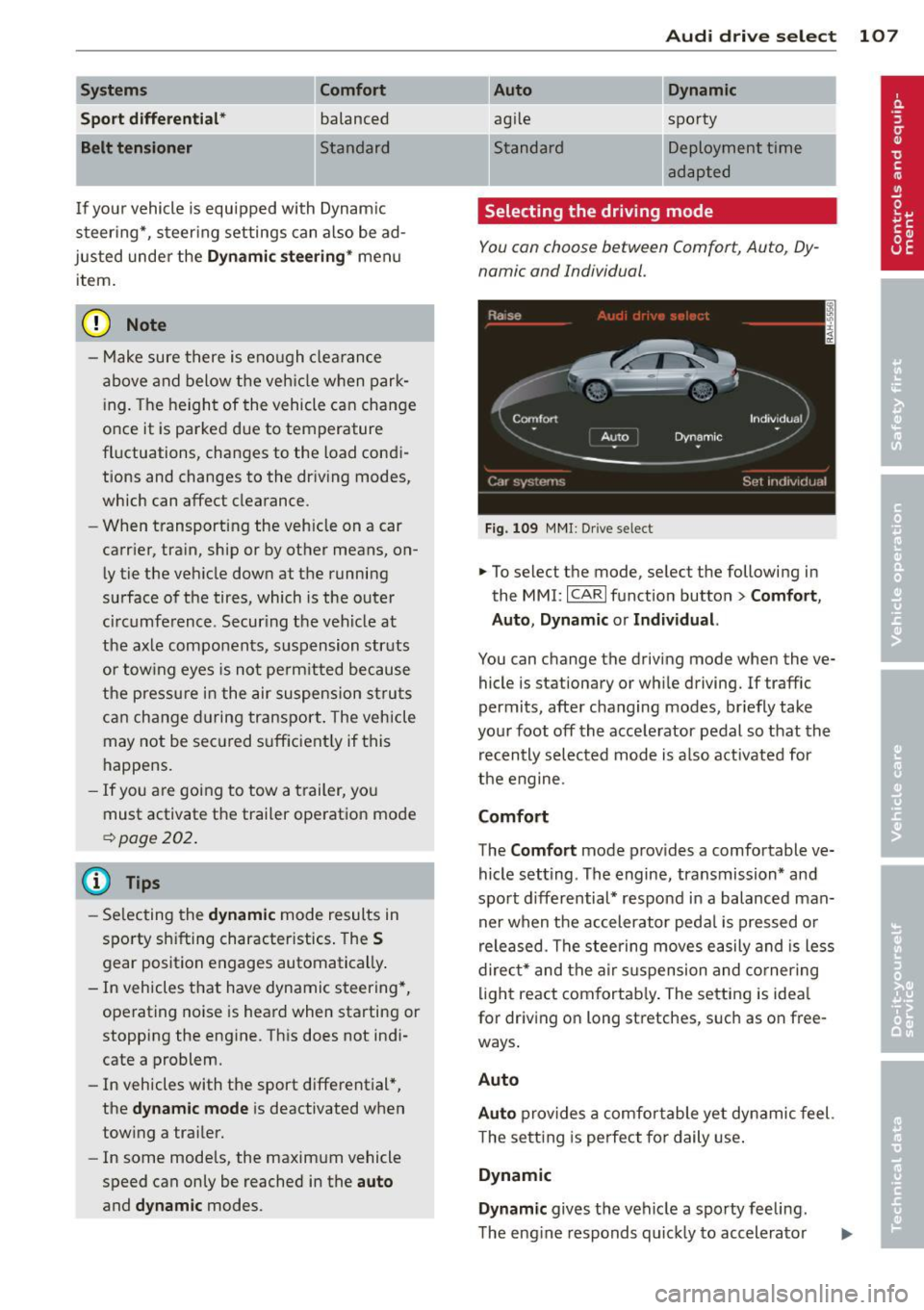
Selecting the driving mode
You con choose between Comfort, Auto , Dy
namic and Individual.
Fig. 109 MMI : Dr ive select
.,. To select the mode, select the following in
the MMI:
ICARI function button > Comfort,
Auto , Dynamic or Individual.
You can change the driving mode when the ve
hicle is stationary or wh ile driving. If traffic
permits, after changing modes, briefly take
your foot off the accelerator pedal so that the
recently selected mode is also activated for
the engine.
Comfort
The Comfort mode prov ides a comfortable ve
hicle setting . The engine, transmission* and
sport differential* respond in a balanced man
ner when the accelerator pedal is pressed or
released. The steering moves easily and is less
direct* and the air suspension and cornering
light react comfortably. The setting is ideal
for driv ing on long stretches, such as on free
ways .
Auto
Auto
provides a comfortable yet dynamic feel.
T he setting is perfect fo r daily use.
Dynamic
Dynamic
gives the vehicle a sporty feeling.
The engine responds quickly to accelerator
Page 110 of 302

108 Audi drive select
pedal movements, and steering is sporty and
more direct*. The sport differentia l* provides
mo re agility, the air suspension is tighter and
the transm ission shifts at a higher RPM. The
cornering light also reac ts in a sporty way. The
setting is ideal for sporty driving.
Individual
You can adapt this mode to your personal
needs in the MMI
¢page 108.
A WARNING
Pay attention to traff ic when operating Au
di dr ive se lect to prevent potent ial risk of
an accident .
Adjusting the Individual mode
You can adjust the vehicle settings to your
personal preference s.
.. Se lect : I CAR ! function button > Set individu-
al
control button.
The
individual driving mode will automatical
l y be activated when yo u have finished config
uring the settings.
The equipmen t in your veh icle w ill de termine
which settings you can adj ust.
(D Tips
Your individual mode settings are auto
mat ica lly stored and assigned to the re
mote control key being used.
Raising/lowering the
vehicle
Raising the vehicle
You can raise your ve hicle temporarily, for ex
ample to drive over a tall curb .
.. Select the following in the MMI: ICAR!func
t ion button >
Raise cont ro l button .
.. Wait for the arrows in the display to stop
blinking and the vehicle to reach its final po
s it ion.
Lowering the vehicle
.. To lower the vehicle, se lect the following in
the MMI : ICAR ! f u nct ion button>
Lower con
trol button.
.. Wait for the arrows in the display to stop
blinking and the veh icle to lower comp lete
ly .
Q) Note
- Remember that your vehicle is not suita
ble for dr iv ing offroad even when it is
raised. There is not enough ground clear
ance .
- If the vehicle is raised, it will lower auto
matically when driving 62 mph (100 km/
h) or faster.
Driver messages
Air suspension : vehicle currently too low .
Level control running
Air suspension : vehicle currently too high.
Level control running
T he driver message switches off when the lev
el control process is complete.
Page 111 of 302
Night vision assistant
Description
Applies to vehicles: with night vision assistant
Fig. 110 Display: nightv ision assistant
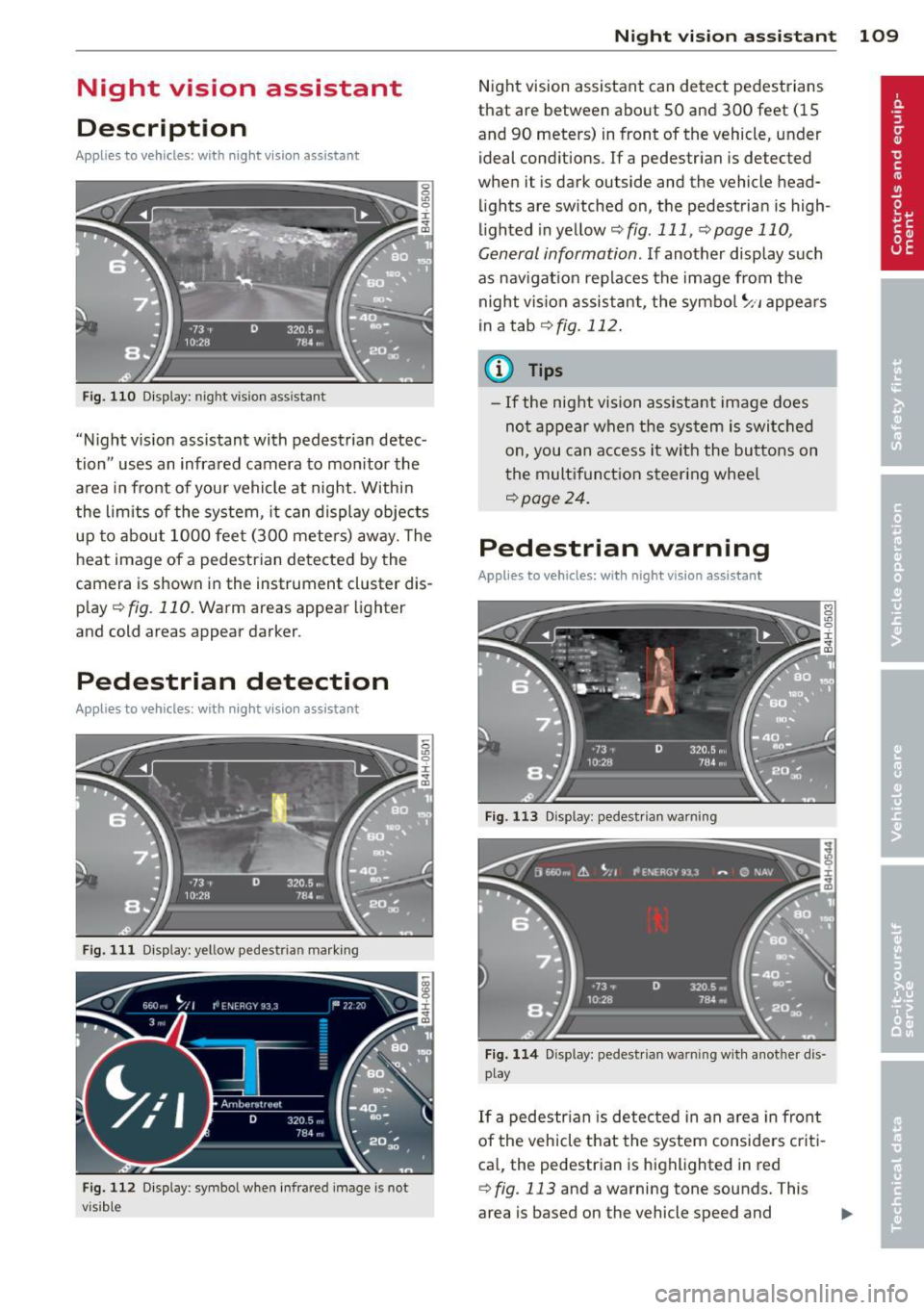
"Night v ision assistant with pedestrian detec
tion" uses an infrared camera to mon itor the
area in front of your vehicle at night . Within
the limits of the system, it can display objects
up to about 1000 feet (300 mete rs) away. The
heat image of a pedestrian detected by the
camera is shown in the instrument cluster dis
p lay
¢ fig. 110. Warm areas appear lighter
and cold areas appear darker.
Pedestrian detection
Applies to vehicles: with night vision assistant
Fig. 111 Display: yellow pedestrian marking
Fig. 112 Display: symbol when infra red image is not
visib le
Night vision assistant 109
Night vision assistant can detect pedestrians
that are between about 50 and 300 feet (15
and 90 meters) in front of the vehicle, under ideal conditions . If a pedestrian is detected
when it is dark outside and the vehicle head
lights are switched on, the pedestrian is high
lighted in yellow
~ fig. 111, ¢page 110,
General information .
If another display such
as navigat ion replaces the image from the
night vis ion assistant, the symbo l
~11 appears
in a tab
¢fig. 112.
(D Tips
-If the night vision assistant image does
not appear when the system is switched
on, you can access it with the buttons on
the multifunction steering whee l
~page 24.
Pedestrian warning
Applies to vehicles: with night vision assistant
Fig . 113 D isp lay: pedestr ian wa rning
Fig. 114 Disp lay: pedestrian wa rnin g with anot her dis
play
If a pedestrian is detected in an area in front
of the vehicle that the system considers criti
cal, the pedestrian is highlighted in red
¢fig . 113 and a warning tone sounds. This
area is based on the vehicle speed and
Page 112 of 302
110 Night vis ion assis tant
steering angle. The pedestrian warning
prompts you to pay even closer attention to
the area in front of the vehicle and to watch
out for pedestrians.
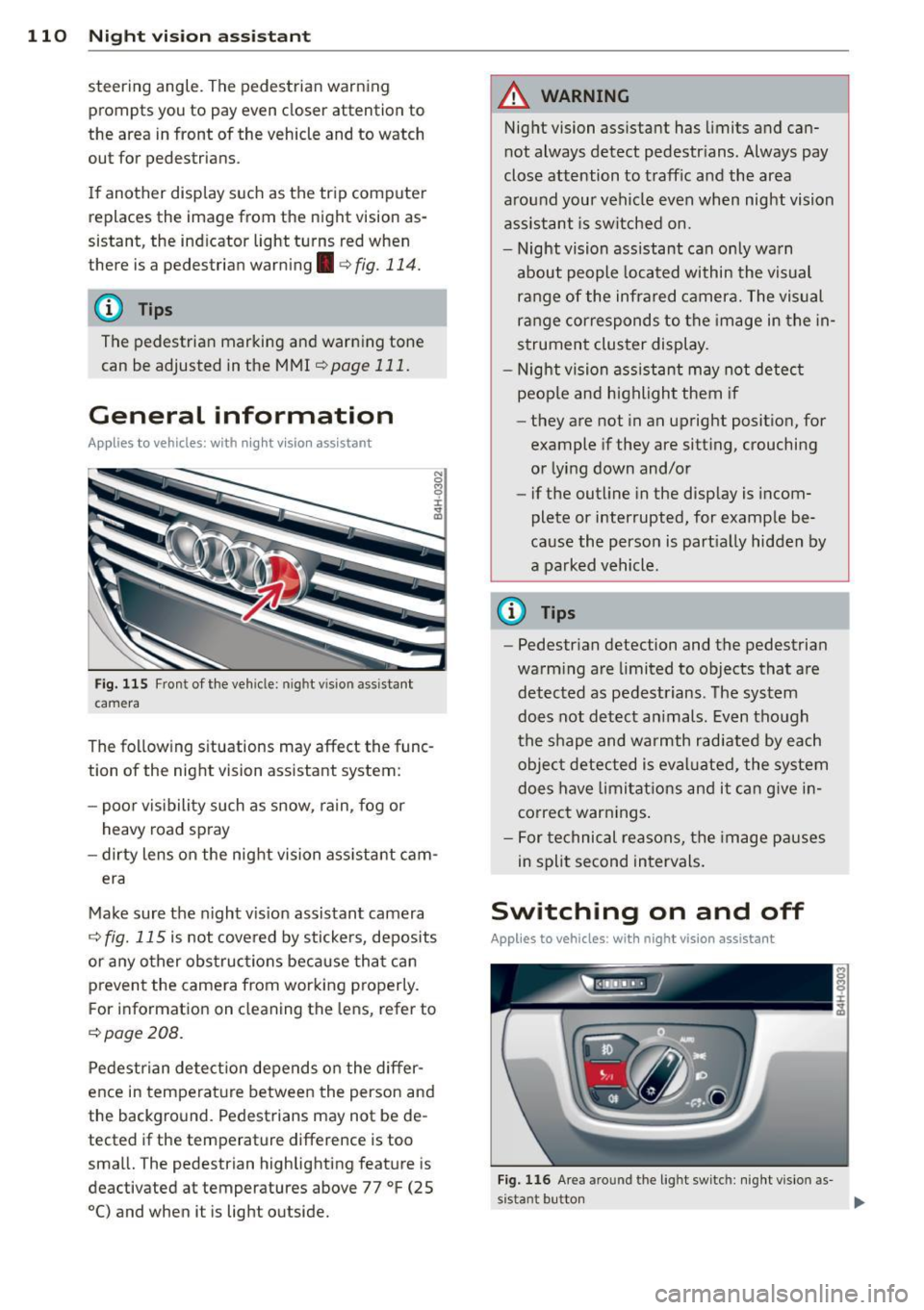
I f another display such as the tr ip computer
replaces the image from the night vision as
sistant, the indicator light turns red when
there is a pedestrian warning
I c:> fig. 114.
@ Tips
The pedestrian marking and warning tone
can be adjusted in the MMI
r::!)poge 111.
General information
Applies to vehicles: with night vision assistant
Fig. 115 Front of the vehi cle: night vision assistant
camera
The following s ituations may affect the func
tion of the night vision assistant system:
- poor vis ibility such as snow, ra in , fog or
heavy road spray
- dirty lens on the night vision ass istant cam -
era
Make sure the night vis ion assistant camera
r::!) fig. 115 is not cove red by stickers, deposits
or any other obstruc tions because tha t can
p revent the camera from working p roperly.
F or information on cleaning the lens, refer to
r::!) page 208.
Pedestrian detect ion depends o n the differ
ence in temperat ure between the person and
the background. Pedestrians may not be de
tected if the temperature difference is too
small. The pedestrian highlighting feature is
deactivated at temperatures above 77 °F (25
0
() and when it is light outside.
A WARNING
--
Night vision assistant has limits and can
not always detect pedestrians . Always pay
close attention to traffic and the area
around your vehicle even when night vision
assis tant is sw itched on.
- Night vision assistant can only warn
about people located within the visual
range of the infrared camera. The visual
ra nge corresponds to the image in the in
strument cluster display .
- Night vision assistant may not detect
peop le and highlight them if
- they are not in an upright posit ion, for
example if they are sitting, crouching
o r lying down and/or
- if the outline in the disp lay is incom
plete or interrupted, for example be
cause the perso n is part ial ly hidden by
a parked vehicle.
@ Tips
- Pedestrian detection and the pedestrian
warm ing are limited to objects that are
detected as pedest rians . The system
does not detect an imals. Even though
the shape and warmth radiate d by each
objec t detected is eval uated, the system
does have limitat ions and it can g ive in
correct warnings .
- For technical reasons, the image pauses
in split second intervals.
Switching on and off
Applies to vehicles : with night vision assistant
Fig. 116 Area around the light switch: night vis ion as-
s istant button ..,_
Page 123 of 302
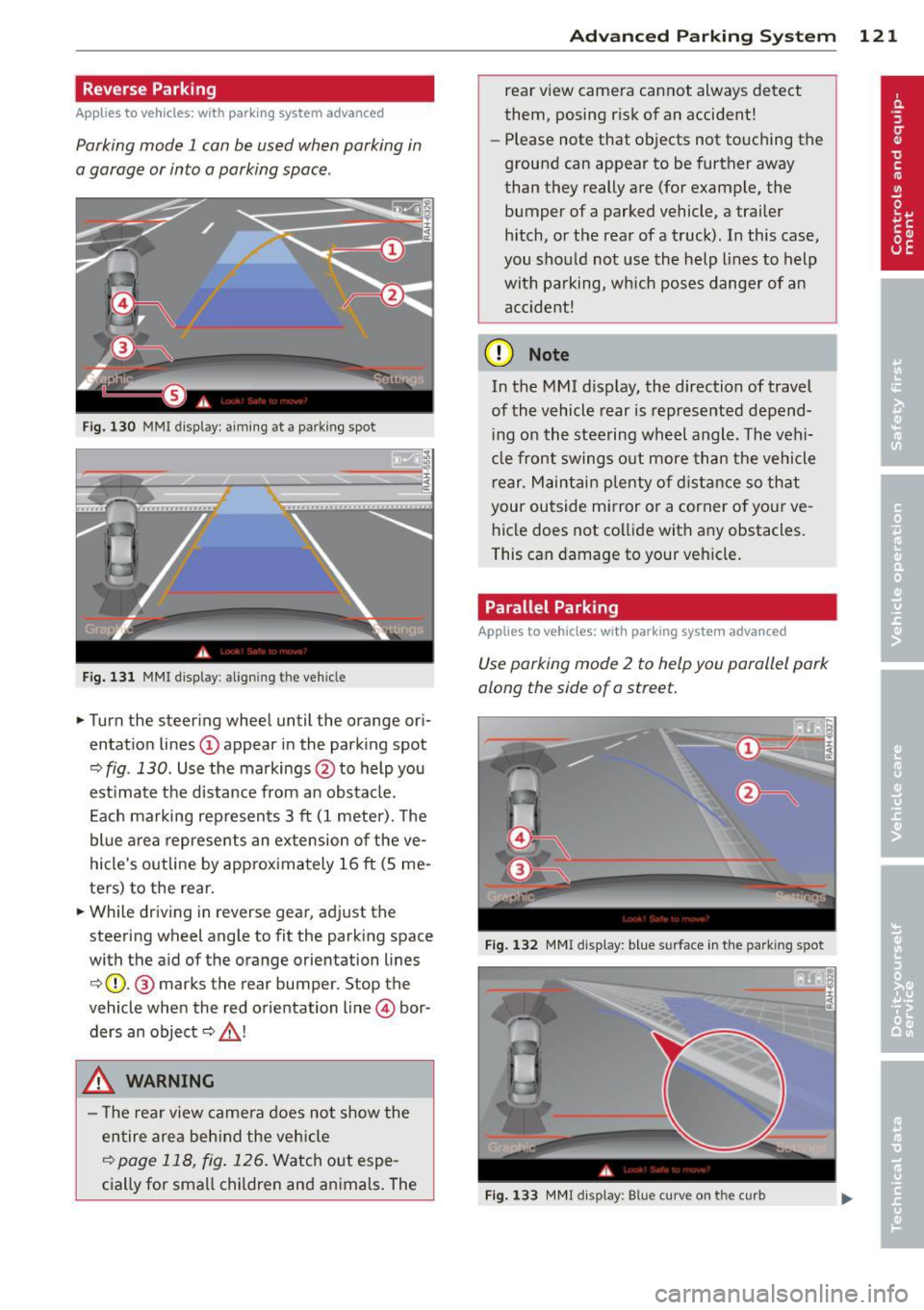
Reverse Parking
Applies to vehicles: with parking system advanced
Parking mode 1 can be used when parking in
a garage or into a parking space.
Fig. 130 MMI display: a im ing at a park ing spot
Fig. 131 MMI display : al ign ing the veh icle
... Turn the steer ing wheel until the orange ori
entat ion lines
(D appear in the park ing spot
Q fig . 130. Use the markings @to help you
est imate the distance from an obstacle.
E ach marking rep resents 3
ft (1 meter). The
blue area represents an ex tension of the ve
hicle 's outline by approx imately 16
ft (5 me
ters) to the rear .
... While driving in reverse gear, adjust the
steering wheel angle to fit the parking space
with the aid of the orange orientation lines
c>(D. @ marks the rear bumper. Stop the
vehicle when the red orientation line © bor
ders an object
c::> _& !
..&, WARNING
- The rear view came ra does not show the
entire area beh ind the veh icle
c::>page 118, fig. 126 . Watch out espe
cially for small children and animals . The
Ad vanced Parking S yste m 12 1
rear view camera cannot always detect
them, posing risk of an accident!
- Please note that objects not touching the
ground can appear to be further away
than they really are (for example, the
bumper of a parked vehicle, a trailer
hitch, or the rea r ofa truck). In this case,
you shou ld not use the help lines to help
with parking, wh ich pose s danger of an
accident!
(D Note
In the MMI d isplay, the direction of travel
of the vehicle rear is represented depend ing on the steering wheel angle. The vehi
cle front swings out more than the vehicle
r ear. Maintai n plenty of d istance so that
your outside mirror or a corner o f your ve
hicle does not co llide with any obstacles.
This can damage to your vehicle .
Parallel Parking
Applies to vehicles: with parking system advanced
Use parking mode 2 to help you parallel park
along the side of a street .
F ig . 1 32 MMI display: blue surface in the park ing spot
F ig . 1 33 MMI disp lay: Blue curve on the curb
Page 124 of 302

122 Advanc ed Parking S ystem
The following steps app ly only when there is
no obstacle such as a wall near the parking
spot. Otherwise, please read the information
prov ided in the "P arking Next to Obs tacles"
section
<=> page 122.
.. Activate the turn signal.
.. Position your vehicle parallel to the edge of
the street, approximately 3 ft (1 meter)
from a parked vehicle.
.. Switch the MMI on and se lect reverse gear .
The parking aid turns on and parking mode
1 appears on the disp lay .
.. Press the cont rol button (!)
<=>fig . 132 on
the MMI control conso le. Parki ng mode 2
appears .
.. Back up and align yo ur vehicle so the blue
area @ borders on the rear end of the vehi
cle or on the parking spot line. The bl ue area
represents an extension of the veh icle's out
line by approximately 16 ft (5 meters) to the
rear . The long side of the blue area should
be o n the curb. The entire blue area must fit
into the parking spot .
.. With the veh icle stopped, turn the s teer ing
wheel to the right as far as it w ill go.
.. Back into the par king spot until the blue
c ur ve touches the curb<=>
fig. 133. Stop the
vehicle.
.. With the vehicle stopped, turn the steering
wheel to the left as far as it will go.
.. Continue to back into the parking spot un til
the veh icle is parked parallel to the curb. @
marks the rear bumper . Stop the vehicle
when the red orientation line@ borders an
obje ct ¢
& -Keep an eye on the front of
yo ur vehicle while doing this ¢0 .
Parking n ext to obstacles
When t here is an obstacle (such as a wall)
next to the pa rk ing spot, choose a spot w ith
more space on t he sides. Pos ition the long
side of the blue area so that there is sufficie nt
space from the curb. The area m ust no t be on
the c urb. You wi ll also need to start turning
the steering wheel much earlier. There should
be a suffic ient amo unt of space between the
curb and the blue curve, and the blue c urve
c;> fig. 133 mus t not touch the curb.
A WARNING
- The rear view camera does not show the
entire area behind the vehicle
c::;, page 118, fig . 126 . Watch out espe
cially fo r small chi ldren and anima ls . The
rea r view came ra ca nnot always dete ct
them, posing ris k of an accident!
- Please note that objects not touching the
ground can appear to be further away
t han they really a re (for examp le, the
bumper of a parked vehicle, a trailer
hitch, or the rea r of a truck) . In this case,
you shou ld not use the help lines to help
with parking, which poses danger of an accident!
(D Note
In the MMI display, the direction of travel
of the vehicle rear is represented depend
i ng on the steering wheel angle . The vehi
cle front swings out more than the vehicle rear . Maintain plenty of distance so that
your outside mirror or a corner of you r ve
hicle does not collide with any obstacles.
This ca n damage to your ve hicle .
(D Tips
The left o r right orientation lines and su r
faces will be disp layed, depending on t he
tu rn s ignal being used .
Adjusting the display
and warning tones
Applies to vehicles: wi th parking system advanced
The display and warning tones can be adjust
ed in the MMI.
.. Select: !CAR I function button> Car sy stem s
cont ro l button > Driver a ssist > Parking aid
> Setting s control b utton.
Display
On -when the parking system is switched on,
either the vis ual d isp lay or the picture from
the rear view camera is disp layed .
II>-
Page 130 of 302
128 Driving S afel y
• Make sure to use the right child rest raint
correct ly to protect children <=:>
page 169,
Child Safety.
• Sit properly in your seat and make sure that
your passengers do the same
r::::> page 54,
General recommendations.
• Fasten your safety belt a nd wear it properly .
Also instruct your passengers to fasten their
safety belts proper ly
i;::;, page 13 7 .
What impairs driving safety?
Safe driving is directly related to the condi
tion of the vehicle, the driver as well as the
driver 's ability to concentrate on the road
without being distracted.
The driver is respons ible for the safety of the
vehi cle and all of its occupants.
If you r ability
to drive is impa ired, safety r isks for everybody
i n the vehicle increase and yo u also become a
hazard to everyone else on the road
i;::;, .&_ .
Therefore:
• Do no t let yourself be distracted by passe n
gers or by using a cellular telephone.
• NEV ER drive when your driving ability is im
paired (by medications, alcohol, drugs, etc.).
• Observe all traffic laws, rules of the road
and speed limits and plain common sense .
• ALWAYS adjust your speed to road, traff ic
and weather condit ions .
• Take frequent breaks on long trips . Do not
dr ive for more than two hours at a stretch.
• Do NO T drive when you are t ired, under
pressure or when you are stressed.
_8. WARNING
Impaired driving safety increases the risk
of serious personal injury and death when
ever a vehicle is being used.
Proper occupant
seating positions
Proper seating position for the driver
The proper driver seating position is impor
tant for safe, relaxed driving.
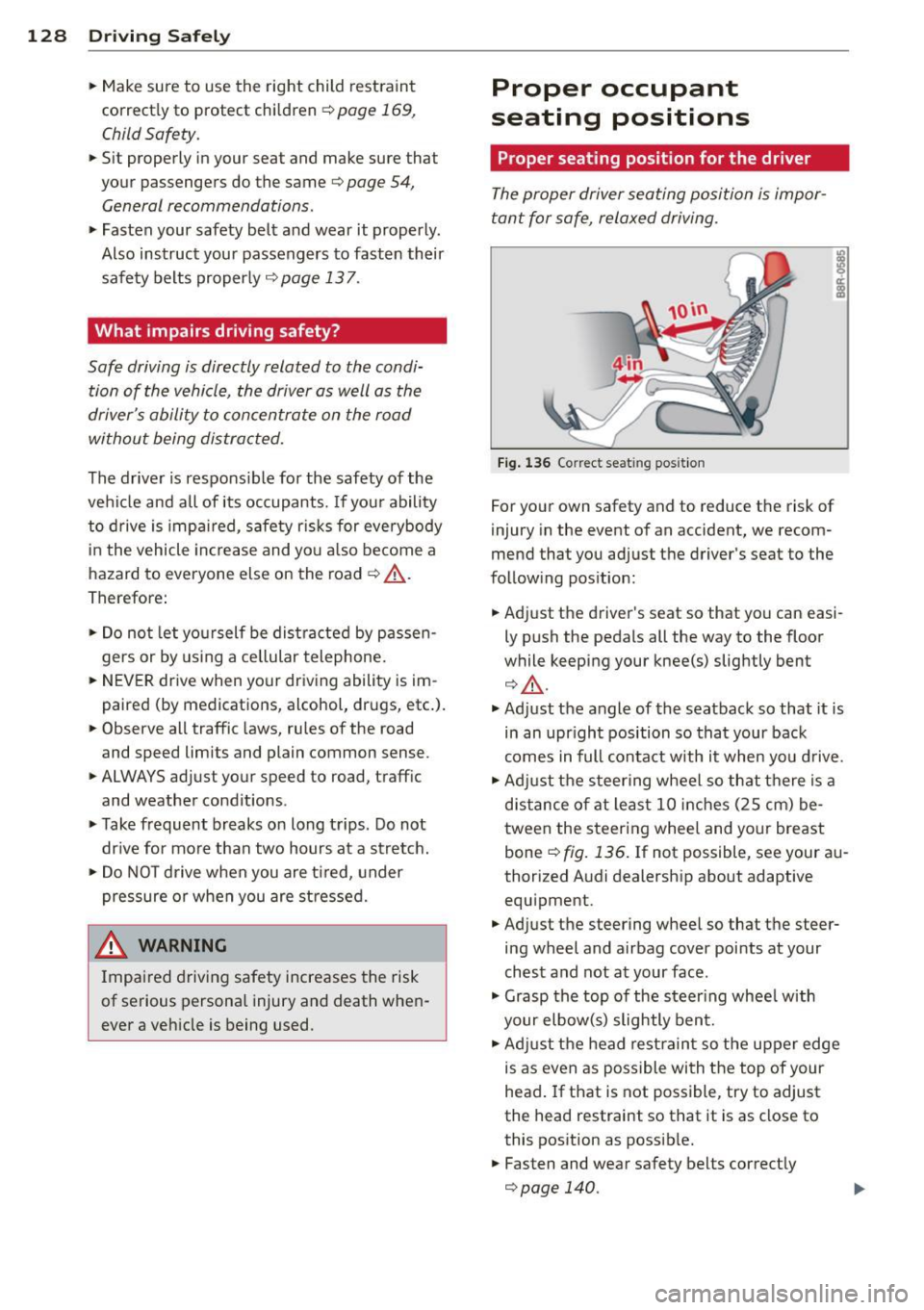
Fig. 1 36 Correct seat ing pos it ion
For your own safety and to reduce the risk of
injury in the event of an accident, we recom
mend that you adjust the driver's seat to the
follow ing pos ition:
• Adjust the driver's seat so that you can easi
ly push the pedals all the way to the floor
while keeping your knee(s) slightly bent
¢ A.
• Ad just the angle of the seatback so that it is
in an upr ight position so that your back
comes in full contact with it when you drive.
• Adj ust the steering wheel so that there is a
d istance of at least 10 inches (25 cm) be
tween the steering wheel and your breast
bone
i;::;, fig. 136. If not possible, see your au
thorized Audi dealership about adaptive equipment.
• Adjust the steering wheel so that the steer
ing wheel and airbag cover points at your
chest and not at your face .
• Grasp the top of the steer ing whee l with
your elbow(s) slightly bent.
• Adjust the head rest raint so the upper edge
is as even as possible with the top of your
head.
If that is not possible, try to adjust
the head restraint so that it is as close to
this position as possib le.
• Fasten and wear safety belts correctly
¢page 140.