wheel AUDI A8 2015 Owner's Guide
[x] Cancel search | Manufacturer: AUDI, Model Year: 2015, Model line: A8, Model: AUDI A8 2015Pages: 312, PDF Size: 79.18 MB
Page 122 of 312
120 Parking system s
Parking systems
General information
A ppl ies to vehicles: with parkin g system plus/rear view
camera/peripheral cameras
Depending on your vehicle's equ ipment, vari
ous parking a ids wi ll help yo u when pa rk ing
and maneuve ring.
The
parking sy stem plu s with rear view cam
era
ass ists you when park ing by aud ibly and
visua lly indicating objec ts detected
in front of
and behind the vehicle. The rear view came ra
shows the area behind the vehicle in the Info
tainment display . This display assists yo u
when you are cross or paralle l pa rking
co page 121.
The pe ripheral camera s assist yo u with pa rk
ing and maneuvering . You are aided by various
cameras depending on the vehicle equipment
leve l
co page 124. In add it ion, you are assist
ed by the functions from the sensors
co page 121, Sensors, co page 123, Visual
display.
A WARNING
- Always look fo r traff ic and check the area
around you r vehicle by looking at it di
rect ly as we ll. The parking sys tem canno t
rep lace t he drive r's a ttent ion. The dr iver
is a lways respons ible for safety during
parking and for all other maneuvers.
- Please note tha t some sur faces, such as
clothing, are not detected by the system .
- Sensors and cameras have blind spots in
wh ich peop le and objects cannot be de
tected . Be especially cautious of children
and animals.
- The sensors can be displaced by impacts or damage to the radiato r grille, bumpe r,
wheel housing and the underbody. The park ing systems may become impaired
as a result. Have your authorized Audi
dealer or qualified workshop check their
f unction.
- Make sure the sensors are not covered by
stickers, deposits or any othe r obstruc
t ions as it may impair the senso r func- tion. Fo
r informat ion on cleaning, refe r
to
co page 214.
@ Note
- Some objects are not detected by the
system under certain ci rcumstances:
- Objects such as barrie r chains, trailer
draw bars, vertical poles or fe nces
- Objects above the sensors such as wall
extensions
- Objects w ith specific surfaces or struc
tures such as chain link fences or pow
de r snow.
- If you conti nue driving closer to a low- ly
ing object, it may disappea r from the
sensor range. Note that you w ill no lon
ger be warned about this obstacle.
0) Tips
- The system may provide a warning even
tho ugh there are no obstacles in the cov
erage a rea in some situations, such as:
- certain road su rfaces or for long grass .
- ex terna l ult raso nic sources e.g. from
cleaning vehi cles.
- h eavy ra in, s now or thick ve hicle ex
ha ust.
- We recommend tha t yo u pr actice park
ing in a t raff ic-free locat ion or par king
lot to become familiar w it h the system.
Whe n doi ng this, the re should be good
light and weathe r cond itions.
- Yo u can change the vol ume and pitch of
the s ignals as we ll as the disp lay
co page 130.
-Please refer to the instr uctions for tow
ing a t railer
co page 130.
-W hat appea rs in the infotainment dis
play is somewhat time-delayed.
Page 124 of 312
122 Parking systems
If the distance to an obstacle remains con
stant, the volume of the distance warning
gradually drops after about four seconds (this
does not apply in the continuous tone range).
Rear view camera
The rear view camera is located above the rear
license plate bracket. Make sure that the lens
for the parking system
c:> fig. 132 is not cov
ered by deposits or any other obstructions be
cause this can affect the function of the park
ing system. For information on clean ing, refer
to
c:> page 214.
The rear view camera coverage area includes
(D ¢fig . 131. Only this area is shown in the
Infotainment display. Objects that are outside
of this area @are not displayed.
The accuracy of the orientation lines and the
blue surfaces is reduced if the adaptive air
suspens ion* is faulty, if the vehicle is lifted or
if the
dynamic mode is activated c;, page 108.
A WARNING
-Always read and follow the applicable
warnings
c:> &. in General information on
page 120.
- If the position and the installation angle
of the rear view camera was changed, for
example, after a collision, do not contin
ue to use the system for safety reasons.
Have it checked by your authorized Audi
dealership or authorized repair facility.
- Only use the rear view camera to assist
you if it shows a good, clear picture. For example, the image may be affected by
the sun shining into the lens, dirt on the
lens or if there is a system fault.
- Use the rear view camera only if the lug
gage compartment lid is completely
closed. Make sure any objects you may
have mounted on the luggage compart
ment lid do not block the rear view cam
era.
- The camera lens enlarges and distorts
the field of vision . The object appears
both altered and inaccurate on the
screen. -
In certain situations, people or objects in
the display appear closer or further
away:
- objects that do not touch the ground,
such as the bumper of a parked vehicle,
a trailer hitch or the rear of a truck. Do
not use the help lines in this case.
- If driven from a level surface onto an
incline , or a downward slope.
- If driven toward protruding objects.
-If the vehicle is carrying too much load
in the rear.
(D Note
-Always read and follow the applicable
warnings
c:> 0 in General information on
page 120.
- The orange colored orientation lines in
the Infotainment display show the vehi cle path depending on the steering
wheel angle. The front of the vehicle
front swings out more than the rear of
the vehicle. Maintain plenty of distance
so that your outside mirror or a corner of
your vehicle does not collide with any ob
stacles.
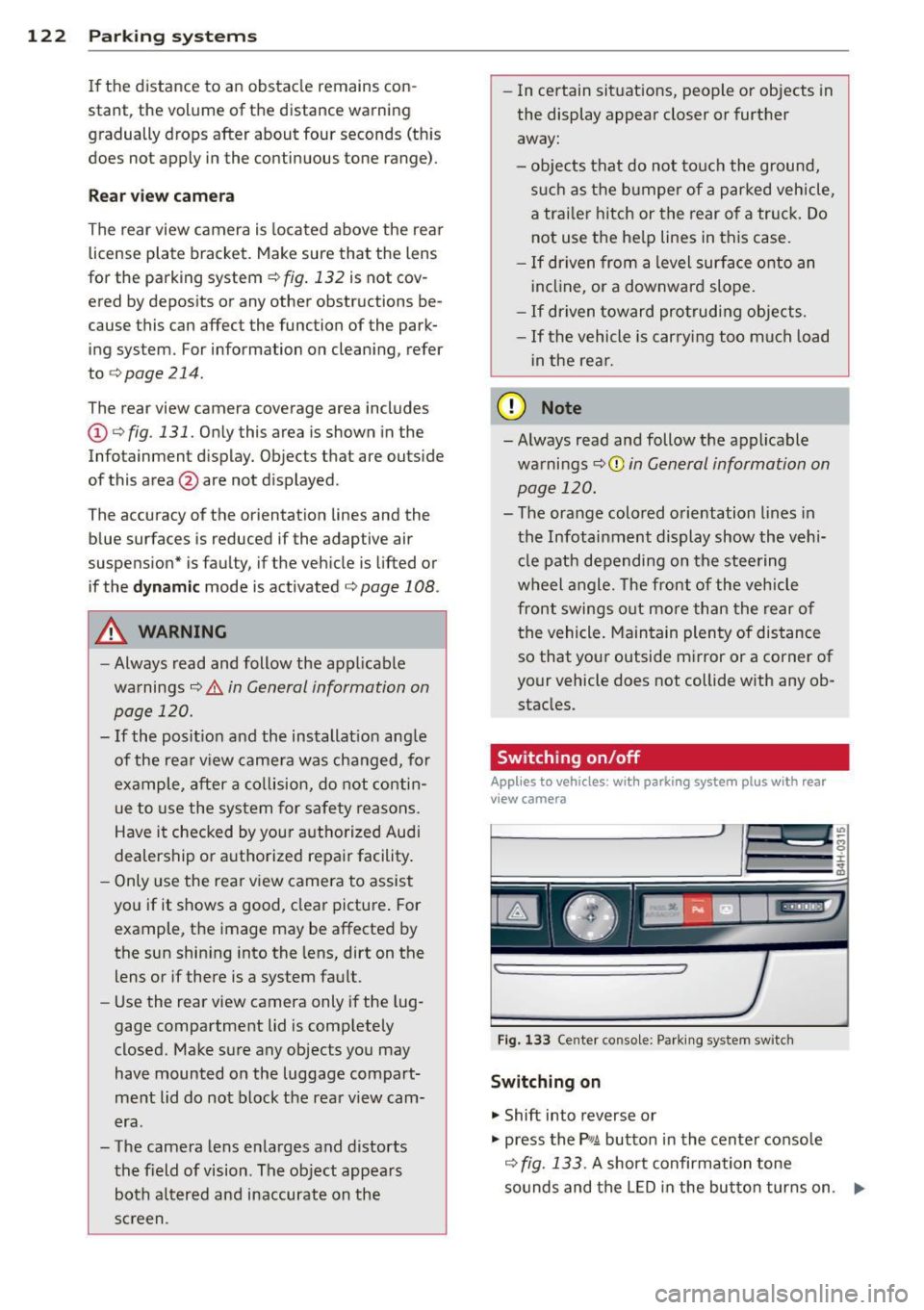
Switching on/off
Applies to vehicles : with parking system pl us with rear
v iew camera
Fig . 133 Center console: Parking system sw itch
Switching on
.,. Shift into reverse or
.,. press the
PwA button in the center console
c:> fig. 133 . A short confirmation tone
sounds and the LED in the button turns on. .,..
Page 125 of 312
Switching between the r ear view camer a
and optical di spl ay
• Press the Gra ph ic control button ®
¢ page 123, fig. 134 to see the optica l dis
play.
• Press the
Rear view control button to see the
rear view camera image .
Switching off
• Drive forward faster than 6 mph (10 km/h),
or
• Press the
Pwi button, or
• Switch the ign ition off .
Visual di splay
Using the segments, you can estimate the d is
tance to an object in front of or behind the ve
h icle. The red lines mark the expected direc
tion of travel accord ing to the steering angle .
A white segment indicates an identified ob
stacle that is outside of the vehicle's path .
Red segments show identif ied obstacles that
a re in your veh icle's path. As your vehicle
comes closer to the obs tacle, the segmen ts
move closer to the vehicle. A t the la test the
coll is ion area has been reached whe n the next
to last segment is displayed. Obstacles in the
col lision area, including those outside of the
ve hicle's path, are shown in red. Do not con
tinue driving farther forward or in reverse
¢ .& in General information on page 120,
¢0 in General information on page 120 .
(!) Tips
The visua l disp lay in t he left part of the
disp lay should help you detect the critical
veh icle areas .
Parking sys tems 123
Cross parking
App lies to vehicles: wit h parking system plus w ith rear
v iew camera
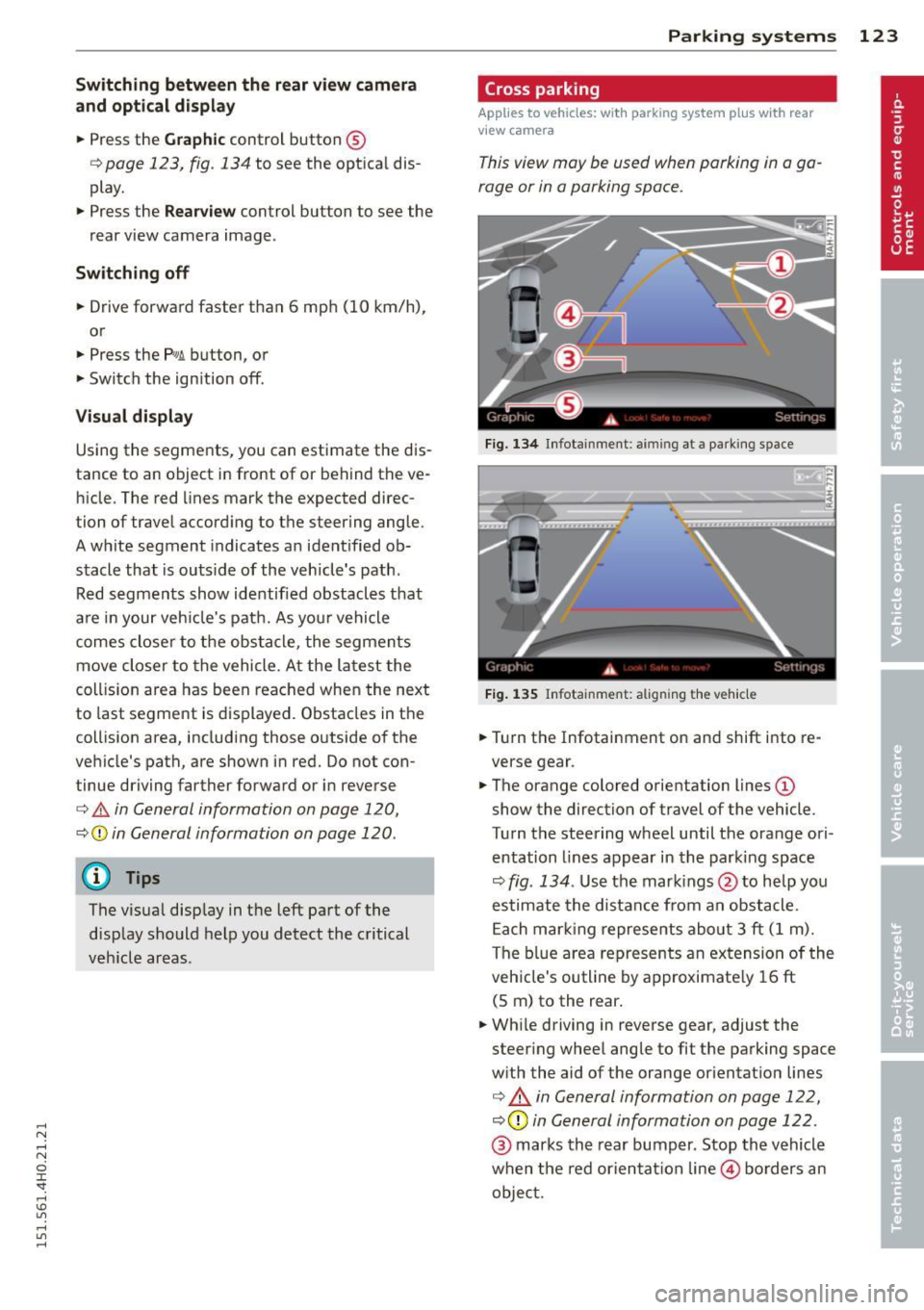
This view may be used when parking in a ga
rage or in a parking space .
Fig. 134 In fo tainment : aimin g at a pa rk ing space
Fi g. 1 35 Infota inment : aligning t he ve hicle
• Turn the Infotainment on and shift i nto re
verse gear .
• The orange colored orientation lines@
show the direction of travel of the vehicle .
Turn the steering wheel until the orange ori
entation lines appear in the parki ng space
¢ fig . 134 . Use the mar kings @to help yo u
estimate the distance from an obstacle. Each mar king represents about 3 ft (1 m).
The b lue area represents an extension of the
veh icle's outline by approximate ly 16 ft
(5 m) to the rear .
• Wh ile driving in reverse gear, adjust the
steer ing whee l angle to fit the parking space
w ith the aid of the orange or ientation lines
¢ & in General information on page 122,
¢ (Din General information on page 122 .
@ marks the rear bumper. Stop the vehicle
when the red orientat ion line © borders an
objec t.
Page 126 of 312
124 Parking systems
Parallel parking
Applies to vehicles: with park ing system p lus with rear
view camera
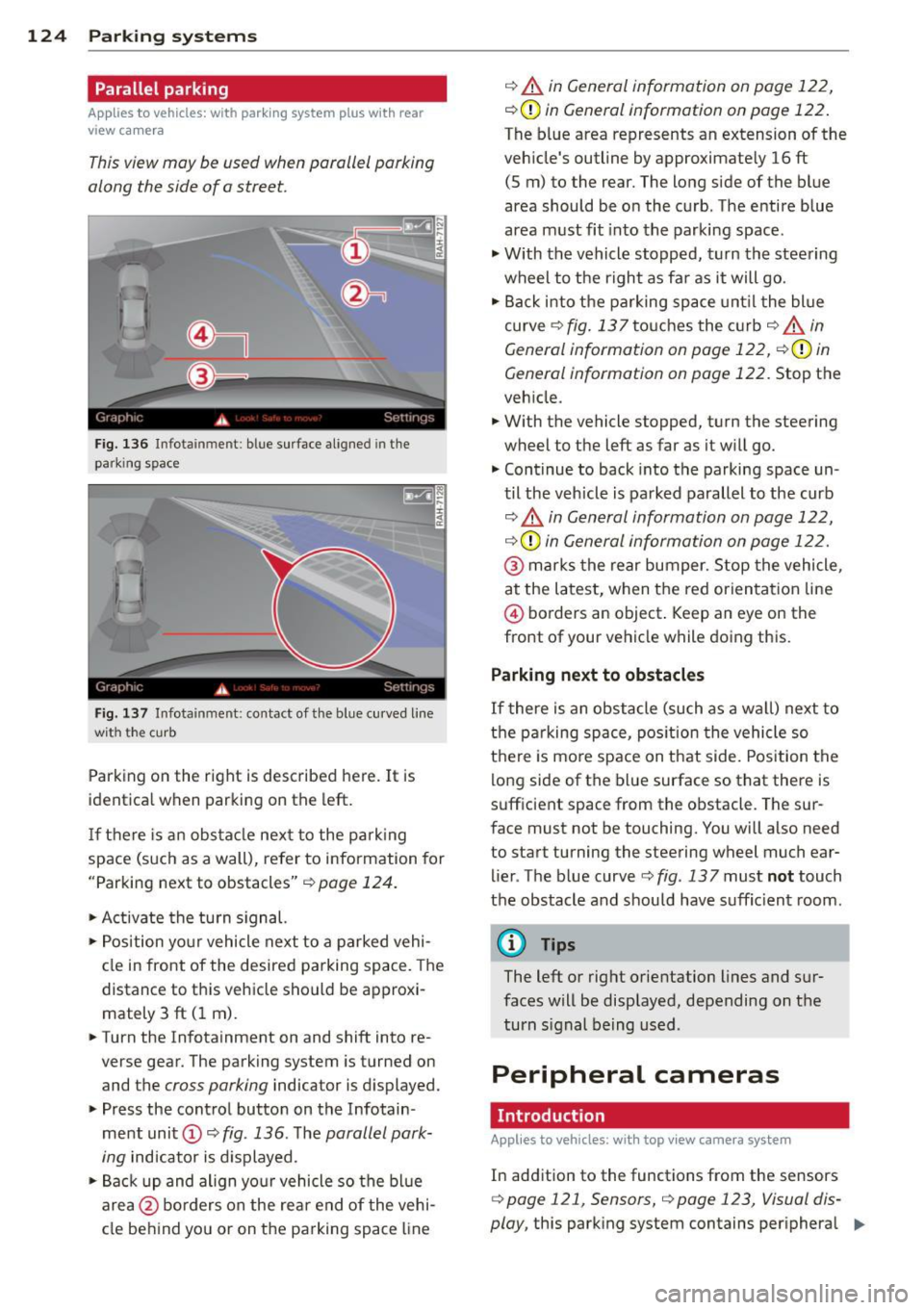
This view may be used when parallel parking
along the side of a street.
F ig. 136 Infot ainmen t: blue surface aligned in the
park ing space
Fig. 137 Infotainment : contact of t he blue curved line
wit h the curb
Parking on the right is described here. It is
identica l when parking on the left.
If there is an obstacle next to the parkin g
space (such as a wall), refer to information for
"Parking next to obstacles"
C) page 124.
"Activate the turn signal.
"Posit ion your vehicle next to a parked vehi
cle in front of the desired parking space. The
distance to this vehicle should be approxi
mately 3 ft (1 m).
" Turn the Infotainment on and shift into re
verse gear. The parking system is turned on
and the
cross parking indicator is displayed.
" Press the control button on the Infotain
ment unit
(D <=> fig . 136 . The parallel park
ing
indicator is displayed.
"Back up and align yo ur vehicle so the blue
area @ borders on the rear end of the vehi
cle behind you or on the parking space line
¢ A in General information on page 122,
i:::>(D in General information on page 122.
The blue area represents an extension of the
veh icle's outline by approximate ly 16 ft
(5 m) to the rear. The long side of the blue
area should be on the curb. The entire blue
area must fit into the parking space.
"Wi th the vehicle stopped, turn the steering
wheel to the right as fa r as it will go.
" Back i nto the parking space until the blue
curve
¢ fig. 137touches the curb¢ A in
General information on page 122,
C)(D in
General information on page 122.
Stop the
veh icle .
" With the vehicle stopped, turn the steering
wheel to the left as far as it will go.
" Continue to back into the parking space un
til the vehicle is parked parallel to the curb
i:::> A in General information on page 122,
i:::>(D in General information on page 122.
@ marks the rear bumper. Stop the vehicle,
at the latest, when the red orientat ion line
@ borders an object . Keep an eye on the
front of your vehicle while doing this.
Parking next to obstacles
If there is an obstacle (such as a wa ll) next to
the parking space, position the vehicle so
there is mo re space on that side. Position the
long side of the blue surface so that there is
sufficient space from the obstacle. The sur
face must not be touching. You will also need
to start turning the steering wheel much ear
lier . The b lue curve
¢ fig. 13 7 must not touch
the obstacle and should have suffic ient room.
@ Tips
The left or right orientation lines and sur
faces will be displayed, depending on the
turn s ignal being used.
Peripheral cameras
. Introduction
Appl ies to vehicles: with top view came ra system
In addition to the functions from the sensors
<=> page 121, Sensors, C) page 123, Visual dis
play,
this parking system contains per iphera l 11>-
Page 127 of 312
.... N .... N
0 J:
"". .... I.O
"' ....
"' ....
cameras. Depending on the vehicle equip
ment, you are assisted by vario us views such
as peripheral view, corner views at the front
and rear of the vehicle, and views directly in
front of or behind the vehicle.
General information
App lies to vehicles: with top view camera system
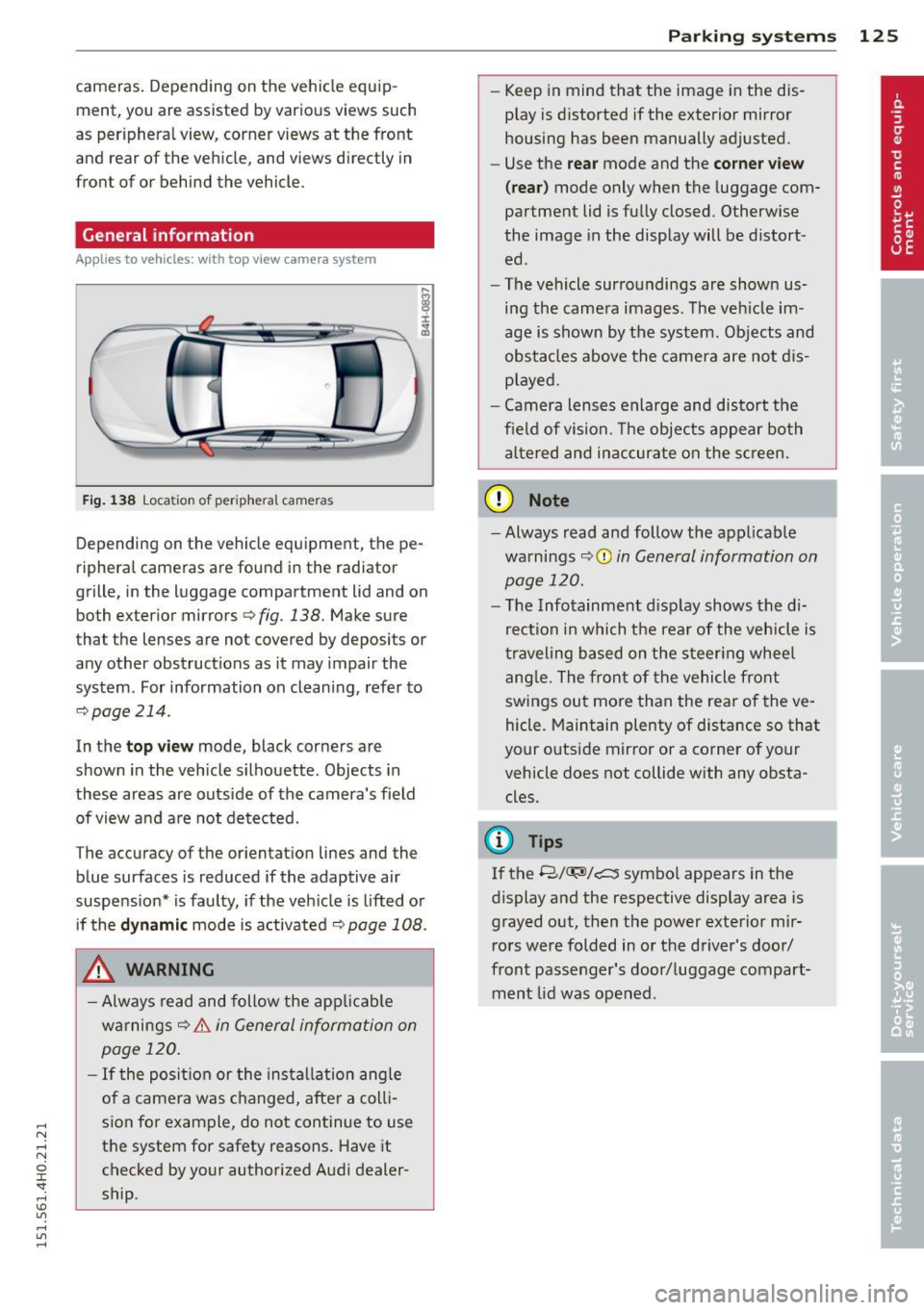
Fig. 138 Location of peripheral cameras
Depending on the vehicle equipment, the pe
ripheral cameras are found in the radiator
grille, in the luggage compartment lid and on
both exterior mirrors
c> fig. 138. Make sure
that the lenses are not covered by deposits or
any other obstructions as it may impair the
system. For information on cleaning, refer to
9page214.
In the top view mode, black corners are
shown in the vehicle silhouette . Objects in
these areas are outside of the camera's field of view and are not detected.
The accuracy of the orientation lines and the
b lue surfaces is reduced if the adaptive air
suspension* is faulty, if the vehicle is lifted or
if the
dynamic mode is activated 9 page 108 .
_& WARNING
-Always read and follow the applicable
warnings
9 .&. in General information on
page 120.
- If the position or the installation angle
of a camera was changed, after a colli
sion for example, do not continue to use
the system for safety reasons. Have it checked by your authorized Audi dealer
ship .
-
Parking systems 125
- Keep in mind that the image in the dis
play is distorted if the exterior mirror
housing has been manually adjusted.
- Use the
rear mode and the corner view
(rear)
mode only when the luggage com
partment lid is fully closed. Otherwise
the image in the display will be distort
ed.
- The vehicle surroundings are shown us
ing the camera images. The vehicle im
age is shown by the system. Objects and
obstacles above the camera are not dis
played.
- Camera lenses enlarge and distort the
field of vision. The objects appear both
altered and inaccurate on the screen.
(D Note
-Always read and follow the applicable
warnings
~CD in General information on
page 120.
- The Infotainment display shows the di
rection in which the rear of the vehicle is
traveling based on the steering wheel
angle. The front of the vehicle front
swings out more than the rear of the ve
hicle. Maintain plenty of distance so that
your outside mirror or a corner of your
vehicle does not collide with any obsta
cles.
@ Tips
If the 8/IT;1J/c:5 symbol appears in the
display and the respective display area is
grayed out, then the power exterior mir rors were folded in or the driver's door/
front passenger's door/luggage compart
ment lid was opened .
Page 130 of 312
128 Parking systems
Cross parking
App lies to vehicles: with top vi ew camera system
This view may be used when parking in a ga
rage or in a parking space.
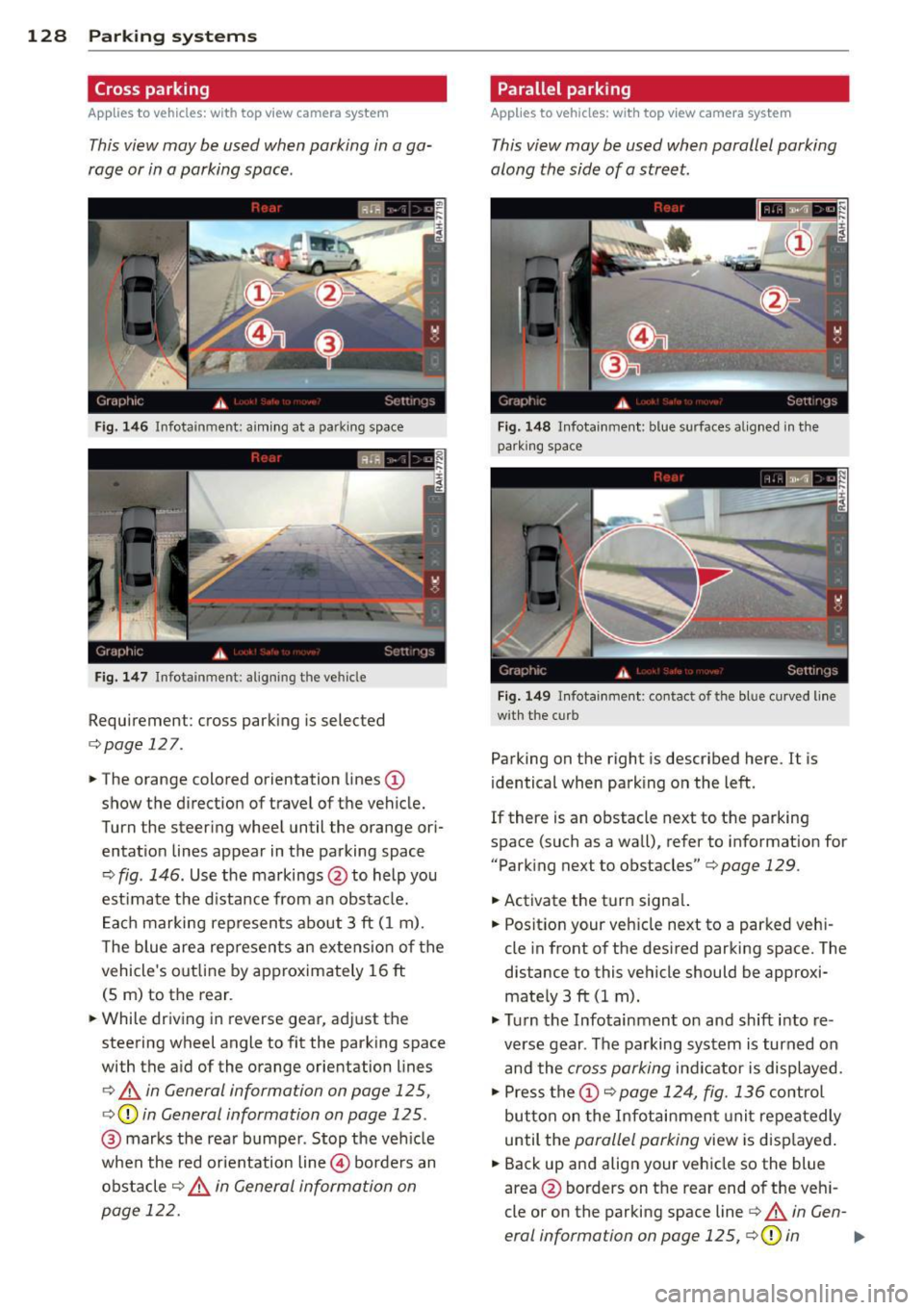
F ig . 1 46 Infotainment: aim ing at a parking space
Fig. 147 Infotainment: aligning the vehicle
Requirement: cross parking is selected
c::;,page 127.
.. The orange colored orientation lines
CD
show the direction of travel of t he vehicle.
Turn the steering wheel until the orange or i
entat ion lines appear in the parking space
c::;, fig . 146. Use the markings @to help you
est imate the d istance from a n obstacle.
E ac h marking represents about 3 ft (1 m).
T he blue area rep resents an exte nsio n of the
vehicle's out line by approx imately 16 ft
(5 m) to the rear.
.. While driving in reverse gear, adjust the
steering wheel angle to fit the parking space
with the a id of the orange orientation lines
c::;, A in General information on page 125,
c::;, (D in General information on page 125.
@ marks the rea r bumper . Stop the ve hicle
when the red or ientation line@ borders an
obstacle
c::;, ,& in General information on
page 122.
Parallel parking
Applies to vehicles: with top view camera system
This view may be used when parallel parking
along the side of a street.
Fig. 148 Infotainme nt: blue surfaces alig ned in the
park ing space
Fi g. 14 9 Infotainment: co ntact of the blue curved li ne
w it h the curb
Parking on the right is described here. It is
identical when park ing on the left.
If there is an obstacle next to the parking
space (such as a wa ll), refer to informat ion for
"Park ing next to obstacles" c::;, page 129.
.. Activate the turn signa l.
.. Posit ion your veh icle next to a parked veh i
cle in front of the des ired parking space. The
distance to this vehicle should be approxi
mate ly 3 ft (1 m) .
"' Tu rn the Infotainment on and shift into re
verse gear . The parking system is turned on
and the cross parking indicator is displayed.
"' Press the
CD c::;, page 124, fig. 136 control
but ton on the Infotai nment uni t repeatedly
until the parallel parking view is displayed .
.. Back up and align your vehicle so the blue
area @ borders on the rear end o f the veh i
cle or on the parking space line
c::;, A in Gen-
eral information on page 125,
c::;, (D in .,._
Page 131 of 312

General information on page 125. The blue
area represents an extension of the vehicle's
outline by approx imately 16 ft (5 m) to the
rear. The long side of the blue area should
be on the curb. The entire blue area must fit
into the parking space .
• With the veh icle stopped, turn the steer ing
whee l to the right as far as it w ill go .
• Back into the park ing space unti l the b lue
c u rve¢
page 124, fig. 137 touches the curb
¢ &. in General information on page 125,
¢ (Din General information on page 125 .
Stop the vehicle.
• With the vehicle stopped, turn the steer ing
wheel to the left as far as it will go .
• Contin ue to back into the park ing space un
ti l the vehicle is parked paralle l to the curb
¢ ,& in General information on page 125,
¢(j) in General information on page 125.
@ marks the rear bumper . Stop the veh icle,
at the latest, when the red or ientation line
© borders an object. Keep an eye on the
front of your vehicle wh ile doing this .
Parking n ext to obstacles
When the re is an obstacle (such as a wall)
next to the pa rking space, choose a space w ith
mo re space on the sides. Position the long
side of the blue a rea so that there is sufficient
space from the obstacle. The area must not be
on the obstacle. You will also need to start
turning the steer ing whee l much earlier .
There should be a sufficient amount of space
between the obstacle and the b lue curve, and
the blue curve¢
page 124, fig . 137 must not
touch the obs tacle .
@ Tips
The left or right orientation lines and sur
faces will be displayed, depend ing on the
t ur n sig na l bei ng used.
P arking sys tems 129
Trailer view
App lies to vehicles: wit h top v iew camera system and
t railer hitch
This view assists you in positioning the vehicle
in front of a trailer.
F ig. 150 Infota inment: rear mode
Requ irement: the trailer mode is selected
¢ page 127.
• Now yo u can position your veh icle in front of
the trailer ¢,&
in General information on
page 125,
¢ (j) in General information on
page 125.
The orange colored orientation
line denotes the expected path towa rd the
trailer hitch . Use the blue lines to help you
es timate the distan ce to the trailer hitch .
Setting the mode
Applies to vehicles: wi th top v iew came ra sys te m
• Select: !CAR ! func tion b utton> C ar syst em s
cont ro l button > Driver a ssis t > Parking aid
> Change to front /rear > Auto or Manual.
Auto -
This view beh ind the vehicle ( Rear
mode) is displayed au tomatica lly when you
shift into reverse. T his view in front of the ve
hicle
( Front mode) is displayed automatica lly
when you shift into the forward gears.
Manual -This view behind the vehicle (Rear
mode) is always displayed when you turn on
the system .
Page 136 of 312
134 Driving Safel y
• Make sure to use the right child restraint
correct ly to protect children
r::!;> page 174,
Child Safety.
• Sit properly in your seat and make sure that
your passengers do the same <=:>page 58,
General recommendations.
• Fasten your safety belt and wear it properly .
Also instruct your passengers to fasten their
safety belts proper ly
r:::> page 143 .
What impairs driving safety?
Safe driving is directly related to the condi
tion of the vehicle, the driver as well as the
driver 's ability to concentrate on the road
without being distracted.
The driver is respons ible for the safety of the
vehicle and all of its occupants.
If you r ability
to drive is impa ired, safety r isks for everybody
i n the vehicle increase and yo u also become a
hazard to everyone else on the road
r:::> .&_ .
Therefore:
• Do no t let yourself be distracted by passen
gers or by using a cellular telephone.
• NEV ER drive when your driving ability is im
paired (by medications, alcohol, drugs, etc.).
• Observe all traffic laws, rules of the road
and speed limits and plain common sense .
• ALWAYS adjust your speed to road, traffic
and weather condit ions .
• Take frequent breaks on long trips . Do not
dr ive for more than two hours at a stretch.
• Do NOT drive when you are t ired, under
pressure or when you are stressed.
_8. WARNING
Impaired driving safety increases the risk
of serious personal injury and death when
ever a vehicle is being used.
Proper occupant
seating positions
Proper seating position for the driver
The proper driver seating position is impor
tant for safe, relaxed driving.
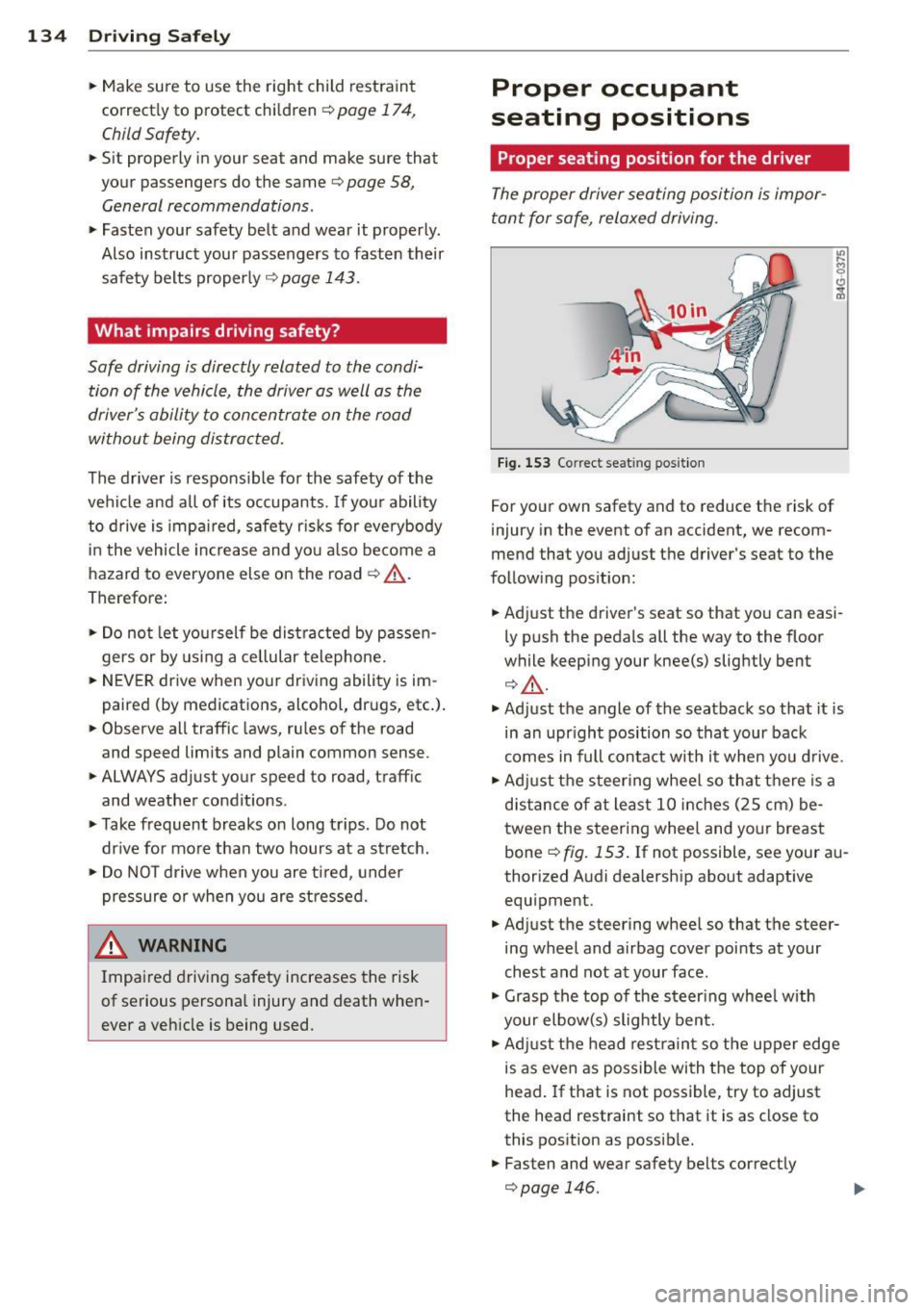
Fig. 153 Co rrect seat ing posit ion
For your own safety and to reduce the risk of
injury in the event of an accident, we recom
mend that you adjust the driver's seat to the
following position:
• Adjust the driver's seat so that you can easi
ly push the pedals all the way to the floor
while keeping your knee(s) slightly bent
QA .
• Adjust the angle of the seatback so that it is
in an upr ight position so that your back
comes in full contact with it when you drive.
• Adj ust the steering wheel so that there is a
distance of at least 10 inches (25 cm) be
tween the steering wheel and your breast
bone r::!;> fig. 153. If not possible, see your au
thorized Audi dealership about adaptive equipment.
• Adjust the steering wheel so that the steer
ing wheel and airbag cover points at your
chest and not at your face .
• Grasp the top of the steer ing wheel with
your elbow(s) slightly bent.
• Adjust the head restraint so the upper edge
is as even as possible with the top of your
head.
If that is not possible, try to adjust
the head restraint so that it is as close to
this position as possib le.
• Fasten and wear safety belts correctly
r::!;>page 146.
Page 137 of 312
.... N .... N
0 J:
'SI: .... \!) 1.1'1
.... 1.1'1 ,....,
~ Always keep both feet in the footwell so
that you are in control of the vehicle at all
times.
For detailed information on how to adjust the
driver's seat, see
c';> page 59.
A WARNING
Drivers who are unbelted, out of position
or too close to the airbag can be seriously
injured by an airbag as it unfolds. To help
reduce the risk of serious personal injury:
- Always adjust the driver's seat and the
steering wheel so that there are at least
10 inches (25 cm) between your breast
bone and the steering wheel.
- Always adjust the driver's seat and the
steering wheel so that there are at least
4 inches (10 cm) between the knees and
the lower part of the instrument panel.
- Always hold the steering wheel on the
outside of the steering wheel rim with
your hands at the 9 o'clock and 3 o'clock positions to help reduce the risk of per
sonal injury if the driver's airbag inflates.
- Never hold the steering wheel at the
12 o'clock position or with your hands at
other positions inside the steering wheel
rim or on the steering wheel hub. Hold
ing the steering wheel the wrong way
can cause serious injuries to the hands,
arms and head if the driver's airbag in
flates.
- Pointing the steering wheel toward your
face decreases the ability of the supple
mental driver's airbag to protect you in a
collision .
- Always sit in an upright position and nev
er lean against or place any part of your
body too close to the area where the air
bags are located.
- Before driving, always adjust the front
seats and head restraints properly and make sure that all passengers are prop
erly restrained .
- Never adjust the seats while the vehicle
is moving. Your seat may move unexpect-
Driving Safely 135
ed ly and you could lose control of the ve
hicle.
- Never drive with the backrest reclined or
tilted far back! The farther the backrests
are tilted back, the greater the risk of in
jury due to incorrect positioning of the safety belt and improper seating posi
tion .
- Children must always ride in child seats
c';> page 174 . Special precautions apply
when installing a child seat on the front passenger seat¢
page 151.
Proper seating position for the front
passenger
The proper front passenger seating position
is important for safe, relaxed driving.
For your own safety and to reduce the risk of
injury in the event of an accident, we recom
mend that you adjust the seat for the front
passenger to the following position :
~ Adjust the angle of the seatback so that it is
in an upright position and your back comes
in full contact with it whenever the vehicle is
moving.
~ Adjust the head restraint so the upper edge
is as even as possible with the top of your
head. If that is not possible, try to adjust
the head restraint so that it is as close to
this position as possible
¢page 137.
~ Keep both feet flat on the floor in front of
the front passenger seat .
~ Fasten and wear safety belts correctly
¢page 146.
For detailed information on how to adjust the
front passenger's seat, see ¢
page 58.
A WARNING
Front seat passengers who are unbelted,
out of position or too close to the airbag
can be seriously injured or killed by the air
bag as it unfolds. To help reduce the risk of
serious personal injury:
1111>
•
•
Page 147 of 312
occupant will slam violently into the steering
wheel, instrument panel, windshield, or what
ever else is in the way
c::> fig. 158. This impact
with the vehicle interior has all the energy
they had just before the crash.
Never rely on airbags alone for protection.
Even when they deploy, airbags provide only
additional protection. Airbags are not sup
posed to deploy in all kinds of accidents. Al
though your Audi is equipped with airbags, all
vehicle occupants, including the driver, must
wear safety belts correctly in order to mini
mize the risk of severe injury or death in a
crash.
Remember too, that airbags will deploy only
once and that your safety belts are always
there to offer protection in those accidents in
which airbags are not supposed to deploy or
when they have already deployed. Unbelted
occupants can also be thrown out of the vehi
cle where even more severe or fatal injuries
can occur.
It is also important for the rear passengers to
wear safety belts correctly. Unbelted passen
gers in the rear seats endanger not only them
selves but also the driver and other passen
gers
c::> fig. 159. In a frontal collision they will
be thrown forward violently, where they can
hit and injure the driver and/or front seat pas
senger.
Safety belts protect
People think it's possible to use the hands to
brace the body in a minor collision. It's simply
not true!
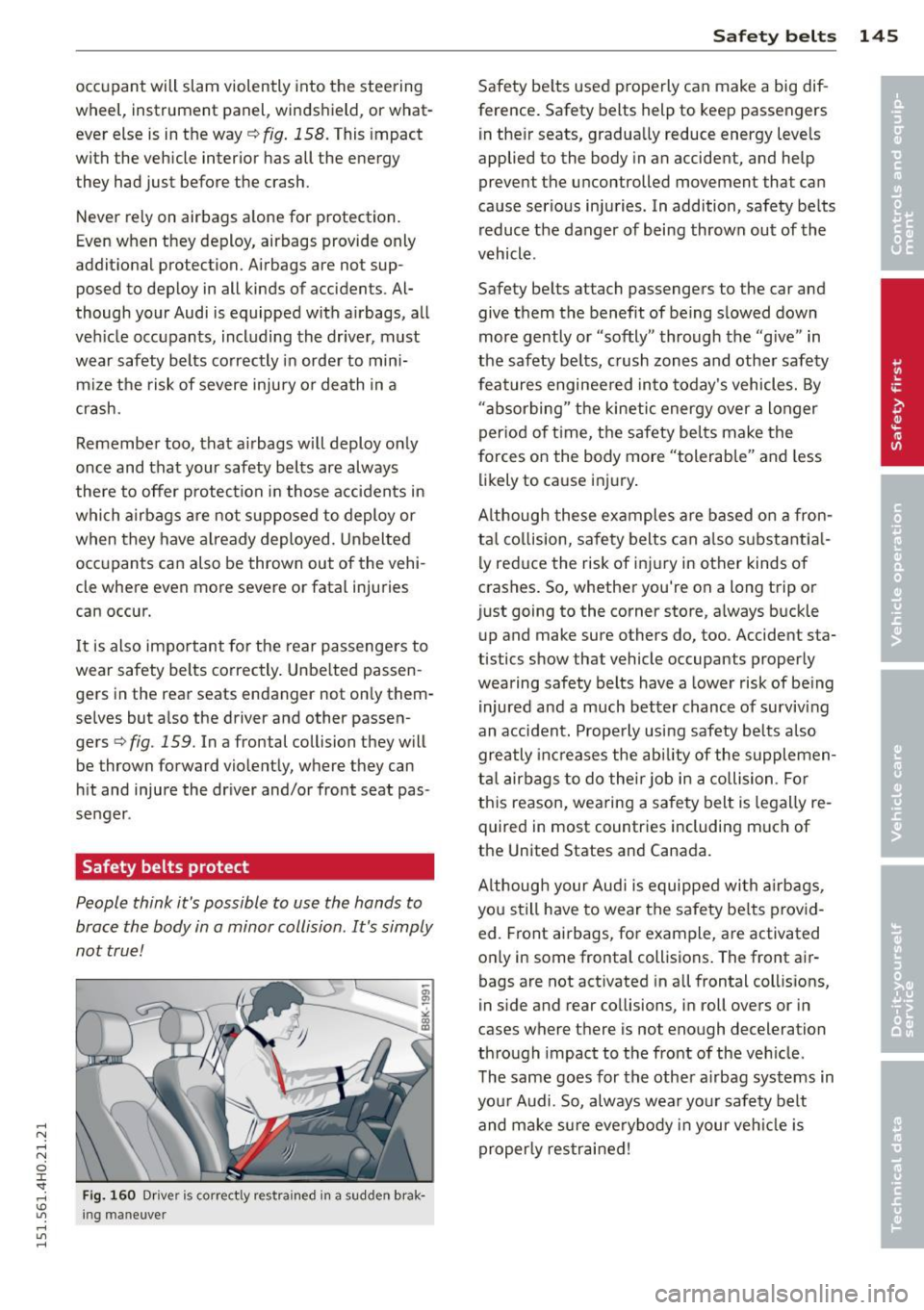
Fig. 160 Driver is correctly restra ined in a sudden brak
ing maneuver
Safety belts 145
Safety belts used properly can make a big dif
ference. Safety belts help to keep passengers
in their seats, gradually reduce energy levels
applied to the body in an accident, and help
prevent the uncontrolled movement that can
cause serious injuries. In addition, safety belts
reduce the danger of being thrown out of the
vehicle.
Safety belts attach passengers to the car and
give them the benefit of being slowed down
more gently or "softly" through the "give" in
the safety belts, crush zones and other safety
features engineered into today's vehicles. By
"absorbing" the kinetic energy over a longer
period of time, the safety belts make the
forces on the body more "tolerable" and less
likely to cause injury.
Although these examples are based on a fron
tal collision, safety belts can also su bsta ntia l
ly reduce the risk of injury in other kinds of
crashes. So, whether you're on a long trip or
just going to the corner store, always buckle
up and make sure others do, too. Accident sta
tistics show that vehicle occupants properly
wearing safety belts have a lower risk of being
injured and a much better chance of surviving
an accident. Properly using safety belts also
greatly increases the ability of the supplemen
tal airbags to do their job in a collision . For
this reason, wearing a safety belt is legally re
quired in most countries including much of
the United States and Canada.
Although your Audi is equipped with airbags,
you still have to wear the safety belts provid
ed. Front airbags, for example, are activated
only in some frontal collisions. The front air
bags are not activated in all frontal collisions,
in side and rear collisions, in roll overs or in
cases where there is not enough deceleration
through impact to the front of the vehicle.
The same goes for the other airbag systems in
your Audi. So, always wear your safety belt
and make sure everybody in your vehicle is
properly restrained!