rear entertainment AUDI A8 2017 Owners Manual
[x] Cancel search | Manufacturer: AUDI, Model Year: 2017, Model line: A8, Model: AUDI A8 2017Pages: 354, PDF Size: 88.68 MB
Page 126 of 354

Parking systems
Adjusting the display
and the warning tones
Applies to: vehicl es with parking system plus/rearview cam
era/per ipheral came ra
The display and warning tones can be adjusted in
the Infotainment.
~ Select: the ICARI function button > Car systems
control button > Driver assist > Parking aid.
Display
On* -
An optical display is shown for the parking
system plus, a rearview camera image is shown
for the rearview camera*.
Off -When the parking system is switched off,
only audib le signals are given.
Signal tones
Front volume -
volume for the front area
Rear volume -volume for the rear area
Front frequency -frequency for the front area
Rear frequency -frequency for the rear area
Entertainment volume -when the parking sys
tem is turned on, the volume of the audio/video
source is lowered.
The new ly selected level is demonstrated briefly
by the sound generator.
{!) Tips
- The warning tones can also be adjusted di
rectly by the v isual disp lay or the picture
from the camera. Simply press the
Settings
contro l button .
- Changed settings are act ivated when the
parking system is switched on aga in.
- The settings for volume and frequency are automat ically saved and assigned to the re
mote control key being used.
Error messages
Applies to: ve hicles w ith parking system plus/rearview cam
era/peripheral came ra
There is an error in the system if the LED in the
P,YA button is blinking and you hear a continuous
alarm for a few seconds after switching on the
124
parking system or when the pa rking system is al
ready activated . If the error is not corrected be
fore you switch off the ignition, the LED in the
P wA
button will blink the next time you switch on the
parking system by shifting into reverse.
Parking system plus*
If a sensor is faulty, the~ symbol will appear in
front of/behind the vehicle in the Infotainment display. If a rear sensor is faulty, on ly obstacles
that are in areas @and @ are displayed
c>page 115, fig . 130. If a front sensor is faulty,
only obstacles that are in areas © and @are dis
played. There is a lso a system malfunction if all
segments around the vehicle are red or if no seg
ments are disp layed.
Peripheral cameras*
There is a system malfunc tion if the ~· symbol
appears and the corresponding display area is
shown in blue. The camera is not working in this
a rea.
Drive to an authorized Audi dealer or authorized
Audi Service Facility immediately to have the
malfunction corrected .
Trailer hitch
Applies to: vehicles with parking system plus/rearv iew cam
era/peripheral cameras and t ra iler hitc h
For vehicles using the trailer socket, the parking
system rear sensors are not activated when you
shift into reverse gear or when you press the P
1
1.A
button . This results in the following restrictions .
Parking system plus*
There is no distance warning for the rear. The
front sensors remain activated. The visual display
switches to trailer mode.
Rearview camera* /Peripheral cameras*
There is no distance warning for the rear. The
front senso rs remain activated . The visua l display
switches to trailer mode . The rearview camera
image will not show the orientation lines and the
blue surfaces .
Ill-
Page 195 of 354
C) C0 ....
"' " "' .... 0 0 :r
RSE components
overview
A ppl ies to: ve hicl es w ith Re ar Seat E nte rtainment
The Rear Seat Entertainment, abbreviated RSE ,
combines different entertainment systems . The
RSE control panel is located in the rear center
console .
Fig . 202 RSE compo nen ts
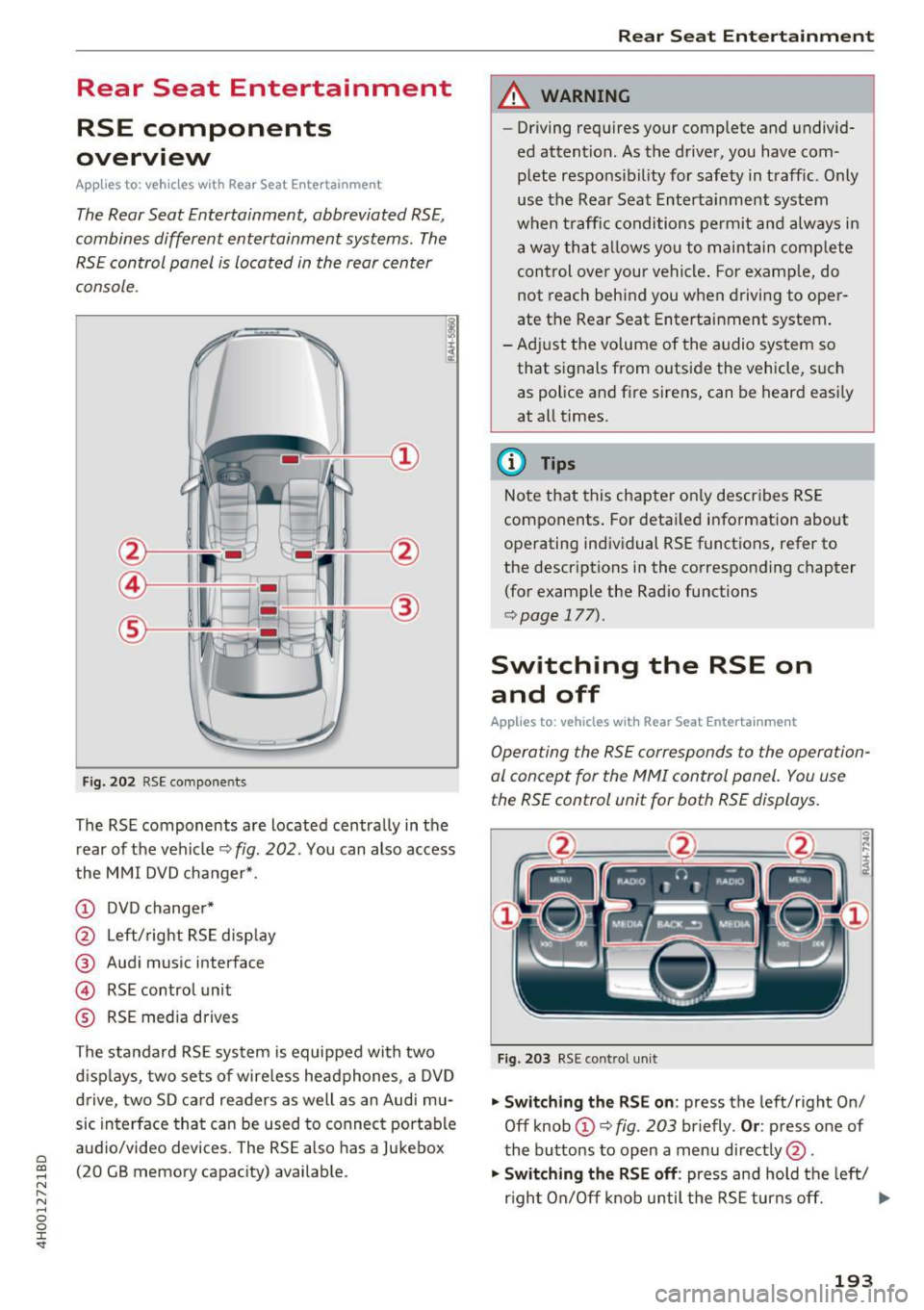
The RSE components are located centra lly in the
rear of t he vehicle
9 fig. 202 . You can also access
the MMI DVD changer* .
CD DVD changer*
@ Left/right RS E disp lay
® Audi music interface
© RSE control unit
® RSE media drives
The standard RSE sys tem is equipped with two
d isp lays, two sets of wire less headphones, a DVD
drive, two SD card readers as well as an Audi mu
sic interface that can be used to connect portable
audio/video devices . The RSE also has a Jukebox
(20 GB memory capacity) available.
Rear Seat Entertainment
A WARNING
-- Driving requires your complete and undivid-
ed attention. As the drive r, you have com
plete responsib ility for safety in traff ic. Only
use the Rear Seat Entertainment system
when t raff ic conditions permit and always in
a way tha t allows you to maintain comp lete
control over your vehicle . For examp le, do
not reach behind you when driving to oper
ate the Rear Seat Entertainment system .
-Adj ust the volume of the audio system so
that signals from outside the vehicle, suc h
as police and fire sirens, can be heard easi ly
at all times.
(D Tips
Note that this chapte r on ly describes RSE
components . For deta iled information about
operating indiv idual RSE funct ions, refer to
the descriptions in the corresponding chapter
(for example the Radio functions
¢ page 177).
Switching the RSE on
and off
Applies to : vehicles wit h Rear Seat Enterta inment
Operating the RS E corresponds to the operation
al conc ept for the MMI control pan el. You us e
the RSE control unit for both RSE displays.
F ig . 203 RS E cont ro l un it
.,. Swit ching the RS E on : press the left/right On/
Off knob
CD ¢ fig . 203 briefly . Or: press one of
the buttons to open a menu direct ly @ .
"" Swit ching the R SE off : press and hold the left/
r igh t On/Off knob until the RSE turns off.
IJ,,
193
Page 196 of 354

Rear Seat Ente rtainm ent
The last selected menu is disp layed when it is
switched on.
When the ig nition is swit ched off, a message in
d icating that the RSE is in standby mode appears
in the left or right RSE display. The RSE switches
off automatically if you do not press the left or right On/Off knob while the system is in standby
mode.
(D Tips
- The RSE switches off automatica lly if the
engine is not running and the vehicle bat
tery is low.
Symbols
Applies to: vehicles with Rear Seat Entertainment
F ig. 204 RS E display symbo ls
Symbol /Description E xplanation
- If you cannot sw itch the RS E on again, check
the parenta l control settings in the M MI
r=:> page 196.
Adjusting the volume
Applies to: vehicles with Rear Seat Entertainment
.,. Increasing o r decre asing the volume: turn the
On/Off knob to the right or left .
.,. Muting : press the On/Off knob brief ly.
.,. Unmuting: press the On/Off knob briefly or
turn the On/Off knob to the right .
(D Tips
Volume that is too high or too low is auto
matically adjusted to a preset level when the
RSE is sw itched on.
© [t] Active med ia source
@ Headphones Aud
io outp ut throug h headphones that a re wireless or connected
by a cable
® Speaker Aud io output throug h the vehicle's aud io system
@ Importing process
Import ing a udio/v ideo fi les to the Jukebox r=:> page 182
® Time Set time
® Parental control Parental control is switched on r=:>page 196
(J) L/R Display for RSE when RSE cont rol panel is act ive
(D Tips
A headphone or speaker symbol that is
crossed out @ /@ r=;,
fig. 204 indicates that
the active aud io/video sou rce is m uted.
194
Page 197 of 354
C) C0 ....
"' " "' .... 0 0 :r
Applies to: veh icles with Rear Seat Entertainment
Fig. 205 Adju sting the aud io o utp ut
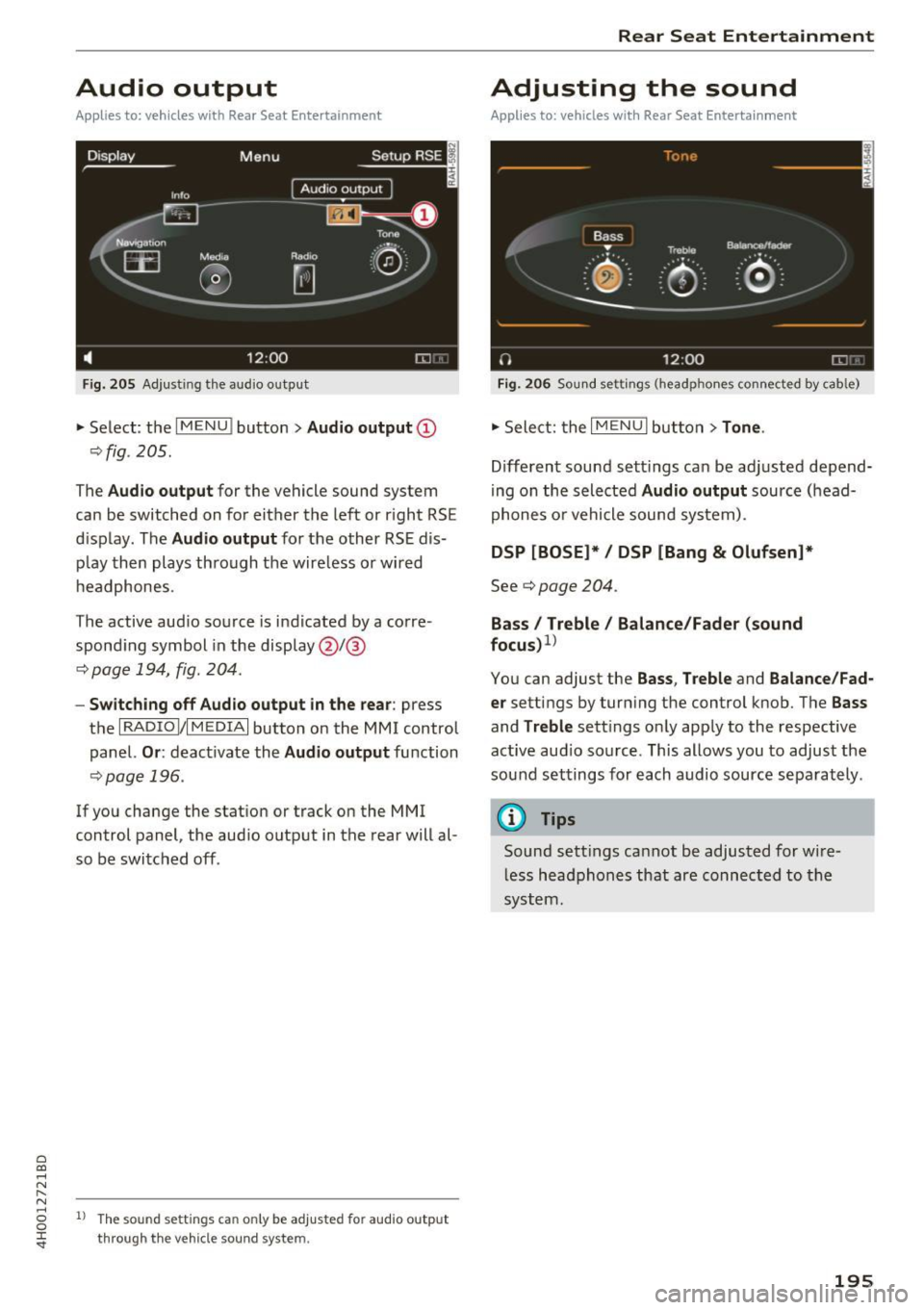
• Select : the I M ENU ! button > Audio outp ut @
¢ fig . 205.
The Audio outp ut for the vehicle sound sys tem
can be switched on for either the left or r ight RS E
display . The
Audio output for the other RSE dis
p lay then plays through the wire less or wired
h eadphones .
The active aud io source is indicated by a corre
spond ing symbol in the display @/@
¢ page 194, fig . 204 .
-Switching off Aud io output in the rear : press
t h e
I RADIO I/IM EDIA I button on the M MI control
panel.
Or : deactivate the Audio output function
¢page 196 .
If you change the stat ion or track on the MMI
control panel, the aud io outp ut in the rear will al
so be switched off .
1l The so un d sett ing s c an only be adjusted fo r au dio outp ut
thro ugh t he v eh icl e s ound sy ste m.
Rear Seat Entertainment
Adjusting the sound
Applies to: vehicles with Rear Seat Entertainment
Fig. 206 Sou nd set tings (headp ho nes conne cted by cab le)
• Sele ct: the I MENU I but ton > Tone .
Different sound sett ings can be ad justed depend
i ng on the selected
Audio output source (head
phones o r vehicle sound system) .
DSP [BOSE]* / DSP [Bang & Olufsen]*
See¢ page 204 .
Bass I Treble / Balance /Fader (sound
focu s)
1
>
You can adjust the Ba ss , T reble and Balance /Fad
er
settings by turn ing the control knob. The Bas s
and Treble sett ings on ly app ly to the respective
active aud io so urce . This allows you to adjust the
sou nd settings for each audio source sepa rately .
@ Tips
Sound sett ings cannot be adjusted for wi re
l ess headphones that are connected to the
system.
195
Page 198 of 354

Rear Seat Entertainment
Restarting the RSE
(reset)
Applies to: ve hicles w ith Rear Seat Ente rta inment
F ig. 207 Button combination to restart th e system
... Press and hold the control knob (D , the upper
right control button @and the
righ t!MENUI
button ® c:::> fig. 207 at the same time for a
brief moment and then release the buttons .
@ Tips
The MMI and RSE use some components at
the same time. Because of this, Audi recom
mends restarting both systems.
Display settings
Applies to: vehicles with Rear Seat Enterta inment
... Se lect: I MENU I button > Display control button.
Turning off the display
The display switches off.
The active aud io/video source does not pause
when yo u switch the RSE display off . You can still
change the stat ion or track for the selected au
dio/video source using the arrow buttons.
Switching display on
Press any button on the MMI control panel.
Display brightness
You can adjust the display brightness by turning
the control knob .
196
Parental control
Applies to: ve hicles with Rear Seat Entertainment
Selected RSE functions can be restricted or deac
tivated in the MMI.
... Select: I MEN u I fu nction button > Setup MMI
control button > Rear Seat Entertainment.
System
When the function is switched On, the RSE is en
abled for use. When the function is switched
Off,
the RSE is switched off and the RSE control panel
i s locked.
Vehicle speakers
Audio output
through the vehicle speakers in the
rear can be set to
Vehicle speakers or Head
phones only.
Operation
You can set whether all of the RSE functions (All)
or the Volume only can be adjusted through the
RSE.
Navigation destinations*
You can Apply the navigation destination auto
matically for active route guidance in the MMI or
Confirm the navigation dest ination before trans
ferring to the MMI.
Other settings
App lies to: vehicles with Rear Seat Enterta inment
.,. Select: the I MENU I button> Setup RSE control
button.
Factory default settings
You can reset the following functions to the fac
tory default settings:
- Sound settings
- Radio
- Media settings
-Jukebox
- Navigation settings*
You can select the desired functions individually
or all at once with the option
Select all entries.
Select and confirm Yes . .,,.
Page 199 of 354
C) C0 ....
"' " "' .... 0 0 :r
the music/video files are deleted and the
M edi a
setting s
are reset .
Resetting the func tions to the fac tory defau lt
settings does not a ffect the M MI.
System update
The RSE software can be updated by DVD, USB or
SD ca rd using the system update feature.
Contact an author ized Audi dealer or author ized
Aud i Service Facility for additional information
about the
System updat e.
Data encryption
You can protect the list of destinations with a personal password. If the unit is replaced, you
can only transfer your pe rsonal data to the new
RSE un it using your passwo rd . If you do not as
sign a personal passwo rd, "MMI3G" is stored in
the RSE automatically as the password.
Version inform ation
Information on the software version of the RSE
and the navigat ion database is displayed .
Headphones
Wireless headphones
Applies to: vehicles with Rea r Seat Entertainment
The wireless headphones mus t be paired with
the RSE one time and labeled.
F ig. 208 Switching wire less he adphones on /off
Rear Seat Entertainment
Fig. 20 9 Labeling th e w ireless head phones
Pairing wir eless headphones
Requirement: the protective film on the batte ry
compartment must be removed
~ page 198,
fig. 210
and the wireless headphones mus t be
swit ched off .
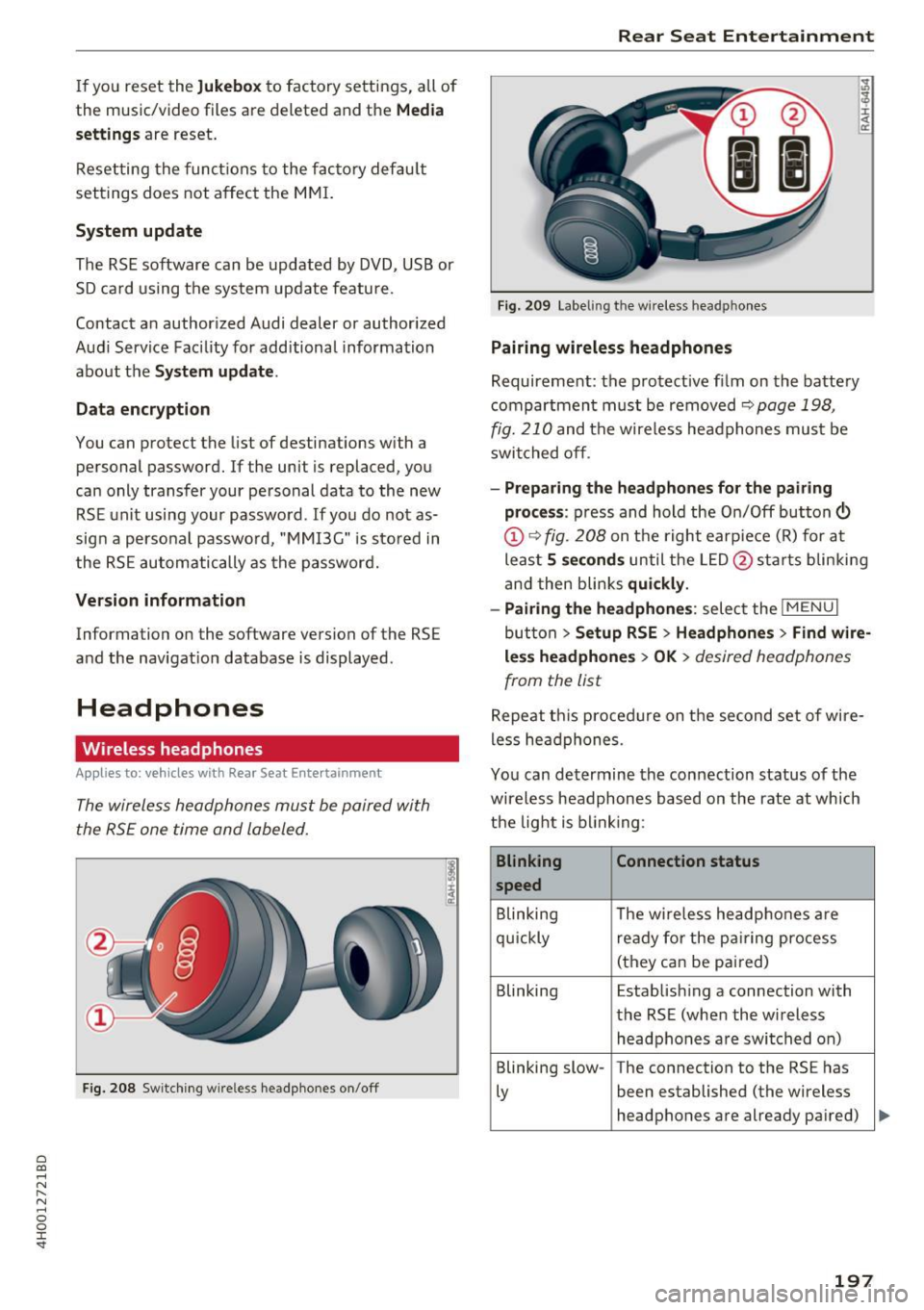
-Pr eparing the headphones fo r the pairing
pro ce ss :
press and hold the On/Off button©
@¢ fig . 208 on t he right earp iece (R) for at
leas t
5 seconds until the L ED @ starts b linking
and then blinks
quickl y.
- Pairing th e headphone s:
select the !M ENUI
button > Se tup RSE > Headphone s> Find w ire
le ss headphone s > OK >
desired headphones
from the list
Repeat t his procedure on the second set of wire
less headphones .
You can determine the connection status of the
wireless headphones based on the rate at which
the light is b link ing :
Blinking Connection statu s
speed
B linking The w ireless headphones are
qu ickly ready for the p airing process
(they can be pai red)
Blinking Estab lishing a connection with
the RSE (when the w ireless
headphones a re switched on)
Blinking slow -The connection to the RS E has
Ly been established (the wireless
headphones are already pa ired)
197
Page 200 of 354
Rear Seat Entertainment
Labeling the wireless headphones
-Attach the supplied label CD or@ c::> fig. 209 on
the inside of the left/right wire less head
phones.
La beling the w ireless headphones:
CD Wireless headphones label (paired with the
left RSE display)
@ Wireless headphones label (paired with the
right RSE display)
Switching wireless headphones on/off
- Switching on:
to switch the wire less head
phones on, press the On/Off button
CD
9 fig. 208 on the right earpiece (R) for approxi
mately
3 seconds and release it once the LED
@ starts blinking . The light @will blink s lowly
once the connection to the wireless head phones has been established.
- Switching off : to switch the wireless head
phones off, press and hold the On/Off button
CD until the LED @turns off.
The wireless headphones switch off automatical ly about five minutes after the RSE switches off.
Disconnect wireless headphones
You can delete the pairing between the wireless
headphones and the RSE if yo u need to switch
out the headphones o r change the pairing .
- Select:
I M ENU I button> Setup RSE control but
ton
> Headphones > Delete wireless head
phones.
A WARNING
- For safety reasons, as the driver, only use
the headphones when the vehicle is station
ary to reduce the r isk of a crash .
- When driving, store the headphones secure
ly so that they do not move around in the
vehicle interior when braking or in a crash.
- Maintain a moderate volume leve l when lis
tening to audio playback through the head
phones. Continuous exposure to extreme
volume levels may result in loss of hearing.
198
-
@ Tips
-If the wire less headphones were already
paired, the connection to the headphones
will be reestablished after switching the
RSE on if the headphones are sw itched on.
- The RSE only supports wireless headphones
from your authorized Audi dealer.
- Audio/video output through the wire less
headphones stops during the pairing proc
ess.
- The pairing process must be done separate
ly for the left and right w ireless head
phones. The wireless headphones are as
signed to the left or right RSE display de
pend ing on the side of the RSE control unit
where you started the pairing process. The
pairing between the wireless headphones
and the lef t/r ight RSE display is ide ntifi ed
with a label.
- Volume that is too high or too low is auto
matically adjusted to a preset leve l when
the wireless headphones are connected.
Charging and changing the battery
Applies to: vehicles with Rear Seat Entertainment
If the light on the wireless headphones turns
red the batteries are low and need to be charg-
,
ed or replaced .
Fig. 210 Connec tion for the charg ing cable/battery com
partm ent
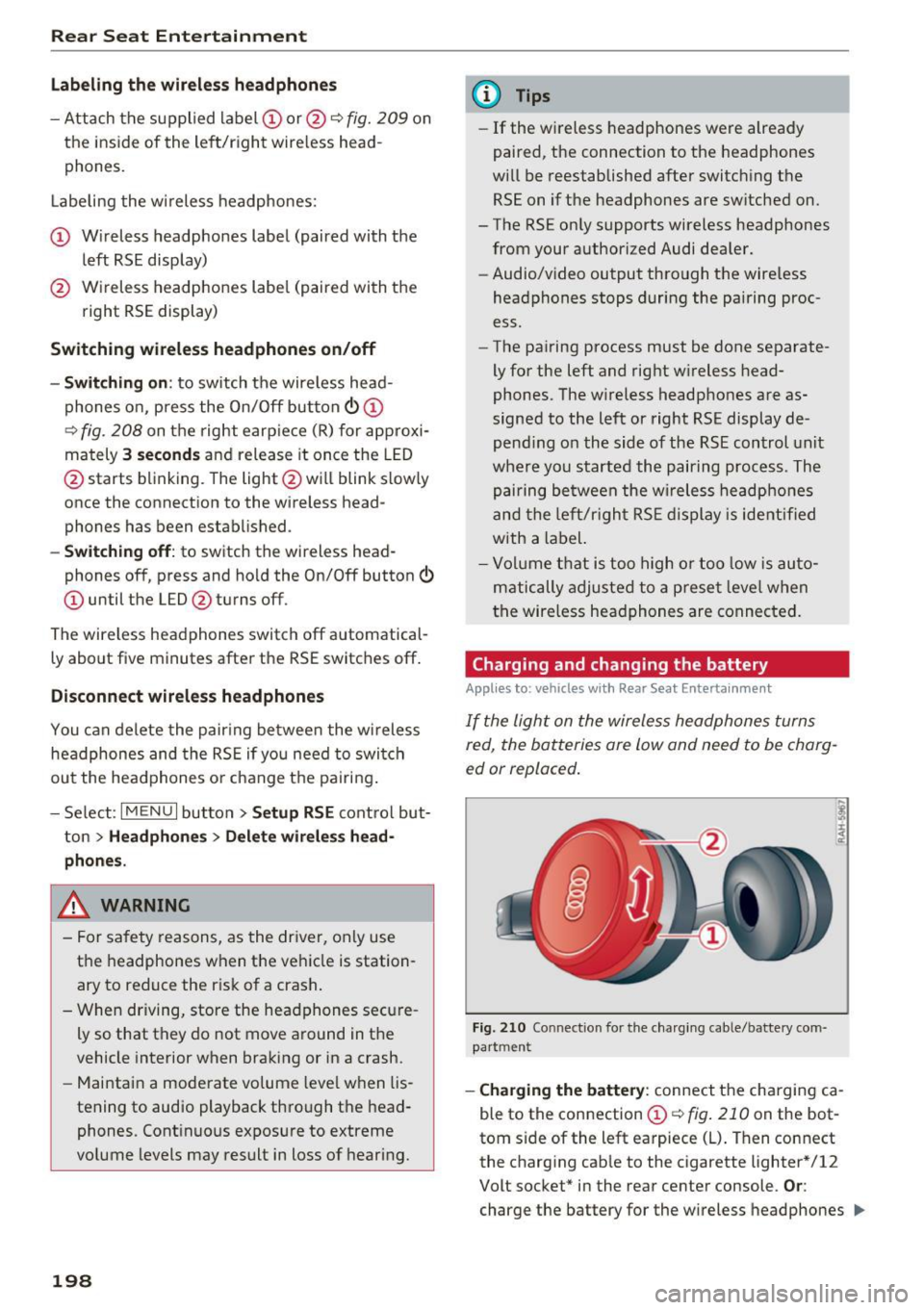
-Charging the battery : connect the charging ca
ble to the connection
CD c::> fig . 210 on the bot
tom side of the left earpiece (L) . Then connect
the charging cable to the cigarette lighter * /12
Volt socket* in the rear center console.
Or:
charge the battery for the wireless headphones .,.
Page 202 of 354
Rear Seat Entertainment
Media drives/
connections
Overview
A pplies to: ve hicles with Rea r Seat E ntertainment
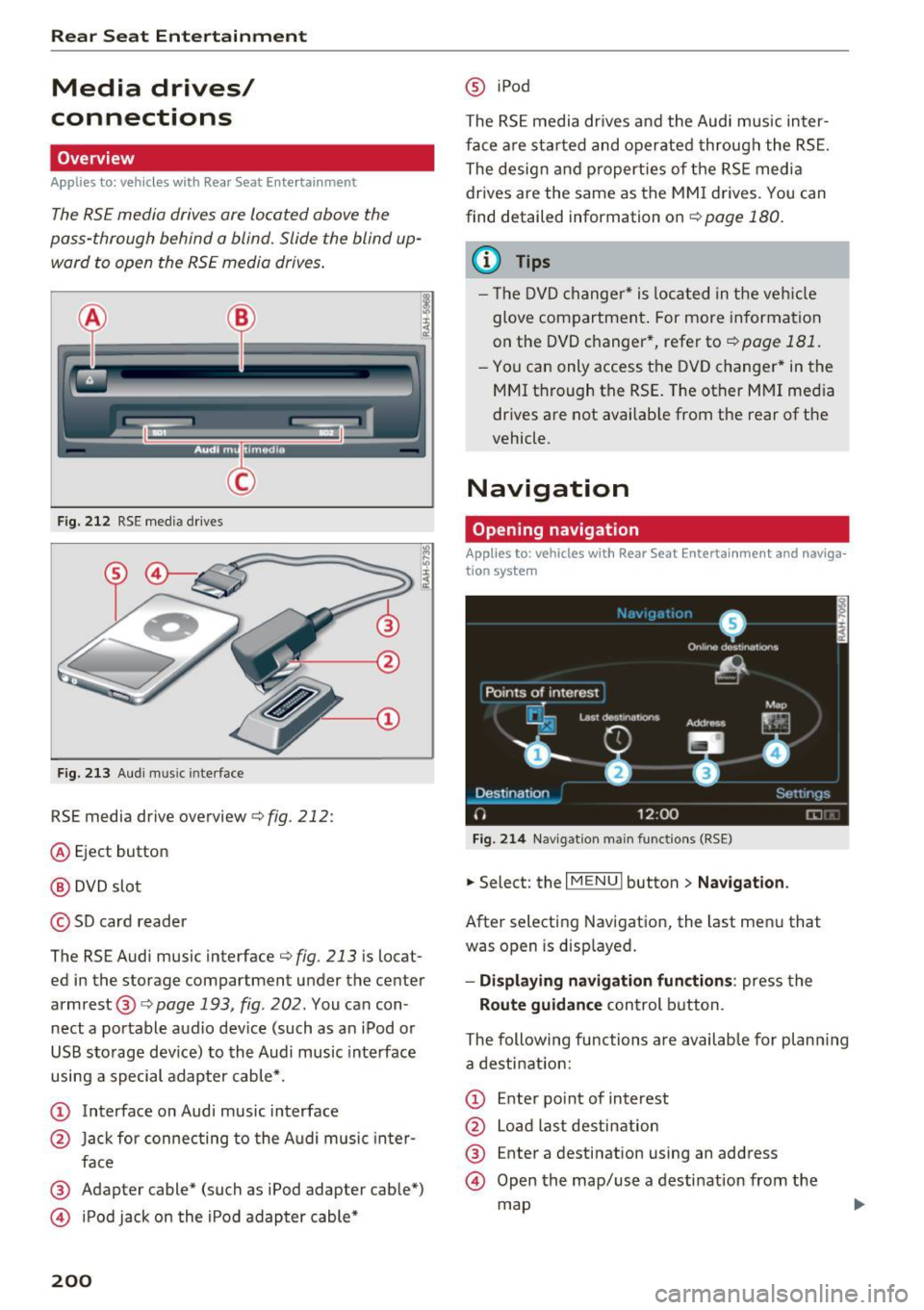
The RSE media drives are Located above the
pass-through behind
a blind. Slide the blind up
ward to open the RSE media drives .
C
Fig. 2 12 RSE media drives
Fig. 213 Aud i m usic in terface
RSE media drive overview c> fig. 212 :
@ Eject button
@ DVD slot
© SD card reader
The RSE Audi music interface
c> fig. 213 is locat
ed in the storage compartment under the center
armrest ®
c> page 193 , fig. 202. You can con
nect a portable audio dev ice (such as an iPod or
USB storage dev ice) to the Audi music interface
using a special adapter cable*.
CD Interface on Audi music interface
@ Jack for connecting to the A udi music in te r
face
® Adapter cable* (such as iPod adapter cab le*)
@ iPod jack on the iPod adap ter cable*
200
@ iPod
The RS E media dr ives a nd the Audi mus ic inter
face a re sta rted and oper ated through the RS E.
The desig n and p roperties of the RSE media
drives are the same as the MMI drives. You can
find detailed information on
c> page 180.
{!) Tips
- Th e DVD changer * is loca ted in t he ve hicle
glove compartment . For more in formation
on the DVD c hanger *, refer to
c> page 181.
- You can only access t he DV D changer * in the
MMI t hrough the RSE. The other M MI med ia
dr ives a re not avai lab le from the rear of the
vehicle.
Navigation
Opening navigation
App lies to: vehicles wit h Rear Seat Entertai nmen t and naviga
tion syste m
Fig. 214 Navigat ion ma in funct io ns (RS E)
.. Select: the I MENU I button > Na vigat ion.
After selecting Navigation, the last men u that
was open is disp layed.
- Di splaying navigation fun ction s: press the
Route guidance control b utton.
The following func tions a re availab le for plann ing
a desti nation:
CD E nte r po int of interest
@ L oa d las t destin ation
® Enter a destination using an address
@) Open the map/use a destination from the
map
Page 203 of 354

0 co .... N ,..... N .... 0 0 :c '
The route is calculated based on various route cri
teria. To set the criteria, you must first plan a
destination and then display the route in the RSE
display using the
Display route function. When
you transfer a planned destination to the MMI
using the
Send destination to the driver func
tion, the cr iteria are transferred automat ically.
A planned destination is shown in the RSE display
in white and active route guidance is marked in
blue.
Displaying a route
The planned destination and the distance to the
destination/arrival time are displayed on the
map. The route is calculated based on the current
vehicle location and can be updated.
To display active route guidance on the map, se
lect the
Destination control button > Exit route
display.
Send destination to the driver
To start route guidance for a planned route, the
destination must be transferred to the MMI. If
the
Destinations are set to Confirm in the Setup
MMI menu q page 196, the destination must be
confirmed before transferring to the MMI.
(i) Tips
-The display of navigation functions is
synchronized to both RSE displays.
- Refer to the notes in the chapter
About
Audi connect
q page 162.
- The content, scope and providers of offered
Audi connect services may vary.
- The navigation functions match those in the
MMI to a large extent. For more informa
tion, refer to
q page 165.
- The functions for the online Street View
9page 159 can also be used in the RSE
while driving.
- If
On request is selected for the data con
nection in the
Data connection menu
qpage 161, receiving data packets, such as
l) Applies to veh icles w ith A udi connect
Rear Seat Entertainment
weather information, must be confirmed in
the MMI.
Accessing traffic information
Applies to: vehicles with Rear Seat Entertainment and naviga·
tion system
.. Select: the I MENU I button > Info.
- Opening a detailed view of traffic information :
select and confirm the traffic information from
the list.
-Opening the next traffic report: select and
confirm
Show next report .
(D Tips
For more information on accessing traffic in·
formation, refer to
9 page 175.
Accessing Audi connect services
Applies to: vehicles with Rear Seat Entertainment, navigation
system and Audi connect
Requirement: the requirements for Audi connect
services must be met
9page 157.
.. Select: the I MENU I button > Audi connect > the
desired Audi connect service .
-For example, display weather information : se
lect and confirm
Weather. Se lect and confirm
the desired search area:
In immediate vicinity/
In vicinity of destination or stopover or In new
city .
Enter a location and confirm the input
with
OK.
(D Tips
- Refer to the notes in the chapter About
Audi connect
q page 162.
- Additional information about accessing Audi
connect services can be found under
9page 157.
Entertainment systems
Listening to the radio
Applies to: vehicles with Rear Seat Enterta inment
.. Select: the I RADIO I button.
201
Page 204 of 354
Rear Seat Entertainment
The radio functions match those in the MMI. For
more information on the Radio menu, refer to
c::>page 177.
You can store a separate presets list in the RSE
that may contain up to SO stations from all fre
quency bands. You can a lso display the station
name for the selected radio stat ion or change the
station sorting separately in both RSE disp lays.
Playing media
A pp lies to: ve hicles w ith Rea r Seat E nte rtainment
.,. Select : I MEDIAi button .
The media functions match those in the MMI to a
large extent. For more information on the Media
menu, refer to
c::> page 189.
Possible sources are:
(D Jukebox
@ SD card reader
® DVD drive
@ DVD changer*
® Audi music interface (such as iPod, USB or ex
ternal audio/video input)
Different functions are available depending on
the active source and the medium inserted.
(D Tips
- The Album browser function is not available
in the RSE .
- The copy and delete process cannot be
started simultaneous ly when accessing the
Jukebox from both systems at the same
time.
Video playback information
Playback combinations
A pp lies to: ve hicles w ith Rea r Seat E nte rtainment
When se lecting the same video source, both
sound and picture w ill play through both RSE dis
plays.
202
If different video sou rces are started on both RSE
displays, only certain picture/sound playback
combinations are poss ible and they depend on
the selected video sources.
Complete output format (sound and video
image) on both RSE displays
Se lect a video DVD as the first video source in the
DVD drive and then the following source:
- DVD changer*
- Aud i music interface with AV adapter cable*/
iPod adapter cab le plus*
Playing only sound on the second RSE
display
There is only sound output for the second v ideo
source if you:
- Start a video DVD in the DVD drive as the first
source and sele ct a video file from the Jukebox
or the SD card as the second source.
- Sta rt a video file from the Juke box as the first
source, and select a video file from the SD card
or from the Aud i music interface using an AV
adapter cable* /USB adap ter cable" /iPod adapt
er cable plus * as the second sou rce and vice
versa .
- Start a video DVD/video fi le in the DVD chang
er * as the first source, and select a video file
from the Jukebox, SD card or from the Audi mu
sic interface using an AV adapter cable*/USB
adapter cable*/iPod adapter cable plus* as the
second source.
No picture/sound playback on the second
RSE display
If a video file from the Jukebox, from an SD card
or from the Audi music interface w ith the USB
adapter cable* is already play ing o n one RSE dis
play, playback of a video DVD in the DVD drive on
the other RSE display is not possible.