warning AUDI A8 2018 Owners Manual
[x] Cancel search | Manufacturer: AUDI, Model Year: 2018, Model line: A8, Model: AUDI A8 2018Pages: 356, PDF Size: 54.71 MB
Page 162 of 356
Audi connect
You can return to the previous page using the
I BACK ! button.
A WARNING
To red uce the risk of an accident, only use
Audi connect services when road and traffic
conditions perm it.
(D Tips
Some functions are only avai lab le when the
vehicle is stationary.
Overview of Audi
connect services
Basic functions
Applies to: vehicles with Audi connect
-
~ Se lect: the IMENU ! button> Audi connect > the
desired Audi connect service.
Depending on the selected Audi connect service,
you may need to set a search area first:
Setting the search area
- Immediate vicinity :
the desired information for
the area around your current locat ion is dis
played .
-Vicinity of destination/stopover : if you have
entered a nav igat ion destination, you can dis
play the desired information for the area
around the destination .
-In new city: you can ente r any city for which
you wou ld like to receive the desired informa
tion using the
M MI touch or the speller
¢page 138 .
Travel information
Applies to: vehicles with Audi connect
Information on attractions and travel tips in the
selected search area.
~ Se lect and confirm an attraction to display the
details.
160 Parking information
Applies
to: vehicles with Audi connect
Information on parking locations and fees in the
selected searc h area .
Fuel prices
Applies to: vehicles with Audi connect
Information on gas stations with the lowest fuel
prices for your vehicle in the selected search area .
Weather
Applies to: vehicles with Audi connect
Information on current weather conditions as
well as weather forecasts for the selected search
area (for examp le, at the
Destination ).
City events
Applies to: vehicles with Audi connect
Information on events in various categor ies in
the desired search area .
~ Select and confirm a category, such as Sports.
~ Select and confirm an event to display the de-
tails.
Messages
Applies to: vehicles with Audi connect
V iew the most current headlines in the MMI.
~ Select and confirm a headline.
Audi connect services in navigation
Applies to: vehicles with Audi connect
The following Audi connect serv ices are currently
available:
- Navigation with the
online map service and on
line Street
View ¢ page 172
-Point of interest search (POI) with voice oper
ation
(for examp le restaurants): p lan route
guidance using the
MMI control panel and the
voice recognition system
ca:> page 144 and desti
nation setup in your
MMI using your myAudi
account
¢ page 168. .,..
Page 163 of 356
u. co .... N
" N .... 0 0 :c '
my Audi Account <=> page 168 or on line map
view
<=> page 17 2.
- Traffic information (Sirius): receive informa
tion about accidents, road construction and other incidents
c;,page 176
Audi connect services on the phone
Applies to: vehicles with Audi connect
The follow ing Audi connect serv ices are currently
ava ilable:
- Storing contacts on yo ur computer using your
myAudi Account and loading the contacts into
the MMI directory
c:;, page 154
Wi-Fi hotspot
Applies to: vehicles with Audi connect
You can use the MMI as a Wi-Fi hotspot to con
nect up to eight wireless devices to the Internet. While driving , restricted use of non-secured,
light, small wireless devices is only possible from the rear of the vehicle.
.,. Select : the IT EL! button > Settings control but-
ton
> Wi-Fi settings .
The following settings can be modified in the Wi
Fi settings
menu:
Wi-Fi active
The MMI Wi-Fi hotspot is deactivated at the fac
tory. Your Wi-Fi hotspot must be activated and
visible to establish a connection between your ve hicle and your w ireless device .
-Off : the MMI Wi-Fi hotspot is deactivated. An
Internet connection is not poss ible.
- Visible : th e MMI Wi-Fi hotspot is active and can
be used to connect to the Internet.
-Invisible : the MMI Wi-Fi hotspot is active but
not visib le to other devices. A connection can
not be established with a new w ireless device.
The Wi-Fi connection between your vehicle and
your wire less device (laptop, cell phone) is en
crypted. To establish a connection, yo u must en
ter the following settings when setting up your
wire less device. You can change them if necessa
ry.
Audi connect
- Network ID (SSID) :
name of the Wi-Fi net
work .
-Encryption type : WEP , WPA or WPA2
-Password : depending on the encrypt ion type, a
passwo rd may be generated in the MMI that is
used to encrypt the wireless connection. The
password can be changed. Be sure to se lect a
secure password. For t he WEP encryption type,
the password must be exactly 13 characters.
For the WPA or the WPA2 encrypt ion types, the
password must be at least
8 (maximum of 63)
characters.
- Apply settings : the modified settings are ap
plied to the MMI. You must then update the
changes in your mobile wirel ess device .
A WARNING
-
-As the driver, do not allow usage of the Wi
Fi hotspot to distract you from driv in g, as
this could increase the risk of an accident.
-It is only safe to use laptops and similar mo
b ile devices when the vehicl e is stationary
beca use, like all loose objects, they could be
thrown around the inside of the vehicle in a
cras h and cause serious injuries . Store these
types of devices securely while driving.
- Do not use any wireless devices on the front
seats within range of the airbags whi le driv
ing. Also read the warnings in the chapter
c:;, page 208.
@ Note
-Under some conditions, certain mobile devi
ces and operating systems may automati
cally sw itch from your vehicle's Wi-Fi hot
spot to the device's mobile data connection.
In that event, standard text and data usage
rates would apply wh ile the device's mobile
data connect ion is in use. Please refer to
documentation provided by your mobile de
vice's manufacture and your data carrier for
details, rela ted terms and privacy state
ment .
- You are respons ible for all precautions tak
en for data protection, anti-virus protection
and protection against loss of data on mo
bile devices th at are used to access the In
ternet through the Wi-Fi hotspot.
161
Page 165 of 356
u. co .... N
" N .... 0 0 :c '
The numbe r of data packets that are sen t and re
ceived through the MMI is displayed. You can re
set the data usage information to zero using the
Reset d ata usa ge option .
Start automatic configuration
An online profile is set up and configu red auto
mat ica lly. The connection settings that you
changed manua lly are reset to the defa ult set
tings.
Online status overvi ew
An on line status overv iew with information abo ut
your data connect io n (such as the cell phone
service provider) is shown in the Infotainment
disp lay .
Switching the data conn ection module off
The data connection module is sw itched off . An
I nternet connect ion is no longe r poss ible.
Network set ting s
Under Login , select Auto to log into a network
automatically or select
Manu al to select from a
list of networks w ith in range . The available net
works in the area can be selected in the
Netw ork
se lec tion
list. Th is function is on ly avai lab le when
M anu al Login is set.
Seri al numb er (IMEi )
The serial number for the MMI that is installed is
d isplayed .
A WARNING
-As the dr iver, do not allow usage of the Wi
Fi hotspot to dist rac t you from d riving, as
th is could inc rease the risk of an ac cident .
-It is only safe to use tab lets and s imilar mo
bile devices whe n the vehicle is s tat io nary
because, like all loose objects, t hey could be
thrown aro und the inside of the vehicle
when invo lved in an accident and can cause
serious injur ies. Store these types of devices
securely whi le driving.
-Do not use any wire less devices on the front
seats w it hi n range of the a irbags while driv -
Audi conn ect
ing . A lso read the warnings in the chapter
¢page 208.
@ Note
You are responsible fo r all precautions taken
for data protection, anti -virus protection and
protection against loss of data on mobi le de
v ices that are used to access the Internet
through the W i-F i hotspot.
(D Tips
- When using On line map view, you are
prompted again to allow roam ing before
connect ing to a foreign mob ile network.
- The speed of the data connection may vary
depending on the veh icle location, the cov
erage area of your cell phone serv ice prov id
er and if the recommended provider is used
o r not.
- A data connection cannot be established if
incorrect data is entered in the
Conn ect ion
s ett ing s.
-The W i-F i hotspot recept io n quality depends
on the sig nal st rengt h and the availab ility of
the mobile network. You can obtain more
information from your cell phone se rvice
prov ider.
About Audi connect
Audi connect services
Applies to: vehicles with Aud i connect
(D Tips
- You can only use serv ices supported by Aud i
connect if you have t he optional MMI Nav i
gation pl us eq uipment and Aud i connect.
- Audi connect is designed for use only with
the provided Aud i SIM ca rd . Receiving data
packets from the Internet w ill quickly in
cr ease the vo lume of data used. Fo r more
information, contac t A udi connect cus tome r
support at 87 7-505 -AU DI (2834) .
-The Aud i connect se rvices a re availab le in
t he USA. Audi connect serv ices are currently
not avai lab le in Canada or in Mexico .
163
...
Page 168 of 356
Navigation
Navigation
Opening navigation
Applies to: vehicles with navigation system
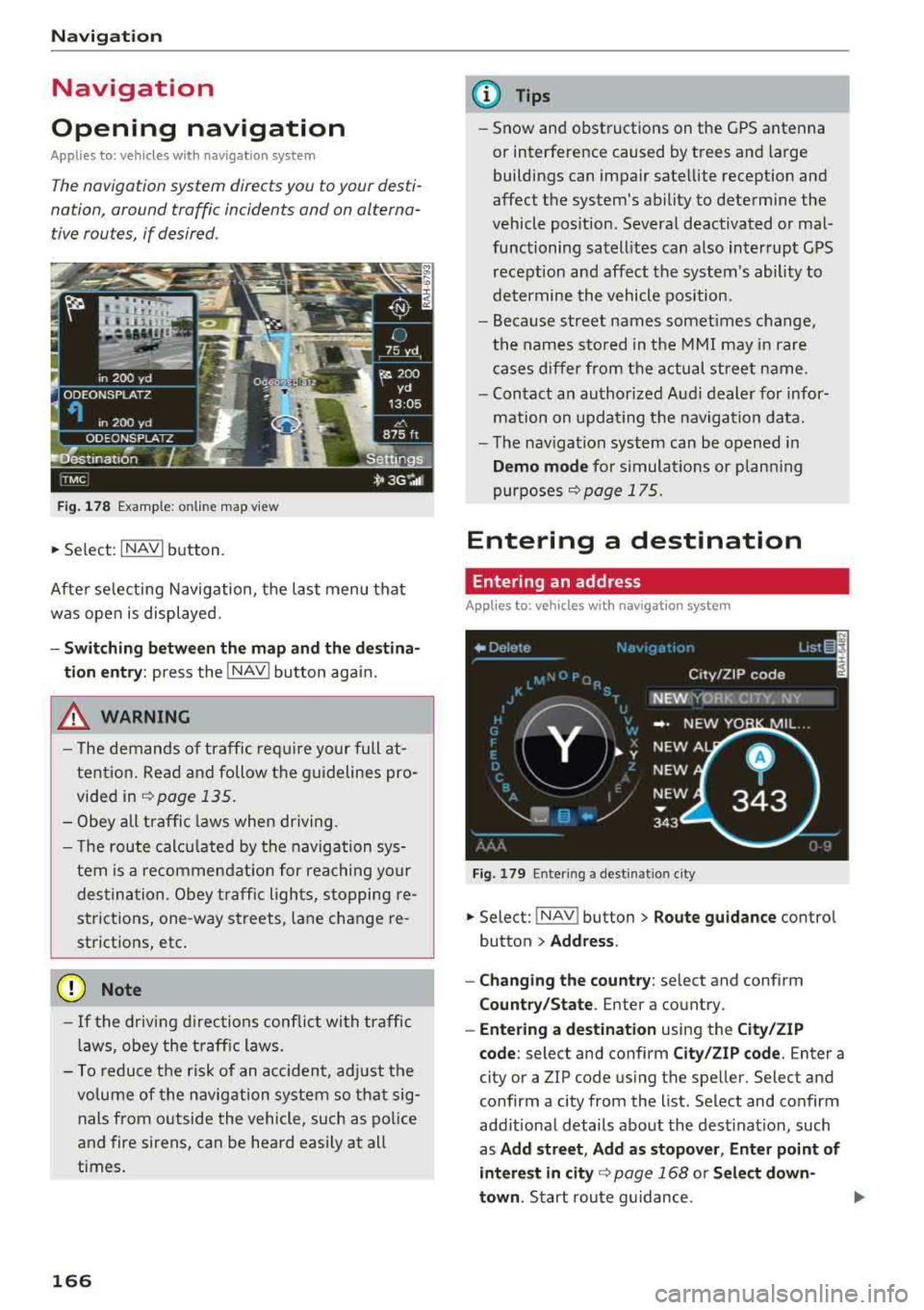
The navigation system directs you to your desti
nation , around traffic incidents and on alterna
tive routes, if desired .
Fig. 178 Example: on lin e map v iew
.. Select : INAVI button.
After selecting Navigation, the last menu that
was ope n is displayed.
- Switching between the map and the destina
t ion entry:
press the !NAV ! button again.
,&. WARNING
-The demands of traffic require your full at
tention. Read and follow the guidelines pro
vided in
i=;,poge 135.
-Obey all traffic laws when driving.
- The route calcu lated by the navigation sys-
tem is a recommendat ion for reaching your
destination. Obey traffic lights, stopping re
strictions, one-way streets , lan e change re
strictions, etc.
@ Note
- If the driving directions conflict with traffic
laws, obey the traffic laws.
- To reduce the risk of an accident, adjust the
volume of the navigation system so that sig
nals from outside the vehicle, such as police
and fire sirens, can be heard easily at all
times.
166
.
@ Tips
- Snow and obstructions on the GPS antenna
or interference caused by trees and large
buildings can impair satellite reception and
affect the system's ability to determine the
vehicle position. Several deactivated or mal
functioning satellites can also interrupt GPS reception and affect the system's ability to
determine the vehicle position .
- Because street names somet imes change,
the names stored in the MMI may in rare
cases differ from the actual street name.
- Contact an authorized Audi dealer for infor
mation on updating the navigation data.
- The navigation system can be opened in
Demo mode for s imulations or plann ing
purposes
re;, page 175.
Entering a destination
Entering an address
Applies to : vehicles with navigat ion system
Fig . 179 En ter ing a destina tion city
.. Select: !NAV ! button > Route guidance contro l
button
> Address .
- Changing the country:
select and conf irm
Country/State . Enter a country .
- Entering a destination using the City/ZIP
code:
select and confirm City/ZIP code. Enter a
city or a ZIP code using the spe ller. Select and
confirm a city from the list. Select and confirm
add itional details about the dest ination, such
as
Add street , Add as stopover, Enter point of
interest in
city re;, page 168 or Select down
town .
Start route guidance.
Page 178 of 356
Navigation
specified, if possible. The navigation system cal
culates an a lternative route.
The route to be avoided that you ha ve ente red
applies only to the current route and must be set
again, if needed.
The areas you have se lected to avoid w ill appear
with red and white shading on the map.
0) Tips
If the MMI does not calculate an alternative
route, that means there is none available.
Accessing traffic
information
Auto rerouting (traffic)
A pp lies to: ve hicles w ith navigation system an d Sirius (satel
li te radi o)
By receiving traffic information from the TMC or
satellite - depend ing on ava ilability -the MMI cal
culates an optim ized route and the possible t ime
saved for the current route guidance. You can de
cide yourse lf wh ich route you would like to use.
Traffic information (TMC)
App lies to: ve hicles w ith naviga tion system and Sirius (satel
li te ra dio)
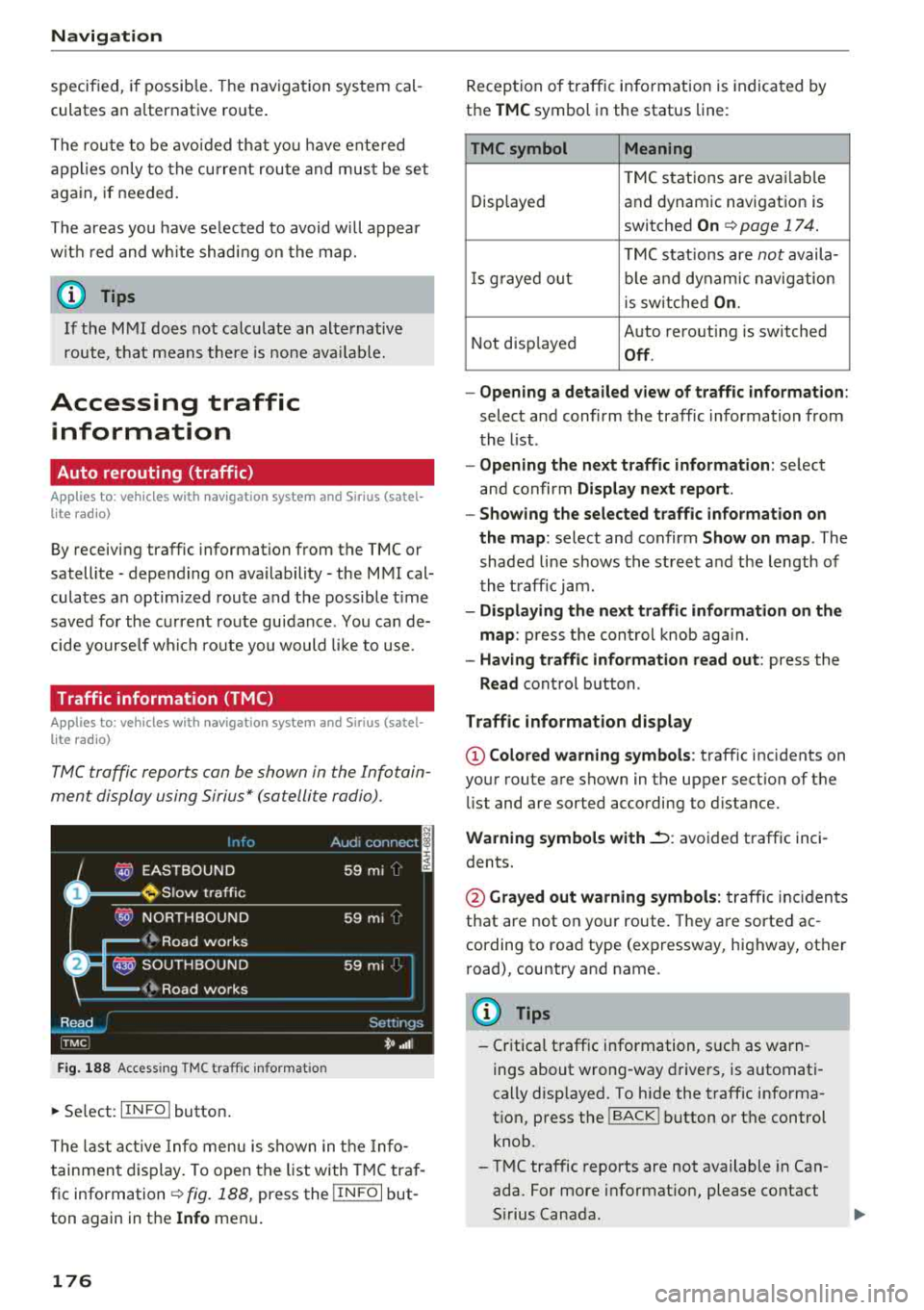
TMC traffic reports can be shown in the Infotain
ment display using Sirius* (satellite radio).
Fig. 188 Access ing TMC traff ic informa tion
~ Se lect: IIN FOI button .
The last active Info menu is shown in the Info
tainment display. To open the list with TMC traf
fic information
c:tv fig. 188, press the I IN FO I but
ton again in the
Info menu .
176
Reception of traffic information is indicated by
the
TMC symbol in the status line:
TMC symbol Meaning
TMC stations are avai lable
Displayed and dynamic navigation is
switched
On c:tv page 17 4.
TMC stations are not availa-
Is gra yed o ut ble and dynamic navig ation
i s sw itched
On.
Not disp layed Auto
rerouting is switched
Off.
- Opening a detailed view of traffic information :
select and confirm the traffic information from
the list .
- Opening the next traffic information : select
and confirm
Display next report.
- Showing the selected traffic information on
the map :
select and confirm Show on map . The
shaded line shows the street and the length of
the traff ic jam .
-Displaying the next traffic information on the
map :
press the cont rol knob aga in.
- Having traffic information read out : press the
Read control button.
Traffic information display
@Colored warning symbols: traffic incidents on
your route are shown in the upper sect ion of the
li st and are sorted according to distance.
Warning symbols with.::->: avoided traffic inci
dents.
@ Grayed out warning symbols: traffic incidents
that are not on your route. They are sorted ac
cording to road type (expressway, highway, other
road), country and name.
(D Tips
-Critical traffic information, s uch as warn
ings about wrong -way drivers, is automati
cally disp layed. To hide the traffic informa
t ion, press the
I BACK I button or the control
knob.
- TMC traffic reports are not available in Can
ada. For more information, please contact
S ir ius Canada .
Page 184 of 356
Media dri ve s and connection s
protection switch is installed to protect the CD/
DVD and the laser.
L a se r d evice s: laser dev ices are d iv ided into safe
ty classes 1 to 4 in accordance with DIN IEC 76
(CO) 6/VDE 0837 . The various types of audio
equipment installed conform to safety class
1.
The laser uses so little power or is sh ielded so
there is no danger when it is used correctly.
De vice co ver: do not remove the cover from the
device . The device does not contain any parts that
the owner can repair.
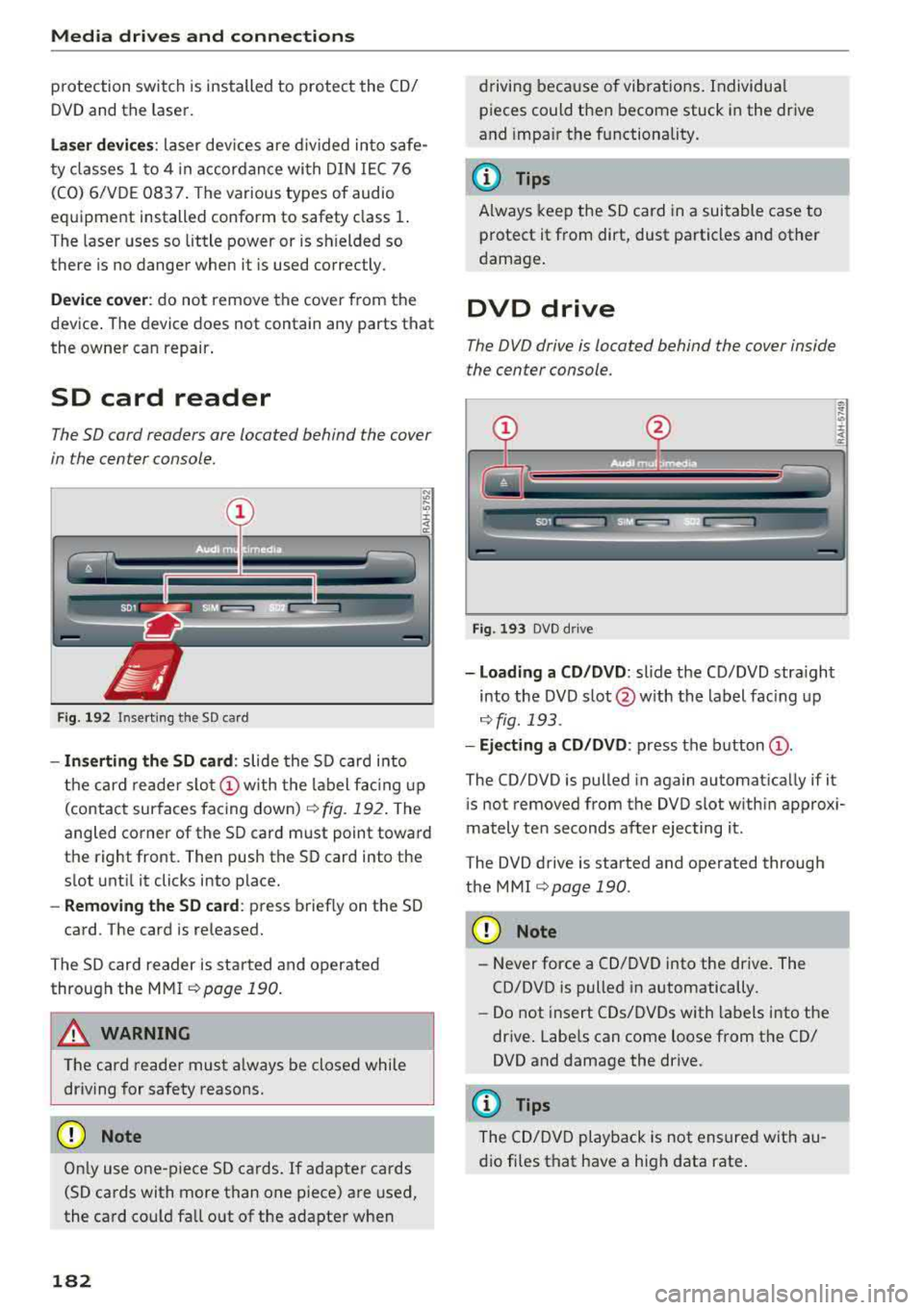
SD card reader
The SD cord readers ore located behind the cover
in the center console.
Fig. 192 Inserting the SD card
- In serting the SD card : slide the SD card into
the card reade r
slo t(!) w ith the label fac ing up
(contact surfaces facing down)
r:!> fig. 192 . The
angled corner of the SD card must point toward
the right front. Then push the SD card into the
slot unt il it clicks into place.
- Remo ving the SD ca rd: press briefly on the SD
card. The card is re leased.
The S D card reader is started and operated
through the MMI
r::;,poge 190.
A WARNING
The card reader must a lways be closed while
driving for safety reasons.
CD Note
On ly use one-piece SD cards. If adapter cards
(SD cards with more than one piece) are used,
the card could fa ll out of the adapter when
182
driving because of vibrat ions . Individua l
pieces could then become stuck in the drive
and impa ir the functionality.
(D Tips
A lways keep the SD card in a suitable case to
protect it from dirt, dust particles and other
damage .
DVD drive
The DVD drive is located behind the cover inside
the center console.
Fig . 193 DVD d rive
- Loading a CD /DVD : slide the CD/DVD stra ight
into the DVD s lot @ with the label fac ing up
¢ fig. 193 .
-Eject ing a CD /DVD : press the b utton (D .
The CD/DVD is pulled in again automat ica lly if it
is not removed from the DVD slot w ith in approx i
mately ten seconds after ejecting it.
The DVD drive is started and operated through
the MMI
r::;,poge 190 .
CD Note
-Never force a CD/DVD into the drive. The
CD/DVD is pulled in automatically.
- Do not insert CDs/DVDs with labels into the
drive . Labe ls can come loose from the CD/
DVD and damage the drive.
@ Tips
The CD/DVD playback is not ensured with au
dio fi les that have a high data rate .
Page 187 of 356
u. co ..... N
" N ..... 0 0 :c '
Applies to: vehicles with Wi-Fi audio player
Wireless media players (such as smortphones)
con be connected via Wi-Fi hotspots and control
led with the
MMI. You con access the media cen
ter on your media player using on UPnP server
opp or on UPnPIDLNA server integrated in the
media player .
Requirements: the Wi-Fi function for the media
player and the MMI must be act ivated. A network
connection must be established
¢ page 162 . An
UPnP serve r must be installed on your W i- Fi me
d ia p laye r.
-Connecting the Wi-Fi audio pla yer : select the
I MEDIAi button> Source cont rol button> Wi-Fi
audio
play er(2) ¢poge 190, fig. 197. A mes
sage will appear i n the Infota inment displ ay
say ing there is no W i-Fi aud io player connec ted
to the system . The access data for the Wi -Fi
hotspot is disp layed.
-Se lect the same settings on the w ireless med ia
player that are used for the Wi-Fi hotspot .
-Starting th e Wi •Fi audio pl ayer : start an UPnP
server app or a llow media sharing on your de
vice . The first song in the media center on your
Wi-Fi audio player begins playing .
-Operating the Wi-Fi audio player : the media
player is operated throug h the MMI
¢page 190.
A WARNING
-As the driver, do not allow usage of the Wi
Fi hotspot to distract you from driving, as
this could inc rease the risk of an accident .
-It is only safe to use laptops and simi lar mo
bile devices when the vehicle is stat ionary
because, l ike all loose objects, they could be
t h row n aro und the ins ide of the vehicle in a
cr ash and cause se rious inj uries. Store these
ty pes of dev ices se curely wh ile d riving.
-Do not use any w ireless devices on the front
seats w it hi n range of the a irbags while d riv
ing. Also read the wa rn ings in the chap ter
¢page 208.
Media dr ives and conn ection s
@ Note
Always fo llow the information fo und in ¢ @ in
Wi -Fi hotspot on page
161.
(D Tips
-Read an d follow t he notes abo ut Aud i con
nect before sta rting it¢
page 163.
-Th e W i-Fi connec tion is reconfigure d when
inserting or removing the Audi SI M card in
the SIM card reader. There may be a tempo
ra ry interruption in aud io playback, depend
ing on the media player.
-In ve hicles w ithout Audi con nect*, the use
o f th e W i-F i hotspot is on ly possible for t he
Wi-Fi audio player". A data co nnect ion to
the Internet cannot be estab lished .
-Depending on the w ireless media player,
network or media access may need to be ap
proved on the device or a program may need
t o be sta rted .
-Check for any connection requests on yo ur
w ireless media player.
-To avo id interr upt ions during playback, de
act ivate the powe r sav ing function on the
w ireless media player or connect it to a
charger.
-T he loadi ng times for the audio da ta depend
on the media player used and the numbe r of
files t hat it contains.
-A max imum of 2,000 en tries per d irec tory
are d is pl ayed in the Infota inment disp lay.
-For more informat io n on Wi-Fi audio players
and supported dev ices, visi t
www.audiusa .com or cont act an a uth o rize d
Audi de aler or author ized Audi Se rvice Fa
ci lity.
185
Page 196 of 356
Rear Seat Entertainment
Rear Seat Entertainment
RSE components
overview
A pp lies to: ve hicles w ith Rea r Seat En te rtainment
The Rear Seat Entertainment, abbreviated RSE,
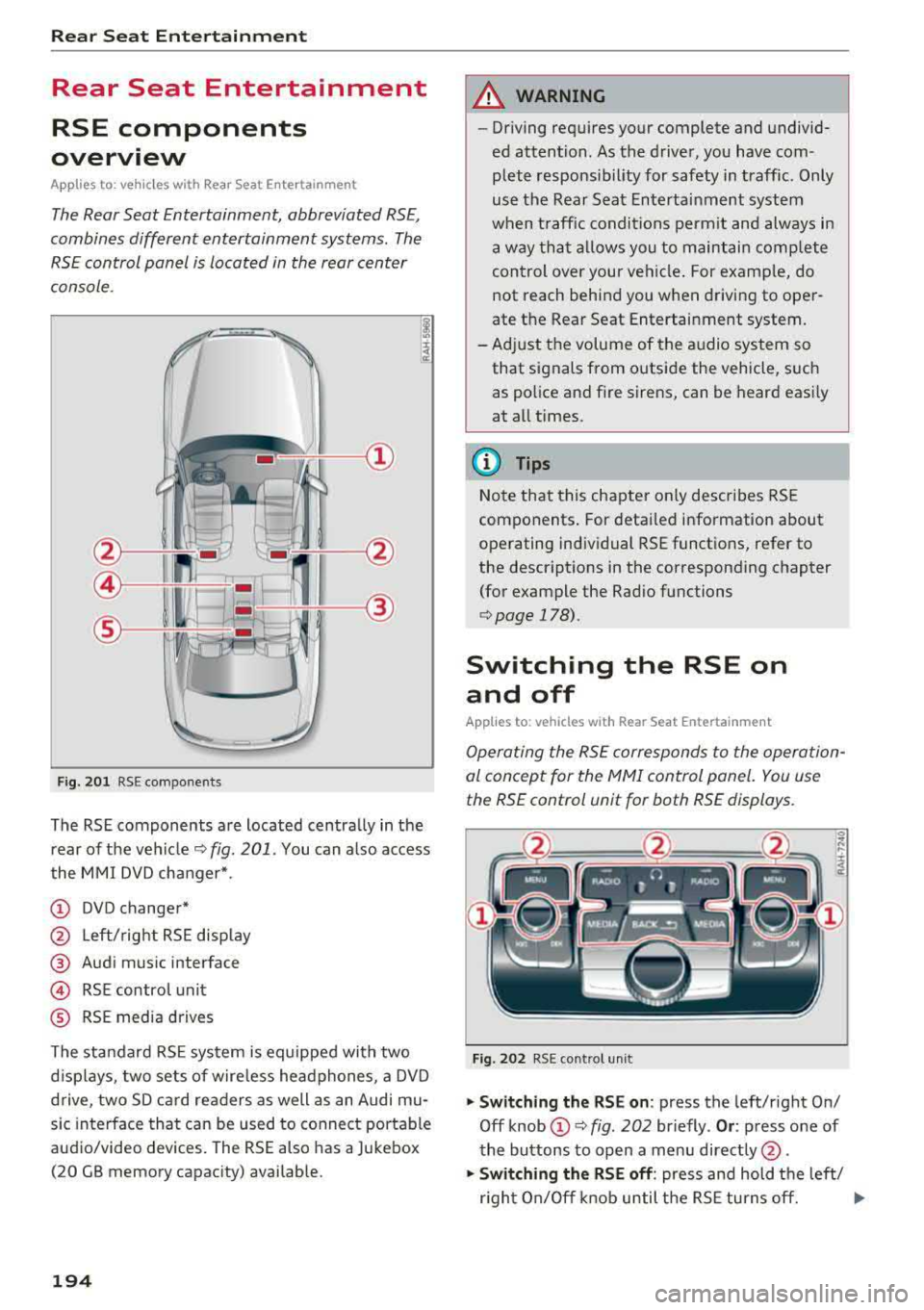
combines different entertainment systems . The
RSE control panel is located in the rear center
console .
Fig. 201 RSE components
The RSE components are located centrally in the
rear of the vehicle
c:.> fig. 201 . You can also access
the MMI DVD changer*.
(D DVD changer*
@ Left/right RSE display
@ Audi music interface
@ RSE contro l unit
® RSE media drives
The standard RSE system is equipped with two
d isplays, two sets of wire less headphones, a DVD
drive, two SD card readers as well as an Audi mu
sic interface that can be used to connect portable
audio/video devices. The RSE also has a Jukebox
(20 GB memory capacity) availab le.
194
A WARNING
,-
- Driving requires your complete and undivid-
ed attention. As the driver, you have com
plete responsib ility for safety in traffic. Only
use the Rear Seat Entertainment system
when traffic conditions permit and always in
a way that allows you to maintain comp lete
control over your vehicle . For examp le, do
not reach behind you when driving to oper
ate the Rear Seat Entertainment system.
-Adjust the volume of the audio system so
that signals from outside the vehicle, such
as police and fire sirens, can be heard easily
at all times.
(D Tips
Note that this chapter on ly describes RSE
components . For detailed information about
operating individual RSE functions, refer to
the descriptions in the corresponding chapter
(for example the Rad io functions
r::.> page 178).
Switching the RSE on
and off
App lies to: vehicles with Rear Seat Entertainment
Operating the RSE corresponds to the operation
al concept for the
MMI control panel. You use
the RSE control unit for both RSE displays.
Fig. 202 RSE cont rol unit
.,. Switching the RSE on : press the left/right On/
Off knob
(D c:.> fig . 202 br iefly . Or: press one of
the buttons to open a menu directly @.
.,. Switching the RSE off: press and hold the left/
r ight On/Off knob until the RSE turns off.
.,..
Page 201 of 356
lL t:0 ....
"' ......
"' .... 0 0 :c '
-Attach the supplied label CD or @ ¢ fig. 208 on
the inside of the lef t/right wire less head
phones .
L abeling the w ireless headphones:
CD W ireless headphones label (paired with the
left RSE disp lay)
@ Wireless headphones labe l (paired with the
right RSE display)
Switching w irel ess headphones on /off
- Swit ching on : to switch the wireless head
phones on, p ress the On/ Off
button
¢ fig. 207 on the right earp iece (R) for approxi
mately
3 sec ond s and release it once the LED
@ starts blinking. The light @will blink s lowly
once the connection to the wireless head phones has been established .
-Sw itching off : to switch the wireless head
phones off, press and hold the On/Off button
CD until the LED @turns off.
The wireless headphones switch off automatical ly about five minutes after the RSE switches off .
Disconnect wireless headphones
You can delete the pairing between the w ireless
h eadphones and the RS E if yo u need to switch
out the headphones o r change the pairing.
- Se lect :
IM ENU I button > Setup RSE cont rol but
ton
> Head set > Delet e wirele ss heads et.
& WARNING
- F or safety reasons, as the dr iver, only use
the headphones when the vehicle is station ary to reduce the risk of a crash.
- When driving, store the headphones secure
ly so that they do not move around in the
vehicle interior when bra king or in a crash .
- Maintai n a mode rate vo lume leve l when lis
tening to audio playback through the head
phones. Continuo us expos ure to extreme
volume levels may result in loss of hear ing.
(D Tips
- If the wireless headphones were already
paired, the connection to the headphones
-
Rear Seat Entertainment
wi ll be reestablished after switc hing the
RSE on if the headphones are switched on.
- The RSE on ly supports wireless headphones
from an authorized Audi dealer .
- Audio/video output through the wire less
headphones stops during the pai ring proc
ess.
- The pairing process must be done separate
ly for the left and right wireless head
phones. The wire less headphones are as
signed to the left or right RSE display de
pending on the side of the RSE control unit
where you started the pairing process . The
pairing between the w ireless headp hones
and the left/right RSE display is ident ified
w ith a label.
- Volume that is too high or too low is auto
matically adjusted to a p reset leve l when
the wireless headphones are connected .
Charging and changing the battery
Applies to: vehicles with Rear Seat Entertainment
If the light on the wireless headphones turns
red, the batteries are low and need to be charg
ed or replaced.
F ig . 209 Co nn ectio n fo r th e charg ing cab le /battery co m
pa rt me nt
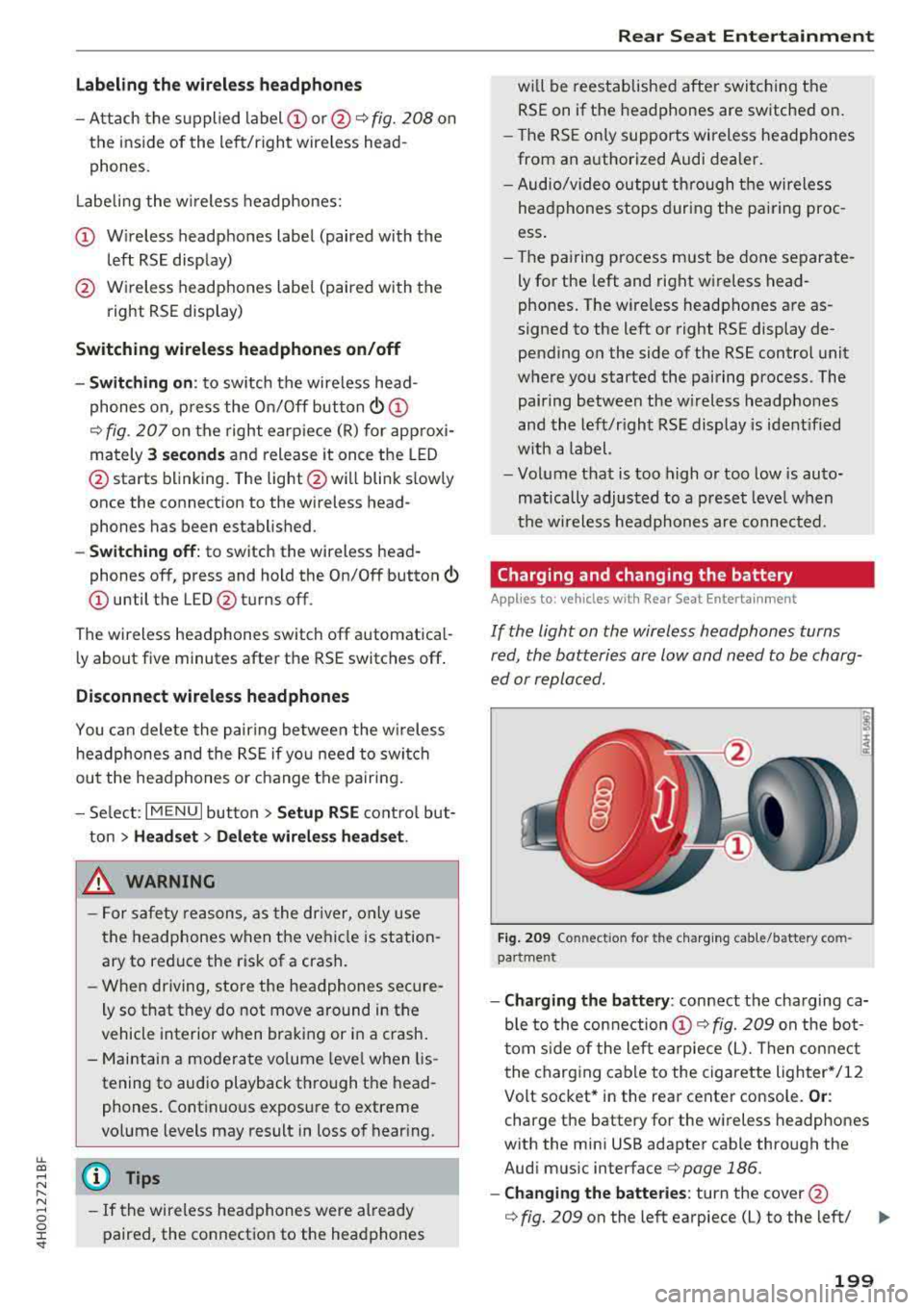
- Charging the battery : connect the charging ca
ble to the connection
CD ¢ fig. 209 on the bo t
t om s ide of the left ea rpiece (L). Then con nect
the charging cable to the cigarette lighter */12
Volt socket* in the rear center console.
Or :
charge the battery for the wireless headp hones
w ith the min i USB adapter cable th rough the
Aud i mus ic interface
¢ page 186.
- Ch anging th e batterie s: turn the cover@
¢ fig. 209 on the left earpiece (L) to the left/ IJI,,-
199
Page 202 of 356
Rear Seat Ent ertainm ent
right and change the batteries as labeled in the
battery compartm ent . Then attach the cover
back on to the left earpiece
(L).
You can ident ify t he charge status of the battery
q table on page 200 based on the blinking
speed of the LED in the charging cable conn ec
tion
CD q fig. 209.
Blinking fre- Charge status
quency
Blinking The batteries are cha rging.
Rema ins on The batte ries are charged .
Blinking An error occurred while charg-
quickly ing.
A WARNING
- Do not use damaged rechargeable batteries .
T his increases the r isk of an explos ion.
- The headphones can become warm when
the batteries a re charg ing and increase the
risk of injury .
- Do not charge standard batteries with the
charg ing cable. This increases t he risk of an
exp losion .
- Be careful when using the c igarette lighter .
I n attentive or unsupe rvised use of the c iga
rette lighte r can cause burns.
- T he ciga rette lighter/sockets and any elec
t rical accessor ies connected to t hem func
t ion only whe n the ign ition is sw itched on.
U sing the ciga rette lighter/sockets o r elec
trical accessories incorrect ly can lead to se
rious injuries or cause a fire. To reduce the
risk of in juries, never leave children unat
tended in the vehicle with the vehicle key.
@ Note
- Do not charge the batteries in the wireless headphones when the engine is not run
ning . This will dra in the vehicle battery .
- For wireless headphones, on ly use batteries
that are approved for that type of device,
for example NiMH batteries with a mini
mum capacity of 550 mAh in AAA size that
are suitable for quick charging .
200
@ For the sake of the environment
Batteries contain polluting substances. They
must be disposed of us ing methods that w ill
not harm the env ironment. Do not dispose of
them in househo ld trash.
(D Tips
The charging time for t he included rechargea
ble batter ies is approximate ly three to four
hours and may increase by approximately 25
percent if the batter ies are in use while charg
ing .
Headphones connected by cable
App lies to: vehicles with Rear Seat Entertainment
The headphone connec tions are located on the
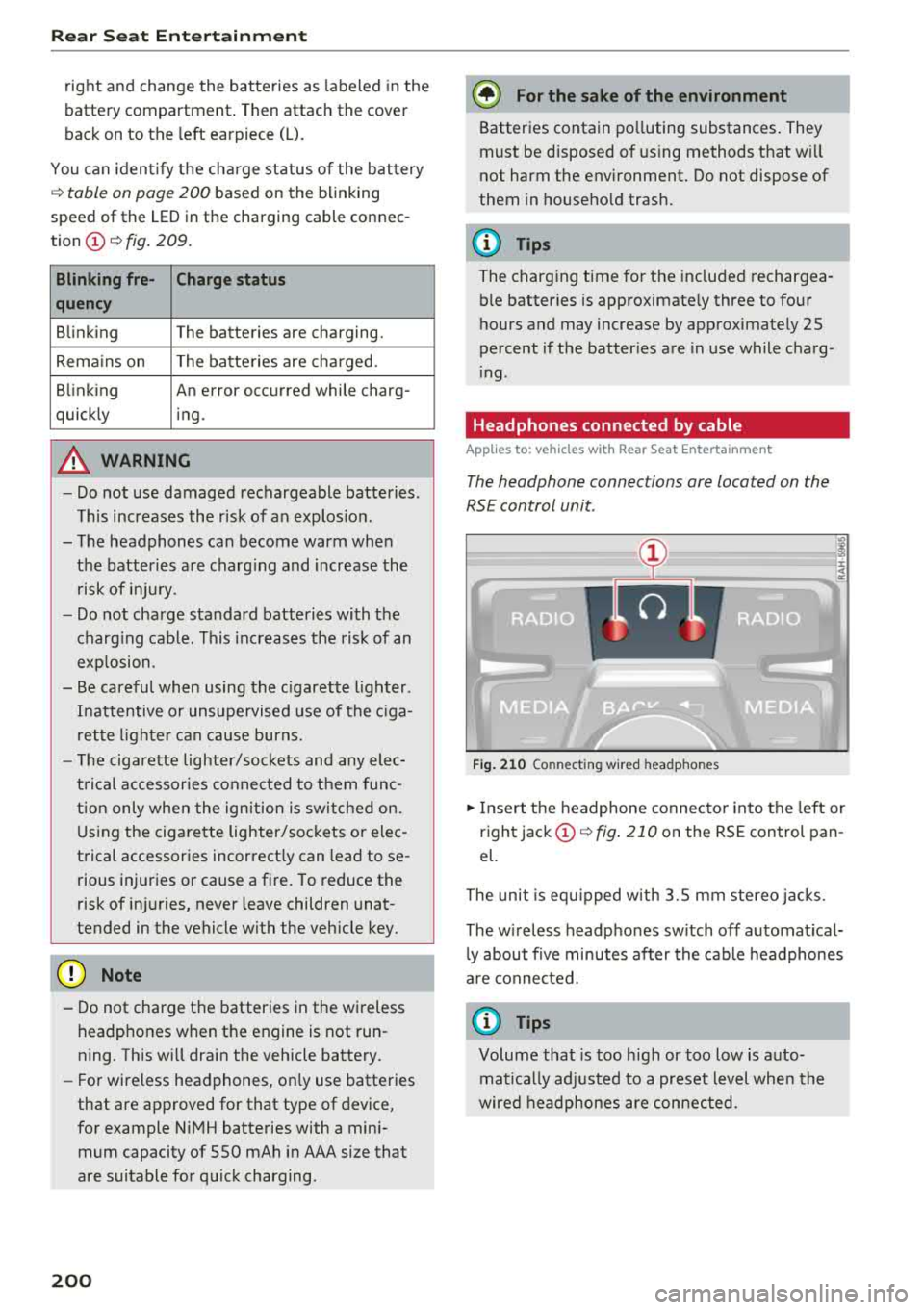
RS E control unit.
Fig . 21 0 Co nn ect in g wir ed h eadpho nes
.,. Insert t he headphone connecto r into the left or
right jack
CD q fig . 210 on the RSE control pan
el.
The unit is eq uipped w ith 3.5 mm stereo jacks .
The w ireless headphones sw itch off automat ical
l y about f ive minutes after the cable headphones
a re connected.
(D Tips
Volume that is too h igh or too low is auto
mat ica lly adjusted to a preset level whe n the
wired headphones are connected.