turn signal AUDI A8 2018 User Guide
[x] Cancel search | Manufacturer: AUDI, Model Year: 2018, Model line: A8, Model: AUDI A8 2018Pages: 356, PDF Size: 54.71 MB
Page 118 of 356
Parking systems
Parking system plus
Description
Applies to: ve hicles with park ing system p lus
Parking system plus provides audio and v isual
signals when parking .
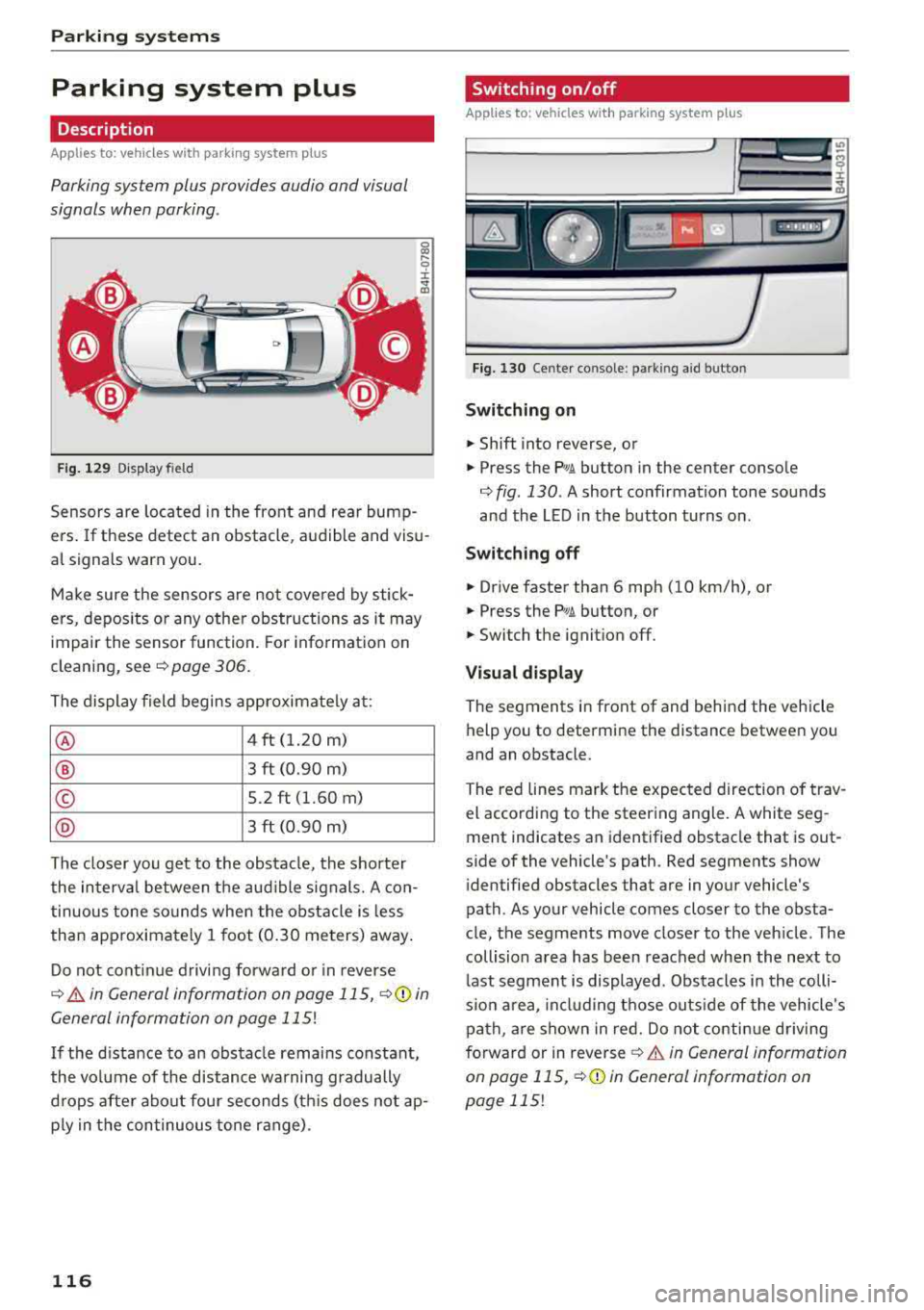
C>
Fig. 129 Displa y fi eld
Sensors are located in the front and rear bump
ers. If these detect an obstacle , audible and visu
al signals warn you.
Make sure the sensors are not covered by stick
ers, depos its or any other obstructions as it may
impair the sensor function. For information on
cleaning, see
c::> page 306.
The display field begins approximately at:
® 4 ft (1.20 m)
® 3 ft (0.90 m)
© 5.2 ft (1.60 m)
@ 3 ft (0.90 m)
The closer you get to the obstacle, the shorter
the interval between the audible signals. A con
tinuous tone sounds when the obstacle is less
than approximately 1 foot (0.30 meters) away.
Do not continue driving forward or in reverse
c::> & in General information on page 115, c::> ([) in
General information on page
115!
If the distance to an obstacle remains constant,
the volume of the distance warning gradually
drops after about four seconds (th is does not ap
p ly in the continuous tone range) .
116
Switching on/off
Applies to : vehicles with parking system plus
Fig. 130 Center console : par kin g aid b utto n
Switching on
.. Shift into reverse, or
.. Press the PwA button in the center console
c::> fig. 130 . A short confirmation tone sounds
and the LED in the button turns on .
Switching off
.. Drive faster than 6 mph (10 km/h), or
.. Press the PwA button, or
.. Switch the ignition off.
Visual display
The segments in front of and behind the vehicle
help you to determine the distance between you
and an obstacle .
The red lines mark the expected direction of trav
el according to the steering angle. A white seg
ment indicates an identified obstacle that is out
side of the vehicle's path . Red segments show
identified obstacles that are in your vehicle's
path. As your vehicle comes closer to the obsta
cle, the segments move closer to the vehicle . The
collision area has been reached when the next to
last segment is displayed . Obstacles in the colli
s io n area, including those outside of the vehicle 's
path , are shown in red. Do not continue driving
forward or in
reverse ¢ & in General information
on pag e 115 ,
c::>(D in General information on
page
115!
Page 120 of 356
Parking syste m s
-For objects that do not touch the ground,
such as the bumper of a parked vehicle, a
trailer hitch or the rear of a truck. Do not
use the orientation lines in this case.
- If driven from a level surface onto an in
cline, or a downward slope.
- If driven toward protruding objects.
- If the vehicle is carrying too much load in
the rear.
- The accuracy of the orientation lines and
blue surfaces decreases when the vehicle is
raised/lowered
¢ page 111.
(D Note
-Always read and follow the applicable warn
ings
¢ (D in General information on
page 115.
- The orange -colored or ientation lines in the
Infotainment display show the vehicle path based on the steering wheel angle. The
front of the vehicle swings out more than
the rear of the veh icle. Maintain p lenty of
distance so that an exterior mirror or a cor ner of the veh icle does not co llide w ith any
obstacles.
Switching on/off
Ap plies to: ve hicles w ith rearview camera
Switching on
~ Sh ift i nto reverse, or
~ P ress the p, qA bu tton in the cente r console
¢ page 116, fig . 130. A sho rt confirmat io n
tone sounds and the LED in the but ton turns
on .
Switching between the rearview camera and
optical display
~ Press t he Graphic contro l but ton ®
¢ page 118, fig. 135 to see the optica l disp lay.
~ Press the Rear view contro l button to see the
rearview camera image.
Sw itch ing off
~ D rive faster than 6 mph (10 km/h), or
~ Press the p, qA bu tton, or
~ Switch the ignition off.
118
@ Tips
- The visua l display in the left part of the dis
play should he lp you detect the crit ica l vehi-
cle areas.
- You can change the vol ume and pitch of the
signals as well as the display¢
page 125.
Perpendicular parking
App lies to : vehicles wi th rearv iew camera
This view may be used when parking in a garage
or in
a parking space.
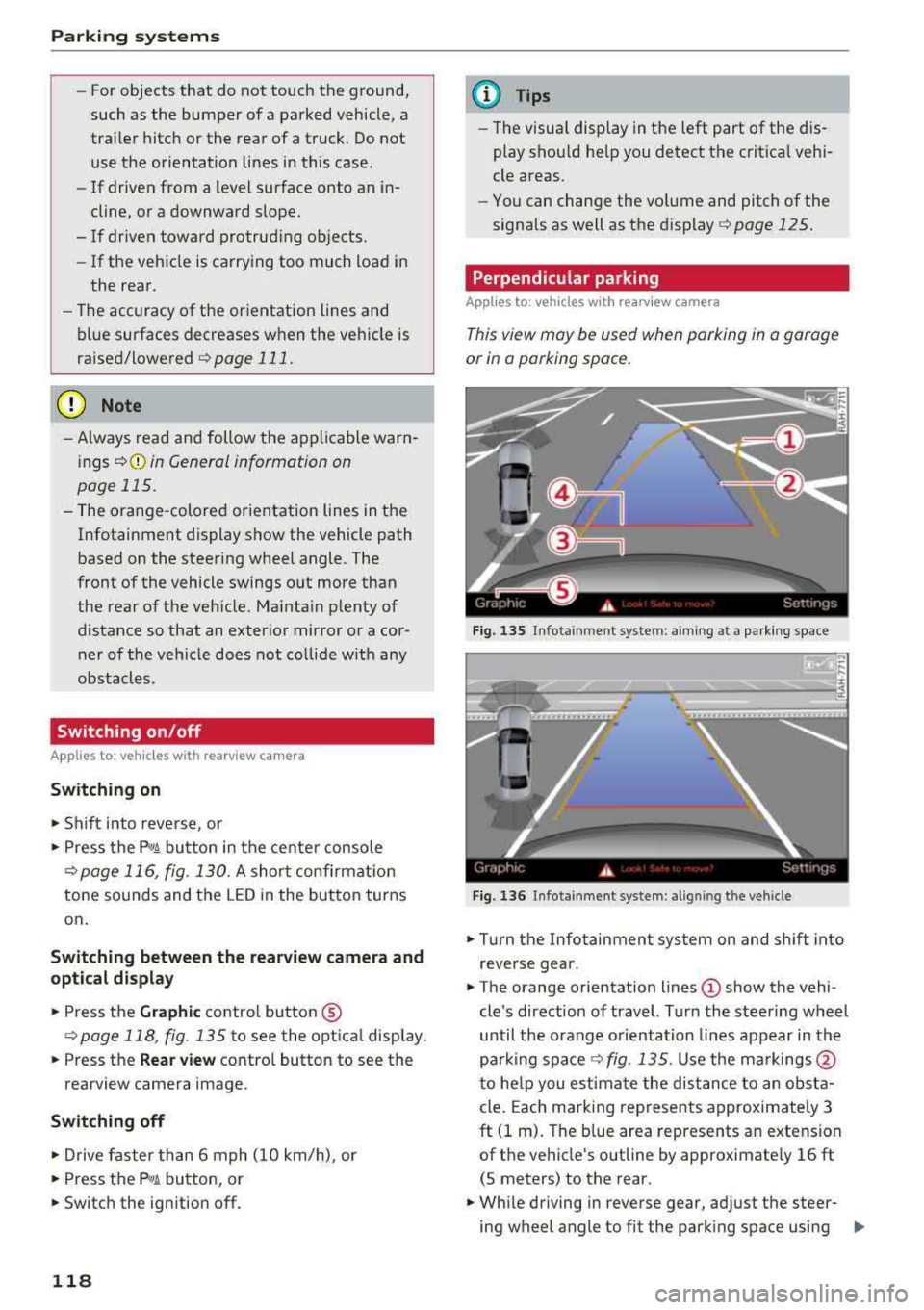
F ig. 13 S Infota inment system: aim ing at a pa rk in g space
Fig. 1 36 Infota inment system : alig ning the vehicle
~ Turn the Infotainment system on and shift into
reverse gear.
~ The orange orie ntation lines (!) show the vehi
cle 's direction of travel. Turn the steering wheel
until the orange o rientation lines appear in th e
parking
space ¢ fig. 135. Use the ma rkings @
t o he lp you estima te the dist ance to an obsta
cle . Each marking represents approximate ly 3
ft (1 m). The b lue area represents an extension
of the vehicle's outline by approximate ly 16 ft
(5 meters) to the rear.
~ Wh ile driving in reverse gear, ad just the steer-
ing wheel angle to fit the park ing space using
..,.
Page 121 of 356
lL t:0 ....
"' ......
"' .... 0 0 :c '
¢ A in General information on page 117, ¢(D
in General information on page 118 .@ repre
sents the rear bumper . At the very latest, stop
the vehicle when the red orientation
line @
borders an object .
Parallel parking
Applies to: veh icles with rearview camera
This view may be used when parallel parking
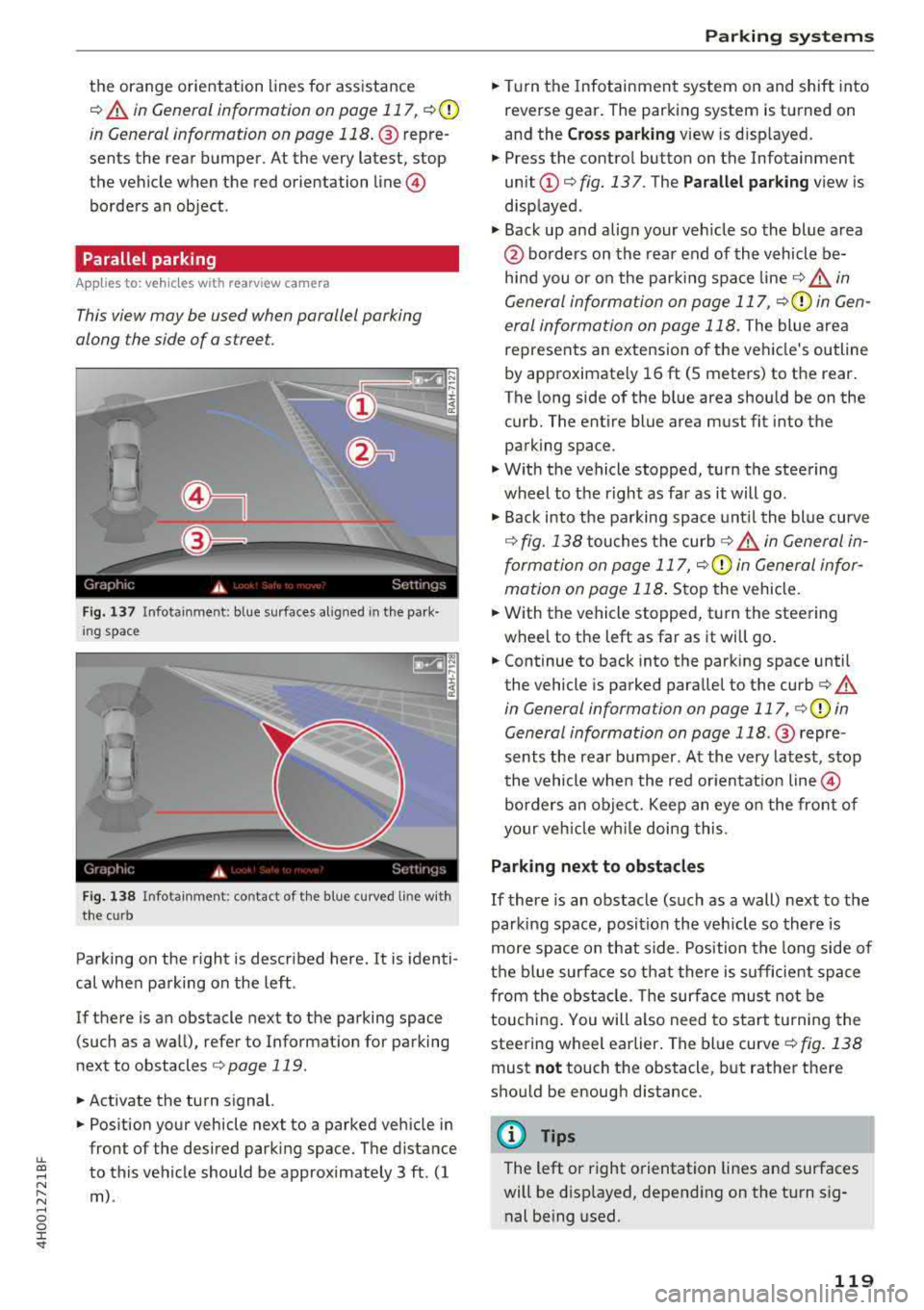
along the side of a stree t.
Fig . 137 In fota inment : blue surfaces alig ned in the pa rk ·
i ng space
Fi g. 138 In fo ta inm ent: c onta ct of the blue curv ed li ne with
the curb
Parking on the r ight is described here. It is identi
cal when parking on the left .
If there is an obstacle next to the parking space (such as a wall), refer to Informat ion for parking
next to obstacles
¢ page 119 .
.. Activate the turn signal.
.. Position your vehicle next to a parked veh icle in
front of the desired parking space. The d istance
to this vehicle should be approximately 3 ft . (1
m) .
Parking systems
.. T urn the Infotainment system on and shift into
reverse gear. The parking system is turned on
and the
C ros s parking view is d isp layed .
.. Press the contro l button on the Infotainment
unit @¢ fig. 137 . The Parallel parking view is
disp layed .
.. Back up and alig n your veh icle so the blue area
@ bo rders on the rear end of the vehicle be
hind you o r on the park ing spa ce
line ¢&_ in
General information on page 117,
¢ (Din Gen
eral information on page 118.
The blue area
represents an extension o f the vehicle's outline
by approximate ly 16 ft (5 meters) to the rear.
T he long side of the b lue area s hou ld be on the
curb. The entire blue area must fit into the
parking space .
.,. With the vehicle stopped, turn the steering
wheel to t he right as far as it will go .
.,. Back into the parking space unt il the blue curve
¢ fig. 138 touches the curb ¢&_ in General in
formation on page 117,
¢ (Din General infor
mation on page 118 .
Stop the vehicle .
.. With the vehicle stopped, t urn the steering
wheel to the left as far as it wi ll go .
.. Continue to back into the parking space until
the vehicle is parked parallel to the
curb ¢ A
in General informa tion on page 117, ¢ @ in
General information on page 118 .@ repre ·
sents the rear bumper. At the very latest, stop
the vehicle when the red or ien tat io n line
@
borders an object. Keep an eye o n the front of
your veh icle w hile doing this.
Parking next to obstacles
If there is an obstacle (such as a wall) next to the
parking space, position the veh icle so there is
more space on that side . Position the long side of
the b lue surfa ce so t hat there is sufficient spa ce
from the obstacle . T he su rface must not be
touchi ng . You will a lso need to s tart tu rning the
steering wheel earlier . The blue curve
¢ fig . 138
must not touch the obstacl e, b ut rather there
should be enough d istance .
(D Tips
The left or right orientation lines an d surfaces
will be disp layed, depend ing on the turn sig
nal be ing used.
119
Page 125 of 356
lL t:0 ....
"" ......
"" .... 0 0 :c '
this mode.
.,. To cross park, parallel park or position the vehi
cle in front of a tra iler*, press the control but
ton ® on the control panel repeatedly unt il the
symbol for the des ired mode is selected .
Perpendicular parking
Applies to: vehicles with peripheral cameras
This view may be used when parking in a garage
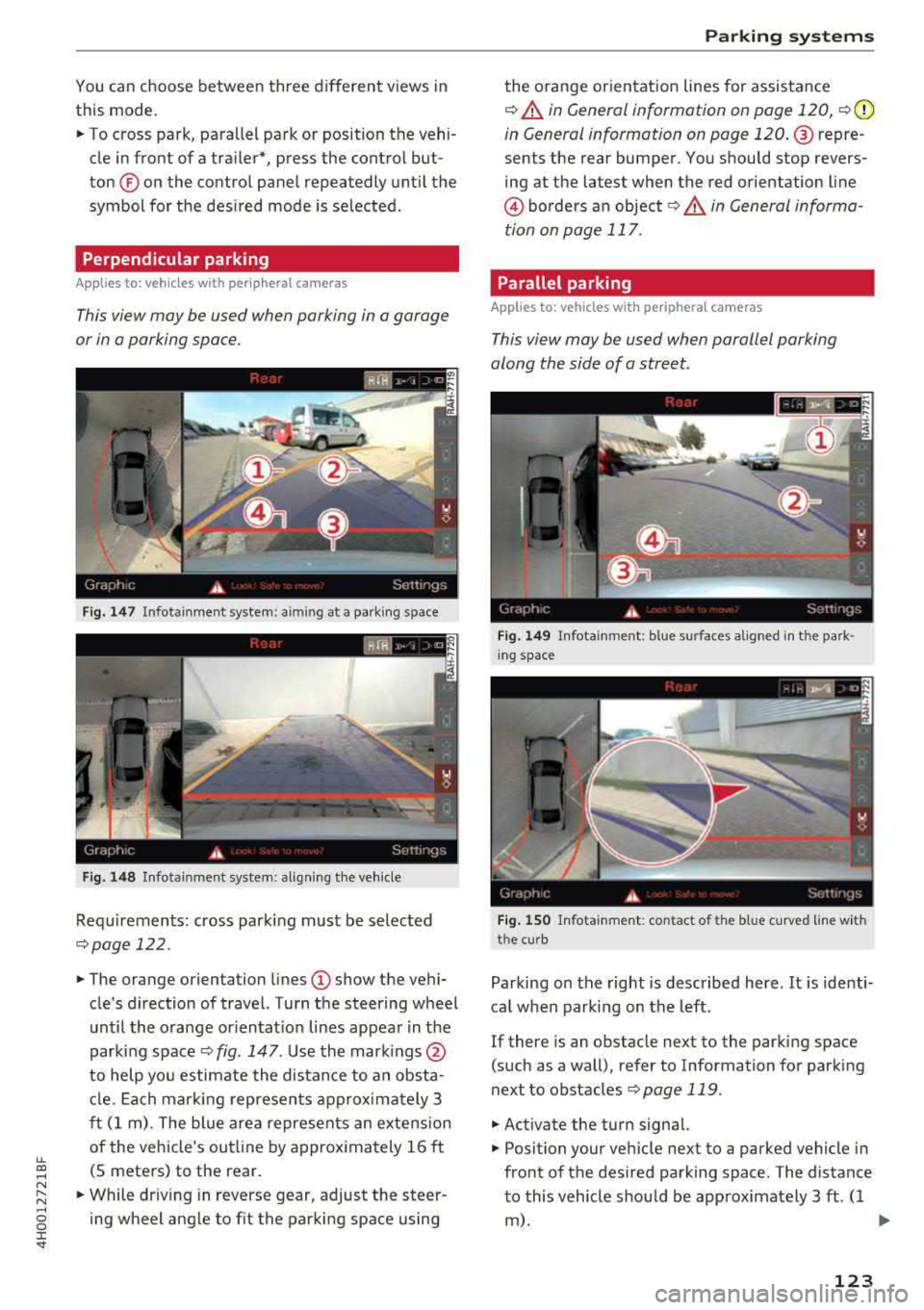
or in a parking space .
Fig . 1 47 In fota inmen t system: aiming at a pa rking s pace
Fig. 1 48 In fot ainm en t system : align ing t he vehicle
Requ irements: cross park ing must be selected
q page 122 .
.,. The orange orientation lines (I) show the vehi
cle's direction of travel. Turn the steering wheel
unt il the orange or ientat io n lines appear in t he
parking space
q fig . 147 . Use the mark ings @
to help yo u estimate the distance to an obsta
cl e. Ea ch mar king represen ts approx imately 3
ft (1 m) . The blue are a represents an extens ion
of the vehicle's outl ine by approx imately 16 ft
(S meters) to the rear.
.,. While dr iv ing in reverse gear, adjust the steer
ing wheel ang le to fit the parking space using
Parking systems
the orange orientat ion lines for assistance
q &. in General information on page 120, q (D
in G eneral information on page 120 . @repre
sents the rear bumper. You should stop revers
ing at the la test when the red orientation line
@ borders an object ¢&. in General informa
tion on page 117 .
Parallel parking
Applies to: vehicles with peripheral cameras
This view may be used when parallel parking
along the side of a street.
F ig. 149 In fota inment : blue s urfaces a lig ned i n th e pa rk ·
i ng space
Fi g. 1 50 Info tainment: con tac t of th e blu e curved line w ith
t he cu rb
Parking on the right is described here . It is identi·
ca l when parking on the left.
If there is an obstacle next to the parking space
(such as a wall), refer to Information for parking
next to obstacles
q page 119 .
.,. Activate the turn signal.
.,. Position your vehicle next to a parked vehicle in
front of the des ired parking space. The distance
to this vehicle shou ld be approximately 3 ft . (1
m). ..,.
123
Page 127 of 356
u. co .... N
" N .... 0 0 :c '
A ppl ies to : ve hicles w ith parkin g system plus/rearv iew cam
era/peripheral ca mera
The display and warning tones can be adjusted in
the Infotainment.
~ Se lect : the ICARI fu nction button > Car systems
contro l button > Driver assistance > Parking
aid .
Display
On * -
an op tical d isp lay is shown for the par kin g
system plus, a rearv iew camera image is s hown
for the rearview camera *.
Off -when the p arking sys tem is sw itche d off,
on ly audib le sign als are give n.
Signal tones
Front volume -
volume for the front area
Rear volume -volume for the rear area
Front frequency -frequency for the front area
Rear frequency -frequen cy fo r the rea r area
Music volume during nav . prompts -the volume
of the a udio/video so urce is lowe red when t he
pa rking system is turned o n
The new ly selected leve l is demonstrated briefly
by the sound generator .
(D Tips
-The wa rning tones ca n also be ad justed d i
r ectly by the vis ual d isp lay or the pictu re
from the camera. Simply p ress the
Settings
control bu tton.
- Changed sett ings are ac tivated whe n the
p arking system is switched o n aga in.
- The settings for volume and frequency are
a utomat ica lly saved and ass igned to the re
mo te con trol key be ing used.
Error messages
A pp lies to: ve hicles with parking system plus/rearview cam
era/per ipheral ca mera
There is an erro r in the system if the LED in the
Pw , button is b link ing and yo u hear a continuous
Parking systems
alarm for a few seconds after sw itch ing on the
par king system or w hen the pa rking system is a l
r eady activated. If the erro r is not cor rected be
fo re you switch off the ignition, the
LED in the Pw ,
button w ill blink the next time you switch on the
park ing system by shifting into reverse.
Parking system plus*
If a senso r is fa ulty, the~ symbo l will appear i n
front of/beh ind the vehicle in the Infotainment
display. If a rear sensor is faulty, on ly obstacles
t h at are i n areas @and @ are shown
Q page 116, fig . 129 . If a front se nsor is faulty,
o n ly obs tacles tha t are in a reas © and @are
shown. The re is a lso a sys tem ma lf u nct ion if all
seg ments arou nd the veh icle are red or if no seg
me nts are disp laye d.
Peripheral cameras*
The re is a system malfu nction if t he 00 • symbol
appea rs and the co rresponding d isp lay area is
s h own in bl ue. The camera is not wo rking in t his
are a.
Drive to an authorized A udi dealer or authorized
Audi Se rvice Facility immed iate ly to have the
malfu nction corrected.
Trailer hitch
App lies to: vehicles wit h parking system pl us/rea rv iew cam
e ra/peri phe ra l cameras an d tra ile r hitc h
When the trailer socket is in use, the par king sys
tem rear sensors are not act ivated when you sh ift
into reverse gear or when yo u press t he
p, ,1 A but
ton. This res ults in the following rest rict ions.
Parking system plus*
The re is no distance warning for the rear. The
front senso rs remain activated. T he v isua l disp lay
switches to trailer mode.
Rearview camera*/peripheral cameras*
T he re is no distance warning for the rea r. The
front senso rs remain activated . The visua l disp lay
switches to trailer mode. The rearview came ra
i mage will not s how the orie ntation lines and t he
bl ue surfaces.
IJJ,-
125
Page 140 of 356
Multi Media Interface
-Storing the radio station currently set: hold
your finger on a number (1 to 6) on the MMI
touch contro l pane l until you hear a signal
tone. The radio station will be stored on these
lected number in the list .
-Selecting a stored radio station: tap a number
(1 to 6) on the MMI touch control pad briefly.
The preset buttons (1-6) appear in the Infotain ment
display @¢ fig. 156 .
-Moving a stored radio station: move your fin
ger on the MMI touch control pad to the left/
right until the preset buttons (1-6) appear in
the Infotainment
d isplay @.
Browsing/selecting album covers
Requirement: the Media menu must be open and
a source must be
selected ¢ page 190.
-Browsing through album cove rs: move your
finger across the MMI touch contro l pad from
Letter/number speller
Fig. 157 Spe ller
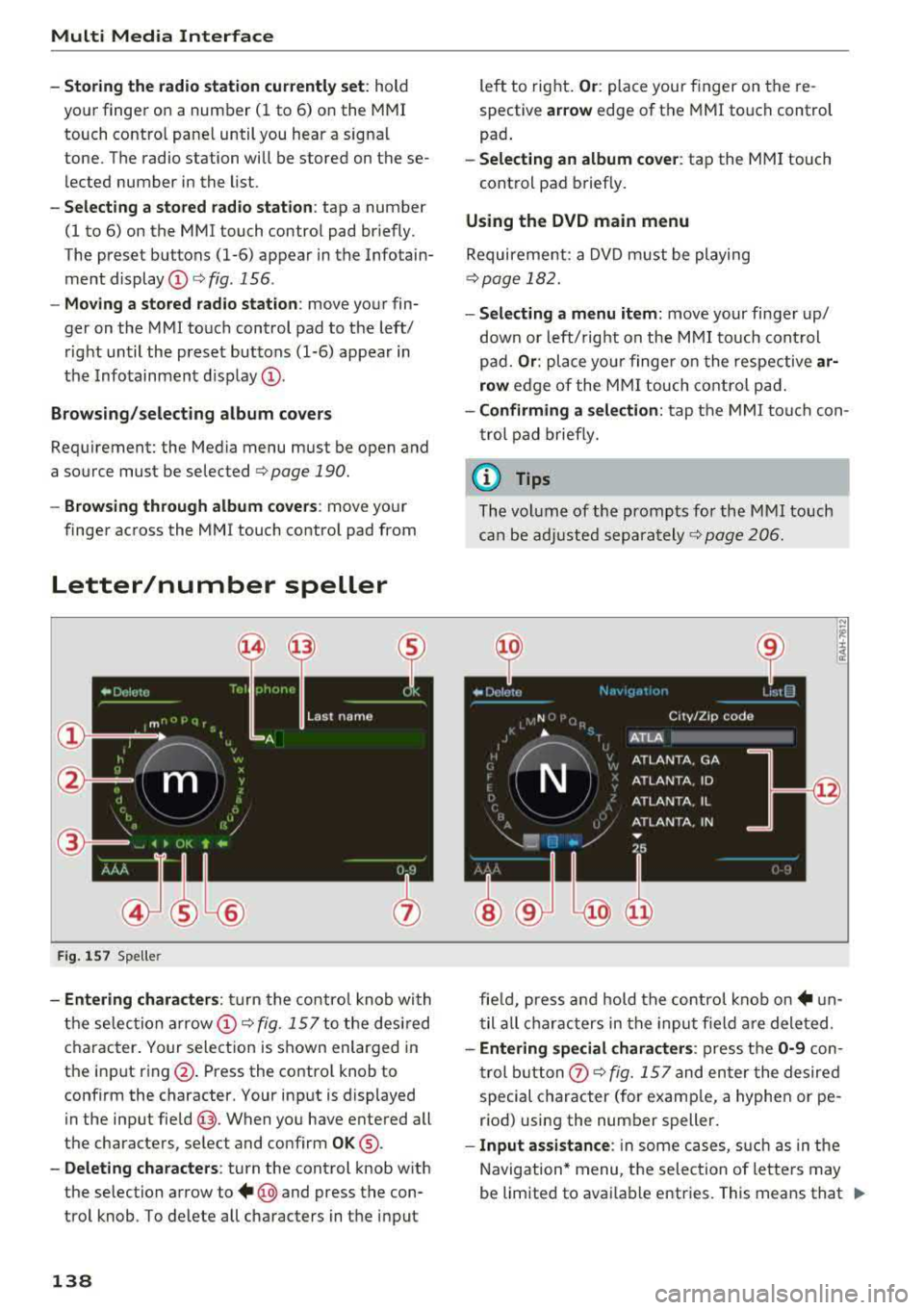
-Entering characters : turn the control knob with
the selec tion
arrow @¢ fig. 157 to the desired
character. Your selection is shown enlarged in
the input ring @. Press the contro l knob to
confirm the character. Your input is displayed
in the input
field @. When you have entered all
the characters, select and confirm
OK ®·
-Deleting characters: turn the control knob with
the selection arrow to
+ @ and press the con
trol knob . To delete all characters in the input
138
left to right. Or: place your finger on the re
spective
ar row edge of the MMI touch control
pad .
-Selecting an album cover: tap the MMI touch
cont rol pad briefly.
Using the DVD main menu
Requirement: a DVD must be playing
¢page 182.
- Selecting a menu item: move your finger up/
down or left/ right on the MMI touch control
pad.
Or : place your finge r on the respective ar
row
edge of the MMI touch control pad.
-Confirming a selection: tap the MMI touch con
trol pad briefly.
(D Tips
The volume of the prompts for the M MI touch
can be adjusted
separately ¢ page 206.
fie ld, press and hold the control knob
on+ un
til all characters in the input f ield are deleted.
-Entering special characters : press the 0-9 con
trol button
0 ¢ fig. 157 and enter the desired
special character (for examp le, a hyphen or pe
riod) using the number speller.
- Input assistance : in some cases, such as in the
Navigation* menu, the selection of letters may
be limited to avai lable entries. This means that
.,..
Page 180 of 356
Radio
Radio
Accessing the radio
The radio supports the FM, AM and Sirius* (satel
lite radio) bands. By means of an HD Radio re
ceiver, you also receive radio stations on the FM
and AM band in digital format.
F ig. 1 89 FM stat ion lis t (H D Ra dio)
SIR IUS ~ ..
A
006 60s Hits Linking
(
007
70s Hits Linking ----~-- ---·
Linking _
008 80s Hits
009 ThePulse Linking
010 Bridge Linking
011 Radio 1 Linking
•
:fiv,cJ t• 3G,t1l l
F ig . 19 0
Sir iu s st ati on l ist
.,. Se lect: the I RADIO I button.
After se lecting the r ad io, the last menu th at was
open is displayed.
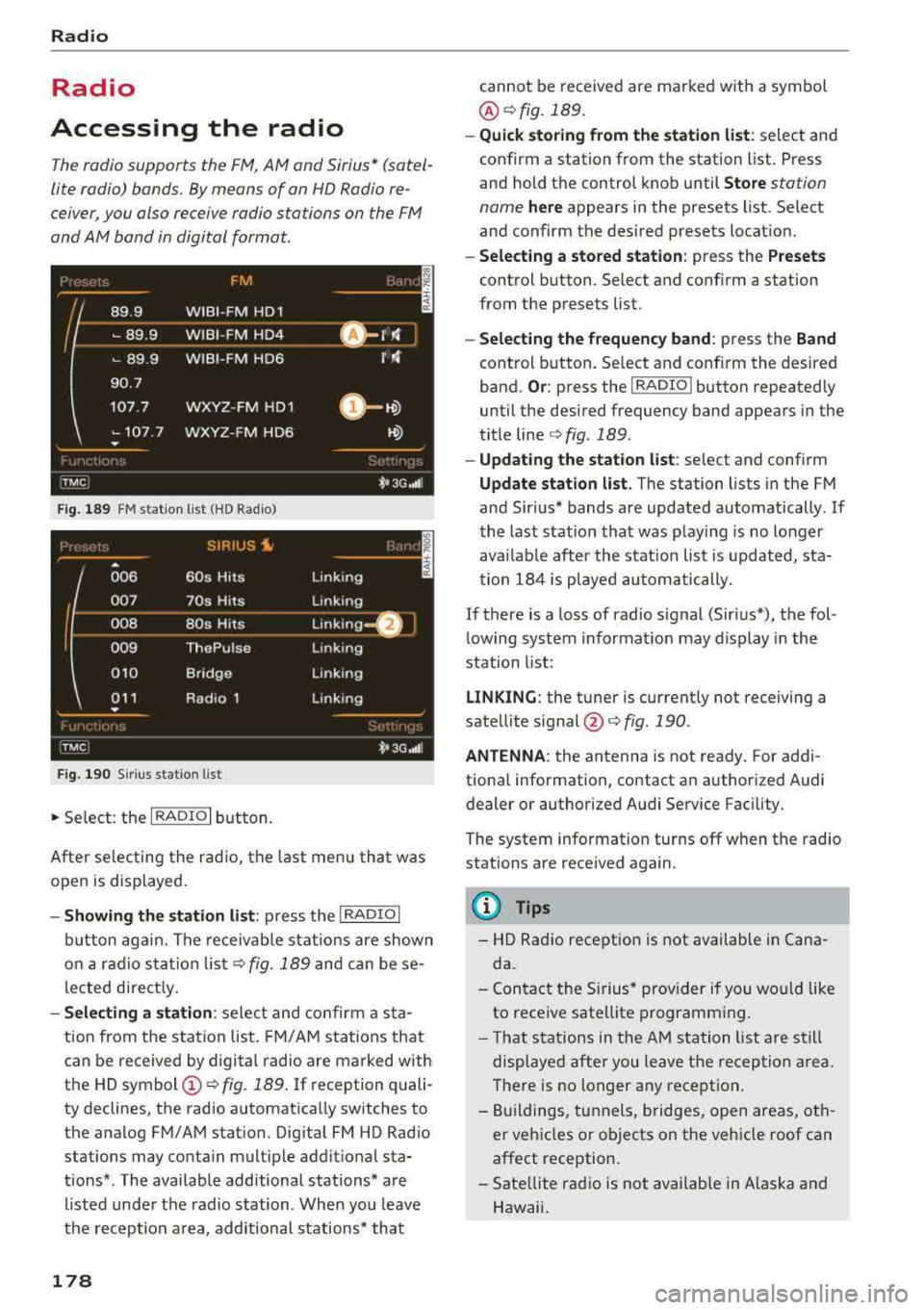
- Showing the station li st : p ress the I RADIO I
button aga in. The receivab le s tat ions are shown
o n a ra d io s ta tion lis t
c:> fig. 189 and can be se
lected direct ly.
- Selecting a station : select and confirm a sta
tion from the s tation list. FM/ A M stations that
can be received by digital radio are marked with
the HD
symbol @ c:> fig. 189 . If reception quali
ty declines, the radio automat ica lly switches to
the analog FM/AM stat ion. Dig ital FM HD Rad io
stations may contain multiple additional sta
tions* . The available additional stations* are
listed unde r the radio station . When you leave
the reception a rea, additional stations* that
178
cannot be received are marked w ith a symbol
@ c:>fig.189 .
-Quick storing from the station list : select and
confirm a station from the station list. Press
and hold the control knob until
Store station
name
here appears in the presets list. Select
and confirm the des ired presets location.
- Select ing a stored station : press the Presets
control b utton . Select and conf irm a station
from the presets list.
- Select ing the frequen cy band : press the Band
control button. Select and conf irm the desired
band.
Or : press the !RADIO I button repeated ly
until the des ired frequency band appears in the
tit le line
c:> fig . 189 .
-Updating the station list : select and confirm
Update station list . The station lists in the FM
and Sir ius* bands are updated automatically . If
the last station that was play ing is no longer
avai lab le after the stat ion list is updated, sta
t ion 18 4 is played au tomatically.
If there is a loss of radio signal (Sir ius*), t he fol
lowing system informat ion may display in the
station list:
LINKING : the tuner is current ly not receiving a
sate llite
s ignal @<=:> fig. 190.
ANTENNA : the antenna is not ready. For addi
tional information, contact an author iz ed Audi
dealer or authorized Audi Service Fac il ity .
The system information turns off when the radio
stations are rece ived again .
@ Tips
- HD Radio reception is not available in Cana
da.
- Con tact the Sirius * prov ider if you wo uld like
to receive satellite p rogramm ing .
- T hat stations in the AM station list are s till
displayed after you leave t he reception area.
There is no longer any reception .
- B uildings, tunnels, bridges, open areas, oth
er veh icles or objects on the veh icle roof can
affect reception.
- Sate llite radio is not availab le in Alaska and
Hawaii.
Page 196 of 356
Rear Seat Entertainment
Rear Seat Entertainment
RSE components
overview
A pp lies to: ve hicles w ith Rea r Seat En te rtainment
The Rear Seat Entertainment, abbreviated RSE,
combines different entertainment systems . The
RSE control panel is located in the rear center
console .
Fig. 201 RSE components
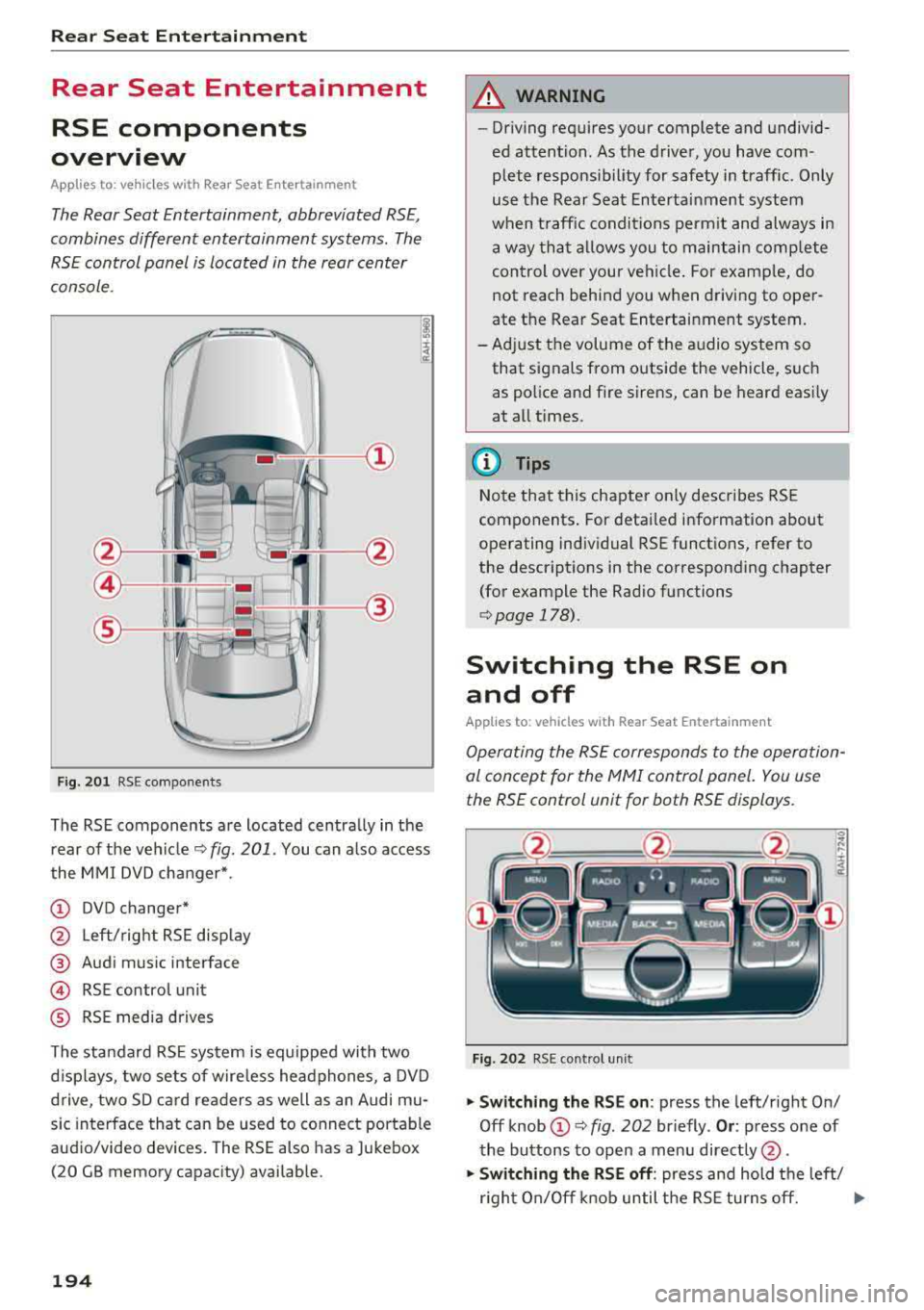
The RSE components are located centrally in the
rear of the vehicle
c:.> fig. 201 . You can also access
the MMI DVD changer*.
(D DVD changer*
@ Left/right RSE display
@ Audi music interface
@ RSE contro l unit
® RSE media drives
The standard RSE system is equipped with two
d isplays, two sets of wire less headphones, a DVD
drive, two SD card readers as well as an Audi mu
sic interface that can be used to connect portable
audio/video devices. The RSE also has a Jukebox
(20 GB memory capacity) availab le.
194
A WARNING
,-
- Driving requires your complete and undivid-
ed attention. As the driver, you have com
plete responsib ility for safety in traffic. Only
use the Rear Seat Entertainment system
when traffic conditions permit and always in
a way that allows you to maintain comp lete
control over your vehicle . For examp le, do
not reach behind you when driving to oper
ate the Rear Seat Entertainment system.
-Adjust the volume of the audio system so
that signals from outside the vehicle, such
as police and fire sirens, can be heard easily
at all times.
(D Tips
Note that this chapter on ly describes RSE
components . For detailed information about
operating individual RSE functions, refer to
the descriptions in the corresponding chapter
(for example the Rad io functions
r::.> page 178).
Switching the RSE on
and off
App lies to: vehicles with Rear Seat Entertainment
Operating the RSE corresponds to the operation
al concept for the
MMI control panel. You use
the RSE control unit for both RSE displays.
Fig. 202 RSE cont rol unit
.,. Switching the RSE on : press the left/right On/
Off knob
(D c:.> fig . 202 br iefly . Or: press one of
the buttons to open a menu directly @.
.,. Switching the RSE off: press and hold the left/
r ight On/Off knob until the RSE turns off.
.,..
Page 208 of 356
System settings
sound di stribu tion)/ Driver (sound dis tribution
aime d towa rd the d river) or
All /Front /Rear.
- Surround level* :
you can a dju st the vo lume of
t h e sur round effect by tu rning the contro l
k no b.
-AudioPilot (dynamic road noise compensa
tion)* :
select and confirm Active /Inactive.
When t he f unct io n is act ive, the vo lume is auto
matically ad justed depending on t he leve l o f
noise ins ide the ve hicle.
- Sound focus * (adjusting the sound distribu
tion ):
select and confi rm All (symmet rical
sound d istr ibutio n)/ Movie (optima l so und dis
tribution fo r playing a
movie)/ Front/Rear .
- Volume balancing *:
the dynamic road noise
compensation ca n be ad justed by turning the
contro l knob.
@ Subwoofer* I @ Bass/ @Treble
You can a djust the Subwoofer *, Bass and Treble
sett ings by turning the contro l kno b. The
cha nged settings only apply fo r the aud io so urce
that is active at the t ime . This allows you to ad
jus t th e sound se tt in gs for eac h aud io so urce sep
ara tely.
® Balance/Fader (sound focus)
- Adjusting the sound distribution using the
MMI touch :
move your finger on the MMI t ouch
contro l pane l in the des ired d irec tion.
Adjusting the system
volume
.,. Se le ct: the IMENU ! butto n> Tone .
Navigation* control button
Voice guidance volume /Music volume during
nav. prompts:
vol ume o f navigation prompts
d ur ing ac tive ro ute g uidance . Mu sic volume dur
i n g nav iga tion prom pts mea ns tha t th e vol ume
of audio playb ack is te m porar ily lowered whe n
t he p arkin g sys tem or v oic e gu idance i s act ive.
Voice guidance: se e ¢page 175.
Voice guidance during call : see ¢ page 175.
206
Telephone* control button
Ringtone volume /Phone call volume :
you ca n
adjus t the sele cte d r ing tone vo lume or call vol
u me by tu rnin g the cont ro l knob. The
Phone call
volume
can on ly be adjusted durin g a call.
Systems control button
Speech dialog system volume :
you can adju st
th e vol ume o f th e ann ounc emen ts by tur ning the
contro l kno b.
MMI touch volume *: the vo lu m e of the MM I
tou ch pro mpts can be adjus ted by tur ning the
c on tro l k no b.
Other settings
.,. Sele ct: th e I M ENU I button > MMI setup contro l
bu tton.
Language
The language can be changed fo r the Info ta in
men t display, t he dr iver i nfo rm ation system dis
play, voice guid ance* and t he voice recogn itio n
sys te m* .
En glish, French and Spanish are ava ila bl e.
Measurement units
The following meas urement u nits ca n be set in
the Infotainment d isp lay a nd dr iver info rmat ion
system.
- Speed (mph o r km/ h)
- Distance (miles o r kilomete rs)
- Temperature (°For 0
( )
-Fuel consumption (l/l0 0km, mpg (US), mpg
(U K) or k m/l)
- Volume (lite rs, ga llons ( UK) o r gallo ns (US))
Speech dialog system
App lies to : vehicles wi th voice recog nitio n syste m
Display speech commands : th e d isplay of poss i
ble commands dur ing vo ice input can be switc h
ed
On or Off .
Short dialog :
prompts in a s horter format can be
switc hed
On or Off .
Input signal :
the beep input signa l dur ing a dia-
l og can be switc hed
On or Off. ..,.
Page 253 of 356
u. co .... N
" N .... 0 0 :c '
The Advanced Airbag System in your vehicle de
tects the presence of an infant or child in a child restraint on the front passenger seat using the
weight-sensing mat in the seat cushion and the
sensor be low the safety belt latch on the front
passenger seat that measures the tension on the
safety belt.
The weight-sensing mat measures total weight
of the ch ild and the child safety seat and a ch ild
blanket on the front passenger seat. The weight
on the front passenger seat is related to the de
sign of the ch ild restraint and its "footprint", the
size and shape of the bottom of t he chi ld re
str aint as it sits on the seat. The weight of a child
restraint and its "footprint" vary for d ifferent
kinds o f child restraints and for the different
models of the same kind of child restraint of
fered by child restraint manufact urers.
The weight ranges for the individua l types,
makes and models of child restraints that the
NHTSA has specified in the Safety Standard to
gether with the weight ranges of typical infants
and typical 1 year-o ld child have been stored in
the control unit of the Advanced A irbag System.
When a child restraint is being used on the front passenger seat with a typ ical 1 year-old child, the
Advanced A irbag System compares the we ight
measured by the we ight sensi ng mat w ith the in
formation stored in the electronic contro l uni t.
The electron ic control u nit also registers the ten
sion on the front passenger safety belt. The ten
sion on the safety belt for the front passenge r
seat will be d iffe ren t fo r an ad ult who is p roperly
using the safety belt as compared to t he tension
on the belt when it is used to attach a c hild re
straint to the seat . The sensor below the latch for
the safety belt for the front seat passenger
measures the tens ion on the belt. The input from
this sensor is then used w ith the weight to "de
cide", whether there is a child restra int w ith a
typical 1 year-old child on the front passenge r
seat and w hethe r or not the airbag must be
turned off.
Ch ild saf ety
Child restraints and Advanced Airbags
Regardless of the c hild restraint t hat yo u use,
make s ure tha t it has been ce rt ified to mee t Safe
ty Standards an d has been cert ified by its man u
f act urer for use with an airbag. A lways be sure
t h at the c hild restraint is properly installed at
one of the rear seating positions. If in exception
al circumstances you must use it on the front
passenger seat, careful ly read all of the informa
t ion on child safety and Advanced A irbags and
heed all of the applicable WARNINGS. Make cer
ta in that the ch ild restraint is co rrectly recog
nized by the weight-sensing mat ins ide the front
passenge r seat, that the front passenge r airbag
is turned off and that the a irbag sta tus is always
correctly signaled by the
PASSENGER AIR BAG
OFF
light .
M any types and models of child restra in ts h ave
been avai lab le over the years, new models are in
t roduced regu larly incorporating new and im
proved designs and older models are taken out of
production. Child restraints are not standardized.
Child restra ints of the same type typically have
different weights and sizes and different 'foot
prints,' the size and shape of the bottom of the
ch ild rest raint that sits on the seat, when they
are installed on a vehicle seat. These d iffe rences
make it v irtu a lly imposs ib le to cert ify comp lian ce
wi th t he requi rements for adv anced airbags w it h
each and every child restra int tha t has ever been
sold in the past or wi ll be so ld over the course of
the usef ul life of your vehicle .
F o r thi s reason, the Uni ted Sta tes N ation al High
way Traffic Sa fety Admin istrat ion has published a
li st of specific type, makes and mode ls of chi ld
restraints that must be used to certify compli
ance of the Advanced Airbag System in your ve hi
cle w it h the suppress ion requirements of Federal
Motor Vehicle Safety Standard 208. These chi ld
restra ints are:
Subpart A - Car b ed child restraints
Model Manufactured on or
after
Angel Guard Angel September 2S, 2007 Ride AA2403FOF
251