audio AUDI A8 2018 Owner's Manual
[x] Cancel search | Manufacturer: AUDI, Model Year: 2018, Model line: A8, Model: AUDI A8 2018Pages: 356, PDF Size: 54.71 MB
Page 190 of 356
Media drive s and conn ection s
Audio files Video files
C ha ra cte ris-
up to maximum 320 kbit/s and 48 up to max -
tics kHz sampling frequencies imum
2,000
kbit/s and
720
X 576
px. at max-
Imum
25fps
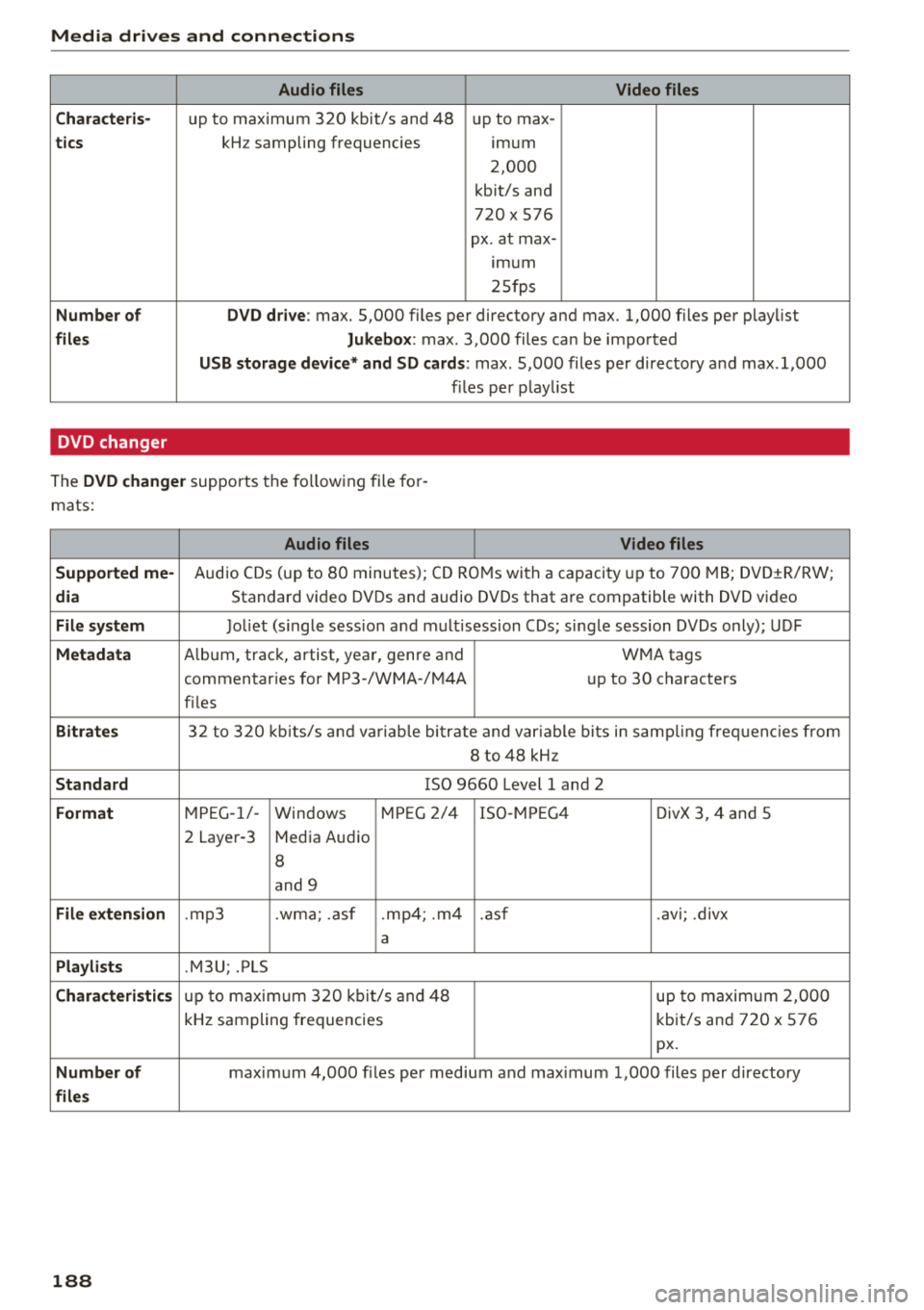
Number of DV D dri ve : max. 5,000 files per directory and max. 1,000 files per playlist
files Jukebo x: max . 3,000 files can be imported
USB storage de vic e* and SD card s: max . 5,000 files per directory and max .1,000
f il es per play list
DVD changer
The DVD change r supports the fo llowing file fo r
mats:
Audio files Video files
Support ed me-
Audio CDs (up to 80 minutes); CD RO Ms with a capacity up to 700 MB; DVD±R/RW;
dia Standard video DVDs and audio DVDs that are compatible with DVD video
File system Joliet (s ingle sess ion a nd mult i session CDs; single session DVDs only); UDF
Metadata A lbum, track, artist, year, genre and
WMA tags
commentaries for MP3-/WMA -/M4A up to 30 characters
fi les
Bi tra tes 32 to 320 kb its/s a nd va riab le bitrate and var iable b its in samp ling freq uenc ies from
8 to 48 kHz
S tand ard ISO 9660 Level 1 and 2
Fo rmat M PEG-1/-
Windows MP
EG 2/4 ISO-MP EG4
DivX 3, 4 and 5
2 Layer-3 Media Audio
8
and 9
File exten sion .mp3 .wma; .asf .mp4; .m4 .asf .avi; .divx
a
Pla ylists .M3U; .PLS
Chara cteri stic s up to maxim um 320 kb it/s and 48 up to maximum 2,000
kHz sampling frequencies kbit/s and 720 x 576
px.
Numb er of maximum 4,000 f iles per medium and max imum 1,000 files per directory
file s
188
Page 191 of 356
u. co .... N
" N .... 0 0 :c '
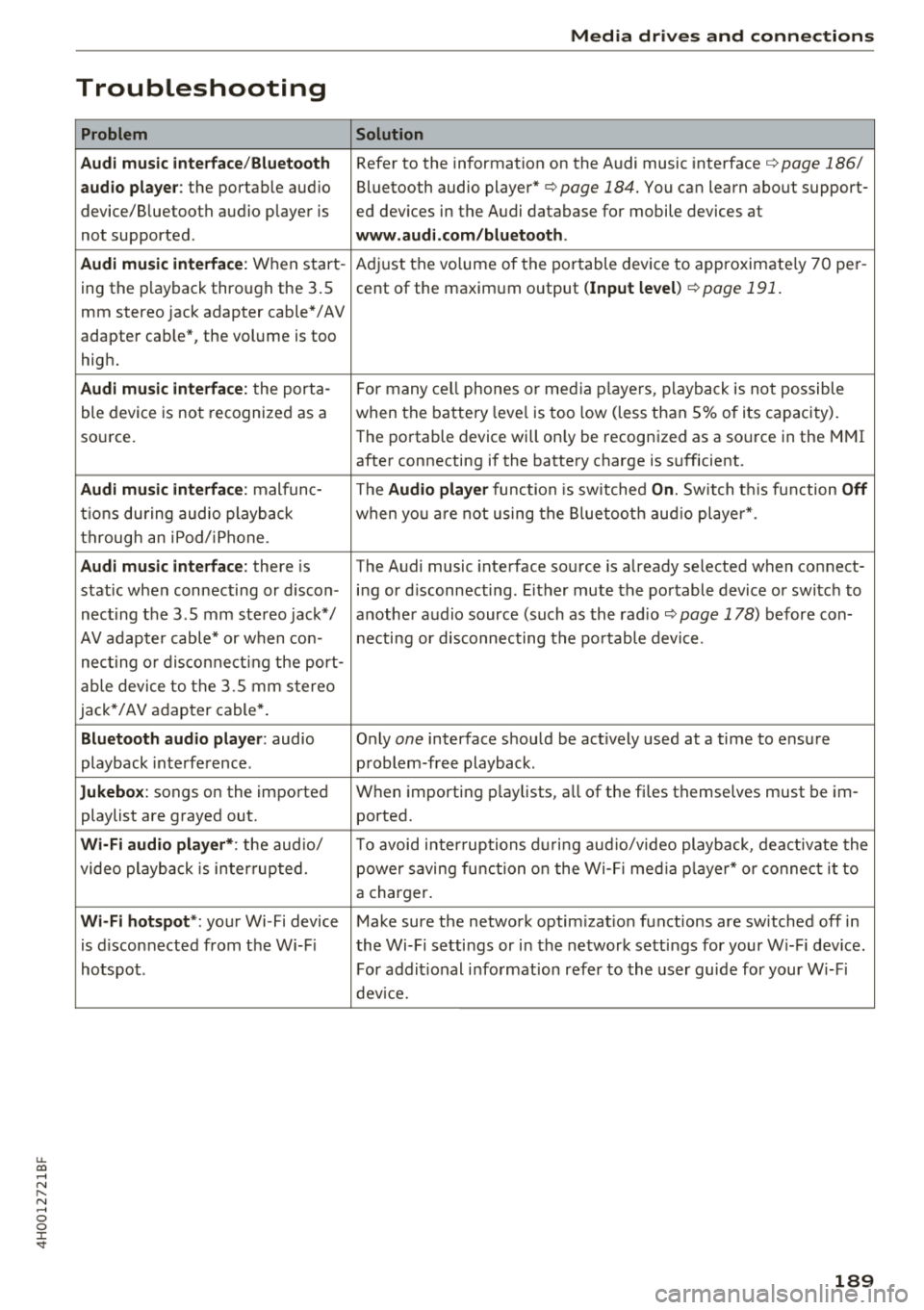
Problem
Audi music interface /Bluetooth
audio player :
the portable aud io
device/Bluetooth audio player is
not supported.
Audi music interface : When start-
ing the playback through the 3.5
mm stereo jack adapter cable*/ AV
adapter cab le", the volume is too
high.
Audi music interface : the porta-
ble device is not recognized as a
source.
Audi music interface : malfunc-
tions during audio playback
through an iPod/iPhone .
Audi music interface : there is
stat ic when connecting or discon -
necting the 3 .5 mm stereo jack*/
AV adapter cable* or when con-
nect ing or disconnecting the port-
able device to the 3.5 mm stereo
jack*/ AV adapter cable*.
Bluetooth audio player : audio
playback interference .
Jukebox: songs on the imported
playlist are grayed out.
Wi-Fi audio player* : the audio/
video playback is inter ru pted.
Wi-Fi hotspot *: your Wi-Fi device
is d isconnected from the Wi-Fi
hotspot .
Media drives and connections
Solution
Refer to the information on the Audi music interface ¢ page 186/
Bluetooth audio
player" ¢ page 184. You can learn about support-
ed dev ices in the Audi database for mobile devices at
www.audi.com/bluetooth .
Adjust the volume of the portable device to approximate ly 70 per-
cent of the maximum output
( Input level )¢ page 191 .
F or many cell phones or media players, playback is not possible
when the battery leve l is too low (less than 5% of its capacity).
The portable device will on ly be recognized as a source in the
MMI
after connecting if the battery charge is sufficient.
The
Audio player function is sw itched On. Switch this function Off
when you are not using the Bluetooth audio player*.
The Audi music interface source is already selected when connect-
ing or disconnecting. Either mute the portable device or switch to
another audio source (such as the
radio¢ page 178) before con-
necting or disconnecting the portable device.
Only
one interface should be act ively used at a time to ensure
problem-free playback.
When importing playlists, all of the fi les themse lves must be im-
ported.
To avoid intenuptions during audio/video playback, deactivate the
power saving func tion on the Wi-Fi media player* or connect it to
a charger.
Make sure the network optim izat ion functions are sw itched off in
the Wi-Fi sett ings or in the network sett ings for your W i-F i dev ice .
For addit ional information refer to the user guide for your Wi-Fi
device.
189
Page 192 of 356
Playing media
Playing media
Accessing media
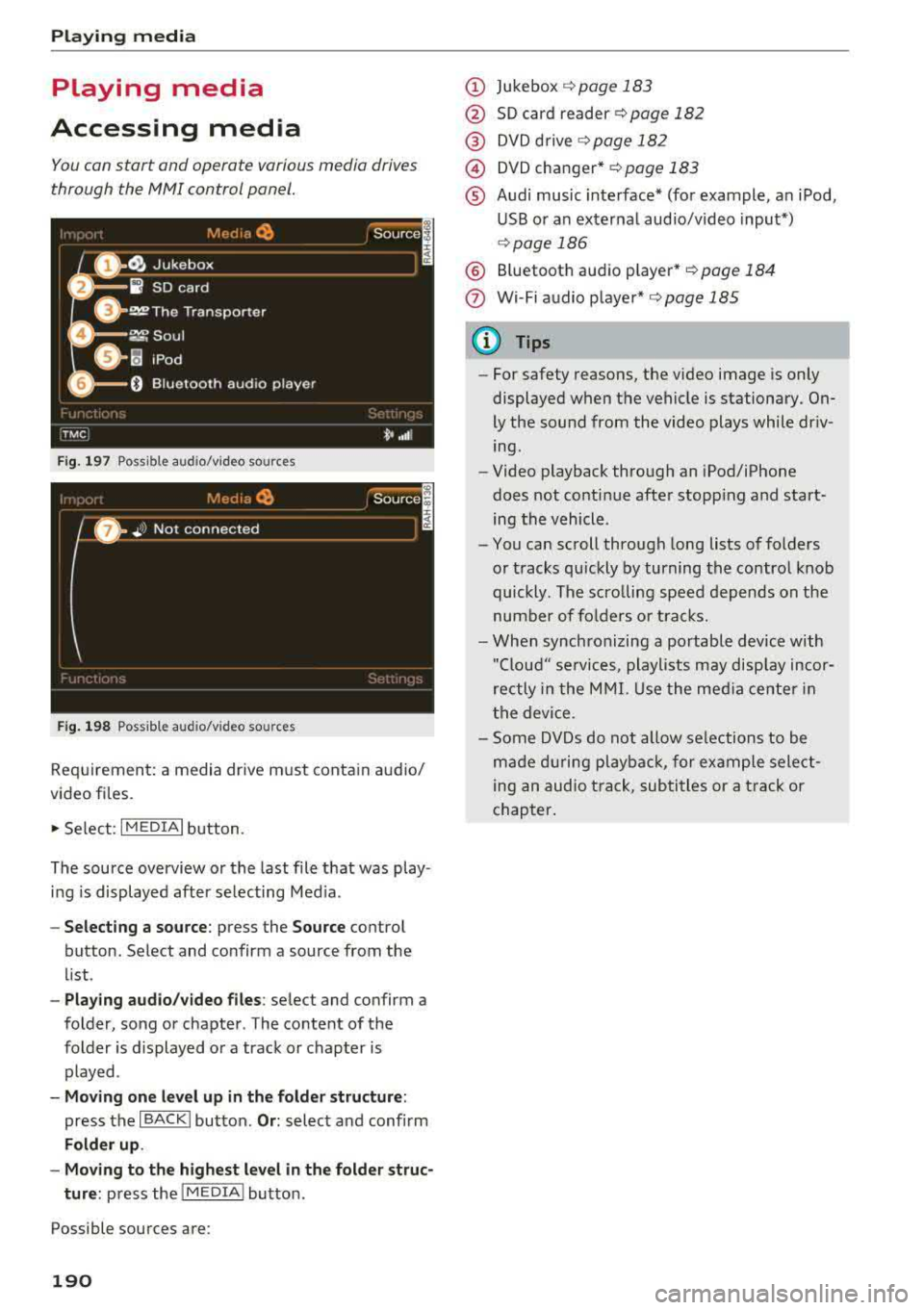
You con start and operate various media drives
through the
fvtfvtl control panel.
F ig. 197 Possible audio/video sources
Fig . 19 8 Possible aud io/video sources
Requirement: a media drive m ust cont ain audio/
video files.
., Select: I MEDIAi button.
The source overview or the last file that was play
i n g is displayed afte r se lecting Med ia .
- Selecting a source : press the Source control
button. Select and confirm a source from the
l ist .
-Play ing audio /video files : select and confirm a
folder, song or chapter. The content of the
folder is displayed or a track or chapter is
played .
-Mo ving one l eve l up in the folder struct ure:
press the I BACKI button. Or : select and confirm
Folder up .
- Movin g to th e highest level in the folder str uc
ture :
press the I MEDIA i button.
Possible sources are:
190
(D Jukebox ¢page 183
@ SD card reader¢ page 182
@ DVD d rive ¢ page 182
@) DVD changer* r::!:>poge 183
® Audi music interface* (for example, an iPod,
USB or an externa l audio/v ideo input*)
¢ page 186
® Bluetooth aud io p layer* <::!; page 184
(!) Wi-Fi audio player*¢ page 185
{!) Tips
-For safety reasons, the video image is only
displayed when the vehicle is stationary.
On
ly the sound from the video plays while dr iv
ing .
- Video playback through an iPod/iPhone
does not conti nue after stopp ing and start
ing the vehicle.
- You can scroll through long lists of folders
or tracks qu ickly by turning the control knob
quickly. The scro lling speed depends on the
number of fo lders o r tracks.
- When synchronizing a portable device w ith
"Clou d" services, playlists may disp lay incor
rectly in the M MI. Use the med ia ce nter in
t h e device.
- Some DVDs do not allow selections to be
ma de d uring playbac k, for ex ample sele ct
ing an audio track, subtitles or a t rack or
chapter .
Page 193 of 356
lL
Media functions
Fig . 199 Jukebox ma in fun ctio n s
Fi g. 200 DVO main fu nct ions
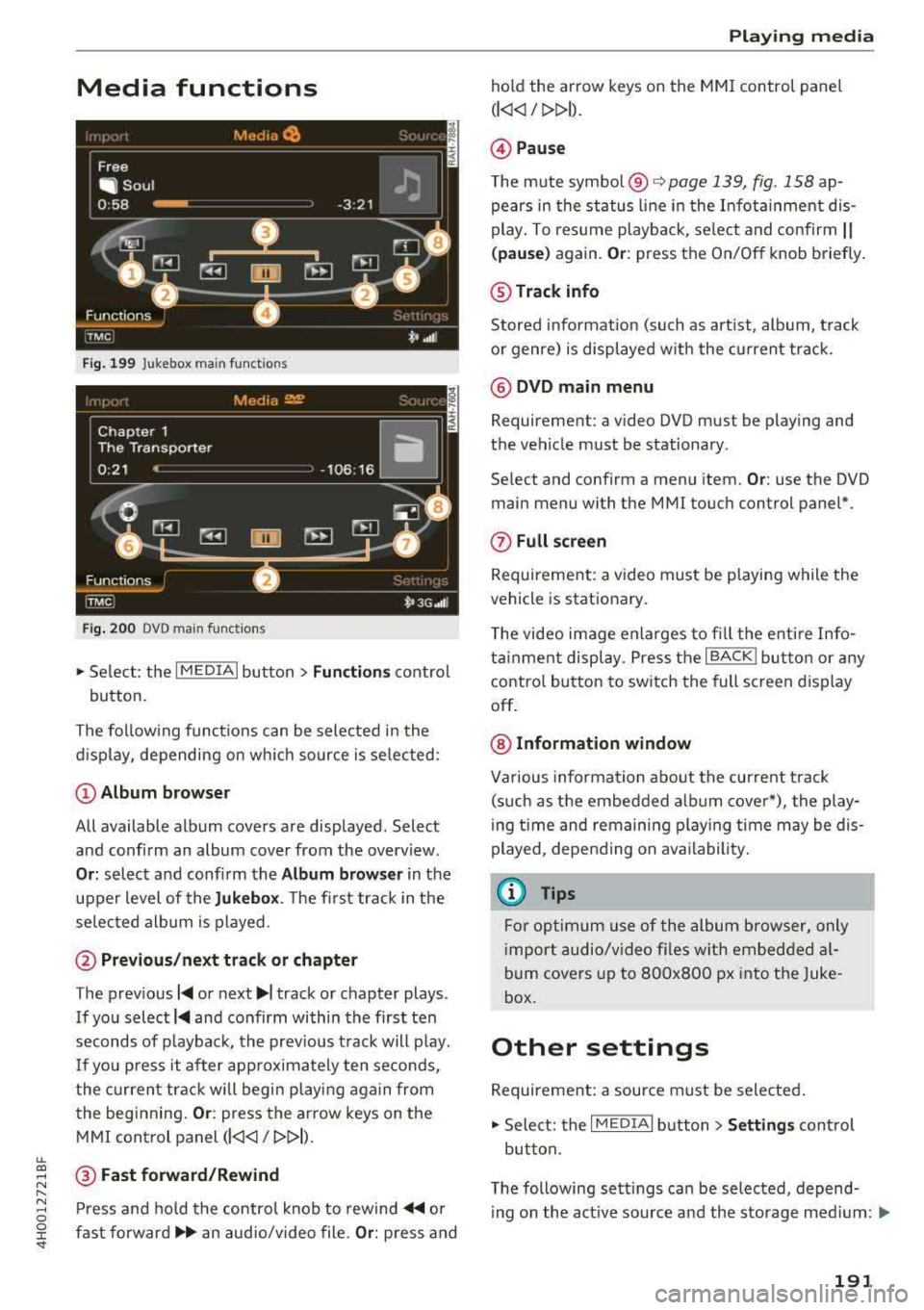
.,. Se lect : the I MED IA i bu tton > Fun ction s cont rol
bu tton.
The fo llow ing func tions can be sele cted i n the
d isp lay, depending on w hich source is se lected:
@ Album browser
All available album covers are displayed. Select
and confi rm an album
cover from the overview .
Or: select and confi rm the Album browser in the
upper level of the
Jukebox . The fi rst track in the
se lec ted alb um is played.
@ Previous /next track or chapter
T he prev ious 1<1111 or next ..,., track or chapter plays .
If you select 1<1111 and confirm within the first ten
seconds of p layback, the prev ious t rack will p lay.
I f you press it af ter app roximately ten se conds,
t he cur ren t track will begin playi ng aga in from
the beg inning.
Or : press the arrow keys on the
M MI control panel
(l
~ @ Fast forward/Rewind
......
~ Pr ess a nd ho ld the contro l knob to rewind ~ or 0
~ fast forwar d.,...,.. an aud io/v ideo file. Or : press and '
hold the ar row keys on the MM I control pane l
Cl
© Pause
The m ute symbo l@ ~poge 139, fig.158 ap
pears in the st atus li ne in the I nfot ainment dis
p lay. To res ume playb ack , se le ct and confirm
11
( pau se) again. Or : press the On/Off knob briefly.
@ Track info
Stored info rmat ion (such as art ist, alb um, t rack
o r genre) is displayed w ith the cur rent track .
@ DVD main menu
Requirement: a v ideo DVD must be playing and
t h e vehicle m ust be stationary .
Se lect and confirm a menu item.
Or : use the DVD
main menu with the MMI touc h control panel*.
(j) Full screen
Requireme nt: a v ideo must be playing while t he
vehicle is stat ionary.
T he video image enla rges to fi ll t he e nti re Info
ta inment displ ay. Press the
I BACK I button or any
contro l bu tton to sw itch the full screen d isplay
off.
@ Information window
Va rious informa tion about the curre nt t rack
(s uch as t he embed ded a lbum cove r*), the play
ing t ime and remaining p laying time may be dis
p layed, depend ing on ava ilability .
(D Tips
Fo r optimum use of the album browser, only
im port audio/v ideo files w it h embed ded a l
b um
cove rs u p to 8OOx8 OO px i nto t he Juke
b ox.
Other settings
R eq uirement: a source must be sele cte d.
.,. Select: the I MEDIAi button> Settings cont rol
button.
T he following sett ings ca n be selected, depend-
i ng on the act ive source and the storage med ium:
.,..
191
Page 194 of 356
Playing media
Sound settings
For additional information, see ¢ page 205.
Repeat options
When the function is sw itched on~' the current
track or folder repeats .
Random playback also depends on the repeat
options settings.
Shuffle
Requirement: an audio/video file must be playing
and repeat options must be set ¢
page 192.
-Repeat opt ions Off: all of the files in the active
source play in random order. This function is
on ly avai lab le for the Jukebox and the CD
c h anger*.
- Folder repeat option: the tracks in the current
folder are p layed in random order .
-Song repeat option: the song currently being
played wi ll be repeated.
Track display
Requirement: an audio file must be play ing.
- File name: the name of the file is displayed
without the file extension.
-Track name : the name of the current track or
the track that was just played is d isplayed.
Display track info
Requirement: an audio file must be playing.
Various information for the current track (such as
album, artist, song) is disp layed depending on
avai lability .
Audio track
Requirement: a video DVD must be p layin g.
The audio track (language and audio format) ca n
be adjusted manually . The availability of the lan
guage and audio format depend on the video
DVD .
Subtitles
Requirement: a video DVD must be playing.
Subtit les can be selected manually for playback.
The languages availab le depend on the DVD .
192
Picture format
Requirement: A video file/DVD must be pla ying.
Picture format : the picture format can be adjust
ed automatically with
Auto. The picture w idt h
varies depending on the film forma t. The formats
4:3 , 5:4 and 16:9 can also be selected.
Zoom : the image is enlarged to fill the ent ire In
fota inment display .
Original: the film is shown in the stored p icture
format.
Cinemascope : the image is displayed in the
2.35: 1 format.
Screen settings
Requirement: a portable audio device must be
connected using the iPod adapter cable plus*/AV
adapter cable*
¢ page 186.
Select I MEDIAi button> Source control button >
Audi music interface (for example iPod) > Set
tings
control button.
- Brightness : reduce or increase the brightness.
-Contrast : reduce or increase the contrast .
-Color : reduce or increase the color intensity.
- Tint: adjusting the color tones (with AV stand-
ard
NTSC ).
- AV standard:
you can select the PAL or NTSC
standards on the MMI for an externally con
nected audio device . The same standard must
be selected on the device.
Input level
Requirement: a portable audio device must be
connected with a 3.5 mm stereo jack adapter ca
ble*/ AV adapter cable* /iPod adapter cable
(plus)*
¢ page 186 .
The volume of the portab le device is adapted to
the MMI. Audi recommends adjusting the volume
of the portable device to 70 percent of the maxi
mum output .
Wi-Fi active
See ¢page 161.
Wi-Fi settings
See ¢page 161.
Page 196 of 356
Rear Seat Entertainment
Rear Seat Entertainment
RSE components
overview
A pp lies to: ve hicles w ith Rea r Seat En te rtainment
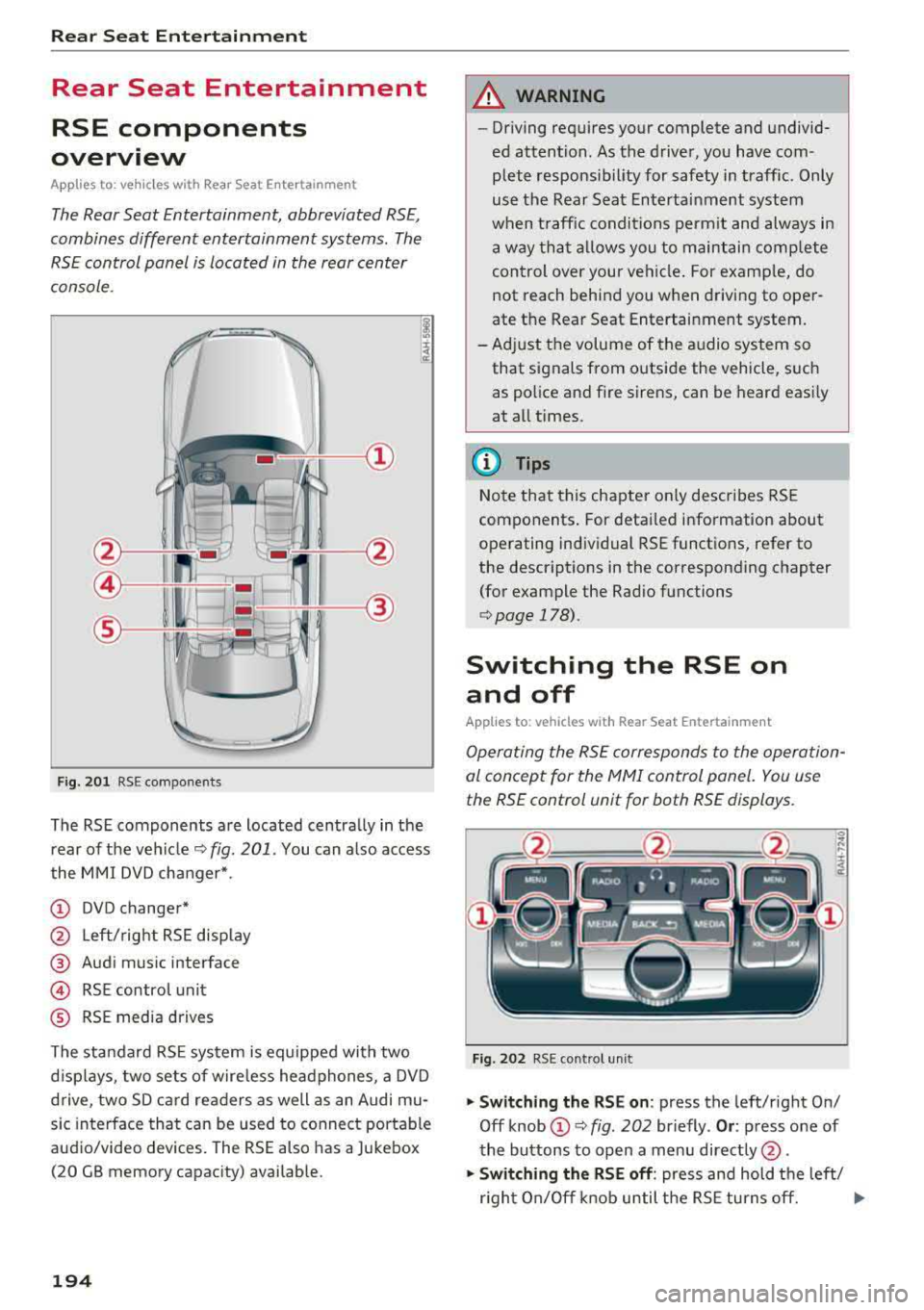
The Rear Seat Entertainment, abbreviated RSE,
combines different entertainment systems . The
RSE control panel is located in the rear center
console .
Fig. 201 RSE components
The RSE components are located centrally in the
rear of the vehicle
c:.> fig. 201 . You can also access
the MMI DVD changer*.
(D DVD changer*
@ Left/right RSE display
@ Audi music interface
@ RSE contro l unit
® RSE media drives
The standard RSE system is equipped with two
d isplays, two sets of wire less headphones, a DVD
drive, two SD card readers as well as an Audi mu
sic interface that can be used to connect portable
audio/video devices. The RSE also has a Jukebox
(20 GB memory capacity) availab le.
194
A WARNING
,-
- Driving requires your complete and undivid-
ed attention. As the driver, you have com
plete responsib ility for safety in traffic. Only
use the Rear Seat Entertainment system
when traffic conditions permit and always in
a way that allows you to maintain comp lete
control over your vehicle . For examp le, do
not reach behind you when driving to oper
ate the Rear Seat Entertainment system.
-Adjust the volume of the audio system so
that signals from outside the vehicle, such
as police and fire sirens, can be heard easily
at all times.
(D Tips
Note that this chapter on ly describes RSE
components . For detailed information about
operating individual RSE functions, refer to
the descriptions in the corresponding chapter
(for example the Rad io functions
r::.> page 178).
Switching the RSE on
and off
App lies to: vehicles with Rear Seat Entertainment
Operating the RSE corresponds to the operation
al concept for the
MMI control panel. You use
the RSE control unit for both RSE displays.
Fig. 202 RSE cont rol unit
.,. Switching the RSE on : press the left/right On/
Off knob
(D c:.> fig . 202 br iefly . Or: press one of
the buttons to open a menu directly @.
.,. Switching the RSE off: press and hold the left/
r ight On/Off knob until the RSE turns off.
.,..
Page 197 of 356
u.
The last selected menu is displayed when it is
switched on.
When the ignition is switched off, a message in
d icat ing that the RSE is in standby mode appears
in the left or right RSE display. The RSE switches
off automatically if you do not press the left or
right On/Off knob while the system is in standby
mode.
(D Tips
- The RSE switches off automatically if the
engine is not running and the vehicle bat
tery is low.
Symbols
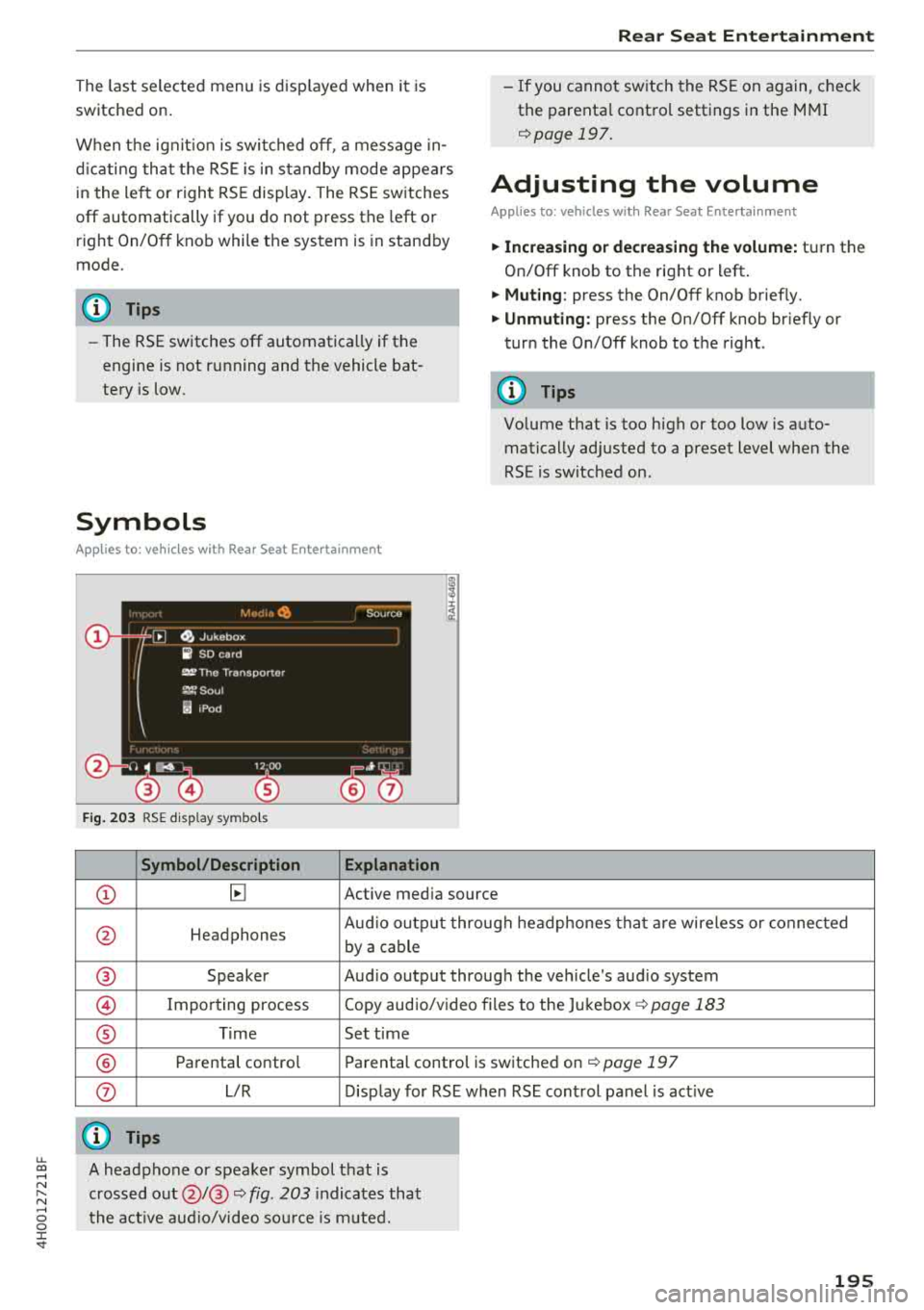
Applies to: vehicles with Rear Seat Enter tainment
Fig. 203 RSE display symbols
Symbol/Description Explanation
Rear Seat Entertainment
- If you cannot switch the RSE on again, check
the parental control settings in the MMI
¢page 197.
Adjusting the volume
Applies to: vehicles with Rear Seat Entertainment
.,. Increasing or decreasing the volume: turn the
On/Off knob to the right or left .
.,. Muting : press the On/Off knob brief ly.
.,. Unmuting: press the On/Off knob briefly or
turn the On/Off knob to the right .
(D Tips
Volume that is too high or too low is auto
matically adjusted to a preset level when the
RSE is switched on.
CD ~ Active media source
0 Headphones Aud
io output through headphones that are wireless or connected
by a cable
® Speaker Audio output through the vehicle's audio system
@ Importing process Copy audio/video files to the Jukebox ¢
page 183
® Time Set time
® Parental control Parental control is switched on¢ page 197
0 L/R Display for RSE when RSE control panel is act ive
@ Tips
~ A headphone or speaker symbol that is
~ crossed out@/@ ¢ fig. 203 indicates that
...... o the active audio/video source is muted. 0 :c '
Page 198 of 356
Rear Seat Entertainment
Audio output
Applies to: vehicles with Rear Seat Entertainment
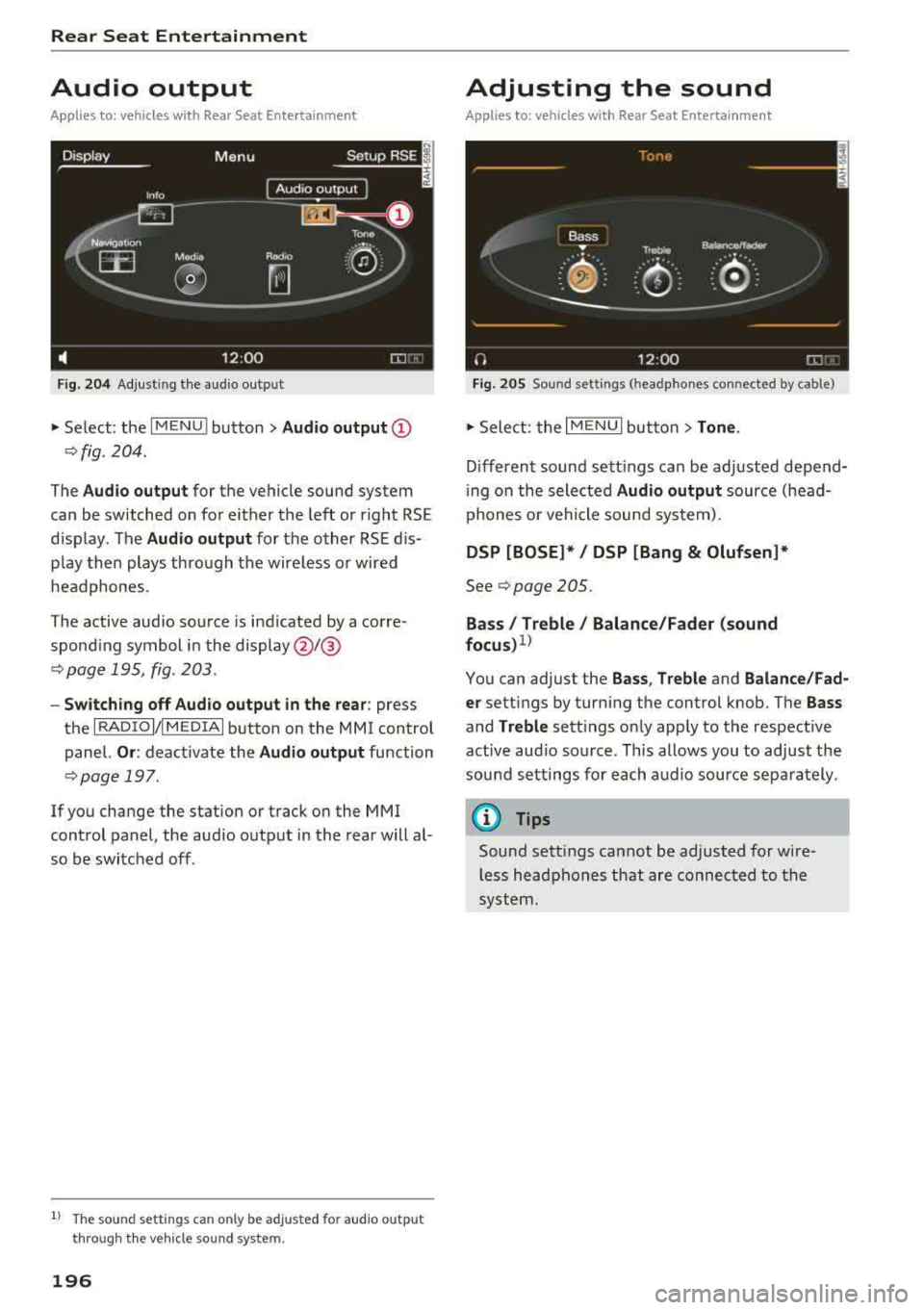
F ig . 204 A dj ust ing t he audio outp ut
" Se lect : the IMENU ! button> Audio output (D
¢fig. 204 .
The Audio output for the vehicle sound system
can be switched on fo r either the left or r ight RS E
d isp lay. The
Audio output for the other RSE dis·
p lay then plays thro ugh t he wire less or wired
headphones.
The active aud io so urce is ind icated by a co rre
spond ing sy mbol in the
display @/@
.:;, page 195, fig. 203 .
-Switching off Audio output in the rear : press
t h e
I R ADIO I/ I MEDIAi button on the MMI control
panel.
Or : deact ivate the Audio output function
¢ pag e 197.
If you change the station or track on the MMI
control panel, the aud io o utp ut in t he rear w ill
al ·
so be switc hed off.
1) T he so und sett ings ca n only be ad juste d fo r au d io o utp ut
t hr ough t he vehi cle s oun d sy stem.
196
Adjusting the sound
Applies to: vehicles with Rear Seat Entertainment
Fig. 205 So un d settings ( headpho nes con nected by cable)
" Sele ct: the I M ENU I but ton> Tone .
Differen t sound se tt ings ca n be ad justed depend·
i ng on the selected
Audio output source (head·
p hone s or vehi cle sou nd sys tem).
DSP [BOSE]*/ DSP [Bang
& Olufsen]*
See.:;, page 205.
Bass/ Treble/ Balance/Fader (sound
focus)1 )
You can adjust the Bass , T reble and Balance/Fad·
er
setti ngs by turn ing the control knob. The Bass
and Treble sett ings on ly app ly to the respective
active aud io so urce . This allows you to adjust the
sou nd set tings fo r each a udio source sep arately .
@ Tips
Sound sett ings cannot be adjusted for wire·
l ess head phones that are connec ted to t he
sy ste m.
Page 199 of 356
lL t:0 ....
"' ......
"' .... 0 0 :c -
(reset)
Applies to: vehicl es with Rea r Seat E nte rtainment
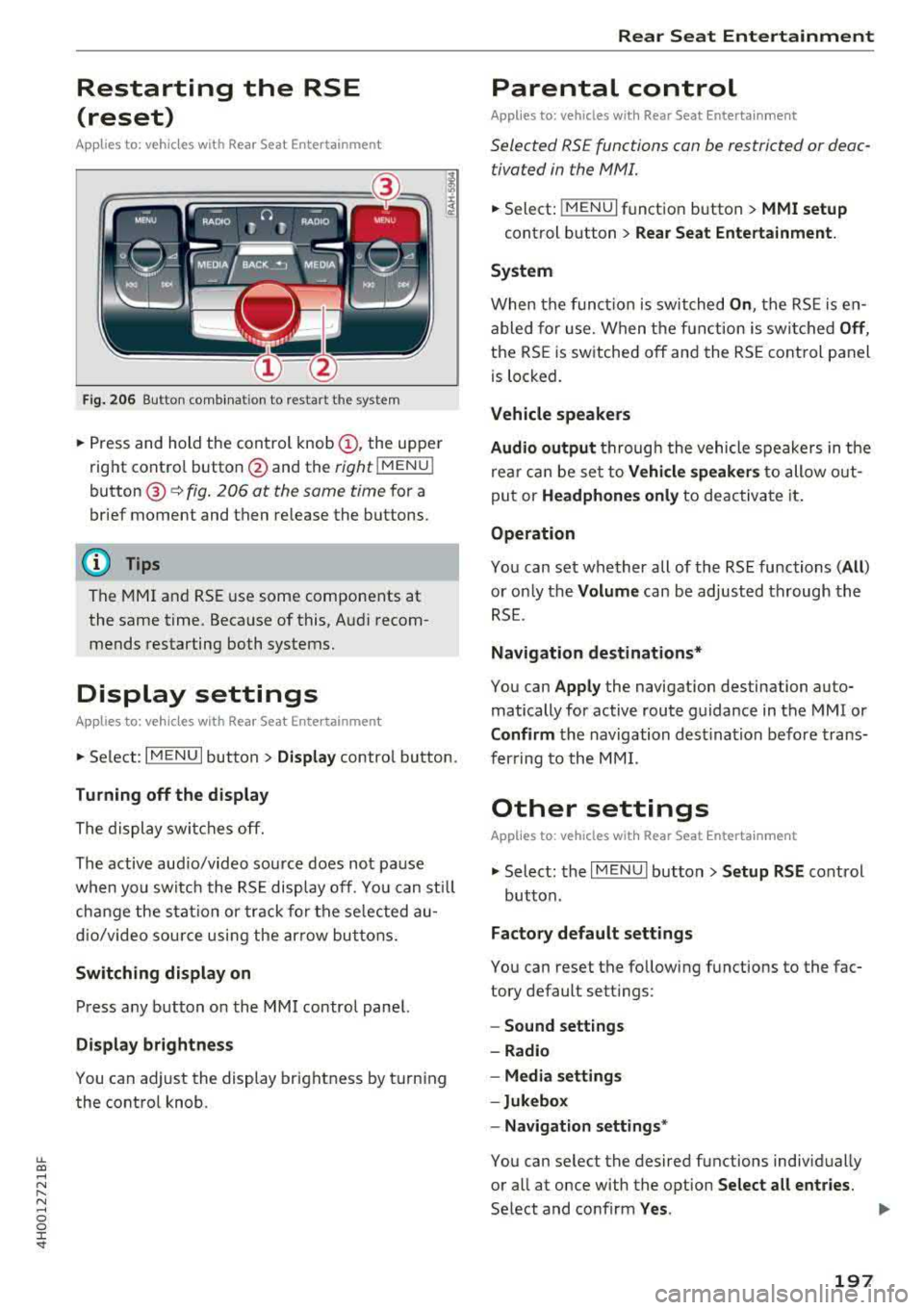
Fig. 206 Button comb inat ion to restart the system
• Press and hold the control knob (D, the upper
right control button @and the
right lMENU i
button @¢fig. 206 at the same time for a
brief moment and then release the buttons.
(D Tips
The MMI and RSE use some components at
the same time. Because of this, Audi recom
mends restarting both systems.
Display settings
Applies to: vehicles with Rea r Seat E nte rtainment
• Se lect : I MENU I button > Display control button.
Turning off the display
The display switches off.
The active aud io/video source does not pa use
when you switch the RSE display off. You can sti ll
change the stat io n or track for the selected au
dio/video source using the arrow buttons.
Switching display on
Press any button on the MMI control panel.
Display brightness
You can adjust the display brightness by turning
the control knob.
Rear Seat Entertainment
Parental control
Appl ies to: vehicles wit h Rear Seat Enterta inment
Selected RS£ functions can be restricted or deac
tivated in the
fv1fv11.
• Select: j MENUI f u nct ion button> MMI setup
control button > Rear Seat Entertainment.
System
When the function is switched On , the RSE is en
abled for use. When the function is switched
Off ,
the RSE is switched off and the RSE control panel
is locked.
Vehicle speakers
Audio output
thr ough the vehicle speakers in the
rear can be set to
Vehicle speakers to allow out
put or
Headphones only to deactivate it.
Operation
You can set whether all of the RSE functions (All )
or on ly the Volume can be adjusted through the
RSE .
Navigation destinations*
You can Apply the navigation destination auto
matically for active route guidance in the MMI or
Confirm the navigation destination before trans
ferring to the MMI.
Other settings
Applies to: vehicles with Rear Seat Entertainment
• Select: the I MENU I button> Setup RSE cont rol
button.
Factory default settings
You can reset the following functions to the fac
tory default settings:
- Sound settings
- Radio
- Media settings
-Jukebox
- Navigation
settings*
You can select the desired functions individually
or all at once with the option
Select all entries.
Select and confirm Yes . ..,
197
Page 201 of 356
lL t:0 ....
"' ......
"' .... 0 0 :c '
-Attach the supplied label CD or @ ¢ fig. 208 on
the inside of the lef t/right wire less head
phones .
L abeling the w ireless headphones:
CD W ireless headphones label (paired with the
left RSE disp lay)
@ Wireless headphones labe l (paired with the
right RSE display)
Switching w irel ess headphones on /off
- Swit ching on : to switch the wireless head
phones on, p ress the On/ Off
button
¢ fig. 207 on the right earp iece (R) for approxi
mately
3 sec ond s and release it once the LED
@ starts blinking. The light @will blink s lowly
once the connection to the wireless head phones has been established .
-Sw itching off : to switch the wireless head
phones off, press and hold the On/Off button
CD until the LED @turns off.
The wireless headphones switch off automatical ly about five minutes after the RSE switches off .
Disconnect wireless headphones
You can delete the pairing between the w ireless
h eadphones and the RS E if yo u need to switch
out the headphones o r change the pairing.
- Se lect :
IM ENU I button > Setup RSE cont rol but
ton
> Head set > Delet e wirele ss heads et.
& WARNING
- F or safety reasons, as the dr iver, only use
the headphones when the vehicle is station ary to reduce the risk of a crash.
- When driving, store the headphones secure
ly so that they do not move around in the
vehicle interior when bra king or in a crash .
- Maintai n a mode rate vo lume leve l when lis
tening to audio playback through the head
phones. Continuo us expos ure to extreme
volume levels may result in loss of hear ing.
(D Tips
- If the wireless headphones were already
paired, the connection to the headphones
-
Rear Seat Entertainment
wi ll be reestablished after switc hing the
RSE on if the headphones are switched on.
- The RSE on ly supports wireless headphones
from an authorized Audi dealer .
- Audio/video output through the wire less
headphones stops during the pai ring proc
ess.
- The pairing process must be done separate
ly for the left and right wireless head
phones. The wire less headphones are as
signed to the left or right RSE display de
pending on the side of the RSE control unit
where you started the pairing process . The
pairing between the w ireless headp hones
and the left/right RSE display is ident ified
w ith a label.
- Volume that is too high or too low is auto
matically adjusted to a p reset leve l when
the wireless headphones are connected .
Charging and changing the battery
Applies to: vehicles with Rear Seat Entertainment
If the light on the wireless headphones turns
red, the batteries are low and need to be charg
ed or replaced.
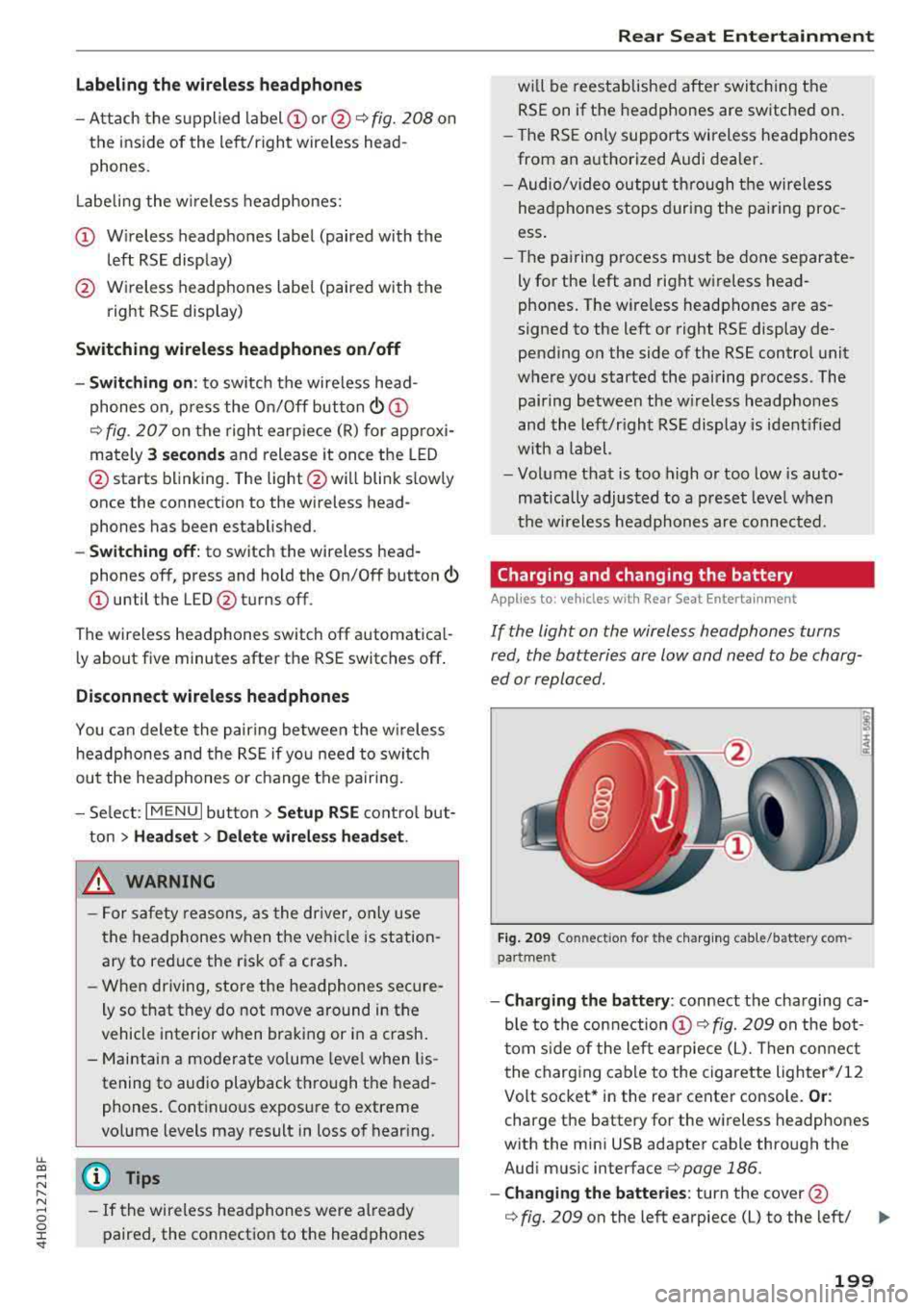
F ig . 209 Co nn ectio n fo r th e charg ing cab le /battery co m
pa rt me nt
- Charging the battery : connect the charging ca
ble to the connection
CD ¢ fig. 209 on the bo t
t om s ide of the left ea rpiece (L). Then con nect
the charging cable to the cigarette lighter */12
Volt socket* in the rear center console.
Or :
charge the battery for the wireless headp hones
w ith the min i USB adapter cable th rough the
Aud i mus ic interface
¢ page 186.
- Ch anging th e batterie s: turn the cover@
¢ fig. 209 on the left earpiece (L) to the left/ IJI,,-
199