infotainment AUDI A8 2018 Owner's Manual
[x] Cancel search | Manufacturer: AUDI, Model Year: 2018, Model line: A8, Model: AUDI A8 2018Pages: 356, PDF Size: 54.71 MB
Page 95 of 356
lL t:0 ....
"' ......
"' .... 0 0 :c '
The speed warning system helps you to stay un
der a specified maximum speed.
The speed warning system warns you if you are
exceeding the maximum speed that you have set.
A warning tone will sound as soon as your speed
exceeds the stored value slightly.
The. (USA models)/ . (Canada models) indi
cator light and a message appear in the instru
ment cluster display at the same time. The
•
• indicator light and the message turn off if the
speed falls back below the stored maximum
speed.
Setting a threshold is recommended if you would like to be reminded when you reach a certain
maximum speed. Situations where you may want
to do so include driving in a country with a gener
al speed limit or if there is a specified maximum
speed for winter tires.
Setting the warning threshold
The warning threshold is set in the Infotainment
system.
.. Select: I CARI function button > Car systems
contro l button > Driver assistance > Speed
warning.
(D Tips
Regardless of the speed warning system, you
should always monitor your speed using the
speedometer and make sure you are following
the legal speed limit.
Assistance systems
Cruise control system
Switching on
The cruise control system makes it possible to
drive at a constant speed starting at 20 mph (30
km/h).
0
f
®t
0
Fig. 102 Operating lever: cruise control system
g M 0 :i: ;A
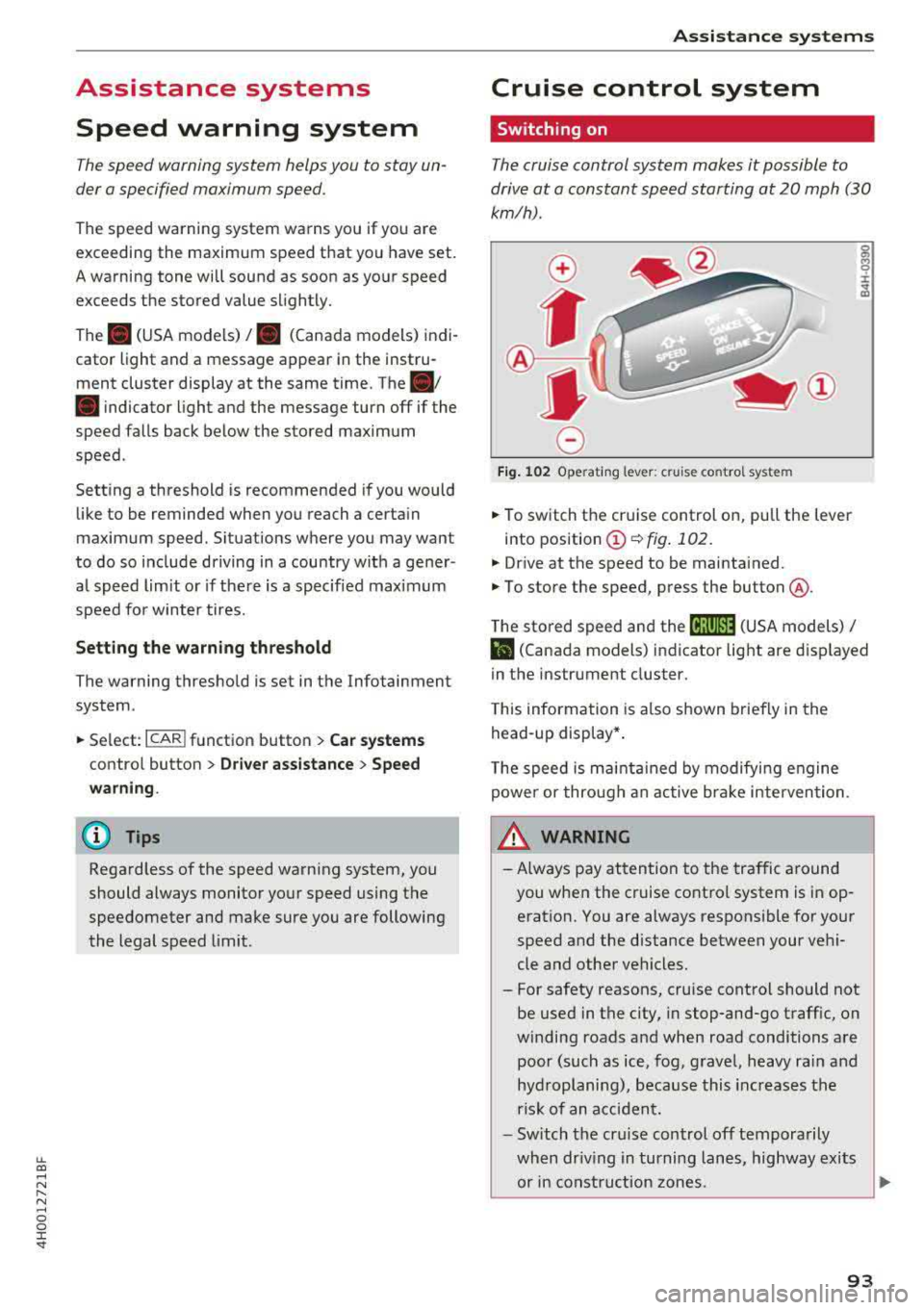
.. To switch the cruise control on, pull the lever
into position
(D ¢ fig. 102.
.. Drive at the speed to be maintained.
.. To store the speed, press the button @.
The stored speed and the
(ij;ji)M~ (USA models) /
l'I (Canada models) indicator light are displayed
in the instrument cluster.
This information is also shown briefly in the
head-up display* .
The speed is maintained by modifying engine
power or through an active brake intervention.
_.&. WARNING
-
-Always pay attention to the traffic around
you when the cruise control system is in op
eration. You are always responsible for your
speed and the distance between your vehi
cle and other vehicles.
-For safety reasons, cruise control should not
be used in the city, in stop-and-go traffic, on
winding roads and when road conditions are poor (such as ice, fog, gravel, heavy rain and
hydroplaning), because this increases the
risk of an accident.
-Switch the cruise control off temporarily
when driving in turning lanes, highway exits or in construction zones.
~
93
Page 104 of 356

Ass is tanc e system s
- Keep in mind that braking guard can brake
unexpected ly. Always secure any cargo or
objects that you are transport ing to reduce
the r isk of damage or in jury.
Settings in the Infotainment system
Applies to: vehicles with Audi adaptive cruise control
.,. Select : the ICARI function button > Ca r sy stems
control button > Dri ver a ssistan ce > Audi bra k
ing guard .
Sy stem
-switches the brak ing guard On /Off .
When you switch the ignition on, the message
Braking guard: Off appears if the system is
sw itched off .
Early warning -the distance and approach warn
ings in the display can be sw itched
On /Off .
(D Tips
- Your settings are automatically stored and
assigned to the remote control key being used.
- If you restrict or sw itch off the ESC, the
braking guard also switches itse lf off
c> page 128.
-Switch braking guard off when you are load
i ng the veh icle onto a vehicle carr ier, train,
sh ip or other type of transportation . This
can prevent undesired warnings from the braking gua rd system.
Messages
Applies to: vehicles with Audi adaptive cruise control
Braking guard : Off
This message appears if the system is sw itc hed
off throug h the Infota inment system . Otherwise ,
if the system is tur ned off, the information ap
pea rs every time shortly after the start of t he
trip .
The message also appears if the system is not
ava ilable d ue to a ma lfunct ion or if the ESC is
sw itched
off ¢ page 128 . If this is the case, the
system wi ll not provide warnings about a possi
b le co llision.
Braking guard : engaged
102
This message appears if a sharp brake pressure
was applied due to an acute warning .
ACC: Unavailable!
ACC and Audi braking guard: Una vailable
The system cannot guarantee that it will detect
objects correctly and is sw itched off. The sensors
have been moved or are faulty . The pre sense
funct ions may also be affected . Drive to an au
t h orized Aud i dea ler or authorized Audi Se rvice
Fac il ity immed iate ly to have the ma lfunction cor
r ec ted .
ACC : Currently unavailable . No sen sor vis ion
AC C and Audi braking gua rd: Curr entl y una vail
able. No sensor vision
This message appears if the sensor view is ob
structed, for examp le by leaves, snow, heavy
spray or dirt. Clean the
sensors ¢ page 95,
fig. 104.
ACC : Cu rrently un avail able . G radient too steep
The road exceeds the maxim um poss ible a ngle
fo r safe adaptive cruise co ntro l opera tion. Ada pa
tive cru ise con trol is switched off.
ACC : Only available in D , Sor M
Se lect the D, Sor M selector lever position .
ACC: Cu rrently un available . Parking br ake ap
plied
The adaptive cru ise con trol system sw itches o ff
automatica lly if the parking brake is set .
ACC: Currently unavailabl e. Stability contr ol
( ES C) inpu t.
This message appears if the electron ic stabiliza
tion cont rol ( ESC) is tak ing action to stabilize the
vehicle. In t his case, adaptive c ruise cont ro l
swi tches off autom atically.
ACC off: Manual control!
This message appears when adaptive cruise con
trol cannot set the parking brake. Press the brake
pedal to prevent the vehicle from rolling .
... ~
Page 105 of 356
u. co .... N
" N .... 0 0 :c '
l ected with the operating lever. For examp le, this
h appens if adaptive cruise contro l cannot start
driving automatically in stop-and-go traffic be
cause the driver has not fastened their safety belt .
Door open
The adap tive c ruise co ntro l system cannot sw itch
on w hen a door is open.
Stationary object ah ead
This message appears if you would like to switc h
adapt ive cruise control on and there is a station
ary object o r obstacle directly ahead of you r vehi
cle .
Audi active lane assist
(lane departure assist)
Description
Applies to: vehicles with Audi active lane assist
Active lane ass ist detects lane marker lines with
in the limits of the system us ing a came ra in t he
w indsh ie ld. If you are app roaching a de tected
l ane marker line and it appea rs likely t hat you
will leave the lane, the system wi ll warn you with
corrective steering. Yo u can override t his steering
at any time . If you pass over a line, the steer ing
wheel will v ibrate lightly. In order for this warn
i n g vibration to occur, it must f irst be sw itched
on in the Infotainment system . Active lane assist
i s ready for operation whe n the lane marke r line
i s detected on at least one s ide of the vehicle .
The system is designed for driv ing on express
ways and highways and therefore only activates
at speeds above approximate ly 40 mph (65 km/
h).
Applies to vehicles with side assist
If you activate a tur n signa l when active lane as
sist is ready and it class ifies a la ne cha nge as cr it
i cal because of ve hicles t raveli ng a longs ide you o r
approaching you, the re w ill be not iceab le correc
tive stee rin g short ly before you leave t he lane.
This will attempt to keep yo ur vehicle in t he lane.
A ss istance systems
Applies to vehicles w it h out side assist
T he system wi ll not warn yo u before c ross ing a
l ane marker line if you have activated the t urn
s ignal. In this case, it assumes that you are
changing lanes intentionally.
Appl ies to: vehicles with adaptive c ruise control
The co rrective steer ing is targeted based o n the
dr iv ing s itu ation . In add it ion to the lane mar ker
li nes, the system can al so t ake into accoun t other
objects s uch as gua rd rai ls. If they a re detected in
close proximity to t he vehicle, active lane assist
helps p reve nt the vehicle from driving too close
to them. The re is a lso pass ing ass istance. The
system does not provide any corrective steering if it detects that you are pass ing anot her vehicle .
A WARNING
-
-The system warns the drive r that the vehicle
is leaving the lane using corrective steering.
T he drive r is always responsible fo r keeping
the vehicle within the lane.
- T he system can assist the dr iver in keeping
the vehicle in the l ane, but it does not dr ive
by i tsel f. Always keep your hands on the
s teer ing whee l.
- Cor rec tive stee ring may not occur in cert ain
situa tions, such as during he avy b raking .
- T here may be cases whe re t he came ra does
not recogni ze all lane mar ker lines . Cor re c
tive steering can only take pla ce on the s ide
of the vehicle where lane marker lines are
detected.
- Other road structu res or objects could poss i
b ly be identified un intentionally as lane
marker lines. As a result, co rrective steering
may be unexpected or may not occ ur.
- The camera view can be rest ricted, for ex
ample by vehicles driving ahead or by ra in,
snow, heavy spray or light shining into the
camera. Th is can result in active lane ass ist
not detecting the lane marker lines o r de
tect ing them inco rrectly .
- Unde r ce rtain condit ions such as r uts in the
road, a ban ked roadway or crosswinds, the
correct ive steer ing alone may not be enough
to keep the vehicle in the middle of the lane.
~
103
Page 113 of 356
lL t:0 ....
"' ......
"' .... 0 0 :c '
-Even though the system evaluates the
shape and heat given off by a ll detected ob·
j ects, there are limits to the system. The re
may be false warn ings.
- For technica l reasons, the image pa uses in
sp lit second intervals.
Switching on/off
Applies to: veh icle s with night vision assist
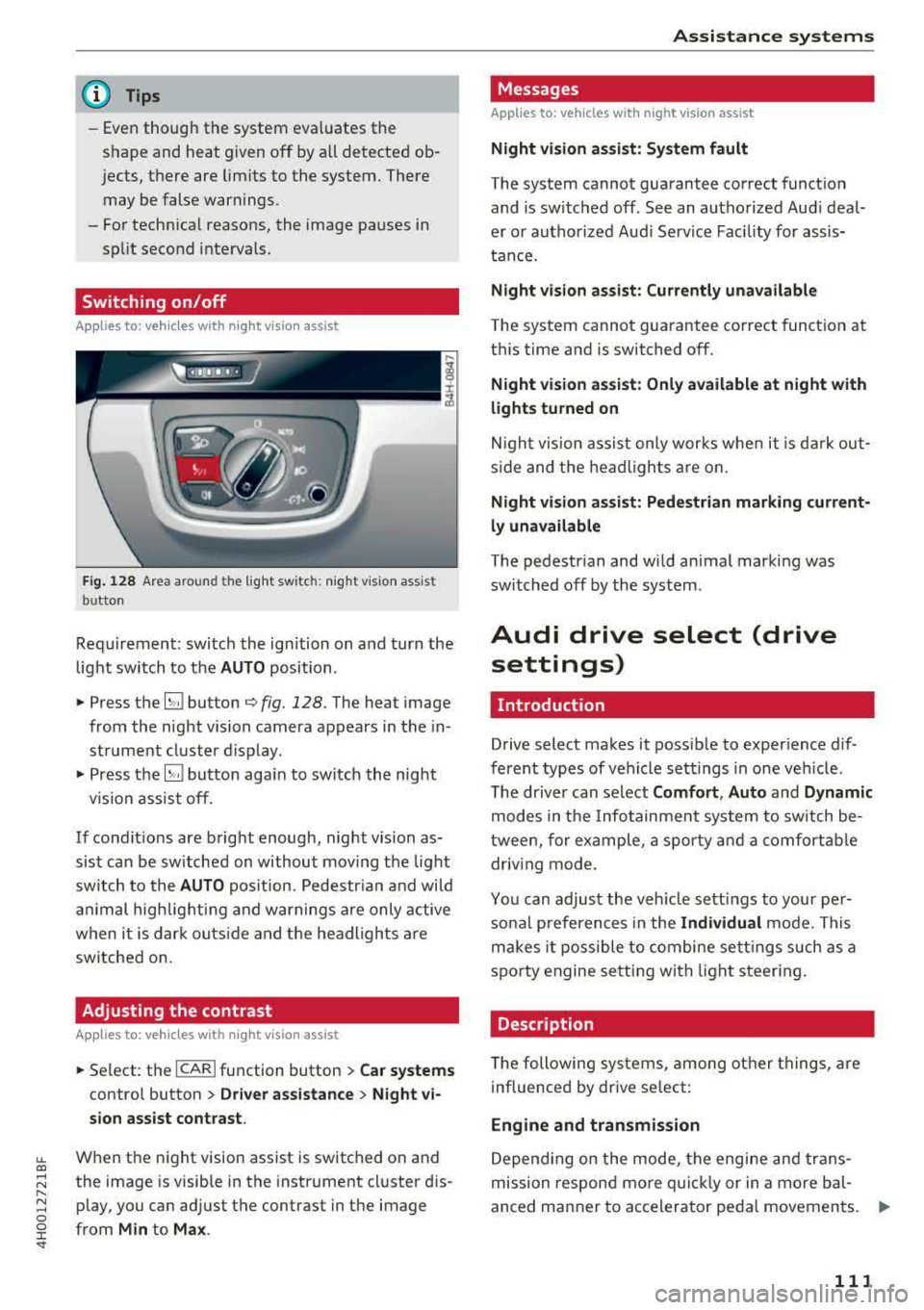
Fig. 128 A rea aro und th e light sw itc h: n ig h t vis ion ass ist
bu tton
Req uirement: switch the ignition on and turn the
light switch to the
AUTO position .
• Press the~ button q fig. 128. The hea t image
from the night vision camera appears in the in
str ument cluster d isplay .
• Press the~ button aga in to switch the night
v ision assist off.
If condit ions are bright enough, night vision as
sist can be sw itched on without moving the light
sw itch to the
AUTO pos it ion. Pedestr ian and wild
a ni mal highlig hting and warnings are only active
when i t is dar k ou tside and t he headlights are
switched on.
Adjusting the contrast
Applies to: vehicles with night vision assist
• Se lect: the I CAR I function button > Car systems
contro l button > Driver a ssistance > Night vi
sion assist contrast .
When the night vision assist is switched on and
the image is visible in the instrument cl uster d is
p lay, you can adjust the contrast in the image
from
Min to Ma x.
Assi st a nce systems
Messages
Applies to: vehicles with night vision assist
Night vi sion as sist : System fault
T he system cannot guarantee correct funct ion
and is switched off . See an authorized Aud i deal
er or autho rized Aud i Service Fac ility fo r assis
tance.
Night vision assist: Currently unavailable
The system cannot gua rantee co rrect function at
th is time and is switched off .
Night vision as sist: Only available at night with
lights turned on
N igh t vision assist only works whe n it is da rk out
s ide and the headlights a re on.
Night visi on a ssist: Pedestrian marking current
ly unavailable
T he pedestrian and wi ld animal marking was
swi tched off by the sys tem .
Audi drive select (drive
settings)
Introduction
Drive select makes it possib le to exper ience dif
ferent types of vehicle sett ings in one veh icle .
T he driver can select
Comfort , Auto and Dynamic
modes in the Infotainment system to sw itch be
tween, for example, a sporty a nd a comfortab le
driv ing mode .
Yo u can adjust the veh icle sett ings to your per
so nal preferences in the
Individual mode. This
makes i t possible to combine se ttings such as a
spo rty engine se tt in g with light s teer ing.
Description
T he following systems, among other things, are
influenced by drive se lect:
Engine and transmission
D epend ing on the mode, the engi ne and trans
mission respon d mo re qu ickl y or in a more bal
anced manner to accelerator peda l movements.
ll>
111
Page 117 of 356
u. co .... N
" N .... 0 0 :c '
General information
A pp lies to: ve hicles with pa rk in g system p lus/rearview cam
era/peripheral camera
Depending on your vehicle 's equipment, various
pa rking aids wi ll help you when parking and ma
ne uvering.
The
p arki ng sys tem plu s assists you when park
ing by aud ibly and visua lly indicating objects de
tected in front of and behind the vehicle
¢ page 116.
The re arv ie w ca mer a shows the area beh ind the
veh icle in the Infotainment system d isplay. This
d isplay assists you when you are cross or parallel
pa rking
¢ page 117 . The park ing system p lus
functions are also available
¢ page 116.
The periph eral ca mera s give var ious views to
h e lp you whe n pa rking or maneuver ing
¢ page 120. T he pa rking system pl us functions
are also availab le
¢ page 116.
& WARNING
-Always look for traffic and check the area
around your vehicle by looking at it direct ly
as well. The parking system cannot replace
the driver's attent ion. The driver is always
responsible when enter ing or leav ing a park
ing space and during similar maneuvers.
- Please note that some surfaces, such as
clothing, are not detected by the system .
-
-Sensors and cameras have blind spots in
wh ich people and objects cannot be detect
ed . Be especially caut ious of small children
and animals .
- The sensors can be displaced by impacts or
damage to the radiator gr ille, bumper,
wheel housing and the underbody . The park
ing system may be impa ired as a result.
Have a n author ized A udi dealer or author
ized Audi Serv ice Facility check their func
tion .
- Make s ure the senso rs a re not obstructed by
stickers, deposits o r other materia ls. If they
are, the sensor function could be impaired.
For additiona l information on cleaning, see
¢ page 306.
Parking syste m s
@ Note
-Some objects are not detected or disp layed
by the system under certain circumstances:
- objects such as barrier cha ins, tra iler draw
bars, vertical po les or fences
- objects above the sensors such as wall ex
tensions
- objects with certain surfaces or structures
such as cha in link fences or powder snow
- If you continue driving closer to a low ob
ject, it may disappear from the sensor range . Note that you will no longer be
wa rned about t his obstacle.
(D Tips
-The system may provide a warning even
tho ugh the re are no obstacles in the cover
age area in some situations, such as:
- certain road surfaces or when there is tall
grass
- externa l ultrasonic sources such as from
cleaning vehicles
- in heavy rain, snow, or th ick vehicle ex
haust
- We recommend tha t you practice par king in
a traffic-free location or parking lot to be
come fami liar with the system . W hen doing
this, there sho uld be good light and weath
er conditions.
- You can change the volume and pitch of the
signa ls as well as the
display ¢ page 125.
-Please refer to the instructions for towing a
trai ler located in
r:!:> page 125 .
-What appears in the infotainment display is
somewhat time-delayed .
- T he sensors m ust be kept clean and free of
snow and ice for the parking aid to operate .
115
Page 120 of 356
Parking syste m s
-For objects that do not touch the ground,
such as the bumper of a parked vehicle, a
trailer hitch or the rear of a truck. Do not
use the orientation lines in this case.
- If driven from a level surface onto an in
cline, or a downward slope.
- If driven toward protruding objects.
- If the vehicle is carrying too much load in
the rear.
- The accuracy of the orientation lines and
blue surfaces decreases when the vehicle is
raised/lowered
¢ page 111.
(D Note
-Always read and follow the applicable warn
ings
¢ (D in General information on
page 115.
- The orange -colored or ientation lines in the
Infotainment display show the vehicle path based on the steering wheel angle. The
front of the vehicle swings out more than
the rear of the veh icle. Maintain p lenty of
distance so that an exterior mirror or a cor ner of the veh icle does not co llide w ith any
obstacles.
Switching on/off
Ap plies to: ve hicles w ith rearview camera
Switching on
~ Sh ift i nto reverse, or
~ P ress the p, qA bu tton in the cente r console
¢ page 116, fig . 130. A sho rt confirmat io n
tone sounds and the LED in the but ton turns
on .
Switching between the rearview camera and
optical display
~ Press t he Graphic contro l but ton ®
¢ page 118, fig. 135 to see the optica l disp lay.
~ Press the Rear view contro l button to see the
rearview camera image.
Sw itch ing off
~ D rive faster than 6 mph (10 km/h), or
~ Press the p, qA bu tton, or
~ Switch the ignition off.
118
@ Tips
- The visua l display in the left part of the dis
play should he lp you detect the crit ica l vehi-
cle areas.
- You can change the vol ume and pitch of the
signals as well as the display¢
page 125.
Perpendicular parking
App lies to : vehicles wi th rearv iew camera
This view may be used when parking in a garage
or in
a parking space.
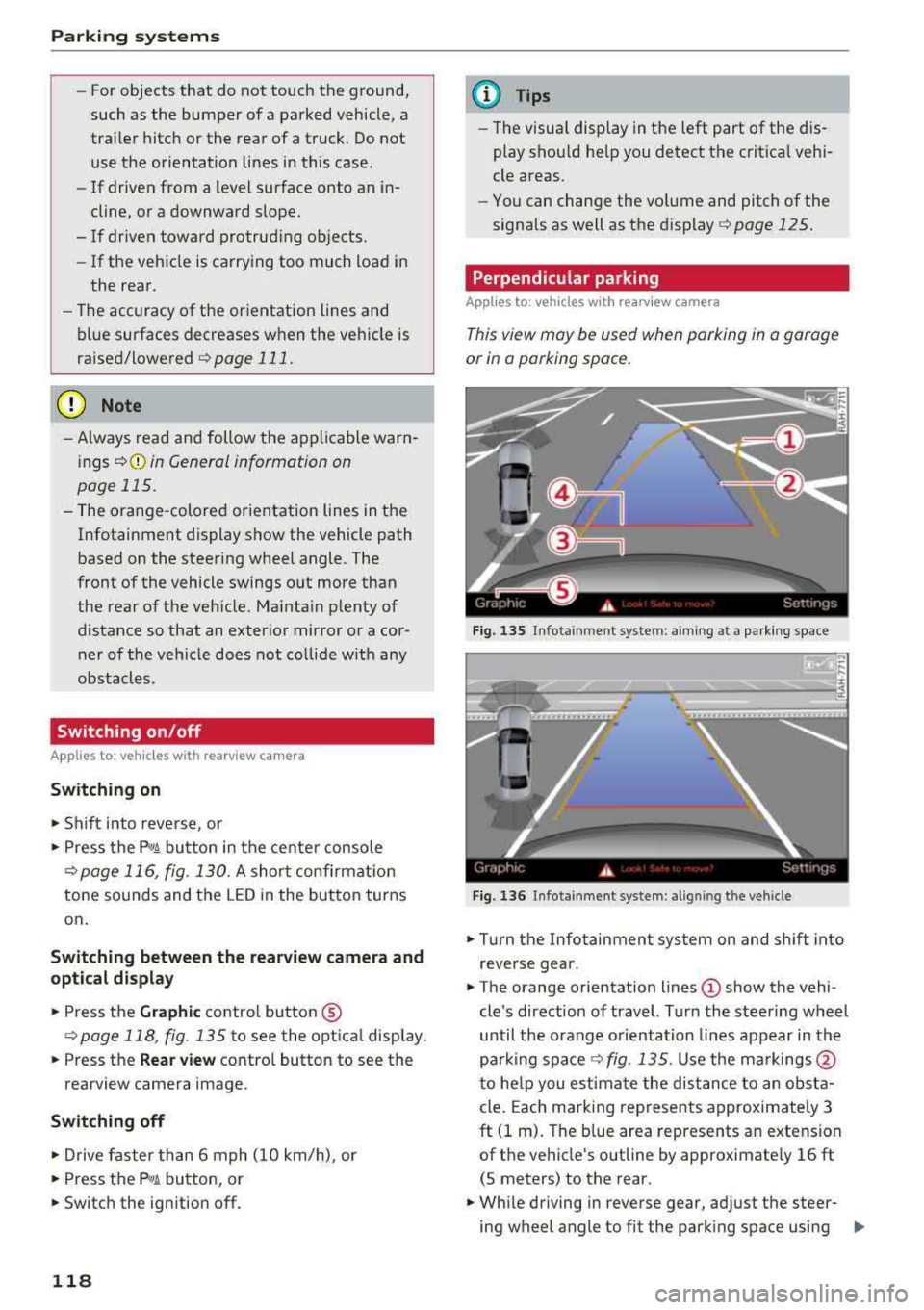
F ig. 13 S Infota inment system: aim ing at a pa rk in g space
Fig. 1 36 Infota inment system : alig ning the vehicle
~ Turn the Infotainment system on and shift into
reverse gear.
~ The orange orie ntation lines (!) show the vehi
cle 's direction of travel. Turn the steering wheel
until the orange o rientation lines appear in th e
parking
space ¢ fig. 135. Use the ma rkings @
t o he lp you estima te the dist ance to an obsta
cle . Each marking represents approximate ly 3
ft (1 m). The b lue area represents an extension
of the vehicle's outline by approximate ly 16 ft
(5 meters) to the rear.
~ Wh ile driving in reverse gear, ad just the steer-
ing wheel angle to fit the park ing space using
..,.
Page 121 of 356
lL t:0 ....
"' ......
"' .... 0 0 :c '
¢ A in General information on page 117, ¢(D
in General information on page 118 .@ repre
sents the rear bumper . At the very latest, stop
the vehicle when the red orientation
line @
borders an object .
Parallel parking
Applies to: veh icles with rearview camera
This view may be used when parallel parking
along the side of a stree t.
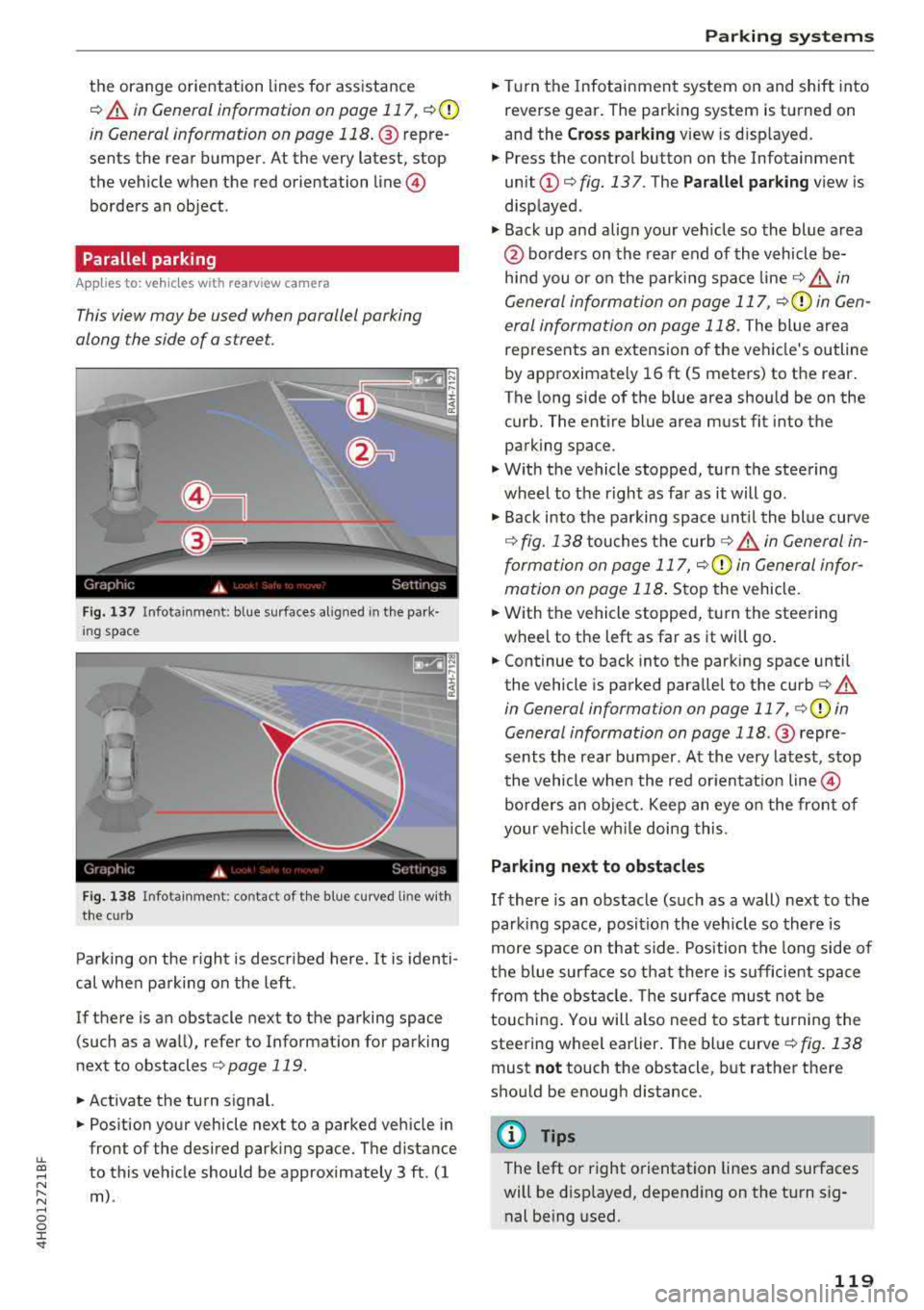
Fig . 137 In fota inment : blue surfaces alig ned in the pa rk ·
i ng space
Fi g. 138 In fo ta inm ent: c onta ct of the blue curv ed li ne with
the curb
Parking on the r ight is described here. It is identi
cal when parking on the left .
If there is an obstacle next to the parking space (such as a wall), refer to Informat ion for parking
next to obstacles
¢ page 119 .
.. Activate the turn signal.
.. Position your vehicle next to a parked veh icle in
front of the desired parking space. The d istance
to this vehicle should be approximately 3 ft . (1
m) .
Parking systems
.. T urn the Infotainment system on and shift into
reverse gear. The parking system is turned on
and the
C ros s parking view is d isp layed .
.. Press the contro l button on the Infotainment
unit @¢ fig. 137 . The Parallel parking view is
disp layed .
.. Back up and alig n your veh icle so the blue area
@ bo rders on the rear end of the vehicle be
hind you o r on the park ing spa ce
line ¢&_ in
General information on page 117,
¢ (Din Gen
eral information on page 118.
The blue area
represents an extension o f the vehicle's outline
by approximate ly 16 ft (5 meters) to the rear.
T he long side of the b lue area s hou ld be on the
curb. The entire blue area must fit into the
parking space .
.,. With the vehicle stopped, turn the steering
wheel to t he right as far as it will go .
.,. Back into the parking space unt il the blue curve
¢ fig. 138 touches the curb ¢&_ in General in
formation on page 117,
¢ (Din General infor
mation on page 118 .
Stop the vehicle .
.. With the vehicle stopped, t urn the steering
wheel to the left as far as it wi ll go .
.. Continue to back into the parking space until
the vehicle is parked parallel to the
curb ¢ A
in General informa tion on page 117, ¢ @ in
General information on page 118 .@ repre ·
sents the rear bumper. At the very latest, stop
the vehicle when the red or ien tat io n line
@
borders an object. Keep an eye o n the front of
your veh icle w hile doing this.
Parking next to obstacles
If there is an obstacle (such as a wall) next to the
parking space, position the veh icle so there is
more space on that side . Position the long side of
the b lue surfa ce so t hat there is sufficient spa ce
from the obstacle . T he su rface must not be
touchi ng . You will a lso need to s tart tu rning the
steering wheel earlier . The blue curve
¢ fig . 138
must not touch the obstacl e, b ut rather there
should be enough d istance .
(D Tips
The left or right orientation lines an d surfaces
will be disp layed, depend ing on the turn sig
nal be ing used.
119
Page 122 of 356
Parking systems
Peripheral cameras
Introduction
Applies to: ve hicles with per ipheral cameras
W ith this equipment, the parking system plus*
¢ page 116 is supplemented w ith vario us periph
eral cameras.
The four cameras g ive you the following views:
area around the vehicle, front corner view and rear corner v iew, view in front of the veh icle and
behind the vehicle.
General information
Applies to: ve hicles w ith pe ripheral cameras
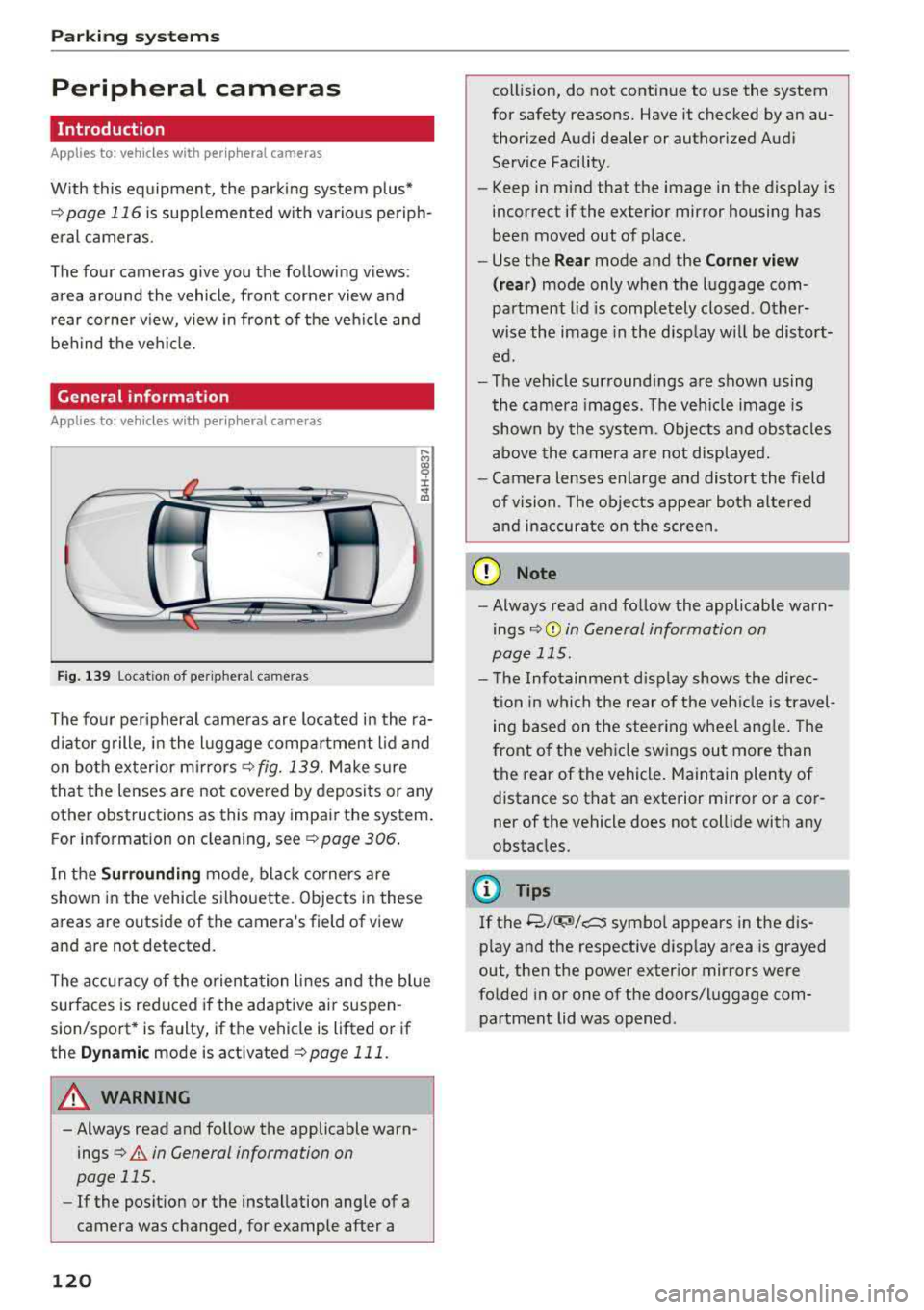
F ig. 139 Location of peripheral cameras
....
"' gg
± ., a,
The four peripheral cameras are located in the ra
d iator grille, in the luggage compartment lid and
on both exterior mirrors¢
fig. 139. Make sure
that the lenses are not covered by deposits or any
other obstructions as this may impair the system.
For information on cleaning, see ¢
page 306.
In the Surrounding mode, black corners are
shown in the vehicle silhouette. Objects in these
areas are outside of the camera's field of view
and are not detected.
The accuracy of the orientation lines and the blue
surfaces is reduced if the adaptive ai r suspen
sion/sport* is faulty, if the vehicle is lifted or if
the
Dynamic mode is activated ¢ page 111.
A WARNING
-Always read and follow the applicable warn
ings
¢&. in General information on
page 115.
-If the position or the installation angle of a
camera was changed, for example after a
120
collision, do not continue to use the system
for safety reasons. Have it checked by an au thorized Audi dealer or authorized Audi
Service Facility .
- Keep in mind that the image in the display is
incorrect if the exterior mirror housing has
been moved out of place.
- Use the
Rear mode and the Corner view
( rear)
mode only when the luggage com
partment lid is completely closed . Other
wise the image in the disp lay w ill be distort
ed.
- The vehicle surroundings are shown using
the camera images. The vehicle image is
shown by the system. Objects and obstacles
above the camera are not displayed .
- Camera lenses enlarge and distort the field
of vision. The objects appear both altered
and inaccurate on the screen.
(D Note
-Always read and follow the applicable warn
ings
¢ (Din General information on
page 115.
-The Infotainment disp lay shows the direc
tion in which the rear of the veh icle is travel
ing based on the steer ing wheel angle. The
front of the veh icle swings out more than
the rear of the vehicle. Maintain plenty of
distance so that an exterior mirror or a cor
ner of the vehicle does not collide with any
obstacles.
@ Tips
If
the 8/IT;M/c:5 symbol appears in the dis
play and the respective disp lay area is grayed
out, then the power exterior mirrors were
folded in or one of the doors/luggage com
partment lid was opened .
Page 123 of 356
lL t:0 ....
"' " "' .... 0 0 :c '
Applies to: ve hicles with per ip heral came ras
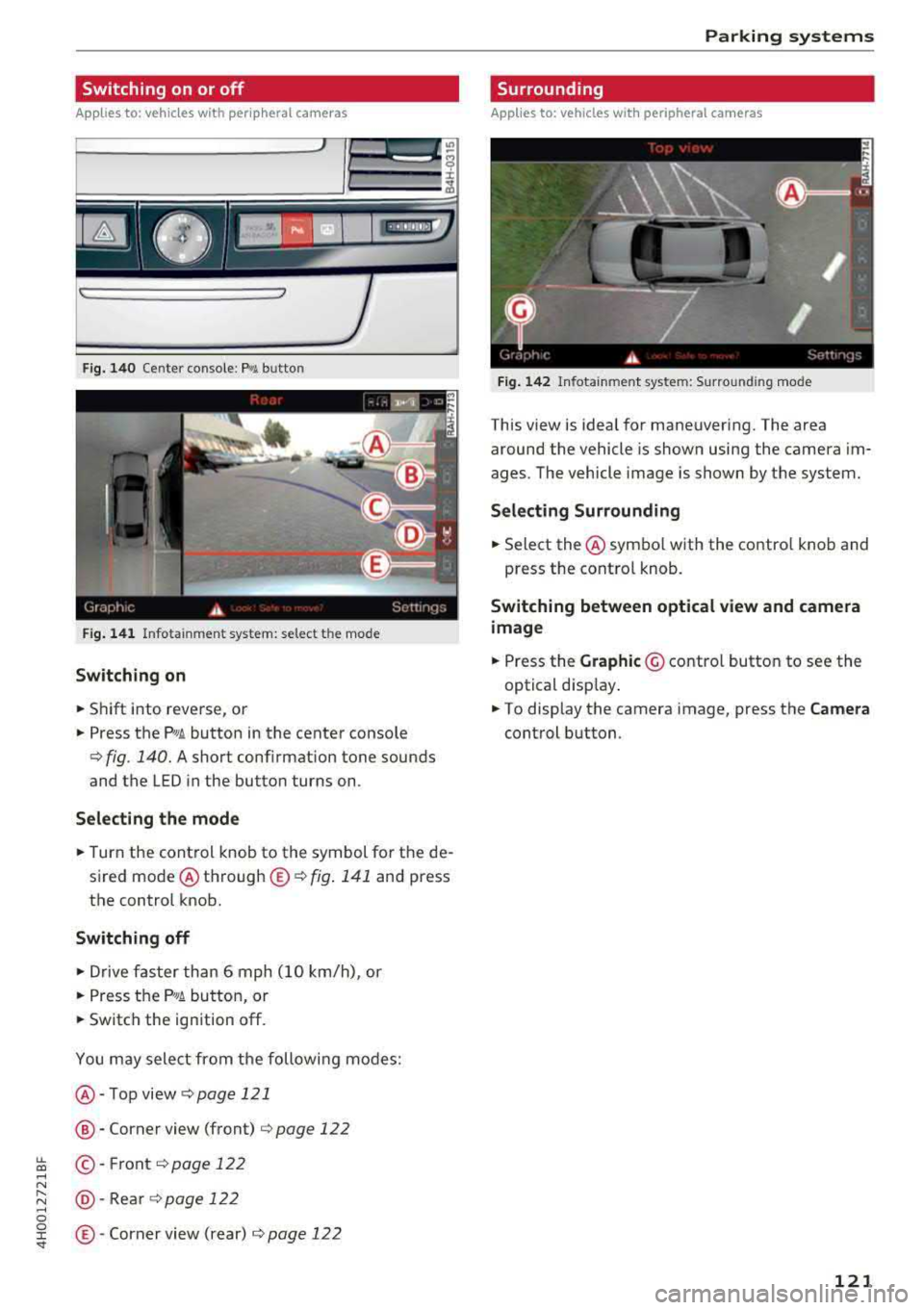
F ig. 140 Center console: f'w! but ton
Fig. 141 Infotainment system: select the mode
Switching on
.,. Shift into reverse, or
.,. Press the P"'A button in the center console
¢ fig . 140. A short conf irmation tone sounds
and the LED in the button turns on.
Selecting the mode
.,. Turn the control knob to the symbol for the de
sired mode @ through ®
c:> fig. 141 and press
the control knob.
Switching off
.,. Drive faster than 6 mph (10 km/h), or
.,. Press the P,,1~ button, or
.,. Switch the ignition off.
You may select from the following modes:
@-Top view c:>page 121
@ -Corner view (front) c:> page 122
©-Front c;, page 122
@ -Rea r c:> page 122
®-Corner view (rear) c;, page 122
Parking systems
Surrounding
Applies to : vehicles wit h peripheral ca meras
Fig. 142 Infot ainme nt system: Surround ing mo de
This view is ideal for maneuvering. The area
around the vehicle is shown using the camera im
ages. The vehicle image is shown by the system.
Selecting Surrounding
.,. Select the @ symbo l with the contro l knob and
press the control knob.
Switching between optical view and camera
image
.,. Press the Graphic @ control button to see the
optical disp lay .
.,. To display the camera image, press the Camera
control button .
121
Page 124 of 356
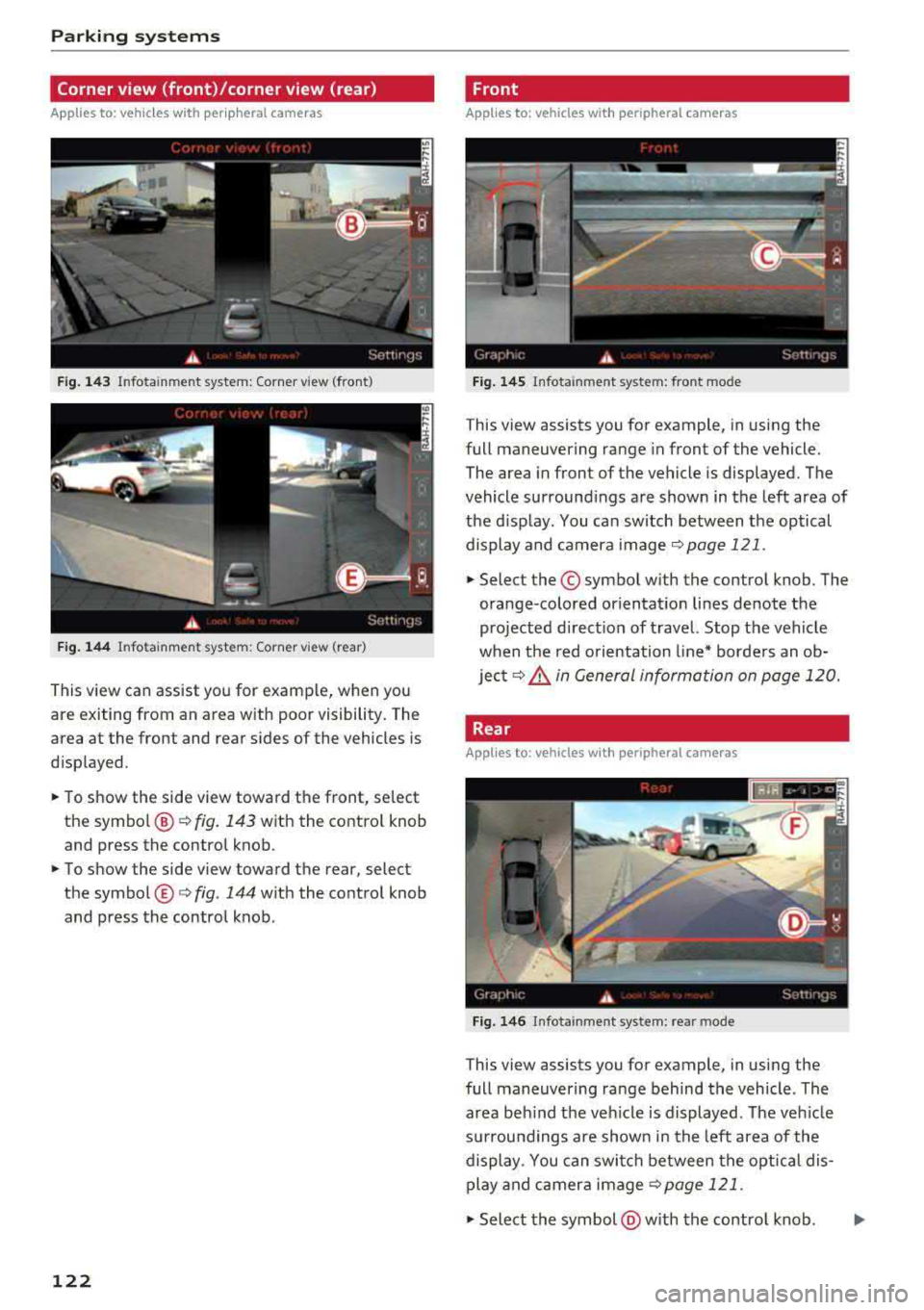
Parking systems
Corner view (front)/corner view (rear)
Applies to: vehicles with peripheral cameras
F ig . 143 Infotainment system: Corner view (front)
F ig. 144 Infotainment system: Corner view (rear)
This view can assist you for examp le, when you
are exiting from an area with poor visibility. The
area at the front and rear sides of the vehicles is
d isplayed .
.,. To show the side view toward the front, select
the symbo l@ ¢
fig. 143 with the contro l knob
and press the control knob .
.,. To show the side view toward the rear, select
the symbol ®¢
fig. 144 with the control knob
and press the control knob.
122
Front
Applies to: vehicles with peripheral cameras
Fig. 145 Infot ainment system: front mode
This view assists you for example, in using the
full maneuvering range in front of the vehicle.
The area in front of the vehicle is displayed. The
vehicle surround ings are shown in the left area of
the display . You can switch between the optical
display and camera image
¢page 121 .
.,. Select the© symbol with the control knob. The
orange-colored or ientat ion lines denote the
projected direct ion of travel. Stop the vehicle
when the red o rientation line* borders an ob
ject¢
8. in General information on page 120.
Rear
Applies to: vehicles with peripheral cameras
Fig. 146 Infota inmen t system: rear mode
This view assists you for example, in using the
full maneuvering range behind the vehicle. The
area beh ind t he veh icle is displayed. The veh icle
s ur roundings are shown in the left area of the
display . You can switch between the optical dis
play and camera image
¢page 121 .
.,. Select the symbol @with the contro l knob. ..,.