radio AUDI A8 2021 User Guide
[x] Cancel search | Manufacturer: AUDI, Model Year: 2021, Model line: A8, Model: AUDI A8 2021Pages: 362, PDF Size: 99.29 MB
Page 219 of 362
4N0012721BF
Telephone
> Send contact: you can select Text message or
E-mail > page 219.
> Save as a shortcut > page 24, Shortcuts.
Listening to voicemail
Applies to: vehicles with telephone
> Applies to: MMI/Rear Seat Remote: Select on
the home screen: PHONE > Voicemail.
Requirement: there must be no voicemail num-
ber stored.
>» Entering the voicemail number: enter the de-
sired number. Press OK.
Requirement: a voicemail number must be stor-
ed.
> Dialing the voicemail number: press Voice-
mail. The call begins immediately.
@® Tips
This service must be set up and activated by
the mobile phone service provider.
Dialing a telephone number
Applies to: vehicles with telephone
Depending on the vehicle equipment, you may
have the following options for dialing a phone
number:
— Using text input in the MMI > page 25.
— Using voice operation > page 34.
— by text input through the Rear Seat Remote
=> page 25.
Call options
Applies to: vehicles with telephone
> To accept or end a call, press the @ button on
the multifunction steering wheel. Operating
=> page 13 and > page 37.
Depending on your mobile device, the following
options may be available in the MMI or in the
Rear Seat Remote* when there is an incoming
call:
— Answer
— Decline
— Message |
If you exit the vehicle during a phone call, the
Bluetooth connection will be disconnected. De-
pending on your mobile device, phone calls in
progress may be automatically transferred from
the MMI to your mobile device.
G) Tips
The radio or media playback is muted during a
phone call.
During a phone call
Applies to: vehicles with telephone
Depending on your mobile device and the type of
connection, the following options may be availa-
ble during a call:
— End call
— Mute
Sending a tone sequence
Press Numbers. You can enter tone sequences
(DTMF) and send them to the other party on the
call.
Hold
Puts the current call on hold. To resume the call,
press Resume.
Answering an incoming call
One of these options will be available, depending
on the mobile phone service provider:
— Answer: the current phone call will be put on
hold. The incoming call will be answered.
— Replace: the active call will be replaced with
the incoming call.
Declining an incoming call
If you select Decline, the incoming call will be de-
clined.
Conference
Requirement: two phone calls must be in prog-
ress.
Depending on your mobile phone service provid-
er, you can add a call on hold and up to five active
callers to a conference call.
217
>
Page 220 of 362
Telephone
Swap call
Requirement: two phone calls must be in prog-
ress.
You can alternate between two phone calls.
Additional call options
Press More.
Depending on the mobile device being used and
the type of connection, the following options
may be available:
Transfer call to mobile device
Transfer the current call to your mobile device or
Bluetooth headset*.
Switch to hands-free
Applies to: MMI
Transfer the callin progress from your mobile de-
vice or Rear Seat Remote* to the MMI.
Transfer audio to MMI
Applies to: vehicles with Rear Seat Remote
Transfer the callin progress from the Rear Seat
Remote to the MMI.
Transfer audio to Rear Seat Remote
Applies to: vehicles with Rear Seat Remote
Transfer the call in progress from the MMI or
Bluetooth headset* to the Rear Seat Remote.
Add call
You can start a new call. The current call will be
put on hold.
Remove conference member
You can remove conference call members individ-
ually when a conference call is active.
Microph. input
Applies to: MMI
You can adjust the input level of the microphone
using the slider.
@ Tips
The call waiting function must be activated in
your mobile device to be alerted about an in-
coming call during an active call.
218
Making an emergency call
Applies to: vehicles with telephone
Requirement: a mobile device must be connected
to the MMI.
> Applies to: MMI/Rear Seat Remote: Select on
the home screen: PHONE > Dial number > the
local emergency call number (for example,
911) > Dial.
ZA\ WARNING
— Because your phone works with radio sig-
nals, a connection cannot be guaranteed un-
der all circumstances. Do not rely on only
your phone when it comes to essential com-
munication (such as during a medical emer-
gency).
— Always follow the instructions given by the
emergency personnel during an emergency
call and only end the call when they instruct
you to do so.
Settings
Phone settings
Applies to: vehicles with telephone
> Applies to: MMI: Select on the home screen:
PHONE > ©}.
The following options may be possible, depend-
ing on your mobile device:
— Decline with text message
— Edit voicemail number
Switching between two mobile devices
Requirement: phone 1 and phone 2 must be con-
nected to the MMI.
Switch telephones: the device name of the avail-
able mobile device is displayed. You can switch
the phone by pressing the button.
Private mode: call lists only in Rear Seat
Remote
Applies to: vehicles with Rear Seat Remote
To allow contacts and call details to only be dis-
played on the Rear Seat Remote display, activate
private mode.
Page 224 of 362

Audi connect
Audi connect
General information
Applies to: vehicles with Audi connect
Depending on the country and the vehicle equip-
ment, the following functions may be available:
— Audi connect Infotainment
— Audi connect vehicle control
ZA WARNING
—To reduce the risk of an accident, only use
Audi connect services and the Wi-Fi hotspot
only if the traffic situation permits it. Read
and follow the guidelines provided in
= page 20, Traffic safety information.
— It is only safe to use tablets, laptops, mobile
devices and other similar devices when the
vehicle is stationary because, like all loose
objects, they could be thrown around the in-
side of the vehicle in a crash and cause seri-
ous injuries. Store these types of devices se-
curely while driving. Also read the warnings
in the chapter > page 84.
@) Note
—The connection costs of Audi connect Info-
tainment services are included in the price
of Audi connect Infotainment during the
subscription period with some exceptions.
Please note that there may be additional
charges when using some services. For ex-
ample, this applies to online radio/
podcasts, additional online data, or for In-
ternet connections and services that use the
Wi-Fi hotspot. Depending on the country,
data plans may need to be purchased for
these Internet connections and services
= page 225. For additional information, see
my.audi.com.
— In certain situations, the Wi-Fi hotspot data
connection may be established as a replace-
ment for the SIM card on your Wi-Fi device.
This feature depends on the configuration
of your Wi-Fi device and operating system.
This could result in fees depending on your
cell phone service provider, especially if you
are using this feature while abroad. A flat
222
rate data plan is strongly recommended. For
more information, contact your cell phone
service provider or refer to the owner's man-
ual for your Wi-Fi device.
— You are responsible for all precautions taken
for data protection, anti-virus protection,
and protection against loss of data on mo-
bile devices that are used, for example, to
access the Internet through the Wi-Fi hot-
spot.
— In areas with poor GPS reception or outside
the coverage range of the respective cell
phone service provider, some functions
and/or services may not be available, it may
not be possible to send or receive data, or
functionality may be limited.
@) Tips
— The availability of services depends on the
subscription.
— Audi merely provides access to third party
services through the MMI and does not as-
sume any responsibility for the content and
availability of these services.
— Use of the most up-to-date mobile network
standard is not available in every country.
Contact an authorized Audi dealer or au-
thorized Audi Service Facility or your cell
phone service provider for additional infor-
mation.
— Availability, scope, providers, screen display,
and costs of services may vary depending on
the country, model, model year, end device
and rates.
— All services can be modified, activated/deac-
tivated, renamed, and enhanced without
further notification.
Audi connect
Infotainment
Applies to: vehicles with Audi connect Infotainment
With Audi connect Infotainment services, online
information is transmitted directly to the vehicle.
An Internet connection is required to use Audi
connect Infotainment. The Internet connection is >
Page 244 of 362
Radio
Radio
General information
Selecting the radio
ie) | ey
See) os 2 )
\S ™
3 Pa): 4
(ones
ro
* a 106.7 ana
mao
RADIO —@
Saray
22 Lim)
i
4 Qi:
aa
Fig. 169 Upper display: SiriusXM channel list
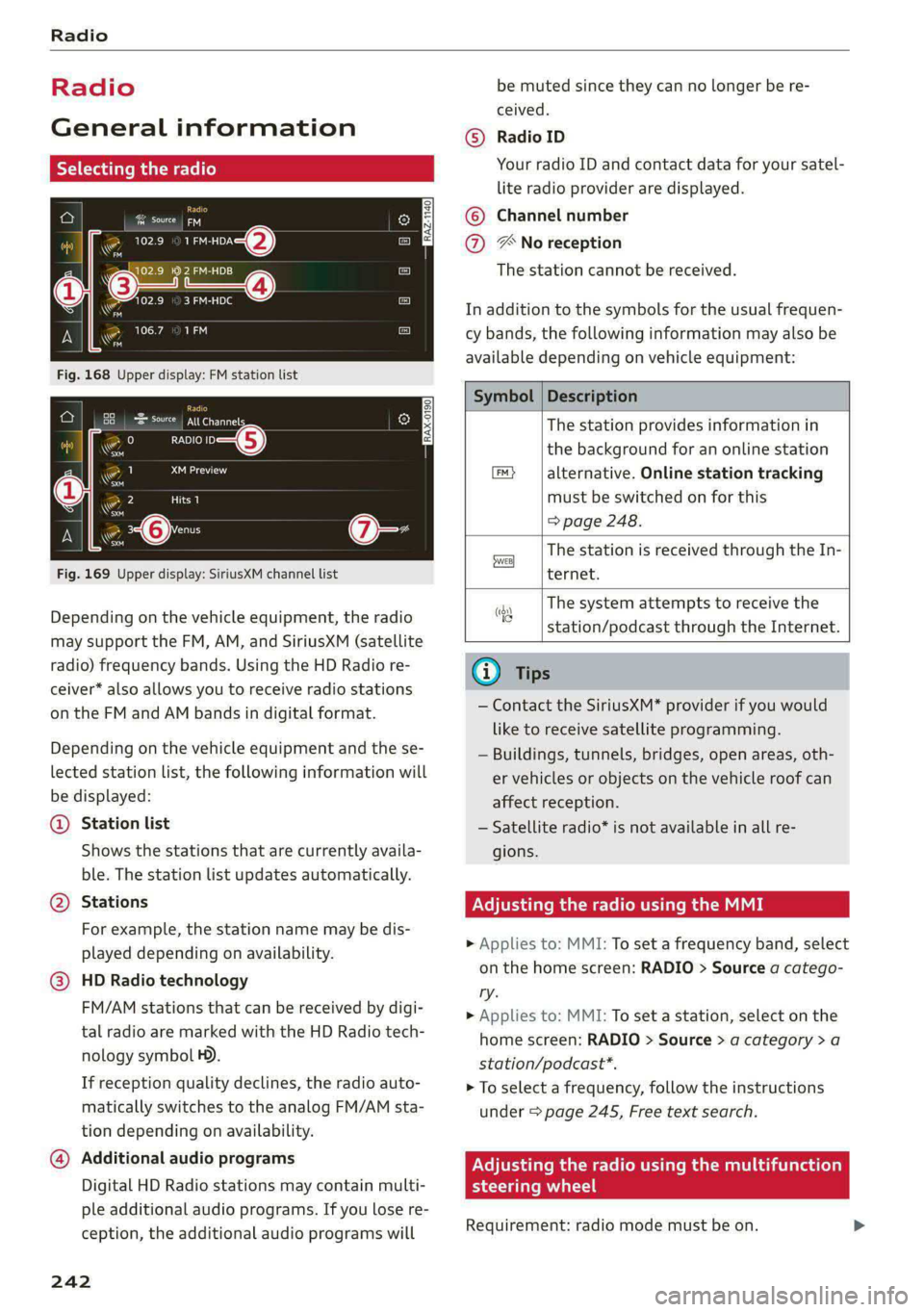
Depending on the vehicle equipment, the radio
may support the FM, AM, and SiriusXM (satellite
radio) frequency bands. Using the HD Radio re-
ceiver* also allows you to receive radio stations
on the FM and AM bands in digital format.
Depending on the vehicle equipment and the se-
lected station list, the following information will
be displayed:
@ Station list
Shows the stations that are currently availa-
ble. The station list updates automatically.
Stations @
For example, the station name may be dis-
played depending on availability.
HD Radio technology
FM/AM stations that can be received by digi-
tal radio are marked with the HD Radio tech-
nology symbol H).
If reception quality declines, the radio auto-
matically switches to the analog FM/AM sta-
tion depending on availability.
@ Additional audio programs
Digital HD Radio stations may contain multi-
ple additional audio programs. If you lose re-
ception, the additional audio programs will
242
be muted since they can no longer be re-
ceived.
Radio ID
Your radio ID and contact data for your satel-
lite radio provider are displayed.
Channel number
® No reception e®
The station cannot be received.
In addition to the symbols for the usual frequen-
cy bands, the following information may also be
available depending on vehicle equipment:
Symbol | Description
The station provides information in
the background for an online station
alternative. Online station tracking
must be switched on for this
=> page 248.
The station is received through the In-
ternet.
The system attempts to receive the
station/podcast through the Internet.
G) Tips
— Contact the SiriusXM* provider if you would
like to receive satellite programming.
— Buildings, tunnels, bridges, open areas, oth-
er vehicles or objects on the vehicle roof can
affect reception.
— Satellite radio* is not available in all re-
gions.
Adjusting the radio using the MMI
> Applies to: MMI: To set a frequency band, select
on the home screen: RADIO > Source a catego-
ry.
> Applies to: MMI: To set a station, select on the
home screen: RADIO > Source > a category >a
station/podcast*.
> To select a frequency, follow the instructions
under > page 245, Free text search.
Adjusting the radio using the multifunction
steering wheel
Requirement: radio mode must be on. >
Page 245 of 362
4N0012721BF
Radio
> Select the radio/media tab in the instrument
cluster.
> To switch between radio and media, select the
button > Switch to radio/Switch to media.
> Turn the left thumbwheel to display the station
list.
> To switch to a different source, press the [=]
button.
> To select a station or a source, turn and press
the left thumbwheel.
@ Tips
Applies to: multifunction steering wheel: De-
pending on the selected function, operation
through the MMI may be required.
Radio functions
Leta Ta]
Adjusting the radio using the Rear Seat
Tule e
Applies to: vehicles with Rear Seat Remote
Requirement: the Rear Seat Remote must be con-
nected to the MMI > page 28.
> Applies to: Rear Seat Remote: Press RADIO on
the
home screen.
Operation of the available radio functions using
the Rear Seat Remote is very similar to operation
in the MMI > page 243.
Z\ WARNING
Observe the safety precautions > page 26,
Rear Seat Remote.
Cora eet)
Ane
[RAX-0191
Fig. 170 Upper display: left side: playback view of radio functions, right side: sources
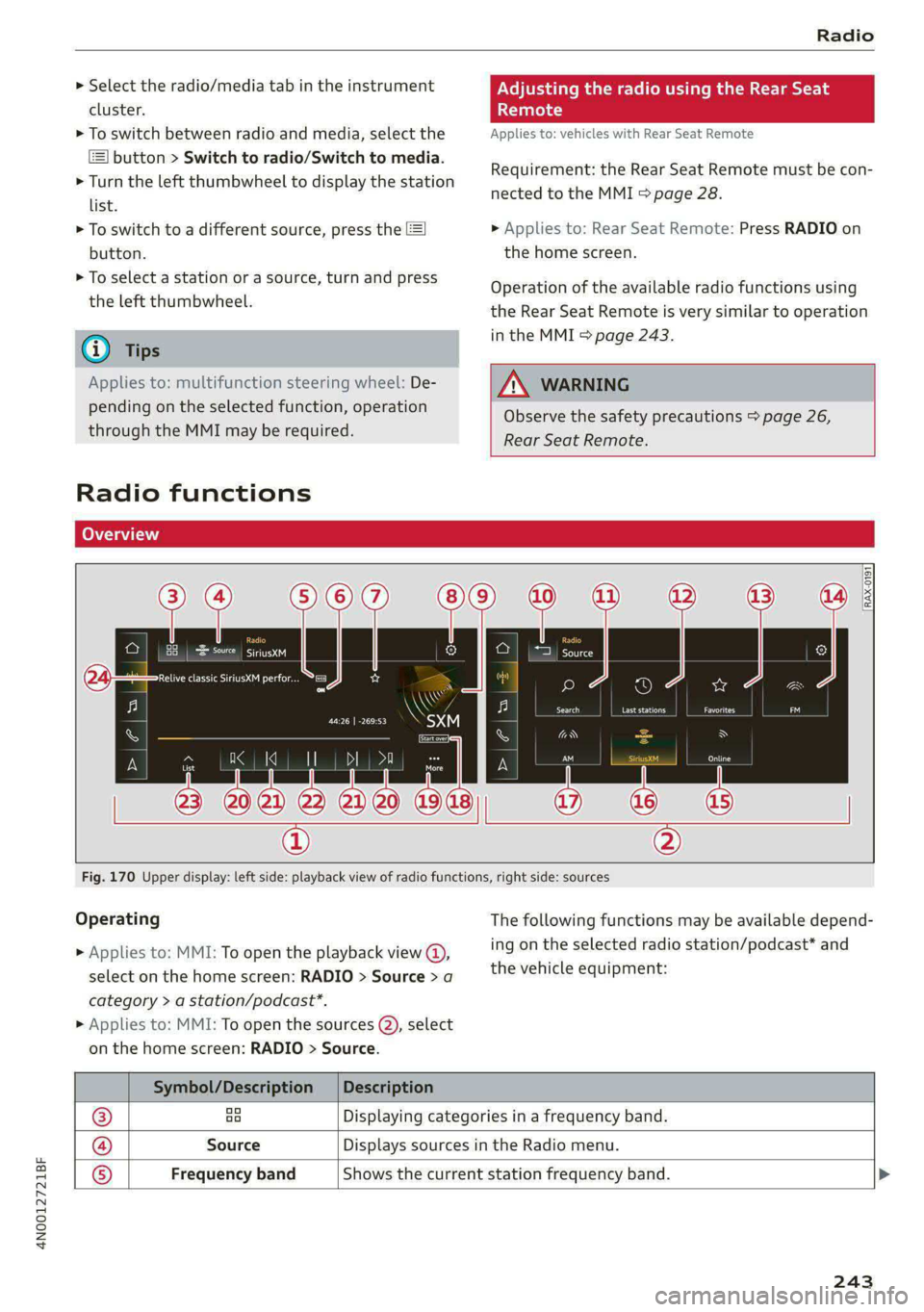
Operating
> Applies to: MMI: To open the playback view @),
select on the home screen: RADIO > Source > a
category > a station/podcast*.
> Applies to: MMI: To open the sources (2), select
on the home screen: RADIO > Source.
The following functions may be available depend-
ing on the selected radio station/podcast* and
the vehicle equipment:
Symbol/Description | Description
® ao Displaying categories in a frequency band.
@ Source Displays sources in the Radio menu.
® Frequency band Shows the current station frequency band.
243
Page 246 of 362
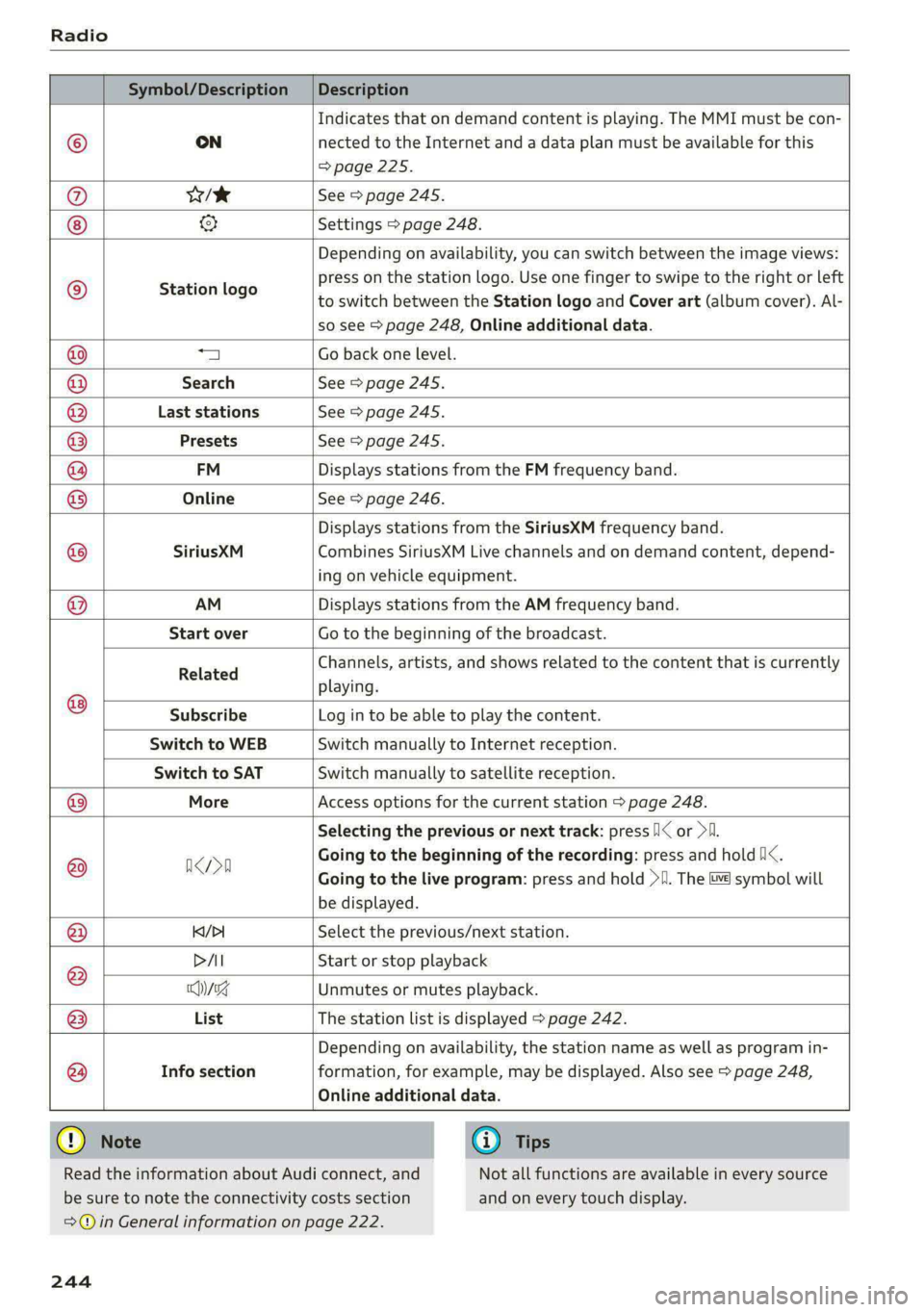
Radio
Symbol/Description | Description
Indicates that on demand content is playing. The MMI must be con-
© ON nected to the Internet and a data plan must be available for this
=> page 225.
@ es See > page 245.
& Settings > page 248.
Station logo
Depending on availability, you can switch between the image views:
press on the station logo. Use one finger to swipe to the right or left
to switch between the Station logo and Cover art (album cover). Al-
so see > page 248, Online additional data.
1 Go back one level.
Search See > page 245.
Last stations See > page 245.
Q|
©
O|O|O|O\O\O,
©
Info section
Depending on availability, the station name as well as program in-
formation, for example, may be displayed. Also see > page 248,
Presets See > page 245.
FM Displays stations from the FM frequency band.
Online See > page 246.
Displays stations from the SiriusXM frequency band.
SiriusXM Combines SiriusXM Live channels and on demand content, depend-
ing on vehicle equipment.
AM Displays stations from the AM frequency band.
Start over Go to the beginning of the broadcast.
Related Channels, artists, and shows related to the content that is currently
playing.
Subscribe Log in to be able to play the content.
Switch to WEB Switch manually to Internet reception.
Switch to SAT Switch manually to satellite reception.
@® More Access options for the current station > page 248.
Selecting the previous or next track: press /I< or >I.
@ arn Going to the beginning of the recording: press and hold /i<.
Going to the live program: press and hold >I. The &¥ symbol will
be displayed.
@ K/>| Select the previous/next station.
DAI Start or stop playback
® Chyssg Unmutes or mutes playback.
@ List The station list is displayed > page 242.
@
Online additional data.
Read the information about Audi connect, and
be sure to note the connectivity costs section
G) Tips
Not all functions are available in every source
and on every touch display.
= in General information on page 222.
244
Page 247 of 362
4N0012721BF
Radio
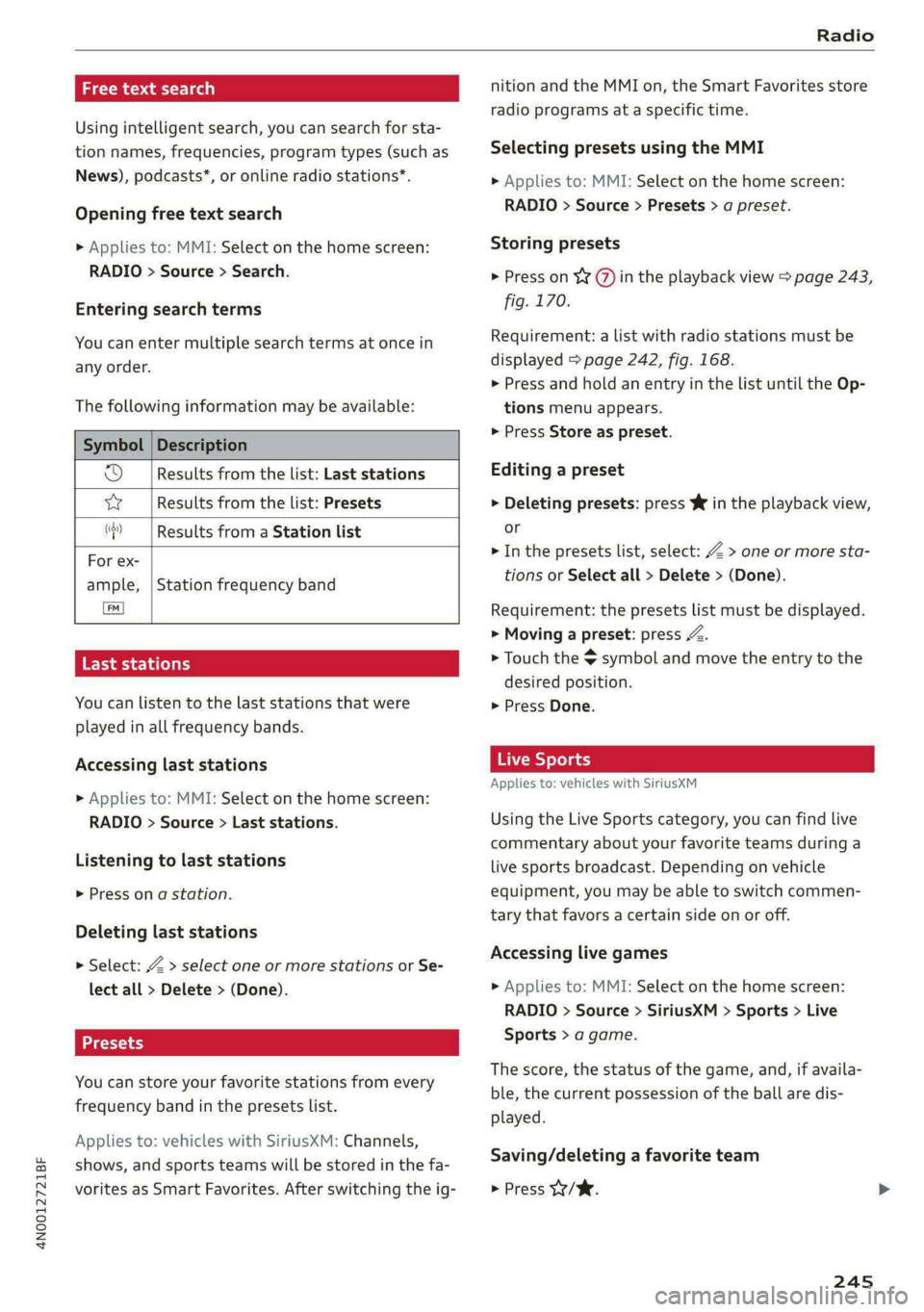
a \-ny dees laaa)
Using intelligent search, you can search for sta-
tion names, frequencies, program types (such as
News), podcasts*, or online radio stations*.
Opening free text search
> Applies to: MMI: Select on the home screen:
RADIO > Source > Search.
Entering search terms
You can enter multiple search terms at once in
any order.
The following information may be available:
Symbol | Description
od Results from the list: Last stations
w Results from the list: Presets
“?) | Results from a Station list
For ex-
ample,
[ew]
Last stations
You can listen to the last stations that were
played in all frequency bands.
Station frequency band
Accessing last stations
> Applies to: MMI: Select on the home screen:
RADIO > Source > Last stations.
Listening to last stations
> Press ona station.
Deleting last stations
> Select: Z > select one or more stations or Se-
lect all > Delete > (Done).
You can store your favorite stations from every
frequency band in the presets list.
Applies to: vehicles with SiriusXM: Channels,
shows, and sports teams will be stored in the fa-
vorites as Smart Favorites. After switching the ig-
nition and the MMI on, the Smart Favorites store
radio programs at a specific time.
Selecting presets using the MMI
> Applies to: MMI: Select on the home screen:
RADIO > Source > Presets > a preset.
Storing presets
> Press on ¥¥ @ in the playback view > page 243,
fig. 170.
Requirement: a list with radio stations must be
displayed > page 242, fig. 168.
> Press and hold an entry in the list until the Op-
tions menu appears.
> Press Store as preset.
Editing a preset
> Deleting presets: press W in the playback view,
or
> In the presets list, select: Z > one or more sta-
tions or Select all > Delete > (Done).
Requirement: the presets list must be displayed.
> Moving a preset: press Z.
> Touch the $ symbol and move the entry to the
desired position.
> Press Done.
Live Sports
Applies to: vehicles with SiriusXM
Using the Live Sports category, you can find live
commentary about your favorite teams during a
live sports broadcast. Depending on vehicle
equipment, you may be able to switch commen-
tary that favors a certain side on or off.
Accessing live games
> Applies to: MMI: Select on the home screen:
RADIO > Source > SiriusXM > Sports > Live
Sports > a game.
The score, the status of the game, and, if availa-
ble, the current possession of the ball are dis-
played.
Saving/deleting a favorite team
> Press W/W.
245
Page 248 of 362

Radio
Switching commentary on or off
Requirement: the MMI must be connected to the
Internet. A data plan must be available
=> page 225.
> Press (C)/tc).
Radio text
Program information (for example, general text
messages, artist, composer, song) is displayed in
the radio text.
Requirement: the selected radio station must
support the radio text function.
Opening radio text
> Applies to: MMI: Select on the home screen:
RADIO > select a frequency band (such as FM)
> select a station > More > Radio text.
Depending on vehicle equipment, the following
functions
may be available:
Displaying previous radio text entries
> Swipe downward with one finger. The last radio
text entries are displayed if they are available.
Scrolling through radio text entries
> Swipe upward or downward with one finger.
Showing Radio Text Plus information
If a radio text entry is displayed with a color, a
phone number or a navigation destination for the
station is available as radio text plus information.
You have the following options:
Selecting the destination
> Select: a navigation destination marked in col-
or > Set as destination.
Call
> Select: a phone number marked in color > Call.
@ Tips
A call to a phone number stored in the radio
text will start immediately.
246
Online radio
General information
Applies to: vehicles with Audi connect Infotainment and on-
line radio
You can listen to various radio stations or pod-
casts on the Internet using online radio.
Requirement: the MMI must be connected to the
Internet. A data plan must be available
=> page 225.
Accessing online radio through the MMI
> Applies to: MMI: Select on the home screen:
RADIO > Source > Online.
The following functions are available:
Previous selection
The station/podcast list for the last station or
podcast that was playing will be displayed.
Top stations
The favorite online radio stations are displayed.
Filter list
> Select: 2 > (a category) > a station/podcast.
The following categories are available:
— Countries
— Genres
— Languages
— Editor's picks
— Themes
— Nearby
@) Note
Read the information about Audi connect, and
be sure to note the connectivity costs section
=@ in General information on page 222.
G) Tips
— Depending on the Internet connection and
network traffic, the connection may be lost
when online radio is playing.
— Online radio reception may not be possible
if Internet service is throttled.
— Online media usage depends on the service
availability of the third party provider.
Page 249 of 362
4N0012721BF
Radio
— The range and screen display of online me-
dia services from third party providers in the
vehicle can vary.
— Please note that it may not be possible to
play some online radio stations in certain
countries.
— Audi only provides access to online radio
and does not assume any responsibility for
the content of these services.
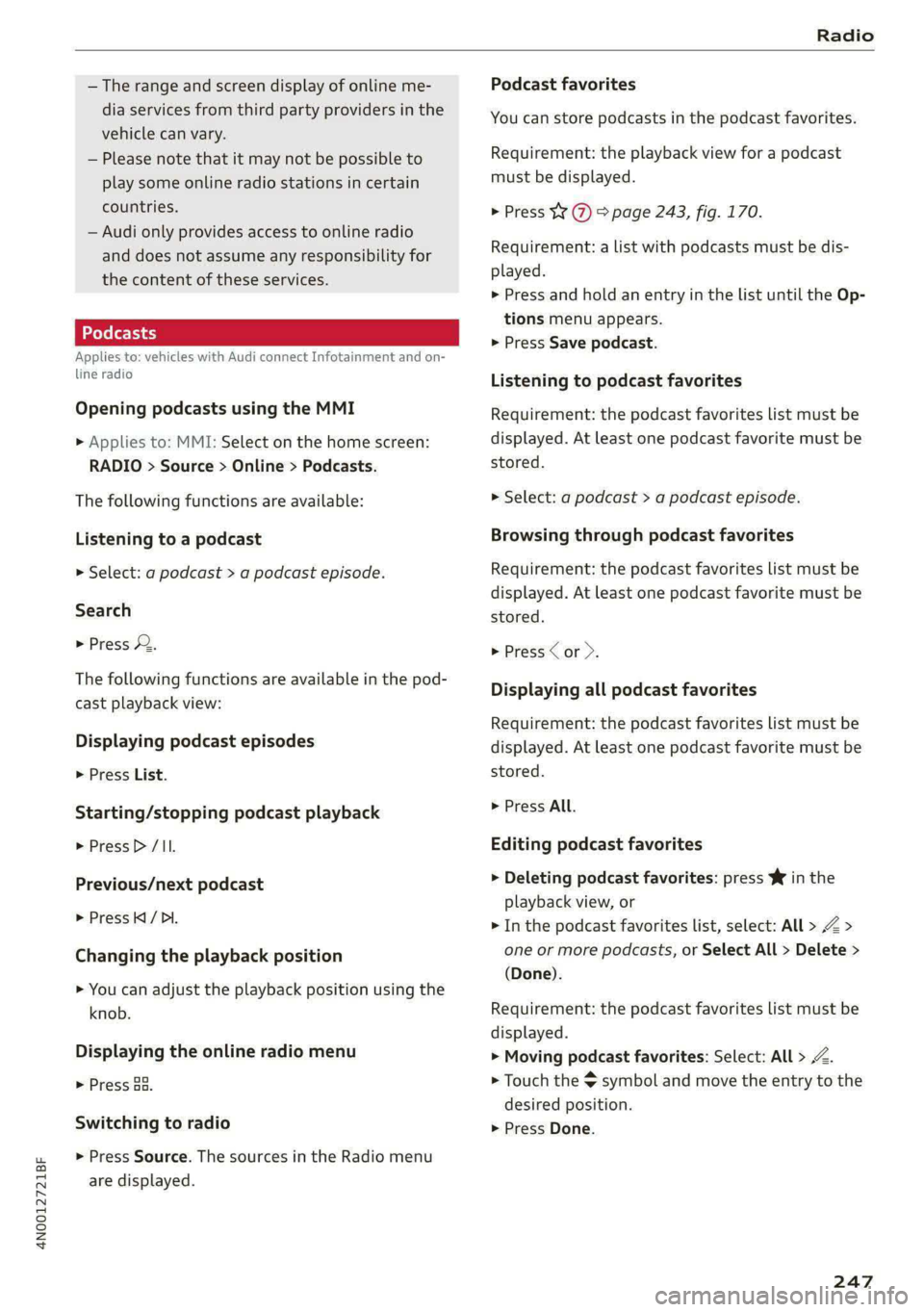
Applies to: vehicles with Audi connect Infotainment and on-
line radio
Opening podcasts using the MMI
» Applies to: MMI: Select on the home screen:
RADIO > Source > Online > Podcasts.
The following functions are available:
Listening to a podcast
> Select: a podcast > a podcast episode.
Search
> Press 2.
The following functions are available in the pod-
cast playback view:
Displaying podcast episodes
> Press List.
Starting/stopping podcast playback
> Press > /II.
Previous/next podcast
> Press / DI.
Changing the playback position
> You can adjust the playback position using the
knob.
Displaying the online radio menu
> Press oa.
Switching to radio
> Press Source. The sources in the Radio menu
are displayed.
Podcast favorites
You can store podcasts in the podcast favorites.
Requirement: the playback view for a podcast
must be displayed.
> Press 1 @ > page 243, fig. 170.
Requirement: a list with podcasts must be dis-
played.
> Press and hold an entry in the list until the Op-
tions menu appears.
> Press Save podcast.
Listening to podcast favorites
Requirement: the podcast favorites list must be
displayed. At least one podcast favorite must be
stored.
> Select: a podcast > a podcast episode.
Browsing through podcast favorites
Requirement: the podcast favorites list must be
displayed. At least one podcast favorite must be
stored.
> Press Cor >.
Displaying all podcast favorites
Requirement: the podcast favorites list must be
displayed. At least one podcast favorite must be
stored.
> Press All.
Editing podcast favorites
> Deleting podcast favorites: press W in the
playback view, or
> In the podcast favorites list, select: All > Z >
one or more podcasts, or Select All > Delete >
(Done).
Requirement: the podcast favorites list must be
displayed.
> Moving podcast favorites: Select: All > Z.
> Touch the $ symbol and move the entry to the
desired position.
> Press Done.
247
Page 250 of 362
Radio
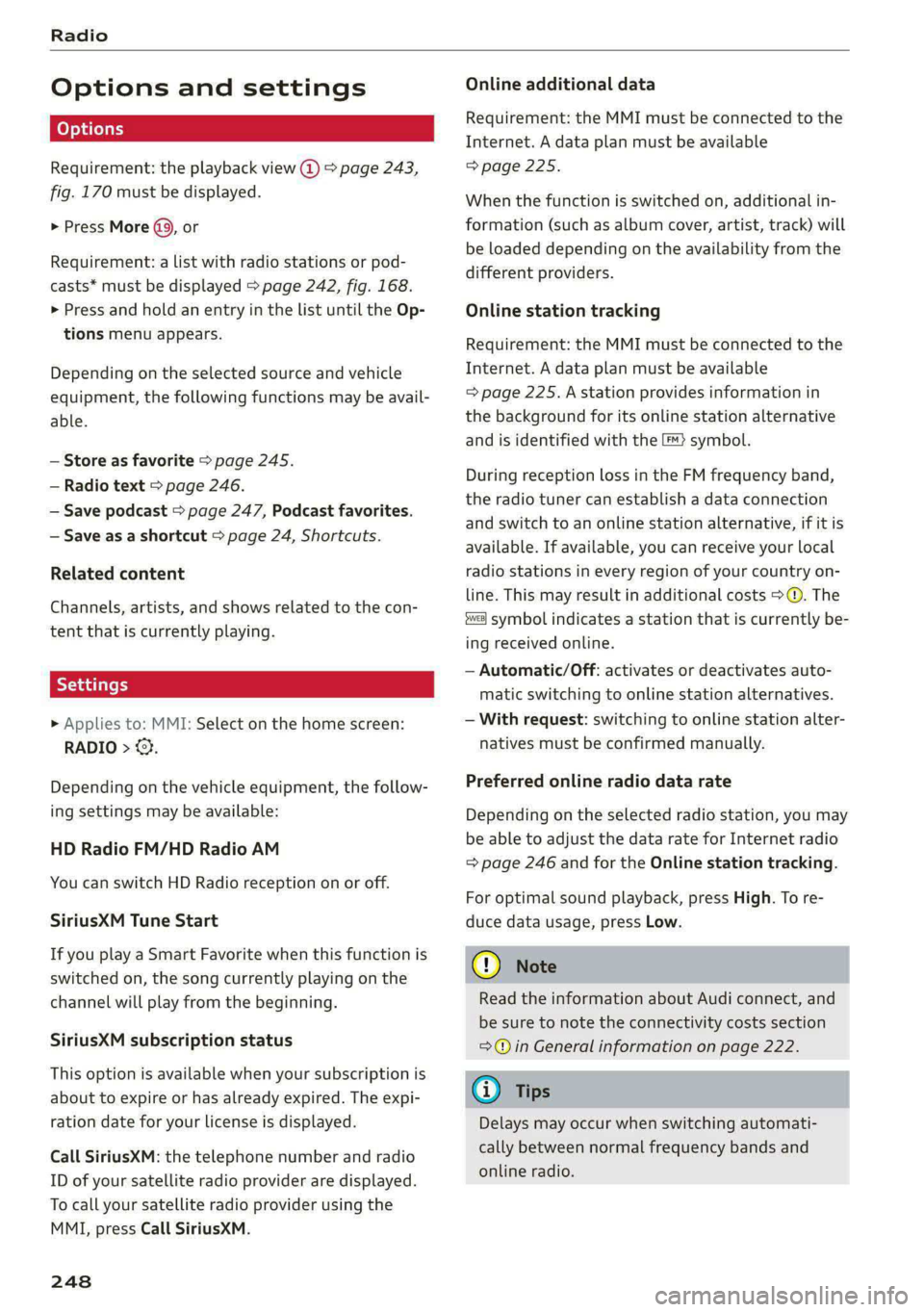
Options and settings
Requirement: the playback view @) > page 243,
fig. 170 must be displayed.
> Press More (9, or
Requirement: a list with radio stations or pod-
casts* must be displayed > page 242, fig. 168.
> Press and hold an entry in the list until the Op-
tions menu appears.
Depending on the selected source and vehicle
equipment, the following functions may be avail-
able.
— Store as favorite > page 245.
— Radio text > page 246.
— Save podcast > page 247, Podcast favorites.
— Save as a shortcut > page 24, Shortcuts.
Related content
Channels, artists, and shows related to the con-
tent that is currently playing.
» Applies to: MMI: Select on the home screen:
RADIO > &.
Depending on the vehicle equipment, the follow-
ing settings may be available:
HD Radio FM/HD Radio AM
You can switch HD Radio reception on or off.
SiriusXM Tune Start
If you play a Smart Favorite when this function is
switched on, the song currently playing on the
channel will play from the beginning.
SiriusXM subscription status
This option is available when your subscription is
about to expire or has already expired. The expi-
ration date for your license is displayed.
Call SiriusXM: the telephone number and radio
ID of your satellite radio provider are displayed.
To call your satellite radio provider using the
MMI, press Call SiriusXM.
248
Online additional data
Requirement: the MMI must be connected to the
Internet. A data plan must be available
=> page 225.
When the function is switched on, additional in-
formation (such as album cover, artist, track) will
be loaded depending on the availability from the
different providers.
Online station tracking
Requirement: the MMI must be connected to the
Internet. A data plan must be available
= page 225. A station provides information in
the background for its online station alternative
and is identified with the ™} symbol.
During reception loss in the FM frequency band,
the radio tuner can establish a data connection
and switch to an online station alternative, if it is
available. If available, you can receive your local
radio stations in every region of your country on-
line. This may result in additional costs >@. The
symbol indicates a station that is currently be-
ing received online.
— Automatic/Off: activates or deactivates auto-
matic switching to online station alternatives.
— With request: switching to online station alter-
natives must be confirmed manually.
Preferred online radio data rate
Depending on the selected radio station, you may
be able to adjust the data rate for Internet radio
=> page 246 and for the Online station tracking.
For optimal sound playback, press High. To re-
duce data usage, press Low.
@) Note
Read the information about Audi connect, and
be sure to note the connectivity costs section
=@ in General information on page 222.
G) Tips
Delays may occur when switching automati-
cally between normal frequency bands and
online radio.