Rear Wing AUDI A8 2021 Owner's Manual
[x] Cancel search | Manufacturer: AUDI, Model Year: 2021, Model line: A8, Model: AUDI A8 2021Pages: 362, PDF Size: 99.29 MB
Page 126 of 362

Driving dynamic
Driving dynamic
Audi drive select
Introduction
Applies to: vehicles with Audi drive select
Drive select makes it possible to experience dif-
ferent types of vehicle characteristics in one vehi-
cle. With different driving modes, the driver can
switch the setting, for example from sporty to
comfortable. This allows you to adjust the set-
tings to your personal preferences. This makes it
possible to combine settings such as a sporty
drivetrain setting with comfortable steering.
Selecting an Audi drive select mode
Applies to: vehicles with Audi drive select
The sie button is located above the selector lever
in the center console.
> Press the left or right arrow key until the de-
sired mode appears in the MMI. Or:
» Applies to MMI: Select on the home screen: VE-
HICLE > Audi drive select.
You can change the driving mode when the vehi-
cle is stationary or while driving. If traffic per-
mits, briefly remove your foot from the accelera-
tor pedal after changing modes so that the mode
you have selected will be activated for the drive
system.
The following modes may be available depending
on the equipment:
comfort - Provides a comfort-oriented vehicle
setup and is suited for long drives on highways.
comfort+ - Provides a comfort-oriented vehicle
setup and switches on the curve tilting function
in the active suspension system. This mode is
suitable for long trips on highways and smooth
driving around curves, for example.
auto - Provides an overall comfortable yet dy-
namic driving feel and is suited for everyday use.
dynamic - Gives the driver a sporty driving feel
and is suited to a sporty driving style. The “S”
driving program is selected.
124
Individual - Provides the option for personalized
vehicle settings. Press &% to configure the mode
= page 124, Individual settings.
G) Tips
When the ignition is being switched on, indi-
vidual systems, such as the drive system, will
be reset to a balanced setting. Select the cur-
rent mode again to attain its full configura-
tion.
Individual settings
Applies to: vehicles with Audi drive select
The equipment in your vehicle will determine
which settings you can adjust.
Drive
The drive system will react to accelerator pedal
moves more quickly or in a more balanced man-
ner. The shift points are placed in higher or lower
speed ranges.
Depending on the setting, the drive power at the
rear axle will be distributed with the sport differ-
ential* to be more sporty or moderate
=> page 128.
Steering
The power steering will adapt. Light steering is
suitable for long trips on highways or smooth
driving around curves, for example.
Suspension
The suspension adjusts to be tighter or more
comfort-oriented when it comes to compensat-
ing for uneven spots on the road.
Based on the selected setting, the air suspen-
sion* will adjust the ground clearance and the ac-
tive suspension* will provide various degrees of
compensation for vehicle movements.
Engine sound
The engine sound adapts and can be subtle to
sporty. In the automatic setting, the engine
sound depends on the selected driving program.
Page 136 of 362
High-voltage system
G) Tips
Applies to: Audi charging systems
— For an uninterrupted charging process, we
recommend only charging using sockets
that are connected to a separately protected
circuit.
— It is recommended to use Audi charging sys-
tems in the wall mount clip* during opera-
tion. If this is not possible, always position
Audi charging systems ona secure surface
during the charging process > A\.
—To reduce the risk of overheating during op-
eration, do not place Audi charging systems
in direct sunlight for long periods of time. If
the control unit is overheated, the charging
Process is automatically paused until the
temperature has lowered back within the
normal range.
Charging
Applies to: vehicles with plug-in hybrid drive
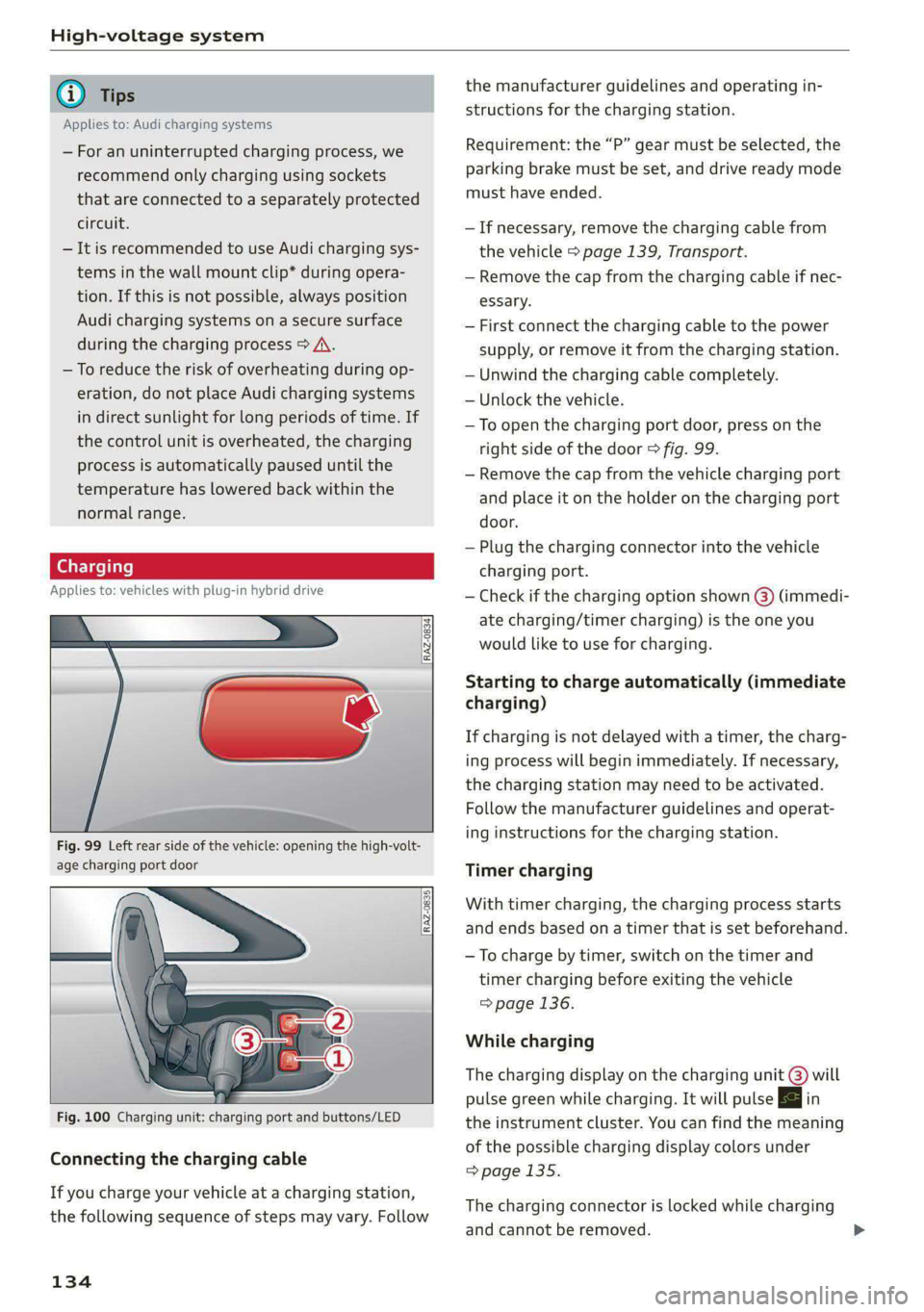
RAZ-0834
ss
Fig. 99 Left rear side of the vehicle: opening the high-volt-
age charging port door
RAZ-0835
Fig. 100 Charging unit: charging port and buttons/LED
Connecting the charging cable
If you charge your vehicle at a charging station,
the following sequence of steps may vary. Follow
134
the manufacturer guidelines and operating in-
structions for the charging station.
Requirement: the “P” gear must be selected, the
parking brake must be set, and drive ready mode
must have ended.
—If necessary, remove the charging cable from
the vehicle > page 139, Transport.
— Remove the cap from the charging cable if nec-
essary.
— First connect the charging cable to the power
supply, or remove it from the charging station.
— Unwind the charging cable completely.
— Unlock the vehicle.
—To open the charging port door, press on the
right
side of the door > fig. 99.
— Remove the cap from the vehicle charging port
and place it on the holder on the charging port
door.
— Plug the charging connector into the vehicle
charging port.
— Check if the charging option shown @) (immedi-
ate charging/timer charging) is the one you
would like to use for charging.
Starting to charge automatically (immediate
charging)
If charging is not delayed with a timer, the charg-
ing process will begin immediately. If necessary,
the charging station may need to be activated.
Follow the manufacturer guidelines and operat-
ing instructions for the charging station.
Timer charging
With timer charging, the charging process starts
and ends based on a timer that is set beforehand.
— To charge by timer, switch on the timer and
timer charging before exiting the vehicle
=> page 136.
While charging
The charging display on the charging unit @) will
pulse green while charging. It will pulse |} in
the instrument cluster. You can find the meaning
of the possible charging display colors under
> page 135.
The charging connector is locked while charging
and cannot be removed.
Page 150 of 362

Trailer towing
you are operating the vehicle. Contact an author-
ized Audi dealer or authorized Audi Service Facili-
ty for more information.
Before you start driving, check all lighting equip-
ment on the trailer while it is hitched to the vehi-
cle.
The headlight range control automatically ad-
justs the light range of the headlights.
Safety chains
Make sure the safety chains are correctly applied
when pulling a trailer. The chains should hang
enough so that the trailer can drive around
curves. However, they must not touch the
ground.
Air suspension
Applies to: vehicles with air suspension
The Audi drive select* comfort mode > page 124
must be selected before you adjust the tongue
weight on the trailer and hitch the trailer >@,
=> page 126.
Likewise, the vehicle cannot be raised manually
using the Raise function > page 126.
The air suspension trailer mode must be switched
on.
Applies to MMI: select on the home screen: VE-
HICLE > Settings & Service > Air suspension:
trailer.
Switch trailer mode off again when you are no
longer towing a trailer.
When using rear carrier systems that are mount-
ed directly on the trailer hitch ball head, you can
also switch trailer mode off manually.
If you must drive on roads that are in poor condi-
tion, you can raise the vehicle again after hitching
the trailer or after adjusting the tongue weight
=> page 126.
Vehicle levels below the values set in the comfort
level will no longer be available, even if you are
lowering the vehicle manually.
148
ZA WARNING
Applies to: vehicles with air suspension
— Never turn off trailer mode while driving
when a trailer is hitched, because then the
restrictions for controlling the vehicle level
will be turned off.
— Driving with a trailer on unpaved roads when
the vehicle is raised may change the vehicle
handling. Adapt your speed.
— Note that the vehicle will lower automatical-
ly at certain speeds if you have lifted the ve-
hicle manually.
C) Note
— Applies to: vehicles with air suspension: Se-
lect the Audi drive select* comfort mode.
Otherwise, the tongue load specified for
your vehicle will no longer be applicable.
— Attachments retrofitted on the vehicle may
cause damage, especially on the trailer
hitch ball head. In cases of damage, have
the function checked by an authorized Audi
dealer or authorized Audi Service Facility.
@) Tips
— Block the wheels with chocks when parking
on inclines if the trailer is loaded.
— Audi recommends having the vehicle in-
spected between the inspection intervals if
you tow a trailer frequently.
— Avoid driving with a trailer during the vehi-
cle break-in period.
Pie Rie Relig
Driving with a trailer requires extra caution.
Speed
Adhere to the legal speed limits. Follow the legal
regulations that are applicable in the country
where you are operating the vehicle.
As the speed increases, the driving stability of
the trailer decreases. Therefore you should not
exceed the maximum legal speed limit when
there are unfavorable road, weather, and/or wind
conditions. This especially applies when driving
downhill.
Page 155 of 362
4N0012721BF
Assist systems
Rear area
Depending on the vehicle equipment, the follow-
ing sensors and cameras may be installed:
— Rearview camera in the luggage compartment
lid
— Radar sensors at the rear corners of the vehicle
— Rear and side ultrasonic sensors
Switching the systems
on and off
ZA\ WARNING
Applies to: vehicles with laser scanner
— The surface of the laser scanner can become
hot during operation, which increases the
risk of burns.
— The laser scanner contains a class 1 laser in
accordance with IEC 60825-1:2014. When
used according to regulations, the laser is
not dangerous. Opening the laser module
and removing covers is not permitted. Doing
so could cause permanent injuries to the
eyes.
— Any repair work on the laser module must
be performed by an authorized Audi dealer
or authorized Audi Service Facility; other-
wise the vehicle's operating license may be
voided. Incorrect repairs may cause limited
functionality and eye damage.
@) Tips
Applies to: vehicles with laser scanner
— The possible emissions are below the
threshold for class 1 lasers.
— Complies with 21 CFR 1040.10 and
1040.11 except for deviations pursuant to
Laser Notice No. 50, dated June 24, 2007.
@ Tips
— The locations of the sensors may differ
slightly depending on vehicle equipment.
— Some sensors are installed under vehicle
components and cannot be seen from the
outside.
— The system complies with United States FCC
regulations and ISED regulations
=> page 341.
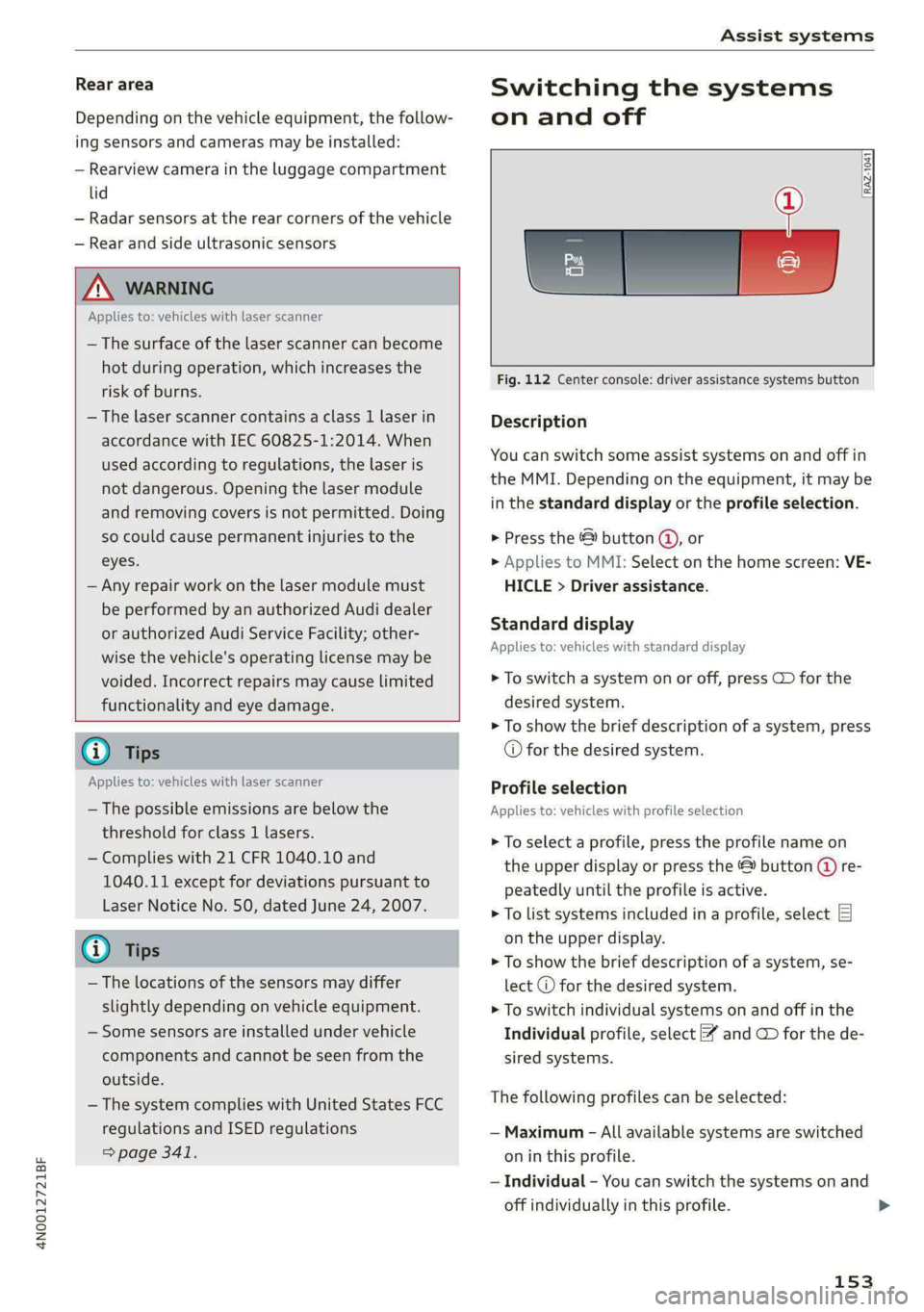
Fig. 112 Center console: driver assistance systems button
Description
You can switch some assist systems on and off in
the MMI. Depending on the equipment, it may be
in the standard display or the profile selection.
> Press the & button (, or
> Applies to MMI: Select on the home screen: VE-
HICLE > Driver assistance.
Standard display
Applies to: vehicles with standard display
> To switch a system on or off, press CD for the
desired system.
> To show the brief description of a system, press
© for the desired system.
Profile selection
Applies to: vehicles with profile selection
> To select a profile, press the profile name on
the upper display or press the & button (@ re-
peatedly until the profile is active.
> To list systems included in a profile, select E]
on the upper display.
> To show the brief description of a system, se-
lect @ for the desired system.
> To switch individual systems on and off in the
Individual profile, select ¥ and CD for the de-
sired systems.
The following profiles can be selected:
— Maximum - All available systems are switched
on in this profile.
— Individual - You can switch the systems on and
off individually in this profile.
153
Page 184 of 362

Driver assistance
the vehicle. This can help to prevent an un-
desired intervention from the Audi pre
sense system.
Messages
Applies to: vehicles with Audi pre sense
If Bis displayed when there is a malfunction,
the Audi pre sense functions may be unavailable
or may be limited.
A message that indicates the cause and possible
solution may appear with some displays. The
weather conditions may be too poor or a sensor
may be covered. Bring the vehicle to a full stop,
switch the ignition off, and clean the area in front
of the sensors > page 152.
If the message still appears after switching the
ignition on again, have an authorized repair facili-
ty correct the malfunction as soon as possible.
Side assist
Descriptio
Applies to: vehicles with side assist
al 3
S|
q |
Fig. 132 Driving situations and exterior mirror display
182
General information
Side assist monitors the blind spot and traffic in
the adjacent lanes behind the vehicle. Within sys-
tem limits, side assist can detect traffic that is
approaching from behind and provide a warning
when you are changing lanes and turning. The
system uses the data from the radar sensors at
the rear corners of the vehicle.
The side assist is active at walking speeds and
higher. If an object that is classified as critical is
approaching, the display in the exterior mirror @)
on the corresponding side of the vehicle will light
up.
Driving situations
The system can provide warnings about the fol-
lowing risks:
@ Approaching vehicles: a vehicle may be clas-
sified as critical in some cases, even if it is
farther away. The faster a vehicle ap-
proaches, the sooner the display will turn on.
@® Vehicles traveling in the same direction: the
display will turn on if vehicles traveling in the
same direction as your vehicle are classified
as critical. The side assist warns you of all de-
tected vehicles when they are in the “blind
spot” or before they reach that point.
@ Vehicles you are passing: the display only
turns on if you slowly pass a detected vehicle
(difference in speed between the two vehicles
is less than 9 mph (15 km/h)). There is no
display if you pass a vehicle more quickly.
Information stage
At the information level, the side assist informs
you of detected objects that are classified as criti-
cal. This is even possible when your vehicle is sta-
tionary and the turn signal is turned on, so that
the system can also assist you when turning.
From speeds of approximately 6 mph (10 km/h)
and higher, the system will warn you of detected
objects that are classified as critical, even if the
turn signal is not turned on.
The display remains dim in the information stage
so that you are not distracted while looking for-
ward.
Page 190 of 362

Parking and maneuvering
Parking and
maneuvering
Introduction
Depending on the vehicle equipment, various
parking aids will help you when parking and ma-
neuvering.
Parking aid
The parking aid plus assists you while parking
using audio and visual signals to warn you about
objects detected in front of, behind, and at the
sides* of the vehicle > page 188.
The rearview camera shows the area behind the
vehicle in the MMI display. The lines in the rear-
view camera image help you to park and maneu-
ver > page 191.
The peripheral cameras are an addition to the
rearview camera and help you to see various
areas around the vehicle while parking and ma-
neuvering > page 191.
The rear cross-traffic assist can warn you of ap-
proaching cross traffic when driving in reverse or
exiting a parking space > page 195.
The maneuver assist!)”) helps the driver to ma-
neuver > page 207.
Assisted parking
The following systems help you to locate suitable
parking spaces > page 196 and to park in them
and exit them. The driver must always monitor
the area around the vehicle and supervise the
parking process.
Park assist plus!)2) helps you when parking in
available parking spaces and exiting them. This
occurs either in the vehicle by pressing a drive
button > page 198 or, if equipped with Remote
park assist plus!)2), from outside the vehicle by
remote control using a mobile device
= page 202. The systems control steering, gear
selection, acceleration, and braking.
D_ System availability may be limited depending on the mar-
ket.
2) In preparation at the time of printing.
188
Remote park assist plus with garage func-
tion))2) enhances the remote controlled parking
by remote park assist to include parking in pri-
vate one-car and two-car garages > page 202.
Settings options
You can adjust parking aid functions individually.
The adjustment options depend on the vehicle
equipment.
— Automatic activation > page 189
— Front and rear volume > page 190
— Entertainment fader > page 190.
— Clean rearview camera > page 191
— View > page 193
— Rear cross-traffic assist > page 195
— Maneuver assist > page 208
x WARNING
Observe the safety precautions and note the
limits of the assist systems, sensors, and
cameras > page 150.
G) Tips
Audi recommends practicing parking in a traf-
fic-free location or parking lot to become fa-
miliar with the systems. Practice parking in
good light and weather conditions.
Parking aid plus
Activating and deactivating
Applies to: vehicles with parking aid plus
[RAZ-1042
?
Fig. 137 Center console: parking aid button
Page 191 of 362

4N0012721BF
Parking and maneuvering
General information
The parking aid assists when parking and maneu-
vering by providing warnings about obstacles. If
the ultrasonic sensors on the vehicle > page 151,
fig. 108 detect an obstacle, the system will pro-
vide audio and visual warnings.
Activating and deactivating
Requirement: the vehicle speed must be under
approximately 6 mph (10 km/h).
> Press the Pvt or { button @ in the center con-
sole. When activating, a brief tone will sound
and the LED in the button will turn on.
Automatic activation
> The system activates automatically when re-
verse gear is engaged while the engine is run-
ning. A brief tone will sound.
> If Automatic activation is switched on in the
MMI and if the vehicle approaches an obstacle
at speeds below approximately 6 mph (10
km/h), the parking aid will switch on automati-
cally. Audible signals will sound once the obsta-
cle is within the sensor detection area.
> Applies to: MMI: To switch Automatic activa-
tion on or off, select on the home screen: VEHI-
CLE > Parking aid > Automatic activation.
Automatic deactivation
The distance indicator for the parking aid plus
will deactivate automatically when driving for-
ward faster than 6 mph (10 km/h).
Z\ WARNING
Observe the safety precautions and note the
limits of the assist systems, sensors, and
cameras > page 150.
@) Note
Keep enough distance from the curb to avoid
damage to the rims.
@) Tips
— If the parking aid is deactivated, it can only
be reactivated automatically when one of
the following conditions is met:
— The vehicle speed exceeds 6 mph
(10 km/h)
— The ignition is switched off and back on
again
— The parking brake is set and then released
— The “P” gear is engaged and released
again
Applies to: vehicles with parking aid plus
Fig. 138 Upper display: distance indicator
If the sensors detect an obstacle, audible and vis-
ual signals will warn you.
Visual warnings
The visual warnings in the upper display help you
to detect the critical vehicle area and to estimate
the distance to an obstacle.
Red segments (2) show detected obstacles that
are in your vehicle's path. The red lines @) mark
the expected direction of travel based on the
steering angle. A white segment @) indicates a
detected obstacle that is outside of the vehicle's
path. The closer your vehicle comes to the obsta-
cle, the closer the segments will move to the ve-
hicle. The collision area has been reached when
the next to last segment is displayed. Obstacles
in the collision area, including those outside of
the vehicle's path, are shown in red. Do not con-
tinue driving farther.
Audio signals
The closer your vehicle gets to a detected obsta-
cle, the shorter the time between the audible sig-
nals. A continuous tone sounds when an obstacle
is less than approximately 1 foot (0.30 m) away
from the front or rear of the vehicle. A continu-
ous tone sounds when an obstacle is less than
approximately 0.7 feet (0.20 m) away from the
189
>
Page 194 of 362

Parking and maneuvering
Applies to: vehicles with rearview camera/peripheral cameras
Fig. 141 Upper display: aiming at a parking space
When parking with the rearview camera or pe-
ripheral camera, the parking system plus audio
and visual warnings* will also assist you
=> page 189.
Visual orientation lines
@ The orange orientation lines show the vehi-
cle's direction of travel >@. Turn the steer-
ing wheel until the orange orientation lines
align with the parking space.
@) Use the blue markings to help you estimate
the distance to an obstacle. Each marking
represents approximately 3 feet (1 meter).
The blue area represents an extension of the
vehicle's outline by approximately 16 feet (5
meters) to the rear.
@® You can recognize the rear bumper in the
lower display.
@ You should stop driving in reverse when the
red orientation line touches the edge of an
object, at the latest.
Symbols
If 2/&9/< is displayed and the display area
represented by that symbol is not available, then
the camera on the that side is not available. The
power exterior mirrors may have been folded in
or a door or the luggage compartment lid may
have been opened.
If # is displayed, there is a system malfunction
and the display area represented by that symbol
is not available. The camera is not working in this
area.
192
If Avis displayed, the respective ultrasonic sensor
is icy or dirty. Clean the area in front of the sen-
sors > page 152.
If one of the symbols continues to be displayed,
drive immediately to an authorized Audi dealer or
authorized Audi Service Facility to have the mal-
function repaired.
ZA WARNING
— Observe the safety precautions and note the
limits of the assist systems, sensors, and
cameras > page 150.
— Sensors and cameras have spots in which
the surrounding area cannot be detected.
Objects, animals, and people may only be
detected with limitations may not be detect-
ed at all. Always monitor the traffic and the
vehicle's surroundings directly and do not
become distracted.
() Note
— The orange orientation lines @ show the di-
rection the rear of the vehicle will be travel-
ing, based on the steering wheel angle. The
front of the vehicle swings out more than
the rear of the vehicle. Maintain plenty of
distance so that an exterior mirror or a cor-
ner of the vehicle does not collide with any
obstacles.
— Keep enough distance from the curb to
avoid damage to the rims.
— Only use the images provided by the camera
on the rear of the vehicle when the luggage
compartment lid is completely closed. Make
sure any objects you may have mounted on
the luggage compartment lid do not block
the rearview camera.
G) Tips
Applies to vehicles with air suspension: The
accuracy of the orientation lines and blue sur-
faces on the camera display decreases when
the vehicle is raised or lowered with the air
suspension.
Page 211 of 362
4N0012721BF
Telephone
Telephone
Introduction
Applies to: vehicles with telephone
You can operate various telephone functions easi-
ly through the MMI in your vehicle.
Depending on the country and the vehicle equip-
ment, the following options may be available:
— Connecting a cell phone with Bluetooth
— Using two telephones
— Using the Audi phone box
— Using the Rear Seat Remote
Z\ WARNING
— Medical experts warn that mobile devices
can interfere with the function of pacemak-
ers. Always maintain a minimum distance of
about 7.9 inches (20 cm) between the mo-
bile device antennas and the pacemaker.
— Do not carry the mobile device in a pocket
directly over the pacemaker when the
phone is switched on.
— Switch the mobile device off immediately
if you suspect it may be interfering with
the pacemaker.
— Do not use the voice recognition system*
= page 34 in emergencies because your
voice may change in stressful situations. The
system may take longer to dial the number
or may not be able to dial it at all. Dial the
emergency number manually.
— Switch your mobile device off in areas where
there is a risk of an explosion. These loca-
tions are not always clearly marked. This
may include gas stations, fuel and chemical
storage facilities or transport vehicles, or lo-
cations where fuel vapors (such as propane
or gasoline vapor in vehicles or buildings),
chemicals or large quantities of dust parti-
cles (such as flour, sawdust or metal) may
be present in the air. This also applies to all
other locations where you would normally
turn your vehicle engine off.
— The demands of traffic require your full at-
tention. Always read the chapter > page 20,
Traffic safety information.
— Observe the safety precautions > page 26,
Rear Seat Remote.
() Note
Read the information about Audi connect, and
be sure to note the connectivity costs section
=> page 222.
G Tips
— The Bluetooth connection range is limited
to inside the vehicle.
—Aselection of supported Bluetooth devices
can be found in the database for tested mo-
bile devices at www.audi.com/bluetooth.
Setup
Connecting a mobile phone via Bluetooth
Applies to: vehicles with telephone
Requirement: the vehicle must be stationary and
the ignition must be switched on. The Bluetooth
settings must be open on your mobile device dur-
ing the connection setup. The mobile device to be
connected must not be actively connected to any
other Bluetooth device. The MMI must only be
connected to one mobile device.
> Enable the Bluetooth function and visibility on
the MMI = page 264 and the mobile phone.
> Applies to: MMI: Select on the home screen:
PHONE.
> Applies to: Rear Seat Remote: Select on the
home screen: SETTINGS > Connect > ©.
> Follow the system instructions. The available
Bluetooth devices will be displayed after sever-
al seconds.
> Press on the desired mobile device in the list of
displayed Bluetooth devices.
> To update the list, press OQ.
A PIN for a secure Bluetooth connection will be
generated.
> Confirm the PIN on your mobile device.
> Follow the system instructions.
> Follow any additional system prompts in the
MMI or on the Rear Seat Remote* and on your
mobile phone. >
209
Page 212 of 362
Telephone
After connecting successfully
The cell phone contacts are automatically loaded
in the MMI. This process can take several mi-
nutes, depending on the number of contacts.
Applies to: vehicles with Rear Seat Remote: To
have contacts and call details displayed only on
the Rear Seat Remote display, activate privacy
mode > page 214/> page 218.
Depending on your cell phone and the connection
type, you can use the following functions in the
MMI:
Handsfree
Requirement: your cell phone must be connected
to the MMI via a Bluetooth Hands Free Profile
(Bluetooth HFP).
You can use the hands-free system. You can make
calls using the antenna on your mobile device.
Sending and receiving messages
See 9 page 219.
G) Tips
— Pay attention to any system prompts dis-
played on your mobile device or the MMI,
for example if the system should connect
automatically in the future. Depending on
the mobile device, you may need to down-
load contacts and confirm access to your
messages separately.
— You can also search for the MMI on your mo-
bile device using the Bluetooth device
search.
— You only have to pair your device one time.
Bluetooth devices that are already paired
automatically connect to the MMI when the
Bluetooth function is switched on, when
they are within range, and when the ignition
is switched on. The last connected mobile
device is given first priority.
— You can manage additional settings for con-
nected mobile devices in the Connected de-
vices menu > page 265.
— When leaving the vehicle, the Bluetooth
connection to the mobile device will auto-
matically disconnect. Depending on your
210
mobile device, phone calls in progress may
be automatically redirected from the MMI
to your mobile device so that you can con-
tinue the call on your phone.
eit aco 1c del
Applies to: vehicles with telephone, and Audi phone box
You can connect two mobile phones to the MMI
at the same time using the Bluetooth HFP, for ex-
ample a business phone and a private phone. You
can be reached in your vehicle through both mo-
bile phones.
Applies to: mobile devices with Bluetooth Mes-
sage Access Profile (MAP): You can send and re-
ceive messages with both mobile devices
=> page 219.
Connecting another mobile device
Requirement: a mobile device must be connected
to the MMI. and displayed in the Rear Seat Re-
mote* if available. The vehicle must be stationary
and the ignition must be switched on. The Blue-
tooth settings must be open on your mobile de-
vice during the connection setup. The mobile de-
vice to be connected must not be actively con-
nected to any other Bluetooth device.
> Enable the Bluetooth function and visibility on
the MMI = page 264 and the mobile phone.
> Applies to: MMI: Select on the home screen:
PHONE > C°, or
> Applies to: MMI: Select on the home screen:
SETTINGS > Connected devices > Telephone 1
or Telephone 2 > New connection.
> Applies to: Rear Seat Remote: Select on the
home screen: SETTINGS > [ > Connect.
> Follow the system instructions. The available
Bluetooth devices will be displayed after sever-
al seconds.
> Press on the desired mobile device in the list of
displayed Bluetooth devices.
> To update the list, press O.
A PIN for a secure Bluetooth connection will be
generated.
> Confirm the PIN on your mobile device.
> Follow the system instructions.