center console AUDI E-TRON 2019 User Guide
[x] Cancel search | Manufacturer: AUDI, Model Year: 2019, Model line: E-TRON, Model: AUDI E-TRON 2019Pages: 310, PDF Size: 81.91 MB
Page 162 of 310
Parking and maneuvering
Parking and
maneuvering
Introduction
Depending on the vehicle equipment, various
parking aids will help you when parking and ma-
neuvering.
The parking system plus assists you while park-
ing using audio and visual signals to warn you
about objects detected in front of, behind, and at
the sides* of the vehicle > page 160.
The rearview camera shows the area behind the
vehicle in the MMI display. The lines in the rear-
view camera image help you to park and maneu-
ver > page 162.
The peripheral cameras are an addition to the
rearview camera and help you to see various
areas around the vehicle while parking and ma-
neuvering > page 162.
The rear cross-traffic assist can warn you of ap-
proaching cross traffic when driving in reverse or
exiting a parking space > page 166.
Z\ WARNING
Follow the safety precautions and note the
limits of the assist systems, sensors, and
cameras > page 123.
@® Tips
Practicing parking in a traffic-free location or
parking lot to become familiar with the sys-
tems is recommended. Practice parking in
good light and weather conditions.
160
Parking system plus
Scale Rie Rela
Applies to: vehicles with parking system plus
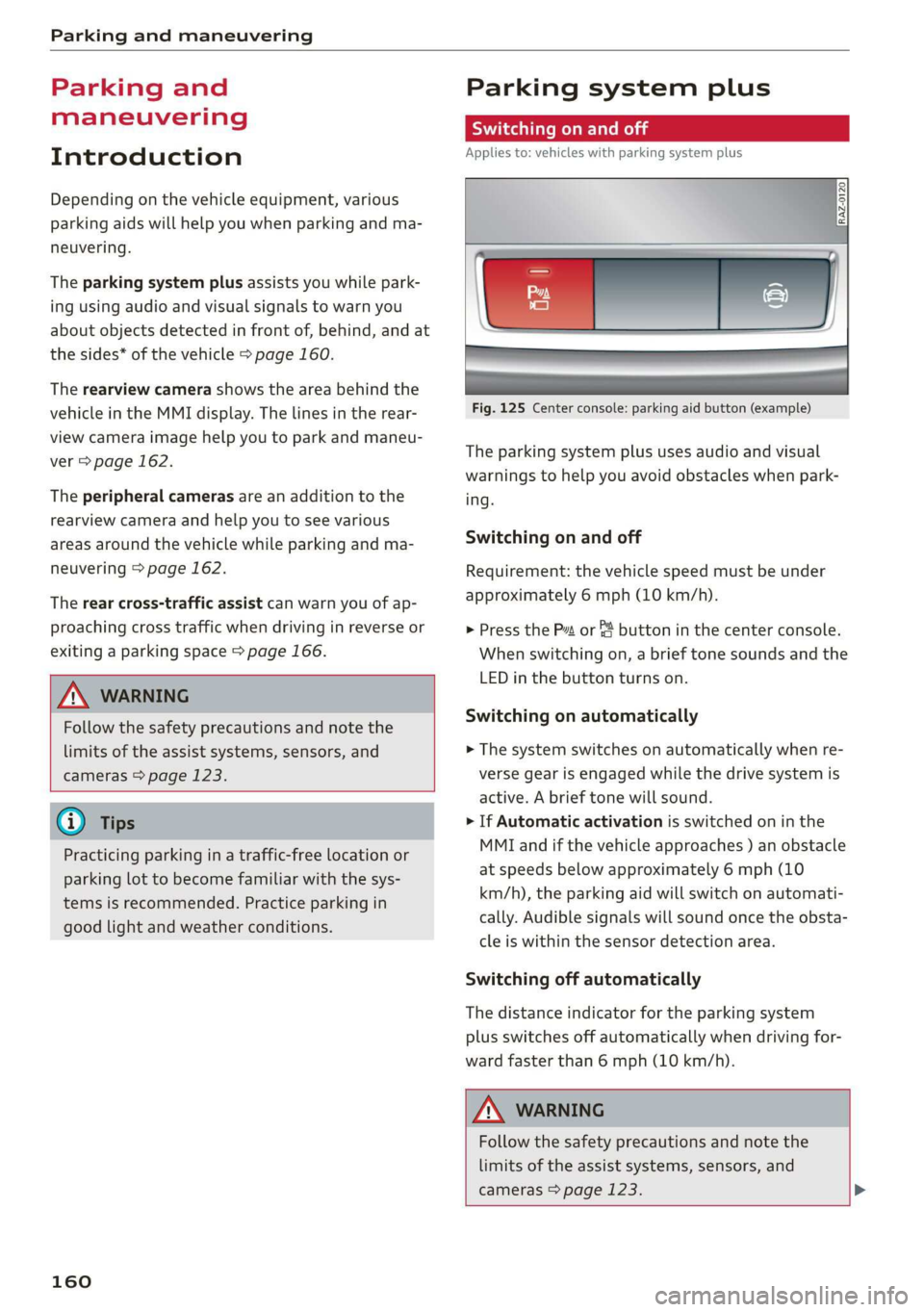
Fig. 125 Center console: parking aid button (example)
The parking system plus uses audio and visual
warnings to help you avoid obstacles when park-
ing.
Switching on and off
Requirement: the vehicle speed must be under
approximately 6 mph (10 km/h).
> Press the Pt or % button in the center console.
When switching on, a brief tone sounds and the
LED in the button turns on.
Switching on automatically
> The system switches on automatically when re-
verse gear is engaged while the drive system is
active. A brief tone will sound.
> If Automatic activation is switched on in the
MMI and if the vehicle approaches ) an obstacle
at speeds below approximately 6 mph (10
km/h), the parking aid will switch on automati-
cally. Audible signals will sound once the obsta-
cle is within the sensor detection area.
Switching off automatically
The distance indicator for the parking system
plus switches off automatically when driving for-
ward faster than 6 mph (10 km/h).
Z\ WARNING
Follow the safety precautions and note the
limits of the assist systems, sensors, and
cameras > page 123. >
Page 164 of 310
Parking and maneuvering
detected with limitations may not be detect-
ed at all. Always monitor the traffic and the
vehicle's surroundings directly and do not
become distracted.
® Note
Keep enough distance from the curb to avoid
damage to the rims.
G) Tips
—The side area * > page 124, fig. 96 is de-
tected and evaluated when passing. There
may have been changes to the surrounding
area after switching the ignition off and on
again, after opening the doors, or if the ve-
hicle is left stationary for a period of time.
In this case, the area will appear black until
the area has been detected and evaluated.
— If the distance to an obstacle remains con-
stant, the volume of the distance warning
gradually lowers after a few seconds until it
is muted (this does not apply to the continu-
ous tone). If the obstacle comes closer than
it was before the sound was muted, the
tone will sound again. If the obstacle be-
comes farther away than it was before the
sound was muted, no tone will sound. Pay
attention to the vehicle's surroundings
when you start to drive.
— There is no distance warning for the rear
and the sides* when trailer towing mode is
detected. The front sensors remain activat-
ed. The visual display switches to trailer
mode. There is no guarantee the functions
will switch off when using a retrofitted trail-
er hitch.
162
Rearview camera and
peripheral cameras
Introduction
Applies to: vehicles with rearview camera/peripheral cameras
B8V-0629
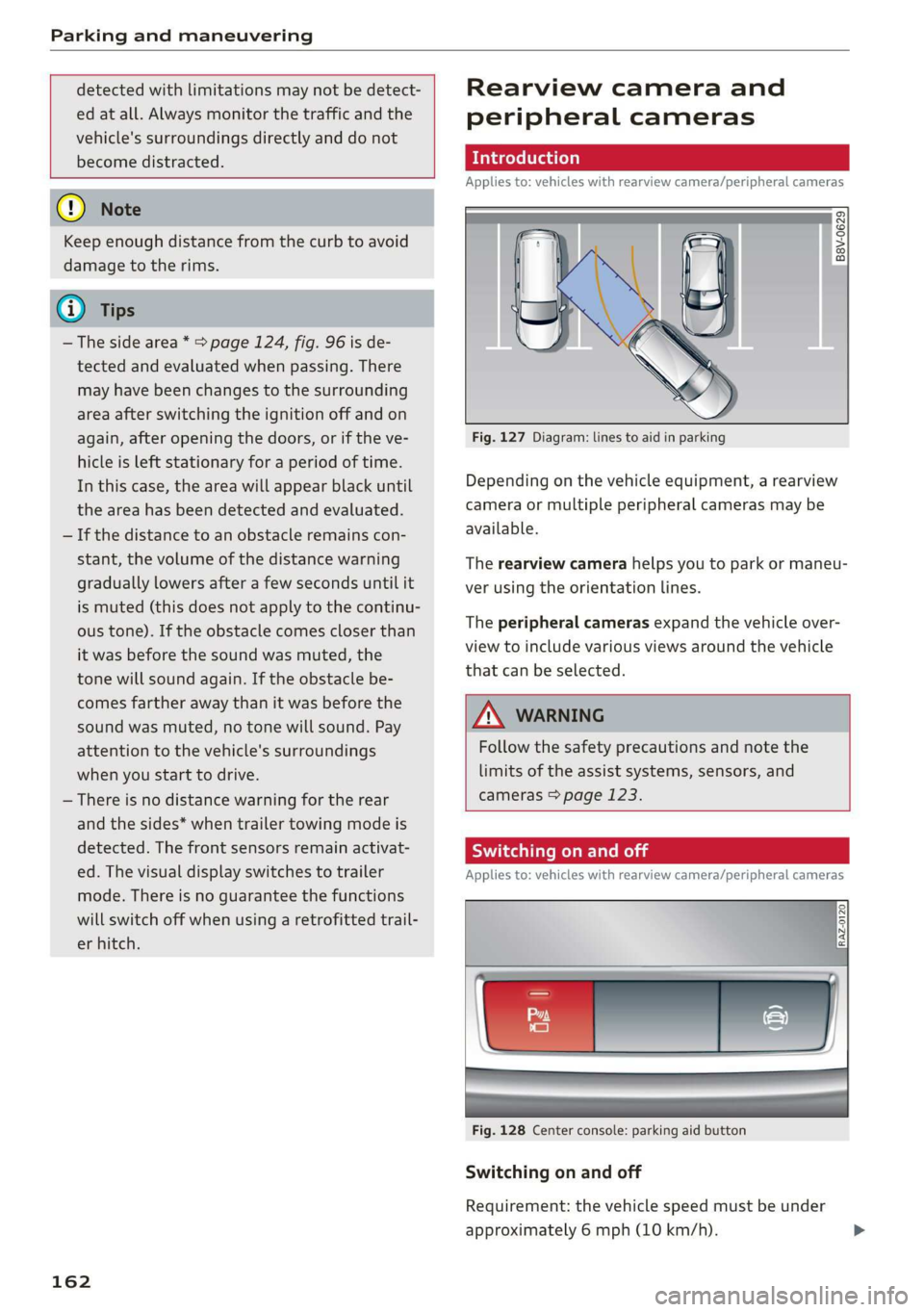
Fig. 127 Diagram: lines to aid in parking
Depending on the vehicle equipment, a rearview
camera or multiple peripheral cameras may be
available.
The rearview camera helps you to park or maneu-
ver using the orientation lines.
The peripheral cameras expand the vehicle over-
view to include various views around the vehicle
that can be selected.
Z\ WARNING
Follow the safety precautions and note the
limits of the assist systems, sensors, and
cameras > page 123.
Sica Re meal
Applies to: vehicles with rearview camera/peripheral cameras
Fig. 128 Center console: parking aid button
Switching on and off
Requirement: the vehicle speed must be under
approximately 6 mph (10 km/h).
Page 165 of 310
4KE012721BB
Parking and maneuvering
> Press the & button in the center console. When
switching on, a brief tone sounds and the LED
in the button turns on. Or
> Select 1 on the upper display if the visual dis-
tance indicator is shown > page 161, fig. 126.
Switching on automatically
The system switches on automatically when re-
verse gear is engaged while the drive system is
active. A brief tone will sound.
Switching off automatically
The system switches off automatically when driv-
ing forward faster than 6 mph (10 km/h).
ZA WARNING
Follow the safety precautions and note the
limits of the assist systems, sensors, and
cameras > page 123.
Warnings
Applies to: vehicles with rearview camera/peripheral cameras
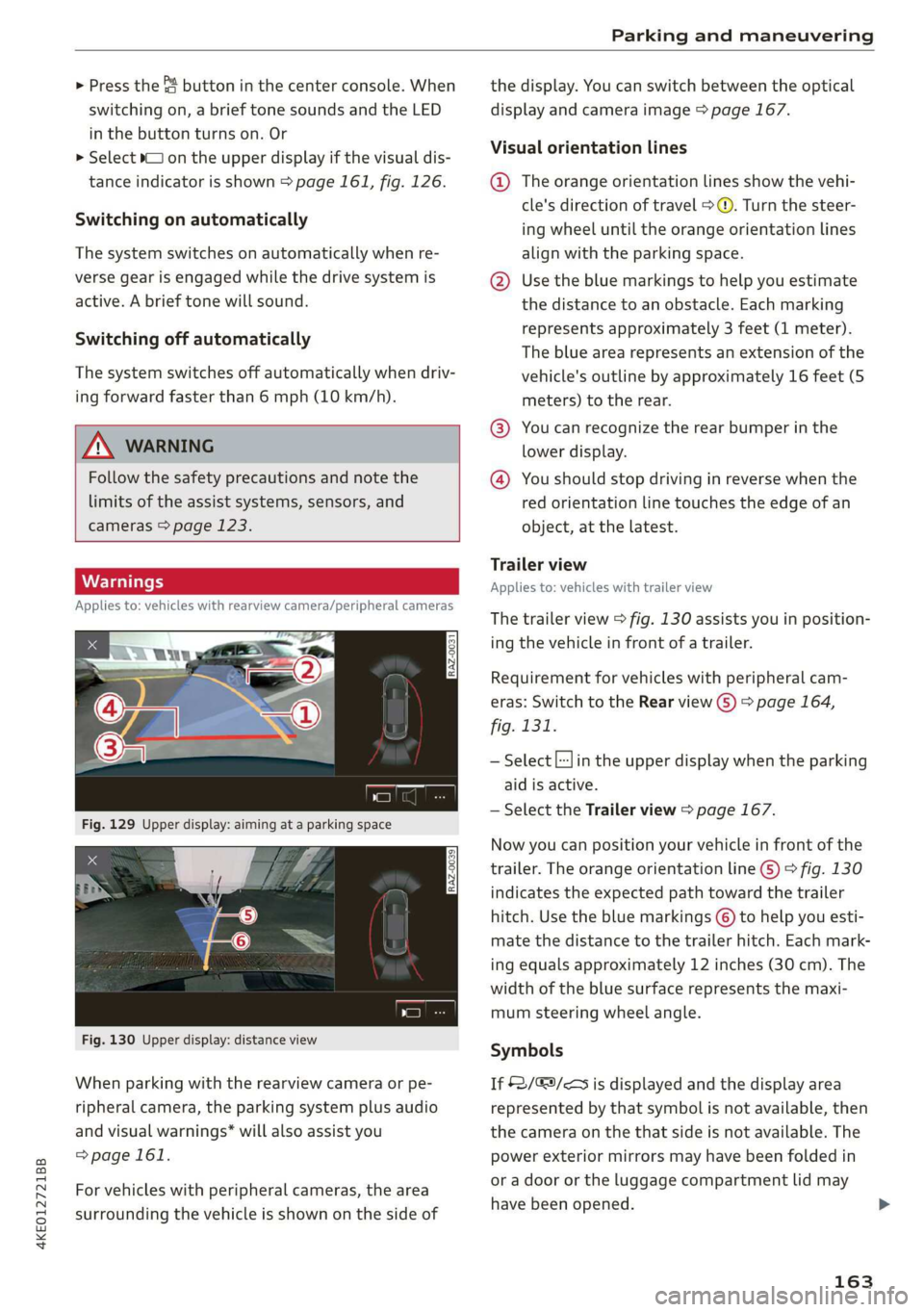
Fig. 130 Upper display: distance view
When parking with the rearview camera or pe-
ripheral camera, the parking system plus audio
and visual warnings* will also assist you
=>page 161.
For vehicles with peripheral cameras, the area
surrounding the vehicle is shown on the side of
the display. You can switch between the optical
display and camera image > page 167.
Visual orientation lines
@ The orange orientation lines show the vehi-
cle's direction of travel > ©. Turn the steer-
ing wheel until the orange orientation lines
align with the parking space.
@ Use the blue markings to help you estimate
the distance to an obstacle. Each marking
represents approximately 3 feet (1 meter).
The blue area represents an extension of the
vehicle's
outline by approximately 16 feet (5
meters) to the rear.
@® You can recognize the rear bumper in the
lower display.
@ You should stop driving in reverse when the
red orientation line touches the edge of an
object, at the latest.
Trailer view
Applies to: vehicles with trailer view
The
trailer view > fig. 130 assists you in position-
ing the vehicle in front of a trailer.
Requirement for vehicles with peripheral cam-
eras: Switch to the Rear view G) > page 164,
fig. 131.
— Select |:-}in the upper display when the parking
aid is active.
— Select the Trailer view > page 167.
Now you can position your vehicle in front of the
trailer. The orange orientation line ©) > fig. 130
indicates the expected path toward the trailer
hitch. Use the blue markings © to help you esti-
mate the distance to the trailer hitch. Each mark-
ing equals approximately 12 inches (30 cm). The
width of the blue surface represents the maxi-
mum steering wheel angle.
Symbols
If $2/&9/< is displayed and the display area
represented by that symbol is not available, then
the camera on the that side is not available. The
power exterior mirrors may have been folded in
or a door or the luggage compartment lid may
have been opened.
163
Page 173 of 310
4KE012721BB
Telephone
times!) in a row, the SIM card will be locked
and must be unlocked by entering the PUK.
— When leaving the vehicle, the Bluetooth
connection to the mobile device will auto-
matically disconnect. Depending on your
mobile device, phone calls in progress may
be automatically redirected from the MMI
to your mobile device so that you can con-
tinue the call on your phone.
— You can obtain more information from your
mobile device service provider or from your
mobile device user guide. For information
on using the telephone, visit www.audiusa.
com/bluetooth or contact an authorized Au-
di dealer or authorized Audi Service Facility.
Operating two mobile devices through the
EE
Applies to: vehicles with telephone, and Audi phone box
You can connect two mobile devices to the MMI,
for example your business and your personal mo-
bile device. You can use both mobile devices to
make calls in the vehicle.
Connecting another mobile device
Requirement: a mobile device must be connected
to the MMI.
> Applies to: MMI: Select on the home screen:
PHONE > [?. Follow the system instructions, or
> Applies to: MMI: Select on the home screen:
SETTINGS > Connected devices > Telephone 1
or Telephone 2 > New connection.
See = page 170, Connecting a mobile device to
the MMI.
Switching between two mobile devices
Requirement: phone 1 and phone 2 must be con-
nected to the MMI.
> Applies to: MMI: Select on the home screen:
PHONE > ¢] > Switch telephones: the device
name of your active mobile device will be dis-
played.
2) The number of attempts depends on the SIM card.
iG) Tips
— The device name of the active mobile device
(such as myPhone) will be displayed in the
PHONE menu.
—If telephone 1 does not connect automati-
cally to the MMI when the ignition is switch-
ed on, you can use a previously-connected
telephone 2 in the PHONE menu via 1.
— You can send and receive messages on
phone 1 and on phone 2 > page 178.
— On mobile devices with multi-SIM function-
ality, the MMI only accesses one SIM card.
You can switch between SIM cards using the
mobile device.
Disconnecting a mobile
device
The mobile device will be disconnected from the
MMI and removed from the list of paired devices.
> To disconnect a connected device, use the con-
nection manager > page 233.
Using the Audi phone
box
Applies to: vehicles with Audi phone box
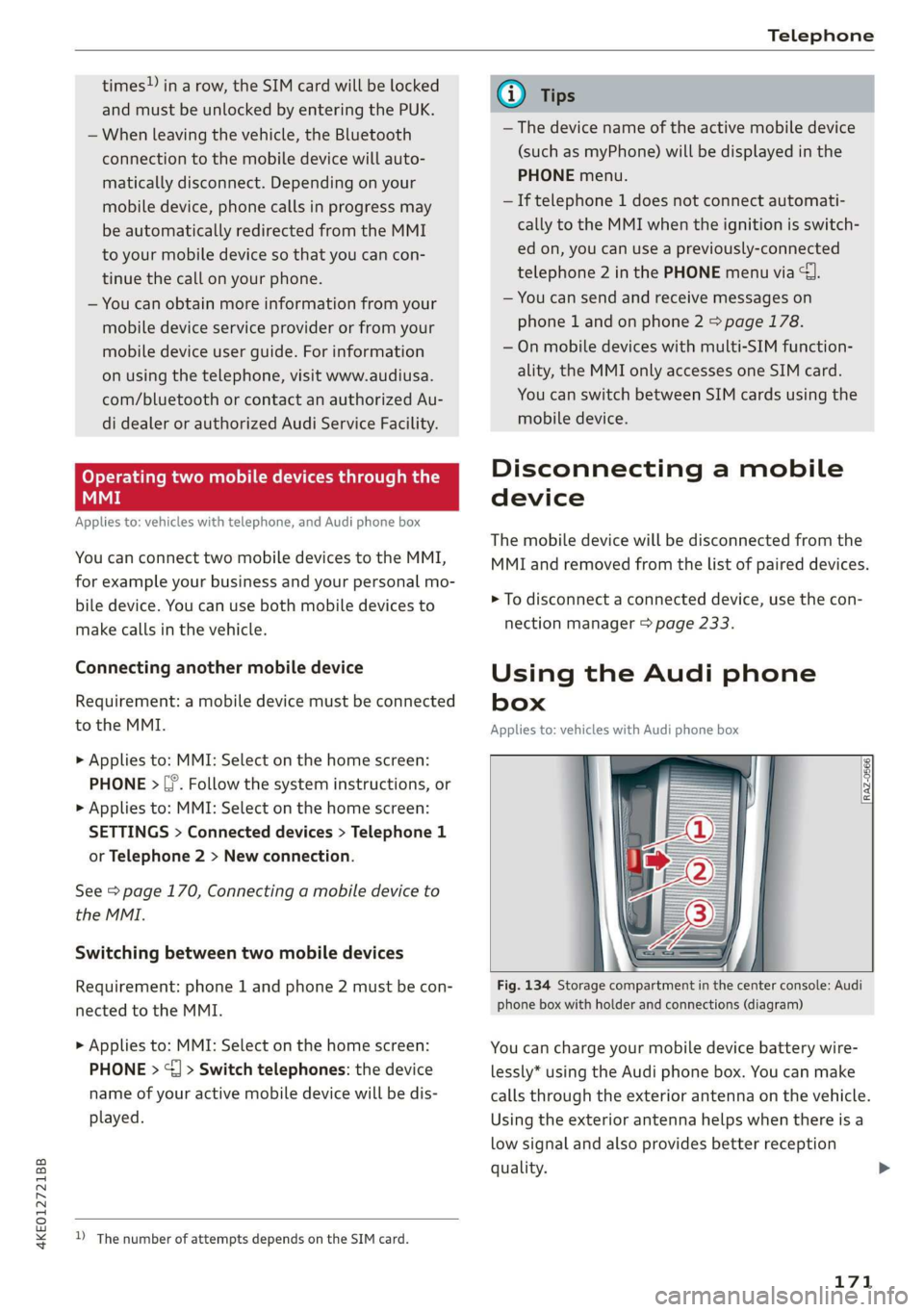
Fig. 134 Storage compartment in the center console: Audi
phone box with holder and connections (diagram)
You can charge your mobile device battery wire-
lessly* using the Audi phone box. You can make
calls through the exterior antenna on the vehicle.
Using the exterior antenna helps when there is a
low signal and also provides better reception
quality.
171